

1. Wprowadzenie
A2UI umożliwia agentom AI generowanie bogatych, interaktywnych interfejsów użytkownika, które są renderowane natywnie w internecie, na urządzeniach mobilnych i komputerach bez wykonywania dowolnego kodu. Zamiast odpowiedzi tekstowych lub ryzykownego wykonywania kodu A2UI umożliwia agentom wysyłanie deklaratywnych opisów komponentów, które klienci renderują za pomocą własnych widżetów natywnych. To tak, jakby agenci posługiwali się uniwersalnym językiem interfejsu.
W tym praktycznym module najpierw utworzysz agenta do generowania obrazów za pomocą pakietu Agent Development Kit (ADK) i Gemini 3.1 Flash Image (czyli Nano Banana 2). Następnie użyjesz A2UI do utworzenia niestandardowego interfejsu, który wykracza poza typowego czatbota, pokazując, jak dynamicznie generować interfejsy, aby umożliwić bogatsze interakcje między agentem a użytkownikiem.
Czego się nauczysz
- Tworzenie agenta za pomocą pakietu ADK w Pythonie
- Konfigurowanie agenta do przesyłania strumieniowego komponentów A2UI do frontendu
- Tworzenie niestandardowego frontendu do renderowania elementów A2UI
Wymagania wstępne
- Podstawowa wiedza o agentach AI
- podstawowa znajomość składni Pythona,
- Podstawowa znajomość pojęć związanych z frontendem
2. Konfiguracja
Aby zainicjować projekt Google Cloud potrzebny do tego ćwiczenia, wykonaj podane niżej instrukcje. Po zainicjowaniu projektu zalecamy wykonanie tego ćwiczenia w Cloud Shell, ponieważ zawiera ono wszystkie narzędzia potrzebne do jego uruchomienia.
Jeśli wolisz wykonać to ćwiczenie w środowisku lokalnym, przed rozpoczęciem musisz zainstalować Pythona, uv i edytor kodu. Wszystkie instrukcje w tym samouczku zakładają, że uruchamiasz go w Cloud Shell, chyba że zaznaczono inaczej.
Samodzielne konfigurowanie środowiska
- Zaloguj się w konsoli Google Cloud i utwórz nowy projekt lub użyj istniejącego. Jeśli nie masz jeszcze konta Gmail lub Google Workspace, musisz je utworzyć.

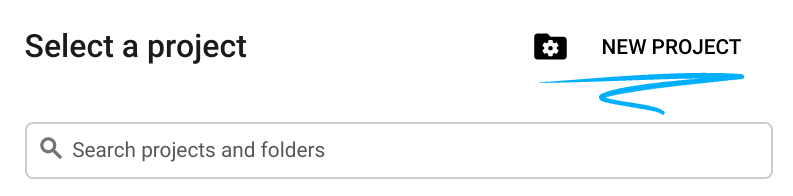
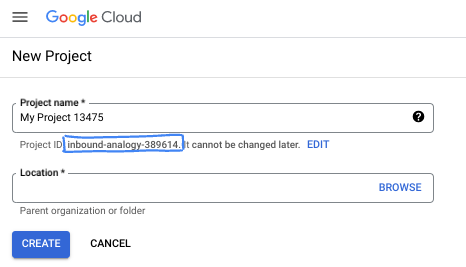
- Nazwa projektu to wyświetlana nazwa dla uczestników tego projektu. Jest to ciąg znaków, który nie jest używany przez interfejsy API Google. Zawsze możesz ją zaktualizować.
- Identyfikator projektu jest unikalny we wszystkich projektach Google Cloud i nie można go zmienić po ustawieniu. Konsola Cloud automatycznie generuje unikalny ciąg znaków. Zwykle nie musisz się nim przejmować. W większości ćwiczeń z programowania musisz odwoływać się do identyfikatora projektu (zwykle oznaczanego jako
PROJECT_ID). Jeśli wygenerowany identyfikator Ci się nie podoba, możesz wygenerować inny losowy identyfikator. Możesz też spróbować własnej nazwy i sprawdzić, czy jest dostępna. Po tym kroku nie można go zmienić i pozostaje on taki przez cały czas trwania projektu. - Warto wiedzieć, że istnieje jeszcze trzecia wartość, numer projektu, której używają niektóre interfejsy API. Więcej informacji o tych 3 wartościach znajdziesz w dokumentacji.
- Następnie musisz włączyć płatności w konsoli Cloud, aby korzystać z zasobów i interfejsów API Google Cloud. Wykonanie tego laboratorium nie będzie kosztować dużo, a może nawet nic. Aby wyłączyć zasoby i uniknąć naliczania opłat po zakończeniu tego samouczka, możesz usunąć utworzone zasoby lub projekt. Nowi użytkownicy Google Cloud mogą skorzystać z bezpłatnego okresu próbnego, w którym mają do dyspozycji środki w wysokości 300 USD.
Uruchamianie Cloud Shell
Z Google Cloud można korzystać zdalnie na laptopie, ale w tym ćwiczeniu użyjesz Google Cloud Shell, czyli środowiska wiersza poleceń działającego w chmurze.
W konsoli Google Cloud kliknij ikonę Cloud Shell na pasku narzędzi w prawym górnym rogu:
Uzyskanie dostępu do środowiska i połączenie się z nim powinno zająć tylko kilka chwil. Po zakończeniu powinno wyświetlić się coś takiego:

Ta maszyna wirtualna zawiera wszystkie potrzebne narzędzia dla programistów. Zawiera również stały katalog domowy o pojemności 5 GB i działa w Google Cloud, co znacznie zwiększa wydajność sieci i usprawnia proces uwierzytelniania. Wszystkie zadania w tym laboratorium możesz wykonać w przeglądarce. Nie musisz niczego instalować.
3. Tworzenie nowego agenta ADK
- Utwórz folder na potrzeby tych warsztatów o nazwie
a2ui_lab:
mkdir -p ~/a2ui_lab && cd ~/a2ui_lab
- Skonfiguruj w tym folderze menedżera pakietów uv i zainstaluj zależności:
uv init && uv add google-adk fastapi uvicorn a2ui-agent-sdk
- Włącz interfejs AI Platform API (aby wywoływać modele Gemini)
gcloud services enable aiplatform.googleapis.com
- Zainicjuj agenta pakietu ADK w tym folderze:
export GOOGLE_CLOUD_PROJECT=`gcloud config get project`
uv run adk create --model gemini-3.5-flash --project $GOOGLE_CLOUD_PROJECT --region global art_creator
Powinny pojawić się dane wyjściowe podobne do tych:
$ uv run adk create --model gemini-3.5-flash --project $GOOGLE_CLOUD_PROJECT --region global art_creator
Agent created in ~/a2ui_lab/art_creator:
- .env
- __init__.py
- agent.py
⚠️  WARNING: Secrets (like GOOGLE_API_KEY) are stored in .env.
Please ensure .env is added to your .gitignore to avoid committing secrets to version control.
Pamiętaj, że uv run to polecenie, które wykonuje polecenia w kontekście bieżącego repozytorium uv, które zostało utworzone po uruchomieniu polecenia uv init. Polecenie adk zostało zainstalowane w tym repozytorium, gdy dodaliśmy zależność pakietu google-adk.
W dokumentacji ADK często zobaczysz polecenia adk bez prefiksu uv run, ale podczas wykonywania poleceń w tych warsztatach zawsze dodawaj prefiks uv run do polecenia adk, aby uruchomić odpowiednie narzędzie wiersza poleceń.
Teraz, gdy podstawowa struktura agenta jest już utworzona, możemy zdefiniować agenta generującego obrazy w pliku agent.py.
- Otwórz edytor Cloud Shell za pomocą tego polecenia:
cloudshell workspace ~/a2ui_lab
- Zastąp zawartość pliku
art_creator/agent.pyponiższym kodem:
art_creator/agent.py
import os
import time
from google.adk.agents.llm_agent import Agent
from google.adk.tools.tool_context import ToolContext
from google.genai import types

# Load env variables
from dotenv import load_dotenv
load_dotenv(os.path.join(os.path.dirname(__file__), ".env"))

async def generate_image(prompt: str, tool_context: ToolContext) -> dict:
    """Generates a high-quality image based on the user's detailed description prompt.

    Args:
        prompt: A descriptive text prompt describing the image to generate.
        tool_context: Context for the tool execution.
    """
    from google.genai import Client
    client = Client(
        vertexai=True,
        project=os.environ.get("GOOGLE_CLOUD_PROJECT"),
        location=os.environ.get("GOOGLE_CLOUD_LOCATION", "global")
    )

    try:
        response = client.models.generate_content(
            model="gemini-3.1-flash-image",
            contents=prompt,
            config=types.GenerateContentConfig(
                response_modalities=['TEXT', 'IMAGE'],
            )
        )

        image_bytes = None
        for part in response.parts or []:
            if part.inline_data is not None:
                image_bytes = part.inline_data.data
                break

        if not image_bytes:
            return {"status": "failed", "detail": "No image data returned"}

        filename = f"image_{int(time.time())}.png"
        await tool_context.save_artifact(
            filename,
            types.Part.from_bytes(data=image_bytes, mime_type='image/png'),
        )

        return {
            "status": "success",
            "filename": filename,
            "url": f"/api/artifacts/{tool_context.session.id}/{filename}"
        }
    except Exception as e:
        return {"status": "failed", "detail": str(e)}

root_agent = Agent(
    name="art_agent",
    model="gemini-3.5-flash",
    description="A basic art generation agent.",
    instruction=(
        "You are an art assistant. When the user describes an image they want to generate, "
        "use the generate_image tool to create it, then return a text message containing the image's URL."
    ),
    tools=[generate_image],
)
- Możesz teraz przetestować agenta w interfejsie programistycznym ADK za pomocą polecenia
uv run adk web:
uv run adk web --port 8080 --allow_origins "*" --reload_agents
Następnie kliknij przycisk Podgląd w przeglądarce i wybierz Podejrzyj na porcie 8080. Spowoduje to otwarcie interfejsu programistycznego w przeglądarce.
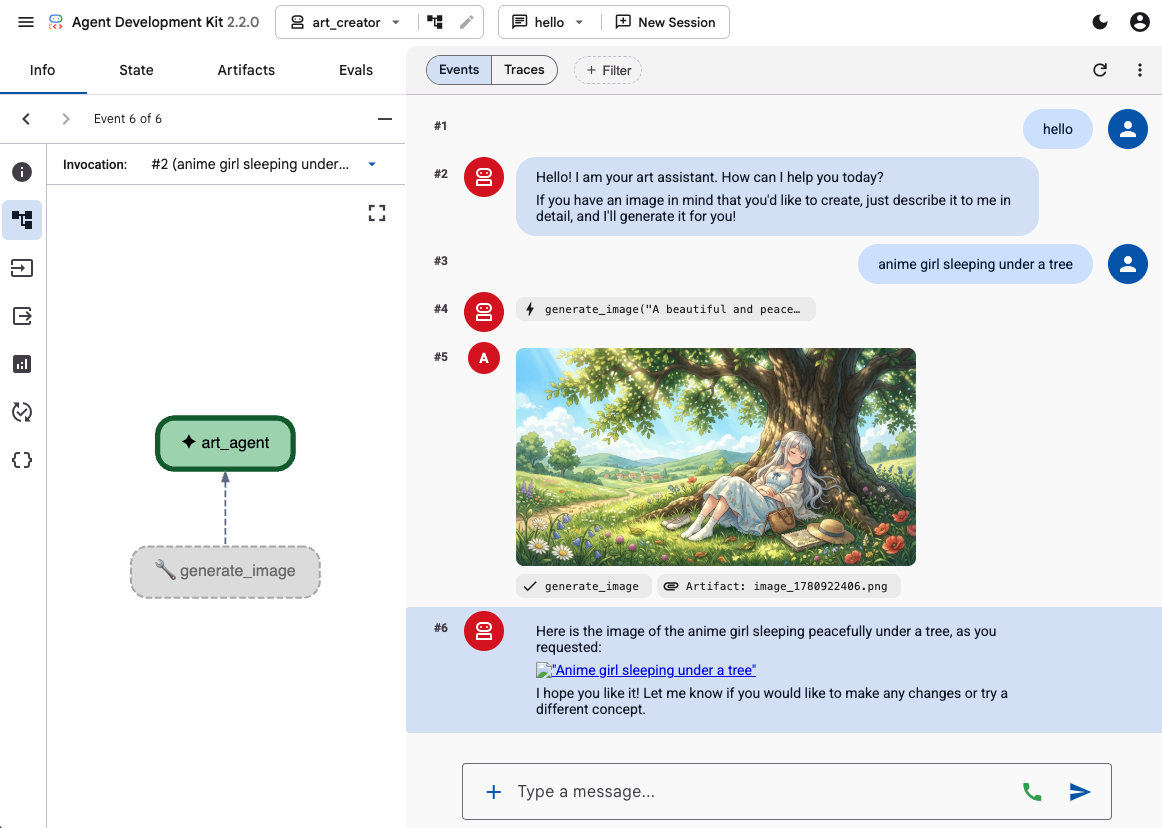
Użyj interfejsu programistycznego ADK, aby przetestować możliwości agenta, podając mu kilka promptów, np.:
- Dziewczyna z anime śpiąca pod drzewem. pastelowe kolory, 16:9
- Zdjęcie domku odbijającego się w jeziorze. Późne popołudnie. Nostalgiczne uczucie.
Powinna pojawić się odpowiedź agenta w formie tekstu i wygenerowanego obrazu.
4. Tworzenie prostego frontendu
Teraz utworzymy dedykowaną aplikację internetową dla naszego agenta. Do uruchomienia narzędzia ADK i udostępnienia prostego interfejsu czatu na jednej stronie użyjemy FastAPI.
Najpierw zatrzymaj serwer programistyczny ADK, wpisując Ctrl+C w terminalu. Następnie utwórz w katalogu głównym obszaru roboczego (~/a2ui_lab/main.py) plik o nazwie main.py z tą zawartością:
main.py
import os
import logging
from fastapi import FastAPI, HTTPException
from fastapi.staticfiles import StaticFiles
from pydantic import BaseModel
from google.adk.runners import InMemoryRunner
from google.adk.agents.run_config import RunConfig
from google.genai import types

from art_creator.agent import root_agent

logging.basicConfig(level=logging.INFO)
logger = logging.getLogger(__name__)

app = FastAPI(title="Art Agent - Simple Chat")

class ChatRequest(BaseModel):
    prompt: str
    session_id: str = "default_session"

static_dir = os.path.join(os.path.dirname(__file__), "static")
os.makedirs(static_dir, exist_ok=True)

runner = InMemoryRunner(agent=root_agent)
runner.auto_create_session = True

@app.get("/api/artifacts/{session_id}/{filename}")
async def get_artifact(session_id: str, filename: str):
    user_id = "default_user"
    part = await runner.artifact_service.load_artifact(
        app_name=runner.app_name,
        user_id=user_id,
        filename=filename,
        session_id=session_id
    )
    if not part:
        raise HTTPException(status_code=404, detail="Artifact not found")
    if part.inline_data:
        from fastapi.responses import Response
        return Response(content=part.inline_data.data, media_type=part.inline_data.mime_type)
    raise HTTPException(status_code=400, detail="Unsupported artifact format")

@app.post("/api/chat")
async def chat_endpoint(request: ChatRequest):
    if not request.prompt.strip():
        raise HTTPException(status_code=400, detail="Prompt cannot be empty")

    user_id = "default_user"
    content = types.Content(
        role="user",
        parts=[types.Part.from_text(text=request.prompt)]
    )

    full_response_text = ""
    try:
        async for event in runner.run_async(
            user_id=user_id,
            session_id=request.session_id,
            new_message=content,
            run_config=RunConfig(save_input_blobs_as_artifacts=True),
        ):
            if event.content and event.content.parts:
                if event.author != "user":
                    for part in event.content.parts:
                        if part.text:
                            full_response_text += part.text
                        elif part.inline_data:
                            try:
                                # Process raw binary/custom text parts (A2UI callback packages)
                                text_data = part.inline_data.data.decode("utf-8")
                                full_response_text += text_data
                            except Exception:
                                pass
    except Exception as e:
        logger.exception("Error running ADK agent:")
        raise HTTPException(status_code=500, detail=str(e))

    image_url = None
    try:
        artifact_keys = await runner.artifact_service.list_artifact_keys(
            app_name=runner.app_name,
            user_id=user_id,
            session_id=request.session_id
        )
        image_keys = [k for k in artifact_keys if k.startswith("image_") and k.endswith(".png")]
        if image_keys:
            sorted_keys = sorted(image_keys, reverse=True)
            image_url = f"/api/artifacts/{request.session_id}/{sorted_keys[0]}"
    except Exception:
        pass

    return {
        "text": full_response_text.strip(),
        "image_url": image_url
    }

app.mount("/static", StaticFiles(directory=static_dir), name="static")

@app.get("/")
async def read_index():
    from fastapi.responses import FileResponse
    return FileResponse(os.path.join(static_dir, "index.html"))
Następnie utwórz katalog static, w którym będą przechowywane pliki frontendu:
mkdir -p static
Teraz dodaj plik index.html (static/index.html):
static/index.html
<!DOCTYPE html>
<html lang="en">
<head>
    <meta charset="UTF-8">
    <meta name="viewport" content="width=device-width, initial-scale=1.0">
    <title>Art Agent - Simple Chat</title>
    <link rel="stylesheet" href="/static/style.css">
</head>
<body>
    <div class="container">
        <div id="chat-messages" class="messages">
            <div class="message system">
                <strong>System:</strong> Welcome to the Art Agent! Describe the image you want to generate.
            </div>
        </div>
        <form id="chat-form" class="input-form">
            <input type="text" id="user-input" placeholder="Type image description..." autocomplete="off" required>
            <button type="submit">Generate</button>
        </form>
    </div>
    <script src="/static/app.js"></script>
</body>
</html>
A styl CSS (static/style.css):
static/style.css
body {
    font-family: -apple-system, BlinkMacSystemFont, "Segoe UI", Roboto, Helvetica, Arial, sans-serif;
    background-color: #f7f9fa;
    margin: 0;
    padding: 20px;
    display: flex;
    justify-content: center;
}

.container {
    width: 100%;
    max-width: 600px;
    background: #ffffff;
    border: 1px solid #e1e8ed;
    border-radius: 8px;
    box-shadow: 0 2px 4px rgba(0,0,0,0.05);
    display: flex;
    flex-direction: column;
    height: 80vh;
}

.messages {
    flex: 1;
    overflow-y: auto;
    padding: 20px;
    display: flex;
    flex-direction: column;
    gap: 12px;
}

.message {
    padding: 10px 14px;
    border-radius: 6px;
    max-width: 85%;
    line-height: 1.4;
    word-wrap: break-word;
}

.message.user {
    background-color: #e8f5fe;
    align-self: flex-end;
}

.message.agent {
    background-color: #f1f3f4;
    align-self: flex-start;
}

.message.system {
    background-color: #fff;
    border: 1px solid #e1e8ed;
    color: #657786;
    align-self: center;
    font-size: 13px;
    text-align: center;
}

.input-form {
    display: flex;
    border-top: 1px solid #e1e8ed;
    padding: 12px;
}

.input-form input {
    flex: 1;
    border: 1px solid #ccc;
    border-radius: 4px;
    padding: 10px;
    font-size: 14px;
    outline: none;
}

.input-form button {
    background-color: #1da1f2;
    color: white;
    border: none;
    border-radius: 4px;
    padding: 10px 16px;
    margin-left: 8px;
    font-size: 14px;
    font-weight: bold;
    cursor: pointer;
}

.input-form button:hover {
    background-color: #1a91da;
}

.generated-img {
    max-width: 100%;
    border-radius: 4px;
    margin-top: 8px;
    display: block;
}

.image-card {
    border: 1px solid #ddd;
    border-radius: 6px;
    padding: 12px;
    background-color: #fff;
    margin-top: 8px;
}

.btn-download {
    background-color: #1da1f2;
    color: white;
    border: none;
    border-radius: 4px;
    padding: 8px 12px;
    font-size: 13px;
    font-weight: bold;
    cursor: pointer;
    margin-top: 8px;
    width: 100%;
}
Na koniec dodaj kontroler JavaScript (static/app.js):
static/app.js
document.addEventListener('DOMContentLoaded', () => {
    const chatForm = document.getElementById('chat-form');
    const userInput = document.getElementById('user-input');
    const chatMessages = document.getElementById('chat-messages');
    const sessionId = "session_" + Math.random().toString(36).substring(2, 9);

    chatForm.addEventListener('submit', async (e) => {
        e.preventDefault();
        const prompt = userInput.value.trim();
        if (!prompt) return;

        userInput.value = '';
        appendMessage('user', prompt);

        const tempBubble = appendMessage('agent', '...');

        try {
            const response = await fetch('/api/chat', {
                method: 'POST',
                headers: { 'Content-Type': 'application/json' },
                body: JSON.stringify({ prompt, session_id: sessionId })
            });
            const data = await response.json();
            tempBubble.remove();

            const textValue = (data && typeof data === 'object' && data.text) ? data.text : "";
            const imageUrl = (data && typeof data === 'object' && data.image_url) ? data.image_url : null;
            appendMessage('agent', textValue, imageUrl);
        } catch (error) {
            tempBubble.remove();
            appendMessage('agent', `Error: ${error.message}`);
        }
    });

    function appendMessage(sender, text, imageUrl = null) {
        const bubble = document.createElement('div');
        bubble.className = `message ${sender}`;

        const content = document.createElement('span');
        content.innerHTML = `<strong>${sender === 'user' ? 'You' : 'Agent'}:</strong> `;

        const textNode = document.createTextNode(text);
        content.appendChild(textNode);
        bubble.appendChild(content);

        // Always format multi-line JSON blocks nicely if the message is from the agent and looks like JSON
        if (sender === 'agent' && text && (text.startsWith('{') || text.startsWith('['))) {
            bubble.style.fontFamily = 'monospace';
            bubble.style.whiteSpace = 'pre-wrap';
            bubble.style.fontSize = '12px';
        }

        if (imageUrl) {
            const card = document.createElement('div');
            card.className = 'image-card';
            const img = document.createElement('img');
            img.src = imageUrl;
            img.className = 'generated-img';
            card.appendChild(img);

            const dlBtn = document.createElement('button');
            dlBtn.className = 'btn-download';
            dlBtn.textContent = 'Download PNG';
            dlBtn.onclick = () => {
                const link = document.createElement('a');
                link.href = imageUrl;
                link.download = `generation-${Date.now()}.png`;
                link.click();
            };
            card.appendChild(dlBtn);
            bubble.appendChild(card);
        }

        chatMessages.appendChild(bubble);
        chatMessages.scrollTop = chatMessages.scrollHeight;
        return bubble;
    }
});
Przetestuj aplikację internetową, uruchamiając serwer FastAPI:
uv run python -m uvicorn main:app --port 8080 --host 0.0.0.0
Aby uzyskać dostęp do dostosowanego czatu, użyj Podglądu w przeglądarce na porcie 8080. Możesz teraz porozmawiać bezpośrednio z pracownikiem obsługi klienta.
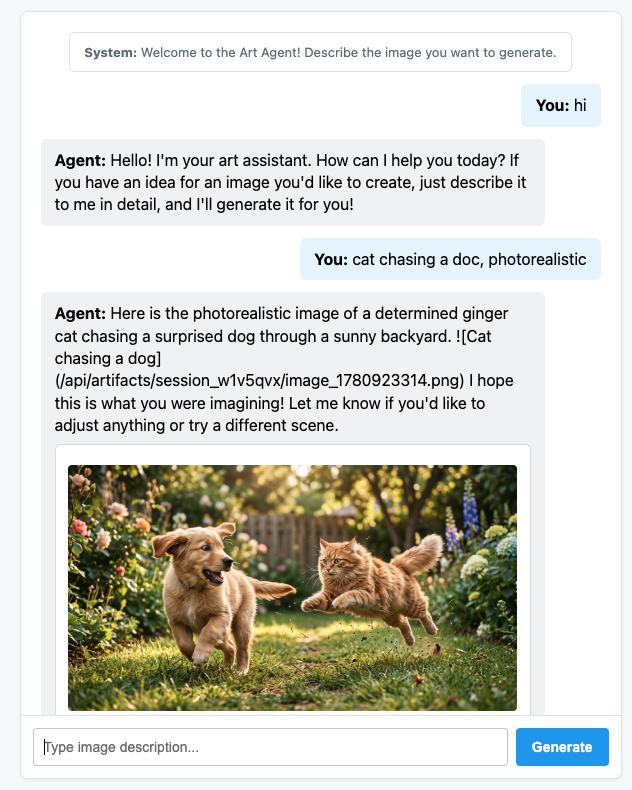
5. Konfigurowanie agenta do wysyłania wiadomości A2UI
Teraz zaktualizujmy agenta, aby zwracał strukturalny interfejs zamiast samego tekstu. Użyjemy oficjalnego symbolu a2ui-agent-sdk, aby utworzyć prompt systemowy dla agenta, który będzie uwzględniać A2UI.
Gdy używamy pakietu A2UI SDK, zamiast bezpośrednio definiować instrukcje dla agenta, korzystamy z klasy A2uiSchemaManager, która strukturyzuje prompt systemowy agenta, aby umożliwić mu zrozumienie możliwości generowania interfejsu A2UI, w tym dostęp do katalogu komponentów, pełnego schematu komponentów i przykładów użycia (jeśli są dostępne).
- Najpierw zatrzymaj serwer FastAPI, naciskając Ctrl+C.
- Zmodyfikuj
art_creator/agent.py, aby zintegrowaćA2uiSchemaManageri nasz nowy hooka2ui_callback:
art_creator/agent.py
import os
import time
from google.adk.agents.llm_agent import Agent
from google.adk.tools.tool_context import ToolContext
from google.genai import types
from a2ui.schema.manager import A2uiSchemaManager
from a2ui.basic_catalog.provider import BasicCatalog

# Load env variables
from dotenv import load_dotenv
load_dotenv(os.path.join(os.path.dirname(__file__), ".env"))


async def generate_image(prompt: str, tool_context: ToolContext) -> dict:
    """Generates a high-quality image based on the user's detailed description prompt."""
    from google.genai import Client
    client = Client(
        vertexai=True,
        project=os.environ.get("GOOGLE_CLOUD_PROJECT"),
        location=os.environ.get("GOOGLE_CLOUD_LOCATION", "global")
    )

    try:
        response = client.models.generate_content(
            model="gemini-3.1-flash-image",
            contents=prompt,
            config=types.GenerateContentConfig(
                response_modalities=['TEXT', 'IMAGE'],
            )
        )

        image_bytes = None
        for part in response.parts or []:
            if part.inline_data is not None:
                image_bytes = part.inline_data.data
                break

        if not image_bytes:
            return {"status": "failed", "detail": "No image data returned"}

        filename = f"image_{int(time.time())}.png"
        await tool_context.save_artifact(
            filename,
            types.Part.from_bytes(data=image_bytes, mime_type='image/png'),
        )

        return {
            "status": "success",
            "filename": filename,
            "url": f"/api/artifacts/{tool_context.session.id}/{filename}"
        }
    except Exception as e:
        return {"status": "failed", "detail": str(e)}

schema_manager = A2uiSchemaManager(
    version="0.8",
    catalogs=[BasicCatalog.get_config("0.8")],
)

instruction = schema_manager.generate_system_prompt(
    role_description=(
        "You are a specialized Image Creator agent. "
        "When given an image description, analyze the prompt and ask the user for any missing details. "
        "The image generation prompt should include: "
        "Subject, environment, style, lighting, color and mood. "
    ),
    workflow_description=(
        "1. if the user greets you, greet the user back explaining your purpose. "
        "2. if the user describes an image, DO NOT GENERATE IT IMMEDIATELY: compare with "
        "   the ideal generation prompt and ask the user for any missing details using "
        "   rich A2UI UI elements only. NOTE: only run this step once per image, if the user "
        "   decides to not detail one or more elements it is ok. "
        "3. combine the original prompt with the responses in the UI elements and call `generate_image` "
        "   with the generated prompt. "
        "   DO NOT INCLUDE EXAMPLES IN THE GENERATED PROMPT, ONLY THE ELEMENTS THE USER ASKED FOR. "
        "4. display the resulting image to the user in a card including the image, the prompt and a "
        "   download button"
    ),
    ui_description=(
        "Use Card, Text, Image, Multichoice and Button components to present the options. "
        "Always include a single choice selection box for image resolution (1K, 2K or 4K) and one for "
        "aspect ratio (1:1, 16:9 or 9:16). "
        "When rendering the final output (generated image) always render the generated image using an "
        "Image component with the url bound to the image's URL/path returned by the tool. "
        "Add a Text component with the prompt that generated the image. "
        "Include a Button component labeled 'Download PNG' to allow downloading the image. "
        "Do NOT use markdown formatting in text values. Use the usageHint property for heading levels instead. "
        "Respond ONLY with the A2UI JSON array. Do NOT include any text "
        "outside the JSON. Put all explanations into Text components."
    ),
    include_schema=True,
)

root_agent = Agent(
    model="gemini-3.5-flash",
    name="art_agent_a2ui",
    instruction=instruction,
    tools=[generate_image],
)
Zwróć uwagę, że instrukcje dla agenta są teraz generowane przez wywołanie schema_manager.generate_system_prompt, a nie zakodowane na stałe w definicji agenta.
Przetestuj aplikację internetową, uruchamiając serwer FastAPI:
uv run python -m uvicorn main:app --port 8080 --host 0.0.0.0
Aby uzyskać dostęp do dostosowanego czatu, użyj Podglądu w przeglądarce na porcie 8080. Zauważysz, że agent wysyła teraz wiadomości JSON zamiast zwykłego tekstu. Jest to wewnętrzna reprezentacja elementów A2UI, które będziemy renderować w następnej sekcji.
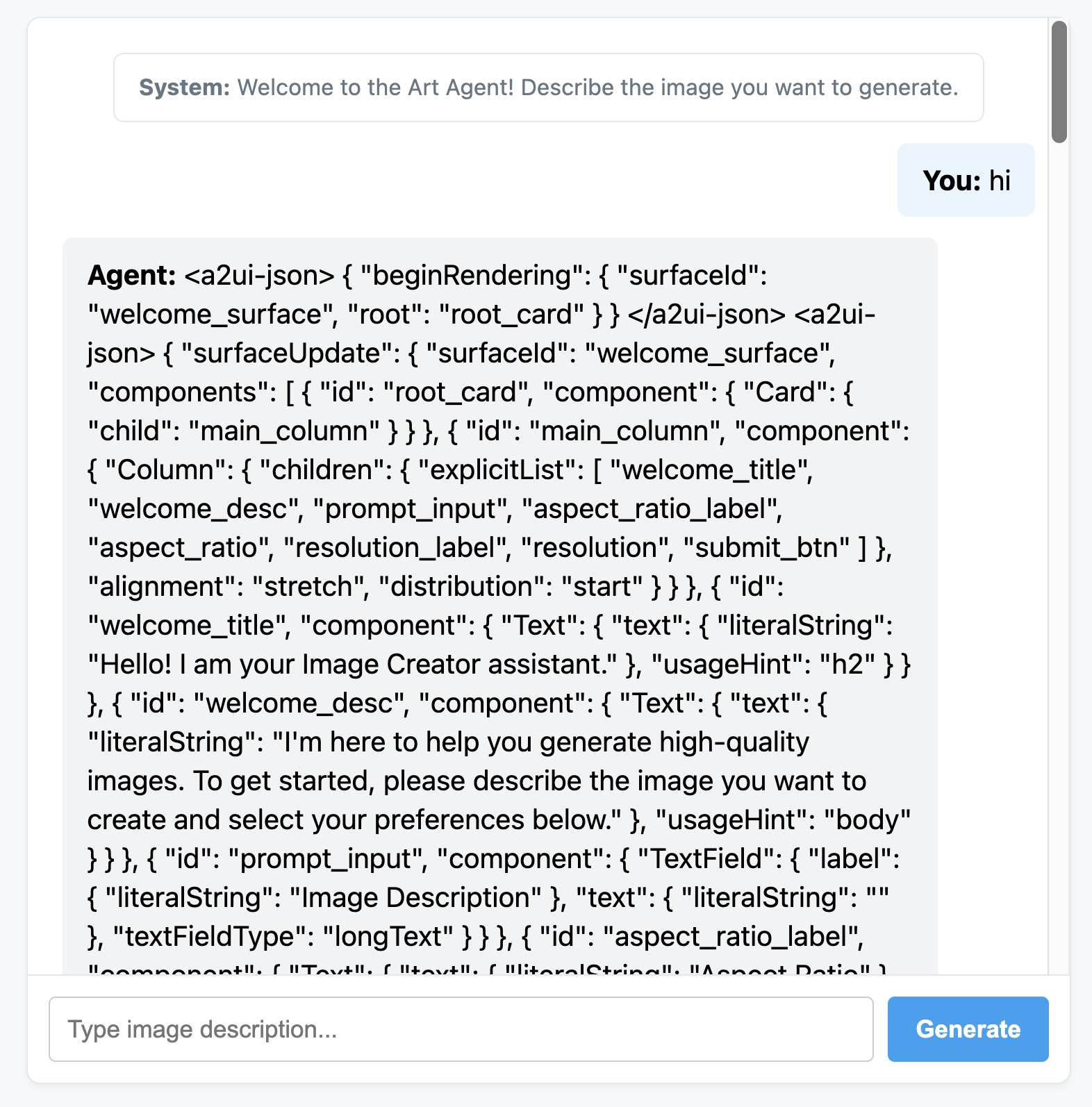
6. Tworzenie niestandardowego interfejsu agenta
Na tym etapie nasz klient otrzymuje listę oczyszczonych wiadomości A2UI (beginRendering, surfaceUpdate i dataModelUpdate). Teraz utworzymy niestandardowy silnik renderowania po stronie klienta w czystym JavaScript, aby zobaczyć te komponenty w działaniu.
Oto pełny plik static/app.js z logiką analizowania i renderowania A2UI:
static/app.js
document.addEventListener('DOMContentLoaded', () => {
const chatForm = document.getElementById('chat-form');
const userInput = document.getElementById('user-input');
const chatMessages = document.getElementById('chat-messages');
const sessionId = "session_" + Math.random().toString(36).substring(2, 9);
async function sendChat(prompt, showInUi = true) {
if (!prompt) return;
if (showInUi) {
appendMessage('user', prompt);
}
const tempBubble = appendMessage('agent', '...');
try {
const response = await fetch('/api/chat', {
method: 'POST',
headers: { 'Content-Type': 'application/json' },
body: JSON.stringify({ prompt, session_id: sessionId })
});
const data = await response.json();
tempBubble.remove();
let text = data.text || "";
let a2uiMessages = [];
// 1. Extract <a2ui-json> blocks
const a2uiRegex = /<a2ui-json>(.*?)<\/a2ui-json>/gs;
let match;
while ((match = a2uiRegex.exec(text)) !== null) {
try {
const jsonStr = match[1].trim();
const parsed = JSON.parse(jsonStr);
const parsedList = Array.isArray(parsed) ? parsed : [parsed];
for (const msg of parsedList) {
if (msg && typeof msg === 'object') {
a2uiMessages.push(msg);
}
}
} catch (e) {
console.error("Error parsing <a2ui-json> block:", e);
}
}
// 2. Extract <a2a_datapart_json> blocks (for robust history/callback parsing)
const a2aRegex = /<a2a_datapart_json>(.*?)<\/a2a_datapart_json>/gs;
while ((match = a2aRegex.exec(text)) !== null) {
try {
const jsonStr = match[1].trim();
const parsed = JSON.parse(jsonStr);
const dataMsg = (parsed && parsed.kind === 'data') ? parsed.data : parsed;
if (dataMsg && typeof dataMsg === 'object') {
a2uiMessages.push(dataMsg);
}
} catch (e) {
console.error("Error parsing <a2a_datapart_json> block:", e);
}
}
// 3. Clean XML and A2UI JSON tags from displayed conversational text
const cleanText = text.replace(/<(a2ui-json|a2a_datapart_json)>.*?<\/\1>/gs, '').trim();
const imageUrl = (data && typeof data === 'object' && data.image_url) ? data.image_url : null;
appendMessage('agent', cleanText, imageUrl, a2uiMessages);
} catch (error) {
tempBubble.remove();
appendMessage('agent', `Error: ${error.message}`);
}
}
chatForm.addEventListener('submit', async (e) => {
e.preventDefault();
const prompt = userInput.value.trim();
if (!prompt) return;
userInput.value = '';
await sendChat(prompt, true);
});
function renderA2UI(a2uiMessages) {
try {
let rootId = null;
const components = {};
const dataModel = {};
for (const msg of a2uiMessages) {
if (msg.beginRendering) {
rootId = msg.beginRendering.root;
} else if (msg.surfaceUpdate) {
for (const item of msg.surfaceUpdate.components) {
components[item.id] = item.component;
}
} else if (msg.dataModelUpdate) {
for (const item of msg.dataModelUpdate.contents) {
const val = item.valueString !== undefined ? item.valueString :
item.valueBool !== undefined ? item.valueBool :
item.valueInt !== undefined ? item.valueInt :
item.valueDouble !== undefined ? item.valueDouble : item.valueString;
dataModel[item.key] = val;
}
}
}
if (!rootId || Object.keys(components).length === 0) {
return null;
}
function resolveValue(valObj) {
if (!valObj) return '';
let val = '';
if (typeof valObj === 'string') val = valObj;
else if (valObj.literalString !== undefined) val = valObj.literalString;
else if (valObj.path !== undefined) val = dataModel[valObj.path] || '';
else val = JSON.stringify(valObj);
// Dynamically replace any wrong session IDs in artifact URLs with the active sessionId
if (typeof val === 'string' && val.includes('/api/artifacts/')) {
val = val.replace(/\/api\/artifacts\/session_[a-z0-9]+/g, `/api/artifacts/${sessionId}`);
}
return val;
}
function buildElement(id) {
try {
const compDesc = components[id];
if (!compDesc) return null;
const type = Object.keys(compDesc)[0];
const props = compDesc[type];
const el = document.createElement('div');
el.className = `a2ui-component a2ui-${type.toLowerCase()}`;
el.style.margin = '4px 0';
if (type === 'Column') {
el.style.display = 'flex';
el.style.flexDirection = 'column';
el.style.gap = '8px';
const children = props.children?.explicitList || [];
for (const childId of children) {
const childEl = buildElement(childId);
if (childEl) el.appendChild(childEl);
}
} else if (type === 'Row') {
el.style.display = 'flex';
el.style.flexDirection = 'row';
el.style.gap = '8px';
el.style.alignItems = 'center';
const children = props.children?.explicitList || [];
for (const childId of children) {
const childEl = buildElement(childId);
if (childEl) el.appendChild(childEl);
}
} else if (type === 'Card') {
el.style.border = '1px solid #ddd';
el.style.borderRadius = '6px';
el.style.padding = '12px';
el.style.backgroundColor = '#fdfdfd';
el.style.marginTop = '8px';
if (props.child) {
const childEl = buildElement(props.child);
if (childEl) el.appendChild(childEl);
}
} else if (type === 'Text') {
const textVal = resolveValue(props.text);
const tag = props.usageHint === 'h1' ? 'h3' :
props.usageHint === 'h2' ? 'h4' : 'p';
const textEl = document.createElement(tag);
textEl.textContent = textVal;
textEl.style.margin = '0 0 4px 0';
el.appendChild(textEl);
} else if (type === 'Image') {
const srcVal = resolveValue(props.url) || resolveValue(props.src);
const imgEl = document.createElement('img');
imgEl.src = srcVal;
imgEl.style.maxWidth = '100%';
imgEl.style.borderRadius = '4px';
imgEl.style.display = 'block';
imgEl.style.marginTop = '6px';
imgEl.className = 'generated-img';
el.appendChild(imgEl);
} else if (type === 'Divider') {
const hrEl = document.createElement('hr');
hrEl.style.border = '0';
hrEl.style.borderTop = '1px solid #eee';
hrEl.style.margin = '12px 0';
el.appendChild(hrEl);
} else if (type === 'MultipleChoice') {
const labelVal = resolveValue(props.label);
const options = props.options?.explicitList || (Array.isArray(props.options) ? props.options : []);
const container = document.createElement('div');
container.style.display = 'flex';
container.style.flexDirection = 'column';
container.style.gap = '4px';
container.style.margin = '8px 0';
if (labelVal) {
const labelEl = document.createElement('label');
labelEl.textContent = labelVal;
labelEl.style.fontSize = '12px';
labelEl.style.fontWeight = 'bold';
container.appendChild(labelEl);
}
const selectEl = document.createElement('select');
selectEl.className = 'a2ui-select';
selectEl.name = id;
for (const option of options) {
const optEl = document.createElement('option');
optEl.value = option.value !== undefined ? option.value : (option.id !== undefined ? option.id : '');
optEl.textContent = resolveValue(option.label);
selectEl.appendChild(optEl);
}
container.appendChild(selectEl);
el.appendChild(container);
} else if (type === 'Button') {
let labelVal = props.label ? resolveValue(props.label) : '';
if (!labelVal && props.child) {
const childComp = components[props.child];
if (childComp && childComp.Text) {
labelVal = resolveValue(childComp.Text.text);
}
}
const btnEl = document.createElement('button');
btnEl.className = 'btn-download';
btnEl.textContent = labelVal || 'Submit';
btnEl.addEventListener('click', (e) => {
e.preventDefault();
const action = props.action;
let downloadUrl = null;
if (action && (action.name === 'download_file' || action.name === 'download') && action.context) {
const urlContext = action.context.find(ctx => ctx.key === 'url');
if (urlContext) {
downloadUrl = resolveValue(urlContext.value);
}
}
const isDownload = downloadUrl || (labelVal && labelVal.toLowerCase().includes('download'));
if (isDownload) {
const finalUrl = downloadUrl || (el.closest('.message')?.querySelector('img')?.src);
if (finalUrl) {
const link = document.createElement('a');
link.href = finalUrl;
link.download = `generation-${Date.now()}.png`;
link.click();
}
} else {
const bubbleEl = el.closest('.message');
const selects = bubbleEl.querySelectorAll('.a2ui-select');
let answers = [];
selects.forEach(sel => {
let labelText = sel.previousSibling ? sel.previousSibling.textContent : sel.name;
const selectedText = sel.options[sel.selectedIndex]?.textContent || sel.value;
answers.push(`- ${labelText}: ${selectedText}`);
});
if (answers.length > 0) {
const responseText = `Selected options:\n` + answers.join('\n');
sendChat(responseText, false);
} else {
sendChat(labelVal || 'Submit', false);
}
}
});
el.appendChild(btnEl);
}
return el;
} catch (err) {
console.error('Error building component:', id, err);
return null;
}
}
return buildElement(rootId);
} catch (err) {
console.error('Error in renderA2UI:', err);
return null;
}
}
function appendMessage(sender, text, imageUrl = null, a2ui = null) {
const bubble = document.createElement('div');
bubble.className = `message ${sender}`;
const textSpan = document.createElement('span');
textSpan.innerHTML = `<strong>${sender === 'user' ? 'You' : 'Agent'}:</strong> `;
bubble.appendChild(textSpan);
if (text) {
const textContent = document.createTextNode(text);
textSpan.appendChild(textContent);
}
if (sender === 'agent' && a2ui && a2ui.length > 0) {
const a2uiEl = renderA2UI(a2ui);
if (a2uiEl) {
bubble.appendChild(a2uiEl);
}
}
if (imageUrl) {
const imgContainer = document.createElement('div');
imgContainer.style.marginTop = '8px';
const img = document.createElement('img');
img.src = imageUrl;
img.style.maxWidth = '100%';
img.style.borderRadius = '4px';
img.className = 'generated-img';
imgContainer.appendChild(img);
bubble.appendChild(imgContainer);
}
chatMessages.appendChild(bubble);
chatMessages.scrollTop = chatMessages.scrollHeight;
return bubble;
}
});
Ponownie uruchom serwer aplikacji FastAPI:
uv run python -m uvicorn main:app --port 8080 --host 0.0.0.0
Porozmawiaj z w pełni dynamicznym agentem A2UI Art Creator.
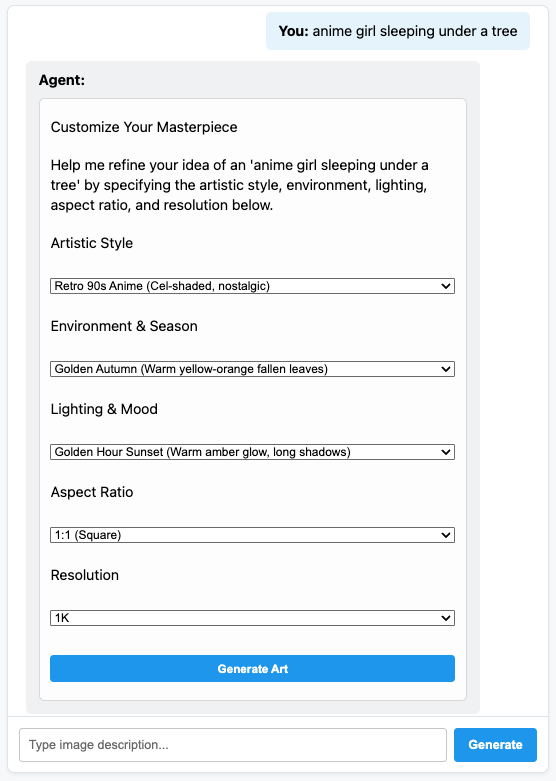
7. Gratulacje!
Masz agenta ADK, który dynamicznie generuje elementy interfejsu za pomocą protokołu A2UI. Możesz kontynuować naukę, poznając różne integracje platform lub dokumentację w odpowiednich sekcjach poniżej.
Tworzenie frontendu produkcyjnego
Na potrzeby tego warsztatu użyliśmy niestandardowego frontendu w czystym JS, ale w przypadku środowiska produkcyjnego należy utworzyć frontend za pomocą jednego z oficjalnych rendererów A2UI:
Platforma | Mechanizm renderowania | Zainstaluj |
Internet (React) | @a2ui/react | npm install @a2ui/react |
Internet (Lit) | @a2ui/lit | npm install @a2ui/lit |
Internet (Angular) | @a2ui/angular | npm install @a2ui/angular |
Urządzenia mobilne/komputery | Flutter GenUI SDK |