

1. บทนำ
A2UI ช่วยให้ AI Agent สร้างอินเทอร์เฟซผู้ใช้แบบสื่อสมบูรณ์และแบบอินเทอร์แอกทีฟที่แสดงผลในเว็บ อุปกรณ์เคลื่อนที่ และเดสก์ท็อปได้โดยไม่ต้องเรียกใช้โค้ดที่กำหนดเอง A2UI ช่วยให้ตัวแทนส่งคำอธิบายคอมโพเนนต์แบบประกาศที่ไคลเอ็นต์แสดงผลโดยใช้วิดเจ็ตดั้งเดิมของตนเองได้ แทนที่จะตอบกลับด้วยข้อความเท่านั้นหรือการเรียกใช้โค้ดที่มีความเสี่ยง ซึ่งก็เหมือนกับการให้ตัวแทนพูดภาษา UI ที่ใช้กันทั่วโลก
ในแล็บเชิงปฏิบัตินี้ คุณจะได้สร้าง Agent สร้างรูปภาพโดยใช้ Agent Development Kit (ADK) และ Gemini 3.1 Flash Image (หรือที่เรียกว่า Nano Banana 2) ก่อน จากนั้นคุณจะใช้ A2UI เพื่อสร้างอินเทอร์เฟซที่กำหนดเองซึ่งนอกเหนือจากแชทบอททั่วไป โดยแสดงให้เห็นว่าคุณสร้างอินเทอร์เฟซแบบไดนามิกเพื่อเปิดใช้การโต้ตอบระหว่างเอเจนต์กับผู้ใช้ที่สมบูรณ์ยิ่งขึ้นได้อย่างไร
สิ่งที่คุณจะได้เรียนรู้
- สร้าง Agent โดยใช้ ADK Python
- กำหนดค่าเอเจนต์ให้สตรีมคอมโพเนนต์ A2UI ไปยังส่วนหน้า
- สร้างส่วนหน้าแบบกำหนดเองเพื่อแสดงผลองค์ประกอบ A2UI
ข้อกำหนดเบื้องต้น
- ความรู้พื้นฐานเกี่ยวกับเอเจนต์ AI
- ความเข้าใจพื้นฐานเกี่ยวกับไวยากรณ์ Python
- ความเข้าใจพื้นฐานเกี่ยวกับแนวคิดของส่วนหน้า
2. ตั้งค่า
ทำตามวิธีการด้านล่างเพื่อเริ่มต้นโปรเจ็กต์ Google Cloud ที่จำเป็นสำหรับ Codelab นี้ หลังจากเริ่มต้นโปรเจ็กต์แล้ว ขอแนะนำให้คุณดำเนินการ Codelab นี้ใน Cloud Shell เนื่องจากมีเครื่องมือทั้งหมดที่จำเป็นในการดำเนินการทันที
หากต้องการเรียกใช้ Codelab นี้ในสภาพแวดล้อมในเครื่อง คุณจะต้องติดตั้ง Python, uv และโปรแกรมแก้ไขโค้ดก่อนดำเนินการต่อ คำสั่งทั้งหมดใน Codelab นี้ถือว่าคุณกำลังเรียกใช้ใน Cloud Shell เว้นแต่จะระบุไว้เป็นอย่างอื่น
การตั้งค่าสภาพแวดล้อมแบบเรียนรู้ด้วยตนเอง
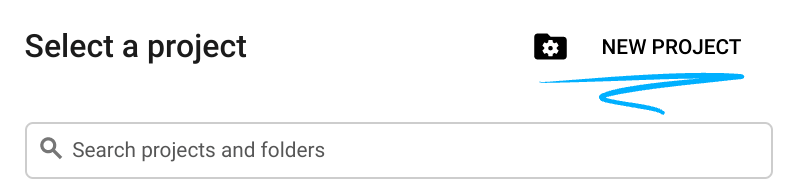
- ลงชื่อเข้าใช้ คอนโซล Google Cloud แล้วสร้างโปรเจ็กต์ใหม่หรือใช้โปรเจ็กต์ที่มีอยู่ซ้ำ หากยังไม่มีบัญชี Gmail หรือ Google Workspace คุณต้องสร้างบัญชี

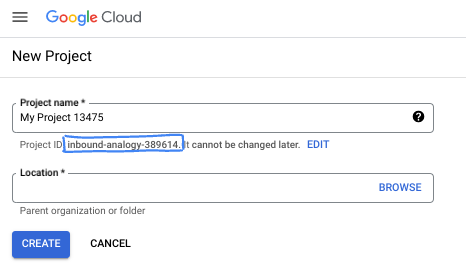
- ชื่อโปรเจ็กต์คือชื่อที่แสดงสำหรับผู้เข้าร่วมโปรเจ็กต์นี้ ซึ่งเป็นสตริงอักขระที่ Google APIs ไม่ได้ใช้ คุณอัปเดตได้ทุกเมื่อ
- รหัสโปรเจ็กต์จะไม่ซ้ำกันในโปรเจ็กต์ Google Cloud ทั้งหมดและเปลี่ยนแปลงไม่ได้ (เปลี่ยนไม่ได้หลังจากตั้งค่าแล้ว) Cloud Console จะสร้างสตริงที่ไม่ซ้ำกันโดยอัตโนมัติ ซึ่งโดยปกติแล้วคุณไม่จำเป็นต้องสนใจว่าสตริงนั้นคืออะไร ใน Codelab ส่วนใหญ่ คุณจะต้องอ้างอิงรหัสโปรเจ็กต์ (โดยทั่วไปจะระบุเป็น
PROJECT_ID) หากไม่ชอบรหัสที่สร้างขึ้น คุณอาจสร้างรหัสแบบสุ่มอีกรหัสหนึ่งได้ หรือคุณจะลองใช้ชื่อของคุณเองและดูว่าชื่อนั้นพร้อมใช้งานหรือไม่ก็ได้ คุณจะเปลี่ยนแปลงรหัสนี้หลังจากขั้นตอนนี้ไม่ได้ และรหัสจะคงอยู่ตลอดระยะเวลาของโปรเจ็กต์ - โปรดทราบว่ายังมีค่าที่ 3 ซึ่งก็คือหมายเลขโปรเจ็กต์ที่ API บางตัวใช้ ดูข้อมูลเพิ่มเติมเกี่ยวกับค่าทั้ง 3 นี้ได้ในเอกสารประกอบ
- จากนั้นคุณจะต้องเปิดใช้การเรียกเก็บเงินใน Cloud Console เพื่อใช้ทรัพยากร/API ของ Cloud การทำตาม Codelab นี้จะไม่เสียค่าใช้จ่ายมากนัก หรืออาจไม่เสียเลย หากต้องการปิดทรัพยากรเพื่อหลีกเลี่ยงการเรียกเก็บเงินนอกเหนือจากบทแนะนำนี้ คุณสามารถลบทรัพยากรที่สร้างขึ้นหรือลบโปรเจ็กต์ได้ ผู้ใช้ Google Cloud รายใหม่มีสิทธิ์เข้าร่วมโปรแกรมช่วงทดลองใช้ฟรีมูลค่า$300 USD
เริ่มต้น Cloud Shell
แม้ว่าคุณจะใช้งาน Google Cloud จากระยะไกลในแล็ปท็อปได้ แต่ใน Codelab นี้คุณจะใช้ Google Cloud Shell ซึ่งเป็นสภาพแวดล้อมบรรทัดคำสั่งที่ทำงานในระบบคลาวด์
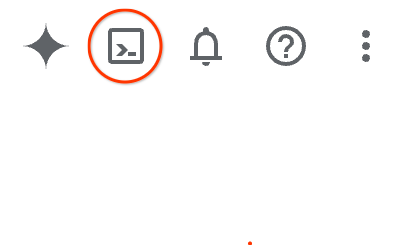
จาก คอนโซล Google Cloud ให้คลิกไอคอน Cloud Shell ในแถบเครื่องมือด้านขวาบน
การจัดสรรและเชื่อมต่อกับสภาพแวดล้อมจะใช้เวลาเพียงไม่กี่นาที เมื่อเสร็จแล้ว คุณควรเห็นข้อความคล้ายกับตัวอย่างต่อไปนี้

เครื่องเสมือนนี้มาพร้อมเครื่องมือพัฒนาซอฟต์แวร์ทั้งหมดที่คุณต้องการ โดยมีไดเรกทอรีหลักแบบถาวรขนาด 5 GB และทำงานบน Google Cloud ซึ่งช่วยเพิ่มประสิทธิภาพเครือข่ายและการตรวจสอบสิทธิ์ได้อย่างมาก คุณสามารถทำงานทั้งหมดใน Codelab นี้ได้ภายในเบราว์เซอร์ คุณไม่จำเป็นต้องติดตั้งอะไร
3. สร้างเอเจนต์ ADK ใหม่
- สร้างโฟลเดอร์สำหรับเวิร์กช็อปนี้ชื่อ
a2ui_labโดยทำดังนี้
mkdir -p ~/a2ui_lab && cd ~/a2ui_lab
- กำหนดค่าเครื่องมือจัดการแพ็กเกจ uv ในโฟลเดอร์นี้และติดตั้งทรัพยากร Dependency ดังนี้
uv init && uv add google-adk fastapi uvicorn a2ui-agent-sdk
- เปิดใช้ AI Platform API (เพื่อทำการเรียกโมเดล Gemini)
gcloud services enable aiplatform.googleapis.com
- เริ่มต้น Agent ของ ADK ในโฟลเดอร์นี้
export GOOGLE_CLOUD_PROJECT=`gcloud config get project`
uv run adk create --model gemini-3.5-flash --project $GOOGLE_CLOUD_PROJECT --region global art_creator
คุณควรเห็นเอาต์พุตในลักษณะนี้
$ uv run adk create --model gemini-3.5-flash --project $GOOGLE_CLOUD_PROJECT --region global art_creator
Agent created in ~/a2ui_lab/art_creator:
- .env
- __init__.py
- agent.py
⚠️  WARNING: Secrets (like GOOGLE_API_KEY) are stored in .env.
Please ensure .env is added to your .gitignore to avoid committing secrets to version control.
โปรดทราบว่า uv run เป็นคำสั่งที่เรียกใช้คำสั่งภายในบริบทของที่เก็บ uv ปัจจุบัน ซึ่งเราสร้างขึ้นเมื่อเรียกใช้ uv init คำสั่ง adk ได้รับการติดตั้งในที่เก็บนี้เมื่อเราเพิ่มทรัพยากร Dependency ของแพ็กเกจ google-adk
ในเอกสารประกอบ ADK คุณมักจะเห็นคำสั่ง adk ที่ไม่มีคำนำหน้า uv run แต่เมื่อใดก็ตามที่เรียกใช้คำสั่งในเวิร์กช็อปนี้ ให้ใส่คำนำหน้า adk ด้วย uv run เสมอเพื่อให้เรียกใช้ยูทิลิตีบรรทัดคำสั่งที่ถูกต้อง
ตอนนี้เราได้สร้างโครงสร้าง Agent พื้นฐานแล้ว เราสามารถกำหนด Agent สร้างรูปภาพใน agent.py ได้
- เปิดโปรแกรมแก้ไข Cloud Shell ด้วยคำสั่งต่อไปนี้
cloudshell workspace ~/a2ui_lab
- แทนที่เนื้อหาของ
art_creator/agent.pyด้วยโค้ดด้านล่าง
art_creator/agent.py
import os
import time
from google.adk.agents.llm_agent import Agent
from google.adk.tools.tool_context import ToolContext
from google.genai import types

# Load env variables
from dotenv import load_dotenv
load_dotenv(os.path.join(os.path.dirname(__file__), ".env"))

async def generate_image(prompt: str, tool_context: ToolContext) -> dict:
    """Generates a high-quality image based on the user's detailed description prompt.

    Args:
        prompt: A descriptive text prompt describing the image to generate.
        tool_context: Context for the tool execution.
    """
    from google.genai import Client
    client = Client(
        vertexai=True,
        project=os.environ.get("GOOGLE_CLOUD_PROJECT"),
        location=os.environ.get("GOOGLE_CLOUD_LOCATION", "global")
    )

    try:
        response = client.models.generate_content(
            model="gemini-3.1-flash-image",
            contents=prompt,
            config=types.GenerateContentConfig(
                response_modalities=['TEXT', 'IMAGE'],
            )
        )

        image_bytes = None
        for part in response.parts or []:
            if part.inline_data is not None:
                image_bytes = part.inline_data.data
                break

        if not image_bytes:
            return {"status": "failed", "detail": "No image data returned"}

        filename = f"image_{int(time.time())}.png"
        await tool_context.save_artifact(
            filename,
            types.Part.from_bytes(data=image_bytes, mime_type='image/png'),
        )

        return {
            "status": "success",
            "filename": filename,
            "url": f"/api/artifacts/{tool_context.session.id}/{filename}"
        }
    except Exception as e:
        return {"status": "failed", "detail": str(e)}

root_agent = Agent(
    name="art_agent",
    model="gemini-3.5-flash",
    description="A basic art generation agent.",
    instruction=(
        "You are an art assistant. When the user describes an image they want to generate, "
        "use the generate_image tool to create it, then return a text message containing the image's URL."
    ),
    tools=[generate_image],
)
- ตอนนี้คุณทดสอบเอเจนต์ใน UI การพัฒนาของ ADK ได้แล้วโดยใช้คำสั่ง
uv run adk web
uv run adk web --port 8080 --allow_origins "*" --reload_agents
จากนั้นคลิกปุ่มแสดงตัวอย่างเว็บ แล้วเลือกแสดงตัวอย่างบนพอร์ต 8080 ซึ่งจะเปิด UI การพัฒนาในเบราว์เซอร์
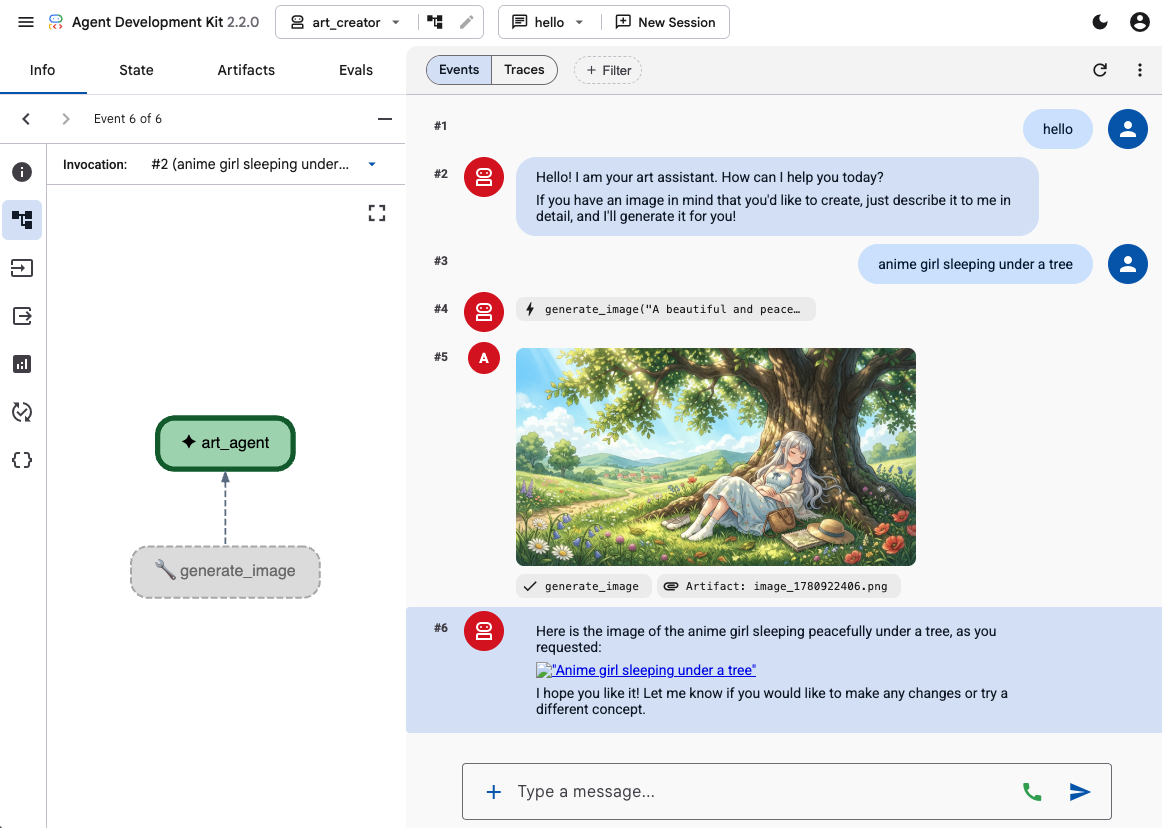
ใช้ UI การพัฒนาของ ADK เพื่อทดสอบความสามารถของเอเจนต์โดยการป้อนพรอมต์ 2-3 รายการ เช่น
- เด็กผู้หญิงในการ์ตูนอนิเมะนอนหลับอยู่ใต้ต้นไม้ สีพาสเทล 16:9
- ภาพถ่ายกระท่อมที่สะท้อนในทะเลสาบ ช่วงบ่ายแก่ๆ ความรู้สึกหวนรำลึก
คุณควรเห็น Agent ตอบกลับด้วยข้อความและรูปภาพที่สร้างขึ้น
4. สร้างฟรอนท์เอนด์อย่างง่าย
ตอนนี้เราจะสร้างเว็บแอปเฉพาะสำหรับเอเจนต์ เราจะใช้ FastAPI เพื่อเรียกใช้โปรแกรมเรียกใช้ ADK และแสดงอินเทอร์เฟซแชทแบบหน้าเดียวที่เรียบง่าย
ก่อนอื่น ให้หยุดเซิร์ฟเวอร์สำหรับนักพัฒนาซอฟต์แวร์ ADK โดยพิมพ์ Ctrl+C ในเทอร์มินัล จากนั้นสร้างไฟล์ชื่อ main.py ในรูทของพื้นที่ทำงาน (~/a2ui_lab/main.py) โดยมีเนื้อหาต่อไปนี้
main.py
import os
import logging
from fastapi import FastAPI, HTTPException
from fastapi.staticfiles import StaticFiles
from pydantic import BaseModel
from google.adk.runners import InMemoryRunner
from google.adk.agents.run_config import RunConfig
from google.genai import types

from art_creator.agent import root_agent

logging.basicConfig(level=logging.INFO)
logger = logging.getLogger(__name__)

app = FastAPI(title="Art Agent - Simple Chat")

class ChatRequest(BaseModel):
    prompt: str
    session_id: str = "default_session"

static_dir = os.path.join(os.path.dirname(__file__), "static")
os.makedirs(static_dir, exist_ok=True)

runner = InMemoryRunner(agent=root_agent)
runner.auto_create_session = True

@app.get("/api/artifacts/{session_id}/{filename}")
async def get_artifact(session_id: str, filename: str):
    user_id = "default_user"
    part = await runner.artifact_service.load_artifact(
        app_name=runner.app_name,
        user_id=user_id,
        filename=filename,
        session_id=session_id
    )
    if not part:
        raise HTTPException(status_code=404, detail="Artifact not found")
    if part.inline_data:
        from fastapi.responses import Response
        return Response(content=part.inline_data.data, media_type=part.inline_data.mime_type)
    raise HTTPException(status_code=400, detail="Unsupported artifact format")

@app.post("/api/chat")
async def chat_endpoint(request: ChatRequest):
    if not request.prompt.strip():
        raise HTTPException(status_code=400, detail="Prompt cannot be empty")

    user_id = "default_user"
    content = types.Content(
        role="user",
        parts=[types.Part.from_text(text=request.prompt)]
    )

    full_response_text = ""
    try:
        async for event in runner.run_async(
            user_id=user_id,
            session_id=request.session_id,
            new_message=content,
            run_config=RunConfig(save_input_blobs_as_artifacts=True),
        ):
            if event.content and event.content.parts:
                if event.author != "user":
                    for part in event.content.parts:
                        if part.text:
                            full_response_text += part.text
                        elif part.inline_data:
                            try:
                                # Process raw binary/custom text parts (A2UI callback packages)
                                text_data = part.inline_data.data.decode("utf-8")
                                full_response_text += text_data
                            except Exception:
                                pass
    except Exception as e:
        logger.exception("Error running ADK agent:")
        raise HTTPException(status_code=500, detail=str(e))

    image_url = None
    try:
        artifact_keys = await runner.artifact_service.list_artifact_keys(
            app_name=runner.app_name,
            user_id=user_id,
            session_id=request.session_id
        )
        image_keys = [k for k in artifact_keys if k.startswith("image_") and k.endswith(".png")]
        if image_keys:
            sorted_keys = sorted(image_keys, reverse=True)
            image_url = f"/api/artifacts/{request.session_id}/{sorted_keys[0]}"
    except Exception:
        pass

    return {
        "text": full_response_text.strip(),
        "image_url": image_url
    }

app.mount("/static", StaticFiles(directory=static_dir), name="static")

@app.get("/")
async def read_index():
    from fastapi.responses import FileResponse
    return FileResponse(os.path.join(static_dir, "index.html"))
จากนั้นสร้างไดเรกทอรี static เพื่อจัดเก็บไฟล์ฟรอนท์เอนด์
mkdir -p static
ตอนนี้ให้เพิ่ม HTML ของดัชนี (static/index.html) ดังนี้
static/index.html
<!DOCTYPE html>
<html lang="en">
<head>
    <meta charset="UTF-8">
    <meta name="viewport" content="width=device-width, initial-scale=1.0">
    <title>Art Agent - Simple Chat</title>
    <link rel="stylesheet" href="/static/style.css">
</head>
<body>
    <div class="container">
        <div id="chat-messages" class="messages">
            <div class="message system">
                <strong>System:</strong> Welcome to the Art Agent! Describe the image you want to generate.
            </div>
        </div>
        <form id="chat-form" class="input-form">
            <input type="text" id="user-input" placeholder="Type image description..." autocomplete="off" required>
            <button type="submit">Generate</button>
        </form>
    </div>
    <script src="/static/app.js"></script>
</body>
</html>
และ CSS การจัดรูปแบบ (static/style.css)
static/style.css
body {
    font-family: -apple-system, BlinkMacSystemFont, "Segoe UI", Roboto, Helvetica, Arial, sans-serif;
    background-color: #f7f9fa;
    margin: 0;
    padding: 20px;
    display: flex;
    justify-content: center;
}

.container {
    width: 100%;
    max-width: 600px;
    background: #ffffff;
    border: 1px solid #e1e8ed;
    border-radius: 8px;
    box-shadow: 0 2px 4px rgba(0,0,0,0.05);
    display: flex;
    flex-direction: column;
    height: 80vh;
}

.messages {
    flex: 1;
    overflow-y: auto;
    padding: 20px;
    display: flex;
    flex-direction: column;
    gap: 12px;
}

.message {
    padding: 10px 14px;
    border-radius: 6px;
    max-width: 85%;
    line-height: 1.4;
    word-wrap: break-word;
}

.message.user {
    background-color: #e8f5fe;
    align-self: flex-end;
}

.message.agent {
    background-color: #f1f3f4;
    align-self: flex-start;
}

.message.system {
    background-color: #fff;
    border: 1px solid #e1e8ed;
    color: #657786;
    align-self: center;
    font-size: 13px;
    text-align: center;
}

.input-form {
    display: flex;
    border-top: 1px solid #e1e8ed;
    padding: 12px;
}

.input-form input {
    flex: 1;
    border: 1px solid #ccc;
    border-radius: 4px;
    padding: 10px;
    font-size: 14px;
    outline: none;
}

.input-form button {
    background-color: #1da1f2;
    color: white;
    border: none;
    border-radius: 4px;
    padding: 10px 16px;
    margin-left: 8px;
    font-size: 14px;
    font-weight: bold;
    cursor: pointer;
}

.input-form button:hover {
    background-color: #1a91da;
}

.generated-img {
    max-width: 100%;
    border-radius: 4px;
    margin-top: 8px;
    display: block;
}

.image-card {
    border: 1px solid #ddd;
    border-radius: 6px;
    padding: 12px;
    background-color: #fff;
    margin-top: 8px;
}

.btn-download {
    background-color: #1da1f2;
    color: white;
    border: none;
    border-radius: 4px;
    padding: 8px 12px;
    font-size: 13px;
    font-weight: bold;
    cursor: pointer;
    margin-top: 8px;
    width: 100%;
}
สุดท้าย ให้เพิ่มตัวควบคุม JavaScript (static/app.js) ดังนี้
static/app.js
document.addEventListener('DOMContentLoaded', () => {
    const chatForm = document.getElementById('chat-form');
    const userInput = document.getElementById('user-input');
    const chatMessages = document.getElementById('chat-messages');
    const sessionId = "session_" + Math.random().toString(36).substring(2, 9);

    chatForm.addEventListener('submit', async (e) => {
        e.preventDefault();
        const prompt = userInput.value.trim();
        if (!prompt) return;

        userInput.value = '';
        appendMessage('user', prompt);

        const tempBubble = appendMessage('agent', '...');

        try {
            const response = await fetch('/api/chat', {
                method: 'POST',
                headers: { 'Content-Type': 'application/json' },
                body: JSON.stringify({ prompt, session_id: sessionId })
            });
            const data = await response.json();
            tempBubble.remove();

            const textValue = (data && typeof data === 'object' && data.text) ? data.text : "";
            const imageUrl = (data && typeof data === 'object' && data.image_url) ? data.image_url : null;
            appendMessage('agent', textValue, imageUrl);
        } catch (error) {
            tempBubble.remove();
            appendMessage('agent', `Error: ${error.message}`);
        }
    });

    function appendMessage(sender, text, imageUrl = null) {
        const bubble = document.createElement('div');
        bubble.className = `message ${sender}`;

        const content = document.createElement('span');
        content.innerHTML = `<strong>${sender === 'user' ? 'You' : 'Agent'}:</strong> `;

        const textNode = document.createTextNode(text);
        content.appendChild(textNode);
        bubble.appendChild(content);

        // Always format multi-line JSON blocks nicely if the message is from the agent and looks like JSON
        if (sender === 'agent' && text && (text.startsWith('{') || text.startsWith('['))) {
            bubble.style.fontFamily = 'monospace';
            bubble.style.whiteSpace = 'pre-wrap';
            bubble.style.fontSize = '12px';
        }

        if (imageUrl) {
            const card = document.createElement('div');
            card.className = 'image-card';
            const img = document.createElement('img');
            img.src = imageUrl;
            img.className = 'generated-img';
            card.appendChild(img);

            const dlBtn = document.createElement('button');
            dlBtn.className = 'btn-download';
            dlBtn.textContent = 'Download PNG';
            dlBtn.onclick = () => {
                const link = document.createElement('a');
                link.href = imageUrl;
                link.download = `generation-${Date.now()}.png`;
                link.click();
            };
            card.appendChild(dlBtn);
            bubble.appendChild(card);
        }

        chatMessages.appendChild(bubble);
        chatMessages.scrollTop = chatMessages.scrollHeight;
        return bubble;
    }
});
ทดสอบเว็บแอปโดยเริ่มเซิร์ฟเวอร์ FastAPI ดังนี้
uv run python -m uvicorn main:app --port 8080 --host 0.0.0.0
ใช้ตัวอย่างเว็บบนพอร์ต 8080 เพื่อเข้าถึงแชทที่ปรับแต่งแล้ว ตอนนี้คุณพูดคุยกับตัวแทนได้โดยตรงแล้ว
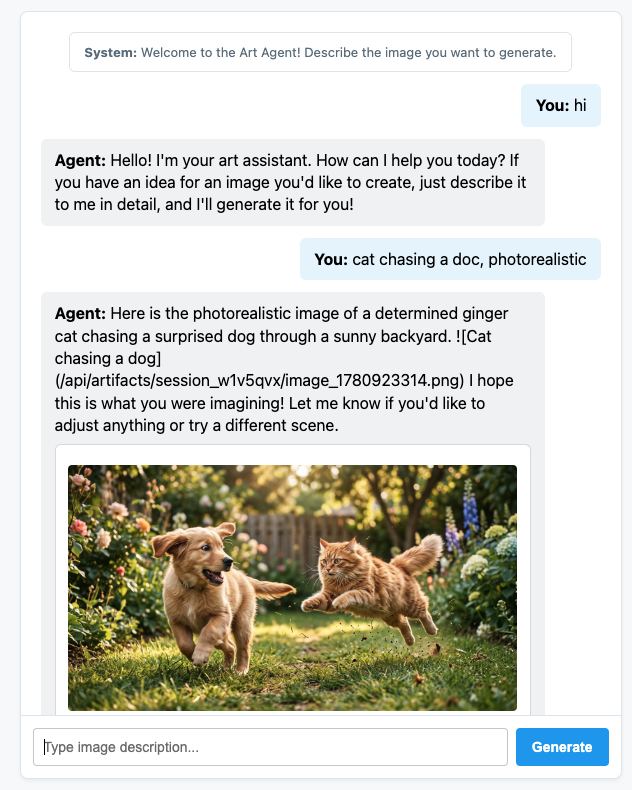
5. กำหนดค่าเอเจนต์ให้ออกข้อความ A2UI
ตอนนี้เรามาอัปเดต Agent เพื่อแสดง UI ที่มีโครงสร้างแทนที่จะเป็นข้อความกัน เราจะใช้ a2ui-agent-sdk อย่างเป็นทางการเพื่อสร้างพรอมต์ของระบบที่รับรู้ A2UI สำหรับเอเจนต์
เมื่อใช้ A2UI SDK เราจะใช้คลาส A2uiSchemaManager แทนการกำหนดวิธีการของเอเจนต์โดยตรง ซึ่งจะจัดโครงสร้างพรอมต์ของระบบของเอเจนต์เพื่อให้เข้าใจความสามารถในการสร้างอินเทอร์เฟซของ A2UI รวมถึงการให้สิทธิ์เข้าถึงแคตตาล็อกคอมโพเนนต์ สคีมาคอมโพเนนต์แบบเต็ม และตัวอย่างการใช้งาน (หากมี)
- ก่อนอื่น ให้หยุดเซิร์ฟเวอร์ FastAPI ด้วย Ctrl+C
- แก้ไข
art_creator/agent.pyเพื่อผสานรวมA2uiSchemaManagerและฮุกa2ui_callbackใหม่ของเรา
art_creator/agent.py
import os
import time
from google.adk.agents.llm_agent import Agent
from google.adk.tools.tool_context import ToolContext
from google.genai import types
from a2ui.schema.manager import A2uiSchemaManager
from a2ui.basic_catalog.provider import BasicCatalog

# Load env variables
from dotenv import load_dotenv
load_dotenv(os.path.join(os.path.dirname(__file__), ".env"))


async def generate_image(prompt: str, tool_context: ToolContext) -> dict:
    """Generates a high-quality image based on the user's detailed description prompt."""
    from google.genai import Client
    client = Client(
        vertexai=True,
        project=os.environ.get("GOOGLE_CLOUD_PROJECT"),
        location=os.environ.get("GOOGLE_CLOUD_LOCATION", "global")
    )

    try:
        response = client.models.generate_content(
            model="gemini-3.1-flash-image",
            contents=prompt,
            config=types.GenerateContentConfig(
                response_modalities=['TEXT', 'IMAGE'],
            )
        )

        image_bytes = None
        for part in response.parts or []:
            if part.inline_data is not None:
                image_bytes = part.inline_data.data
                break

        if not image_bytes:
            return {"status": "failed", "detail": "No image data returned"}

        filename = f"image_{int(time.time())}.png"
        await tool_context.save_artifact(
            filename,
            types.Part.from_bytes(data=image_bytes, mime_type='image/png'),
        )

        return {
            "status": "success",
            "filename": filename,
            "url": f"/api/artifacts/{tool_context.session.id}/{filename}"
        }
    except Exception as e:
        return {"status": "failed", "detail": str(e)}

schema_manager = A2uiSchemaManager(
    version="0.8",
    catalogs=[BasicCatalog.get_config("0.8")],
)

instruction = schema_manager.generate_system_prompt(
    role_description=(
        "You are a specialized Image Creator agent. "
        "When given an image description, analyze the prompt and ask the user for any missing details. "
        "The image generation prompt should include: "
        "Subject, environment, style, lighting, color and mood. "
    ),
    workflow_description=(
        "1. if the user greets you, greet the user back explaining your purpose. "
        "2. if the user describes an image, DO NOT GENERATE IT IMMEDIATELY: compare with "
        "   the ideal generation prompt and ask the user for any missing details using "
        "   rich A2UI UI elements only. NOTE: only run this step once per image, if the user "
        "   decides to not detail one or more elements it is ok. "
        "3. combine the original prompt with the responses in the UI elements and call `generate_image` "
        "   with the generated prompt. "
        "   DO NOT INCLUDE EXAMPLES IN THE GENERATED PROMPT, ONLY THE ELEMENTS THE USER ASKED FOR. "
        "4. display the resulting image to the user in a card including the image, the prompt and a "
        "   download button"
    ),
    ui_description=(
        "Use Card, Text, Image, Multichoice and Button components to present the options. "
        "Always include a single choice selection box for image resolution (1K, 2K or 4K) and one for "
        "aspect ratio (1:1, 16:9 or 9:16). "
        "When rendering the final output (generated image) always render the generated image using an "
        "Image component with the url bound to the image's URL/path returned by the tool. "
        "Add a Text component with the prompt that generated the image. "
        "Include a Button component labeled 'Download PNG' to allow downloading the image. "
        "Do NOT use markdown formatting in text values. Use the usageHint property for heading levels instead. "
        "Respond ONLY with the A2UI JSON array. Do NOT include any text "
        "outside the JSON. Put all explanations into Text components."
    ),
    include_schema=True,
)

root_agent = Agent(
    model="gemini-3.5-flash",
    name="art_agent_a2ui",
    instruction=instruction,
    tools=[generate_image],
)
โปรดสังเกตว่าตอนนี้คำสั่งสำหรับ Agent สร้างขึ้นโดยการเรียกใช้ schema_manager.generate_system_prompt แทนที่จะฮาร์ดโค้ดไว้ในคำจำกัดความของ Agent
ทดสอบเว็บแอปโดยเริ่มเซิร์ฟเวอร์ FastAPI ดังนี้
uv run python -m uvicorn main:app --port 8080 --host 0.0.0.0
ใช้ตัวอย่างเว็บบนพอร์ต 8080 เพื่อเข้าถึงแชทที่ปรับแต่งแล้ว คุณจะเห็นว่าตอนนี้เอเจนต์จะส่งข้อความ JSON แทนข้อความปกติ นี่คือการแสดงองค์ประกอบ A2UI ภายใน ซึ่งเราจะแสดงผลในส่วนถัดไป
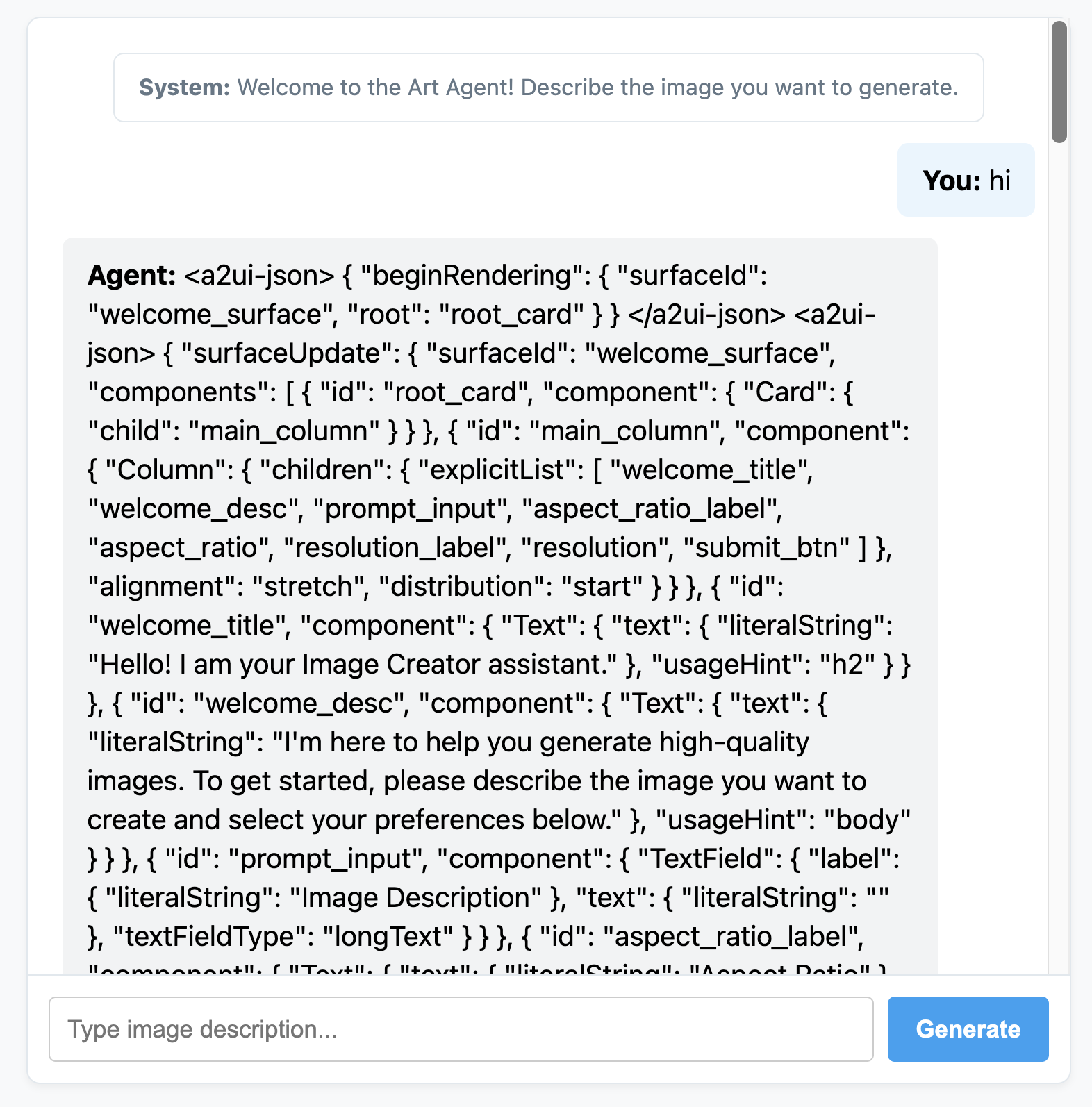
6. สร้างส่วนหน้าของ Agent ที่กำหนดเอง
ในขั้นตอนนี้ ไคลเอ็นต์จะได้รับรายการข้อความ A2UI ที่สะอาด (beginRendering, surfaceUpdate และ dataModelUpdate) ตอนนี้เราจะสร้างเครื่องมือการแสดงผลฝั่งไคลเอ็นต์ที่กำหนดเองใน JavaScript ธรรมดาเพื่อดูคอมโพเนนต์เหล่านี้ในการทำงาน
นี่คือ static/app.js ที่สมบูรณ์พร้อมตรรกะการแยกวิเคราะห์และการแสดงผล A2UI
static/app.js
document.addEventListener('DOMContentLoaded', () => {
const chatForm = document.getElementById('chat-form');
const userInput = document.getElementById('user-input');
const chatMessages = document.getElementById('chat-messages');
const sessionId = "session_" + Math.random().toString(36).substring(2, 9);
async function sendChat(prompt, showInUi = true) {
if (!prompt) return;
if (showInUi) {
appendMessage('user', prompt);
}
const tempBubble = appendMessage('agent', '...');
try {
const response = await fetch('/api/chat', {
method: 'POST',
headers: { 'Content-Type': 'application/json' },
body: JSON.stringify({ prompt, session_id: sessionId })
});
const data = await response.json();
tempBubble.remove();
let text = data.text || "";
let a2uiMessages = [];
// 1. Extract <a2ui-json> blocks
const a2uiRegex = /<a2ui-json>(.*?)<\/a2ui-json>/gs;
let match;
while ((match = a2uiRegex.exec(text)) !== null) {
try {
const jsonStr = match[1].trim();
const parsed = JSON.parse(jsonStr);
const parsedList = Array.isArray(parsed) ? parsed : [parsed];
for (const msg of parsedList) {
if (msg && typeof msg === 'object') {
a2uiMessages.push(msg);
}
}
} catch (e) {
console.error("Error parsing <a2ui-json> block:", e);
}
}
// 2. Extract <a2a_datapart_json> blocks (for robust history/callback parsing)
const a2aRegex = /<a2a_datapart_json>(.*?)<\/a2a_datapart_json>/gs;
while ((match = a2aRegex.exec(text)) !== null) {
try {
const jsonStr = match[1].trim();
const parsed = JSON.parse(jsonStr);
const dataMsg = (parsed && parsed.kind === 'data') ? parsed.data : parsed;
if (dataMsg && typeof dataMsg === 'object') {
a2uiMessages.push(dataMsg);
}
} catch (e) {
console.error("Error parsing <a2a_datapart_json> block:", e);
}
}
// 3. Clean XML and A2UI JSON tags from displayed conversational text
const cleanText = text.replace(/<(a2ui-json|a2a_datapart_json)>.*?<\/\1>/gs, '').trim();
const imageUrl = (data && typeof data === 'object' && data.image_url) ? data.image_url : null;
appendMessage('agent', cleanText, imageUrl, a2uiMessages);
} catch (error) {
tempBubble.remove();
appendMessage('agent', `Error: ${error.message}`);
}
}
chatForm.addEventListener('submit', async (e) => {
e.preventDefault();
const prompt = userInput.value.trim();
if (!prompt) return;
userInput.value = '';
await sendChat(prompt, true);
});
function renderA2UI(a2uiMessages) {
try {
let rootId = null;
const components = {};
const dataModel = {};
for (const msg of a2uiMessages) {
if (msg.beginRendering) {
rootId = msg.beginRendering.root;
} else if (msg.surfaceUpdate) {
for (const item of msg.surfaceUpdate.components) {
components[item.id] = item.component;
}
} else if (msg.dataModelUpdate) {
for (const item of msg.dataModelUpdate.contents) {
const val = item.valueString !== undefined ? item.valueString :
item.valueBool !== undefined ? item.valueBool :
item.valueInt !== undefined ? item.valueInt :
item.valueDouble !== undefined ? item.valueDouble : item.valueString;
dataModel[item.key] = val;
}
}
}
if (!rootId || Object.keys(components).length === 0) {
return null;
}
function resolveValue(valObj) {
if (!valObj) return '';
let val = '';
if (typeof valObj === 'string') val = valObj;
else if (valObj.literalString !== undefined) val = valObj.literalString;
else if (valObj.path !== undefined) val = dataModel[valObj.path] || '';
else val = JSON.stringify(valObj);
// Dynamically replace any wrong session IDs in artifact URLs with the active sessionId
if (typeof val === 'string' && val.includes('/api/artifacts/')) {
val = val.replace(/\/api\/artifacts\/session_[a-z0-9]+/g, `/api/artifacts/${sessionId}`);
}
return val;
}
function buildElement(id) {
try {
const compDesc = components[id];
if (!compDesc) return null;
const type = Object.keys(compDesc)[0];
const props = compDesc[type];
const el = document.createElement('div');
el.className = `a2ui-component a2ui-${type.toLowerCase()}`;
el.style.margin = '4px 0';
if (type === 'Column') {
el.style.display = 'flex';
el.style.flexDirection = 'column';
el.style.gap = '8px';
const children = props.children?.explicitList || [];
for (const childId of children) {
const childEl = buildElement(childId);
if (childEl) el.appendChild(childEl);
}
} else if (type === 'Row') {
el.style.display = 'flex';
el.style.flexDirection = 'row';
el.style.gap = '8px';
el.style.alignItems = 'center';
const children = props.children?.explicitList || [];
for (const childId of children) {
const childEl = buildElement(childId);
if (childEl) el.appendChild(childEl);
}
} else if (type === 'Card') {
el.style.border = '1px solid #ddd';
el.style.borderRadius = '6px';
el.style.padding = '12px';
el.style.backgroundColor = '#fdfdfd';
el.style.marginTop = '8px';
if (props.child) {
const childEl = buildElement(props.child);
if (childEl) el.appendChild(childEl);
}
} else if (type === 'Text') {
const textVal = resolveValue(props.text);
const tag = props.usageHint === 'h1' ? 'h3' :
props.usageHint === 'h2' ? 'h4' : 'p';
const textEl = document.createElement(tag);
textEl.textContent = textVal;
textEl.style.margin = '0 0 4px 0';
el.appendChild(textEl);
} else if (type === 'Image') {
const srcVal = resolveValue(props.url) || resolveValue(props.src);
const imgEl = document.createElement('img');
imgEl.src = srcVal;
imgEl.style.maxWidth = '100%';
imgEl.style.borderRadius = '4px';
imgEl.style.display = 'block';
imgEl.style.marginTop = '6px';
imgEl.className = 'generated-img';
el.appendChild(imgEl);
} else if (type === 'Divider') {
const hrEl = document.createElement('hr');
hrEl.style.border = '0';
hrEl.style.borderTop = '1px solid #eee';
hrEl.style.margin = '12px 0';
el.appendChild(hrEl);
} else if (type === 'MultipleChoice') {
const labelVal = resolveValue(props.label);
const options = props.options?.explicitList || (Array.isArray(props.options) ? props.options : []);
const container = document.createElement('div');
container.style.display = 'flex';
container.style.flexDirection = 'column';
container.style.gap = '4px';
container.style.margin = '8px 0';
if (labelVal) {
const labelEl = document.createElement('label');
labelEl.textContent = labelVal;
labelEl.style.fontSize = '12px';
labelEl.style.fontWeight = 'bold';
container.appendChild(labelEl);
}
const selectEl = document.createElement('select');
selectEl.className = 'a2ui-select';
selectEl.name = id;
for (const option of options) {
const optEl = document.createElement('option');
optEl.value = option.value !== undefined ? option.value : (option.id !== undefined ? option.id : '');
optEl.textContent = resolveValue(option.label);
selectEl.appendChild(optEl);
}
container.appendChild(selectEl);
el.appendChild(container);
} else if (type === 'Button') {
let labelVal = props.label ? resolveValue(props.label) : '';
if (!labelVal && props.child) {
const childComp = components[props.child];
if (childComp && childComp.Text) {
labelVal = resolveValue(childComp.Text.text);
}
}
const btnEl = document.createElement('button');
btnEl.className = 'btn-download';
btnEl.textContent = labelVal || 'Submit';
btnEl.addEventListener('click', (e) => {
e.preventDefault();
const action = props.action;
let downloadUrl = null;
if (action && (action.name === 'download_file' || action.name === 'download') && action.context) {
const urlContext = action.context.find(ctx => ctx.key === 'url');
if (urlContext) {
downloadUrl = resolveValue(urlContext.value);
}
}
const isDownload = downloadUrl || (labelVal && labelVal.toLowerCase().includes('download'));
if (isDownload) {
const finalUrl = downloadUrl || (el.closest('.message')?.querySelector('img')?.src);
if (finalUrl) {
const link = document.createElement('a');
link.href = finalUrl;
link.download = `generation-${Date.now()}.png`;
link.click();
}
} else {
const bubbleEl = el.closest('.message');
const selects = bubbleEl.querySelectorAll('.a2ui-select');
let answers = [];
selects.forEach(sel => {
let labelText = sel.previousSibling ? sel.previousSibling.textContent : sel.name;
const selectedText = sel.options[sel.selectedIndex]?.textContent || sel.value;
answers.push(`- ${labelText}: ${selectedText}`);
});
if (answers.length > 0) {
const responseText = `Selected options:\n` + answers.join('\n');
sendChat(responseText, false);
} else {
sendChat(labelVal || 'Submit', false);
}
}
});
el.appendChild(btnEl);
}
return el;
} catch (err) {
console.error('Error building component:', id, err);
return null;
}
}
return buildElement(rootId);
} catch (err) {
console.error('Error in renderA2UI:', err);
return null;
}
}
function appendMessage(sender, text, imageUrl = null, a2ui = null) {
const bubble = document.createElement('div');
bubble.className = `message ${sender}`;
const textSpan = document.createElement('span');
textSpan.innerHTML = `<strong>${sender === 'user' ? 'You' : 'Agent'}:</strong> `;
bubble.appendChild(textSpan);
if (text) {
const textContent = document.createTextNode(text);
textSpan.appendChild(textContent);
}
if (sender === 'agent' && a2ui && a2ui.length > 0) {
const a2uiEl = renderA2UI(a2ui);
if (a2uiEl) {
bubble.appendChild(a2uiEl);
}
}
if (imageUrl) {
const imgContainer = document.createElement('div');
imgContainer.style.marginTop = '8px';
const img = document.createElement('img');
img.src = imageUrl;
img.style.maxWidth = '100%';
img.style.borderRadius = '4px';
img.className = 'generated-img';
imgContainer.appendChild(img);
bubble.appendChild(imgContainer);
}
chatMessages.appendChild(bubble);
chatMessages.scrollTop = chatMessages.scrollHeight;
return bubble;
}
});
เริ่มเซิร์ฟเวอร์แอป FastAPI อีกครั้ง
uv run python -m uvicorn main:app --port 8080 --host 0.0.0.0
และพูดคุยกับเอเจนต์ A2UI Art Creator แบบไดนามิกเต็มรูปแบบของคุณ
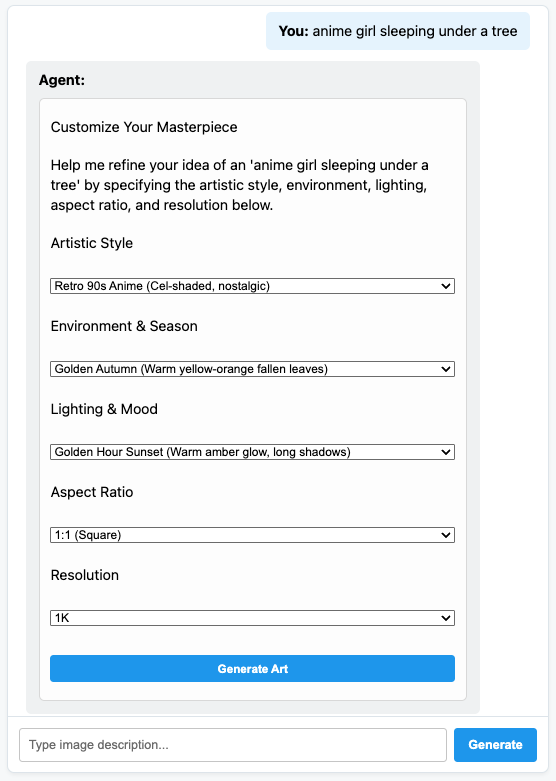
7. ยินดีด้วย
คุณสร้าง Agent ADK ที่สร้างองค์ประกอบ UI แบบไดนามิกโดยใช้ A2UI คุณสามารถดูข้อมูลเพิ่มเติมได้โดยสำรวจการผสานรวมเฟรมเวิร์กที่หลากหลายหรือสำรวจเอกสารประกอบในข้อมูลอ้างอิงด้านล่าง
สร้างส่วนหน้าของเวอร์ชันที่ใช้งานจริง
ในเวิร์กช็อปนี้ เราใช้ฟรอนท์เอนด์ JS แบบกำหนดเองเพื่อวัตถุประสงค์ด้านการสอน แต่สำหรับการใช้งานจริง คุณจะต้องสร้างฟรอนท์เอนด์โดยใช้เครื่องมือแสดงผล A2UI อย่างเป็นทางการอย่างใดอย่างหนึ่งต่อไปนี้
แพลตฟอร์ม | โปรแกรมร่างภาพ | ติดตั้ง |
เว็บ (React) | @a2ui/react | npm install @a2ui/react |
เว็บ (Lit) | @a2ui/lit | npm install @a2ui/lit |
เว็บ (Angular) | @a2ui/angular | npm install @a2ui/angular |
อุปกรณ์เคลื่อนที่/เดสก์ท็อป | Flutter GenUI SDK |