

1. Giới thiệu
A2UI cho phép các tác nhân AI tạo ra giao diện người dùng phong phú, có tính tương tác cao, hiển thị nguyên bản trên web, thiết bị di động và máy tính mà không cần thực thi mã tuỳ ý. Thay vì chỉ phản hồi bằng văn bản hoặc thực thi mã có rủi ro, A2UI cho phép các tác nhân gửi nội dung mô tả thành phần khai báo mà các ứng dụng sẽ hiển thị bằng cách sử dụng các tiện ích gốc của riêng chúng. Giống như việc các nhân viên hỗ trợ nói một ngôn ngữ giao diện người dùng phổ biến.
Trong phòng thí nghiệm thực hành này, trước tiên, bạn sẽ tạo một tác nhân tạo hình ảnh bằng Bộ công cụ phát triển tác nhân (ADK) và Gemini 3.1 Flash Image (còn gọi là Nano Banana 2). Sau đó, bạn sẽ dùng A2UI để tạo một giao diện tuỳ chỉnh vượt xa một chatbot thông thường, cho thấy cách bạn có thể tạo giao diện một cách linh động để cho phép các hoạt động tương tác phong phú hơn giữa người dùng và tác nhân.
Kiến thức bạn sẽ học được
- Tạo một tác nhân bằng ADK Python
- Định cấu hình tác nhân để truyền trực tuyến các thành phần A2UI đến giao diện người dùng
- Tạo giao diện người dùng tuỳ chỉnh để hiển thị các phần tử A2UI
Điều kiện tiên quyết
- Kiến thức cơ bản về các tác nhân AI
- Có kiến thức cơ bản về cú pháp Python
- Hiểu biết cơ bản về các khái niệm về giao diện người dùng
2. Thiết lập
Làm theo hướng dẫn bên dưới để khởi động Dự án Google Cloud cần thiết cho lớp học lập trình này. Sau khi khởi động dự án, bạn nên kích hoạt lớp học lập trình này trên Cloud Shell vì lớp học lập trình này đi kèm với tất cả các công cụ cần thiết để kích hoạt ngay.
Nếu muốn chạy lớp học lập trình này trong môi trường cục bộ, bạn cần cài đặt Python, uv và một trình chỉnh sửa mã trước khi tiếp tục. Tất cả hướng dẫn trong lớp học lập trình này đều giả định rằng bạn đang chạy lớp học lập trình này trong Cloud Shell, trừ phi có quy định khác.
Thiết lập môi trường theo tốc độ của riêng bạn
- Đăng nhập vào Google Cloud Console rồi tạo một dự án mới hoặc sử dụng lại một dự án hiện có. Nếu chưa có tài khoản Gmail hoặc Google Workspace, bạn phải tạo một tài khoản.

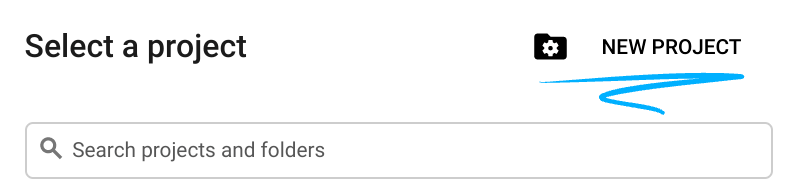
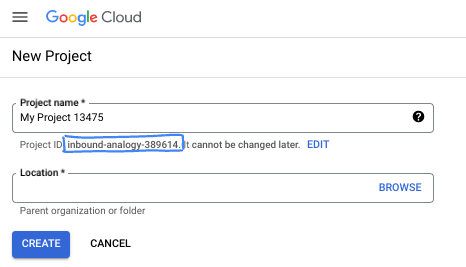
- Tên dự án là tên hiển thị của những người tham gia dự án này. Đây là một chuỗi ký tự mà các API của Google không sử dụng. Bạn luôn có thể cập nhật thông tin này.
- Mã dự án là mã duy nhất trên tất cả các dự án trên Google Cloud và không thể thay đổi (bạn không thể thay đổi mã này sau khi đã đặt). Cloud Console sẽ tự động tạo một chuỗi duy nhất; thường thì bạn không cần quan tâm đến chuỗi này. Trong hầu hết các lớp học lập trình, bạn sẽ cần tham chiếu đến Mã dự án (thường được xác định là
PROJECT_ID). Nếu không thích mã nhận dạng được tạo, bạn có thể tạo một mã nhận dạng ngẫu nhiên khác. Hoặc bạn có thể thử tên người dùng của riêng mình để xem tên đó có được chấp nhận hay không. Bạn không thể thay đổi tên này sau bước này và tên này sẽ tồn tại trong suốt thời gian diễn ra dự án. - Để bạn biết, có một giá trị thứ ba là Số dự án mà một số API sử dụng. Tìm hiểu thêm về cả 3 giá trị này trong tài liệu.
- Tiếp theo, bạn cần bật tính năng thanh toán trong Cloud Console để sử dụng các tài nguyên/API trên Cloud. Việc thực hiện lớp học lập trình này sẽ không tốn nhiều chi phí, nếu có. Để tắt các tài nguyên nhằm tránh bị tính phí ngoài phạm vi hướng dẫn này, bạn có thể xoá các tài nguyên đã tạo hoặc xoá dự án. Người dùng mới của Google Cloud đủ điều kiện tham gia chương trình Dùng thử miễn phí trị giá 300 USD.
Khởi động Cloud Shell
Mặc dù có thể vận hành Google Cloud từ xa trên máy tính xách tay, nhưng trong lớp học lập trình này, bạn sẽ sử dụng Google Cloud Shell, một môi trường dòng lệnh chạy trên Cloud.
Trên Bảng điều khiển Google Cloud, hãy nhấp vào biểu tượng Cloud Shell trên thanh công cụ ở trên cùng bên phải:
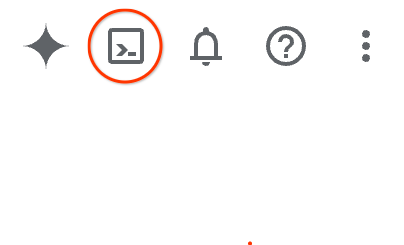
Quá trình này chỉ mất vài phút để cung cấp và kết nối với môi trường. Khi quá trình này kết thúc, bạn sẽ thấy như sau:

Máy ảo này được trang bị tất cả các công cụ phát triển mà bạn cần. Nó cung cấp một thư mục chính có dung lượng 5 GB và chạy trên Google Cloud, giúp tăng cường đáng kể hiệu suất mạng và hoạt động xác thực. Bạn có thể thực hiện mọi thao tác trong lớp học lập trình này trong trình duyệt. Bạn không cần cài đặt bất cứ thứ gì.
3. Tạo một tác nhân ADK mới
- Tạo một thư mục cho hội thảo này có tên là
a2ui_lab:
mkdir -p ~/a2ui_lab && cd ~/a2ui_lab
- Định cấu hình trình quản lý gói uv trong thư mục này và cài đặt các phần phụ thuộc:
uv init && uv add google-adk fastapi uvicorn a2ui-agent-sdk
- Bật AI Platform API (để thực hiện các lệnh gọi mô hình Gemini)
gcloud services enable aiplatform.googleapis.com
- Khởi chạy tác nhân ADK trong thư mục này:
export GOOGLE_CLOUD_PROJECT=`gcloud config get project`
uv run adk create --model gemini-3.5-flash --project $GOOGLE_CLOUD_PROJECT --region global art_creator
Bạn sẽ thấy kết quả tương tự như sau:
$ uv run adk create --model gemini-3.5-flash --project $GOOGLE_CLOUD_PROJECT --region global art_creator
Agent created in ~/a2ui_lab/art_creator:
- .env
- __init__.py
- agent.py
⚠️  WARNING: Secrets (like GOOGLE_API_KEY) are stored in .env.
Please ensure .env is added to your .gitignore to avoid committing secrets to version control.
Xin lưu ý rằng uv run là một lệnh thực thi các lệnh trong bối cảnh của kho lưu trữ uv hiện tại. Chúng ta đã tạo kho lưu trữ này khi chạy uv init. Lệnh adk đã được cài đặt vào kho lưu trữ này khi chúng ta thêm phần phụ thuộc gói google-adk.
Trong tài liệu ADK, bạn thường thấy các lệnh adk không có tiền tố uv run, nhưng bất cứ khi nào chạy lệnh trong hội thảo này, hãy luôn thêm tiền tố uv run vào adk để lệnh chạy đúng tiện ích dòng lệnh.
Giờ đây, khi đã tạo cấu trúc tác nhân cơ bản, chúng ta có thể xác định tác nhân tạo hình ảnh trong agent.py.
- Mở trình chỉnh sửa Cloud Shell bằng lệnh sau:
cloudshell workspace ~/a2ui_lab
- Thay thế nội dung của
art_creator/agent.pybằng đoạn mã dưới đây:
art_creator/agent.py
import os
import time
from google.adk.agents.llm_agent import Agent
from google.adk.tools.tool_context import ToolContext
from google.genai import types

# Load env variables
from dotenv import load_dotenv
load_dotenv(os.path.join(os.path.dirname(__file__), ".env"))

async def generate_image(prompt: str, tool_context: ToolContext) -> dict:
    """Generates a high-quality image based on the user's detailed description prompt.

    Args:
        prompt: A descriptive text prompt describing the image to generate.
        tool_context: Context for the tool execution.
    """
    from google.genai import Client
    client = Client(
        vertexai=True,
        project=os.environ.get("GOOGLE_CLOUD_PROJECT"),
        location=os.environ.get("GOOGLE_CLOUD_LOCATION", "global")
    )

    try:
        response = client.models.generate_content(
            model="gemini-3.1-flash-image",
            contents=prompt,
            config=types.GenerateContentConfig(
                response_modalities=['TEXT', 'IMAGE'],
            )
        )

        image_bytes = None
        for part in response.parts or []:
            if part.inline_data is not None:
                image_bytes = part.inline_data.data
                break

        if not image_bytes:
            return {"status": "failed", "detail": "No image data returned"}

        filename = f"image_{int(time.time())}.png"
        await tool_context.save_artifact(
            filename,
            types.Part.from_bytes(data=image_bytes, mime_type='image/png'),
        )

        return {
            "status": "success",
            "filename": filename,
            "url": f"/api/artifacts/{tool_context.session.id}/{filename}"
        }
    except Exception as e:
        return {"status": "failed", "detail": str(e)}

root_agent = Agent(
    name="art_agent",
    model="gemini-3.5-flash",
    description="A basic art generation agent.",
    instruction=(
        "You are an art assistant. When the user describes an image they want to generate, "
        "use the generate_image tool to create it, then return a text message containing the image's URL."
    ),
    tools=[generate_image],
)
- Giờ đây, bạn có thể kiểm thử tác nhân trong giao diện người dùng phát triển của ADK bằng lệnh
uv run adk web:
uv run adk web --port 8080 --allow_origins "*" --reload_agents
Sau đó, nhấp vào nút Web Preview (Xem trước trên web) rồi chọn Preview on Port 8080 (Xem trước trên cổng 8080). Thao tác này sẽ mở giao diện người dùng phát triển trên trình duyệt của bạn.
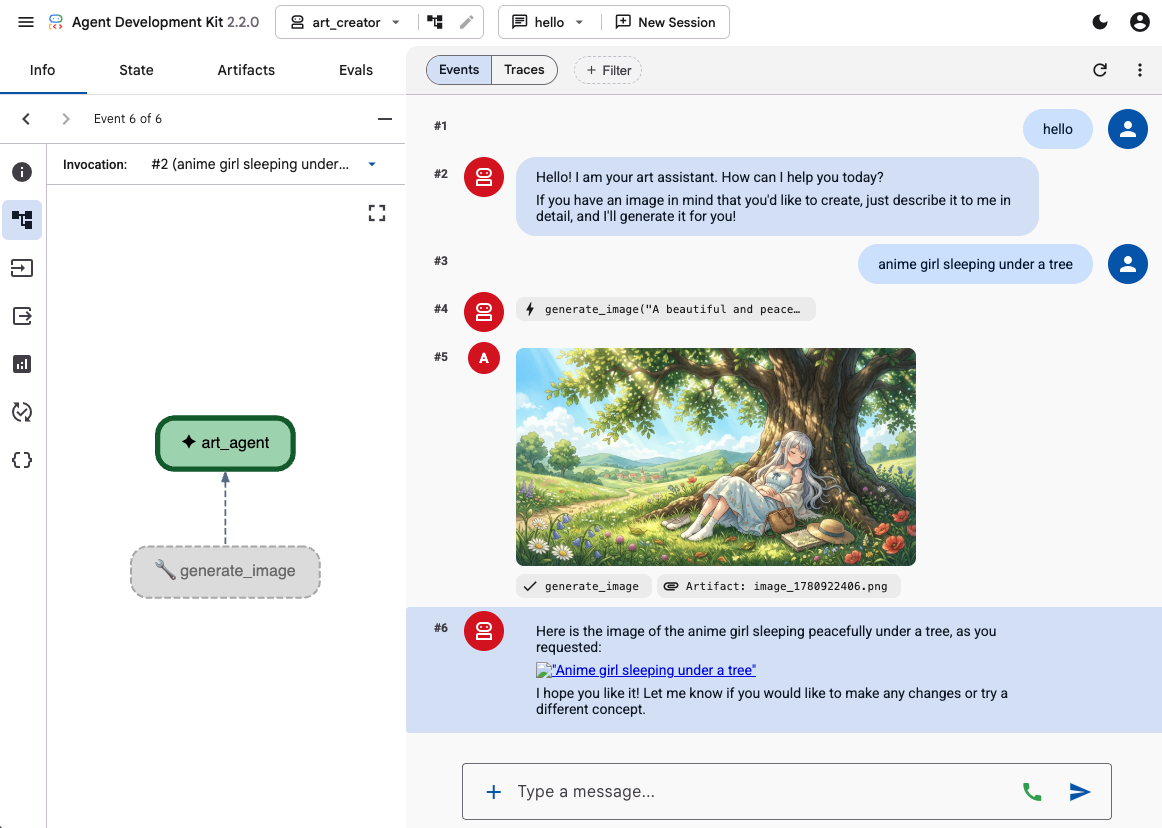
Sử dụng giao diện người dùng phát triển của ADK để kiểm thử các chức năng của trợ lý bằng cách đưa ra một số câu lệnh, chẳng hạn như:
- Cô gái anime ngủ dưới gốc cây. Màu phấn. 16:9
- Ảnh chụp một căn nhà gỗ phản chiếu trên hồ. Cuối giờ chiều. Cảm giác hoài niệm.
Bạn sẽ thấy câu trả lời của trợ lý dưới dạng văn bản và hình ảnh được tạo.
4. Tạo một giao diện người dùng đơn giản
Giờ đây, chúng ta sẽ tạo một ứng dụng web chuyên dụng cho tác nhân của mình. Chúng ta sẽ sử dụng FastAPI để chạy trình chạy ADK và phân phát một giao diện trò chuyện đơn giản trên một trang.
Trước tiên, hãy dừng máy chủ phát triển ADK bằng cách nhập Ctrl+C trong thiết bị đầu cuối. Sau đó, hãy tạo một tệp có tên main.py trong thư mục gốc của không gian làm việc (~/a2ui_lab/main.py) với nội dung sau:
main.py
import os
import logging
from fastapi import FastAPI, HTTPException
from fastapi.staticfiles import StaticFiles
from pydantic import BaseModel
from google.adk.runners import InMemoryRunner
from google.adk.agents.run_config import RunConfig
from google.genai import types

from art_creator.agent import root_agent

logging.basicConfig(level=logging.INFO)
logger = logging.getLogger(__name__)

app = FastAPI(title="Art Agent - Simple Chat")

class ChatRequest(BaseModel):
    prompt: str
    session_id: str = "default_session"

static_dir = os.path.join(os.path.dirname(__file__), "static")
os.makedirs(static_dir, exist_ok=True)

runner = InMemoryRunner(agent=root_agent)
runner.auto_create_session = True

@app.get("/api/artifacts/{session_id}/{filename}")
async def get_artifact(session_id: str, filename: str):
    user_id = "default_user"
    part = await runner.artifact_service.load_artifact(
        app_name=runner.app_name,
        user_id=user_id,
        filename=filename,
        session_id=session_id
    )
    if not part:
        raise HTTPException(status_code=404, detail="Artifact not found")
    if part.inline_data:
        from fastapi.responses import Response
        return Response(content=part.inline_data.data, media_type=part.inline_data.mime_type)
    raise HTTPException(status_code=400, detail="Unsupported artifact format")

@app.post("/api/chat")
async def chat_endpoint(request: ChatRequest):
    if not request.prompt.strip():
        raise HTTPException(status_code=400, detail="Prompt cannot be empty")

    user_id = "default_user"
    content = types.Content(
        role="user",
        parts=[types.Part.from_text(text=request.prompt)]
    )

    full_response_text = ""
    try:
        async for event in runner.run_async(
            user_id=user_id,
            session_id=request.session_id,
            new_message=content,
            run_config=RunConfig(save_input_blobs_as_artifacts=True),
        ):
            if event.content and event.content.parts:
                if event.author != "user":
                    for part in event.content.parts:
                        if part.text:
                            full_response_text += part.text
                        elif part.inline_data:
                            try:
                                # Process raw binary/custom text parts (A2UI callback packages)
                                text_data = part.inline_data.data.decode("utf-8")
                                full_response_text += text_data
                            except Exception:
                                pass
    except Exception as e:
        logger.exception("Error running ADK agent:")
        raise HTTPException(status_code=500, detail=str(e))

    image_url = None
    try:
        artifact_keys = await runner.artifact_service.list_artifact_keys(
            app_name=runner.app_name,
            user_id=user_id,
            session_id=request.session_id
        )
        image_keys = [k for k in artifact_keys if k.startswith("image_") and k.endswith(".png")]
        if image_keys:
            sorted_keys = sorted(image_keys, reverse=True)
            image_url = f"/api/artifacts/{request.session_id}/{sorted_keys[0]}"
    except Exception:
        pass

    return {
        "text": full_response_text.strip(),
        "image_url": image_url
    }

app.mount("/static", StaticFiles(directory=static_dir), name="static")

@app.get("/")
async def read_index():
    from fastapi.responses import FileResponse
    return FileResponse(os.path.join(static_dir, "index.html"))
Tiếp theo, hãy tạo thư mục static để lưu trữ các tệp giao diện người dùng:
mkdir -p static
Bây giờ, hãy thêm HTML chỉ mục (static/index.html):
static/index.html
<!DOCTYPE html>
<html lang="en">
<head>
    <meta charset="UTF-8">
    <meta name="viewport" content="width=device-width, initial-scale=1.0">
    <title>Art Agent - Simple Chat</title>
    <link rel="stylesheet" href="/static/style.css">
</head>
<body>
    <div class="container">
        <div id="chat-messages" class="messages">
            <div class="message system">
                <strong>System:</strong> Welcome to the Art Agent! Describe the image you want to generate.
            </div>
        </div>
        <form id="chat-form" class="input-form">
            <input type="text" id="user-input" placeholder="Type image description..." autocomplete="off" required>
            <button type="submit">Generate</button>
        </form>
    </div>
    <script src="/static/app.js"></script>
</body>
</html>
Và CSS tạo kiểu (static/style.css):
static/style.css
body {
    font-family: -apple-system, BlinkMacSystemFont, "Segoe UI", Roboto, Helvetica, Arial, sans-serif;
    background-color: #f7f9fa;
    margin: 0;
    padding: 20px;
    display: flex;
    justify-content: center;
}

.container {
    width: 100%;
    max-width: 600px;
    background: #ffffff;
    border: 1px solid #e1e8ed;
    border-radius: 8px;
    box-shadow: 0 2px 4px rgba(0,0,0,0.05);
    display: flex;
    flex-direction: column;
    height: 80vh;
}

.messages {
    flex: 1;
    overflow-y: auto;
    padding: 20px;
    display: flex;
    flex-direction: column;
    gap: 12px;
}

.message {
    padding: 10px 14px;
    border-radius: 6px;
    max-width: 85%;
    line-height: 1.4;
    word-wrap: break-word;
}

.message.user {
    background-color: #e8f5fe;
    align-self: flex-end;
}

.message.agent {
    background-color: #f1f3f4;
    align-self: flex-start;
}

.message.system {
    background-color: #fff;
    border: 1px solid #e1e8ed;
    color: #657786;
    align-self: center;
    font-size: 13px;
    text-align: center;
}

.input-form {
    display: flex;
    border-top: 1px solid #e1e8ed;
    padding: 12px;
}

.input-form input {
    flex: 1;
    border: 1px solid #ccc;
    border-radius: 4px;
    padding: 10px;
    font-size: 14px;
    outline: none;
}

.input-form button {
    background-color: #1da1f2;
    color: white;
    border: none;
    border-radius: 4px;
    padding: 10px 16px;
    margin-left: 8px;
    font-size: 14px;
    font-weight: bold;
    cursor: pointer;
}

.input-form button:hover {
    background-color: #1a91da;
}

.generated-img {
    max-width: 100%;
    border-radius: 4px;
    margin-top: 8px;
    display: block;
}

.image-card {
    border: 1px solid #ddd;
    border-radius: 6px;
    padding: 12px;
    background-color: #fff;
    margin-top: 8px;
}

.btn-download {
    background-color: #1da1f2;
    color: white;
    border: none;
    border-radius: 4px;
    padding: 8px 12px;
    font-size: 13px;
    font-weight: bold;
    cursor: pointer;
    margin-top: 8px;
    width: 100%;
}
Cuối cùng, hãy thêm bộ điều khiển JavaScript (static/app.js):
static/app.js
document.addEventListener('DOMContentLoaded', () => {
    const chatForm = document.getElementById('chat-form');
    const userInput = document.getElementById('user-input');
    const chatMessages = document.getElementById('chat-messages');
    const sessionId = "session_" + Math.random().toString(36).substring(2, 9);

    chatForm.addEventListener('submit', async (e) => {
        e.preventDefault();
        const prompt = userInput.value.trim();
        if (!prompt) return;

        userInput.value = '';
        appendMessage('user', prompt);

        const tempBubble = appendMessage('agent', '...');

        try {
            const response = await fetch('/api/chat', {
                method: 'POST',
                headers: { 'Content-Type': 'application/json' },
                body: JSON.stringify({ prompt, session_id: sessionId })
            });
            const data = await response.json();
            tempBubble.remove();

            const textValue = (data && typeof data === 'object' && data.text) ? data.text : "";
            const imageUrl = (data && typeof data === 'object' && data.image_url) ? data.image_url : null;
            appendMessage('agent', textValue, imageUrl);
        } catch (error) {
            tempBubble.remove();
            appendMessage('agent', `Error: ${error.message}`);
        }
    });

    function appendMessage(sender, text, imageUrl = null) {
        const bubble = document.createElement('div');
        bubble.className = `message ${sender}`;

        const content = document.createElement('span');
        content.innerHTML = `<strong>${sender === 'user' ? 'You' : 'Agent'}:</strong> `;

        const textNode = document.createTextNode(text);
        content.appendChild(textNode);
        bubble.appendChild(content);

        // Always format multi-line JSON blocks nicely if the message is from the agent and looks like JSON
        if (sender === 'agent' && text && (text.startsWith('{') || text.startsWith('['))) {
            bubble.style.fontFamily = 'monospace';
            bubble.style.whiteSpace = 'pre-wrap';
            bubble.style.fontSize = '12px';
        }

        if (imageUrl) {
            const card = document.createElement('div');
            card.className = 'image-card';
            const img = document.createElement('img');
            img.src = imageUrl;
            img.className = 'generated-img';
            card.appendChild(img);

            const dlBtn = document.createElement('button');
            dlBtn.className = 'btn-download';
            dlBtn.textContent = 'Download PNG';
            dlBtn.onclick = () => {
                const link = document.createElement('a');
                link.href = imageUrl;
                link.download = `generation-${Date.now()}.png`;
                link.click();
            };
            card.appendChild(dlBtn);
            bubble.appendChild(card);
        }

        chatMessages.appendChild(bubble);
        chatMessages.scrollTop = chatMessages.scrollHeight;
        return bubble;
    }
});
Kiểm thử ứng dụng web của bạn bằng cách khởi động máy chủ FastAPI:
uv run python -m uvicorn main:app --port 8080 --host 0.0.0.0
Sử dụng Web Preview (Xem trước trên web) trên cổng 8080 để truy cập vào cuộc trò chuyện tuỳ chỉnh của bạn. Giờ đây, bạn có thể nói chuyện trực tiếp với nhân viên hỗ trợ.
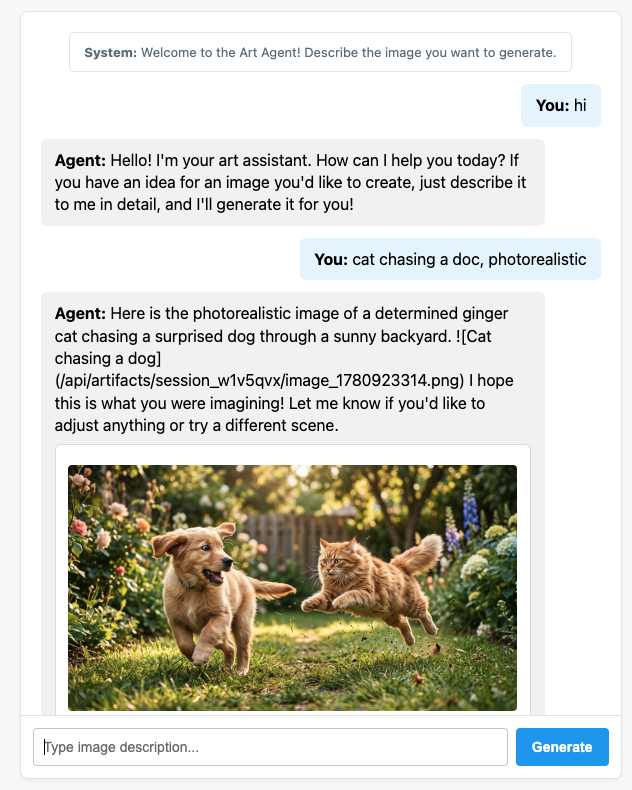
5. Định cấu hình tác nhân để phát thông báo A2UI
Bây giờ, hãy cập nhật tác nhân để trả về giao diện người dùng có cấu trúc thay vì chỉ trả về văn bản. Chúng ta sẽ sử dụng a2ui-agent-sdk chính thức để tạo một câu lệnh hệ thống có nhận biết A2UI cho tác nhân.
Khi sử dụng A2UI SDK, thay vì xác định trực tiếp các chỉ dẫn cho tác nhân, chúng ta sẽ sử dụng lớp A2uiSchemaManager để cấu trúc lời nhắc hệ thống của tác nhân nhằm tìm hiểu các khả năng tạo giao diện của A2UI, bao gồm cả việc cấp quyền truy cập vào danh mục thành phần, lược đồ thành phần đầy đủ và các ví dụ về cách sử dụng (nếu có).
- Trước tiên, hãy dừng máy chủ FastAPI bằng tổ hợp phím Ctrl+C.
- Sửa đổi
art_creator/agent.pyđể tích hợpA2uiSchemaManagervà hooka2ui_callbackmới:
art_creator/agent.py
import os
import time
from google.adk.agents.llm_agent import Agent
from google.adk.tools.tool_context import ToolContext
from google.genai import types
from a2ui.schema.manager import A2uiSchemaManager
from a2ui.basic_catalog.provider import BasicCatalog

# Load env variables
from dotenv import load_dotenv
load_dotenv(os.path.join(os.path.dirname(__file__), ".env"))


async def generate_image(prompt: str, tool_context: ToolContext) -> dict:
    """Generates a high-quality image based on the user's detailed description prompt."""
    from google.genai import Client
    client = Client(
        vertexai=True,
        project=os.environ.get("GOOGLE_CLOUD_PROJECT"),
        location=os.environ.get("GOOGLE_CLOUD_LOCATION", "global")
    )

    try:
        response = client.models.generate_content(
            model="gemini-3.1-flash-image",
            contents=prompt,
            config=types.GenerateContentConfig(
                response_modalities=['TEXT', 'IMAGE'],
            )
        )

        image_bytes = None
        for part in response.parts or []:
            if part.inline_data is not None:
                image_bytes = part.inline_data.data
                break

        if not image_bytes:
            return {"status": "failed", "detail": "No image data returned"}

        filename = f"image_{int(time.time())}.png"
        await tool_context.save_artifact(
            filename,
            types.Part.from_bytes(data=image_bytes, mime_type='image/png'),
        )

        return {
            "status": "success",
            "filename": filename,
            "url": f"/api/artifacts/{tool_context.session.id}/{filename}"
        }
    except Exception as e:
        return {"status": "failed", "detail": str(e)}

schema_manager = A2uiSchemaManager(
    version="0.8",
    catalogs=[BasicCatalog.get_config("0.8")],
)

instruction = schema_manager.generate_system_prompt(
    role_description=(
        "You are a specialized Image Creator agent. "
        "When given an image description, analyze the prompt and ask the user for any missing details. "
        "The image generation prompt should include: "
        "Subject, environment, style, lighting, color and mood. "
    ),
    workflow_description=(
        "1. if the user greets you, greet the user back explaining your purpose. "
        "2. if the user describes an image, DO NOT GENERATE IT IMMEDIATELY: compare with "
        "   the ideal generation prompt and ask the user for any missing details using "
        "   rich A2UI UI elements only. NOTE: only run this step once per image, if the user "
        "   decides to not detail one or more elements it is ok. "
        "3. combine the original prompt with the responses in the UI elements and call `generate_image` "
        "   with the generated prompt. "
        "   DO NOT INCLUDE EXAMPLES IN THE GENERATED PROMPT, ONLY THE ELEMENTS THE USER ASKED FOR. "
        "4. display the resulting image to the user in a card including the image, the prompt and a "
        "   download button"
    ),
    ui_description=(
        "Use Card, Text, Image, Multichoice and Button components to present the options. "
        "Always include a single choice selection box for image resolution (1K, 2K or 4K) and one for "
        "aspect ratio (1:1, 16:9 or 9:16). "
        "When rendering the final output (generated image) always render the generated image using an "
        "Image component with the url bound to the image's URL/path returned by the tool. "
        "Add a Text component with the prompt that generated the image. "
        "Include a Button component labeled 'Download PNG' to allow downloading the image. "
        "Do NOT use markdown formatting in text values. Use the usageHint property for heading levels instead. "
        "Respond ONLY with the A2UI JSON array. Do NOT include any text "
        "outside the JSON. Put all explanations into Text components."
    ),
    include_schema=True,
)

root_agent = Agent(
    model="gemini-3.5-flash",
    name="art_agent_a2ui",
    instruction=instruction,
    tools=[generate_image],
)
Lưu ý rằng giờ đây, hướng dẫn cho nhân viên được tạo bằng lệnh gọi schema_manager.generate_system_prompt thay vì được mã hoá cứng trong định nghĩa về nhân viên.
Kiểm thử ứng dụng web của bạn bằng cách khởi động máy chủ FastAPI:
uv run python -m uvicorn main:app --port 8080 --host 0.0.0.0
Sử dụng Web Preview (Xem trước trên web) trên cổng 8080 để truy cập vào cuộc trò chuyện tuỳ chỉnh của bạn. Bạn sẽ nhận thấy rằng hiện tại, tác nhân đang phát ra các thông báo JSON thay vì văn bản thông thường. Đây là cách biểu diễn nội bộ của các phần tử A2UI mà chúng ta sẽ kết xuất trong phần tiếp theo.
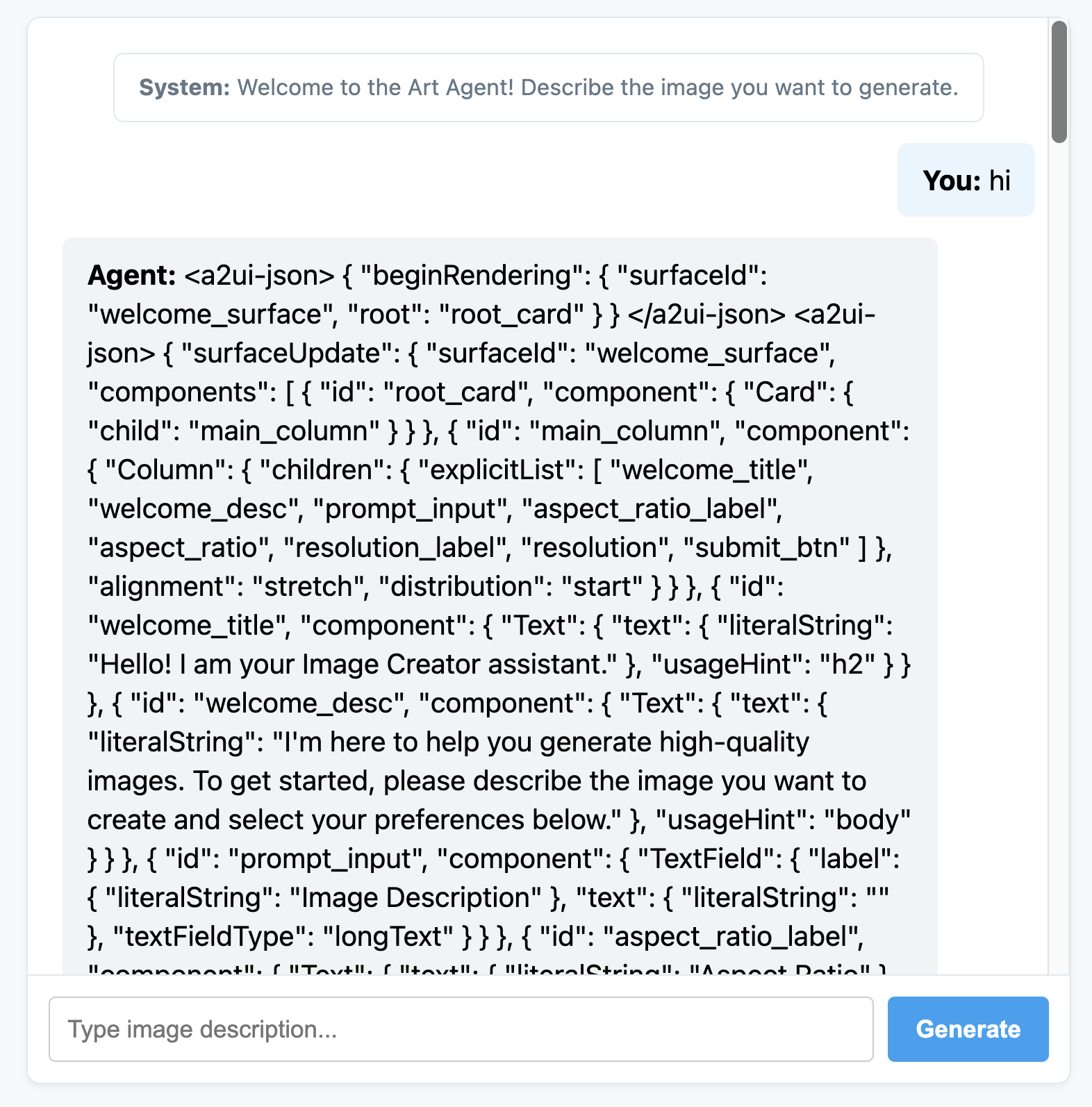
6. Tạo giao diện người dùng tuỳ chỉnh cho tác nhân
Ở giai đoạn này, ứng dụng của chúng ta sẽ nhận được danh sách các thông báo A2UI rõ ràng (beginRendering, surfaceUpdate và dataModelUpdate). Giờ đây, chúng ta sẽ tạo một công cụ kết xuất phía máy khách tuỳ chỉnh bằng JavaScript thuần tuý để xem các thành phần này hoạt động.
Sau đây là tệp static/app.js hoàn chỉnh có chứa logic phân tích cú pháp và kết xuất A2UI:
static/app.js
document.addEventListener('DOMContentLoaded', () => {
const chatForm = document.getElementById('chat-form');
const userInput = document.getElementById('user-input');
const chatMessages = document.getElementById('chat-messages');
const sessionId = "session_" + Math.random().toString(36).substring(2, 9);
async function sendChat(prompt, showInUi = true) {
if (!prompt) return;
if (showInUi) {
appendMessage('user', prompt);
}
const tempBubble = appendMessage('agent', '...');
try {
const response = await fetch('/api/chat', {
method: 'POST',
headers: { 'Content-Type': 'application/json' },
body: JSON.stringify({ prompt, session_id: sessionId })
});
const data = await response.json();
tempBubble.remove();
let text = data.text || "";
let a2uiMessages = [];
// 1. Extract <a2ui-json> blocks
const a2uiRegex = /<a2ui-json>(.*?)<\/a2ui-json>/gs;
let match;
while ((match = a2uiRegex.exec(text)) !== null) {
try {
const jsonStr = match[1].trim();
const parsed = JSON.parse(jsonStr);
const parsedList = Array.isArray(parsed) ? parsed : [parsed];
for (const msg of parsedList) {
if (msg && typeof msg === 'object') {
a2uiMessages.push(msg);
}
}
} catch (e) {
console.error("Error parsing <a2ui-json> block:", e);
}
}
// 2. Extract <a2a_datapart_json> blocks (for robust history/callback parsing)
const a2aRegex = /<a2a_datapart_json>(.*?)<\/a2a_datapart_json>/gs;
while ((match = a2aRegex.exec(text)) !== null) {
try {
const jsonStr = match[1].trim();
const parsed = JSON.parse(jsonStr);
const dataMsg = (parsed && parsed.kind === 'data') ? parsed.data : parsed;
if (dataMsg && typeof dataMsg === 'object') {
a2uiMessages.push(dataMsg);
}
} catch (e) {
console.error("Error parsing <a2a_datapart_json> block:", e);
}
}
// 3. Clean XML and A2UI JSON tags from displayed conversational text
const cleanText = text.replace(/<(a2ui-json|a2a_datapart_json)>.*?<\/\1>/gs, '').trim();
const imageUrl = (data && typeof data === 'object' && data.image_url) ? data.image_url : null;
appendMessage('agent', cleanText, imageUrl, a2uiMessages);
} catch (error) {
tempBubble.remove();
appendMessage('agent', `Error: ${error.message}`);
}
}
chatForm.addEventListener('submit', async (e) => {
e.preventDefault();
const prompt = userInput.value.trim();
if (!prompt) return;
userInput.value = '';
await sendChat(prompt, true);
});
function renderA2UI(a2uiMessages) {
try {
let rootId = null;
const components = {};
const dataModel = {};
for (const msg of a2uiMessages) {
if (msg.beginRendering) {
rootId = msg.beginRendering.root;
} else if (msg.surfaceUpdate) {
for (const item of msg.surfaceUpdate.components) {
components[item.id] = item.component;
}
} else if (msg.dataModelUpdate) {
for (const item of msg.dataModelUpdate.contents) {
const val = item.valueString !== undefined ? item.valueString :
item.valueBool !== undefined ? item.valueBool :
item.valueInt !== undefined ? item.valueInt :
item.valueDouble !== undefined ? item.valueDouble : item.valueString;
dataModel[item.key] = val;
}
}
}
if (!rootId || Object.keys(components).length === 0) {
return null;
}
function resolveValue(valObj) {
if (!valObj) return '';
let val = '';
if (typeof valObj === 'string') val = valObj;
else if (valObj.literalString !== undefined) val = valObj.literalString;
else if (valObj.path !== undefined) val = dataModel[valObj.path] || '';
else val = JSON.stringify(valObj);
// Dynamically replace any wrong session IDs in artifact URLs with the active sessionId
if (typeof val === 'string' && val.includes('/api/artifacts/')) {
val = val.replace(/\/api\/artifacts\/session_[a-z0-9]+/g, `/api/artifacts/${sessionId}`);
}
return val;
}
function buildElement(id) {
try {
const compDesc = components[id];
if (!compDesc) return null;
const type = Object.keys(compDesc)[0];
const props = compDesc[type];
const el = document.createElement('div');
el.className = `a2ui-component a2ui-${type.toLowerCase()}`;
el.style.margin = '4px 0';
if (type === 'Column') {
el.style.display = 'flex';
el.style.flexDirection = 'column';
el.style.gap = '8px';
const children = props.children?.explicitList || [];
for (const childId of children) {
const childEl = buildElement(childId);
if (childEl) el.appendChild(childEl);
}
} else if (type === 'Row') {
el.style.display = 'flex';
el.style.flexDirection = 'row';
el.style.gap = '8px';
el.style.alignItems = 'center';
const children = props.children?.explicitList || [];
for (const childId of children) {
const childEl = buildElement(childId);
if (childEl) el.appendChild(childEl);
}
} else if (type === 'Card') {
el.style.border = '1px solid #ddd';
el.style.borderRadius = '6px';
el.style.padding = '12px';
el.style.backgroundColor = '#fdfdfd';
el.style.marginTop = '8px';
if (props.child) {
const childEl = buildElement(props.child);
if (childEl) el.appendChild(childEl);
}
} else if (type === 'Text') {
const textVal = resolveValue(props.text);
const tag = props.usageHint === 'h1' ? 'h3' :
props.usageHint === 'h2' ? 'h4' : 'p';
const textEl = document.createElement(tag);
textEl.textContent = textVal;
textEl.style.margin = '0 0 4px 0';
el.appendChild(textEl);
} else if (type === 'Image') {
const srcVal = resolveValue(props.url) || resolveValue(props.src);
const imgEl = document.createElement('img');
imgEl.src = srcVal;
imgEl.style.maxWidth = '100%';
imgEl.style.borderRadius = '4px';
imgEl.style.display = 'block';
imgEl.style.marginTop = '6px';
imgEl.className = 'generated-img';
el.appendChild(imgEl);
} else if (type === 'Divider') {
const hrEl = document.createElement('hr');
hrEl.style.border = '0';
hrEl.style.borderTop = '1px solid #eee';
hrEl.style.margin = '12px 0';
el.appendChild(hrEl);
} else if (type === 'MultipleChoice') {
const labelVal = resolveValue(props.label);
const options = props.options?.explicitList || (Array.isArray(props.options) ? props.options : []);
const container = document.createElement('div');
container.style.display = 'flex';
container.style.flexDirection = 'column';
container.style.gap = '4px';
container.style.margin = '8px 0';
if (labelVal) {
const labelEl = document.createElement('label');
labelEl.textContent = labelVal;
labelEl.style.fontSize = '12px';
labelEl.style.fontWeight = 'bold';
container.appendChild(labelEl);
}
const selectEl = document.createElement('select');
selectEl.className = 'a2ui-select';
selectEl.name = id;
for (const option of options) {
const optEl = document.createElement('option');
optEl.value = option.value !== undefined ? option.value : (option.id !== undefined ? option.id : '');
optEl.textContent = resolveValue(option.label);
selectEl.appendChild(optEl);
}
container.appendChild(selectEl);
el.appendChild(container);
} else if (type === 'Button') {
let labelVal = props.label ? resolveValue(props.label) : '';
if (!labelVal && props.child) {
const childComp = components[props.child];
if (childComp && childComp.Text) {
labelVal = resolveValue(childComp.Text.text);
}
}
const btnEl = document.createElement('button');
btnEl.className = 'btn-download';
btnEl.textContent = labelVal || 'Submit';
btnEl.addEventListener('click', (e) => {
e.preventDefault();
const action = props.action;
let downloadUrl = null;
if (action && (action.name === 'download_file' || action.name === 'download') && action.context) {
const urlContext = action.context.find(ctx => ctx.key === 'url');
if (urlContext) {
downloadUrl = resolveValue(urlContext.value);
}
}
const isDownload = downloadUrl || (labelVal && labelVal.toLowerCase().includes('download'));
if (isDownload) {
const finalUrl = downloadUrl || (el.closest('.message')?.querySelector('img')?.src);
if (finalUrl) {
const link = document.createElement('a');
link.href = finalUrl;
link.download = `generation-${Date.now()}.png`;
link.click();
}
} else {
const bubbleEl = el.closest('.message');
const selects = bubbleEl.querySelectorAll('.a2ui-select');
let answers = [];
selects.forEach(sel => {
let labelText = sel.previousSibling ? sel.previousSibling.textContent : sel.name;
const selectedText = sel.options[sel.selectedIndex]?.textContent || sel.value;
answers.push(`- ${labelText}: ${selectedText}`);
});
if (answers.length > 0) {
const responseText = `Selected options:\n` + answers.join('\n');
sendChat(responseText, false);
} else {
sendChat(labelVal || 'Submit', false);
}
}
});
el.appendChild(btnEl);
}
return el;
} catch (err) {
console.error('Error building component:', id, err);
return null;
}
}
return buildElement(rootId);
} catch (err) {
console.error('Error in renderA2UI:', err);
return null;
}
}
function appendMessage(sender, text, imageUrl = null, a2ui = null) {
const bubble = document.createElement('div');
bubble.className = `message ${sender}`;
const textSpan = document.createElement('span');
textSpan.innerHTML = `<strong>${sender === 'user' ? 'You' : 'Agent'}:</strong> `;
bubble.appendChild(textSpan);
if (text) {
const textContent = document.createTextNode(text);
textSpan.appendChild(textContent);
}
if (sender === 'agent' && a2ui && a2ui.length > 0) {
const a2uiEl = renderA2UI(a2ui);
if (a2uiEl) {
bubble.appendChild(a2uiEl);
}
}
if (imageUrl) {
const imgContainer = document.createElement('div');
imgContainer.style.marginTop = '8px';
const img = document.createElement('img');
img.src = imageUrl;
img.style.maxWidth = '100%';
img.style.borderRadius = '4px';
img.className = 'generated-img';
imgContainer.appendChild(img);
bubble.appendChild(imgContainer);
}
chatMessages.appendChild(bubble);
chatMessages.scrollTop = chatMessages.scrollHeight;
return bubble;
}
});
Khởi động lại máy chủ ứng dụng FastAPI:
uv run python -m uvicorn main:app --port 8080 --host 0.0.0.0
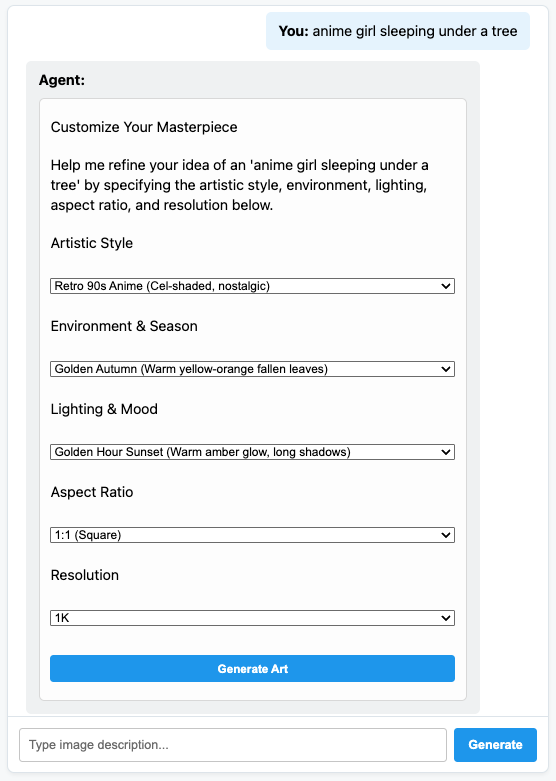
Và trò chuyện với tác nhân A2UI Art Creator hoàn toàn linh hoạt của bạn!
7. Xin chúc mừng!
Bạn đã tạo một tác nhân ADK có khả năng tạo động các phần tử trên giao diện người dùng bằng A2UI. Bạn có thể tiếp tục hành trình học tập của mình bằng cách khám phá nhiều hoạt động tích hợp khung hoặc khám phá tài liệu trong các tài liệu tham khảo bên dưới.
Tạo giao diện người dùng sản xuất
Trong hội thảo này, chúng tôi đã sử dụng một giao diện người dùng thuần tuý được tạo tuỳ chỉnh bằng JS cho mục đích sư phạm, nhưng để sản xuất, bạn sẽ tạo một giao diện người dùng bằng một trong các trình kết xuất A2UI chính thức:
Nền tảng | Trình kết xuất đồ hoạ | Cài đặt |
Web (React) | @a2ui/react | npm install @a2ui/react |
Web (Lit) | @a2ui/lit | npm install @a2ui/lit |
Web (Angular) | @a2ui/angular | npm install @a2ui/angular |
Thiết bị di động/Máy tính | Flutter GenUI SDK |