

1. 简介
动画是提升应用用户体验、向用户传达重要信息以及让应用更加精致、更易于使用的绝佳方式。
构建内容
在此 Codelab 中,您将与 Google Antigravity 协作,构建一款包含各种 Flutter 动画效果和技术的选择题测验游戏。
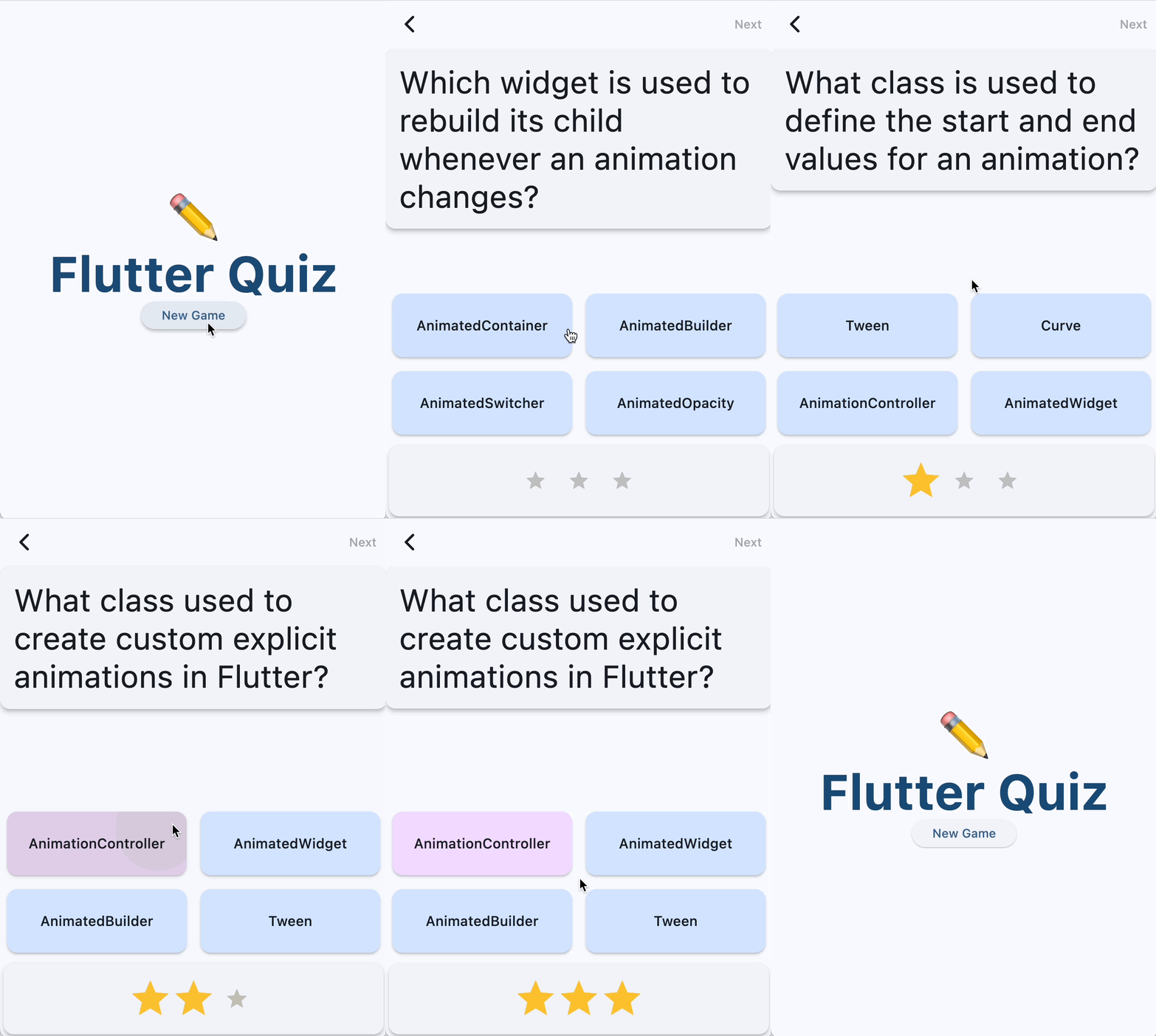
使用 Antigravity 时,您将反复提示智能体执行以下操作:
- 构建一个记分板 widget,使用隐式动画、补间动画和缓动曲线来为其大小和颜色添加动画效果。
- 在
AnimatedSwitcher中使用显式SlideTransition和FadeTransition效果为问题切换添加动画效果。 - 构建由
AnimationController驱动并与TweenSequence交错的自定义 3D 卡片翻转效果。 - 使用
animations软件包中预构建的 Material 运动过渡(FadeThroughTransition和OpenContainer),并添加对 Android 预测性返回手势的支持。
Flutter 动画框架概览
Flutter 通过在每一帧上重新构建 widget 树的一部分来显示动画效果。它提供了预构建的动画效果和可组合 API,让您能够轻松创建和协调动画:
- 隐式动画是预构建的动画效果,会自动运行整个动画。当动画的 target 值发生变化时,该 widget 会从当前值平滑过渡到目标值,并显示其间的每个值。示例包括
AnimatedSize、AnimatedScale和AnimatedPositioned。 - 显式动画是预构建的动画效果,它们采用
Animation对象来驱动其进度。例如SizeTransition、ScaleTransition、SlideTransition和FadeTransition。 Animation是一个表示正在运行或已停止的动画的类。它会公开当前值和状态,扩展Listenable,并在动画播放过程中通知其监听器。AnimationController会创建Animation并控制其生命周期。forward()、reset()、stop()和repeat()等方法可独立于正在渲染的视觉效果来控制播放。- 补间动画会插值
begin值和end值之间的值,并且可以表示任何类型,例如double、Offset或Color。 - 曲线用于调整参数随时间的变化率。应用加/减速曲线可使动画自然地加速或减速。曲线会将介于
0.0和1.0之间的输入值映射到输出值。
您的学习之旅
此 Codelab 将引导您逐步构建测验应用并为其添加动画效果:
- 设置 Flutter 环境 - 为目标平台配置 Flutter SDK 和 Google Antigravity。
- 创建项目 - 提示 Antigravity 搭建一个采用 Model-View-ViewModel (MVVM) 模式结构的多选题测验应用。
- 使用隐式动画效果 - 添加一个基于星形的
Scoreboard,它会使用AnimatedScale、TweenAnimationBuilder和Curves.elasticOut为缩放和颜色添加动画效果。 - 使用显式动画效果 - 使用
AnimatedSwitcher、SlideTransition、FadeTransition和自定义layoutBuilder为进入和退出问题添加动画效果。 - 控制动画的状态 - 使用
AnimationController、AnimatedBuilder、Transform和交错的TweenSequence构建自定义 3DCardFlipEffect。 - 使用自定义导航过渡 - 使用
PredictiveBackPageTransitionsBuilder添加PageTransitionsTheme,使用PageTransitionSwitcher和FadeThroughTransition切换问题,并使用OpenContainer展开到游戏结束屏幕。
学习内容
- 如何与 Google Antigravity 协作,以迭代方式构建和自定义具有丰富动画效果的 Flutter 应用。
- 如何使用隐式动画 widget(
AnimatedScale和TweenAnimationBuilder),只需极少代码即可实现精美的动画效果。 - 如何组合由
Animation对象驱动的显式动画 widget(SlideTransition和FadeTransition)。 - 如何使用
AnimationController和TweenSequence构建交错的 3D widget 过渡。 - 如何使用
animations软件包和PredictiveBackPageTransitionsBuilder提供 Material 动效和 Android 预测性返回过渡。
前提条件
- 基本熟悉 Flutter widget 和 Dart 语法。
2. 设置您的 Flutter 环境
编辑者
此 Codelab 使用 Google Antigravity 作为 AI 优先的开发环境。在每个步骤中,您都需要提示 Antigravity 生成或改进应用组件,查看生成的代码中的关键 Flutter 动画概念,并可选择探索创意变体。
选择目标开发平台
您可以在以下任一目标平台上运行此 Codelab:
- Android 实体设备或模拟器(建议用于在导航转场步骤中测试预测性返回手势)。
- iOS 实体设备或 iOS 模拟器(需要在 macOS 上安装 Xcode)。
- 网络浏览器(例如 Chrome)。
- Windows、macOS 或 Linux 桌面目标。
安装 Flutter
如需获取关于如何安装 Flutter SDK 的最新说明,请随时访问 docs.flutter.dev。
Flutter 网站上的说明涵盖了 SDK、平台专用工具和编辑器插件的安装。对于此 Codelab,请安装以下软件:
- Flutter SDK
- 已启用官方 Dart 和 Flutter 插件的 Google Antigravity(可在插件市场的 Build with Google 部分中找到)。
- 您选择的目标开发平台所需的编译器软件(例如:以 Android 为目标开发平台时,需要 Android Studio;以 Windows 为目标开发平台时,需要 Visual Studio;以 macOS 或 iOS 为目标开发平台时,需要 Xcode)。
在下一步中,您将提示 Antigravity 创建 Flutter 项目并搭建测验入门应用。
3. 创建项目
提示 Antigravity 创建项目
- 启动 Google Antigravity,然后打开一个空目录,用于构建项目(选择不需要提权或不包含空格的路径,例如主目录中的文件夹或
C:\src\)。 - 在 Antigravity 智能体对话面板中,发送以下提示,以创建 Flutter 项目、添加
animations和material_ui依赖项,并搭建 MVVM 测验应用:
Create a new empty Flutter project named `quiz` for a multiple-choice Flutter animations quiz game and add the `animations` and `material_ui` packages. Using `package:material_ui/material_ui.dart`, create `lib/model.dart` with `Question` (`question`, `possibleAnswers`, `correctAnswer`) and `QuestionBank` (`hasNextQuestion`, `remainingQuestions`, `getRandomQuestion()`) populated with three multiple-choice questions about Flutter animations. Create `lib/view_model.dart` with `QuizViewModel extends ChangeNotifier` (`onGameOver` callback, `totalQuestions`, `currentQuestion`, `answeredQuestionCount`, `score`, `didAnswerQuestion`, `hasNextQuestion`, `getNextQuestion()`, and `checkAnswer(int)`). Create `lib/home_screen.dart` (`HomeScreen` with a "New Game" button that pushes `QuestionScreen`), `lib/question_screen.dart` (`QuestionScreen` listening to `QuizViewModel` using `ListenableBuilder`, showing a game-over `AlertDialog` that pops to the first route, plus `QuestionCard`, a 2-column `AnswerCards` grid using `Card.filled` with `ValueKey(answers[index])` that highlights the `correctAnswer` in `tertiaryContainer`, and `StatusBar`), and wire `HomeScreen` up in `lib/main.dart` inside `MainApp` with a blue Material 3 `ColorScheme.fromSeed`.
了解生成的代码
Antigravity 搭建了一个多选题测验游戏,该游戏由两个屏幕组成,采用 Model-View-ViewModel (MVVM) 模式:
lib/main.dart- 使用 Material 3 主题设置 (package:material_ui/material_ui.dart) 配置MaterialApp,并启动HomeScreen。lib/home_screen.dart- 显示标题屏幕,其中包含一个可导航到QuestionScreen的 New Game 按钮。lib/model.dart- 定义Question数据类和QuestionBank,后者会随机抽取问题,直到题库为空。lib/view_model.dart- 定义QuizViewModel,这是一个ChangeNotifier,用于跟踪当前问题、玩家得分和游戏结束状态。lib/question_screen.dart- 呈现QuestionScreen(视图),后者会监听QuizViewModel并组合QuestionCard、AnswerCards和StatusBar。
使用 QuizViewModel 和 ListenableBuilder 的响应式状态
在 lib/view_model.dart 中,QuizViewModel 扩展了 ChangeNotifier,并在用户选择答案或进入下一题时调用 notifyListeners():
class QuizViewModel extends ChangeNotifier {
  final QuestionBank _questionBank = QuestionBank();
  final VoidCallback onGameOver;
  late final int totalQuestions;
  Question? currentQuestion;
  int answeredQuestionCount = 0;
  int score = 0;
  bool didAnswerQuestion = false;
  bool get hasNextQuestion => answeredQuestionCount < totalQuestions;
  // ...
在 lib/question_screen.dart 中,QuestionScreen 将其 Scaffold 封装在 ListenableBuilder 中,以便在 viewModel 通知其监听器时自动重新构建界面:
@override
Widget build(BuildContext context) {
  return ListenableBuilder(
    listenable: viewModel,
    builder: (context, child) {
      return Scaffold(
        // ...
运行并测试应用
在所选目标设备上运行应用,验证起始项目是否按预期运行。

点按新游戏,然后回答几个问题。目前,应用会立即更新得分文本、问题卡片和答案卡片,没有任何动画效果(Navigator 的默认路线转换除外)。在下一步中,您将向记分板添加隐式动画。
4. 使用隐式动画效果
隐式动画通常是向 Flutter 应用添加动效的最快方式,因为它们会自动管理自己的内部动画状态。每当目标属性(例如 scale、opacity 或 padding)发生变化时,ImplicitlyAnimatedWidget 都会在指定的 duration 内从旧值平滑插值到新值。
在此步骤中,您将用基于星星的 Scoreboard 替换纯文本状态栏,当玩家得分时,每个星星的大小和颜色都会发生动画变化。

提示 Antigravity 添加动画星星计分板
在 Antigravity 中发送以下提示,以创建 lib/scoreboard.dart 并将其集成到 StatusBar 中:
Create `lib/scoreboard.dart` (importing `package:material_ui/material_ui.dart`) with a `Scoreboard` widget (`score` and `totalQuestions`) that renders a row of `AnimatedStar` widgets (`isActive: score > i`), and replace the text children in `StatusBar` (`lib/question_screen.dart`) with `Scoreboard`. In `AnimatedStar`, animate each 50px `Icons.star` over 1000ms using `Curves.elasticOut`: wrap the icon in an `AnimatedScale` (scaling from `0.5` when inactive to `1.0` when active) and a `TweenAnimationBuilder<Color?>` using a `ColorTween` from `Colors.grey.shade400` to `Colors.yellow.shade700` when active.
了解生成的代码
使用 AnimatedScale 进行隐式扩缩
在 lib/scoreboard.dart 中,Scoreboard 会为测验中的每个问题显示一个 AnimatedStar,并传递 isActive: score > i。在 AnimatedStar 中,每当 isActive 变为 true 时,AnimatedScale 都会将其子级从 0.5 缩放到 1.0:
return AnimatedScale(
  scale: isActive ? 1.0 : 0.5,
  curve: _curve,
  duration: _duration,
  // ...
如果您仅将 AnimatedScale 与静态 Icon 颜色搭配使用,星星的大小会平滑地呈现动画效果,而其颜色会立即从灰色变为黄色:

使用 TweenAnimationBuilder 和 ColorTween 插值颜色
如需在缩放星星的同时为其颜色添加动画效果,您可以考虑使用 AnimatedContainer(为容器装饰添加动画效果)或 AnimatedIcon(在 AnimatedIcons 中预定义的图标对之间进行变形)。不过,这两种方法都无法为标准 Icons.star widget 的颜色添加动画效果。
相反,生成的代码会使用 TweenAnimationBuilder,这是一种多功能 ImplicitlyAnimatedWidget,可使用 Tween 为任何属性添加动画效果。Tween 接受 begin 和 end 值,并计算动画时间轴上的中间值。在这里,ColorTween 会在非活跃灰色和活跃黄色之间进行插值:
child: TweenAnimationBuilder(
  curve: _curve,
  duration: _duration,
  tween: ColorTween(
    begin: _deactivatedColor,
    end: isActive ? _activatedColor : _deactivatedColor,
  ),
  builder: (context, value, child) {
    return Icon(Icons.star, size: 50, color: value);
  },
),
每当 Tween.end 根据 isActive 发生变化时,TweenAnimationBuilder 都会自动从其当前值向新的 end 值播放动画,即使 isActive 在动画播放期间发生变化也是如此:

使用 Curves.elasticOut 应用加/减速曲线
以恒定线性速率运行的动画可能会让人感觉机械。Curve 会应用加/减速函数,该函数会随时间改变变化率,将 0.0 到 1.0 之间的输入进度值(在 X 轴上)映射到输出值(在 Y 轴上)。Flutter 在 Curves 类中提供了丰富的预构建曲线,例如 Curves.easeIn 和 Curves.easeOut:


将 Curves.elasticOut 传递给 AnimatedScale 和 TweenAnimationBuilder 会产生一种充满活力的弹簧效果,该效果会超出目标值,并在最后稳定下来:

运行并测试应用
热重载应用,然后正确回答一个问题,即可看到星星在 StatusBar 中弹跳并发出金色光芒。
使用开发者工具检查缓慢的动画
为了逐帧检查快速动画,Flutter 开发者工具提供了慢速动画切换开关,可将应用中的所有动画速度放慢 5 倍。在调试模式下运行时,在 DevTools 中打开 Flutter Inspector,然后点击工具栏中的 Slow animations 按钮:

5. 使用显式动画效果
与隐式动画一样,显式动画也是预构建的动画 widget,但它们不接受目标值,而是接受 Animation 对象作为参数。因此,当父级 widget(例如 AnimatedSwitcher、路由转换或您自己的 AnimationController)提供 Animation 时,以及当您想要将多个转换组合在一起时,这些 widget 是理想的选择。
在此步骤中,您将为 QuestionCard 添加动画效果,以便新问题能够平滑地滑动和淡入,而不会在布局中跳跃。
提示 Antigravity 为问题切换添加动画效果
在 Antigravity 中发送以下提示,以更新 lib/question_screen.dart 中的 QuestionCard:
Update `QuestionCard` in `lib/question_screen.dart` to wrap its `Card` (keyed by `ValueKey(question)`) in an `AnimatedSwitcher` with a 300ms duration. Configure `transitionBuilder` to apply `Curves.easeInCubic` using `CurveTween` and compose a `FadeTransition` with a `SlideTransition` that slides from `Offset(-0.1, 0.0)` to `Offset.zero`. Override `layoutBuilder` to return a `Stack` aligned to `Alignment.topCenter` so the card doesn't jump vertically when switching questions.
了解生成的代码
在AnimatedSwitcher中撰写SlideTransition和FadeTransition
每当 AnimatedSwitcher 的 child 更改为具有不同 Key 的 widget 时,它都会自动运行过渡。
默认情况下,AnimatedSwitcher 会在新旧子项之间进行淡入淡出,但其 transitionBuilder 回调会为您提供传入和传出的 child 微件以及 Animation,以便您构建自定义显式动画。
在 lib/question_screen.dart 中,生成的 transitionBuilder 使用封装在 FadeTransition 中的 SlideTransition(需要 Animation):
transitionBuilder: (child, animation) {
  final curveAnimation = CurveTween(
    curve: Curves.easeInCubic,
  ).animate(animation);
  final offsetAnimation = Tween<Offset>(
    begin: const Offset(-0.1, 0.0),
    end: Offset.zero,
  ).animate(curveAnimation);
  final fadeInAnimation = curveAnimation;
  return FadeTransition(
    opacity: fadeInAnimation,
    child: SlideTransition(position: offsetAnimation, child: child),
  );
},
每个 Tween 都提供一个 animate() 方法,该方法可将输入 Animation 转换为应用了该补间动画的新 Animation。您还可以使用 Animation.drive() 简洁地串联补间动画:
final offsetAnimation = animation
    .drive(CurveTween(curve: Curves.easeInCubic))
    .drive(Tween<Offset>(begin: const Offset(-0.1, 0.0), end: Offset.zero));
使用 layoutBuilder 防止布局跳动
如果没有自定义 layoutBuilder,AnimatedSwitcher 会在过渡期间将其子项居中放置在 Stack 中,然后在动画完成后将卡片贴靠回可用空间的顶部:

通过替换 layoutBuilder 以使用 Alignment.topCenter(而不是 AnimatedSwitcher.defaultLayoutBuilder 使用的 Alignment.center),可使进入和退出卡片在整个过渡期间保持顶部对齐:
layoutBuilder: (currentChild, previousChildren) {
  return Stack(
    alignment: Alignment.topCenter,
    children: <Widget>[
      ...previousChildren,
      ?currentChild,
    ],
  );
},
运行并测试应用
热重载应用,回答一个问题,然后点按下一题,验证新的 QuestionCard 是否在屏幕顶部顺畅地滑入和淡入。
学到的关键概念
- 显式动画 widget 接受
Animation对象,而不是单个目标值和时长。 Animation类表示动画随时间推移的进度,而不与特定视觉属性相关联。Tween.animate()和Animation.drive()会转换CurveTween并将其应用于Animation。AnimatedSwitcher.layoutBuilder可自定义在过渡期间如何对齐进入和退出的子项。
6. 控制动画的状态
到目前为止,Flutter 已为您管理每个动画的播放。如果您需要完全控制动画的启动、停止、重置或多个阶段的顺序,可以使用 AnimationController 创建自己的 Animation。
在此步骤中,您将构建一个自定义 CardFlipEffect widget,以便在问题发生变化时以 3D 形式翻转每个答案卡片,并使用 TweenSequence 错开四个卡片,使其依次翻转。
提示 Antigravity 构建交错的 3D 卡片翻转效果
在 Antigravity 中发送以下提示,以创建 lib/flip_effect.dart 并将答案卡片封装在 lib/question_screen.dart 中:
Create `lib/flip_effect.dart` with a stateful `CardFlipEffect` widget (`child`, `duration`, and `delayAmount`) using `SingleTickerProviderStateMixin`. When `widget.child.key` changes in `didUpdateWidget`, store the previous child and run an `AnimationController` whose duration is `widget.duration * (widget.delayAmount + 1)` (resetting when it reaches `1`). Drive the controller through a `TweenSequence<double>` (`_animationWithDelay`) that holds at `0.0` with `ConstantTween` for weight `delayAmount` (when `delayAmount > 0`) and then interpolates from `0.0` to `1.0` with weight `1.0`, using `AnimatedBuilder` and `Transform` (`Matrix4.identity()..rotateX(_animationWithDelay.value * math.pi)`) to show `_previousChild` for the first half of the flip and `Transform.flip(flipY: true, child: child)` for the second half. In `AnswerCards` (`lib/question_screen.dart`), wrap each `Card.filled` in `CardFlipEffect` with a 300ms duration and `delayAmount: index.toDouble() / 2`.
了解生成的代码
使用 AnimationController 管理动画生命周期
使用 AnimationController 创建自定义动画需要四个步骤:
- 创建
StatefulWidget(CardFlipEffect)。 - 将
SingleTickerProviderStateMixin混入State类,以便其提供帧Ticker。 - 使用
vsync: this初始化initState()中的AnimationController,并在widget.child.key发生更改时触发didUpdateWidget()中的forward()。 - 使用
AnimatedBuilder在每个 tick 上重新构建 widget 树。
使用 AnimatedBuilder 和 Transform 进行 3D 旋转
对于 2D 旋转,Flutter 提供了 AnimatedRotation(隐式)和 RotationTransition(显式)。由于 3D X 轴卡片翻转需要进行 Matrix4 转换,并在翻转过程中交换正面和背面 widget (value < 0.5),因此 CardFlipEffect 将 AnimatedBuilder 与 Transform 结合使用:
@override
Widget build(BuildContext context) {
  return AnimatedBuilder(
    animation: _animationWithDelay,
    builder: (context, child) {
      return Transform(
        alignment: Alignment.center,
        transform: Matrix4.identity()
          ..rotateX(_animationWithDelay.value * math.pi),
        child: _animationController.isAnimating
            ? _animationWithDelay.value < 0.5
                  ? _previousChild
                  : Transform.flip(flipY: true, child: child)
            : child,
      );
    },
    child: widget.child,
  );
}
在旋转的前半部分 (_animationWithDelay.value < 0.5) 期间,该 widget 会显示 _previousChild。当卡片旋转超过 90 度时,它会显示垂直翻转的新 child (Transform.flip(flipY: true)),以便在旋转完成时($\pi$ 弧度)文本正面朝上:

使用 TweenSequence 错开动画
请注意,CardFlipEffect 不使用 dart:async 中的 Future.delayed 来交错排列卡片。使用 TweenSequence 将延迟时间保留在动画时间轴内,意味着整个交错效果由同一个 TickerProvider 驱动,因此在 Flutter DevTools 中启用慢速动画也会按比例减慢延迟时间。
在 lib/flip_effect.dart 中,_animationWithDelay 链接了两个 TweenSequenceItem:一个由 delayAmount 加权的 ConstantTween,后跟一个由 1.0 加权的 Tween(begin: 0.0, end: 1.0):
_animationWithDelay = TweenSequence<double>([
  if (widget.delayAmount > 0)
    TweenSequenceItem(
      tween: ConstantTween<double>(0.0),
      weight: widget.delayAmount,
    ),
  TweenSequenceItem(tween: Tween(begin: 0.0, end: 1.0), weight: 1.0),
]).animate(_animationController);
在 AnswerCards (lib/question_screen.dart) 中,传递 delayAmount: index.toDouble() / 2 会使网格中的每张卡片在翻转前都有一个逐渐变长的初始保持时间:
return CardFlipEffect(
  delayAmount: index.toDouble() / 2,
  duration: const Duration(milliseconds: 300),
  child: Card.filled(
    key: ValueKey(answers[index]),
    // ...
运行并测试应用
执行热重启,回答一个问题,然后点按下一步,观看四个答案卡片逐一翻转。

7. 使用自定义导航过渡
除了在单个屏幕内为微件添加动画效果之外,您还可以为屏幕和主要界面状态之间的过渡添加动画效果。在此步骤中,您将使用 pub.dev 上的官方 animations 软件包(FadeThroughPageTransitionsBuilder、PageTransitionSwitcher、FadeThroughTransition 和 OpenContainer)中预构建的 Material 动效 widget,并启用 Android 的预测性返回手势。
提示 Antigravity 添加 Material 动效和预测性返回过渡
在 Antigravity 中发送以下提示,以更新 lib/main.dart 和 lib/question_screen.dart:
Using `package:animations/animations.dart`, update `ThemeData` in `lib/main.dart` with a `PageTransitionsTheme` that uses `PredictiveBackPageTransitionsBuilder()` on Android and `FadeThroughPageTransitionsBuilder()` on iOS, macOS, Windows, and Linux. In `lib/question_screen.dart`, create a `GameOverScreen` widget displaying `Scoreboard`, "You Win!", the final score, and an "OK" button that pops back to the first route. Update `QuestionCard` to use `PageTransitionSwitcher` (200ms duration) with `FadeThroughTransition` wrapping an `OpenContainer` (`key: ValueKey(question)`, `tappable: false`, `closedColor: Color(0xfff2f3fa)`, 12px rounded corners, elevation 4) whose `closedBuilder` registers `openContainer` using `onChangeOpenContainer` and renders the question text, and whose `openBuilder` returns `GameOverScreen(viewModel: viewModel)` when `_handleGameOver` invokes the stored callback.
了解生成的代码
自定义路由转换和 Android 预测性返回
如果您想自定义单个导航调用,可以将 PageRouteBuilder 传递给 Navigator.push(),并提供一个 transitionsBuilder(例如 FadeTransition 或 FadeThroughTransition),用于接收主要 animation 和 secondaryAnimation。
如需在整个应用中应用一致的路线转换,并支持 Android 的预测性返回手势,请在应用的 ThemeData (lib/main.dart) 中配置 pageTransitionsTheme:
theme: ThemeData(
  colorScheme: ColorScheme.fromSeed(seedColor: Colors.blue),
  pageTransitionsTheme: const PageTransitionsTheme(
    builders: {
      TargetPlatform.android: PredictiveBackPageTransitionsBuilder(),
      TargetPlatform.iOS: FadeThroughPageTransitionsBuilder(),
      TargetPlatform.macOS: FadeThroughPageTransitionsBuilder(),
      TargetPlatform.windows: FadeThroughPageTransitionsBuilder(),
      TargetPlatform.linux: FadeThroughPageTransitionsBuilder(),
    },
  ),
),
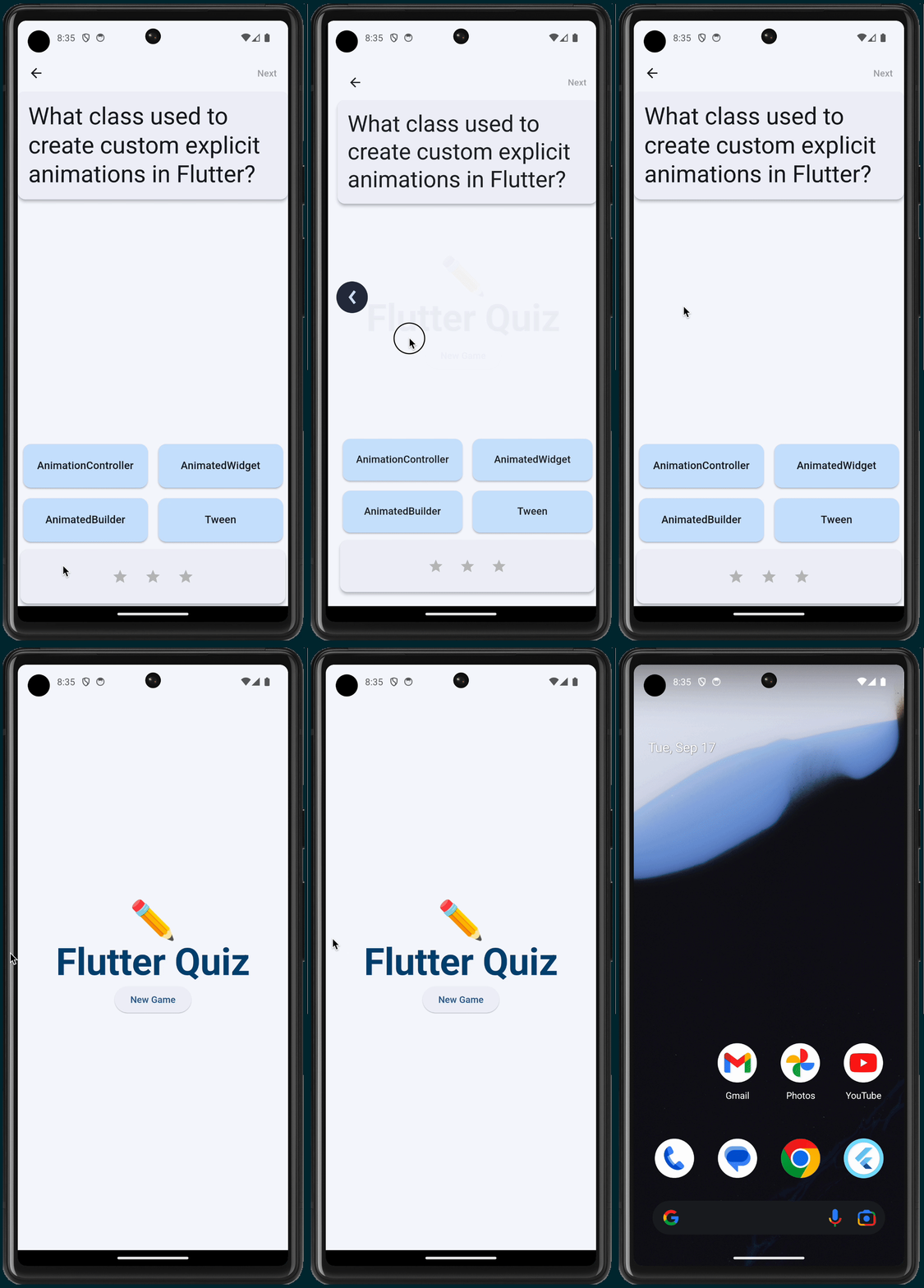
借助预测性返回功能,Android 用户可以从屏幕边缘滑动,在确认返回之前预览上一个路线。PredictiveBackPageTransitionsBuilder 会在 Android 14 (API 34) 及更高版本上监听系统预测性返回手势,并在较低 Android 版本上顺利回退到 ZoomPageTransitionsBuilder。如需了解平台配置详情,请参阅 Android 预测性返回指南。
使用 PageTransitionSwitcher 和 FadeThroughTransition 切换问题
标准 AnimatedSwitcher 仅在其 transitionBuilder 中公开单个 Animation。由于 FadeThroughTransition 等 Material 运动过渡会同时协调传入的 animation 和传出的 secondaryAnimation,因此 QuestionCard 会使用 animations 软件包中的 PageTransitionSwitcher:
return PageTransitionSwitcher(
  duration: const Duration(milliseconds: 200),
  transitionBuilder: (child, animation, secondaryAnimation) {
    return FadeThroughTransition(
      animation: animation,
      secondaryAnimation: secondaryAnimation,
      child: child,
    );
  },
  // ...
使用 OpenContainer 的容器转换

OpenContainer widget 实现了 Material 的容器转换模式,可将较小的 widget (closedBuilder) 平滑地展开为全屏目标页面 (openBuilder)。
在 lib/question_screen.dart 中,QuestionCard 会呈现一个带有 tappable: false 的 OpenContainer,因此点按问题卡片本身不会结束游戏。而是由 closedBuilder 将 openContainer 回调传递给 _QuestionScreenState,后者会在最后一个问题得到回答时调用该回调:
child: OpenContainer(
  key: ValueKey(question),
  tappable: false,
  closedColor: _backgroundColor,
  closedShape: const RoundedRectangleBorder(
    borderRadius: BorderRadius.all(Radius.circular(12.0)),
  ),
  closedElevation: 4,
  closedBuilder: (context, openContainer) {
    onChangeOpenContainer(openContainer);
    return ColoredBox(
      color: _backgroundColor,
      child: Padding(
        padding: const EdgeInsets.all(16.0),
        child: Text(
          question ?? '',
          style: Theme.of(context).textTheme.displaySmall,
        ),
      ),
    );
  },
  openBuilder: (context, closeContainer) {
    return GameOverScreen(viewModel: viewModel);
  },
),
运行并测试应用
热重启应用,开始新游戏,并回答完所有三个问题。当您回答最后一个问题时,OpenContainer 会将问题卡片平滑展开为全屏 GameOverScreen:

8. 恭喜
恭喜!您已与 Google Antigravity 合作,为 Flutter 测验应用添加了丰富的动画效果,并探索了 Flutter 动画系统的核心构建块。
您构建的内容
- 隐式动画记分板:使用
AnimatedScale和TweenAnimationBuilder以及ColorTween和Curves.elasticOut,在玩家得分时为星星图标添加动画效果。 - 明确的问题转换:在
AnimatedSwitcher内组合了FadeTransition和SlideTransition,并使用顶部对齐的layoutBuilder。 - 交错 3D 卡片翻转:使用
AnimationController、AnimatedBuilder和TweenSequence延迟控制 3DMatrix4旋转。 - Material 动效和预测性返回:使用
PredictiveBackPageTransitionsBuilder和FadeThroughPageTransitionsBuilder配置了PageTransitionsTheme,并使用了animations软件包中的PageTransitionSwitcher和OpenContainer。
接下来怎么做?
查看以下相关 Codelab:
深入阅读
如需探索更多动画指南和方法,请访问 docs.flutter.dev:
- 动画简介
- 动画教程
- 隐式动画
- 为容器的属性添加动画效果(实战宝典)
- 淡入和淡出 widget(实战宝典)
- 主打动画
- 为页面路由转换添加动画效果(实战指南)
- 使用物理模拟为 widget 添加动画效果(实战宝典)
- 交错动画
- 动画和动作 widget(widget 目录)