
1. Introduction
AI agents are only as useful as the data they can access. Most real-world data lives in databases — and connecting agents to databases typically means writing connection management, query logic, and embedding pipelines inside your agent code. Every agent that needs database access repeats this work, and every query change requires redeploying the agent.
This codelab shows a different approach. You declare your database tools in a YAML file — standard SQL queries, vector similarity search, even automatic embedding generation — and MCP Toolbox for Databases handles all database operations as an MCP server. Your agent code stays minimal: load the tools, let Gemini decide which one to call.
What you'll build
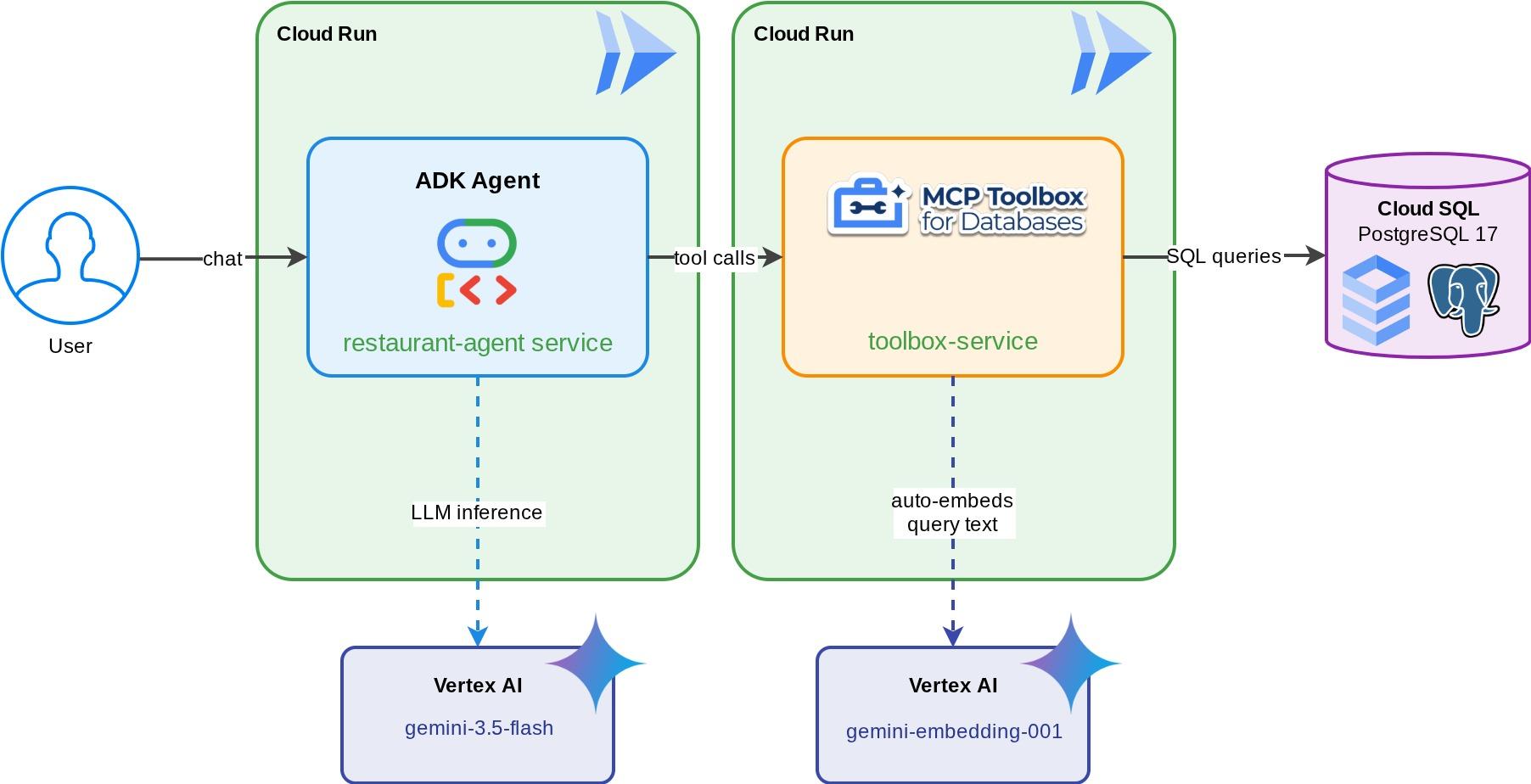
A Restaurant Concierge for "Foodie Finds" — an ADK agent powered by Gemini that helps diners browse a restaurant's menu using standard filters (category, cuisine type) and discover dishes through natural language descriptions like "I want something spicy and vegetarian." The agent reads from and writes to a Cloud SQL PostgreSQL database entirely through MCP Toolbox for Databases, which handles all database access — including automatic embedding generation for vector search. By the end, both the Toolbox and the agent run on Cloud Run.
What you'll learn
- How MCP (Model Context Protocol) standardizes tool access for AI agents, and how MCP Toolbox for Databases applies this to database operations
- Set up MCP Toolbox for Databases as middleware between an ADK agent and Cloud SQL PostgreSQL
- Define database tools declaratively in
tools.yaml— no database code in your agent - Build an ADK agent that loads tools from a running Toolbox server using
ToolboxToolset - Generate vector embeddings using Cloud SQL's built-in
embedding()function and enable semantic search withpgvector - Use the
valueFromParamfeature for automatic vector ingestion on write operations - Deploy both the Toolbox server and the ADK agent to Cloud Run
Prerequisites
- A Google Cloud account with a trial billing account
- Basic familiarity with Python and SQL
- Prior experience with Cloud Database and ADK will be helpful
2. Set Up Your Environment
This step prepares your Cloud Shell environment, configures your Google Cloud project, and clones the reference repository.
Open Cloud Shell
Open Cloud Shell in your browser. Cloud Shell provides a pre-configured environment with all the tools you need for this codelab. Click Authorize when prompted to
Then click "View" -> "Terminal" to open the terminal.Your interface should look similar to this
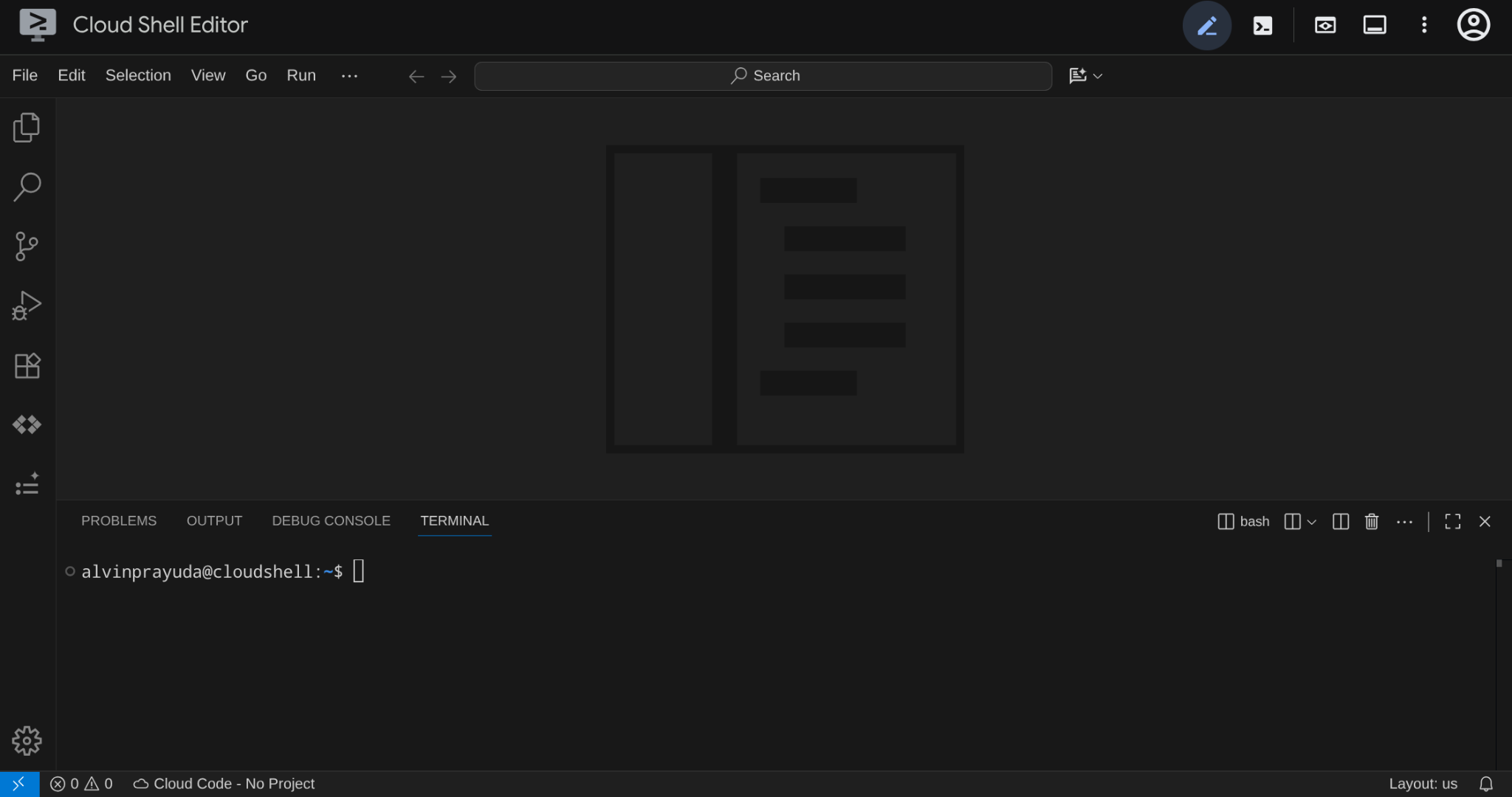
This will be our main interface, IDE on top, terminal on the bottom
Set up your working directory
Create your working directory. All code you write in this codelab lives here:
mkdir -p ~/build-agent-adk-toolbox-cloudsql
cloudshell workspace ~/build-agent-adk-toolbox-cloudsql && cd ~/build-agent-adk-toolbox-cloudsql
After that, let's prepare several directories to manage things like seeding scripts and logs
mkdir -p ~/build-agent-adk-toolbox-cloudsql/scripts
mkdir -p ~/build-agent-adk-toolbox-cloudsql/logs
Set up your Google Cloud project
Create the .env file with the location variables:
# For Vertex AI / Gemini API calls
echo "GOOGLE_CLOUD_LOCATION=global" > .env
# For Cloud SQL, Cloud Run, Artifact Registry
echo "REGION=us-central1" >> .env
To simplify project setup in your terminal, download this project setup script into your working directory:
curl -sL https://raw.githubusercontent.com/alphinside/cloud-trial-project-setup/main/setup_verify_trial_project.sh -o setup_verify_trial_project.sh
Run the script. It verifies your trial billing account, creates a new project (or validates an existing one), saves your project ID to a .env file in the current directory, and sets the active project in gcloud.
bash setup_verify_trial_project.sh && source .env
The script will:
- Verify you have an active trial billing account
- Check for an existing project in
.env(if any) - Create a new project or reuse the existing one
- Link the trial billing account to your project
- Save the project ID to
.env - Set the project as the active
gcloudproject
Verify the project is set correctly by checking the yellow text next to your working directory in the Cloud Shell terminal prompt. It should display your project ID.

Activate Required API
Next, we need to enable several API for the product that we will be interacting with:
gcloud services enable \
  aiplatform.googleapis.com \
  sqladmin.googleapis.com \
  compute.googleapis.com \
  run.googleapis.com \
  cloudbuild.googleapis.com \
  artifactregistry.googleapis.com
- Vertex AI API (
aiplatform.googleapis.com) — your agent uses Gemini models, and Toolbox uses the embedding API for vector search. - Cloud SQL Admin API (
sqladmin.googleapis.com) — you provision and manage a PostgreSQL instance. - Compute Engine API (
compute.googleapis.com) — required for creating Cloud SQL instances. - Cloud Run, Cloud Build, Artifact Registry — used in the deployment step later in this codelab
3. Preparing Scripts for Database Initialization
This step starts Cloud SQL instance creation and runs an automated setup script that waits for the instance to be ready, then creates the database, seeds it with job listings, and generates embeddings — all in one operation.
First, let's add the database password to your .env file and reload it:
echo "DB_PASSWORD=restaurant-pwd" >> .env
echo "DB_INSTANCE=restaurant-instance" >> .env
echo "DB_NAME=restaurant_db" >> .env
source .env
Creating Bash script for instance and database creation
Then, create the scripts/setup_database.sh script with the following command
mkdir -p ~/build-agent-adk-toolbox-cloudsql/scripts
cloudshell edit scripts/setup_database.sh
Then, copy the following code into the scripts/setup_database.sh file
#!/bin/bash
set -e
source .env

echo "================================================"
echo "Database Setup"
echo "================================================"
echo ""

# Step 1: Create Cloud SQL instance
echo "[1/5] Creating Cloud SQL instance..."

# Check if instance already exists
if gcloud sql instances describe "$DB_INSTANCE" --quiet >/dev/null 2>&1; then
    echo "      Instance already exists"
else
    echo "      Creating instance (takes 5-10 minutes)..."
    gcloud sql instances create "$DB_INSTANCE" \
        --database-version=POSTGRES_17 \
        --tier=db-custom-1-3840 \
        --edition=ENTERPRISE \
        --region="$REGION" \
        --root-password="$DB_PASSWORD" \
        --enable-google-ml-integration \
        --database-flags cloudsql.enable_google_ml_integration=on \
        --quiet
fi
echo "      ✓ Instance ready"
echo ""

# Step 2: Verify instance is ready
echo "[2/5] Verifying instance state..."

STATE=$(gcloud sql instances describe "$DB_INSTANCE" --format='value(state)')

if [ "$STATE" != "RUNNABLE" ]; then
    echo "ERROR: Instance not ready (state: $STATE)"
    exit 1
fi
echo "      ✓ Instance is RUNNABLE"
echo ""

# Step 3: Grant IAM permissions
echo "[3/5] Granting Vertex AI permissions..."

SERVICE_ACCOUNT=$(gcloud sql instances describe "$DB_INSTANCE" \
    --format='value(serviceAccountEmailAddress)')

if [ -z "$SERVICE_ACCOUNT" ]; then
    echo "ERROR: Could not retrieve service account"
    exit 1
fi

gcloud projects add-iam-policy-binding "$GOOGLE_CLOUD_PROJECT" \
    --member="serviceAccount:$SERVICE_ACCOUNT" \
    --role="roles/aiplatform.user" \
    --quiet

echo "      ✓ Permissions granted"
echo ""

# Step 4: Create database
echo "[4/5] Creating database..."

# Check if database already exists
if gcloud sql databases describe "$DB_NAME" \
    --instance="$DB_INSTANCE" --quiet >/dev/null 2>&1; then
    echo "      Database already exists"
else
    gcloud sql databases create "$DB_NAME" \
        --instance="$DB_INSTANCE" \
        --quiet
fi

echo "      ✓ Database '$DB_NAME' ready"
echo ""

# Step 5: Seed database and generate embeddings
echo "[5/5] Seeding database and generating embeddings..."

SCRIPT_DIR="$(cd "$(dirname "${BASH_SOURCE[0]}")" && pwd)"
SETUP_SCRIPT="${SCRIPT_DIR}/setup_restaurant_db.py"

if [ ! -f "$SETUP_SCRIPT" ]; then
    echo "ERROR: Setup script not found: $SETUP_SCRIPT"
    exit 1
fi

uv run "$SETUP_SCRIPT"

echo ""
echo "================================================"
echo "Setup complete!"
echo "================================================"
echo ""
Creating Python script for data seed
After that, create the seeding script python file scripts/setup_restaurant_db.py using the command below
cloudshell edit scripts/setup_restaurant_db.py
Then, copy the following code into scripts/setup_restaurant_db.py file
import os
import sys
from pathlib import Path
from dotenv import load_dotenv
from google.cloud.sql.connector import Connector
import pg8000
import time

# Load environment variables from .env file
env_path = Path(__file__).parent.parent / '.env'
load_dotenv(env_path)
EMBEDDING_MODEL='gemini-embedding-001'

# Verify required environment variables
required_vars = ['GOOGLE_CLOUD_PROJECT', 'REGION', 'DB_PASSWORD']
missing_vars = [var for var in required_vars if not os.environ.get(var)]

if missing_vars:
    print(f"ERROR: Missing required environment variables: {', '.join(missing_vars)}", file=sys.stderr)
    print(f"", file=sys.stderr)
    print(f"Expected .env file location: {env_path}", file=sys.stderr)
    if not env_path.exists():
        print(f"✗ File not found at that location", file=sys.stderr)
    else:
        print(f"✓ File exists but is missing the variables above", file=sys.stderr)
    print(f"", file=sys.stderr)
    print(f"Make sure your .env file contains:", file=sys.stderr)
    for var in missing_vars:
        print(f"  {var}=<value>", file=sys.stderr)
    sys.exit(1)

# Menu items data
MENU_ITEMS = [
    ("Truffle Mushroom Risotto", "Italian", "Main Course",
     "Arborio rice, truffle oil, porcini mushrooms, parmesan, white wine",
     "$28", "Vegetarian, Gluten-Free", True,
     "A creamy, luxurious risotto made with arborio rice slow-cooked in white wine and mushroom broth, finished with shaved black truffle and aged parmesan. The porcini mushrooms add a deep, earthy flavor that pairs beautifully with the delicate truffle oil drizzled on top."),
    ("Spicy Tuna Tartare", "Japanese", "Appetizer",
     "Ahi tuna, sriracha, sesame oil, avocado, crispy wonton",
     "$22", "Gluten-Free, Dairy-Free", True,
     "Fresh ahi tuna diced and tossed with sriracha aioli, toasted sesame oil, and lime juice, served atop creamy avocado slices with crispy wonton chips. A perfect balance of heat, richness, and crunch inspired by modern Japanese fusion cuisine."),
    ("Lamb Kofta Kebab", "Middle Eastern", "Main Course",
     "Ground lamb, cumin, coriander, yogurt sauce, flatbread",
     "$24", "Halal", True,
     "Hand-formed spiced lamb kebabs grilled over charcoal, seasoned with cumin, coriander, and sumac. Served with warm flatbread, tangy yogurt-cucumber sauce, and a fresh herb salad. A classic Middle Eastern street food elevated with premium ingredients."),
    ("Pad Thai", "Thai", "Main Course",
     "Rice noodles, shrimp, tamarind, peanuts, bean sprouts, lime",
     "$19", "Gluten-Free, Dairy-Free", True,
     "Stir-fried rice noodles with tiger shrimp, scrambled egg, and a sweet-sour tamarind sauce, topped with crushed peanuts, fresh bean sprouts, and a squeeze of lime. This classic Thai street food dish balances sweet, sour, salty, and umami in every bite."),
    ("Margherita Pizza", "Italian", "Main Course",
     "San Marzano tomatoes, fresh mozzarella, basil, olive oil",
     "$18", "Vegetarian", True,
     "A Neapolitan-style pizza with a thin, charred crust topped with crushed San Marzano tomatoes, creamy buffalo mozzarella, fresh basil leaves, and a drizzle of extra virgin olive oil. Simple, classic, and made with imported Italian ingredients."),
    ("Miso Glazed Black Cod", "Japanese", "Main Course",
     "Black cod, white miso, mirin, sake, pickled ginger",
     "$36", "Gluten-Free, Dairy-Free", True,
     "Buttery black cod marinated for 72 hours in a sweet white miso glaze with mirin and sake, then broiled until caramelized. Served with pickled ginger and steamed bok choy. A signature dish inspired by Nobu's iconic preparation."),
    ("Caesar Salad", "American", "Appetizer",
     "Romaine lettuce, parmesan, croutons, anchovy dressing",
     "$14", "Contains Gluten", True,
     "Crisp romaine hearts tossed with a house-made anchovy-garlic dressing, shaved parmesan, and golden sourdough croutons. A timeless salad that serves as the perfect light starter or side dish with grilled proteins."),
    ("Chicken Tikka Masala", "Indian", "Main Course",
     "Chicken thigh, tomato cream sauce, garam masala, basmati rice",
     "$21", "Gluten-Free", True,
     "Tender chunks of tandoori-marinated chicken simmered in a rich, creamy tomato sauce spiced with garam masala, cumin, and fenugreek. Served over fragrant basmati rice with warm garlic naan on the side."),
    ("Chocolate Lava Cake", "French", "Dessert",
     "Dark chocolate, butter, eggs, vanilla, powdered sugar",
     "$15", "Vegetarian", True,
     "A warm, individual-sized chocolate cake with a molten dark chocolate center that flows when you break through the delicate outer shell. Made with 70% Belgian dark chocolate and served with a scoop of vanilla bean ice cream."),
    ("Pho Bo", "Vietnamese", "Main Course",
     "Rice noodles, beef brisket, star anise, cinnamon, bean sprouts, Thai basil",
     "$17", "Gluten-Free, Dairy-Free", True,
     "A deeply aromatic beef broth simmered for 12 hours with star anise, cinnamon, and charred ginger, ladled over rice noodles and thinly sliced beef brisket. Served with fresh Thai basil, bean sprouts, jalapeño, and lime for the table to customize."),
    ("Lobster Bisque", "French", "Appetizer",
     "Lobster, heavy cream, cognac, tarragon, cayenne",
     "$19", "Gluten-Free", True,
     "A velvety smooth soup made from roasted lobster shells, finished with heavy cream, a splash of cognac, and fresh tarragon. Each bowl is garnished with tender lobster meat and a pinch of cayenne for subtle warmth."),
    ("Falafel Plate", "Middle Eastern", "Main Course",
     "Chickpeas, herbs, tahini, pickled vegetables, hummus",
     "$16", "Vegan, Gluten-Free", True,
     "Crispy-on-the-outside, fluffy-on-the-inside chickpea fritters seasoned with fresh parsley, cilantro, and cumin. Served with creamy tahini sauce, house-made hummus, pickled turnips, and warm pita bread."),
    ("Crème Brûlée", "French", "Dessert",
     "Heavy cream, vanilla bean, egg yolks, caramelized sugar",
     "$13", "Vegetarian, Gluten-Free", True,
     "A classic French custard made with Madagascar vanilla bean and farm-fresh egg yolks, topped with a perfectly torched layer of caramelized sugar that cracks with a satisfying snap. Rich, creamy, and elegantly simple."),
    ("Korean BBQ Short Ribs", "Korean", "Main Course",
     "Beef short ribs, soy sauce, sesame, garlic, pear marinade",
     "$32", "Dairy-Free", False,
     "Premium beef short ribs marinated overnight in a sweet and savory blend of soy sauce, Asian pear, garlic, and toasted sesame. Grilled tableside over charcoal and served with lettuce wraps, pickled daikon, and gochujang dipping sauce."),
    ("Tiramisu", "Italian", "Dessert",
     "Mascarpone, espresso, ladyfingers, cocoa, Marsala wine",
     "$14", "Vegetarian, Contains Gluten", True,
     "Layers of espresso-soaked ladyfingers and whipped mascarpone cream flavored with Marsala wine, dusted with premium Dutch cocoa powder. Made fresh daily and chilled for 24 hours to develop rich, complex flavors."),
]


def get_connection():
    """Create a connection to Cloud SQL using the connector."""
    project = os.environ['GOOGLE_CLOUD_PROJECT']
    region = os.environ['REGION']
    password = os.environ['DB_PASSWORD']
    instance = os.environ['DB_INSTANCE']
    database = os.environ['DB_NAME']

    connector = Connector()
    conn = connector.connect(
        f"{project}:{region}:{instance}",
        "pg8000",
        user="postgres",
        password=password,
        db=database
    )
    return conn, connector


def create_schema(cursor):
    """Create extensions and menu_items table."""
    cursor.execute("CREATE EXTENSION IF NOT EXISTS google_ml_integration")
    cursor.execute("CREATE EXTENSION IF NOT EXISTS vector")
    cursor.execute("""
        CREATE TABLE IF NOT EXISTS menu_items (
            id SERIAL PRIMARY KEY,
            name VARCHAR NOT NULL,
            cuisine_type VARCHAR NOT NULL,
            category VARCHAR NOT NULL,
            ingredients VARCHAR NOT NULL,
            price VARCHAR NOT NULL,
            dietary_tags VARCHAR NOT NULL,
            available BOOLEAN NOT NULL DEFAULT TRUE,
            description TEXT NOT NULL,
            description_embedding vector(3072)
        )
    """)


def seed_menu_items(cursor, conn):
    """Insert menu items."""
    cursor.execute("SELECT COUNT(*) FROM menu_items")
    existing_count = cursor.fetchone()[0]

    if existing_count > 0:
        print(f"      {existing_count} menu items already exist, skipping seed")
        return 0

    cursor.executemany("""
        INSERT INTO menu_items (name, cuisine_type, category, ingredients, price, dietary_tags, available, description)
        VALUES (%s, %s, %s, %s, %s, %s, %s, %s)
    """, MENU_ITEMS)
    conn.commit()
    return len(MENU_ITEMS)


def generate_embeddings(cursor, conn):
    """Generate embeddings using Cloud SQL's embedding() function."""
    cursor.execute("SELECT COUNT(*) FROM menu_items WHERE description_embedding IS NULL")
    null_count = cursor.fetchone()[0]

    if null_count == 0:
        print("      All menu items already have embeddings")
        return 0

    cursor.execute(f"""
        UPDATE menu_items
        SET description_embedding = embedding('{EMBEDDING_MODEL}', description)::vector
        WHERE description_embedding IS NULL
    """)
    rows_updated = cursor.rowcount
    conn.commit()
    return rows_updated


def main():
    conn, connector = get_connection()
    cursor = conn.cursor()

    try:
        create_schema(cursor)
        conn.commit()

        seeded = seed_menu_items(cursor, conn)
        if seeded > 0:
            print(f"      ✓ Inserted {seeded} menu items")

        # Waiting for vertex role propagation
        time.sleep(60)
        embedded = generate_embeddings(cursor, conn)
        if embedded > 0:
            print(f"      ✓ Generated {embedded} embeddings")

    except Exception as e:
        print(f"ERROR: {e}", file=sys.stderr)
        sys.exit(1)
    finally:
        cursor.close()
        conn.close()
        connector.close()


if __name__ == "__main__":
    main()
Now, let's go to the next step
4. Create and Initialize the Database
Now our scripts are ready to be executed. We will need Python to execute our prepared script, so let's prepare that one first
Set up the Python project
uv is a fast Python package and project manager written in Rust ( uv documentations ). This codelab uses it for speed and simplicity in maintaining the Python project
Initialize a Python project and add the required dependencies:
uv init
uv add cloud-sql-python-connector --extra pg8000
uv add python-dotenv
Note that we are utilizing cloud-sql-python-connector Python SDK here to initialize a secure connection with our database instance which is authenticated using Application Default Credentials.
Execute the setup script
Now, we can run the setup script in the background and inspect the console output which will be written to logs/atabase_setup.log file using the following command. You can continue to the next section while waiting this to be finished
mkdir -p ~/build-agent-adk-toolbox-cloudsql/logs
bash scripts/setup_database.sh > logs/database_setup.log 2>&1 &
Download the Toolbox binary
We will utilize MCP Toolbox in this tutorial, fortunately it comes with a pre-built binary that is ready to be used in the Linux environment. Now, let's download it in the background as well as it takes quite a while. Run the following command to download the binary and inspect the output log on the logs/toolbox_dl.log . You can continue to the next section while waiting this to be finished
cd ~/build-agent-adk-toolbox-cloudsql
curl -O https://storage.googleapis.com/mcp-toolbox-for-databases/v1.1.0/linux/amd64/toolbox > logs/toolbox_dl.log 2>&1 &
Understanding the setup script scripts/setup_database.sh
Now let's try to understand the setup script we previously configured. It does the following process
- The very first command we execute there is the
gcloud sql instances createcommand with the following flag
db-custom-1-3840is the smallest dedicated-core Cloud SQL tier (1 vCPU, 3.75 GB RAM) inENTERPRISEedition. You can read more details in here. A dedicated core is required for the Vertex AI ML integration — shared-core tiers (db-f1-micro,db-g1-small) do not support it.--root-passwordsets the password for the defaultpostgresuser.--enable-google-ml-integrationenables Cloud SQL's built-in integration with Vertex AI, which lets you call embedding models directly from SQL using theembedding()function.
- Verify whether the instance already in
RUNNABLEstatus - Grant the Cloud SQL instance's service account permission to call Vertex AI using the
gcloud projects add-iam-policy-bindingcommand. This is required for the built-inembedding()function that we will use when seeding the database - Creating the database
- Executing the seeding script
setup_restaurant_db.pyscript
Understanding the seed script scripts/setup_restaurant_db.py
Now, moving to the seeding script, this script do the following things:
- Initialize connection to the database instance
- Installs two PostgreSQL extensions:
google_ml_integration— provides theembedding()SQL function, which calls Vertex AI embedding models directly from SQL. This is a database-level extension that makes ML functions available insiderestaurant_db. The instance-level flag (--enable-google-ml-integration) you set during instance creation allows the Cloud SQL VM to reach Vertex AI — the extension makes the SQL functions available within this specific database.vector(pgvector) — adds thevectordata type and distance operators for storing and querying embeddings.
- Create the table, notes that the
description_embeddingcolumn isvector(3072)— apgvectorcolumn that stores 3072-dimensional vectors. - Seed the initial menu items data
- Generate the embedding data from
descriptionfield and fill thedescription_embeddingusing the built in vertex integration via theembedding()function
embedding('gemini-embedding-001', description)— calls Vertex AI's Gemini embedding model directly from SQL, passing each job'sdescriptiontext. This is thegoogle_ml_integrationextension you installed in the seed script.::vector— casts the returned float array to pgvector'svectortype so it can be stored and queried with distance operators.- The
UPDATEruns across all 15 rows, generating one 3072-dimensional embedding per job description.
This will prepare initial data which will be accessed by our agent
5. Configure MCP Toolbox for Databases
This step introduces MCP Toolbox for Databases, configures it to connect to your Cloud SQL instance, and defines two standard SQL query tools.
What is MCP and why use Toolbox?
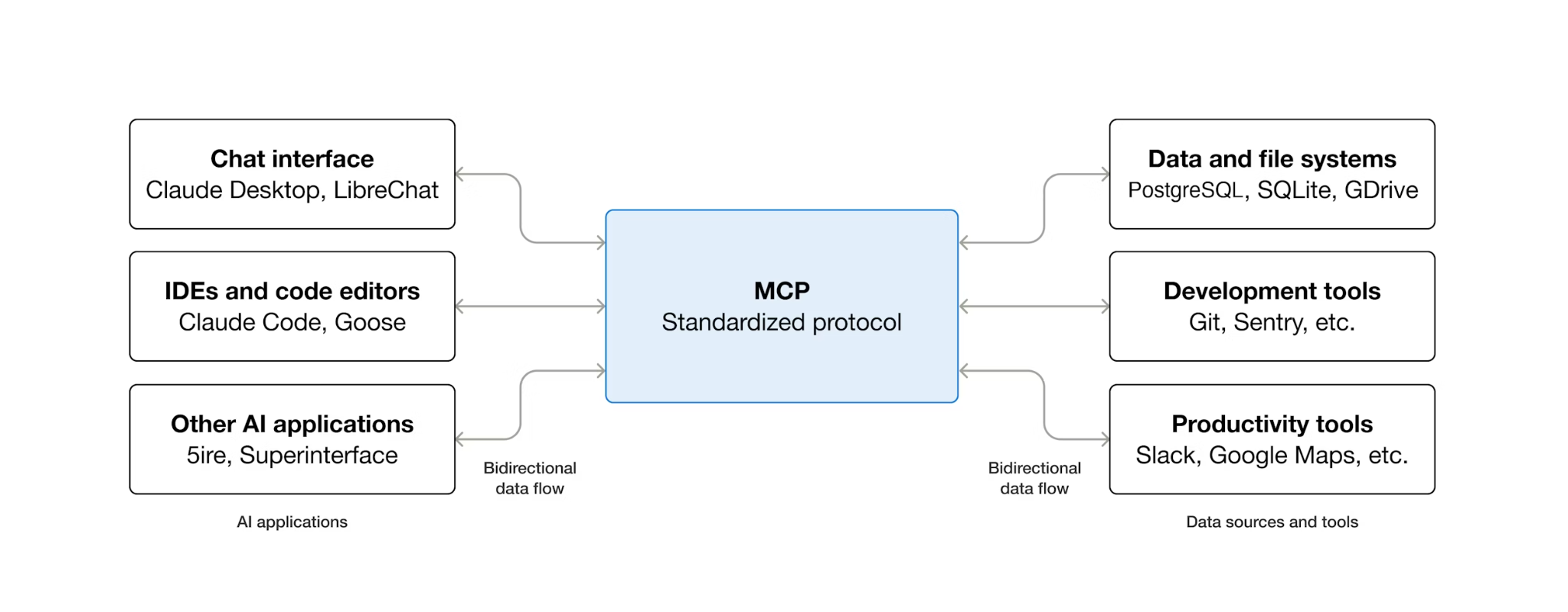
MCP (Model Context Protocol) is an open protocol that standardizes how AI agents discover and interact with external tools. It defines a client-server model: the agent hosts an MCP client, and tools are exposed by MCP servers. Any MCP-compatible client can use any MCP-compatible server — the agent doesn't need custom integration code for each tool.
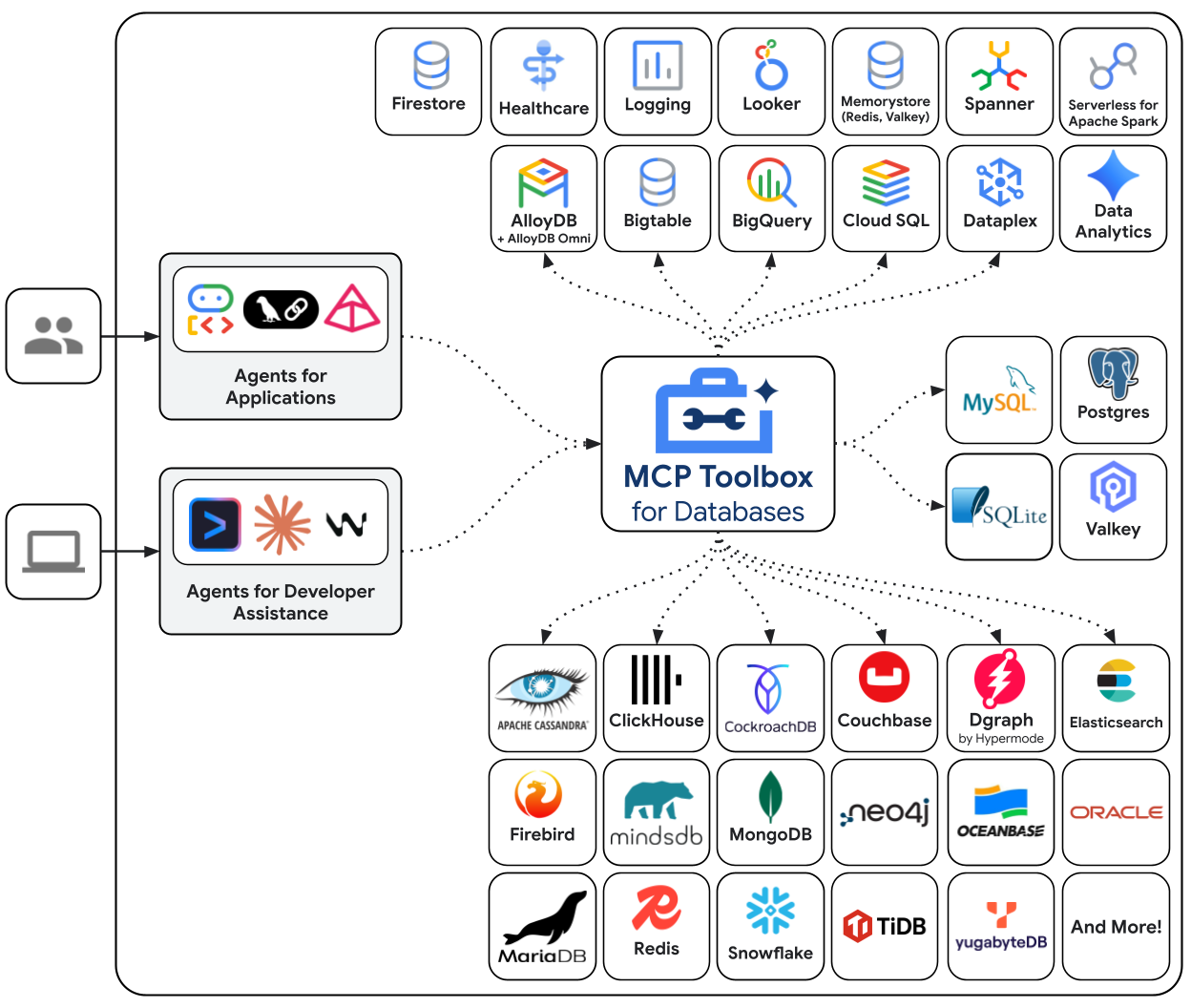
MCP Toolbox for Databases is an open-source MCP server built specifically for database access. Without it, you would write Python functions that open database connections, manage connection pools, construct parameterized queries to prevent SQL injection, handle errors, and embed all of that code inside your agent. Every agent that needs database access repeats this work. Changing a query means redeploying the agent.
With Toolbox, you write a YAML file. Each tool maps to a parameterized SQL statement. Toolbox handles connection pooling, parameterized queries, authentication, and observability. Tools are decoupled from the agent — update a query by editing tools.yaml and restarting Toolbox, without touching agent code. The same tools work across ADK, LangGraph, LlamaIndex, or any MCP-compatible framework.
Write the tools configuration
Now, we need to create a file called tools.yaml in the Cloud Shell Editor to set up our tools configuration
cloudshell edit tools.yaml
The file uses multi-document YAML — each block separated by --- is a standalone resource. Every resource has a kind that declares what it is (sources for database connections, tools for agent-callable actions) and a type that specifies the backend (cloud-sql-postgres for the source, postgres-sql for SQL-based tools). A tool references its source by name, which is how Toolbox knows which connection pool to execute against. Environment variables use ${VAR_NAME} syntax and are resolved at startup.
Now, let's copy the following scripts first into tools.yaml file
# tools.yaml

# --- Data Source ---
kind: source
name: restaurant-db
type: cloud-sql-postgres
project: ${GOOGLE_CLOUD_PROJECT}
region: ${REGION}
instance: ${DB_INSTANCE}
database: ${DB_NAME}
user: postgres
password: ${DB_PASSWORD}

---
This script here define the following resource:
- Source (
restaurant-db) — tells Toolbox how to connect to your Cloud SQL PostgreSQL instance. Thecloud-sql-postgrestype uses the Cloud SQL connector internally, handling authentication and secure connections automatically. The${GOOGLE_CLOUD_PROJECT},${REGION}and${DB_PASSWORD}placeholders are resolved from environment variables at startup.
Next, append the following script under the --- symbol in the tools.yaml
# --- Tool 1: Search menu items by category and/or cuisine type ---
kind: tool
name: search-menu
type: postgres-sql
source: restaurant-db
description: >-
  Search for menu items by category and/or cuisine type.
  Use this tool when the user wants to browse menu items
  by category (e.g., Main Course, Appetizer, Dessert) or find dishes
  from a specific cuisine. Both parameters accept an
  empty string to match all values.
statement: |
  SELECT name, cuisine_type, category, ingredients, price, dietary_tags, available
  FROM menu_items
  WHERE ($1 = '' OR LOWER(category) = LOWER($1))
  AND ($2 = '' OR LOWER(cuisine_type) LIKE '%' || LOWER($2) || '%')
  ORDER BY name
  LIMIT 10
parameters:
  - name: category
    type: string
    description: "The menu category to filter by (e.g., 'Main Course', 'Appetizer', 'Dessert'). Use empty string for all categories."
  - name: cuisine_type
    type: string
    description: "A cuisine type to search for (partial match, e.g., 'Italian', 'Japanese'). Use empty string for all cuisines."

---

# --- Tool 2: Get full details for a specific menu item ---
kind: tool
name: get-item-details
type: postgres-sql
source: restaurant-db
description: >-
  Get full details for a specific menu item including its description,
  price, dietary tags, and availability. Use this tool when the
  user asks about a particular dish by name or cuisine.
statement: |
  SELECT name, cuisine_type, category, ingredients, price, dietary_tags, available, description
  FROM menu_items
  WHERE LOWER(name) LIKE '%' || LOWER($1) || '%'
  OR LOWER(cuisine_type) LIKE '%' || LOWER($1) || '%'
parameters:
  - name: search_term
    type: string
    description: "The dish name or cuisine type to look up (partial match supported)."

---
This script here define the following resource:
- Tools 1 and 2 (
search-menu,get-item-details) — standard SQL query tools. Each maps a tool name (what the agent sees) to a parameterized SQL statement (what the database executes). Parameters use$1,$2positional placeholders. Toolbox executes these as prepared statements, which prevents SQL injection.
Let's continue, append the following script under the --- symbol in the tools.yaml
# --- Embedding Model ---
kind: embeddingModel
name: gemini-embedding
type: gemini
model: gemini-embedding-001
project: ${GOOGLE_CLOUD_PROJECT}
location: ${GOOGLE_CLOUD_LOCATION}
dimension: 3072

---
This script here define the following resource:
- Embedding model (
gemini-embedding) — configures Toolbox to call Gemini'sgemini-embedding-001model for generating 3072-dimensional text embeddings. Toolbox uses Application Default Credentials (ADC) to authenticate — no API key needed in Cloud Shell or Cloud Run. Notes that thisdimensionconfigured here must be the same with previously we config to seed the database
Let's continue, append the following script under the --- symbol in the tools.yaml
# --- Tool 3: Semantic search by description ---
kind: tool
name: search-menu-by-description
type: postgres-sql
source: restaurant-db
description: >-
  Find menu items that match a natural language description of what the user
  is looking for. Use this tool when the user describes their ideal dish
  using flavors, textures, dietary preferences, or cravings rather than a
  specific category or cuisine. Examples: "I want something spicy and creamy,"
  "a light vegetarian appetizer," "something rich and chocolatey for dessert."
statement: |
  SELECT name, cuisine_type, category, ingredients, price, dietary_tags, description
  FROM menu_items
  WHERE description_embedding IS NOT NULL
  ORDER BY description_embedding <=> $1
  LIMIT 5
parameters:
  - name: search_query
    type: string
    description: "A natural language description of the kind of dish the user is looking for."
    embeddedBy: gemini-embedding

---
This script here define the following resource:
- Tool 3 (
search-menu-by-description) — a vector search tool. Thesearch_queryparameter hasembeddedBy: gemini-embedding, which tells Toolbox to intercept the raw text, send it to the embedding model, and use the resulting vector in the SQL statement. The<=>operator is pgvector's cosine distance — smaller values mean more similar descriptions.
Finally, append the last tool under the --- symbol in the tools.yaml
# --- Tool 4: Add a new menu item with automatic embedding ---
kind: tool
name: add-menu-item
type: postgres-sql
source: restaurant-db
description: >-
  Add a new menu item to the restaurant. Use this tool when a user asks
  to add a dish that is not currently on the menu.
statement: |
  INSERT INTO menu_items (name, cuisine_type, category, ingredients, price, dietary_tags, available, description, description_embedding)
  VALUES ($1, $2, $3, $4, $5, $6, CAST($7 AS BOOLEAN), $8, $9)
  RETURNING name, cuisine_type
parameters:
  - name: name
    type: string
    description: "The dish name (e.g., 'Truffle Mushroom Risotto')."
  - name: cuisine_type
    type: string
    description: "The cuisine type (e.g., 'Italian', 'Japanese', 'Thai')."
  - name: category
    type: string
    description: "The menu category (e.g., 'Main Course', 'Appetizer', 'Dessert')."
  - name: ingredients
    type: string
    description: "Comma-separated list of key ingredients (e.g., 'salmon, miso, ginger')."
  - name: price
    type: string
    description: "The price (e.g., '$24')."
  - name: dietary_tags
    type: string
    description: "Dietary information (e.g., 'Vegetarian, Gluten-Free')."
  - name: available
    type: string
    description: "Whether the dish is currently available (true or false)."
  - name: description
    type: string
    description: "A short description of the dish (2-3 sentences)."
  - name: description_vector
    type: string
    description: "Auto-generated embedding vector for the dish description."
    valueFromParam: description
    embeddedBy: gemini-embedding
This script here define the following resource:
- Tool 4 (
add-menu-item) — demonstrates vector ingestion. Thedescription_vectorparameter has two special fields: valueFromParam: description— Toolbox copies the value from thedescriptionparameter into this one. The LLM never sees this parameter.embeddedBy: gemini-embedding— Toolbox embeds the copied text into a vector before passing it to the SQL.
The result: one tool call stores both the raw description text and its vector embedding, without the agent knowing anything about embeddings.
The multi-document YAML format separates each resource with ---. Each document has kind, name, and type fields that define what it is. In summary we already configured all of the following things:
- Define the source database
- Define tools ( tool 1 and 2 ) to query database with standard filter
- Define embedding model
- Define tool to do vector search ( tool 3 ) to database
- Define tool to do vector data ingestion ( tool 4 ) to database
6. Running the MCP Toolbox Server
In the previous step, we already set the necessary configuration for our MCP Toolbox. Now we are ready to run the server
Verify the seeded data
Before starting Toolbox, let's confirm the database setup has completed. Create a python script scripts/verify_database.py using the following command
cloudshell edit scripts/verify_seed.py
Then, copy the following code into scripts/verify_seed.py file
#!/usr/bin/env python3
"""Verify the database has 15 menu items with embeddings."""

import os
import sys
from pathlib import Path
from dotenv import load_dotenv
from google.cloud.sql.connector import Connector
import pg8000

# Load environment variables
env_path = Path(__file__).parent.parent / '.env'
load_dotenv(env_path)

# Verify required environment variables
required_vars = ['GOOGLE_CLOUD_PROJECT', 'REGION', 'DB_PASSWORD', 'DB_INSTANCE', 'DB_NAME']
missing_vars = [var for var in required_vars if not os.environ.get(var)]

if missing_vars:
    print(f"ERROR: Missing environment variables: {', '.join(missing_vars)}", file=sys.stderr)
    sys.exit(1)


def verify_database():
    """Check that 15 menu items exist with embeddings."""
    connector = Connector()

    try:
        project = os.environ['GOOGLE_CLOUD_PROJECT']
        region = os.environ['REGION']
        password = os.environ['DB_PASSWORD']
        instance = os.environ['DB_INSTANCE']
        database = os.environ['DB_NAME']

        conn = connector.connect(
            f"{project}:{region}:{instance}",
            "pg8000",
            user="postgres",
            password=password,
            db=database
        )
        cursor = conn.cursor()

        # Count menu items and embeddings
        cursor.execute("SELECT COUNT(*) FROM menu_items")
        item_count = cursor.fetchone()[0]

        cursor.execute("SELECT COUNT(*) FROM menu_items WHERE description_embedding IS NOT NULL")
        embedding_count = cursor.fetchone()[0]

        print(f"Menu Items: {item_count}/15")
        print(f"Embeddings: {embedding_count}/15")

        cursor.close()
        conn.close()

        if item_count == 15 and embedding_count == 15:
            print("\n✓ Database ready!")
            return True
        else:
            print("\n✗ Database not ready")
            return False

    except Exception as e:
        print(f"\nERROR: {e}", file=sys.stderr)
        return False
    finally:
        connector.close()


if __name__ == "__main__":
    success = verify_database()
    sys.exit(0 if success else 1)
This script will check the number of menu item data and their embedding. Run the script using the following command
uv run scripts/verify_seed.py
If you see the following terminal output, it means the data is ready
Menu Items: 15/15
Embeddings: 15/15

✓ Database ready!
Start the Toolbox server
In the setup step earlier, we already downloaded the toolbox executable. Ensure that this binary file exist and successfully downloaded, if not, download it and wait till finished
cd ~/build-agent-adk-toolbox-cloudsql
if [ ! -f toolbox ]; then
  curl -O https://storage.googleapis.com/mcp-toolbox-for-databases/v1.1.0/linux/amd64/toolbox
fi
chmod +x toolbox
We will need to expose our .env variables to the child process which is run by the MCP toolbox. Run the following command to start the toolbox server and log its console output to logs/mcp_toolbox.log file
set -a; source .env; set +a
./toolbox --config tools.yaml --enable-api > logs/mcp_toolbox.log 2>&1 &
You should see output in the logs/mcp_toolbox.log file confirming the server is ready like shown below:
... INFO "Initialized 1 sources: restaurant-db"
... INFO "Initialized 0 authServices: "
... INFO "Using Vertex AI backend for Gemini embedding"
... INFO "Initialized 1 embeddingModels: gemini-embedding"
... INFO "Initialized 4 tools: search-menu-by-description, add-menu-item, search-menu, get-item-details"
...
... INFO "Server ready to serve!"
Verify the tools
Query the Toolbox API to list all registered tools:
curl -s http://localhost:5000/api/toolset | uv run -m json.tool
You should see tools with their descriptions and parameters. Like shown below
...
       "search-menu-by-description": {
            "description": "Find menu items that match a natural language description of what the user is looking for. Use this tool when the user describes their ideal dish using flavors, textures, dietary preferences, or cravings rather than a specific category or cuisine. Examples: \"I want something spicy and creamy,\" \"a light vegetarian appetizer,\" \"something rich and chocolatey for dessert.\"",
            "parameters": [
                {
                    "name": "search_query",
                    "type": "string",
                    "required": true,
                    "description": "A natural language description of the kind of dish the user is looking for.",
                    "authServices": []
                }
            ],
            "authRequired": []
        }
...
Test the search-menu tool directly:
curl -s -X POST http://localhost:5000/api/tool/search-menu/invoke \\ -H "Content-Type: application/json" \\ -d '{"category": "Main Course", "cuisine_type": "Italian"}' | jq '.result | fromjson'
The response should contain the Italian main course dishes from your seed data.
[
  {
    "name": "Margherita Pizza",
    "cuisine_type": "Italian",
    "category": "Main Course",
    "ingredients": "San Marzano tomatoes, fresh mozzarella, basil, olive oil",
    "price": "$18",
    "dietary_tags": "Vegetarian",
    "available": true
  },
  {
    "name": "Truffle Mushroom Risotto",
    "cuisine_type": "Italian",
    "category": "Main Course",
    "ingredients": "Arborio rice, truffle oil, porcini mushrooms, parmesan, white wine",
    "price": "$28",
    "dietary_tags": "Vegetarian, Gluten-Free",
    "available": true
  }
]
7. Build the ADK Agent
Now, we will utilize ADK in Python for this project, let's add the required dependencies:
uv add google-adk==1.29.0 toolbox-adk==1.0.0
google-adk— Google's Agent Development Kit, including the Gemini SDKtoolbox-adk— ADK integration for MCP Toolbox for Databases.
Create the agent directory structure
ADK expects a specific folder layout: a directory named after your agent containing __init__.py, agent.py, and .env. To help with this, it has built in command to quickly establish the structure:
uv run adk create restaurant_agent \
    --model gemini-3.5-flash \
    --project ${GOOGLE_CLOUD_PROJECT} \
    --region ${GOOGLE_CLOUD_LOCATION}
Your directory should now look like this:
build-agent-adk-toolbox-cloudsql/
├── restaurant_agent/
│   ├── __init__.py
│   ├── agent.py
│   └── .env
├── logs
├── scripts
└── ...
Next, we will need to integrate the ADK agent to the running Toolbox server and test all four tools — standard queries, semantic search, and vector ingestion. The agent code is minimal: all database logic lives in tools.yaml.
Configure the agent's environment
ADK reads GOOGLE_GENAI_USE_VERTEXAI, GOOGLE_CLOUD_PROJECT, and GOOGLE_CLOUD_LOCATION from the shell environment, which you already set in the earlier step. The only agent-specific variable is TOOLBOX_URL — append it to the agent's .env file:
echo -e "\nTOOLBOX_URL=http://127.0.0.1:5000" >> restaurant_agent/.env
Update the agent module
Open restaurant_agent/agent.py in the Cloud Shell Editor
cloudshell edit restaurant_agent/agent.py
and overwrite the content with the following code:
# restaurant_agent/agent.py
import os

from google.adk.agents import LlmAgent
from toolbox_adk import ToolboxToolset

TOOLBOX_URL = os.environ.get("TOOLBOX_URL", "http://127.0.0.1:5000")

toolbox = ToolboxToolset(TOOLBOX_URL)

root_agent = LlmAgent(
    name="restaurant_agent",
    model="gemini-3.5-flash",
    instruction="""You are a friendly and knowledgeable concierge at "Foodie Finds," a restaurant. Your job:
- Help diners browse the menu by category or cuisine type.
- Provide full details about specific dishes, including ingredients, price, and dietary information.
- Recommend dishes based on natural language descriptions of what the diner is craving.
- Add new menu items when asked.

When a diner asks about a specific dish by name or cuisine, use the get-item-details tool.
When a diner asks for a specific category or cuisine type, use the search-menu tool.
When a diner describes what kind of food they want — by flavor, texture, dietary needs, or cravings — use the search-menu-by-description tool for semantic search.

When in doubt between search-menu and search-menu-by-description, prefer search-menu-by-description — it searches dish descriptions and finds more relevant matches.
If a dish is not available (available is false), let the diner know and suggest similar alternatives from the search results.
Be conversational, knowledgeable, and concise.""",
    tools=[toolbox],
)
Notice that there is no database code in here — ToolboxToolset connects to the Toolbox server at startup and loads all available tools. The agent calls tools by name; Toolbox translates those calls into SQL queries against Cloud SQL.
The TOOLBOX_URL environment variable defaults to http://127.0.0.1:5000 for local development. When you deploy to Cloud Run later, you override this with the Toolbox service's Cloud Run URL — no code changes needed.
Test the agent
Start the ADK dev UI:
cd ~/build-agent-adk-toolbox-cloudsql
uv run adk web --allow_origins "regex:https://.*\.cloudshell\.dev"
Open the URL shown in the terminal (typically http://localhost:8000) using Cloud Shell's Web Preview feature or ctrl + click the URL shown in terminal. Select restaurant_agent from the agent dropdown in the top-left corner.
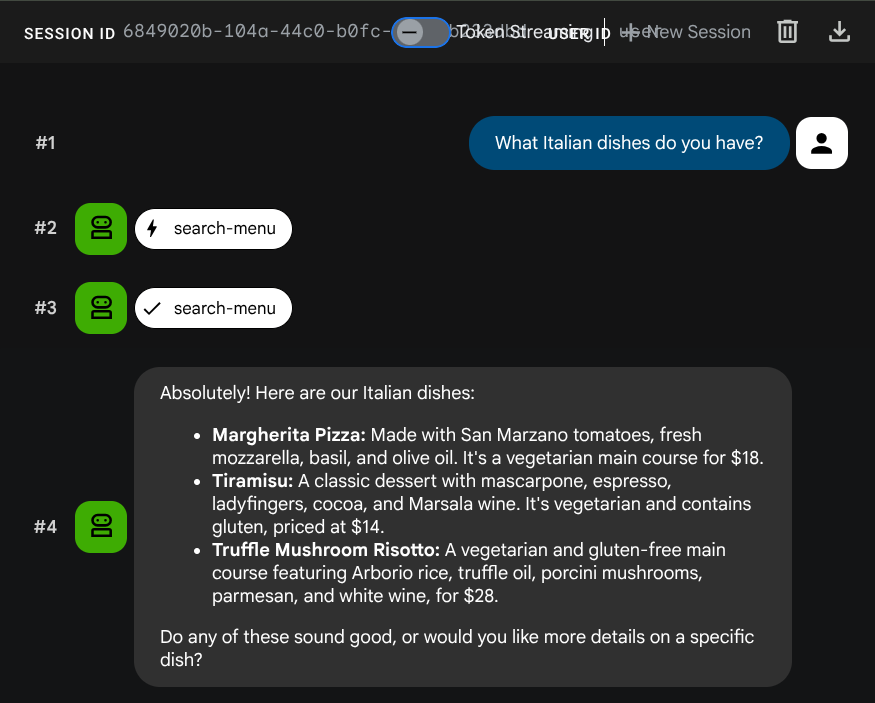
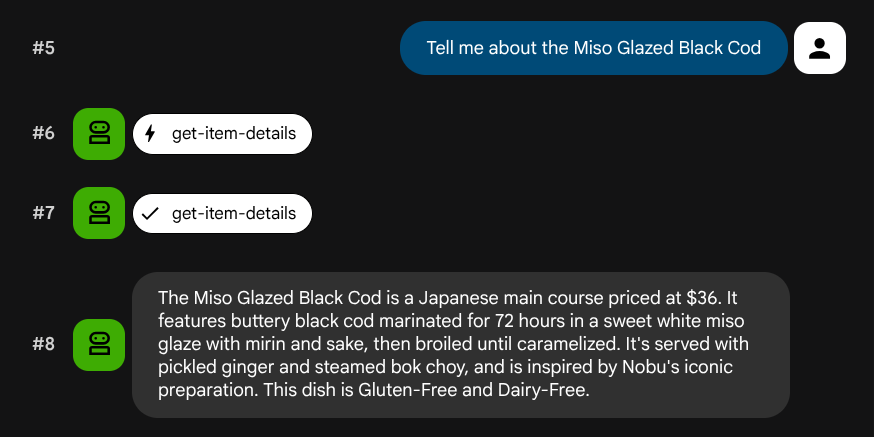
Test standard queries
Try these prompts to verify the standard SQL tools:
What Italian dishes do you have?
Tell me about the Miso Glazed Black Cod
Test semantic search
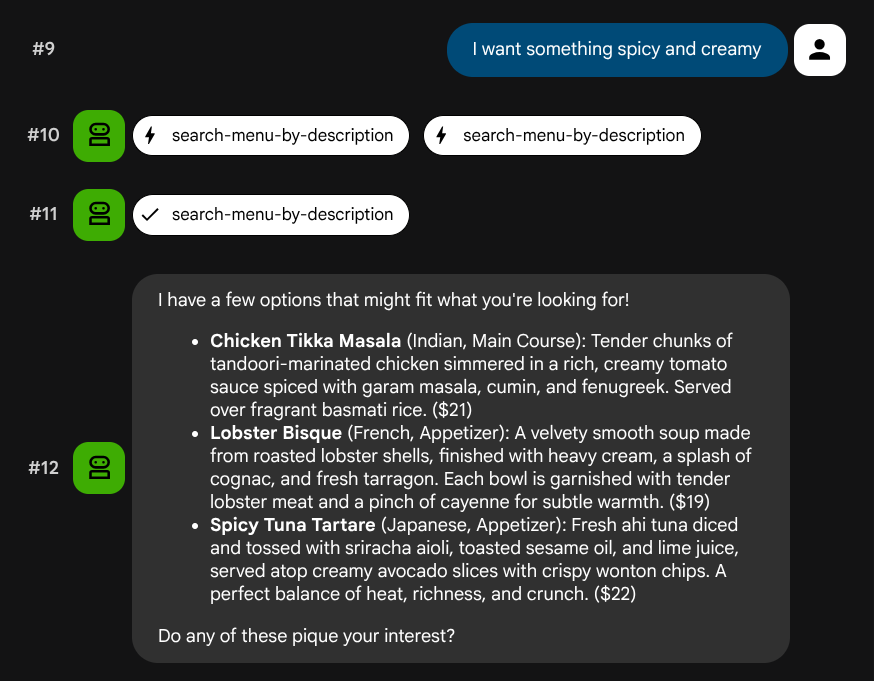
Try natural language descriptions that don't map to a specific role or tech stack:
I want something spicy and creamy
Something rich and chocolatey for dessert
I'm in the mood for something light and healthy
The agent will try to pick the right tool based on the query type: structured filters go through search-menu, natural language descriptions go through search-menu-by-description.
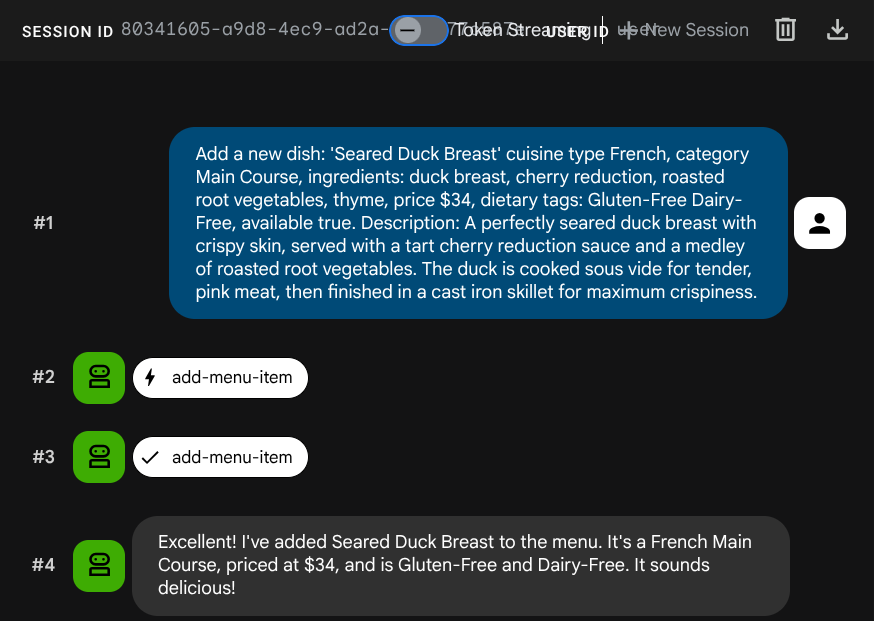
Test vector ingestion
Ask the agent to add a new job:
Add a new dish: 'Seared Duck Breast' cuisine type French, category Main Course, ingredients: duck breast, cherry reduction, roasted root vegetables, thyme, price $34, dietary tags: Gluten-Free Dairy-Free, available true. Description: A perfectly seared duck breast with crispy skin, served with a tart cherry reduction sauce and a medley of roasted root vegetables. The duck is cooked sous vide for tender, pink meat,
then
finished in a cast iron skillet for maximum crispiness.
Now try to search for it:
Find me something with rich, gamey flavors and fruit sauce
The embedding was generated automatically during the INSERT — no separate step needed.
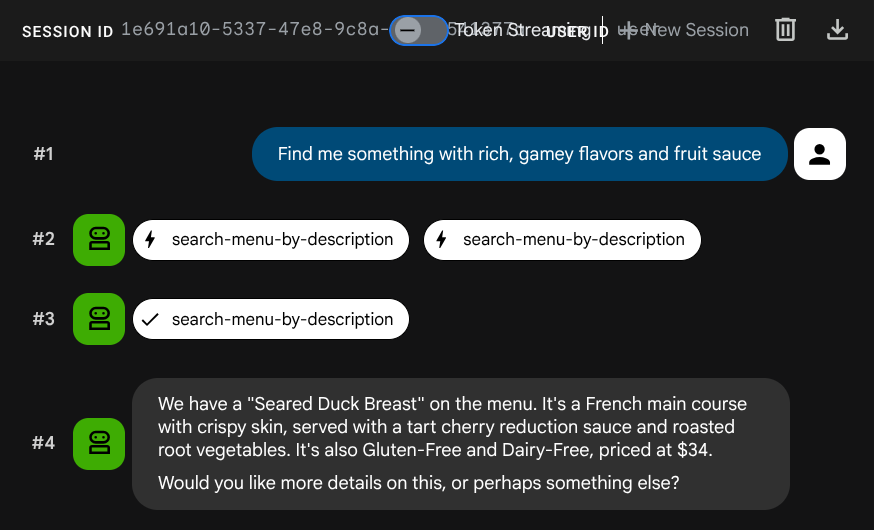
Now, you already have a full working Agentic RAG application utilizing ADK, MCP Toolbox, and CloudSQL. Congratulations! Let's take a step further to deploy these apps to Cloud Run!
Now, let's stop the dev UI by killing the process by pressing Ctrl+C twice before proceeding.
8. Deploy to Cloud Run
The agent and Toolbox work locally. This step deploys both as Cloud Run services so they're accessible over the internet. The Toolbox service runs as an MCP server on Cloud Run, and the agent service connects to it.
Prepare the Toolbox for deployment
Create a deployment directory for the Toolbox service:
cd ~/build-agent-adk-toolbox-cloudsql
mkdir -p deploy-toolbox
cp toolbox tools.yaml deploy-toolbox/
Create the Dockerfile for the Toolbox. Open deploy-toolbox/Dockerfile in the Cloud Shell Editor:
cloudshell edit deploy-toolbox/Dockerfile
And copy the following script to it
# deploy-toolbox/Dockerfile
FROM debian:bookworm-slim
RUN apt-get update && apt-get install -y ca-certificates && rm -rf /var/lib/apt/lists/*
WORKDIR /app
COPY toolbox tools.yaml ./
RUN chmod +x toolbox
EXPOSE 8080
CMD ["./toolbox", "--config", "tools.yaml", "--enable-api", "--address", "0.0.0.0", "--port", "8080"]
The Toolbox binary and tools.yaml are packaged into a minimal Debian image. Cloud Run routes traffic to port 8080.
Deploy the Toolbox service
cd ~/build-agent-adk-toolbox-cloudsql
gcloud run deploy toolbox-service \
  --source deploy-toolbox/ \
  --region $REGION \
  --set-env-vars "DB_PASSWORD=$DB_PASSWORD,DB_INSTANCE=$DB_INSTANCE,DB_NAME=$DB_NAME,GOOGLE_CLOUD_PROJECT=$GOOGLE_CLOUD_PROJECT,REGION=$REGION,GOOGLE_CLOUD_LOCATION=$GOOGLE_CLOUD_LOCATION" \
  --allow-unauthenticated \
  --quiet > logs/deploy_toolbox.log 2>&1 &
This command submits the source to Cloud Build, builds a container image, pushes it to Artifact Registry, and deploys it to Cloud Run. It will take a few minutes — we can inspect the deployment process log on the logs/deploy_toolbox.log file
Prepare the agent for deployment
While the Toolbox builds, set up the agent's deployment files.
Create a Dockerfile in the project root. Open Dockerfile in the Cloud Shell Editor:
cloudshell edit Dockerfile
Then, copy the following content
# Dockerfile
FROM ghcr.io/astral-sh/uv:python3.12-trixie-slim
WORKDIR /app
COPY pyproject.toml ./
COPY uv.lock ./
RUN uv sync --no-dev
COPY restaurant_agent/ restaurant_agent/
EXPOSE 8080
CMD ["uv", "run", "adk", "web", "--host", "0.0.0.0", "--port", "8080"]
This Dockerfile uses ghcr.io/astral-sh/uv as the base image, which includes both Python and uv pre-installed — no need to install uv separately via pip.
Create a .dockerignore file to exclude unnecessary files from the container image:
cloudshell edit .dockerignore
Then copy the following script into it
# .dockerignore
.venv/
__pycache__/
*.pyc
.env
restaurant_agent/.env
toolbox
tools.yaml
deploy-toolbox/
Deploy the agent service
Wait for the Toolbox deployment to complete. Check the deployment process again on logs/deploy_toolbox.log to verify the process. Then, retrieve its Cloud Run URL using the following command
TOOLBOX_URL=$(gcloud run services describe toolbox-service \
  --region=$REGION \
  --format='value(status.url)')
echo "Toolbox URL: $TOOLBOX_URL"
You will see the similar output like this
Toolbox URL: https://toolbox-service-xxxxxx-xx.a.run.app
Then, Let's verify the deployed Toolbox is working:
curl -s "$TOOLBOX_URL/api/toolset" | python3 -m json.tool | head -5
If the output shown like this example, the deployment is already succeed
{
    "serverVersion": "1.1.0+binary.linux.amd64.da6f5f8",
    "tools": {
        "add-menu-item": {
            "description": "Add a new menu item to the restaurant. Use this tool when a user asks to add a dish that is not currently on the menu.",
Next, let's deploy the agent, passing the Toolbox URL as an environment variable:
cd ~/build-agent-adk-toolbox-cloudsql
gcloud run deploy restaurant-agent \
  --source . \
  --region $REGION \
  --set-env-vars "TOOLBOX_URL=$TOOLBOX_URL,GOOGLE_CLOUD_PROJECT=$GOOGLE_CLOUD_PROJECT,GOOGLE_CLOUD_LOCATION=$GOOGLE_CLOUD_LOCATION,GOOGLE_GENAI_USE_VERTEXAI=TRUE" \
  --allow-unauthenticated \
  --quiet
The agent code reads TOOLBOX_URL from the environment (you set this up previously). Locally it points to http://127.0.0.1:5000; on Cloud Run it points to the Toolbox service URL. No code changes needed.
Test the deployed agent
Retrieve the agent's Cloud Run URL:
AGENT_URL=$(gcloud run services describe restaurant-agent \
  --region=$REGION \
  --format='value(status.url)')
echo "Agent URL: $AGENT_URL"
Open the URL in your browser. The ADK dev UI loads — the same interface you've been using locally, now running on Cloud Run.
Select restaurant_agent from the dropdown and test:
What Italian dishes do you have?
I want something spicy and creamy
Both queries work through the deployed services: the agent on Cloud Run calls the Toolbox on Cloud Run, which queries Cloud SQL.
9. Congratulations / Clean Up
You've built and deployed a smart restaurant menu assistant that uses MCP Toolbox for Databases to bridge an ADK agent and Cloud SQL PostgreSQL — with both standard SQL queries and semantic vector search.
What you've learned
- How MCP standardizes tool access for AI agents, and how MCP Toolbox for Databases applies this specifically to database operations — replacing custom database code with declarative YAML configuration
- How to configure Cloud SQL PostgreSQL as a Toolbox data source using the
cloud-sql-postgressource type - How to define standard SQL query tools with parameterized statements that prevent SQL injection
- How to enable vector search using pgvector and
gemini-embedding-001, with theembeddedByparameter for automatic query embedding - How
valueFromParamenables automatic vector ingestion — the LLM provides a text description, and Toolbox silently copies, embeds, and stores the vector alongside the text - How ADK's
ToolboxToolsetloads tools from a running Toolbox server, keeping agent code minimal and database logic fully decoupled - How to deploy both the Toolbox MCP server and the ADK agent to Cloud Run as separate services
Clean up
To avoid incurring charges to your Google Cloud account for the resources created in this codelab, you can either delete the individual resources or delete the entire project.
Option 1: Delete the project (recommended)
The easiest way to clean up is to delete the project. This removes all resources associated with the project.
gcloud projects delete $GOOGLE_CLOUD_PROJECT
Option 2: Delete individual resources
If you want to keep the project but remove only the resources created in this codelab:
gcloud run services delete restaurant-agent --region=$REGION --quiet
gcloud run services delete toolbox-service --region=$REGION --quiet
gcloud sql instances delete restaurant-instance --quiet
gcloud artifacts repositories delete cloud-run-source-deploy --location=$REGION --quiet 2>/dev/null