
1. Introduction
This Codelab explores static IP egress connectivity for Gemini Enterprise using Agent Gateway in agent-to-anywhere (egress) mode. You will configure a Gemini Enterprise app to invoke a custom Model Context Protocol (MCP) server, protected by a strict source IP allowlist and OAuth 2.0 authentication, by routing all outbound traffic through Agent Gateway by using a connectivity template configuration. A Private Service Connect (PSC) network attachment connects Agent Gateway to the VPC network and Cloud NAT provides a stable external IP address for internet egress traffic.
By default, outbound connections from Gemini Enterprise to public internet endpoints originate from dynamic, shared Google IP address pools that cannot be pinned to a single customer-owned IP allowlist rule. Pairing Agent Gateway with an AgentConnectivityTemplate in ALL_TRAFFIC mode routes all outbound agent traffic into the VPC network, where Cloud NAT translates internet-bound connections to a reserved static external IPv4 address under your control while preserving centralized MCP tool governance through Agent Registry and Identity-Aware Proxy (IAP).
What you build
- Agent Connectivity Template (
vpcEgress: ALL_TRAFFIC) and Agent Gateway operating in egress (agent-to-anywhere) mode with Agent Registry endpoint verification - VPC network, PSC network attachment, Cloud Router, and Cloud NAT gateway bound to a reserved static external IPv4 address
- External streamable HTTP MCP Resource Server (
mcp-sprockets) fronted by Caddy TLS, restricted by firewall rules strictly to the Cloud NAT static IP, and verifying user-delegated Google OAuth 2.0 Bearer tokens againsthttps://oauth2.googleapis.com/tokeninfo - Google Auth Platform OAuth 2.0 consent screen and Web application OAuth 2.0 client credentials (
accounts.google.comandoauth2.googleapis.com/token) - Agent Registry MCP server catalog entry and tool specification (
toolspec.json) - Identity-Aware Proxy (IAP) authorization extension and Gateway authorization policy for Agent Gateway
- Gemini Enterprise app bound to Agent Gateway and connected to an OAuth 2.0 custom MCP server data store imported from Agent Registry
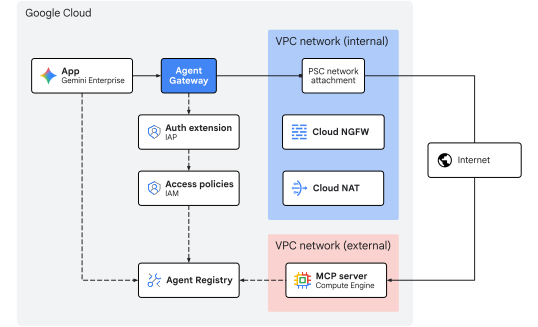
Fig 1. Codelab architecture
What you learn
- How to configure an
AgentConnectivityTemplatewithvpcEgress: ALL_TRAFFICto route all outbound Agent Gateway traffic into a VPC network - How to reserve a static external IPv4 address and bind it to Cloud NAT on a PSC network attachment subnet
- How to deploy an external streamable HTTP MCP Resource Server that verifies Google OAuth 2.0 Bearer tokens (
oauth2.googleapis.com/tokeninfo) and restrict its ingress firewall strictly to the Cloud NAT static IP (${NAT_EXT_IP}/32) - How to configure Google Identity OAuth 2.0 client credentials and register an MCP server and its tool schema in Agent Registry
- How to connect a registered OAuth 2.0 MCP server to Gemini Enterprise and route user-delegated tool calls through Agent Gateway
- How to validate static IP translation, end-user OAuth 2.0 identity verification (
authenticated_user), and gateway policy enforcement using CLI commands and Cloud Logging
What you need
- A Google Cloud project with billing enabled
- An active Gemini Enterprise license or 30-day trial
- IAM permissions to provision networking services, Organization Policies, Gemini Enterprise, and Agent Platform resources
- A POSIX-compatible shell (
bashorzsh) with Google Cloud CLI (gcloud),curl, andjqinstalled
This concludes the introduction portion... next on to the Concepts section.
2. Concepts
Deployment sequence
This Codelab deploys the networking and governance infrastructure first so static IP egress paths and gateway controls are operational before registering and connecting MCP tools with Gemini Enterprise:
- Network infrastructure: Reserve static external IPv4 addresses and provision the egress VPC, PSC attachment subnet, PSC network attachment, Cloud Router, Cloud NAT gateway, and external MCP network firewall rules.
- Agent Connectivity Template & Agent Gateway: Deploy the
AgentConnectivityTemplate(vpcEgress: ALL_TRAFFIC) and regionalAgentGatewayin egress mode (AGENT_TO_ANYWHERE) with Agent Registry integration (registries). - Authorization policies: Configure the IAP authorization extension (
AuthzExtension), Gateway authorization policy (AuthzPolicy), and IAM v3 Unified Access Policy (AccessPolicyandPolicyBinding). - Deploy & register MCP server: Deploy the external
mcp-sprocketsOAuth 2.0 Resource Server behind Caddy TLS, verify its Google OAuth 2.0tokeninfoenforcement, lock down its ingress firewall strictly to the Cloud NAT static IP (${NAT_EXT_IP}/32), and register the service and tool specifications (get_sprocketsandget_sprocket_by_id) in Agent Registry. - Gemini Enterprise app & OAuth 2.0 client: Configure the Google Identity provider, trial license, and OAuth 2.0 consent screen and Web application client credentials (
OAUTH_CLIENT_IDandOAUTH_CLIENT_SECRET), create the Gemini Enterprise app (Engine), and bind outbound egress to Agent Gateway (agentGatewaySetting). - Import custom MCP data connector: Create and activate the
REGISTRY_MCPdata connector (:setUpDataConnector) configured withauth_type: "OAUTH"to link the registered MCP server backing data store to the Gemini Enterprise app. - Validate: Complete the one-time user OAuth 2.0 consent flow, invoke MCP tools through the Gemini Enterprise assistant (confirming both
egress_source_ipandauthenticated_user), and verify policy enforcement and static IP NAT translation in Cloud Logging.
Central IdP + OAuth-protected MCP Resource Server architecture
In enterprise deployments, identity management and tool execution follow the standard OAuth 2.0 separation of roles between a centralized Identity Provider (Authorization Server) and a protected MCP Resource Server:
OAuth 2.0 Role | Component in This Codelab | Responsibility |
Resource Owner | End User ( | Signs in to the Gemini Enterprise web app and grants consent during the one-time 3-legged OAuth 2.0 authorization flow. |
OAuth 2.0 Client | Gemini Enterprise | Holds |
Authorization Server | Google Identity OAuth 2.0 ( | Authenticates the user during the browser consent redirect and issues the OAuth 2.0 access and refresh tokens to Gemini Enterprise. |
Resource Server | External | Enforces Layer 3 network identity using its VPC firewall ( |
Because the browser consent redirect (accounts.google.com) and the back-channel token exchange (oauth2.googleapis.com/token) occurs against Google managed OAuth 2.0 endpoints, the external MCP server firewall only ever receives runtime MCP JSON-RPC requests (POST /mcp) from Agent Gateway by way of Cloud NAT, allowing its ingress firewall to be locked down strictly to ${NAT_EXT_IP}/32.
Discovery Engine resource model
A Gemini Enterprise app (represented as an Engine resource in the Discovery Engine API) is the central orchestration layer and conversational interface for end users. It manages user chat sessions, grounds generative models on enterprise data, and coordinates dynamic tool execution.
Gemini Enterprise apps interact with data and systems through data stores:
- Knowledge data stores: Ingest and index static content (eg, Cloud Storage, Google Drive, BigQuery) for retrieval-augmented generation (RAG).
- Data connectors (action providers): Connect to dynamic third-party or custom APIs. A custom MCP server data store exposes tools defined by the Model Context Protocol (MCP), enabling the model to dynamically call external functions during a conversation.
Gemini Enterprise egress
Gemini Enterprise routes custom MCP server tool requests to Agent Gateway when both agentGatewaySetting on the Engine and use_agent_gateway_egress: true on the DataConnector are configured.
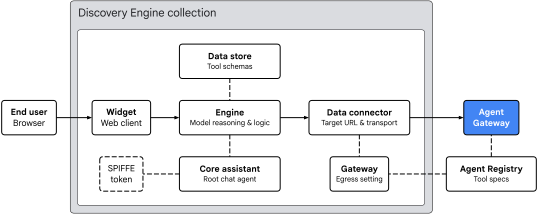
Fig 2. Gemini Enterprise egress architecture
The Gemini Enterprise app organizes tool routing across four key areas:
- Widget (
default_search_widget_config):- Serves the web client interface. The widget receives prompts from the user, triggers the one-time OAuth 2.0 user consent redirect when a tool requires authorization, and initiates chat sessions with the underlying engine.
- Core Assistant (
assistants/default_assistant/agents/default/core_assistant):- The root conversational reasoning agent within the engine. When evaluating a user query, the Core Assistant inspects available tools and delegates execution to the synthesized Agent Gateway sub-agent.
- Data Store and Data Connector:
DataStore: Provisioned inside a dedicatedCollectionwhen:setUpDataConnectorruns, it links (dataStoreIds) the imported Agent Registry tool schemas (get_sprockets,get_sprocket_by_id), argument types, and agent instructions to the Gemini EnterpriseEngine.DataConnector: Manages theREGISTRY_MCPaction connection (createBapConnection: true) to the remote MCP server (instance_uri), resolves the Agent Registry MCP server resource (registry_mcp_server_name), attaches the user vaulted OAuth 2.0 Bearer token (Authorization: Bearer [access_token]), and enables Agent Gateway egress (use_agent_gateway_egress: true).
- Agent Identity, Agent Registry, and Agent Gateway:
- When the Data Connector dispatches the outbound tool call, it routes traffic to the gateway specified in
agentGatewaySetting. The Core Assistant mints a SPIFFE identity token asserting its workload identity:principal://agents.global.org-.../agents/default/core_assistant. - Agent Gateway integrates with Agent Registry using the
registriesfield to dynamically resolve destination endpoints and registered tool schemas, evaluates authorization policies using IAP, and forwards permitted requests (preserving the userAuthorization: Bearerheader) into the VPC network usingAgentConnectivityTemplate.
- When the Data Connector dispatches the outbound tool call, it routes traffic to the gateway specified in
Gateway VPC connectivity and static IP NAT
Agent Gateway supports VPC network connectivity using an AgentConnectivityTemplate resource referenced by agentConnectivityTemplate on the gateway. The template egressNetworkConfig defines how traffic enters your VPC across a PSC network attachment:
PRIVATE_RANGES_ONLY(default): Routes only RFC 1918, RFC 6598, and Class E private IP ranges through the PSC network attachment. Internet-bound traffic bypasses your VPC and exits directly through Google default internet egress.ALL_TRAFFIC(used in this Codelab): Routes all outbound traffic from Agent Gateway—including public internet and external partner MCP endpoints—into your VPC subnet through the PSC network attachment (10.10.10.2).
When operating in ALL_TRAFFIC mode, the PSC attachment subnet requires two configurations:
- Private Google Access (
--enable-private-ip-google-access): Ensures internal calls to Google Cloud APIs (*.googleapis.com) continue to route privately within the Google network. - Cloud Router and Cloud NAT (
MANUAL_ONLY): Internet-bound traffic entering the PSC attachment subnet follows the default route (0.0.0.0/0) through Cloud NAT, which performs Source Network Address Translation (SNAT) to your reserved static external IPv4 address (${NAT_EXT_IP}). External firewalls can therefore restrict inbound access strictly to${NAT_EXT_IP}/32.
Limitations & requirements
- StreamableHTTP only: The legacy Server-Sent Events (SSE) transport is not supported. MCP servers must use StreamableHTTP.
- Org policy override: You must explicitly override the organization policy for Custom MCP data stores before registering the data connector.
- Regional alignment: Gemini Enterprise enforces regional alignment between the app location, Agent Gateway, and Agent Registry:
Gemini Enterprise app location | Agent Gateway & NAT location | Agent Registry location |
|
|
|
|
|
|
|
|
|
This concludes the concepts portion... next on to the Setup section.
3. Setup
Required IAM roles
The following roles are required to complete this Codelab:
Domain | Required IAM roles |
Project & IAM |
|
Networking & Gateway |
|
Gemini Enterprise & Registry |
|
Workloads |
|
Observability |
|
Or use a broad basic role like roles/owner combined with roles/orgpolicy.policyAdmin (since roles/owner alone cannot modify organization policies).
Access your project
This Codelab uses a single Google Cloud project. Configuration steps use gcloud CLI and Linux shell commands.
Start by accessing your Google Cloud project command line:
- Cloud Shell at
shell.cloud.google.com, or - A local terminal with
gcloudCLI installed
Set your Project ID
# set target project id
gcloud config set project SET_YOUR_PROJECT_ID_HERE
Authenticate session
# login to gcloud cli
gcloud auth login
# login for gcloud api
gcloud auth application-default login
Set shell environment variables
# set custom var for slug (eg, "foo") and region preference
export SLUG="foo"
export REGION="us-central1"
export ZONE="us-central1-a"

echo ${SLUG}
echo ${REGION}
echo ${ZONE}
# create project vars (automatic)
export PROJ_ID=$(gcloud config list --format="value(core.project)")
export PROJ_NO=$(gcloud projects describe ${PROJ_ID} --format="value(projectNumber)")
export ORG_ID=$(gcloud projects get-ancestors ${PROJ_ID} --format="value(id)" | tail -n 1)
export USER_IDENTITY=$(gcloud config get-value account)

echo ${PROJ_ID}
echo ${PROJ_NO}
echo ${ORG_ID}
echo ${USER_IDENTITY}
# create resource vars for agent platform (automatic)
export AGW_NAME="agw-${SLUG}-${REGION}-ata"
export AGW_URI="projects/${PROJ_ID}/locations/${REGION}/agentGateways/${AGW_NAME}"
export MCP_NAME="mcp-sprockets"

echo ${AGW_NAME}
echo ${AGW_URI}
echo ${MCP_NAME}
# create resource vars for gemini enterprise (automatic)
export GE_LOCATION="global"
export GE_APP_ORG_NAME="${SLUG}, Inc."
export GE_APP_DISPLAY_NAME="${SLUG} ${GE_LOCATION} app"
export GE_APP_NAME="app-${SLUG}-${GE_LOCATION}"
export GE_APP_INIT="${GE_APP_NAME}_$(date +%s)"

echo ${GE_LOCATION}
echo ${GE_APP_ORG_NAME}
echo ${GE_APP_DISPLAY_NAME}
echo ${GE_APP_NAME}
echo ${GE_APP_INIT}
Set agent identity trust domains
The if-then-else statement checks if the project belongs to an organization in order to set the correct trust domain for the principal agent identities.
# set var for trust domain
if [[ -n "${ORG_ID}" ]]; then
  export TRUST_DOMAIN="agents.global.org-${ORG_ID}.system.id.goog"
else
  export TRUST_DOMAIN="agents.global.proj-${PROJ_NO}.system.id.goog"
fi

echo "trust domain: ${TRUST_DOMAIN}"
Set billing and quota project
# set cli quota project
gcloud config set billing/quota_project ${PROJ_ID}
# set api quota project
gcloud auth application-default set-quota-project ${PROJ_ID}
Create local directory for config files
# create config folder
mkdir -p cfg
Update gcloud cli (recommended)
If running a self-managed install of the Google Cloud SDK (ie, outside of Cloud Shell), update the components to the latest version.
# update gcloud cli
gcloud components update
Enable API services
# enable google cloud apis
gcloud services enable \
  agentregistry.googleapis.com \
  aiplatform.googleapis.com \
  cloudapiregistry.googleapis.com \
  cloudresourcemanager.googleapis.com \
  compute.googleapis.com \
  discoveryengine.googleapis.com \
  dns.googleapis.com \
  iam.googleapis.com \
  iap.googleapis.com \
  logging.googleapis.com \
  monitoring.googleapis.com \
  networkconnectivity.googleapis.com \
  networksecurity.googleapis.com \
  networkservices.googleapis.com \
  orgpolicy.googleapis.com \
  serviceextensions.googleapis.com \
  serviceusage.googleapis.com
Organization policies
Default Google Cloud managed organization policy constraints and sandbox policies can restrict features used in this Codelab:
compute.vmExternalIpAccess: Restricts external IPv4 addresses on Compute Engine VMs in locked-down sandbox organizations.discoveryengine.managed.disableCustomMcpServerConnector: Restricts creation of data connectors that use a custom MCP server (custom_mcp) as a data source (enforced by default).discoveryengine.managed.allowedEgressFqdns: Restricts outbound egress domains (instance_uriFQDNs) for data connectors when VPC Service Controls (VPC-SC) is active or the project is listed inenforcedProjects.discoveryengine.managed.allowedDataSources: Restricts allowed data connector types (dataSource) when VPC-SC is active or the project is listed inenforcedProjects.
Override any inherited organization policy restrictions at the project level.
Disable custom MCP constraint
# disable data connector constraint (allow custom mcp servers)
gcloud org-policies set-policy "/dev/stdin" <<EOF
name: projects/${PROJ_ID}/policies/discoveryengine.managed.disableCustomMcpServerConnector
spec:
  rules:
  - enforce: false
EOF
Disable conditional data connector constraints
# disable egress fqdn constraint on project
gcloud org-policies set-policy "/dev/stdin" <<EOF
name: projects/${PROJ_ID}/policies/discoveryengine.managed.allowedEgressFqdns
spec:
  rules:
  - enforce: false
EOF
# disable allowed data sources constraint on project
gcloud org-policies set-policy "/dev/stdin" <<EOF
name: projects/${PROJ_ID}/policies/discoveryengine.managed.allowedDataSources
spec:
  rules:
  - enforce: false
EOF
Disable access policy constraint
# disable iam v3 constraint (allow v3 access policies)
gcloud org-policies set-policy /dev/stdin << EOF
name: projects/${PROJ_NO}/policies/iam.managed.disableAccessPolicyBinding
spec:
  rules:
  - enforce: false
EOF
Allow external IP addresses
# allow external ip address for vms on project
gcloud org-policies set-policy "/dev/stdin" <<EOF
name: projects/${PROJ_ID}/policies/compute.vmExternalIpAccess
spec:
  rules:
  - allowAll: true
EOF
Verify organization policies
Check that compute.vmExternalIpAccess is set to allowAll: True and the other policies are enforce: False:
# verify effective org policy constraints on project
for policy in \
  discoveryengine.managed.disableCustomMcpServerConnector \
  discoveryengine.managed.allowedEgressFqdns \
  discoveryengine.managed.allowedDataSources \
  iam.managed.disableAccessPolicyBinding \
  compute.vmExternalIpAccess; do
  gcloud org-policies describe ${policy} \
    --project=${PROJ_ID} \
    --effective \
    --format="flattened[no-pad](name.basename(),spec.rules[0])"
done
Verify service agent bindings (precautionary)
In a new project, Google Cloud automatically provisions the Agent Gateway service agent and grants it roles/agentgateway.serviceAgent when networkservices.googleapis.com is first enabled. If you are reusing an existing project where prior cleanup may have removed default service agent bindings, run the following commands as a fail-safe to ensure the identity and role binding are intact:
# ensure network services service account has been created
gcloud beta services identity create \
  --service=networkservices.googleapis.com \
  --project="${PROJ_ID}"

# ensure network services service account has service agent roles applied
gcloud projects add-iam-policy-binding "${PROJ_ID}" \
  --member="serviceAccount:service-${PROJ_NO}@gcp-sa-agentgateway.iam.gserviceaccount.com" \
  --role="roles/agentgateway.serviceAgent"
This concludes the setup portion... next on to the Network section.
4. Network
In this section, you reserve the static external IPv4 addresses, create the internal egress VPC network and isolated external VPC network, provision the PSC network attachment, configure Cloud NAT, and create firewall rules.
Reserve static external IP addresses
Reserve two regional static external IPv4 addresses for Cloud NAT and the external MCP server VM:
# reserve static external ipv4 address for cloud nat
gcloud compute addresses create ip-${SLUG}-nat \
  --region=${REGION}

# reserve static external ipv4 address for the mcp server
gcloud compute addresses create ip-${SLUG}-mcp \
  --region=${REGION}
Verify static external IP addresses
Gemini Enterprise requires remote MCP endpoints to use HTTPS with a publicly trusted TLS certificate. Rather than registering a custom domain for this lab, you use sslip.io, a free wildcard DNS service that resolves any hostname containing an IP address (such as mcp.[IP].sslip.io) directly back to that IP. Because Certificate Authorities like Let's Encrypt do not issue certificates to bare IP addresses, this sslip.io hostname gives the Caddy reverse proxy a valid domain name to automatically provision a trusted TLS certificate for the MCP server.
Export both IPv4 addresses and construct the sslip.io domain name and URL for the external MCP server:
# export static ip addresses and set vars for domain
export NAT_EXT_IP=$(gcloud compute addresses describe ip-${SLUG}-nat \
  --region=${REGION} \
  --format="value(address)")

export MCP_EXT_IP=$(gcloud compute addresses describe ip-${SLUG}-mcp \
  --region=${REGION} \
  --format="value(address)")

export MCP_DOMAIN="mcp.${MCP_EXT_IP}.sslip.io"
export MCP_URL="https://${MCP_DOMAIN}/mcp"

echo "cloud nat external ip    : ${NAT_EXT_IP}"
echo "mcp server external ip   : ${MCP_EXT_IP}"
echo "mcp url                  : ${MCP_URL}"
Example output:
cloud nat external ip    : 203.0.113.10
mcp server external ip   : 203.0.113.20
mcp url                  : https://mcp.203.0.113.20.sslip.io/mcp
Create internal network
When the Agent Gateway connectivity template is configured to use an egressNetworkConfig with a networkAttachment, the subnet hosting the PSC network attachment must be at least a /28 CIDR block and have Private Google Access (--enable-private-ip-google-access) enabled.
Create a global VPC network for internal Agent Gateway egress:
# create vpc network
gcloud compute networks create vnet-${SLUG}-internal --subnet-mode=custom

# create subnet for agent gateway psc na
gcloud compute networks subnets create subnet-${REGION}-agw \
  --network=vnet-${SLUG}-internal \
  --range=10.10.10.0/28 \
  --region=${REGION} \
  --enable-private-ip-google-access
Create internal firewall rules
Create a firewall policy to allow all egress traffic with logging enabled. This will be used to monitor traffic egressing from Agent Gateway to the internal VPC network. Cloud NGFW supports both Essentials and Standard tiers for network security and traffic monitoring.
# create fw policy
gcloud compute network-firewall-policies create fw-policy-${SLUG}-internal --global
# create fw policy rule
gcloud compute network-firewall-policies rules create 1001 \
  --description="allow all out and log" \
  --firewall-policy=fw-policy-${SLUG}-internal \
  --global-firewall-policy \
  --action=allow \
  --direction=EGRESS \
  --layer4-configs=all \
  --dest-ip-ranges=0.0.0.0/0 \
  --enable-logging
# bind fw policy to network
gcloud compute network-firewall-policies associations create \
  --name=fw-policy-bind-${SLUG}-internal \
  --firewall-policy=fw-policy-${SLUG}-internal \
  --network=vnet-${SLUG}-internal \
  --global-firewall-policy
Create PSC network attachment
Create a Private Service Connect (PSC) network attachment configured to automatically accept connections from Agent Gateway. The network attachment establishes the consumer VPC network side of the connection to securely link with the Agent Gateway producer side for outbound egress traffic. For additional information on subnet requirements and IP range specifications, see Configure VPC connectivity.
# create psc network attachment
gcloud compute network-attachments create psc-na-${REGION}-agw \
  --region=${REGION} \
  --subnets=subnet-${REGION}-agw \
  --connection-preference=ACCEPT_AUTOMATIC
Verify PSC network attachment
# show psc network attachment details
gcloud compute network-attachments describe psc-na-${REGION}-agw --region=${REGION}
Retrieve the resource URI of the PSC network attachment and store it in the PSC_NA_URI environment variable. This URI will be referenced in the Agent Gateway configuration (networkConfig.egress.networkAttachment) to provision the PSC Interface for network egress into the VPC network:
# fetch psc network attachment uri
export PSC_NA_URI=$(gcloud compute network-attachments describe psc-na-${REGION}-agw \
  --region=${REGION} \
  --format="value(selfLink.scope(v1))")
echo ${PSC_NA_URI}
Create Cloud NAT
Cloud NAT is used to translate the source IP address of Agent Gateway egress traffic to the reserved public IP address for routing over public internet.
Only sources from Agent Gateway egress network attachment subnet are defined as eligible to use Cloud NAT.
# create router for nat
gcloud compute routers create cr-nat-${SLUG}-${REGION} \
  --network=vnet-${SLUG}-internal \
  --asn=16550 \
  --region=${REGION}

# create nat
gcloud compute routers nats create nat-${SLUG}-${REGION} \
  --router=cr-nat-${SLUG}-${REGION} \
  --region=${REGION} \
  --nat-custom-subnet-ip-ranges="subnet-${REGION}-agw" \
  --nat-external-ip-pool="ip-${SLUG}-nat" \
  --enable-logging \
  --log-filter=ALL
Verify Cloud NAT
Check Cloud NAT status and the expected natIP source is configured:
# verify cloud nat configuration
gcloud compute routers nats describe nat-${SLUG}-${REGION} \
  --router=cr-nat-${SLUG}-${REGION} \
  --region=${REGION} \
  --format="yaml(name,natIps,subnetworks.name)"
Example output:
name: nat-foo-us-central1
natIps:
- https://www.googleapis.com/compute/v1/projects/[PROJ_ID]/regions/us-central1/addresses/ip-foo-nat
Create external network
Create a separate, isolated VPC network to host the external MCP server VM.
# create vpc network
gcloud compute networks create vnet-${SLUG}-external --subnet-mode=custom

# create subnet for mcp server
gcloud compute networks subnets create subnet-${REGION}-mcp \
  --network=vnet-${SLUG}-external \
  --range=240.240.240.0/24 \
  --region=${REGION} \
  --enable-private-ip-google-access
Create external firewall rules
Create two ingress firewall rules on the external VPC network:
2001: Allows inbound TCP port80so Let's Encrypt can complete the ACME HTTP-01 domain validation challenge for${MCP_DOMAIN}.2002: Initially allows inbound TCP port443from0.0.0.0/0to verify TLS readiness and OAuth 2.0tokeninfoenforcement from local shell before locking it down strictly to${NAT_EXT_IP}/32.
# create fw policy
gcloud compute network-firewall-policies create fw-policy-${SLUG}-external --global
# create fw policy rules
gcloud compute network-firewall-policies rules create 2001 \
  --description="allow in any http" \
  --firewall-policy=fw-policy-${SLUG}-external \
  --global-firewall-policy \
  --action=allow \
  --direction=INGRESS \
  --layer4-configs=tcp:80 \
  --src-ip-ranges=0.0.0.0/0 \
  --dest-ip-ranges=240.240.240.0/24 \
  --enable-logging

gcloud compute network-firewall-policies rules create 2002 \
  --description="allow in any https" \
  --firewall-policy=fw-policy-${SLUG}-external \
  --global-firewall-policy \
  --action=allow \
  --direction=INGRESS \
  --layer4-configs=tcp:443 \
  --src-ip-ranges=0.0.0.0/0 \
  --dest-ip-ranges=240.240.240.0/24 \
  --enable-logging
# bind fw policy to network
gcloud compute network-firewall-policies associations create \
  --name=fw-policy-bind-${SLUG}-external \
  --firewall-policy=fw-policy-${SLUG}-external \
  --network=vnet-${SLUG}-external \
  --global-firewall-policy
This concludes the network portion... next on to the Agent Gateway section.
5. Agent Gateway
In this section, you deploy the Agent Connectivity Template with vpcEgress: ALL_TRAFFIC, deploy the regional Agent Gateway, and delegate authorization to Identity-Aware Proxy (IAP), and define IAM Unified Access Policy rules to govern outbound network requests.
Create connectivity template
The connectivity template spec defines:
egressNetworkConfig.networkAttachment: Points to the PSC network attachment, connecting Agent Gateway into your VPC network.egressNetworkConfig.vpcEgress: Set toALL_TRAFFICso all outbound agent connections (including public internet MCP endpoints) will route into the VPC network and exit using Cloud NAT source IP address translation.
Create and import the connectivity template configuration file:
# create connectivity template config file (vpcEgress: ALL_TRAFFIC)
cat > cfg/act-${AGW_NAME}.yaml << EOF
accessPath: AGENT_TO_ANYWHERE
name: projects/${PROJ_NO}/locations/${REGION}/agentConnectivityTemplates/act-${AGW_NAME}
deploymentModel: CENTRALIZED
egressNetworkConfig:
  networkAttachment: ${PSC_NA_URI}
  vpcEgress: ALL_TRAFFIC
EOF
# import connectivity template file (create template)
gcloud network-services agent-connectivity-templates import act-${AGW_NAME} \
  --source="cfg/act-${AGW_NAME}.yaml" \
  --location=${REGION}
Create Agent Gateway
The Agent Gateway spec defines:
agentConnectivityTemplate: Points to the connectivity template, so the gateway can use the PSC network attachment for VPC connectivity.registries: Associates the gateway with the regional Agent Registry to resolve cataloged MCP endpoints and tool schemas.
Create and import the Agent Gateway configuration file:
# create agent gateway config file
cat > cfg/${AGW_NAME}.yaml << EOF
name: ${AGW_NAME}
protocols:
  - MCP
googleManaged:
  governedAccessPath: AGENT_TO_ANYWHERE
agentConnectivityTemplate: projects/${PROJ_NO}/locations/${REGION}/agentConnectivityTemplates/act-${AGW_NAME}
registries:
  - "//agentregistry.googleapis.com/projects/${PROJ_ID}/locations/${REGION}"
EOF
# import agent gateway config file (create gateway)
gcloud network-services agent-gateways import ${AGW_NAME} \
  --source="cfg/${AGW_NAME}.yaml" \
  --location=${REGION}
Verify Agent Gateway deployment
Confirm the Agent Registry and connectivity template configuration:
# verify agent gateway deployment details
gcloud network-services agent-gateways describe ${AGW_NAME} \
  --location=${REGION} \
  --format="yaml(name,agentConnectivityTemplate,registries)"
Example output:
agentConnectivityTemplate: projects/[PROJ_NO]/locations/us-central1/agentConnectivityTemplates/act-foo-us-central1
name: projects/[PROJ_ID]/locations/us-central1/agentGateways/agw-foo-us-central1-ata
registries:
- //agentregistry.googleapis.com/projects/[PROJ_ID]/locations/us-central1
Inspect the PSC network attachment to confirm the gateway connection:
# show psc network attachment details
gcloud compute network-attachments describe psc-na-${REGION}-agw \
  --region=${REGION} \
  --format="yaml(connectionEndpoints)"
Example output:
connectionEndpoints:
- ipAddress: 10.10.10.2
  projectIdOrNum: '[TENANT_PROJ_NO]'
  status: ACCEPTED
  subnetwork: https://www.googleapis.com/compute/v1/projects/[PROJ_ID]/regions/us-central1/subnetworks/subnet-us-central1-agw
Delegate authorization
Agent Gateway secures and governs outbound tool traffic using Authorization Policies (networksecurity.authzPolicies) integrated with Identity-Aware Proxy (IAP) Unified Access Policies (UAP).
While Agent Gateway supports basic inline ALLOW and DENY rules, enterprise environments require centralized, identity-centric governance. With IAM Unified Access Policies (or Access Policies), you manage egress access rules using standard IAM v3 access policies.

Fig 3. Authorization architecture
The authorization flow connects three components:
- Gateway authorization policy (
authzPolicy):- A regional resource targeting Agent Gateway.
- Configured with
policyProfile: REQUEST_AUTHZandaction: CUSTOMto route all outbound authorization checks to the IAP authorization extension.
- IAP service extension (
authzExtension):- A regional resource that delegates request authorization to Identity-Aware Proxy (
iap.googleapis.com). - Evaluates policies in
ENFORCEmode using policy versionV2.
- A regional resource that delegates request authorization to Identity-Aware Proxy (
- IAM Unified Access Policy and Binding (
accessPolicy&policyBinding):- Global IAM v3 resources containing fine-grained access rules.
- Authenticates the SPIFFE principal identity of the calling agent, verifies the universal
iap.googleapis.com/resources.egressViaIAPpermission, and evaluates Common Expression Language (CEL) conditions against destination attributes.
Deploy authorization extension
# create authz extension config file
cat > "cfg/${AGW_NAME}-svc-ext-authz-iap.yaml" << EOF
name: ${AGW_NAME}-svc-ext-authz-iap
service: iap.googleapis.com
failOpen: false
timeout: 1s
metadata:
  iapPolicyVersion: "V2"
EOF
# import authz extension config file (create authz extension)
gcloud service-extensions authz-extensions import ${AGW_NAME}-svc-ext-authz-iap \
  --source="cfg/${AGW_NAME}-svc-ext-authz-iap.yaml" \
  --location=${REGION}
Verify authorization extension
Check the authorization extension is active:
# list authz extensions
gcloud service-extensions authz-extensions list \
  --location=${REGION} \
  --format="table(
    name.basename():label=NAME,
    createTime.date(tz=LOCAL):label=CREATED,
    service:label=SERVICE,
    metadata:label=METADATA,
    timeout:label=TIMEOUT
  )"
Deploy authorization policy
Create a network-security authorization policy configuration that targets Agent Gateway and delegates request verification to the authorization extension for IAP:
# create authz policy config file
cat > cfg/${AGW_NAME}-authz-policy-iap.yaml << EOF
name: ${AGW_NAME}-authz-policy-iap
target:
  resources:
    - "projects/${PROJ_ID}/locations/${REGION}/agentGateways/${AGW_NAME}"
policyProfile: REQUEST_AUTHZ
action: CUSTOM
customProvider:
  authzExtension:
    resources:
      - "projects/${PROJ_ID}/locations/${REGION}/authzExtensions/${AGW_NAME}-svc-ext-authz-iap"
EOF
# import authz policy config file (create authz policy)
gcloud network-security authz-policies import ${AGW_NAME}-authz-policy-iap \
  --source=cfg/${AGW_NAME}-authz-policy-iap.yaml \
  --location=${REGION}
Verify authorization policy
Check the authorization policy is active:
# list authz policies
gcloud network-security authz-policies list \
  --location=${REGION} \
  --format="table(
    name.basename():label=NAME,
    action:label=ACTION,
    policyProfile:label=POLICY_PROFILE,
    customProvider.authzExtension.resources[0].basename():label=CUSTOM_PROVIDER_RESOURCE
  )"
Create IAM access policies
Agent Gateway now delegates authorization checks to IAP and resolves destination metadata from Agent Registry. Next, define an IAM Unified Access Policy rule to govern outbound tool execution.
IAP evaluates CEL attribute expressions against the following Agent Registry destination attributes:
- Registered status (
destination.is_registered):- Boolean (
true/false) indicating if the destination is cataloged in Agent Registry.
- Boolean (
- MCP server name (
destination.agent_registry.mcp_server.name):- Canonical MCP server resource name registered in Agent Registry.
- MCP method (
destination.agent_registry.mcp_server.method):- The MCP method being invoked (eg,
tools/call,tools/list,initialize).
- The MCP method being invoked (eg,
- Tool name (
destination.agent_registry.mcp_server.tool.name):- The specific tool name invoked (eg,
get_sprocket_by_idorget_sprockets), enabling fine-grained, tool-level authorization on registered MCP servers.
- The specific tool name invoked (eg,
Define IAM access policy rule
The IAM policy rule manifest specifies:
- Principals: The SPIFFE principal identity representing the Gemini Enterprise core assistant agent.
- Permissions: The universal
iap.googleapis.com/resources.egressViaIAPpermission required for all IAP-governed egress traffic. - Conditions: A CEL expression (
destination.is_registered == true) ensuring the agent can only invoke endpoints cataloged in Agent Registry.
Create the policy rule manifest file:
# create access policy rule file
cat > cfg/uap-policy-${SLUG}-rules.json << EOF
[
  {
    "description": "allow ge assistant to any registered service",
    "effect": "ALLOW",
    "principals": [
      "principal://${TRUST_DOMAIN}/resources/discoveryengine/projects/${PROJ_NO}/locations/global/engines/${GE_APP_INIT}/assistants/default_assistant/agents/default/core_assistant"
    ],
    "operation": {
      "permissions": [
        "iap.googleapis.com/resources.egressViaIAP"
      ]
    },
    "conditions": {
      "iap.googleapis.com": {
        "expression": \
        "destination.is_registered == true"
      }
    }
  }
]
EOF
Deploy IAM access policy
Create the global IAM access policy using the rules defined in the manifest file:
# create iam access policy
gcloud iam access-policies create uap-policy-${SLUG} \
  --details-rules=cfg/uap-policy-${SLUG}-rules.json \
  --project=${PROJ_ID} \
  --location=global
Verify IAM access policy
Check the IAM access policy was created successfully and inspect the rule details:
# show iam access policy details
gcloud iam access-policies describe uap-policy-${SLUG} \
  --project=${PROJ_ID} \
  --location=global
Example output:
details:
  rules:
  - conditions:
      iap.googleapis.com:
        expression: destination.is_registered == true
    description: allow ge assistant to any registered service
    effect: ALLOW
    operation:
      permissions:
      - iap.googleapis.com/resources.egressViaIAP
    principals:
    - principal://agents.global.org-[ORG_ID].system.id.goog/resources/discoveryengine/projects/[PROJ_NO]/locations/global/engines/app-foo-global_[EPOCH]/assistants/default_assistant/agents/default/core_assistant
name: projects/[PROJ_ID]/locations/global/accessPolicies/uap-policy-foo
Bind IAM access policy to project
To activate enforcement across all Agent Gateways in your project, create a policy binding that attaches the IAM access policy to the project resource:
# bind iam access policy to project resource
gcloud iam policy-bindings create uap-bind-${SLUG} \
  --policy="projects/${PROJ_ID}/locations/global/accessPolicies/uap-policy-${SLUG}" \
  --target-resource="//cloudresourcemanager.googleapis.com/projects/${PROJ_ID}" \
  --project=${PROJ_ID} \
  --location=global
Verify IAM access policy binding
Check the active policy binding points to the correct policy and target:
# show policy binding details
gcloud iam policy-bindings describe uap-bind-${SLUG} \
  --project=${PROJ_ID} \
  --location=global
This concludes the Agent Gateway portion... next on to the MCP server section.
6. MCP server
In this section, you deploy an external FastMCP OAuth 2.0 Resource Server (mcp-sprockets) exposing get_sprockets and get_sprocket_by_id tools, verify that it cryptographically validates Google OAuth 2.0 Bearer tokens against https://oauth2.googleapis.com/tokeninfo. Next you will lock down the external firewall rule strictly to the Cloud NAT static IP.
Deploy external MCP server
A startup script installs Caddy and FastMCP, launches the mcp-sprockets server on 127.0.0.1:8080, and configures Caddy to serve HTTPS on ${MCP_DOMAIN}.
Every time Gemini Enterprise calls an MCP tool (eg, get_sprockets and get_sprocket_by_id), the server will:
- Read the caller source IP from the
X-Forwarded-Forheader (egress_source_ip). - Extract the
Authorization: Bearer [access_token]header and verify the token against the Google OAuth 2.0 verification endpoint (https://oauth2.googleapis.com/tokeninfo?access_token=[token]). - Return
"authenticated_user"([user_email]) alongside"egress_source_ip", proving that the external MCP server verified both the Cloud NAT static IP and the end user Google OAuth 2.0 identity.
# create startup script for the sprockets mcp server vm
cat > cfg/server-startup.sh << 'EOF'
#!/bin/bash
set -euo pipefail

MCP_DOMAIN=$(curl -s -H "Metadata-Flavor: Google" \
  http://metadata.google.internal/computeMetadata/v1/instance/attributes/mcp-domain)

export DEBIAN_FRONTEND=noninteractive
apt-get update -y
apt-get install -y caddy python3-venv curl

mkdir -p /opt/mcp-sprockets
python3 -m venv /opt/mcp-sprockets/venv
/opt/mcp-sprockets/venv/bin/pip install --upgrade pip
/opt/mcp-sprockets/venv/bin/pip install "fastmcp>=2.14.0" "uvicorn>=0.34.0"

cat <<'PYEOF' > /opt/mcp-sprockets/main.py
import json
import urllib.parse
import urllib.request
from typing import Any, Dict
from fastmcp import FastMCP
from fastmcp.server.dependencies import get_http_headers
from mcp.types import ToolAnnotations

mcp = FastMCP("mcp-sprockets")

SPROCKETS = {
    "SPK-101": {"id": "SPK-101", "model": "ANSI-40-12T", "teeth": 12, "pitch_in": 0.5, "material": "1045 Carbon Steel", "stock": 140, "unit_price": 18.50},
    "SPK-102": {"id": "SPK-102", "model": "ANSI-40-24T", "teeth": 24, "pitch_in": 0.5, "material": "1045 Carbon Steel", "stock": 85, "unit_price": 29.00},
    "SPK-103": {"id": "SPK-103", "model": "ANSI-60-16T", "teeth": 16, "pitch_in": 0.75, "material": "304 Stainless Steel", "stock": 60, "unit_price": 42.00},
    "SPK-104": {"id": "SPK-104", "model": "ANSI-60-32T", "teeth": 32, "pitch_in": 0.75, "material": "304 Stainless Steel", "stock": 35, "unit_price": 68.00},
    "SPK-105": {"id": "SPK-105", "model": "ANSI-80-20T", "teeth": 20, "pitch_in": 1.0, "material": "4140 Alloy Steel", "stock": 50, "unit_price": 95.00}
}

def verify_google_oauth_token(headers: Dict[str, str]) -> str:
    token = headers.get("authorization", "")[7:].strip() if headers.get("authorization", "").lower().startswith("bearer ") else ""
    if not token:
        return "unauthenticated (missing Bearer token)"
    url = "https://oauth2.googleapis.com/tokeninfo?" + urllib.parse.urlencode({"access_token": token})
    with urllib.request.urlopen(url, timeout=5) as resp:
        info = json.loads(resp.read().decode("utf-8"))
        return info.get("email", info.get("sub", "verified-oauth-user"))

@mcp.tool(
    description="list all sprockets in the inventory catalog",
    annotations=ToolAnnotations(
        readOnlyHint=True,
        destructiveHint=False,
        idempotentHint=True,
        openWorldHint=False
    )
)
def get_sprockets() -> Dict[str, Any]:
    headers = get_http_headers(include_all=True)
    caller_ip = headers.get("x-forwarded-for", "unknown").split(",")[0].strip()
    try:
        user_email = verify_google_oauth_token(headers)
    except Exception as exc:
        return {"egress_source_ip": caller_ip, "authenticated_user": None, "error": f"OAuth token verification failed: {exc}"}
    return {
        "egress_source_ip": caller_ip,
        "authenticated_user": user_email,
        "sprockets": list(SPROCKETS.values())
    }

@mcp.tool(
    description="fetch details of a specific sprocket by its ID (eg, SPK-101)",
    annotations=ToolAnnotations(
        readOnlyHint=True,
        destructiveHint=False,
        idempotentHint=True,
        openWorldHint=False
    )
)
def get_sprocket_by_id(sprocket_id: str) -> Dict[str, Any]:
    headers = get_http_headers(include_all=True)
    caller_ip = headers.get("x-forwarded-for", "unknown").split(",")[0].strip()
    try:
        user_email = verify_google_oauth_token(headers)
    except Exception as exc:
        return {"egress_source_ip": caller_ip, "authenticated_user": None, "error": f"OAuth token verification failed: {exc}"}
    sprocket = SPROCKETS.get(sprocket_id.upper())
    if sprocket:
        return {
            "egress_source_ip": caller_ip,
            "authenticated_user": user_email,
            "sprocket": sprocket
        }
    return {
        "egress_source_ip": caller_ip,
        "authenticated_user": user_email,
        "error": f"Sprocket '{sprocket_id}' not found."
    }

app = mcp.http_app(stateless_http=True)
PYEOF

cat <<'SVCEOF' > /etc/systemd/system/mcp-sprockets.service
[Unit]
Description=Sprockets FastMCP Server
After=network.target

[Service]
Type=simple
WorkingDirectory=/opt/mcp-sprockets
ExecStart=/opt/mcp-sprockets/venv/bin/uvicorn main:app --host 127.0.0.1 --port 8080 --forwarded-allow-ips="*"
Restart=always

[Install]
WantedBy=multi-user.target
SVCEOF

systemctl daemon-reload
systemctl enable --now mcp-sprockets.service
systemctl restart mcp-sprockets.service

cat <<CADDYEOF > "/etc/caddy/Caddyfile"
${MCP_DOMAIN} {
    reverse_proxy 127.0.0.1:8080
}
CADDYEOF

systemctl restart caddy
EOF
# create vm instance
gcloud compute instances create vm-${MCP_NAME} \
  --zone=${ZONE} \
  --machine-type=e2-micro \
  --image-family=debian-12 \
  --image-project=debian-cloud \
  --shielded-secure-boot \
  --network-interface="subnet=subnet-${REGION}-mcp,address=${MCP_EXT_IP}" \
  --metadata="mcp-domain=${MCP_DOMAIN}" \
  --metadata-from-file="startup-script=cfg/server-startup.sh"
Verify MCP server readiness and OAuth 2.0 tokeninfo validation
Wait a few minutes for the startup script to install FastMCP and Caddy and to provision the Let's Encrypt TLS certificate.
# poll until caddy serves valid tls and fastmcp responds to tools/list
for i in $(seq 1 30); do
  RESP=$(curl -s -X POST "${MCP_URL}" \
    -H "Content-Type: application/json" \
    -H "Accept: application/json, text/event-stream" \
    -d '{"jsonrpc": "2.0", "id": 1, "method": "tools/list", "params": {}}' || true)
  if echo "${RESP}" | grep -q "get_sprockets"; then
    echo "mcp server and let's encrypt tls ready"
    break
  fi
  echo "...waiting for mcp server and let's encrypt tls (attempt ${i}/30)..."
  sleep 5
done
Validate sslip.io DNS resolution, the Let's Encrypt TLS certificate served by Caddy, and the FastMCP tools/list response:
# query mcp server for tools list
curl -v -X POST "${MCP_URL}" \
  -H "Content-Type: application/json" \
  -H "Accept: application/json, text/event-stream" \
  -d '{"jsonrpc": "2.0", "id": 1, "method": "tools/list", "params": {}}' \
  2>&1 | grep -E "Connected to|subject:|issuer:|SSL certificate|HTTP/|event:|data:"
Example output:
* Connected to mcp.203.0.113.20.sslip.io (203.0.113.20) port 443
*  subject: CN=mcp.203.0.113.20.sslip.io
*  issuer: C=US; O=Let's Encrypt; CN=E5
*  SSL certificate verify ok.
> POST /mcp HTTP/2
< HTTP/2 200
event: message
data: {"jsonrpc":"2.0","id":1,"result":{"tools":[{"name":"get_sprockets","description":"list all sprockets in the inventory catalog","inputSchema":{"properties":{},"type":"object"},"annotations":{"destructiveHint":false,"idempotentHint":true,"openWorldHint":false,"readOnlyHint":true}},{"name":"get_sprocket_by_id","description":"fetch details of a specific sprocket by its ID (eg, SPK-101)","inputSchema":{"properties":{"sprocket_id":{"type":"string"}},"required":["sprocket_id"],"type":"object"},"annotations":{"destructiveHint":false,"idempotentHint":true,"openWorldHint":false,"readOnlyHint":true}}]}}
Before locking down the external firewall, run a test tools/call passing a Google OAuth 2.0 Bearer token (gcloud auth print-access-token) to verify that mcp-sprockets validates the token against https://oauth2.googleapis.com/tokeninfo and returns your "authenticated_user" email alongside the caller source IP address:
# query mcp server (test tools/call with google oauth 2.0 bearer token)
curl -s -X POST "${MCP_URL}" \
  -H "Authorization: Bearer $(gcloud auth print-access-token)" \
  -H "Content-Type: application/json" \
  -H "Accept: application/json, text/event-stream" \
  -d '{
    "jsonrpc": "2.0",
    "id": 2,
    "method": "tools/call",
    "params": {
      "name": "get_sprocket_by_id",
      "arguments": {"sprocket_id": "SPK-105"}
    }
  }' | sed -n 's/^data: //p' | jq '.result.structuredContent'
Example output (showing your direct Cloud Shell IP prior to firewall lockdown and your verified Google OAuth email):
{
  "egress_source_ip": "198.51.100.154",
  "authenticated_user": "user@example.com",
  "sprocket": {
    "id": "SPK-105",
    "model": "ANSI-80-20T",
    "teeth": 20,
    "pitch_in": 1.0,
    "material": "4140 Alloy Steel",
    "stock": 50,
    "unit_price": 95.0
  }
}
Lock down firewall to Cloud NAT static IP
Update the external VPC network firewall policy so TCP port 443 accepts traffic only from the Cloud NAT static external IP (${NAT_EXT_IP}/32):
# create fw policy rule allowing https only from cloud nat static ip
gcloud compute network-firewall-policies rules create 2003 \
  --description="allow in any https from nat ip" \
  --firewall-policy=fw-policy-${SLUG}-external \
  --global-firewall-policy \
  --action=allow \
  --direction=INGRESS \
  --layer4-configs=tcp:443 \
  --src-ip-ranges="${NAT_EXT_IP}/32" \
  --dest-ip-ranges=240.240.240.0/24 \
  --enable-logging
# delete temporary open fw policy rules
gcloud compute network-firewall-policies rules delete 2001 \
  --firewall-policy=fw-policy-${SLUG}-external \
  --global-firewall-policy

gcloud compute network-firewall-policies rules delete 2002 \
  --firewall-policy=fw-policy-${SLUG}-external \
  --global-firewall-policy
Check the external firewall policy rules are in place:
# list all rules in the global network firewall policy
gcloud compute network-firewall-policies describe fw-policy-${SLUG}-external \
  --global \
  --flatten="rules[]" \
  --format="table(
    rules.priority:label=RULE,
    rules.action:label=ACTION,
    rules.direction:label=DIRECTION,
    firstof(
      rules.match.srcIpRanges,
      rules.match.srcAddressGroups,
      rules.match.srcSecureTags.name
    ).map().sub('projects/[^/]+/(locations/global/|global/)', '').list():label=SRC,
    firstof(
      rules.targetForwardingRules,
      rules.match.destIpRanges,
      rules.targetType
    ).map().sub('projects/[^/]+/(locations/global/|global/)', '').list():label=DST
  )"
Check that direct connections outside the Cloud NAT static IP are now blocked:
# query mcp server
curl -i --connect-timeout 5 "${MCP_URL}" \
  || echo "Expected: Direct access blocked (not originating from ${NAT_EXT_IP})"
Example output:
curl: (28) Connection timed out after 5001 milliseconds
Expected: Direct access blocked (not originating from 203.0.113.10)
This concludes the MCP server portion... next on to the Agent Registry section.
7. Agent Registry
The Agent Registry is a centralized inventory of all agents, MCP servers, and endpoints (APIs) in the AI ecosystem. It is also a catalog that can be used to list, search, and discover other registered tools and services for use by AI applications. Agent Gateway uses the registry data model as the governance framework to enforce egress access control. IAM role grants for principal calling agents are checked against the policy bound to the registry resource.
In this section, you will register the MCP server and its tool schema (toolspec.json) in Agent Registry. To support Gemini Enterprise interacting with Google APIs and Services through Agent Gateway, you will also create a single registry endpoint service (oauth2-googleapis) that specifies the Google API interfaces used by Gemini Enterprise for exchanging the auth code for tokens.
Register MCP server
To let Gemini Enterprise discover the tools available on the MCP server, provide a tool specifications file (cfg/toolspec.json) when registering the service in Agent Registry.
Create MCP tool specification
# create tool spec file for the sprockets mcp server
cat <<'EOF' > cfg/toolspec.json
{
  "tools": [
    {
      "name": "get_sprockets",
      "description": "List all sprockets in the inventory catalog.",
      "inputSchema": {
        "type": "object",
        "properties": {}
      },
      "isReadOnly": true,
      "isDestructive": false,
      "isIdempotent": true,
      "isOpenWorld": false
    },
    {
      "name": "get_sprocket_by_id",
      "description": "Fetch details of a specific sprocket by its ID (e.g., SPK-101).",
      "inputSchema": {
        "type": "object",
        "properties": {
          "sprocket_id": {
            "type": "string",
            "description": "The sprocket identifier (e.g., SPK-101, SPK-105)."
          }
        },
        "required": [
          "sprocket_id"
        ]
      },
      "isReadOnly": true,
      "isDestructive": false,
      "isIdempotent": true,
      "isOpenWorld": false
    }
  ]
}
EOF
Create MCP server service
# create registry service (mcp server)
gcloud agent-registry services create ${MCP_NAME} \
  --project=${PROJ_ID} \
  --location=${REGION} \
  --display-name="${MCP_DOMAIN}" \
  --description="MANDATORY SPROCKETS INVENTORY & CATALOG AGENT: You MUST \
ALWAYS invoke this tool (get_sprockets or get_sprocket_by_id) for ANY question \
about sprockets, inventory catalog listings, sprocket IDs (SPK-101 through \
SPK-105), ANSI models (ANSI-40, ANSI-60, ANSI-80), tooth counts, pitch, \
material, stock levels, unit prices, authenticated_user, or egress_source_ip \
verification. NEVER guess or fabricate inventory data yourself and NEVER \
transfer sprocket queries to file_and_coding_agent or web search. Always \
delegate every sprocket or inventory lookup to this tool." \
  --mcp-server-spec-type=tool-spec \
  --mcp-server-spec-content=cfg/toolspec.json \
  --interfaces=protocolBinding=JSONRPC,url="${MCP_URL}"
Verify MCP server in Agent Registry
Verify that the service is listed as a registered MCP server in the region along with its endpoint URL and available tools:
# list registry regional mcp servers
gcloud agent-registry mcp-servers list \
  --location=${REGION} \
  --project=${PROJ_ID} \
  --format="table(
    name.basename():label=REGISTRY_ID,
    displayName:label=DISPLAY_NAME,
    interfaces[0].url:label=ENDPOINT_URL,
    tools[].name.list():label=TOOLS
  )"
Example output:
REGISTRY_ID                                          DISPLAY_NAME               ENDPOINT_URL                          TOOLS
agentregistry-00000000-0000-0000-5c39-1f6e542bb2b8   mcp.203.0.113.20.sslip.io  https://mcp.203.0.113.20.sslip.io/mcp  get_sprockets,get_sprocket_by_id
View the service configuration spec to see that it registers the exact tool definitions, input schemas, and behavior annotations for each tool:
# describe mcp server tool specs
gcloud agent-registry services describe ${MCP_NAME} \
  --location=${REGION} \
  --project=${PROJ_ID} \
  --format="yaml(mcpServerSpec.content.tools)"
Register OAuth endpoint
To let the Gemini Enterprise DataConnector backend (acting as the OAuth client in the authorization flow) send POST requests to the Google OAuth 2.0 authorization server (https://oauth2.googleapis.com/token) through Agent Gateway, the token endpoint must be registered in Agent Registry so that IAP evaluates destination.is_registered == true.
Create endpoint service
# create registry service (endpoint)
gcloud agent-registry services create oauth2-googleapis \
  --project=${PROJ_ID} \
  --location=${REGION} \
  --display-name="oauth2.googleapis.com" \
  --description="google oauth2 endpoint" \
  --endpoint-spec-type=no-spec \
  --interfaces=protocolBinding=JSONRPC,url=https://oauth2.googleapis.com
Verify endpoint registration
# list registry regional endpoints
gcloud agent-registry endpoints list \
  --project=${PROJ_ID} \
  --location=${REGION} \
  --flatten="interfaces[]" \
  --format="table(
    displayName,
    name.basename():label=ENDPOINT_ID,
    interfaces.url:label=URL
  )"
Expected output:
DISPLAY_NAME           ENDPOINT_ID                                         URL
oauth2.googleapis.com  agentregistry-00000000-0000-0000-0012-3456789abcde  https://oauth2.googleapis.com
IAM access policy
Because the IAM access policy defines an allow policy for any registered service requested by the Gemini Enterprise app core_assistant agent identity, no additional IAM policy bindings are required for OAuth token exchange.
  - conditions:
      iap.googleapis.com:
        expression: destination.is_registered == true
    description: allow ge assistant to any registered service
    effect: ALLOW
This concludes the Agent Registry portion... next on to the Gemini Enterprise section.
8. Gemini Enterprise
In this section, you configure the identity provider, trial license, and Google Identity OAuth 2.0 client credentials, create a Gemini Enterprise app (${GE_APP_ID}), bind outbound egress to your Agent Gateway (${AGW_URI}), and connect the registered sprockets MCP server as an OAuth 2.0 custom MCP data store.
Create Gemini Enterprise app
The following method uses the discoveryengine.googleapis.com API to create the Gemini Enterprise app resources and configuration. To configure using the Google Cloud Console UI, see Create an app for instructions.
# create engine (ge app)
curl -s -X POST "https://${GE_LOCATION}-discoveryengine.googleapis.com/v1/projects/${PROJ_ID}/locations/${GE_LOCATION}/collections/default_collection/engines?engineId=${GE_APP_INIT}" \
  -H "Authorization: Bearer $(gcloud auth application-default print-access-token)" \
  -H "X-Goog-User-Project: ${PROJ_ID}" -H "Content-Type: application/json" \
  -d @- <<EOF
{
  "displayName": "${GE_APP_DISPLAY_NAME}",
  "dataStoreIds": [],
  "solutionType": "SOLUTION_TYPE_SEARCH",
  "industryVertical": "GENERIC",
  "appType": "APP_TYPE_INTRANET",
  "searchEngineConfig": {
    "searchTier": "SEARCH_TIER_ENTERPRISE",
    "searchAddOns": [
      "SEARCH_ADD_ON_LLM"
    ]
  },
  "commonConfig": {
    "companyName": "${GE_APP_ORG_NAME}"
  },
  "observabilityConfig": {
    "observabilityEnabled": true,
    "sensitiveLoggingEnabled": true
  }
}
EOF
Verify app creation
# fetch engine (ge app) id
export GE_APP_ID=$(curl -s "https://${GE_LOCATION}-discoveryengine.googleapis.com/v1/projects/${PROJ_ID}/locations/${GE_LOCATION}/collections/default_collection/engines" \
  -H "Authorization: Bearer $(gcloud auth application-default print-access-token)" -H "X-Goog-User-Project: ${PROJ_ID}" \
  | jq -r --arg name "${GE_APP_DISPLAY_NAME}" '.engines[] | select(.displayName==$name) | .name | split("/") | last')

echo "engine (ge app) id: ${GE_APP_ID}"
View the engine details to see the created configuration:
# get engine (ge app) details
curl -s "https://${GE_LOCATION}-discoveryengine.googleapis.com/v1/projects/${PROJ_ID}/locations/${GE_LOCATION}/collections/default_collection/engines/${GE_APP_ID}" \
  -H "Authorization: Bearer $(gcloud auth application-default print-access-token)" \
  -H "X-Goog-User-Project: ${PROJ_ID}"
Enable identity provider
Enable Google Identity as the identity provider for end user authentication on your Gemini Enterprise app.
The following method uses the discoveryengine.googleapis.com API to configure the Gemini Enterprise app identity provider. To configure using the Google Cloud Console UI, see Configure identity provider for instructions.
# set identity provider
curl -s -X PATCH "https://${GE_LOCATION}-discoveryengine.googleapis.com/v1/projects/${PROJ_ID}/locations/${GE_LOCATION}/aclConfig" \
  -H "Authorization: Bearer $(gcloud auth application-default print-access-token)" \
  -H "X-Goog-User-Project: ${PROJ_ID}" -H "Content-Type: application/json" \
  -d @- <<EOF
{
  "idpConfig": {
    "idpType": "GSUITE"
  }
}
EOF
Verify identity provider
# show identity provider
curl -s "https://${GE_LOCATION}-discoveryengine.googleapis.com/v1/projects/${PROJ_ID}/locations/${GE_LOCATION}/aclConfig" \
  -H "Authorization: Bearer $(gcloud auth application-default print-access-token)" \
  -H "X-Goog-User-Project: ${PROJ_ID}"
The output "idpType": "GSUITE" corresponds to the Google Identity provider.
(Optional) Enable Gemini Enterprise trial license
If you are using a project that has Gemini Enterprise licenses assigned, you can skip this step. If you are using a new project without a license, continue and follow these steps.
Create a license configuration resource to entitle Gemini Enterprise user seats for 30 days. This will set the default license to the new trial, so any user logging in is automatically granted a seat:
# configure free trial subscription
curl -s -X POST "https://${GE_LOCATION}-discoveryengine.googleapis.com/v1/projects/${PROJ_ID}/locations/${GE_LOCATION}/licenseConfigs?licenseConfigId=free_trial_gemini" \
  -H "Authorization: Bearer $(gcloud auth application-default print-access-token)" \
  -H "X-Goog-User-Project: ${PROJ_ID}" -H "Content-Type: application/json" \
  -d @- <<EOF
{
  "subscriptionTier": "SUBSCRIPTION_TIER_SEARCH_AND_ASSISTANT",
  "freeTrial": true
}
EOF
Verify license was applied
# show license config
curl -s "https://${GE_LOCATION}-discoveryengine.googleapis.com/v1/projects/${PROJ_ID}/locations/${GE_LOCATION}/licenseConfigs/free_trial_gemini" \
  -H "Authorization: Bearer $(gcloud auth application-default print-access-token)" \
  -H "X-Goog-User-Project: ${PROJ_ID}"
Check for "subscriptionTerm": "SUBSCRIPTION_TERM_ONE_MONTH" and "freeTrial": true.
# verify auto-registration enabled on default user store
curl -s "https://${GE_LOCATION}-discoveryengine.googleapis.com/v1/projects/${PROJ_ID}/locations/${GE_LOCATION}/userStores/default_user_store" \
  -H "Authorization: Bearer $(gcloud auth application-default print-access-token)" \
  -H "X-Goog-User-Project: ${PROJ_ID}"
Check for ../free_trial_gemini" and "enableLicenseAutoRegister": true.
Configure OAuth 2.0 consent and credentials
To allow Gemini Enterprise (the OAuth 2.0 Client) to obtain a user-delegated Google OAuth 2.0 Bearer token and present it to the mcp-sprocketsResource Server on your behalf, configure the Google Auth Platform OAuth consent screen and create a Web application OAuth 2.0 Client ID in your project.
1. Configure the OAuth consent screen
Print the direct Google Cloud Console URL for the Google Auth Platform Overview in your project:
# print google auth platform consent screen url
echo "https://console.cloud.google.com/auth/overview?project=${PROJ_ID}"
- Open the URL in your browser and click Get started (if not already configured for your project).
- Under App Information, set App name to
mcp-sprockets-oauthand select your email address (${USER_IDENTITY}) as the User support email, then click Next. - Under Audience, select Internal (recommended if your account belongs to a Google Workspace organization) or External (if using a personal account; if you select External, add
${USER_IDENTITY}under **Audience Test users**), then click Next. - Enter your email address under Contact Information, accept the policy agreement, and click Create.
2. Create the Web application OAuth 2.0 Client ID
Print the direct Google Cloud Console URL for the Clients page:
# print google auth platform clients url
echo "https://console.cloud.google.com/auth/clients?project=${PROJ_ID}"
- Open the URL and click + Create client.
- Select Web application as the Application type and set Name to
ge-mcp-sprockets-client. - Select the checkbox for This client will be used by an AI-powered agent to designate the OAuth client for AI agent workflows acting on behalf of users.
- Under Authorized redirect URIs, click + Add URI and add the Gemini Enterprise OAuth callback URI:
https://vertexaisearch.cloud.google.com/oauth-redirect
- Click Create, copy the generated Client ID and Client secret, and export them in your shell session:
Set the OAuth 2.0 client ID and client secret generated from the previous step:
# set oauth 2.0 client id (paste in id)
export OAUTH_CLIENT_ID="SET_YOUR_OAUTH_CLIENT_ID_HERE"
# set oauth 2.0 client secret (paste in secret)
export OAUTH_CLIENT_SECRET="SET_YOUR_OAUTH_CLIENT_SECRET_HERE"
Check the client ID is set:
# print oauth 2.0 client id
echo "oauth client id: ${OAUTH_CLIENT_ID}"
Bind to Agent Gateway
Routing outbound traffic from Gemini Enterprise through Agent Gateway establishes a centralized enforcement and static IP routing boundary for all AI agent tool invocations:
- Centralized policy enforcement: Agent Gateway acts as an inline proxy that evaluates outbound tool requests against authorization policies before traffic leaves the agent environment.
- Deterministic VPC & Cloud NAT egress: Binding Gemini Enterprise to an Agent Gateway configured with
vpcEgress: ALL_TRAFFICensures tool calls route through the PSC network attachment and exit using your reserved Cloud NAT static IP. - Unified auditability: Provides centralized request logging and audit trails across all connected MCP servers.
Patch the engine agentGatewaySetting to enable:
# bind engine (ge app) to agent gateway
curl -s -X PATCH "https://${GE_LOCATION}-discoveryengine.googleapis.com/v1/projects/${PROJ_ID}/locations/${GE_LOCATION}/collections/default_collection/engines/${GE_APP_ID}?updateMask=agentGatewaySetting.defaultEgressAgentGateway.name" \
  -H "Authorization: Bearer $(gcloud auth application-default print-access-token)" \
  -H "X-Goog-User-Project: ${PROJ_ID}" -H "Content-Type: application/json" \
  -d @- <<EOF
{
  "agentGatewaySetting": {
    "defaultEgressAgentGateway": {
      "name": "${AGW_URI}"
    }
  }
}
EOF
Verify Agent Gateway binding
Retrieve the app configuration to confirm the agentGatewaySetting binding:
# verify engine (ge app) agent gateway configuration
curl -s "https://${GE_LOCATION}-discoveryengine.googleapis.com/v1/projects/${PROJ_ID}/locations/${GE_LOCATION}/collections/default_collection/engines/${GE_APP_ID}" \
  -H "Authorization: Bearer $(gcloud auth print-access-token)" \
  -H "X-Goog-User-Project: ${PROJ_ID}" \
  | jq '{name: .name, displayName: .displayName, agentGatewaySetting: .agentGatewaySetting}'
Example output:
{
  "name": "projects/[PROJ_NO]/locations/global/collections/default_collection/engines/app-foo-global_[EPOCH]",
  "displayName": "foo global app",
  "agentGatewaySetting": {
    "defaultEgressAgentGateway": {
      "name": "projects/[PROJ_ID]/locations/us-central1/agentGateways/agw-foo-us-central1-ata"
    }
  }
}
Create custom MCP server data store
In this section you will connect the mcp-sprockets server to Gemini Enterprise by creating an OAuth 2.0 custom MCP data store configured with Google Identity (https://accounts.google.com/o/oauth2/v2/auth and https://oauth2.googleapis.com/token).
Using the Discovery Engine API, this is a two-step process:
- Create (
:setUpDataConnector): Creates a dedicatedCollectionresource (${MCP_NAME}-collection-%timestamp), attaches theDataConnector(custom_mcp) withauth_type: "OAUTH", and provisions its backingDataStore(..._mcp_data). - Activate (
PATCH .../dataConnector?updateMask=actionConfig): Activates the connector action runtime (actionState: "ACTIVE") using the Agent Registry tool spec, Google Identity OAuth 2.0 parameters, and binds theDataStore(dataStoreIds) to your Gemini EnterpriseEngine.
# fetch mcp server agent registry resource name
export MCP_REGISTRY_URI=$(gcloud agent-registry mcp-servers list \
  --location=${REGION} \
  --project=${PROJ_ID} \
  --filter="displayName:${MCP_DOMAIN}" \
  --format="value(name)")

echo "mcp registry name: ${MCP_REGISTRY_URI}"
echo "mcp url: ${MCP_URL}"
Create data connector
# create custom mcp data connector with google identity oauth 2.0 and link to engine
curl -s -X POST "https://${GE_LOCATION}-discoveryengine.googleapis.com/v1alpha/projects/${PROJ_ID}/locations/${GE_LOCATION}:setUpDataConnector" \
  -H "Authorization: Bearer $(gcloud auth application-default print-access-token)" \
  -H "X-Goog-User-Project: ${PROJ_ID}" \
  -H "Content-Type: application/json" \
  -d @- <<EOF
{
  "collectionId": "${MCP_NAME}-collection-$(date +%s)",
  "collectionDisplayName": "${MCP_NAME}-collection",
  "dataConnector": {
    "dataSource": "custom_mcp",
    "dataSourceVersion": 1,
    "params": {
      "oauth_access_token": "unused"
    },
    "refreshInterval": "86400s",
    "entities": [
      {
        "entityName": "mcp_data"
      }
    ],
    "connectorModes": [
      "FEDERATED"
    ],
    "actionConfig": {
      "isActionConfigured": true,
      "createBapConnection": true,
      "actionParams": {
        "auth_type": "OAUTH",
        "instance_uri": "${MCP_URL}",
        "auth_uri": "https://accounts.google.com/o/oauth2/v2/auth",
        "auth_uri_params": "&access_type=offline&prompt=consent",
        "token_uri": "https://oauth2.googleapis.com/token",
        "client_id": "${OAUTH_CLIENT_ID}",
        "client_secret": "${OAUTH_CLIENT_SECRET}",
        "scopes": "openid email profile",
        "client_secret_basic_override": true,
        "mcp_server_source": "REGISTRY_MCP",
        "registry_mcp_server_name": "${MCP_REGISTRY_URI}",
        "mcp_agent_instructions": "MANDATORY SPROCKETS INVENTORY & CATALOG AGENT: Always invoke get_sprockets or get_sprocket_by_id for any question about sprockets, inventory catalog listings, sprocket IDs (SPK-101 through SPK-105), ANSI models (ANSI-40, ANSI-60, ANSI-80), tooth counts, pitch, material, stock levels, unit prices, authenticated_user, or egress_source_ip verification.",
        "use_agent_gateway_egress": true,
        "agent_gateway_engine": "projects/${PROJ_ID}/locations/global/collections/default_collection/engines/${GE_APP_ID}"
      }
    }
  }
}
EOF
Verify data connector creation
# fetch collection id
export GE_COLLECTION_ID=$(curl -s "https://${GE_LOCATION}-discoveryengine.googleapis.com/v1alpha/projects/${PROJ_ID}/locations/${GE_LOCATION}/collections" \
  -H "Authorization: Bearer $(gcloud auth application-default print-access-token)" \
  -H "X-Goog-User-Project: ${PROJ_ID}" \
  | jq -r --arg dname "${MCP_NAME}-collection" '.collections[] | select(.displayName == $dname) | .name | split("/") | last' | head -n 1)

echo "ge collection id: ${GE_COLLECTION_ID}"
Check the "registry_mcp_server_name" field populates with the Agent Registry UUID for the MCP server and "auth_type" is OAUTH:
# show data connector details
curl -s "https://${GE_LOCATION}-discoveryengine.googleapis.com/v1alpha/projects/${PROJ_ID}/locations/${GE_LOCATION}/collections/${GE_COLLECTION_ID}/dataConnector" \
  -H "Authorization: Bearer $(gcloud auth application-default print-access-token)" \
  -H "X-Goog-User-Project: ${PROJ_ID}" \
  | jq '{name, state, actionState, connectorModes, bapConfig, auth_type: .actionConfig.actionParams.auth_type, registry_mcp_server_name: .actionConfig.actionParams.registry_mcp_server_name}'
View the MCP server registry entry in the Google Cloud Console UI:
echo "mcp server registry page url: https://console.cloud.google.com/agent-platform/agent-registry/mcp-servers/${REGION}/${MCP_REGISTRY_URI##*/}/overview?project=${PROJ_ID}"
Activate data connector
# activate and bind data connector with google identity oauth 2.0
curl -s -X PATCH "https://discoveryengine.googleapis.com/v1alpha/projects/${PROJ_ID}/locations/global/collections/${GE_COLLECTION_ID}/dataConnector?updateMask=actionConfig" \
  -H "Authorization: Bearer $(gcloud auth application-default print-access-token)" \
  -H "X-Goog-User-Project: ${PROJ_ID}" \
  -H "Content-Type: application/json" \
  -d @- <<EOF
{
  "name": "projects/${PROJ_ID}/locations/global/collections/${GE_COLLECTION_ID}/dataConnector",
  "actionConfig": {
    "isActionConfigured": true,
    "createBapConnection": true,
    "actionParams": {
      "auth_type": "OAUTH",
      "instance_uri": "${MCP_URL}",
      "auth_uri": "https://accounts.google.com/o/oauth2/v2/auth",
      "auth_uri_params": "&access_type=offline&prompt=consent",
      "token_uri": "https://oauth2.googleapis.com/token",
      "client_id": "${OAUTH_CLIENT_ID}",
      "client_secret": "${OAUTH_CLIENT_SECRET}",
      "scopes": "openid email profile",
      "client_secret_basic_override": true,
      "mcp_server_source": "REGISTRY_MCP",
      "registry_mcp_server_name": "${MCP_REGISTRY_URI}",
      "mcp_agent_instructions": "MANDATORY SPROCKETS INVENTORY & CATALOG AGENT: Always invoke get_sprockets or get_sprocket_by_id for any question about sprockets, inventory catalog listings, sprocket IDs (SPK-101 through SPK-105), ANSI models (ANSI-40, ANSI-60, ANSI-80), tooth counts, pitch, material, stock levels, unit prices, authenticated_user, or egress_source_ip verification.",
      "use_agent_gateway_egress": true,
      "agent_gateway_engine": "projects/${PROJ_ID}/locations/global/collections/default_collection/engines/${GE_APP_ID}"
    }
  }
}
EOF
Verify custom MCP server linkages
# show engine (ge app) details
curl -s "https://${GE_LOCATION}-discoveryengine.googleapis.com/v1/projects/${PROJ_ID}/locations/${GE_LOCATION}/collections/default_collection/engines/${GE_APP_ID}" \
  -H "Authorization: Bearer $(gcloud auth application-default print-access-token)" \
  -H "X-Goog-User-Project: ${PROJ_ID}" \
  | jq '{name: .name, dataStoreIds: .dataStoreIds, agentGatewaySetting: .agentGatewaySetting}'
Check for the linked data store "dataStoreIds": ["mcp-sprockets-collection-[EPOCH]_mcp_data"].
# show collection details
curl -s "https://${GE_LOCATION}-discoveryengine.googleapis.com/v1alpha/projects/${PROJ_ID}/locations/${GE_LOCATION}/collections" \
  -H "Authorization: Bearer $(gcloud auth application-default print-access-token)" \
  -H "X-Goog-User-Project: ${PROJ_ID}" \
  | jq --arg app "${GE_APP_ID}" '.collections[] | select(.dataConnector.actionConfig.actionParams.agent_gateway_engine // "" | endswith($app)) | .dataConnector | {name: .name, state: .state, actionState: .actionState, connectorModes: .connectorModes, auth_type: .actionConfig.actionParams.auth_type}'
Check for "state": "ACTIVE" and "auth_type": "OAUTH".
Tool actions
When you inspect the mcp-sprockets-collection data store in the Gemini Enterprise dashboard, you will notice that the Actions tab is not used and the ↻ Reload custom actions button is disabled. This is expected behavior.
View the data store details page in the Google Cloud Console UI:
echo "data store details page url: https://console.cloud.google.com/gemini-enterprise/locations/${GE_LOCATION}/collections/${GE_COLLECTION_ID}/connector/details?project=${PROJ_ID}"
Depending on how you connect a custom MCP server to Gemini Enterprise, tool discovery and governance are handled in one of two ways:
- Direct Custom MCP (
BYO_MCPworkflow): When you configure a custom MCP server directly inside Gemini Enterprise without Agent Registry, the data store itself manages the tool catalog (connectorModes: ["FEDERATED", "ACTIONS"]). You must open the Actions tab, click ↻ Reload custom actions to fetch thetools/listschema, and manually toggle individual tools (addandsubtract) on or off in the UI. - Agent Registry Import (
REGISTRY_MCPworkflow used in this codelab): When you import an MCP server from Agent Registry, Agent Registry serves as the authoritative source of truth for the MCP endpoint, its interface metadata, and its tool catalog (connectorModes: ["FEDERATED"]). Gemini Enterprise automatically enables the registered MCP tools at runtime through the engine Agent Gateway setting without requiring you to manually reload or toggle actions in the data store UI.
This concludes the Gemini Enterprise portion... next on to the Validate section.
9. Validate
In this section, you complete the one-time Google OAuth 2.0 user consent flow, invoke MCP tools on the external mcp-sprockets server from Gemini Enterprise, and verify that the external MCP server validated both your reserved Cloud NAT static IP (egress_source_ip) and your Google OAuth 2.0 identity (authenticated_user).
User access
Construct the URL for the Gemini Enterprise web app:
# fetch app user url
export GE_WIDGET_ID=$(curl -s "https://${GE_LOCATION}-discoveryengine.googleapis.com/v1/projects/${PROJ_ID}/locations/${GE_LOCATION}/collections/default_collection/engines/${GE_APP_ID}/widgetConfigs/default_search_widget_config" \
  -H "Authorization: Bearer $(gcloud auth print-access-token)" \
  -H "X-Goog-User-Project: ${PROJ_ID}" \
  -H "Content-Type: application/json" \
  | jq -r '.configId')

export GE_APP_USER_URL="https://vertexaisearch.cloud.google.com/home/cid/${GE_WIDGET_ID}"

echo "app user url: ${GE_APP_USER_URL}"
Complete OAuth consent
Before querying the agent, you must complete a one-time OAuth 2.0 consent flow that grants Gemini Enterprise permission to obtain an access token for your Google identity (${USER_IDENTITY}). This enables Gemini Enterprise to authenticate outbound tool calls through Agent Gateway so the external mcp-sprockets server can verify your identity on every request.
- Open
${GE_APP_USER_URL}in your browser and click Get started. - In the chat box, click the Connectors icon (the puzzle piece icon) and click Authorize next to
mcp-sprockets-collection. - A new window appears prompting you to Choose an account to continue to
mcp-sprockets-oauth(the OAuth consent screen app name you configured). There select your user account (${USER_IDENTITY}). - On the Google OAuth consent screen, review the requested permissions that allow Google (the Identity Provider) to share your user identity (
openid,email,profile) withmcp-sprockets-oauth, then click Continue. - Click the Connectors icon again and verify that the toggle for
mcp-sprockets-collectionis enabled, confirming that authorization succeeded.
Test agent queries
Assistant chat UI tests
Submit the following test query in chat:
look up sprocket SPK-105 and confirm the model, material, unit_price, authenticated_user, and egress_source_ip
Try a second query in chat:
list all sprockets in the inventory catalog and report the authenticated_user and egress_source_ip
Verify that the assistant returns the correct answers and displays an interactive action citation badge.
For example, "Sprocket Lookup SPK-105 (5s)
Agent Gateway " beneath each response, confirms the tool was executed.
See that the assistant returns the sprocket specifications along with "authenticated_user" matching ${USER_IDENTITY} and "egress_source_ip" matching your reserved ${NAT_EXT_IP}.
Assistant streamAssist API tests
Once your user account has authorized the OAuth 2.0 connector, you can also invoke the default_assistant:streamAssist API directly from the CLI and verify that the external mcp-sprockets server returns both your Cloud NAT static IP (${NAT_EXT_IP}) and your verified Google OAuth 2.0 identity (${USER_IDENTITY}):
Submit the following test query:
# query engine (ge app) streamAssist
curl -s -X POST "https://${GE_LOCATION}-discoveryengine.googleapis.com/v1alpha/projects/${PROJ_ID}/locations/${GE_LOCATION}/collections/default_collection/engines/${GE_APP_ID}/assistants/default_assistant:streamAssist" \
  -H "Authorization: Bearer $(gcloud auth print-access-token)" \
  -H "X-Goog-User-Project: ${PROJ_ID}" \
  -H "Content-Type: application/json" \
  -d @- <<EOF | jq -r '.[].answer.replies[]?.groundedContent?.content?.text // empty'
{
  "query": {
    "text": "look up sprocket SPK-103 and confirm the model, material, unit_price, authenticated_user, and egress_source_ip"
  },
  "toolsSpec": {
    "vertexAiSearchSpec": {
      "dataStoreSpecs": [
        {
          "dataStore": "projects/${PROJ_NO}/locations/${GE_LOCATION}/collections/default_collection/dataStores/${GE_COLLECTION_ID}_mcp_data"
        }
      ]
    }
  }
}
EOF
Example output:
Here are the details for sprocket SPK-103 from the inventory catalog:
- Model: ANSI-60-16T
- Material: 304 Stainless Steel
- Unit Price: $42.00
- Authenticated User (Google OAuth 2.0): user@example.com
- Egress Source IP (Cloud NAT): 203.0.113.10
Try a another query:
# query engine (ge app) streamAssist
curl -s -X POST "https://${GE_LOCATION}-discoveryengine.googleapis.com/v1alpha/projects/${PROJ_ID}/locations/${GE_LOCATION}/collections/default_collection/engines/${GE_APP_ID}/assistants/default_assistant:streamAssist" \
  -H "Authorization: Bearer $(gcloud auth print-access-token)" \
  -H "X-Goog-User-Project: ${PROJ_ID}" \
  -H "Content-Type: application/json" \
  -d @- <<EOF | jq -r '.[].answer.replies[]?.groundedContent?.content?.text // empty'
{
  "query": {
    "text": "find a sprocket model i can get for under \$20 and report the details, authenticated_user, and egress_source_ip"
  },
  "toolsSpec": {
    "vertexAiSearchSpec": {
      "dataStoreSpecs": [
        {
          "dataStore": "projects/${PROJ_NO}/locations/${GE_LOCATION}/collections/default_collection/dataStores/${GE_COLLECTION_ID}_mcp_data"
        }
      ]
    }
  }
}
EOF
Inspect logs in Cloud Logging
Verify that Gemini Enterprise routed the tool calls through Agent Gateway, the PSC network attachment, and Cloud NAT by inspecting the logs in Cloud Logging.
Verify Agent Gateway logs
Confirm that Agent Gateway intercepted the request, resolved the target in Agent Registry, evaluated the authorization policy, and forwarded the tool call:
# show agent gateway logs
gcloud logging read \
  "resource.type=networkservices.googleapis.com/Gateway
   AND resource.labels.location=${REGION}" \
  --project=${PROJ_ID} \
  --limit=8 \
  --format="table(
    timestamp.date('', tz=LOCAL):label=TIMESTAMP,
    httpRequest.status:label=STATUS,
    httpRequest.serverIp:label=SERVER_IP,
    jsonPayload.agentGatewayInfo.mcpInfo.method:label=MCP_METHOD,
    jsonPayload.agentGatewayInfo.mcpInfo.parameter:label=TOOL,
    jsonPayload.authzPolicyInfo.result:label=AUTHZ,
    jsonPayload.agentGatewayInfo.agentRegistryResource.basename():label=REGISTRY_MCP
  )"
Example output:
TIMESTAMP                STATUS  SERVER_IP         MCP_METHOD                 TOOL                AUTHZ    REGISTRY_MCP
YYYY-MM-DDTHH:MM:SS.ZZZ  200     203.0.113.20:443  tools/call                 get_sprocket_by_id  ALLOWED  agentregistry-00000000-0000-0000-5c39-1f6e542bb2b8
YYYY-MM-DDTHH:MM:SS.ZZZ  200     203.0.113.20:443  tools/list                                     ALLOWED  agentregistry-00000000-0000-0000-5c39-1f6e542bb2b8
YYYY-MM-DDTHH:MM:SS.ZZZ  202     203.0.113.20:443  notifications/initialized                      ALLOWED  agentregistry-00000000-0000-0000-5c39-1f6e542bb2b8
YYYY-MM-DDTHH:MM:SS.ZZZ  200     203.0.113.20:443  initialize                                     ALLOWED  agentregistry-00000000-0000-0000-5c39-1f6e542bb2b8
Verify that the output contains:
STATUS:200(successful execution) and202(notifications/initializedhandshake).SERVER_IP: External MCP server IP and port (${MCP_EXT_IP}:443).MCP_METHOD&TOOL: The MCP protocol sequence (initialize,notifications/initialized,tools/list, andtools/callwithget_sprocket_by_id).AUTHZ:ALLOWED(IAP authorization permitted egress).REGISTRY_MCP: Resolved Agent Registry resource ID (agentregistry-...).
Verify Cloud NAT logs
Confirm that Cloud NAT translated the outbound connection from the Agent Gateway PSC network attachment IP (10.10.10.2) to your reserved static external IPv4 address (${NAT_EXT_IP}) when connecting to ${MCP_EXT_IP}:443:
# show cloud nat logs
gcloud logging read \
  "resource.type=nat_gateway
   AND resource.labels.gateway_name=nat-${SLUG}-${REGION}
   AND jsonPayload.connection.dest_ip=${MCP_EXT_IP}" \
  --project=${PROJ_ID} \
  --limit=8 \
  --format="table(
    timestamp.date('', tz=LOCAL):label=TIMESTAMP,
    jsonPayload.allocation_status:label=ALLOCATION_STATUS,
    jsonPayload.connection.src_ip:label=SRC_IP,
    jsonPayload.connection.nat_ip:label=NAT_IP,
    jsonPayload.connection.dest_ip:label=DEST_IP,
    jsonPayload.connection.dest_port:label=PORT
  )"
Example output:
TIMESTAMP                ALLOCATION_STATUS  SRC_IP      NAT_IP        DEST_IP       PORT
YYYY-MM-DDTHH:MM:SS.ZZZ  OK                 10.10.10.2  203.0.113.10  203.0.113.20  443
Verify firewall logs
Confirm that the internal firewall policy (fw-policy-${SLUG}-internal) permitted egress traffic from Agent Gateway to the internet destination:
# show firewall policy logs (internal)
gcloud logging read \
  "logName:compute.googleapis.com%2Ffirewall
   AND jsonPayload.rule_details.reference:fw-policy-${SLUG}-internal" \
  --project=${PROJ_ID} \
  --limit=8 \
  --format="table(
    timestamp.date('', tz=LOCAL):label=TIMESTAMP,
    jsonPayload.connection.src_ip:label=SRC_IP,
    jsonPayload.connection.dest_ip:label=DEST_IP,
    jsonPayload.connection.dest_port:label=PORT,
    jsonPayload.vpc.vpc_name:label=VPC_NETWORK,
    jsonPayload.rule_details.reference.basename():label=POLICY,
    jsonPayload.rule_details.priority:label=RULE,
    jsonPayload.rule_details.direction:label=DIRECTION,
    jsonPayload.disposition:label=DISPOSITION
  )"
Confirm that the external firewall policy (fw-policy-${SLUG}-external) permitted ingress traffic to the MCP server from the internal network public NAT IP address:
# show firewall policy logs (external)
gcloud logging read \
  "logName:compute.googleapis.com%2Ffirewall
   AND jsonPayload.rule_details.reference:fw-policy-${SLUG}-external" \
  --project=${PROJ_ID} \
  --limit=8 \
  --format="table(
    timestamp.date('', tz=LOCAL):label=TIMESTAMP,
    jsonPayload.connection.src_ip:label=SRC_IP,
    jsonPayload.connection.dest_ip:label=DEST_IP,
    jsonPayload.connection.dest_port:label=PORT,
    jsonPayload.vpc.vpc_name:label=VPC_NETWORK,
    jsonPayload.rule_details.reference.basename():label=POLICY,
    jsonPayload.rule_details.priority:label=RULE,
    jsonPayload.rule_details.direction:label=DIRECTION,
    jsonPayload.disposition:label=DISPOSITION
  )"
This concludes the validate portion... next on to the Cleanup section.
10. Cleanup
Follow these steps to delete the resources and configurations created in this lab.
Remove Gemini Enterprise components
# delete gemini enterprise engine (app)
curl -s -X DELETE "https://${GE_LOCATION}-discoveryengine.googleapis.com/v1/projects/${PROJ_ID}/locations/${GE_LOCATION}/collections/default_collection/engines/${GE_APP_ID}" \
  -H "Authorization: Bearer $(gcloud auth application-default print-access-token)" \
  -H "X-Goog-User-Project: ${PROJ_ID}"

# delete custom mcp collection, data connector, and backing data store
curl -s -X DELETE "https://${GE_LOCATION}-discoveryengine.googleapis.com/v1alpha/projects/${PROJ_ID}/locations/${GE_LOCATION}/collections/${GE_COLLECTION_ID}" \
  -H "Authorization: Bearer $(gcloud auth application-default print-access-token)" \
  -H "X-Goog-User-Project: ${PROJ_ID}"

# reset identity provider configuration
curl -s -X PATCH "https://${GE_LOCATION}-discoveryengine.googleapis.com/v1/projects/${PROJ_ID}/locations/${GE_LOCATION}/aclConfig" \
  -H "Authorization: Bearer $(gcloud auth application-default print-access-token)" \
  -H "X-Goog-User-Project: ${PROJ_ID}" \
  -H "Content-Type: application/json" \
  -d '{"idpConfig":{"idpType":"IDP_TYPE_UNSPECIFIED"}}'
To remove the OAuth 2.0 client credentials (ge-mcp-sprockets-client), open the Google Auth Platform Clients page and click the Delete (trash can) icon next to ge-mcp-sprockets-client:
# print google auth platform clients url
echo "https://console.cloud.google.com/auth/clients?project=${PROJ_ID}"
Remove MCP server and Agent Registry components
# delete external mcp server vm
gcloud -q compute instances delete vm-${MCP_NAME} --zone=${ZONE}

# delete agent registry mcp service
gcloud -q agent-registry services delete ${MCP_NAME} --location=${REGION}

# delete agent registry oauth2 endpoint
gcloud -q agent-registry services delete oauth2-googleapis --location=${REGION}
Remove Agent Gateway components
# delete gateway authz policy and iap service extension
gcloud -q network-security authz-policies delete ${AGW_NAME}-authz-policy-iap \
  --location=${REGION}

gcloud -q service-extensions authz-extensions delete ${AGW_NAME}-svc-ext-authz-iap \
  --location=${REGION}

# delete agent gateway and connectivity template
gcloud -q network-services agent-gateways delete ${AGW_NAME} \
  --location=${REGION}

gcloud -q network-services agent-connectivity-templates delete act-${AGW_NAME} \
  --location=${REGION}
# delete iam unified access policy binding and access policy
gcloud -q iam policy-bindings delete uap-bind-${SLUG} \
  --location=global \
  --project=${PROJ_ID}

gcloud -q iam access-policies delete uap-policy-${SLUG} \
  --location=global \
  --project=${PROJ_ID}
Remove firewall components
# delete network firewall policy associations
gcloud -q compute network-firewall-policies associations delete \
  --name=fw-policy-bind-${SLUG}-internal \
  --firewall-policy=fw-policy-${SLUG}-internal \
  --global-firewall-policy

gcloud -q compute network-firewall-policies associations delete \
  --name=fw-policy-bind-${SLUG}-external \
  --firewall-policy=fw-policy-${SLUG}-external \
  --global-firewall-policy

# delete custom firewall policy rules
gcloud -q compute network-firewall-policies rules delete 1001 \
  --firewall-policy=fw-policy-${SLUG}-internal \
  --global-firewall-policy

gcloud -q compute network-firewall-policies rules delete 2003 \
  --firewall-policy=fw-policy-${SLUG}-external \
  --global-firewall-policy

# delete network firewall policies
gcloud -q compute network-firewall-policies delete fw-policy-${SLUG}-internal \
  --global

gcloud -q compute network-firewall-policies delete fw-policy-${SLUG}-external \
  --global
Remove network components
# delete cloud nat gateway and cloud router
gcloud -q compute routers nats delete nat-${SLUG}-${REGION} \
  --router=cr-nat-${SLUG}-${REGION} \
  --region=${REGION}

gcloud -q compute routers delete cr-nat-${SLUG}-${REGION} \
  --region=${REGION}

# delete psc network attachment
gcloud -q compute network-attachments delete psc-na-${REGION}-agw \
  --region=${REGION}

# delete subnets
gcloud -q compute networks subnets delete subnet-${REGION}-agw \
  --region=${REGION}

gcloud -q compute networks subnets delete subnet-${REGION}-mcp \
  --region=${REGION}

# delete reserved static external ip addresses
gcloud -q compute addresses delete ip-${SLUG}-nat ip-${SLUG}-mcp \
  --region=${REGION}

# delete internal and external vpc networks
gcloud -q compute networks delete \
  vnet-${SLUG}-internal \
  vnet-${SLUG}-external
Remove organization policy overrides and local files
# delete project-level organization policy overrides
for policy in \
  discoveryengine.managed.disableCustomMcpServerConnector \
  discoveryengine.managed.allowedEgressFqdns \
  discoveryengine.managed.allowedDataSources \
  iam.managed.disableAccessPolicyBinding \
  compute.vmExternalIpAccess; do
  gcloud -q org-policies delete ${policy} --project=${PROJ_ID} 2>/dev/null || true
done

# remove local project files
rm -rf cfg
This concludes the cleanup work... next on to the Conclusion!
11. Conclusion
Congratulations! You built an end-to-end architecture enabling a Gemini Enterprise app to securely discover and invoke tools on an external IP-allowlisted and OAuth 2.0-protected custom MCP server:
- Static IP VPC egress (
ALL_TRAFFIC& Cloud NAT): Routed all outbound Agent Gateway traffic through a PSC network attachment (10.10.10.2) and translated internet-bound requests to a reserved static external IPv4 address (${NAT_EXT_IP}) using Cloud NAT. - OAuth 2.0 MCP Resource Server & Agent Registry: Deployed an external streamable HTTP FastMCP server (
mcp-sprockets) protected by a strict source IP firewall allowlist (${NAT_EXT_IP}/32) and Google OAuth 2.0tokeninfoverification, and registered its endpoint and tool schema (get_sprocketsandget_sprocket_by_id) in Agent Registry. - Gemini Enterprise OAuth 2.0 integration & governance: Provisioned a Gemini Enterprise app, bound outbound tool traffic to Agent Gateway, attached the registered MCP server as an OAuth 2.0
REGISTRY_MCPdata connector, and verified bothegress_source_ipandauthenticated_useralongside Cloud Logging telemetry.

Cosmopup thinks Codelabs are killer diller!
What is next?
- Check out the Gemini Enterprise Agent Platform docs for advanced features and tutorials.
- Configure Model Armor guardrails on Agent Gateway for additional AI safety and security.
- Explore Semantic Governance Policies to enforce business rules and compliance for natural language queries.
Feel free to offer comments, questions, or corrections by using this feedback form.
Thank you!