

1. บทนำ
Codelab นี้จะสำรวจการเชื่อมต่อขาออกแบบ IP แบบคงที่สำหรับ Gemini Enterprise โดยใช้ Agent Gateway ในโหมด agent-to-anywhere (ขาออก) คุณจะกำหนดค่าแอป Gemini Enterprise เพื่อเรียกใช้เซิร์ฟเวอร์ Model Context Protocol (MCP) ที่กำหนดเอง ซึ่งได้รับการปกป้องโดยรายการที่อนุญาต IP ต้นทางที่เข้มงวดและการตรวจสอบสิทธิ์ OAuth 2.0 โดยการกำหนดเส้นทางการรับส่งข้อมูลขาออกทั้งหมดผ่าน Agent Gateway โดยใช้การกำหนดค่าเทมเพลตการเชื่อมต่อ ไฟล์แนบเครือข่าย Private Service Connect (PSC) จะเชื่อมต่อ Agent Gateway กับเครือข่าย VPC และ Cloud NAT จะให้ที่อยู่ IP ภายนอกที่เสถียรสำหรับการรับส่งข้อมูลขาออกทางอินเทอร์เน็ต
โดยค่าเริ่มต้น การเชื่อมต่อขาออกจาก Gemini Enterprise ไปยังปลายทางอินเทอร์เน็ตสาธารณะจะมาจากพูลที่อยู่ IP แบบไดนามิกที่แชร์ของ Google ซึ่งไม่สามารถปักหมุดกับกฎรายการที่อนุญาต IP ที่ลูกค้าเป็นเจ้าของรายการเดียวได้ การจับคู่ Agent Gateway กับ AgentConnectivityTemplate ในโหมด ALL_TRAFFIC จะกำหนดเส้นทางการรับส่งข้อมูลของ Agent ขาออกทั้งหมดไปยังเครือข่าย VPC ซึ่ง Cloud NAT จะแปลการเชื่อมต่อที่มุ่งหน้าไปยังอินเทอร์เน็ตเป็นที่อยู่ IPv4 ภายนอกแบบคงที่ที่สงวนไว้ภายใต้การควบคุมของคุณ ขณะเดียวกันก็ยังคงการกำกับดูแลเครื่องมือ MCP แบบรวมศูนย์ผ่าน Agent Registry และ Identity-Aware Proxy (IAP)
สิ่งที่คุณสร้าง
- เทมเพลตการเชื่อมต่อ Agent (
vpcEgress: ALL_TRAFFIC) และ Agent Gateway ที่ทํางานในโหมดขาออก (agent-to-anywhere) พร้อมการยืนยันปลายทางของ Agent Registry - เครือข่าย VPC, ไฟล์แนบเครือข่าย PSC, Cloud Router และเกตเวย์ Cloud NAT ที่เชื่อมโยงกับที่อยู่ IPv4 ภายนอกแบบคงที่ที่สงวนไว้
- เซิร์ฟเวอร์ทรัพยากร MCP HTTP ที่สตรีมได้ภายนอก (
mcp-sprockets) ซึ่งมี Caddy TLS อยู่ด้านหน้า โดยจำกัดด้วยกฎไฟร์วอลล์อย่างเคร่งครัดสำหรับ IP แบบคงที่ของ Cloud NAT และตรวจสอบโทเค็น Bearer ของ Google OAuth 2.0 ที่ผู้ใช้มอบสิทธิ์เทียบกับhttps://oauth2.googleapis.com/tokeninfo - หน้าจอขอความยินยอม OAuth 2.0 ของแพลตฟอร์ม Google Auth และข้อมูลเข้าสู่ระบบไคลเอ็นต์ OAuth 2.0 ของเว็บแอปพลิเคชัน (
accounts.google.comและoauth2.googleapis.com/token) - รายการแคตตาล็อกเซิร์ฟเวอร์ MCP ของ Agent Registry และข้อกำหนดเครื่องมือ (
toolspec.json) - ส่วนขยายการให้สิทธิ์ Identity-Aware Proxy (IAP) และนโยบายการให้สิทธิ์เกตเวย์สำหรับ Agent Gateway
- แอป Gemini Enterprise ที่เชื่อมโยงกับ Agent Gateway และเชื่อมต่อกับที่เก็บข้อมูลเซิร์ฟเวอร์ MCP แบบกำหนดเองของ OAuth 2.0 ที่นำเข้าจากรีจิสทรี Agent
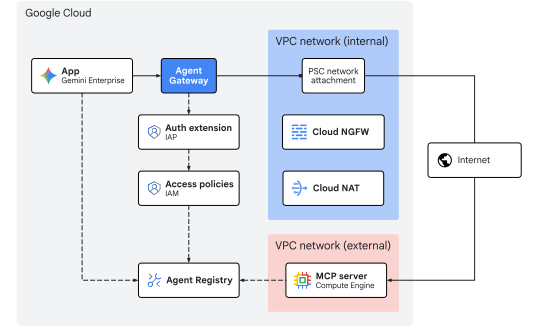
รูปที่ 1 สถาปัตยกรรม Codelab
สิ่งที่คุณจะได้เรียนรู้
- วิธีกำหนดค่า
AgentConnectivityTemplateด้วยvpcEgress: ALL_TRAFFICเพื่อกำหนดเส้นทางการรับส่งข้อมูล Agent Gateway ขาออกทั้งหมดไปยังเครือข่าย VPC - วิธีจองที่อยู่ IPv4 ภายนอกแบบคงที่และเชื่อมโยงกับ Cloud NAT ในซับเน็ตการเชื่อมต่อเครือข่าย PSC
- วิธีติดตั้งใช้งานเซิร์ฟเวอร์ทรัพยากร HTTP MCP ที่สตรีมได้ภายนอกซึ่งตรวจสอบโทเค็น Bearer ของ Google OAuth 2.0 (
oauth2.googleapis.com/tokeninfo) และจำกัดไฟร์วอลล์ขาเข้าอย่างเคร่งครัดให้ใช้เฉพาะ IP แบบคงที่ของ Cloud NAT (${NAT_EXT_IP}/32) - วิธีกำหนดค่าข้อมูลเข้าสู่ระบบไคลเอ็นต์ OAuth 2.0 ของ Google Identity และลงทะเบียนเซิร์ฟเวอร์ MCP และสคีมาเครื่องมือใน Agent Registry
- วิธีเชื่อมต่อเซิร์ฟเวอร์ MCP ของ OAuth 2.0 ที่ลงทะเบียนกับ Gemini Enterprise และกำหนดเส้นทางการเรียกใช้เครื่องมือที่ผู้ใช้มอบสิทธิ์ผ่าน Agent Gateway
- วิธีตรวจสอบการแปล IP แบบคงที่ การยืนยันตัวตนของผู้ใช้ปลายทางด้วย OAuth 2.0 (
authenticated_user) และการบังคับใช้นโยบายเกตเวย์โดยใช้คำสั่ง CLI และ Cloud Logging
สิ่งที่ต้องมี
- โปรเจ็กต์ Google Cloud ที่เปิดใช้การเรียกเก็บเงิน
- ใบอนุญาต Gemini Enterprise ที่ใช้งานอยู่หรือช่วงทดลองใช้ 30 วัน
- สิทธิ์ IAM ในการจัดสรรบริการเครือข่าย นโยบายองค์กร Gemini Enterprise และทรัพยากรแพลตฟอร์มเอเจนต์
- เชลล์ที่เข้ากันได้กับ POSIX (
bashหรือzsh) ที่ติดตั้ง Google Cloud CLI (gcloud),curlและjq
ส่วนแนะนำก็มีเพียงเท่านี้... ต่อไปเราจะไปที่ส่วนแนวคิด
2. แนวคิด
ลำดับการติดตั้งใช้งาน
Codelab นี้จะติดตั้งใช้งานโครงสร้างพื้นฐานด้านเครือข่ายและการกำกับดูแลก่อน เพื่อให้เส้นทางการออกของ IP แบบคงที่และการควบคุมเกตเวย์ทำงานได้ก่อนที่จะลงทะเบียนและเชื่อมต่อเครื่องมือ MCP กับ Gemini Enterprise
- โครงสร้างพื้นฐานของเครือข่าย: จองที่อยู่ IPv4 ภายนอกแบบคงที่และจัดสรร VPC ขาออก, ซับเน็ตการแนบ PSC, การแนบเครือข่าย PSC, Cloud Router, เกตเวย์ Cloud NAT และกฎไฟร์วอลล์เครือข่าย MCP ภายนอก
- เทมเพลตการเชื่อมต่อเอเจนต์และ Agent Gateway: ติดตั้งใช้งาน
AgentConnectivityTemplate(vpcEgress: ALL_TRAFFIC) และAgentGatewayระดับภูมิภาคในโหมดขาออก (AGENT_TO_ANYWHERE) พร้อมการผสานรวม Agent Registry (registries) - นโยบายการให้สิทธิ์: กำหนดค่าส่วนขยายการให้สิทธิ์ IAP (
AuthzExtension), นโยบายการให้สิทธิ์เกตเวย์ (AuthzPolicy) และนโยบายการเข้าถึงแบบรวม IAM v3 (AccessPolicyและPolicyBinding) - ติดตั้งใช้งานและลงทะเบียนเซิร์ฟเวอร์ MCP: ติดตั้งใช้งาน
mcp-sprocketsเซิร์ฟเวอร์ทรัพยากร OAuth 2.0 ภายนอกที่อยู่เบื้องหลัง Caddy TLS, ยืนยันการบังคับใช้tokeninfoGoogle OAuth 2.0, ล็อกไฟร์วอลล์ขาเข้าอย่างเข้มงวดกับ IP แบบคงที่ของ Cloud NAT (${NAT_EXT_IP}/32) และลงทะเบียนข้อกำหนดของบริการและเครื่องมือ (get_sprocketsและget_sprocket_by_id) ใน Agent Registry - แอป Gemini Enterprise และไคลเอ็นต์ OAuth 2.0: กำหนดค่าผู้ให้บริการข้อมูลประจำตัวของ Google, ใบอนุญาตทดลองใช้, หน้าจอขอความยินยอม OAuth 2.0 และข้อมูลเข้าสู่ระบบไคลเอ็นต์ของเว็บแอปพลิเคชัน (
OAUTH_CLIENT_IDและOAUTH_CLIENT_SECRET), สร้างแอป Gemini Enterprise (Engine) และเชื่อมโยงการส่งออกขาออกกับ Agent Gateway (agentGatewaySetting) - นำเข้าเครื่องมือเชื่อมต่อข้อมูล MCP แบบกำหนดเอง: สร้างและเปิดใช้งาน
REGISTRY_MCPเครื่องมือเชื่อมต่อข้อมูล (:setUpDataConnector) ที่กำหนดค่าด้วยauth_type: "OAUTH"เพื่อลิงก์ที่เก็บข้อมูลสำรองของเซิร์ฟเวอร์ MCP ที่จดทะเบียนกับแอป Gemini Enterprise - ตรวจสอบ: ทำขั้นตอนการขอความยินยอม OAuth 2.0 ของผู้ใช้แบบครั้งเดียวให้เสร็จสมบูรณ์ เรียกใช้เครื่องมือ MCP ผ่านผู้ช่วย Gemini Enterprise (ยืนยันทั้ง
egress_source_ipและauthenticated_user) และยืนยันการบังคับใช้นโยบายและการแปล NAT ของ IP แบบคงที่ใน Cloud Logging
สถาปัตยกรรม IdP ส่วนกลาง + เซิร์ฟเวอร์ทรัพยากร MCP ที่ป้องกันด้วย OAuth
ในการติดตั้งใช้งานระดับองค์กร การจัดการข้อมูลประจำตัวและการเรียกใช้เครื่องมือจะเป็นไปตามการแยกบทบาท OAuth 2.0 มาตรฐานระหว่างผู้ให้บริการข้อมูลประจำตัวแบบรวมศูนย์ (เซิร์ฟเวอร์การให้สิทธิ์) กับเซิร์ฟเวอร์ทรัพยากร MCP ที่ได้รับการปกป้อง ดังนี้
บทบาทของ OAuth 2.0 | คอมโพเนนต์ใน Codelab นี้ | ความรับผิดชอบ |
เจ้าของทรัพยากร | ผู้ใช้ปลายทาง ( | ลงชื่อเข้าใช้เว็บแอป Gemini Enterprise และให้ความยินยอมในขั้นตอนการให้สิทธิ์ OAuth 2.0 แบบ 3 ขาแบบครั้งเดียว |
ไคลเอ็นต์ OAuth 2.0 | Gemini Enterprise | เก็บ |
เซิร์ฟเวอร์การให้สิทธิ์ | OAuth 2.0 ของ Google Identity ( | ตรวจสอบสิทธิ์ผู้ใช้ในระหว่างการเปลี่ยนเส้นทางความยินยอมของเบราว์เซอร์ และออกโทเค็นเพื่อการเข้าถึงและการรีเฟรช OAuth 2.0 ให้กับ Gemini Enterprise |
เซิร์ฟเวอร์ทรัพยากร | เซิร์ฟเวอร์ | บังคับใช้ข้อมูลระบุตัวตนของเครือข่ายเลเยอร์ 3 โดยใช้ไฟร์วอลล์ VPC ( |
เนื่องจากการเปลี่ยนเส้นทางความยินยอมของเบราว์เซอร์ (accounts.google.com) และการแลกเปลี่ยนโทเค็นผ่านแชแนลย้อนกลับ (oauth2.googleapis.com/token) เกิดขึ้นกับปลายทาง OAuth 2.0 ที่ Google จัดการ ไฟร์วอลล์เซิร์ฟเวอร์ MCP ภายนอกจึงรับเฉพาะคำขอ MCP JSON-RPC (POST /mcp) ที่รันไทม์จาก Agent Gateway ผ่าน Cloud NAT ซึ่งช่วยให้ไฟร์วอลล์ขาเข้าสามารถล็อกไว้ที่ ${NAT_EXT_IP}/32 ได้อย่างเข้มงวด
โมเดลทรัพยากรของ Discovery Engine
แอป Gemini Enterprise (แสดงเป็นทรัพยากร Engine ใน Discovery Engine API) คือเลเยอร์การจัดการเป็นกลุ่มส่วนกลางและอินเทอร์เฟซแบบสนทนาสำหรับผู้ใช้ปลายทาง โดยจะจัดการเซสชันแชทของผู้ใช้ อ้างอิงโมเดล Generative จากข้อมูลขององค์กร และประสานงานการดำเนินการเครื่องมือแบบไดนามิก
แอป Gemini Enterprise จะโต้ตอบกับข้อมูลและระบบผ่านที่เก็บข้อมูล ดังนี้
- ที่เก็บข้อมูลความรู้: ส่งและจัดทำดัชนีเนื้อหาแบบคงที่ (เช่น Cloud Storage, Google ไดรฟ์, BigQuery) สำหรับการสร้างแบบดึงข้อมูล (RAG)
- เครื่องมือเชื่อมต่อข้อมูล (ผู้ให้บริการการดำเนินการ): เชื่อมต่อกับ API แบบไดนามิกของบุคคลที่สามหรือ API ที่กำหนดเอง ที่เก็บข้อมูลเซิร์ฟเวอร์ MCP ที่กำหนดเองจะแสดงเครื่องมือที่กำหนดโดย Model Context Protocol (MCP) ซึ่งช่วยให้โมเดลเรียกใช้ฟังก์ชันภายนอกแบบไดนามิกระหว่างการสนทนาได้
การส่งออกข้อมูลจาก Gemini Enterprise
Gemini Enterprise จะกำหนดเส้นทางคำขอเครื่องมือเซิร์ฟเวอร์ MCP ที่กำหนดเองไปยัง Agent Gateway เมื่อมีการกำหนดค่าทั้ง agentGatewaySetting ใน Engine และ use_agent_gateway_egress: true ใน DataConnector
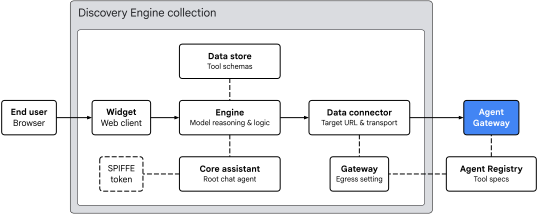
รูปที่ 2 สถาปัตยกรรมการส่งออกของ Gemini Enterprise
แอป Gemini Enterprise จะจัดระเบียบการกำหนดเส้นทางเครื่องมือใน 4 ด้านหลักๆ ดังนี้
- วิดเจ็ต (
default_search_widget_config):- แสดงอินเทอร์เฟซไคลเอ็นต์บนเว็บ วิดเจ็ตจะได้รับพรอมต์จากผู้ใช้ เรียกใช้การเปลี่ยนเส้นทางความยินยอมของผู้ใช้ OAuth 2.0 แบบครั้งเดียวเมื่อเครื่องมือต้องมีการให้สิทธิ์ และเริ่มเซสชันแชทกับเครื่องมือพื้นฐาน
- Core Assistant (
assistants/default_assistant/agents/default/core_assistant):- Agent การให้เหตุผลแบบสนทนาหลักภายในเครื่องมือ เมื่อประเมินคำค้นหาของผู้ใช้ Core Assistant จะตรวจสอบเครื่องมือที่มีอยู่และมอบหมายการดำเนินการให้กับ Agent Gateway Agent ย่อยที่สังเคราะห์ขึ้น
- ที่เก็บข้อมูลและเครื่องมือเชื่อมต่อข้อมูล:
DataStore: เมื่อ:setUpDataConnectorทำงาน ระบบจะจัดสรรภายในCollectionโดยเฉพาะ ซึ่งจะลิงก์ (dataStoreIds) สคีมาของเครื่องมือ Agent Registry ที่นำเข้า (get_sprockets,get_sprocket_by_id) ประเภทอาร์กิวเมนต์ และวิธีการของ Agent กับEngineของ Gemini EnterpriseDataConnector: จัดการการเชื่อมต่อการดำเนินการREGISTRY_MCP(createBapConnection: true) กับเซิร์ฟเวอร์ MCP ระยะไกล (instance_uri) แก้ไขทรัพยากรเซิร์ฟเวอร์ MCP ของ Agent Registry (registry_mcp_server_name) แนบโทเค็น Bearer ของ OAuth 2.0 ที่เก็บไว้ในห้องนิรภัยของผู้ใช้ (Authorization: Bearer [access_token]) และเปิดใช้ขาออกของ Agent Gateway (use_agent_gateway_egress: true)
- ตัวตนของเอเจนต์, Agent Registry และ Agent Gateway:
- เมื่อตัวเชื่อมต่อข้อมูลส่งการเรียกใช้เครื่องมือขาออก ระบบจะกำหนดเส้นทางการรับส่งข้อมูลไปยังเกตเวย์ที่ระบุใน
agentGatewaySettingผู้ช่วยหลักจะสร้างโทเค็นข้อมูลประจำตัว SPIFFE ที่ยืนยันข้อมูลประจำตัวของเวิร์กโหลด:principal://agents.global.org-.../agents/default/core_assistant - Agent Gateway ผสานรวมกับ Agent Registry โดยใช้ฟิลด์
registriesเพื่อแก้ไขปลายทางปลายทางและสคีมาเครื่องมือที่ลงทะเบียนแบบไดนามิก ประเมินนโยบายการให้สิทธิ์โดยใช้ IAP และส่งต่อคำขอที่ได้รับอนุญาต (รักษาส่วนหัวAuthorization: Bearerของผู้ใช้) ไปยังเครือข่าย VPC โดยใช้AgentConnectivityTemplate
- เมื่อตัวเชื่อมต่อข้อมูลส่งการเรียกใช้เครื่องมือขาออก ระบบจะกำหนดเส้นทางการรับส่งข้อมูลไปยังเกตเวย์ที่ระบุใน
การเชื่อมต่อ VPC ของเกตเวย์และ NAT ของ IP แบบคงที่
Agent Gateway รองรับการเชื่อมต่อเครือข่าย VPC โดยใช้ทรัพยากร AgentConnectivityTemplate ที่อ้างอิงโดย agentConnectivityTemplate ในเกตเวย์ เทมเพลต egressNetworkConfig จะกำหนดวิธีที่การรับส่งข้อมูลเข้าสู่ VPC ผ่านการเชื่อมต่อเครือข่าย PSC ดังนี้
PRIVATE_RANGES_ONLY(ค่าเริ่มต้น): กำหนดเส้นทางเฉพาะช่วง IP ส่วนตัว RFC 1918, RFC 6598 และคลาส E ผ่านการเชื่อมต่อเครือข่าย PSC การรับส่งข้อมูลที่มุ่งหน้าไปยังอินเทอร์เน็ตจะข้าม VPC และออกผ่านการรับส่งข้อมูลขาออกเริ่มต้นของ Google โดยตรงALL_TRAFFIC(ใช้ใน Codelab นี้): กำหนดเส้นทางการรับส่งข้อมูลขาออกทั้งหมดจาก Agent Gateway ซึ่งรวมถึงอินเทอร์เน็ตสาธารณะและปลายทาง MCP ของพาร์ทเนอร์ภายนอก ไปยังเครือข่ายย่อย VPC ผ่านการแนบเครือข่าย PSC (10.10.10.2)
เมื่อทำงานในโหมด ALL_TRAFFIC ซับเน็ตการแนบ PSC จะต้องมีการกำหนดค่า 2 อย่างดังนี้
- การเข้าถึง Google แบบส่วนตัว (
--enable-private-ip-google-access): ช่วยให้มั่นใจว่าการเรียก Cloud APIs ภายในของ Google Cloud (*.googleapis.com) จะยังคงกำหนดเส้นทางแบบส่วนตัวภายในเครือข่าย Google ต่อไป - Cloud Router และ Cloud NAT (
MANUAL_ONLY): การรับส่งข้อมูลที่มุ่งหน้าไปยังอินเทอร์เน็ตซึ่งเข้าสู่ซับเน็ตการเชื่อมต่อ PSC จะเป็นไปตามเส้นทางเริ่มต้น (0.0.0.0/0) ผ่าน Cloud NAT ซึ่งจะทำการเปลี่ยนค่าที่อยู่เครือข่ายต้นทาง (SNAT) เป็นที่อยู่ IPv4 ภายนอกแบบคงที่ที่สงวนไว้ (${NAT_EXT_IP}) ดังนั้น ไฟร์วอลล์ภายนอกจึงสามารถจำกัดการเข้าถึงขาเข้าอย่างเคร่งครัดไว้ที่${NAT_EXT_IP}/32
ข้อจำกัดและข้อกำหนด
- StreamableHTTP เท่านั้น: ระบบไม่รองรับการรับส่งข้อมูล Server-Sent Events (SSE) แบบเดิม เซิร์ฟเวอร์ MCP ต้องใช้ StreamableHTTP
- การลบล้างนโยบายขององค์กร: คุณต้องลบล้างนโยบายขององค์กรสำหรับที่เก็บข้อมูล MCP ที่กำหนดเองอย่างชัดเจนก่อนที่จะลงทะเบียนเครื่องมือเชื่อมต่อข้อมูล
- การจัดแนวตามภูมิภาค: Gemini Enterprise บังคับใช้การจัดแนวตามภูมิภาคระหว่างตำแหน่งแอป, Agent Gateway และ Agent Registry ดังนี้
ตำแหน่งของแอป Gemini Enterprise | Agent Gateway และตำแหน่ง NAT | สถานที่ตั้งของ Agent Registry |
|
|
|
|
|
|
|
|
|
จบส่วนแนวคิดแล้ว... ต่อไปเป็นส่วนการตั้งค่า
3. ตั้งค่า
บทบาท IAM ที่ต้องมี
คุณต้องมีบทบาทต่อไปนี้จึงจะทำ Codelab นี้ให้เสร็จสมบูรณ์ได้
โดเมน | บทบาท IAM ที่ต้องมี |
โปรเจ็กต์และ IAM |
|
เครือข่ายและเกตเวย์ |
|
Gemini Enterprise และ Registry |
|
ภาระงาน |
|
ความสามารถในการสังเกต |
|
หรือใช้บทบาทพื้นฐานแบบกว้าง เช่น roles/owner ร่วมกับ roles/orgpolicy.policyAdmin (เนื่องจาก roles/owner เพียงอย่างเดียวไม่สามารถแก้ไขนโยบายองค์กรได้)
เข้าถึงโปรเจ็กต์
Codelab นี้ใช้โปรเจ็กต์ที่อยู่ในระบบคลาวด์ของ Google เดียว ขั้นตอนการกำหนดค่าใช้คำสั่ง CLI ของ gcloud และคำสั่ง Shell ของ Linux
เริ่มต้นด้วยการเข้าถึงบรรทัดคำสั่งของโปรเจ็กต์ที่อยู่ในระบบคลาวด์ของ Google โดยทำดังนี้
- Cloud Shell ที่
shell.cloud.google.comหรือ - เทอร์มินัลในเครื่องที่
gcloudCLI ติดตั้งแล้ว
ตั้งค่ารหัสโปรเจ็กต์
# set target project id
gcloud config set project SET_YOUR_PROJECT_ID_HERE
ตรวจสอบสิทธิ์เซสชัน
# login to gcloud cli
gcloud auth login
# login for gcloud api
gcloud auth application-default login
ตั้งค่าตัวแปรสภาพแวดล้อมของ Shell
# set custom var for slug (eg, "foo") and region preference
export SLUG="foo"
export REGION="us-central1"
export ZONE="us-central1-a"

echo ${SLUG}
echo ${REGION}
echo ${ZONE}
# create project vars (automatic)
export PROJ_ID=$(gcloud config list --format="value(core.project)")
export PROJ_NO=$(gcloud projects describe ${PROJ_ID} --format="value(projectNumber)")
export ORG_ID=$(gcloud projects get-ancestors ${PROJ_ID} --format="value(id)" | tail -n 1)
export USER_IDENTITY=$(gcloud config get-value account)

echo ${PROJ_ID}
echo ${PROJ_NO}
echo ${ORG_ID}
echo ${USER_IDENTITY}
# create resource vars for agent platform (automatic)
export AGW_NAME="agw-${SLUG}-${REGION}-ata"
export AGW_URI="projects/${PROJ_ID}/locations/${REGION}/agentGateways/${AGW_NAME}"
export MCP_NAME="mcp-sprockets"

echo ${AGW_NAME}
echo ${AGW_URI}
echo ${MCP_NAME}
# create resource vars for gemini enterprise (automatic)
export GE_LOCATION="global"
export GE_APP_ORG_NAME="${SLUG}, Inc."
export GE_APP_DISPLAY_NAME="${SLUG} ${GE_LOCATION} app"
export GE_APP_NAME="app-${SLUG}-${GE_LOCATION}"
export GE_APP_INIT="${GE_APP_NAME}_$(date +%s)"

echo ${GE_LOCATION}
echo ${GE_APP_ORG_NAME}
echo ${GE_APP_DISPLAY_NAME}
echo ${GE_APP_NAME}
echo ${GE_APP_INIT}
ตั้งค่าโดเมนที่เชื่อถือได้ของข้อมูลระบุตัวตนของ Agent
if-then-else ตรวจสอบว่าโปรเจ็กต์เป็นขององค์กรหรือไม่เพื่อตั้งค่าโดเมนที่เชื่อถือได้อย่างถูกต้องสำหรับข้อมูลประจำตัวของตัวแทนหลัก
# set var for trust domain
if [[ -n "${ORG_ID}" ]]; then
  export TRUST_DOMAIN="agents.global.org-${ORG_ID}.system.id.goog"
else
  export TRUST_DOMAIN="agents.global.proj-${PROJ_NO}.system.id.goog"
fi

echo "trust domain: ${TRUST_DOMAIN}"
ตั้งค่าโปรเจ็กต์การเรียกเก็บเงินและโควต้า
# set cli quota project
gcloud config set billing/quota_project ${PROJ_ID}
# set api quota project
gcloud auth application-default set-quota-project ${PROJ_ID}
สร้างไดเรกทอรีในเครื่องสำหรับไฟล์การกำหนดค่า
# create config folder
mkdir -p cfg
อัปเดต gcloud cli (แนะนำ)
หากใช้การติดตั้ง Google Cloud SDK ที่จัดการด้วยตนเอง (เช่น นอก Cloud Shell) ให้อัปเดตคอมโพเนนต์เป็นเวอร์ชันล่าสุด
# update gcloud cli
gcloud components update
เปิดใช้บริการ API
# enable google cloud apis
gcloud services enable \
  agentregistry.googleapis.com \
  aiplatform.googleapis.com \
  cloudapiregistry.googleapis.com \
  cloudresourcemanager.googleapis.com \
  compute.googleapis.com \
  discoveryengine.googleapis.com \
  dns.googleapis.com \
  iam.googleapis.com \
  iap.googleapis.com \
  logging.googleapis.com \
  monitoring.googleapis.com \
  networkconnectivity.googleapis.com \
  networksecurity.googleapis.com \
  networkservices.googleapis.com \
  orgpolicy.googleapis.com \
  serviceextensions.googleapis.com \
  serviceusage.googleapis.com
นโยบายองค์กร
ข้อจำกัดของนโยบายขององค์กรที่มีการจัดการและนโยบายแซนด์บ็อกซ์เริ่มต้นของ Google Cloud อาจจำกัดฟีเจอร์ที่ใช้ใน Codelab นี้
compute.vmExternalIpAccess: จำกัดที่อยู่ IPv4 ภายนอกใน VM ของ Compute Engine ในองค์กร Sandbox ที่ล็อกดาวน์discoveryengine.managed.disableCustomMcpServerConnector: จำกัดการสร้างเครื่องมือเชื่อมต่อข้อมูลที่ใช้เซิร์ฟเวอร์ MCP ที่กำหนดเอง (custom_mcp) เป็นแหล่งข้อมูล (บังคับใช้โดยค่าเริ่มต้น)discoveryengine.managed.allowedEgressFqdns: จำกัดโดเมนขาออก (instance_uriFQDN) สำหรับตัวเชื่อมต่อข้อมูลเมื่อการควบคุมบริการ VPC (VPC-SC) ทำงานอยู่หรือโปรเจ็กต์อยู่ในรายการenforcedProjectsdiscoveryengine.managed.allowedDataSources: จำกัดประเภทเครื่องมือเชื่อมต่อข้อมูลที่อนุญาต (dataSource) เมื่อ VPC-SC ทำงานอยู่หรือโปรเจ็กต์แสดงอยู่ในenforcedProjects
ลบล้างข้อจำกัดของนโยบายองค์กรที่รับค่ามาที่ระดับโปรเจ็กต์
ปิดใช้ข้อจํากัด MCP ที่กําหนดเอง
# disable data connector constraint (allow custom mcp servers)
gcloud org-policies set-policy "/dev/stdin" <<EOF
name: projects/${PROJ_ID}/policies/discoveryengine.managed.disableCustomMcpServerConnector
spec:
  rules:
  - enforce: false
EOF
ปิดใช้ข้อจํากัดของเครื่องมือเชื่อมต่อข้อมูลแบบมีเงื่อนไข
# disable egress fqdn constraint on project
gcloud org-policies set-policy "/dev/stdin" <<EOF
name: projects/${PROJ_ID}/policies/discoveryengine.managed.allowedEgressFqdns
spec:
  rules:
  - enforce: false
EOF
# disable allowed data sources constraint on project
gcloud org-policies set-policy "/dev/stdin" <<EOF
name: projects/${PROJ_ID}/policies/discoveryengine.managed.allowedDataSources
spec:
  rules:
  - enforce: false
EOF
ปิดใช้ข้อจำกัดนโยบายการเข้าถึง
# disable iam v3 constraint (allow v3 access policies)
gcloud org-policies set-policy /dev/stdin << EOF
name: projects/${PROJ_NO}/policies/iam.managed.disableAccessPolicyBinding
spec:
  rules:
  - enforce: false
EOF
อนุญาตที่อยู่ IP ภายนอก
# allow external ip address for vms on project
gcloud org-policies set-policy "/dev/stdin" <<EOF
name: projects/${PROJ_ID}/policies/compute.vmExternalIpAccess
spec:
  rules:
  - allowAll: true
EOF
ยืนยันนโยบายองค์กร
ตรวจสอบว่าได้ตั้งค่า compute.vmExternalIpAccess เป็น allowAll: True และนโยบายอื่นๆ เป็น enforce: False ดังนี้
# verify effective org policy constraints on project
for policy in \
  discoveryengine.managed.disableCustomMcpServerConnector \
  discoveryengine.managed.allowedEgressFqdns \
  discoveryengine.managed.allowedDataSources \
  iam.managed.disableAccessPolicyBinding \
  compute.vmExternalIpAccess; do
  gcloud org-policies describe ${policy} \
    --project=${PROJ_ID} \
    --effective \
    --format="flattened[no-pad](name.basename(),spec.rules[0])"
done
ยืนยันการเชื่อมโยงตัวแทนบริการ (ข้อควรระวัง)
ในโปรเจ็กต์ใหม่ Google Cloud จะจัดสรรตัวแทนบริการ Agent Gateway โดยอัตโนมัติและให้สิทธิ์ roles/agentgateway.serviceAgent เมื่อเปิดใช้ networkservices.googleapis.com เป็นครั้งแรก หากคุณใช้โปรเจ็กต์ที่มีอยู่ซ้ำ ซึ่งการล้างข้อมูลก่อนหน้านี้อาจนำการเชื่อมโยงตัวแทนบริการเริ่มต้นออก ให้เรียกใช้คำสั่งต่อไปนี้เพื่อเป็นมาตรการป้องกันข้อผิดพลาดและตรวจสอบว่าการเชื่อมโยงข้อมูลประจำตัวและบทบาทไม่เสียหาย
# ensure network services service account has been created
gcloud beta services identity create \
  --service=networkservices.googleapis.com \
  --project="${PROJ_ID}"

# ensure network services service account has service agent roles applied
gcloud projects add-iam-policy-binding "${PROJ_ID}" \
  --member="serviceAccount:service-${PROJ_NO}@gcp-sa-agentgateway.iam.gserviceaccount.com" \
  --role="roles/agentgateway.serviceAgent"
ส่วนการตั้งค่าก็มีเพียงเท่านี้... ต่อไปเราจะไปที่ส่วนเครือข่าย
4. เครือข่าย
ในส่วนนี้ คุณจะจองที่อยู่ IPv4 ภายนอกแบบคงที่ สร้างเครือข่าย VPC ขาออกภายในและเครือข่าย VPC ภายนอกที่แยกต่างหาก จัดสรรไฟล์แนบเครือข่าย PSC, กำหนดค่า Cloud NAT และสร้างกฎไฟร์วอลล์
จองที่อยู่ IP ภายนอกแบบคงที่
จองที่อยู่ IPv4 ภายนอกแบบคงที่ระดับภูมิภาค 2 รายการสำหรับ Cloud NAT และ VM เซิร์ฟเวอร์ MCP ภายนอก
# reserve static external ipv4 address for cloud nat
gcloud compute addresses create ip-${SLUG}-nat \
  --region=${REGION}

# reserve static external ipv4 address for the mcp server
gcloud compute addresses create ip-${SLUG}-mcp \
  --region=${REGION}
ยืนยันที่อยู่ IP ภายนอกแบบคงที่
Gemini Enterprise กำหนดให้ปลายทาง MCP ระยะไกลใช้ HTTPS กับใบรับรอง TLS ที่เชื่อถือได้แบบสาธารณะ แทนที่จะจดทะเบียนโดเมนที่กำหนดเองสำหรับ Lab นี้ คุณจะใช้ sslip.io ซึ่งเป็นบริการ DNS ไวลด์การ์ดฟรีที่แปลงชื่อโฮสต์ที่มีที่อยู่ IP (เช่น mcp.[IP].sslip.io) กลับไปยัง IP นั้นโดยตรง เนื่องจากผู้ออกใบรับรอง เช่น Let's Encrypt ไม่ออกใบรับรองให้ที่อยู่ IP แบบเปล่าๆ ชื่อโฮสต์ sslip.io นี้จึงทำให้พร็อกซีแบบย้อนกลับของ Caddy มีชื่อโดเมนที่ถูกต้องเพื่อจัดสรรใบรับรอง TLS ที่เชื่อถือได้โดยอัตโนมัติสำหรับเซิร์ฟเวอร์ MCP
ส่งออกทั้งที่อยู่ IPv4 และสร้างsslip.ioชื่อโดเมนและ URL สำหรับเซิร์ฟเวอร์ MCP ภายนอกโดยทำดังนี้
# export static ip addresses and set vars for domain
export NAT_EXT_IP=$(gcloud compute addresses describe ip-${SLUG}-nat \
  --region=${REGION} \
  --format="value(address)")

export MCP_EXT_IP=$(gcloud compute addresses describe ip-${SLUG}-mcp \
  --region=${REGION} \
  --format="value(address)")

export MCP_DOMAIN="mcp.${MCP_EXT_IP}.sslip.io"
export MCP_URL="https://${MCP_DOMAIN}/mcp"

echo "cloud nat external ip    : ${NAT_EXT_IP}"
echo "mcp server external ip   : ${MCP_EXT_IP}"
echo "mcp url                  : ${MCP_URL}"
ตัวอย่างเอาต์พุต
cloud nat external ip    : 203.0.113.10
mcp server external ip   : 203.0.113.20
mcp url                  : https://mcp.203.0.113.20.sslip.io/mcp
สร้างเครือข่ายภายใน
เมื่อกำหนดค่าเทมเพลตการเชื่อมต่อ Agent Gateway ให้ใช้ egressNetworkConfig ที่มี networkAttachment ซับเน็ตที่โฮสต์การเชื่อมต่อเครือข่าย PSC ต้องเป็นบล็อก CIDR /28 อย่างน้อย และต้องเปิดใช้การเข้าถึง Google แบบส่วนตัว (--enable-private-ip-google-access)
สร้างเครือข่าย VPC ทั่วโลกสำหรับการออกของ Agent Gateway ภายใน
# create vpc network
gcloud compute networks create vnet-${SLUG}-internal --subnet-mode=custom

# create subnet for agent gateway psc na
gcloud compute networks subnets create subnet-${REGION}-agw \
  --network=vnet-${SLUG}-internal \
  --range=10.10.10.0/28 \
  --region=${REGION} \
  --enable-private-ip-google-access
สร้างกฎไฟร์วอลล์ภายใน
สร้างนโยบายไฟร์วอลล์เพื่ออนุญาตการรับส่งข้อมูลขาออกทั้งหมดโดยเปิดใช้การบันทึก ซึ่งจะใช้เพื่อตรวจสอบการรับส่งข้อมูลที่ออกจาก Agent Gateway ไปยังเครือข่าย VPC ภายใน Cloud NGFW รองรับทั้งระดับ Essentials และระดับ Standard สำหรับการรักษาความปลอดภัยของเครือข่ายและการตรวจสอบการรับส่งข้อมูล
# create fw policy
gcloud compute network-firewall-policies create fw-policy-${SLUG}-internal --global
# create fw policy rule
gcloud compute network-firewall-policies rules create 1001 \
  --description="allow all out and log" \
  --firewall-policy=fw-policy-${SLUG}-internal \
  --global-firewall-policy \
  --action=allow \
  --direction=EGRESS \
  --layer4-configs=all \
  --dest-ip-ranges=0.0.0.0/0 \
  --enable-logging
# bind fw policy to network
gcloud compute network-firewall-policies associations create \
  --name=fw-policy-bind-${SLUG}-internal \
  --firewall-policy=fw-policy-${SLUG}-internal \
  --network=vnet-${SLUG}-internal \
  --global-firewall-policy
สร้างการเชื่อมต่อเครือข่าย PSC
สร้างไฟล์แนบเครือข่าย Private Service Connect (PSC) ที่กำหนดค่าให้ยอมรับการเชื่อมต่อจาก Agent Gateway โดยอัตโนมัติ การแนบเครือข่ายจะสร้างฝั่งเครือข่าย VPC ของผู้ใช้ในการเชื่อมต่อเพื่อลิงก์กับฝั่งผู้ให้บริการของ Agent Gateway อย่างปลอดภัยสำหรับการรับส่งข้อมูลขาออก ดูข้อมูลเพิ่มเติมเกี่ยวกับข้อกำหนดของเครือข่ายย่อยและข้อกำหนดช่วง IP ได้ที่กำหนดค่าการเชื่อมต่อ VPC
# create psc network attachment
gcloud compute network-attachments create psc-na-${REGION}-agw \
  --region=${REGION} \
  --subnets=subnet-${REGION}-agw \
  --connection-preference=ACCEPT_AUTOMATIC
ยืนยันการแนบเครือข่าย PSC
# show psc network attachment details
gcloud compute network-attachments describe psc-na-${REGION}-agw --region=${REGION}
ดึง URI ของทรัพยากรของ Network Attachment ของ PSC แล้วจัดเก็บไว้ในตัวแปรสภาพแวดล้อม PSC_NA_URI URI นี้จะอ้างอิงในการกำหนดค่า Agent Gateway (networkConfig.egress.networkAttachment) เพื่อจัดสรรอินเทอร์เฟซ PSC สำหรับการรับส่งข้อมูลเครือข่ายขาออกไปยังเครือข่าย VPC
# fetch psc network attachment uri
export PSC_NA_URI=$(gcloud compute network-attachments describe psc-na-${REGION}-agw \
  --region=${REGION} \
  --format="value(selfLink.scope(v1))")
echo ${PSC_NA_URI}
สร้าง Cloud NAT
Cloud NAT ใช้เพื่อแปลที่อยู่ IP ต้นทางของการรับส่งข้อมูลขาออกจาก Agent Gateway เป็นที่อยู่ IP สาธารณะที่สงวนไว้สำหรับการกำหนดเส้นทางผ่านอินเทอร์เน็ตสาธารณะ
เฉพาะแหล่งข้อมูลจากซับเน็ตการเชื่อมต่อเครือข่ายขาออกจาก Agent Gateway เท่านั้นที่กำหนดว่ามีสิทธิ์ใช้ Cloud NAT
# create router for nat
gcloud compute routers create cr-nat-${SLUG}-${REGION} \
  --network=vnet-${SLUG}-internal \
  --asn=16550 \
  --region=${REGION}

# create nat
gcloud compute routers nats create nat-${SLUG}-${REGION} \
  --router=cr-nat-${SLUG}-${REGION} \
  --region=${REGION} \
  --nat-custom-subnet-ip-ranges="subnet-${REGION}-agw" \
  --nat-external-ip-pool="ip-${SLUG}-nat" \
  --enable-logging \
  --log-filter=ALL
ยืนยัน Cloud NAT
ตรวจสอบสถานะ Cloud NAT และตรวจสอบว่าได้กำหนดค่าแหล่งที่มา natIP ที่คาดไว้แล้ว
# verify cloud nat configuration
gcloud compute routers nats describe nat-${SLUG}-${REGION} \
  --router=cr-nat-${SLUG}-${REGION} \
  --region=${REGION} \
  --format="yaml(name,natIps,subnetworks.name)"
ตัวอย่างเอาต์พุต
name: nat-foo-us-central1
natIps:
- https://www.googleapis.com/compute/v1/projects/[PROJ_ID]/regions/us-central1/addresses/ip-foo-nat
สร้างเครือข่ายภายนอก
สร้างเครือข่าย VPC ที่แยกต่างหากและโดดเดี่ยวเพื่อโฮสต์ VM เซิร์ฟเวอร์ MCP ภายนอก
# create vpc network
gcloud compute networks create vnet-${SLUG}-external --subnet-mode=custom

# create subnet for mcp server
gcloud compute networks subnets create subnet-${REGION}-mcp \
  --network=vnet-${SLUG}-external \
  --range=240.240.240.0/24 \
  --region=${REGION} \
  --enable-private-ip-google-access
สร้างกฎไฟร์วอลล์ภายนอก
สร้างกฎไฟร์วอลล์ขาเข้า 2 รายการในเครือข่าย VPC ภายนอก
2001: อนุญาตพอร์ต TCP ขาเข้า80เพื่อให้ Let's Encrypt สามารถทําความท้าทายในการตรวจสอบโดเมน ACME HTTP-01 ให้สําเร็จสําหรับ${MCP_DOMAIN}2002: อนุญาตพอร์ต TCP ขาเข้า443จาก0.0.0.0/0ในตอนแรกเพื่อยืนยันความพร้อมของ TLS และการบังคับใช้ OAuth 2.0tokeninfoจากเชลล์ในเครื่องก่อนที่จะล็อกให้เป็น${NAT_EXT_IP}/32อย่างเคร่งครัด
# create fw policy
gcloud compute network-firewall-policies create fw-policy-${SLUG}-external --global
# create fw policy rules
gcloud compute network-firewall-policies rules create 2001 \
  --description="allow in any http" \
  --firewall-policy=fw-policy-${SLUG}-external \
  --global-firewall-policy \
  --action=allow \
  --direction=INGRESS \
  --layer4-configs=tcp:80 \
  --src-ip-ranges=0.0.0.0/0 \
  --dest-ip-ranges=240.240.240.0/24 \
  --enable-logging

gcloud compute network-firewall-policies rules create 2002 \
  --description="allow in any https" \
  --firewall-policy=fw-policy-${SLUG}-external \
  --global-firewall-policy \
  --action=allow \
  --direction=INGRESS \
  --layer4-configs=tcp:443 \
  --src-ip-ranges=0.0.0.0/0 \
  --dest-ip-ranges=240.240.240.0/24 \
  --enable-logging
# bind fw policy to network
gcloud compute network-firewall-policies associations create \
  --name=fw-policy-bind-${SLUG}-external \
  --firewall-policy=fw-policy-${SLUG}-external \
  --network=vnet-${SLUG}-external \
  --global-firewall-policy
ส่วนเครือข่ายก็มีเพียงเท่านี้... ต่อไปเป็นส่วนAgent Gateway
5. Agent Gateway
ในส่วนนี้ คุณจะติดตั้งใช้งานเทมเพลตการเชื่อมต่อ Agent ด้วย vpcEgress: ALL_TRAFFIC, ติดตั้งใช้งานเกตเวย์ Agent ระดับภูมิภาค, มอบสิทธิ์การให้สิทธิ์ให้ Identity-Aware Proxy (IAP) และกำหนดกฎนโยบายการเข้าถึงแบบรวมของ IAM เพื่อควบคุมคำขอเครือข่ายขาออก
สร้างเทมเพลตการเชื่อมต่อ
ข้อกำหนดของเทมเพลตการเชื่อมต่อจะกำหนดสิ่งต่อไปนี้
egressNetworkConfig.networkAttachment: ชี้ไปที่การเชื่อมต่อเครือข่าย PSC ซึ่งเชื่อมต่อ Agent Gateway กับเครือข่าย VPCegressNetworkConfig.vpcEgress: ตั้งค่าเป็นALL_TRAFFICเพื่อให้การเชื่อมต่อ Agent ขาออกทั้งหมด (รวมถึงปลายทาง MCP ของอินเทอร์เน็ตสาธารณะ) จะกำหนดเส้นทางไปยังเครือข่าย VPC และออกจากระบบโดยใช้การแปลที่อยู่ IP ต้นทางของ Cloud NAT
สร้างและนำเข้าไฟล์การกำหนดค่าเทมเพลตการเชื่อมต่อ
# create connectivity template config file (vpcEgress: ALL_TRAFFIC)
cat > cfg/act-${AGW_NAME}.yaml << EOF
accessPath: AGENT_TO_ANYWHERE
name: projects/${PROJ_NO}/locations/${REGION}/agentConnectivityTemplates/act-${AGW_NAME}
deploymentModel: CENTRALIZED
egressNetworkConfig:
  networkAttachment: ${PSC_NA_URI}
  vpcEgress: ALL_TRAFFIC
EOF
# import connectivity template file (create template)
gcloud network-services agent-connectivity-templates import act-${AGW_NAME} \
  --source="cfg/act-${AGW_NAME}.yaml" \
  --location=${REGION}
สร้าง Agent Gateway
ข้อกำหนดของ Agent Gateway ระบุสิ่งต่อไปนี้
agentConnectivityTemplate: ชี้ไปยังเทมเพลตการเชื่อมต่อเพื่อให้เกตเวย์ใช้การเชื่อมต่อเครือข่าย PSC สำหรับการเชื่อมต่อ VPC ได้registries: เชื่อมโยงเกตเวย์กับ Agent Registry ระดับภูมิภาคเพื่อแก้ไขปลายทาง MCP และสคีมาเครื่องมือที่จัดทำแคตตาล็อก
สร้างและนำเข้าไฟล์การกำหนดค่า Agent Gateway
# create agent gateway config file
cat > cfg/${AGW_NAME}.yaml << EOF
name: ${AGW_NAME}
protocols:
  - MCP
googleManaged:
  governedAccessPath: AGENT_TO_ANYWHERE
agentConnectivityTemplate: projects/${PROJ_NO}/locations/${REGION}/agentConnectivityTemplates/act-${AGW_NAME}
registries:
  - "//agentregistry.googleapis.com/projects/${PROJ_ID}/locations/${REGION}"
EOF
# import agent gateway config file (create gateway)
gcloud network-services agent-gateways import ${AGW_NAME} \
  --source="cfg/${AGW_NAME}.yaml" \
  --location=${REGION}
ยืนยันการติดตั้งใช้งาน Agent Gateway
ยืนยันการกำหนดค่ารีจิสทรีของ Agent และเทมเพลตการเชื่อมต่อ
# verify agent gateway deployment details
gcloud network-services agent-gateways describe ${AGW_NAME} \
  --location=${REGION} \
  --format="yaml(name,agentConnectivityTemplate,registries)"
ตัวอย่างเอาต์พุต
agentConnectivityTemplate: projects/[PROJ_NO]/locations/us-central1/agentConnectivityTemplates/act-foo-us-central1
name: projects/[PROJ_ID]/locations/us-central1/agentGateways/agw-foo-us-central1-ata
registries:
- //agentregistry.googleapis.com/projects/[PROJ_ID]/locations/us-central1
ตรวจสอบการเชื่อมต่อเครือข่าย PSC เพื่อยืนยันการเชื่อมต่อเกตเวย์
# show psc network attachment details
gcloud compute network-attachments describe psc-na-${REGION}-agw \
  --region=${REGION} \
  --format="yaml(connectionEndpoints)"
ตัวอย่างเอาต์พุต
connectionEndpoints:
- ipAddress: 10.10.10.2
  projectIdOrNum: '[TENANT_PROJ_NO]'
  status: ACCEPTED
  subnetwork: https://www.googleapis.com/compute/v1/projects/[PROJ_ID]/regions/us-central1/subnetworks/subnet-us-central1-agw
มอบสิทธิ์การให้สิทธิ์
Agent Gateway จะรักษาความปลอดภัยและควบคุมการรับส่งข้อมูลเครื่องมือขาออกโดยใช้นโยบายการให้สิทธิ์ (networksecurity.authzPolicies) ที่ผสานรวมกับนโยบายการเข้าถึงแบบรวม (UAP) ของ Identity-Aware Proxy (IAP)
แม้ว่า Agent Gateway จะรองรับกฎพื้นฐานแบบอินไลน์ ALLOWและDENY แต่สภาพแวดล้อมขององค์กรจำเป็นต้องมีการกำกับดูแลแบบรวมศูนย์ที่เน้นข้อมูลประจำตัว นโยบายการเข้าถึงแบบรวมของ IAM (หรือนโยบายการเข้าถึง) ช่วยให้คุณจัดการกฎการเข้าถึงขาออกได้โดยใช้นโยบายการเข้าถึง IAM v3 มาตรฐาน

รูปที่ 3 สถาปัตยกรรมการให้สิทธิ์
ขั้นตอนการให้สิทธิ์จะเชื่อมต่อคอมโพเนนต์ 3 อย่าง ได้แก่
- นโยบายการให้สิทธิ์เกตเวย์ (
authzPolicy):- ทรัพยากรที่เข้าถึงได้ในภูมิภาคที่กำหนดเป้าหมายไปยัง Agent Gateway
- กำหนดค่าด้วย
policyProfile: REQUEST_AUTHZและaction: CUSTOMเพื่อกำหนดเส้นทางการตรวจสอบการให้สิทธิ์ขาออกทั้งหมดไปยังส่วนขยายการให้สิทธิ์ IAP
- ส่วนขยายบริการ IAP (
authzExtension):- ทรัพยากรที่เข้าถึงได้ในภูมิภาคที่มอบสิทธิ์การให้สิทธิ์คำขอไปยัง Identity-Aware Proxy (
iap.googleapis.com) - ประเมินนโยบายในโหมด
ENFORCEโดยใช้เวอร์ชันนโยบายV2
- ทรัพยากรที่เข้าถึงได้ในภูมิภาคที่มอบสิทธิ์การให้สิทธิ์คำขอไปยัง Identity-Aware Proxy (
- นโยบายและการเชื่อมโยงการเข้าถึงแบบรวมของ IAM (
accessPolicyและpolicyBinding):- ทรัพยากร IAM v3 ทั่วโลกที่มีกฎการเข้าถึงแบบละเอียด
- ตรวจสอบสิทธิ์ข้อมูลประจำตัวของ SPIFFE ของ Agent ที่เรียกใช้ ยืนยัน
iap.googleapis.com/resources.egressViaIAPสิทธิ์แบบสากล และประเมินเงื่อนไข Common Expression Language (CEL) กับแอตทริบิวต์ปลายทาง
ติดตั้งใช้งานส่วนขยายการให้สิทธิ์
# create authz extension config file
cat > "cfg/${AGW_NAME}-svc-ext-authz-iap.yaml" << EOF
name: ${AGW_NAME}-svc-ext-authz-iap
service: iap.googleapis.com
failOpen: false
timeout: 1s
metadata:
  iapPolicyVersion: "V2"
EOF
# import authz extension config file (create authz extension)
gcloud service-extensions authz-extensions import ${AGW_NAME}-svc-ext-authz-iap \
  --source="cfg/${AGW_NAME}-svc-ext-authz-iap.yaml" \
  --location=${REGION}
ยืนยันส่วนขยายการให้สิทธิ์
ตรวจสอบว่าส่วนขยายการให้สิทธิ์ใช้งานอยู่
# list authz extensions
gcloud service-extensions authz-extensions list \
  --location=${REGION} \
  --format="table(
    name.basename():label=NAME,
    createTime.date(tz=LOCAL):label=CREATED,
    service:label=SERVICE,
    metadata:label=METADATA,
    timeout:label=TIMEOUT
  )"
นโยบายการให้สิทธิ์ในการติดตั้งใช้งาน
สร้างnetwork-securityการกำหนดค่านโยบายการให้สิทธิ์ที่กำหนดเป้าหมายไปยัง Agent Gateway และมอบสิทธิ์การยืนยันคำขอให้กับส่วนขยายการให้สิทธิ์สำหรับ IAP โดยทำดังนี้
# create authz policy config file
cat > cfg/${AGW_NAME}-authz-policy-iap.yaml << EOF
name: ${AGW_NAME}-authz-policy-iap
target:
  resources:
    - "projects/${PROJ_ID}/locations/${REGION}/agentGateways/${AGW_NAME}"
policyProfile: REQUEST_AUTHZ
action: CUSTOM
customProvider:
  authzExtension:
    resources:
      - "projects/${PROJ_ID}/locations/${REGION}/authzExtensions/${AGW_NAME}-svc-ext-authz-iap"
EOF
# import authz policy config file (create authz policy)
gcloud network-security authz-policies import ${AGW_NAME}-authz-policy-iap \
  --source=cfg/${AGW_NAME}-authz-policy-iap.yaml \
  --location=${REGION}
ยืนยันนโยบายการให้สิทธิ์
ตรวจสอบว่านโยบายการให้สิทธิ์ใช้งานอยู่
# list authz policies
gcloud network-security authz-policies list \
  --location=${REGION} \
  --format="table(
    name.basename():label=NAME,
    action:label=ACTION,
    policyProfile:label=POLICY_PROFILE,
    customProvider.authzExtension.resources[0].basename():label=CUSTOM_PROVIDER_RESOURCE
  )"
สร้างนโยบายการเข้าถึง IAM
ตอนนี้ Agent Gateway จะมอบหมายการตรวจสอบการให้สิทธิ์ให้กับ IAP และแก้ไขข้อมูลเมตาปลายทางจาก Agent Registry จากนั้นกำหนดกฎนโยบายการเข้าถึงแบบรวมของ IAM เพื่อควบคุมการดำเนินการเครื่องมือขาออก
IAP จะประเมินนิพจน์แอตทริบิวต์ CEL กับแอตทริบิวต์ปลายทางของรีจิสทรี Agent ต่อไปนี้
- สถานะที่ลงทะเบียน (
destination.is_registered):- บูลีน (
true/false) ที่ระบุว่าปลายทางอยู่ในแคตตาล็อกใน Agent Registry หรือไม่
- บูลีน (
- ชื่อเซิร์ฟเวอร์ MCP (
destination.agent_registry.mcp_server.name):- ชื่อทรัพยากรเซิร์ฟเวอร์ MCP ที่เป็นมาตรฐานซึ่งลงทะเบียนใน Agent Registry
- วิธีการ MCP (
destination.agent_registry.mcp_server.method):- วิธีการ MCP ที่เรียกใช้ (เช่น
tools/call,tools/list,initialize)
- วิธีการ MCP ที่เรียกใช้ (เช่น
- ชื่อเครื่องมือ (
destination.agent_registry.mcp_server.tool.name):- ชื่อเครื่องมือที่เฉพาะเจาะจงที่เรียกใช้ (เช่น
get_sprocket_by_idหรือget_sprockets) ซึ่งช่วยให้การให้สิทธิ์ระดับเครื่องมือแบบละเอียดในเซิร์ฟเวอร์ MCP ที่ลงทะเบียน
- ชื่อเครื่องมือที่เฉพาะเจาะจงที่เรียกใช้ (เช่น
กำหนดกฎนโยบายการเข้าถึง IAM
ไฟล์ Manifest ของกฎนโยบาย IAM จะระบุสิ่งต่อไปนี้
- หลักการ: ข้อมูลประจำตัวหลักของ SPIFFE ที่แสดงถึง Agent ผู้ช่วยหลักของ Gemini Enterprise
- สิทธิ์: สิทธิ์
iap.googleapis.com/resources.egressViaIAPแบบสากลที่จำเป็นสำหรับการรับส่งข้อมูลขาออกทั้งหมดที่ควบคุมโดย IAP - เงื่อนไข: นิพจน์ CEL (
destination.is_registered == true) ที่ช่วยให้มั่นใจว่า Agent จะเรียกใช้ได้เฉพาะปลายทางที่จัดทำแคตตาล็อกไว้ในรีจิสทรีของ Agent เท่านั้น
สร้างไฟล์ Manifest ของกฎนโยบาย
# create access policy rule file
cat > cfg/uap-policy-${SLUG}-rules.json << EOF
[
  {
    "description": "allow ge assistant to any registered service",
    "effect": "ALLOW",
    "principals": [
      "principal://${TRUST_DOMAIN}/resources/discoveryengine/projects/${PROJ_NO}/locations/global/engines/${GE_APP_INIT}/assistants/default_assistant/agents/default/core_assistant"
    ],
    "operation": {
      "permissions": [
        "iap.googleapis.com/resources.egressViaIAP"
      ]
    },
    "conditions": {
      "iap.googleapis.com": {
        "expression": \
        "destination.is_registered == true"
      }
    }
  }
]
EOF
ติดตั้งใช้งานนโยบายการเข้าถึง IAM
สร้างนโยบายการเข้าถึง IAM ทั่วโลกโดยใช้กฎที่กำหนดไว้ในไฟล์ Manifest
# create iam access policy
gcloud iam access-policies create uap-policy-${SLUG} \
  --details-rules=cfg/uap-policy-${SLUG}-rules.json \
  --project=${PROJ_ID} \
  --location=global
ยืนยันนโยบายการเข้าถึง IAM
ตรวจสอบว่าสร้างนโยบายการเข้าถึง IAM เรียบร้อยแล้ว และตรวจสอบรายละเอียดกฎ
# show iam access policy details
gcloud iam access-policies describe uap-policy-${SLUG} \
  --project=${PROJ_ID} \
  --location=global
ตัวอย่างเอาต์พุต
details:
  rules:
  - conditions:
      iap.googleapis.com:
        expression: destination.is_registered == true
    description: allow ge assistant to any registered service
    effect: ALLOW
    operation:
      permissions:
      - iap.googleapis.com/resources.egressViaIAP
    principals:
    - principal://agents.global.org-[ORG_ID].system.id.goog/resources/discoveryengine/projects/[PROJ_NO]/locations/global/engines/app-foo-global_[EPOCH]/assistants/default_assistant/agents/default/core_assistant
name: projects/[PROJ_ID]/locations/global/accessPolicies/uap-policy-foo
เชื่อมโยงนโยบายการเข้าถึง IAM กับโปรเจ็กต์
หากต้องการเปิดใช้งานการบังคับใช้ใน Agent Gateway ทั้งหมดในโปรเจ็กต์ ให้สร้างการเชื่อมโยงนโยบายที่แนบนโยบายการเข้าถึง IAM กับทรัพยากรของโปรเจ็กต์
# bind iam access policy to project resource
gcloud iam policy-bindings create uap-bind-${SLUG} \
  --policy="projects/${PROJ_ID}/locations/global/accessPolicies/uap-policy-${SLUG}" \
  --target-resource="//cloudresourcemanager.googleapis.com/projects/${PROJ_ID}" \
  --project=${PROJ_ID} \
  --location=global
ยืนยันการเชื่อมโยงนโยบายการเข้าถึง IAM
ตรวจสอบว่าจุดเชื่อมโยงนโยบายที่ใช้งานอยู่ชี้ไปยังนโยบายและเป้าหมายที่ถูกต้อง
# show policy binding details
gcloud iam policy-bindings describe uap-bind-${SLUG} \
  --project=${PROJ_ID} \
  --location=global
ส่วนของ Agent Gateway ก็มีเพียงเท่านี้ ต่อไปเราจะไปที่ส่วนเซิร์ฟเวอร์ MCP
6. เซิร์ฟเวอร์ MCP
ในส่วนนี้ คุณจะติดตั้งใช้งานเซิร์ฟเวอร์ทรัพยากร OAuth 2.0 FastMCP ภายนอก (mcp-sprockets) ที่แสดงเครื่องมือ get_sprockets และ get_sprocket_by_id รวมถึงยืนยันว่าเซิร์ฟเวอร์ดังกล่าวตรวจสอบโทเค็น Bearer ของ Google OAuth 2.0 โดยใช้การเข้ารหัสเทียบกับ https://oauth2.googleapis.com/tokeninfo จากนั้นคุณจะล็อกกฎไฟร์วอลล์ภายนอกอย่างเคร่งครัดกับ IP แบบคงที่ของ Cloud NAT
ติดตั้งใช้งานเซิร์ฟเวอร์ MCP ภายนอก
สคริปต์เริ่มต้นจะติดตั้ง Caddy และ FastMCP เปิดใช้เซิร์ฟเวอร์ mcp-sprockets ใน 127.0.0.1:8080 และกำหนดค่า Caddy เพื่อแสดง HTTPS ใน ${MCP_DOMAIN}
ทุกครั้งที่ Gemini Enterprise เรียกใช้เครื่องมือ MCP (เช่น get_sprockets และ get_sprocket_by_id) เซิร์ฟเวอร์จะดำเนินการต่อไปนี้
- อ่าน IP ต้นทางของผู้โทรจากส่วนหัว
X-Forwarded-For(egress_source_ip) - ดึงส่วนหัว
Authorization: Bearer [access_token]และยืนยันโทเค็นกับปลายทางการยืนยัน Google OAuth 2.0 (https://oauth2.googleapis.com/tokeninfo?access_token=[token]) - ส่งคืน
"authenticated_user"([user_email]) พร้อมกับ"egress_source_ip"เพื่อพิสูจน์ว่าเซิร์ฟเวอร์ MCP ภายนอกได้ยืนยันทั้ง IP แบบคงที่ของ Cloud NAT และข้อมูลประจำตัว Google OAuth 2.0 ของผู้ใช้ปลายทางแล้ว
# create startup script for the sprockets mcp server vm
cat > cfg/server-startup.sh << 'EOF'
#!/bin/bash
set -euo pipefail

MCP_DOMAIN=$(curl -s -H "Metadata-Flavor: Google" \
  http://metadata.google.internal/computeMetadata/v1/instance/attributes/mcp-domain)

export DEBIAN_FRONTEND=noninteractive
apt-get update -y
apt-get install -y caddy python3-venv curl

mkdir -p /opt/mcp-sprockets
python3 -m venv /opt/mcp-sprockets/venv
/opt/mcp-sprockets/venv/bin/pip install --upgrade pip
/opt/mcp-sprockets/venv/bin/pip install "fastmcp>=2.14.0" "uvicorn>=0.34.0"

cat <<'PYEOF' > /opt/mcp-sprockets/main.py
import json
import urllib.parse
import urllib.request
from typing import Any, Dict
from fastmcp import FastMCP
from fastmcp.server.dependencies import get_http_headers
from mcp.types import ToolAnnotations

mcp = FastMCP("mcp-sprockets")

SPROCKETS = {
    "SPK-101": {"id": "SPK-101", "model": "ANSI-40-12T", "teeth": 12, "pitch_in": 0.5, "material": "1045 Carbon Steel", "stock": 140, "unit_price": 18.50},
    "SPK-102": {"id": "SPK-102", "model": "ANSI-40-24T", "teeth": 24, "pitch_in": 0.5, "material": "1045 Carbon Steel", "stock": 85, "unit_price": 29.00},
    "SPK-103": {"id": "SPK-103", "model": "ANSI-60-16T", "teeth": 16, "pitch_in": 0.75, "material": "304 Stainless Steel", "stock": 60, "unit_price": 42.00},
    "SPK-104": {"id": "SPK-104", "model": "ANSI-60-32T", "teeth": 32, "pitch_in": 0.75, "material": "304 Stainless Steel", "stock": 35, "unit_price": 68.00},
    "SPK-105": {"id": "SPK-105", "model": "ANSI-80-20T", "teeth": 20, "pitch_in": 1.0, "material": "4140 Alloy Steel", "stock": 50, "unit_price": 95.00}
}

def verify_google_oauth_token(headers: Dict[str, str]) -> str:
    token = headers.get("authorization", "")[7:].strip() if headers.get("authorization", "").lower().startswith("bearer ") else ""
    if not token:
        return "unauthenticated (missing Bearer token)"
    url = "https://oauth2.googleapis.com/tokeninfo?" + urllib.parse.urlencode({"access_token": token})
    with urllib.request.urlopen(url, timeout=5) as resp:
        info = json.loads(resp.read().decode("utf-8"))
        return info.get("email", info.get("sub", "verified-oauth-user"))

@mcp.tool(
    description="list all sprockets in the inventory catalog",
    annotations=ToolAnnotations(
        readOnlyHint=True,
        destructiveHint=False,
        idempotentHint=True,
        openWorldHint=False
    )
)
def get_sprockets() -> Dict[str, Any]:
    headers = get_http_headers(include_all=True)
    caller_ip = headers.get("x-forwarded-for", "unknown").split(",")[0].strip()
    try:
        user_email = verify_google_oauth_token(headers)
    except Exception as exc:
        return {"egress_source_ip": caller_ip, "authenticated_user": None, "error": f"OAuth token verification failed: {exc}"}
    return {
        "egress_source_ip": caller_ip,
        "authenticated_user": user_email,
        "sprockets": list(SPROCKETS.values())
    }

@mcp.tool(
    description="fetch details of a specific sprocket by its ID (eg, SPK-101)",
    annotations=ToolAnnotations(
        readOnlyHint=True,
        destructiveHint=False,
        idempotentHint=True,
        openWorldHint=False
    )
)
def get_sprocket_by_id(sprocket_id: str) -> Dict[str, Any]:
    headers = get_http_headers(include_all=True)
    caller_ip = headers.get("x-forwarded-for", "unknown").split(",")[0].strip()
    try:
        user_email = verify_google_oauth_token(headers)
    except Exception as exc:
        return {"egress_source_ip": caller_ip, "authenticated_user": None, "error": f"OAuth token verification failed: {exc}"}
    sprocket = SPROCKETS.get(sprocket_id.upper())
    if sprocket:
        return {
            "egress_source_ip": caller_ip,
            "authenticated_user": user_email,
            "sprocket": sprocket
        }
    return {
        "egress_source_ip": caller_ip,
        "authenticated_user": user_email,
        "error": f"Sprocket '{sprocket_id}' not found."
    }

app = mcp.http_app(stateless_http=True)
PYEOF

cat <<'SVCEOF' > /etc/systemd/system/mcp-sprockets.service
[Unit]
Description=Sprockets FastMCP Server
After=network.target

[Service]
Type=simple
WorkingDirectory=/opt/mcp-sprockets
ExecStart=/opt/mcp-sprockets/venv/bin/uvicorn main:app --host 127.0.0.1 --port 8080 --forwarded-allow-ips="*"
Restart=always

[Install]
WantedBy=multi-user.target
SVCEOF

systemctl daemon-reload
systemctl enable --now mcp-sprockets.service
systemctl restart mcp-sprockets.service

cat <<CADDYEOF > "/etc/caddy/Caddyfile"
${MCP_DOMAIN} {
    reverse_proxy 127.0.0.1:8080
}
CADDYEOF

systemctl restart caddy
EOF
# create vm instance
gcloud compute instances create vm-${MCP_NAME} \
  --zone=${ZONE} \
  --machine-type=e2-micro \
  --image-family=debian-12 \
  --image-project=debian-cloud \
  --shielded-secure-boot \
  --network-interface="subnet=subnet-${REGION}-mcp,address=${MCP_EXT_IP}" \
  --metadata="mcp-domain=${MCP_DOMAIN}" \
  --metadata-from-file="startup-script=cfg/server-startup.sh"
ยืนยันความพร้อมของเซิร์ฟเวอร์ MCP และการตรวจสอบ tokeninfo OAuth 2.0
รอสักครู่เพื่อให้สคริปต์เริ่มต้นติดตั้ง FastMCP และ Caddy รวมถึงจัดสรรใบรับรอง TLS ของ Let's Encrypt
# poll until caddy serves valid tls and fastmcp responds to tools/list
for i in $(seq 1 30); do
  RESP=$(curl -s -X POST "${MCP_URL}" \
    -H "Content-Type: application/json" \
    -H "Accept: application/json, text/event-stream" \
    -d '{"jsonrpc": "2.0", "id": 1, "method": "tools/list", "params": {}}' || true)
  if echo "${RESP}" | grep -q "get_sprockets"; then
    echo "mcp server and let's encrypt tls ready"
    break
  fi
  echo "...waiting for mcp server and let's encrypt tls (attempt ${i}/30)..."
  sleep 5
done
ตรวจสอบ sslip.io การแปลง DNS, ใบรับรอง TLS ของ Let's Encrypt ที่ Caddy ให้บริการ และการตอบกลับของ FastMCP tools/list
# query mcp server for tools list
curl -v -X POST "${MCP_URL}" \
  -H "Content-Type: application/json" \
  -H "Accept: application/json, text/event-stream" \
  -d '{"jsonrpc": "2.0", "id": 1, "method": "tools/list", "params": {}}' \
  2>&1 | grep -E "Connected to|subject:|issuer:|SSL certificate|HTTP/|event:|data:"
ตัวอย่างเอาต์พุต
* Connected to mcp.203.0.113.20.sslip.io (203.0.113.20) port 443
*  subject: CN=mcp.203.0.113.20.sslip.io
*  issuer: C=US; O=Let's Encrypt; CN=E5
*  SSL certificate verify ok.
> POST /mcp HTTP/2
< HTTP/2 200
event: message
data: {"jsonrpc":"2.0","id":1,"result":{"tools":[{"name":"get_sprockets","description":"list all sprockets in the inventory catalog","inputSchema":{"properties":{},"type":"object"},"annotations":{"destructiveHint":false,"idempotentHint":true,"openWorldHint":false,"readOnlyHint":true}},{"name":"get_sprocket_by_id","description":"fetch details of a specific sprocket by its ID (eg, SPK-101)","inputSchema":{"properties":{"sprocket_id":{"type":"string"}},"required":["sprocket_id"],"type":"object"},"annotations":{"destructiveHint":false,"idempotentHint":true,"openWorldHint":false,"readOnlyHint":true}}]}}
ก่อนล็อกไฟร์วอลล์ภายนอก ให้เรียกใช้การทดสอบ tools/call โดยส่งโทเค็น Bearer ของ Google OAuth 2.0 (gcloud auth print-access-token) เพื่อยืนยันว่า mcp-sprockets ตรวจสอบโทเค็นกับ https://oauth2.googleapis.com/tokeninfo และส่งอีเมล "authenticated_user" พร้อมกับที่อยู่ IP ต้นทางของผู้โทร
# query mcp server (test tools/call with google oauth 2.0 bearer token)
curl -s -X POST "${MCP_URL}" \
  -H "Authorization: Bearer $(gcloud auth print-access-token)" \
  -H "Content-Type: application/json" \
  -H "Accept: application/json, text/event-stream" \
  -d '{
    "jsonrpc": "2.0",
    "id": 2,
    "method": "tools/call",
    "params": {
      "name": "get_sprocket_by_id",
      "arguments": {"sprocket_id": "SPK-105"}
    }
  }' | sed -n 's/^data: //p' | jq '.result.structuredContent'
เอาต์พุตตัวอย่าง (แสดง IP ของ Cloud Shell โดยตรงก่อนการล็อกดาวน์ไฟร์วอลล์และอีเมล Google OAuth ที่ยืนยันแล้ว):
{
  "egress_source_ip": "198.51.100.154",
  "authenticated_user": "user@example.com",
  "sprocket": {
    "id": "SPK-105",
    "model": "ANSI-80-20T",
    "teeth": 20,
    "pitch_in": 1.0,
    "material": "4140 Alloy Steel",
    "stock": 50,
    "unit_price": 95.0
  }
}
ล็อกไฟร์วอลล์ไปยัง IP แบบคงที่ของ Cloud NAT
อัปเดตนโยบายไฟร์วอลล์เครือข่าย VPC ภายนอกเพื่อให้พอร์ต TCP 443 ยอมรับการรับส่งข้อมูลเฉพาะจาก IP ภายนอกแบบคงที่ของ Cloud NAT (${NAT_EXT_IP}/32)
# create fw policy rule allowing https only from cloud nat static ip
gcloud compute network-firewall-policies rules create 2003 \
  --description="allow in any https from nat ip" \
  --firewall-policy=fw-policy-${SLUG}-external \
  --global-firewall-policy \
  --action=allow \
  --direction=INGRESS \
  --layer4-configs=tcp:443 \
  --src-ip-ranges="${NAT_EXT_IP}/32" \
  --dest-ip-ranges=240.240.240.0/24 \
  --enable-logging
# delete temporary open fw policy rules
gcloud compute network-firewall-policies rules delete 2001 \
  --firewall-policy=fw-policy-${SLUG}-external \
  --global-firewall-policy

gcloud compute network-firewall-policies rules delete 2002 \
  --firewall-policy=fw-policy-${SLUG}-external \
  --global-firewall-policy
ตรวจสอบว่ามีกฎนโยบายไฟร์วอลล์ภายนอกดังนี้
# list all rules in the global network firewall policy
gcloud compute network-firewall-policies describe fw-policy-${SLUG}-external \
  --global \
  --flatten="rules[]" \
  --format="table(
    rules.priority:label=RULE,
    rules.action:label=ACTION,
    rules.direction:label=DIRECTION,
    firstof(
      rules.match.srcIpRanges,
      rules.match.srcAddressGroups,
      rules.match.srcSecureTags.name
    ).map().sub('projects/[^/]+/(locations/global/|global/)', '').list():label=SRC,
    firstof(
      rules.targetForwardingRules,
      rules.match.destIpRanges,
      rules.targetType
    ).map().sub('projects/[^/]+/(locations/global/|global/)', '').list():label=DST
  )"
ตรวจสอบว่าตอนนี้ระบบบล็อกการเชื่อมต่อโดยตรงภายนอก IP แบบคงที่ของ Cloud NAT แล้ว
# query mcp server
curl -i --connect-timeout 5 "${MCP_URL}" \
  || echo "Expected: Direct access blocked (not originating from ${NAT_EXT_IP})"
ตัวอย่างเอาต์พุต
curl: (28) Connection timed out after 5001 milliseconds
Expected: Direct access blocked (not originating from 203.0.113.10)
ส่วนของเซิร์ฟเวอร์ MCP ก็มีเพียงเท่านี้... ต่อไปจะเป็นส่วนของAgent Registry
7. Agent Registry
Agent Registry คือพื้นที่เก็บข้อมูลส่วนกลางของเอเจนต์ เซิร์ฟเวอร์ MCP และปลายทาง (API) ทั้งหมดในระบบนิเวศ AI นอกจากนี้ ยังเป็นแคตตาล็อกที่ใช้เพื่อแสดง ค้นหา และค้นพบเครื่องมือและบริการอื่นๆ ที่ลงทะเบียนไว้สำหรับแอปพลิเคชัน AI ได้ด้วย Agent Gateway ใช้รูปแบบข้อมูลของรีจิสทรีเป็นกรอบการกำกับดูแลเพื่อบังคับใช้การควบคุมการเข้าถึงขาออก ระบบจะตรวจสอบการให้บทบาท IAM สำหรับ Agent ที่เรียกใช้หลักเทียบกับนโยบายที่เชื่อมโยงกับทรัพยากรรีจิสทรี
ในส่วนนี้ คุณจะลงทะเบียนเซิร์ฟเวอร์ MCP และสคีมาเครื่องมือ (toolspec.json) ใน Agent Registry หากต้องการรองรับ Gemini Enterprise ที่โต้ตอบกับ Google APIs และบริการผ่าน Agent Gateway คุณจะต้องสร้างบริการปลายทางการลงทะเบียนเดียว (oauth2-googleapis) ที่ระบุอินเทอร์เฟซ Google API ที่ Gemini Enterprise ใช้เพื่อแลกรหัสการให้สิทธิ์เป็นโทเค็นด้วย
ลงทะเบียนเซิร์ฟเวอร์ MCP
หากต้องการให้ Gemini Enterprise ค้นพบเครื่องมือที่พร้อมใช้งานในเซิร์ฟเวอร์ MCP ให้ระบุไฟล์ข้อกำหนดของเครื่องมือ (cfg/toolspec.json) เมื่อลงทะเบียนบริการใน Agent Registry
สร้างข้อกำหนดเครื่องมือ MCP
# create tool spec file for the sprockets mcp server
cat <<'EOF' > cfg/toolspec.json
{
  "tools": [
    {
      "name": "get_sprockets",
      "description": "List all sprockets in the inventory catalog.",
      "inputSchema": {
        "type": "object",
        "properties": {}
      },
      "isReadOnly": true,
      "isDestructive": false,
      "isIdempotent": true,
      "isOpenWorld": false
    },
    {
      "name": "get_sprocket_by_id",
      "description": "Fetch details of a specific sprocket by its ID (e.g., SPK-101).",
      "inputSchema": {
        "type": "object",
        "properties": {
          "sprocket_id": {
            "type": "string",
            "description": "The sprocket identifier (e.g., SPK-101, SPK-105)."
          }
        },
        "required": [
          "sprocket_id"
        ]
      },
      "isReadOnly": true,
      "isDestructive": false,
      "isIdempotent": true,
      "isOpenWorld": false
    }
  ]
}
EOF
สร้างบริการเซิร์ฟเวอร์ MCP
# create registry service (mcp server)
gcloud agent-registry services create ${MCP_NAME} \
  --project=${PROJ_ID} \
  --location=${REGION} \
  --display-name="${MCP_DOMAIN}" \
  --description="MANDATORY SPROCKETS INVENTORY & CATALOG AGENT: You MUST \
ALWAYS invoke this tool (get_sprockets or get_sprocket_by_id) for ANY question \
about sprockets, inventory catalog listings, sprocket IDs (SPK-101 through \
SPK-105), ANSI models (ANSI-40, ANSI-60, ANSI-80), tooth counts, pitch, \
material, stock levels, unit prices, authenticated_user, or egress_source_ip \
verification. NEVER guess or fabricate inventory data yourself and NEVER \
transfer sprocket queries to file_and_coding_agent or web search. Always \
delegate every sprocket or inventory lookup to this tool." \
  --mcp-server-spec-type=tool-spec \
  --mcp-server-spec-content=cfg/toolspec.json \
  --interfaces=protocolBinding=JSONRPC,url="${MCP_URL}"
ยืนยันเซิร์ฟเวอร์ MCP ใน Agent Registry
ตรวจสอบว่าบริการแสดงเป็นเซิร์ฟเวอร์ MCP ที่ลงทะเบียนในภูมิภาคพร้อมกับ URL ปลายทางและเครื่องมือที่พร้อมใช้งาน
# list registry regional mcp servers
gcloud agent-registry mcp-servers list \
  --location=${REGION} \
  --project=${PROJ_ID} \
  --format="table(
    name.basename():label=REGISTRY_ID,
    displayName:label=DISPLAY_NAME,
    interfaces[0].url:label=ENDPOINT_URL,
    tools[].name.list():label=TOOLS
  )"
ตัวอย่างเอาต์พุต
REGISTRY_ID                                          DISPLAY_NAME               ENDPOINT_URL                          TOOLS
agentregistry-00000000-0000-0000-5c39-1f6e542bb2b8   mcp.203.0.113.20.sslip.io  https://mcp.203.0.113.20.sslip.io/mcp  get_sprockets,get_sprocket_by_id
ดูข้อกำหนดการกำหนดค่าบริการเพื่อดูว่ามีการลงทะเบียนคำจำกัดความของเครื่องมือที่แน่นอน สคีมาอินพุต และคำอธิบายประกอบลักษณะการทำงานสำหรับเครื่องมือแต่ละอย่างหรือไม่
# describe mcp server tool specs
gcloud agent-registry services describe ${MCP_NAME} \
  --location=${REGION} \
  --project=${PROJ_ID} \
  --format="yaml(mcpServerSpec.content.tools)"
ลงทะเบียนปลายทาง OAuth
หากต้องการให้แบ็กเอนด์ของ Gemini Enterprise DataConnector (ทำหน้าที่เป็นไคลเอ็นต์ OAuth ในขั้นตอนการให้สิทธิ์) ส่งคำขอ POST ไปยังเซิร์ฟเวอร์การให้สิทธิ์ Google OAuth 2.0 (https://oauth2.googleapis.com/token) ผ่าน Agent Gateway คุณต้องลงทะเบียนปลายทางโทเค็นใน Agent Registry เพื่อให้ IAP ประเมิน destination.is_registered == true
สร้างบริการปลายทาง
# create registry service (endpoint)
gcloud agent-registry services create oauth2-googleapis \
  --project=${PROJ_ID} \
  --location=${REGION} \
  --display-name="oauth2.googleapis.com" \
  --description="google oauth2 endpoint" \
  --endpoint-spec-type=no-spec \
  --interfaces=protocolBinding=JSONRPC,url=https://oauth2.googleapis.com
ยืนยันการลงทะเบียนอุปกรณ์ปลายทาง
# list registry regional endpoints
gcloud agent-registry endpoints list \
  --project=${PROJ_ID} \
  --location=${REGION} \
  --flatten="interfaces[]" \
  --format="table(
    displayName,
    name.basename():label=ENDPOINT_ID,
    interfaces.url:label=URL
  )"
ผลลัพธ์ที่คาดไว้:
DISPLAY_NAME           ENDPOINT_ID                                         URL
oauth2.googleapis.com  agentregistry-00000000-0000-0000-0012-3456789abcde  https://oauth2.googleapis.com
นโยบายการเข้าถึง IAM
เนื่องจากนโยบายการเข้าถึง IAM กำหนดนโยบายอนุญาตสำหรับบริการที่ลงทะเบียนซึ่งแอป Gemini Enterprise ร้องขอด้วยข้อมูลประจำตัวของเอเจนต์ core_assistant จึงไม่จำเป็นต้องมีการเชื่อมโยงนโยบาย IAM เพิ่มเติมสำหรับการแลกเปลี่ยนโทเค็น OAuth
  - conditions:
      iap.googleapis.com:
        expression: destination.is_registered == true
    description: allow ge assistant to any registered service
    effect: ALLOW
ส่วนรีจิสทรีของ Agent ก็มีเพียงเท่านี้... ต่อไปเป็นส่วนของ Gemini Enterprise
8. Gemini Enterprise
ในส่วนนี้ คุณจะกำหนดค่าผู้ให้บริการข้อมูลประจำตัว ใบอนุญาตทดลองใช้ และข้อมูลเข้าสู่ระบบไคลเอ็นต์ OAuth 2.0 ของ Google Identity สร้างแอป Gemini Enterprise (${GE_APP_ID}) ผูกการส่งออกขาออกกับ Agent Gateway (${AGW_URI}) และเชื่อมต่อ เซิร์ฟเวอร์ MCP ของ Sprockets ที่ลงทะเบียนเป็น ที่เก็บข้อมูล MCP ที่กำหนดเองของ OAuth 2.0
สร้างแอป Gemini Enterprise
เมธอดต่อไปนี้ใช้ discoveryengine.googleapis.com API เพื่อสร้างทรัพยากรและการกำหนดค่าแอป Gemini Enterprise หากต้องการกำหนดค่าโดยใช้ UI ของคอนโซล Google Cloud โปรดดูวิธีการในสร้างแอป
# create engine (ge app)
curl -s -X POST "https://${GE_LOCATION}-discoveryengine.googleapis.com/v1/projects/${PROJ_ID}/locations/${GE_LOCATION}/collections/default_collection/engines?engineId=${GE_APP_INIT}" \
  -H "Authorization: Bearer $(gcloud auth application-default print-access-token)" \
  -H "X-Goog-User-Project: ${PROJ_ID}" -H "Content-Type: application/json" \
  -d @- <<EOF
{
  "displayName": "${GE_APP_DISPLAY_NAME}",
  "dataStoreIds": [],
  "solutionType": "SOLUTION_TYPE_SEARCH",
  "industryVertical": "GENERIC",
  "appType": "APP_TYPE_INTRANET",
  "searchEngineConfig": {
    "searchTier": "SEARCH_TIER_ENTERPRISE",
    "searchAddOns": [
      "SEARCH_ADD_ON_LLM"
    ]
  },
  "commonConfig": {
    "companyName": "${GE_APP_ORG_NAME}"
  },
  "observabilityConfig": {
    "observabilityEnabled": true,
    "sensitiveLoggingEnabled": true
  }
}
EOF
ยืนยันการสร้างแอป
# fetch engine (ge app) id
export GE_APP_ID=$(curl -s "https://${GE_LOCATION}-discoveryengine.googleapis.com/v1/projects/${PROJ_ID}/locations/${GE_LOCATION}/collections/default_collection/engines" \
  -H "Authorization: Bearer $(gcloud auth application-default print-access-token)" -H "X-Goog-User-Project: ${PROJ_ID}" \
  | jq -r --arg name "${GE_APP_DISPLAY_NAME}" '.engines[] | select(.displayName==$name) | .name | split("/") | last')

echo "engine (ge app) id: ${GE_APP_ID}"
ดูรายละเอียดเครื่องมือเพื่อดูการกำหนดค่าที่สร้างขึ้น
# get engine (ge app) details
curl -s "https://${GE_LOCATION}-discoveryengine.googleapis.com/v1/projects/${PROJ_ID}/locations/${GE_LOCATION}/collections/default_collection/engines/${GE_APP_ID}" \
  -H "Authorization: Bearer $(gcloud auth application-default print-access-token)" \
  -H "X-Goog-User-Project: ${PROJ_ID}"
เปิดใช้ผู้ให้บริการข้อมูลประจำตัว
เปิดใช้ข้อมูลประจำตัว Google เป็นผู้ให้บริการข้อมูลประจำตัวสำหรับการตรวจสอบสิทธิ์ผู้ใช้ปลายทางในแอป Gemini Enterprise
วิธีต่อไปนี้ใช้ discoveryengine.googleapis.com API เพื่อกำหนดค่าผู้ให้บริการข้อมูลประจำตัวของแอป Gemini Enterprise หากต้องการกำหนดค่าโดยใช้ UI ของคอนโซล Google Cloud โปรดดูวิธีการที่หัวข้อกำหนดค่าผู้ให้บริการข้อมูลประจำตัว
# set identity provider
curl -s -X PATCH "https://${GE_LOCATION}-discoveryengine.googleapis.com/v1/projects/${PROJ_ID}/locations/${GE_LOCATION}/aclConfig" \
  -H "Authorization: Bearer $(gcloud auth application-default print-access-token)" \
  -H "X-Goog-User-Project: ${PROJ_ID}" -H "Content-Type: application/json" \
  -d @- <<EOF
{
  "idpConfig": {
    "idpType": "GSUITE"
  }
}
EOF
ยืนยันผู้ให้บริการข้อมูลประจำตัว
# show identity provider
curl -s "https://${GE_LOCATION}-discoveryengine.googleapis.com/v1/projects/${PROJ_ID}/locations/${GE_LOCATION}/aclConfig" \
  -H "Authorization: Bearer $(gcloud auth application-default print-access-token)" \
  -H "X-Goog-User-Project: ${PROJ_ID}"
เอาต์พุต "idpType": "GSUITE" สอดคล้องกับผู้ให้บริการข้อมูลประจำตัวของ Google
(ไม่บังคับ) เปิดใช้ใบอนุญาตทดลองใช้ Gemini Enterprise
หากใช้โปรเจ็กต์ที่มีการมอบหมายใบอนุญาต Gemini Enterprise คุณสามารถข้ามขั้นตอนนี้ได้ หากคุณใช้โปรเจ็กต์ใหม่ที่ไม่มีใบอนุญาต ให้ดำเนินการต่อและทำตามขั้นตอนต่อไปนี้
สร้างแหล่งข้อมูลการกำหนดค่าใบอนุญาตเพื่อให้สิทธิ์ที่นั่งผู้ใช้ Gemini Enterprise เป็นเวลา 30 วัน การดำเนินการนี้จะตั้งค่าใบอนุญาตเริ่มต้นเป็นการทดลองใช้ใหม่ ดังนั้นผู้ใช้ที่เข้าสู่ระบบจะได้รับที่นั่งโดยอัตโนมัติ
# configure free trial subscription
curl -s -X POST "https://${GE_LOCATION}-discoveryengine.googleapis.com/v1/projects/${PROJ_ID}/locations/${GE_LOCATION}/licenseConfigs?licenseConfigId=free_trial_gemini" \
  -H "Authorization: Bearer $(gcloud auth application-default print-access-token)" \
  -H "X-Goog-User-Project: ${PROJ_ID}" -H "Content-Type: application/json" \
  -d @- <<EOF
{
  "subscriptionTier": "SUBSCRIPTION_TIER_SEARCH_AND_ASSISTANT",
  "freeTrial": true
}
EOF
ยืนยันว่ามีการใช้ใบอนุญาตแล้ว
# show license config
curl -s "https://${GE_LOCATION}-discoveryengine.googleapis.com/v1/projects/${PROJ_ID}/locations/${GE_LOCATION}/licenseConfigs/free_trial_gemini" \
  -H "Authorization: Bearer $(gcloud auth application-default print-access-token)" \
  -H "X-Goog-User-Project: ${PROJ_ID}"
ตรวจสอบ"subscriptionTerm": "SUBSCRIPTION_TERM_ONE_MONTH"และ"freeTrial": true
# verify auto-registration enabled on default user store
curl -s "https://${GE_LOCATION}-discoveryengine.googleapis.com/v1/projects/${PROJ_ID}/locations/${GE_LOCATION}/userStores/default_user_store" \
  -H "Authorization: Bearer $(gcloud auth application-default print-access-token)" \
  -H "X-Goog-User-Project: ${PROJ_ID}"
ตรวจสอบ../free_trial_gemini"และ"enableLicenseAutoRegister": true
กำหนดค่าความยินยอมและข้อมูลเข้าสู่ระบบ OAuth 2.0
หากต้องการอนุญาตให้ Gemini Enterprise (ไคลเอ็นต์ OAuth 2.0) รับโทเค็น Bearer ของ Google OAuth 2.0 ที่ผู้ใช้มอบสิทธิ์ และแสดงต่อmcp-sprocketsเซิร์ฟเวอร์ทรัพยากรในนามของคุณ ให้กำหนดค่าหน้าจอขอความยินยอม OAuth ของแพลตฟอร์มการตรวจสอบสิทธิ์ของ Google และสร้างรหัสไคลเอ็นต์ OAuth 2.0 ของเว็บแอปพลิเคชันในโปรเจ็กต์
1. กำหนดค่าหน้าจอขอความยินยอม OAuth
พิมพ์ URL ของคอนโซล Google Cloud โดยตรงสำหรับภาพรวมแพลตฟอร์มการตรวจสอบสิทธิ์ของ Google ในโปรเจ็กต์ของคุณ
# print google auth platform consent screen url
echo "https://console.cloud.google.com/auth/overview?project=${PROJ_ID}"
- เปิด URL ในเบราว์เซอร์ แล้วคลิกเริ่มต้นใช้งาน (หากยังไม่ได้กำหนดค่าสำหรับโปรเจ็กต์)
- ในส่วนข้อมูลแอป ให้ตั้งชื่อแอปเป็น
mcp-sprockets-oauthแล้วเลือกอีเมล (${USER_IDENTITY}) เป็นอีเมลสนับสนุนสำหรับผู้ใช้ จากนั้นคลิกถัดไป - ในส่วนกลุ่มเป้าหมาย ให้เลือกภายใน (แนะนำหากบัญชีของคุณเป็นขององค์กร Google Workspace) หรือภายนอก (หากใช้บัญชีส่วนตัว หากเลือกภายนอก ให้เพิ่ม
${USER_IDENTITY}ในส่วน **ผู้ใช้ทดสอบกลุ่มเป้าหมาย**) แล้วคลิกถัดไป - ป้อนอีเมลในส่วนข้อมูลติดต่อ ยอมรับข้อตกลงด้านนโยบาย แล้วคลิกสร้าง
2. สร้างรหัสไคลเอ็นต์ OAuth 2.0 ของเว็บแอปพลิเคชัน
พิมพ์ URL ของคอนโซล Google Cloud โดยตรงสำหรับหน้าไคลเอ็นต์โดยทำดังนี้
# print google auth platform clients url
echo "https://console.cloud.google.com/auth/clients?project=${PROJ_ID}"
- เปิด URL แล้วคลิก + สร้างไคลเอ็นต์
- เลือกเว็บแอปพลิเคชันเป็นประเภทแอปพลิเคชัน และตั้งค่าชื่อเป็น
ge-mcp-sprockets-client - เลือกช่องทำเครื่องหมายสำหรับไคลเอ็นต์นี้จะใช้โดย AI Agent เพื่อกำหนดไคลเอ็นต์ OAuth สำหรับเวิร์กโฟลว์ของ AI Agent ที่ดำเนินการในนามของผู้ใช้
- ในส่วน URI การเปลี่ยนเส้นทางที่ได้รับอนุญาต ให้คลิก + เพิ่ม URI แล้วเพิ่ม URI การเรียกกลับของ OAuth สำหรับ Gemini Enterprise:
https://vertexaisearch.cloud.google.com/oauth-redirect
- คลิกสร้าง คัดลอก Client ID และ Client Secret ที่สร้างขึ้น แล้วส่งออกในเซสชันเชลล์
ตั้งค่ารหัสไคลเอ็นต์และรหัสลับไคลเอ็นต์ OAuth 2.0 ที่สร้างจากขั้นตอนก่อนหน้า
# set oauth 2.0 client id (paste in id)
export OAUTH_CLIENT_ID="SET_YOUR_OAUTH_CLIENT_ID_HERE"
# set oauth 2.0 client secret (paste in secret)
export OAUTH_CLIENT_SECRET="SET_YOUR_OAUTH_CLIENT_SECRET_HERE"
ตรวจสอบว่าได้ตั้งค่ารหัสไคลเอ็นต์แล้ว
# print oauth 2.0 client id
echo "oauth client id: ${OAUTH_CLIENT_ID}"
เชื่อมโยงกับ Agent Gateway
การกำหนดเส้นทางการรับส่งข้อมูลขาออกจาก Gemini Enterprise ผ่าน Agent Gateway จะสร้างการบังคับใช้แบบรวมศูนย์และขอบเขตการกำหนดเส้นทาง IP แบบคงที่สำหรับการเรียกใช้เครื่องมือ AI Agent ทั้งหมด
- การบังคับใช้นโยบายแบบรวมศูนย์: Agent Gateway ทำหน้าที่เป็นพร็อกซีแบบอินไลน์ที่ประเมินคำขอเครื่องมือขาออกเทียบกับนโยบายการให้สิทธิ์ก่อนที่การรับส่งจะออกจากสภาพแวดล้อมของเอเจนต์
- ข้อมูลขาออก VPC และ Cloud NAT ที่กำหนดได้: การเชื่อมโยง Gemini Enterprise กับ Agent Gateway ที่กำหนดค่าด้วย
vpcEgress: ALL_TRAFFICจะช่วยให้มั่นใจได้ว่าการเรียกใช้เครื่องมือจะกำหนดเส้นทางผ่านไฟล์แนบเครือข่าย PSC และออกโดยใช้ IP แบบคงที่ของ Cloud NAT ที่คุณจองไว้ - การตรวจสอบแบบรวม: ให้การบันทึกคำขอและการตรวจสอบแบบรวมศูนย์ในเซิร์ฟเวอร์ MCP ที่เชื่อมต่อทั้งหมด
โปรดแก้ไขเครื่องมือ agentGatewaySetting เพื่อเปิดใช้ฟีเจอร์ต่อไปนี้
# bind engine (ge app) to agent gateway
curl -s -X PATCH "https://${GE_LOCATION}-discoveryengine.googleapis.com/v1/projects/${PROJ_ID}/locations/${GE_LOCATION}/collections/default_collection/engines/${GE_APP_ID}?updateMask=agentGatewaySetting.defaultEgressAgentGateway.name" \
  -H "Authorization: Bearer $(gcloud auth application-default print-access-token)" \
  -H "X-Goog-User-Project: ${PROJ_ID}" -H "Content-Type: application/json" \
  -d @- <<EOF
{
  "agentGatewaySetting": {
    "defaultEgressAgentGateway": {
      "name": "${AGW_URI}"
    }
  }
}
EOF
ยืนยันการเชื่อมโยง Agent Gateway
เรียกข้อมูลการกำหนดค่าแอปเพื่อยืนยันagentGatewaySettingการเชื่อมโยง
# verify engine (ge app) agent gateway configuration
curl -s "https://${GE_LOCATION}-discoveryengine.googleapis.com/v1/projects/${PROJ_ID}/locations/${GE_LOCATION}/collections/default_collection/engines/${GE_APP_ID}" \
  -H "Authorization: Bearer $(gcloud auth print-access-token)" \
  -H "X-Goog-User-Project: ${PROJ_ID}" \
  | jq '{name: .name, displayName: .displayName, agentGatewaySetting: .agentGatewaySetting}'
ตัวอย่างเอาต์พุต
{
  "name": "projects/[PROJ_NO]/locations/global/collections/default_collection/engines/app-foo-global_[EPOCH]",
  "displayName": "foo global app",
  "agentGatewaySetting": {
    "defaultEgressAgentGateway": {
      "name": "projects/[PROJ_ID]/locations/us-central1/agentGateways/agw-foo-us-central1-ata"
    }
  }
}
สร้างที่เก็บข้อมูลเซิร์ฟเวอร์ MCP ที่กำหนดเอง
ในส่วนนี้ คุณจะเชื่อมต่อเซิร์ฟเวอร์ mcp-sprockets กับ Gemini Enterprise โดยสร้างที่เก็บข้อมูล MCP ที่กำหนดเองของ OAuth 2.0 ซึ่งกำหนดค่าด้วย Google Identity (https://accounts.google.com/o/oauth2/v2/auth และ https://oauth2.googleapis.com/token)
การใช้ Discovery Engine API มีกระบวนการ 2 ขั้นตอนดังนี้
- สร้าง (
:setUpDataConnector): สร้างทรัพยากรCollectionโดยเฉพาะ (${MCP_NAME}-collection-%timestamp) แนบDataConnector(custom_mcp) กับauth_type: "OAUTH"และจัดสรรDataStore(..._mcp_data) ที่รองรับ - เปิดใช้งาน (
PATCH .../dataConnector?updateMask=actionConfig): เปิดใช้งานรันไทม์การดำเนินการของตัวเชื่อมต่อ (actionState: "ACTIVE") โดยใช้ข้อกำหนดของเครื่องมือรีจิสทรีของตัวแทน, พารามิเตอร์ OAuth 2.0 ของ Google Identity และเชื่อมโยงDataStore(dataStoreIds) กับ Gemini EnterpriseEngine
# fetch mcp server agent registry resource name
export MCP_REGISTRY_URI=$(gcloud agent-registry mcp-servers list \
  --location=${REGION} \
  --project=${PROJ_ID} \
  --filter="displayName:${MCP_DOMAIN}" \
  --format="value(name)")

echo "mcp registry name: ${MCP_REGISTRY_URI}"
echo "mcp url: ${MCP_URL}"
สร้างเครื่องมือเชื่อมต่อข้อมูล
# create custom mcp data connector with google identity oauth 2.0 and link to engine
curl -s -X POST "https://${GE_LOCATION}-discoveryengine.googleapis.com/v1alpha/projects/${PROJ_ID}/locations/${GE_LOCATION}:setUpDataConnector" \
  -H "Authorization: Bearer $(gcloud auth application-default print-access-token)" \
  -H "X-Goog-User-Project: ${PROJ_ID}" \
  -H "Content-Type: application/json" \
  -d @- <<EOF
{
  "collectionId": "${MCP_NAME}-collection-$(date +%s)",
  "collectionDisplayName": "${MCP_NAME}-collection",
  "dataConnector": {
    "dataSource": "custom_mcp",
    "dataSourceVersion": 1,
    "params": {
      "oauth_access_token": "unused"
    },
    "refreshInterval": "86400s",
    "entities": [
      {
        "entityName": "mcp_data"
      }
    ],
    "connectorModes": [
      "FEDERATED"
    ],
    "actionConfig": {
      "isActionConfigured": true,
      "createBapConnection": true,
      "actionParams": {
        "auth_type": "OAUTH",
        "instance_uri": "${MCP_URL}",
        "auth_uri": "https://accounts.google.com/o/oauth2/v2/auth",
        "auth_uri_params": "&access_type=offline&prompt=consent",
        "token_uri": "https://oauth2.googleapis.com/token",
        "client_id": "${OAUTH_CLIENT_ID}",
        "client_secret": "${OAUTH_CLIENT_SECRET}",
        "scopes": "openid email profile",
        "client_secret_basic_override": true,
        "mcp_server_source": "REGISTRY_MCP",
        "registry_mcp_server_name": "${MCP_REGISTRY_URI}",
        "mcp_agent_instructions": "MANDATORY SPROCKETS INVENTORY & CATALOG AGENT: Always invoke get_sprockets or get_sprocket_by_id for any question about sprockets, inventory catalog listings, sprocket IDs (SPK-101 through SPK-105), ANSI models (ANSI-40, ANSI-60, ANSI-80), tooth counts, pitch, material, stock levels, unit prices, authenticated_user, or egress_source_ip verification.",
        "use_agent_gateway_egress": true,
        "agent_gateway_engine": "projects/${PROJ_ID}/locations/global/collections/default_collection/engines/${GE_APP_ID}"
      }
    }
  }
}
EOF
ยืนยันการสร้างเครื่องมือเชื่อมต่อข้อมูล
# fetch collection id
export GE_COLLECTION_ID=$(curl -s "https://${GE_LOCATION}-discoveryengine.googleapis.com/v1alpha/projects/${PROJ_ID}/locations/${GE_LOCATION}/collections" \
  -H "Authorization: Bearer $(gcloud auth application-default print-access-token)" \
  -H "X-Goog-User-Project: ${PROJ_ID}" \
  | jq -r --arg dname "${MCP_NAME}-collection" '.collections[] | select(.displayName == $dname) | .name | split("/") | last' | head -n 1)

echo "ge collection id: ${GE_COLLECTION_ID}"
ตรวจสอบว่าฟิลด์ "registry_mcp_server_name" มี UUID ของ Agent Registry สำหรับเซิร์ฟเวอร์ MCP และ "auth_type" เป็น OAUTH
# show data connector details
curl -s "https://${GE_LOCATION}-discoveryengine.googleapis.com/v1alpha/projects/${PROJ_ID}/locations/${GE_LOCATION}/collections/${GE_COLLECTION_ID}/dataConnector" \
  -H "Authorization: Bearer $(gcloud auth application-default print-access-token)" \
  -H "X-Goog-User-Project: ${PROJ_ID}" \
  | jq '{name, state, actionState, connectorModes, bapConfig, auth_type: .actionConfig.actionParams.auth_type, registry_mcp_server_name: .actionConfig.actionParams.registry_mcp_server_name}'
ดูรายการรีจิสทรีเซิร์ฟเวอร์ MCP ใน UI ของคอนโซล Google Cloud โดยทำดังนี้
echo "mcp server registry page url: https://console.cloud.google.com/agent-platform/agent-registry/mcp-servers/${REGION}/${MCP_REGISTRY_URI##*/}/overview?project=${PROJ_ID}"
เปิดใช้งานเครื่องมือเชื่อมต่อข้อมูล
# activate and bind data connector with google identity oauth 2.0
curl -s -X PATCH "https://discoveryengine.googleapis.com/v1alpha/projects/${PROJ_ID}/locations/global/collections/${GE_COLLECTION_ID}/dataConnector?updateMask=actionConfig" \
  -H "Authorization: Bearer $(gcloud auth application-default print-access-token)" \
  -H "X-Goog-User-Project: ${PROJ_ID}" \
  -H "Content-Type: application/json" \
  -d @- <<EOF
{
  "name": "projects/${PROJ_ID}/locations/global/collections/${GE_COLLECTION_ID}/dataConnector",
  "actionConfig": {
    "isActionConfigured": true,
    "createBapConnection": true,
    "actionParams": {
      "auth_type": "OAUTH",
      "instance_uri": "${MCP_URL}",
      "auth_uri": "https://accounts.google.com/o/oauth2/v2/auth",
      "auth_uri_params": "&access_type=offline&prompt=consent",
      "token_uri": "https://oauth2.googleapis.com/token",
      "client_id": "${OAUTH_CLIENT_ID}",
      "client_secret": "${OAUTH_CLIENT_SECRET}",
      "scopes": "openid email profile",
      "client_secret_basic_override": true,
      "mcp_server_source": "REGISTRY_MCP",
      "registry_mcp_server_name": "${MCP_REGISTRY_URI}",
      "mcp_agent_instructions": "MANDATORY SPROCKETS INVENTORY & CATALOG AGENT: Always invoke get_sprockets or get_sprocket_by_id for any question about sprockets, inventory catalog listings, sprocket IDs (SPK-101 through SPK-105), ANSI models (ANSI-40, ANSI-60, ANSI-80), tooth counts, pitch, material, stock levels, unit prices, authenticated_user, or egress_source_ip verification.",
      "use_agent_gateway_egress": true,
      "agent_gateway_engine": "projects/${PROJ_ID}/locations/global/collections/default_collection/engines/${GE_APP_ID}"
    }
  }
}
EOF
ยืนยันการเชื่อมโยงเซิร์ฟเวอร์ MCP ที่กำหนดเอง
# show engine (ge app) details
curl -s "https://${GE_LOCATION}-discoveryengine.googleapis.com/v1/projects/${PROJ_ID}/locations/${GE_LOCATION}/collections/default_collection/engines/${GE_APP_ID}" \
  -H "Authorization: Bearer $(gcloud auth application-default print-access-token)" \
  -H "X-Goog-User-Project: ${PROJ_ID}" \
  | jq '{name: .name, dataStoreIds: .dataStoreIds, agentGatewaySetting: .agentGatewaySetting}'
ตรวจสอบที่เก็บข้อมูลที่ลิงก์ไว้ "dataStoreIds": ["mcp-sprockets-collection-[EPOCH]_mcp_data"]
# show collection details
curl -s "https://${GE_LOCATION}-discoveryengine.googleapis.com/v1alpha/projects/${PROJ_ID}/locations/${GE_LOCATION}/collections" \
  -H "Authorization: Bearer $(gcloud auth application-default print-access-token)" \
  -H "X-Goog-User-Project: ${PROJ_ID}" \
  | jq --arg app "${GE_APP_ID}" '.collections[] | select(.dataConnector.actionConfig.actionParams.agent_gateway_engine // "" | endswith($app)) | .dataConnector | {name: .name, state: .state, actionState: .actionState, connectorModes: .connectorModes, auth_type: .actionConfig.actionParams.auth_type}'
ตรวจสอบ"state": "ACTIVE"และ"auth_type": "OAUTH"
การดำเนินการของเครื่องมือ
เมื่อตรวจสอบmcp-sprockets-collectionที่เก็บข้อมูลในแดชบอร์ด Gemini Enterprise คุณจะเห็นว่าไม่ได้ใช้แท็บการดำเนินการและปุ่ม↻ โหลดการดำเนินการที่กำหนดเองซ้ำถูกปิดใช้ ซึ่งเป็นลักษณะการทำงานที่ควรจะเป็น
ดูหน้ารายละเอียดที่เก็บข้อมูลใน UI ของคอนโซล Google Cloud โดยทำดังนี้
echo "data store details page url: https://console.cloud.google.com/gemini-enterprise/locations/${GE_LOCATION}/collections/${GE_COLLECTION_ID}/connector/details?project=${PROJ_ID}"
การค้นพบและการกำกับดูแลเครื่องมือจะได้รับการจัดการด้วยวิธีใดวิธีหนึ่งต่อไปนี้ โดยขึ้นอยู่กับวิธีเชื่อมต่อเซิร์ฟเวอร์ MCP ที่กำหนดเองกับ Gemini Enterprise
- MCP ที่กำหนดเองโดยตรง (
BYO_MCPเวิร์กโฟลว์): เมื่อกำหนดค่าเซิร์ฟเวอร์ MCP ที่กำหนดเองภายใน Gemini Enterprise โดยตรงโดยไม่มีรีจิสทรี Agent ที่เก็บข้อมูลจะจัดการแคตตาล็อกเครื่องมือ (connectorModes: ["FEDERATED", "ACTIONS"]) ด้วยตนเอง คุณต้องเปิดแท็บการดำเนินการ คลิก ↻ โหลดการดำเนินการที่กำหนดเองซ้ำเพื่อดึงข้อมูลสคีมาtools/listและเปิดหรือปิดเครื่องมือแต่ละรายการ (addและsubtract) ด้วยตนเองใน UI - การนำเข้า Agent Registry (
REGISTRY_MCPเวิร์กโฟลว์ที่ใช้ใน Codelab นี้): เมื่อนำเข้าเซิร์ฟเวอร์ MCP จาก Agent Registry, Agent Registry จะทำหน้าที่เป็นแหล่งข้อมูลที่เชื่อถือได้สำหรับปลายทาง MCP, ข้อมูลเมตาของอินเทอร์เฟซ และแคตตาล็อกเครื่องมือ (connectorModes: ["FEDERATED"]) Gemini Enterprise จะเปิดใช้เครื่องมือ MCP ที่ลงทะเบียนโดยอัตโนมัติในรันไทม์ผ่านการตั้งค่า Agent Gateway ของเครื่องมือโดยไม่ต้องให้คุณโหลดซ้ำหรือสลับการดำเนินการใน UI ของที่เก็บข้อมูลด้วยตนเอง
ส่วนของ Gemini Enterprise ก็มีเพียงเท่านี้... ต่อไปเราจะไปที่ส่วนตรวจสอบ
9. ตรวจสอบ
ในส่วนนี้ คุณจะทำขั้นตอนการขอความยินยอมจากผู้ใช้ Google OAuth 2.0 แบบครั้งเดียวให้เสร็จสมบูรณ์ เรียกใช้เครื่องมือ MCP ในเซิร์ฟเวอร์ mcp-sprockets ภายนอกจาก Gemini Enterprise และยืนยันว่าเซิร์ฟเวอร์ MCP ภายนอกได้ตรวจสอบ ทั้ง IP แบบคงที่ของ Cloud NAT ที่คุณจองไว้ (egress_source_ip) และข้อมูลประจำตัว Google OAuth 2.0 (authenticated_user)
การเข้าถึงของผู้ใช้
สร้าง URL สำหรับเว็บแอป Gemini Enterprise โดยทำดังนี้
# fetch app user url
export GE_WIDGET_ID=$(curl -s "https://${GE_LOCATION}-discoveryengine.googleapis.com/v1/projects/${PROJ_ID}/locations/${GE_LOCATION}/collections/default_collection/engines/${GE_APP_ID}/widgetConfigs/default_search_widget_config" \
  -H "Authorization: Bearer $(gcloud auth print-access-token)" \
  -H "X-Goog-User-Project: ${PROJ_ID}" \
  -H "Content-Type: application/json" \
  | jq -r '.configId')

export GE_APP_USER_URL="https://vertexaisearch.cloud.google.com/home/cid/${GE_WIDGET_ID}"

echo "app user url: ${GE_APP_USER_URL}"
ให้ความยินยอม OAuth ให้เสร็จสมบูรณ์
ก่อนที่จะส่งคำค้นหาไปยัง Agent คุณต้องทําขั้นตอนการขอความยินยอม OAuth 2.0 แบบครั้งเดียวให้เสร็จสมบูรณ์ ซึ่งจะให้สิทธิ์ Gemini Enterprise ในการขอโทเค็นเพื่อการเข้าถึงสําหรับ Google Identity ของคุณ (${USER_IDENTITY}) ซึ่งจะช่วยให้ Gemini Enterprise สามารถตรวจสอบสิทธิ์การเรียกใช้เครื่องมือขาออกผ่าน Agent Gateway เพื่อให้เซิร์ฟเวอร์ mcp-sprockets ภายนอกยืนยันตัวตนของคุณในทุกคำขอได้
- เปิด
${GE_APP_USER_URL}ในเบราว์เซอร์ แล้วคลิกเริ่มต้นใช้งาน - ในช่องแชท ให้คลิกไอคอนตัวเชื่อมต่อ (ไอคอนชิ้นส่วนปริศนา) แล้วคลิกให้สิทธิ์ข้าง
mcp-sprockets-collection - หน้าต่างใหม่จะปรากฏขึ้นพร้อมแจ้งให้คุณเลือกบัญชีเพื่อดำเนินการต่อไปยัง
mcp-sprockets-oauth(ชื่อแอปหน้าจอขอความยินยอม OAuth ที่คุณกำหนดค่าไว้) จากนั้นเลือกบัญชีผู้ใช้ (${USER_IDENTITY}) - ในหน้าจอขอความยินยอมให้ใช้ OAuth ของ Google ให้ตรวจสอบสิทธิ์ที่ขอซึ่งอนุญาตให้ Google (ผู้ให้บริการข้อมูลประจำตัว) แชร์ข้อมูลระบุตัวตนของผู้ใช้ (
openid,email,profile) กับmcp-sprockets-oauthจากนั้นคลิกต่อไป - คลิกไอคอนตัวเชื่อมต่ออีกครั้ง แล้วตรวจสอบว่าได้เปิดใช้ปุ่มเปิด/ปิดสำหรับ
mcp-sprockets-collectionแล้ว ซึ่งเป็นการยืนยันว่าการให้สิทธิ์สำเร็จ
ทดสอบคำค้นหาของตัวแทน
การทดสอบ UI ของแชทกับ Assistant
ส่งคำค้นหาทดสอบต่อไปนี้ในแชท
look up sprocket SPK-105 and confirm the model, material, unit_price, authenticated_user, and egress_source_ip
ลองใช้คำค้นหาที่ 2 ในแชท
list all sprockets in the inventory catalog and report the authenticated_user and egress_source_ip
ตรวจสอบว่าผู้ช่วยตอบคำถามถูกต้องและแสดงป้ายการอ้างอิงการดำเนินการแบบอินเทอร์แอกทีฟ
เช่น "Sprocket Lookup SPK-105 (5s)
Agent Gateway " ใต้คำตอบแต่ละรายการจะยืนยันว่าเครื่องมือทำงานแล้ว
ตรวจสอบว่าผู้ช่วยแสดงข้อมูลจำเพาะของเฟืองพร้อมกับ"authenticated_user"ที่ตรงกัน${USER_IDENTITY}และ"egress_source_ip"ที่ตรงกับ${NAT_EXT_IP}ที่คุณจองไว้
การทดสอบ API ของ Assistant streamAssist
เมื่อบัญชีผู้ใช้ให้สิทธิ์ตัวเชื่อมต่อ OAuth 2.0 แล้ว คุณจะเรียกใช้ default_assistant:streamAssist API จาก CLI ได้โดยตรง และยืนยันว่าเซิร์ฟเวอร์ภายนอก mcp-sprockets แสดงผล ทั้ง IP แบบคงที่ของ Cloud NAT (${NAT_EXT_IP}) และข้อมูลประจำตัว Google OAuth 2.0 ที่ยืนยันแล้ว (${USER_IDENTITY})
ส่งคำค้นหาทดสอบต่อไปนี้
# query engine (ge app) streamAssist
curl -s -X POST "https://${GE_LOCATION}-discoveryengine.googleapis.com/v1alpha/projects/${PROJ_ID}/locations/${GE_LOCATION}/collections/default_collection/engines/${GE_APP_ID}/assistants/default_assistant:streamAssist" \
  -H "Authorization: Bearer $(gcloud auth print-access-token)" \
  -H "X-Goog-User-Project: ${PROJ_ID}" \
  -H "Content-Type: application/json" \
  -d @- <<EOF | jq -r '.[].answer.replies[]?.groundedContent?.content?.text // empty'
{
  "query": {
    "text": "look up sprocket SPK-103 and confirm the model, material, unit_price, authenticated_user, and egress_source_ip"
  },
  "toolsSpec": {
    "vertexAiSearchSpec": {
      "dataStoreSpecs": [
        {
          "dataStore": "projects/${PROJ_NO}/locations/${GE_LOCATION}/collections/default_collection/dataStores/${GE_COLLECTION_ID}_mcp_data"
        }
      ]
    }
  }
}
EOF
ตัวอย่างเอาต์พุต
Here are the details for sprocket SPK-103 from the inventory catalog:
- Model: ANSI-60-16T
- Material: 304 Stainless Steel
- Unit Price: $42.00
- Authenticated User (Google OAuth 2.0): user@example.com
- Egress Source IP (Cloud NAT): 203.0.113.10
ลองใช้คำค้นหาอื่น
# query engine (ge app) streamAssist
curl -s -X POST "https://${GE_LOCATION}-discoveryengine.googleapis.com/v1alpha/projects/${PROJ_ID}/locations/${GE_LOCATION}/collections/default_collection/engines/${GE_APP_ID}/assistants/default_assistant:streamAssist" \
  -H "Authorization: Bearer $(gcloud auth print-access-token)" \
  -H "X-Goog-User-Project: ${PROJ_ID}" \
  -H "Content-Type: application/json" \
  -d @- <<EOF | jq -r '.[].answer.replies[]?.groundedContent?.content?.text // empty'
{
  "query": {
    "text": "find a sprocket model i can get for under \$20 and report the details, authenticated_user, and egress_source_ip"
  },
  "toolsSpec": {
    "vertexAiSearchSpec": {
      "dataStoreSpecs": [
        {
          "dataStore": "projects/${PROJ_NO}/locations/${GE_LOCATION}/collections/default_collection/dataStores/${GE_COLLECTION_ID}_mcp_data"
        }
      ]
    }
  }
}
EOF
ตรวจสอบบันทึกใน Cloud Logging
ตรวจสอบว่า Gemini Enterprise ได้กำหนดเส้นทางการเรียกใช้เครื่องมือผ่าน Agent Gateway, การเชื่อมต่อเครือข่าย PSC และ Cloud NAT โดยการตรวจสอบบันทึกใน Cloud Logging
ตรวจสอบบันทึกของ Agent Gateway
ยืนยันว่า Agent Gateway สกัดกั้นคำขอ แก้ไขเป้าหมายในรีจิสทรีของ Agent ประเมินนโยบายการให้สิทธิ์ และส่งต่อการเรียกใช้เครื่องมือ
# show agent gateway logs
gcloud logging read \
  "resource.type=networkservices.googleapis.com/Gateway
   AND resource.labels.location=${REGION}" \
  --project=${PROJ_ID} \
  --limit=8 \
  --format="table(
    timestamp.date('', tz=LOCAL):label=TIMESTAMP,
    httpRequest.status:label=STATUS,
    httpRequest.serverIp:label=SERVER_IP,
    jsonPayload.agentGatewayInfo.mcpInfo.method:label=MCP_METHOD,
    jsonPayload.agentGatewayInfo.mcpInfo.parameter:label=TOOL,
    jsonPayload.authzPolicyInfo.result:label=AUTHZ,
    jsonPayload.agentGatewayInfo.agentRegistryResource.basename():label=REGISTRY_MCP
  )"
ตัวอย่างเอาต์พุต
TIMESTAMP                STATUS  SERVER_IP         MCP_METHOD                 TOOL                AUTHZ    REGISTRY_MCP
YYYY-MM-DDTHH:MM:SS.ZZZ  200     203.0.113.20:443  tools/call                 get_sprocket_by_id  ALLOWED  agentregistry-00000000-0000-0000-5c39-1f6e542bb2b8
YYYY-MM-DDTHH:MM:SS.ZZZ  200     203.0.113.20:443  tools/list                                     ALLOWED  agentregistry-00000000-0000-0000-5c39-1f6e542bb2b8
YYYY-MM-DDTHH:MM:SS.ZZZ  202     203.0.113.20:443  notifications/initialized                      ALLOWED  agentregistry-00000000-0000-0000-5c39-1f6e542bb2b8
YYYY-MM-DDTHH:MM:SS.ZZZ  200     203.0.113.20:443  initialize                                     ALLOWED  agentregistry-00000000-0000-0000-5c39-1f6e542bb2b8
ตรวจสอบว่าเอาต์พุตมีข้อมูลต่อไปนี้
STATUS:200(ดำเนินการสำเร็จ) และ202(notifications/initializedแฮนด์เชค)SERVER_IP: IP และพอร์ตของเซิร์ฟเวอร์ MCP ภายนอก (${MCP_EXT_IP}:443)MCP_METHODและTOOL: ลำดับโปรโตคอล MCP (initialize,notifications/initialized,tools/listและtools/callที่มีget_sprocket_by_id)AUTHZ:ALLOWED(อนุญาตการออกโดยใช้การให้สิทธิ์ IAP)REGISTRY_MCP: รหัสทรัพยากรของรีจิสทรีตัวแทนที่แก้ไขแล้ว (agentregistry-...)
ยืนยันบันทึกของ Cloud NAT
ยืนยันว่า Cloud NAT แปลการเชื่อมต่อขาออกจาก IP การแนบเครือข่าย PSC ของ Agent Gateway (10.10.10.2) เป็นที่อยู่ IPv4 ภายนอกแบบคงที่ที่สงวนไว้ (${NAT_EXT_IP}) เมื่อเชื่อมต่อกับ ${MCP_EXT_IP}:443
# show cloud nat logs
gcloud logging read \
  "resource.type=nat_gateway
   AND resource.labels.gateway_name=nat-${SLUG}-${REGION}
   AND jsonPayload.connection.dest_ip=${MCP_EXT_IP}" \
  --project=${PROJ_ID} \
  --limit=8 \
  --format="table(
    timestamp.date('', tz=LOCAL):label=TIMESTAMP,
    jsonPayload.allocation_status:label=ALLOCATION_STATUS,
    jsonPayload.connection.src_ip:label=SRC_IP,
    jsonPayload.connection.nat_ip:label=NAT_IP,
    jsonPayload.connection.dest_ip:label=DEST_IP,
    jsonPayload.connection.dest_port:label=PORT
  )"
ตัวอย่างเอาต์พุต
TIMESTAMP                ALLOCATION_STATUS  SRC_IP      NAT_IP        DEST_IP       PORT
YYYY-MM-DDTHH:MM:SS.ZZZ  OK                 10.10.10.2  203.0.113.10  203.0.113.20  443
ยืนยันบันทึกไฟร์วอลล์
ยืนยันว่านโยบายไฟร์วอลล์ภายใน (fw-policy-${SLUG}-internal) อนุญาตการรับส่งข้อมูลขาออกจากเกตเวย์ของ Agent ไปยังปลายทางอินเทอร์เน็ต
# show firewall policy logs (internal)
gcloud logging read \
  "logName:compute.googleapis.com%2Ffirewall
   AND jsonPayload.rule_details.reference:fw-policy-${SLUG}-internal" \
  --project=${PROJ_ID} \
  --limit=8 \
  --format="table(
    timestamp.date('', tz=LOCAL):label=TIMESTAMP,
    jsonPayload.connection.src_ip:label=SRC_IP,
    jsonPayload.connection.dest_ip:label=DEST_IP,
    jsonPayload.connection.dest_port:label=PORT,
    jsonPayload.vpc.vpc_name:label=VPC_NETWORK,
    jsonPayload.rule_details.reference.basename():label=POLICY,
    jsonPayload.rule_details.priority:label=RULE,
    jsonPayload.rule_details.direction:label=DIRECTION,
    jsonPayload.disposition:label=DISPOSITION
  )"
ยืนยันว่านโยบายไฟร์วอลล์ภายนอก (fw-policy-${SLUG}-external) อนุญาตการรับส่งข้อมูลขาเข้าไปยังเซิร์ฟเวอร์ MCP จากที่อยู่ IP ของ NAT สาธารณะในเครือข่ายภายใน
# show firewall policy logs (external)
gcloud logging read \
  "logName:compute.googleapis.com%2Ffirewall
   AND jsonPayload.rule_details.reference:fw-policy-${SLUG}-external" \
  --project=${PROJ_ID} \
  --limit=8 \
  --format="table(
    timestamp.date('', tz=LOCAL):label=TIMESTAMP,
    jsonPayload.connection.src_ip:label=SRC_IP,
    jsonPayload.connection.dest_ip:label=DEST_IP,
    jsonPayload.connection.dest_port:label=PORT,
    jsonPayload.vpc.vpc_name:label=VPC_NETWORK,
    jsonPayload.rule_details.reference.basename():label=POLICY,
    jsonPayload.rule_details.priority:label=RULE,
    jsonPayload.rule_details.direction:label=DIRECTION,
    jsonPayload.disposition:label=DISPOSITION
  )"
ส่วนการตรวจสอบความถูกต้องก็มีเพียงเท่านี้ ต่อไปเราจะไปที่ส่วนการล้างข้อมูล
10. ล้างข้อมูล
โปรดทำตามขั้นตอนต่อไปนี้เพื่อลบทรัพยากรและการกำหนดค่าที่สร้างขึ้นในแล็บนี้
นำคอมโพเนนต์ Gemini Enterprise ออก
# delete gemini enterprise engine (app)
curl -s -X DELETE "https://${GE_LOCATION}-discoveryengine.googleapis.com/v1/projects/${PROJ_ID}/locations/${GE_LOCATION}/collections/default_collection/engines/${GE_APP_ID}" \
  -H "Authorization: Bearer $(gcloud auth application-default print-access-token)" \
  -H "X-Goog-User-Project: ${PROJ_ID}"

# delete custom mcp collection, data connector, and backing data store
curl -s -X DELETE "https://${GE_LOCATION}-discoveryengine.googleapis.com/v1alpha/projects/${PROJ_ID}/locations/${GE_LOCATION}/collections/${GE_COLLECTION_ID}" \
  -H "Authorization: Bearer $(gcloud auth application-default print-access-token)" \
  -H "X-Goog-User-Project: ${PROJ_ID}"

# reset identity provider configuration
curl -s -X PATCH "https://${GE_LOCATION}-discoveryengine.googleapis.com/v1/projects/${PROJ_ID}/locations/${GE_LOCATION}/aclConfig" \
  -H "Authorization: Bearer $(gcloud auth application-default print-access-token)" \
  -H "X-Goog-User-Project: ${PROJ_ID}" \
  -H "Content-Type: application/json" \
  -d '{"idpConfig":{"idpType":"IDP_TYPE_UNSPECIFIED"}}'
หากต้องการนำข้อมูลเข้าสู่ระบบไคลเอ็นต์ OAuth 2.0 (ge-mcp-sprockets-client) ออก ให้เปิดหน้าไคลเอ็นต์แพลตฟอร์มการตรวจสอบสิทธิ์ของ Google แล้วคลิกไอคอนลบ (ถังขยะ) ข้าง ge-mcp-sprockets-client
# print google auth platform clients url
echo "https://console.cloud.google.com/auth/clients?project=${PROJ_ID}"
นำคอมโพเนนต์เซิร์ฟเวอร์ MCP และ Agent Registry ออก
# delete external mcp server vm
gcloud -q compute instances delete vm-${MCP_NAME} --zone=${ZONE}

# delete agent registry mcp service
gcloud -q agent-registry services delete ${MCP_NAME} --location=${REGION}

# delete agent registry oauth2 endpoint
gcloud -q agent-registry services delete oauth2-googleapis --location=${REGION}
นำคอมโพเนนต์ของ Agent Gateway ออก
# delete gateway authz policy and iap service extension
gcloud -q network-security authz-policies delete ${AGW_NAME}-authz-policy-iap \
  --location=${REGION}

gcloud -q service-extensions authz-extensions delete ${AGW_NAME}-svc-ext-authz-iap \
  --location=${REGION}

# delete agent gateway and connectivity template
gcloud -q network-services agent-gateways delete ${AGW_NAME} \
  --location=${REGION}

gcloud -q network-services agent-connectivity-templates delete act-${AGW_NAME} \
  --location=${REGION}
# delete iam unified access policy binding and access policy
gcloud -q iam policy-bindings delete uap-bind-${SLUG} \
  --location=global \
  --project=${PROJ_ID}

gcloud -q iam access-policies delete uap-policy-${SLUG} \
  --location=global \
  --project=${PROJ_ID}
นำคอมโพเนนต์ไฟร์วอลล์ออก
# delete network firewall policy associations
gcloud -q compute network-firewall-policies associations delete \
  --name=fw-policy-bind-${SLUG}-internal \
  --firewall-policy=fw-policy-${SLUG}-internal \
  --global-firewall-policy

gcloud -q compute network-firewall-policies associations delete \
  --name=fw-policy-bind-${SLUG}-external \
  --firewall-policy=fw-policy-${SLUG}-external \
  --global-firewall-policy

# delete custom firewall policy rules
gcloud -q compute network-firewall-policies rules delete 1001 \
  --firewall-policy=fw-policy-${SLUG}-internal \
  --global-firewall-policy

gcloud -q compute network-firewall-policies rules delete 2003 \
  --firewall-policy=fw-policy-${SLUG}-external \
  --global-firewall-policy

# delete network firewall policies
gcloud -q compute network-firewall-policies delete fw-policy-${SLUG}-internal \
  --global

gcloud -q compute network-firewall-policies delete fw-policy-${SLUG}-external \
  --global
นำคอมโพเนนต์เครือข่ายออก
# delete cloud nat gateway and cloud router
gcloud -q compute routers nats delete nat-${SLUG}-${REGION} \
  --router=cr-nat-${SLUG}-${REGION} \
  --region=${REGION}

gcloud -q compute routers delete cr-nat-${SLUG}-${REGION} \
  --region=${REGION}

# delete psc network attachment
gcloud -q compute network-attachments delete psc-na-${REGION}-agw \
  --region=${REGION}

# delete subnets
gcloud -q compute networks subnets delete subnet-${REGION}-agw \
  --region=${REGION}

gcloud -q compute networks subnets delete subnet-${REGION}-mcp \
  --region=${REGION}

# delete reserved static external ip addresses
gcloud -q compute addresses delete ip-${SLUG}-nat ip-${SLUG}-mcp \
  --region=${REGION}

# delete internal and external vpc networks
gcloud -q compute networks delete \
  vnet-${SLUG}-internal \
  vnet-${SLUG}-external
นำการลบล้างนโยบายขององค์กรและไฟล์ในเครื่องออก
# delete project-level organization policy overrides
for policy in \
  discoveryengine.managed.disableCustomMcpServerConnector \
  discoveryengine.managed.allowedEgressFqdns \
  discoveryengine.managed.allowedDataSources \
  iam.managed.disableAccessPolicyBinding \
  compute.vmExternalIpAccess; do
  gcloud -q org-policies delete ${policy} --project=${PROJ_ID} 2>/dev/null || true
done

# remove local project files
rm -rf cfg
งานล้างข้อมูลก็มีเพียงเท่านี้... ต่อไปเราจะไปที่บทสรุปกัน
11. บทสรุป
ยินดีด้วย คุณได้สร้างสถาปัตยกรรมแบบครบวงจรที่ช่วยให้แอป Gemini Enterprise ค้นพบและเรียกใช้เครื่องมือในเซิร์ฟเวอร์ MCP ที่กำหนดเองซึ่งได้รับการปกป้องด้วย OAuth 2.0 และมี IP ภายนอกที่อยู่ในรายการที่อนุญาตได้อย่างปลอดภัย
- การออกผ่าน VPC ที่มี IP แบบคงที่ (
ALL_TRAFFICและ Cloud NAT): กำหนดเส้นทางการรับส่งข้อมูลทั้งหมดของ Agent Gateway ขาออกผ่านการเชื่อมต่อเครือข่าย PSC (10.10.10.2) และแปลคำขอที่มุ่งหน้าไปยังอินเทอร์เน็ตเป็นที่อยู่ IPv4 ภายนอกแบบคงที่ที่สงวนไว้ (${NAT_EXT_IP}) โดยใช้ Cloud NAT - เซิร์ฟเวอร์ทรัพยากร MCP และรีจิสทรี Agent ของ OAuth 2.0: ได้ติดตั้งใช้งานเซิร์ฟเวอร์ HTTP FastMCP ที่สตรีมได้ภายนอก (
mcp-sprockets) ซึ่งได้รับการปกป้องโดยรายการที่อนุญาตของไฟร์วอลล์ IP ต้นทางที่เข้มงวด (${NAT_EXT_IP}/32) และการยืนยันtokeninfoOAuth 2.0 ของ Google รวมถึงได้ลงทะเบียนสคีมาของปลายทางและเครื่องมือ (get_sprocketsและget_sprocket_by_id) ในรีจิสทรี Agent - การผสานรวมและการกำกับดูแล OAuth 2.0 ของ Gemini Enterprise: จัดสรรแอป Gemini Enterprise, เชื่อมโยงการเข้าชมเครื่องมือขาออกกับ Agent Gateway, แนบเซิร์ฟเวอร์ MCP ที่ลงทะเบียนเป็น
REGISTRY_MCPตัวเชื่อมต่อข้อมูล OAuth 2.0 และยืนยันทั้งegress_source_ipและauthenticated_userควบคู่ไปกับการวัดระยะไกลของ Cloud Logging

Cosmopup คิดว่า Codelab เป็นสุดยอดเครื่องมือ!
ต้องทำอะไรต่อไป
- ดูฟีเจอร์ขั้นสูงและบทแนะนำได้ในเอกสารประกอบแพลตฟอร์ม Agent ของ Gemini Enterprise
- กำหนดค่าขอบเขตของ Model Armor ใน Agent Gateway เพื่อเพิ่มความปลอดภัยของ AI
- ดูนโยบายการกำกับดูแลเชิงความหมายเพื่อบังคับใช้กฎทางธุรกิจและการปฏิบัติตามข้อกำหนดสำหรับคำค้นหาที่เป็นภาษาธรรมชาติ
โปรดแสดงความคิดเห็น ถามคำถาม หรือแก้ไขข้อมูลโดยใช้แบบฟอร์มความคิดเห็นนี้
ขอขอบคุณ