
1. Introduction
This codelab guides you through configuring a Google Cloud environment to set up an agent and an Agent Gateway with VPC Service Controls perimeters. You establish a VPC Service Controls perimeter, configure networking and DNS, deploy an Agent Gateway with Identity-Aware Proxy (IAP) request authorization, and test the agent securely.
What you'll build
In this codelab, you build a secure Google Cloud architecture for Gemini Enterprise Agent Platform and Agent Gateway that does the following:
- Uses VPC Service Controls to help secure project resources against unauthorized data exfiltration.
- Configures Private Google Access, Private Service Connect (PSC), and Cloud DNS private zones for private API routing.
- Provisions an Agent Gateway with centralized traffic proxying, egress rules, and protocol configuration.
- Enforces Identity-Aware Proxy (IAP) request authorization policies.
- Deploys and safely tests an Agent Engine agent through private connectivity.
What you'll learn
- How to enable required Google Cloud APIs for Agent Platform and security.
- How to configure a VPC Service Controls perimeter and ingress access rules.
- How to set up private network connectivity and Private DNS records.
- How to create an Agent Gateway and agent connectivity templates.
- How to configure IAP request authorization extensions and policies.
- How to deploy and test an Agent Engine agent securely.
What you'll need
- Google Cloud CLI installed and updated to the latest version.
- Python 3 installed on your workstation.
- Git installed on your workstation.
- An active Google Cloud Organization and billing account permissions.
2. Prerequisites
This section outlines the basic command-line tool requirements and environment configuration needed prior to running setup scripts.
- Verify that the Google Cloud CLI is installed and updated to the latest version, then authenticate with your Google account. Update your Google Cloud CLI components to ensure you have the latest feature support for Network Services and VPC Service Controls.
gcloud components update
gcloud auth login
gcloud config set account USER_EMAIL
- Verify that Python 3 is installed to configure and deploy the custom agent framework. For instructions, see Installing Python modules:
python3 --version
- Ensure that Git is installed to clone the sample repository containing setup code and configuration templates. For instructions, see Git installation.
3. Configure a Google Cloud project
Creating an isolated project within your organization ensures all resources, networks, and permissions used in this codelab remain encapsulated and manageable. Learn more about Creating and Managing Projects.
Initialize a new Google Cloud project under your organization to host the resources for this setup. You can use your own project as well:
export PROJ_ID="YOUR_PROJECT_ID"
gcloud projects create ${PROJ_ID} --organization=YOUR_ORG_ID
gcloud config set project $PROJ_ID
gcloud auth application-default set-quota-project $PROJ_ID
Obtain application default credentials by logging in:
gcloud auth application-default login
Verify your configuration:
gcloud config list
Enable billing
Link an active billing account to the newly created project to enable service usage.
Enabling billing is a prerequisite for consuming API quota and provisioning Google Cloud infrastructure such as Agent Gateways, virtual private clouds, and compute nodes. For details on billing configurations, refer to the Google Cloud Billing Documentation.
gcloud billing accounts list
# Copy the billing account to assign to your GCP project
gcloud billing projects link $PROJ_ID --billing-account=BILLING_ACCOUNT_ID
4. Enable Services
Enable all required Google Cloud APIs for Agent, Agent Gateway, networking, security, and observability features.
API activation exposes backend cloud services for resource management, observability, and networking capabilities required for secure agent connectivity. Learn more at the Service Usage API Documentation.
gcloud services enable \
  agentregistry.googleapis.com \
  aiplatform.googleapis.com \
  apphub.googleapis.com \
  apptopology.googleapis.com \
  cloudapiregistry.googleapis.com \
  cloudtrace.googleapis.com \
  compute.googleapis.com \
  dataform.googleapis.com \
  iam.googleapis.com \
  iap.googleapis.com \
  logging.googleapis.com \
  modelarmor.googleapis.com \
  monitoring.googleapis.com \
  networksecurity.googleapis.com \
  networkservices.googleapis.com \
  notebooks.googleapis.com \
  observability.googleapis.com \
  securitycenter.googleapis.com
gcloud services enable \
  saasservicemgmt.googleapis.com \
  storage.googleapis.com \
  telemetry.googleapis.com \
  texttospeech.googleapis.com \
  run.googleapis.com \
  artifactregistry.googleapis.com \
  cloudbuild.googleapis.com \
  dns.googleapis.com \
  accesscontextmanager.googleapis.com \
  discoveryengine.googleapis.com \
  agentidentity.googleapis.com \
  agentidentitycredentials.googleapis.com
5. Export Environment Variables
Define reusable environment variables for region, project ID, project number, organization ID, and user identity. Setting shell variables standardizes resource configuration commands across steps, minimizing manual substitution errors during script execution.
export REGION="us-central1"
export PROJ_ID=$(gcloud config list --format="value(core.project)")
export PROJ_NO=$(gcloud projects describe ${PROJ_ID} --format="value(projectNumber)")
export ORG_ID=$(gcloud projects get-ancestors ${PROJ_ID} --format="value(id)" | tail -n 1)
export USER_IDENTITY=$(gcloud config get-value account)
6. Create a VPC Service Controls Perimeter
Create a VPC Service Controls perimeter to isolate your project resources and help prevent data exfiltration. For more information, see the VPC Service Controls Overview.
Fetch your access policy
Retrieve the Access Context Manager policy ID associated with your organization. Access Context Manager policies define the organizational boundary where VPC Service Controls perimeters are attached and enforced.
gcloud access-context-manager policies list --organization=$ORG_ID
Export your access policy
Set the access policy in your gcloud CLI configuration and collect the list of supported restricted services. Collecting all supported services allows you to build a restricted perimeter rule set that prevents unauthorized access across Google Cloud API endpoints.
export ACCESS_POLICY=ACCESS_POLICY_ID
gcloud config set access_context_manager/policy $ACCESS_POLICY
SUPPORTED_SERVICES=$(gcloud access-context-manager supported-services list --format="value(name)" | paste -sd, -)
Create a perimeter
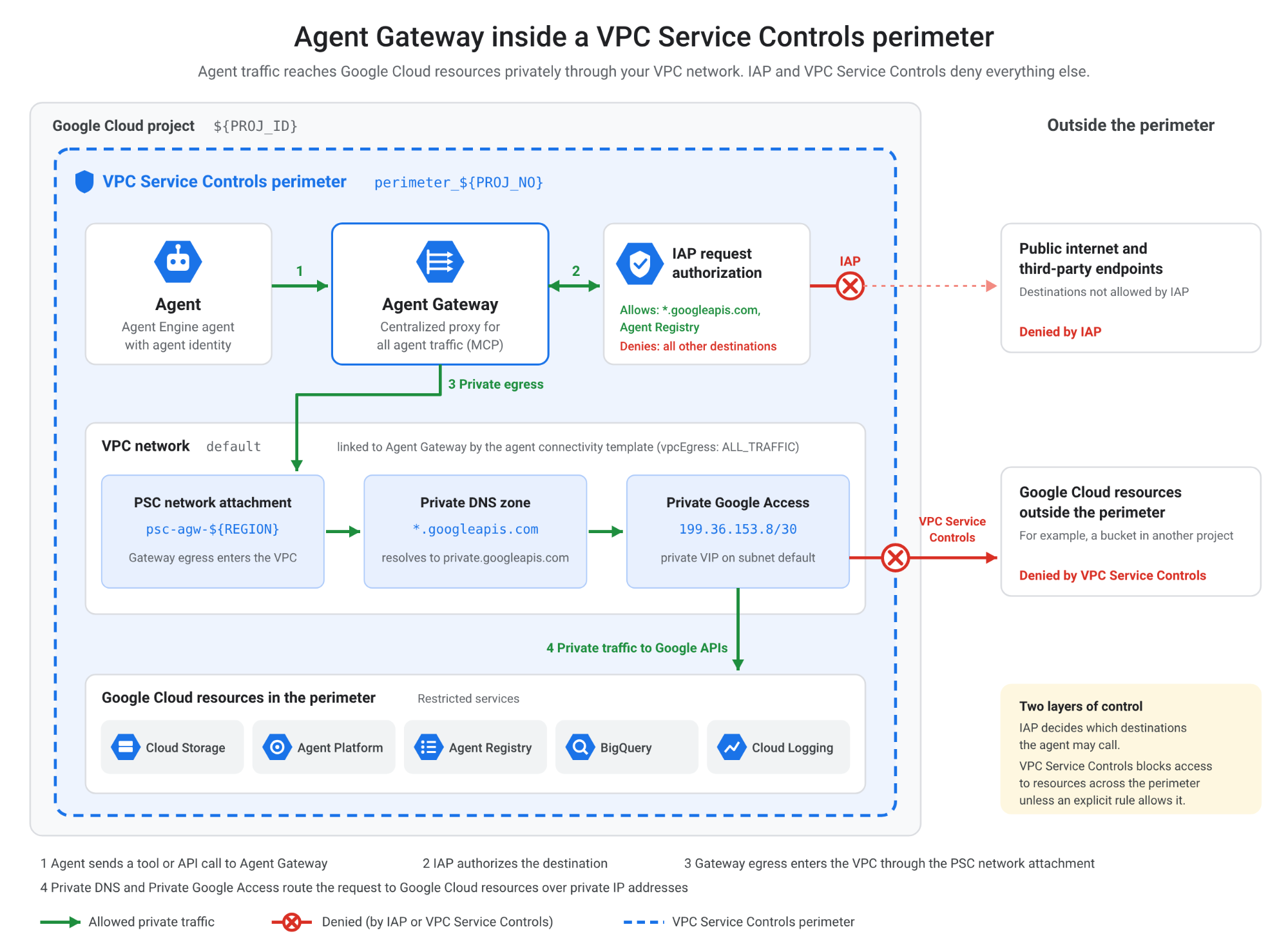
Define the service perimeter name and enforce restrictions across supported Google Cloud services within the project. The perimeter acts as a boundary surrounding the project resources, restricting direct incoming and outgoing traffic unless explicitly permitted by ingress/egress rules.
export PERIMETER_NAME="perimeter_${PROJ_NO}"
gcloud access-context-manager perimeters create accessPolicies/${ACCESS_POLICY}/servicePerimeters/${PERIMETER_NAME} \
--title="${PERIMETER_NAME}" \
--perimeter-type=regular \
--resources=projects/${PROJ_NO} \
--restricted-services=${SUPPORTED_SERVICES}
Create an ingress policy
Ingress policies define explicit conditions—such as specific user identities or access levels—under which traffic originates outside the perimeter and is allowed to reach restricted resources inside.
Create a YAML file allowing explicit access for your user identity across all services:
cat > ingress-policy.yaml << EOF
- ingressFrom:
    identities:
      - user:${USER_IDENTITY}
    sources:
      - accessLevel: '*'
  ingressTo:
    operations:
      - serviceName: '*'
    resources:
      - '*'
EOF
gcloud access-context-manager perimeters update $PERIMETER_NAME --set-ingress-policies="ingress-policy.yaml"
This codelab configures your environment to avoid VPC Service Controls access denials by default. However, to help you troubleshoot during testing, VPC Service Controls provides detailed denial logs and policy intelligence tools.
Troubleshooting VPC Service Controls denials
Throughout your testing, refer to the following troubleshooting tips:
- Enable the Violation Dashboard to track the latest violations in your environment.
- Monitor Cloud Audit Logs for VPC Service Controls access denial (403) logs.
- Diagnose violations using the violation unique ID or token in Violation Analyzer.
- Watch the Troubleshooting VPC Service Controls video for a detailed walkthrough.
7. Set up networking
Configure VPC network settings to support private communication with Google APIs and services. Proper network configuration guarantees that network traffic between agents, gateways, and Google Cloud APIs remains on private internal networks. For detailed networking patterns, check the Google Cloud VPC Documentation.
Enable Private Google Access
Enable Private Google Access on the default subnet so that VM instances and internal workloads can reach Google APIs using internal IP addresses instead of public IP addresses.
export NETWORK_NAME="default"
export SUBNET_NAME="default"
gcloud compute networks subnets update $SUBNET_NAME --region=$REGION --enable-private-ip-google-access
Create PSC network attachment
Create a Private Service Connect (PSC) network attachment for the Agent Gateway connectivity. Network attachments provide Private Service Connect (PSC) interfaces, facilitating secure, cross-VPC communication between the Agent Gateway service and your internal subnet.
gcloud compute network-attachments create psc-agw-${REGION} \
  --region=${REGION} \
  --subnets=${SUBNET_NAME} \
  --connection-preference=ACCEPT_AUTOMATIC
Verify
Retrieve and inspect the self-link resource URI of the newly created network attachment. Validating the resource URI ensures the network attachment was successfully instantiated and can be referenced in connectivity templates.
export PSC_NA_URI=$(gcloud compute network-attachments describe psc-agw-${REGION} \
  --region=${REGION} \
  --format="value(selfLink.scope(v1))")
echo ${PSC_NA_URI}
Create a Cloud DNS private zone
Configure a Cloud DNS private zone to route googleapis.com traffic through private IP ranges. Private DNS zones override public domain lookups for googleapis.com, directing all outgoing traffic to private internal Virtual IPs (VIPs) within your VPC network. Refer to Cloud DNS Private Zones for further details.
export ZONE_NAME="gapis"
gcloud dns managed-zones create ${ZONE_NAME} \
--visibility=private \
--networks=https://www.googleapis.com/compute/v1/projects/${PROJ_ID}/global/networks/${NETWORK_NAME} \
  --description="Privately reach Google APIs" \
  --dns-name=googleapis.com
gcloud dns record-sets transaction start --zone=${ZONE_NAME}
Choose one of the following domain options for private routing (run only the commands under Option 1 or Option 2 before executing the transaction) — read more in the Private Google Access configuration options:
Option 1: Private VIP [Recommended]
gcloud dns record-sets transaction add --name="*.googleapis.com." \
    --type=CNAME private.googleapis.com. \
    --zone=${ZONE_NAME} \
    --ttl=300
gcloud dns record-sets transaction add --name=private.googleapis.com. \
    --type=A 199.36.153.8 199.36.153.9 199.36.153.10 199.36.153.11 \
    --zone=${ZONE_NAME} \
    --ttl=300
Option 2: Restricted VIP
gcloud dns record-sets transaction add --name="*.googleapis.com." \
    --type=CNAME restricted.googleapis.com. \
    --zone=${ZONE_NAME} \
    --ttl=300
gcloud dns record-sets transaction add --name=restricted.googleapis.com. \
    --type=A 199.36.153.4 199.36.153.5 199.36.153.6 199.36.153.7 \
    --zone=${ZONE_NAME} \
    --ttl=300
Commit DNS transactions:
gcloud dns record-sets transaction execute --zone=${ZONE_NAME}
8. Create Agent Gateway
Provision the Agent Gateway and define its connectivity templates and routing rules. Agent Gateway serves as the centralized proxy for managing agent traffic, egress policies, protocol handling, and secure service discovery. For architecture references, consult the Agent Gateway Overview.
export AGW_NAME="gateway-${USER_IDENTITY}"
export AGW_CONNECTIVITY_TEMPLATE="agw-connectivity-template-${USER_IDENTITY}"
Create Agent Connectivity Template
Connectivity templates specify the network configuration, egress routing policies, DNS peering settings, and network attachment URIs required by the gateway to handle outgoing requests.
cat > ${AGW_CONNECTIVITY_TEMPLATE}.yaml << EOF
name: projects/${PROJ_NO}/locations/${REGION}/agentConnectivityTemplates/${AGW_CONNECTIVITY_TEMPLATE}
accessPath: AGENT_TO_ANYWHERE
deploymentModel: CENTRALIZED
egressNetworkConfig:
  networkAttachment: ${PSC_NA_URI}
  dnsPeeringConfig:
    domain: googleapis.com.
    targetNetwork: projects/${PROJ_ID}/global/networks/${NETWORK_NAME}
  vpcEgress: ALL_TRAFFIC
EOF
gcloud network-services agent-connectivity-templates import ${AGW_CONNECTIVITY_TEMPLATE} \
    --source="${AGW_CONNECTIVITY_TEMPLATE}.yaml" \
    --location=${REGION}
Create Agent Gateway
cat > ${AGW_NAME}-config.yaml << EOF
name: ${AGW_NAME}
protocols:
  - MCP
googleManaged:
  governedAccessPath: AGENT_TO_ANYWHERE
agentConnectivityTemplate: projects/${PROJ_NO}/locations/${REGION}/agentConnectivityTemplates/${AGW_CONNECTIVITY_TEMPLATE}
registries:
  - //agentregistry.googleapis.com/projects/${PROJ_NO}/locations/global
EOF
gcloud network-services agent-gateways import ${AGW_NAME} \
    --source="${AGW_NAME}-config.yaml" \
    --location=${REGION}
Verify creation
Confirm that the Agent Gateway resource was successfully deployed and configured. Describing the deployed agent gateway confirms that its operational state is active and verifies that associated connectivity templates and registries are correctly attached.
gcloud network-services agent-gateways describe ${AGW_NAME} \
  --location=${REGION}
9. Create Authorization via IAP
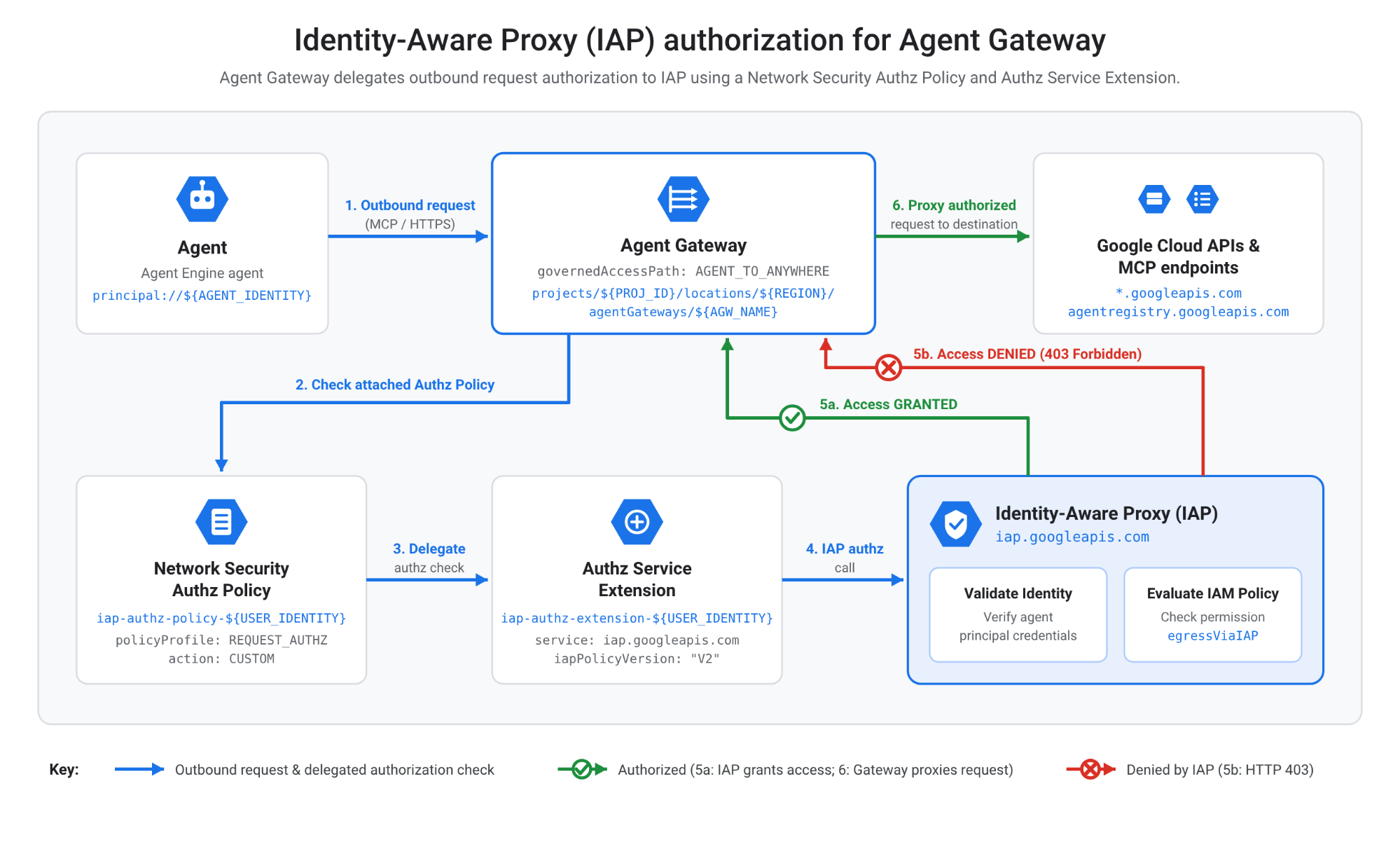
Configure Identity-Aware Proxy (IAP) request authorization policies and service extensions to verify request credentials before granting access to the Agent Gateway. For more information, see the IAP documentation.
export AUTHZ_EXT="iap-authz-extension-${USER_IDENTITY}"
export AUTHZ_POLICY="iap-authz-policy-${USER_IDENTITY}"
Create AuthZ Extension
cat > ${AUTHZ_EXT}.yaml << EOF
name: ${AUTHZ_EXT}
service: iap.googleapis.com
failOpen: false
timeout: 1s
metadata:
  iapPolicyVersion: "V2"
EOF
gcloud service-extensions authz-extensions import ${AUTHZ_EXT} \
    --source=${AUTHZ_EXT}.yaml \
    --location=${REGION}
Create AuthZ Policy and bind it to the Agent Gateway
cat > ${AUTHZ_POLICY}.yaml << EOF
name: ${AUTHZ_POLICY}
target:
  resources:
    - "projects/${PROJ_ID}/locations/${REGION}/agentGateways/${AGW_NAME}"
policyProfile: REQUEST_AUTHZ
action: CUSTOM
customProvider:
  authzExtension:
    resources:
      - "projects/${PROJ_ID}/locations/${REGION}/authzExtensions/${AUTHZ_EXT}"
EOF
gcloud network-security authz-policies import ${AUTHZ_POLICY} \
    --source=${AUTHZ_POLICY}.yaml \
    --location=${REGION}
This codelab ensures that you will not have any IAP access denial by default. However, to aid your testing, Agent Gateway provides detailed observability for access denials.
Troubleshoot and monitor IAP authorization denials
- Enable Log Analytics on the _Default logging bucket:
gcloud logging buckets update _Default --location=global --enable-analytics --async
- Open the Agent Gateway Observability dashboard:
- In the Google Cloud console, go to the Agent Gateway page.
- Click the name of your gateway (for example, gateway-xyz).
- Click the Observability tab.
- Review the Authorization Failure and 403 Denials dashboards.
10. Create Agent Engine Agent
Create Staging Bucket
Create a Cloud Storage bucket in your target region to store temporary staging artifacts, dependencies, and deployment configurations during runtime initialization.
#Staging bucket name needs to be globally unique
export STAGING_BUCKET="agent-temp-bucket-${PROJ_NO}-${USER_IDENTITY}"
gcloud storage buckets create gs://${STAGING_BUCKET} --location=${REGION}
Activate Python virtual environment
python3 -m venv .venv
source .venv/bin/activate
Download agent code
git clone https://github.com/gpratikab/gcp-vpcsc-agent.git
cd gcp-vpcsc-agent
Install dependencies
python3 -m pip install --upgrade -r requirements.txt
Grant IAM roles to the Agent Platform service agent
gcloud projects add-iam-policy-binding ${PROJ_ID} \
  --member="serviceAccount:service-${PROJ_NO}@gcp-sa-aiplatform.iam.gserviceaccount.com" \
  --role="roles/agentgateway.serviceAgent"
gcloud projects add-iam-policy-binding ${PROJ_ID} \
  --member="serviceAccount:service-${PROJ_NO}@gcp-sa-aiplatform.iam.gserviceaccount.com" \
  --role="roles/ml.serviceAgent"
gcloud projects add-iam-policy-binding ${PROJ_ID} \
  --member="serviceAccount:service-${PROJ_NO}@gcp-sa-aiplatform.iam.gserviceaccount.com" \
  --role="roles/networkservices.viewer"
Deploy the agent
python3 deploy_gcp_agent.py create
Export the agent identity printed in the output of the preceding command as an environment variable:
#Paste identity of your Agent, it will be printed as the output of the previous command
export AGENT_IDENTITY="principal://PRINCIPAL_ID"
echo $AGENT_IDENTITY
11. Allow Agent Egress via Gateway
Allow the newly created agent to send egress traffic to googleapis.com.
Note: You can selectively allowlist endpoints using Agent Gateway observability. For simplicity, this codelab allows access to all APIs.
Configuring explicit IAM egress policy rules grants the agent permission to route API calls through the Agent Gateway and IAP proxy to reach external Google Cloud services.
Create IAM policy
cat > agent-access-rules.json << EOF
{
  "conditions": {
    "iap.googleapis.com": {
      "description": "Allow access to agent",
      "expression": "(destination.agent_registry.location == 'global') || (destination.unregistered.host.endsWith('googleapis.com'))",
      "title": "agenttogapis"
    }
  },
  "description": "agenttogapis",
  "effect": "ALLOW",
  "excludedPrincipals": [],
  "operation": {
    "excludedPermissions": [],
    "permissions": [
      "iap.googleapis.com/resources.egressViaIAP"
    ]
  },
  "principals": [
    "${AGENT_IDENTITY}"
  ]
}
EOF
Update access policy
Check if you have an existing access policy:
gcloud iam access-policies list --project=${PROJ_ID} --location=global
Set access policy name:
export IAM_ACCESS_POLICY="agent-access-policy"
To create a new policy:
gcloud iam access-policies create ${IAM_ACCESS_POLICY} \
  --details-rules=agent-access-rules.json \
  --project=${PROJ_ID} \
  --location=global
Or alternatively, update an existing policy:
gcloud iam access-policies update ${IAM_ACCESS_POLICY} \
  --add-details-rules=agent-access-rules.json \
  --project=${PROJ_ID} \
  --location=global
12. Test the agent
Validating agent operation in the Google Cloud console verifies that end-to-end communication, IAM policies, and VPC Service Controls boundaries are properly functioning. You are now ready to test the agent:
- In the Google Cloud console, go to the Agent Deployments page.
- Select your deployed agent (
gcp_agent_...). - Open the Playground tab.
- In the prompt field, enter:
List storage buckets in the current project. - Verify that the agent successfully returns the list of buckets through the private Agent Gateway.
- Verify that the agent cannot retrieve buckets from another project due to an access denial. You can inspect the denial in Cloud Audit Logs or the VPC Service Controls violation dashboard.
13. Clean up
To avoid incurring charges to your Google Cloud account for the resources used in this codelab, delete the project you created:
gcloud projects delete ${PROJ_ID}
14. Congratulations
Congratulations! You have successfully configured an Agent and Agent Gateway within a secure VPC Service Controls perimeter on Google Cloud.
What's next?
- Explore granular ingress and egress rules in VPC Service Controls.
- Configure access and semantic policies using Agent Gateway.
- Integrate Model Armor for advanced safety and security filtering.