
1. Introduction
In this codelab, you learn how to get the best results using QueryData API. You discover how to generate accurate, repeatable results when making natural language requests to your database. To help you achieve this, the guide walks you through six recipes across several chapters, exploring different aspects of natural language to SQL (NL2SQL) and its practical applications.
Prerequisites
- A basic understanding of Google Cloud and the Google Cloud console
- Basic skills with the command-line interface and Cloud Shell
What you'll learn
- How to deploy an AlloyDB cluster and primary instance
- How to enable QueryData, AI functions, and Parameterized Secure Views
- How to create a QueryData context set
- How to use different templates and contexts in the QueryData API
- How to make QueryData templates more flexible using facets
- How to resolve data ambiguity with value search and trigram indexing
- How to use AI functions for semantic search with templates
- How to use Parameterized secure views with QueryData API
What you'll need
- A Google Cloud account and Google Cloud project
- A web browser such as Chrome supporting the Google Cloud console and Cloud Shell
2. Setup and Requirements
Project Setup
- Sign in to the Google Cloud Console. If you don't already have a Gmail or Google Workspace account, you must create one.
Use a personal account instead of a work or school account.
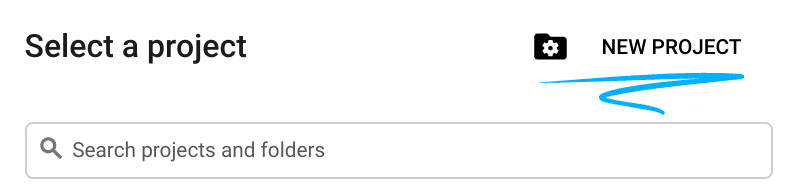
- Create a new project or reuse an existing one. To create a new project in the Google Cloud console, in the header, click the Select a project button which will open a popup window.

In the Select a project window Click New Project which will open a dialog box for the new project.
In the dialog box enter a Project name and choose the location.
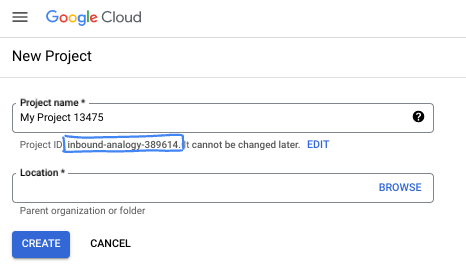
- The Project name is the display name for this project's participants. The project name isn't used by Google APIs, and it can be changed at any time.
- The Project ID is unique across all Google Cloud projects and is immutable (it can't be changed after it has been set). The Google Cloud console automatically generates a unique ID, but you can customize it. If you don't like the generated ID, you can generate another random one or provide your own to check its availability. In most codelabs, you'll need to reference your project ID, which is typically identified with the placeholder PROJECT_ID.
- For your information, there is a third value, a Project Number, which some APIs use. Learn more about all three of these values in the documentation.
Enable Billing
Set up a personal billing account
If you set up billing using Google Cloud credits, you can skip this step.
To set up a personal billing account, go here to enable billing in the Cloud Console.
Some Notes:
- Completing this lab should cost less than $5 USD in Cloud resources.
- You can follow the steps at the end of this lab to delete resources to avoid further charges.
- New users are eligible for the $300 USD Free Trial.
Start Cloud Shell
While Google Cloud can be operated remotely from your laptop, in this codelab you will be using Google Cloud Shell, a command line environment running in the Cloud.
From the Google Cloud Console, click the Cloud Shell icon on the top right toolbar:
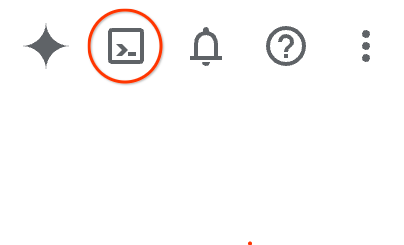
Alternatively you can press G then S. This sequence will activate Cloud Shell if you are within the Google Cloud Console or use this link.
It should only take a few moments to provision and connect to the environment. When it is finished, you should see something like this:

This virtual machine is loaded with all the development tools you'll need. It offers a persistent 5GB home directory, and runs on Google Cloud, greatly enhancing network performance and authentication. All of your work in this codelab can be done within a browser. You do not need to install anything.
3. Before you begin
Enable API
To use AlloyDB, Compute Engine, networking services, and the Agent Platform, enable their respective APIs in your Google Cloud project.
Inside Cloud Shell terminal, make sure that your project ID is setup:
gcloud config get-value project
The command should return your Google Cloud project ID.
Set the PROJECT_ID environment variable:
PROJECT_ID=$(gcloud config get-value project)
Enable the required APIs:
gcloud services enable alloydb.googleapis.com \
                       compute.googleapis.com \
                       cloudresourcemanager.googleapis.com \
                       servicenetworking.googleapis.com \
                       geminidataanalytics.googleapis.com \
                       cloudaicompanion.googleapis.com \
                       aiplatform.googleapis.com \
                       dataplex.googleapis.com
Expected output:
student@cloudshell:~ (test-project-001-402417)$ gcloud config set project test-project-001-402417
Updated property [core/project].
student@cloudshell:~ (test-project-001-402417)$ PROJECT_ID=$(gcloud config get-value project)
Your active configuration is: [cloudshell-14650]
student@cloudshell:~ (test-project-001-402417)$
student@cloudshell:~ (test-project-001-402417)$ gcloud services enable alloydb.googleapis.com \
                       compute.googleapis.com \
                       cloudresourcemanager.googleapis.com \
                       servicenetworking.googleapis.com \
                       geminidataanalytics.googleapis.com \
                       cloudaicompanion.googleapis.com \
                       aiplatform.googleapis.com \
                       dataplex.googleapis.com
Operation "operations/acat.p2-4470404856-1f44ebd8-894e-4356-bea7-b84165a57442" finished successfully.
You can read about each enabled API in the documentation.
4. Deploy AlloyDB
Create AlloyDB cluster and primary instance. You can either deploy it using a prepared script which will deploy all necessary resources or you can do it step-by-step by yourself following AlloyDB documentation.
Deploy AlloyDB Using Automated Script
This approach is using an automated script to deploy the AlloyDB cluster and providing necessary configuration details to start working with the deployed resources.
In the Cloud Shell terminal, run the command to clone the deployment script from the repository:
REPO_NAME="codelabs"
REPO_URL="https://github.com/GoogleCloudPlatform/$REPO_NAME"
SOURCE_DIR="alloydb-ai-nla"

git clone --no-checkout --filter=blob:none --depth=1 $REPO_URL

cd $REPO_NAME
git sparse-checkout set $SOURCE_DIR
git checkout
cd $SOURCE_DIR
Run the deployment script:
./deploy_alloydb.sh
The script takes five to seven minutes to complete. The output displays your cluster deployment details. Please be aware your password will be different - record the password for future use.
...
<redacted>
...
Creating primary instance: alloydb-aip-01-pr (8 vCPUs for TRIAL cluster)
Operation ID: operation-1765988049916-646282264938a-bddce198-9f248715
Creating instance...done.
----------------------------------------
Deployment Process Completed
Cluster:  alloydb-aip-01 (TRIAL)
Instance: alloydb-aip-01-pr
Region:   us-central1
Initial Password: JBBoDTgixzYwYpkF (if new cluster)
----------------------------------------
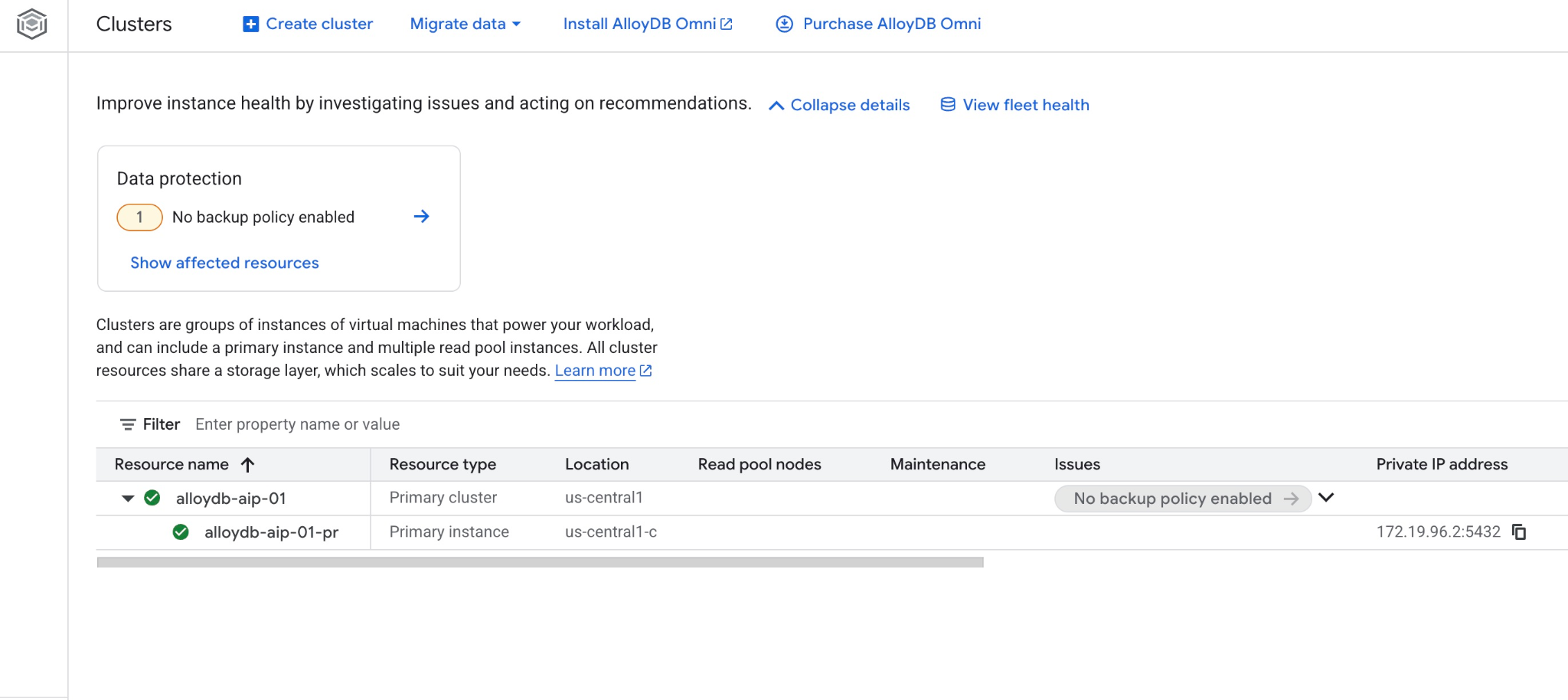
View your new cluster and instance on the AlloyDB Clusters page in the Google Cloud console.
5. Prepare Database
Create a database, enable the Gemini Enterprise Agent Platform integration, build database objects, and add sample data.
Grant Necessary Permissions to AlloyDB
Grant the required IAM roles to the AlloyDB service agent:
Open a new Cloud Shell tab by clicking Add (+).
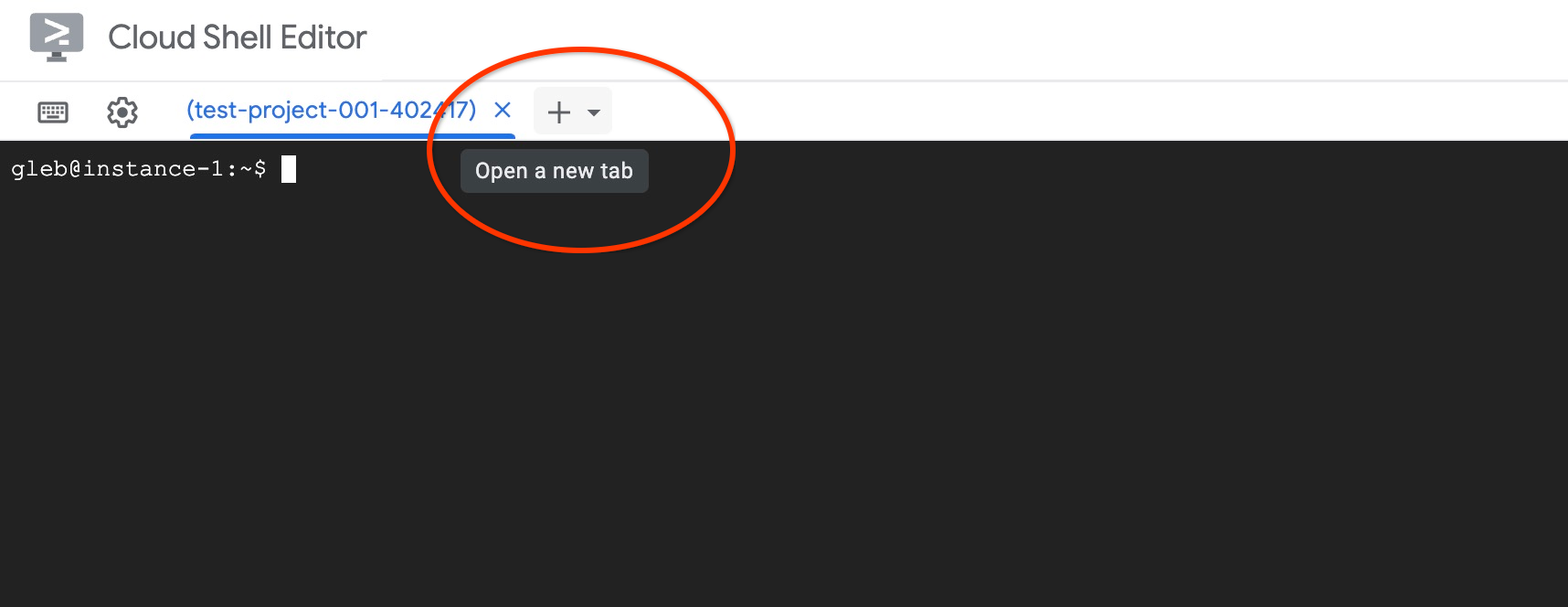
In the new tab, run:
PROJECT_ID=$(gcloud config get-value project)
gcloud projects add-iam-policy-binding $PROJECT_ID \
  --member="serviceAccount:service-$(gcloud projects describe $PROJECT_ID --format="value(projectNumber)")@gcp-sa-alloydb.iam.gserviceaccount.com" \
  --role="roles/aiplatform.user"
Expected console output:
student@cloudshell:~ (test-project-001-402417)$ PROJECT_ID=$(gcloud config get-value project)
Your active configuration is: [cloudshell-11039]
student@cloudshell:~ (test-project-001-402417)$ gcloud projects add-iam-policy-binding $PROJECT_ID \
  --member="serviceAccount:service-$(gcloud projects describe $PROJECT_ID --format="value(projectNumber)")@gcp-sa-alloydb.iam.gserviceaccount.com" \
  --role="roles/aiplatform.user"
Updated IAM policy for project [test-project-001-402417].
bindings:
- members:
  - serviceAccount:service-4470404856@gcp-sa-alloydb.iam.gserviceaccount.com
  role: roles/aiplatform.user
- members:
...
etag: BwYIEbe_Z3U=
version: 1
Enable Data Access API
Enable the Data Access API on your AlloyDB cluster.
In the same terminal tab, run the following command:
PROJECT_ID=$(gcloud config get-value project)
REGION=us-central1
ADBCLUSTER=alloydb-aip-01
curl -X PATCH \
 -H "Authorization: Bearer $(gcloud auth print-access-token)" \
 -H "Content-Type: application/json" \
 https://alloydb.googleapis.com/v1alpha/projects/$PROJECT_ID/locations/$REGION/clusters/$ADBCLUSTER/instances/$ADBCLUSTER-pr?updateMask=dataApiAccess \
 -d '{
   "dataApiAccess": "ENABLED",
 }'
Update Database Flags
Before enabling flags at the instance level, wait until the Data Access API step finishes. Ensure that your instance status shows a green checkmark, as illustrated in the following image.
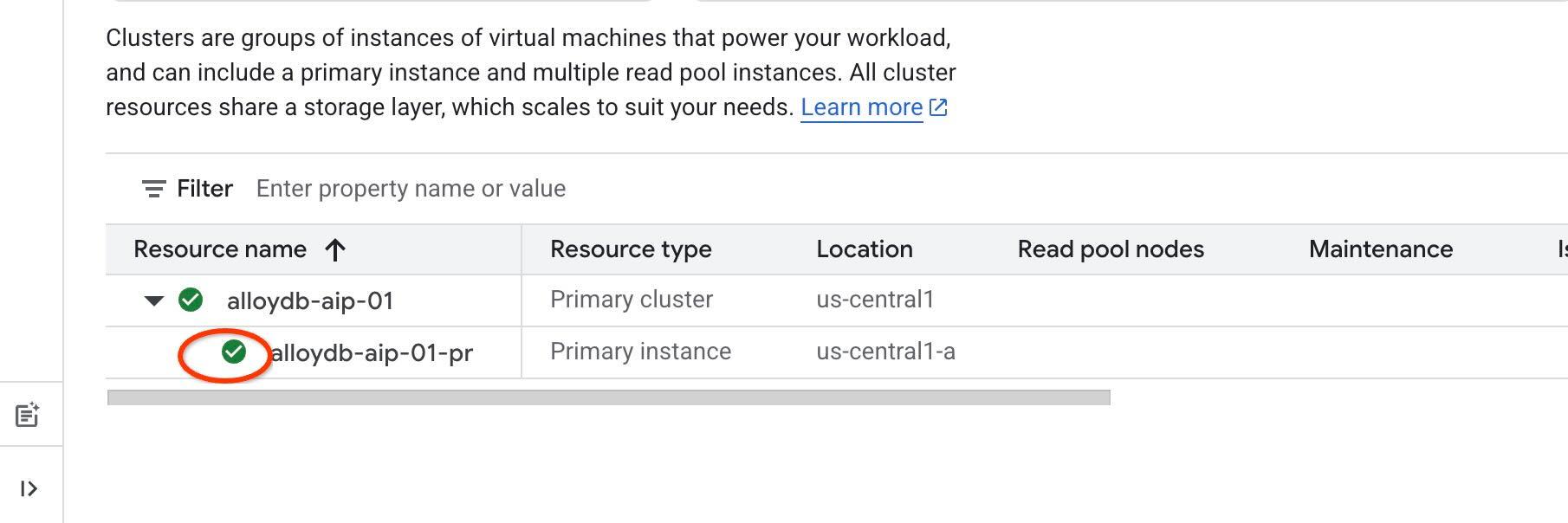
To use AI extensions and IAM authentication for agentic tools, you must enable specific database flags on the instance and add yourself as a database user. Enable the following flags:
- alloydb.iam_authentication
- password.enforce_complexity
- google_ml_integration.enable_ai_query_engine
- parameterized_views
In the same terminal tab, run the following commands:
PROJECT_ID=$(gcloud config get-value project)
REGION=us-central1
ADBCLUSTER=alloydb-aip-01
gcloud beta alloydb instances update $ADBCLUSTER-pr \
   --database-flags password.enforce_complexity=on,alloydb.iam_authentication=on,google_ml_integration.enable_ai_query_engine=on,parameterized_views.enabled=on \
   --region=$REGION \
   --cluster=$ADBCLUSTER \
   --project=$PROJECT_ID \
   --update-mode=FORCE_APPLY
Create an AlloyDB IAM user for your account:
REGION=us-central1
ADBCLUSTER=alloydb-aip-01
gcloud alloydb users create $(gcloud config get-value account) \
--cluster=$ADBCLUSTER \
--superuser=true \
--region=$REGION \
--type=IAM_BASED
Close the tab by running the exit command in the terminal:
exit
Connect to AlloyDB Studio
In the following chapters, you can run all SQL commands that require a database connection in AlloyDB Studio.
To open AlloyDB Studio, perform the following steps:
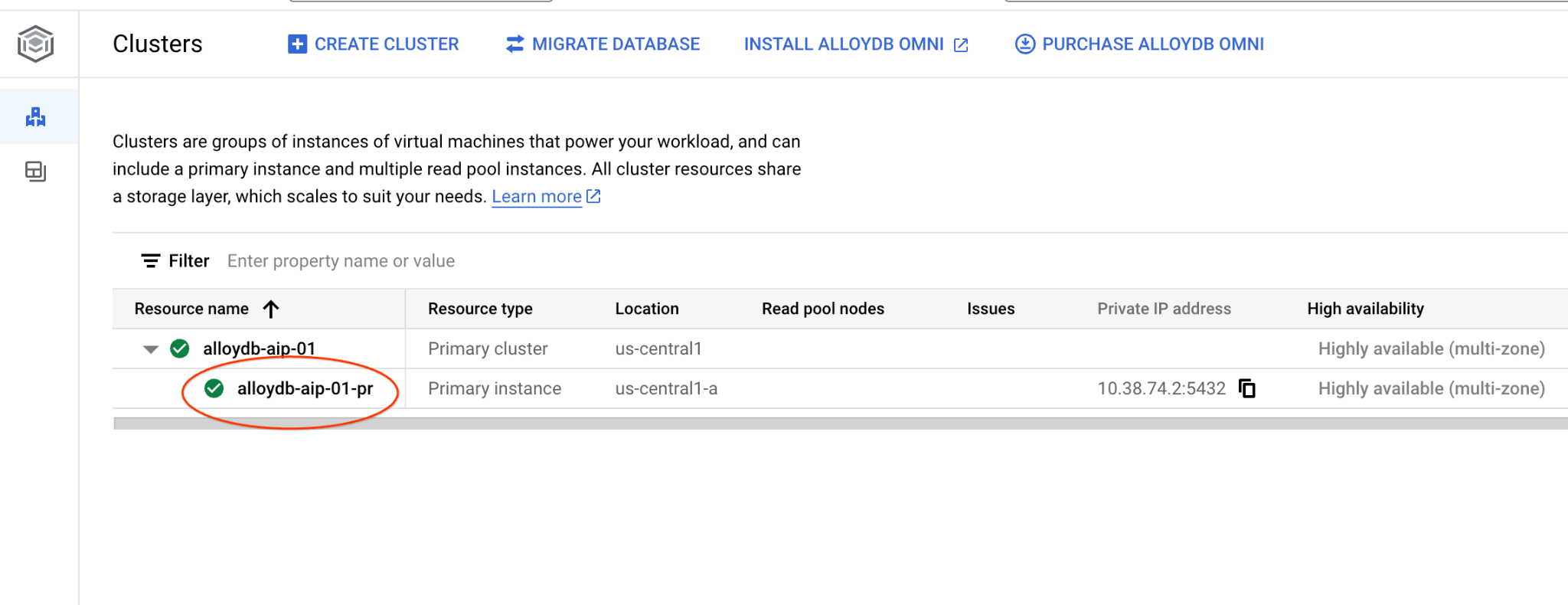
- In the Google Cloud console, go to the Clusters page for AlloyDB for PostgreSQL.
- Select your primary instance to open its web interface.
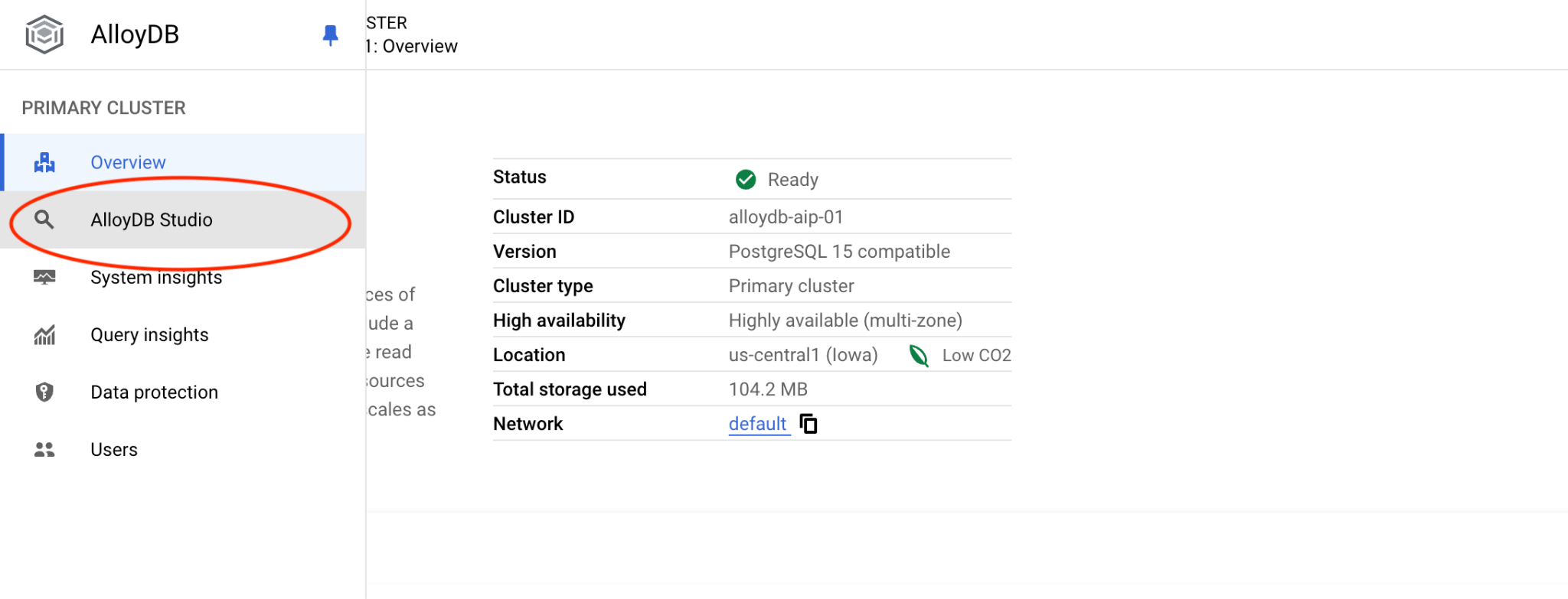
- Then click on AlloyDB Studio on the left:
- Select the
postgresdatabase, choose IAM Authentication, and click Authenticate.
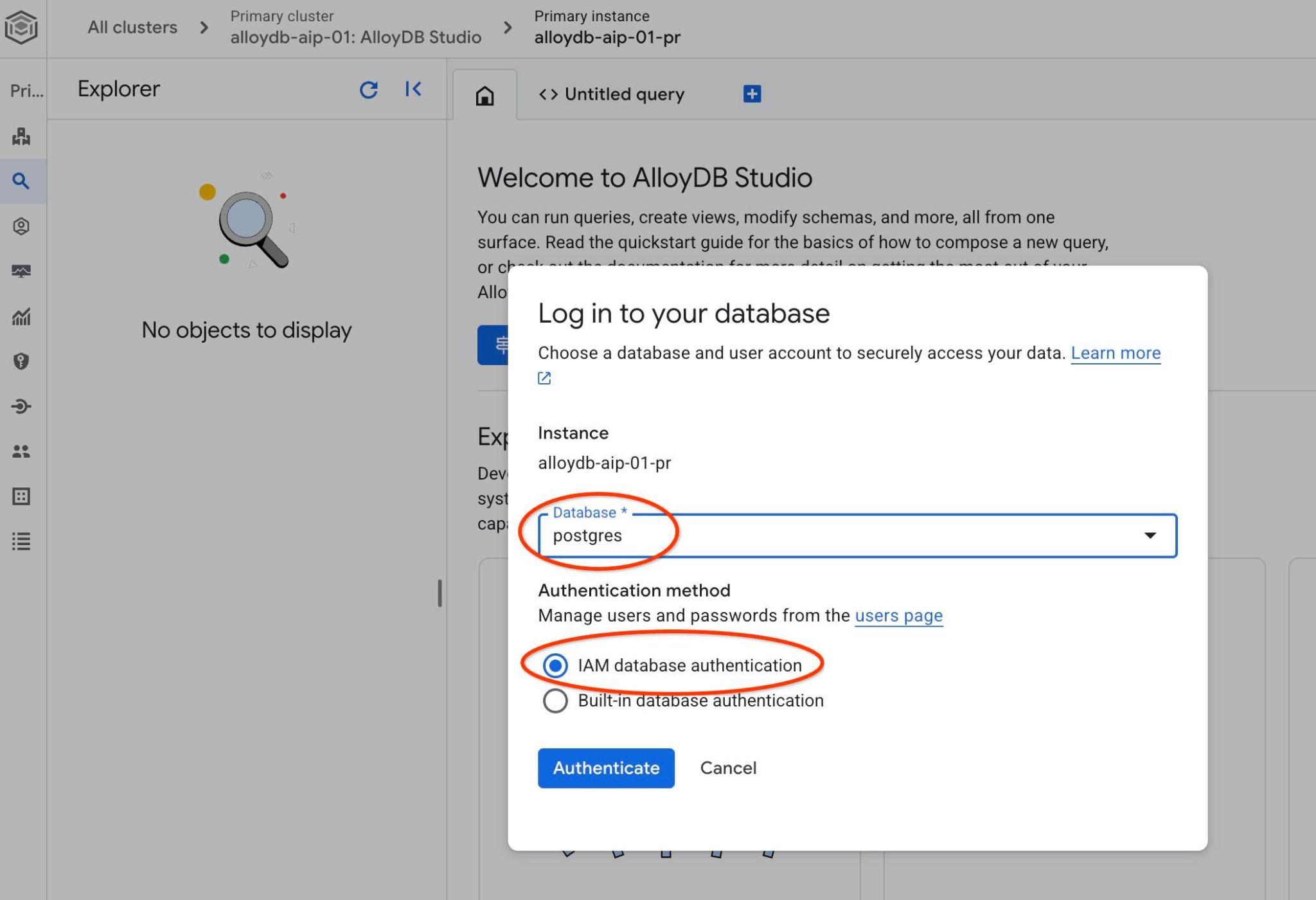
This action opens the AlloyDB Studio interface.
- Select the Untitled Query tab to open the SQL editor.
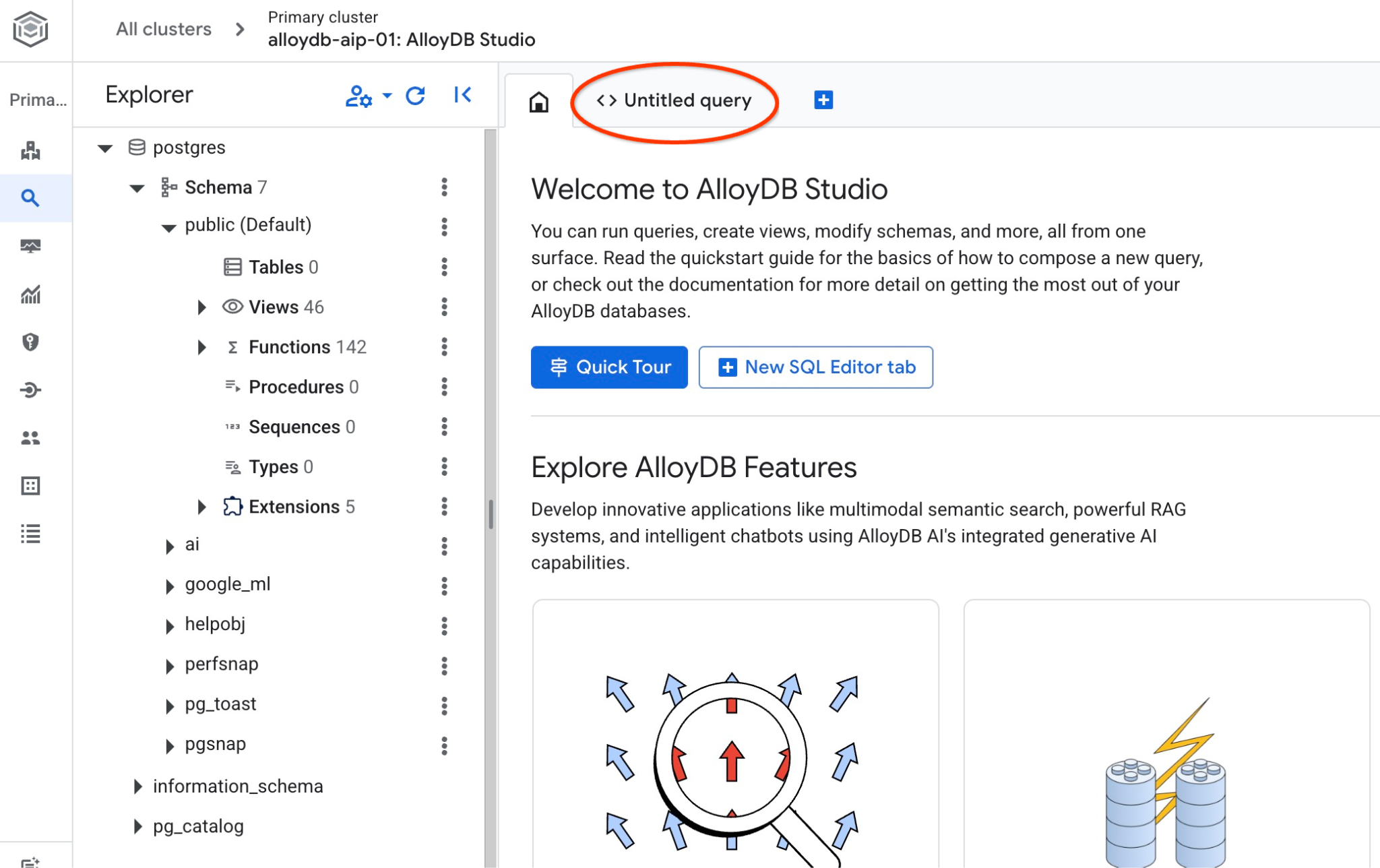
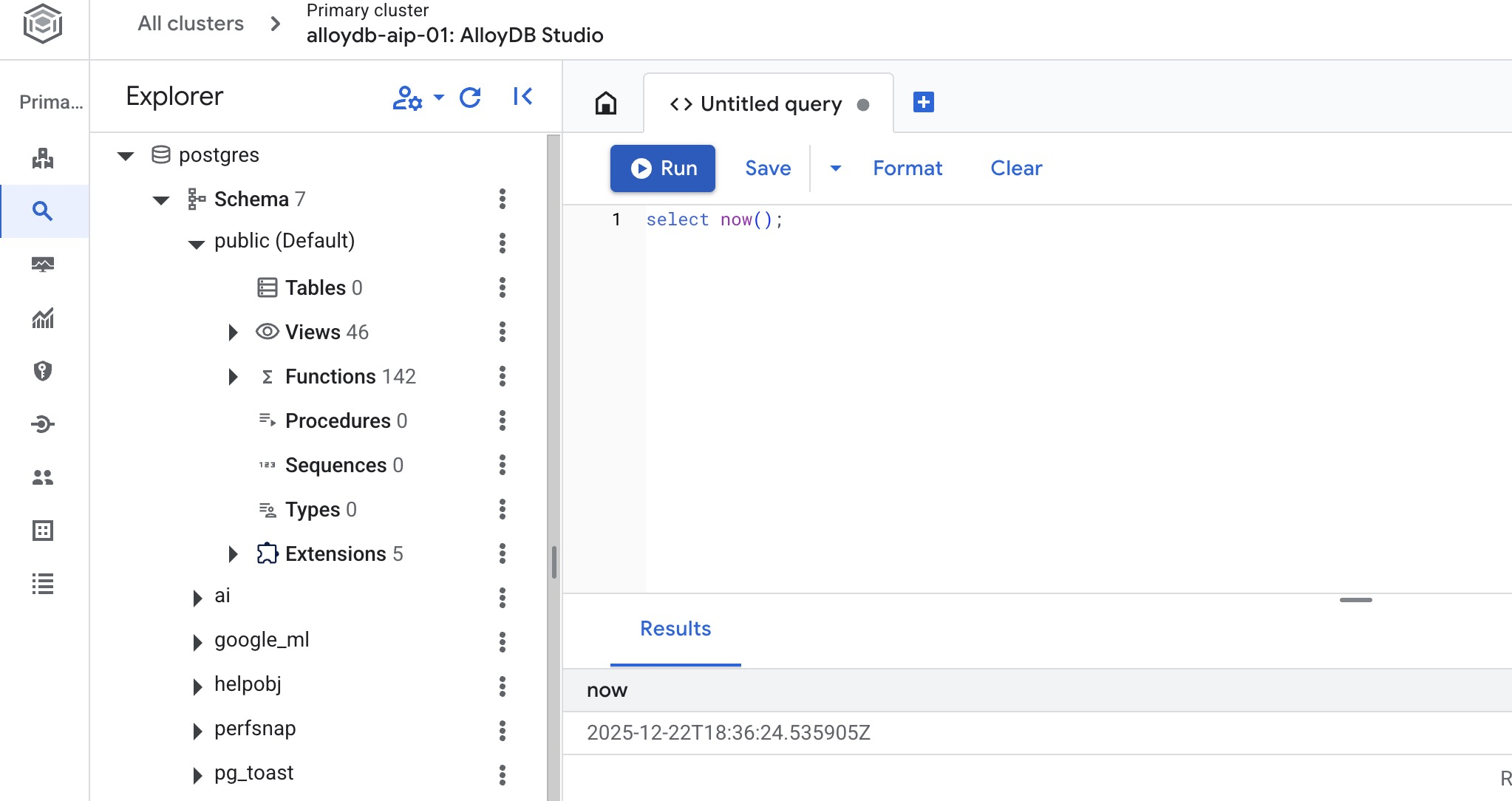
This opens an editor where you can run SQL commands, as shown in the following image:
Create Database
Create the quickstart database
In the AlloyDB Studio editor, run the following command to create the database:
CREATE DATABASE quickstart_db
Expected output:
Statement executed successfully
Connect to quickstart_db
Click Change database/user in AlloyDB Studio.
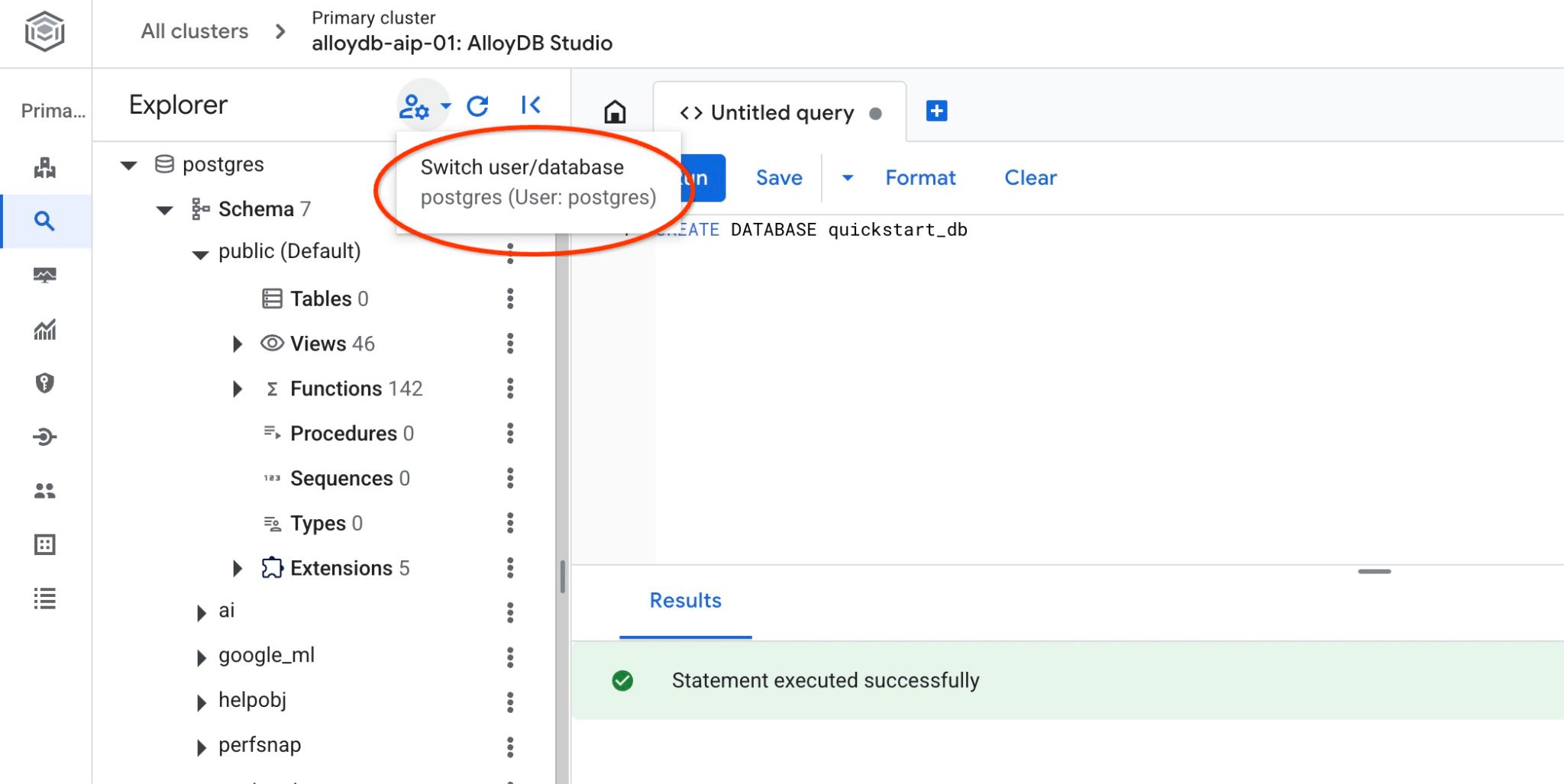
Select quickstart_db from the database list, select IAM Authentication, and authenticate.
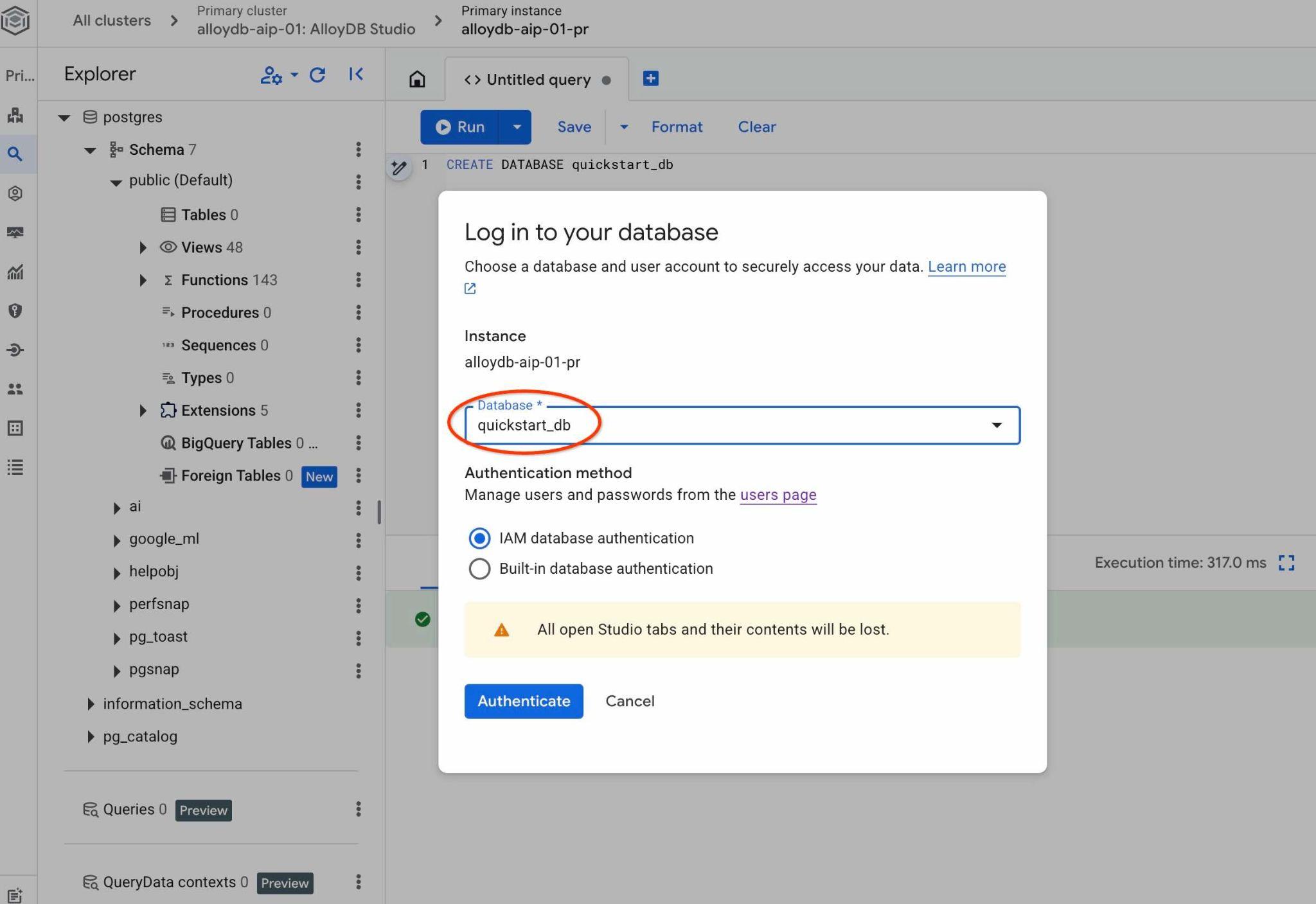
It will open a new connection where you can work with objects from the quickstart_db database.
Enable extensions
Check all the required extensions to verify they are enabled in your database and have the correct minimal versions.
Verify that all required extensions exist in your database:
SELECT extname, extversion FROM pg_extension WHERE extname IN ('vector', 'google_ml_integration', 'parameterized_views');
Expected output:
        extname        |   extversion
-----------------------+----------------
 google_ml_integration | 1.5.9
 parameterized_views   | 1.0
 vector                | 0.8.2.google-1
If it doesn't return all the above rows it means some of the extensions are not enabled.
Before enabling the extensions we need to make sure all the database flags ,"google_ml_integration.enable_ai_query_engine" and "parameterized_views.enabled" are enabled on the instance.
In the AlloyDB Studio while connected to the quickstart_db execute:
show google_ml_integration.enable_ai_query_engine;
show parameterized_views.enabled;
If any of those are showing "off" then try to repeat the step "Update Database Flags" and check the status using the "show..." commands again.
Enable the required extensions.
In the AlloyDB Studio while connected to the quickstart_db execute:
CREATE EXTENSION IF NOT EXISTS vector;
CREATE EXTENSION IF NOT EXISTS parameterized_views;
Check the extensions versions for parameterized_views and google_ml.
In the AlloyDB Studio while connected to the quickstart_db execute:
SELECT extname, extversion FROM pg_extension WHERE extname IN ('vector', 'google_ml_integration', 'parameterized_views');
Expected output:
        extname        |   extversion
-----------------------+----------------
 google_ml_integration | 1.5.9
 parameterized_views   | 1.0
 vector                | 0.8.2.google-1
If the version is lower than the required then try to update the parameterized_views extension.
For parameterized_views try:
ALTER EXTENSION parameterized_views UPDATE;
Verify the version again.
In the AlloyDB Studio while connected to the quickstart_db execute:
SELECT extname, extversion FROM pg_extension WHERE extname IN ('vector', 'google_ml_integration', 'parameterized_views');
Expected output:
        extname        |   extversion
-----------------------+----------------
 google_ml_integration | 1.5.9
 parameterized_views   | 1.0
 vector                | 0.8.2.google-1
6. Sample Data
Now you need to create objects in the database and load data. You are going to use a fictional real estate company dataset. It has fictional data about property sales and agents. The data has been provided in the SQL script real_estate_data.sql in the cloned repository.
Create Storage Bucket
Use the Google SDK (gcloud) to import data from your cloned repository to the AlloyDB database. You need to create a Cloud Storage bucket for that and grant access to the AlloyDB service account. Alternatively, you can always try to do it using the web console, as described in the documentation.
In the Google Cloud Shell terminal execute:
PROJECT_ID=$(gcloud config get-value project)
REGION=us-central1
gcloud storage buckets create gs://$PROJECT_ID-import --project=$PROJECT_ID --location=$REGION
gcloud storage buckets add-iam-policy-binding gs://$PROJECT_ID-import --member="serviceAccount:service-$(gcloud projects describe $PROJECT_ID --format="value(projectNumber)")@gcp-sa-alloydb.iam.gserviceaccount.com" --role=roles/storage.objectViewer
Load Data
The database SQL dump is located in the cloned repository folder. The following command assumes you've used your home directory as the starting point when you cloned the repository in the previous step while creating the AlloyDB cluster.
Copy the database dump file to your Cloud Storage bucket:
REPO_NAME="codelabs"
SOURCE_DIR="alloydb-ai-nla"
cd ~/$REPO_NAME/$SOURCE_DIR
gcloud storage cp ~/$REPO_NAME/$SOURCE_DIR/real_estate_data.sql  gs://$PROJECT_ID-import
Import the dataset into quickstart_db:
PROJECT_ID=$(gcloud config get-value project)
CLUSTER_NAME=alloydb-aip-01
REGION=us-central1
IAM_USER=$(gcloud config get-value account)
gcloud alloydb clusters import $CLUSTER_NAME  --region=us-central1 --database=quickstart_db --gcs-uri=gs://$PROJECT_ID-import/real_estate_data.sql --project=$PROJECT_ID --sql --user=$IAM_USER
The command will load the sample dataset to the quickstart_db database.
Verify the import by counting the records in the real_estate.agents table using AlloyDB Studio:
SELECT COUNT(*) FROM real_estate.agents;
7. Prepare Schema Ontology
Set up your QueryData context set, supply schema metadata, and run the ADK agent.
Create Metadata
Metadata consists of SQL comments applied to database tables and columns. These comments guide the QueryData engine when selecting database objects.
If you have imported your data schema using the provided SQL dump then all the metadata are already created in your schema.
Here is an example snippet of metadata applied to the real_estate schema:
COMMENT ON TABLE real_estate.agents IS 'Stores profile, contact, brokerage affiliation, and active status for individual real estate agents.';

COMMENT ON COLUMN real_estate.agents.agent_id IS 'Primary key uniquely identifying each real estate agent in the database.';

...
If you are working with your own dataset then you can follow the documented guide on how to add the metadata for your schema.
Create Schema Ontology Context
A context set contains query templates, facets, and value searches that assist the AI model in generating queries. Without the context set an AI agent will try to generate a query using only available information from the public schema based primarily on the table names, columns and metadata trying to deduce the right objects to answer a natural query request.
The QueryData context set is a JSON file with query templates, facets, and value searches. You can have a look into different examples in the documentation.
Load QueryData Context Set in Web Console
To load a context set, open the AlloyDB Studio and in the left panel at the bottom you will see Context sets and three dots.
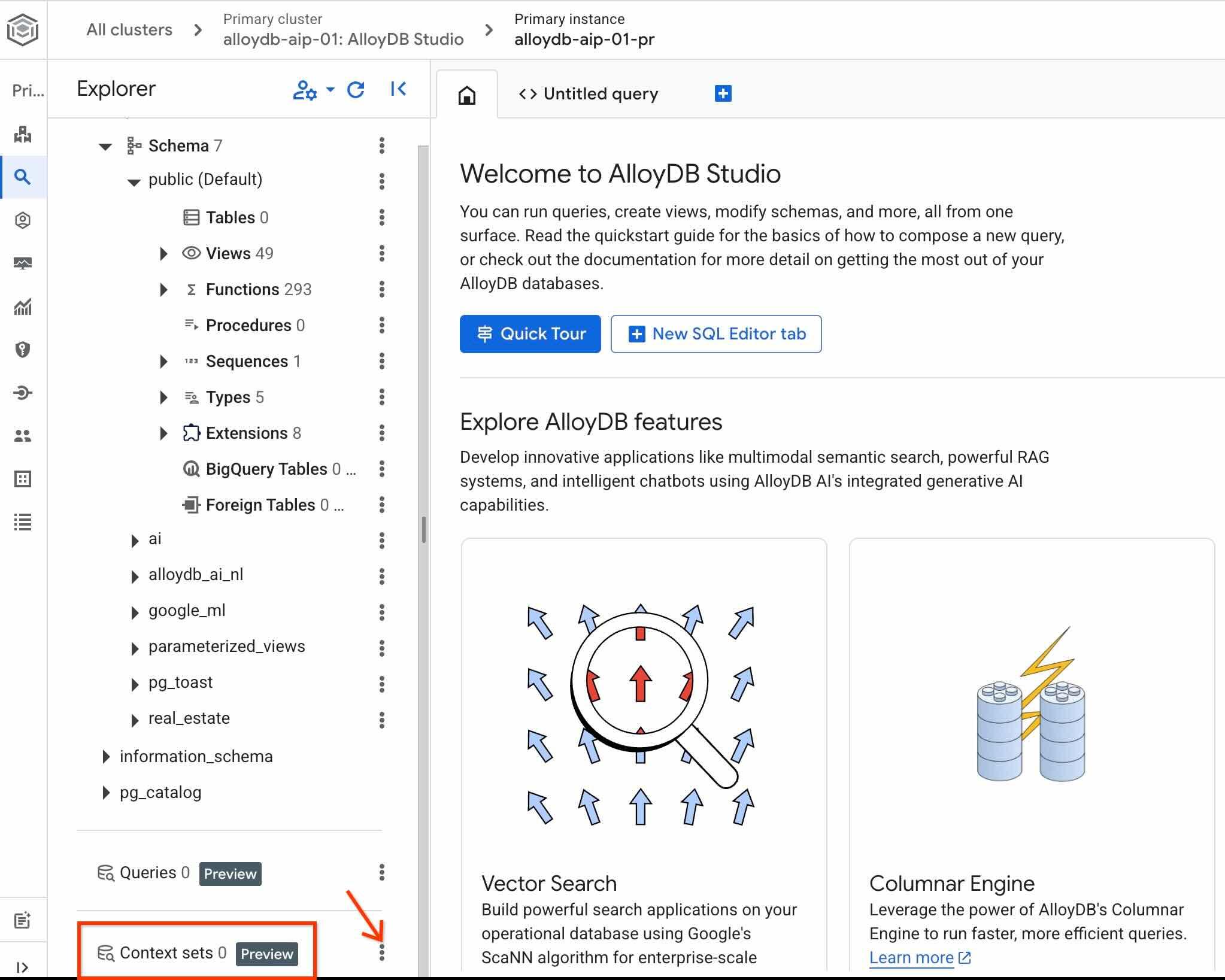
Click on those three dots and choose Create context set.
In the opened dialog put the following values:
- Name:
sixrecipes - Description:
Real Estate Query Data - Upload context file: keep it empty
When you push the Create button it might take some time to initialize the context storage if you do it for the first time.
Check the QueryData context set id clicking again three dots right of the context set name and choose Edit context set.
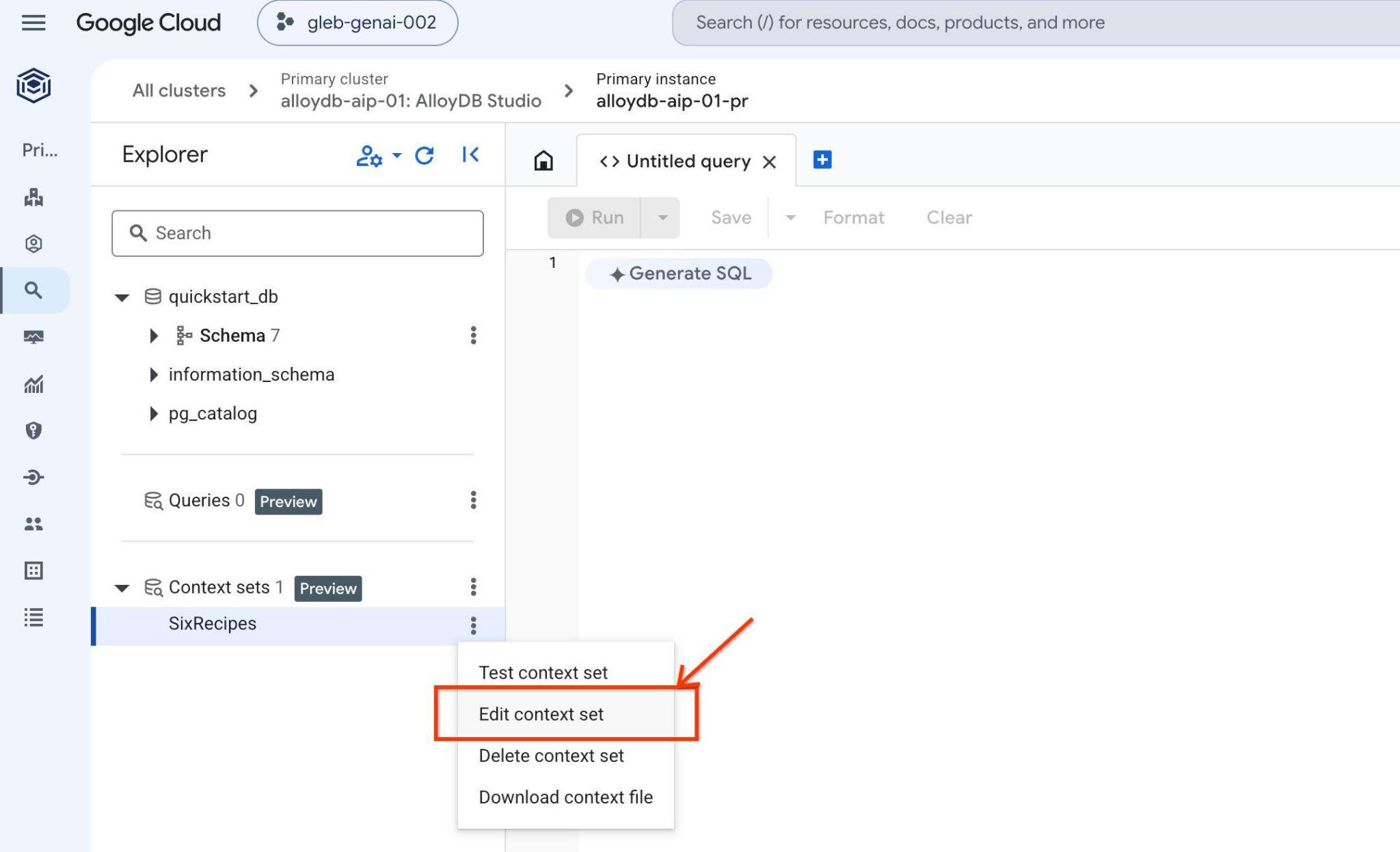
The context set ID appears in the top of the opened tab on the right
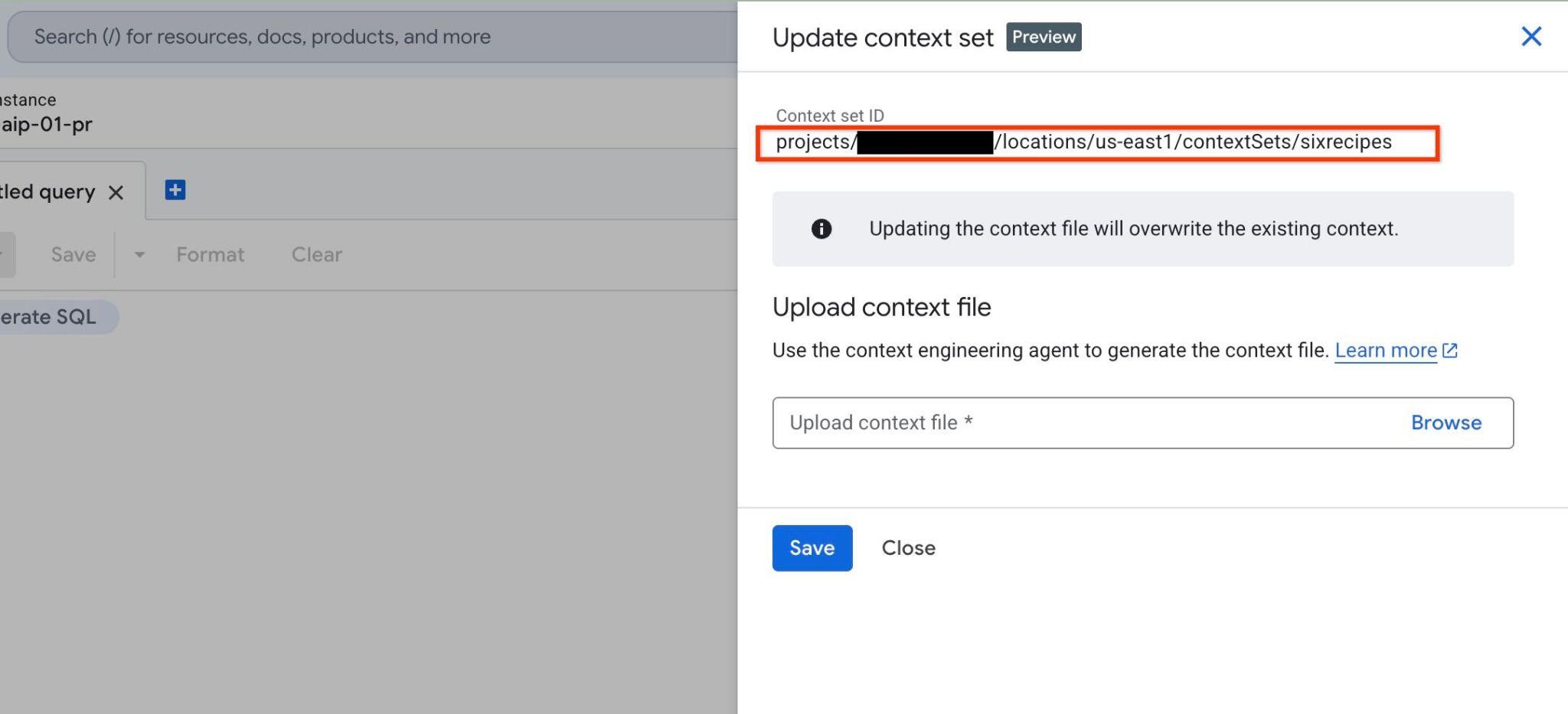
Save this ID for later steps.
Start AI Agent
To interact with the QueryData backend to generate and execute query you can use AlloyDB Studio interface as it is described in the documentation. But in this lab you will be using an AI agent as the main tool of communication with the database. The AI agents are a more realistic scenario for future workloads and Google ADK framework provides a great web interface where you can see all the steps and interactions between models, APIs and applications.
Review the agent source configuration in Cloud Shell:
REPO_NAME="codelabs"
SOURCE_DIR="alloydb-ai-nla"
cd ~/$REPO_NAME/$SOURCE_DIR/data_agent
edit agent.py
In the file you can see where we define the list of tables in our schema. We will return to that in one of our future steps.
# List of database tables included in QueryData API requests
TABLE_IDS = [
    "real_estate.municipalities",
    "real_estate.cities",
    "real_estate.agents",
    "real_estate.properties",
    "real_estate.schools",
    "real_estate.school_to_property",
    "real_estate.property_transactions",
    "real_estate.secure_offers",
]
And there is a procedure call_querydata_api to work with the QueryData API along with a toolset to work with QueryData API skills.
def call_querydata_api(
    prompt: str,
    target_project_id: str = project_id,
    target_location: str = location,
    target_cluster_id: str = cluster_name,
    target_instance_id: str = instance_name,
    target_database_id: str = database_name,
    target_context_set_id: str = context_set_id,
    target_table_ids: list[str] = TABLE_IDS,
) -> dict:
    """Calls the Gemini Data Analytics QueryData API to translate natural ...
<Redacted>
...

# ADK File-Based Skill

database_query_skill = load_skill_from_dir(
    pathlib.Path(__file__).parent / "skills" / "database-query-skill"
)

skill_toolset = SkillToolset(
    skills=[database_query_skill]
)
Here is the root agent itself with a prompt and available tools.
# Agent configuration

root_agent = Agent(
    model=MODEL_ID,
    name='root_agent',
    description='A helpful assistant for analyst requests.',
    instruction=f"""
    Answer user questions to the best of your knowledge using provided tools.
    Do not try to generate non-existent data but use the grounded data from the database.
    When you answer questions about database contents, real estate properties, or sales activity:
    1. Refer to database-query-skill for instructions on querying data using QueryData API.
    2. Use `call_querydata_api` to submit the natural language prompt to the QueryData API.
       CRITICAL: Call `call_querydata_api` EXACTLY ONCE per user request. Do NOT make retries, follow-up calls, or rephrased calls to `call_querydata_api`, even if the result contains zero rows or empty data.
    3. Immediately parse the JSON response from that first `call_querydata_api` call.
    4. Format your final response to the user containing:
       - The generated SQL query (formatted in a Markdown SQL code block).
       - The query results formatted as a Markdown table (constructed from `queryResult.columns` and `queryResult.rows`).
       - The natural language answer (`naturalLanguageAnswer`).
    """,
    tools=[call_querydata_api, skill_toolset],
)
Review data_agent/SKILL.md to understand the agent's system instructions:
REPO_NAME="codelabs"
SOURCE_DIR="alloydb-ai-nla"
cd ~/$REPO_NAME/$SOURCE_DIR/data_agent
edit SKILL.md
Before starting the agent you need to prepare a .env file with parameters for Agent and QueryData API requests.
Export your context set ID to an environment variable:
export QUERYDATA_CONTEXTSET=<context set id from the Create Context Set chapter>
Create your runtime environment configuration file (.env) in the data_agent directory:
PROJECT_ID=$(gcloud config get-value project)
REGION=us-central1
REPO_NAME="codelabs"
SOURCE_DIR="alloydb-ai-nla"
cd ~/$REPO_NAME/$SOURCE_DIR/data_agent
echo "GOOGLE_GENAI_USE_ENTERPRISE=true" > .env
echo "GOOGLE_CLOUD_PROJECT=$(gcloud config get-value project -q)" >> .env
echo "GOOGLE_CLOUD_LOCATION=global" >> .env
echo "QUERYDATA_CONTEXTSET=$QUERYDATA_CONTEXTSET" >> .env
echo "ALLOYDB_CLUSTER=alloydb-aip-01" >> .env
echo "ALLOYDB_INSTANCE=alloydb-aip-01-pr" >> .env
echo "ALLOYDB_DATABASE=quickstart_db" >> .env
echo "ALLOYDB_LOCATION=$REGION" >> .env
Install dependencies and start the agent web service:
cd ~/$REPO_NAME/$SOURCE_DIR/
uv sync
Start the agent:
uv run adk web --allow_origins 'regex:https://.*\.cloudshell\.dev'
You should see output as the following with the endpoint http://127.0.0.1:8000 .
INFO:     Started server process [83608]
INFO:     Waiting for application startup.

+-----------------------------------------------------------------------------+
| ADK Web Server started                                                      |
|                                                                             |
| For local testing, access at http://127.0.0.1:8000.                         |
+-----------------------------------------------------------------------------+

INFO:     Application startup complete.
INFO:     Uvicorn running on http://127.0.0.1:8000 (Press CTRL+C to quit)
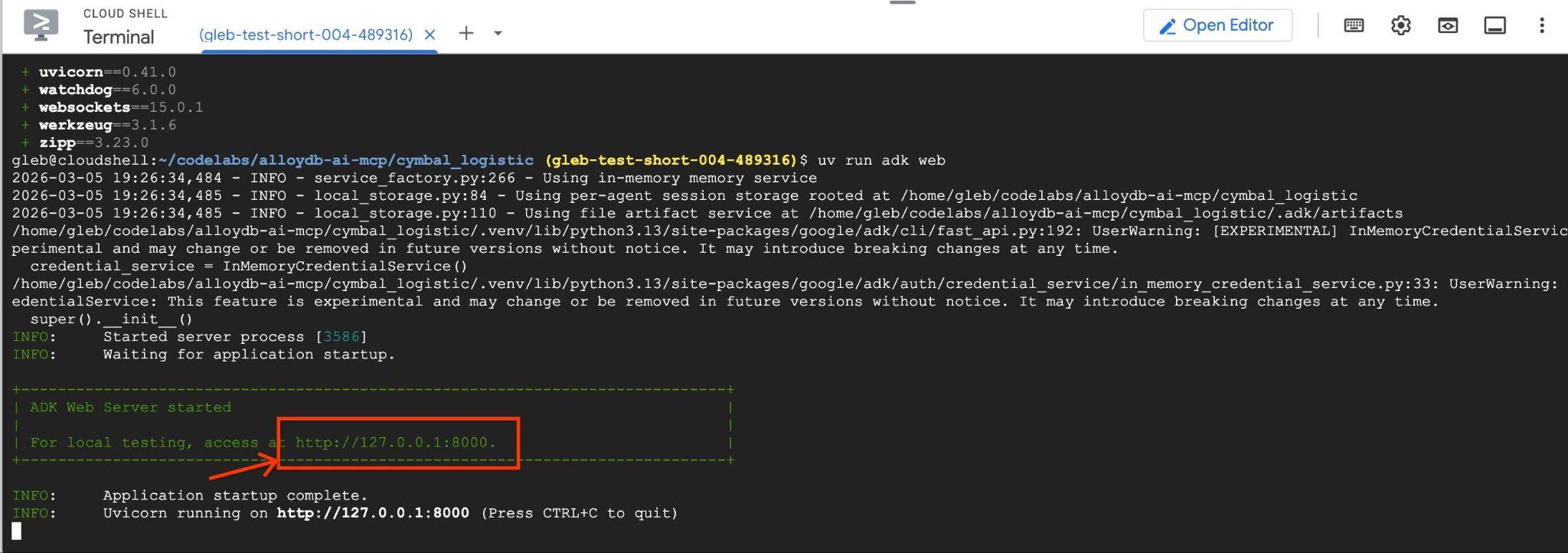
Click the generated web server URL (e.g., http://127.0.0.1:8000) in Cloud Shell to launch the agent interface. If it doesn't work then in Cloud Shell, click Web Preview -> Preview on port 8000 to open the agent interface.
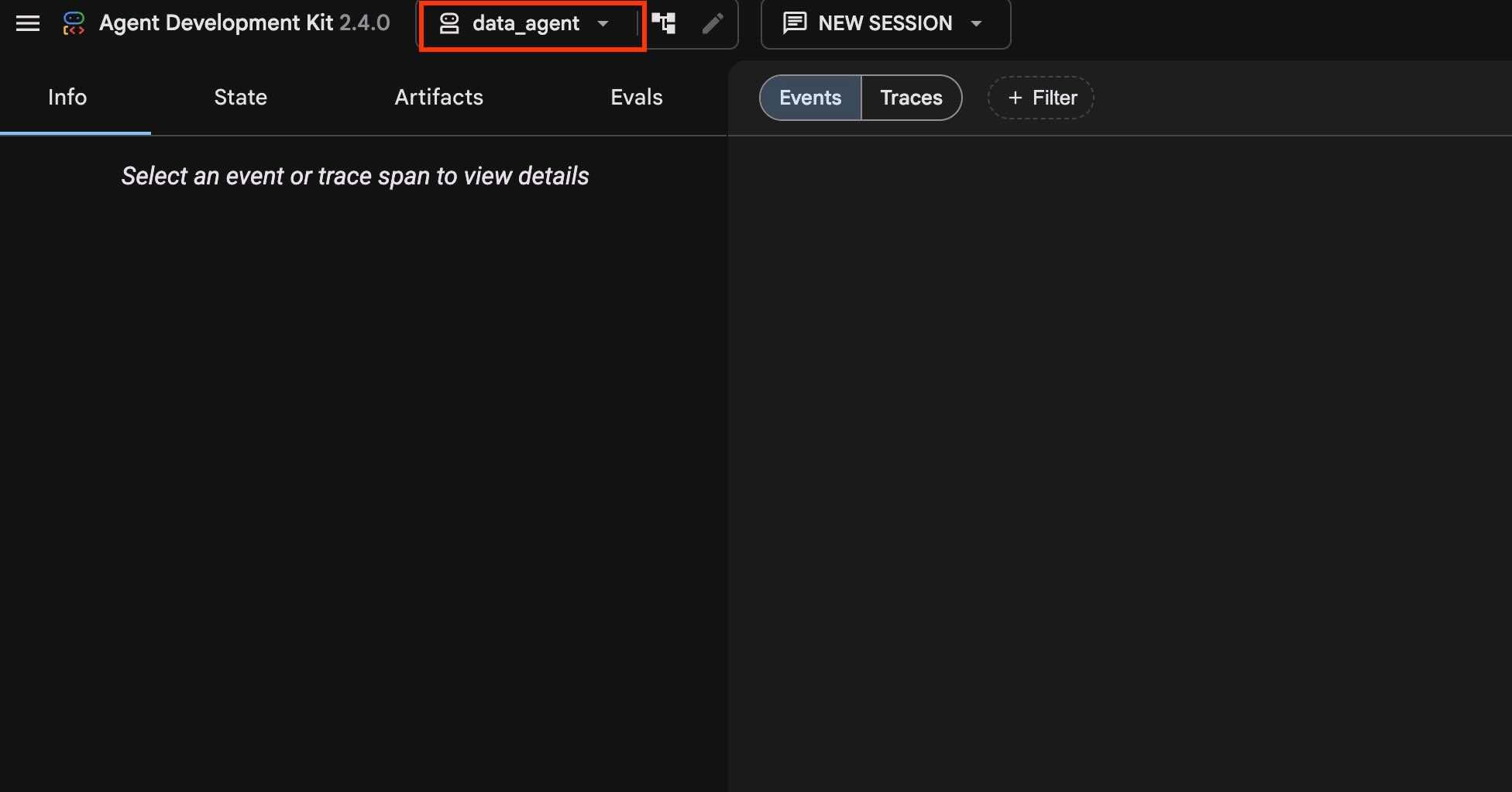
Verify that data_agent is selected in the top-left dropdown.
Generate and run queries
Let us run the query Q1
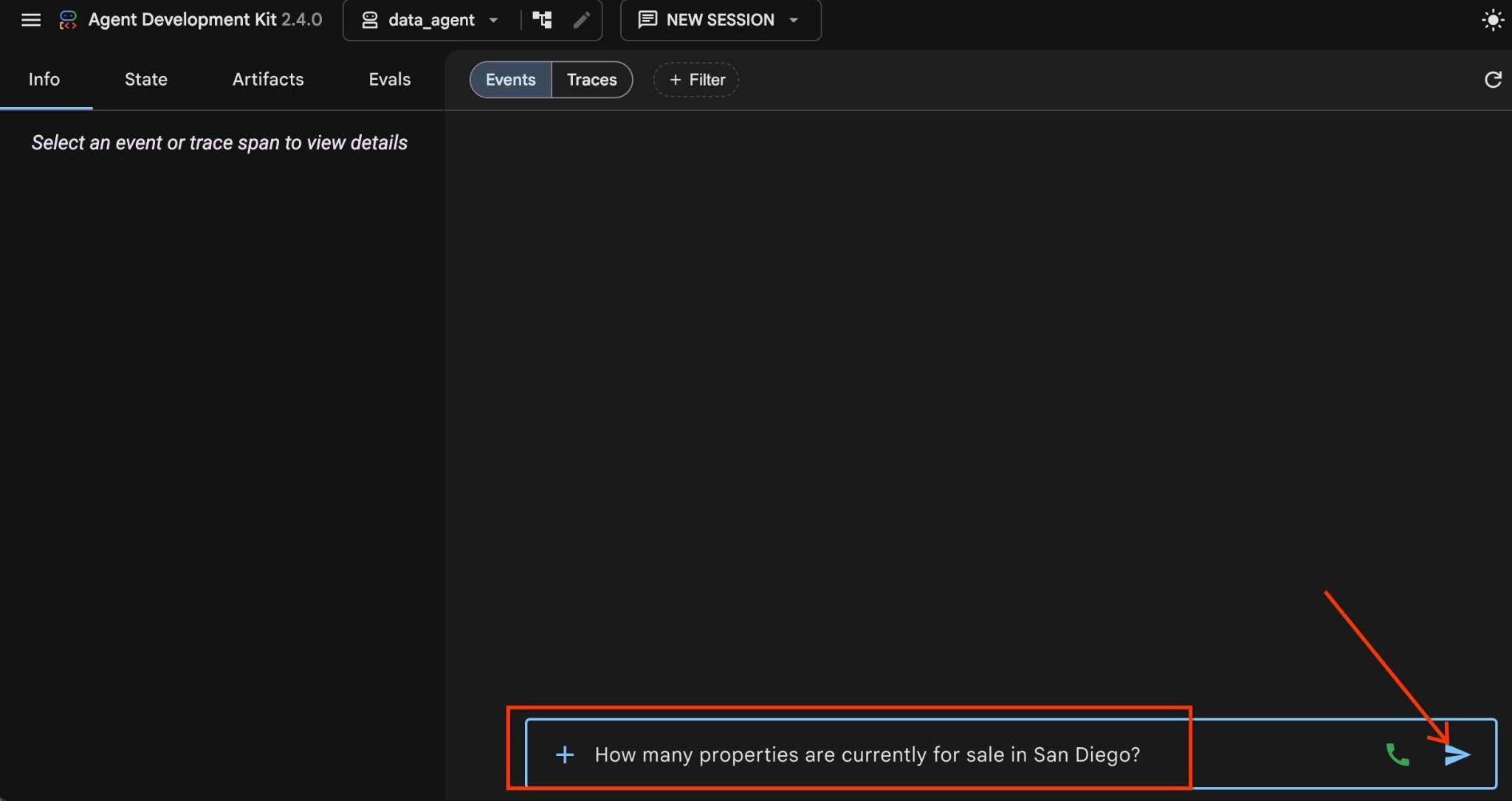
Run this natural language prompt in the agent chat interface to evaluate base QueryData performance without custom templates or facets:
How many properties are currently for sale in San Diego?
And push the arrow button.
It will start the agent workflow when it will pick up the appropriate skill and use that skill and the function to send the request to the API endpoint and get back the generated query and the results.
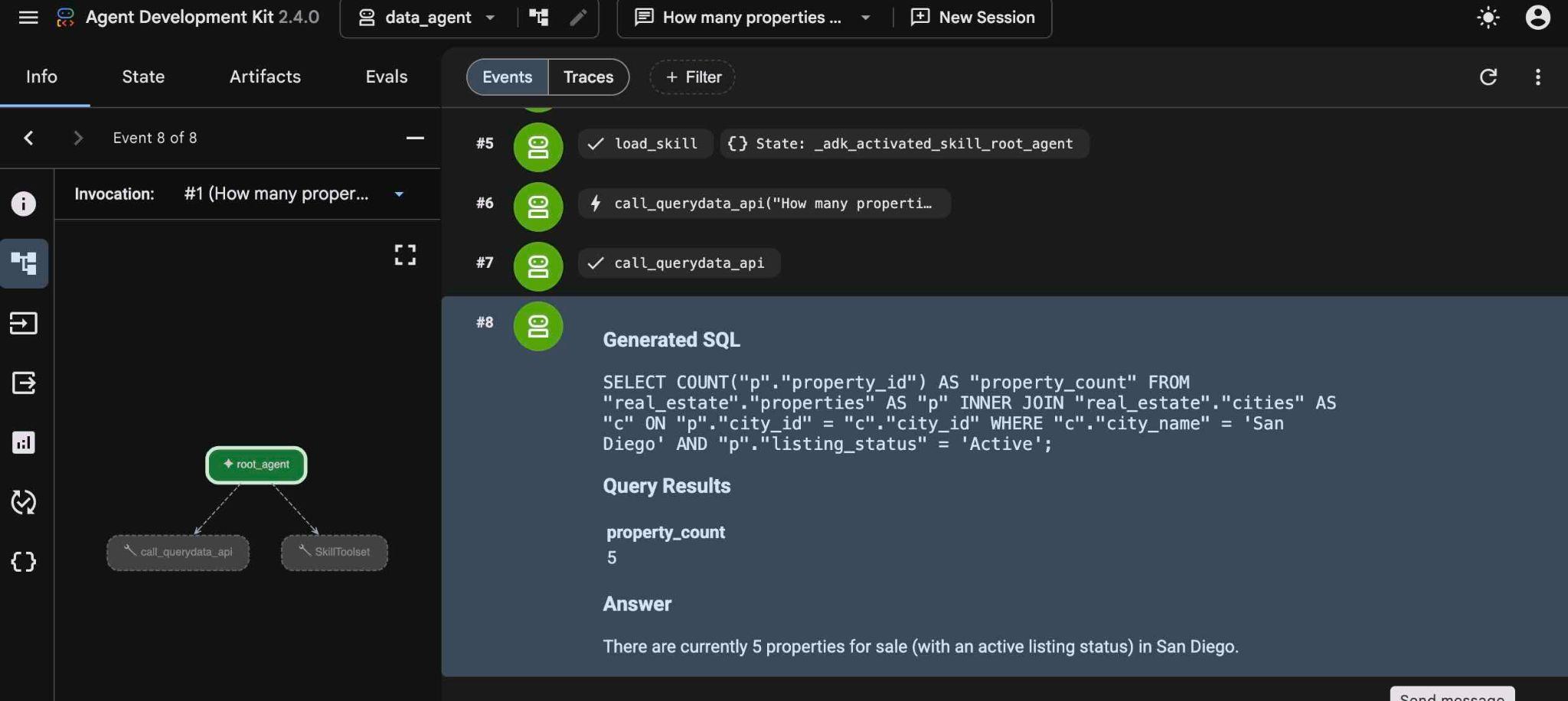
And if you hover your mouse cursor on the steps you can see exactly what those steps were doing. Also you can see that and much more in the left panel when you choose one or another step. It can help to understand how agents work with skills and APIs.
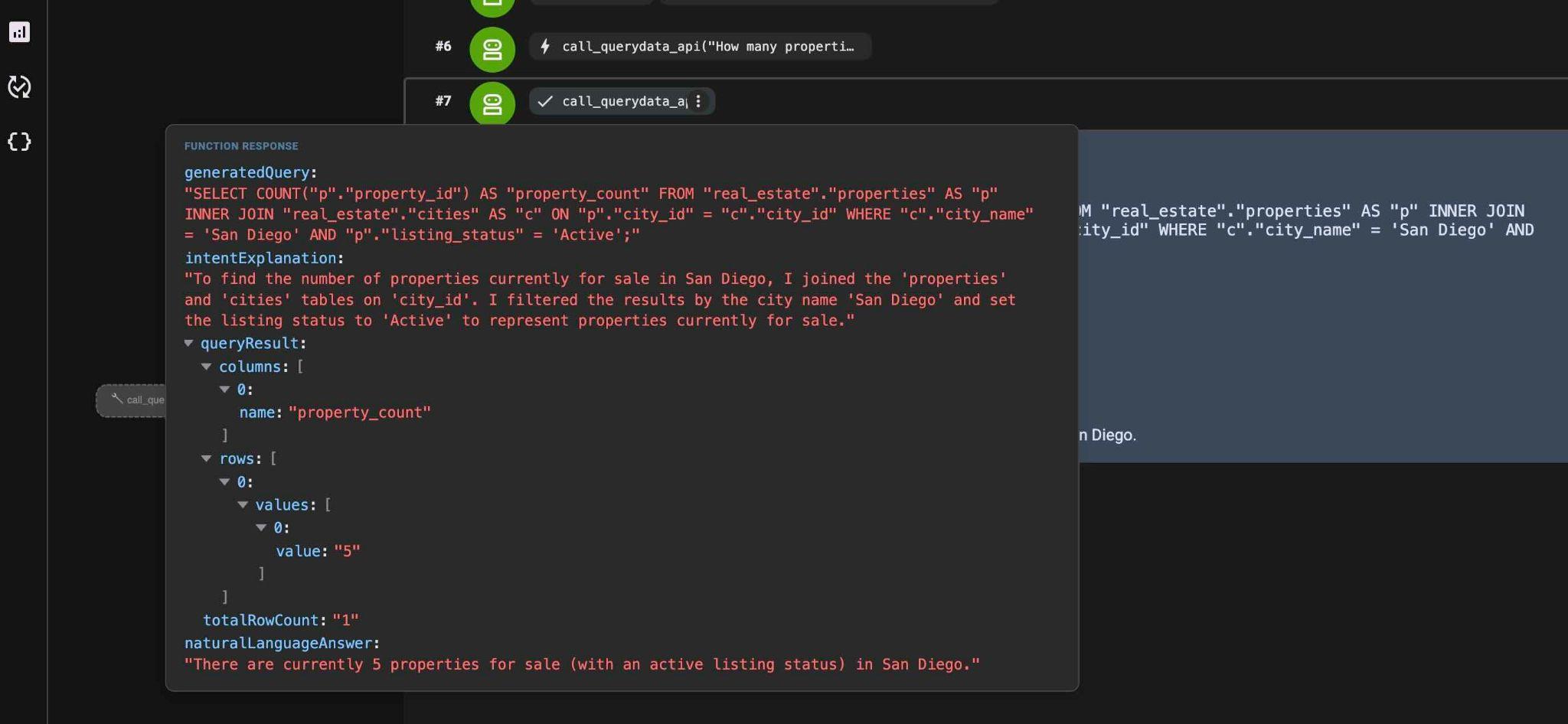
Submit a follow-up query (Q2):
List agents who sold a property for over $1000000.
You will notice that the agent goes straight to the QueryData API skill since it has already written to the memory the available skills and doesn't need to go through the discovery phase again.
The generated SQL resembles this statement:
SELECT DISTINCT "a"."agent_id", "a"."firstname", "a"."lastname", "a"."email", "a"."brokerage"
FROM "real_estate"."agents" AS "a"
INNER JOIN "real_estate"."property_transactions" AS "t" ON "a"."agent_id" = "t"."seller_agent_id"
WHERE "t"."sale_price" > 1000000 AND "a"."agent_id" IS NOT NULL
ORDER BY "a"."lastname" ASC NULLS LAST;
Try another query (Q3):
What is the average price of a single-family home with a garage in San Diego?
QueryData generates standard queries with an empty context set, but business tasks often require specific business logic and deterministic behavior.
8. Achieve High Accuracy and Business Relevance by Injecting Interpretation
Injecting interpretation into prompts ensures that generated queries match specific business logic.
You will try such an example with a customer asking to get single level houses in Del Mar. The question has two important metrics and represents a frequent pattern for a selection.
Try the following natural language prompt (Q4) in the agent.
Single level Del Mar houses
The engine returns a general query, but might include some additional conditions like is_single_family = TRUE:
SELECT p."property_id", p."address_street", p."price", p."bedrooms", p."bathrooms", p."listing_status", p."is_single_family", p."num_stories", c."city_name"
FROM "real_estate"."properties" AS p
JOIN "real_estate"."cities" AS c ON p."city_id" = c."city_id"
WHERE c."city_name" ILIKE 'Del Mar' AND p."num_stories" = 1 AND p."is_single_family" = TRUE
ORDER BY p."property_id" ASC NULLS LAST;
We get one returned row as the result:
Natural Language Answer
The database contains one single-level, single-family house in Del Mar:

Address: 999 Main Ave (Postal Code: 90024)
Price: $3,800,000.00
Bedrooms: 4
Bathrooms: 3.5
Listing Status: Active
Features: Single-family home (1 story), has a garage, and no condo fees.
Test another prompt (Q5):
Del Mar houses close to good schools
It is smart enough to use the proximity_miles and school_ranking columns to sort the properties but doesn't evaluate weight and importance of each metric.
SELECT "p"."property_id", "p"."address_street", "p"."price", "p"."bedrooms", "p"."bathrooms", "s"."school_name", "s"."school_ranking", "sp"."proximity_miles"
FROM "real_estate"."properties" AS "p"
INNER JOIN "real_estate"."cities" AS "c" ON "p"."city_id" = "c"."city_id"
INNER JOIN "real_estate"."school_to_property" AS "sp" ON "p"."property_id" = "sp"."property_id"
INNER JOIN "real_estate"."schools" AS "s" ON "sp"."school_id" = "s"."school_id"
WHERE "c"."city_name" = 'Del Mar' AND "sp"."proximity_miles" IS NOT NULL AND "s"."school_ranking" IS NOT NULL
ORDER BY "sp"."proximity_miles" ASC NULLS LAST, "s"."school_ranking" ASC NULLS LAST;
Generalize example query into a template
Business logic requires:
- Proximity within 2 miles
- School ranking of 5 or lower
- Weighted ordering: 80% school ranking + 20% proximity (Score = 0.8 * school_ranking + 0.2 * proximity_miles)
Here is the weighted ranking formula:
Score = 0.8 * school_ranking + 0.2 * proximity_miles
Download the sixrecipe_context1_1.json context file from Cloud Shell using command-line interface in Cloud Shell:
cloudshell download ~/codelabs/alloydb-ai-nla/sixrecipe_context1_1.json
Or by using Download menu item from the Cloud Shell menu:
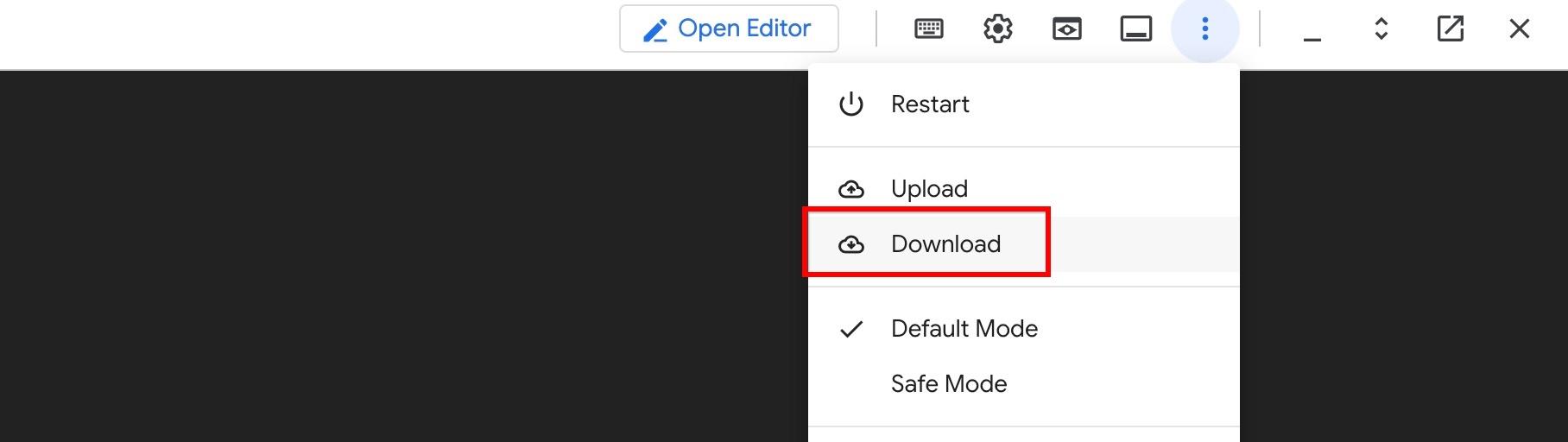
Upload the sixrecipe_context1_1.json into your sixrecipe context set using AlloyDB Studio to define this standard structure. Click the three dots right of the sixrecipes context and use "Edit context set" to upload the new file. It will effectively replace the old empty context with the new one.
The template defines explicit SQL template rules for good school proximity rules:
{
  "facets": [],
  "templates": [
    {
      "nl_query": "Riverside houses close to good schools.",
      "sql": "SELECT \"p\".\"address_street\", \"p\".\"address_postal_code\", \"s\".\"school_name\", \"stp\".\"proximity_miles\" FROM \"real_estate\".\"properties\" AS \"p\" JOIN \"real_estate\".\"cities\" AS \"c\" ON \"p\".\"city_id\" = \"c\".\"city_id\" JOIN \"real_estate\".\"school_to_property\" AS \"stp\" ON \"p\".\"property_id\" = \"stp\".\"property_id\" JOIN \"real_estate\".\"schools\" AS \"s\" ON \"stp\".\"school_id\" = \"s\".\"school_id\" WHERE \"c\".\"city_name\" = 'Riverside' AND \"s\".\"school_ranking\" <= 5 AND \"stp\".\"proximity_miles\" <= 2 ORDER BY 0.8 * \"s\".\"school_ranking\" + 0.2 * \"stp\".\"proximity_miles\"",
      "intent": "Houses in Riverside close to good schools (within 2 miles of schools with a rank of at least 5).",
      "manifest": "A given city houses close to good schools.",
      "parameterized": {
        "parameterized_intent": "Houses in $1 close to good schools (within 2 miles of schools with a rank of at least 5).",
        "parameterized_sql": "SELECT \"p\".\"address_street\", \"p\".\"address_postal_code\", \"s\".\"school_name\", \"stp\".\"proximity_miles\" FROM \"real_estate\".\"properties\" AS \"p\" JOIN \"real_estate\".\"cities\" AS \"c\" ON \"p\".\"city_id\" = \"c\".\"city_id\" JOIN \"real_estate\".\"school_to_property\" AS \"stp\" ON \"p\".\"property_id\" = \"stp\".\"property_id\" JOIN \"real_estate\".\"schools\" AS \"s\" ON \"stp\".\"school_id\" = \"s\".\"school_id\" WHERE \"c\".\"city_name\" = $1 AND \"s\".\"school_ranking\" <= 5 AND \"stp\".\"proximity_miles\" <= 2 ORDER BY 0.8 * \"s\".\"school_ranking\" + 0.2 * \"stp\".\"proximity_miles\""
      }
    }
  ]
}
Re-run the prompt:
Del Mar houses close to good schools
The resulting query now matches the business logic defined in the template:
SELECT "p"."address_street", "p"."address_postal_code", "s"."school_name", "stp"."proximity_miles"
FROM "real_estate"."properties" AS "p"
JOIN "real_estate"."cities" AS "c" ON "p"."city_id" = "c"."city_id"
JOIN "real_estate"."school_to_property" AS "stp" ON "p"."property_id" = "stp"."property_id"
JOIN "real_estate"."schools" AS "s" ON "stp"."school_id" = "s"."school_id"
WHERE "c"."city_name" = 'Del Mar' AND "s"."school_ranking" <= 5 AND "stp"."proximity_miles" <= 2
ORDER BY 0.8 * "s"."school_ranking" + 0.2 * "stp"."proximity_miles"
Along with the produced SQL statement, the following intent is produced:
intentExplanation: "Houses in Del Mar close to good schools (within 2 miles of schools with a rank of at least 5)."
You can see the intent on the left pane of the ADK web interface as it shown here:
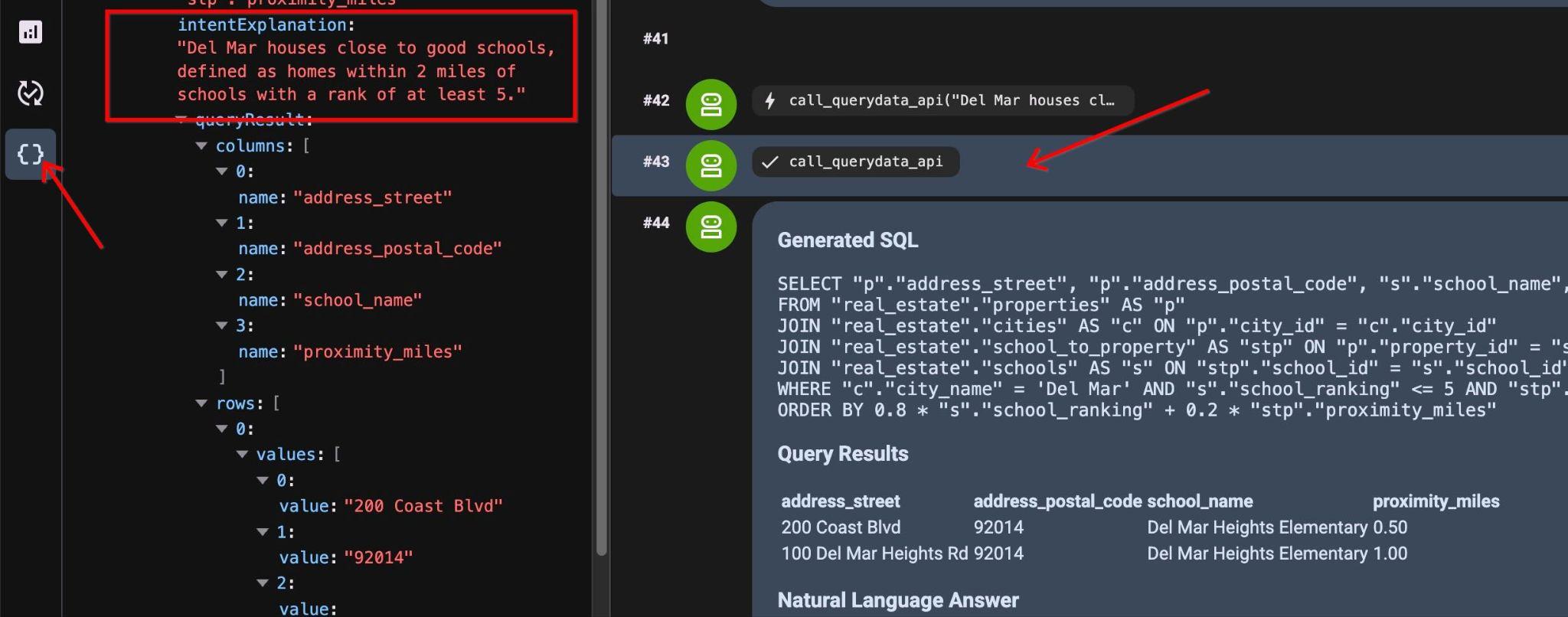
The results show two properties sorted by our Score:
Query Results
address_street        address_postal_code        school_name        proximity_miles
200 Coast Blvd        92014        Del Mar Heights Elementary        0.50
100 Del Mar Heights Rd        92014        Del Mar Heights Elementary        1.00
Answer
Based on the data, here are the properties in Del Mar located within 2 miles of a top-rated school (ranking of 5 or better):

200 Coast Blvd (92014)

School: Del Mar Heights Elementary
Proximity: 0.50 miles
100 Del Mar Heights Rd (92014)

School: Del Mar Heights Elementary
Proximity: 1.00 miles
In the next chapter you will expand scope for the template.
Inject Interpretation by Capturing & Interpreting Multiple Questions
You can expand scope for our template to be used not only for the "close to good schools" but also adding other conditions to the manifest to be used for example for "houses for families with kids".
Download the updated context file:
cloudshell download ~/codelabs/alloydb-ai-nla/sixrecipe_context1_2.json
Upload the updated sixrecipe_context1_2.json file to your context set.
In the new context set file we are replacing our manifest from: "manifest": "A given city houses close to good schools." to the manifest: "manifest": "A given city houses close to good schools, or are great for families with kids.". It expands applications for this template to be used for more than just one case.
Submit this query (Q6):
Houses in Waterloo great for families with kids.
The agent uses the updated template manifest to apply your standardized query logic returning the same query as above, with the intent of:
intentExplanation
:
"Houses in Waterloo close to good schools (within 2 miles of schools with a rank of at least 5)."
9. Use Faceted Templates to Reach High Accuracy while keeping Flexibility
Facets are modular SQL conditions combined dynamically with templates to handle qualifiers (e.g. "starter family", "ocean view") without creating separate templates for every permutation.
Instead of creating a template for each query or condition we can prepare fragments which can be applied to existing templates adding more dimensions to the query.
Define a facet for properties with the following attributes:
- A single-family home
- An active listing status
- Three to four bedrooms and at least two bathrooms
- Location in a municipality with a crime rate below 500 per 100,000 residents
Download the faceted context file:
cloudshell download ~/codelabs/alloydb-ai-nla/sixrecipe_context2_1.json
Upload sixrecipe_context2_1.json to your sixrecipes context set in AlloyDB Studio to configure the facets.
  "facets": [
    {
      "sql_snippet": "real_estate.properties.is_single_family = TRUE AND real_estate.properties.listing_status = 'Active' AND real_estate.properties.bedrooms BETWEEN 3 AND 4 AND real_estate.properties.bathrooms >= 2.0 AND 500 > (SELECT m.crime_rate_per_100k FROM real_estate.cities c JOIN real_estate.municipalities m ON c.municipality_id = m.municipality_id AND c.city_id = real_estate.properties.city_id)",
      "intent": "for a starter family (active single-family home listings with 3 to 4 bedrooms, 2+ bathrooms, and a crime rate under 500 per 100,000 residents)",
      "manifest": "for a starter family",
      "parameterized": {
        "parameterized_intent": "for a starter family (active single-family home listings with 3 to 4 bedrooms, 2+ bathrooms, and a crime rate under 500 per 100,000 residents)",
        "parameterized_sql_snippet": "real_estate.properties.is_single_family = TRUE AND real_estate.properties.listing_status = 'Active' AND real_estate.properties.bedrooms BETWEEN 3 AND 4 AND real_estate.properties.bathrooms >= 2.0 AND 500 > (SELECT m.crime_rate_per_100k FROM real_estate.cities c JOIN real_estate.municipalities m ON c.municipality_id = m.municipality_id AND c.city_id = real_estate.properties.city_id)"
      }
    }
  ]
Query using faceted search
Run this NL query (Q7):
Del Mar houses close to good schools for a starter family.
The engine appends your facet conditions directly to the base query:
SELECT "p"."address_street", "p"."address_postal_code", "s"."school_name", "stp"."proximity_miles"
FROM "real_estate"."properties" AS "p"
JOIN "real_estate"."cities" AS "c" ON "p"."city_id" = "c"."city_id"
JOIN "real_estate"."school_to_property" AS "stp" ON "p"."property_id" = "stp"."property_id"
JOIN "real_estate"."schools" AS "s" ON "stp"."school_id" = "s"."school_id"
WHERE "c"."city_name" = 'Del Mar'
  AND "s"."school_ranking" <= 5
  AND "stp"."proximity_miles" <= 2
  AND "p"."is_single_family" = TRUE
  AND "p"."listing_status" = 'Active'
  AND "p"."bedrooms" BETWEEN 3 AND 4
  AND "p"."bathrooms" >= 2.0
  AND 500 > (
    SELECT m.crime_rate_per_100k
    FROM real_estate.cities c
    JOIN real_estate.municipalities m ON c.municipality_id = m.municipality_id
    AND c.city_id = p.city_id
  )
ORDER BY 0.8 * "s"."school_ranking" + 0.2 * "stp"."proximity_miles"
And here are the results:
Query Results
address_street        address_postal_code        school_name        proximity_miles
200 Coast Blvd        92014        Del Mar Heights Elementary        0.50
Natural Language Answer
Based on your criteria, there is an active listing for a single-family house in Del Mar that fits your needs:

Address: 200 Coast Blvd, Del Mar, 92014
Nearby School: Del Mar Heights Elementary (ranked within the top 5)
Proximity to School: 0.50 miles
Adding more facets
What if we want to add one more dimension based on the new emerging pattern - like a window view for the property?
Add ocean view semantic matching inside a facet definition.
    {
      "sql_snippet": "((real_estate.properties.description_embedding <=> google_ml.embedding('gemini-embedding-001', 'unobstructed, panoramic, ocean vista, vast Pacific, breathtaking, commanding view, deep blue horizon, massive, sweeping view')::vector) < 0.4)",
      "intent": "with ocean view",
      "manifest": "with ocean view",
      "parameterized": {
        "parameterized_intent": "with ocean view",
        "parameterized_sql_snippet": "((real_estate.properties.description_embedding <=> google_ml.embedding('gemini-embedding-001', 'unobstructed, panoramic, ocean vista, vast Pacific, breathtaking, commanding view, deep blue horizon, massive, sweeping view')::vector) < 0.4)"
      }
The value 0.4 in the facet definition above is a threshold experimentally calibrated. Download the multi-faceted context file:
cloudshell download ~/codelabs/alloydb-ai-nla/sixrecipe_context2_2.json
Upload sixrecipe_context2_2.json to your context set and run this prompt (Q8):
Ocean view Del Mar homes near good schools.
The output contains standard conditions combined with vector similarity matching via google_ml.embedding:
SELECT "p"."address_street", "p"."address_postal_code", "s"."school_name", "stp"."proximity_miles"
FROM "real_estate"."properties" AS "p"
JOIN "real_estate"."cities" AS "c" ON "p"."city_id" = "c"."city_id"
JOIN "real_estate"."school_to_property" AS "stp" ON "p"."property_id" = "stp"."property_id"
JOIN "real_estate"."schools" AS "s" ON "stp"."school_id" = "s"."school_id"
WHERE "c"."city_name" = 'Del Mar' AND "s"."school_ranking" <= 5 AND "stp"."proximity_miles" <= 2
AND (((p.description_embedding <=> google_ml.embedding('gemini-embedding-001', 'unobstructed, panoramic, ocean vista, vast Pacific, breathtaking, commanding view, deep blue horizon, massive, sweeping view')::vector) <= 0.4))
ORDER BY 0.8 * "s"."school_ranking" + 0.2 * "stp"."proximity_miles";
And the query returns one property:
Query Results
address_street        address_postal_code        school_name        proximity_miles
100 Del Mar Heights Rd        92014        Del Mar Heights Elementary        1.00
Answer
The ocean-view home in Del Mar near a top-ranked school is located at 100 Del Mar Heights Rd (92014).

It is situated just 1.00 mile away from Del Mar Heights Elementary, which is one of the area's highly-ranked schools (ranking of 5 or better).
Verify the results by checking description for the property in AlloyDB Studio and running the following query:
select description from real_estate.properties where address_postal_code='92014' and description is not null;
It will show the description with "magnificent marine spectacle".
Well-located 2-bedroom condo with excellent proximity to coastal shopping and dining. The balcony provides a magnificent marine spectacle against an azure backdrop. Under contract, high monthly HOA fee.
10. Disambiguation of your Private Data using Value Searches
Ambiguous requests can match multiple entities, such as confusing a location name with a business name. Value searches map terms to database concepts to help resolve these references.
The value search provides associations between column name plus values in the column and a concept type which can be for example a city, country or name. And since it has indexed not only metadata but also representative samples of the data in a column it can associate a value used in the natural language request with a potential concept type and what table and column can be used in the resulting SQL.
Ambiguity in a query
In real life it can be even more difficult due to misspelling of different names and locations. Run this prompt (Q9) containing a typo and ambiguous term:
Westwod's sold properties in the last 1 month.
There are two problems here - the name is misspelled and it is not clear if we are talking about properties sold in the location with similar names or about a real estate agency. When we run the query it returns a query like the following.
SELECT "p"."property_id", "p"."address_street", "p"."address_postal_code", "p"."price" AS "listing_price", "p"."bedrooms", "p"."bathrooms", "p"."listing_status", "pt"."sale_date", "pt"."sale_price", "c"."city_name" FROM "real_estate"."properties" AS "p" INNER JOIN "real_estate"."property_transactions" AS "pt" ON "p"."property_id" = "pt"."property_id" INNER JOIN "real_estate"."cities" AS "c" ON "p"."city_id" = "c"."city_id" WHERE ("c"."city_name" ILIKE '%Westwood%' OR "c"."city_name" ILIKE '%Westwod%') AND "pt"."sale_date" >= '2025-09-01'::date AND "pt"."sale_date" <= '2025-09-30'::date ORDER BY "pt"."sale_date" DESC NULLS LAST, "pt"."sale_price" DESC NULLS LAST
It has corrected the name and assumed that the question was about the properties location trying to match properties in the city Westwood.
Enable the pg_trgm extension in AlloyDB Studio to support fuzzy string comparisons:
CREATE EXTENSION IF NOT EXISTS pg_trgm;
After that we can use the extension to add value searches to our QueryData context set.
Here is the list of value searches we want to use:
"value_searches": [
    {
      "conceptType": "Municipality name",
      "query": "/* Requires extension: pg_trgm */ WITH TrigramMetrics AS (SELECT T.municipality_name AS original_value, (T.municipality_name % $value::text) AS normalized_dist FROM real_estate.municipalities T WHERE T.municipality_name % $value::text) SELECT original_value AS value, 'real_estate.municipalities.municipality_name' AS columns, 'Name of the municipality' AS concept_type, normalized_dist AS distance, ''::text AS context FROM TrigramMetrics",
      "description": "Trigram match for municipality name"
    },
    {
      "conceptType": "City name",
      "query": "/* Requires extension: pg_trgm */ WITH TrigramMetrics AS (SELECT T.city_name AS original_value, (T.city_name % $value::text) AS normalized_dist FROM real_estate.cities T WHERE T.city_name % $value::text) SELECT original_value AS value, 'real_estate.cities.city_name' AS columns, 'Name of the city' AS concept_type, normalized_dist AS distance, ''::text AS context FROM TrigramMetrics",
      "description": "Trigram match for city name"
    },
    {
      "conceptType": "Brokerage name",
      "query": "/* Requires extension: pg_trgm */ WITH TrigramMetrics AS (SELECT T.brokerage AS original_value, (T.brokerage % $value::text) AS normalized_dist FROM real_estate.agents T WHERE T.brokerage % $value::text) SELECT original_value AS value, 'real_estate.agents.brokerage' AS columns, 'Name of the brokerage' AS concept_type, normalized_dist AS distance, ''::text AS context FROM TrigramMetrics",
      "description": "Trigram match for brokerage name"
    }
  ]
Download the value search context file:
cloudshell download ~/codelabs/alloydb-ai-nla/sixrecipe_context3_1.json
Upload sixrecipe_context3_1.json to the QueryData sixrecipes context set and save it.
Re-run the prompt (Q9):
Westwod's sold properties in the last 1 month.
It returned a clarification response because in the value search it found 3 different entities having the similar values:
The database requires some clarification to provide the exact information you need:

The search term 'Westwod' (Westwood) is ambiguous because it can refer to:

A municipality name (e.g., the municipality of Westwood)
A city name (e.g., the city of Westwood)
A brokerage name (e.g., properties sold by agents affiliated with the Westwood brokerage)
Could you please clarify which of these you are referring to?
The trace gives us a clue why it has chosen that particular path
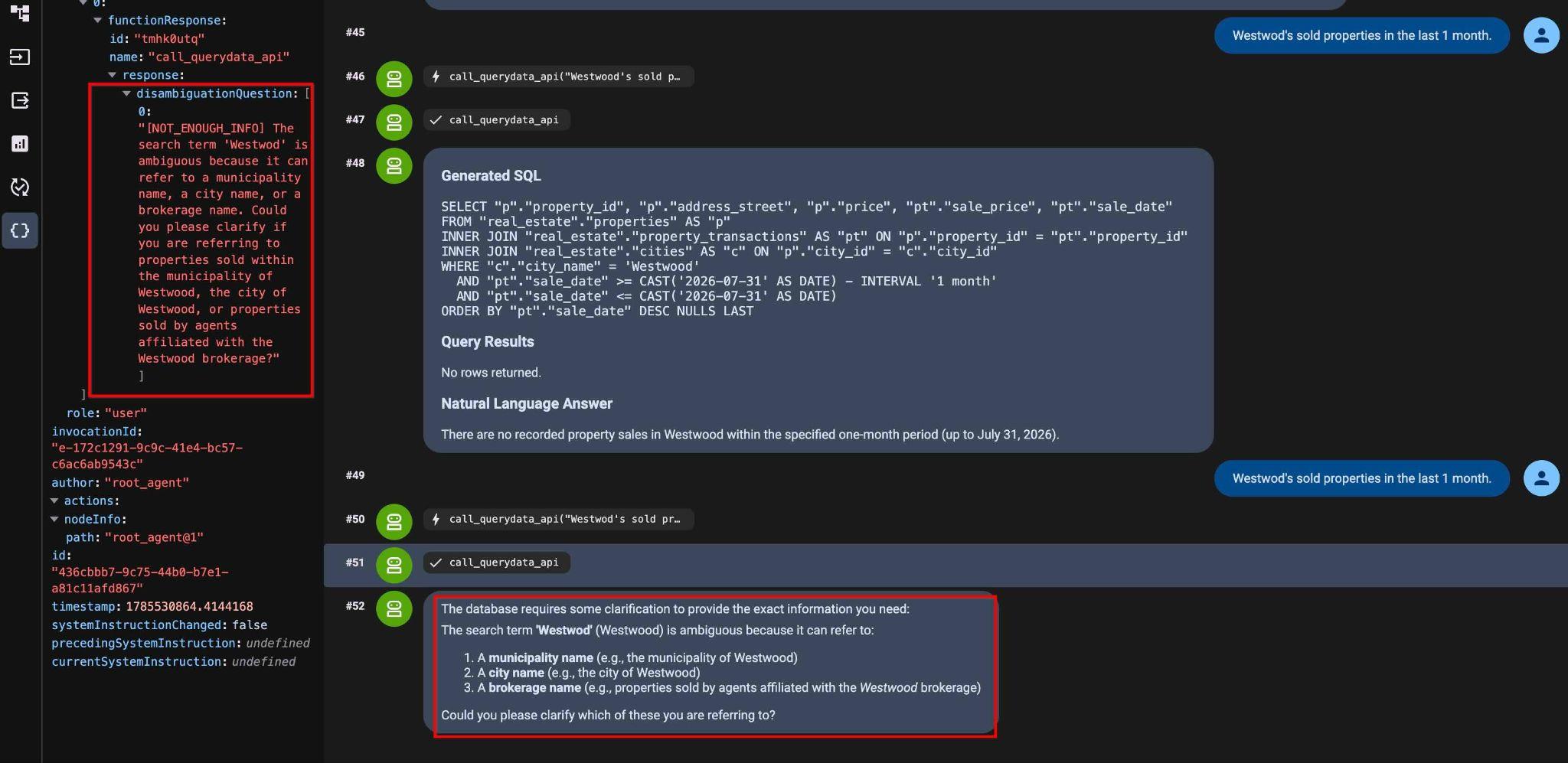
Here is the full text:
"[NOT_ENOUGH_INFO] The search term 'Westwod' is ambiguous because it can refer to a municipality name, a city name, or a brokerage name. Could you please clarify if you are referring to properties sold within the municipality of Westwood, the city of Westwood, or properties sold by agents affiliated with the Westwood brokerage?"
Removing ambiguity from the query
Refine the input prompt (Q10):
Westwood city location properties sold in September 2025.
And now we have the query and the results:
Generated SQL
SELECT "p"."property_id", "p"."address_street", "p"."address_postal_code", "p"."price", "pt"."sale_date", "pt"."sale_price"
FROM "real_estate"."properties" AS "p"
INNER JOIN "real_estate"."cities" AS "c" ON "p"."city_id" = "c"."city_id"
INNER JOIN "real_estate"."property_transactions" AS "pt" ON "p"."property_id" = "pt"."property_id"
WHERE "c"."city_name" = 'Westwood'
  AND "pt"."sale_date" >= '2025-09-01'::date
  AND "pt"."sale_date" <= '2025-09-30'::date
ORDER BY "pt"."sale_date" ASC NULLS LAST

Query Results
property_id        address_street        address_postal_code        price        sale_date        sale_price
32        999 Main St        99999        3800000.00        2025-09-12        1000000.00
11. Semantic Search and AI Functions
AlloyDB AI functions enable semantic filtering over unstructured data. Use functions like ai.if and google_ml.embedding directly in SQL queries alongside standard database operators.
Template with ILIKE operators
As the first step, upload the new context file with ILIKE operators.
Download the ILIKE template context file:
cloudshell download ~/codelabs/alloydb-ai-nla/sixrecipe_context4_1.json
Upload sixrecipe_context4_1.json to your context set to evaluate standard ILIKE pattern matching for "move-in ready" houses.
    {
      "nl_query": "Move-in ready houses",
      "sql": "SELECT \"p\".\"address_street\", \"p\".\"address_postal_code\" FROM \"real_estate\".\"properties\" AS \"p\" WHERE \"p\".listing_status = 'Active' AND \"p\".\"description\" IS NOT NULL AND (\"p\".description ILIKE '%turnkey%' OR \"p\".description ILIKE '%move-in%')",
      "intent": "Move-in ready houses",
      "manifest": "Move-in ready houses",
      "parameterized": {
        "parameterized_intent": "Move-in ready houses",
        "parameterized_sql": "SELECT \"p\".\"address_street\", \"p\".\"address_postal_code\" FROM \"real_estate\".\"properties\" AS \"p\" WHERE \"p\".listing_status = 'Active' AND \"p\".\"description\" IS NOT NULL AND (\"p\".description ILIKE '%turnkey%' OR \"p\".description ILIKE '%move-in%')"
      }
    }
Submit this query (Q11):
List move-in ready houses.
Resulting query:
SELECT "p"."address_street", "p"."address_postal_code"
FROM "real_estate"."properties" AS "p"
WHERE "p".listing_status = 'Active'
  AND "p"."description" IS NOT NULL
  AND ("p".description ILIKE '%turnkey%' OR "p".description ILIKE '%move-in%')
It returns one matching record.
Query Results
address_street        address_postal_code
40 Main St, Unit 8        N2H 2G8
Template with AI.IF function
Download the AI.IF template context file:
cloudshell download ~/codelabs/alloydb-ai-nla/sixrecipe_context4_2.json
Upload sixrecipe_context4_2.json to your context set to evaluate the ai.if semantic filtering function.
    {
      "nl_query": "List Move-in ready houses",
      "sql": "SELECT \"p\".\"address_street\", \"p\".\"address_postal_code\" FROM \"real_estate\".\"properties\" AS \"p\" WHERE \"p\".listing_status = 'Active' AND \"p\".\"description\" IS NOT NULL AND ai.if('Does this description represent a move-in ready house? Description: ' || \"p\".\"description\")",
      "intent": "List Move-in ready houses",
      "manifest": "List Move-in ready houses",
      "parameterized": {
        "parameterized_intent": "List Move-in ready houses",
        "parameterized_sql": "SELECT \"p\".\"address_street\", \"p\".\"address_postal_code\" FROM \"real_estate\".\"properties\" AS \"p\" WHERE \"p\".listing_status = 'Active' AND \"p\".\"description\" IS NOT NULL AND ai.if('Does this description represent a move-in ready house? Description: ' || \"p\".\"description\")"
      }
    }
Repeat the prompt (Q12):
List move-in ready houses.
Generated SQL:
SELECT "p"."address_street", "p"."address_postal_code"
FROM "real_estate"."properties" AS "p"
WHERE "p".listing_status = 'Active'
  AND "p"."description" IS NOT NULL
  AND ai.if('Does this description represent a move-in ready house? Description: ' || "p"."description")
That gives us the same property in the result:
Query Results
Address Street        Address Postal Code
40 Main St, Unit 8        N2H 2G8
Natural Language Answer
The move-in ready home currently available is located at:

Address: 40 Main St, Unit 8
Postal Code: N2H 2G8
Facet with vector search
Download the embedding search context file:
cloudshell download ~/codelabs/alloydb-ai-nla/sixrecipe_context4_3.json
Upload sixrecipe_context4_3.json to your context set to evaluate semantic vector search using google_ml.embedding and search houses with new kitchen appliances.
Update the context set using the sixrecipe_context4_3.json file with an additional facet using AlloyDB vector search.
    {
      "sql_snippet": "((real_estate.properties.description_embedding <=> google_ml.embedding('gemini-embedding-001', 'Upgraded kitchen appliances')::vector) < 0.4)",
      "intent": "with upgraded kitchen appliances",
      "manifest": "with upgraded kitchen appliances",
      "parameterized": {
        "parameterized_intent": "with upgraded kitchen appliances",
        "parameterized_sql_snippet": "((real_estate.properties.description_embedding <=> google_ml.embedding('gemini-embedding-001', 'Upgraded kitchen appliances')::vector) < 0.4)"
      }
    }
The value 0.4 in the facet definition above is a threshold experimentally calibrated.
Run this query (Q13):
List move-in ready houses with upgraded kitchen appliances.
Generated SQL:
SELECT "p"."address_street", "p"."address_postal_code" FROM "real_estate"."properties" AS "p" WHERE "p"."listing_status" = 'Active' AND "p"."description" IS NOT NULL AND ai.if('Does this description represent a Move-in ready house? Description: ' || "p"."description") AND ((("p"."description_embedding" <=> google_ml.embedding('gemini-embedding-001', 'Upgraded kitchen appliances')::vector) < 0.4))
Here is the query results and natural language recommendation:
Query Results
Address        Postal Code
40 Main St, Unit 8        N2H 2G8
Natural Language Answer
The move-in ready house with upgraded kitchen appliances is located at:

Address: 40 Main St, Unit 8
Postal Code: N2H 2G8
12. Security & Privacy
Whenever the QueryData API generates queries, there is a privacy risk that generated queries could expose data belonging to other users. Parameterized Secure Views (PSVs) enforce row-level security boundaries during NL2SQL generation.
Create Parameterized Secure View
We have a table real_estate.offers with information about offers for all our real estate deals. We want our agents to see only their own deals but not deals for other agents. We create a PSV with the ability to filter rows based on the agent_id.
Create a Parameterized Secure View for the offers table in AlloyDB Studio:
CREATE VIEW real_estate.secure_offers
  WITH (security_barrier) AS
SELECT offer_id, property_id, buyer_agent_id,
    seller_agent_id, offer_amount, offer_date,
    offer_status, offer_expiration_date,
    contingencies
FROM real_estate.offers
WHERE buyer_agent_id = $@agent_id;
Verify the parameterized security view definition:
SELECT definition
FROM parameterized_views.all_parameterized_views
WHERE schemaname = 'real_estate' AND viewname = 'secure_offers';
What about real_estate.offers table?
Limit QueryData data access using AlloyDB parameterized secure views
In the agent.py, the parameterized security view real_estate.secure_offers is registered in TABLE_IDS instead of real_estate.offers:
The agent.py source code:
 List of database tables included in QueryData API requests
TABLE_IDS = [
    "real_estate.municipalities",
    "real_estate.cities",
    "real_estate.agents",
    "real_estate.properties",
    "real_estate.schools",
    "real_estate.school_to_property",
    "real_estate.property_transactions",
    "real_estate.secure_offers",
]
And passes session runtime context for an agent with agent_id=1:
            "parameterized_secure_view_parameters": {
                "parameters": {
                    "key": "agent_id",
                    "value": "1"
                }
            }
        },
As a result every QueryData API request will pass that parameter and when the secure view is included into the request it will apply filtering returning only results for that particular agent.
Run this query (Q14):
List the offer id and listing price in 2025 where the offer was within 5% of the final selling price.
Generated SQL:
SELECT "o"."offer_id", "p"."price" AS "listing_price"
FROM "real_estate"."secure_offers" AS "o"
INNER JOIN "real_estate"."properties" AS "p" ON "o"."property_id" = "p"."property_id"
INNER JOIN "real_estate"."property_transactions" AS "t" ON "o"."property_id" = "t"."property_id"
WHERE "o"."offer_date" >= '2025-01-01'
  AND "o"."offer_date" <= '2025-12-31'
  AND "o"."offer_amount" IS NOT NULL
  AND "t"."sale_price" IS NOT NULL
  AND "p"."price" IS NOT NULL
  AND ABS("o"."offer_amount" - "t"."sale_price") <= (0.05 * "t"."sale_price")
ORDER BY "o"."offer_id" ASC NULLS LAST
Querying the view filters the results by the active agent session parameter, protecting unauthorized record data and returning only two records.
Query Results
Offer ID        Listing Price
7        $750,000.00
8        $510,000.00
Natural Language Answer
Here are the offers from 2025 where the offer amount was within 5% of the final selling price:

Offer ID 7: Listing Price of $750,000.00
Offer ID 8: Listing Price of $510,000.00
If you run the following query against the base real_estate.offers table in AlloyDB Studio:
SELECT "o"."offer_id", "p"."price" AS "listing_price"
FROM "real_estate"."offers" AS "o"
INNER JOIN "real_estate"."properties" AS "p" ON "o"."property_id" = "p"."property_id"
INNER JOIN "real_estate"."property_transactions" AS "t" ON "o"."property_id" = "t"."property_id"
WHERE "o"."offer_date" >= '2025-01-01'
  AND "o"."offer_date" <= '2025-12-31'
  AND "o"."offer_amount" IS NOT NULL
  AND "t"."sale_price" IS NOT NULL
  AND "p"."price" IS NOT NULL
  AND ABS("o"."offer_amount" - "t"."sale_price") <= (0.05 * "t"."sale_price")
ORDER BY "o"."offer_id" ASC NULLS LAST
It returns more than two records, showing data for all agents.
That concludes our lab! You have learned how to use the QueryData API, AI Functions, and AlloyDB Parameterized Secure Views.
13. Clean up environment
Destroy the AlloyDB instances and cluster when you are done with the lab.
Delete AlloyDB cluster and all instances
The cluster is destroyed with option force which also deletes all the instances belonging to the cluster.
If your terminal disconnected, connect again and define the project and environment variables in Cloud Shell:
gcloud config set project <YOUR_PROJECT_ID>
export REGION=us-central1
export ADBCLUSTER=alloydb-aip-01
export PROJECT_ID=$(gcloud config get-value project)
Delete the cluster:
gcloud alloydb clusters delete $ADBCLUSTER --region=$REGION --force
Expected console output:
student@cloudshell:~ (test-project-001-402417)$ gcloud alloydb clusters delete $ADBCLUSTER --region=$REGION --force
All of the cluster data will be lost when the cluster is deleted.

Do you want to continue (Y/n)?  Y

Operation ID: operation-1697820178429-6082890a0b570-4a72f7e4-4c5df36f
Deleting cluster...done.
Delete AlloyDB Backups
Delete all AlloyDB backups for the cluster:
for i in $(gcloud alloydb backups list \
  --filter="CLUSTER_NAME: projects/$PROJECT_ID/locations/$REGION/clusters/$ADBCLUSTER" \
  --format="value(name)" \
  --sort-by=~createTime) ; do \
  gcloud alloydb backups delete $(basename $i) --region $REGION --quiet; done
Expected console output:
student@cloudshell:~ (test-project-001-402417)$ for i in $(gcloud alloydb backups list --filter="CLUSTER_NAME: projects/$PROJECT_ID/locations/$REGION/clusters/$ADBCLUSTER" --format="value(name)" --sort-by=~createTime) ; do gcloud alloydb backups delete $(basename $i) --region $REGION --quiet; done
Operation ID: operation-1697826266108-60829fb7b5258-7f99dc0b-99f3c35f
Deleting backup...done.
Delete Cloud Storage Bucket
Delete the Cloud Storage import bucket to prevent ongoing storage charges:
gcloud storage rm -r gs://${PROJECT_ID}-import
14. Congratulations
Congratulations on completing the codelab!
What we've covered
- How to deploy an AlloyDB cluster and primary instance
- How to enable QueryData, AI functions, and Parameterized Secure Views for AlloyDB
- How to create a QueryData context set
- How to use different templates and contexts in the QueryData API
- How to make QueryData templates more flexible using facets
- How to resolve data ambiguity with value search and trigram indexing
- How to use AI functions for semantic search with templates
- How to use Parameterized secure views with QueryData API
Survey
Output: