

1. 소개
이 Codelab에서는 QueryData API를 사용하여 최상의 결과를 얻는 방법을 알아봅니다. 데이터베이스에 자연어 요청을 할 때 정확하고 반복 가능한 결과를 생성하는 방법을 알아봅니다. 이를 위해 이 가이드에서는 여러 챕터에 걸쳐 6가지 레시피를 안내하며, 자연어-SQL (NL2SQL)의 다양한 측면과 실제 적용 사례를 살펴봅니다.
기본 요건
- Google Cloud 및 Google Cloud 콘솔에 대한 기본적인 이해
- 명령줄 인터페이스 및 Cloud Shell의 기본 기술
학습할 내용
- AlloyDB 클러스터 및 기본 인스턴스를 배포하는 방법
- QueryData, AI 기능, 파라미터화된 보안 뷰를 사용 설정하는 방법
- QueryData 컨텍스트 세트를 만드는 방법
- QueryData API에서 다양한 템플릿과 컨텍스트를 사용하는 방법
- 패싯을 사용하여 QueryData 템플릿을 더 유연하게 만드는 방법
- 값 검색 및 트라이그램 색인으로 데이터 모호성을 해결하는 방법
- 템플릿으로 시맨틱 검색을 위해 AI 함수를 사용하는 방법
- QueryData API와 함께 파라미터화된 보안 뷰를 사용하는 방법
필요한 항목
- Google Cloud 계정 및 Google Cloud 프로젝트
- Google Cloud 콘솔 및 Cloud Shell을 지원하는 웹브라우저(예: Chrome)
2. 설정 및 요구사항
프로젝트 설정
- Google Cloud 콘솔에 로그인합니다. 아직 Gmail이나 Google Workspace 계정이 없는 경우 계정을 만들어야 합니다.
직장 또는 학교 계정 대신 개인 계정을 사용하세요.
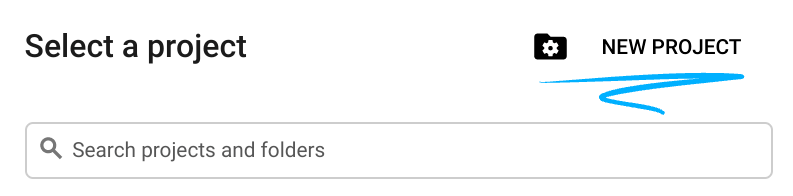
- 새 프로젝트를 만들거나 기존 프로젝트를 재사용합니다. Google Cloud 콘솔에서 새 프로젝트를 만들려면 헤더에서 프로젝트 선택 버튼을 클릭하여 팝업 창을 엽니다.

'프로젝트 선택' 창에서 '새 프로젝트'를 클릭하면 새 프로젝트 대화상자가 열립니다.
대화상자에서 프로젝트 이름을 입력하고 위치를 선택합니다.
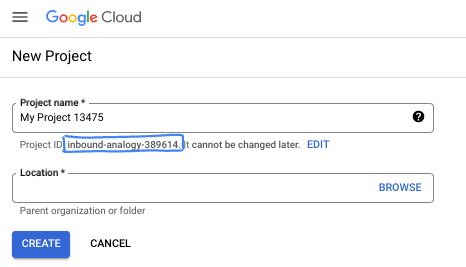
- 프로젝트 이름은 이 프로젝트 참가자의 표시 이름입니다. 프로젝트 이름은 Google API에서 사용되지 않으며 언제든지 변경할 수 있습니다.
- 프로젝트 ID는 모든 Google Cloud 프로젝트에서 고유하며, 변경할 수 없습니다 (설정된 후에는 변경할 수 없음). Google Cloud 콘솔에서 고유 ID를 자동으로 생성하지만 이를 맞춤설정할 수 있습니다. 생성된 ID가 마음에 들지 않으면 다른 임의 ID를 생성하거나 자체 ID를 제공하여 사용 가능 여부를 확인할 수 있습니다. 대부분의 Codelab에서는 프로젝트 ID를 참조해야 합니다. 프로젝트 ID는 일반적으로 PROJECT_ID 자리표시자로 식별됩니다.
- 참고로 세 번째 값은 일부 API에서 사용하는 프로젝트 번호입니다. 이 세 가지 값에 대한 자세한 내용은 문서를 참고하세요.
결제 사용 설정
개인 결제 계정 설정
Google Cloud 크레딧을 사용하여 결제를 설정한 경우 이 단계를 건너뛸 수 있습니다.
개인 결제 계정을 설정하려면 Cloud 콘솔에서 여기에서 결제를 사용 설정하세요.
참고 사항:
- 이 실습을 완료하는 데 드는 Cloud 리소스 비용은 미화 5달러 미만입니다.
- 이 실습이 끝나면 단계에 따라 리소스를 삭제하여 추가 요금이 발생하지 않도록 할 수 있습니다.
- 신규 사용자는 미화$300 상당의 무료 체험판을 이용할 수 있습니다.
Cloud Shell 시작
Google Cloud를 노트북에서 원격으로 실행할 수 있지만, 이 Codelab에서는 Cloud에서 실행되는 명령줄 환경인 Google Cloud Shell을 사용합니다.
Google Cloud Console의 오른쪽 상단 툴바에 있는 Cloud Shell 아이콘을 클릭합니다.
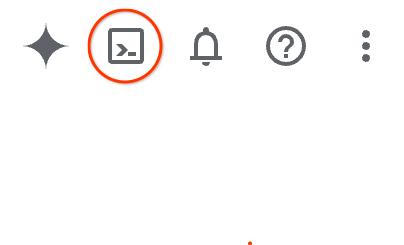
또는 G를 누른 다음 S를 누릅니다. Google Cloud 콘솔에 있거나 이 링크를 사용하는 경우 이 시퀀스를 통해 Cloud Shell이 활성화됩니다.
환경을 프로비저닝하고 연결하는 데 몇 분 정도 소요됩니다. 완료되면 다음과 같이 표시됩니다.

가상 머신에는 필요한 개발 도구가 모두 들어있습니다. 영구적인 5GB 홈 디렉터리를 제공하고 Google Cloud에서 실행되므로 네트워크 성능과 인증이 크게 개선됩니다. 이 Codelab의 모든 작업은 브라우저 내에서 수행할 수 있습니다. 아무것도 설치할 필요가 없습니다.
3. 시작하기 전에
API 사용 설정
AlloyDB, Compute Engine, 네트워킹 서비스, Agent Platform을 사용하려면 Google Cloud 프로젝트에서 각 API를 사용 설정해야 합니다.
Cloud Shell 터미널 내에 프로젝트 ID가 설정되어 있는지 확인합니다.
gcloud config get-value project
명령어는 Google Cloud 프로젝트 ID를 반환해야 합니다.
PROJECT_ID 환경 변수를 설정합니다.
PROJECT_ID=$(gcloud config get-value project)
필요한 API를 사용 설정합니다.
gcloud services enable alloydb.googleapis.com \
                       compute.googleapis.com \
                       cloudresourcemanager.googleapis.com \
                       servicenetworking.googleapis.com \
                       geminidataanalytics.googleapis.com \
                       cloudaicompanion.googleapis.com \
                       aiplatform.googleapis.com \
                       dataplex.googleapis.com
예상 출력:
student@cloudshell:~ (test-project-001-402417)$ gcloud config set project test-project-001-402417
Updated property [core/project].
student@cloudshell:~ (test-project-001-402417)$ PROJECT_ID=$(gcloud config get-value project)
Your active configuration is: [cloudshell-14650]
student@cloudshell:~ (test-project-001-402417)$
student@cloudshell:~ (test-project-001-402417)$ gcloud services enable alloydb.googleapis.com \
                       compute.googleapis.com \
                       cloudresourcemanager.googleapis.com \
                       servicenetworking.googleapis.com \
                       geminidataanalytics.googleapis.com \
                       cloudaicompanion.googleapis.com \
                       aiplatform.googleapis.com \
                       dataplex.googleapis.com
Operation "operations/acat.p2-4470404856-1f44ebd8-894e-4356-bea7-b84165a57442" finished successfully.
사용 설정된 각 API에 대한 자세한 내용은 문서를 참고하세요.
4. AlloyDB 배포
AlloyDB 클러스터 및 기본 인스턴스를 만듭니다. 필요한 모든 리소스를 배포하는 준비된 스크립트를 사용하여 배포하거나 AlloyDB 문서에 따라 단계별로 직접 배포할 수 있습니다.
자동화된 스크립트를 사용하여 AlloyDB 배포
이 접근 방식은 자동화된 스크립트를 사용하여 AlloyDB 클러스터를 배포하고 배포된 리소스를 사용하기 시작하는 데 필요한 구성 세부정보를 제공합니다.
Cloud Shell 터미널에서 다음 명령어를 실행하여 저장소에서 배포 스크립트를 클론합니다.
REPO_NAME="codelabs"
REPO_URL="https://github.com/GoogleCloudPlatform/$REPO_NAME"
SOURCE_DIR="alloydb-ai-nla"

git clone --no-checkout --filter=blob:none --depth=1 $REPO_URL

cd $REPO_NAME
git sparse-checkout set $SOURCE_DIR
git checkout
cd $SOURCE_DIR
배포 스크립트를 실행합니다.
./deploy_alloydb.sh
스크립트를 완료하는 데 5~7분 정도 걸립니다. 출력에 클러스터 배포 세부정보가 표시됩니다. 비밀번호가 달라지므로 나중에 사용할 수 있도록 비밀번호를 기록해 두세요.
...
<redacted>
...
Creating primary instance: alloydb-aip-01-pr (8 vCPUs for TRIAL cluster)
Operation ID: operation-1765988049916-646282264938a-bddce198-9f248715
Creating instance...done.
----------------------------------------
Deployment Process Completed
Cluster:  alloydb-aip-01 (TRIAL)
Instance: alloydb-aip-01-pr
Region:   us-central1
Initial Password: JBBoDTgixzYwYpkF (if new cluster)
----------------------------------------
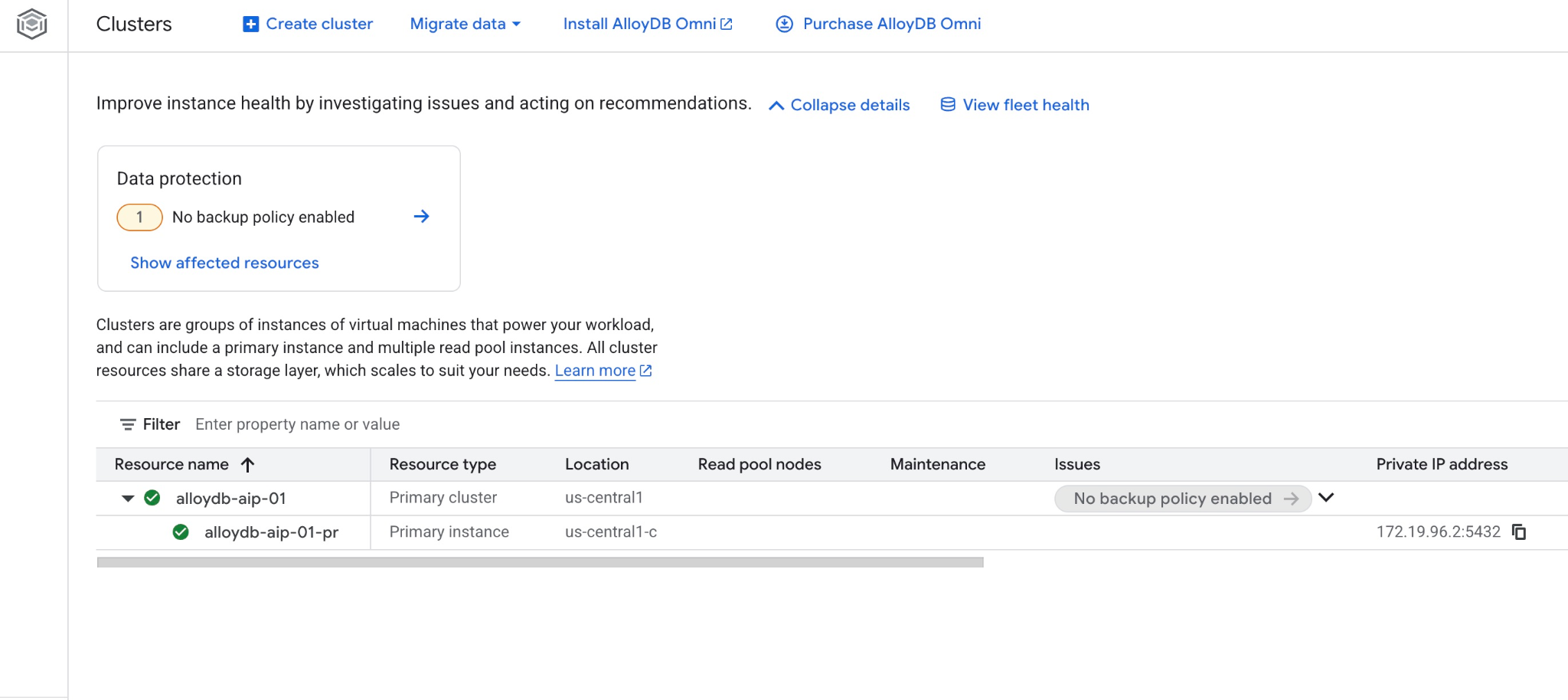
Google Cloud 콘솔의 AlloyDB 클러스터 페이지에서 새 클러스터와 인스턴스를 확인합니다.
5. 데이터베이스 준비
데이터베이스를 만들고, Gemini Enterprise Agent Platform 통합을 사용 설정하고, 데이터베이스 객체를 빌드하고, 샘플 데이터를 추가합니다.
AlloyDB에 필요한 권한 부여
AlloyDB 서비스 에이전트에 필요한 IAM 역할을 부여합니다.
추가 (+)를 클릭하여 새 Cloud Shell 탭을 엽니다.
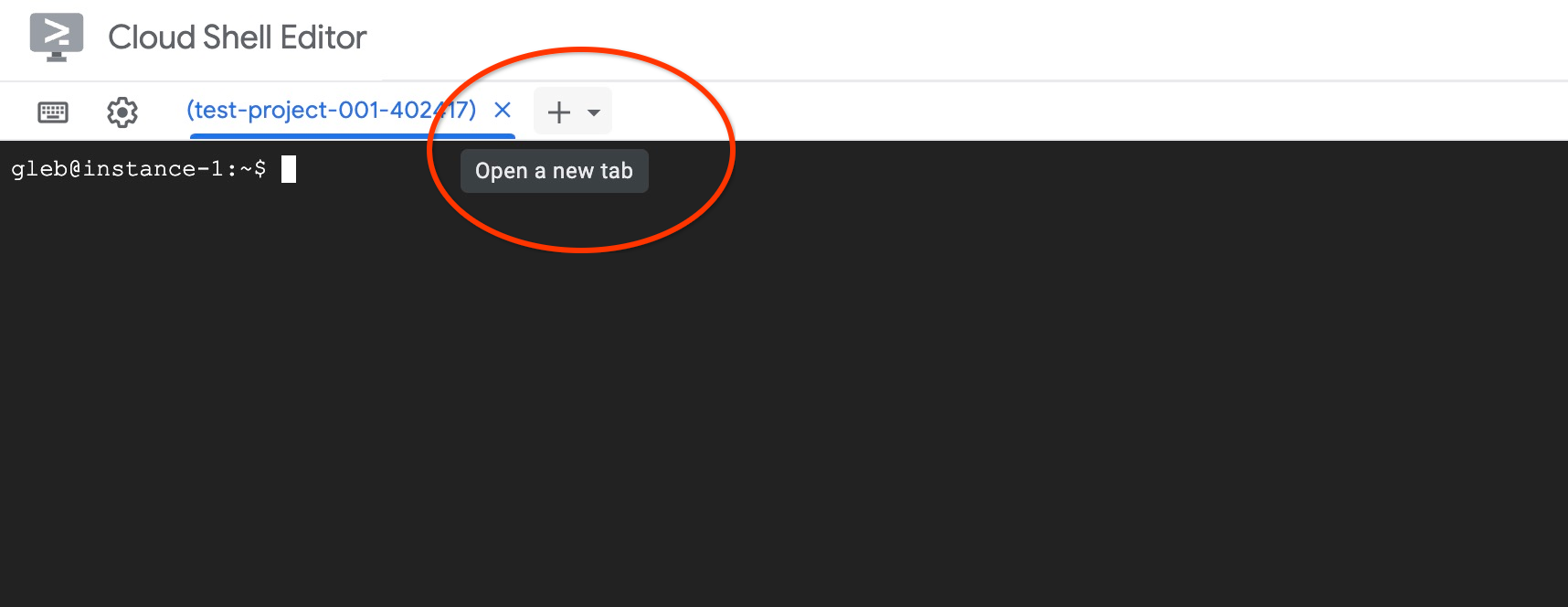
새 탭에서 다음을 실행합니다.
PROJECT_ID=$(gcloud config get-value project)
gcloud projects add-iam-policy-binding $PROJECT_ID \
  --member="serviceAccount:service-$(gcloud projects describe $PROJECT_ID --format="value(projectNumber)")@gcp-sa-alloydb.iam.gserviceaccount.com" \
  --role="roles/aiplatform.user"
예상되는 콘솔 출력:
student@cloudshell:~ (test-project-001-402417)$ PROJECT_ID=$(gcloud config get-value project)
Your active configuration is: [cloudshell-11039]
student@cloudshell:~ (test-project-001-402417)$ gcloud projects add-iam-policy-binding $PROJECT_ID \
  --member="serviceAccount:service-$(gcloud projects describe $PROJECT_ID --format="value(projectNumber)")@gcp-sa-alloydb.iam.gserviceaccount.com" \
  --role="roles/aiplatform.user"
Updated IAM policy for project [test-project-001-402417].
bindings:
- members:
  - serviceAccount:service-4470404856@gcp-sa-alloydb.iam.gserviceaccount.com
  role: roles/aiplatform.user
- members:
...
etag: BwYIEbe_Z3U=
version: 1
Data Access API 사용 설정
AlloyDB 클러스터에서 데이터 액세스 API를 사용 설정합니다.
동일한 터미널 탭에서 다음 명령어를 실행합니다.
PROJECT_ID=$(gcloud config get-value project)
REGION=us-central1
ADBCLUSTER=alloydb-aip-01
curl -X PATCH \
 -H "Authorization: Bearer $(gcloud auth print-access-token)" \
 -H "Content-Type: application/json" \
 https://alloydb.googleapis.com/v1alpha/projects/$PROJECT_ID/locations/$REGION/clusters/$ADBCLUSTER/instances/$ADBCLUSTER-pr?updateMask=dataApiAccess \
 -d '{
   "dataApiAccess": "ENABLED",
 }'
데이터베이스 플래그 업데이트
인스턴스 수준에서 플래그를 사용 설정하기 전에 데이터 액세스 API 단계가 완료될 때까지 기다립니다. 다음 이미지에 표시된 것처럼 인스턴스 상태에 녹색 체크표시가 표시되어야 합니다.
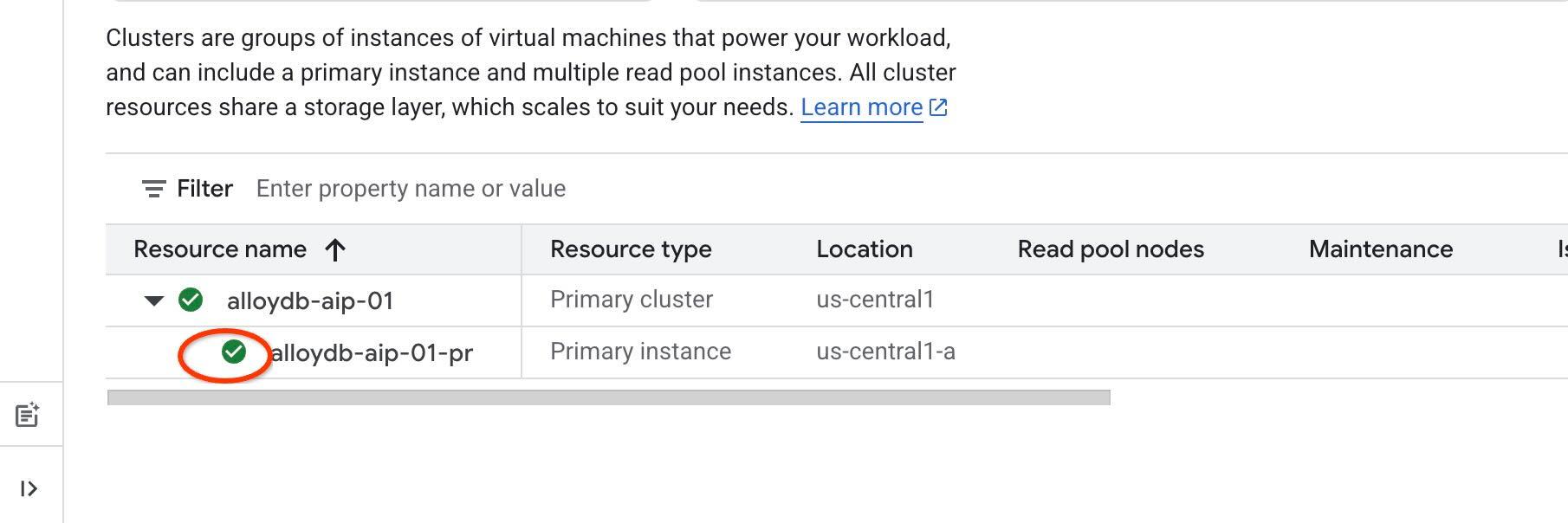
에이전트 도구에 AI 확장 프로그램과 IAM 인증을 사용하려면 인스턴스에서 특정 데이터베이스 플래그를 사용 설정하고 자신을 데이터베이스 사용자로 추가해야 합니다. 다음 플래그를 사용 설정합니다.
- alloydb.iam_authentication
- password.enforce_complexity
- google_ml_integration.enable_ai_query_engine
- parameterized_views
동일한 터미널 탭에서 다음 명령어를 실행합니다.
PROJECT_ID=$(gcloud config get-value project)
REGION=us-central1
ADBCLUSTER=alloydb-aip-01
gcloud beta alloydb instances update $ADBCLUSTER-pr \
   --database-flags password.enforce_complexity=on,alloydb.iam_authentication=on,google_ml_integration.enable_ai_query_engine=on,parameterized_views.enabled=on \
   --region=$REGION \
   --cluster=$ADBCLUSTER \
   --project=$PROJECT_ID \
   --update-mode=FORCE_APPLY
계정의 AlloyDB IAM 사용자를 만듭니다.
REGION=us-central1
ADBCLUSTER=alloydb-aip-01
gcloud alloydb users create $(gcloud config get-value account) \
--cluster=$ADBCLUSTER \
--superuser=true \
--region=$REGION \
--type=IAM_BASED
터미널에서 exit 명령어를 실행하여 탭을 닫습니다.
exit
AlloyDB Studio에 연결
다음 장에서는 AlloyDB Studio에서 데이터베이스 연결이 필요한 모든 SQL 명령어를 실행할 수 있습니다.
AlloyDB Studio를 열려면 다음 단계를 따르세요.
- Google Cloud 콘솔에서 PostgreSQL용 AlloyDB의 클러스터 페이지로 이동합니다.
- 기본 인스턴스를 선택하여 웹 인터페이스를 엽니다.
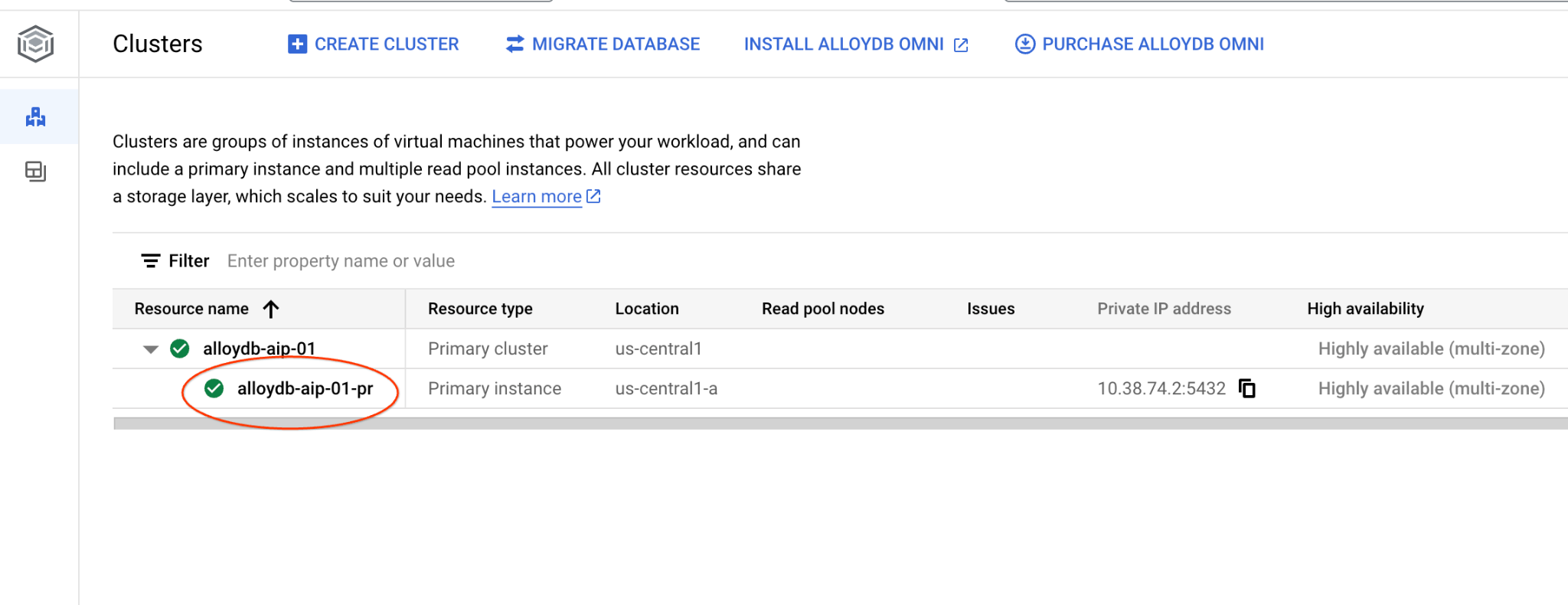
- 그런 다음 왼쪽에서 AlloyDB Studio를 클릭합니다.
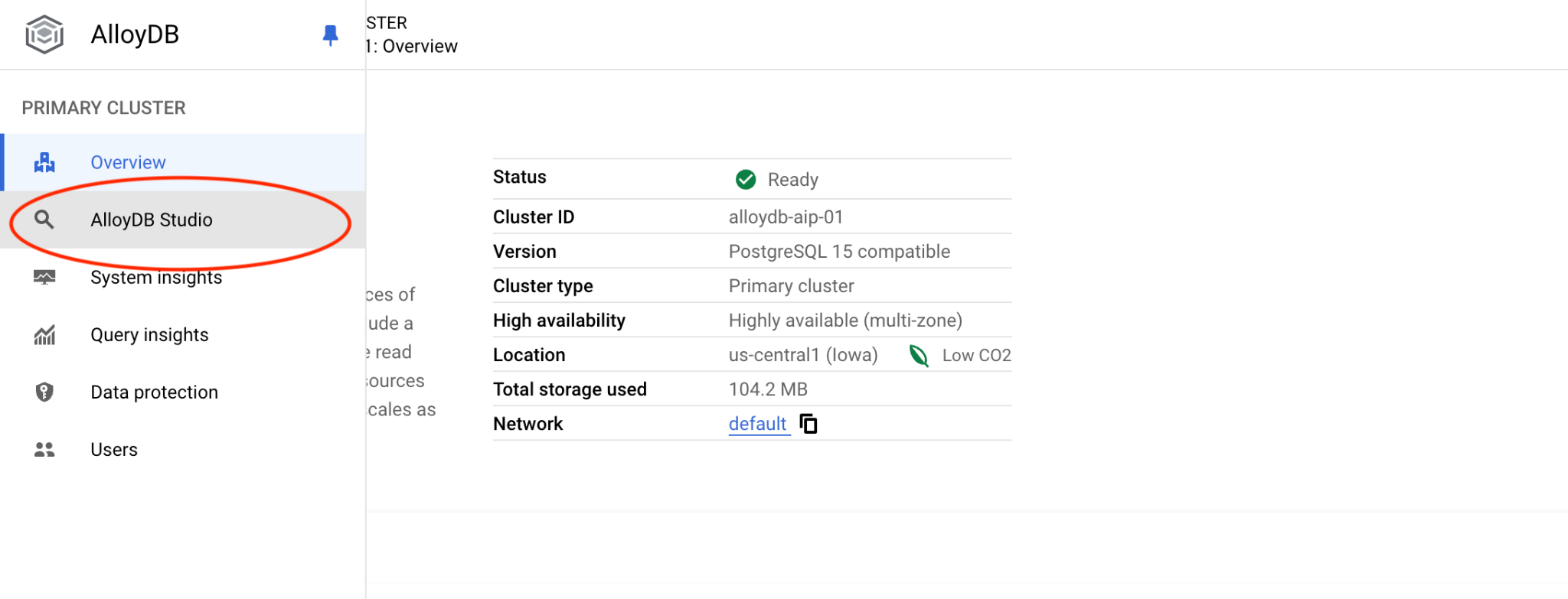
postgres데이터베이스를 선택하고 IAM 인증을 선택한 다음 인증을 클릭합니다.
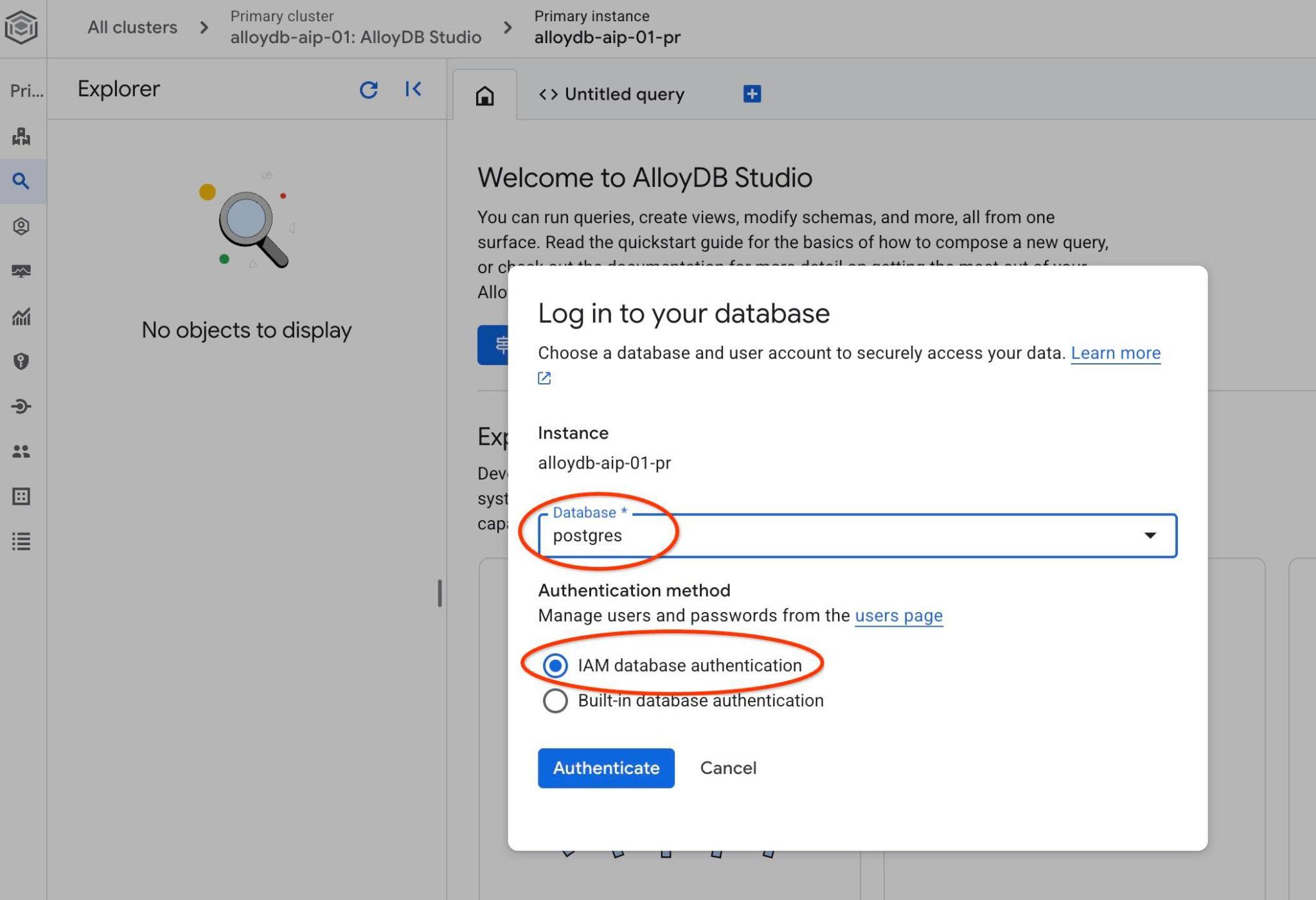
이 작업을 실행하면 AlloyDB Studio 인터페이스가 열립니다.
- 제목 없는 쿼리 탭을 선택하여 SQL 편집기를 엽니다.
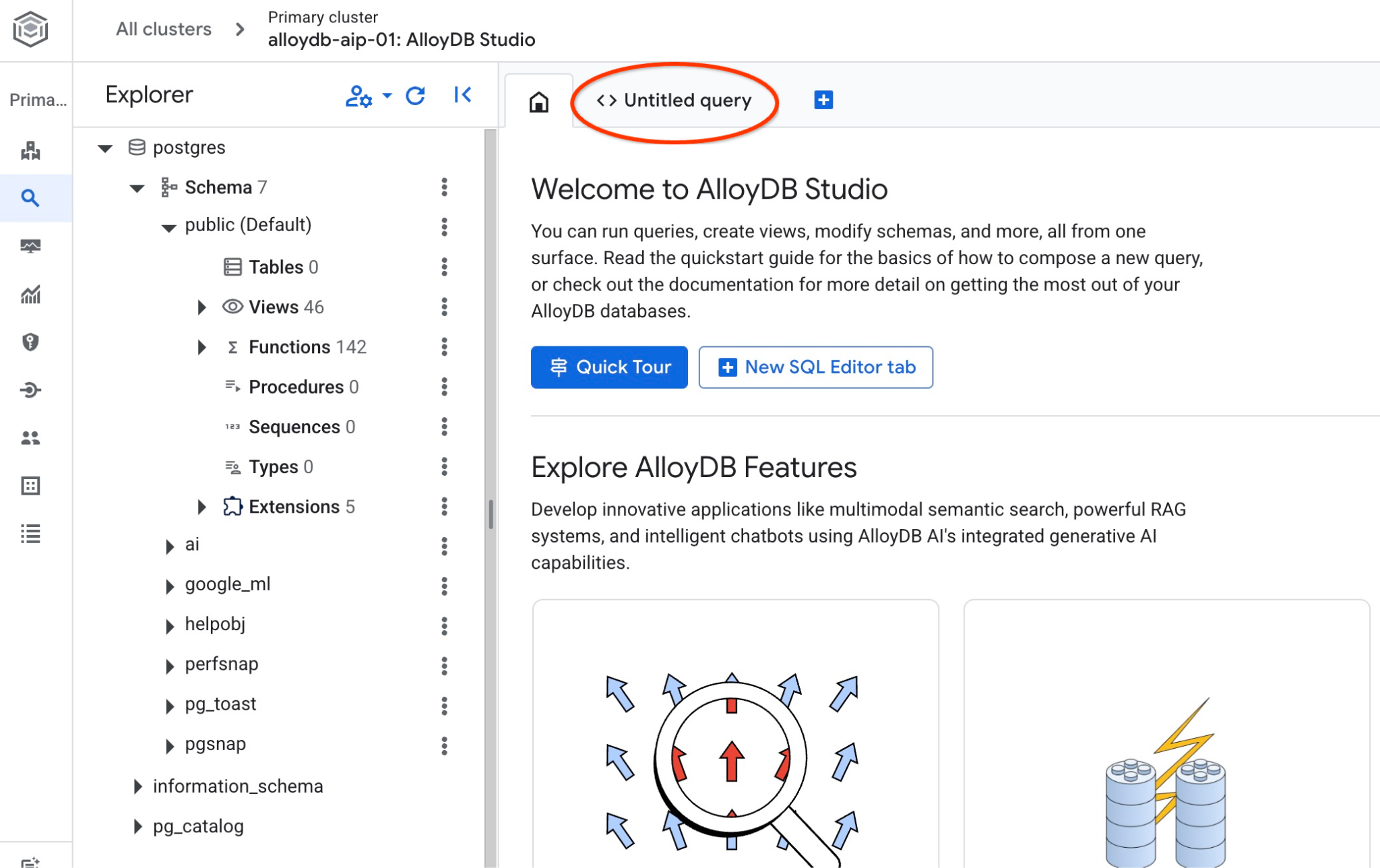
그러면 다음 이미지와 같이 SQL 명령어를 실행할 수 있는 편집기가 열립니다.
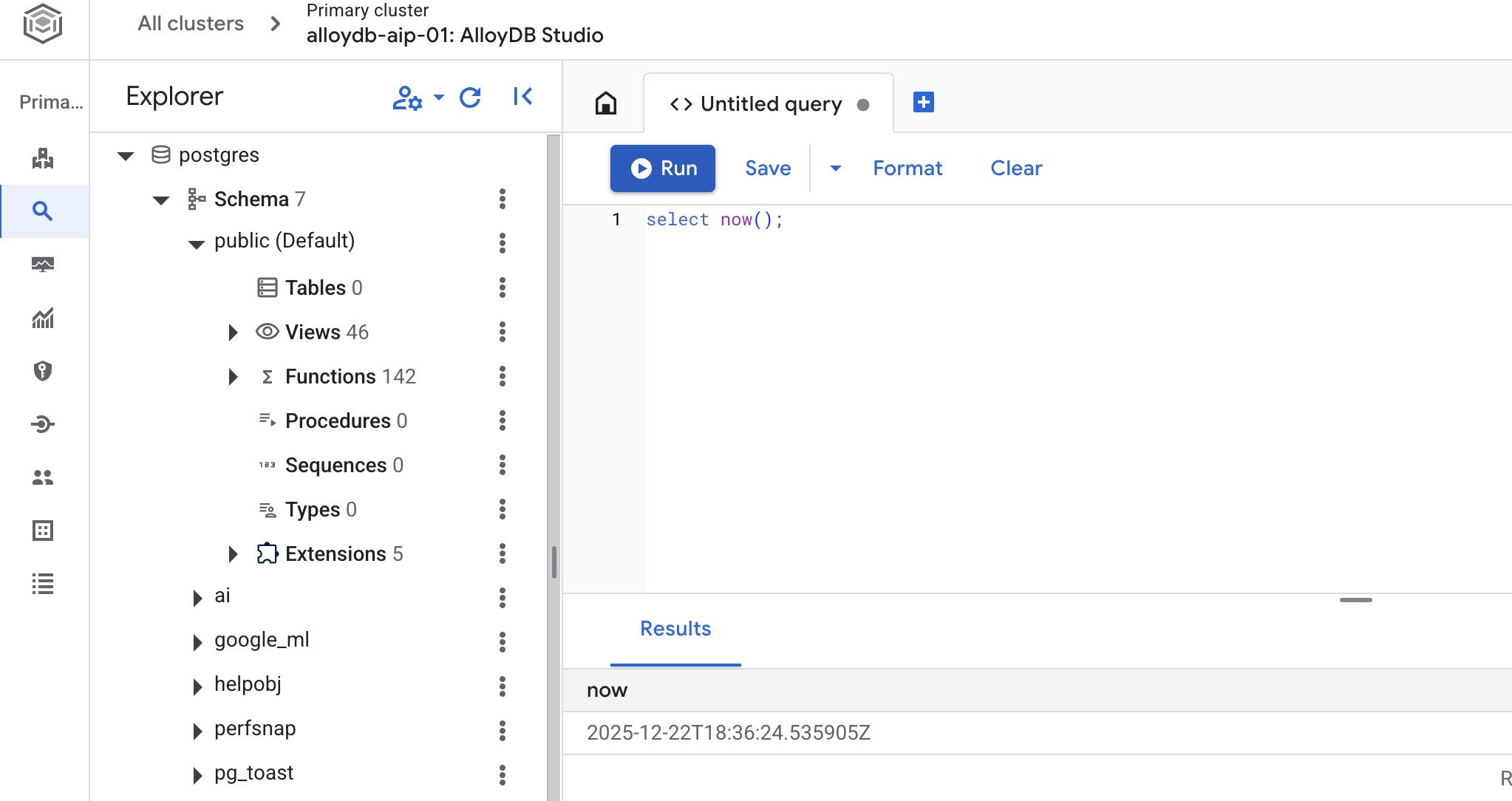
데이터베이스 만들기
빠른 시작 데이터베이스 만들기
AlloyDB Studio 편집기에서 다음 명령어를 실행하여 데이터베이스를 만듭니다.
CREATE DATABASE quickstart_db
예상 출력:
Statement executed successfully
quickstart_db에 연결
AlloyDB Studio에서 데이터베이스/사용자 변경을 클릭합니다.
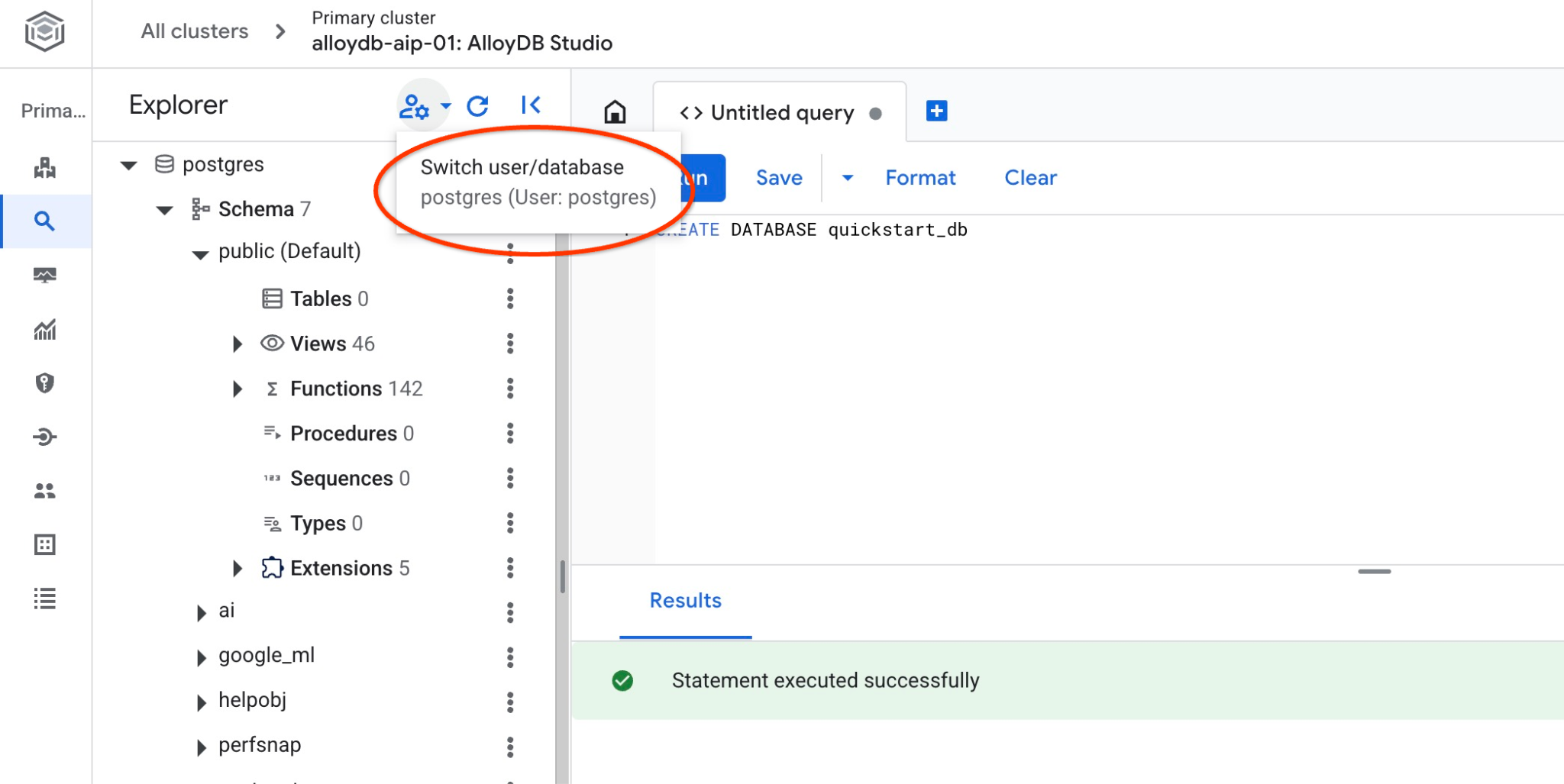
데이터베이스 목록에서 quickstart_db를 선택하고 IAM 인증을 선택한 후 인증합니다.
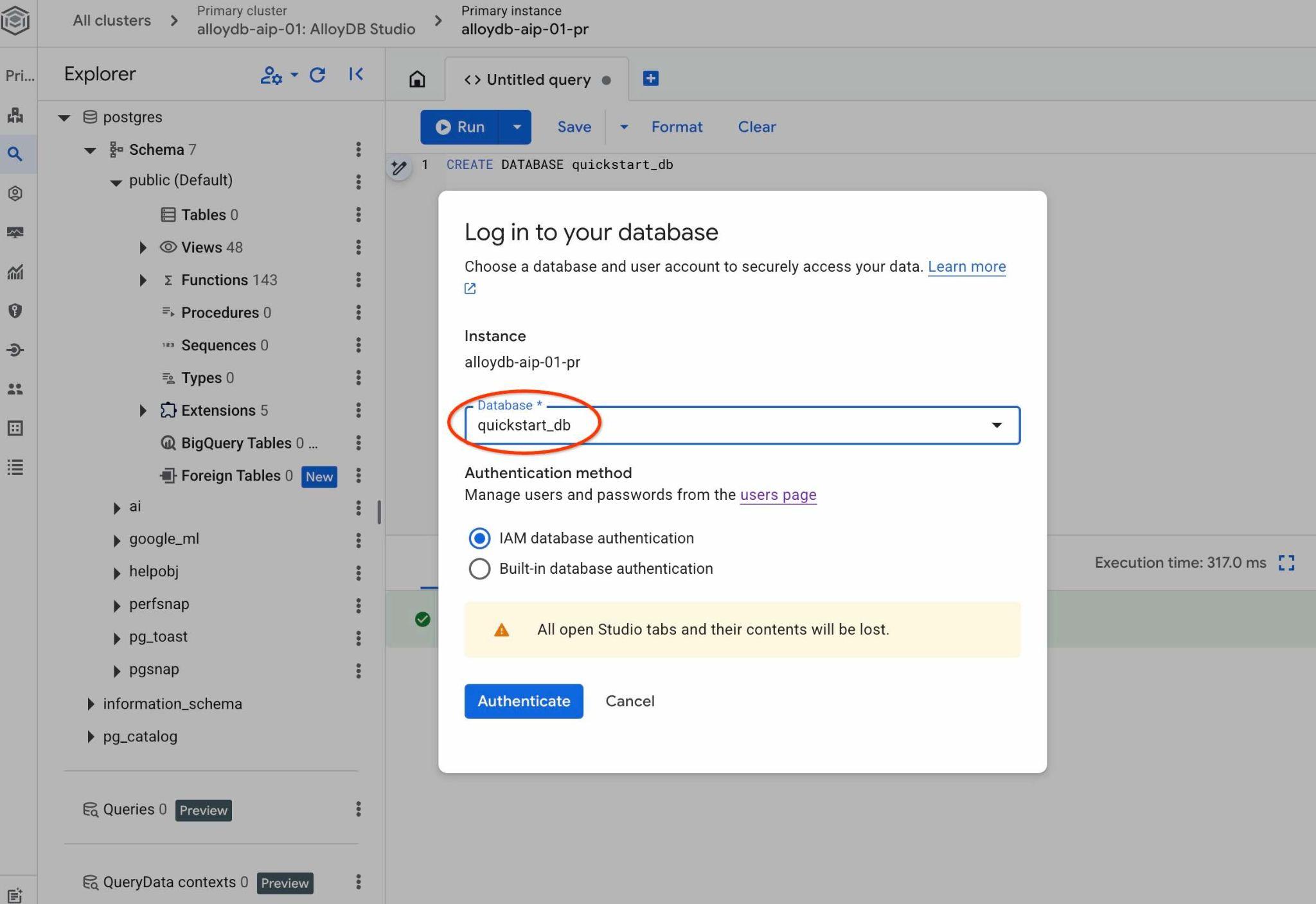
quickstart_db 데이터베이스의 객체를 사용할 수 있는 새 연결이 열립니다.
확장 프로그램 사용 설정
필수 확장 프로그램을 모두 확인하여 데이터베이스에서 사용 설정되어 있고 최소 버전이 올바른지 확인합니다.
필수 확장 프로그램이 데이터베이스에 있는지 확인합니다.
SELECT extname, extversion FROM pg_extension WHERE extname IN ('vector', 'google_ml_integration', 'parameterized_views');
예상 출력:
        extname        |   extversion
-----------------------+----------------
 google_ml_integration | 1.5.9
 parameterized_views   | 1.0
 vector                | 0.8.2.google-1
위의 행을 모두 반환하지 않으면 일부 확장 프로그램이 사용 설정되지 않은 것입니다.
확장 프로그램을 사용 설정하기 전에 인스턴스에서 모든 데이터베이스 플래그('google_ml_integration.enable_ai_query_engine' 및 'parameterized_views.enabled')이 사용 설정되어 있는지 확인해야 합니다.
AlloyDB Studio에서 quickstart_db에 연결된 상태로 다음을 실행합니다.
show google_ml_integration.enable_ai_query_engine;
show parameterized_views.enabled;
이 중 하나라도 'off'로 표시되면 '데이터베이스 플래그 업데이트' 단계를 반복하고 'show…' 명령어를 사용하여 상태를 다시 확인합니다.
필수 확장 프로그램을 사용 설정합니다.
AlloyDB Studio에서 quickstart_db에 연결된 상태로 다음을 실행합니다.
CREATE EXTENSION IF NOT EXISTS vector;
CREATE EXTENSION IF NOT EXISTS parameterized_views;
parameterized_views 및 google_ml의 확장 프로그램 버전을 확인합니다.
AlloyDB Studio에서 quickstart_db에 연결된 상태로 다음을 실행합니다.
SELECT extname, extversion FROM pg_extension WHERE extname IN ('vector', 'google_ml_integration', 'parameterized_views');
예상 출력:
        extname        |   extversion
-----------------------+----------------
 google_ml_integration | 1.5.9
 parameterized_views   | 1.0
 vector                | 0.8.2.google-1
버전이 필요한 버전보다 낮은 경우 parameterized_views 확장 프로그램을 업데이트해 보세요.
parameterized_views의 경우 다음을 시도해 보세요.
ALTER EXTENSION parameterized_views UPDATE;
버전을 다시 확인합니다.
AlloyDB Studio에서 quickstart_db에 연결된 상태로 다음을 실행합니다.
SELECT extname, extversion FROM pg_extension WHERE extname IN ('vector', 'google_ml_integration', 'parameterized_views');
예상 출력:
        extname        |   extversion
-----------------------+----------------
 google_ml_integration | 1.5.9
 parameterized_views   | 1.0
 vector                | 0.8.2.google-1
6. 샘플 데이터
이제 데이터베이스에서 객체를 만들고 데이터를 로드해야 합니다. 가상의 부동산 회사 데이터 세트를 사용합니다. 부동산 판매 및 중개인에 관한 가상의 데이터가 있습니다. 데이터는 클론된 저장소의 SQL 스크립트 real_estate_data.sql에 제공되었습니다.
스토리지 버킷 만들기
Google SDK (gcloud)를 사용하여 클론된 저장소에서 AlloyDB 데이터베이스로 데이터를 가져옵니다. 이를 위해 Cloud Storage 버킷을 만들고 AlloyDB 서비스 계정에 액세스 권한을 부여해야 합니다. 또는 문서에 설명된 대로 웹 콘솔을 사용하여 시도할 수도 있습니다.
Google Cloud Shell 터미널에서 다음을 실행합니다.
PROJECT_ID=$(gcloud config get-value project)
REGION=us-central1
gcloud storage buckets create gs://$PROJECT_ID-import --project=$PROJECT_ID --location=$REGION
gcloud storage buckets add-iam-policy-binding gs://$PROJECT_ID-import --member="serviceAccount:service-$(gcloud projects describe $PROJECT_ID --format="value(projectNumber)")@gcp-sa-alloydb.iam.gserviceaccount.com" --role=roles/storage.objectViewer
데이터 로드
데이터베이스 SQL 덤프는 클론된 저장소 폴더에 있습니다. 다음 명령어는 AlloyDB 클러스터를 만드는 동안 이전 단계에서 저장소를 클론할 때 홈 디렉터리를 시작점으로 사용했다고 가정합니다.
데이터베이스 덤프 파일을 Cloud Storage 버킷에 복사합니다.
REPO_NAME="codelabs"
SOURCE_DIR="alloydb-ai-nla"
cd ~/$REPO_NAME/$SOURCE_DIR
gcloud storage cp ~/$REPO_NAME/$SOURCE_DIR/real_estate_data.sql  gs://$PROJECT_ID-import
데이터 세트를 quickstart_db로 가져옵니다.
PROJECT_ID=$(gcloud config get-value project)
CLUSTER_NAME=alloydb-aip-01
REGION=us-central1
IAM_USER=$(gcloud config get-value account)
gcloud alloydb clusters import $CLUSTER_NAME  --region=us-central1 --database=quickstart_db --gcs-uri=gs://$PROJECT_ID-import/real_estate_data.sql --project=$PROJECT_ID --sql --user=$IAM_USER
이 명령어를 실행하면 샘플 데이터 세트가 quickstart_db 데이터베이스에 로드됩니다.
AlloyDB Studio를 사용하여 real_estate.agents 테이블의 레코드를 집계하여 가져오기를 확인합니다.
SELECT COUNT(*) FROM real_estate.agents;
7. 스키마 온톨로지 준비
QueryData 컨텍스트 세트를 설정하고, 스키마 메타데이터를 제공하고, ADK 에이전트를 실행합니다.
메타데이터 만들기
메타데이터는 데이터베이스 테이블과 열에 적용된 SQL 주석으로 구성됩니다. 이러한 주석은 데이터베이스 객체를 선택할 때 QueryData 엔진을 안내합니다.
제공된 SQL 덤프를 사용하여 데이터 스키마를 가져온 경우 모든 메타데이터가 스키마에 이미 생성되어 있습니다.
다음은 real_estate 스키마에 적용된 메타데이터의 스니펫 예입니다.
COMMENT ON TABLE real_estate.agents IS 'Stores profile, contact, brokerage affiliation, and active status for individual real estate agents.';

COMMENT ON COLUMN real_estate.agents.agent_id IS 'Primary key uniquely identifying each real estate agent in the database.';

...
자체 데이터 세트로 작업하는 경우 스키마의 메타데이터를 추가하는 방법에 관한 문서화된 가이드를 따르세요.
스키마 온톨로지 컨텍스트 만들기
컨텍스트 세트에는 AI 모델이 쿼리를 생성하는 데 도움이 되는 쿼리 템플릿, 패싯, 값 검색이 포함됩니다. 컨텍스트가 설정되지 않으면 AI 에이전트가 주로 테이블 이름, 열, 메타데이터를 기반으로 public 스키마에서 사용 가능한 정보만 사용하여 쿼리를 생성하여 자연어 쿼리 요청에 답변할 적절한 객체를 추론하려고 합니다.
QueryData 컨텍스트 세트는 쿼리 템플릿, 패싯, 값 검색이 포함된 JSON 파일입니다. 문서에서 다양한 예시를 확인할 수 있습니다.
웹 콘솔에서 QueryData 컨텍스트 세트 로드
컨텍스트 세트를 로드하려면 AlloyDB Studio를 열고 하단의 왼쪽 패널에 있는 Context sets 및 점 3개를 확인합니다.
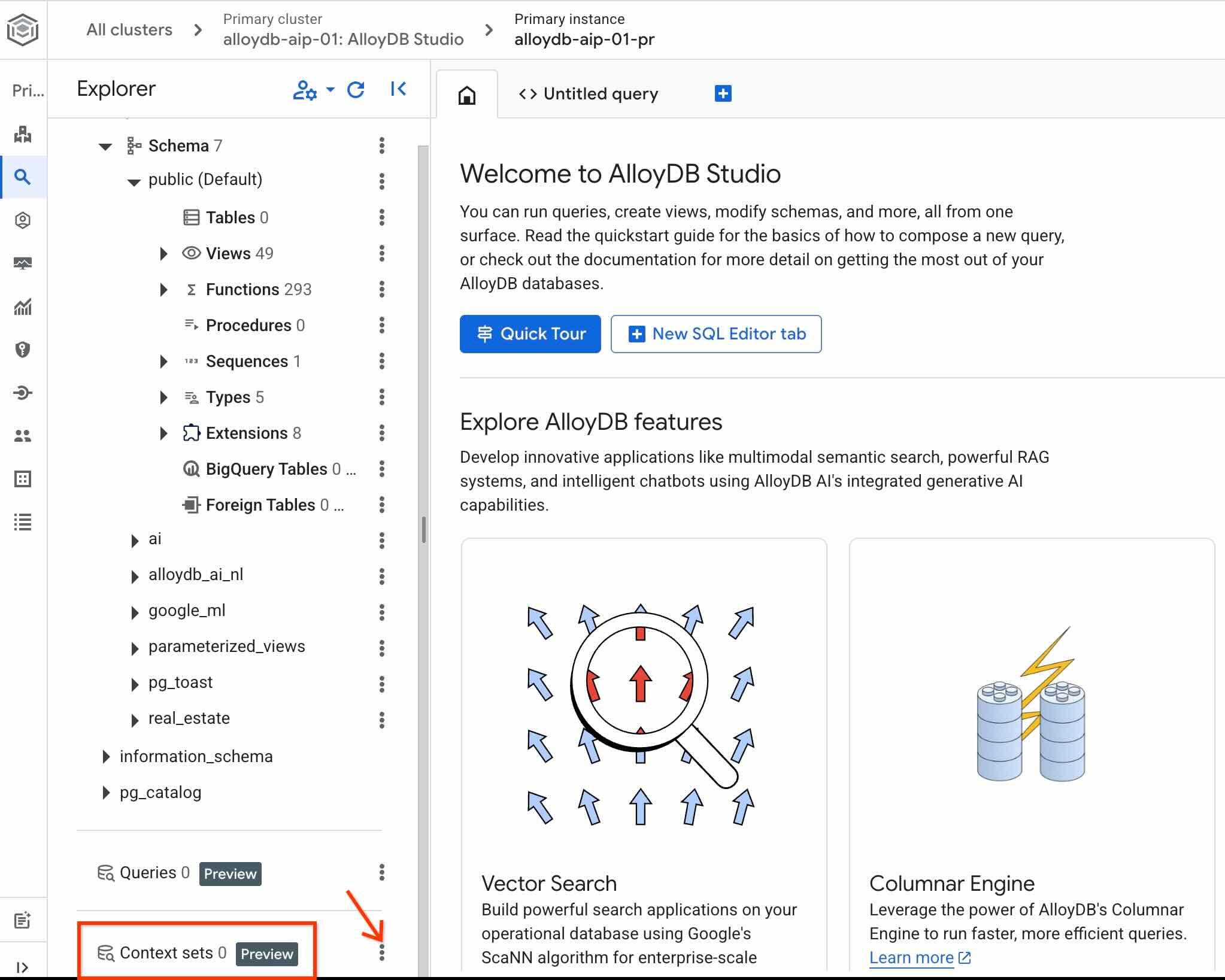
점 3개를 클릭하고 Create context set를 선택합니다.
열린 대화상자에 다음 값을 입력합니다.
- 이름:
sixrecipes - 설명:
Real Estate Query Data - 환경설정 파일 업로드: 비워 둠
Create 버튼을 누르면 처음인 경우 컨텍스트 스토리지를 초기화하는 데 시간이 걸릴 수 있습니다.
컨텍스트 세트 이름 오른쪽에 있는 점 3개를 다시 클릭하고 Edit context set를 선택하여 QueryData 컨텍스트 세트 ID를 확인합니다.

컨텍스트 세트 ID는 오른쪽의 열린 탭 상단에 표시됩니다.

이후 단계를 위해 이 ID를 저장합니다.
AI 에이전트 시작
문서에 설명된 대로 AlloyDB Studio 인터페이스를 사용하여 QueryData 백엔드와 상호작용하여 쿼리를 생성하고 실행할 수 있습니다. 하지만 이 실습에서는 AI 에이전트를 데이터베이스와의 주요 통신 도구로 사용합니다. AI 에이전트는 향후 워크로드에 더 현실적인 시나리오이며 Google ADK 프레임워크는 모델, API, 애플리케이션 간의 모든 단계와 상호작용을 확인할 수 있는 훌륭한 웹 인터페이스를 제공합니다.
Cloud Shell에서 에이전트 소스 구성을 검토합니다.
REPO_NAME="codelabs"
SOURCE_DIR="alloydb-ai-nla"
cd ~/$REPO_NAME/$SOURCE_DIR/data_agent
edit agent.py
파일에서 스키마의 테이블 목록이 정의된 위치를 확인할 수 있습니다. 이 내용은 향후 단계에서 다시 설명할 예정입니다.
# List of database tables included in QueryData API requests
TABLE_IDS = [
    "real_estate.municipalities",
    "real_estate.cities",
    "real_estate.agents",
    "real_estate.properties",
    "real_estate.schools",
    "real_estate.school_to_property",
    "real_estate.property_transactions",
    "real_estate.secure_offers",
]
QueryData API를 사용하는 절차 call_querydata_api와 QueryData API 기술을 사용하는 도구 모음이 있습니다.
def call_querydata_api(
    prompt: str,
    target_project_id: str = project_id,
    target_location: str = location,
    target_cluster_id: str = cluster_name,
    target_instance_id: str = instance_name,
    target_database_id: str = database_name,
    target_context_set_id: str = context_set_id,
    target_table_ids: list[str] = TABLE_IDS,
) -> dict:
    """Calls the Gemini Data Analytics QueryData API to translate natural ...
<Redacted>
...

# ADK File-Based Skill

database_query_skill = load_skill_from_dir(
    pathlib.Path(__file__).parent / "skills" / "database-query-skill"
)

skill_toolset = SkillToolset(
    skills=[database_query_skill]
)
프롬프트와 사용 가능한 도구가 포함된 루트 에이전트 자체는 다음과 같습니다.
# Agent configuration

root_agent = Agent(
    model=MODEL_ID,
    name='root_agent',
    description='A helpful assistant for analyst requests.',
    instruction=f"""
    Answer user questions to the best of your knowledge using provided tools.
    Do not try to generate non-existent data but use the grounded data from the database.
    When you answer questions about database contents, real estate properties, or sales activity:
    1. Refer to database-query-skill for instructions on querying data using QueryData API.
    2. Use `call_querydata_api` to submit the natural language prompt to the QueryData API.
       CRITICAL: Call `call_querydata_api` EXACTLY ONCE per user request. Do NOT make retries, follow-up calls, or rephrased calls to `call_querydata_api`, even if the result contains zero rows or empty data.
    3. Immediately parse the JSON response from that first `call_querydata_api` call.
    4. Format your final response to the user containing:
       - The generated SQL query (formatted in a Markdown SQL code block).
       - The query results formatted as a Markdown table (constructed from `queryResult.columns` and `queryResult.rows`).
       - The natural language answer (`naturalLanguageAnswer`).
    """,
    tools=[call_querydata_api, skill_toolset],
)
data_agent/SKILL.md를 검토하여 에이전트의 시스템 요청 사항을 이해합니다.
REPO_NAME="codelabs"
SOURCE_DIR="alloydb-ai-nla"
cd ~/$REPO_NAME/$SOURCE_DIR/data_agent
edit SKILL.md
에이전트를 시작하기 전에 에이전트 및 QueryData API 요청의 매개변수가 포함된 .env 파일을 준비해야 합니다.
컨텍스트 세트 ID를 환경 변수로 내보냅니다.
export QUERYDATA_CONTEXTSET=<context set id from the Create Context Set chapter>
data_agent 디렉터리에 런타임 환경 구성 파일 (.env)을 만듭니다.
PROJECT_ID=$(gcloud config get-value project)
REGION=us-central1
REPO_NAME="codelabs"
SOURCE_DIR="alloydb-ai-nla"
cd ~/$REPO_NAME/$SOURCE_DIR/data_agent
echo "GOOGLE_GENAI_USE_ENTERPRISE=true" > .env
echo "GOOGLE_CLOUD_PROJECT=$(gcloud config get-value project -q)" >> .env
echo "GOOGLE_CLOUD_LOCATION=global" >> .env
echo "QUERYDATA_CONTEXTSET=$QUERYDATA_CONTEXTSET" >> .env
echo "ALLOYDB_CLUSTER=alloydb-aip-01" >> .env
echo "ALLOYDB_INSTANCE=alloydb-aip-01-pr" >> .env
echo "ALLOYDB_DATABASE=quickstart_db" >> .env
echo "ALLOYDB_LOCATION=$REGION" >> .env
종속 항목을 설치하고 에이전트 웹 서비스를 시작합니다.
cd ~/$REPO_NAME/$SOURCE_DIR/
uv sync
에이전트를 시작합니다.
uv run adk web --allow_origins 'regex:https://.*\.cloudshell\.dev'
엔드포인트 http://127.0.0.1:8000과 함께 다음과 같은 출력이 표시되어야 합니다 .
INFO:     Started server process [83608]
INFO:     Waiting for application startup.

+-----------------------------------------------------------------------------+
| ADK Web Server started                                                      |
|                                                                             |
| For local testing, access at http://127.0.0.1:8000.                         |
+-----------------------------------------------------------------------------+

INFO:     Application startup complete.
INFO:     Uvicorn running on http://127.0.0.1:8000 (Press CTRL+C to quit)

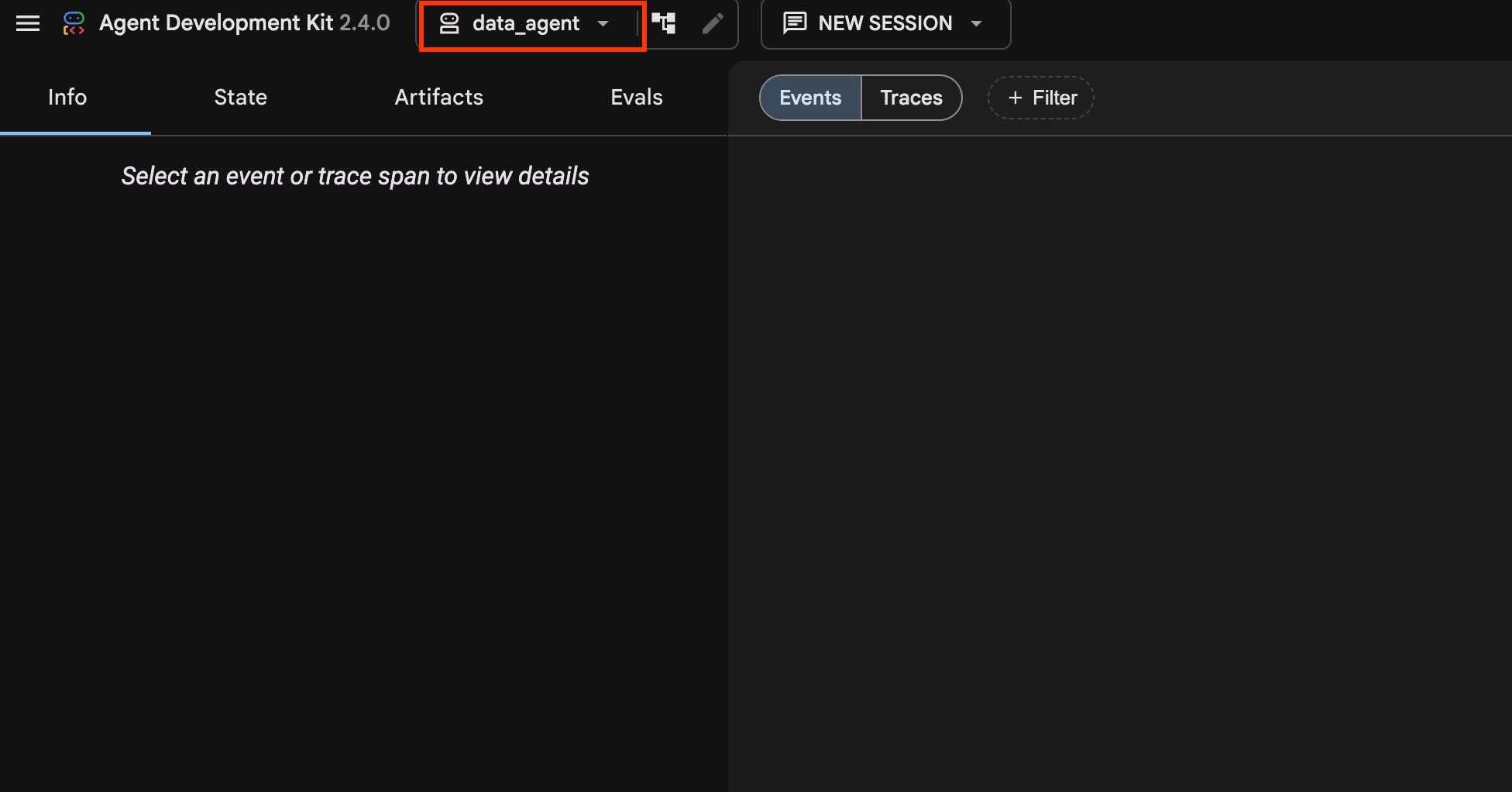
Cloud Shell에서 생성된 웹 서버 URL (예: http://127.0.0.1:8000)을 클릭하여 에이전트 인터페이스를 실행합니다. 작동하지 않으면 Cloud Shell에서 웹 미리보기 -> 포트 8000에서 미리보기를 클릭하여 에이전트 인터페이스를 엽니다.
왼쪽 상단의 드롭다운에서 data_agent가 선택되어 있는지 확인합니다.
쿼리 생성 및 실행
쿼리 Q1을 실행해 보겠습니다.
에이전트 채팅 인터페이스에서 다음 자연어 프롬프트를 실행하여 맞춤 템플릿이나 패싯 없이 기본 QueryData 성능을 평가합니다.
How many properties are currently for sale in San Diego?
화살표 버튼을 누릅니다.
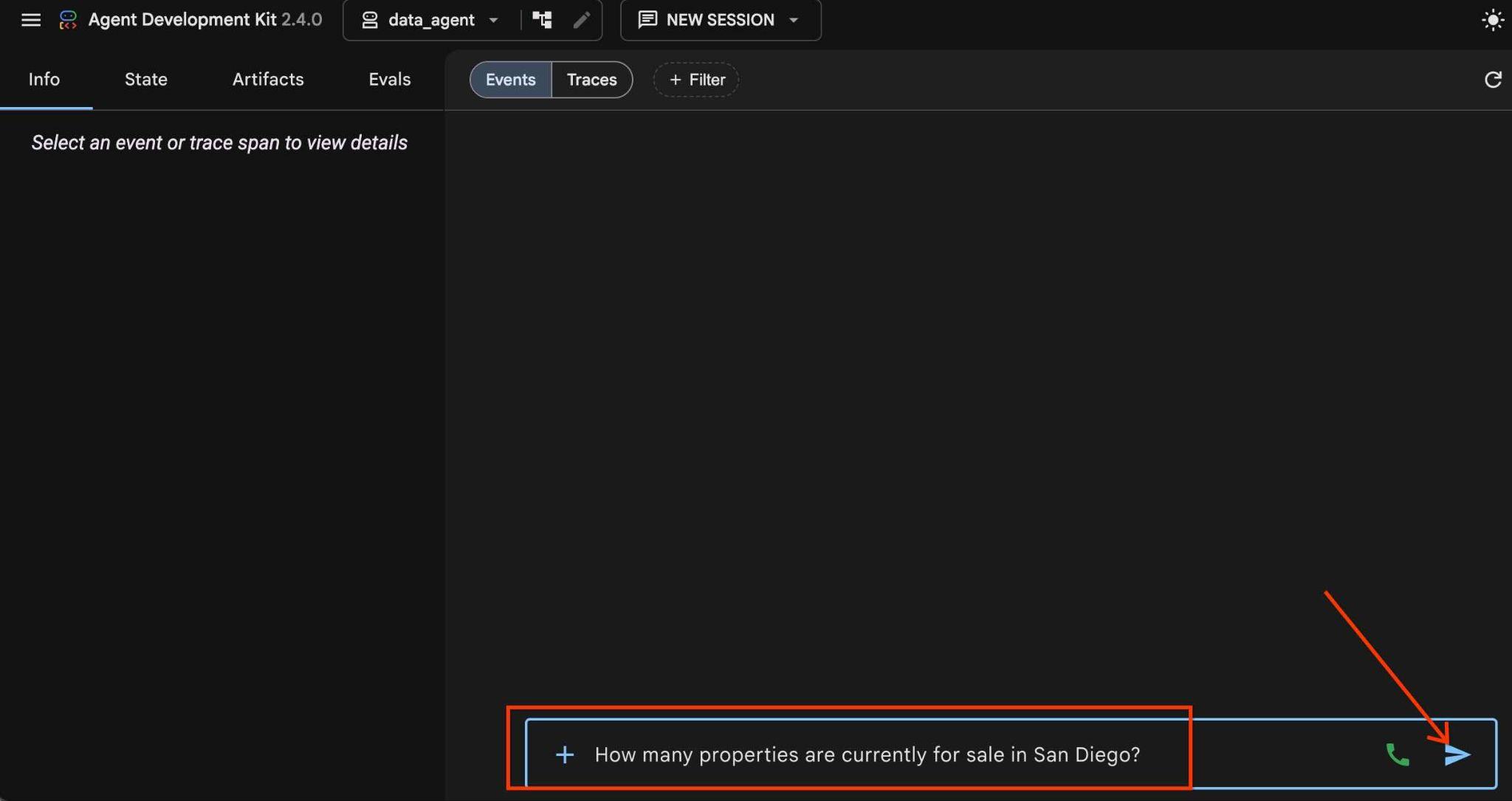
적절한 스킬을 선택하고 해당 스킬과 함수를 사용하여 API 엔드포인트로 요청을 전송하고 생성된 쿼리와 결과를 다시 가져오면 에이전트 워크플로가 시작됩니다.
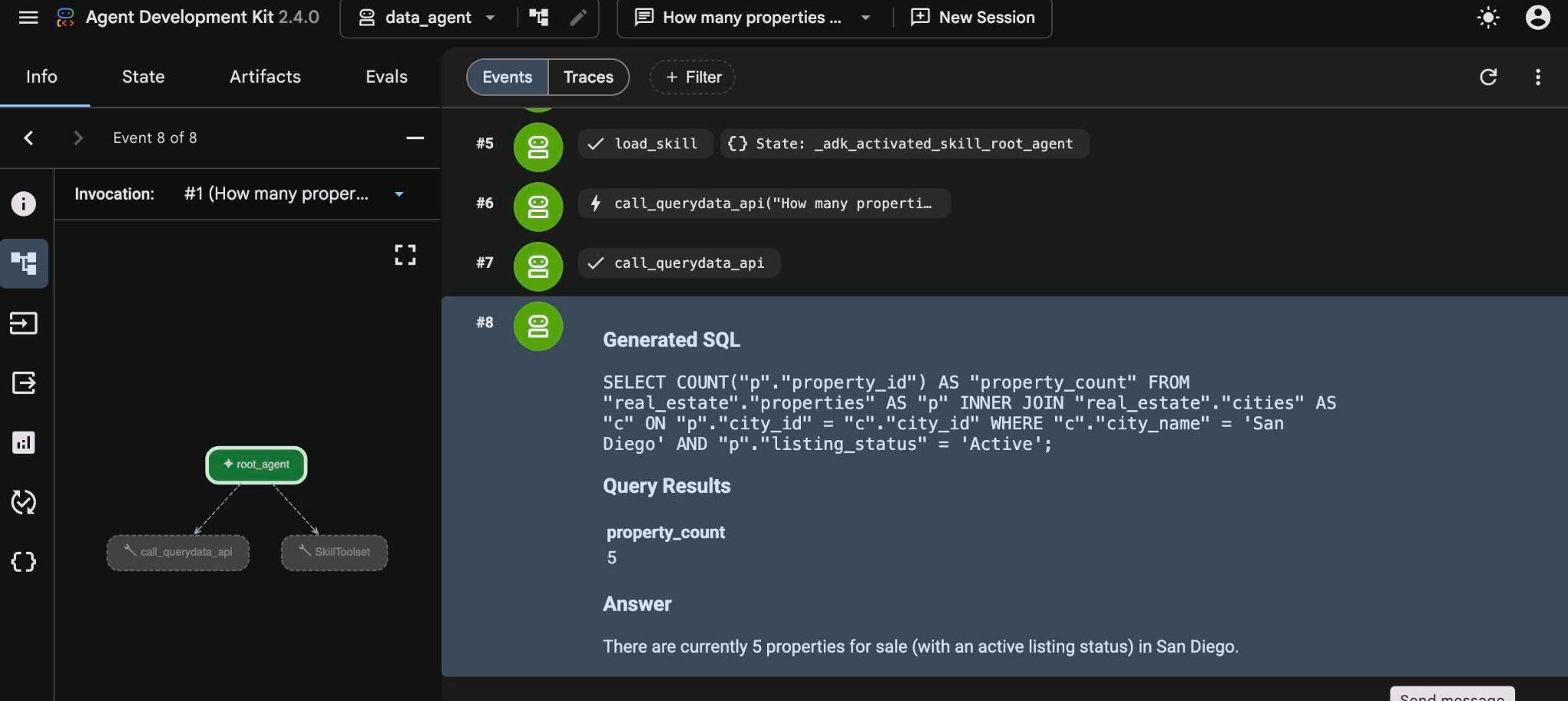
단계를 마우스 커서로 가져가면 해당 단계에서 수행한 작업을 정확히 확인할 수 있습니다. 또한 단계를 선택하면 왼쪽 패널에서 이 외에도 다양한 정보를 확인할 수 있습니다. 에이전트가 스킬 및 API와 어떻게 작동하는지 이해하는 데 도움이 될 수 있습니다.
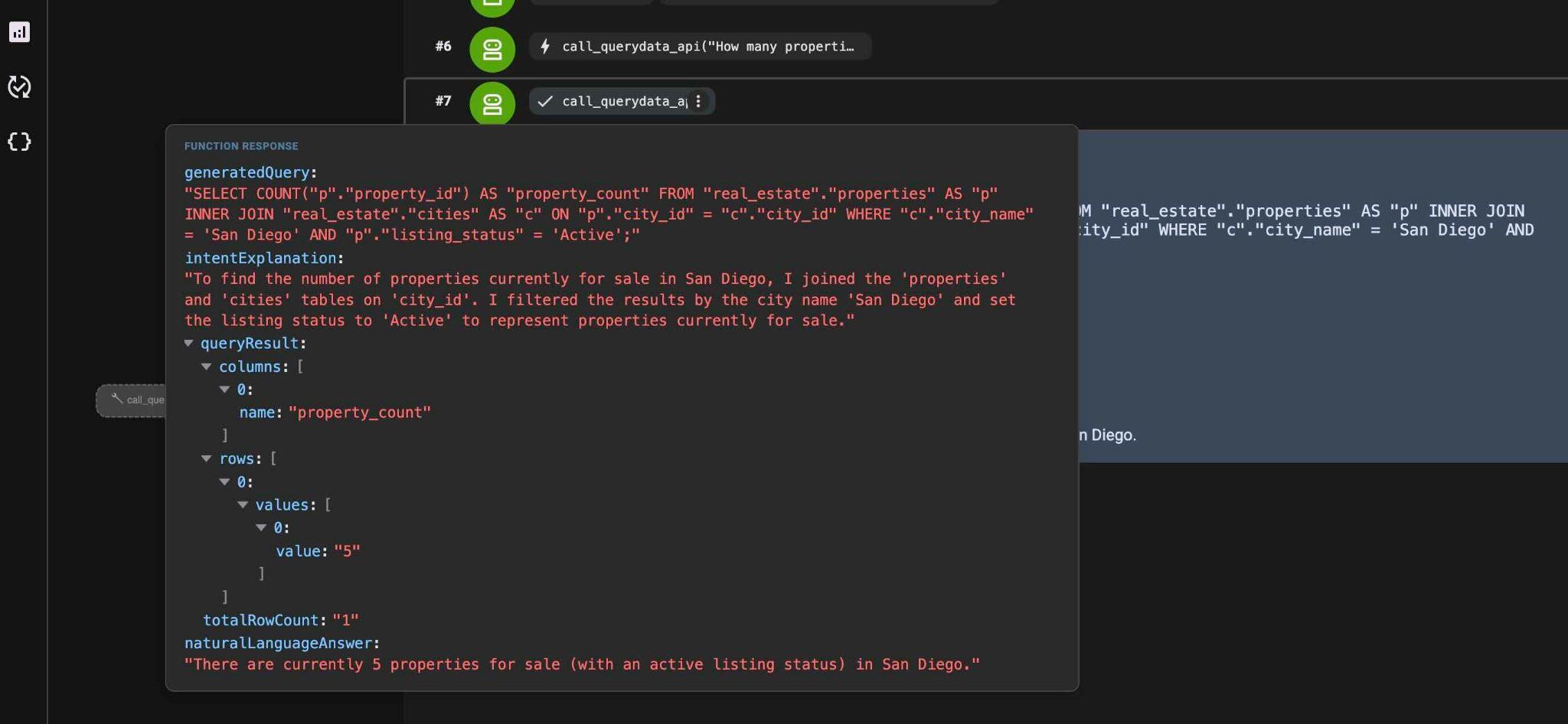
후속 질문 제출 (Q2):
List agents who sold a property for over $1000000.
에이전트가 사용 가능한 스킬을 이미 메모리에 작성했으므로 다시 검색 단계를 거칠 필요가 없어 QueryData API 스킬로 바로 이동하는 것을 확인할 수 있습니다.
생성된 SQL은 다음 문과 유사합니다.
SELECT DISTINCT "a"."agent_id", "a"."firstname", "a"."lastname", "a"."email", "a"."brokerage"
FROM "real_estate"."agents" AS "a"
INNER JOIN "real_estate"."property_transactions" AS "t" ON "a"."agent_id" = "t"."seller_agent_id"
WHERE "t"."sale_price" > 1000000 AND "a"."agent_id" IS NOT NULL
ORDER BY "a"."lastname" ASC NULLS LAST;
다른 질문을 시도해 보세요 (Q3).
What is the average price of a single-family home with a garage in San Diego?
QueryData는 컨텍스트가 비어 있는 표준 쿼리를 생성하지만 비즈니스 작업에는 특정 비즈니스 로직과 결정적 동작이 필요한 경우가 많습니다.
8. 해석을 삽입하여 높은 정확성과 비즈니스 관련성 달성
프롬프트에 해석을 삽입하면 생성된 쿼리가 특정 비즈니스 로직과 일치합니다.
델 마르의 단층 주택을 찾는 고객의 예시를 사용해 보겠습니다. 이 질문에는 두 가지 중요한 측정항목이 있으며 선택을 위한 빈번한 패턴을 나타냅니다.
에이전트에서 다음 자연어 프롬프트 (Q4)를 사용해 보세요.
Single level Del Mar houses
엔진은 일반적인 쿼리를 반환하지만 is_single_family = TRUE와 같은 추가 조건을 포함할 수 있습니다.
SELECT p."property_id", p."address_street", p."price", p."bedrooms", p."bathrooms", p."listing_status", p."is_single_family", p."num_stories", c."city_name"
FROM "real_estate"."properties" AS p
JOIN "real_estate"."cities" AS c ON p."city_id" = c."city_id"
WHERE c."city_name" ILIKE 'Del Mar' AND p."num_stories" = 1 AND p."is_single_family" = TRUE
ORDER BY p."property_id" ASC NULLS LAST;
결과로 반환된 행은 하나입니다.
Natural Language Answer
The database contains one single-level, single-family house in Del Mar:

Address: 999 Main Ave (Postal Code: 90024)
Price: $3,800,000.00
Bedrooms: 4
Bathrooms: 3.5
Listing Status: Active
Features: Single-family home (1 story), has a garage, and no condo fees.
다른 프롬프트 테스트 (Q5):
Del Mar houses close to good schools
proximity_miles 및 school_ranking 열을 사용하여 속성을 정렬할 수 있지만 각 측정항목의 가중치와 중요도는 평가하지 않습니다.
SELECT "p"."property_id", "p"."address_street", "p"."price", "p"."bedrooms", "p"."bathrooms", "s"."school_name", "s"."school_ranking", "sp"."proximity_miles"
FROM "real_estate"."properties" AS "p"
INNER JOIN "real_estate"."cities" AS "c" ON "p"."city_id" = "c"."city_id"
INNER JOIN "real_estate"."school_to_property" AS "sp" ON "p"."property_id" = "sp"."property_id"
INNER JOIN "real_estate"."schools" AS "s" ON "sp"."school_id" = "s"."school_id"
WHERE "c"."city_name" = 'Del Mar' AND "sp"."proximity_miles" IS NOT NULL AND "s"."school_ranking" IS NOT NULL
ORDER BY "sp"."proximity_miles" ASC NULLS LAST, "s"."school_ranking" ASC NULLS LAST;
예시 쿼리를 템플릿으로 일반화
비즈니스 로직에는 다음이 필요합니다.
- 2마일 이내
- 학교 순위가 5 이하
- 가중치 적용 순서: 80% 학교 순위 + 20% 근접성 (점수 = 0.8 * school_ranking + 0.2 * proximity_miles)
가중치가 적용된 순위 공식은 다음과 같습니다.
Score = 0.8 * school_ranking + 0.2 * proximity_miles
Cloud Shell에서 명령줄 인터페이스를 사용하여 Cloud Shell에서 sixrecipe_context1_1.json 컨텍스트 파일을 다운로드합니다.
cloudshell download ~/codelabs/alloydb-ai-nla/sixrecipe_context1_1.json
또는 Cloud Shell 메뉴에서 Download 메뉴 항목을 사용합니다.
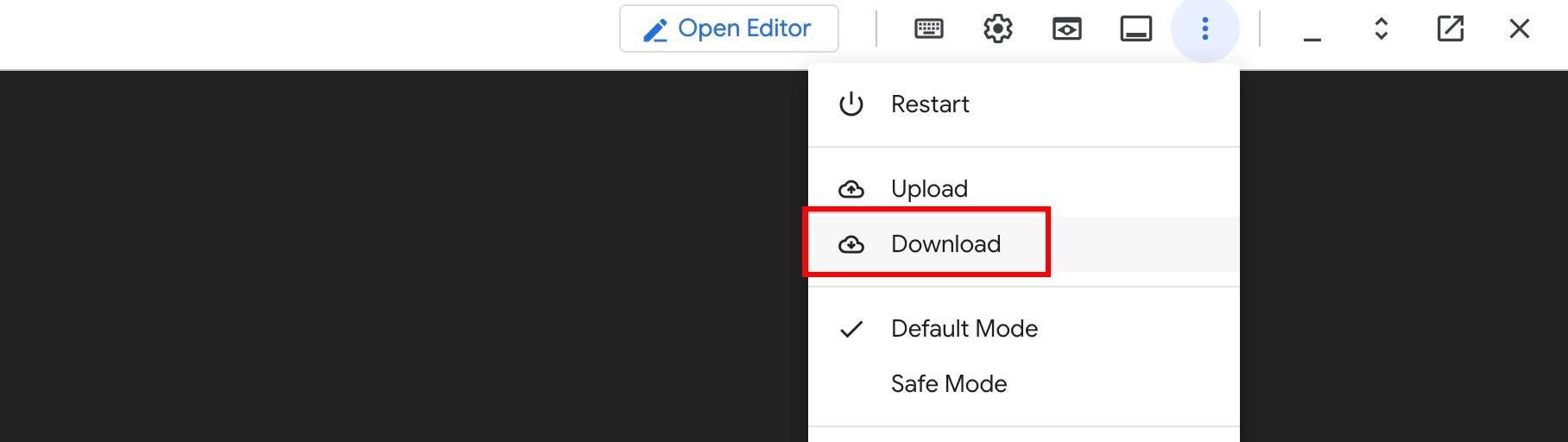
AlloyDB Studio를 사용하여 sixrecipe_context1_1.json를 sixrecipe 컨텍스트 세트에 업로드하여 이 표준 구조를 정의합니다. sixrecipes 컨텍스트 오른쪽에 있는 점 3개를 클릭하고 '컨텍스트 세트 수정'을 사용하여 새 파일을 업로드합니다. 이렇게 하면 이전 빈 컨텍스트가 새 컨텍스트로 대체됩니다.
템플릿은 우수한 학교 근접성 규칙을 위한 명시적 SQL 템플릿 규칙을 정의합니다.
{
  "facets": [],
  "templates": [
    {
      "nl_query": "Riverside houses close to good schools.",
      "sql": "SELECT \"p\".\"address_street\", \"p\".\"address_postal_code\", \"s\".\"school_name\", \"stp\".\"proximity_miles\" FROM \"real_estate\".\"properties\" AS \"p\" JOIN \"real_estate\".\"cities\" AS \"c\" ON \"p\".\"city_id\" = \"c\".\"city_id\" JOIN \"real_estate\".\"school_to_property\" AS \"stp\" ON \"p\".\"property_id\" = \"stp\".\"property_id\" JOIN \"real_estate\".\"schools\" AS \"s\" ON \"stp\".\"school_id\" = \"s\".\"school_id\" WHERE \"c\".\"city_name\" = 'Riverside' AND \"s\".\"school_ranking\" <= 5 AND \"stp\".\"proximity_miles\" <= 2 ORDER BY 0.8 * \"s\".\"school_ranking\" + 0.2 * \"stp\".\"proximity_miles\"",
      "intent": "Houses in Riverside close to good schools (within 2 miles of schools with a rank of at least 5).",
      "manifest": "A given city houses close to good schools.",
      "parameterized": {
        "parameterized_intent": "Houses in $1 close to good schools (within 2 miles of schools with a rank of at least 5).",
        "parameterized_sql": "SELECT \"p\".\"address_street\", \"p\".\"address_postal_code\", \"s\".\"school_name\", \"stp\".\"proximity_miles\" FROM \"real_estate\".\"properties\" AS \"p\" JOIN \"real_estate\".\"cities\" AS \"c\" ON \"p\".\"city_id\" = \"c\".\"city_id\" JOIN \"real_estate\".\"school_to_property\" AS \"stp\" ON \"p\".\"property_id\" = \"stp\".\"property_id\" JOIN \"real_estate\".\"schools\" AS \"s\" ON \"stp\".\"school_id\" = \"s\".\"school_id\" WHERE \"c\".\"city_name\" = $1 AND \"s\".\"school_ranking\" <= 5 AND \"stp\".\"proximity_miles\" <= 2 ORDER BY 0.8 * \"s\".\"school_ranking\" + 0.2 * \"stp\".\"proximity_miles\""
      }
    }
  ]
}
프롬프트를 다시 실행합니다.
Del Mar houses close to good schools
이제 결과 쿼리가 템플릿에 정의된 비즈니스 로직과 일치합니다.
SELECT "p"."address_street", "p"."address_postal_code", "s"."school_name", "stp"."proximity_miles"
FROM "real_estate"."properties" AS "p"
JOIN "real_estate"."cities" AS "c" ON "p"."city_id" = "c"."city_id"
JOIN "real_estate"."school_to_property" AS "stp" ON "p"."property_id" = "stp"."property_id"
JOIN "real_estate"."schools" AS "s" ON "stp"."school_id" = "s"."school_id"
WHERE "c"."city_name" = 'Del Mar' AND "s"."school_ranking" <= 5 AND "stp"."proximity_miles" <= 2
ORDER BY 0.8 * "s"."school_ranking" + 0.2 * "stp"."proximity_miles"
생성된 SQL 문과 함께 다음 의도가 생성됩니다.
intentExplanation: "Houses in Del Mar close to good schools (within 2 miles of schools with a rank of at least 5)."
ADK 웹 인터페이스의 왼쪽 창에서 의도를 확인할 수 있습니다.
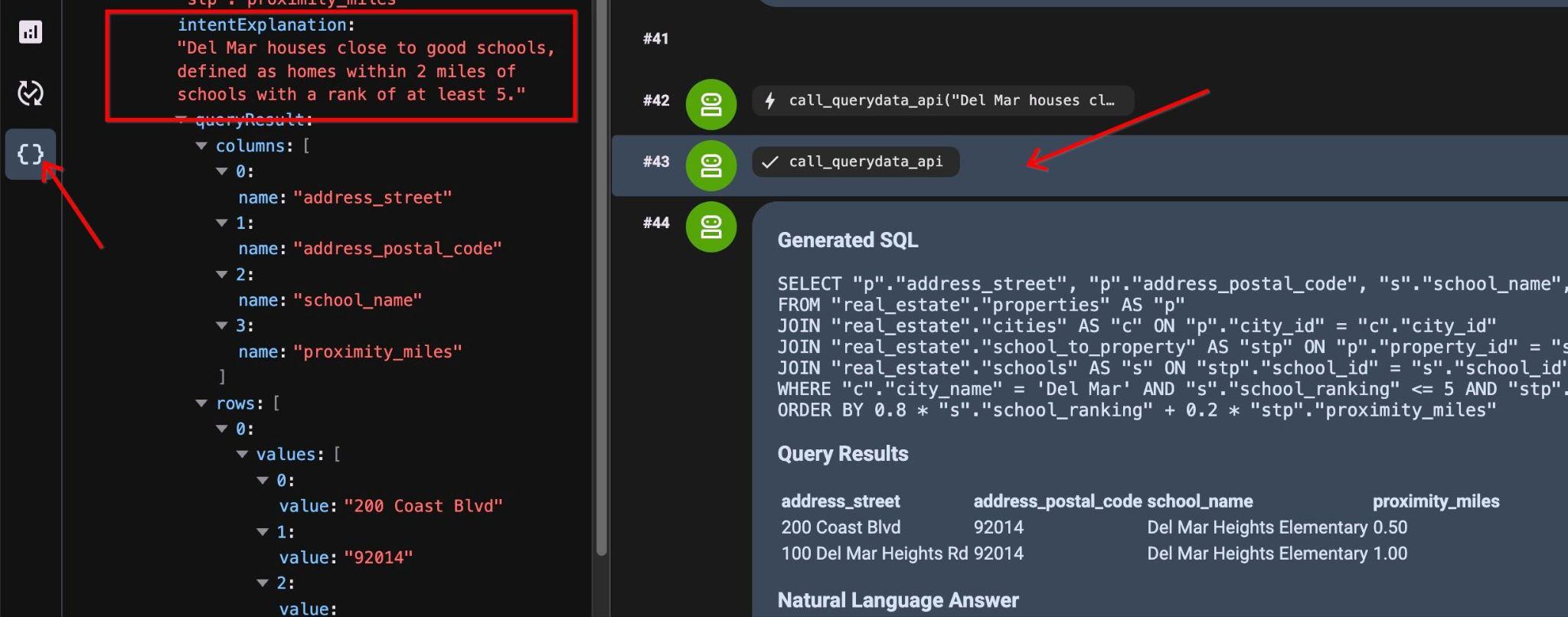
결과에는 점수를 기준으로 정렬된 두 가지 속성이 표시됩니다.
Query Results
address_street        address_postal_code        school_name        proximity_miles
200 Coast Blvd        92014        Del Mar Heights Elementary        0.50
100 Del Mar Heights Rd        92014        Del Mar Heights Elementary        1.00
Answer
Based on the data, here are the properties in Del Mar located within 2 miles of a top-rated school (ranking of 5 or better):

200 Coast Blvd (92014)

School: Del Mar Heights Elementary
Proximity: 0.50 miles
100 Del Mar Heights Rd (92014)

School: Del Mar Heights Elementary
Proximity: 1.00 miles
다음 장에서는 템플릿의 범위를 확장합니다.
여러 질문을 파악하고 해석하여 해석 삽입
'좋은 학교 근처'뿐만 아니라 매니페스트에 다른 조건을 추가하여 '자녀가 있는 가족을 위한 주택'과 같은 용도로 사용할 수 있도록 템플릿의 범위를 확장할 수 있습니다.
업데이트된 환경설정 파일을 다운로드합니다.
cloudshell download ~/codelabs/alloydb-ai-nla/sixrecipe_context1_2.json
업데이트된 sixrecipe_context1_2.json 파일을 컨텍스트 세트에 업로드합니다.
새 컨텍스트 설정 파일에서 매니페스트 "manifest": "A given city houses close to good schools."을 매니페스트 "manifest": "A given city houses close to good schools, or are great for families with kids."로 대체합니다. 이 템플릿을 한 가지 사례 이상에 사용할 수 있도록 애플리케이션을 확장합니다.
다음 쿼리 (Q6)를 제출합니다.
Houses in Waterloo great for families with kids.
에이전트는 업데이트된 템플릿 매니페스트를 사용하여 표준화된 쿼리 로직을 적용하여 다음과 같은 의도로 위와 동일한 쿼리를 반환합니다.
intentExplanation
:
"Houses in Waterloo close to good schools (within 2 miles of schools with a rank of at least 5)."
9. 패싯형 템플릿을 사용하여 유연성을 유지하면서 높은 정확도 달성
패싯은 모든 순열에 대해 별도의 템플릿을 만들지 않고도 한정자('초보자 가족', '오션뷰' 등)를 처리하기 위해 템플릿과 동적으로 결합된 모듈식 SQL 조건입니다.
각 쿼리 또는 조건에 대해 템플릿을 만드는 대신 기존 템플릿에 적용하여 쿼리에 측정기준을 추가할 수 있는 프래그먼트를 준비할 수 있습니다.
다음 속성을 사용하여 속성의 패싯을 정의합니다.
- 단독 주택
- 활성 등록정보 상태
- 침실 3~4개, 욕실 2개 이상
- 인구 10만 명당 범죄율이 500 미만인 지방 자치 단체
패싯 환경설정 파일을 다운로드합니다.
cloudshell download ~/codelabs/alloydb-ai-nla/sixrecipe_context2_1.json
AlloyDB Studio의 sixrecipes 컨텍스트 세트에 sixrecipe_context2_1.json을 업로드하여 패싯을 구성합니다.
  "facets": [
    {
      "sql_snippet": "real_estate.properties.is_single_family = TRUE AND real_estate.properties.listing_status = 'Active' AND real_estate.properties.bedrooms BETWEEN 3 AND 4 AND real_estate.properties.bathrooms >= 2.0 AND 500 > (SELECT m.crime_rate_per_100k FROM real_estate.cities c JOIN real_estate.municipalities m ON c.municipality_id = m.municipality_id AND c.city_id = real_estate.properties.city_id)",
      "intent": "for a starter family (active single-family home listings with 3 to 4 bedrooms, 2+ bathrooms, and a crime rate under 500 per 100,000 residents)",
      "manifest": "for a starter family",
      "parameterized": {
        "parameterized_intent": "for a starter family (active single-family home listings with 3 to 4 bedrooms, 2+ bathrooms, and a crime rate under 500 per 100,000 residents)",
        "parameterized_sql_snippet": "real_estate.properties.is_single_family = TRUE AND real_estate.properties.listing_status = 'Active' AND real_estate.properties.bedrooms BETWEEN 3 AND 4 AND real_estate.properties.bathrooms >= 2.0 AND 500 > (SELECT m.crime_rate_per_100k FROM real_estate.cities c JOIN real_estate.municipalities m ON c.municipality_id = m.municipality_id AND c.city_id = real_estate.properties.city_id)"
      }
    }
  ]
속성별 검색을 사용하여 쿼리
다음 NL 쿼리 (Q7)를 실행합니다.
Del Mar houses close to good schools for a starter family.
엔진은 패싯 조건을 기본 쿼리에 직접 추가합니다.
SELECT "p"."address_street", "p"."address_postal_code", "s"."school_name", "stp"."proximity_miles"
FROM "real_estate"."properties" AS "p"
JOIN "real_estate"."cities" AS "c" ON "p"."city_id" = "c"."city_id"
JOIN "real_estate"."school_to_property" AS "stp" ON "p"."property_id" = "stp"."property_id"
JOIN "real_estate"."schools" AS "s" ON "stp"."school_id" = "s"."school_id"
WHERE "c"."city_name" = 'Del Mar'
  AND "s"."school_ranking" <= 5
  AND "stp"."proximity_miles" <= 2
  AND "p"."is_single_family" = TRUE
  AND "p"."listing_status" = 'Active'
  AND "p"."bedrooms" BETWEEN 3 AND 4
  AND "p"."bathrooms" >= 2.0
  AND 500 > (
    SELECT m.crime_rate_per_100k
    FROM real_estate.cities c
    JOIN real_estate.municipalities m ON c.municipality_id = m.municipality_id
    AND c.city_id = p.city_id
  )
ORDER BY 0.8 * "s"."school_ranking" + 0.2 * "stp"."proximity_miles"
결과는 다음과 같습니다.
Query Results
address_street        address_postal_code        school_name        proximity_miles
200 Coast Blvd        92014        Del Mar Heights Elementary        0.50
Natural Language Answer
Based on your criteria, there is an active listing for a single-family house in Del Mar that fits your needs:

Address: 200 Coast Blvd, Del Mar, 92014
Nearby School: Del Mar Heights Elementary (ranked within the top 5)
Proximity to School: 0.50 miles
패싯 추가
새로 등장하는 패턴을 기반으로 속성의 창 보기와 같은 차원을 하나 더 추가하려면 어떻게 해야 할까요?
패싯 정의 내에 바다 전망 시맨틱 매칭을 추가합니다.
    {
      "sql_snippet": "((real_estate.properties.description_embedding <=> google_ml.embedding('gemini-embedding-001', 'unobstructed, panoramic, ocean vista, vast Pacific, breathtaking, commanding view, deep blue horizon, massive, sweeping view')::vector) < 0.4)",
      "intent": "with ocean view",
      "manifest": "with ocean view",
      "parameterized": {
        "parameterized_intent": "with ocean view",
        "parameterized_sql_snippet": "((real_estate.properties.description_embedding <=> google_ml.embedding('gemini-embedding-001', 'unobstructed, panoramic, ocean vista, vast Pacific, breathtaking, commanding view, deep blue horizon, massive, sweeping view')::vector) < 0.4)"
      }
위 패싯 정의의 값 0.4는 실험적으로 보정된 임계값입니다. 다각적인 환경설정 파일을 다운로드합니다.
cloudshell download ~/codelabs/alloydb-ai-nla/sixrecipe_context2_2.json
sixrecipe_context2_2.json를 컨텍스트 세트에 업로드하고 다음 프롬프트 (Q8)를 실행합니다.
Ocean view Del Mar homes near good schools.
출력에는 표준 조건과 google_ml.embedding를 통한 벡터 유사성 매칭이 결합되어 있습니다.
SELECT "p"."address_street", "p"."address_postal_code", "s"."school_name", "stp"."proximity_miles"
FROM "real_estate"."properties" AS "p"
JOIN "real_estate"."cities" AS "c" ON "p"."city_id" = "c"."city_id"
JOIN "real_estate"."school_to_property" AS "stp" ON "p"."property_id" = "stp"."property_id"
JOIN "real_estate"."schools" AS "s" ON "stp"."school_id" = "s"."school_id"
WHERE "c"."city_name" = 'Del Mar' AND "s"."school_ranking" <= 5 AND "stp"."proximity_miles" <= 2
AND (((p.description_embedding <=> google_ml.embedding('gemini-embedding-001', 'unobstructed, panoramic, ocean vista, vast Pacific, breathtaking, commanding view, deep blue horizon, massive, sweeping view')::vector) <= 0.4))
ORDER BY 0.8 * "s"."school_ranking" + 0.2 * "stp"."proximity_miles";
쿼리는 하나의 속성을 반환합니다.
Query Results
address_street        address_postal_code        school_name        proximity_miles
100 Del Mar Heights Rd        92014        Del Mar Heights Elementary        1.00
Answer
The ocean-view home in Del Mar near a top-ranked school is located at 100 Del Mar Heights Rd (92014).

It is situated just 1.00 mile away from Del Mar Heights Elementary, which is one of the area's highly-ranked schools (ranking of 5 or better).
AlloyDB Studio에서 속성의 설명을 확인하고 다음 쿼리를 실행하여 결과를 확인합니다.
select description from real_estate.properties where address_postal_code='92014' and description is not null;
'장엄한 해양 장관'이라는 설명이 표시됩니다.
Well-located 2-bedroom condo with excellent proximity to coastal shopping and dining. The balcony provides a magnificent marine spectacle against an azure backdrop. Under contract, high monthly HOA fee.
10. 값 검색을 사용한 내부 전용 데이터의 모호성 해소
모호한 요청은 위치 이름과 업체 이름을 혼동하는 등 여러 항목과 일치할 수 있습니다. 값 검색은 이러한 참조를 해결하는 데 도움이 되도록 용어를 데이터베이스 개념에 매핑합니다.
값 검색은 열 이름과 열의 값 간의 연결을 제공하며, 개념 유형은 도시, 국가 또는 이름일 수 있습니다. 또한 메타데이터뿐만 아니라 열의 대표적인 데이터 샘플도 색인화하므로 자연어 요청에 사용된 값을 잠재적인 개념 유형 및 결과 SQL에서 사용할 수 있는 테이블과 열에 연결할 수 있습니다.
쿼리의 모호성
실제로는 다양한 이름과 위치의 철자 오류로 인해 훨씬 더 어려울 수 있습니다. 오타와 모호한 용어가 포함된 이 프롬프트 (Q9)를 실행합니다.
Westwod's sold properties in the last 1 month.
여기에는 두 가지 문제가 있습니다. 이름이 잘못되었고 이름이 비슷한 위치에서 판매되는 부동산에 대해 이야기하는지 아니면 부동산 중개업체에 대해 이야기하는지 명확하지 않습니다. 쿼리를 실행하면 다음과 같은 쿼리가 반환됩니다.
SELECT "p"."property_id", "p"."address_street", "p"."address_postal_code", "p"."price" AS "listing_price", "p"."bedrooms", "p"."bathrooms", "p"."listing_status", "pt"."sale_date", "pt"."sale_price", "c"."city_name" FROM "real_estate"."properties" AS "p" INNER JOIN "real_estate"."property_transactions" AS "pt" ON "p"."property_id" = "pt"."property_id" INNER JOIN "real_estate"."cities" AS "c" ON "p"."city_id" = "c"."city_id" WHERE ("c"."city_name" ILIKE '%Westwood%' OR "c"."city_name" ILIKE '%Westwod%') AND "pt"."sale_date" >= '2025-09-01'::date AND "pt"."sale_date" <= '2025-09-30'::date ORDER BY "pt"."sale_date" DESC NULLS LAST, "pt"."sale_price" DESC NULLS LAST
이름을 수정하고 질문이 웨스트우드 시의 부동산을 일치시키려는 부동산 위치에 관한 것이라고 가정했습니다.
AlloyDB Studio에서 pg_trgm 확장 프로그램을 사용 설정하여 퍼지 문자열 비교를 지원합니다.
CREATE EXTENSION IF NOT EXISTS pg_trgm;
그런 다음 확장 프로그램을 사용하여 QueryData 컨텍스트 세트에 값 검색을 추가할 수 있습니다.
사용할 값 검색 목록은 다음과 같습니다.
"value_searches": [
    {
      "conceptType": "Municipality name",
      "query": "/* Requires extension: pg_trgm */ WITH TrigramMetrics AS (SELECT T.municipality_name AS original_value, (T.municipality_name % $value::text) AS normalized_dist FROM real_estate.municipalities T WHERE T.municipality_name % $value::text) SELECT original_value AS value, 'real_estate.municipalities.municipality_name' AS columns, 'Name of the municipality' AS concept_type, normalized_dist AS distance, ''::text AS context FROM TrigramMetrics",
      "description": "Trigram match for municipality name"
    },
    {
      "conceptType": "City name",
      "query": "/* Requires extension: pg_trgm */ WITH TrigramMetrics AS (SELECT T.city_name AS original_value, (T.city_name % $value::text) AS normalized_dist FROM real_estate.cities T WHERE T.city_name % $value::text) SELECT original_value AS value, 'real_estate.cities.city_name' AS columns, 'Name of the city' AS concept_type, normalized_dist AS distance, ''::text AS context FROM TrigramMetrics",
      "description": "Trigram match for city name"
    },
    {
      "conceptType": "Brokerage name",
      "query": "/* Requires extension: pg_trgm */ WITH TrigramMetrics AS (SELECT T.brokerage AS original_value, (T.brokerage % $value::text) AS normalized_dist FROM real_estate.agents T WHERE T.brokerage % $value::text) SELECT original_value AS value, 'real_estate.agents.brokerage' AS columns, 'Name of the brokerage' AS concept_type, normalized_dist AS distance, ''::text AS context FROM TrigramMetrics",
      "description": "Trigram match for brokerage name"
    }
  ]
값 검색 환경설정 파일을 다운로드합니다.
cloudshell download ~/codelabs/alloydb-ai-nla/sixrecipe_context3_1.json
sixrecipe_context3_1.json을 QueryData sixrecipes 컨텍스트 세트에 업로드하고 저장합니다.
프롬프트를 다시 실행합니다 (Q9).
Westwod's sold properties in the last 1 month.
값 검색에서 값이 비슷한 3개의 서로 다른 항목을 발견했기 때문에 설명 응답을 반환했습니다.
The database requires some clarification to provide the exact information you need:

The search term 'Westwod' (Westwood) is ambiguous because it can refer to:

A municipality name (e.g., the municipality of Westwood)
A city name (e.g., the city of Westwood)
A brokerage name (e.g., properties sold by agents affiliated with the Westwood brokerage)
Could you please clarify which of these you are referring to?
트레이스를 통해 특정 경로를 선택한 이유를 알 수 있습니다.
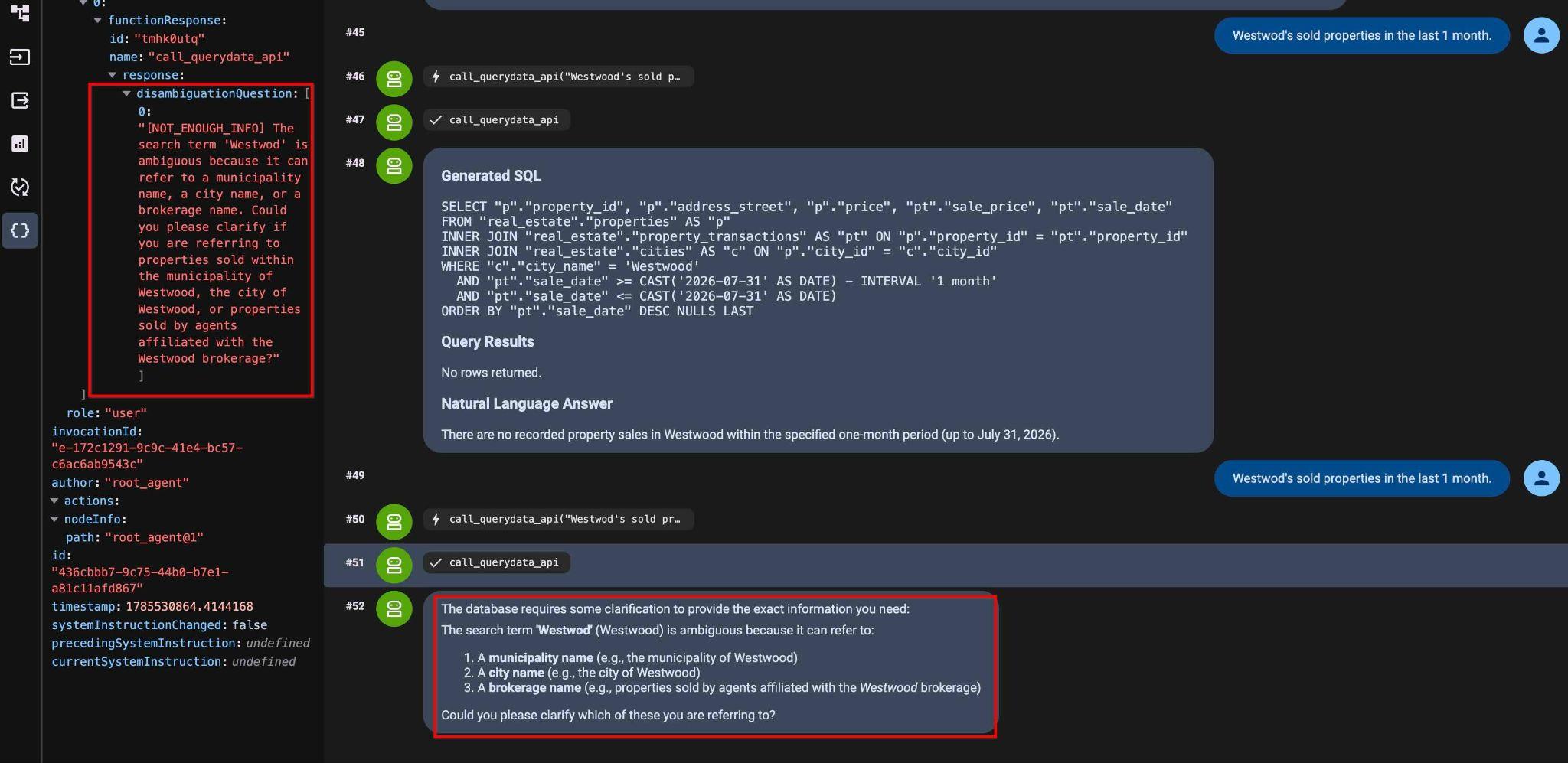
전체 텍스트는 다음과 같습니다.
"[NOT_ENOUGH_INFO] The search term 'Westwod' is ambiguous because it can refer to a municipality name, a city name, or a brokerage name. Could you please clarify if you are referring to properties sold within the municipality of Westwood, the city of Westwood, or properties sold by agents affiliated with the Westwood brokerage?"
쿼리에서 모호성 삭제
입력 프롬프트 수정 (Q10):
Westwood city location properties sold in September 2025.
이제 쿼리와 결과가 있습니다.
Generated SQL
SELECT "p"."property_id", "p"."address_street", "p"."address_postal_code", "p"."price", "pt"."sale_date", "pt"."sale_price"
FROM "real_estate"."properties" AS "p"
INNER JOIN "real_estate"."cities" AS "c" ON "p"."city_id" = "c"."city_id"
INNER JOIN "real_estate"."property_transactions" AS "pt" ON "p"."property_id" = "pt"."property_id"
WHERE "c"."city_name" = 'Westwood'
  AND "pt"."sale_date" >= '2025-09-01'::date
  AND "pt"."sale_date" <= '2025-09-30'::date
ORDER BY "pt"."sale_date" ASC NULLS LAST

Query Results
property_id        address_street        address_postal_code        price        sale_date        sale_price
32        999 Main St        99999        3800000.00        2025-09-12        1000000.00
11. 시맨틱 검색 및 AI 함수
AlloyDB AI 함수를 사용하면 비정형 데이터에 대한 시맨틱 필터링이 가능합니다. 표준 데이터베이스 연산자와 함께 SQL 쿼리에서 ai.if 및 google_ml.embedding과 같은 함수를 직접 사용합니다.
ILIKE 연산자가 있는 템플릿
첫 번째 단계로 ILIKE 연산자를 사용하여 새 환경설정 파일을 업로드합니다.
ILIKE 템플릿 환경설정 파일을 다운로드합니다.
cloudshell download ~/codelabs/alloydb-ai-nla/sixrecipe_context4_1.json
context 세트에 sixrecipe_context4_1.json을 업로드하여 '입주 가능' 주택의 표준 ILIKE 패턴 일치를 평가합니다.
    {
      "nl_query": "Move-in ready houses",
      "sql": "SELECT \"p\".\"address_street\", \"p\".\"address_postal_code\" FROM \"real_estate\".\"properties\" AS \"p\" WHERE \"p\".listing_status = 'Active' AND \"p\".\"description\" IS NOT NULL AND (\"p\".description ILIKE '%turnkey%' OR \"p\".description ILIKE '%move-in%')",
      "intent": "Move-in ready houses",
      "manifest": "Move-in ready houses",
      "parameterized": {
        "parameterized_intent": "Move-in ready houses",
        "parameterized_sql": "SELECT \"p\".\"address_street\", \"p\".\"address_postal_code\" FROM \"real_estate\".\"properties\" AS \"p\" WHERE \"p\".listing_status = 'Active' AND \"p\".\"description\" IS NOT NULL AND (\"p\".description ILIKE '%turnkey%' OR \"p\".description ILIKE '%move-in%')"
      }
    }
다음 쿼리 (Q11)를 제출합니다.
List move-in ready houses.
결과 쿼리:
SELECT "p"."address_street", "p"."address_postal_code"
FROM "real_estate"."properties" AS "p"
WHERE "p".listing_status = 'Active'
  AND "p"."description" IS NOT NULL
  AND ("p".description ILIKE '%turnkey%' OR "p".description ILIKE '%move-in%')
일치하는 레코드를 하나 반환합니다.
Query Results
address_street        address_postal_code
40 Main St, Unit 8        N2H 2G8
AI.IF 함수가 포함된 템플릿
AI.IF 템플릿 환경설정 파일을 다운로드합니다.
cloudshell download ~/codelabs/alloydb-ai-nla/sixrecipe_context4_2.json
ai.if 의미론적 필터링 함수를 평가하기 위해 context 세트에 sixrecipe_context4_2.json을 업로드합니다.
    {
      "nl_query": "List Move-in ready houses",
      "sql": "SELECT \"p\".\"address_street\", \"p\".\"address_postal_code\" FROM \"real_estate\".\"properties\" AS \"p\" WHERE \"p\".listing_status = 'Active' AND \"p\".\"description\" IS NOT NULL AND ai.if('Does this description represent a move-in ready house? Description: ' || \"p\".\"description\")",
      "intent": "List Move-in ready houses",
      "manifest": "List Move-in ready houses",
      "parameterized": {
        "parameterized_intent": "List Move-in ready houses",
        "parameterized_sql": "SELECT \"p\".\"address_street\", \"p\".\"address_postal_code\" FROM \"real_estate\".\"properties\" AS \"p\" WHERE \"p\".listing_status = 'Active' AND \"p\".\"description\" IS NOT NULL AND ai.if('Does this description represent a move-in ready house? Description: ' || \"p\".\"description\")"
      }
    }
프롬프트를 반복합니다 (Q12).
List move-in ready houses.
생성된 SQL:
SELECT "p"."address_street", "p"."address_postal_code"
FROM "real_estate"."properties" AS "p"
WHERE "p".listing_status = 'Active'
  AND "p"."description" IS NOT NULL
  AND ai.if('Does this description represent a move-in ready house? Description: ' || "p"."description")
결과에 동일한 속성이 표시됩니다.
Query Results
Address Street        Address Postal Code
40 Main St, Unit 8        N2H 2G8
Natural Language Answer
The move-in ready home currently available is located at:

Address: 40 Main St, Unit 8
Postal Code: N2H 2G8
벡터 검색으로 패싯
임베딩 검색 환경설정 파일을 다운로드합니다.
cloudshell download ~/codelabs/alloydb-ai-nla/sixrecipe_context4_3.json
google_ml.embedding을 사용하여 시맨틱 벡터 검색을 평가하고 새 주방 가전제품이 있는 주택을 검색하려면 sixrecipe_context4_3.json을 컨텍스트 세트에 업로드하세요.
AlloyDB 벡터 검색을 사용하여 패싯을 추가한 sixrecipe_context4_3.json 파일을 사용하여 컨텍스트 세트를 업데이트합니다.
    {
      "sql_snippet": "((real_estate.properties.description_embedding <=> google_ml.embedding('gemini-embedding-001', 'Upgraded kitchen appliances')::vector) < 0.4)",
      "intent": "with upgraded kitchen appliances",
      "manifest": "with upgraded kitchen appliances",
      "parameterized": {
        "parameterized_intent": "with upgraded kitchen appliances",
        "parameterized_sql_snippet": "((real_estate.properties.description_embedding <=> google_ml.embedding('gemini-embedding-001', 'Upgraded kitchen appliances')::vector) < 0.4)"
      }
    }
위 패싯 정의의 값 0.4는 실험적으로 보정된 임계값입니다.
다음 쿼리 (Q13)를 실행합니다.
List move-in ready houses with upgraded kitchen appliances.
생성된 SQL:
SELECT "p"."address_street", "p"."address_postal_code" FROM "real_estate"."properties" AS "p" WHERE "p"."listing_status" = 'Active' AND "p"."description" IS NOT NULL AND ai.if('Does this description represent a Move-in ready house? Description: ' || "p"."description") AND ((("p"."description_embedding" <=> google_ml.embedding('gemini-embedding-001', 'Upgraded kitchen appliances')::vector) < 0.4))
다음은 쿼리 결과와 자연어 추천입니다.
Query Results
Address        Postal Code
40 Main St, Unit 8        N2H 2G8
Natural Language Answer
The move-in ready house with upgraded kitchen appliances is located at:

Address: 40 Main St, Unit 8
Postal Code: N2H 2G8
12. 보안 및 개인 정보 보호
QueryData API가 쿼리를 생성할 때는 생성된 쿼리가 다른 사용자의 데이터를 노출할 수 있는 개인 정보 보호 위험이 있습니다. 파라미터화된 보안 뷰 (PSV)는 NL2SQL 생성 중에 행 수준 보안 경계를 적용합니다.
파라미터화된 보안 뷰 만들기
모든 부동산 거래의 혜택에 관한 정보가 포함된 real_estate.offers 테이블이 있습니다. 상담사가 자신의 거래만 볼 수 있고 다른 상담사의 거래는 볼 수 없도록 하고 싶습니다. agent_id를 기준으로 행을 필터링할 수 있는 PSV를 만듭니다.
AlloyDB Studio에서 혜택 테이블의 파라미터화된 보안 뷰를 만듭니다.
CREATE VIEW real_estate.secure_offers
  WITH (security_barrier) AS
SELECT offer_id, property_id, buyer_agent_id,
    seller_agent_id, offer_amount, offer_date,
    offer_status, offer_expiration_date,
    contingencies
FROM real_estate.offers
WHERE buyer_agent_id = $@agent_id;
파라미터화된 보안 뷰 정의를 확인합니다.
SELECT definition
FROM parameterized_views.all_parameterized_views
WHERE schemaname = 'real_estate' AND viewname = 'secure_offers';
real_estate.offers 테이블은 어떻게 되나요?
AlloyDB 파라미터화된 보안 뷰를 사용하여 QueryData 데이터 액세스 제한
agent.py에서 매개변수화된 보안 보기 real_estate.secure_offers가 real_estate.offers 대신 TABLE_IDS에 등록됩니다.
agent.py 소스 코드:
 List of database tables included in QueryData API requests
TABLE_IDS = [
    "real_estate.municipalities",
    "real_estate.cities",
    "real_estate.agents",
    "real_estate.properties",
    "real_estate.schools",
    "real_estate.school_to_property",
    "real_estate.property_transactions",
    "real_estate.secure_offers",
]
그리고 agent_id=1인 에이전트의 세션 런타임 컨텍스트를 전달합니다.
            "parameterized_secure_view_parameters": {
                "parameters": {
                    "key": "agent_id",
                    "value": "1"
                }
            }
        },
따라서 모든 QueryData API 요청은 해당 매개변수를 전달하며, 보안 뷰가 요청에 포함되면 필터링이 적용되어 해당 상담사의 결과만 반환됩니다.
다음 쿼리 (Q14)를 실행합니다.
List the offer id and listing price in 2025 where the offer was within 5% of the final selling price.
생성된 SQL:
SELECT "o"."offer_id", "p"."price" AS "listing_price"
FROM "real_estate"."secure_offers" AS "o"
INNER JOIN "real_estate"."properties" AS "p" ON "o"."property_id" = "p"."property_id"
INNER JOIN "real_estate"."property_transactions" AS "t" ON "o"."property_id" = "t"."property_id"
WHERE "o"."offer_date" >= '2025-01-01'
  AND "o"."offer_date" <= '2025-12-31'
  AND "o"."offer_amount" IS NOT NULL
  AND "t"."sale_price" IS NOT NULL
  AND "p"."price" IS NOT NULL
  AND ABS("o"."offer_amount" - "t"."sale_price") <= (0.05 * "t"."sale_price")
ORDER BY "o"."offer_id" ASC NULLS LAST
뷰를 쿼리하면 활성 에이전트 세션 매개변수에 따라 결과가 필터링되어 승인되지 않은 레코드 데이터가 보호되고 레코드 2개만 반환됩니다.
Query Results
Offer ID        Listing Price
7        $750,000.00
8        $510,000.00
Natural Language Answer
Here are the offers from 2025 where the offer amount was within 5% of the final selling price:

Offer ID 7: Listing Price of $750,000.00
Offer ID 8: Listing Price of $510,000.00
AlloyDB Studio에서 기본 real_estate.offers 테이블에 대해 다음 쿼리를 실행하는 경우:
SELECT "o"."offer_id", "p"."price" AS "listing_price"
FROM "real_estate"."offers" AS "o"
INNER JOIN "real_estate"."properties" AS "p" ON "o"."property_id" = "p"."property_id"
INNER JOIN "real_estate"."property_transactions" AS "t" ON "o"."property_id" = "t"."property_id"
WHERE "o"."offer_date" >= '2025-01-01'
  AND "o"."offer_date" <= '2025-12-31'
  AND "o"."offer_amount" IS NOT NULL
  AND "t"."sale_price" IS NOT NULL
  AND "p"."price" IS NOT NULL
  AND ABS("o"."offer_amount" - "t"."sale_price") <= (0.05 * "t"."sale_price")
ORDER BY "o"."offer_id" ASC NULLS LAST
두 개 이상의 레코드를 반환하여 모든 상담사의 데이터를 표시합니다.
이것으로 실습을 마치겠습니다. QueryData API, AI 함수, AlloyDB 파라미터화된 보안 뷰를 사용하는 방법을 알아봤습니다.
13. 환경 정리
실습을 마치면 AlloyDB 인스턴스와 클러스터를 폐기합니다.
AlloyDB 클러스터 및 모든 인스턴스 삭제
클러스터는 옵션 force로 폐기되며, 클러스터에 속한 모든 인스턴스도 삭제됩니다.
터미널 연결이 끊어진 경우 다시 연결하고 Cloud Shell에서 프로젝트와 환경 변수를 정의합니다.
gcloud config set project <YOUR_PROJECT_ID>
export REGION=us-central1
export ADBCLUSTER=alloydb-aip-01
export PROJECT_ID=$(gcloud config get-value project)
다음과 같이 클러스터를 삭제합니다.
gcloud alloydb clusters delete $ADBCLUSTER --region=$REGION --force
예상되는 콘솔 출력:
student@cloudshell:~ (test-project-001-402417)$ gcloud alloydb clusters delete $ADBCLUSTER --region=$REGION --force
All of the cluster data will be lost when the cluster is deleted.

Do you want to continue (Y/n)?  Y

Operation ID: operation-1697820178429-6082890a0b570-4a72f7e4-4c5df36f
Deleting cluster...done.
AlloyDB 백업 삭제
클러스터의 모든 AlloyDB 백업을 삭제합니다.
for i in $(gcloud alloydb backups list \
  --filter="CLUSTER_NAME: projects/$PROJECT_ID/locations/$REGION/clusters/$ADBCLUSTER" \
  --format="value(name)" \
  --sort-by=~createTime) ; do \
  gcloud alloydb backups delete $(basename $i) --region $REGION --quiet; done
예상되는 콘솔 출력:
student@cloudshell:~ (test-project-001-402417)$ for i in $(gcloud alloydb backups list --filter="CLUSTER_NAME: projects/$PROJECT_ID/locations/$REGION/clusters/$ADBCLUSTER" --format="value(name)" --sort-by=~createTime) ; do gcloud alloydb backups delete $(basename $i) --region $REGION --quiet; done
Operation ID: operation-1697826266108-60829fb7b5258-7f99dc0b-99f3c35f
Deleting backup...done.
Cloud Storage 버킷 삭제
지속적인 스토리지 요금이 청구되지 않도록 Cloud Storage 가져오기 버킷을 삭제합니다.
gcloud storage rm -r gs://${PROJECT_ID}-import
14. 축하합니다
Codelab을 완료하신 것을 축하드립니다.
학습한 내용
- AlloyDB 클러스터 및 기본 인스턴스를 배포하는 방법
- AlloyDB에서 QueryData, AI 기능, 파라미터화된 보안 뷰를 사용 설정하는 방법
- QueryData 컨텍스트 세트를 만드는 방법
- QueryData API에서 다양한 템플릿과 컨텍스트를 사용하는 방법
- 패싯을 사용하여 QueryData 템플릿을 더 유연하게 만드는 방법
- 값 검색 및 트라이그램 색인으로 데이터 모호성을 해결하는 방법
- 템플릿으로 시맨틱 검색을 위해 AI 함수를 사용하는 방법
- QueryData API와 함께 파라미터화된 보안 뷰를 사용하는 방법
설문조사
결과: