
1. Introduction
In this codelab, you will learn how to deploy AlloyDB Omni on Google Kubernetes Engine (GKE) and use it with open models like EmbeddingGemma and Gemma 4 for embeddings and predictions. Running both the database and models in the same cluster reduces network latency and avoids third-party service dependencies. It also helps satisfy compliance and data residency requirements since your data never leaves your environment.
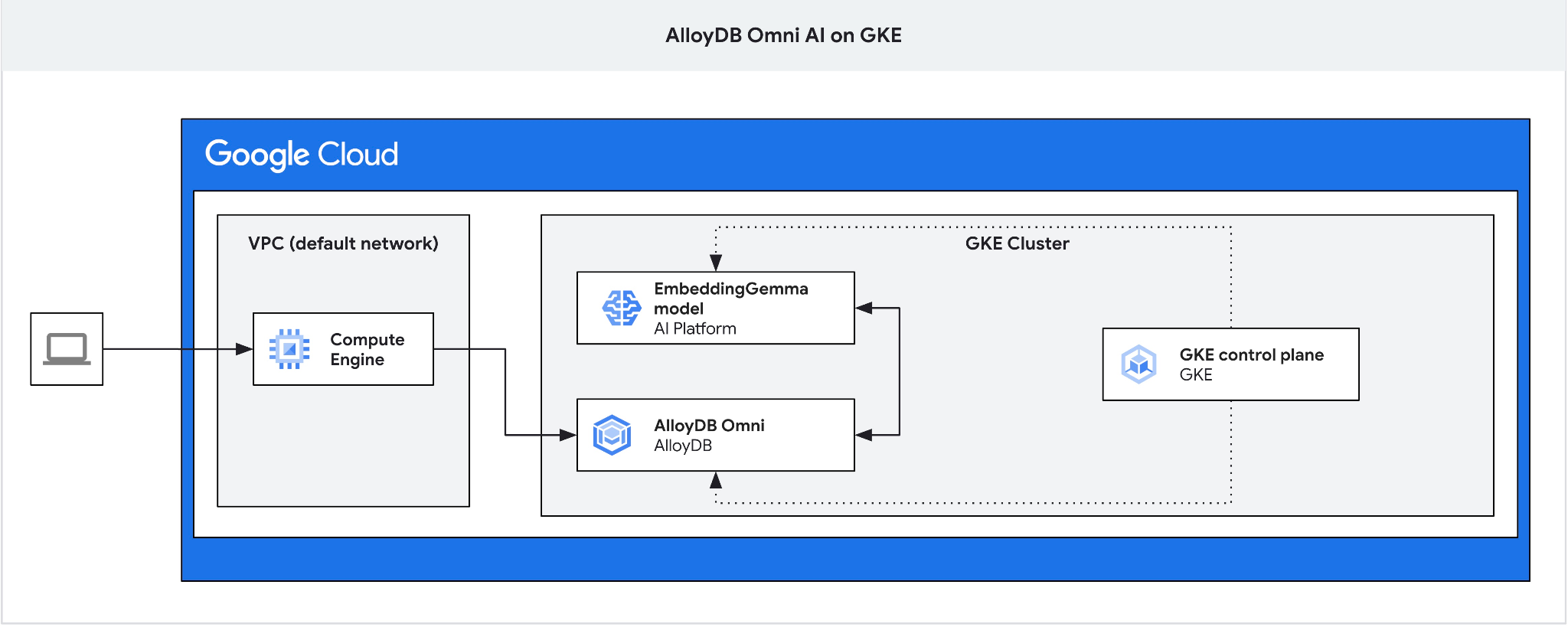
Prerequisites
- A basic understanding of Google Cloud and the Google Cloud console
- Basic knowledge of Kubernetes and GKE
- Familiarity with the command-line interface and Google Cloud Shell
What you'll learn
- How to deploy AlloyDB Omni on a GKE cluster
- How to connect to AlloyDB Omni
- How to load data into AlloyDB Omni
- How to deploy AI models (embedding and LLM) to GKE
- How to register AI models in AlloyDB Omni
- How to generate embeddings for semantic search
- How to run semantic search queries in AlloyDB Omni
- How to create and use vector indexes in AlloyDB Omni
What you'll need
- A Google Cloud account and Google Cloud project
- A web browser such as Chrome
2. Set up and requirements
Project setup
- Sign in to the Google Cloud console. If you don't already have a Gmail or Google Workspace account, create one. Use a personal account instead of a work or school account.
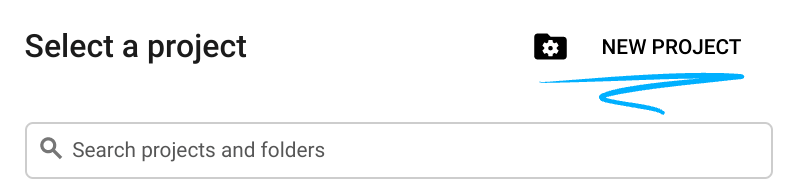
- Create a new project or select an existing project. In the Google Cloud console header, click Select a project, then click New Project.

In the Select a project window, click New Project to open the project creation dialog.
In the dialog enter a Project name and select your organization or location.
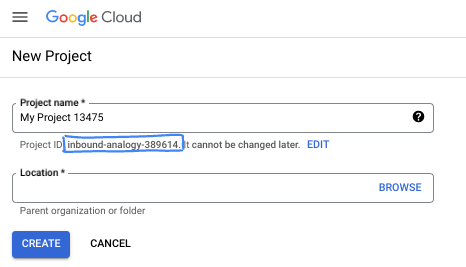
- The Project name is the display name for this project's participants. The project name isn't used by Google APIs, and you can change it at any time.
- The Project ID is unique across all Google Cloud projects and is immutable (you cannot change it after setting it). The Google Cloud console automatically generates a unique ID, or you can supply your own. In this codelab, you reference your project ID with the
- The Project Number is a third identifier used by some APIs. For more information, see the Resource Manager documentation.
Enable billing
If you set up billing using Google Cloud credits, you can skip this step.
To set up a personal billing account, enable billing in the Google Cloud console.
- Completing this lab costs less than $5 USD in Google Cloud resources.
- Follow the cleanup steps at the end of this lab to delete resources and avoid further charges.
- New users are eligible for the $300 USD Free Trial.
Start Cloud Shell
In this codelab, you use Google Cloud Shell, a command-line environment running in the cloud.
From the Google Cloud console, click the Activate Cloud Shell icon on the top-right toolbar:

Alternatively, press G then S, or open Google Cloud Shell directly.
When connected, Cloud Shell displays the terminal prompt:

Cloud Shell includes persistent storage and development tools. You can run all steps in this codelab from your browser.
3. Enable APIs
To use Google Kubernetes Engine (GKE) for AlloyDB Omni and model deployments, enable the Compute Engine and GKE APIs in your Google Cloud project.
In Cloud Shell, verify that your project ID is configured:
PROJECT_ID=$(gcloud config get-value project)
echo $PROJECT_ID
If your project ID is not defined, configure it:
export PROJECT_ID=<YOUR_PROJECT_ID>
gcloud config set project $PROJECT_ID
Enable the required APIs:
gcloud services enable compute.googleapis.com
gcloud services enable container.googleapis.com
Expected output:
student@cloudshell:~ (test-project-001-402417)$ PROJECT_ID=test-project-001-402417
student@cloudshell:~ (test-project-001-402417)$ gcloud config set project test-project-001-402417
Updated property [core/project].
student@cloudshell:~ (test-project-001-402417)$ gcloud services enable compute.googleapis.com
gcloud services enable container.googleapis.com
Operation "operations/acat.p2-4470404856-1f44ebd8-894e-4356-bea7-b84165a57442" finished successfully.
You can read about each enabled API in the documentation.
4. Deploy AlloyDB Omni on GKE
To deploy AlloyDB Omni on GKE, prepare a Kubernetes cluster following the AlloyDB Omni operator requirements.
Create a GKE cluster
Deploy a standard GKE cluster with capacity to run AlloyDB Omni, the operator, and monitoring containers. AlloyDB Omni requires at least two CPUs and 8 GB of RAM. This tutorial uses the n2-standard-4 machine type.
Set the environment variables for your deployment:
export PROJECT_ID=$(gcloud config get-value project)
export LOCATION=us-central1
export CLUSTER_NAME=alloydb-ai-gke
export MACHINE_TYPE=n2-standard-4
Create the standard GKE cluster:
gcloud container clusters create ${CLUSTER_NAME} \
  --project=${PROJECT_ID} \
  --region=${LOCATION} \
  --workload-pool=${PROJECT_ID}.svc.id.goog \
  --release-channel=rapid \
  --machine-type=${MACHINE_TYPE} \
  --num-nodes=1
Expected console output:
student@cloudshell:~ (test-project-001-402417)$ export PROJECT_ID=$(gcloud config get project)
export LOCATION=us-central1
export CLUSTER_NAME=alloydb-ai-gke
export MACHINE_TYPE=n2-standard-4
Your active configuration is: [test-project-001-402417]
student@cloudshell:~ (test-project-001-402417)$ gcloud container clusters create ${CLUSTER_NAME} \
  --project=${PROJECT_ID} \
  --region=${LOCATION} \
  --workload-pool=${PROJECT_ID}.svc.id.goog \
  --release-channel=rapid \
  --machine-type=${MACHINE_TYPE} \
  --num-nodes=1
Note: Your Pod address range (`--cluster-ipv4-cidr`) can accommodate at most 1008 node(s).
Creating cluster alloydb-ai-gke in us-central1... Cluster is being health-checked (Kubernetes Control Plane is healthy)...done.
Created [https://container.googleapis.com/v1/projects/test-project-001-402417/zones/us-central1/clusters/alloydb-ai-gke].
To inspect the contents of your cluster, go to: https://console.cloud.google.com/kubernetes/workload_/gcloud/us-central1/alloydb-ai-gke?project=test-project-001-402417
kubeconfig entry generated for alloydb-ai-gke.
NAME: alloydb-ai-gke
LOCATION: us-central1
MASTER_VERSION: 1.36.3-gke.1640000
MASTER_IP: 34.121.243.65
MACHINE_TYPE: n2-standard-4
NODE_VERSION: 1.36.3-gke.1640000
NUM_NODES: 3
STATUS: RUNNING
STACK_TYPE: IPV4
Prepare the cluster
Install required components such as cert-manager, the native certificates controller for Kubernetes. For details, see the cert-manager installation documentation.
Cloud Shell includes the Kubernetes command-line tool kubectl. Obtain cluster credentials using gcloud:
gcloud container clusters get-credentials ${CLUSTER_NAME} --region=${LOCATION}
Install cert-manager using kubectl:
kubectl apply -f https://github.com/cert-manager/cert-manager/releases/download/v1.21.1/cert-manager.yaml
Expected console output (redacted):
student@cloudshell:~$ kubectl apply -f https://github.com/cert-manager/cert-manager/releases/download/v1.21.1/cert-manager.yaml
namespace/cert-manager created
customresourcedefinition.apiextensions.k8s.io/certificaterequests.cert-manager.io created
customresourcedefinition.apiextensions.k8s.io/certificates.cert-manager.io created
customresourcedefinition.apiextensions.k8s.io/challenges.acme.cert-manager.io created
customresourcedefinition.apiextensions.k8s.io/clusterissuers.cert-manager.io created
...
validatingwebhookconfiguration.admissionregistration.k8s.io/cert-manager-webhook created
Install the AlloyDB Omni operator
Install the AlloyDB Omni operator using Helm.
Download and install the AlloyDB Omni operator chart:
helm install alloydbomni-operator oci://gcr.io/alloydb-omni/alloydbomni-operator \
--version 1.8.1 \
--create-namespace \
--namespace alloydb-omni-system \
--atomic \
--timeout 5m
Expected console output (redacted):
student@cloudshell:~$ helm install alloydbomni-operator oci://gcr.io/alloydb-omni/alloydbomni-operator \
> --version 1.8.0 \
> --create-namespace \
> --namespace alloydb-omni-system \
> --atomic \
> --timeout 5m
Flag --atomic has been deprecated, use --rollback-on-failure instead
Pulled: gcr.io/alloydb-omni/alloydbomni-operator:1.8.0
Digest: sha256:f2d98fa7a3b08dfc1e83b811582718b94e5c017b81aade700c83e917c59f0395
NAME: alloydbomni-operator
LAST DEPLOYED: Thu Aug 27 17:57:30 2026
NAMESPACE: alloydb-omni-system
STATUS: deployed
REVISION: 1
DESCRIPTION: Install complete
TEST SUITE: None
Deploy the database cluster.
The following manifest configures a database cluster with the googleMLExtension enabled and an internal load balancer:
cat << 'EOF' > my-omni.yaml
apiVersion: v1
kind: Secret
metadata:
  name: db-pw-my-omni
type: Opaque
data:
  my-omni: "VmVyeVN0cm9uZ1Bhc3N3b3Jk"
---
apiVersion: alloydbomni.dbadmin.goog/v1
kind: DBCluster
metadata:
  name: my-omni
spec:
  databaseVersion: "18.3.0"
  primarySpec:
    adminUser:
      passwordRef:
        name: db-pw-my-omni
    features:
      googleMLExtension:
        enabled: true
    resources:
      cpu: 1
      memory: 8Gi
      disks:
      - name: DataDisk
        size: 20Gi
        storageClass: standard
    dbLoadBalancerOptions:
      annotations:
        networking.gke.io/load-balancer-type: "internal"
  allowExternalIncomingTraffic: true
EOF
The password secret value is the Base64 representation of VeryStrongPassword. In production environments, use Google Secret Manager to manage passwords. For details, see the Secret Manager documentation.
The manifest is saved as my-omni.yaml. In Cloud Shell, click Open Editor in the top-right corner of the terminal window and read the file.
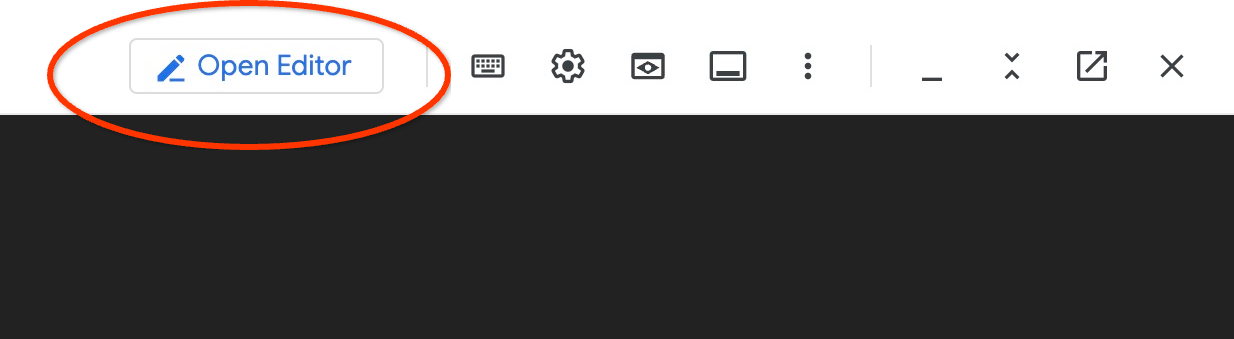
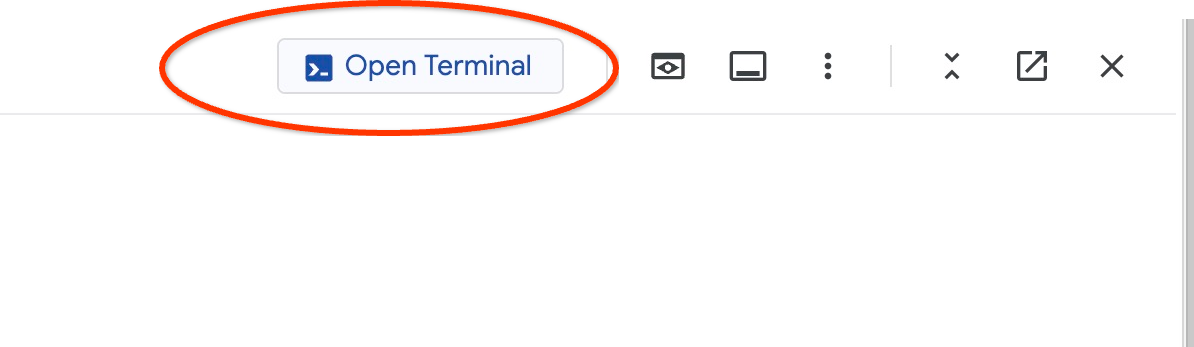
After reading the my-omni.yaml manifest, click Open Terminal to return to the command prompt.
Apply the my-omni.yaml manifest:
kubectl apply -f my-omni.yaml
Expected console output:
secret/db-pw-my-omni created
dbcluster.alloydbomni.dbadmin.goog/my-omni created
Check the status of the my-omni cluster:
kubectl get dbclusters.alloydbomni.dbadmin.goog my-omni -n default
During deployment, the database cluster transitions through setup phases until reaching the DBClusterReady state.
Expected console output:
$ kubectl get dbclusters.alloydbomni.dbadmin.goog my-omni -n default
NAME      PRIMARYENDPOINT   PRIMARYPHASE   DBCLUSTERPHASE   HAREADYSTATUS   HAREADYREASON
my-omni   10.131.0.33        Ready          DBClusterReady
Optionally you can monitor the cluster deployment using the kubectl log command:
kubectl logs -l alloydbomni.internal.dbadmin.goog/dbcluster=my-omni --all-containers -f
Connect to AlloyDB Omni
When the cluster is ready, connect to the database pod using the PostgreSQL client (psql). The password is VeryStrongPassword as defined in my-omni.yaml:
DB_CLUSTER_NAME=my-omni
DB_CLUSTER_NAMESPACE=default
DBPOD=`kubectl get pod --selector=alloydbomni.internal.dbadmin.goog/dbcluster=$DB_CLUSTER_NAME,alloydbomni.internal.dbadmin.goog/task-type=database -n $DB_CLUSTER_NAMESPACE -o jsonpath='{.items[0].metadata.name}'`
kubectl exec -ti $DBPOD -n $DB_CLUSTER_NAMESPACE -c database -- psql -h localhost -U postgres
Sample console output:
DB_CLUSTER_NAME=my-omni
DB_CLUSTER_NAMESPACE=default
DBPOD=`kubectl get pod --selector=alloydbomni.internal.dbadmin.goog/dbcluster=$DB_CLUSTER_NAME,alloydbomni.internal.dbadmin.goog/task-type=database -n $DB_CLUSTER_NAMESPACE -o jsonpath='{.items[0].metadata.name}'`
kubectl exec -ti $DBPOD -n $DB_CLUSTER_NAMESPACE -c database -- psql -h localhost -U postgres
Password for user postgres:
psql (18.3)
SSL connection (protocol: TLSv1.3, cipher: TLS_AES_128_GCM_SHA256, compression: off, ALPN: postgresql)
Type "help" for help.

postgres=#
Exit from the psql session by typing \q and pressing Enter:
postgres=# \q
5. Deploy EmbeddingGemma model on GKE
To test AlloyDB Omni AI integration with local models, deploy an embedding model to the GKE cluster. This tutorial uses Google's EmbeddingGemma model.
Create a node pool for the model
To run model inference, prepare a dedicated node pool. You can use a CPU-only node pool or a GPU-accelerated node pool (such as g2-standard-8 with an NVIDIA L4 GPU). This tutorial uses a CPU-based node pool with c3-standard-8 machine types.
Create a single-node CPU node pool:
export PROJECT_ID=$(gcloud config get-value project)
export LOCATION=us-central1
export CLUSTER_NAME=alloydb-ai-gke
gcloud container node-pools create cpupool \
  --project=${PROJECT_ID} \
  --location=${LOCATION} \
  --node-locations=${LOCATION}-a \
  --cluster=${CLUSTER_NAME} \
  --machine-type=c3-standard-8 \
  --num-nodes=1
Expected output:
student@cloudshell$ export PROJECT_ID=$(gcloud config get project)
Your active configuration is: [pant]
export LOCATION=us-central1
export CLUSTER_NAME=alloydb-ai-gke
student@cloudshell$ gcloud container node-pools create cpupool \
>   --project=${PROJECT_ID} \
>   --location=${LOCATION} \
>   --node-locations=${LOCATION}-a \
>   --cluster=${CLUSTER_NAME} \
>   --machine-type=c3-standard-8 \
>   --num-nodes=1
Creating node pool cpupool...done.
Created [https://container.googleapis.com/v1/projects/gleb-test-short-003-483115/zones/us-central1/clusters/alloydb-ai-gke/nodePools/cpupool].
NAME     MACHINE_TYPE    DISK_SIZE_GB  NODE_VERSION
cpupool  c3-standard-8  100           1.34.1-gke.3355002
Obtain a Hugging Face token
This tutorial deploys the EmbeddingGemma model from Hugging Face. To access the model weights, generate a Hugging Face access token:
- Sign in to or create an account on Hugging Face.
- Navigate to Your Profile > Access Tokens.
- Click Create new token.
- Enter a name for the token and select the Read role.
- Click Create token and copy the generated token value.
- Accept the model terms on the EmbeddingGemma model page if you haven't done it before.
Create a Kubernetes secret containing your Hugging Face token in Cloud Shell (replace the token placeholder with your token):
export HF_TOKEN=<YOUR_HUGGING_FACE_TOKEN>
kubectl create secret generic hf-secret \
  --from-literal=hf_api_token=$HF_TOKEN \
  --dry-run=client -o yaml | kubectl apply -f -
Prepare the deployment manifest
To deploy the model, use Hugging Face's Text Embeddings Inference (TEI) container package. For more information, see the Hugging Face GKE TEI documentation.
Clone the deployment repository from GitHub:
git clone https://github.com/huggingface/Google-Cloud-Containers
Inspect and modify the CPU configuration manifest:
edit Google-Cloud-Containers/examples/gke/tei-deployment/cpu-config/deployment.yaml
The updated manifest for CPU deployment:
apiVersion: apps/v1
kind: Deployment
metadata:
  name: tei-deployment
spec:
  replicas: 1
  selector:
    matchLabels:
      app: tei-server
  template:
    metadata:
      labels:
        app: tei-server
        hf.co/model: Google--embeddinggemma-300m
        hf.co/task: text-embeddings
    spec:
      containers:
        - name: tei-container
          image: ghcr.io/huggingface/text-embeddings-inference:cpu-latest
          resources:
            requests:
              cpu: "6"
              memory: "24Gi"
            limits:
              cpu: "6"
              memory: "24Gi"
          env:
            - name: MODEL_ID
              value: google/embeddinggemma-300m
            - name: NUM_SHARD
              value: "1"
            - name: PORT
              value: "8080"
            - name: HF_TOKEN
              valueFrom:
                secretKeyRef:
                  name: hf-secret
                  key: hf_api_token
          volumeMounts:
            - mountPath: /tmp
              name: tmp
      volumes:
        - name: tmp
          emptyDir: {}
      nodeSelector:
        cloud.google.com/machine-family: "c3"
Save the changes by pressing ctrl+s and switch back to the terminal.
Deploy the model
Apply the manifest to deploy the TEI server:
kubectl apply -f Google-Cloud-Containers/examples/gke/tei-deployment/cpu-config
Monitor the deployment until it is in ready state:
printf "Waiting for model to load..."; until kubectl logs -l app=tei-server --tail=50 2>/dev/null | grep -q "Ready"; do printf "."; sleep 3; done; printf '\n\033[1;32m========================================\n[SUCCESS] Model is loaded and ready!\nYou can now proceed to the next step.\n========================================\033[0m\n'
Check the tei-service Kubernetes service:
kubectl get service tei-service
Expected output:
student@cloudshell$ kubectl get service tei-service
NAME          TYPE        CLUSTER-IP      EXTERNAL-IP   PORT(S)    AGE
tei-service   ClusterIP   34.118.233.48   <none>        8080/TCP   10m
The service CLUSTER-IP serves requests internally at http://34.118.233.48:8080/embed.
Test the model endpoint locally using kubectl port-forward:
kubectl port-forward service/tei-service 8080:8080
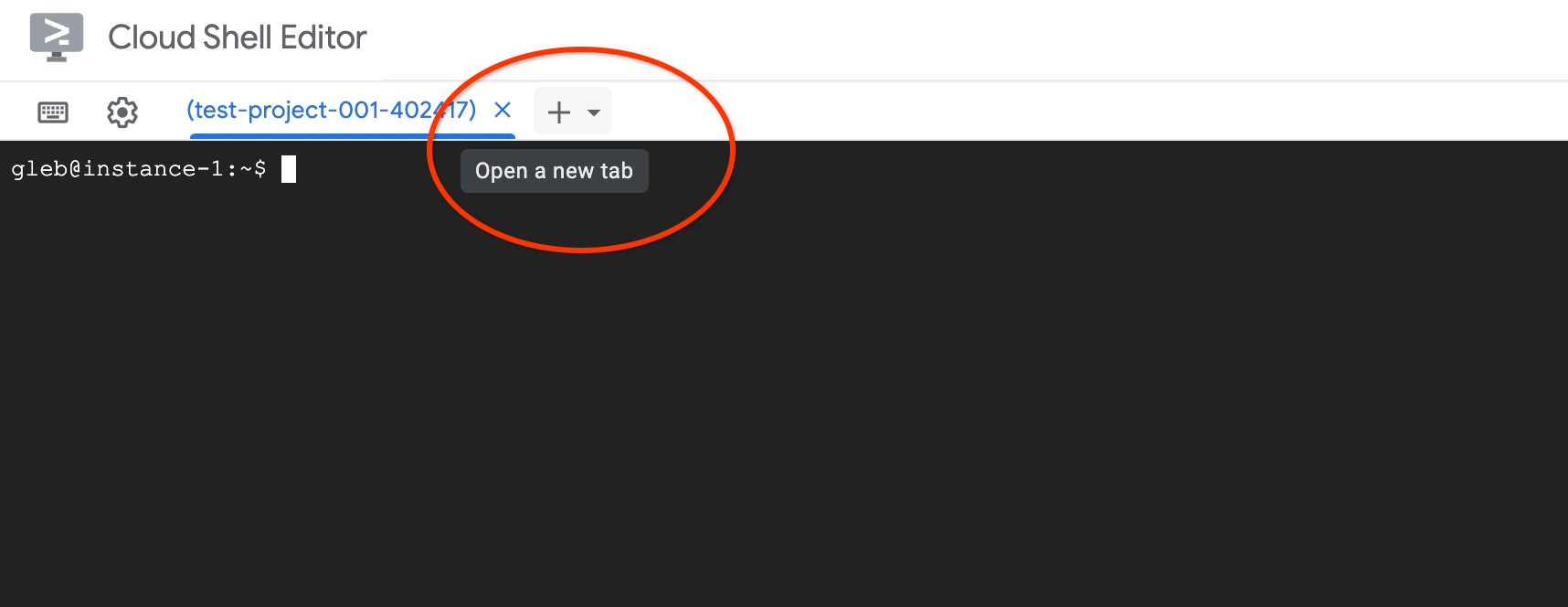
Open a second Cloud Shell tab by clicking + at the top of the terminal:
In the new tab, test embedding generation with curl:
curl http://localhost:8080/embed \
  -X POST \
  -d '{"inputs":"Test"}' \
  -H 'Content-Type: application/json'
Expected output (vector array):
curl http://localhost:8080/embed \
>     -X POST \
>     -d '{"inputs":"Test"}' \
>     -H 'Content-Type: application/json'
[[-0.018975832,0.0071419072,0.06347208,0.022992613,0.014205903
...
-0.03677433,0.01636146,0.06731572]]
Stop the port-forwarding in the first tab by pressing ctrl+c.
6. Register the embedding model in AlloyDB Omni
To use the deployed model from AlloyDB Omni, create a database, define transform functions, and register the model endpoint.
Create a client VM and database
Create a Compute Engine VM instance in the same VPC to act as a client jump host:
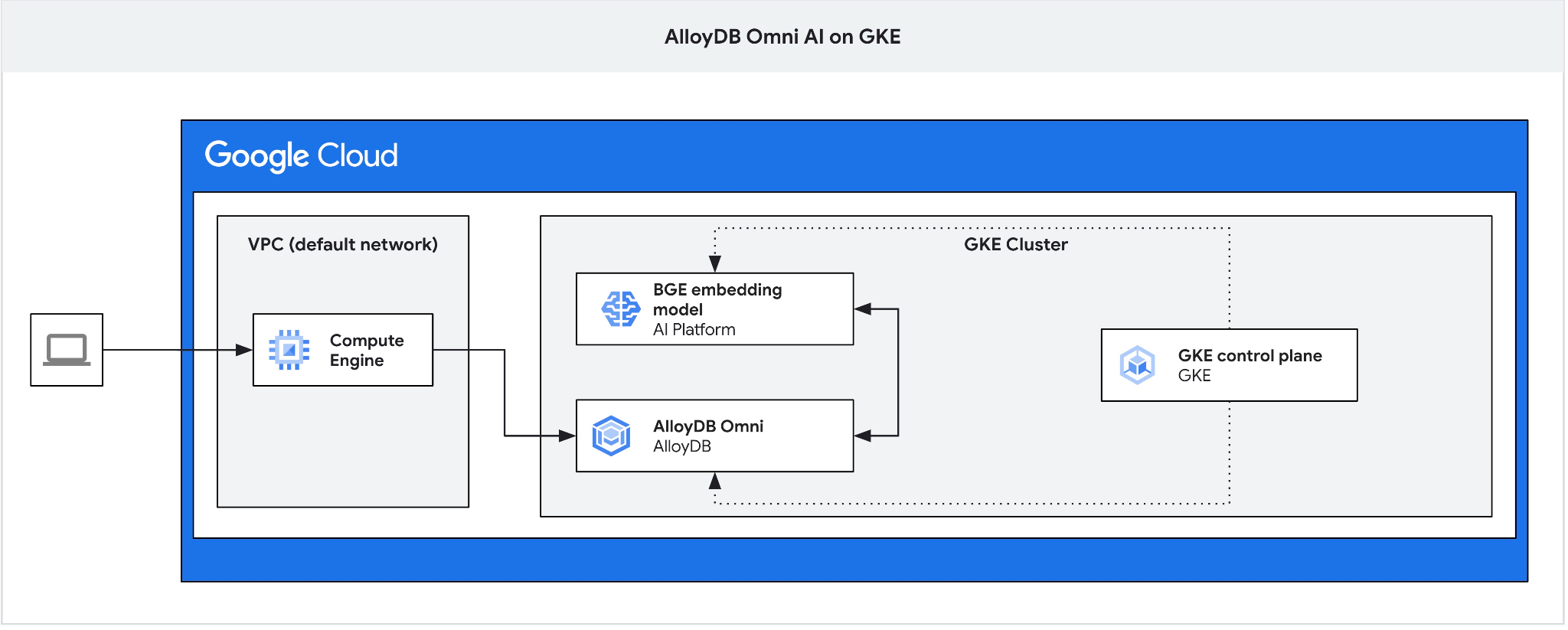
In Cloud Shell, create the client VM:
export ZONE=us-central1-a
gcloud compute instances create instance-1 \
  --zone=$ZONE
Retrieve the AlloyDB Omni endpoint IP:
echo "INSTANCE_IP=$(kubectl get dbclusters.alloydbomni.dbadmin.goog my-omni -n default -o jsonpath='{.status.primary.endpoint}')"
Expected output:
INSTANCE_IP=10.128.0.33
The INSTANCE_IP value is the internal load balancer IP for the AlloyDB Omni cluster. In this example it is 10.131.0.33.
Connect to the VM instance using SSH:
gcloud compute ssh instance-1 --zone=$ZONE
In the SSH session on instance-1, install the PostgreSQL client:
sudo apt-get update && sudo apt-get install --yes postgresql-client
Export the AlloyDB Omni load balancer IP (replace with your PRIMARYENDPOINT IP):
export INSTANCE_IP=10.131.0.33
Connect to AlloyDB Omni using psql (the password is VeryStrongPassword):
psql "host=$INSTANCE_IP user=postgres sslmode=require"
In the psql session, create the demo database:
CREATE DATABASE demo;
Switch to the demo database:
\c demo
Create transform functions
Custom embedding endpoints require input and output transform functions to adapt data formats between AlloyDB Omni and the model API.
Create the input transform function:
CREATE OR REPLACE FUNCTION tei_text_input_transform(model_id VARCHAR(100), input_text TEXT)
RETURNS JSON
LANGUAGE plpgsql
AS $$
DECLARE
  transformed_input JSON;
BEGIN
  SELECT json_build_object('inputs', input_text, 'truncate', true)::JSON INTO transformed_input;
  RETURN transformed_input;
END;
$$;
Expected output:
demo=# CREATE OR REPLACE FUNCTION tei_text_input_transform(model_id VARCHAR(100), input_text TEXT)
RETURNS JSON
LANGUAGE plpgsql
AS $$
DECLARE
  transformed_input JSON;
BEGIN
  SELECT json_build_object('inputs', input_text, 'truncate', true)::JSON INTO transformed_input;
  RETURN transformed_input;
END;
$$;
CREATE FUNCTION
demo=#
Create the output transform function to parse the vector array response:
CREATE OR REPLACE FUNCTION tei_text_output_transform(model_id VARCHAR(100), response_json JSON)
RETURNS REAL[]
LANGUAGE plpgsql
AS $$
DECLARE
  transformed_output REAL[];
BEGIN
  SELECT ARRAY(SELECT json_array_elements_text(response_json->0)) INTO transformed_output;
  RETURN transformed_output;
END;
$$;
Expected output:
demo=# CREATE OR REPLACE FUNCTION tei_text_output_transform(model_id VARCHAR(100), response_json JSON)
RETURNS REAL[]
LANGUAGE plpgsql
AS $$
DECLARE
  transformed_output REAL[];
BEGIN
  SELECT ARRAY(SELECT json_array_elements_text(response_json->0)) INTO transformed_output;
  RETURN transformed_output;
END;
$$;
CREATE FUNCTION
demo=#
Register the model
Register the model in AlloyDB Omni using the google_ml.create_model procedure. Specify http://tei-service:8080/embed as the model_request_url to route requests to the Kubernetes cluster service:
CALL
  google_ml.create_model(
    model_id => 'embeddinggemma',
    model_request_url => 'http://tei-service:8080/embed',
    model_provider => 'custom',
    model_type => 'text_embedding',
    model_in_transform_fn => 'tei_text_input_transform',
    model_out_transform_fn => 'tei_text_output_transform');
Expected output:
demo=# CALL
  google_ml.create_model(
    model_id => 'embeddinggemma',
    model_request_url => 'http://tei-service:8080/embed',
    model_provider => 'custom',
    model_type => 'text_embedding',
    model_in_transform_fn => 'tei_text_input_transform',
    model_out_transform_fn => 'tei_text_output_transform');
CALL
demo=#
Test the registered model with a sample SQL query:
SELECT google_ml.embedding('embeddinggemma', 'What is AlloyDB Omni?');
The function returns the real numbers array representation generated by the local EmbeddingGemma model running on GKE.
Press q to return back to psql session prompt.
Exit from the psql session:
\q
7. Test the model with sample data
Load sample data
This tutorial uses the Cymbal retail dataset to demonstrate vector similarity search. You will use Google Cloud SDK and PostgreSQL client to import data into AlloyDB Omni.
In the SSH session on instance-1 connect to the demo database and enable the vector extension:
psql "host=$INSTANCE_IP user=postgres sslmode=require dbname=demo"
In the psql session:
CREATE EXTENSION IF NOT EXISTS vector;
Exit the psql session:
\q
Download and apply the schema to create tables in the demo database:
gcloud storage cat gs://cloud-training/gcc/gcc-tech-004/cymbal_demo_schema.sql |psql "host=$INSTANCE_IP user=postgres dbname=demo"
Expected output:
student@cloudshell:~$ gcloud storage cat gs://cloud-training/gcc/gcc-tech-004/cymbal_demo_schema.sql |psql "host=$INSTANCE_IP user=postgres dbname=demo"
Password for user postgres:
SET
SET
SET
SET
SET
 set_config
------------

(1 row)

SET
SET
SET
SET
SET
SET
CREATE TABLE
ALTER TABLE
CREATE TABLE
ALTER TABLE
CREATE TABLE
ALTER TABLE
CREATE TABLE
ALTER TABLE
CREATE SEQUENCE
ALTER TABLE
ALTER SEQUENCE
ALTER TABLE
ALTER TABLE
ALTER TABLE
student@cloudshell:~$
Verify the created tables:
psql "host=$INSTANCE_IP user=postgres dbname=demo" -c "\dt+"
Expected output:
student@cloudshell:~$ psql "host=$INSTANCE_IP user=postgres dbname=demo" -c "\dt+"
Password for user postgres:
                                           List of relations
 Schema |       Name       | Type  |  Owner   | Persistence | Access method |    Size    | Description
--------+------------------+-------+----------+-------------+---------------+------------+-------------
 public | cymbal_embedding | table | postgres | permanent   | heap          | 8192 bytes |
 public | cymbal_inventory | table | postgres | permanent   | heap          | 8192 bytes |
 public | cymbal_products  | table | postgres | permanent   | heap          | 8192 bytes |
 public | cymbal_stores    | table | postgres | permanent   | heap          | 8192 bytes |
(4 rows)
Load data to the cymbal_products table:
gcloud storage cat gs://cloud-training/gcc/gcc-tech-004/cymbal_products.csv |psql "host=$INSTANCE_IP user=postgres dbname=demo" -c "\copy cymbal_products from stdin csv header"
Expected output:
student@cloudshell:~$ gcloud storage cat gs://cloud-training/gcc/gcc-tech-004/cymbal_products.csv |psql "host=$INSTANCE_IP user=postgres dbname=demo" -c "\copy cymbal_products from stdin csv header"
COPY 941
student@cloudshell:~$
Here is a sample of a few rows from the cymbal_products table.
psql "host=$INSTANCE_IP user=postgres dbname=demo" -c "SELECT uniq_id,left(product_name,30),left(product_description,50),sale_price FROM cymbal_products limit 3"
Expected output:
student@cloudshell:~$ psql "host=$INSTANCE_IP user=postgres dbname=demo" -c "SELECT uniq_id,left(product_name,30),left(product_description,50),sale_price FROM cymbal_products limit 3"
Password for user postgres:
             uniq_id              |              left              |                        left                        | sale_price
----------------------------------+--------------------------------+----------------------------------------------------+------------
 a73d5f754f225ecb9fdc64232a57bc37 | Laundry Tub Strainer Cup       |   Laundry tub strainer cup Chrome For 1-.50, drain |      11.74
 41b8993891aa7d39352f092ace8f3a86 | LED Starry Star Night Light La |  LED Starry Star Night Light Laser Projector 3D Oc |      46.97
 ed4a5c1b02990a1bebec908d416fe801 | Surya Horizon HRZ-1060 Area Ru |  The 100% polypropylene construction of the Surya  |       77.4
(3 rows)
student@cloudshell:~$
Load data to the cymbal_inventory table:
gcloud storage cat gs://cloud-training/gcc/gcc-tech-004/cymbal_inventory.csv |psql "host=$INSTANCE_IP user=postgres dbname=demo" -c "\copy cymbal_inventory from stdin csv header"
Expected output:
student@cloudshell:~$ gcloud storage cat gs://cloud-training/gcc/gcc-tech-004/cymbal_inventory.csv |psql "host=$INSTANCE_IP user=postgres dbname=demo" -c "\copy cymbal_inventory from stdin csv header"
Password for user postgres:
COPY 263861
student@cloudshell:~$
Here is a sample of a few rows from the cymbal_inventory table.
psql "host=$INSTANCE_IP user=postgres dbname=demo" -c "SELECT * FROM cymbal_inventory LIMIT 3"
Output:
student@cloudshell:~$ psql "host=$INSTANCE_IP user=postgres dbname=demo" -c "SELECT * FROM cymbal_inventory LIMIT 3"
Password for user postgres:
 store_id |             uniq_id              | inventory
----------+----------------------------------+-----------
     1583 | adc4964a6138d1148b1d98c557546695 |         5
     1490 | adc4964a6138d1148b1d98c557546695 |         4
     1492 | adc4964a6138d1148b1d98c557546695 |         3
(3 rows)
student@cloudshell:~$
Load data to the cymbal_stores table:
gcloud storage cat gs://cloud-training/gcc/gcc-tech-004/cymbal_stores.csv |psql "host=$INSTANCE_IP user=postgres dbname=demo" -c "\copy cymbal_stores from stdin csv header"
Expected console output:
student@cloudshell:~$ gcloud storage cat gs://cloud-training/gcc/gcc-tech-004/cymbal_stores.csv |psql "host=$INSTANCE_IP user=postgres dbname=demo" -c "\copy cymbal_stores from stdin csv header"
Password for user postgres:
COPY 4654
student@cloudshell:~$
Here is a sample of a few rows from the cymbal_stores table.
psql "host=$INSTANCE_IP user=postgres dbname=demo" -c "SELECT store_id, name, zip_code FROM cymbal_stores limit 3"
Output:
student@cloudshell:~$ psql "host=$INSTANCE_IP user=postgres dbname=demo" -c "SELECT store_id, name, zip_code FROM cymbal_stores limit 3"
Password for user postgres:
 store_id |       name        | zip_code
----------+-------------------+----------
     1990 | Mayaguez Store    |      680
     2267 | Ware Supercenter  |     1082
     4359 | Ponce Supercenter |      780
(3 rows)
student@cloudshell:~$
Build embeddings
Connect to the demo database using psql and build embeddings for the products described in the cymbal_products table based on the products descriptions.
Connect to the demo database:
psql "host=$INSTANCE_IP user=postgres sslmode=require dbname=demo"
Use the embedding column of type vector to store the generated text embeddings for product descriptions.
Enable query timing:
\timing
Generate embeddings for each product description and store them in the cymbal_embedding table:
INSERT INTO cymbal_embedding (uniq_id, embedding)
SELECT uniq_id, google_ml.embedding('embeddinggemma', product_description)::vector
FROM cymbal_products;
Expected output:
demo=# INSERT INTO cymbal_embedding(uniq_id,embedding)  SELECT uniq_id, google_ml.embedding('embeddinggemma',product_description)::vector FROM cymbal_products;
INSERT 0 941
Time: 497878.136 ms (08:17.878)
demo=#
Run semantic search queries
In the psql session, find the top five products matching the question "What kind of fruit trees grow well here?" using cosine distance (<=>):
SELECT
    cp.product_name,
    left(cp.product_description, 80) AS description,
    cp.sale_price,
    cs.zip_code,
    (ce.embedding <=> google_ml.embedding('embeddinggemma', 'What kind of fruit trees grow well here?')::vector) AS distance
FROM
    cymbal_products cp
JOIN cymbal_embedding ce ON ce.uniq_id = cp.uniq_id
JOIN cymbal_inventory ci ON ci.uniq_id = cp.uniq_id
JOIN cymbal_stores cs ON cs.store_id = ci.store_id
WHERE
    ci.inventory > 0
    AND cs.store_id = 1583
ORDER BY
    distance ASC
LIMIT 5;
Expected output:
demo=# SELECT
        cp.product_name,
        left(cp.product_description,80) as description,
        cp.sale_price,
        cs.zip_code,
        (ce.embedding <=> google_ml.embedding('embeddinggemma','What kind of fruit trees grow well here?')::vector) as distance
FROM
        cymbal_products cp
JOIN cymbal_embedding ce on ce.uniq_id=cp.uniq_id
JOIN cymbal_inventory ci on ci.uniq_id=cp.uniq_id
JOIN cymbal_stores cs on cs.store_id=ci.store_id
WHERE
    ci.inventory > 0
    AND cs.store_id = 1583
ORDER BY
    distance ASC
LIMIT 5;
     product_name      |                                   description                                    | sale_price | zip_code |      distance
-----------------------+----------------------------------------------------------------------------------+------------+----------+--------------------
 Cherry Tree           | This is a beautiful cherry tree that will produce delicious cherries. It is an d |      75.00 |    93230 | 0.5210549378080666
 California Lilac      | This is a beautiful lilac tree that can grow to be over 10 feet tall. It is an d |       5.00 |    93230 | 0.5639421771781971
 Toyon                 | This is a beautiful toyon tree that can grow to be over 20 feet tall. It is an e |      10.00 |    93230 | 0.5670010914504852
 Rose Bush             | This is a beautiful rose bush that will produce fragrant roses. It is a perennia |      50.00 |    93230 | 0.5731542622882957
 California Peppertree | This is a beautiful peppertree that can grow to be over 30 feet tall. It is an e |      25.00 |    93230 | 0.5750934653011995
(5 rows)

Time: 83.610 ms
demo=#
The query ran 83 ms and returned a list of trees from the cymbal_products table matching the request and with inventory available in the store with number 1583.
Build ANN index
With a small data set it is easy to use exact search scanning all embeddings but when the data grows then load and response time increases as well. To improve performance you can build indexes on your embedding data. Here is an example of how to do it using Google ScaNN index for vector data.
Reconnect to the demo database if you've lost the connection:
psql "host=$INSTANCE_IP user=postgres sslmode=require dbname=demo"
Enable alloydb_scann extension:
CREATE EXTENSION IF NOT EXISTS alloydb_scann;
Create the ScaNN index on the embedding column:
CREATE INDEX cymbal_products_embeddings_scann ON cymbal_embedding
  USING scann (embedding cosine)
  WITH (num_leaves=10, max_num_levels = 1);
Re-run the semantic search query to compare execution performance:
SELECT
    cp.product_name,
    left(cp.product_description, 80) AS description,
    cp.sale_price,
    cs.zip_code,
    (ce.embedding <=> google_ml.embedding('embeddinggemma', 'What kind of fruit trees grow well here?')::vector) AS distance
FROM
    cymbal_products cp
JOIN cymbal_embedding ce ON ce.uniq_id = cp.uniq_id
JOIN cymbal_inventory ci ON ci.uniq_id = cp.uniq_id
JOIN cymbal_stores cs ON cs.store_id = ci.store_id
WHERE
    ci.inventory > 0
    AND cs.store_id = 1583
ORDER BY
    distance ASC
LIMIT 5;
Expected output:
demo=# SELECT
    cp.product_name,
    left(cp.product_description,80) as description,
    cp.sale_price,
    cs.zip_code,
    (ce.embedding <=> google_ml.embedding('embeddinggemma', 'What kind of fruit trees grow well here?')::vector) AS distance
FROM
    cymbal_products cp
JOIN cymbal_embedding ce ON ce.uniq_id = cp.uniq_id
JOIN cymbal_inventory ci ON ci.uniq_id = cp.uniq_id
JOIN cymbal_stores cs ON cs.store_id = ci.store_id
WHERE
    ci.inventory > 0
    AND cs.store_id = 1583
ORDER BY
    distance ASC
LIMIT 5;
     product_name      |                                   description                                    | sale_price | zip_code |      distance
-----------------------+----------------------------------------------------------------------------------+------------+----------+--------------------
 Cherry Tree           | This is a beautiful cherry tree that will produce delicious cherries. It is an d |      75.00 |    93230 | 0.5210549378080666
 California Lilac      | This is a beautiful lilac tree that can grow to be over 10 feet tall. It is an d |       5.00 |    93230 | 0.5639421771781971
 Toyon                 | This is a beautiful toyon tree that can grow to be over 20 feet tall. It is an e |      10.00 |    93230 | 0.5670010914504852
 Rose Bush             | This is a beautiful rose bush that will produce fragrant roses. It is a perennia |      50.00 |    93230 | 0.5731542622882957
 California Peppertree | This is a beautiful peppertree that can grow to be over 30 feet tall. It is an e |      25.00 |    93230 | 0.5750934653011995
(5 rows)

Time: 64.783 ms
The query execution time has slightly reduced and the gain will be more noticeable with larger datasets. The returned data should be the same or very similar to what we got without index.
Try other queries and read more about optimizing vector index in documentation.
Exit from psql session:
\q
Return back to the Google Cloud Shell by disconnecting from the instance-1 ssh session pressing CTRL+D or typing exit.
8. Deploy Gemma with vLLM
Add node pool for Gemma
First, check what node types are available in your region:
export LOCATION=us-central1-a
gcloud compute accelerator-types list --filter="zone:${LOCATION}"
You should see a list of available accelerator types including nvidia-l4 accelerator. Now create a node pool with the nvidia-l4 accelerator type:
export PROJECT_ID=$(gcloud config get project)
export LOCATION=us-central1
export CLUSTER_NAME=alloydb-ai-gke
gcloud container node-pools create gpupool \
    --accelerator type=nvidia-l4,count=1,gpu-driver-version=latest \
    --project=${PROJECT_ID} \
    --location=${LOCATION} \
    --node-locations=${LOCATION}-a \
    --cluster=${CLUSTER_NAME} \
    --machine-type=g2-standard-8 \
    --num-nodes=1
Create a deployment manifest for the Google Gemini 4 12B model using vLLM:
cat << 'EOF' > gemma-12b-gpu-vllm-deployment.yaml
apiVersion: apps/v1
kind: Deployment
metadata:
  name: gemma-12b-gpu-vllm-deployment
spec:
  replicas: 1
  selector:
    matchLabels:
      app: gemma-12b-gpu-vllm
  template:
    metadata:
      labels:
        app: gemma-12b-gpu-vllm
        ai.gke.io/model: gemma-4-12b-it
        ai.gke.io/inference-server: vllm
        examples.ai.gke.io/source: user-guide
    spec:
      containers:
      - name: inference-server
        image: us-docker.pkg.dev/vertex-ai/vertex-vision-model-garden-dockers/pytorch-vllm-serve:latest
        resources:
          requests:
            cpu: "4"
            memory: "16Gi"
            ephemeral-storage: "30Gi"
            nvidia.com/gpu: "1"
          limits:
            cpu: "8"
            memory: "24Gi"
            ephemeral-storage: "30Gi"
            nvidia.com/gpu: "1"
        command: ["python3", "-m", "vllm.entrypoints.api_server"]
        args:
          - --model=$(MODEL_ID)
          - --host=0.0.0.0
          - --port=8000
          - --tensor-parallel-size=1
          - --enable-log-requests
          - --enable-chunked-prefill
          - --enable-prefix-caching
          - --enable-auto-tool-choice
          - --generation-config=auto
          - --tool-call-parser=gemma4
          - --dtype=bfloat16
          - --max-num-seqs=16
          - --max-model-len=32768
          - --gpu-memory-utilization=0.95
          - --reasoning-parser=gemma4
          - --trust-remote-code
          - --quantization=fp8
        env:
        - name: LD_LIBRARY_PATH
          value: ${LD_LIBRARY_PATH}:/usr/local/nvidia/lib64
        - name: MODEL_ID
          value: google/gemma-4-12b-it
        - name: HF_TOKEN
          valueFrom:
            secretKeyRef:
              name: hf-secret
              key: hf_api_token
        volumeMounts:
        - mountPath: /dev/shm
          name: dshm
      volumes:
      - name: dshm
        emptyDir:
            medium: Memory
      nodeSelector:
        cloud.google.com/gke-accelerator: nvidia-l4
        cloud.google.com/gke-gpu-driver-version: latest
---
apiVersion: v1
kind: Service
metadata:
  name: gemma-12b-gpu-vllm-service
spec:
  selector:
    app: gemma-12b-gpu-vllm
  type: ClusterIP
  ports:
    - protocol: TCP
      port: 8000
      targetPort: 8000
EOF
Apply the saved gemma-12b-gpu-vllm-deployment.yaml deployment:
kubectl apply -f gemma-12b-gpu-vllm-deployment.yaml
Expected output:
$ kubectl apply -f gemma-12b-gpu-vllm-deployment.yaml
deployment.apps/gemma-12b-gpu-vllm-deployment created
service/gemma-12b-gpu-vllm-service created
Wait until the deployment completes and the model is loaded. It may take several minutes.
printf "Waiting for model to load..."; until kubectl logs -l app=gemma-12b-gpu-vllm --tail=50 2>/dev/null | grep -q "Application startup complete"; do printf "."; sleep 3; done; printf '\n\033[1;32m========================================\n[SUCCESS] Model is loaded and ready!\nYou can now proceed to the next step.\n========================================\033[0m\n'
Expected output:
Waiting for model to load...
========================================
[SUCCESS] Model is loaded and ready!
You can now proceed to the next step.
========================================
Test the model. Enable port forwarding to access the model:
kubectl port-forward svc/gemma-12b-gpu-vllm-service 8090:8000
In another terminal window, use curl to send a prompt to the model:
curl http://localhost:8090/v1/chat/completions \
  -H "Content-Type: application/json" \
  -d '{
    "messages": [
      {"role": "system", "content": "You are a helpful assistant running on GKE."},
      {"role": "user", "content": "What is AlloyDB Omni."}
    ],
    "temperature": 0.7
  }' | jq -r '.choices[0].message.content'
Expected output:
  % Total    % Received % Xferd  Average Speed   Time    Time     Time  Current
                                 Dload  Upload   Total   Spent    Left  Speed
100  3957  100  3761  100   196     85      4  0:00:49  0:00:43  0:00:06   830
**AlloyDB Omni** is a fully managed, PostgreSQL-compatible database engine from Google Cloud that can be run **on-premises, in other clouds, or in your own data centers.**

To understand it simply: It allows you to run the high-performance, enterprise-grade capabilities of Google's **AlloyDB** (a cloud-native database) on your own infrastructure.

Here is a breakdown of what makes it significant:

### 1. The "Best of Both Worlds" Architecture
Normally, you have to choose between:
*   **Managed Cloud Databases:** Easy to scale and manage, but you are locked into the cloud provider's infrastructure.
*   **Self-Managed Databases:** You have full control over the hardware/location, but you are responsible for scaling, patching, and high availability.

**AlloyDB Omni** bridges this gap. It provides the advanced features of a cloud-native database (like intelligent indexing, high availability, and massive scalability) while allowing you to run it anywhere.
Stop the port forwarding in the first terminal (if it's still running) by pressing Ctrl+C.
9. Register Gemma 4 model in AlloyDB Omni
Register the Gemma 12B model in AlloyDB Omni using the google_ml.create_model procedure. Specify http://gemma-12b-gpu-vllm-service:8000/v1/chat/completions as the model_request_url to route requests to the Kubernetes cluster service:
Retrieve the AlloyDB Omni endpoint IP:
echo "INSTANCE_IP=$(kubectl get dbclusters.alloydbomni.dbadmin.goog my-omni -n default -o jsonpath='{.status.primary.endpoint}')"
Connect to the VM instance using SSH:
export ZONE=us-central1-a
gcloud compute ssh instance-1 --zone=$ZONE
After connecting to the VM export INSTANCE_IP variable from the previous step (the 10.128.0.33 value is given as example - replace it by your IP):
export INSTANCE_IP=10.128.0.33
Export AlloyDB password:
export PGPASSWORD=VeryStrongPassword
Connect to the demo database:
psql "host=$INSTANCE_IP user=postgres sslmode=require dbname=demo"
In psql session register the model:
CALL
  google_ml.create_model(
    model_id => 'gemma-12b-gpu',
    model_request_url => 'http://gemma-12b-gpu-vllm-service:8000/v1/chat/completions',
    model_provider => 'custom',
    model_type => 'llm');
Test the model with a sample SQL query:
SELECT google_ml.predict_row(
  model_id => 'gemma-12b-gpu',
  request_body => json_build_object(
    'messages', json_build_array(
      json_build_object('role', 'user', 'content', 'What is AlloyDB Omni?'))))->'choices'->0->'message'->'content';
Press q to exit from the result window back to psql prompt
Combine vector search with LLM RAG in AlloyDB Omni
Use the vector search with the LLM request to demonstrate RAG (Retrieval-Augmented Generation) with the LLM.
Run the SQL query in plsql:
WITH trees AS (
SELECT
        cp.product_name,
        cp.product_description AS description,
        cp.sale_price,
        cs.zip_code,
        cp.uniq_id AS product_id
FROM
    cymbal_products cp
JOIN cymbal_embedding ce ON ce.uniq_id = cp.uniq_id
JOIN cymbal_inventory ci ON ci.uniq_id = cp.uniq_id
JOIN cymbal_stores cs ON cs.store_id = ci.store_id
WHERE
        ci.inventory>0
        AND cs.store_id = 1583
ORDER BY
        (ce.embedding <=> embedding('embeddinggemma',
        'What kind of fruit trees grow well here?')::vector) ASC
LIMIT 1),
prompt AS (
SELECT
        'You are a friendly advisor helping to find a product based on the customer''s needs.
Based on the client request we have loaded a list of products closely related to search.
The list in JSON format with list of values like {"product_name":"name","product_description":"some description","sale_price":10}
Here is the list of products:' || json_agg(trees) || 'The customer asked "What kind of fruit trees grow well here?"
You should give information about the product, price and some supplemental information' AS prompt_text
FROM
        trees),
response AS (
SELECT
        google_ml.predict_row(
          model_id =>'gemma-12b-gpu',
          request_body => json_build_object(
            'messages', json_build_array(
              json_build_object('role', 'user', 'content',prompt_text)
            )))->'choices'->0->'message'->'content' AS resp
FROM
        prompt)
SELECT
REPLACE(resp::text, '\n', CHR(10))
FROM
        response;
Expected output:
----------------------------------------------------------------------------------------------------------------------------------------------
 "Hello there! I'd be happy to help you find the perfect tree for your garden.                                                               +
                                                                                                                                             +
 Based on your location, we have a wonderful option that would grow beautifully in your area:                                                +
                                                                                                                                             +
 **Cherry Tree**                                                                                                                             +
 *   **Price:** $75.00                                                                                                                       +
 *   **Description:** This is a stunning deciduous tree that not only provides a beautiful landscape but also produces delicious cherries.   +
 *   **Supplemental Information:**                                                                                                           +
     *   **Growth:** It grows to about 15 feet tall.                                                                                         +
     *   **Appearance:** You can look forward to dark green leaves in the summer that transform into a vibrant red in the fall.              +
     *   **Benefits:** It's a great choice if you're looking for both fruit and extra shade or privacy in your yard.                         +
     *   **Care Tips:** It performs best in a cool, moist climate with sandy soil. Since you are in a suitable zone, it should thrive nicely!+
                                                                                                                                             +
 Would you like more details on how to plant this, or would you like to proceed with an order?"
(1 row)
The query supplements the prompt to LLM by the vector search results.
Try other queries and experiment with the RAG patterns. The benefit of the presented architecture is its full self sufficiency. The data are not sent outside of your cluster and it can run in completely isolated environments.
Exit from the psql session:
\q
Disconnect from the SSH session to the VM:
exit
Don't forget AlloyDB Omni has more features and labs.
10. Clean up environment
To avoid incurring ongoing charges to your Google Cloud account, delete the resources created in this codelab.
Delete the GKE cluster
In Cloud Shell, delete the GKE cluster:
export PROJECT_ID=$(gcloud config get-value project)
export LOCATION=us-central1
export CLUSTER_NAME=alloydb-ai-gke
gcloud container clusters delete ${CLUSTER_NAME} \
  --project=${PROJECT_ID} \
  --region=${LOCATION}
Expected output:
student@cloudshell:~$ gcloud container clusters delete ${CLUSTER_NAME} \
>   --project=${PROJECT_ID} \
>   --region=${LOCATION}
The following clusters will be deleted.
 - [alloydb-ai-gke] in [us-central1]

Do you want to continue (Y/n)?  Y

Deleting cluster alloydb-ai-gke...done.
Deleted
Delete the client VM
In Cloud Shell, delete the Compute Engine instance:
export PROJECT_ID=$(gcloud config get-value project)
export ZONE=us-central1-a
gcloud compute instances delete instance-1 \
  --project=${PROJECT_ID} \
  --zone=${ZONE}
Expected output:
student@cloudshell:~$ export PROJECT_ID=$(gcloud config get project)
export ZONE=us-central1-a
gcloud compute instances delete instance-1 \
  --project=${PROJECT_ID} \
  --zone=${ZONE}
Your active configuration is: [cloudshell-5399]
The following instances will be deleted. Any attached disks configured to be auto-deleted will be deleted unless they are attached to any other instances or the `--keep-disks` flag is given and specifies them for keeping. Deleting a disk
is irreversible and any data on the disk will be lost.
 - [instance-1] in [us-central1-a]

Do you want to continue (Y/n)?  Y

Deleted
If you created a new project for this codelab, you can optionally delete the entire project in the Google Cloud Resource Manager.
11. Congratulations
Congratulations on completing the codelab!
What you covered
- How to deploy AlloyDB Omni on a GKE cluster
- How to connect to AlloyDB Omni
- How to load data into AlloyDB Omni
- How to deploy AI models (embedding and LLM) to GKE
- How to register AI models in AlloyDB Omni
- How to generate embeddings for semantic search
- How to run semantic search queries in AlloyDB Omni
- How to create and use vector indexes in AlloyDB Omni
You can read more about working with AI in AlloyDB Omni in the documentation.
Survey
Output: