

1. 소개
이 Codelab에서는 Google Kubernetes Engine (GKE)에 AlloyDB Omni를 배포하고 임베딩 및 예측을 위해 EmbeddingGemma 및 Gemma 4와 같은 개방형 모델과 함께 사용하는 방법을 알아봅니다. 데이터베이스와 모델을 동일한 클러스터에서 실행하면 네트워크 지연 시간이 줄어들고 서드 파티 서비스 종속성이 방지됩니다. 또한 데이터가 환경을 벗어나지 않으므로 규정 준수 및 데이터 레지던시 요구사항을 충족하는 데도 도움이 됩니다.
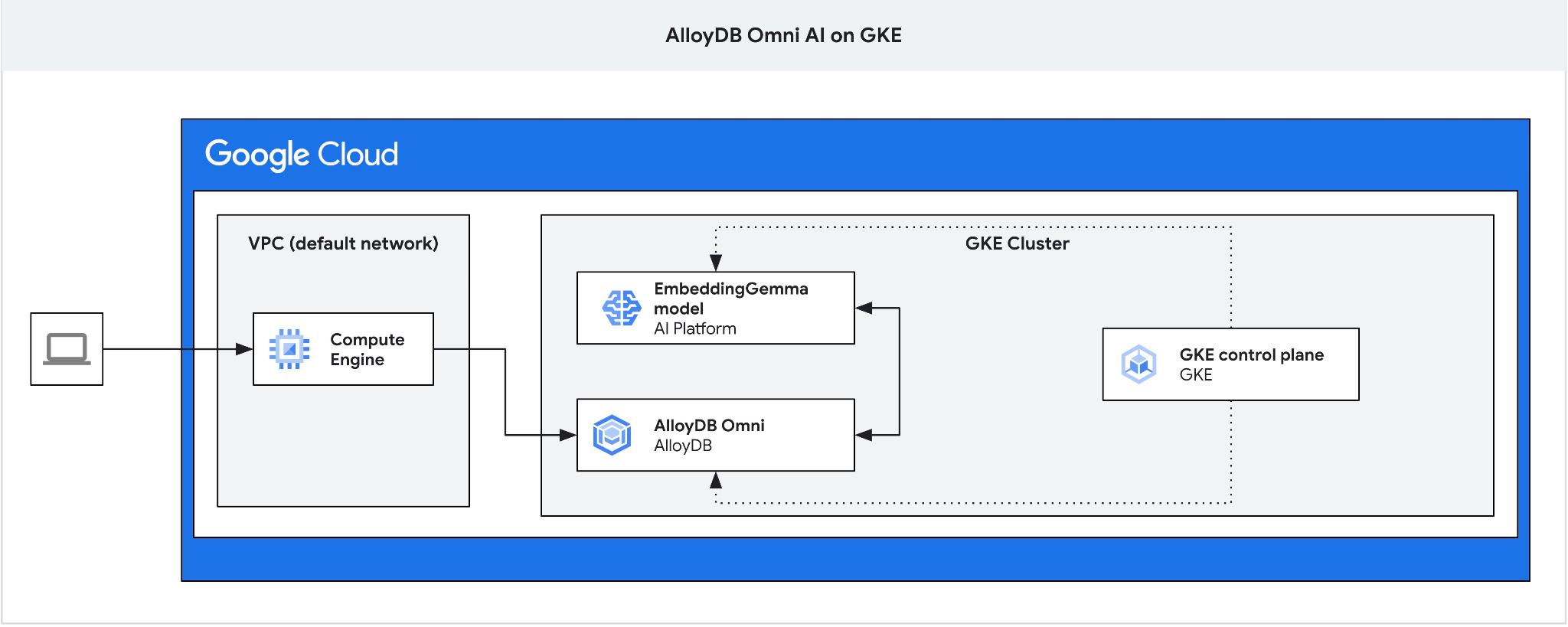
기본 요건
- Google Cloud 및 Google Cloud 콘솔에 대한 기본적인 이해
- Kubernetes 및 GKE에 대한 기본 지식
- 명령줄 인터페이스 및 Google Cloud Shell에 대한 기본 지식
학습할 내용
- GKE 클러스터에 AlloyDB Omni를 배포하는 방법
- AlloyDB Omni에 연결하는 방법
- AlloyDB Omni에 데이터를 로드하는 방법
- GKE에 AI 모델 (임베딩 및 LLM)을 배포하는 방법
- AlloyDB Omni에서 AI 모델을 등록하는 방법
- 시맨틱 검색을 위한 임베딩을 생성하는 방법
- AlloyDB Omni에서 시맨틱 검색 쿼리를 실행하는 방법
- AlloyDB Omni에서 벡터 색인을 만들고 사용하는 방법
필요한 항목
- Google Cloud 계정 및 Google Cloud 프로젝트
- 웹브라우저(예: Chrome)
2. 설정 및 요건
프로젝트 설정
- Google Cloud 콘솔에 로그인합니다. 아직 Gmail이나 Google Workspace 계정이 없는 경우 계정을 만드세요. 직장 또는 학교 계정 대신 개인 계정을 사용하세요.
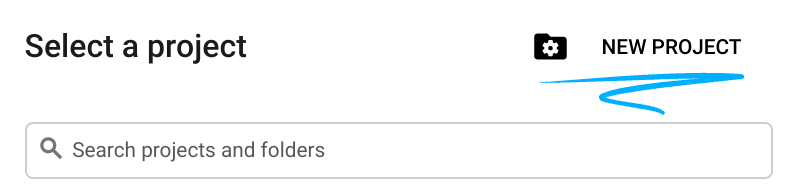
- 새 프로젝트를 만들거나 기존 프로젝트를 선택합니다. Google Cloud 콘솔 헤더에서 프로젝트 선택을 클릭한 다음 새 프로젝트를 클릭합니다.

프로젝트 선택 창에서 새 프로젝트를 클릭하여 프로젝트 생성 대화상자를 엽니다.
대화상자에서 프로젝트 이름을 입력하고 조직 또는 위치를 선택합니다.
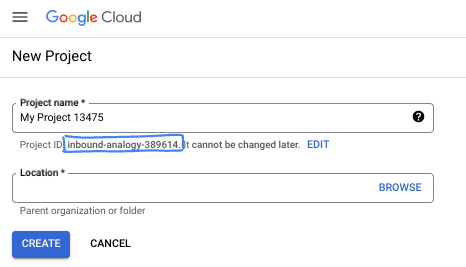
- 프로젝트 이름은 이 프로젝트 참가자의 표시 이름입니다. 프로젝트 이름은 Google API에서 사용되지 않으며 언제든지 변경할 수 있습니다.
- 프로젝트 ID는 모든 Google Cloud 프로젝트에서 고유하며, 변경할 수 없습니다 (설정된 후에는 변경할 수 없음). Google Cloud 콘솔에서 고유 ID를 자동으로 생성하거나 직접 제공할 수 있습니다. 이 Codelab에서는
- 프로젝트 번호는 일부 API에서 사용하는 세 번째 식별자입니다. 자세한 내용은 Resource Manager 문서를 참고하세요.
결제 사용 설정
Google Cloud 크레딧을 사용하여 결제를 설정한 경우 이 단계를 건너뛸 수 있습니다.
개인 결제 계정을 설정하려면 Google Cloud 콘솔에서 결제를 사용 설정하세요.
- 이 실습을 완료하는 데 드는 Google Cloud 리소스 비용은 5달러 미만입니다.
- 이 실습의 끝에 나오는 정리 단계를 따라 리소스를 삭제하고 추가 요금이 발생하지 않도록 하세요.
- 신규 사용자는 미화$300 상당의 무료 체험판을 이용할 수 있습니다.
Cloud Shell 시작
이 Codelab에서는 클라우드에서 실행되는 명령줄 환경인 Google Cloud Shell을 사용합니다.
Google Cloud 콘솔에서 오른쪽 상단 툴바에 있는 Cloud Shell 활성화 아이콘을 클릭합니다.

또는 G와 S를 차례로 누르거나 Google Cloud Shell을 직접 엽니다.
연결되면 Cloud Shell에 터미널 프롬프트가 표시됩니다.

Cloud Shell에는 영구 스토리지와 개발 도구가 포함되어 있습니다. 브라우저에서 이 Codelab의 모든 단계를 실행할 수 있습니다.
3. API 사용 설정
AlloyDB Omni 및 모델 배포에 Google Kubernetes Engine (GKE)을 사용하려면 Google Cloud 프로젝트에서 Compute Engine 및 GKE API를 사용 설정하세요.
Cloud Shell에서 프로젝트 ID가 구성되어 있는지 확인합니다.
PROJECT_ID=$(gcloud config get-value project)
echo $PROJECT_ID
프로젝트 ID가 정의되지 않은 경우 구성합니다.
export PROJECT_ID=<YOUR_PROJECT_ID>
gcloud config set project $PROJECT_ID
필요한 API를 사용 설정합니다.
gcloud services enable compute.googleapis.com
gcloud services enable container.googleapis.com
예상 출력:
student@cloudshell:~ (test-project-001-402417)$ PROJECT_ID=test-project-001-402417
student@cloudshell:~ (test-project-001-402417)$ gcloud config set project test-project-001-402417
Updated property [core/project].
student@cloudshell:~ (test-project-001-402417)$ gcloud services enable compute.googleapis.com
gcloud services enable container.googleapis.com
Operation "operations/acat.p2-4470404856-1f44ebd8-894e-4356-bea7-b84165a57442" finished successfully.
사용 설정된 각 API에 대한 자세한 내용은 문서를 참고하세요.
4. GKE에 AlloyDB Omni 배포
GKE에 AlloyDB Omni를 배포하려면 AlloyDB Omni 연산자 요구사항에 따라 Kubernetes 클러스터를 준비하세요.
GKE 클러스터 만들기
AlloyDB Omni, 연산자, 모니터링 컨테이너를 실행할 수 있는 용량으로 표준 GKE 클러스터를 배포합니다. AlloyDB Omni에는 CPU가 2개 이상, RAM이 8GB 이상 필요합니다. 이 튜토리얼에서는 n2-standard-4 머신 유형을 사용합니다.
배포의 환경 변수를 설정합니다.
export PROJECT_ID=$(gcloud config get-value project)
export LOCATION=us-central1
export CLUSTER_NAME=alloydb-ai-gke
export MACHINE_TYPE=n2-standard-4
표준 GKE 클러스터를 만듭니다.
gcloud container clusters create ${CLUSTER_NAME} \
  --project=${PROJECT_ID} \
  --region=${LOCATION} \
  --workload-pool=${PROJECT_ID}.svc.id.goog \
  --release-channel=rapid \
  --machine-type=${MACHINE_TYPE} \
  --num-nodes=1
예상되는 콘솔 출력:
student@cloudshell:~ (test-project-001-402417)$ export PROJECT_ID=$(gcloud config get project)
export LOCATION=us-central1
export CLUSTER_NAME=alloydb-ai-gke
export MACHINE_TYPE=n2-standard-4
Your active configuration is: [test-project-001-402417]
student@cloudshell:~ (test-project-001-402417)$ gcloud container clusters create ${CLUSTER_NAME} \
  --project=${PROJECT_ID} \
  --region=${LOCATION} \
  --workload-pool=${PROJECT_ID}.svc.id.goog \
  --release-channel=rapid \
  --machine-type=${MACHINE_TYPE} \
  --num-nodes=1
Note: Your Pod address range (`--cluster-ipv4-cidr`) can accommodate at most 1008 node(s).
Creating cluster alloydb-ai-gke in us-central1... Cluster is being health-checked (Kubernetes Control Plane is healthy)...done.
Created [https://container.googleapis.com/v1/projects/test-project-001-402417/zones/us-central1/clusters/alloydb-ai-gke].
To inspect the contents of your cluster, go to: https://console.cloud.google.com/kubernetes/workload_/gcloud/us-central1/alloydb-ai-gke?project=test-project-001-402417
kubeconfig entry generated for alloydb-ai-gke.
NAME: alloydb-ai-gke
LOCATION: us-central1
MASTER_VERSION: 1.36.3-gke.1640000
MASTER_IP: 34.121.243.65
MACHINE_TYPE: n2-standard-4
NODE_VERSION: 1.36.3-gke.1640000
NUM_NODES: 3
STATUS: RUNNING
STACK_TYPE: IPV4
클러스터 준비
Kubernetes용 네이티브 인증서 컨트롤러인 cert-manager와 같은 필수 구성요소를 설치합니다. 자세한 내용은 cert-manager 설치 문서를 참고하세요.
Cloud Shell에는 Kubernetes 명령줄 도구 kubectl가 포함되어 있습니다. gcloud를 사용하여 클러스터 사용자 인증 정보를 가져옵니다.
gcloud container clusters get-credentials ${CLUSTER_NAME} --region=${LOCATION}
kubectl을 사용하여 cert-manager을 설치합니다.
kubectl apply -f https://github.com/cert-manager/cert-manager/releases/download/v1.21.1/cert-manager.yaml
예상되는 콘솔 출력 (수정됨):
student@cloudshell:~$ kubectl apply -f https://github.com/cert-manager/cert-manager/releases/download/v1.21.1/cert-manager.yaml
namespace/cert-manager created
customresourcedefinition.apiextensions.k8s.io/certificaterequests.cert-manager.io created
customresourcedefinition.apiextensions.k8s.io/certificates.cert-manager.io created
customresourcedefinition.apiextensions.k8s.io/challenges.acme.cert-manager.io created
customresourcedefinition.apiextensions.k8s.io/clusterissuers.cert-manager.io created
...
validatingwebhookconfiguration.admissionregistration.k8s.io/cert-manager-webhook created
AlloyDB Omni 오퍼레이터 설치
Helm을 사용하여 AlloyDB Omni 연산자를 설치합니다.
AlloyDB Omni 연산자 차트를 다운로드하고 설치합니다.
helm install alloydbomni-operator oci://gcr.io/alloydb-omni/alloydbomni-operator \
--version 1.8.1 \
--create-namespace \
--namespace alloydb-omni-system \
--atomic \
--timeout 5m
예상되는 콘솔 출력 (수정됨):
student@cloudshell:~$ helm install alloydbomni-operator oci://gcr.io/alloydb-omni/alloydbomni-operator \
> --version 1.8.0 \
> --create-namespace \
> --namespace alloydb-omni-system \
> --atomic \
> --timeout 5m
Flag --atomic has been deprecated, use --rollback-on-failure instead
Pulled: gcr.io/alloydb-omni/alloydbomni-operator:1.8.0
Digest: sha256:f2d98fa7a3b08dfc1e83b811582718b94e5c017b81aade700c83e917c59f0395
NAME: alloydbomni-operator
LAST DEPLOYED: Thu Aug 27 17:57:30 2026
NAMESPACE: alloydb-omni-system
STATUS: deployed
REVISION: 1
DESCRIPTION: Install complete
TEST SUITE: None
데이터베이스 클러스터를 배포합니다.
다음 매니페스트는 googleMLExtension가 사용 설정되고 내부 부하 분산기가 있는 데이터베이스 클러스터를 구성합니다.
cat << 'EOF' > my-omni.yaml
apiVersion: v1
kind: Secret
metadata:
  name: db-pw-my-omni
type: Opaque
data:
  my-omni: "VmVyeVN0cm9uZ1Bhc3N3b3Jk"
---
apiVersion: alloydbomni.dbadmin.goog/v1
kind: DBCluster
metadata:
  name: my-omni
spec:
  databaseVersion: "18.3.0"
  primarySpec:
    adminUser:
      passwordRef:
        name: db-pw-my-omni
    features:
      googleMLExtension:
        enabled: true
    resources:
      cpu: 1
      memory: 8Gi
      disks:
      - name: DataDisk
        size: 20Gi
        storageClass: standard
    dbLoadBalancerOptions:
      annotations:
        networking.gke.io/load-balancer-type: "internal"
  allowExternalIncomingTraffic: true
EOF
비밀번호 보안 비밀 값은 VeryStrongPassword의 Base64 표현입니다. 프로덕션 환경에서는 Google Secret Manager를 사용하여 비밀번호를 관리하세요. 자세한 내용은 Secret Manager 문서를 참고하세요.
매니페스트가 my-omni.yaml로 저장됩니다. Cloud Shell에서 터미널 창 오른쪽 상단의 편집기 열기를 클릭하고 파일을 읽습니다.
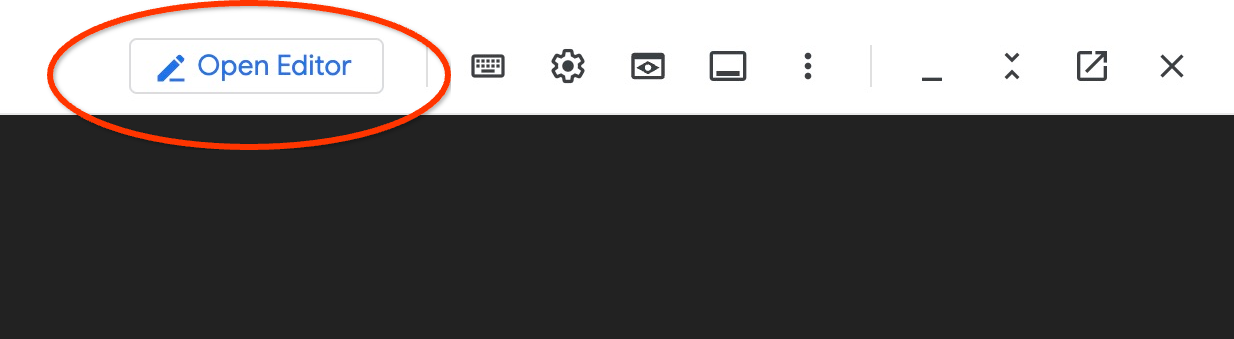
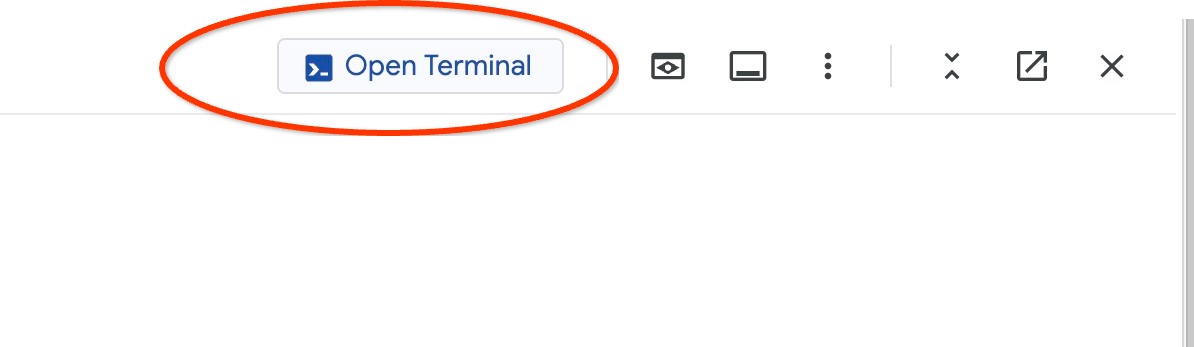
my-omni.yaml 매니페스트를 읽은 후 터미널 열기를 클릭하여 명령 프롬프트로 돌아갑니다.
my-omni.yaml 매니페스트를 적용합니다.
kubectl apply -f my-omni.yaml
예상되는 콘솔 출력:
secret/db-pw-my-omni created
dbcluster.alloydbomni.dbadmin.goog/my-omni created
my-omni 클러스터의 상태를 확인합니다.
kubectl get dbclusters.alloydbomni.dbadmin.goog my-omni -n default
배포 중에 데이터베이스 클러스터는 DBClusterReady 상태에 도달할 때까지 설정 단계를 거칩니다.
예상되는 콘솔 출력:
$ kubectl get dbclusters.alloydbomni.dbadmin.goog my-omni -n default
NAME      PRIMARYENDPOINT   PRIMARYPHASE   DBCLUSTERPHASE   HAREADYSTATUS   HAREADYREASON
my-omni   10.131.0.33        Ready          DBClusterReady
원하는 경우 kubectl log 명령어를 사용하여 클러스터 배포를 모니터링할 수 있습니다.
kubectl logs -l alloydbomni.internal.dbadmin.goog/dbcluster=my-omni --all-containers -f
AlloyDB Omni에 연결
클러스터가 준비되면 PostgreSQL 클라이언트 (psql)를 사용하여 데이터베이스 포드에 연결합니다. 비밀번호는 my-omni.yaml에 정의된 대로 VeryStrongPassword입니다.
DB_CLUSTER_NAME=my-omni
DB_CLUSTER_NAMESPACE=default
DBPOD=`kubectl get pod --selector=alloydbomni.internal.dbadmin.goog/dbcluster=$DB_CLUSTER_NAME,alloydbomni.internal.dbadmin.goog/task-type=database -n $DB_CLUSTER_NAMESPACE -o jsonpath='{.items[0].metadata.name}'`
kubectl exec -ti $DBPOD -n $DB_CLUSTER_NAMESPACE -c database -- psql -h localhost -U postgres
샘플 콘솔 출력:
DB_CLUSTER_NAME=my-omni
DB_CLUSTER_NAMESPACE=default
DBPOD=`kubectl get pod --selector=alloydbomni.internal.dbadmin.goog/dbcluster=$DB_CLUSTER_NAME,alloydbomni.internal.dbadmin.goog/task-type=database -n $DB_CLUSTER_NAMESPACE -o jsonpath='{.items[0].metadata.name}'`
kubectl exec -ti $DBPOD -n $DB_CLUSTER_NAMESPACE -c database -- psql -h localhost -U postgres
Password for user postgres:
psql (18.3)
SSL connection (protocol: TLSv1.3, cipher: TLS_AES_128_GCM_SHA256, compression: off, ALPN: postgresql)
Type "help" for help.

postgres=#
\q를 입력하고 Enter 키를 눌러 psql 세션을 종료합니다.
postgres=# \q
5. GKE에 EmbeddingGemma 모델 배포
로컬 모델과의 AlloyDB Omni AI 통합을 테스트하려면 GKE 클러스터에 임베딩 모델을 배포하세요. 이 튜토리얼에서는 Google의 EmbeddingGemma 모델을 사용합니다.
모델의 노드 풀 만들기
모델 추론을 실행하려면 전용 노드 풀을 준비합니다. CPU 전용 노드 풀 또는 GPU 가속 노드 풀 (예: NVIDIA L4 GPU가 있는 g2-standard-8)을 사용할 수 있습니다. 이 튜토리얼에서는 c3-standard-8 머신 유형이 있는 CPU 기반 노드 풀을 사용합니다.
단일 노드 CPU 노드 풀을 만듭니다.
export PROJECT_ID=$(gcloud config get-value project)
export LOCATION=us-central1
export CLUSTER_NAME=alloydb-ai-gke
gcloud container node-pools create cpupool \
  --project=${PROJECT_ID} \
  --location=${LOCATION} \
  --node-locations=${LOCATION}-a \
  --cluster=${CLUSTER_NAME} \
  --machine-type=c3-standard-8 \
  --num-nodes=1
예상 출력:
student@cloudshell$ export PROJECT_ID=$(gcloud config get project)
Your active configuration is: [pant]
export LOCATION=us-central1
export CLUSTER_NAME=alloydb-ai-gke
student@cloudshell$ gcloud container node-pools create cpupool \
>   --project=${PROJECT_ID} \
>   --location=${LOCATION} \
>   --node-locations=${LOCATION}-a \
>   --cluster=${CLUSTER_NAME} \
>   --machine-type=c3-standard-8 \
>   --num-nodes=1
Creating node pool cpupool...done.
Created [https://container.googleapis.com/v1/projects/gleb-test-short-003-483115/zones/us-central1/clusters/alloydb-ai-gke/nodePools/cpupool].
NAME     MACHINE_TYPE    DISK_SIZE_GB  NODE_VERSION
cpupool  c3-standard-8  100           1.34.1-gke.3355002
Hugging Face 토큰 가져오기
이 튜토리얼에서는 Hugging Face에서 EmbeddingGemma 모델을 배포합니다. 모델 가중치에 액세스하려면 다음 단계에 따라 Hugging Face 액세스 토큰을 생성하세요.
- Hugging Face에 로그인하거나 계정을 만듭니다.
- 내 프로필 > 액세스 토큰으로 이동합니다.
- 새 토큰 만들기를 클릭합니다.
- 토큰 이름을 입력하고 읽기 역할을 선택합니다.
- 토큰 생성을 클릭하고 생성된 토큰 값을 복사합니다.
- 이전에 동의하지 않은 경우 EmbeddingGemma 모델 페이지에서 모델 약관에 동의합니다.
Cloud Shell에서 Hugging Face 토큰이 포함된 Kubernetes 보안 비밀을 만듭니다 (토큰 자리표시자를 토큰으로 바꿈).
export HF_TOKEN=<YOUR_HUGGING_FACE_TOKEN>
kubectl create secret generic hf-secret \
  --from-literal=hf_api_token=$HF_TOKEN \
  --dry-run=client -o yaml | kubectl apply -f -
배포 매니페스트 준비
모델을 배포하려면 Hugging Face의 텍스트 임베딩 추론 (TEI) 컨테이너 패키지를 사용하세요. 자세한 내용은 Hugging Face GKE TEI 문서를 참고하세요.
GitHub에서 배포 저장소를 클론합니다.
git clone https://github.com/huggingface/Google-Cloud-Containers
CPU 구성 매니페스트를 검사하고 수정합니다.
edit Google-Cloud-Containers/examples/gke/tei-deployment/cpu-config/deployment.yaml
업데이트된 CPU 배포 매니페스트:
apiVersion: apps/v1
kind: Deployment
metadata:
  name: tei-deployment
spec:
  replicas: 1
  selector:
    matchLabels:
      app: tei-server
  template:
    metadata:
      labels:
        app: tei-server
        hf.co/model: Google--embeddinggemma-300m
        hf.co/task: text-embeddings
    spec:
      containers:
        - name: tei-container
          image: ghcr.io/huggingface/text-embeddings-inference:cpu-latest
          resources:
            requests:
              cpu: "6"
              memory: "24Gi"
            limits:
              cpu: "6"
              memory: "24Gi"
          env:
            - name: MODEL_ID
              value: google/embeddinggemma-300m
            - name: NUM_SHARD
              value: "1"
            - name: PORT
              value: "8080"
            - name: HF_TOKEN
              valueFrom:
                secretKeyRef:
                  name: hf-secret
                  key: hf_api_token
          volumeMounts:
            - mountPath: /tmp
              name: tmp
      volumes:
        - name: tmp
          emptyDir: {}
      nodeSelector:
        cloud.google.com/machine-family: "c3"
ctrl+s를 눌러 변경사항을 저장하고 터미널로 다시 전환합니다.
모델 배포
매니페스트를 적용하여 TEI 서버를 배포합니다.
kubectl apply -f Google-Cloud-Containers/examples/gke/tei-deployment/cpu-config
배포가 준비 상태가 될 때까지 모니터링합니다.
printf "Waiting for model to load..."; until kubectl logs -l app=tei-server --tail=50 2>/dev/null | grep -q "Ready"; do printf "."; sleep 3; done; printf '\n\033[1;32m========================================\n[SUCCESS] Model is loaded and ready!\nYou can now proceed to the next step.\n========================================\033[0m\n'
tei-service Kubernetes 서비스를 확인합니다.
kubectl get service tei-service
예상 출력:
student@cloudshell$ kubectl get service tei-service
NAME          TYPE        CLUSTER-IP      EXTERNAL-IP   PORT(S)    AGE
tei-service   ClusterIP   34.118.233.48   <none>        8080/TCP   10m
CLUSTER-IP 서비스는 http://34.118.233.48:8080/embed에서 내부적으로 요청을 처리합니다.
kubectl port-forward를 사용하여 로컬에서 모델 엔드포인트를 테스트합니다.
kubectl port-forward service/tei-service 8080:8080
터미널 상단의 +를 클릭하여 두 번째 Cloud Shell 탭을 엽니다.
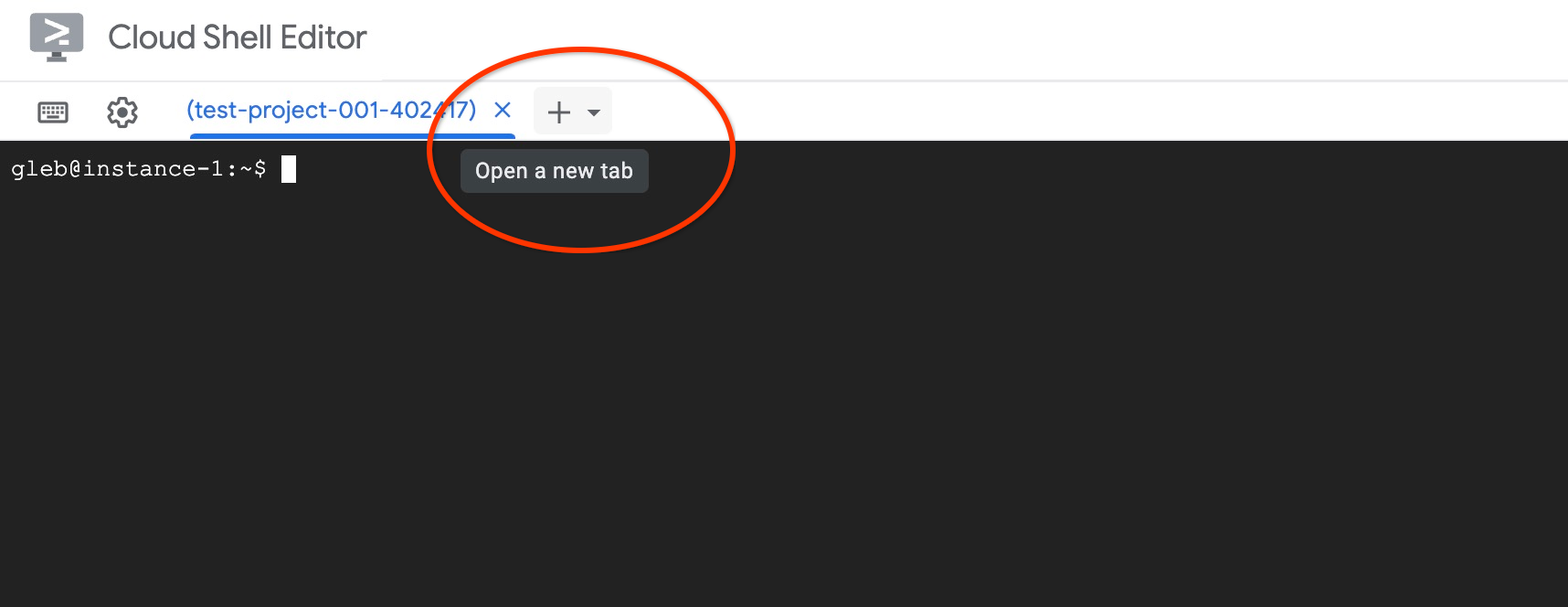
새 탭에서 curl를 사용하여 임베딩 생성을 테스트합니다.
curl http://localhost:8080/embed \
  -X POST \
  -d '{"inputs":"Test"}' \
  -H 'Content-Type: application/json'
예상 출력 (벡터 배열):
curl http://localhost:8080/embed \
>     -X POST \
>     -d '{"inputs":"Test"}' \
>     -H 'Content-Type: application/json'
[[-0.018975832,0.0071419072,0.06347208,0.022992613,0.014205903
...
-0.03677433,0.01636146,0.06731572]]
첫 번째 탭에서 ctrl+c를 눌러 포트 전달을 중지합니다.
6. AlloyDB Omni에 임베딩 모델 등록
AlloyDB Omni에서 배포된 모델을 사용하려면 데이터베이스를 만들고, 변환 함수를 정의하고, 모델 엔드포인트를 등록하세요.
클라이언트 VM 및 데이터베이스 만들기
동일한 VPC에서 클라이언트 점프 호스트 역할을 하는 Compute Engine VM 인스턴스를 만듭니다.
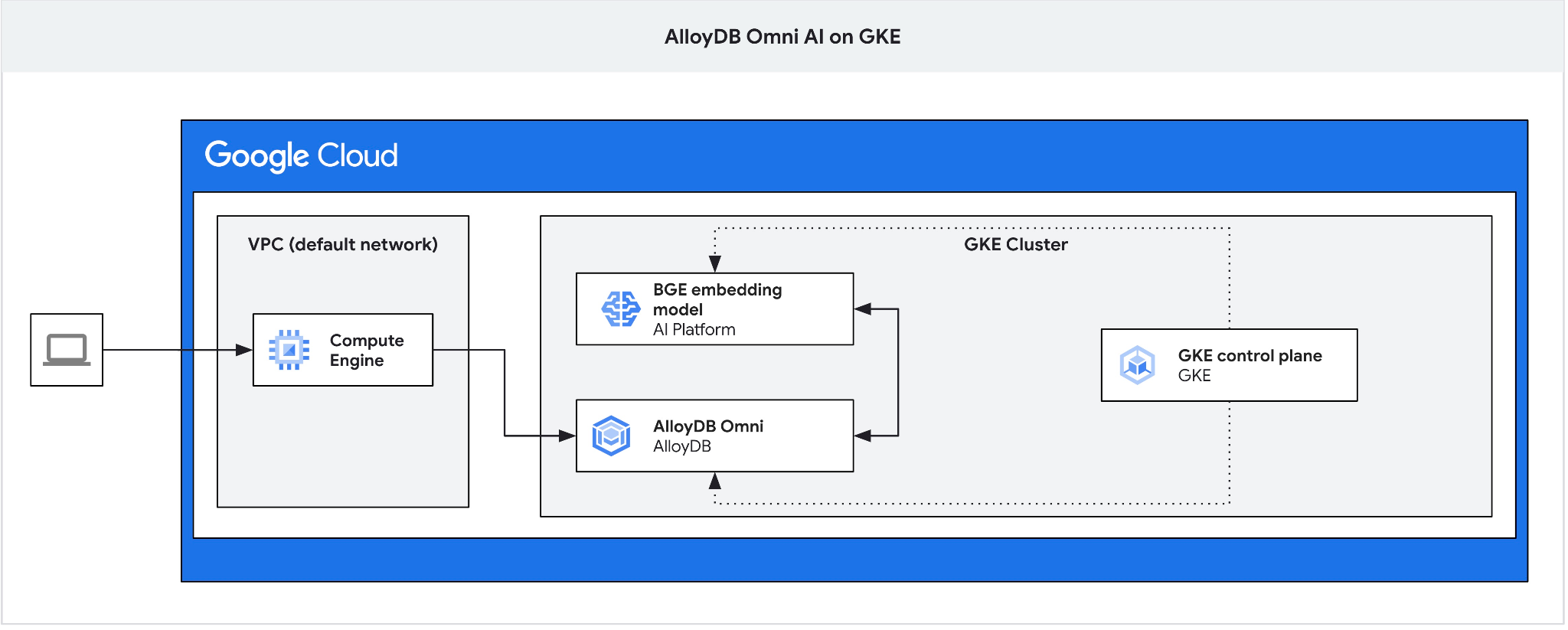
Cloud Shell에서 클라이언트 VM을 만듭니다.
export ZONE=us-central1-a
gcloud compute instances create instance-1 \
  --zone=$ZONE
AlloyDB Omni 엔드포인트 IP를 가져옵니다.
echo "INSTANCE_IP=$(kubectl get dbclusters.alloydbomni.dbadmin.goog my-omni -n default -o jsonpath='{.status.primary.endpoint}')"
예상 출력:
INSTANCE_IP=10.128.0.33
INSTANCE_IP 값은 AlloyDB Omni 클러스터의 내부 부하 분산기 IP입니다. 이 예시에서는 10.131.0.33입니다.
SSH를 사용하여 VM 인스턴스에 연결합니다.
gcloud compute ssh instance-1 --zone=$ZONE
instance-1의 SSH 세션에서 PostgreSQL 클라이언트를 설치합니다.
sudo apt-get update && sudo apt-get install --yes postgresql-client
AlloyDB Omni 부하 분산기 IP를 내보냅니다 (PRIMARYENDPOINT IP로 대체).
export INSTANCE_IP=10.131.0.33
psql을 사용하여 AlloyDB Omni에 연결합니다 (비밀번호는 VeryStrongPassword).
psql "host=$INSTANCE_IP user=postgres sslmode=require"
psql 세션에서 demo 데이터베이스를 만듭니다.
CREATE DATABASE demo;
demo 데이터베이스로 전환합니다.
\c demo
변환 함수 만들기
맞춤 임베딩 엔드포인트에는 AlloyDB Omni와 모델 API 간의 데이터 형식을 조정하기 위한 입력 및 출력 변환 함수가 필요합니다.
입력 변환 함수를 만듭니다.
CREATE OR REPLACE FUNCTION tei_text_input_transform(model_id VARCHAR(100), input_text TEXT)
RETURNS JSON
LANGUAGE plpgsql
AS $$
DECLARE
  transformed_input JSON;
BEGIN
  SELECT json_build_object('inputs', input_text, 'truncate', true)::JSON INTO transformed_input;
  RETURN transformed_input;
END;
$$;
예상 출력:
demo=# CREATE OR REPLACE FUNCTION tei_text_input_transform(model_id VARCHAR(100), input_text TEXT)
RETURNS JSON
LANGUAGE plpgsql
AS $$
DECLARE
  transformed_input JSON;
BEGIN
  SELECT json_build_object('inputs', input_text, 'truncate', true)::JSON INTO transformed_input;
  RETURN transformed_input;
END;
$$;
CREATE FUNCTION
demo=#
벡터 배열 응답을 파싱하는 출력 변환 함수를 만듭니다.
CREATE OR REPLACE FUNCTION tei_text_output_transform(model_id VARCHAR(100), response_json JSON)
RETURNS REAL[]
LANGUAGE plpgsql
AS $$
DECLARE
  transformed_output REAL[];
BEGIN
  SELECT ARRAY(SELECT json_array_elements_text(response_json->0)) INTO transformed_output;
  RETURN transformed_output;
END;
$$;
예상 출력:
demo=# CREATE OR REPLACE FUNCTION tei_text_output_transform(model_id VARCHAR(100), response_json JSON)
RETURNS REAL[]
LANGUAGE plpgsql
AS $$
DECLARE
  transformed_output REAL[];
BEGIN
  SELECT ARRAY(SELECT json_array_elements_text(response_json->0)) INTO transformed_output;
  RETURN transformed_output;
END;
$$;
CREATE FUNCTION
demo=#
모델 등록
google_ml.create_model 절차를 사용하여 AlloyDB Omni에 모델을 등록합니다. Kubernetes 클러스터 서비스로 요청을 라우팅하도록 http://tei-service:8080/embed를 model_request_url로 지정합니다.
CALL
  google_ml.create_model(
    model_id => 'embeddinggemma',
    model_request_url => 'http://tei-service:8080/embed',
    model_provider => 'custom',
    model_type => 'text_embedding',
    model_in_transform_fn => 'tei_text_input_transform',
    model_out_transform_fn => 'tei_text_output_transform');
예상 출력:
demo=# CALL
  google_ml.create_model(
    model_id => 'embeddinggemma',
    model_request_url => 'http://tei-service:8080/embed',
    model_provider => 'custom',
    model_type => 'text_embedding',
    model_in_transform_fn => 'tei_text_input_transform',
    model_out_transform_fn => 'tei_text_output_transform');
CALL
demo=#
샘플 SQL 쿼리로 등록된 모델을 테스트합니다.
SELECT google_ml.embedding('embeddinggemma', 'What is AlloyDB Omni?');
이 함수는 GKE에서 실행되는 로컬 EmbeddingGemma 모델에서 생성된 실수 배열 표현을 반환합니다.
q를 눌러 psql 세션 프롬프트로 돌아갑니다.
psql 세션을 종료합니다.
\q
7. 샘플 데이터로 모델 테스트
샘플 데이터 로드
이 튜토리얼에서는 Cymbal 소매 데이터 세트를 사용하여 벡터 유사성 검색을 보여줍니다. Google Cloud SDK와 PostgreSQL 클라이언트를 사용하여 AlloyDB Omni로 데이터를 가져옵니다.
instance-1의 SSH 세션에서 데모 데이터베이스에 연결하고 vector 확장 프로그램을 사용 설정합니다.
psql "host=$INSTANCE_IP user=postgres sslmode=require dbname=demo"
psql 세션에서 다음을 실행합니다.
CREATE EXTENSION IF NOT EXISTS vector;
psql 세션을 종료합니다.
\q
스키마를 다운로드하고 적용하여 demo 데이터베이스에 테이블을 만듭니다.
gcloud storage cat gs://cloud-training/gcc/gcc-tech-004/cymbal_demo_schema.sql |psql "host=$INSTANCE_IP user=postgres dbname=demo"
예상 출력:
student@cloudshell:~$ gcloud storage cat gs://cloud-training/gcc/gcc-tech-004/cymbal_demo_schema.sql |psql "host=$INSTANCE_IP user=postgres dbname=demo"
Password for user postgres:
SET
SET
SET
SET
SET
 set_config
------------

(1 row)

SET
SET
SET
SET
SET
SET
CREATE TABLE
ALTER TABLE
CREATE TABLE
ALTER TABLE
CREATE TABLE
ALTER TABLE
CREATE TABLE
ALTER TABLE
CREATE SEQUENCE
ALTER TABLE
ALTER SEQUENCE
ALTER TABLE
ALTER TABLE
ALTER TABLE
student@cloudshell:~$
생성된 테이블을 확인합니다.
psql "host=$INSTANCE_IP user=postgres dbname=demo" -c "\dt+"
예상 출력:
student@cloudshell:~$ psql "host=$INSTANCE_IP user=postgres dbname=demo" -c "\dt+"
Password for user postgres:
                                           List of relations
 Schema |       Name       | Type  |  Owner   | Persistence | Access method |    Size    | Description
--------+------------------+-------+----------+-------------+---------------+------------+-------------
 public | cymbal_embedding | table | postgres | permanent   | heap          | 8192 bytes |
 public | cymbal_inventory | table | postgres | permanent   | heap          | 8192 bytes |
 public | cymbal_products  | table | postgres | permanent   | heap          | 8192 bytes |
 public | cymbal_stores    | table | postgres | permanent   | heap          | 8192 bytes |
(4 rows)
cymbal_products 테이블에 데이터를 로드합니다.
gcloud storage cat gs://cloud-training/gcc/gcc-tech-004/cymbal_products.csv |psql "host=$INSTANCE_IP user=postgres dbname=demo" -c "\copy cymbal_products from stdin csv header"
예상 출력:
student@cloudshell:~$ gcloud storage cat gs://cloud-training/gcc/gcc-tech-004/cymbal_products.csv |psql "host=$INSTANCE_IP user=postgres dbname=demo" -c "\copy cymbal_products from stdin csv header"
COPY 941
student@cloudshell:~$
다음은 cymbal_products 테이블의 몇 개 행 샘플입니다.
psql "host=$INSTANCE_IP user=postgres dbname=demo" -c "SELECT uniq_id,left(product_name,30),left(product_description,50),sale_price FROM cymbal_products limit 3"
예상 출력:
student@cloudshell:~$ psql "host=$INSTANCE_IP user=postgres dbname=demo" -c "SELECT uniq_id,left(product_name,30),left(product_description,50),sale_price FROM cymbal_products limit 3"
Password for user postgres:
             uniq_id              |              left              |                        left                        | sale_price
----------------------------------+--------------------------------+----------------------------------------------------+------------
 a73d5f754f225ecb9fdc64232a57bc37 | Laundry Tub Strainer Cup       |   Laundry tub strainer cup Chrome For 1-.50, drain |      11.74
 41b8993891aa7d39352f092ace8f3a86 | LED Starry Star Night Light La |  LED Starry Star Night Light Laser Projector 3D Oc |      46.97
 ed4a5c1b02990a1bebec908d416fe801 | Surya Horizon HRZ-1060 Area Ru |  The 100% polypropylene construction of the Surya  |       77.4
(3 rows)
student@cloudshell:~$
cymbal_inventory 테이블에 데이터를 로드합니다.
gcloud storage cat gs://cloud-training/gcc/gcc-tech-004/cymbal_inventory.csv |psql "host=$INSTANCE_IP user=postgres dbname=demo" -c "\copy cymbal_inventory from stdin csv header"
예상 출력:
student@cloudshell:~$ gcloud storage cat gs://cloud-training/gcc/gcc-tech-004/cymbal_inventory.csv |psql "host=$INSTANCE_IP user=postgres dbname=demo" -c "\copy cymbal_inventory from stdin csv header"
Password for user postgres:
COPY 263861
student@cloudshell:~$
다음은 cymbal_inventory 테이블의 몇 개 행 샘플입니다.
psql "host=$INSTANCE_IP user=postgres dbname=demo" -c "SELECT * FROM cymbal_inventory LIMIT 3"
출력:
student@cloudshell:~$ psql "host=$INSTANCE_IP user=postgres dbname=demo" -c "SELECT * FROM cymbal_inventory LIMIT 3"
Password for user postgres:
 store_id |             uniq_id              | inventory
----------+----------------------------------+-----------
     1583 | adc4964a6138d1148b1d98c557546695 |         5
     1490 | adc4964a6138d1148b1d98c557546695 |         4
     1492 | adc4964a6138d1148b1d98c557546695 |         3
(3 rows)
student@cloudshell:~$
cymbal_stores 테이블에 데이터를 로드합니다.
gcloud storage cat gs://cloud-training/gcc/gcc-tech-004/cymbal_stores.csv |psql "host=$INSTANCE_IP user=postgres dbname=demo" -c "\copy cymbal_stores from stdin csv header"
예상되는 콘솔 출력:
student@cloudshell:~$ gcloud storage cat gs://cloud-training/gcc/gcc-tech-004/cymbal_stores.csv |psql "host=$INSTANCE_IP user=postgres dbname=demo" -c "\copy cymbal_stores from stdin csv header"
Password for user postgres:
COPY 4654
student@cloudshell:~$
다음은 cymbal_stores 테이블의 몇 개 행 샘플입니다.
psql "host=$INSTANCE_IP user=postgres dbname=demo" -c "SELECT store_id, name, zip_code FROM cymbal_stores limit 3"
출력:
student@cloudshell:~$ psql "host=$INSTANCE_IP user=postgres dbname=demo" -c "SELECT store_id, name, zip_code FROM cymbal_stores limit 3"
Password for user postgres:
 store_id |       name        | zip_code
----------+-------------------+----------
     1990 | Mayaguez Store    |      680
     2267 | Ware Supercenter  |     1082
     4359 | Ponce Supercenter |      780
(3 rows)
student@cloudshell:~$
임베딩 빌드
psql을 사용하여 데모 데이터베이스에 연결하고 제품 설명을 기반으로 cymbal_products 테이블에 설명된 제품의 임베딩을 빌드합니다.
데모 데이터베이스에 연결합니다.
psql "host=$INSTANCE_IP user=postgres sslmode=require dbname=demo"
vector 유형의 embedding 열을 사용하여 제품 설명에 대해 생성된 텍스트 임베딩을 저장합니다.
쿼리 타이밍을 사용 설정합니다.
\timing
각 제품 설명의 임베딩을 생성하고 cymbal_embedding 테이블에 저장합니다.
INSERT INTO cymbal_embedding (uniq_id, embedding)
SELECT uniq_id, google_ml.embedding('embeddinggemma', product_description)::vector
FROM cymbal_products;
예상 출력:
demo=# INSERT INTO cymbal_embedding(uniq_id,embedding)  SELECT uniq_id, google_ml.embedding('embeddinggemma',product_description)::vector FROM cymbal_products;
INSERT 0 941
Time: 497878.136 ms (08:17.878)
demo=#
시맨틱 검색 쿼리 실행
psql 세션에서 코사인 거리 (<=>)를 사용하여 질문 "What kind of fruit trees grow well here?"과 일치하는 상위 5개 제품을 찾습니다.
SELECT
    cp.product_name,
    left(cp.product_description, 80) AS description,
    cp.sale_price,
    cs.zip_code,
    (ce.embedding <=> google_ml.embedding('embeddinggemma', 'What kind of fruit trees grow well here?')::vector) AS distance
FROM
    cymbal_products cp
JOIN cymbal_embedding ce ON ce.uniq_id = cp.uniq_id
JOIN cymbal_inventory ci ON ci.uniq_id = cp.uniq_id
JOIN cymbal_stores cs ON cs.store_id = ci.store_id
WHERE
    ci.inventory > 0
    AND cs.store_id = 1583
ORDER BY
    distance ASC
LIMIT 5;
예상 출력:
demo=# SELECT
        cp.product_name,
        left(cp.product_description,80) as description,
        cp.sale_price,
        cs.zip_code,
        (ce.embedding <=> google_ml.embedding('embeddinggemma','What kind of fruit trees grow well here?')::vector) as distance
FROM
        cymbal_products cp
JOIN cymbal_embedding ce on ce.uniq_id=cp.uniq_id
JOIN cymbal_inventory ci on ci.uniq_id=cp.uniq_id
JOIN cymbal_stores cs on cs.store_id=ci.store_id
WHERE
    ci.inventory > 0
    AND cs.store_id = 1583
ORDER BY
    distance ASC
LIMIT 5;
     product_name      |                                   description                                    | sale_price | zip_code |      distance
-----------------------+----------------------------------------------------------------------------------+------------+----------+--------------------
 Cherry Tree           | This is a beautiful cherry tree that will produce delicious cherries. It is an d |      75.00 |    93230 | 0.5210549378080666
 California Lilac      | This is a beautiful lilac tree that can grow to be over 10 feet tall. It is an d |       5.00 |    93230 | 0.5639421771781971
 Toyon                 | This is a beautiful toyon tree that can grow to be over 20 feet tall. It is an e |      10.00 |    93230 | 0.5670010914504852
 Rose Bush             | This is a beautiful rose bush that will produce fragrant roses. It is a perennia |      50.00 |    93230 | 0.5731542622882957
 California Peppertree | This is a beautiful peppertree that can grow to be over 30 feet tall. It is an e |      25.00 |    93230 | 0.5750934653011995
(5 rows)

Time: 83.610 ms
demo=#
쿼리가 83ms 동안 실행되었으며 요청과 일치하고 1583번 스토어에서 재고가 있는 Cymbal 제품 테이블의 트리 목록을 반환했습니다.
ANN 색인 빌드
데이터 세트가 작으면 모든 삽입을 검색하는 정확한 검색을 쉽게 사용할 수 있지만 데이터가 증가하면 로드 및 응답 시간도 증가합니다. 성능을 개선하려면 임베딩 데이터에 색인을 빌드하면 됩니다. 벡터 데이터에 Google ScaNN 색인을 사용하여 이를 수행하는 방법의 예는 다음과 같습니다.
연결이 끊어진 경우 데모 데이터베이스에 다시 연결합니다.
psql "host=$INSTANCE_IP user=postgres sslmode=require dbname=demo"
alloydb_scann 확장 프로그램을 사용 설정합니다.
CREATE EXTENSION IF NOT EXISTS alloydb_scann;
embedding 열에 ScaNN 색인을 만듭니다.
CREATE INDEX cymbal_products_embeddings_scann ON cymbal_embedding
  USING scann (embedding cosine)
  WITH (num_leaves=10, max_num_levels = 1);
시맨틱 검색 쿼리를 다시 실행하여 실행 성능을 비교합니다.
SELECT
    cp.product_name,
    left(cp.product_description, 80) AS description,
    cp.sale_price,
    cs.zip_code,
    (ce.embedding <=> google_ml.embedding('embeddinggemma', 'What kind of fruit trees grow well here?')::vector) AS distance
FROM
    cymbal_products cp
JOIN cymbal_embedding ce ON ce.uniq_id = cp.uniq_id
JOIN cymbal_inventory ci ON ci.uniq_id = cp.uniq_id
JOIN cymbal_stores cs ON cs.store_id = ci.store_id
WHERE
    ci.inventory > 0
    AND cs.store_id = 1583
ORDER BY
    distance ASC
LIMIT 5;
예상 출력:
demo=# SELECT
    cp.product_name,
    left(cp.product_description,80) as description,
    cp.sale_price,
    cs.zip_code,
    (ce.embedding <=> google_ml.embedding('embeddinggemma', 'What kind of fruit trees grow well here?')::vector) AS distance
FROM
    cymbal_products cp
JOIN cymbal_embedding ce ON ce.uniq_id = cp.uniq_id
JOIN cymbal_inventory ci ON ci.uniq_id = cp.uniq_id
JOIN cymbal_stores cs ON cs.store_id = ci.store_id
WHERE
    ci.inventory > 0
    AND cs.store_id = 1583
ORDER BY
    distance ASC
LIMIT 5;
     product_name      |                                   description                                    | sale_price | zip_code |      distance
-----------------------+----------------------------------------------------------------------------------+------------+----------+--------------------
 Cherry Tree           | This is a beautiful cherry tree that will produce delicious cherries. It is an d |      75.00 |    93230 | 0.5210549378080666
 California Lilac      | This is a beautiful lilac tree that can grow to be over 10 feet tall. It is an d |       5.00 |    93230 | 0.5639421771781971
 Toyon                 | This is a beautiful toyon tree that can grow to be over 20 feet tall. It is an e |      10.00 |    93230 | 0.5670010914504852
 Rose Bush             | This is a beautiful rose bush that will produce fragrant roses. It is a perennia |      50.00 |    93230 | 0.5731542622882957
 California Peppertree | This is a beautiful peppertree that can grow to be over 30 feet tall. It is an e |      25.00 |    93230 | 0.5750934653011995
(5 rows)

Time: 64.783 ms
쿼리 실행 시간이 약간 줄었으며 데이터 세트가 클수록 이점이 더 두드러집니다. 반환된 데이터는 색인 없이 가져온 데이터와 동일하거나 매우 유사해야 합니다.
다른 쿼리를 시도하고 문서에서 벡터 색인 최적화에 대해 자세히 알아보세요.
psql 세션을 종료합니다.
\q
instance-1 ssh 세션에서 연결을 해제하여 Google Cloud Shell로 돌아갑니다(Ctrl+D를 누르거나 exit 입력).
8. vLLM으로 Gemma 배포
Gemma용 노드 풀 추가
먼저 리전에서 사용할 수 있는 노드 유형을 확인합니다.
export LOCATION=us-central1-a
gcloud compute accelerator-types list --filter="zone:${LOCATION}"
nvidia-l4 가속기를 비롯한 사용 가능한 가속기 유형 목록이 표시됩니다. 이제 nvidia-l4 액셀러레이터 유형으로 노드 풀을 만듭니다.
export PROJECT_ID=$(gcloud config get project)
export LOCATION=us-central1
export CLUSTER_NAME=alloydb-ai-gke
gcloud container node-pools create gpupool \
    --accelerator type=nvidia-l4,count=1,gpu-driver-version=latest \
    --project=${PROJECT_ID} \
    --location=${LOCATION} \
    --node-locations=${LOCATION}-a \
    --cluster=${CLUSTER_NAME} \
    --machine-type=g2-standard-8 \
    --num-nodes=1
vLLM을 사용하여 Google Gemini 4 12B 모델의 배포 매니페스트를 만듭니다.
cat << 'EOF' > gemma-12b-gpu-vllm-deployment.yaml
apiVersion: apps/v1
kind: Deployment
metadata:
  name: gemma-12b-gpu-vllm-deployment
spec:
  replicas: 1
  selector:
    matchLabels:
      app: gemma-12b-gpu-vllm
  template:
    metadata:
      labels:
        app: gemma-12b-gpu-vllm
        ai.gke.io/model: gemma-4-12b-it
        ai.gke.io/inference-server: vllm
        examples.ai.gke.io/source: user-guide
    spec:
      containers:
      - name: inference-server
        image: us-docker.pkg.dev/vertex-ai/vertex-vision-model-garden-dockers/pytorch-vllm-serve:latest
        resources:
          requests:
            cpu: "4"
            memory: "16Gi"
            ephemeral-storage: "30Gi"
            nvidia.com/gpu: "1"
          limits:
            cpu: "8"
            memory: "24Gi"
            ephemeral-storage: "30Gi"
            nvidia.com/gpu: "1"
        command: ["python3", "-m", "vllm.entrypoints.api_server"]
        args:
          - --model=$(MODEL_ID)
          - --host=0.0.0.0
          - --port=8000
          - --tensor-parallel-size=1
          - --enable-log-requests
          - --enable-chunked-prefill
          - --enable-prefix-caching
          - --enable-auto-tool-choice
          - --generation-config=auto
          - --tool-call-parser=gemma4
          - --dtype=bfloat16
          - --max-num-seqs=16
          - --max-model-len=32768
          - --gpu-memory-utilization=0.95
          - --reasoning-parser=gemma4
          - --trust-remote-code
          - --quantization=fp8
        env:
        - name: LD_LIBRARY_PATH
          value: ${LD_LIBRARY_PATH}:/usr/local/nvidia/lib64
        - name: MODEL_ID
          value: google/gemma-4-12b-it
        - name: HF_TOKEN
          valueFrom:
            secretKeyRef:
              name: hf-secret
              key: hf_api_token
        volumeMounts:
        - mountPath: /dev/shm
          name: dshm
      volumes:
      - name: dshm
        emptyDir:
            medium: Memory
      nodeSelector:
        cloud.google.com/gke-accelerator: nvidia-l4
        cloud.google.com/gke-gpu-driver-version: latest
---
apiVersion: v1
kind: Service
metadata:
  name: gemma-12b-gpu-vllm-service
spec:
  selector:
    app: gemma-12b-gpu-vllm
  type: ClusterIP
  ports:
    - protocol: TCP
      port: 8000
      targetPort: 8000
EOF
저장된 gemma-12b-gpu-vllm-deployment.yaml 배포를 적용합니다.
kubectl apply -f gemma-12b-gpu-vllm-deployment.yaml
예상 출력:
$ kubectl apply -f gemma-12b-gpu-vllm-deployment.yaml
deployment.apps/gemma-12b-gpu-vllm-deployment created
service/gemma-12b-gpu-vllm-service created
배포가 완료되고 모델이 로드될 때까지 기다립니다. 몇 분 정도 걸릴 수 있습니다.
printf "Waiting for model to load..."; until kubectl logs -l app=gemma-12b-gpu-vllm --tail=50 2>/dev/null | grep -q "Application startup complete"; do printf "."; sleep 3; done; printf '\n\033[1;32m========================================\n[SUCCESS] Model is loaded and ready!\nYou can now proceed to the next step.\n========================================\033[0m\n'
예상 출력:
Waiting for model to load...
========================================
[SUCCESS] Model is loaded and ready!
You can now proceed to the next step.
========================================
모델 테스트 모델에 액세스할 수 있도록 포트 전달을 사용 설정합니다.
kubectl port-forward svc/gemma-12b-gpu-vllm-service 8090:8000
다른 터미널 창에서 curl을 사용하여 모델에 프롬프트를 보냅니다.
curl http://localhost:8090/v1/chat/completions \
  -H "Content-Type: application/json" \
  -d '{
    "messages": [
      {"role": "system", "content": "You are a helpful assistant running on GKE."},
      {"role": "user", "content": "What is AlloyDB Omni."}
    ],
    "temperature": 0.7
  }' | jq -r '.choices[0].message.content'
예상 출력:
  % Total    % Received % Xferd  Average Speed   Time    Time     Time  Current
                                 Dload  Upload   Total   Spent    Left  Speed
100  3957  100  3761  100   196     85      4  0:00:49  0:00:43  0:00:06   830
**AlloyDB Omni** is a fully managed, PostgreSQL-compatible database engine from Google Cloud that can be run **on-premises, in other clouds, or in your own data centers.**

To understand it simply: It allows you to run the high-performance, enterprise-grade capabilities of Google's **AlloyDB** (a cloud-native database) on your own infrastructure.

Here is a breakdown of what makes it significant:

### 1. The "Best of Both Worlds" Architecture
Normally, you have to choose between:
*   **Managed Cloud Databases:** Easy to scale and manage, but you are locked into the cloud provider's infrastructure.
*   **Self-Managed Databases:** You have full control over the hardware/location, but you are responsible for scaling, patching, and high availability.

**AlloyDB Omni** bridges this gap. It provides the advanced features of a cloud-native database (like intelligent indexing, high availability, and massive scalability) while allowing you to run it anywhere.
Ctrl+C를 눌러 첫 번째 터미널에서 포트 포워딩을 중지합니다 (아직 실행 중인 경우).
9. AlloyDB Omni에 Gemma 4 모델 등록
google_ml.create_model 절차를 사용하여 AlloyDB Omni에 Gemma 12B 모델을 등록합니다. Kubernetes 클러스터 서비스로 요청을 라우팅하도록 http://gemma-12b-gpu-vllm-service:8000/v1/chat/completions를 model_request_url로 지정합니다.
AlloyDB Omni 엔드포인트 IP를 가져옵니다.
echo "INSTANCE_IP=$(kubectl get dbclusters.alloydbomni.dbadmin.goog my-omni -n default -o jsonpath='{.status.primary.endpoint}')"
SSH를 사용하여 VM 인스턴스에 연결합니다.
export ZONE=us-central1-a
gcloud compute ssh instance-1 --zone=$ZONE
VM에 연결한 후 이전 단계에서 INSTANCE_IP 변수를 내보냅니다 (10.128.0.33 값은 예로 제공됨. IP로 대체).
export INSTANCE_IP=10.128.0.33
AlloyDB 비밀번호를 내보냅니다.
export PGPASSWORD=VeryStrongPassword
demo 데이터베이스에 연결:
psql "host=$INSTANCE_IP user=postgres sslmode=require dbname=demo"
psql 세션에서 모델을 등록합니다.
CALL
  google_ml.create_model(
    model_id => 'gemma-12b-gpu',
    model_request_url => 'http://gemma-12b-gpu-vllm-service:8000/v1/chat/completions',
    model_provider => 'custom',
    model_type => 'llm');
샘플 SQL 쿼리로 모델을 테스트합니다.
SELECT google_ml.predict_row(
  model_id => 'gemma-12b-gpu',
  request_body => json_build_object(
    'messages', json_build_array(
      json_build_object('role', 'user', 'content', 'What is AlloyDB Omni?'))))->'choices'->0->'message'->'content';
q을 눌러 결과 창에서 psql 프롬프트로 돌아갑니다.
AlloyDB Omni에서 벡터 검색과 LLM RAG 결합
LLM 요청과 함께 벡터 검색을 사용하여 LLM으로 RAG (검색 증강 생성)를 시연합니다.
plsql에서 SQL 쿼리를 실행합니다.
WITH trees AS (
SELECT
        cp.product_name,
        cp.product_description AS description,
        cp.sale_price,
        cs.zip_code,
        cp.uniq_id AS product_id
FROM
    cymbal_products cp
JOIN cymbal_embedding ce ON ce.uniq_id = cp.uniq_id
JOIN cymbal_inventory ci ON ci.uniq_id = cp.uniq_id
JOIN cymbal_stores cs ON cs.store_id = ci.store_id
WHERE
        ci.inventory>0
        AND cs.store_id = 1583
ORDER BY
        (ce.embedding <=> embedding('embeddinggemma',
        'What kind of fruit trees grow well here?')::vector) ASC
LIMIT 1),
prompt AS (
SELECT
        'You are a friendly advisor helping to find a product based on the customer''s needs.
Based on the client request we have loaded a list of products closely related to search.
The list in JSON format with list of values like {"product_name":"name","product_description":"some description","sale_price":10}
Here is the list of products:' || json_agg(trees) || 'The customer asked "What kind of fruit trees grow well here?"
You should give information about the product, price and some supplemental information' AS prompt_text
FROM
        trees),
response AS (
SELECT
        google_ml.predict_row(
          model_id =>'gemma-12b-gpu',
          request_body => json_build_object(
            'messages', json_build_array(
              json_build_object('role', 'user', 'content',prompt_text)
            )))->'choices'->0->'message'->'content' AS resp
FROM
        prompt)
SELECT
REPLACE(resp::text, '\n', CHR(10))
FROM
        response;
예상 출력:
----------------------------------------------------------------------------------------------------------------------------------------------
 "Hello there! I'd be happy to help you find the perfect tree for your garden.                                                               +
                                                                                                                                             +
 Based on your location, we have a wonderful option that would grow beautifully in your area:                                                +
                                                                                                                                             +
 **Cherry Tree**                                                                                                                             +
 *   **Price:** $75.00                                                                                                                       +
 *   **Description:** This is a stunning deciduous tree that not only provides a beautiful landscape but also produces delicious cherries.   +
 *   **Supplemental Information:**                                                                                                           +
     *   **Growth:** It grows to about 15 feet tall.                                                                                         +
     *   **Appearance:** You can look forward to dark green leaves in the summer that transform into a vibrant red in the fall.              +
     *   **Benefits:** It's a great choice if you're looking for both fruit and extra shade or privacy in your yard.                         +
     *   **Care Tips:** It performs best in a cool, moist climate with sandy soil. Since you are in a suitable zone, it should thrive nicely!+
                                                                                                                                             +
 Would you like more details on how to plant this, or would you like to proceed with an order?"
(1 row)
쿼리는 벡터 검색 결과를 통해 LLM에 대한 프롬프트를 보완합니다.
다른 질문을 시도하고 RAG 패턴을 실험해 보세요. 제시된 아키텍처의 장점은 완전한 자급자족입니다. 데이터가 클러스터 외부로 전송되지 않으며 완전히 격리된 환경에서 실행할 수 있습니다.
psql 세션을 종료합니다.
\q
VM에 대한 SSH 세션에서 연결을 해제합니다.
exit
AlloyDB Omni에는 더 많은 기능과 실습이 있습니다.
10. 환경 정리
Google Cloud 계정에 지속적으로 비용이 청구되지 않도록 하려면 이 Codelab에서 생성한 리소스를 삭제합니다.
GKE 클러스터 삭제
Cloud Shell에서 GKE 클러스터를 삭제합니다.
export PROJECT_ID=$(gcloud config get-value project)
export LOCATION=us-central1
export CLUSTER_NAME=alloydb-ai-gke
gcloud container clusters delete ${CLUSTER_NAME} \
  --project=${PROJECT_ID} \
  --region=${LOCATION}
예상 출력:
student@cloudshell:~$ gcloud container clusters delete ${CLUSTER_NAME} \
>   --project=${PROJECT_ID} \
>   --region=${LOCATION}
The following clusters will be deleted.
 - [alloydb-ai-gke] in [us-central1]

Do you want to continue (Y/n)?  Y

Deleting cluster alloydb-ai-gke...done.
Deleted
클라이언트 VM 삭제
Cloud Shell에서 Compute Engine 인스턴스를 삭제합니다.
export PROJECT_ID=$(gcloud config get-value project)
export ZONE=us-central1-a
gcloud compute instances delete instance-1 \
  --project=${PROJECT_ID} \
  --zone=${ZONE}
예상 출력:
student@cloudshell:~$ export PROJECT_ID=$(gcloud config get project)
export ZONE=us-central1-a
gcloud compute instances delete instance-1 \
  --project=${PROJECT_ID} \
  --zone=${ZONE}
Your active configuration is: [cloudshell-5399]
The following instances will be deleted. Any attached disks configured to be auto-deleted will be deleted unless they are attached to any other instances or the `--keep-disks` flag is given and specifies them for keeping. Deleting a disk
is irreversible and any data on the disk will be lost.
 - [instance-1] in [us-central1-a]

Do you want to continue (Y/n)?  Y

Deleted
이 Codelab을 위해 새 프로젝트를 만든 경우 Google Cloud 리소스 관리자에서 전체 프로젝트를 삭제해도 됩니다.
11. 축하합니다
Codelab을 완료하신 것을 축하드립니다.
학습한 내용
- GKE 클러스터에 AlloyDB Omni를 배포하는 방법
- AlloyDB Omni에 연결하는 방법
- AlloyDB Omni에 데이터를 로드하는 방법
- GKE에 AI 모델 (임베딩 및 LLM)을 배포하는 방법
- AlloyDB Omni에서 AI 모델을 등록하는 방법
- 시맨틱 검색을 위한 임베딩을 생성하는 방법
- AlloyDB Omni에서 시맨틱 검색 쿼리를 실행하는 방법
- AlloyDB Omni에서 벡터 색인을 만들고 사용하는 방법
AlloyDB Omni에서 AI를 사용하는 방법에 관한 자세한 내용은 문서를 참고하세요.
설문조사
결과: