
1. Introduction
In this lab, you build an Application Integration integration by describing it to an AI agent. You install the three public Application Integration agent skills from the google/skills repository, then prompt Gemini CLI to write, upload, publish, and run a small sample integration.
The sample, sample-claims-adjudication, takes an insurance claim and returns APPROVE, REVIEW, or DENY.
What you'll do
- Set up Application Integration in a Google Cloud project.
- Install the Application Integration agent skills.
- Prompt Gemini CLI to build, upload, publish, and run an integration.
- Check the execution yourself, and ask the agent to troubleshoot it.
- Clean up the sample integration.
What you'll learn
- What the
application-integration-basics,-authoring, and-troubleshootingskills give an agent. - How to review the integration version JSON and the commands the agent runs before you approve them.
- How to read an execution record.
2. Project setup
- If you don't already have a Google Account, you must create a Google Account.
- Use a personal account instead of a work or school account. Work and school accounts may have restrictions that prevent you from enabling the APIs needed for this lab.
- Sign-in to the Google Cloud Console.
- Enable billing in the Cloud Console.
- Completing this lab should cost less than $1 USD in Cloud resources.
- You can follow the steps at the end of this lab to delete resources to avoid further charges.
- New users are eligible for the $300 USD Free Trial.
- Create a new project or choose to reuse an existing project.
- If you see an error about project quota, reuse an existing project or delete an existing project to create a new project.
Use a new project, or an existing project where you can safely experiment, not a production project. The agent uploads, publishes, and runs integrations in it with your credentials.
3. Open Cloud Shell Editor
- Click this link to navigate directly to Cloud Shell Editor
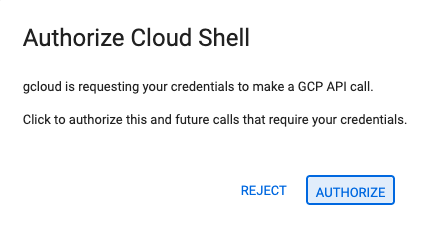
- If prompted to authorize at any point today, click Authorize to continue.
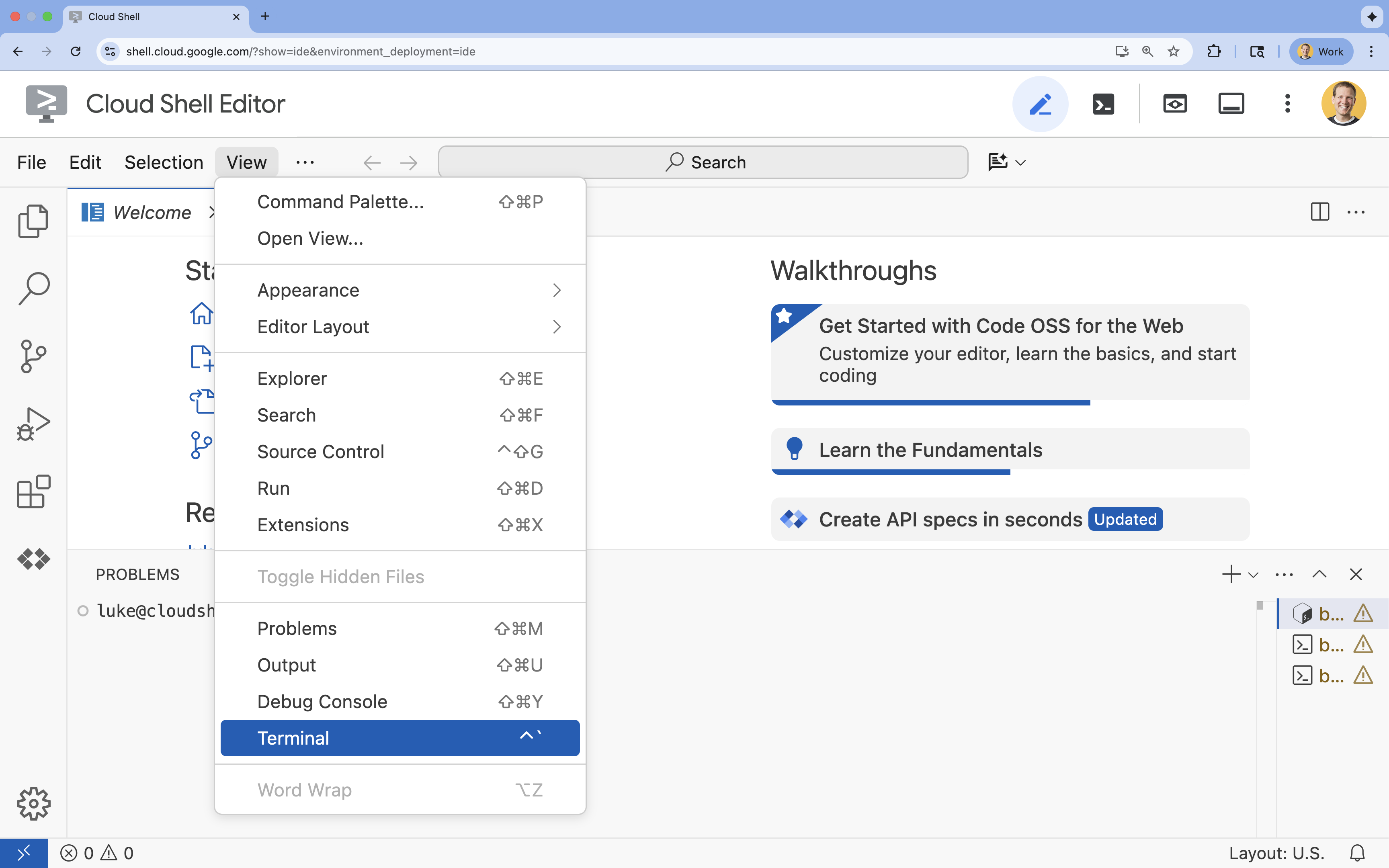
- If the terminal doesn't appear at the bottom of the screen, open it:
- Click View
- Click Terminal
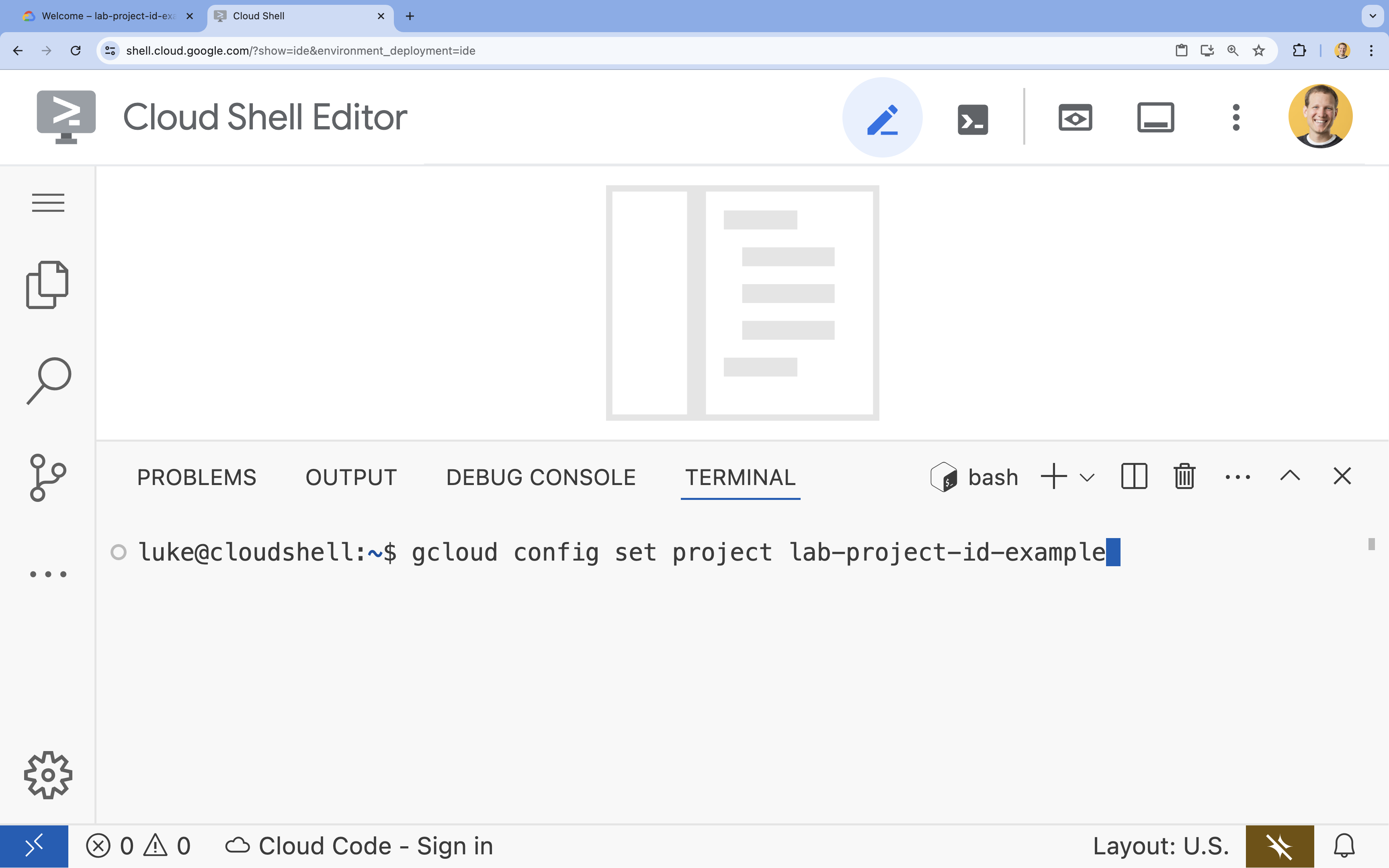
- In the terminal, set your project with this command:
- Format:
gcloud config set project [PROJECT_ID] - Example:
gcloud config set project lab-project-id-example - If you can't remember your project id:
- You can list all your project ids with:
gcloud projects list | awk '/PROJECT_ID/{print $2}'
- You can list all your project ids with:
- Format:
- You should see this message:
Updated property [core/project].
WARNINGand are askedDo you want to continue (Y/n)?, then you have likely entered the project ID incorrectly. Pressn, pressEnter, and try to run thegcloud config set projectcommand again.
4. Set up Application Integration
Application Integration is regional, so you set it up in one region. This lab uses us-central1.
- Note your project ID; you paste it into a prompt later:
gcloud config get-value project - Enable the Application Integration API:
gcloud services enable integrations.googleapis.com - Go to the Application Integration page in the Google Cloud console and select your project.
- On the Overview page, select the
us-central1region and click Quick setup. When setup finishes, the console shows the Integrations list. If you reuse a project, check that you have the roles listed in Set up Application Integration before you click Quick setup.
To learn more, see Set up Application Integration.
5. Install the agent skills
The skills give the agent its Application Integration knowledge:
application-integration-basics: concepts, enabling APIs, provisioning a region, IAM roles, and limits.application-integration-authoring: writing integration versions as JSON, and uploading, publishing, and running them.application-integration-troubleshooting: diagnosing failed, stuck, or silent runs.
- Create a directory for this lab and go to it:
mkdir ~/appint-agent-lab && cd ~/appint-agent-lab - Install the three skills:
npx skills add google/skills --skill application-integration-basics npx skills add google/skills --skill application-integration-authoring npx skills add google/skills --skill application-integration-troubleshootingEnterto keep it, choose Project as the installation scope, and confirm the installation.
The skills are now in ~/appint-agent-lab/.agents/skills.
6. Start Gemini CLI
- Start Gemini CLI from the lab directory:
gemini~/appint-agent-lab, and rungeminiagain. You may need to pressEnterto accept some default settings. - List the skills that Gemini CLI can use:
/skillsapplication-integration-*skills in the list.
7. Build, publish, and run the integration
- Paste this prompt into Gemini CLI. Replace
PROJECT_IDwith the project ID that you noted in Set up Application Integration.Using the Application Integration skills, build an integration named sample-claims-adjudication in project PROJECT_ID, region us-central1. - Start it with an API trigger named adjudicate_claim. - Inputs: claimId (string), claimAmount (double), policyActive (boolean). - Outputs: decision (string) and reason (string). - Rules: if policyActive is false, return DENY. If claimAmount is 1000 or less, return APPROVE. Otherwise, return REVIEW. Set reason to a short explanation. - Save the integration version JSON in this directory so I can review it. - Show me every command before you run it, then upload, publish, and run it once with a sample claim. - When the agent first uses a skill, Gemini CLI asks you to activate it. Allow it.
- The agent writes an integration version file, such as
sample-claims-adjudication.json. It contains the trigger (triggerConfigs), the tasks (taskConfigs), and the variables (integrationParameters). Read it, and ask the agent to explain anything you don't expect. For example, check whether the agent turned on Cloud Logging (cloudLoggingDetails.enableCloudLogging), which can add cost. To turn it off, setenableCloudLoggingtofalseand removecloudLoggingSeverity. - Approve the commands. Gemini CLI asks before it runs each command, including read-only ones. The skills also tell the agent to show you the exact command or request before it changes anything, such as uploading, publishing, or running the integration. If the agent asks for approval without showing the command, ask it to show the command. Check the project, region, and integration name before you approve, and decline commands that read or change integrations that aren't yours.
After you approve, the agent uploads the JSON file as a new version (versions.upload), publishes it (versions.publish), and runs it through the API trigger (integrations.execute). It then shows you the decision, the reason, and the execution ID.
8. Verify the execution
Run the published integration yourself and read its execution record.
- Open a new Cloud Shell terminal tab, go to the lab directory, and save your project ID and region in variables:
cd ~/appint-agent-lab export PROJECT_ID=$(gcloud config get-value project) export LOCATION=us-central1 - Run the integration with a claim over 1000:
curl -X POST \ -H "Authorization: Bearer $(gcloud auth print-access-token)" \ -H "Content-Type: application/json" \ -d '{ "triggerId": "api_trigger/adjudicate_claim", "inputParameters": { "claimId": {"stringValue": "CLM-1001"}, "claimAmount": {"doubleValue": 2500}, "policyActive": {"booleanValue": true} } }' \ "https://integrations.googleapis.com/v1/projects/${PROJECT_ID}/locations/${LOCATION}/integrations/sample-claims-adjudication:execute"executionId, andoutputParameterswithdecisionset toREVIEW. - Read the execution record. Replace
EXECUTION_IDwith theexecutionIdfrom the response:curl -G \ -H "Authorization: Bearer $(gcloud auth print-access-token)" \ --data-urlencode 'filter=execution_id="EXECUTION_ID"' \ "https://integrations.googleapis.com/v1/projects/${PROJECT_ID}/locations/${LOCATION}/integrations/sample-claims-adjudication/executions"executionDetails.stateisSUCCEEDED, andexecutionDetails.executionSnapshotsshows the state of each task.
You can also see the run in the execution logs in the Google Cloud console.
9. Troubleshoot
A successful response doesn't always mean that every task did what you expected. Ask the agent to check the execution. In Gemini CLI, enter this prompt, replacing EXECUTION_ID:
Check execution EXECUTION_ID of sample-claims-adjudication. Did every task
succeed? If anything failed, tell me why and propose a fix.
The agent reads the execution record with executions.list, filtered by the execution ID, and summarizes the state of the run and of each task.
If something goes wrong in this lab, check these common causes:
/skillsdoesn't list the Application Integration skills. Start Gemini CLI from~/appint-agent-laband trust the folder.- A call fails with
PERMISSION_DENIED. Check that you're using the right project, and that you have the Application Integration Editor role (roles/integrations.integrationEditor) on it. - Running the integration fails with
No integrations found for the requested trigger_id. Check that the project and region in the request match where the integration is published, thattriggerIdisapi_trigger/adjudicate_claim, and that a version of the integration is published. You get the same error if you uploaded a version but didn't publish it.
10. Clean up
- In Gemini CLI, ask the agent to remove the sample integration:
Unpublish sample-claims-adjudication, then delete every version of it.versions.unpublish) and deletes each version (versions.delete). When no versions are left, the integration no longer appears in your list of integrations.If you created a project only for this lab, you can delete the project instead of removing the integration. Run this command in the terminal tab that you opened in Verify the execution:gcloud projects delete $(gcloud config get-value project) - Type
/quitand pressEnterto exit Gemini CLI. - Delete the lab directory:
cd ~ && rm -rf ~/appint-agent-lab
11. Congratulations
You built, published, ran, and checked an integration by prompting an AI agent with the Application Integration agent skills.
What's next
- Build an integration with an AI agent
- Application Integration agent skills
- Read the skills on GitHub: basics, authoring, and troubleshooting.