
1. Introduction
In this codelab, you will build an event-driven architecture that combines BigQuery continuous queries, Pub/Sub, and a fraud investigator agent built using the Agent Development Kit (ADK) hosted on Vertex AI Agent Engine.
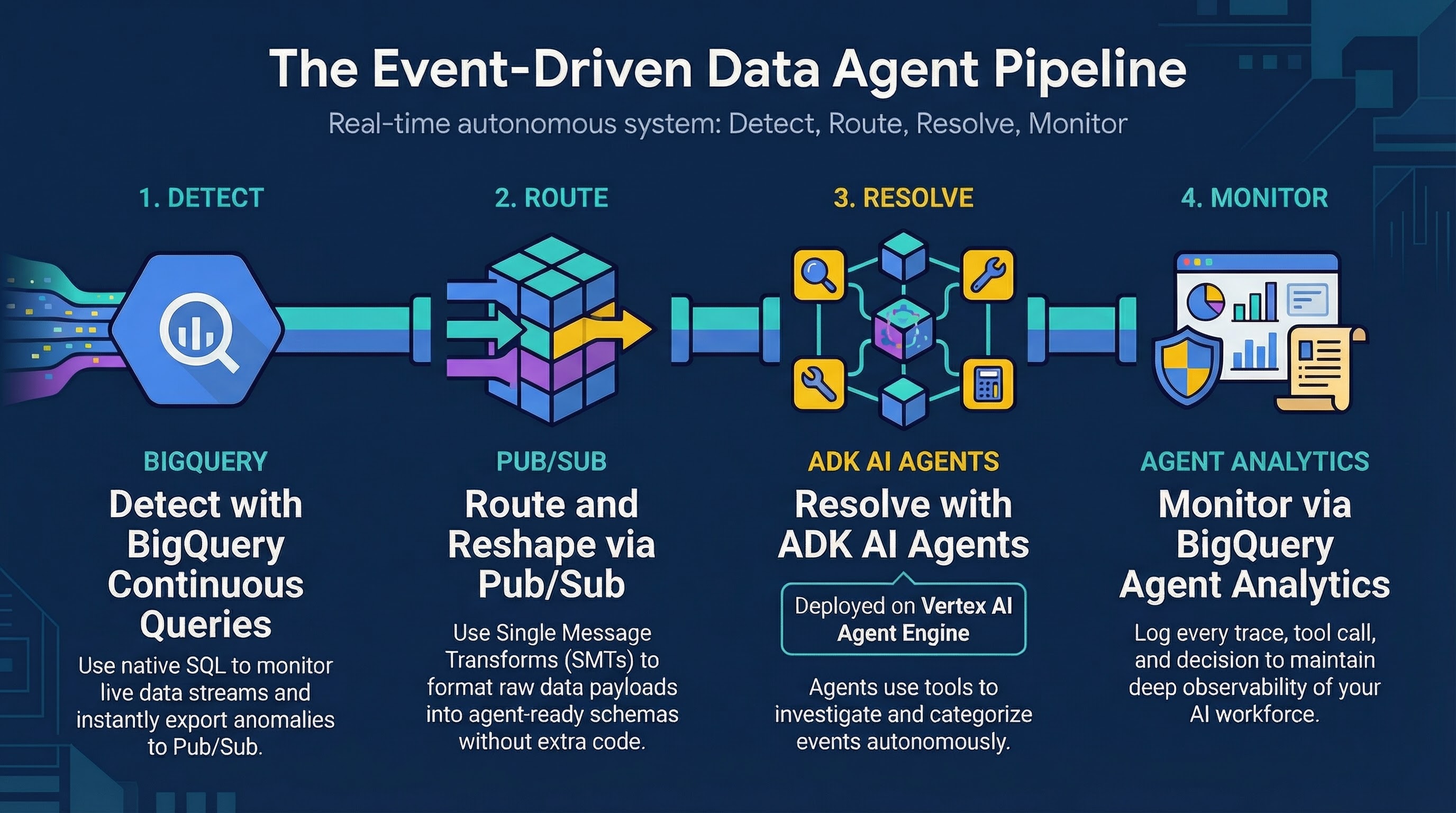
You will set up a pipeline where a continuous query detects anomalies (like "Impossible Travel") in real-time retail transactions, exports these suspicious events to a Pub/Sub topic, which then triggers an ADK agent to evaluate and respond individually to each anomaly.
What you'll do
- Prepare a BigQuery environment with sample transaction data
- Create a BigQuery continuous query to detect real-time anomalies
- Set up a Pub/Sub topic and subscription with single message transformations (SMT)
- Pull, configure, and deploy an ADK agent to Vertex AI Agent Engine
- Stream transaction data to validate that the agent receives and processes the escalations
What you'll need
- A web browser such as Chrome
- A Google Cloud project with billing enabled
- Access to Google Cloud Shell
This codelab is for intermediate developers familiar with BigQuery and basic Python.
The resources created in this codelab should cost less than $2.
Estimated duration: This codelab will take approximately 60 minutes to complete.
2. Before you begin
Create a Google Cloud Project
- In the Google Cloud Console, on the project selector page, select or create a Google Cloud project.
- Make sure that billing is enabled for your Cloud project. Learn how to check if billing is enabled on a project.
Start Cloud Shell
Cloud Shell is a command-line environment running in Google Cloud that comes preloaded with necessary tools.
- Click Activate Cloud Shell at the top of the Google Cloud console.
- Once connected to Cloud Shell, verify your authentication:
gcloud auth list - Confirm your project is configured:
gcloud config get project - If your project is not set as expected, set it:
export PROJECT_ID=<YOUR_PROJECT_ID>
gcloud config set project $PROJECT_ID
Set your Project ID
Run the following command to retrieve your active Google Cloud Project ID and save it as an environment variable to use throughout this codelab:
export PROJECT_ID=$(gcloud config get-value project)
Get the Code
Run this command to clone the repository and download only the target event_driven_agents_demo folder, which contains the ADK agent and the setup scripts:
git clone --depth 1 --filter=blob:none --sparse https://github.com/GoogleCloudPlatform/devrel-demos.git temp-repo && cd temp-repo && git sparse-checkout set data-analytics/event_driven_agents_demo && cd .. && mv temp-repo/data-analytics/event_driven_agents_demo . && rm -rf temp-repo
Navigate to the event_driven_agents_demo directory:
cd event_driven_agents_demo
If you open the Cloud Shell Editor, you should be able to see the cloned repository structure:
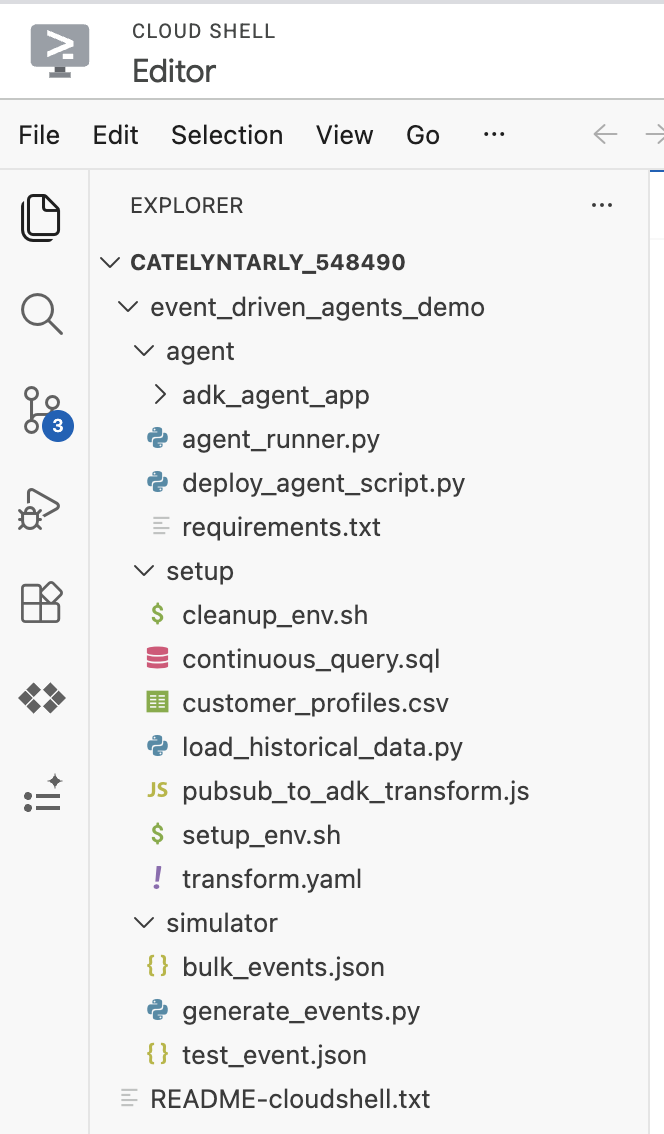
3. Prepare the Environment
You will prepare your Google Cloud environment using the setup script provided in the repository. This script:
- Provisions a Google Cloud Storage bucket for staging Agent Developer Kit (ADK)
- Creates a
CONTINUOUSEnterprise BigQuery reservation for query processing - Sets up the BigQuery dataset and loads the initial
customer_profilesdata - Configures IAM permissions and grants the necessary roles to the ADK Agent Service Account
Run the script from your Cloud Shell:
chmod +x setup/setup_env.sh
./setup/setup_env.sh
4. Inspect the ADK Agent
You will now deploy the ADK agent code to the Vertex AI Agent Engine. Doing this first ensures your agent is deployed and ready to handle escalations before you start streaming data.
cd agent
Understanding the ADK (Agent Development Kit) Agent Code
The core agent logic is defined within adk_agent_app/agent.py.
We construct an agent that uses Gemini 2.5 Flash to autonomously investigate anomalous alerts. The agent analyzes the alert payload, retrieves customer history from BigQuery, and verifies merchant details via web search before classifying the transaction as either FALSE_POSITIVE (a legitimate transaction) or ESCALATION_NEEDED.
# Excerpt from agent/adk_agent_app/agent.py
investigation_agent = Agent(
    model="gemini-2.5-flash",
    name="Fraud_Investigation_Agent",
    description="Expert fraud analyst agent that autonomously investigates alerts...",
    instruction=(
        "You are an expert fraud investigator for Cymbal Bank. "
        "Your goal is to investigate financial transaction alerts, "
        "determine if they are fraudulent, and take appropriate action. "
        "Calculate risk, assess the logic_signals provided in the input, "
        "query the database for past transactions, and search the merchant..."
    ),
    tools=[
        bigquery_toolset,
        google_search,
    ],
)
The agent is equipped with two distinct tools:
BigQueryToolset: Allows the agent to autonomously query thecymbal_bankdataset to look up additional transaction history.google_search: Allows the agent to search the web to investigate a merchant's reputation and verify their legitimacy.
5. Deploy the ADK Agent
Execute the following command to install the required Python packages (google-cloud-aiplatform, google-adk, etc.) for deploying the agent:
pip install -r requirements.txt
Execute the following command to dynamically generate a .env file containing your specific Project ID, this will be used when deploying the agent:
cat <<EOF > .env
PROJECT_ID=$PROJECT_ID
LOCATION=us-central1
STAGING_BUCKET=gs://$PROJECT_ID-adk-staging
SERVICE_ACCOUNT=adk-agent-sa@$PROJECT_ID.iam.gserviceaccount.com
BIGQUERY_DATASET=cymbal_bank
GOOGLE_GENAI_USE_VERTEXAI=1
EOF
Now run this command to deploy the agent to Vertex AI Agent Engine:
python deploy_agent_script.py
Note: The deploy_agent_script.py initializes the BigQueryAgentAnalyticsPlugin, which automatically logs trace data and agent tool usage into the agent_events table in BigQuery.
This will take a few minutes to complete. You should see output similar to:
Deploying Agent...
Deployed Resource Name: projects/<YOUR_PROJECT_ID>/locations/<REGION>/reasoningEngines/...

================================================================================
Pub/Sub Push Endpoint URL:
https://<REGION>-aiplatform.googleapis.com/v1/projects/<YOUR_PROJECT_ID>/locations/<REGION>/reasoningEngines/...:streamQuery
================================================================================
Run this command to save the deployed agent endpoint URL to a local file named agent_endpoint.txt:
export AGENT_ENDPOINT=$(cat agent_endpoint.txt)
We will use this URL later when creating our Pub/Sub push subscription.
6. Test the ADK Agent
Before generating live streaming events, test that the ADK agent in Agent Engine is correctly handling manual escalations.
- In the Google Cloud console, go to the Vertex AI Agent Engine page.
- Click the name of your deployed agent (
Cymbal Bank Fraud Assitant). - Navigate to the Playground tab to interact with the agent directly.
- In the chat interface, paste the following simulated JSON event payload that mimics what the agent will receive from Pub/Sub and press Enter:
{
  "window_end": "2026-03-15T10:00:00Z",
  "user_id": "user_39175",
  "customer_name": "Jonathan Mckinney",
  "tx_count": 1,
  "total_window_spend": 15.0,
  "highest_value_merchant": "Google One Subscription",
  "highest_value_mcc": "5732",
  "contains_international_tx": false,
  "contains_untrusted_device_tx": false,
  "final_risk_score": 2,
  "logic_signals": {
    "is_impossible_travel": false,
    "has_security_mismatch": false,
    "is_high_velocity": false
  }
}
Verify that the agent evaluates the transaction and responds with its FALSE POSITIVE assessment in the Playground window:
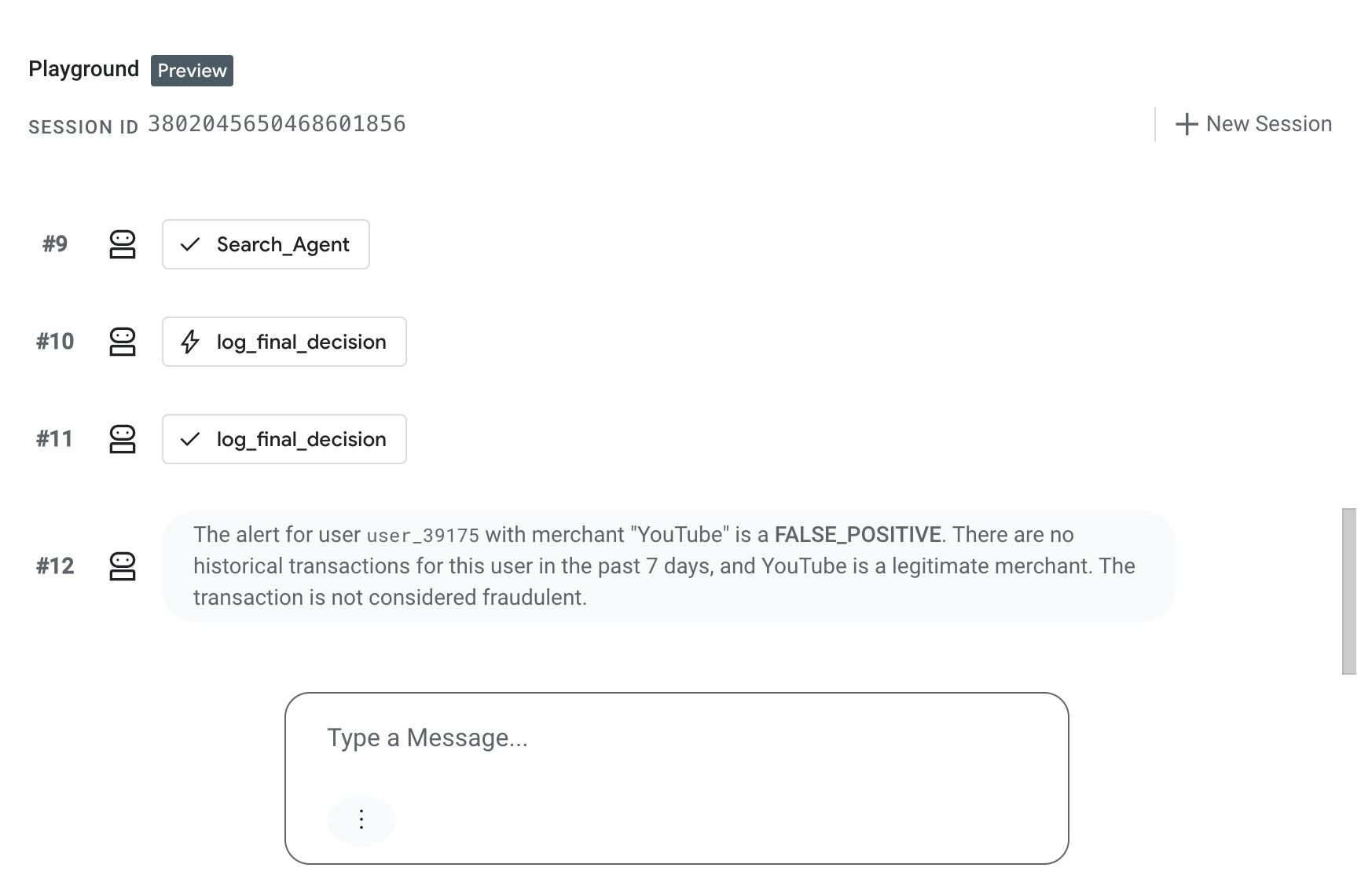
7. Set up a BigQuery continuous query to stream escalations to Pub/Sub
Now that we have our ADK agent deployed and ready to receive events, let's go back to the root directory and build the rest of the pipeline:
cd ../../event_driven_agents_demo
1. Create a Pub/Sub Topic
Run this command to create a Pub/Sub topic. This topic will receive the anomalies exported from the BigQuery Continuous Query:
gcloud pubsub topics create cymbal-bank-escalations-topic
We will create the subscription to this topic in the next step.
2. Run the BigQuery continuous query
With your agent deployed and the Pub/Sub topic ready, start the continuous query to monitor the retail_transactions stream in real time. This query detects "Impossible Travel" anomalies and exports alerts to Pub/Sub.
Run the following command to start the query:
sed -i "s/YOUR_PROJECT_ID/$PROJECT_ID/g" setup/continuous_query.sql

bq query \
  --use_legacy_sql=false \
  --continuous=true \
  --sync=false \
  --connection_property=service_account=adk-agent-sa@$PROJECT_ID.iam.gserviceaccount.com \
  "$(cat setup/continuous_query.sql)"
You should see output in the terminal indicating the continuous query has successfully started:
Successfully started query your-project-id:bqjob_r66189572226875ed_0000019d000000_1
8. Create the Push Subscription
Now that your agent is deployed and the continuous query is running, you will create a "Push" subscription to actively forward any new anomaly messages from the topic directly to your agent's webhook URL.
To make sure the agent receives the data in the correct format, we will use a Single Message Transform (SMT). SMTs allow you to make lightweight modifications to message data and attributes directly within Pub/Sub on the fly, before they are delivered to the subscriber.
Here is how the transformation works in our pipeline:
- The UDF: The
transform.yamlfile in thesetupdirectory contains the Javascript User-Defined Function (UDF) that will process the messages. - Unwrapping BigQuery Data: When BigQuery exports data to Pub/Sub via continuous query, it wraps the JSON payload in an outer object.
- Formatting for ADK: The UDF unwraps that double-encoding and repackages the payload into the strict format expected by the Agent Engine
streamQueryAPI.
Run the following command to create the subscription with the UDF transform applied:
gcloud pubsub subscriptions create cymbal-bank-escalations-sub \
  --topic=projects/$PROJECT_ID/topics/cymbal-bank-escalations-topic \
  --message-transforms-file=setup/transform.yaml \
  --push-endpoint="$AGENT_ENDPOINT" \
  --push-no-wrapper \
  --push-auth-service-account="adk-agent-sa@$PROJECT_ID.iam.gserviceaccount.com" \
  --ack-deadline=600
You should see output confirming the subscription was created:
Created subscription [projects/your-project-id/subscriptions/cymbal-bank-escalations-sub].
9. Generate Events
Finally, test the end-to-end flow by running generate_events.py to stream a synthetic "Impossible Travel" transaction into your cymbal_bank.retail_transactions table:
python simulator/generate_events.py
It uses the customer profile data we loaded earlier (Karen Burton, whose home country is the USA) and simulates a new $2,500 electronics transaction occurring in Australia (AUS).
Verify the event arrives: Wait approximately two minutes for continuous query windowing and ADK processing, then check your deployed agent's logs to confirm it processed the triggered Pub/Sub message.
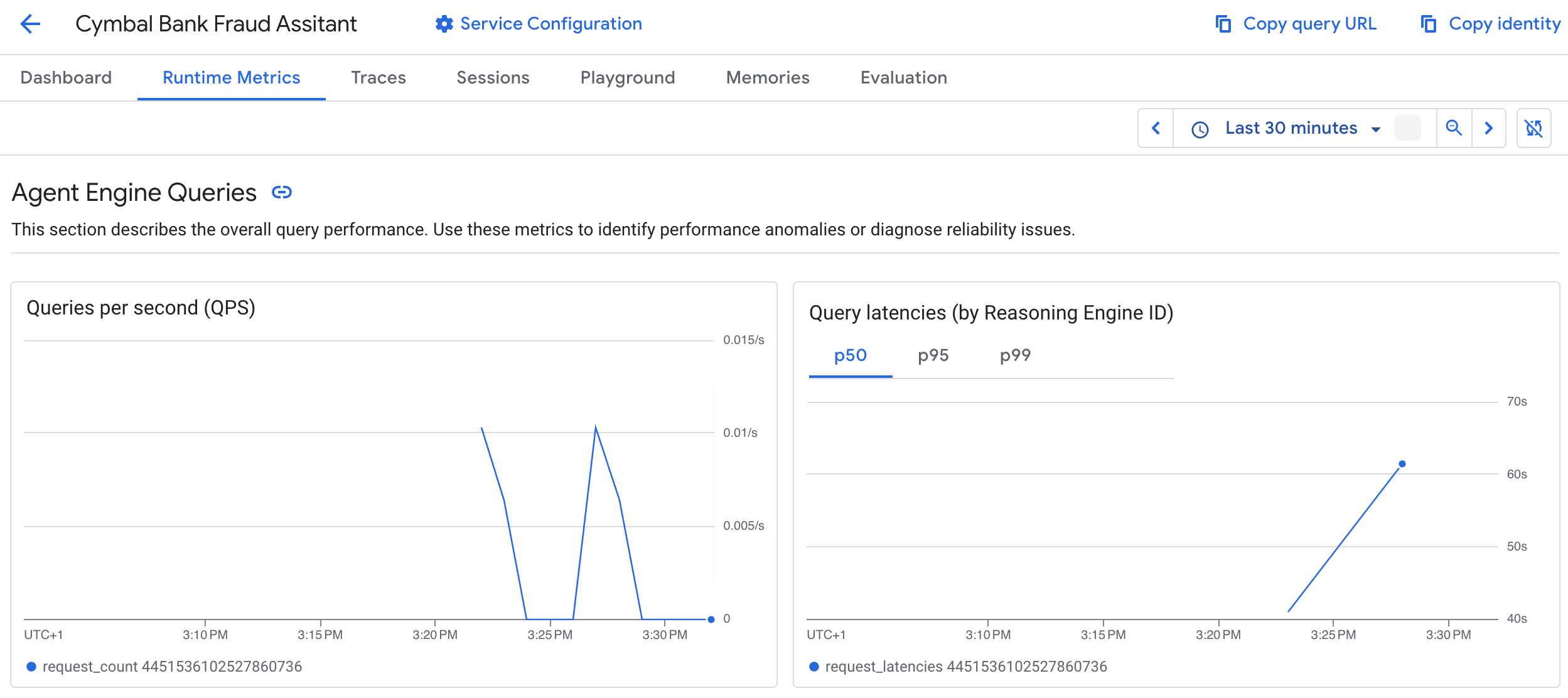
10. Analyze Agent Performance in BigQuery
Navigate to the BigQuery console and select the cymbal_bank dataset. Select the agent_events table and click Preview:
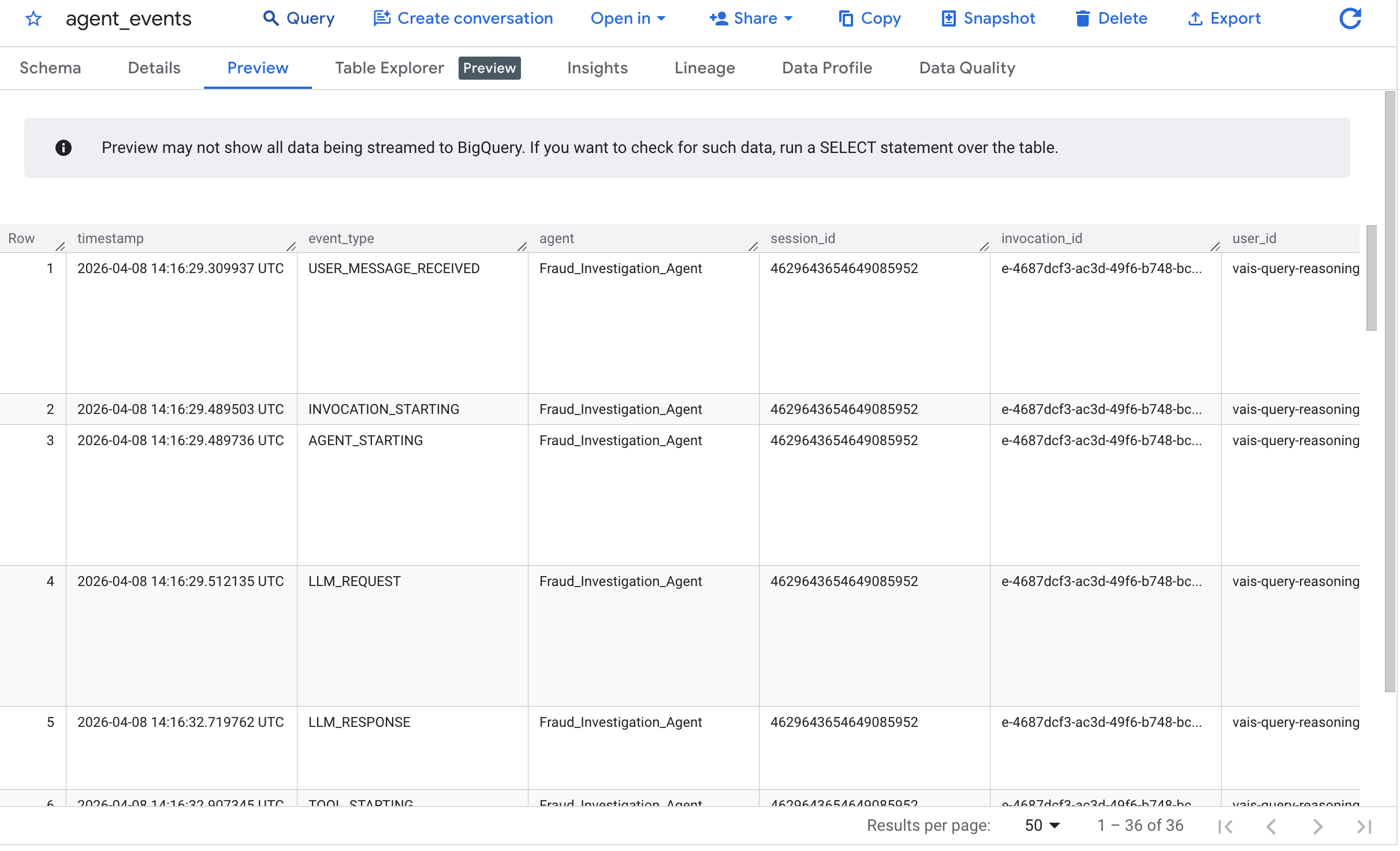
The output confirms that the agent successfully analyzed the "Impossible Travel" escalation.
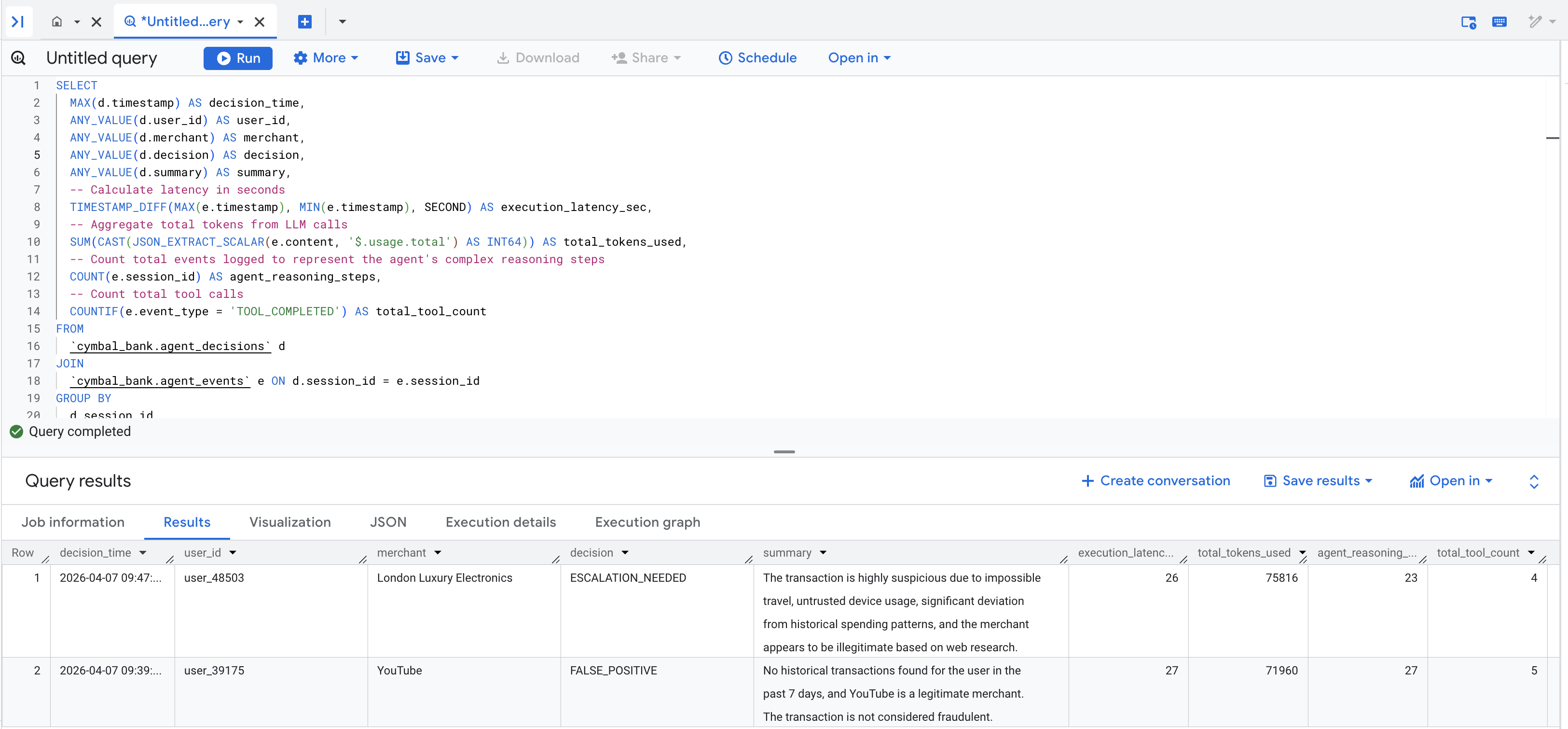
Because autonomous agents run persistently in the background, observability is critical. Your agent automatically records execution traces via the ADK Plugin and logs decisions via the custom tool.
Run the following query to join your agent's decisions with the latency and token usage metrics captured in the agent_events table:
-- Create session-level metrics from detailed agent events
SELECT
  MAX(d.timestamp) AS decision_time,
  ANY_VALUE(d.user_id) AS user_id,
  ANY_VALUE(d.merchant) AS merchant,
  ANY_VALUE(d.decision) AS decision,
  ANY_VALUE(d.summary) AS summary,
  -- Calculate latency in seconds
  TIMESTAMP_DIFF(MAX(e.timestamp), MIN(e.timestamp), SECOND) AS execution_latency_sec,
  -- Aggregate total tokens from LLM calls
  SUM(CAST(JSON_EXTRACT_SCALAR(e.content, '$.usage.total') AS INT64)) AS total_tokens_used,
  -- Count total events logged to represent the agent's complex reasoning steps
  COUNT(e.session_id) AS agent_reasoning_steps,
  -- Count total tool calls
  COUNTIF(e.event_type = 'TOOL_COMPLETED') AS total_tool_count
FROM
  `cymbal_bank.agent_decisions` d
JOIN
  `cymbal_bank.agent_events` e ON d.session_id = e.session_id
GROUP BY
  d.session_id
ORDER BY
  decision_time DESC
You should see a populated results table that looks similar to this:
The Art of the Possible: While this CodeLab ends with logging the agent's decisions to BigQuery for visualization, and the event generator script was relatively straight forward and only inserted fraud from a single user, remember that agent tools are simply Python functions. This means that as your demo scales to more use cases or scenarios your agent can interact with anything.
In a production environment, you could easily expand this architecture. Instead of just logging data, your agent could hit a webhook to alert a Slack or Teams channel, trigger a PagerDuty incident, write the final verdict to a low-latency database like Cloud Spanner, or publish a new Pub/Sub message to a downstream microservice to automatically freeze the compromised credit card!
11. Clean up
To avoid ongoing charges to your Google Cloud account, delete the resources created during this codelab.
The codelab repository includes a cleanup script that will automatically delete your Pub/Sub deployment, BigQuery dataset, BigQuery reservation slot, Vertex Agent Engine configuration, Cloud Storage staging bucket, and IAM service accounts.
Stop the BigQuery continuous query from the Google Cloud Console's BigQuery UI if it is still running. Then, run the cleanup script:
chmod +x setup/cleanup_env.sh
./setup/cleanup_env.sh
Alternatively, you can choose to delete the entire project if it was created solely for this codelab.
12. Congratulations
Congratulations! You've built an event-driven data agent pipeline using BigQuery, Pub/Sub, and ADK.
What you've learned
- How to export anomalies from a BigQuery continuous query to Pub/Sub
- How to route transformed Pub/Sub messages to an ADK Agent
- How to deploy and interact with an agent on Vertex AI Agent Engine