
1. Introduction
BigQuery's generative AI functions allow you to use SQL to reason on your data using Large Language Models (LLMs). You can analyze sentiment, generate summaries, and caption images across millions of rows without moving your data.
But what if your prompt needs a massive amount of context (like policies, manuals or a video) to get accurate and reliable results?
Gemini context caching solves this by storing that large context in a cache. Subsequent prompts reference the cache instead of processing the full content every time, offering lower latency and up to a 90% discount on input tokens.
In this codelab, you will build a "Fine Print" Return Policy Checker that uses explicit context caching to analyze customer return requests against a massive, static return policy document in BigQuery.

What you'll do
- Create a BigQuery dataset and populate it with sample customer return requests.
- Create a Context Cache in Gemini Enterprise Agent Platform (formerly known as Vertex AI), pointing to a return policy document stored in Cloud Storage.
- Run a query using
AI.GENERATEthat references the cache to evaluate the requests on a row-by-row basis efficiently.
What you'll need
- A web browser such as Chrome
- A Google Cloud project with billing enabled
- Access to Google Cloud Shell
This codelab is for developers of all levels, including beginners.
The resources created in this codelab should cost less than $2.
Estimated duration: This codelab will take approximately 30 minutes to complete.
2. Before you begin
Create a Google Cloud Project
- In the Google Cloud Console, on the project selector page, select or create a Google Cloud project.
- Make sure that billing is enabled for your Cloud project. Learn how to check if billing is enabled on a project.
Start Cloud Shell
Cloud Shell is a command-line environment running in Google Cloud that comes preloaded with necessary tools.
- Click Activate Cloud Shell at the top of the Google Cloud console.

- Once connected to Cloud Shell, verify your authentication:
gcloud auth list - Confirm your project is configured:
gcloud config get project - If your project is not set as expected, set it:
gcloud config set project <YOUR_PROJECT_ID>
Set your Project ID and Location
Run the following command to retrieve your active Google Cloud Project ID and set the default location as environment variables to use throughout this codelab:
export PROJECT_ID=$(gcloud config get-value project)
export PROJECT_NUMBER=$(gcloud projects describe $PROJECT_ID --format="value(projectNumber)")
export LOCATION="us-central1"
Enable APIs
Run this command to enable the required APIs:
gcloud services enable \
 bigquery.googleapis.com \
 aiplatform.googleapis.com
3. Prepare BigQuery Data
Before we can test context caching, we need a dataset and a table populated with sample customer return requests to run our queries against.
1. Create a dataset
Run the following command in Cloud Shell to create a BigQuery dataset named caching_demo:
bq mk --dataset $PROJECT_ID:caching_demo
2. Create and populate the table
Run the following command to create a table named return_requests and insert sample customer return requests:
bq query \
  --use_legacy_sql=false \
  "CREATE OR REPLACE TABLE \`caching_demo.return_requests\` AS
SELECT
  10001 AS return_id,
  'P-1001' AS purchase_id,
  'I bought this jacket on Black Friday but it was too small.' AS return_comment,
  DATE('2025-11-28') AS purchase_date,
  DATE('2025-12-05') AS return_date,
  'ApexWear' AS product_brand,
  'Gold' AS customer_tier
UNION ALL
  SELECT
  10002 AS return_id,
  'P-1002' AS purchase_id,
  'The item arrived broken, I want a refund. I don\'t have photos because I threw it away.' AS return_comment,
  DATE('2026-04-01') AS purchase_date,
  DATE('2026-04-02') AS return_date,
  'GenericBrand' AS product_brand,
  'Standard' AS customer_tier
UNION ALL
  SELECT
  10003 AS return_id,
  'P-1003' AS purchase_id,
  'I bought this ApexWear jacket, took the tags off to wear it once, but it doesn\'t fit well.' AS return_comment,
  DATE('2026-02-15') AS purchase_date,
  DATE('2026-02-20') AS return_date,
  'ApexWear' AS product_brand,
  'Standard' AS customer_tier
UNION ALL
  SELECT
  10004 AS return_id,
  'P-1004' AS purchase_id,
  'This was a holiday gift but doesn\'t fit.' AS return_comment,
  DATE('2025-12-20') AS purchase_date,
  DATE('2026-01-28') AS return_date,
  'StyleCorp' AS product_brand,
  'Standard' AS customer_tier
UNION ALL
  SELECT
  10005 AS return_id,
  'P-1005' AS purchase_id,
  'I realized this doesn\'t fit' AS return_comment,
  DATE('2026-02-01') AS purchase_date,
  DATE('2026-03-15') AS return_date,
  'ApexWear' AS product_brand,
  'Gold' AS customer_tier;"
You should see a success message:
Created your-project-id.caching_demo.return_requests
We are now ready to create our cache!
4. Create the Context Cache
You will create the cache using a REST call to the Gemini Enterprise Agent Platform (formerly known as Vertex AI) model endpoint using curl.
Run the following command in Cloud Shell to create a new storage bucket. This will be used to store files that we want to cache:
gcloud storage buckets create gs://${PROJECT_ID}-caching-demo --location=${LOCATION}
Next, copy the sample policy document into your newly created bucket:
gcloud storage cp gs://sample-data-and-media/context_caching_demo/return_policy.md gs://${PROJECT_ID}-caching-demo/
Now, run the following command to create the cache referencing your newly staged policy document (this may take a minute or so to complete):
curl -X POST \
  -H "Authorization: Bearer $(gcloud auth print-access-token)" \
  -H "Content-Type: application/json" \
  "https://${LOCATION}-aiplatform.googleapis.com/v1/projects/${PROJECT_ID}/locations/${LOCATION}/cachedContents" \
  -d '{
    "model": "projects/'"${PROJECT_ID}"'/locations/'"${LOCATION}"'/publishers/google/models/gemini-2.5-flash",
    "contents": [
      {
        "role": "user",
        "parts": [
          {
            "fileData": {
              "mimeType": "text/markdown",
              "fileUri": "gs://'"${PROJECT_ID}"'-caching-demo/return_policy.md"
            }
          }
        ]
      }
    ],
    "ttl": "3600s"
  }'
Take note of the name returned in the response JSON, which will look like this: projects/PROJECT_NUMBER/locations/LOCATION/cachedContents/CACHE_ID. You will need that CACHE_ID for the next step.
{
  "name": "projects/123456789012/locations/us-central1/cachedContents/123456789012345"
}
Save the CACHE_ID as an environment variable in Cloud Shell:
export CACHE_ID="<YOUR_CACHE_ID>"
5. Run AI.GENERATE with Cached Content
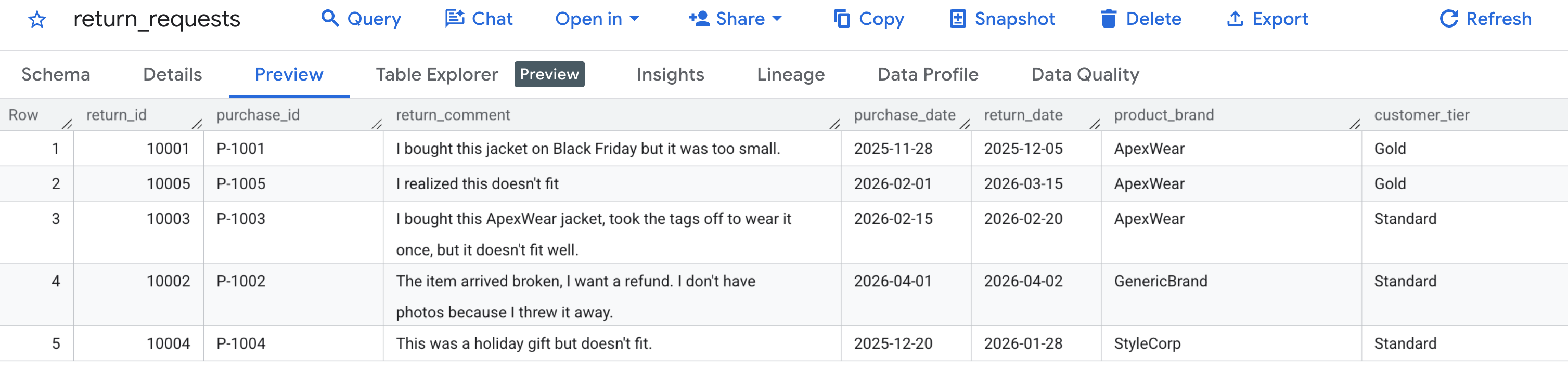
First, let's verify that our sample data was generated correctly. Navigate to the BigQuery console, locate the caching_demo dataset, and click on the return_requests table.
Under the Preview tab, you should see the customer return requests we generated earlier:
Now that the cache has been created and populated, you can query using AI.GENERATE to evaluate the refund request by simply referencing that Cache ID.
To avoid manually finding and replacing variables, run the following command in Cloud Shell. This will dynamically build the SQL query using your existing environment variables and print it to the screen so you can easily copy it.
cat << EOF > query.sql
WITH generated_returns AS (
  SELECT
    *,
    -- Call AI.GENERATE with the prompt, schema, and cache ID
    AI.GENERATE(
      -- Construct the prompt referencing the cached policy
      prompt => CONCAT(
        'Analyze this return request using the cached Return Policy. ',
        'Return Comment: "', return_comment, '". ',
        'Purchase Date: ', purchase_date, '. ',
        'Brand: ', product_brand, '. ',
        'Customer Tier: ', customer_tier, '. '
      ),
      -- Define the structured output schema
      output_schema => """
        eligible_for_refund STRING OPTIONS(description = 'True/False whether the request is eligible for a refund based on the policy'),
        refund_type STRING OPTIONS(description = 'Classify as Full, Store Credit, or None'),
        reason_citation STRING OPTIONS(description = 'Quote the specific rule from the policy applied to this decision')
      """,
      -- Construct the endpoint string dynamically using variables
      endpoint => 'gemini-2.5-flash',

      -- Pass the cached content ID using bash interpolation for the literal
      model_params => JSON '{"cachedContent": "projects/$PROJECT_NUMBER/locations/$LOCATION/cachedContents/$CACHE_ID"}'
    ) AS results
  FROM \`caching_demo.return_requests\`
)
SELECT
  *,
  -- Extract token usage metrics from the raw JSON response
  CAST(JSON_EXTRACT_SCALAR(results.full_response, '$.usage_metadata.prompt_token_count') AS INT64) AS prompt_token_count,
  CAST(JSON_EXTRACT_SCALAR(results.full_response, '$.usage_metadata.cached_content_token_count') AS INT64) AS cached_content_token_count,
  CAST(JSON_EXTRACT_SCALAR(results.full_response, '$.usage_metadata.candidates_token_count') AS INT64) AS output_token_count,
  CAST(JSON_EXTRACT_SCALAR(results.full_response, '$.usage_metadata.total_token_count') AS INT64) AS total_token_count,
  CAST(JSON_EXTRACT_SCALAR(results.full_response, '$.usage_metadata.thoughts_token_count') AS INT64) AS thoughts_token_count,
  CAST(JSON_EXTRACT_SCALAR(results.full_response, '$.usage_metadata.billable_prompt_usage.text_count') AS INT64) AS billable_prompt_text_count,
  CAST(JSON_EXTRACT_SCALAR(results.full_response, '$.usage_metadata.billable_cached_content_usage.text_count') AS INT64) AS billable_cached_text_count

FROM generated_returns;
EOF

cat query.sql
Now, copy the sql in the terminal, navigate to the BigQuery console in your browser, and execute the query in the query editor tab.
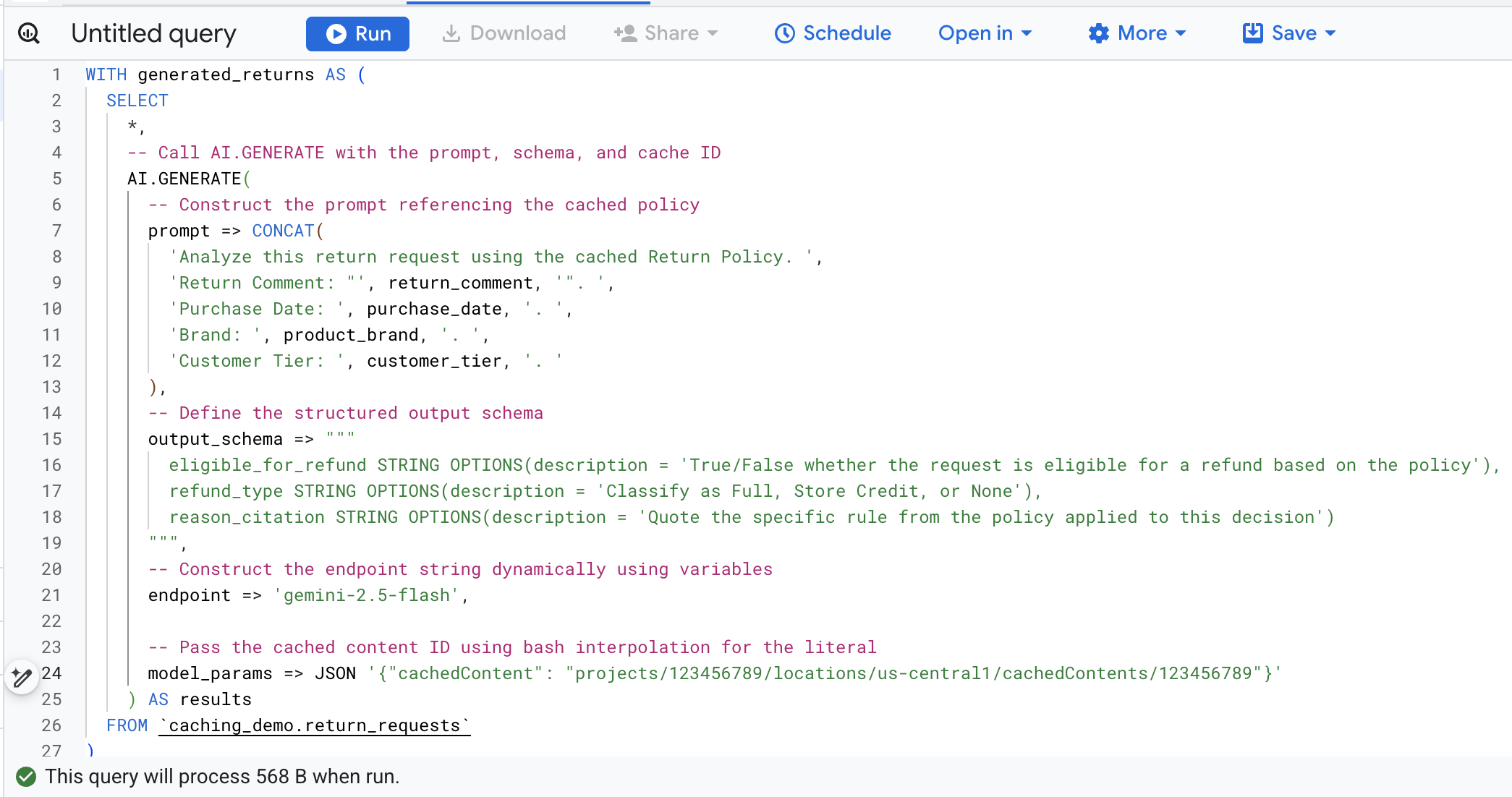
Here's a breakdown of the key arguments in this function call:
prompt: Contains the specific information for each customer row. This text is effectively appended to the large Return Policy document already in the cache.output_schema: Defines the expected JSON structure of the model's response.endpoint: Specifies the Agent Platform AI model endpoint (Gemini 2.5 Flash in our case) used for generation.model_params: Crucial parameter that passes the generated Cache ID using thecachedContentfield.
You should see the generated results analyzing each return request according to the stored policy. Scroll to the right to see the extracted token metrics.
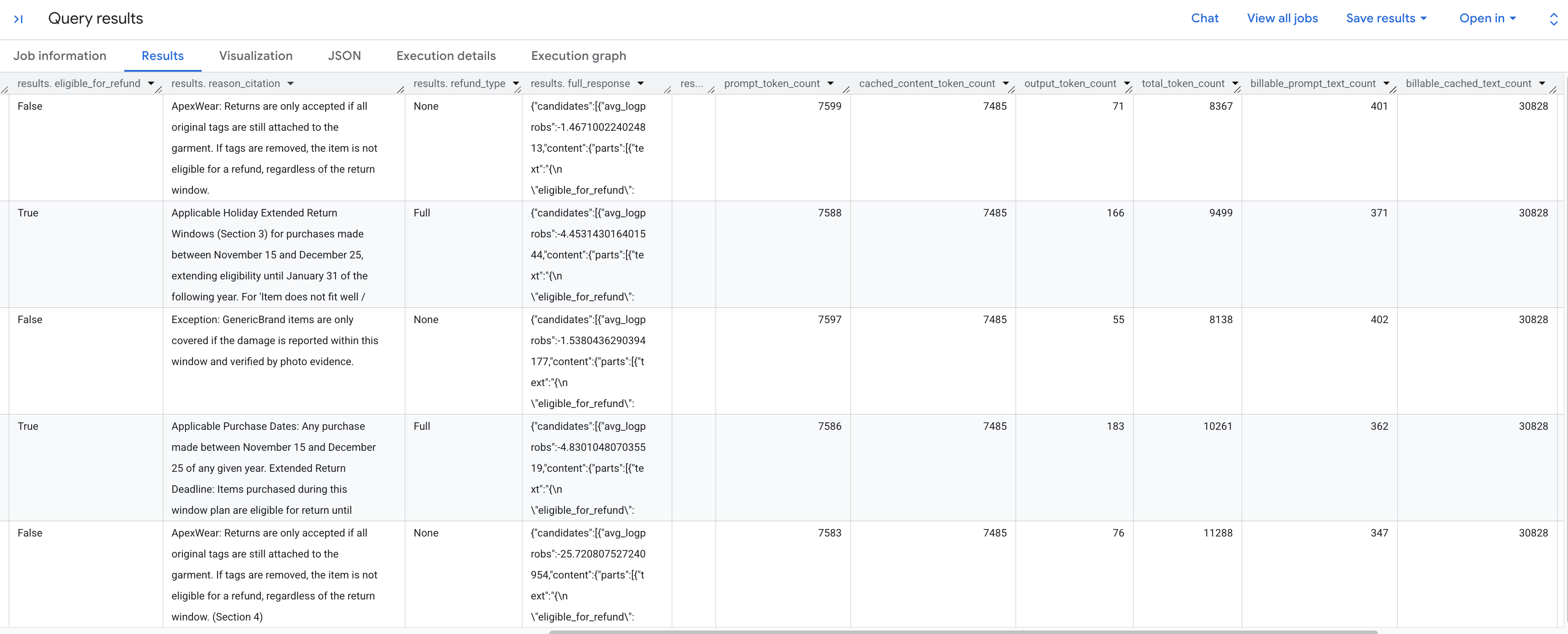
Here's a breakdown of the token metrics you see:
prompt_token_count: The total number of tokens processed in the input prompt (including the cached content).cached_content_token_count: The number of tokens served from the cache (representing the static Return Policy document).output_token_count: The number of tokens generated by the model in the response.total_token_count: The sum of prompt and output tokens.billable_prompt_text_count: The number of billable characters in the non-cached part of the prompt.billable_cached_text_count: The number of billable characters in the cached content.
Look at the billable_prompt_text_count column—it shows only a few hundred characters per row, which is just the customer's specific request. Contrast that with the billable_cached_text_count of over 30,000 characters for the full Return Policy. Without context caching, you would pay to process that full policy document for every single row. By caching it, you pay for the large document once, and subsequent rows only charge you for the small, changing prompt text.
This results in massive savings for batch jobs!
6. Clean up
To avoid ongoing charges to your Google Cloud account, delete the resources created during this codelab.
Run the following command in Cloud Shell to delete the BigQuery dataset and its tables:
bq rm -r -f -d caching_demo
Delete the staging bucket created for the policy document:
gcloud storage rm --recursive gs://${PROJECT_ID}-caching-demo
Finally, delete the context cache to avoid ongoing storage charges using the variables you stored earlier:
curl -X DELETE \
  -H "Authorization: Bearer $(gcloud auth print-access-token)" \
  "https://${LOCATION}-aiplatform.googleapis.com/v1/projects/${PROJECT_ID}/locations/${LOCATION}/cachedContents/${CACHE_ID}"
7. Congratulations
Congratulations! You've successfully created a context cache in Agent Platform and referenced it in a BigQuery AI function to speed up analysis while reducing input token processing costs.
What you've learned
- How to set up environment tables for return request analytics.
- How to call the Agent Platform (Vertex AI) API using
curlto explicitly create a static document context cache. - How to use the generated Cache ID in an
AI.GENERATESQL query to eliminate redundant input tokens across active prompts.