
1. Introduction
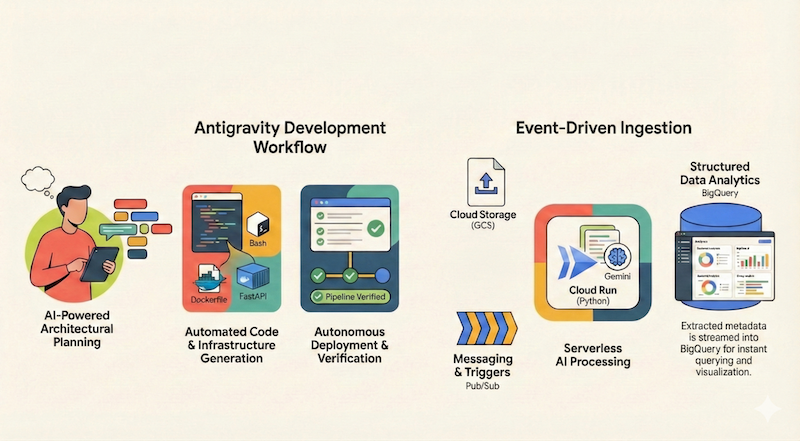
In this codelab, you will learn how to use Google Antigravity to design, build, and deploy a serverless application to Google Cloud. We will build a serverless and event-driven document pipeline that ingests files from Google Cloud Storage (GCS), processes them using Cloud Run and Gemini, and streams their metadata into BigQuery.
What you'll learn
- How to use Antigravity for architectural planning and design.
- Generate infrastructure as code (shell scripts) with an AI agent.
- Build and deploy a Python based Cloud Run service.
- Integrate Gemini on Vertex AI for multimodal document analysis.
- Verify the end-to-end pipeline using Antigravity's Walkthrough artifact.
What you'll need
- Google Antigravity installed.
- A Google Cloud Project with billing enabled.
- gcloud CLI installed and authenticated.
2. Overview of the app
Before we jump into architecting and implementing the application using Antigravity, let's first outline the application we want to build for ourselves.
We want to build a serverless and event-driven document pipeline that ingests files from Google Cloud Storage (GCS), processes them using Cloud Run and Gemini, and streams their metadata into BigQuery.
A high level architecture diagram for this application could look like this:
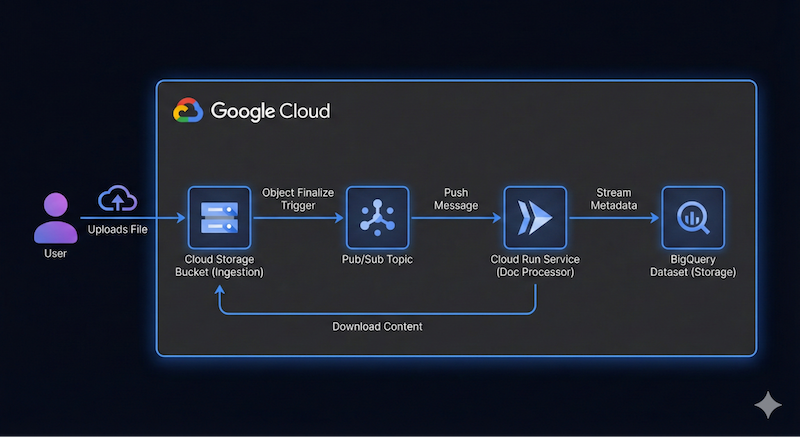
This does not have to be precise. Antigravity can help us to figure out the architecture details as we go along. However, it helps to have an idea on what you want to build. The more detail you can provide, the better results you'll get from Antigravity in terms of architecture and code.
3. Plan the architecture
We are ready to get started planning the architecture details with Antigravity!
Antigravity excels at planning complex systems. Instead of writing code immediately, we can start by defining the high-level architecture and use one of the features to help Antigravity evaluate our request, ask us follow up questions and then proceed in its planning and implementation.
Assuming that you have launched Antigravity, we will be creating a new Project for this codelab.
Click on the new project icon next to the Projects lab and then New Project as shown below:

This will bring up the Add Folder option as shown below:
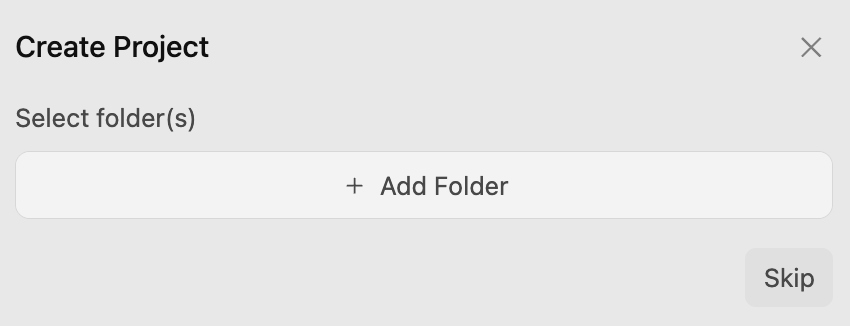
Click on the Add Folder button to add a folder to your project. On my machine I created a google-cloud-serverless-app folder and added that to this project.
This opens up a conversation in the google-cloud-serverless-app project.
Click on the main settings icon ⚙️in the left bottom of the screen and go to Project specific settings. If you do not see the google-cloud-serverless-app project listed, just have a single conversation and then go back to the Project Settings.
Set the Agent Settings / Security Preset to Default and Agent Behaviour / Artifact Review Policy to Always Ask, as shown below:
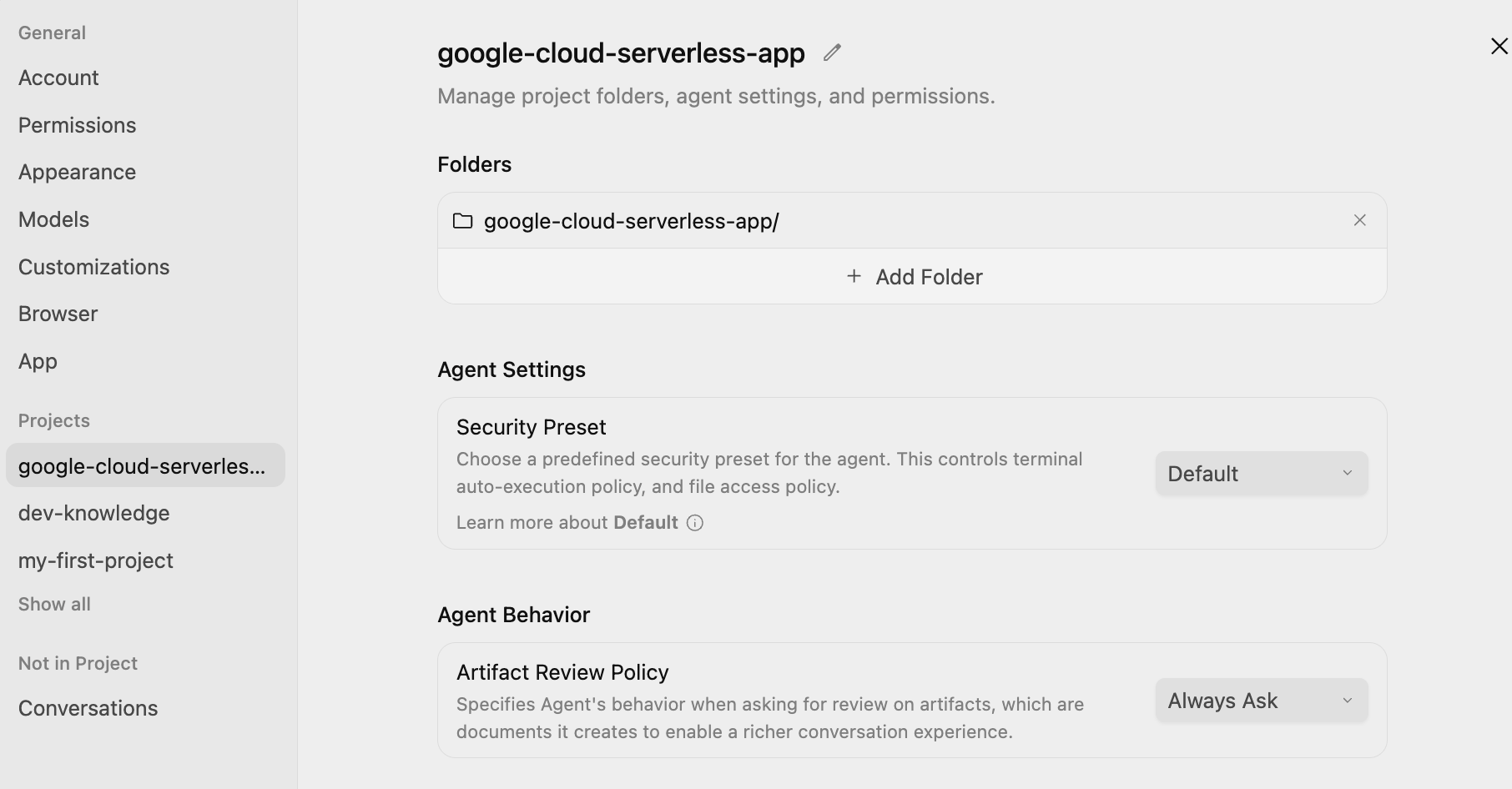
This will ensure that at every step, you will get to review, and approve the plan before the agent executes.
Prompt
Now, we're ready to provide our first prompt to Antigravity. We are going to be using a slash command /grill-me to evaluate our request.
Type /grill-me and then enter the following prompt and click submit button:
/grill-me

I want to build a serverless event-driven document processing pipeline on Google Cloud.
Architecture:
- Ingestion: Users upload files to a Cloud Storage bucket.
- Trigger: File uploads trigger a Pub/Sub message.
- Processor: A Python-based Cloud Run service receives the message, processes the file (simulated OCR), and extracts metadata.
- Storage: Stream the metadata (filename, date, tags, word_count) into a BigQuery dataset.
The /grill-me command asks a number of follow up questions that you can try to answer to the best of your knowledge. It also suggests Recommended Answers and you can go with that if you'd like.
A sample run of my /grill-me command is shown below:
How would you like the Cloud Run service to receive events from Cloud Storage and Pub/Sub?
(Recommended) Cloud Storage Pub/Sub Notification with a Pub/Sub Push Subscription (HTTP POST to Cloud Run)

How should access to the Cloud Run service endpoint be secured for Pub/Sub push requests?
Publicly accessible Cloud Run service without authentication (for prototyping/quick testing only)

How should the Python processor handle file inspection and the simulated OCR logic?
(Recommended) Download file from GCS: if plain text/utf-8, extract actual words and tags; if binary/image/PDF, simulate OCR processing (mock latency, generate synthetic text & tags, count words)

How should the processor write metadata to BigQuery and handle table/schema provisioning?
(Recommended) Use BigQuery Streaming Inserts (`insert_rows_json`) with auto-creation of the dataset and table if they do not exist

How should the Cloud Run service handle processing failures and retries from Pub/Sub?
(Recommended) Return HTTP 500 on transient errors for Pub/Sub automatic retry; return HTTP 200/204 on non-retryable errors (e.g., file not found, bad event format) to avoid poison pill loops

Which web framework would you prefer for the Python Cloud Run service?
Flask with Gunicorn: minimal, classic lightweight standard for GCP microservices

How would you like the cloud infrastructure (Bucket, Pub/Sub, Cloud Run, BigQuery) to be provisioned and deployed?
(Recommended) Provide both: automated `gcloud` CLI setup/deploy scripts for quick manual rollout AND Terraform manifests for reproducible IaC

How would you like to handle local testing and development before deploying to Google Cloud?
(Recommended) Include a local mock test suite and script (`test_local.py`) that can simulate Pub/Sub push envelopes and test processing with both mocked GCP clients and actual files
Notice that I went with asking Antigravity to go with:
- A simple gcloud CLI script to provision resources
- Native Cloud Storage Pub/Sub Notifications + Pub/Sub Push subscription to Cloud Run
- Use Flask (with Gunicorn) for the framework
- Just use local simulation with a text file for the data instead of live OCR data
- Use BigQuery table.insert_rows() to insert rows into BigQuery
- Unauthenticated Cloud Run deployment
and other recommended options.
Implementation Plan and Task List
Antigravity will now get to work and generate an Implementation Plan. It puts it up for your review by giving you a message similar to the one below:
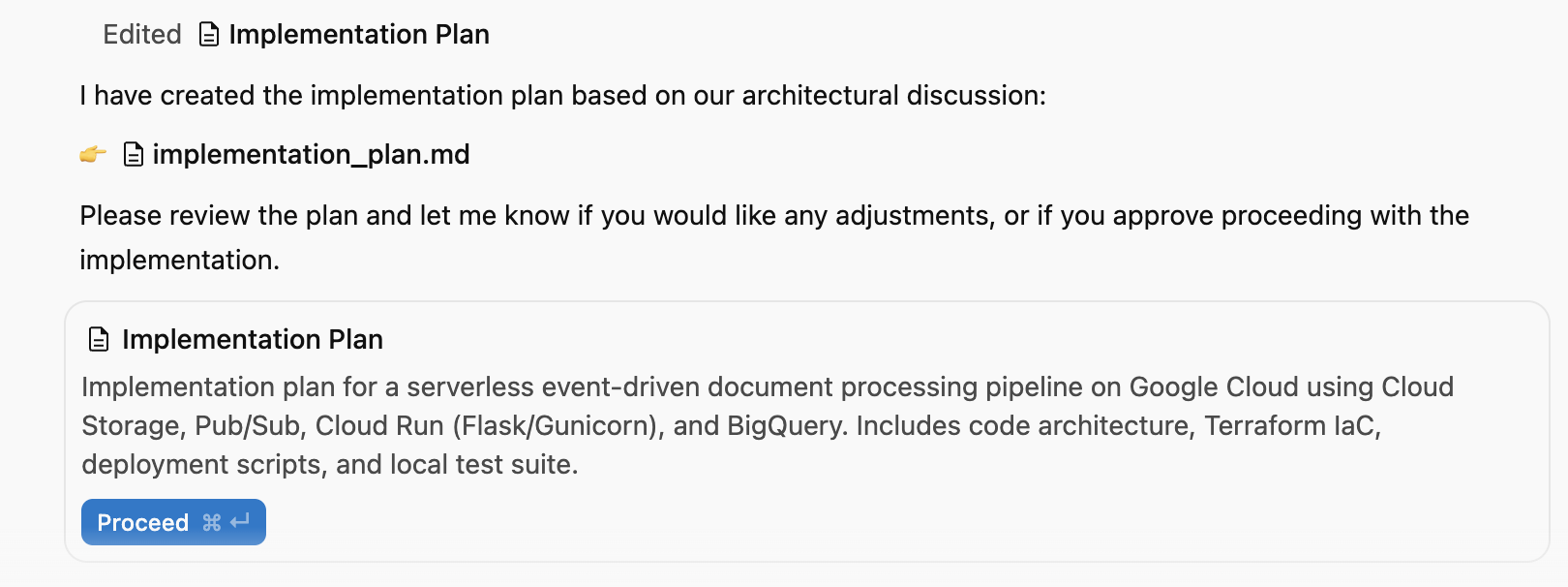
You can click on the Auxiliary Pane toggle in the top right window and view the Artifacts generated, which at this point is just the Implementation Plan.
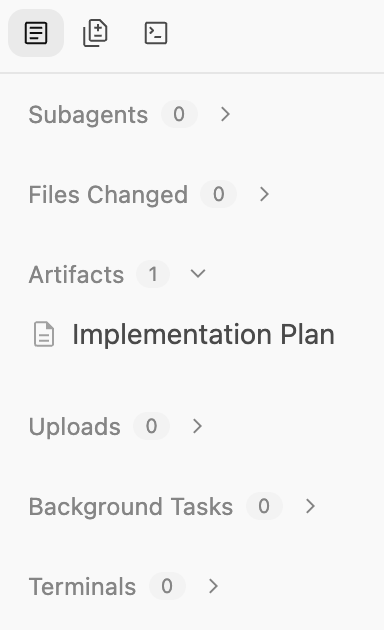
This plan outlines:
- Infrastructure: GCS Bucket, Pub/Sub Topic, BigQuery Dataset.
- Processor: Python/Flask app, Dockerfile, Requirements.
- Integration: GCS Notifications → Pub/Sub → Cloud Run.
You should see something similar to the following. A partial listing of the implementation plan on our machine is shown below:
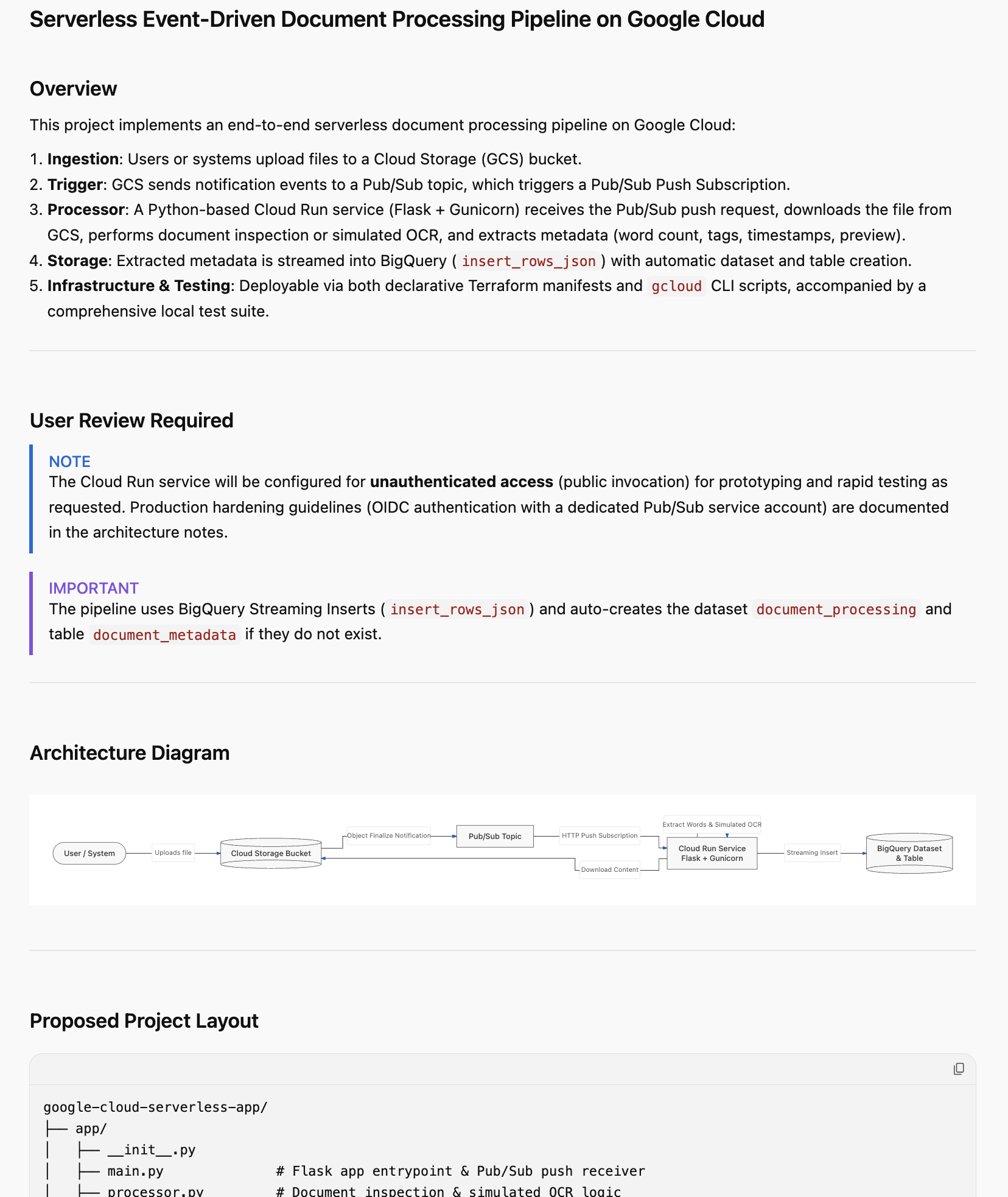
Give it a careful read. This is your chance to provide your feedback for the implementation. You can click on any part of the implementation plan and add comments. Once you add some comments, make sure to submit for review any changes that you would like to see, especially around naming, Google Cloud project id, region, etc.
Once it all looks fine, give the agent the permission to proceed with the implementation plan by clicking on the Proceed button.
4. Generate the application
Once the plan is approved, Antigravity starts generating files required for the application, from provisioning scripts to application code.
Antigravity will create a folder and start creating the files necessary for the project. If you check on the Artifacts, you will notice several files (source code, script files, etc) being generated.
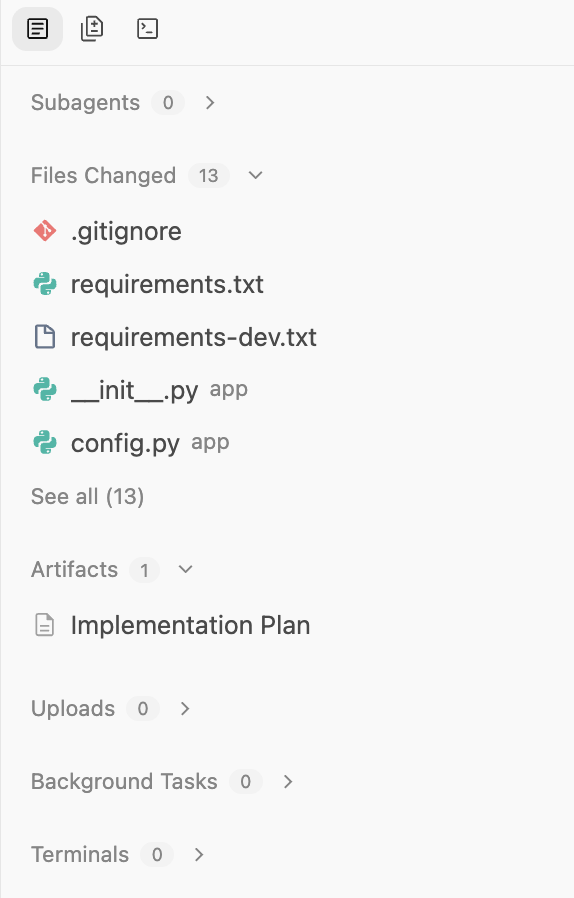
Once its completed its work, it will mention that and create a Walkthrough document that you can look at. A sample output is shown below:
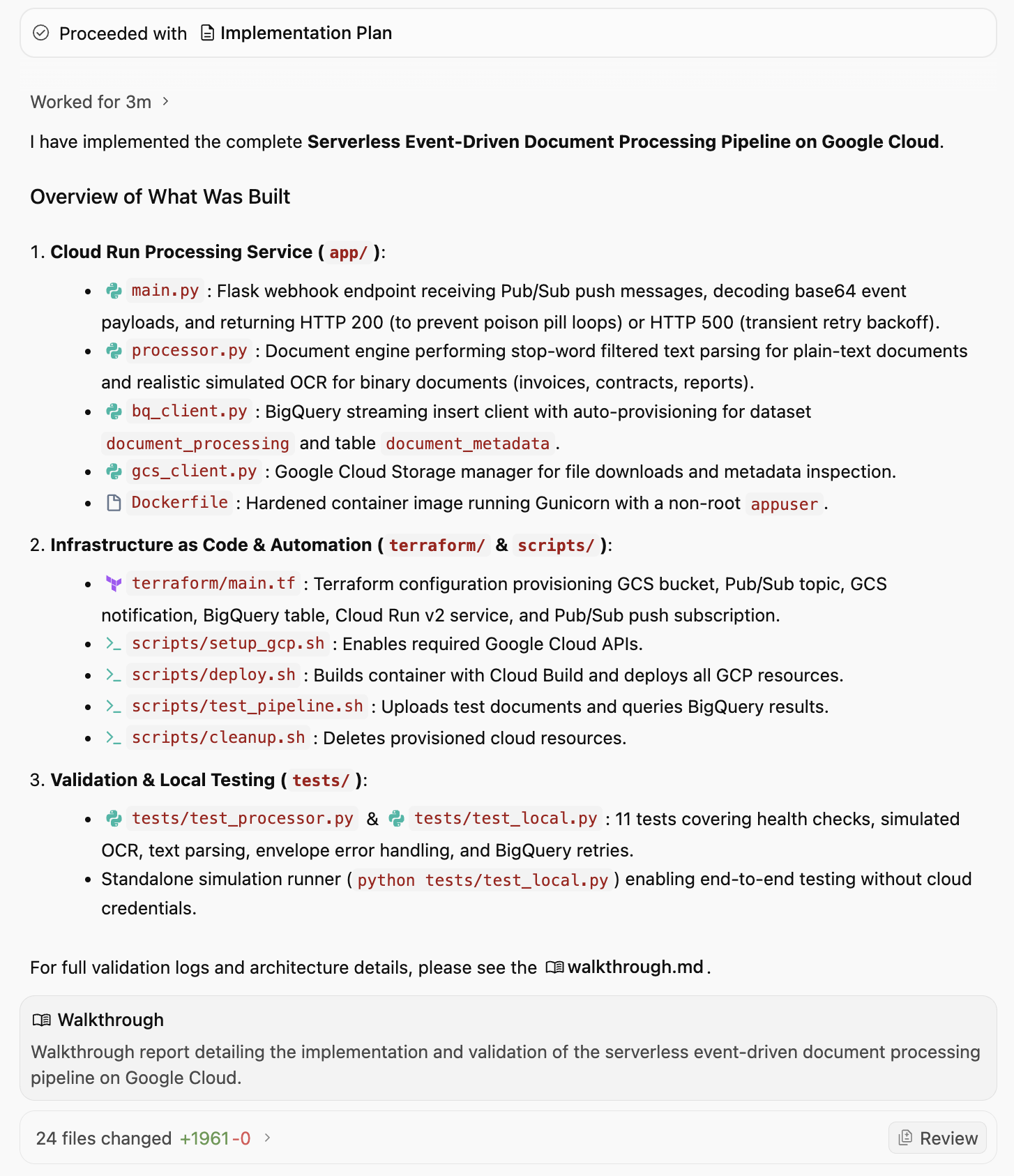
The Walkthrough document mentions what has been implemented, the scripts generated and most importantly the verification and validation that has been done. A partial output of the Walkthrough document that includes the verification and validation is shown below:
3. Verification & Validation
Test Suite Execution
We ran the automated test suite using pytest:
bash
.venv/bin/pytest tests/ -v
tests/test_local.py::test_health_check PASSED                            [  9%]
tests/test_local.py::test_invalid_pubsub_envelope PASSED                 [ 18%]
tests/test_local.py::test_ignore_delete_events PASSED                    [ 27%]
tests/test_local.py::test_gcs_file_not_found PASSED                      [ 36%]
tests/test_local.py::test_successful_contract_processing PASSED          [ 45%]
tests/test_local.py::test_successful_pdf_ocr_processing PASSED           [ 54%]
tests/test_local.py::test_transient_bq_error_triggers_500_retry PASSED   [ 63%]
tests/test_processor.py::test_tag_extraction_filters_stopwords PASSED    [ 72%]
tests/test_processor.py::test_process_plain_text_document PASSED         [ 81%]
tests/test_processor.py::test_process_binary_pdf_simulated_ocr PASSED    [ 90%]
tests/test_processor.py::test_process_empty_text_document PASSED         [100%]
============================== 11 passed in 2.37s ==============================
Standalone End-to-End Simulation
We executed the standalone simulation script:
bash
.venv/bin/python tests/test_local.py
Sample Output:
=================================================================
Running Serverless Document Processing Local Simulation
=================================================================
[1] Health Check: Status=200, Payload={'service': 'document-processor', 'status': 'healthy'}
[2] Simulating GCS Event: Object Finalized 'sample_contract.txt' in 'finance-bucket'
   Response: Status=200, Body={'file_name': 'sample_contract.txt', 'ocr_status': 'EXTRACTED_TEXT', 'status': 'success', 'tags': ['provider', 'cloud', 'client', 'agreement', 'shall'], 'word_count': 181}
[3] Simulating GCS Event: Object Finalized 'sample_invoice.pdf' in 'invoices-bucket'
   Response: Status=200, Body={'file_name': 'sample_invoice.pdf', 'ocr_status': 'SIMULATED_OCR', 'status': 'success', 'tags': ['invoice', 'finance', 'billing', 'acme', 'pdf'], 'word_count': 62}
=================================================================
BigQuery Streamed Table Inspection (Mock Table)
=================================================================
Row #1:
 File:       sample_contract.txt (gs://finance-bucket)
 Status:     EXTRACTED_TEXT
 Words:      181
 Tags:       ['provider', 'cloud', 'client', 'agreement', 'shall']
 Processed:  2026-09-08T02:50:37.436225+00:00
Row #2:
 File:       sample_invoice.pdf (gs://invoices-bucket)
 Status:     SIMULATED_OCR
 Words:      62
 Tags:       ['invoice', 'finance', 'billing', 'acme', 'pdf']
 Processed:  2026-09-08T02:50:37.641931+00:00
We can ask Antigravity on how to deploy this application to Google Cloud? It comes back with full details on the same as listed below. To summarize, it asks us to ensure that Google Cloud SDK is installed along with a Google Cloud project setup. Once that is done,
Step 1: Enable required GCP APIs
Run setup_gcp.sh to enable Cloud Run, Pub/Sub, Cloud Storage, BigQuery, and Cloud Build APIs: ./scripts/setup_gcp.sh
Step 2: Deploy the entire pipeline
Run deploy.sh:
export GCP_PROJECT="<YOUR_PROJECT_ID>"
export GCP_REGION="us-central1"               # or your region
./scripts/deploy.sh
What this script does behind the scenes:
- Builds the container image using Google Cloud Build and pushes it to Container/Artifact Registry.
- Deploys the service to Cloud Run with appropriate environment variables (
GCP_PROJECT,BQ_DATASET_ID,BQ_TABLE_ID). - Creates the Cloud Storage ingestion bucket (
gs://<PROJECT_ID>-document-ingest). - Creates the Pub/Sub topic (
document-upload-events) and grants GCS permission to publish to it. - Configures a GCS notification (
OBJECT_FINALIZE) on the bucket. - Creates a Pub/Sub Push Subscription targeting the Cloud Run service URL with automatic retry backoff.
It also suggests how to test out the pipeline.
Run test_pipeline.sh: ./scripts/test_pipeline.sh
This uploads samples/sample_contract.txt and samples/sample_invoice.pdf to your bucket, waits for processing, and runs a BigQuery SQL query showing the extracted metadata, word count, and tags.
5. Deploy the application
Let's deploy the application as mentioned. We can ask Antigravity to run this for us, but before we do that, ensure that gcloud CLI is present and configured for the Google Cloud Project.
We can give a prompt to Antigravity "Deploy the application for me". This will prompt you for various permissions and then it goes ahead with executing the script files.
It starts the process as a background task, as explained by the message below:
I have initiated the deployment of the document processing pipeline to Google Cloud project PROJECT_ID in REGION.The deployment process is currently executing in the background:
Building and publishing the container image via Cloud Build.
Configuring service account IAM permissions and deploying the Cloud Run service.
Provisioning the Cloud Storage bucket (gs://PROJECT_ID-document-ingest).
Setting up the Pub/Sub topic, GCS notification, and push subscription.
I will notify you as soon as the deployment finishes!
6. Verify the application
Once the pipeline is deployed, Antigravity goes ahead to verify that the application actually works. It asks us if it can run the test_pipeline.sh file. We can go ahead and give it permission.
It finally tells us the following:
🚀 Deployment Successful & Verified on Google Cloud!

The application has been deployed to Google Cloud project PROJECT_ID in REGION and end-to-end event-driven processing has been verified.
It has also updated the Walkthrough artifact to view the results (partial listing given below):
Deployment Summary
- GCP Project: PROJECT_ID
- Region: REGION
- Cloud Run Service: document-processor
- Cloud Run Endpoint: SERVICE_URL
- Cloud Storage Bucket: gs://PROJECT_ID-document-ingest
- Pub/Sub Topic: document-upload-events
- Pub/Sub Push Subscription: document-upload-events-push-sub
- BigQuery Target: PROJECT_ID.document_processing.document_metadata
Live Pipeline Verification
We executed scripts/test_pipeline.sh against the live Google Cloud environment:
- Uploaded sample_contract.txt and sample_invoice.pdf to the Cloud Storage bucket.
- GCS generated OBJECT_FINALIZE events to Pub/Sub.
- Pub/Sub pushed the envelopes to the Cloud Run microservice.
- Cloud Run extracted metadata, processed simulated OCR, and streamed records into BigQuery.
Live BigQuery Query Output
+------------------------------+------------+----------------+---------------------------------------------------+---------------------+
|          file_name           | word_count |   ocr_status   |                       tags                        |    processed_at     |
+------------------------------+------------+----------------+---------------------------------------------------+---------------------+
| test_invoice_1788840194.pdf  |         62 | SIMULATED_OCR  | ["invoice","finance","billing","acme","pdf"]      | 2026-09-08 04:03:27 |
| test_contract_1788840194.txt |        181 | EXTRACTED_TEXT | ["provider","cloud","client","agreement","shall"] | 2026-09-08 04:03:22 |
+------------------------------+------------+----------------+---------------------------------------------------+---------------------+
All pipeline components are active, healthy, and verified in production.
Optional: Manual verification
Even though Antigravity already verified the application, you can also manually check in Google Cloud console that all the resources are created, if you wish, by following these steps.
Cloud Storage
Goal: Verify the bucket exists and check for uploaded files.
- Navigate to Cloud Storage > Buckets.
- Locate the bucket named
PROJECT_ID-document-processing. - Click on the bucket name to browse files.
- Verify: You should see your uploaded files (e.g.
sample_contract.txt).
Pub/Sub
Goal: Confirm the topic exists and has a push subscription.
- Navigate to Pub/Sub > Topics.
- Find document-uploads-events.
- Click on the topic ID.
- Scroll down to the Subscriptions tab.
- Verify: Ensure doc-uploads-events-push-sub is listed.
Cloud Run
Goal: Check the service status and logs.
- Navigate to Cloud Run.
- Click on the service document-processor.
- Verify:
- Health: Green checkmark indicating the service is active.
- Logs: Click the Logs tab. Look for entries like "Processing document: gs://..." and "Successfully streamed metadata...".
BigQuery
Goal: Validate the data is actually stored.
- Navigate to BigQuery > SQL Workspace.
- In the Explorer pane, expand your project > document_processing dataset.
- Click on the document_metadata table.
- Click on the Query tab and retrieve all rows from the table via the SELECT * statement.
- Verify: You should see rows containing file_name, process_at, tags, and word_count.
7. Explore the application
At this point, you have the basic app provisioned and running. Before diving into extending this application further, take a moment to explore the code. You can view the Artifacts and it should show you the code files generated.
Here's a quick summary of a few files you might see:
deploy.sh: The master script that provisions all Google Cloud resources and enables the required APIs.main.py: The main entry point of the pipeline. This Python app creates a web server that receives Pub/Sub push messages, downloads the file from GCS, "processes" (simulates OCR) it, and streams the metadata to BigQuery.Dockerfile: Defines how to package the app into a container image.requirements.txt: Lists the Python dependencies.
You might also see other scripts and text files needed for testing and verification.
8. Extend the application
Now that you have a working basic application, you can continue iterating and extending the application. Here are some ideas.
Add a frontend
Build a simple web interface to view the processed documents.
Try the following prompt: Create a simple Streamlit or Flask web application that connects to BigQuery. It should display a table of the processed documents (filename, upload_date, tags, word_count) and allow me to filter the results by tag
Integrate with real AI/ML
Instead of simulated OCR processing, use Gemini models to extract, classify and translate.
- Replace the dummy OCR logic. Send the image/PDF to Gemini to extract actual text and data. Analyze the extracted text to classify the document type (invoice, contract, resume) or extract entities (dates, names, locations).
- Automatically detect the language of the document and translate it to English before storing it. You can use any other language too.
Enhance storage & analytics
You can configure lifecycle rules on the bucket to move old files to "Coldline" or "Archive" storage to save costs.
Robustness & Security
You can make the app more robust and secure such as:
- Dead Letter Queues (DLQ): Update the Pub/Sub subscription to handle failures. If the Cloud Run service fails to process a file 5 times, send the message to a separate "Dead Letter" topic/bucket for human inspection.
- Secret Manager: If your app needs API keys or sensitive config, store them in Secret Manager and access them securely from Cloud Run instead of hardcoding strings.
- Eventarc: Upgrade from direct Pub/Sub to Eventarc for more flexible event routing, allowing you to trigger based on complex audit logs or other GCP service events.
Of course, you can come up with your own ideas and use Antigravity to help you to implement them!
9. Conclusion
You have successfully built a scalable, serverless, AI-powered document pipeline in minutes using Google Antigravity. You learned how to:
- Plan architectures with AI.
- Instruct and manage Antigravity as it works through generating the application from code generation to deployment and validation.
- Verify deployments and validation with Walkthroughs.
Reference docs
- Official Site : https://antigravity.google/
- Documentation: https://antigravity.google/docs
- Use cases : https://antigravity.google/use-cases
- Download : https://antigravity.google/download