
1. Introduction
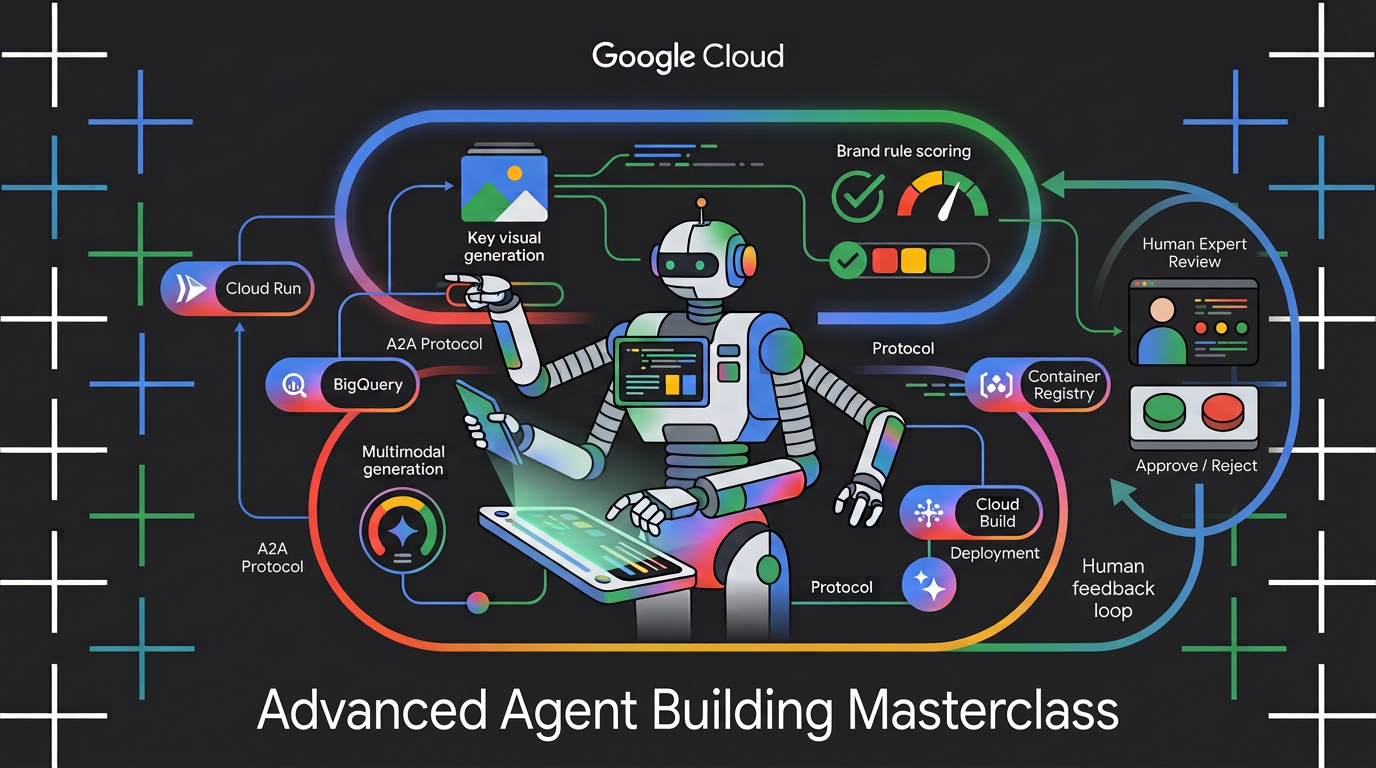
Learn how to build a multimodal multi-agent engine that takes a raw topic brief and orchestrates the creation of highly engaging social assets. Using Google's Agent Development Kit (ADK) and the Agent2Agent (A2A) protocol, you'll compose autonomous micro-agents, package brand rules as a reusable agent skill, deploy an agent service to Cloud Run, and score the generated key visuals for brand compliance with BigQuery AI functions.
What you'll do
In this codelab, you learn how to perform the following tasks:
- Orchestrate multiple ADK agents with a deterministic graph workflow.
- Package brand guidelines as an agent skill that loads only when needed.
- Equip an agent with an image generation tool that saves its output as an artifact.
- Expose an agent as an A2A service and call it from another agent as a remote node.
- Deploy the Visual Director to Cloud Run and call the workflow over A2A.
- Score the generated key visuals for brand fit in BigQuery with AI functions.
What you'll need
- A web browser (such as Chrome).
- A Google Cloud account and a Google Cloud Project with billing enabled.
2. Before you begin
Create a Google Cloud Project
- In the Google Cloud Console, on the project selector page, select or create a Google Cloud project.
- Make sure that billing is enabled for your Cloud project. Learn how to check if billing is enabled on a project.
Start Cloud Shell
You will use Google Cloud Shell to download the code, run setup scripts, and deploy the application.
- Open Google Cloud Shell in your browser (or click Activate Cloud Shell at the top of the Google Cloud Console):
https://shell.cloud.google.com/ - Configure your Google Cloud Project ID and region (for example,
us-central1) in your environment by pasting this in the terminal (replaceexport PROJECT_ID="<YOUR_PROJECT_ID>" export REGION="<YOUR_REGION>" gcloud config set project $PROJECT_ID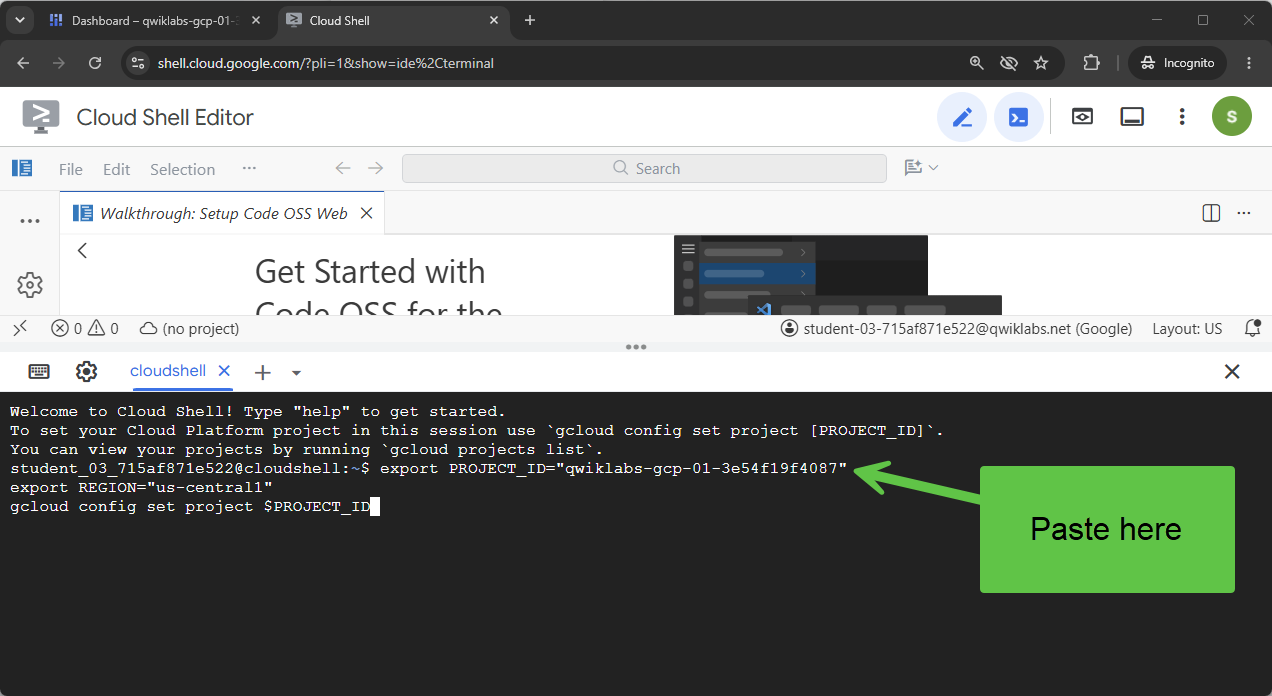 You should see a message similar to:
Your active configuration is: [cloudshell-####] Updated property [core/project] - Enable the required Google Cloud APIs for your project:
gcloud services enable \
  compute.googleapis.com \
  cloudresourcemanager.googleapis.com \
  aiplatform.googleapis.com \
  storage.googleapis.com \
  storage-component.googleapis.com \
  bigqueryconnection.googleapis.com \
  bigquery.googleapis.com \
  run.googleapis.com \
  secretmanager.googleapis.com \
  cloudbuild.googleapis.com \
  artifactregistry.googleapis.com \
  iap.googleapis.com \
  iam.googleapis.com
Clone the Repository
We have a code template to get you started with the codelab. It is relatively small, but the GitHub repository where it lives is rather large. To speed up the clone, and save disk space, we would normally use git clone with --filter=blob:none option, and git sparse-checkout, and some more commands.
This sounds very complex, but Antigravity can do it all for us!
First, let's configure Antigravity CLI so it can get straight to solving our problem, and launch it.
In Cloud Shell, run this command:
source <(curl -fsSL https://github.com/GoogleCloudPlatform/devrel-demos/raw/refs/heads/vladkol/cloud-shell-configure-agy/codelabs/labs-scripts/bwg-multi-agent-pitch-generator/cloud_shell_configure_agy.sh)
The command configures Antigravity CLI and launches it in the same terminal. When you exit Antigravity CLI, you return to your Cloud Shell prompt.

We need just codelabs/bwg-multi-agent-pitch-generator folder in the repository. Let's ask Antigravity to download just that folder, and have it locally in ~/devrel-demos/codelabs/bwg-multi-agent-pitch-generator/.
Give Antigravity CLI this task:
Download files from under `https://github.com/GoogleCloudPlatform/devrel-demos/tree/main/codelabs/bwg-multi-agent-pitch-generator`
to folder `~/devrel-demos/codelabs/bwg-multi-agent-pitch-generator/`.
If `devrel-demos` folder already exists, rename it with a `.backup` suffix.

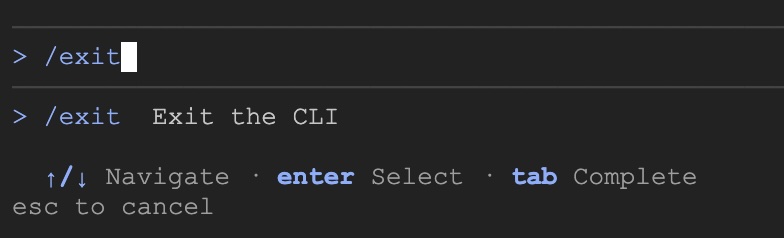
Antigravity will execute the task. It will ask you permissions to run a few commands. Once the code is downloaded, exit Antigravity CLI by executing /exit command:
/exit
Open the repository workspace
Now, let's open the code workspace in Cloud Shell. Run this command in Cloud Shell terminal:
cd ~/devrel-demos/codelabs/bwg-multi-agent-pitch-generator/
cloudshell workspace .
Run the setup script
To make this experience smoother, run the setup script from the repository. It configures environment variables, installs agents-cli, creates the Cloud Storage bucket for artifacts, creates the BigQuery Cloud Resource connection, and grants the required IAM permissions to its service account with auto-retry.
The setup script also calls setenv.sh, a small helper that derives the variables both agents need — GOOGLE_CLOUD_PROJECT, GOOGLE_CLOUD_REGION, GOOGLE_CLOUD_LOCATION, and GOOGLE_GENAI_USE_VERTEXAI — from the PROJECT_ID and REGION you exported above. It also saves those two values to a .env file in your home directory so you can recover them later.
- In Cloud Shell, make the setup script executable and run it:
chmod +x codelab-setup.sh setenv.sh ./codelab-setup.sh - This will take about a minute to run. You should see this message indicating success: "🎉 🦄 Script execution complete."
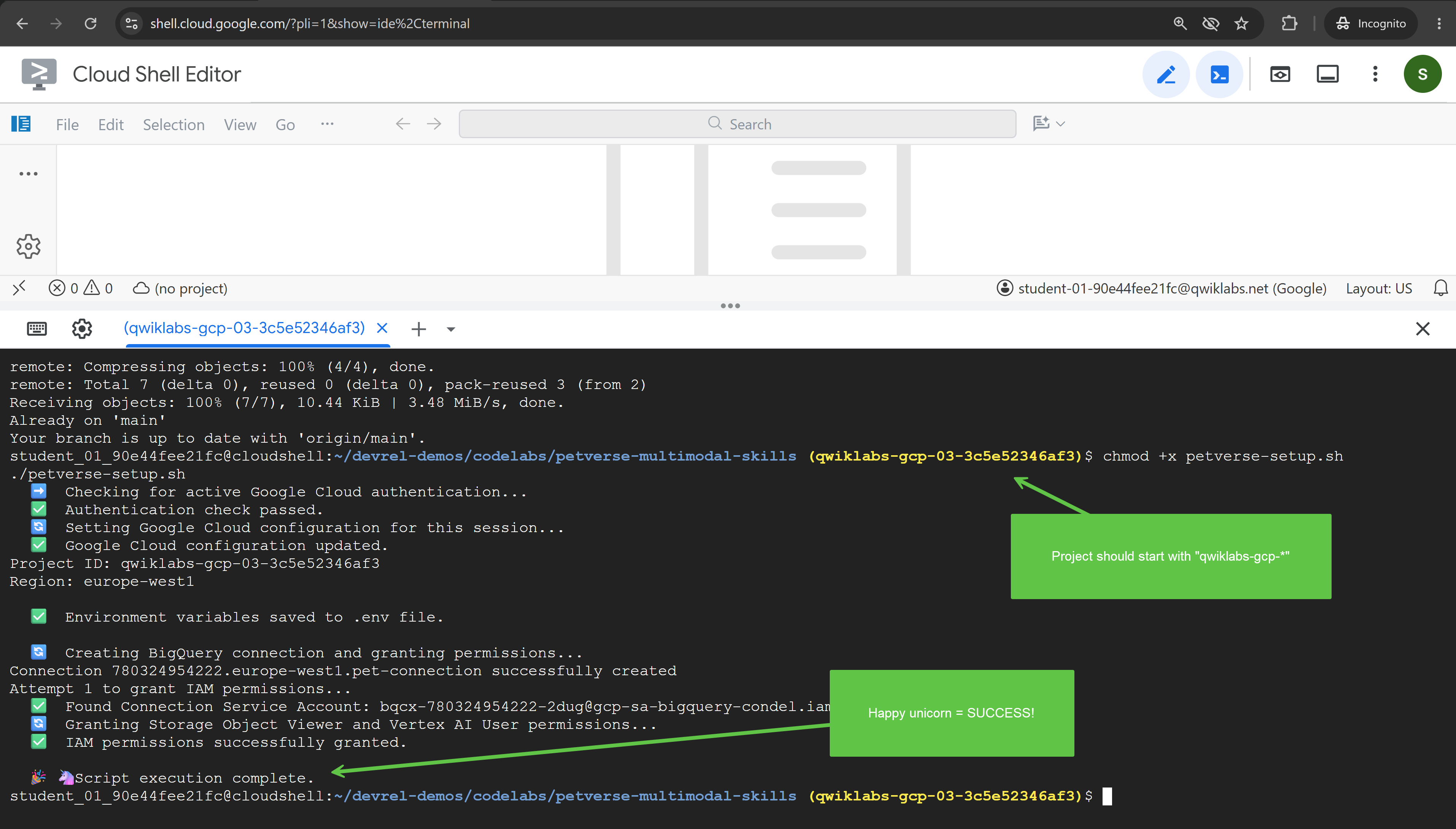
- The setup script ran in a shell of its own, so its variables did not reach your terminal. Load them into your session:
source ./setenv.sh
3. Orchestrate agents with a graph workflow
In this task, you create the pitch generator project and build a graph workflow that runs two agents and combines their output.
A pitch needs a concept, meaning the idea and assets that sell that concept. In this use case, we will design agents that have different responsibilities in the scope of the work, demonstrating how you can decouple complex tasks and delegate them to different agents with distinct responsibilities, making them easier to manage.
Splitting this kind of work between specialists requires something to coordinate when each agent runs. You could choose to let your agent decide when to call each sub-agent or apply a more deterministic approach. In this codelab, you will use a deterministic approach with a graph workflow.
Scaffold the first agent project
- In Cloud Shell, create the project by pasting this in the terminal:
cd ~/devrel-demos/codelabs/bwg-multi-agent-pitch-generator agents-cli create pitch-generator \ --agent adk \ --agent-directory pitch_generator \ --deployment-target cloud_run \ --session-type in_memory \ --cicd-runner skip \ --region <YOUR_REGION> \ --auto-approveDockerfile, tests, Terraform for later, and a.envfile with its.env.exampletemplate. Two parts matter for this codelab:pitch_generator/agent.pyis the agent, and the file you rewrite.pitch_generator/is the package name, set by--agent-directory.
setenv.sh, so there is nothing to configure here. - Install dependencies:
cd pitch-generator
agents-cli update -y && agents-cli install && uv sync --upgrade-package google-adk
Understand the graph
ADK v2.x supports graph workflows. A graph is built from nodes, which are the units of work, and edges, which connect them. A node is usually an agent, though a plain Python function also works. An edge says that when one node finishes, another runs next.
Edges are written as a list, and ADK works out the order:
edges=[
    ("START", creative_director),        ## the graph begins here
    (creative_director, copywriter),     ## then this
]
The nesting gives an edge its meaning:
Edge | Meaning |
| A chain. a, then b, then c, one after another |
| A fan-out. a, then b and c at the same time |
| A fan-in. c waits for both a and b |
For a fan-in, you use a JoinNode, which waits for every predecessor and passes their outputs on together.
In this task, we will build the following workflow:
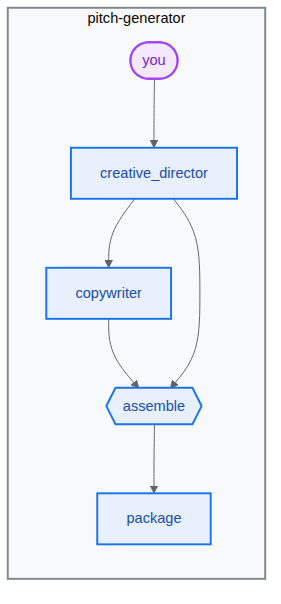
Build the pipeline
- Open the agent file by pasting this in the terminal:
cd ~/devrel-demos/codelabs/bwg-multi-agent-pitch-generator/pitch-generator cloudshell edit pitch_generator/agent.pyagent.pyin the Cloud Shell editor.💡 Hint: At any point, you can select the code and use the lightbulb to ask Gemini to explain it. You can also ask the Antigravity CLI.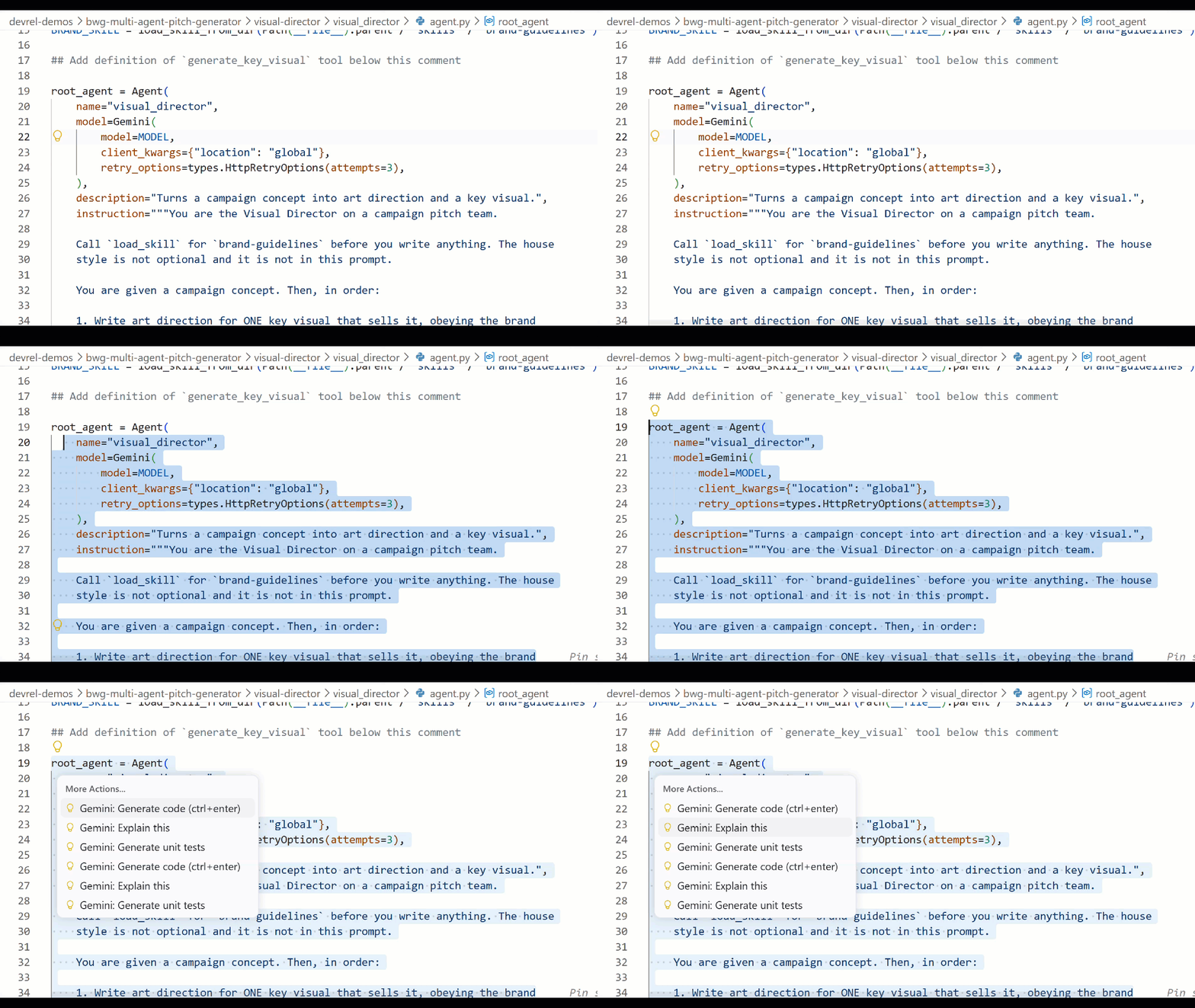
- Replace the entire file in
pitch_generator/agent.pyin the editor with the following:import mimetypes import os from dotenv import load_dotenv from google.adk.agents import Agent from google.adk.agents.context import Context from google.adk.agents.remote_a2a_agent import ( AGENT_CARD_WELL_KNOWN_PATH, RemoteA2aAgent, ) from google.adk.apps import App from google.adk.events.event import Event from google.adk.models import Gemini from google.adk.workflow import JoinNode, Workflow from google.genai import types load_dotenv() MODEL = "gemini-3.8-flash" def _model() -> Gemini: return Gemini( model=MODEL, client_kwargs={"location": "global"}, retry_options=types.HttpRetryOptions(attempts=3), ) """ ⬇️ Configure visual-director RemoteA2aAgent agent below this comment """ creative_director = Agent( name="creative_director", model=_model(), description="Turns a raw idea into a campaign concept.", instruction=( "You are the Creative Director. Turn the idea you are given into ONE " "punchy campaign concept line with the rationale explanation behind it." ), output_key="creative_director", ) copywriter = Agent( name="copywriter", model=Gemini(model=MODEL, retry_options=types.HttpRetryOptions(attempts=3)), description="Writes social copy for a campaign concept.", instruction=( "You are the Copywriter. Write ONE short social caption for the " "campaign concept you are given. Under 25 words." ), ) """ Waits for every node wired into it, then hands their outputs on together.""" assemble = JoinNode(name="assemble") def package(node_input: dict): """Render the joined branches as the finished pitch. """ pitch = "\n\n".join( [ f"CONCEPT\n{node_input['creative_director']}", f"COPY\n{node_input['copywriter']}", ] ) """ The first event is what the user sees. The second is the node's output, which any downstream node would receive.""" yield Event(content=types.Content(role="model", parts=[types.Part(text=pitch)])) yield Event(output=pitch) """ we put creative_director before `assemble` so that we can gather the `Concept` output at assemble""" root_agent = Workflow( name="pitch_generator", edges=[ ("START", creative_director), (creative_director, copywriter), ((creative_director, copywriter), assemble), (assemble, package), ], ) app = App( root_agent=root_agent, name="pitch_generator", ) agents-cliincludes a built-in web development UI calledplaygroundfor inspection, similar to ADK. To start the playground:agents-cli playground --port 8080nand press Enter.- Click Web Preview, the eye icon at the top right of the terminal, and choose Preview on port 8080.

- You will see the following interface to chat with the agent. Try sending the prompt "Flying skateboards for cats". You will see a response as shown below, where you can also inspect the full workflow graph.
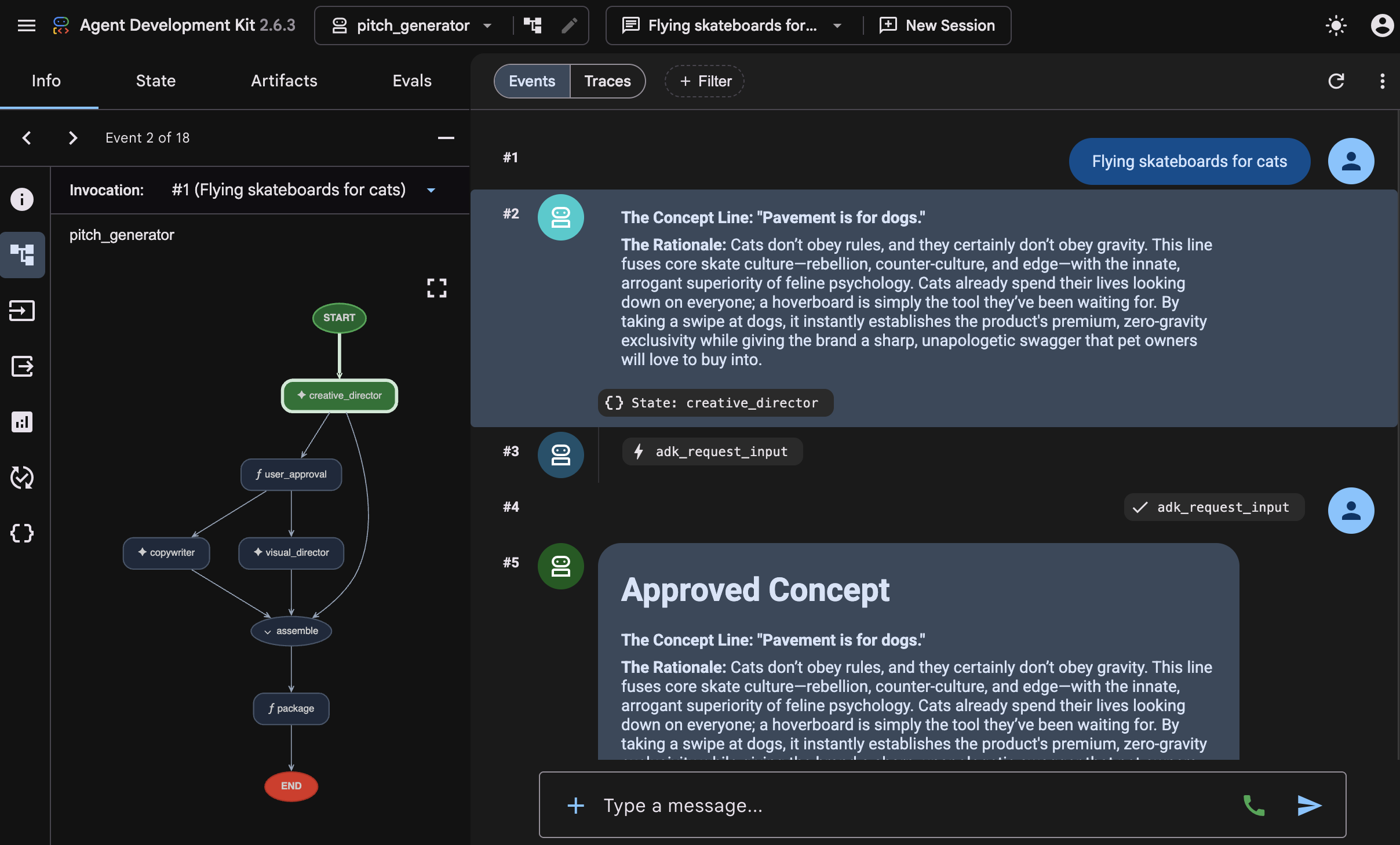 Inspect how that answer was produced. The playground shows each step the graph took, in order:
 creative_director, thencopywriter, thenassemble, thenpackage. That sequence is the graph you wired, and this way you can quickly confirm the graph that you've just built. - Return to the terminal and stop the running
agents-cli playgroundprocess by pressing Ctrl+C twice.
4. Give an agent a skill
In this task, you create a second agent and give it a set of brand guidelines packaged as a skill.
The pipeline writes words. A picture needs a house style: a palette, a way of lighting things, compositions you use and ones you never use. That is a page of rules, and a page of rules needs a better mechanism to be managed. One way to do it is to package it as an "agent skill."
A skill is a folder containing a SKILL.md file. The structure of the skills directory looks like the following example (using visual_director, the next agent you will build):
visual_director/
   ...
   agent.py
   skills/
      brand-guidelines/
         SKILL.md          ## required: frontmatter + instructions
         references/       ## optional: longer supporting documents
         assets/           ## optional: templates, images, data
         scripts/          ## optional: executable helpers
   ...
The entry point of the agent skill is the SKILL.md file, which includes a YAML frontmatter section like the one shown below:
---
name: brand-guidelines
description: The house brand rules for a key visual. Load this before writing art direction, so the visual looks like it came from this brand.
---

## Brand guidelines

Deep indigo and slate as the ground. One warm accent, amber or terracotta...
The frontmatter is the label. It is all the agent sees up front, which is why the description has to say when the skill is worth loading. The body is the content, and it stays out of the context until the agent calls load_skill.
That split is the point. The prompt stays short, the agent pulls in the rules only when it needs them, and changing style means editing one file rather than hunting through an instruction string.
We will start building the second agent, visual-director, utilizing agent skills as shown in the diagram below:
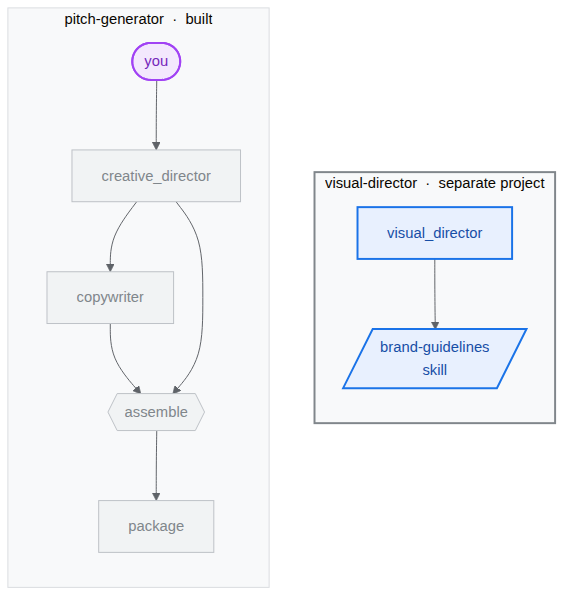
Scaffold the Visual Director
You will build a specialized agent to handle the visual component, visual-director. It is a separate project because it later becomes its own service to demonstrate how multiple agents communicate with each other using the A2A protocol. You will end up with two projects side by side:
bwg-multi-agent-pitch-generator/
├── pitch-generator/              ## built in the last task
│   ├── pitch_generator/
│   │   ├── agent.py              ## the graph you wrote
│   │   ├── app_utils/            ## generated, A2A wiring
│   │   └── fast_api_app.py       ## generated, serves the agent
│   └── pyproject.toml
└── visual-director/              ## created below
    └── ...                       ## the same shape again
- Create the project and install its dependencies by pasting this in the terminal:
cd ~/devrel-demos/codelabs/bwg-multi-agent-pitch-generator
agents-cli create visual-director \
  --agent adk \
  --agent-directory visual_director \
  --deployment-target cloud_run \
  --session-type in_memory \
  --cicd-runner skip \
  --region <YOUR_REGION> \
  --auto-approve
cd visual-director
agents-cli update -y && agents-cli install && uv sync --upgrade-package google-adk
Write the brand guidelines
- Create the skill folder and open the file:
mkdir -p visual_director/skills/brand-guidelines cloudshell edit visual_director/skills/brand-guidelines/SKILL.md - Paste the following content into the open
SKILL.mdfile in the Editor and save it: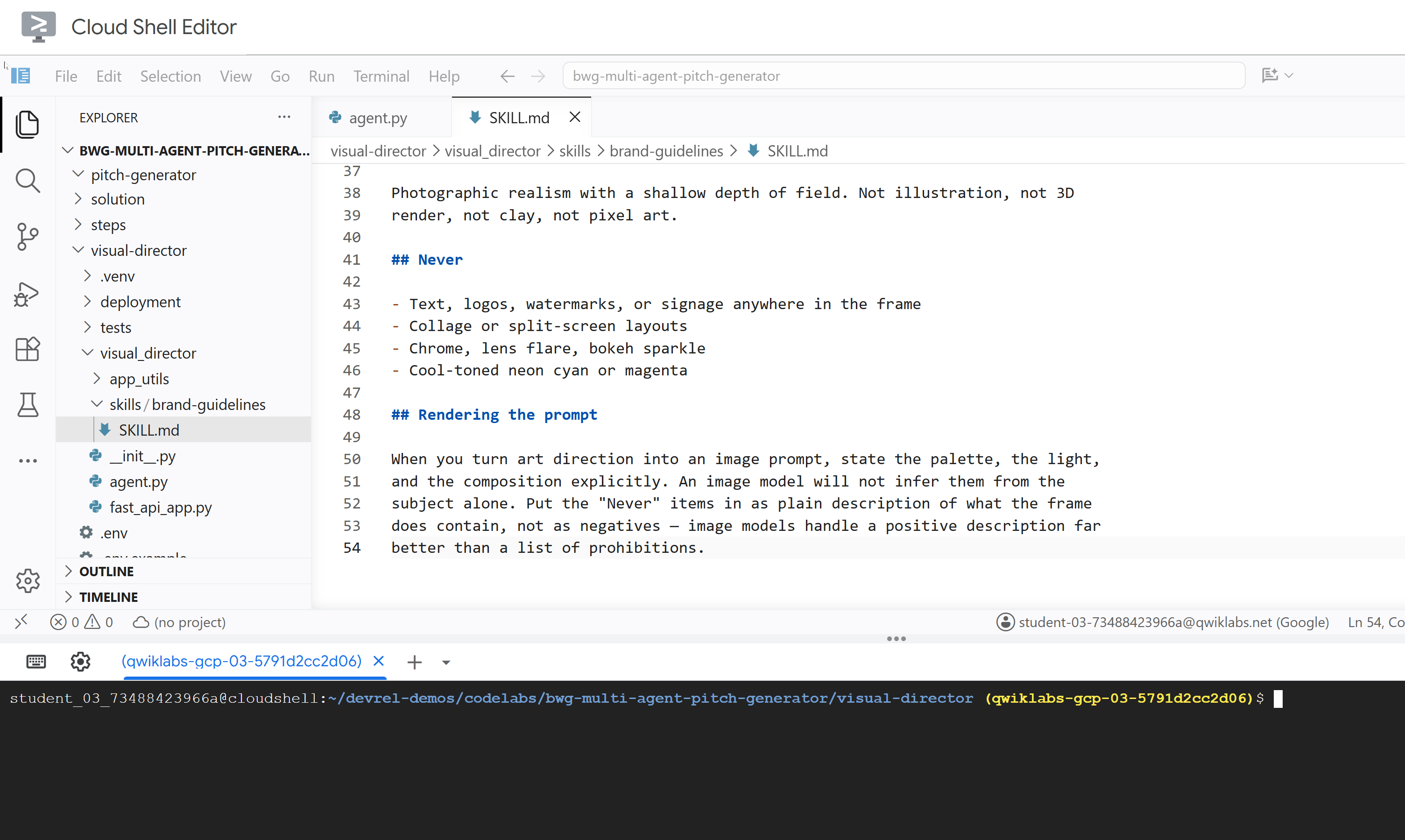
---
name: brand-guidelines
description: The house brand rules for a key visual — palette, light, composition, subject treatment, and what never appears. Load this before writing art direction or rendering an image, so the visual looks like it came from this brand rather than from a generic image model.
---

## Brand guidelines

House style for campaign key visuals. Every rule here beats a preference in the
brief. If the brief asks for something forbidden below, follow the brief for the
subject and the guidelines for the treatment.

## Palette

Deep indigo and slate as the ground. One warm accent — amber or terracotta —
carrying the eye to the subject. Nothing neon, nothing fluorescent.

At most three colors with any weight. A fourth reads as clutter.

## Light

One dominant source, low and raking. Long shadows are wanted. Golden hour or a
single hard studio key, never flat overhead light and never a ring light.

Rim light is allowed on the subject only, and only to separate it from the
ground.

## Composition

Subject off-center, roughly a third in. Generous negative space on the opposite
side — copy lands there later, so leave it genuinely empty.

Eye level or slightly below. No top-down flat lays. No fisheye, no Dutch tilt.

## Subject

One subject. If the idea implies a crowd, pick the one that carries it.

Photographic realism with a shallow depth of field. Not illustration, not 3D
render, not clay, not pixel art.

## Never

- Text, logos, watermarks, or signage anywhere in the frame
- Collage or split-screen layouts
- Chrome, lens flare, bokeh sparkle
- Cool-toned neon cyan or magenta

## Rendering the prompt

When you turn art direction into an image prompt, state the palette, the light,
and the composition explicitly. An image model will not infer them from the
subject alone. Put the "Never" items in as plain description of what the frame
does contain, not as negatives — image models handle a positive description far
better than a list of prohibitions.
Update the visual_director/agent.py
Update the agent.py file and configure it so that it is equipped with the previously defined skill.
- Open the agent file:
cloudshell edit ~/devrel-demos/codelabs/bwg-multi-agent-pitch-generator/visual-director/visual_director/agent.py - Replace the entire
visual_director/agent.pyfile content with the following code:import mimetypes from pathlib import Path from google import genai from google.adk.agents import Agent from google.adk.apps import App from google.adk.models import Gemini from google.adk.skills import load_skill_from_dir from google.adk.tools import ToolContext from google.adk.tools.skill_toolset import SkillToolset from google.genai import types MODEL = "gemini-3.8-flash" ## Configure the `brand-guidelines` skill for the agent BRAND_SKILL = load_skill_from_dir(Path(__file__).parent / "skills" / "brand-guidelines") ## Add definition of `generate_key_visual` tool below this comment root_agent = Agent( name="visual_director", model=Gemini( model=MODEL, client_kwargs={"location": "global"}, retry_options=types.HttpRetryOptions(attempts=3), ), description="Turns a campaign concept into art direction and a key visual.", instruction="""You are the Visual Director on a campaign pitch team. Call `load_skill` for `brand-guidelines` before you write anything. The house style is not optional and it is not in this prompt. You are given a campaign concept. Then, in order: 1. Write art direction for ONE key visual that sells it, obeying the brand guidelines: subject, composition, lighting, color, mood. Three or four sentences. 2. Call `generate_key_visual` with exactly that art direction. Your final reply is the art direction itself and nothing else. No preamble, no alternatives, no questions back. Do not mention the skill, the tool, or the image file — the image travels on its own.""", tools=[ SkillToolset(skills=[BRAND_SKILL]), ## Supply the `generate_key_visual` tool below this comment ], ) app = App( root_agent=root_agent, name="visual_director", )visual-directoragent is now properly configured with an agent skill. Before testing it, you'll equip this agent with a tool to generate image assets as one of its key capabilities.
5. Equip an agent with an image generation tool
In this task, you give the Visual Director a tool that renders the art direction as an image and saves it as an artifact. An artifact is a named, versioned piece of binary data or file content that an AI agent creates, modifies, or uses during a task.
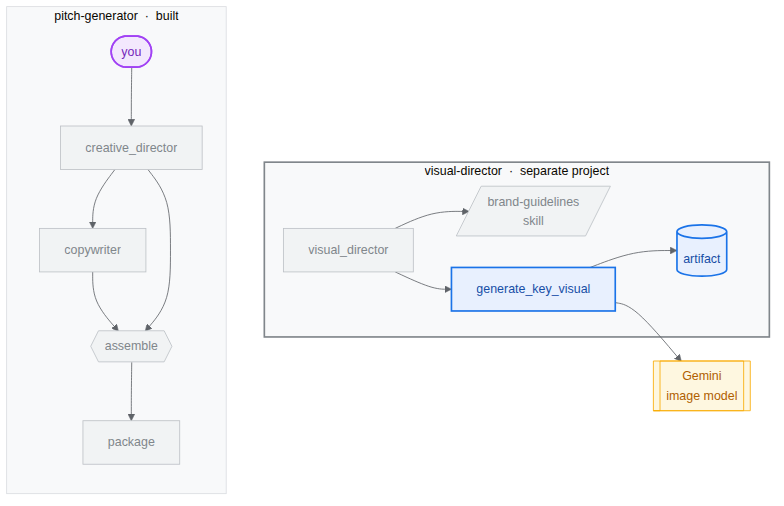
Implement and add the tool to the agent
- Open the agent file:
cloudshell edit ~/devrel-demos/codelabs/bwg-multi-agent-pitch-generator/visual-director/visual_director/agent.py - Copy the following
generate_key_visualtool before theroot_agentdefinition:async def generate_key_visual(art_direction: str, tool_context: ToolContext) -> dict: """Render the art direction as the campaign's key visual. Args: art_direction: The art direction to render, in full. Returns: The saved artifact's filename, version, size and media type. """ IMAGE_MODEL = "gemini-3.1-flash-lite-image" response = await genai.Client(location="global").aio.models.generate_content( model=IMAGE_MODEL, contents=art_direction ) ## The image arrives as inline bytes on one of the response parts. image = next( ( part.inline_data for part in response.candidates[0].content.parts or [] if part.inline_data ), None, ) if image is None: raise ValueError(f"{IMAGE_MODEL} returned no image for: {art_direction[:120]}") filename = "key_visual" + ( mimetypes.guess_extension(image.mime_type or "") or ".bin" ) version = await tool_context.save_artifact(filename, types.Part(inline_data=image)) ## Return the artifact filename and version return { "filename": filename, "version": version, "bytes": len(image.data), "mime_type": image.mime_type, } - Add
generate_key_visualbelowSkillToolsetto equip the agent with the tool:tools=[ SkillToolset(skills=[BRAND_SKILL]), ## Supply the `generate_key_visual` tool below this comment generate_key_visual, ], agents-cliincludes a built-in web development UI calledplaygroundfor inspection, similar to ADK. To start the playground:agents-cli playground --port 8080- Click Web Preview, the eye icon at the top right of the terminal, and choose Preview on port 8080.
- You will see the following interface to chat with the agent. Try sending the prompt "Nine lives. Zero gravity."
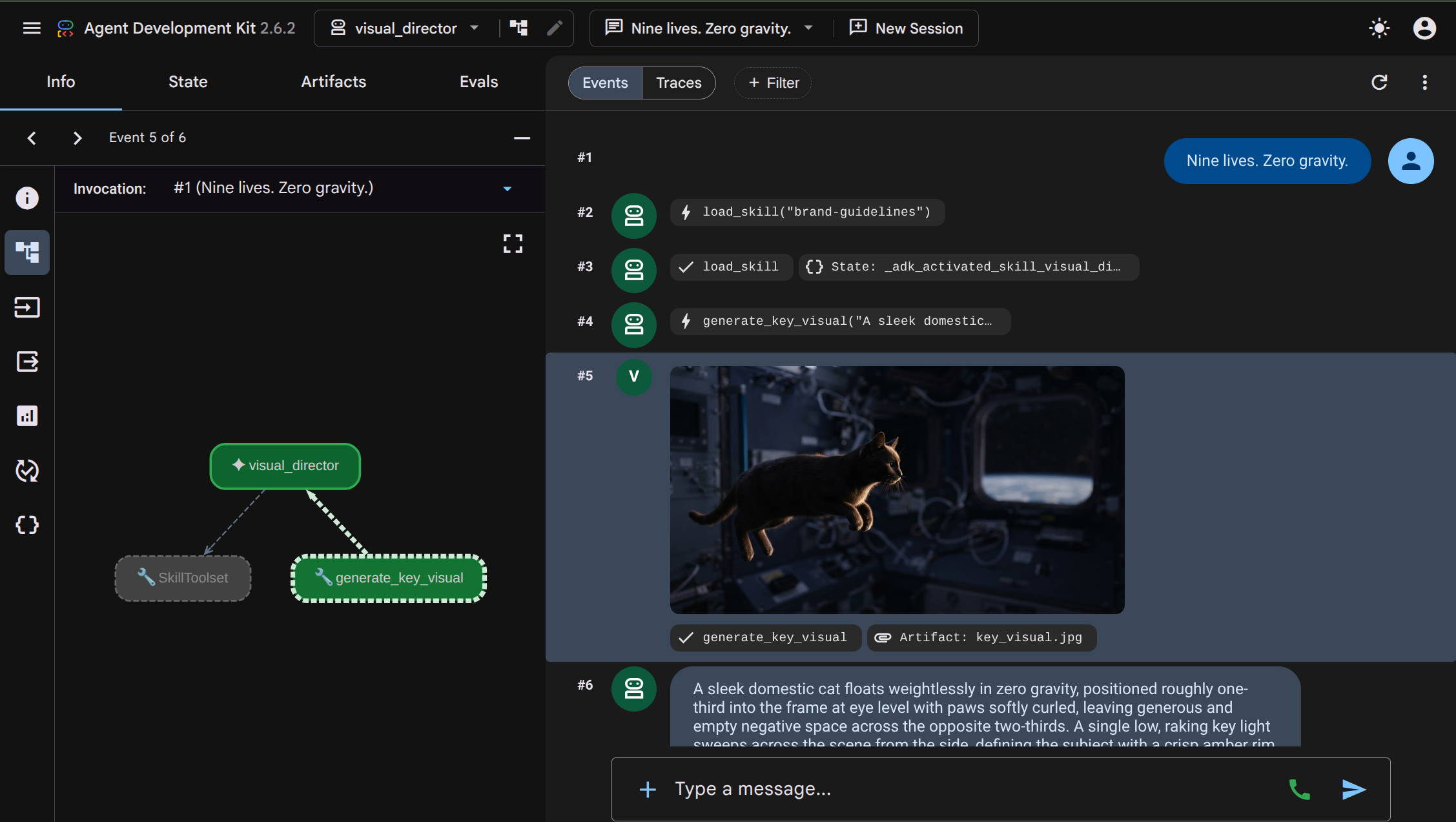 You can inspect from the interactions how the
 visual_directoragent executesload_skill("brand-guidelines")to read the brand guidelines skill, and then executesgenerate_key_visualto start generating the image. The resulting image is stored as an artifact, which is also displayed in the UI and can be easily inspected. - Return to the terminal and stop the running
agents-cli playgroundprocess by pressing Ctrl+C twice.
6. Multi-agent architecture with A2A Protocol
In this task, you will expose the Visual Director as a service that other agents can call, and configure it to respond with the generated image.
Agent2Agent (A2A) is an open protocol for one agent to call another over a network. The central piece is the agent card, a JSON document the agent publishes about itself through a well-known URL, giving its name, description, and capabilities. A caller fetches the card and knows how to talk to the agent behind it, with no shared source code, dependencies, or language.
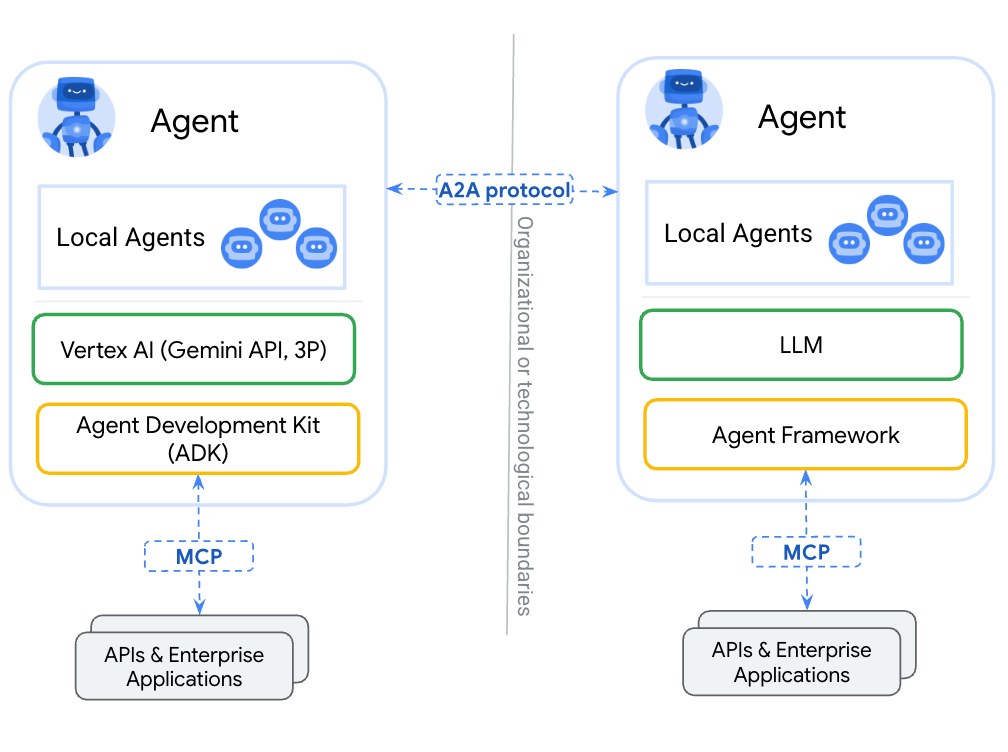
agents-cli already wired this up by default. The scaffold generated visual_director/app_utils/a2a.py, which builds the card from your agent and mounts the routes, and visual_director/fast_api_app.py, which serves them. You only need a small modification to allow it to also send the artifacts back to the client.
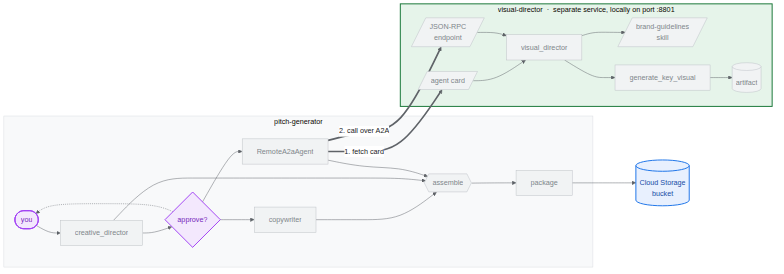
The architecture will look as shown below. Note that the agent is not yet integrated into our initial workflow:
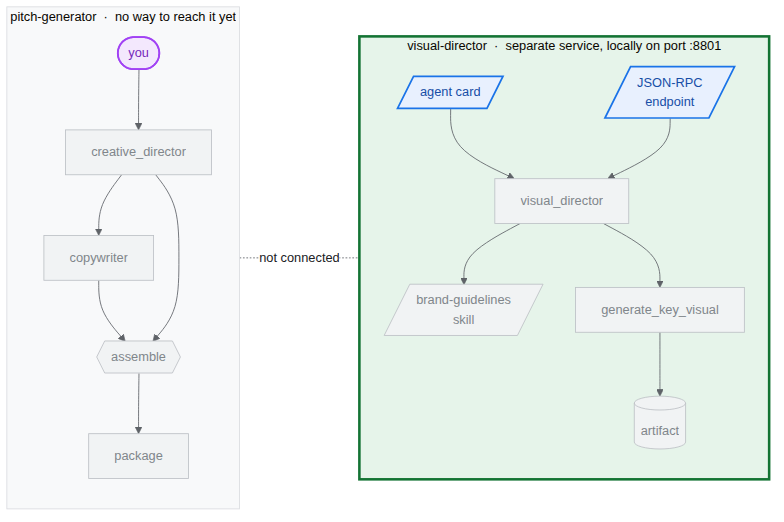
The agents-cli A2A server scaffold
The following code and module are already provided when we initialize the visual-director agent using agents-cli. Open these files by pasting the following commands in the terminal:
cloudshell edit visual_director/fast_api_app.py
cloudshell edit visual_director/app_utils/a2a.py
visual_director/fast_api_app.py starts the agent and mounts the A2A routes under a path built from the app name:
await attach_a2a_routes(
    app,
    agent=root_agent,
    runner=runner,
    rpc_path=f"/a2a/{adk_app.name}",   ## becomes /a2a/visual_director
)
visual_director/app_utils/a2a.py does the rest, in three moves.
First, it builds the agent card from the agent itself. The name, the description, and every tool become entries a caller can read:
agent_card = await AgentCardBuilder(
    agent=agent,
    rpc_url=f"{resolved_app_url}{rpc_path}",
).build()
Second, it puts an executor between the protocol and your agent. Incoming A2A requests are translated into ADK runs, and the results are translated back:
request_handler = DefaultRequestHandler(
    agent_executor=A2aAgentExecutor(runner=runner, force_new_version=True),
    task_store=task_store,
    agent_card=agent_card,
)
Third, it mounts two routes: one serving the card, one accepting calls.
Route | Purpose |
| The card. A caller reads this first to learn what the agent can do |
| The JSON-RPC endpoint. Where the actual requests go |
Let artifacts cross the boundary
By default, an A2A response carries text. The image is an artifact, and an artifact stays in the serving agent's store unless you configure it to be included.
- Open the generated A2A file:
cd ~/devrel-demos/codelabs/bwg-multi-agent-pitch-generator/visual-director cloudshell edit visual_director/app_utils/a2a.py - Find the
AgentCardBuilderimport and add theA2aAgentExecutorConfigandinclude_artifacts_in_a2a_event_interceptorimports below it:## ... ## from google.adk.a2a.utils.agent_card_builder import AgentCardBuilder ## Add the following two below `AgentCardBuilder` import from google.adk.a2a.executor.config import A2aAgentExecutorConfig from google.adk.a2a.executor.interceptors.include_artifacts_in_a2a_event import ( include_artifacts_in_a2a_event_interceptor, ) - Find the
agent_executor=A2aAgentExecutor(runner=runner),line and replace it with the following (adding theA2aAgentExecutorConfig):agent_executor=A2aAgentExecutor( runner=runner, force_new_version=True, config=A2aAgentExecutorConfig( execute_interceptors=[include_artifacts_in_a2a_event_interceptor] ), ),
Start the service and read the published A2A card
- Start the server in the background. You need to declare
APP_URL, as this is the address the card advertises as its own. Paste this in the terminal:APP_URL=http://localhost:8801 nohup uv run uvicorn visual_director.fast_api_app:app --port 8801 > /tmp/visual-director.log 2>&1 & - Give it a few seconds to start, then confirm it is serving:
sleep 10 tail -2 /tmp/visual-director.logINFO: Application startup complete. INFO: Uvicorn running on http://127.0.0.1:8801 (Press CTRL+C to quit) - Read the card the agent now publishes:
curl -s http://localhost:8801/a2a/visual_director/.well-known/agent-card.json | python3 -m json.toolgenerate_key_visual. It is generated directly from the agent definition in the code.{ "name": "visual_director", "description": "Turns a campaign concept into art direction and a key visual.", "skills": [ { "id": "visual_director", "name": "model", "tags": [ "llm" ] }, { "id": "visual_director-generate_key_visual", "name": "generate_key_visual", "description": "Render the art direction as the campaign's key visual.\n\nArgs:\n art_direction: The art direction to render, in full.\n\nReturns:\n The saved artifact's filename, version, size and media type.", "tags": [ "llm", "tools" ] } ], "preferredTransport": "JSONRPC", "protocolVersion": "0.3", "url": "http://localhost:8801/a2a/visual_director" }visual-directoragent into the mainpitch-generatorworkflow.
7. Embed the A2A remote agent in the workflow
In this task, you will add the remote agent to the graph as a third branch.
A remote agent is wrapped in RemoteA2aAgent and placed in the graph like any other node. The edges keep the same shape, and the coordinator does not know which of its nodes are local.
Point the coordinator at the service and update the graph workflow
- Open the agent file:
cd ~/devrel-demos/codelabs/bwg-multi-agent-pitch-generator/pitch-generator cloudshell edit pitch_generator/agent.py - Add these imports at the top of the file, alongside the existing ones:
import asyncio import subprocess import google.auth.transport.requests import google.oauth2.id_token import httpx from google.adk.a2a.converters.part_converter import convert_genai_part_to_a2a_part - Add the following
RemoteA2aAgentdefinition above thecreative_directordeclaration:VISUAL_DIRECTOR_URL = os.getenv("VISUAL_DIRECTOR_URL", "http://localhost:8801") ## For deployment on Cloud Run def _cloud_run_client() -> httpx.AsyncClient | None: """An httpx client that signs each request with a Cloud Run ID token. Cloud Run deploys private, so both the agent-card fetch and the A2A calls need one. """ if not VISUAL_DIRECTOR_URL.startswith("https://"): return None async def sign(request: httpx.Request) -> None: token = None try: token = await asyncio.to_thread( google.oauth2.id_token.fetch_id_token, google.auth.transport.requests.Request(), VISUAL_DIRECTOR_URL, ) except Exception: token = subprocess.check_output( ["gcloud", "auth", "print-identity-token", "-q"], stderr=subprocess.PIPE ).decode().strip() if not token: raise Exception("Failed to fetch ID token") request.headers["Authorization"] = f"Bearer {token}" return httpx.AsyncClient(event_hooks={"request": [sign]}, timeout=600) ## Keep the approval's tool traffic out of the A2A request def _pitch_parts_only(part: types.Part): """Sends the Visual Director text and media only. RemoteA2aAgent replays the session on every call, and the Visual Director runs downstream of the human approval, so the approval's function_response would travel alongside the concept text. An ADK server reads a function response as "resume the paused invocation" and rejects a message that also carries text, so drop the tool parts here. """ if part.function_call or part.function_response: return None return convert_genai_part_to_a2a_part(part) visual_director = RemoteA2aAgent( name="visual_director", description="Turns a campaign concept into art direction for one key visual.", agent_card=( f"{VISUAL_DIRECTOR_URL}/a2a/visual_director{AGENT_CARD_WELL_KNOWN_PATH}" ), httpx_client=_cloud_run_client(), genai_part_converter=_pitch_parts_only, ) - Overwrite or replace the
packagenode Python function with the following definition:async def package(ctx: Context, node_input: dict): """Render the joined branches as the finished pitch.""" empty = [name for name, value in node_input.items() if not value] if empty: raise ValueError(f"nothing reached the join from: {', '.join(empty)}") def _key_visual(ctx: Context) -> types.Blob | None: """The image the Visual Director sent back, or None if it sent none.""" for event in reversed(ctx.session.events): if event.author != "visual_director" or not event.content: continue for part in event.content.parts or []: if part.inline_data and part.inline_data.data: return part.inline_data return None image = _key_visual(ctx) if image is None: raise ValueError("the Visual Director returned art direction but no image") suffix = mimetypes.guess_extension(image.mime_type or "") or ".bin" filename = f"key_visual{suffix}" await ctx.save_artifact(filename, types.Part(inline_data=image)) pitch = "\n\n".join( [ f"CONCEPT\n{node_input['creative_director']}", f"COPY\n{node_input['copywriter']}", f"ART DIRECTION\n{node_input['visual_director']}", f"KEY VISUAL\n{filename}, {len(image.data)} bytes, {image.mime_type}", ] ) yield Event( content=types.Content( role="model", parts=[types.Part(text=pitch), types.Part(inline_data=image)], ) ) yield Event(output=pitch) - Add a Human Approval Gate before the downstream generation proceeds. In
pitch_generator/agent.py, define the approval nodes aboveroot_agent:@node(rerun_on_resume=False) async def approve_concept(ctx: Context): yield RequestInput( message="Please approve the campaign concept (yes/no).", response_schema=str ) @node(rerun_on_resume=True) async def user_approval(ctx: Context): user_response = await ctx.run_node(approve_concept) if str(user_response).lower() in ("yes", "y"): approved_concept = f"## Approved Concept\n\n{ctx.session.state['creative_director']}" yield Event( content=types.Content( role="model", parts=[types.Part(text=approved_concept)] ) ) else: raise ValueError("User rejected the concept") - Finally, update the imports at the top to include
RequestInputandnodefromgoogle.adk.eventsandgoogle.adk.workflow:from google.adk.events import Event, RequestInput from google.adk.workflow import JoinNode, Workflow, noderoot_agentworkflowedgesto route throughuser_approval:edges=[ ("START", creative_director), (creative_director, user_approval, (copywriter, visual_director)), ((creative_director, copywriter, visual_director), assemble), (assemble, package), ],- Human-in-the-Loop (HITL) Approval:
approve_conceptyields aRequestInput. When the workflow hits this node, execution pauses and emits an interrupt to the caller. Downstream branches (copywriterandvisual_director) will not run until user approval is confirmed. visual_directorappears in the edges exactly likecopywriter, though one is a function call away and the other is across a network.- The returned image is read from the session events rather than from
node_input, because currently only text is promoted to a node's output. The image crossed the boundary through the A2A interceptor, but arrived attached to the remote agent's events, so the_key_visualhelper function retrieves it from there.
- Human-in-the-Loop (HITL) Approval:
Test the integration
You will now test that the Visual Director (running in the background) and the Pitch Generator can communicate via the A2A protocol.
- Confirm the Visual Director is still running in the background:
curl -s -o /dev/null -w "visual director: %{http_code}\n" http://localhost:8801/a2a/visual_director/.well-known/agent-card.jsonvisual director: 200result here.In case you get any other status, run the following command to restart it:fuser -k 8801/tcp 2>/dev/null || true cd ~/devrel-demos/codelabs/bwg-multi-agent-pitch-generator/visual-director APP_URL=http://localhost:8801 nohup uv run uvicorn visual_director.fast_api_app:app --port 8801 > /tmp/visual-director.log 2>&1 & cd ~/devrel-demos/codelabs/bwg-multi-agent-pitch-generator/pitch-generator sleep 10 curl -s -o /dev/null -w "visual director: %{http_code}\n" http://localhost:8801/a2a/visual_director/.well-known/agent-card.json - Start the preview:
cd ~/devrel-demos/codelabs/bwg-multi-agent-pitch-generator/pitch-generator/pitch_generator agents-cli playground --port 8080 - Click Web Preview, the eye icon at the top right of the terminal, and choose Preview on port 8080.
- You will see the interface to chat with the agent. Try sending the prompt "Flying skateboards for cats".
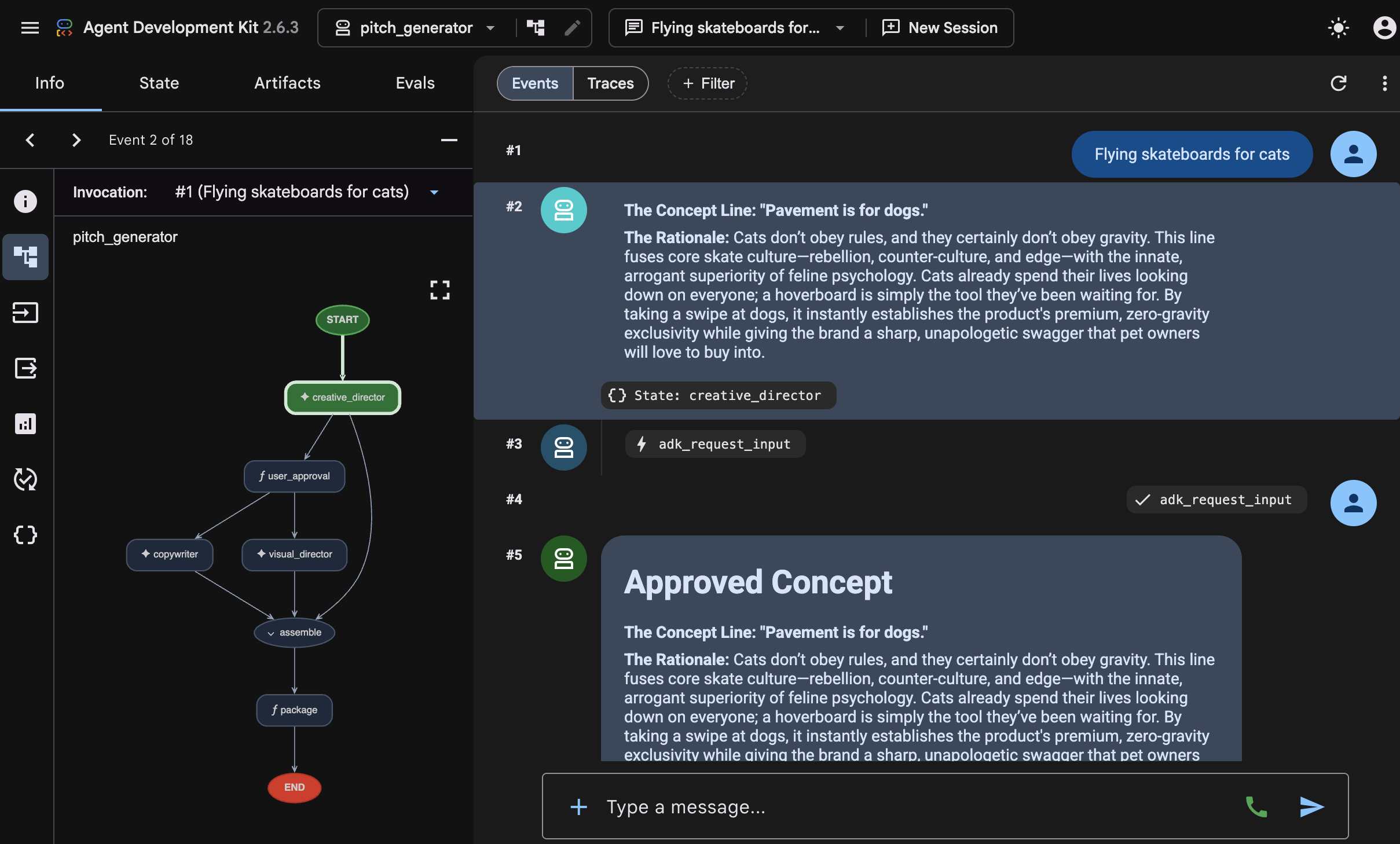
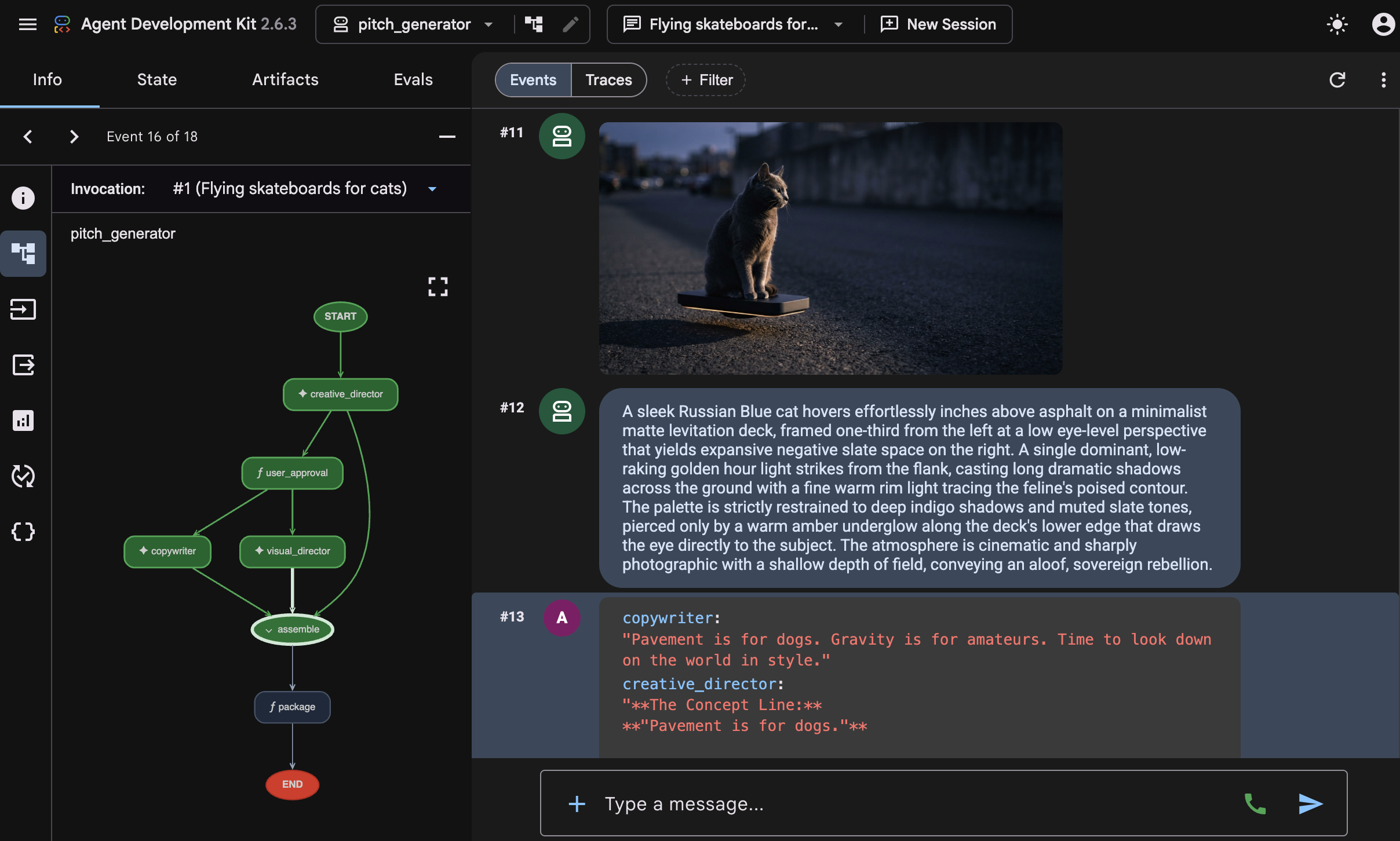 You will see the full interaction where the workflow starts and each agent runs. After the
 creative_directordrafts the concept, the workflow pauses at the approval gate and asks you to confirm: "Please approve the campaign concept (yes/no)." Enter "yes" in the input field to proceed.Once approved, the graph fans out: you can see when thevisual-directoragent starts loading the skill, and in the middle of the image generation, thecopywriteragent finishes generating the social media caption—which shows that both agents run in parallel without waiting for each other. After both finish, theassemblenode joins the results together with the approved concept generated by thecreative_director, finalizing the pitch content delivery in thepackagefunction.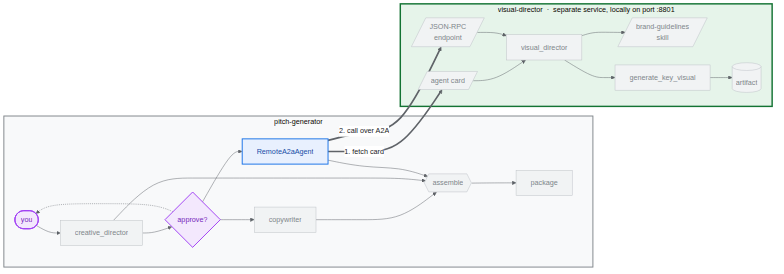
8. Persist the key visuals in Cloud Storage
So far every key visual has lived in memory. The moment the process stops, the image is gone, which is fine for a playground and useless for a campaign. In this task, you give the workflow a bucket to write to, and create a BigQuery dataset you will use in the last task.
ADK decides where artifacts go at startup. The generated app_utils/services.py reads a single environment variable:
def get_artifact_service():
    """Process-wide artifact service: GCS when a bucket is set, else in-memory."""
    if bucket := os.environ.get("LOGS_BUCKET_NAME"):
        return GcsArtifactService(bucket_name=bucket)
    return InMemoryArtifactService()
If you set LOGS_BUCKET_NAME, every save_artifact call will land in Cloud Storage instead.
Create the BigQuery dataset
- In Cloud Shell, run the following command to create a BigQuery dataset:
bq mk --dataset --location=<YOUR_REGION> --project_id=<YOUR_PROJECT_ID> bwg - Point the coordinator's artifact store at the bucket:
export LOGS_BUCKET_NAME="<YOUR_PROJECT_ID>-bwg"GcsArtifactServicetakes a bare bucket name, without thegs://prefix. Like the other variables, this one lives in your shell, and the deploy task passes it on to Cloud Run. - Check the contents of your bucket. In a new browser tab, open the following URL:
https://console.cloud.google.com/storage/browser?project=<YOUR_PROJECT_ID>
9. Deploy Visual Director agent to Cloud Run
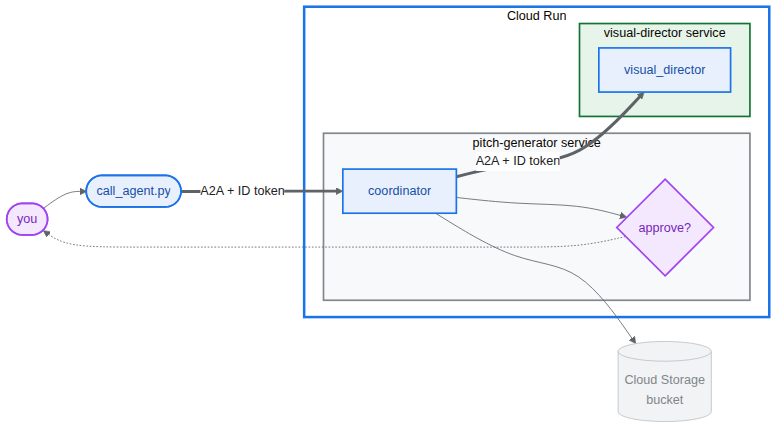
Everything so far ran on one machine, with the Visual Director reachable at localhost:8801. In this task you deploy the Visual Director agent as its own Cloud Run service and let the pitch generator talk to it across the network using the Agent2Agent (A2A) protocol.
The Visual Director gets a real https:// URL, so the _cloud_run_client you wrote earlier starts signing requests instead of returning None. Also, Cloud Run deploys private by default.
Deploy the Visual Director
- Stop the local background service and the playground if they are still running:
fuser -k 8801/tcp 2>/dev/null || true fuser -k 8000/tcp 2>/dev/null || true - Deploy the agent. This builds a container and pushes it.⏰ This will take a few minutes.
cd ~/devrel-demos/codelabs/bwg-multi-agent-pitch-generator/visual-director
source .env
agents-cli deploy \
  --service-name visual-director \
  --project <YOUR_PROJECT_ID> \
  --region <YOUR_REGION> \
  --no-confirm-project \
  --labels dev-tutorial=bwg001-devlab-1 \
  --update-env-vars "LOGS_BUCKET_NAME=$LOGS_BUCKET_NAME,GOOGLE_GENAI_USE_VERTEXAI=true,GOOGLE_CLOUD_PROJECT=$GOOGLE_CLOUD_PROJECT,GOOGLE_CLOUD_LOCATION=$GOOGLE_CLOUD_LOCATION,GOOGLE_CLOUD_REGION=$GOOGLE_CLOUD_REGION"
Run the Pitch Generator that uses the Visual Director deployed to Cloud Run
- Read the Visual Director's URL, and run the Pitch Generator that uses it:
cd ~/devrel-demos/codelabs/bwg-multi-agent-pitch-generator/pitch-generator
source .env
export VISUAL_DIRECTOR_URL=$(gcloud run services list \
  --project <YOUR_PROJECT_ID> \
  --region <YOUR_REGION> \
  --flatten='spec.template.spec.containers[0].env' \
  --filter='metadata.name=visual-director AND spec.template.spec.containers[0].env.name=APP_URL' \
  --format='value(spec.template.spec.containers[0].env.value)')
echo "Visual Director is at $VISUAL_DIRECTOR_URL"
APP_URL=http://localhost:8000 nohup uv run uvicorn pitch_generator.fast_api_app:app --port 8000 > /tmp/visual-pitch_generator.log 2>&1 &
Call the deployed workflow
Both agents support the A2A protocol. The repository ships a small client for calling Pitch Generator via A2A.
It needs PITCH_GENERATOR_URL to be set to the Pitch Generator URL which is running locally. Meanwhile, the Visual Director runs in Cloud Run, and the Pitch Generator talks to it over A2A.
- Copy the client into your project and run it:
cd ~/devrel-demos/codelabs/bwg-multi-agent-pitch-generator/pitch-generator cp ../solution/pitch-generator/call_agent.py . PITCH_GENERATOR_URL=http://localhost:8000 uv run python call_agent.py "Flying skateboards for cats" --save-image ./key_visual.png=== HUMAN APPROVAL REQUIRED === [DRAFT CONCEPT] Concept Line: "Gravity is a Suggestion." ... Please approve the campaign concept (yes/no):yesand press Enter to approve and continue the workflow. (You can also pass-yor--auto-approveto approve automatically). - Open
call_agent.pyand examine how it interacts with the agent usinga2a-sdk:ClientFactorybuilds an official A2AClienttargetinghttps://SERVICE_URL/a2a/pitch_generator.generate_pitch_asyncsends an initialSendMessageRequest. When the response returns withTaskState.TASK_STATE_INPUT_REQUIRED, it detects theadk_request_inputpart, displays the draft concept, collects your approval, and sends a resume request carrying your response back to the task.- The parsing loop reads the
CONCEPT,COPY, andART DIRECTIONsections from the completed task's artifacts, and saves the binary image tokey_visual.png.
key_visual.png. - Upload the key visual to your bucket, under a prefix you can point BigQuery at:
gcloud storage cp ./key_visual.png gs://<YOUR_PROJECT_ID>-bwg/key-visuals/cats.png - Generate a second pitch so you have something to compare, and upload it too:
PITCH_GENERATOR_URL=http://localhost:8000 uv run python call_agent.py "A commuter bike built for rainy cities" --save-image ./bike.png
gcloud storage cp ./bike.png gs://<YOUR_PROJECT_ID>-bwg/key-visuals/bike.png
10. Score the key visuals for brand fit in BigQuery
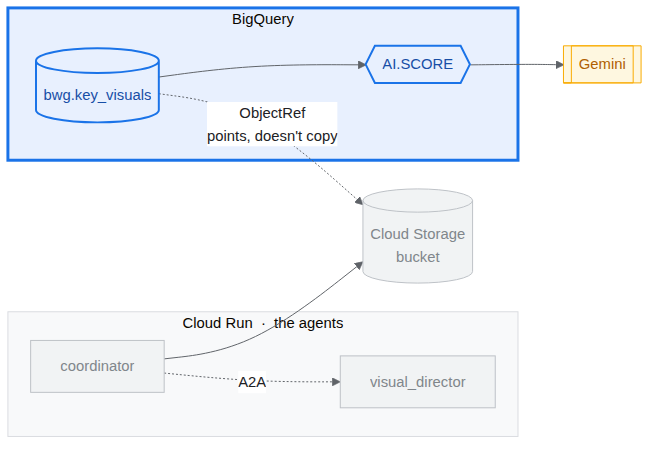
You now have images in a bucket and the brand guidelines that were supposed to shape them. In this task, you bring the two together: reference the images from BigQuery, then ask a Gemini model to grade each one against the guidelines, without moving a single byte out of Cloud Storage.
Two BigQuery features do the work:
ObjectRefis a value that points at a Cloud Storage object.OBJ.MAKE_REFbuilds one from a URI plus a connection that grants BigQuery delegated access to the bucket. Thepitch-connectioncreated by the setup script is that connection, and it already holds Storage Object Viewer and Agent Platform User.AI.SCOREtakes a prompt and returns aFLOAT64. The prompt can mix strings withObjectRefvalues, so the model sees your rubric and the image together.
Build a table of key visuals
- Open BigQuery Studio in a new browser tab:
https://console.cloud.google.com/bigquery?project=<YOUR_PROJECT_ID> - Click Create new query (the + icon), then paste and Run the following (replacing
SET @@location = '<YOUR_REGION>';

CREATE OR REPLACE TABLE bwg.key_visuals AS
SELECT
  campaign,
  concept,
  OBJ.FETCH_METADATA(
    OBJ.MAKE_REF(uri, '<YOUR_REGION>.pitch-connection')
  ) AS key_visual
FROM UNNEST([
  STRUCT(
    'cats' AS campaign,
    'Flying skateboards for cats' AS concept,
    'gs://<YOUR_PROJECT_ID>-bwg/key-visuals/cats.png' AS uri
  ),
  STRUCT(
    'bike',
    'A commuter bike built for rainy cities',
    'gs://<YOUR_PROJECT_ID>-bwg/key-visuals/bike.png'
  )
]);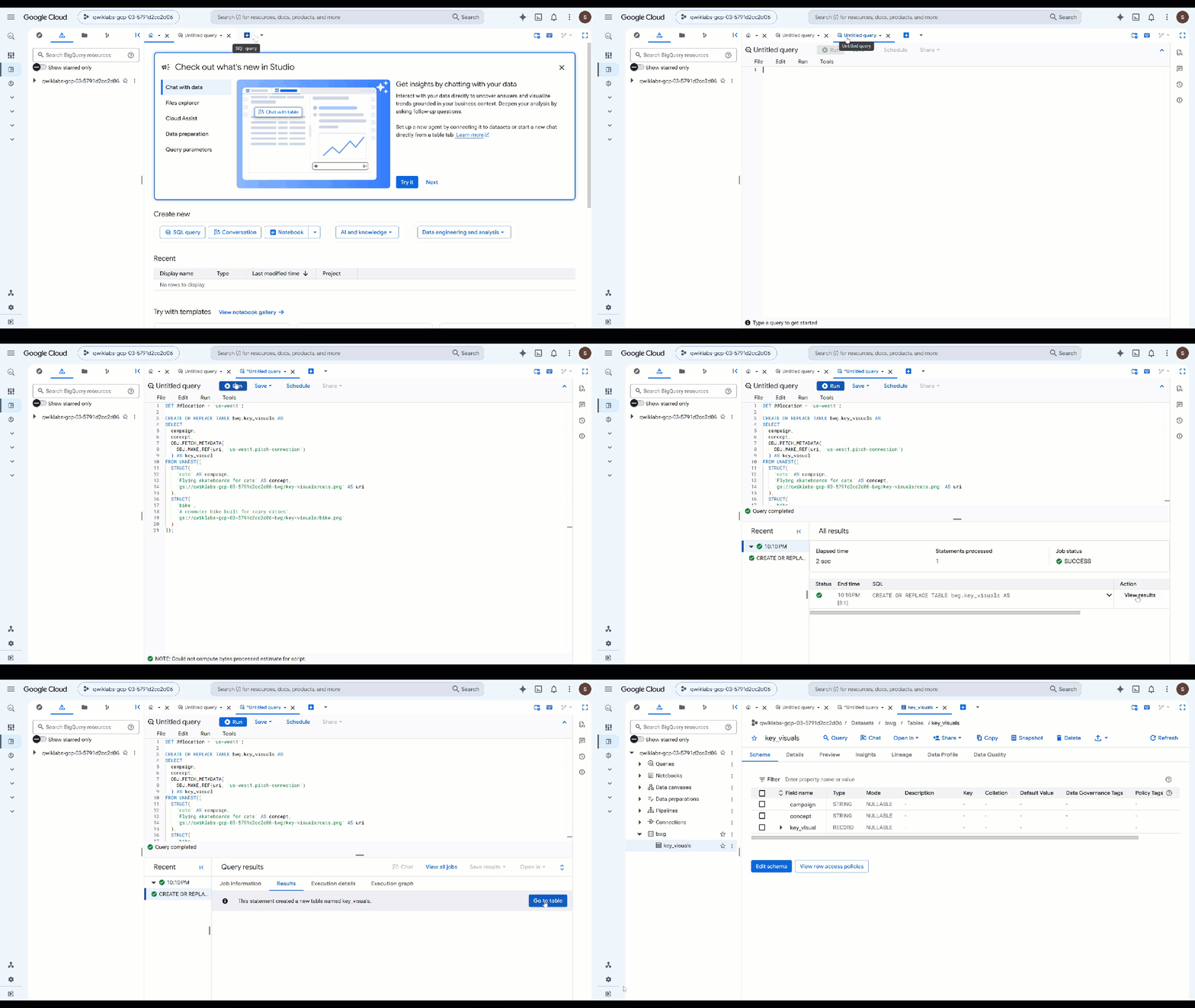
OBJ.MAKE_REFbuilds the reference from the URI and the connection.OBJ.FETCH_METADATAthen contacts Cloud Storage and fills in the object's size, content type, and generation. That second call is also the quickest way to prove your connection works: if the permissions are wrong, thedetailsfield comes back holding the error instead of the metadata. - Inspect what you stored. Replace the previous query with this one and run it:
SELECT campaign, concept, key_visual.uri, key_visual.details
FROM bwg.key_visuals;
Grade each image against the brand guidelines
The Visual Director was told to obey a palette, a lighting rule, and a composition rule. Whether it actually did is a judgment call, and that is what AI.SCORE is for.
- Run the following query (replacing
ObjectReffor the image:SELECT campaign, concept, AI.SCORE( ('''You are the brand guardian reviewing a campaign key visual. Score the attached image from 1 to 10 on how closely it follows these house rules: - Palette: deep indigo and slate, with one warm accent of amber or terracotta. Nothing neon. - Light: one dominant low, raking source with long shadows. No flat overhead light. - Composition: subject off-center with generous empty negative space on the opposite side. - Subject: one subject only, photographic realism, shallow depth of field. - Never: text, logos, or watermarks anywhere in the frame. A 10 obeys every rule. A 1 ignores them. The campaign concept is: ''', concept, key_visual), connection_id => '<YOUR_REGION>.pitch-connection', endpoint => 'gemini-3.5-flash' ) AS brand_fit FROM bwg.key_visuals ORDER BY brand_fit DESC; - Turn the score into a verdict your team can act on:
CREATE OR REPLACE TABLE bwg.brand_review AS SELECT campaign, concept, brand_fit, IF(brand_fit >= 7, 'on brand', 'needs another pass') AS verdict FROM ( SELECT campaign, concept, AI.SCORE( ('''Score this campaign key visual from 1 to 10 on how closely it follows the house brand rules: deep indigo and slate palette with a single warm accent and nothing neon; one low raking light source with long shadows; the subject off-center with empty negative space opposite; a single photographic subject; and no text, logos, or watermarks in the frame. The campaign concept is: ''', concept, key_visual), connection_id => '<YOUR_REGION>.pitch-connection', endpoint => 'gemini-3.5-flash' ) AS brand_fit FROM bwg.key_visuals ); SELECT * FROM bwg.brand_review ORDER BY brand_fit DESC;AI.SCOREreturns aFLOAT64and nothing else, so the threshold lives in plain SQL where you can tune it without touching the prompt. Scoring runs per row, which means the same rubric is applied to every asset a campaign produces, not just the two you generated here.
11. Next steps
Create Evals
Agentic evaluations or "evals" are automated tests used to measure how well autonomous AI agents reason, plan, use tools, and complete multi-step workflow. They are similar to unit testing for agents, but take into account their non-deterministic nature.
One of our agents includes a Human in the loop, which means it waits for input. You will need to let Antigravity make modifications to the current code so this behavior doesn't get on the way of the automatic evaluations.
One of the best ways to get started is to ask Antigravity CLI.
Type the following into the Cloud Shell to start the CLI:
cd ~/devrel-demos/codelabs/bwg-multi-agent-pitch-generator/
agy
Here is a starting prompt:
Explore this repository (`pitch-generator` and `visual-director`), including their agent instructions, tools, and `SKILL.md` files. Design and implement a creative `agents-cli eval` evaluation suite under `tests/eval/` that stress-tests the agent's behavior.
You can also find an example of evaluations and instructions to run them in the cloned repository.
12. Clean up
To avoid incurring charges to your Google Cloud account for the resources used in this codelab, either delete the project (recommended) or delete the individual resources created during the codelab:
gcloud run services delete visual-director --region=<YOUR_REGION> --project=<YOUR_PROJECT_ID> --quiet
bq rm -r -f -d <YOUR_PROJECT_ID>:bwg
bq rm --connection --location=<YOUR_REGION> --project_id=<YOUR_PROJECT_ID> pitch-connection
gcloud storage rm -r gs://<YOUR_PROJECT_ID>-bwg
13. Congratulations!
In this codelab, you built a multi-agent campaign pitch generator with the Agent Development Kit. You wired three agents into a deterministic graph workflow, packaged brand guidelines as an agent skill that loads on demand, and gave an agent an image generation tool that saves its output as an artifact. You then split the Visual Director into its own A2A service, embedded it back into the graph as a remote node, deployed it to Cloud Run, and called the whole workflow over A2A from a coordinator running locally. Finally, you referenced the generated key visuals from BigQuery with ObjectRef and used AI.SCORE to judge them against your own brand guidelines.