

1. परिचय

मल्टीमॉडल मल्टी-एजेंट इंजन बनाने का तरीका जानें. यह इंजन, किसी विषय के बारे में जानकारी देने वाले रॉ टेक्स्ट को लेता है और सोशल मीडिया पर लोगों की दिलचस्पी बढ़ाने वाली ऐसेट बनाता है. Google के एजेंट डेवलपमेंट किट (एडीके) और Agent2Agent (A2A) प्रोटोकॉल का इस्तेमाल करके, अपने-आप काम करने वाले माइक्रो-एजेंट बनाए जा सकते हैं. साथ ही, ब्रैंड के नियमों को एजेंट की ऐसी स्किल के तौर पर पैकेज किया जा सकता है जिसे बार-बार इस्तेमाल किया जा सकता है. इसके अलावा, Cloud Run पर एजेंट सेवा को डिप्लॉय किया जा सकता है. साथ ही, BigQuery के एआई फ़ंक्शन का इस्तेमाल करके, ब्रैंड के नियमों के मुताबिक जनरेट किए गए मुख्य विज़ुअल को स्कोर किया जा सकता है.
आपको क्या करना होगा
इस कोडलैब में, आपको ये टास्क करने का तरीका बताया गया है:
- डिटरमिनिस्टिक ग्राफ़ वर्कफ़्लो की मदद से, एक से ज़्यादा ADK एजेंट को व्यवस्थित करें.
- ब्रैंड के दिशा-निर्देशों को एजेंट की ऐसी स्किल के तौर पर पैकेज करें जो सिर्फ़ ज़रूरत पड़ने पर लोड हो.
- किसी एजेंट को इमेज जनरेट करने वाले टूल का ऐक्सेस दें. यह टूल, अपने आउटपुट को आर्टफ़ैक्ट के तौर पर सेव करता है.
- किसी एजेंट को A2A सेवा के तौर पर उपलब्ध कराएं और उसे किसी दूसरे एजेंट से रिमोट नोड के तौर पर कॉल करें.
- Visual Director को Cloud Run पर डिप्लॉय करें और A2A पर वर्कफ़्लो को कॉल करें.
- एआई फ़ंक्शन की मदद से, BigQuery में ब्रैंड के हिसाब से जनरेट किए गए मुख्य विज़ुअल को स्कोर करें.
आपको किन चीज़ों की ज़रूरत होगी
- वेब ब्राउज़र (जैसे कि Chrome).
- आपके पास Google Cloud खाता और बिलिंग की सुविधा वाला Google Cloud प्रोजेक्ट होना चाहिए.
2. शुरू करने से पहले
Google Cloud प्रोजेक्ट बनाना
- Google Cloud Console में, प्रोजेक्ट चुनने वाले पेज पर जाकर, Google Cloud प्रोजेक्ट चुनें या बनाएं.
- पक्का करें कि आपके क्लाउड प्रोजेक्ट के लिए बिलिंग की सुविधा चालू हो. किसी प्रोजेक्ट के लिए बिलिंग चालू है या नहीं, यह देखने का तरीका जानें.
Cloud Shell शुरू करना
कोड डाउनलोड करने, सेटअप स्क्रिप्ट चलाने, और ऐप्लिकेशन को डिप्लॉय करने के लिए, Google Cloud Shell का इस्तेमाल किया जाएगा.
- अपने ब्राउज़र में Google Cloud Shell खोलें. इसके लिए, Google Cloud Console में सबसे ऊपर मौजूद Cloud Shell चालू करें पर क्लिक करें:
https://shell.cloud.google.com/ - अपने एनवायरमेंट में Google Cloud प्रोजेक्ट आईडी और क्षेत्र (उदाहरण के लिए,
us-central1) कॉन्फ़िगर करें. इसके लिए, इस कोड को टर्मिनल में चिपकाएं (export PROJECT_ID="<YOUR_PROJECT_ID>" export REGION="<YOUR_REGION>" gcloud config set project $PROJECT_ID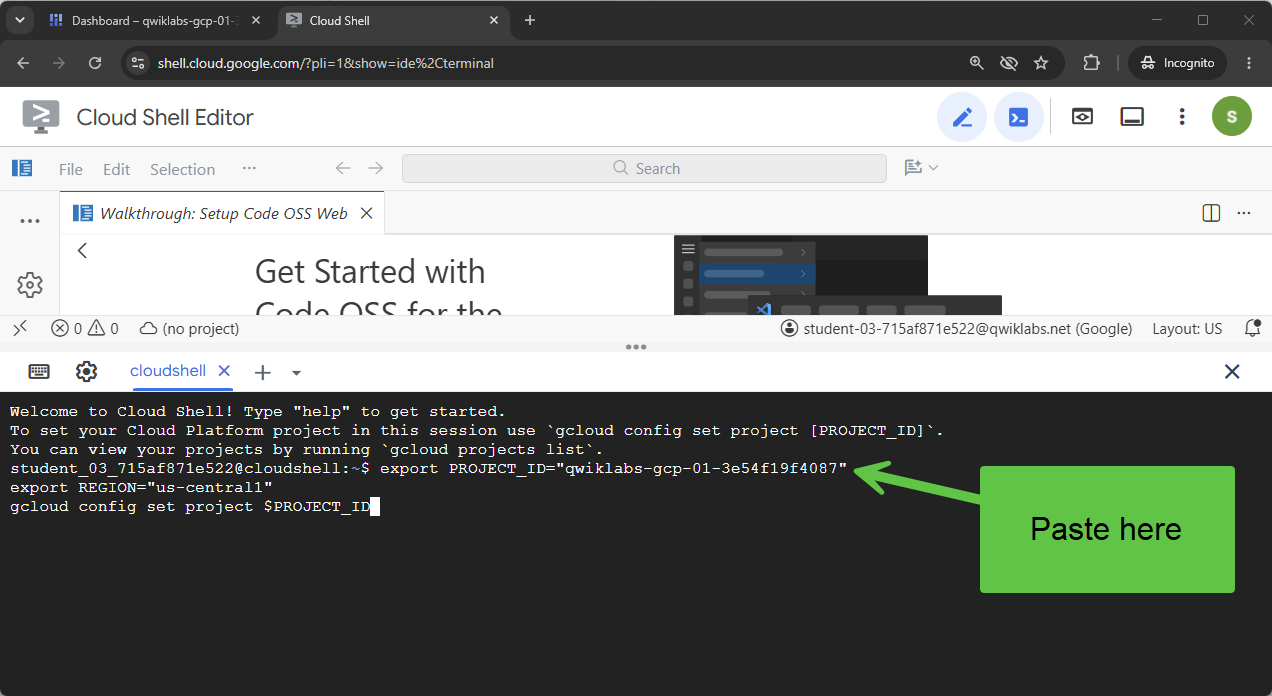 आपको इस तरह का मैसेज दिखेगा:
Your active configuration is: [cloudshell-####] Updated property [core/project] - अपने प्रोजेक्ट के लिए, ज़रूरी Google Cloud API चालू करें:
gcloud services enable \
  compute.googleapis.com \
  cloudresourcemanager.googleapis.com \
  aiplatform.googleapis.com \
  storage.googleapis.com \
  storage-component.googleapis.com \
  bigqueryconnection.googleapis.com \
  bigquery.googleapis.com \
  run.googleapis.com \
  secretmanager.googleapis.com \
  cloudbuild.googleapis.com \
  artifactregistry.googleapis.com \
  iap.googleapis.com \
  iam.googleapis.com
डेटा स्टोर करने की जगह का क्लोन बनाना
कोडलैब शुरू करने के लिए, हमारे पास एक कोड टेंप्लेट है. यह अपेक्षाकृत छोटा है, लेकिन GitHub रिपॉज़िटरी का साइज़ काफ़ी बड़ा है. क्लोन करने की प्रोसेस को तेज़ करने और डिस्क स्पेस बचाने के लिए, हम आम तौर पर git clone के साथ --filter=blob:none विकल्प और git sparse-checkout के साथ-साथ कुछ और कमांड का इस्तेमाल करते हैं.
यह सुनने में बहुत मुश्किल लग रहा है, लेकिन Antigravity हमारे लिए यह सब कर सकता है!
सबसे पहले, Antigravity CLI को कॉन्फ़िगर करते हैं, ताकि यह हमारी समस्या को हल कर सके और इसे लॉन्च किया जा सके.
Cloud Shell में, यह निर्देश चलाएं:
source <(curl -fsSL https://github.com/GoogleCloudPlatform/devrel-demos/raw/refs/heads/vladkol/cloud-shell-configure-agy/codelabs/labs-scripts/bwg-multi-agent-pitch-generator/cloud_shell_configure_agy.sh)
यह कमांड, Antigravity CLI को कॉन्फ़िगर करती है और उसे उसी टर्मिनल में लॉन्च करती है. Antigravity CLI से बाहर निकलने पर, आपको Cloud Shell प्रॉम्प्ट पर वापस भेज दिया जाता है.

हमें रिपॉज़िटरी में सिर्फ़ codelabs/bwg-multi-agent-pitch-generator फ़ोल्डर चाहिए. आइए, Antigravity से सिर्फ़ उस फ़ोल्डर को डाउनलोड करने के लिए कहें, ताकि उसे ~/devrel-demos/codelabs/bwg-multi-agent-pitch-generator/ में सेव किया जा सके.
Antigravity CLI को यह टास्क दें:
Download files from under `https://github.com/GoogleCloudPlatform/devrel-demos/tree/main/codelabs/bwg-multi-agent-pitch-generator`
to folder `~/devrel-demos/codelabs/bwg-multi-agent-pitch-generator/`.
If `devrel-demos` folder already exists, rename it with a `.backup` suffix.

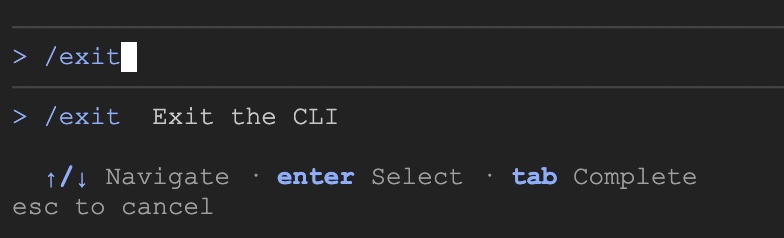
Antigravity, टास्क को पूरा करेगा. यह कुछ कमांड चलाने के लिए, आपसे अनुमतियां मांगेगा. कोड डाउनलोड हो जाने के बाद, /exit कमांड का इस्तेमाल करके Antigravity CLI से बाहर निकलें:
/exit
रिपॉज़िटरी वर्कस्पेस खोलना
अब Cloud Shell में कोड वर्कस्पेस खोलते हैं. Cloud Shell टर्मिनल में यह कमांड चलाएं:
cd ~/devrel-demos/codelabs/bwg-multi-agent-pitch-generator/
cloudshell workspace .
सेटअप स्क्रिप्ट चलाना
इस प्रोसेस को आसान बनाने के लिए, रिपॉज़िटरी से सेटअप स्क्रिप्ट चलाएं. यह एनवायरमेंट वैरिएबल को कॉन्फ़िगर करता है, agents-cli को इंस्टॉल करता है, आर्टफ़ैक्ट के लिए Cloud Storage बकेट बनाता है, BigQuery Cloud Resource कनेक्शन बनाता है, और अपने सेवा खाते को ज़रूरी IAM अनुमतियां देता है. इसमें अपने-आप फिर से कोशिश करने की सुविधा होती है.
सेटअप स्क्रिप्ट, setenv.sh को भी कॉल करती है. यह एक छोटा हेल्पर है, जो PROJECT_ID और REGION से, दोनों एजेंट के लिए ज़रूरी वैरिएबल — GOOGLE_CLOUD_PROJECT, GOOGLE_CLOUD_REGION, GOOGLE_CLOUD_LOCATION, और GOOGLE_GENAI_USE_VERTEXAI — को हासिल करता है. यह उन दोनों वैल्यू को आपकी होम डायरेक्ट्री में मौजूद .env फ़ाइल में भी सेव करता है, ताकि बाद में उन्हें वापस लाया जा सके.
- Cloud Shell में, सेटअप स्क्रिप्ट को एक्ज़ीक्यूटेबल बनाएं और उसे चलाएं:
chmod +x codelab-setup.sh setenv.sh ./codelab-setup.sh - इसे पूरा होने में करीब एक मिनट लगेगा. आपको यह मैसेज दिखेगा, जिसका मतलब है कि स्क्रिप्ट सही तरीके से काम कर रही है: "🎉 🦄 स्क्रिप्ट पूरी हो गई."
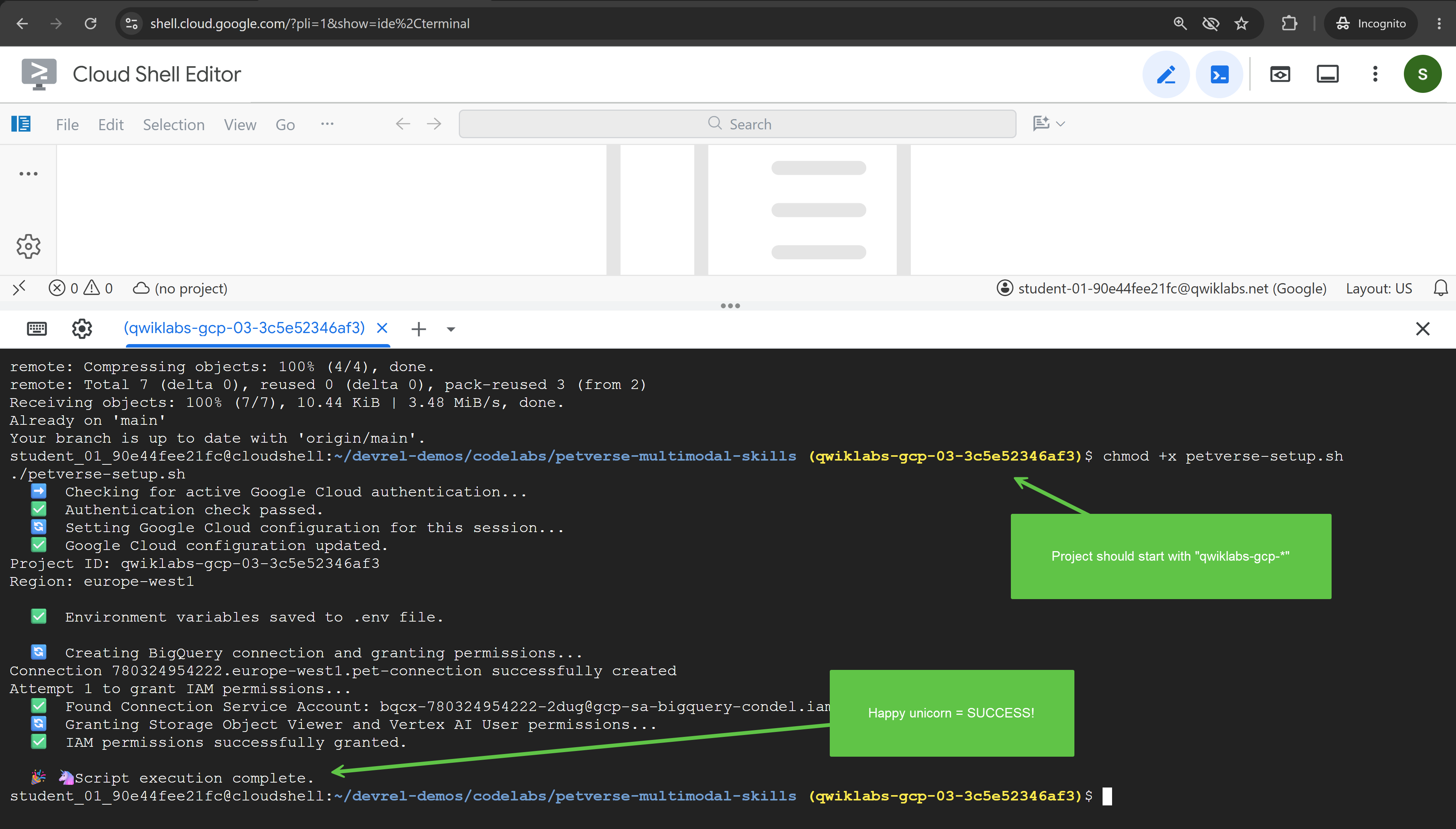
- सेटअप स्क्रिप्ट, अपने शेल में चलती है. इसलिए, इसके वैरिएबल आपके टर्मिनल तक नहीं पहुंचते. इन्हें अपने सेशन में लोड करें:
source ./setenv.sh
3. ग्राफ़ वर्कफ़्लो की मदद से एजेंटों को व्यवस्थित करना
इस टास्क में, आपको पिच जनरेटर प्रोजेक्ट बनाना है. साथ ही, एक ऐसा ग्राफ़ वर्कफ़्लो बनाना है जो दो एजेंट चलाता है और उनके आउटपुट को एक साथ जोड़ता है.
किसी पिच के लिए एक कॉन्सेप्ट की ज़रूरत होती है. इसका मतलब है कि उस कॉन्सेप्ट को बेचने के लिए आइडिया और ऐसेट. इस इस्तेमाल के उदाहरण में, हम ऐसे एजेंट डिज़ाइन करेंगे जिनकी काम के दायरे में अलग-अलग ज़िम्मेदारियां होंगी. इससे यह पता चलेगा कि जटिल टास्क को अलग-अलग करके, उन्हें अलग-अलग एजेंट को कैसे सौंपा जा सकता है. इससे उन्हें मैनेज करना आसान हो जाता है.
इस तरह के काम को विशेषज्ञों के बीच बांटने के लिए, यह ज़रूरी है कि हर एजेंट के काम करने के समय के बारे में जानकारी हो. आपके पास यह तय करने का विकल्प होता है कि आपका एजेंट, हर सब-एजेंट को कब कॉल करे. इसके अलावा, ज़्यादा सटीक तरीके से कॉल करने का विकल्प भी चुना जा सकता है. इस कोडलैब में, ग्राफ़ वर्कफ़्लो के साथ डिटरमिनिस्टिक अप्रोच का इस्तेमाल किया जाएगा.
पहले एजेंट प्रोजेक्ट को तैयार करना
- Cloud Shell में, इस टर्मिनल में चिपकाकर प्रोजेक्ट बनाएं:
cd ~/devrel-demos/codelabs/bwg-multi-agent-pitch-generator agents-cli create pitch-generator \ --agent adk \ --agent-directory pitch_generator \ --deployment-target cloud_run \ --session-type in_memory \ --cicd-runner skip \ --region <YOUR_REGION> \ --auto-approveDockerfile, टेस्ट, बाद में इस्तेमाल के लिए Terraform, और.envफ़ाइल के साथ उसका.env.exampleटेंप्लेट शामिल है. इस कोडलैब के लिए, दो चीज़ें ज़रूरी हैं:pitch_generator/agent.pyएजेंट है और वह फ़ाइल है जिसे आपको फिर से लिखना है.pitch_generator/, पैकेज का नाम है. इसे--agent-directoryसेट करता है.
setenv.shकी मदद से एक्सपोर्ट किया था. इसलिए, यहां कुछ भी कॉन्फ़िगर करने की ज़रूरत नहीं है. - डिपेंडेंसी इंस्टॉल करें:
cd pitch-generator
agents-cli update -y && agents-cli install && uv sync --upgrade-package google-adk
ग्राफ़ को समझना
ADK v2.x, ग्राफ़ वर्कफ़्लो के साथ काम करता है. ग्राफ़, नोड से बनता है. ये काम की इकाइयां होती हैं. साथ ही, एज से बनता है, जो इन्हें कनेक्ट करते हैं. नोड आम तौर पर एक एजेंट होता है. हालांकि, सामान्य Python फ़ंक्शन भी काम करता है. किसी एज से पता चलता है कि एक नोड के पूरा होने के बाद, दूसरा नोड चलता है.
किनारों को सूची के तौर पर लिखा जाता है और ADK क्रम तय करता है:
edges=[
    ("START", creative_director),        ## the graph begins here
    (creative_director, copywriter),     ## then this
]
नेस्टिंग से, इसके मतलब में यह अंतर आता है:
Edge | मतलब |
| एक चेन. a, फिर b, फिर c, एक के बाद एक |
| फ़ैन-आउट. a, फिर b और c एक साथ |
| फ़ैन-इन. c, a और b, दोनों के लिए इंतज़ार करता है |
फ़ैन-इन के लिए, JoinNode का इस्तेमाल किया जाता है. यह हर पूर्ववर्ती के लिए इंतज़ार करता है और उनके आउटपुट को एक साथ पास करता है.
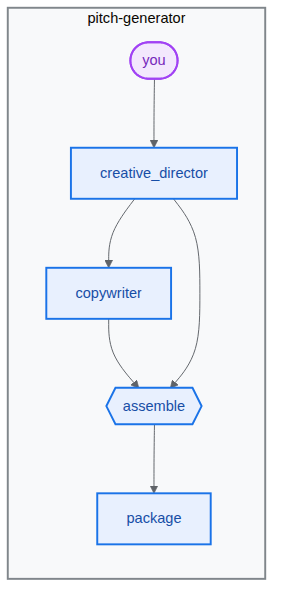
इस टास्क में, हम यह वर्कफ़्लो बनाएंगे:
पाइपलाइन बनाना
- टर्मिनल में यह चिपकाकर, एजेंट फ़ाइल खोलें:
cd ~/devrel-demos/codelabs/bwg-multi-agent-pitch-generator/pitch-generator cloudshell edit pitch_generator/agent.pyagent.pyदिखेगा.💡 अहम जानकारी: किसी भी समय, कोड को चुना जा सकता है. इसके बाद, लाइटबल्ब का इस्तेमाल करके Gemini से कोड के बारे में पूछा जा सकता है. Antigravity CLI से भी पूछा जा सकता है.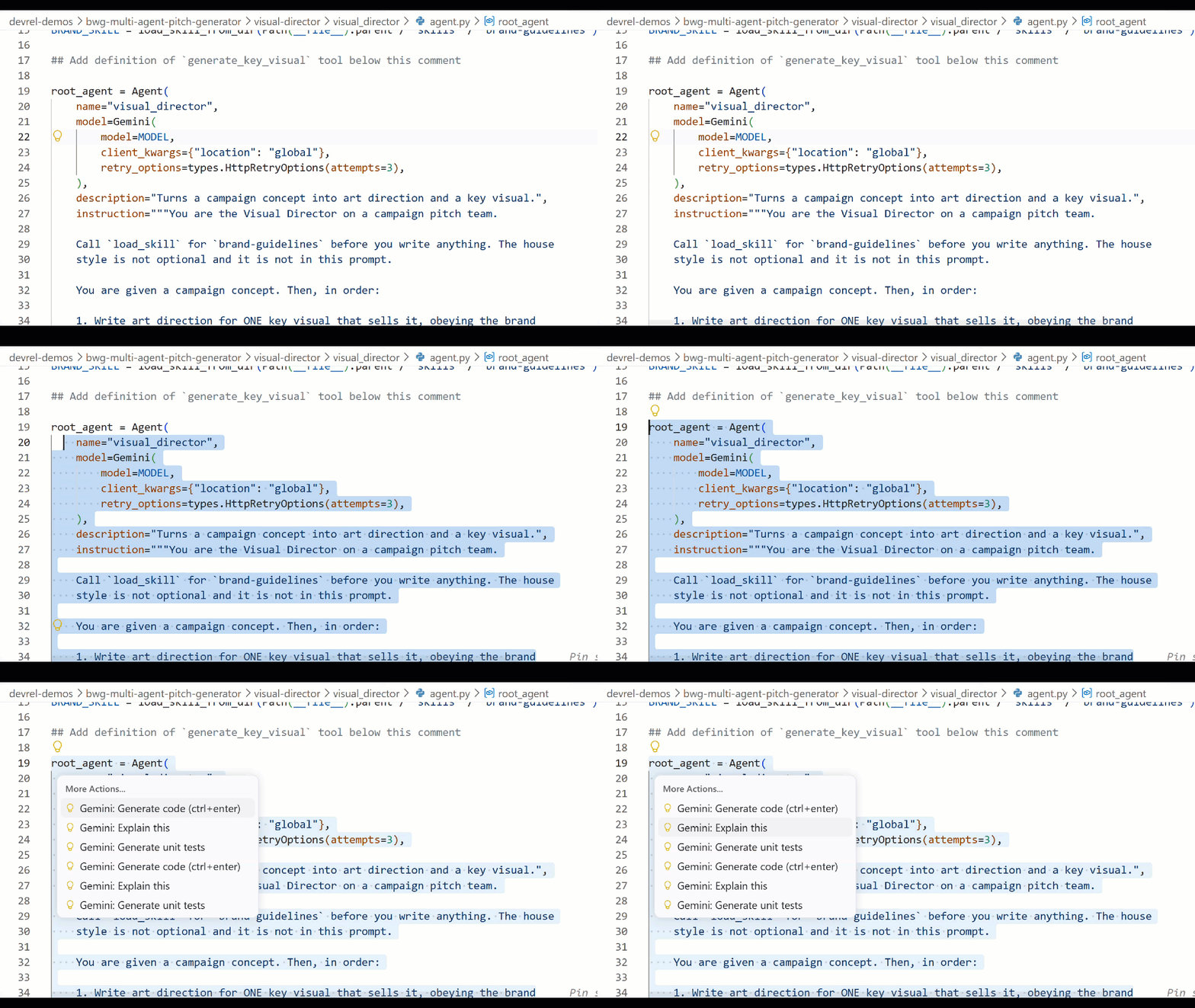
pitch_generator/agent.pyमें मौजूद पूरी फ़ाइल को एडिटर में इस कोड से बदलें:import mimetypes import os from dotenv import load_dotenv from google.adk.agents import Agent from google.adk.agents.context import Context from google.adk.agents.remote_a2a_agent import ( AGENT_CARD_WELL_KNOWN_PATH, RemoteA2aAgent, ) from google.adk.apps import App from google.adk.events.event import Event from google.adk.models import Gemini from google.adk.workflow import JoinNode, Workflow from google.genai import types load_dotenv() MODEL = "gemini-3.8-flash" def _model() -> Gemini: return Gemini( model=MODEL, client_kwargs={"location": "global"}, retry_options=types.HttpRetryOptions(attempts=3), ) """ ⬇️ Configure visual-director RemoteA2aAgent agent below this comment """ creative_director = Agent( name="creative_director", model=_model(), description="Turns a raw idea into a campaign concept.", instruction=( "You are the Creative Director. Turn the idea you are given into ONE " "punchy campaign concept line with the rationale explanation behind it." ), output_key="creative_director", ) copywriter = Agent( name="copywriter", model=Gemini(model=MODEL, retry_options=types.HttpRetryOptions(attempts=3)), description="Writes social copy for a campaign concept.", instruction=( "You are the Copywriter. Write ONE short social caption for the " "campaign concept you are given. Under 25 words." ), ) """ Waits for every node wired into it, then hands their outputs on together.""" assemble = JoinNode(name="assemble") def package(node_input: dict): """Render the joined branches as the finished pitch. """ pitch = "\n\n".join( [ f"CONCEPT\n{node_input['creative_director']}", f"COPY\n{node_input['copywriter']}", ] ) """ The first event is what the user sees. The second is the node's output, which any downstream node would receive.""" yield Event(content=types.Content(role="model", parts=[types.Part(text=pitch)])) yield Event(output=pitch) """ we put creative_director before `assemble` so that we can gather the `Concept` output at assemble""" root_agent = Workflow( name="pitch_generator", edges=[ ("START", creative_director), (creative_director, copywriter), ((creative_director, copywriter), assemble), (assemble, package), ], ) app = App( root_agent=root_agent, name="pitch_generator", )agents-cliमें, जांच के लिएplaygroundनाम का एक वेब डेवलपमेंट यूज़र इंटरफ़ेस (यूआई) शामिल है. यह ADK की तरह ही काम करता है. प्लेग्राउंड शुरू करने के लिए:agents-cli playground --port 8080nटाइप करें और Enter दबाएं.- टर्मिनल में सबसे ऊपर दाईं ओर मौजूद, आंख वाले आइकॉन वेब की झलक देखें पर क्लिक करें. इसके बाद, पोर्ट 8080 पर झलक देखें को चुनें.

- एजेंट से चैट करने के लिए, आपको यह इंटरफ़ेस दिखेगा. "बिल्लियों के लिए उड़ने वाले स्केटबोर्ड" प्रॉम्प्ट भेजकर देखें. आपको नीचे दिखाया गया जवाब दिखेगा. इसमें, पूरे वर्कफ़्लो का ग्राफ़ भी देखा जा सकता है.
 देखें कि जवाब कैसे जनरेट किया गया. प्लेग्राउंड में, ग्राफ़ के हर चरण को क्रम से दिखाया गया है:
 creative_director, फिरcopywriter, फिरassemble, फिरpackage. यह ग्राफ़, आपने बनाया है. इस तरह, आपने अभी जो ग्राफ़ बनाया है उसकी पुष्टि तुरंत की जा सकती है. - टर्मिनल पर वापस जाएं और चल रही
agents-cli playgroundप्रोसेस को रोकने के लिए, Ctrl+C को दो बार दबाएं.
4. किसी एजेंट को कोई स्किल असाइन करना
इस टास्क में, आपको दूसरा एजेंट बनाना होगा. साथ ही, उसे ब्रैंड के दिशा-निर्देशों का एक सेट देना होगा. इसे स्किल के तौर पर पैकेज किया गया है.
पाइपलाइन शब्दों को लिखती है. किसी भी तस्वीर के लिए, एक स्टाइल तय करना ज़रूरी होता है. जैसे, रंगों का पैलेट, चीज़ों को दिखाने का तरीका, इस्तेमाल की जाने वाली कंपोज़िशन, और कभी इस्तेमाल न की जाने वाली कंपोज़िशन. यह नियमों का पेज है. नियमों के पेज को मैनेज करने के लिए, बेहतर तरीके की ज़रूरत होती है. इसे "एजेंट स्किल" के तौर पर पैकेज किया जा सकता है.
स्किल, एक फ़ोल्डर होता है. इसमें SKILL.md फ़ाइल होती है. कौशल डायरेक्ट्री का स्ट्रक्चर इस उदाहरण की तरह दिखता है. इसमें visual_director का इस्तेमाल किया गया है, जो अगला एजेंट है:
visual_director/
   ...
   agent.py
   skills/
      brand-guidelines/
         SKILL.md          ## required: frontmatter + instructions
         references/       ## optional: longer supporting documents
         assets/           ## optional: templates, images, data
         scripts/          ## optional: executable helpers
   ...
एजेंट स्किल का एंट्री पॉइंट SKILL.md फ़ाइल होती है. इसमें नीचे दिखाए गए YAML फ़्रंटमैटर सेक्शन जैसा सेक्शन शामिल होता है:
---
name: brand-guidelines
description: The house brand rules for a key visual. Load this before writing art direction, so the visual looks like it came from this brand.
---

## Brand guidelines

Deep indigo and slate as the ground. One warm accent, amber or terracotta...
फ़्रंटमैटर, लेबल होता है. एजेंट को सबसे पहले यही जानकारी दिखती है. इसलिए, ब्यौरे में यह बताना ज़रूरी है कि स्किल को कब लोड किया जाना चाहिए. बॉडी, कॉन्टेंट होता है. यह तब तक कॉन्टेक्स्ट से बाहर रहता है, जब तक एजेंट load_skill को कॉल नहीं करता.
स्प्लिट करने का यही मतलब है. प्रॉम्प्ट छोटा रहता है. एजेंट, नियमों को सिर्फ़ तब लागू करता है, जब उनकी ज़रूरत होती है. स्टाइल बदलने का मतलब है कि निर्देश वाली स्ट्रिंग को ढूंढने के बजाय, सिर्फ़ एक फ़ाइल में बदलाव करना.
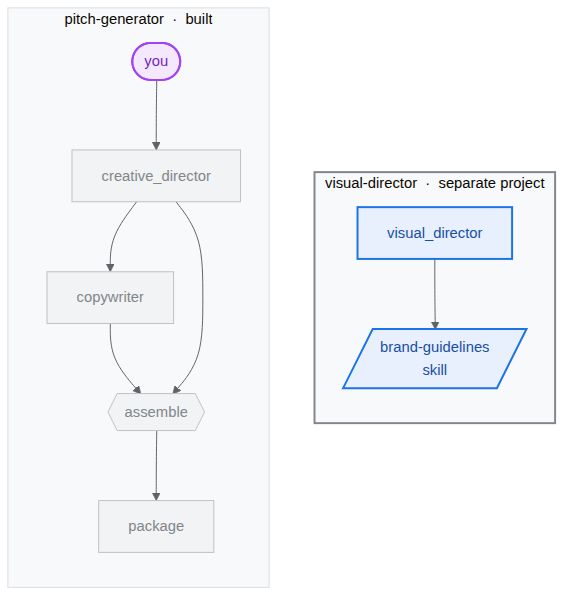
हम दूसरा एजेंट, visual-director बनाना शुरू करेंगे. इसमें एजेंट की क्षमताओं का इस्तेमाल किया जाएगा. इसके बारे में यहां दिए गए डायग्राम में बताया गया है:
विज़ुअल डायरेक्टर को स्कैफ़ोल्ड करना
आपको विज़ुअल कॉम्पोनेंट, visual-director को मैनेज करने के लिए एक खास एजेंट बनाना होगा. यह एक अलग प्रोजेक्ट है, क्योंकि बाद में यह अपनी सेवा बन जाती है. इससे यह पता चलता है कि A2A प्रोटोकॉल का इस्तेमाल करके, कई एजेंट एक-दूसरे से कैसे कम्यूनिकेट करते हैं. इसके बाद, आपको दो प्रोजेक्ट एक साथ दिखेंगे:
bwg-multi-agent-pitch-generator/
├── pitch-generator/              ## built in the last task
│   ├── pitch_generator/
│   │   ├── agent.py              ## the graph you wrote
│   │   ├── app_utils/            ## generated, A2A wiring
│   │   └── fast_api_app.py       ## generated, serves the agent
│   └── pyproject.toml
└── visual-director/              ## created below
    └── ...                       ## the same shape again
- प्रोजेक्ट बनाएं और उसकी डिपेंडेंसी इंस्टॉल करें. इसके लिए, इस को टर्मिनल में चिपकाएं:
cd ~/devrel-demos/codelabs/bwg-multi-agent-pitch-generator
agents-cli create visual-director \
  --agent adk \
  --agent-directory visual_director \
  --deployment-target cloud_run \
  --session-type in_memory \
  --cicd-runner skip \
  --region <YOUR_REGION> \
  --auto-approve
cd visual-director
agents-cli update -y && agents-cli install && uv sync --upgrade-package google-adk
ब्रैंड से जुड़े दिशा-निर्देश लिखना
- स्किल फ़ोल्डर बनाएं और फ़ाइल खोलें:
mkdir -p visual_director/skills/brand-guidelines cloudshell edit visual_director/skills/brand-guidelines/SKILL.md - खुली हुई
SKILL.mdफ़ाइल में, एडिटर में जाकर यहां दिया गया कॉन्टेंट चिपकाएं और उसे सेव करें: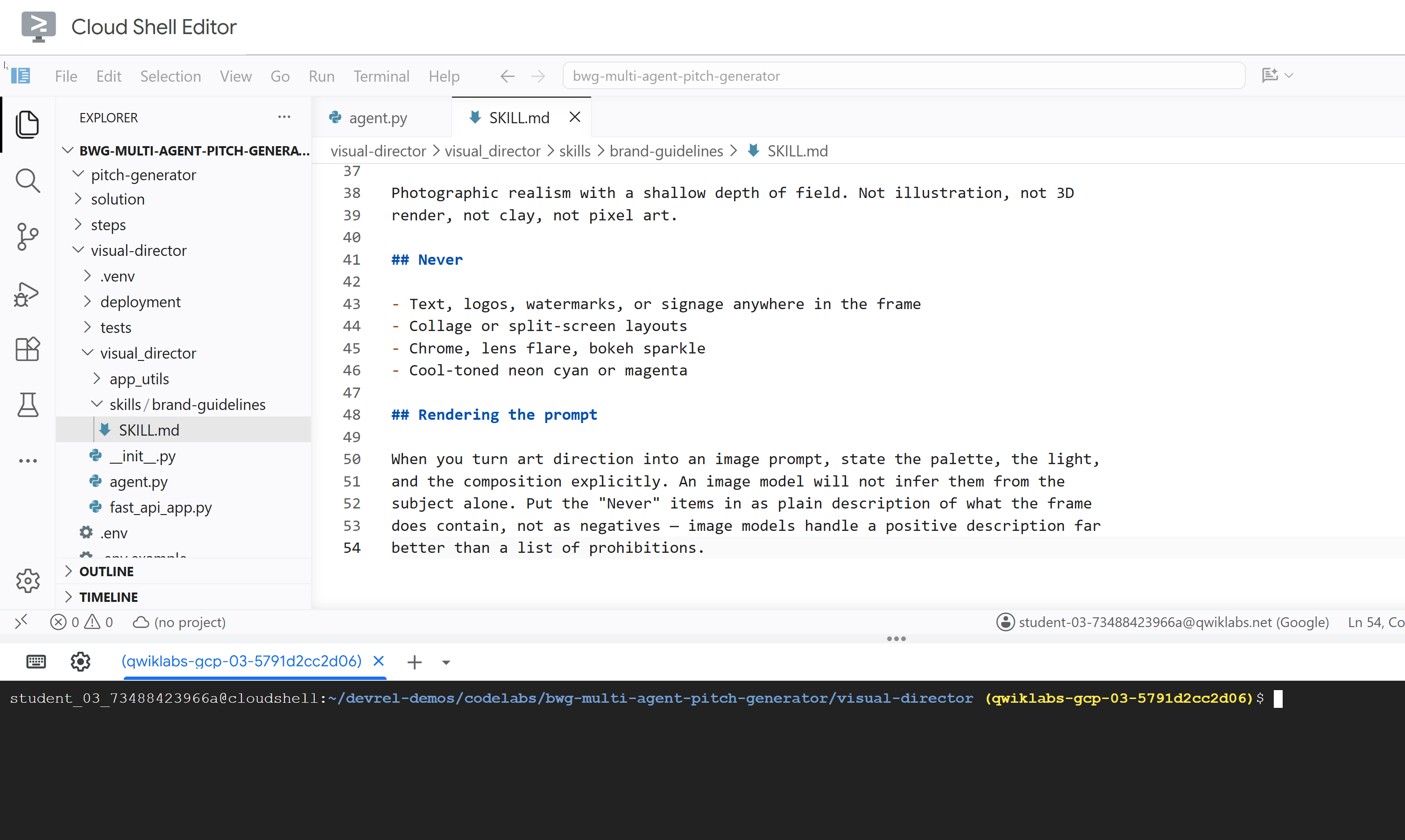
---
name: brand-guidelines
description: The house brand rules for a key visual — palette, light, composition, subject treatment, and what never appears. Load this before writing art direction or rendering an image, so the visual looks like it came from this brand rather than from a generic image model.
---

## Brand guidelines

House style for campaign key visuals. Every rule here beats a preference in the
brief. If the brief asks for something forbidden below, follow the brief for the
subject and the guidelines for the treatment.

## Palette

Deep indigo and slate as the ground. One warm accent — amber or terracotta —
carrying the eye to the subject. Nothing neon, nothing fluorescent.

At most three colors with any weight. A fourth reads as clutter.

## Light

One dominant source, low and raking. Long shadows are wanted. Golden hour or a
single hard studio key, never flat overhead light and never a ring light.

Rim light is allowed on the subject only, and only to separate it from the
ground.

## Composition

Subject off-center, roughly a third in. Generous negative space on the opposite
side — copy lands there later, so leave it genuinely empty.

Eye level or slightly below. No top-down flat lays. No fisheye, no Dutch tilt.

## Subject

One subject. If the idea implies a crowd, pick the one that carries it.

Photographic realism with a shallow depth of field. Not illustration, not 3D
render, not clay, not pixel art.

## Never

- Text, logos, watermarks, or signage anywhere in the frame
- Collage or split-screen layouts
- Chrome, lens flare, bokeh sparkle
- Cool-toned neon cyan or magenta

## Rendering the prompt

When you turn art direction into an image prompt, state the palette, the light,
and the composition explicitly. An image model will not infer them from the
subject alone. Put the "Never" items in as plain description of what the frame
does contain, not as negatives — image models handle a positive description far
better than a list of prohibitions.
visual_director/agent.py को अपडेट करना
agent.py फ़ाइल को अपडेट करें और उसे कॉन्फ़िगर करें, ताकि वह पहले से तय की गई स्किल से लैस हो.
- एजेंट फ़ाइल खोलें:
cloudshell edit ~/devrel-demos/codelabs/bwg-multi-agent-pitch-generator/visual-director/visual_director/agent.py visual_director/agent.pyफ़ाइल के पूरे कॉन्टेंट को इस कोड से बदलें:import mimetypes from pathlib import Path from google import genai from google.adk.agents import Agent from google.adk.apps import App from google.adk.models import Gemini from google.adk.skills import load_skill_from_dir from google.adk.tools import ToolContext from google.adk.tools.skill_toolset import SkillToolset from google.genai import types MODEL = "gemini-3.8-flash" ## Configure the `brand-guidelines` skill for the agent BRAND_SKILL = load_skill_from_dir(Path(__file__).parent / "skills" / "brand-guidelines") ## Add definition of `generate_key_visual` tool below this comment root_agent = Agent( name="visual_director", model=Gemini( model=MODEL, client_kwargs={"location": "global"}, retry_options=types.HttpRetryOptions(attempts=3), ), description="Turns a campaign concept into art direction and a key visual.", instruction="""You are the Visual Director on a campaign pitch team. Call `load_skill` for `brand-guidelines` before you write anything. The house style is not optional and it is not in this prompt. You are given a campaign concept. Then, in order: 1. Write art direction for ONE key visual that sells it, obeying the brand guidelines: subject, composition, lighting, color, mood. Three or four sentences. 2. Call `generate_key_visual` with exactly that art direction. Your final reply is the art direction itself and nothing else. No preamble, no alternatives, no questions back. Do not mention the skill, the tool, or the image file — the image travels on its own.""", tools=[ SkillToolset(skills=[BRAND_SKILL]), ## Supply the `generate_key_visual` tool below this comment ], ) app = App( root_agent=root_agent, name="visual_director", )visual-directorएजेंट को अब एजेंट की स्किल के साथ सही तरीके से कॉन्फ़िगर कर दिया गया है. इसकी टेस्टिंग करने से पहले, आपको इस एजेंट को इमेज ऐसेट जनरेट करने वाले टूल से लैस करना होगा. यह इसकी मुख्य क्षमताओं में से एक है.
5. किसी एजेंट को इमेज जनरेट करने वाले टूल का ऐक्सेस देना
इस टास्क में, आपको विज़ुअल डायरेक्टर को एक ऐसा टूल देना होता है जो आर्ट डायरेक्शन को इमेज के तौर पर रेंडर करता है और उसे आर्टफ़ैक्ट के तौर पर सेव करता है. आर्टफ़ैक्ट, बाइनरी डेटा या फ़ाइल कॉन्टेंट का एक ऐसा हिस्सा होता है जिसे नाम दिया जाता है और जिसका वर्शन होता है. एआई एजेंट, किसी टास्क के दौरान इसे बनाता है, इसमें बदलाव करता है या इसका इस्तेमाल करता है.

टूल को लागू करें और उसे एजेंट में जोड़ें
- एजेंट फ़ाइल खोलें:
cloudshell edit ~/devrel-demos/codelabs/bwg-multi-agent-pitch-generator/visual-director/visual_director/agent.py root_agentकी परिभाषा से पहले, यहाँ दिया गयाgenerate_key_visualटूल कॉपी करें:async def generate_key_visual(art_direction: str, tool_context: ToolContext) -> dict: """Render the art direction as the campaign's key visual. Args: art_direction: The art direction to render, in full. Returns: The saved artifact's filename, version, size and media type. """ IMAGE_MODEL = "gemini-3.1-flash-lite-image" response = await genai.Client(location="global").aio.models.generate_content( model=IMAGE_MODEL, contents=art_direction ) ## The image arrives as inline bytes on one of the response parts. image = next( ( part.inline_data for part in response.candidates[0].content.parts or [] if part.inline_data ), None, ) if image is None: raise ValueError(f"{IMAGE_MODEL} returned no image for: {art_direction[:120]}") filename = "key_visual" + ( mimetypes.guess_extension(image.mime_type or "") or ".bin" ) version = await tool_context.save_artifact(filename, types.Part(inline_data=image)) ## Return the artifact filename and version return { "filename": filename, "version": version, "bytes": len(image.data), "mime_type": image.mime_type, }- एजेंट को टूल इस्तेमाल करने की अनुमति देने के लिए,
SkillToolsetके नीचेgenerate_key_visualजोड़ें:tools=[ SkillToolset(skills=[BRAND_SKILL]), ## Supply the `generate_key_visual` tool below this comment generate_key_visual, ], agents-cliमें, जांच के लिएplaygroundनाम का एक वेब डेवलपमेंट यूज़र इंटरफ़ेस (यूआई) शामिल है. यह ADK की तरह ही काम करता है. प्लेग्राउंड शुरू करने के लिए:agents-cli playground --port 8080- टर्मिनल में सबसे ऊपर दाईं ओर मौजूद, आंख वाले आइकॉन वेब की झलक देखें पर क्लिक करें. इसके बाद, पोर्ट 8080 पर झलक देखें को चुनें.
- एजेंट से चैट करने के लिए, आपको यह इंटरफ़ेस दिखेगा. "नौ ज़िंदगी. ज़ीरो ग्रैविटी."
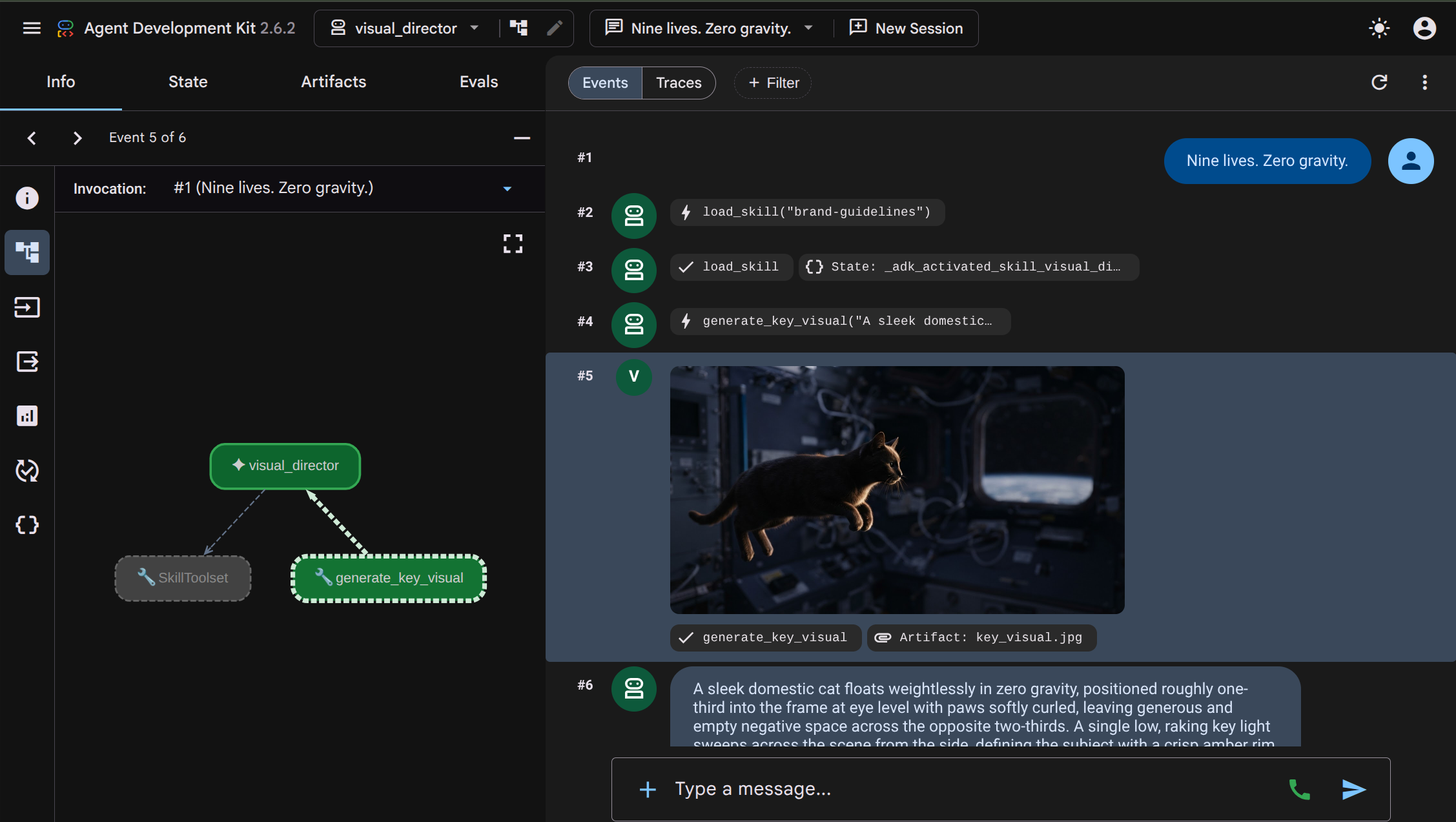 इंटरैक्शन से पता लगाया जा सकता है कि
 visual_directorएजेंट, ब्रैंड के दिशा-निर्देशों को पढ़ने के लिएload_skill("brand-guidelines")को कैसे लागू करता है. इसके बाद, इमेज जनरेट करने के लिएgenerate_key_visualको लागू करता है. जनरेट की गई इमेज को आर्टफ़ैक्ट के तौर पर सेव किया जाता है. यह इमेज, यूज़र इंटरफ़ेस (यूआई) में भी दिखती है और इसकी आसानी से जांच की जा सकती है. - टर्मिनल पर वापस जाएं और चल रही
agents-cli playgroundप्रोसेस को रोकने के लिए, Ctrl+C को दो बार दबाएं.
6. A2A प्रोटोकॉल के साथ मल्टी-एजेंट आर्किटेक्चर
इस टास्क में, Visual Director को एक ऐसी सेवा के तौर पर दिखाया जाएगा जिसे अन्य एजेंट कॉल कर सकते हैं. साथ ही, इसे जनरेट की गई इमेज के साथ जवाब देने के लिए कॉन्फ़िगर किया जाएगा.
Agent2Agent (A2A) एक ओपन प्रोटोकॉल है. इसकी मदद से, कोई एजेंट नेटवर्क पर किसी दूसरे एजेंट को कॉल कर सकता है. इसमें मुख्य हिस्सा एजेंट कार्ड होता है. यह एक JSON दस्तावेज़ होता है. एजेंट इसे किसी जाने-माने यूआरएल के ज़रिए पब्लिश करता है. इसमें एजेंट का नाम, ब्यौरा, और क्षमताएं शामिल होती हैं. कॉल करने वाला व्यक्ति कार्ड को फ़ेच करता है और उसे पता होता है कि इसके पीछे मौजूद एजेंट से कैसे बात करनी है. इसमें कोई भी सोर्स कोड, डिपेंडेंसी या भाषा शेयर नहीं की जाती है.

agents-cli ने इसे डिफ़ॉल्ट रूप से पहले ही वायर कर दिया है. जनरेट किया गया स्कैफ़ोल्ड visual_director/app_utils/a2a.py, जो आपके एजेंट से कार्ड बनाता है और रास्तों को माउंट करता है. साथ ही, visual_director/fast_api_app.py, जो उन्हें दिखाता है. इसमें आपको सिर्फ़ थोड़ा बदलाव करना होगा, ताकि यह क्लाइंट को भी आर्टफ़ैक्ट वापस भेज सके.
आर्किटेक्चर ऐसा दिखेगा, जैसा यहां दिखाया गया है. ध्यान दें कि एजेंट को अभी हमारे शुरुआती वर्कफ़्लो में इंटिग्रेट नहीं किया गया है:

agents-cli A2A सर्वर काफ़ल्ड
agents-cli का इस्तेमाल करके visual-director एजेंट को शुरू करने पर, यहां दिया गया कोड और मॉड्यूल पहले से ही उपलब्ध होते हैं. टर्मिनल में ये कमांड चिपकाकर, इन फ़ाइलों को खोलें:
cloudshell edit visual_director/fast_api_app.py
cloudshell edit visual_director/app_utils/a2a.py
visual_director/fast_api_app.py एजेंट को शुरू करता है और ऐप्लिकेशन के नाम से बनाए गए पाथ के नीचे A2A रास्तों को माउंट करता है:
await attach_a2a_routes(
    app,
    agent=root_agent,
    runner=runner,
    rpc_path=f"/a2a/{adk_app.name}",   ## becomes /a2a/visual_director
)
इसके बाद का काम visual_director/app_utils/a2a.py करता है. इसमें तीन मूव लगते हैं.
सबसे पहले, यह एजेंट से ही एजेंट कार्ड बनाता है. नाम, ब्यौरा, और हर टूल, ऐसी एंट्री बन जाते हैं जिन्हें कॉल करने वाला व्यक्ति पढ़ सकता है:
agent_card = await AgentCardBuilder(
    agent=agent,
    rpc_url=f"{resolved_app_url}{rpc_path}",
).build()
दूसरा, यह प्रोटोकॉल और आपके एजेंट के बीच एक एक्ज़ीक्यूटर रखता है. A2A के अनुरोधों को ADK रन में बदला जाता है. इसके बाद, नतीजों को वापस बदला जाता है:
request_handler = DefaultRequestHandler(
    agent_executor=A2aAgentExecutor(runner=runner, force_new_version=True),
    task_store=task_store,
    agent_card=agent_card,
)
तीसरा, यह दो रास्तों को माउंट करता है: एक कार्ड दिखाता है और दूसरा कॉल स्वीकार करता है.
रास्ता | मकसद |
| कार्ड. कॉल करने वाला व्यक्ति, एजेंट के बारे में जानने के लिए सबसे पहले इसे पढ़ता है |
| JSON-RPC एंडपॉइंट. असल अनुरोध कहां जाते हैं |
आर्टफ़ैक्ट को सीमा पार करने की अनुमति दें
डिफ़ॉल्ट रूप से, A2A के जवाब में टेक्स्ट होता है. इमेज एक आर्टफ़ैक्ट है. आर्टफ़ैक्ट, सर्वर एजेंट के स्टोर में तब तक रहता है, जब तक उसे शामिल करने के लिए कॉन्फ़िगर नहीं किया जाता.
- जनरेट की गई A2A फ़ाइल खोलें:
cd ~/devrel-demos/codelabs/bwg-multi-agent-pitch-generator/visual-director cloudshell edit visual_director/app_utils/a2a.py AgentCardBuilderइंपोर्ट ढूंढें और इसके नीचेA2aAgentExecutorConfigऔरinclude_artifacts_in_a2a_event_interceptorइंपोर्ट जोड़ें:## ... ## from google.adk.a2a.utils.agent_card_builder import AgentCardBuilder ## Add the following two below `AgentCardBuilder` import from google.adk.a2a.executor.config import A2aAgentExecutorConfig from google.adk.a2a.executor.interceptors.include_artifacts_in_a2a_event import ( include_artifacts_in_a2a_event_interceptor, )agent_executor=A2aAgentExecutor(runner=runner),लाइन ढूंढें और उसे यहां दिए गए कोड से बदलें. साथ ही,A2aAgentExecutorConfigजोड़ें:agent_executor=A2aAgentExecutor( runner=runner, force_new_version=True, config=A2aAgentExecutorConfig( execute_interceptors=[include_artifacts_in_a2a_event_interceptor] ), ),
सेवा शुरू करना और पब्लिश किया गया A2A कार्ड पढ़ना
- सर्वर को बैकग्राउंड में शुरू करें. आपको
APP_URLका एलान करना होगा, क्योंकि कार्ड इसी पते को अपना पता बताता है. इसे टर्मिनल में चिपकाएं:APP_URL=http://localhost:8801 nohup uv run uvicorn visual_director.fast_api_app:app --port 8801 > /tmp/visual-director.log 2>&1 & - इसे शुरू होने में कुछ सेकंड लगेंगे. इसके बाद, पुष्टि करें कि यह काम कर रहा है:
sleep 10 tail -2 /tmp/visual-director.logINFO: Application startup complete. INFO: Uvicorn running on http://127.0.0.1:8801 (Press CTRL+C to quit) - अब एजेंट के पब्लिश किए गए कार्ड को पढ़ें:
curl -s http://localhost:8801/a2a/visual_director/.well-known/agent-card.json | python3 -m json.toolgenerate_key_visualभी शामिल है. यह कोड में एजेंट की परिभाषा से सीधे तौर पर जनरेट होता है.{ "name": "visual_director", "description": "Turns a campaign concept into art direction and a key visual.", "skills": [ { "id": "visual_director", "name": "model", "tags": [ "llm" ] }, { "id": "visual_director-generate_key_visual", "name": "generate_key_visual", "description": "Render the art direction as the campaign's key visual.\n\nArgs:\n art_direction: The art direction to render, in full.\n\nReturns:\n The saved artifact's filename, version, size and media type.", "tags": [ "llm", "tools" ] } ], "preferredTransport": "JSONRPC", "protocolVersion": "0.3", "url": "http://localhost:8801/a2a/visual_director" }visual-directorएजेंट को मुख्यpitch-generatorवर्कफ़्लो में एम्बेड किया जा सकता है.
7. वर्कफ़्लो में A2A रिमोट एजेंट को एम्बेड करना
इस टास्क में, रिमोट एजेंट को ग्राफ़ में तीसरी ब्रांच के तौर पर जोड़ा जाएगा.
रिमोट एजेंट को RemoteA2aAgent में रैप किया जाता है और इसे ग्राफ़ में किसी अन्य नोड की तरह रखा जाता है. किनारों का आकार एक जैसा रहता है. साथ ही, कोऑर्डिनेटर को यह पता नहीं होता कि उसके कौनसे नोड लोकल हैं.
कोऑर्डिनेटर को सेवा के बारे में बताएं और ग्राफ़ के वर्कफ़्लो को अपडेट करें
- एजेंट फ़ाइल खोलें:
cd ~/devrel-demos/codelabs/bwg-multi-agent-pitch-generator/pitch-generator cloudshell edit pitch_generator/agent.py - इन इंपोर्ट को फ़ाइल में सबसे ऊपर, मौजूदा इंपोर्ट के साथ जोड़ें:
import asyncio import subprocess import google.auth.transport.requests import google.oauth2.id_token import httpx from google.adk.a2a.converters.part_converter import convert_genai_part_to_a2a_part creative_directorएलान के ऊपर,RemoteA2aAgentकी यह परिभाषा जोड़ें:VISUAL_DIRECTOR_URL = os.getenv("VISUAL_DIRECTOR_URL", "http://localhost:8801") ## For deployment on Cloud Run def _cloud_run_client() -> httpx.AsyncClient | None: """An httpx client that signs each request with a Cloud Run ID token. Cloud Run deploys private, so both the agent-card fetch and the A2A calls need one. """ if not VISUAL_DIRECTOR_URL.startswith("https://"): return None async def sign(request: httpx.Request) -> None: token = None try: token = await asyncio.to_thread( google.oauth2.id_token.fetch_id_token, google.auth.transport.requests.Request(), VISUAL_DIRECTOR_URL, ) except Exception: token = subprocess.check_output( ["gcloud", "auth", "print-identity-token", "-q"], stderr=subprocess.PIPE ).decode().strip() if not token: raise Exception("Failed to fetch ID token") request.headers["Authorization"] = f"Bearer {token}" return httpx.AsyncClient(event_hooks={"request": [sign]}, timeout=600) ## Keep the approval's tool traffic out of the A2A request def _pitch_parts_only(part: types.Part): """Sends the Visual Director text and media only. RemoteA2aAgent replays the session on every call, and the Visual Director runs downstream of the human approval, so the approval's function_response would travel alongside the concept text. An ADK server reads a function response as "resume the paused invocation" and rejects a message that also carries text, so drop the tool parts here. """ if part.function_call or part.function_response: return None return convert_genai_part_to_a2a_part(part) visual_director = RemoteA2aAgent( name="visual_director", description="Turns a campaign concept into art direction for one key visual.", agent_card=( f"{VISUAL_DIRECTOR_URL}/a2a/visual_director{AGENT_CARD_WELL_KNOWN_PATH}" ), httpx_client=_cloud_run_client(), genai_part_converter=_pitch_parts_only, )packageनोड के Python फ़ंक्शन को इस परिभाषा से बदलें या ओवरराइट करें:async def package(ctx: Context, node_input: dict): """Render the joined branches as the finished pitch.""" empty = [name for name, value in node_input.items() if not value] if empty: raise ValueError(f"nothing reached the join from: {', '.join(empty)}") def _key_visual(ctx: Context) -> types.Blob | None: """The image the Visual Director sent back, or None if it sent none.""" for event in reversed(ctx.session.events): if event.author != "visual_director" or not event.content: continue for part in event.content.parts or []: if part.inline_data and part.inline_data.data: return part.inline_data return None image = _key_visual(ctx) if image is None: raise ValueError("the Visual Director returned art direction but no image") suffix = mimetypes.guess_extension(image.mime_type or "") or ".bin" filename = f"key_visual{suffix}" await ctx.save_artifact(filename, types.Part(inline_data=image)) pitch = "\n\n".join( [ f"CONCEPT\n{node_input['creative_director']}", f"COPY\n{node_input['copywriter']}", f"ART DIRECTION\n{node_input['visual_director']}", f"KEY VISUAL\n{filename}, {len(image.data)} bytes, {image.mime_type}", ] ) yield Event( content=types.Content( role="model", parts=[types.Part(text=pitch), types.Part(inline_data=image)], ) ) yield Event(output=pitch)- डाउनस्ट्रीम जनरेशन की प्रोसेस शुरू होने से पहले, मैन्युअल तरीके से पुष्टि करने का गेट जोड़ें.
pitch_generator/agent.pyमें,root_agentसे ऊपर के अनुमति वाले नोड तय करें:@node(rerun_on_resume=False) async def approve_concept(ctx: Context): yield RequestInput( message="Please approve the campaign concept (yes/no).", response_schema=str ) @node(rerun_on_resume=True) async def user_approval(ctx: Context): user_response = await ctx.run_node(approve_concept) if str(user_response).lower() in ("yes", "y"): approved_concept = f"## Approved Concept\n\n{ctx.session.state['creative_director']}" yield Event( content=types.Content( role="model", parts=[types.Part(text=approved_concept)] ) ) else: raise ValueError("User rejected the concept") - आखिर में, सबसे ऊपर मौजूद इंपोर्ट को अपडेट करें, ताकि उनमें
google.adk.eventsऔरgoogle.adk.workflowसेRequestInputऔरnodeशामिल हो सकें:from google.adk.events import Event, RequestInput from google.adk.workflow import JoinNode, Workflow, noderoot_agentवर्कफ़्लोedgesमें बदलाव करके, उसेuser_approvalके ज़रिए रूट करें:edges=[ ("START", creative_director), (creative_director, user_approval, (copywriter, visual_director)), ((creative_director, copywriter, visual_director), assemble), (assemble, package), ],- मैन्युअल प्रक्रिया वाले चरण (एचआईटीएल) की मंज़ूरी:
approve_conceptसेRequestInputमिलता है. जब वर्कफ़्लो इस नोड पर पहुंचता है, तो इसका एक्ज़ीक्यूशन रुक जाता है और यह कॉलर को इंटरप्ट भेजता है. उपयोगकर्ता की मंज़ूरी मिलने तक, डाउनस्ट्रीम ब्रांच (copywriterऔरvisual_director) नहीं चलेंगी. visual_director, किनारों पर ठीकcopywriterकी तरह दिखता है. हालांकि, एक फ़ंक्शन कॉल से दूर है और दूसरा नेटवर्क पर है.- जवाब में दी गई इमेज को
node_inputसे नहीं, बल्कि सेशन इवेंट से पढ़ा जाता है. इसकी वजह यह है कि फ़िलहाल, किसी नोड के आउटपुट में सिर्फ़ टेक्स्ट को प्रमोट किया जाता है. इमेज, A2A इंटरसेप्टर के ज़रिए बाउंड्री पार कर गई. हालांकि, यह रिमोट एजेंट के इवेंट से अटैच होकर आई है. इसलिए,_key_visualहेल्पर फ़ंक्शन इसे वहां से वापस ले लेता है.
- मैन्युअल प्रक्रिया वाले चरण (एचआईटीएल) की मंज़ूरी:
इंटिग्रेशन की जांच करना
अब आपको यह टेस्ट करना होगा कि विज़ुअल डायरेक्टर (बैकग्राउंड में चल रहा है) और पिच जनरेटर, A2A प्रोटोकॉल के ज़रिए कम्यूनिकेट कर सकते हैं या नहीं.
- पुष्टि करें कि Visual Director अब भी बैकग्राउंड में चल रहा है:
curl -s -o /dev/null -w "visual director: %{http_code}\n" http://localhost:8801/a2a/visual_director/.well-known/agent-card.jsonvisual director: 200नतीजा दिखेगा.अगर आपको कोई और स्टेटस दिखता है, तो इसे फिर से चालू करने के लिए यह कमांड चलाएं:fuser -k 8801/tcp 2>/dev/null || true cd ~/devrel-demos/codelabs/bwg-multi-agent-pitch-generator/visual-director APP_URL=http://localhost:8801 nohup uv run uvicorn visual_director.fast_api_app:app --port 8801 > /tmp/visual-director.log 2>&1 & cd ~/devrel-demos/codelabs/bwg-multi-agent-pitch-generator/pitch-generator sleep 10 curl -s -o /dev/null -w "visual director: %{http_code}\n" http://localhost:8801/a2a/visual_director/.well-known/agent-card.json - झलक देखना शुरू करें:
cd ~/devrel-demos/codelabs/bwg-multi-agent-pitch-generator/pitch-generator/pitch_generator agents-cli playground --port 8080 - टर्मिनल में सबसे ऊपर दाईं ओर मौजूद, आंख वाले आइकॉन वेब की झलक देखें पर क्लिक करें. इसके बाद, पोर्ट 8080 पर झलक देखें को चुनें.
- आपको एजेंट से चैट करने के लिए इंटरफ़ेस दिखेगा. "बिल्लियों के लिए उड़ने वाले स्केटबोर्ड" प्रॉम्प्ट भेजकर देखें.

 आपको पूरा इंटरैक्शन दिखेगा, जिसमें वर्कफ़्लो शुरू होने और हर एजेंट के चलने की जानकारी होगी.
 creative_directorके कॉन्सेप्ट का ड्राफ़्ट बनाने के बाद, वर्कफ़्लो मंज़ूरी के लिए रुक जाता है. इसके बाद, आपसे पुष्टि करने के लिए कहा जाता है: "कृपया कैंपेन के कॉन्सेप्ट को मंज़ूरी दें (हां/नहीं)." आगे बढ़ने के लिए, इनपुट फ़ील्ड में "हां" डालें. मंज़ूरी मिलने के बाद, ग्राफ़ में यह जानकारी दिखती है:visual-directorएजेंट, स्किल को कब लोड करना शुरू करता है. साथ ही, इमेज जनरेट होने के दौरान,copywriterएजेंट सोशल मीडिया कैप्शन जनरेट करने का काम कब पूरा करता है. इससे पता चलता है कि दोनों एजेंट एक-दूसरे का इंतज़ार किए बिना, एक साथ काम करते हैं. दोनों के पूरा होने के बाद,assembleनोड,creative_directorसे जनरेट किए गए कॉन्सेप्ट के साथ नतीजों को जोड़ता है. इससेpackageफ़ंक्शन में पिच कॉन्टेंट की डिलीवरी पूरी हो जाती है.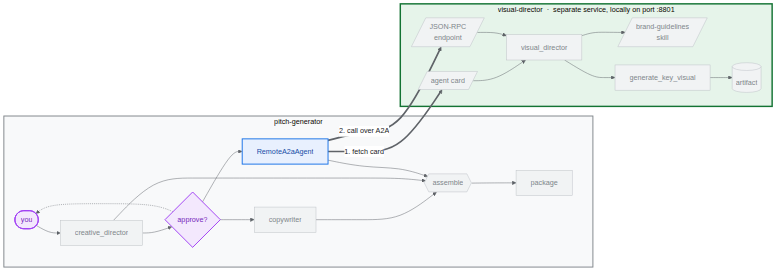
8. मुख्य विज़ुअल को Cloud Storage में सेव करना
अब तक हर मुख्य विज़ुअल को मेमोरी में सेव किया गया है. प्रोसेस रुकते ही इमेज हट जाती है. यह प्लेग्राउंड के लिए ठीक है, लेकिन कैंपेन के लिए बेकार है. इस टास्क में, आपको वर्कफ़्लो को लिखने के लिए एक बकेट देना होगा. साथ ही, एक ऐसा BigQuery डेटासेट बनाना होगा जिसका इस्तेमाल आपको आखिरी टास्क में करना है.
ADK यह तय करता है कि स्टार्टअप के समय आर्टफ़ैक्ट कहां जाएंगे. जनरेट किया गया app_utils/services.py, एक एनवायरमेंट वैरिएबल को पढ़ता है:
def get_artifact_service():
    """Process-wide artifact service: GCS when a bucket is set, else in-memory."""
    if bucket := os.environ.get("LOGS_BUCKET_NAME"):
        return GcsArtifactService(bucket_name=bucket)
    return InMemoryArtifactService()
अगर आपने LOGS_BUCKET_NAME सेट किया है, तो हर save_artifact कॉल, Cloud Storage में सेव होगा.

BigQuery डेटासेट बनाना
- BigQuery डेटासेट बनाने के लिए, Cloud Shell में यह कमांड चलाएं:
bq mk --dataset --location=<YOUR_REGION> --project_id=<YOUR_PROJECT_ID> bwg - कोऑर्डिनेटर के आर्टफ़ैक्ट स्टोर को बकेट पर पॉइंट करें:
export LOGS_BUCKET_NAME="<YOUR_PROJECT_ID>-bwg"GcsArtifactServiceमें,gs://प्रीफ़िक्स के बिना सिर्फ़ बकेट का नाम होता है. अन्य वैरिएबल की तरह, यह वैरिएबल भी आपके शेल में मौजूद होता है. साथ ही, डिप्लॉय करने का टास्क इसे Cloud Run को पास करता है. - अपनी बकेट का कॉन्टेंट देखें. नए ब्राउज़र टैब में, यह यूआरएल खोलें:
https://console.cloud.google.com/storage/browser?project=<YOUR_PROJECT_ID>
9. Visual Director एजेंट को Cloud Run पर डिप्लॉय करना
अब तक, सब कुछ एक ही मशीन पर चल रहा था. विज़ुअल डायरेक्टर से localhost:8801 पर संपर्क किया जा सकता है. इस टास्क में, Visual Director एजेंट को Cloud Run सेवा के तौर पर डिप्लॉय किया जाता है. साथ ही, Pitch Generator को Agent2Agent (A2A) प्रोटोकॉल का इस्तेमाल करके, नेटवर्क पर इससे कम्यूनिकेट करने की अनुमति दी जाती है.
विज़ुअल डायरेक्टर को असली https:// यूआरएल मिलता है. इसलिए, _cloud_run_client, None वापस भेजने के बजाय अनुरोधों पर हस्ताक्षर करना शुरू कर देता है. साथ ही, Cloud Run डिफ़ॉल्ट रूप से निजी तौर पर डिप्लॉय करता है.

विज़ुअल डायरेक्टर को डिप्लॉय करना
- अगर स्थानीय बैकग्राउंड में चलने वाली सेवा और प्लेग्राउंड अब भी चल रहे हैं, तो उन्हें बंद करें:
fuser -k 8801/tcp 2>/dev/null || true fuser -k 8000/tcp 2>/dev/null || true - एजेंट को डिप्लॉय करें. इससे एक कंटेनर बनता है और उसे पुश किया जाता है.⏰ इसमें कुछ मिनट लगेंगे.
cd ~/devrel-demos/codelabs/bwg-multi-agent-pitch-generator/visual-director
source .env
agents-cli deploy \
  --service-name visual-director \
  --project <YOUR_PROJECT_ID> \
  --region <YOUR_REGION> \
  --no-confirm-project \
  --labels dev-tutorial=bwg001-devlab-1 \
  --update-env-vars "LOGS_BUCKET_NAME=$LOGS_BUCKET_NAME,GOOGLE_GENAI_USE_VERTEXAI=true,GOOGLE_CLOUD_PROJECT=$GOOGLE_CLOUD_PROJECT,GOOGLE_CLOUD_LOCATION=$GOOGLE_CLOUD_LOCATION,GOOGLE_CLOUD_REGION=$GOOGLE_CLOUD_REGION"
Cloud Run पर डिप्लॉय किए गए Visual Director का इस्तेमाल करने वाले Pitch Generator को चलाएं
- विज़ुअल डायरेक्टर का यूआरएल पढ़ें और उसका इस्तेमाल करने वाला पिच जनरेटर चलाएं:
cd ~/devrel-demos/codelabs/bwg-multi-agent-pitch-generator/pitch-generator
source .env
export VISUAL_DIRECTOR_URL=$(gcloud run services list \
  --project <YOUR_PROJECT_ID> \
  --region <YOUR_REGION> \
  --flatten='spec.template.spec.containers[0].env' \
  --filter='metadata.name=visual-director AND spec.template.spec.containers[0].env.name=APP_URL' \
  --format='value(spec.template.spec.containers[0].env.value)')
echo "Visual Director is at $VISUAL_DIRECTOR_URL"
APP_URL=http://localhost:8000 nohup uv run uvicorn pitch_generator.fast_api_app:app --port 8000 > /tmp/visual-pitch_generator.log 2>&1 &
डिप्लॉय किए गए वर्कफ़्लो को कॉल करना
दोनों एजेंट, A2A प्रोटोकॉल के साथ काम करते हैं. यह रिपॉज़िटरी, A2A के ज़रिए Pitch Generator को कॉल करने के लिए एक छोटा क्लाइंट उपलब्ध कराती है.
इसे PITCH_GENERATOR_URL को पिच जनरेटर के उस यूआरएल पर सेट करना होगा जो स्थानीय तौर पर चल रहा है. इस दौरान, Visual Director Cloud Run में चलता है और Pitch Generator, A2A के ज़रिए इससे कम्यूनिकेट करता है.
- क्लाइंट को अपने प्रोजेक्ट में कॉपी करें और उसे चलाएं:
cd ~/devrel-demos/codelabs/bwg-multi-agent-pitch-generator/pitch-generator cp ../solution/pitch-generator/call_agent.py . PITCH_GENERATOR_URL=http://localhost:8000 uv run python call_agent.py "Flying skateboards for cats" --save-image ./key_visual.png=== HUMAN APPROVAL REQUIRED === [DRAFT CONCEPT] Concept Line: "Gravity is a Suggestion." ... Please approve the campaign concept (yes/no):yesटाइप करें और वर्कफ़्लो को मंज़ूरी देने और जारी रखने के लिए, Enter दबाएं. (अपने-आप स्वीकार करने के लिए,-yया--auto-approveभी पास किया जा सकता है). call_agent.pyखोलें और देखें किa2a-sdkका इस्तेमाल करके, एजेंट के साथ कैसे इंटरैक्ट किया जाता है:ClientFactoryआधिकारिक तौर पर A2AClientटारगेटिंगhttps://SERVICE_URL/a2a/pitch_generatorबनाता है.generate_pitch_asyncशुरुआतीSendMessageRequestभेजता है. जब जवाब मेंTaskState.TASK_STATE_INPUT_REQUIREDदिखता है, तो यहadk_request_inputवाले हिस्से का पता लगाता है. इसके बाद, ड्राफ़्ट कॉन्सेप्ट दिखाता है, आपकी सहमति लेता है, और आपके जवाब के साथ बायोडाटा का अनुरोध वापस टास्क पर भेजता है.- पार्सिंग लूप, पूरे हो चुके टास्क के आर्टफ़ैक्ट से
CONCEPT,COPY, औरART DIRECTIONसेक्शन को पढ़ता है. साथ ही, बाइनरी इमेज कोkey_visual.pngमें सेव करता है.
key_visual.pngमें सेव हो जाएगी.- अपने बकेट में, मुख्य विज़ुअल को उस प्रीफ़िक्स के तहत अपलोड करें जिसे BigQuery पर पॉइंट किया जा सकता है:
gcloud storage cp ./key_visual.png gs://<YOUR_PROJECT_ID>-bwg/key-visuals/cats.png - एक और पिच जनरेट करें, ताकि आपके पास तुलना करने के लिए कुछ हो. साथ ही, उसे भी अपलोड करें:
PITCH_GENERATOR_URL=http://localhost:8000 uv run python call_agent.py "A commuter bike built for rainy cities" --save-image ./bike.png
gcloud storage cp ./bike.png gs://<YOUR_PROJECT_ID>-bwg/key-visuals/bike.png
10. BigQuery में, ब्रैंड के हिसाब से मुख्य विज़ुअल को स्कोर करना
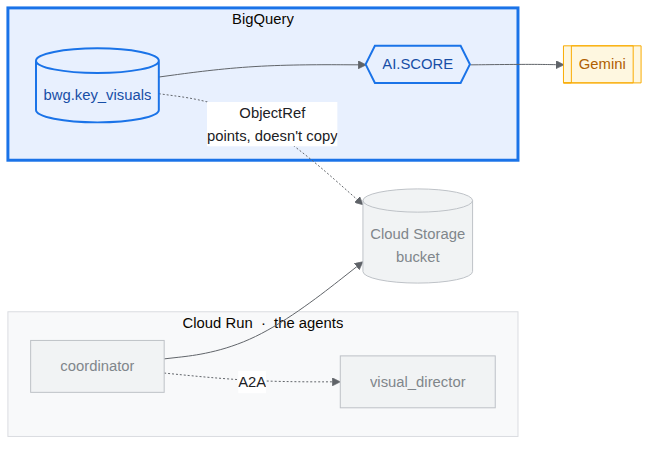
अब आपके पास बकेट में इमेज और ब्रैंड के दिशा-निर्देश मौजूद हैं. इस टास्क में, आपको इन दोनों को एक साथ इस्तेमाल करना है: BigQuery से इमेज का रेफ़रंस दें. इसके बाद, Gemini मॉडल से हर इमेज को दिशा-निर्देशों के हिसाब से ग्रेड करने के लिए कहें. इसके लिए, Cloud Storage से एक भी बाइट को बाहर न ले जाएं.
BigQuery की दो सुविधाएं यह काम करती हैं:
ObjectRefएक ऐसी वैल्यू है जो Cloud Storage ऑब्जेक्ट की ओर इशारा करती है.OBJ.MAKE_REFयूआरआई और कनेक्शन से एक बनाता है. यह कनेक्शन, BigQuery को बकेट का ऐक्सेस देता है. सेटअप स्क्रिप्ट से बनाया गयाpitch-connection, कनेक्शन होता है. इसमें पहले से ही स्टोरेज ऑब्जेक्ट व्यूअर और एजेंट प्लैटफ़ॉर्म उपयोगकर्ता की भूमिकाएं होती हैं.AI.SCORE, प्रॉम्प्ट लेता है औरFLOAT64दिखाता है. प्रॉम्प्ट में स्ट्रिंग के साथ-साथObjectRefवैल्यू भी शामिल की जा सकती हैं, ताकि मॉडल को रूब्रिक और इमेज, दोनों दिखें.
मुख्य विज़ुअल की टेबल बनाना
- BigQuery Studio को नए ब्राउज़र टैब में खोलें:
https://console.cloud.google.com/bigquery?project=<YOUR_PROJECT_ID> - नई क्वेरी बनाएं (+ आइकॉन) पर क्लिक करें. इसके बाद, यहां दी गई क्वेरी को चिपकाएं और चलाएं. इसमें
SET @@location = '<YOUR_REGION>';

CREATE OR REPLACE TABLE bwg.key_visuals AS
SELECT
  campaign,
  concept,
  OBJ.FETCH_METADATA(
    OBJ.MAKE_REF(uri, '<YOUR_REGION>.pitch-connection')
  ) AS key_visual
FROM UNNEST([
  STRUCT(
    'cats' AS campaign,
    'Flying skateboards for cats' AS concept,
    'gs://<YOUR_PROJECT_ID>-bwg/key-visuals/cats.png' AS uri
  ),
  STRUCT(
    'bike',
    'A commuter bike built for rainy cities',
    'gs://<YOUR_PROJECT_ID>-bwg/key-visuals/bike.png'
  )
]);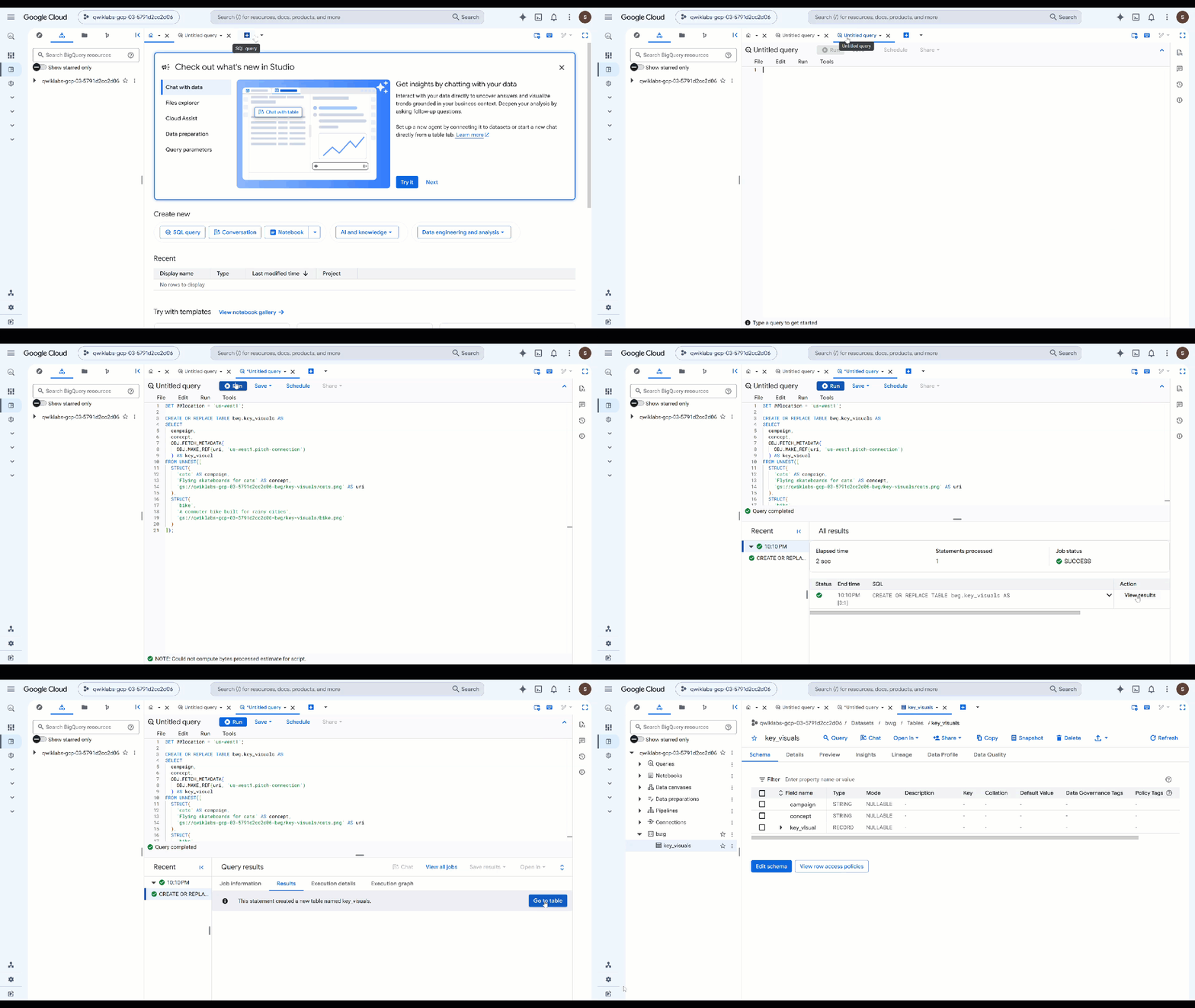
OBJ.MAKE_REFयूआरआई और कनेक्शन से रेफ़रंस बनाता है.OBJ.FETCH_METADATAइसके बाद, Cloud Storage से संपर्क करता है और ऑब्जेक्ट का साइज़, कॉन्टेंट टाइप, और जनरेशन भरता है. दूसरा कॉल करने से यह भी पता चल जाता है कि कनेक्शन काम कर रहा है या नहीं. अगर अनुमतियां गलत हैं, तो मेटाडेटा के बजायdetailsफ़ील्ड में गड़बड़ी की जानकारी दिखती है. - देखें कि आपने क्या-क्या सेव किया है. पिछली क्वेरी को इससे बदलें और इसे चलाएं:
SELECT campaign, concept, key_visual.uri, key_visual.details
FROM bwg.key_visuals;
ब्रैंड के दिशा-निर्देशों के हिसाब से, हर इमेज को ग्रेड दें
विज़ुअल डायरेक्टर को एक पैलेट, लाइटिंग के नियम, और कंपोज़िशन के नियम का पालन करने के लिए कहा गया था. यह फ़ैसला करना कि क्या वाकई ऐसा हुआ है, AI.SCORE का काम है.
- यहां दी गई क्वेरी चलाएं. इसमें
ObjectRef:SELECT campaign, concept, AI.SCORE( ('''You are the brand guardian reviewing a campaign key visual. Score the attached image from 1 to 10 on how closely it follows these house rules: - Palette: deep indigo and slate, with one warm accent of amber or terracotta. Nothing neon. - Light: one dominant low, raking source with long shadows. No flat overhead light. - Composition: subject off-center with generous empty negative space on the opposite side. - Subject: one subject only, photographic realism, shallow depth of field. - Never: text, logos, or watermarks anywhere in the frame. A 10 obeys every rule. A 1 ignores them. The campaign concept is: ''', concept, key_visual), connection_id => '<YOUR_REGION>.pitch-connection', endpoint => 'gemini-3.5-flash' ) AS brand_fit FROM bwg.key_visuals ORDER BY brand_fit DESC; - स्कोर को ऐसे फ़ैसले में बदलें जिस पर आपकी टीम कार्रवाई कर सके:
CREATE OR REPLACE TABLE bwg.brand_review AS SELECT campaign, concept, brand_fit, IF(brand_fit >= 7, 'on brand', 'needs another pass') AS verdict FROM ( SELECT campaign, concept, AI.SCORE( ('''Score this campaign key visual from 1 to 10 on how closely it follows the house brand rules: deep indigo and slate palette with a single warm accent and nothing neon; one low raking light source with long shadows; the subject off-center with empty negative space opposite; a single photographic subject; and no text, logos, or watermarks in the frame. The campaign concept is: ''', concept, key_visual), connection_id => '<YOUR_REGION>.pitch-connection', endpoint => 'gemini-3.5-flash' ) AS brand_fit FROM bwg.key_visuals ); SELECT * FROM bwg.brand_review ORDER BY brand_fit DESC;AI.SCOREसिर्फ़FLOAT64दिखाता है. इसलिए, थ्रेशोल्ड को सामान्य एसक्यूएल में सेट किया जाता है. इससे, प्रॉम्प्ट में बदलाव किए बिना थ्रेशोल्ड को अडजस्ट किया जा सकता है. स्कोरिंग हर लाइन के हिसाब से होती है. इसका मतलब है कि कैंपेन से जनरेट होने वाली हर ऐसेट पर एक ही रूब्रिक लागू होता है. सिर्फ़ उन दो ऐसेट पर नहीं जिन्हें आपने यहां जनरेट किया है.
11. अगले चरण
Create Evals
एजेंटिक आकलन या "आकलन" ऐसे ऑटोमेटेड टेस्ट होते हैं जिनका इस्तेमाल यह मेज़र करने के लिए किया जाता है कि ऑटोनॉमस एआई एजेंट, तर्क करने, प्लान बनाने, टूल इस्तेमाल करने, और कई चरणों वाले वर्कफ़्लो को पूरा करने में कितने अच्छे हैं. ये एजेंट के लिए यूनिट टेस्टिंग की तरह ही होते हैं. हालांकि, इनमें नॉन-डिटरमिनिस्टिक नेचर को ध्यान में रखा जाता है.
हमारे किसी एजेंट में Human in the loop शामिल है. इसका मतलब है कि यह इनपुट का इंतज़ार करता है. आपको Antigravity को मौजूदा कोड में बदलाव करने की अनुमति देनी होगी, ताकि यह व्यवहार अपने-आप होने वाले आकलन में रुकावट न डाले.
शुरू करने का सबसे अच्छा तरीका है कि आप Antigravity CLI से पूछें.
सीएलआई शुरू करने के लिए, Cloud Shell में यह टाइप करें:
cd ~/devrel-demos/codelabs/bwg-multi-agent-pitch-generator/
agy
यहां शुरुआती प्रॉम्प्ट दिया गया है:
Explore this repository (`pitch-generator` and `visual-director`), including their agent instructions, tools, and `SKILL.md` files. Design and implement a creative `agents-cli eval` evaluation suite under `tests/eval/` that stress-tests the agent's behavior.
आपको क्लोन की गई रिपॉज़िटरी में, आकलन का एक उदाहरण और उन्हें चलाने के निर्देश भी मिल सकते हैं.
12. व्यवस्थित करें
इस कोडलैब में इस्तेमाल किए गए संसाधनों के लिए, अपने Google Cloud खाते से शुल्क न लिए जाने के लिए, प्रोजेक्ट को मिटाएं (सुझाया गया) या कोडलैब के दौरान बनाए गए अलग-अलग संसाधनों को मिटाएं:
gcloud run services delete visual-director --region=<YOUR_REGION> --project=<YOUR_PROJECT_ID> --quiet
bq rm -r -f -d <YOUR_PROJECT_ID>:bwg
bq rm --connection --location=<YOUR_REGION> --project_id=<YOUR_PROJECT_ID> pitch-connection
gcloud storage rm -r gs://<YOUR_PROJECT_ID>-bwg
13. बधाई हो!
इस कोडलैब में, आपने Agent Development Kit की मदद से, कई एजेंट वाला कैंपेन पिच जनरेटर बनाया. आपने तीन एजेंटों को एक डिटरमिनिस्टिक ग्राफ़ वर्कफ़्लो में शामिल किया है. साथ ही, ब्रैंड के दिशा-निर्देशों को एजेंट की ऐसी स्किल के तौर पर पैकेज किया है जो मांग पर लोड होती है. इसके अलावा, आपने एजेंट को इमेज जनरेट करने वाला एक टूल दिया है, जो अपने आउटपुट को आर्टफ़ैक्ट के तौर पर सेव करता है. इसके बाद, आपने Visual Director को अपनी A2A सेवा में बांट दिया. साथ ही, इसे रिमोट नोड के तौर पर ग्राफ़ में वापस एम्बेड कर दिया. इसके बाद, इसे Cloud Run पर डिप्लॉय कर दिया. साथ ही, पूरे वर्कफ़्लो को A2A पर कॉल कर दिया. ऐसा आपने स्थानीय तौर पर चल रहे कोऑर्डिनेटर से किया. आखिर में, आपने BigQuery से जनरेट किए गए मुख्य विज़ुअल को ObjectRef के साथ रेफ़रंस दिया. साथ ही, AI.SCORE का इस्तेमाल करके, उन्हें अपने ब्रैंड के दिशा-निर्देशों के हिसाब से जज किया.