

1. はじめに
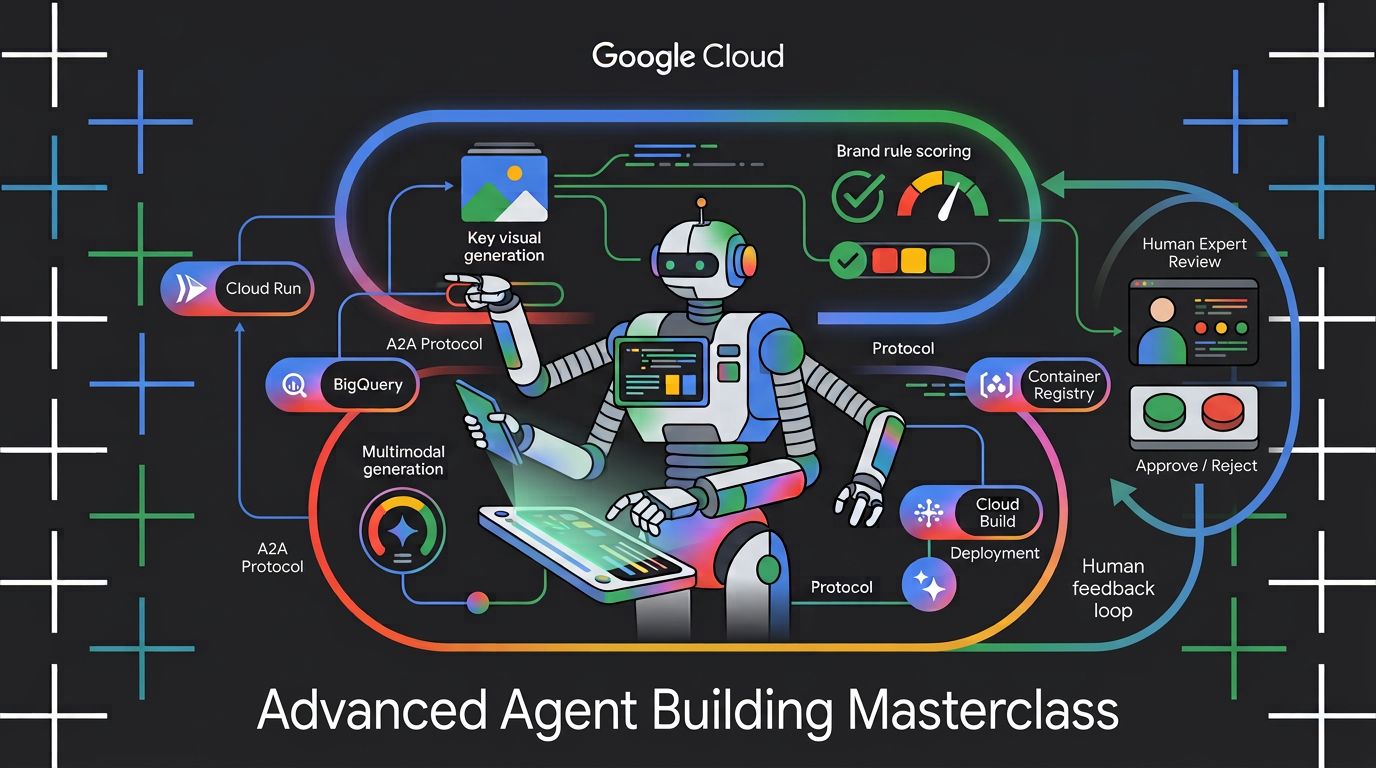
生のトピックの概要を受け取り、魅力的なソーシャル アセットの作成を調整するマルチモーダル マルチエージェント エンジンを構築する方法を学びます。Google の Agent Development Kit(ADK)と Agent2Agent(A2A)プロトコルを使用して、自律型マイクロエージェントを作成し、ブランドルールを再利用可能なエージェント スキルとしてパッケージ化し、エージェント サービスを Cloud Run にデプロイし、BigQuery AI 関数を使用してブランド コンプライアンスの生成されたキービジュアルをスコアリングします。
演習内容
この Codelab では、次のタスクを行う方法について学びます。
- 決定論的なグラフ ワークフローを使用して、複数の ADK エージェントをオーケストレートします。
- ブランド ガイドラインを、必要な場合にのみ読み込まれるエージェント スキルとしてパッケージ化します。
- 出力をアーティファクトとして保存する画像生成ツールをエージェントに装備します。
- エージェントを A2A サービスとして公開し、別のエージェントからリモートノードとして呼び出します。
- Visual Director を Cloud Run にデプロイし、A2A 経由でワークフローを呼び出します。
- BigQuery の AI 関数を使用して、生成されたキービジュアルのブランド適合性をスコアリングします。
必要なもの
- ウェブブラウザ(Chrome など)。
- 課金が有効になっている Google Cloud アカウントと Google Cloud プロジェクト。
2. 始める前に
Google Cloud プロジェクトの作成
- Google Cloud コンソールのプロジェクト選択ページで、Google Cloud プロジェクトを選択または作成します。
- Cloud プロジェクトに対して課金が有効になっていることを確認します。プロジェクトで課金が有効になっているかどうかを確認する方法をご覧ください。
Cloud Shell の起動
Google Cloud Shell を使用して、コードのダウンロード、設定スクリプトの実行、アプリケーションのデプロイを行います。
- ブラウザで Google Cloud Shell を開きます(または、Google Cloud コンソールの上部にある [Cloud Shell をアクティブにする] をクリックします)。
https://shell.cloud.google.com/ - このコマンドをターミナルに貼り付けて、環境で Google Cloud プロジェクト ID とリージョン(
us-central1など)を構成します(export PROJECT_ID="<YOUR_PROJECT_ID>" export REGION="<YOUR_REGION>" gcloud config set project $PROJECT_ID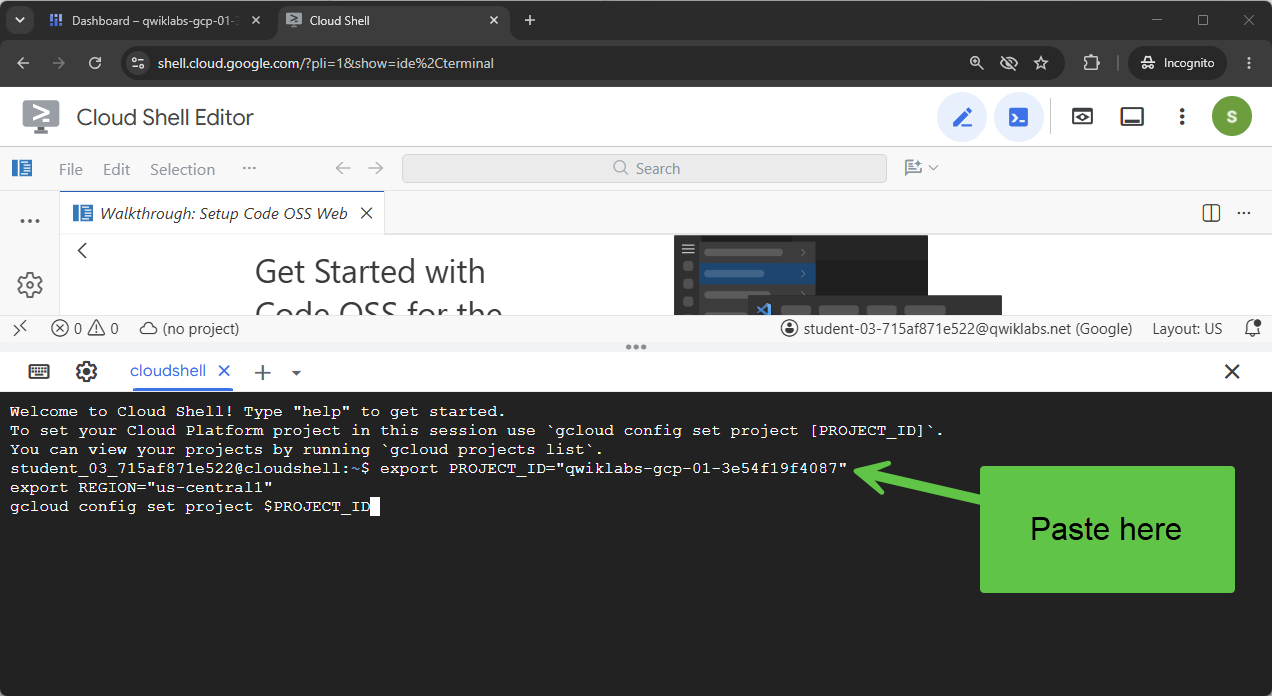 次のようなメッセージが表示されます。
Your active configuration is: [cloudshell-####] Updated property [core/project] - プロジェクトに必要な Google Cloud APIs を有効にします。
gcloud services enable \
  compute.googleapis.com \
  cloudresourcemanager.googleapis.com \
  aiplatform.googleapis.com \
  storage.googleapis.com \
  storage-component.googleapis.com \
  bigqueryconnection.googleapis.com \
  bigquery.googleapis.com \
  run.googleapis.com \
  secretmanager.googleapis.com \
  cloudbuild.googleapis.com \
  artifactregistry.googleapis.com \
  iap.googleapis.com \
  iam.googleapis.com
リポジトリのクローンを作成する
Codelab を始めるためのコード テンプレートをご用意しています。比較的サイズは小さいですが、その GitHub リポジトリはかなり大きいです。通常、クローンの高速化とディスク容量の節約には、git clone と --filter=blob:none オプション、git sparse-checkout、その他のコマンドを使用します。
これは非常に複雑な処理ですが、Antigravity がすべて実行してくれます。
まず、問題をすぐに解決できるように Antigravity CLI を構成して起動します。
Cloud Shell で次のコマンドを実行します。
source <(curl -fsSL https://github.com/GoogleCloudPlatform/devrel-demos/raw/refs/heads/vladkol/cloud-shell-configure-agy/codelabs/labs-scripts/bwg-multi-agent-pitch-generator/cloud_shell_configure_agy.sh)
このコマンドは、Antigravity CLI を構成し、同じターミナルで起動します。Antigravity CLI を終了すると、Cloud Shell のプロンプトに戻ります。

リポジトリの codelabs/bwg-multi-agent-pitch-generator フォルダのみが必要です。Antigravity にそのフォルダだけをダウンロードして、~/devrel-demos/codelabs/bwg-multi-agent-pitch-generator/ にローカルに保存するように依頼しましょう。
Antigravity CLI に次のタスクを指定します。
Download files from under `https://github.com/GoogleCloudPlatform/devrel-demos/tree/main/codelabs/bwg-multi-agent-pitch-generator`
to folder `~/devrel-demos/codelabs/bwg-multi-agent-pitch-generator/`.
If `devrel-demos` folder already exists, rename it with a `.backup` suffix.

Antigravity がタスクを実行します。いくつかのコマンドを実行するための権限を求められます。コードがダウンロードされたら、/exit コマンドを実行して Antigravity CLI を終了します。
/exit
リポジトリ ワークスペースを開く
次に、Cloud Shell でコード ワークスペースを開きます。Cloud Shell ターミナルで次のコマンドを実行します。
cd ~/devrel-demos/codelabs/bwg-multi-agent-pitch-generator/
cloudshell workspace .
設定スクリプトを実行する
この操作をスムーズに行うには、リポジトリから設定スクリプトを実行します。環境変数を構成し、agents-cli をインストールし、アーティファクト用の Cloud Storage バケットを作成し、BigQuery Cloud リソース接続を作成し、必要な IAM 権限をサービス アカウントに付与します(自動再試行あり)。
設定スクリプトは、setenv.sh も呼び出します。これは、両方のエージェントに必要な変数(GOOGLE_CLOUD_PROJECT、GOOGLE_CLOUD_REGION、GOOGLE_CLOUD_LOCATION、GOOGLE_GENAI_USE_VERTEXAI)を、上記でエクスポートした PROJECT_ID と REGION から導出する小さなヘルパーです。また、これらの 2 つの値はホーム ディレクトリの .env ファイルに保存されるため、後で復元できます。
- Cloud Shell で、設定スクリプトを実行可能にして実行します。
chmod +x codelab-setup.sh setenv.sh ./codelab-setup.sh - このコマンドの実行には約 1 分かかります。成功を示す「🎉 🦄 Script execution complete.」というメッセージが表示されます。
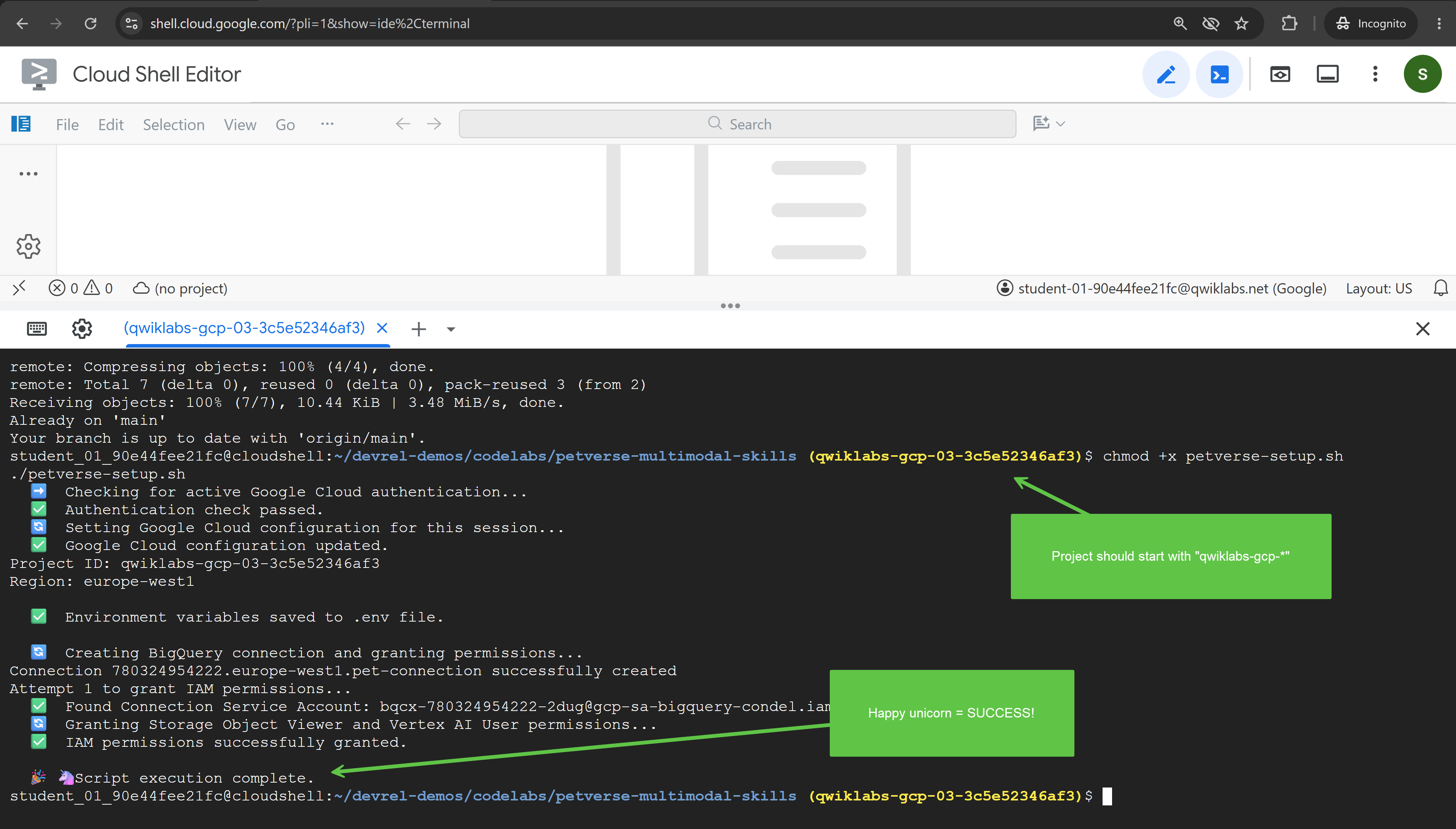
- 設定スクリプトは独自のシェルで実行されたため、その変数はターミナルに到達しませんでした。セッションに読み込みます。
source ./setenv.sh
3. グラフ ワークフローでエージェントをオーケストレートする
このタスクでは、ピッチ ジェネレータ プロジェクトを作成し、2 つのエージェントを実行して出力を結合するグラフ ワークフローを構築します。
ピッチにはコンセプトが必要です。つまり、そのコンセプトを売り込むアイデアとアセットが必要です。このユースケースでは、作業範囲内で異なる責任を持つエージェントを設計し、複雑なタスクを分離して、異なる責任を持つさまざまなエージェントに委任することで、管理を容易にする方法を示します。
このような作業をスペシャリスト間で分割するには、各エージェントの実行時に調整する何かが必要です。各サブエージェントを呼び出すタイミングをエージェントに任せることも、より決定論的なアプローチを適用することもできます。この Codelab では、グラフ ワークフローで決定論的アプローチを使用します。
最初のエージェント プロジェクトをスキャフォールディングする
- Cloud Shell で、次のコマンドをターミナルに貼り付けて、プロジェクトを作成します。
cd ~/devrel-demos/codelabs/bwg-multi-agent-pitch-generator agents-cli create pitch-generator \ --agent adk \ --agent-directory pitch_generator \ --deployment-target cloud_run \ --session-type in_memory \ --cicd-runner skip \ --region <YOUR_REGION> \ --auto-approveDockerfile、テスト、後で使用する Terraform、.env.exampleテンプレートを含む.envファイル)が書き込まれます。この Codelab では、次の 2 つの部分が重要です。pitch_generator/agent.pyは、エージェントと書き換えるファイルです。pitch_generator/は、--agent-directoryによって設定されるパッケージ名です。
setenv.shでエクスポートした環境からプロジェクトとリージョンを読み取るため、ここで構成するものはありません。 - 依存関係をインストールします。
cd pitch-generator
agents-cli update -y && agents-cli install && uv sync --upgrade-package google-adk
グラフについて
ADK v2.x はグラフ ワークフローをサポートしています。グラフは、作業単位であるノードと、それらを接続するエッジから構築されます。通常、ノードはエージェントですが、プレーンな Python 関数も機能します。エッジは、あるノードが終了すると、次のノードが実行されることを示します。
エッジはリストとして記述され、ADK が順序を決定します。
edges=[
    ("START", creative_director),        ## the graph begins here
    (creative_director, copywriter),     ## then this
]
ネストにより、エッジに意味が与えられます。
エッジ | 意味 |
| チェーン。a、b、c の順に実行されます。 |
| ファンアウト。a、次に b と c を同時に実行 |
| ファンイン。c は a と b の両方を待機します |
ファンインには JoinNode を使用します。これは、すべての先行タスクを待機し、それらの出力をまとめて渡します。
このタスクでは、次のワークフローを構築します。
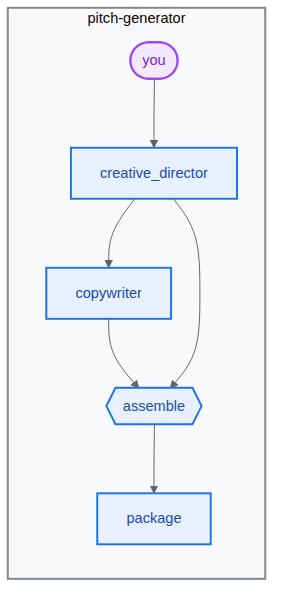
パイプラインをビルドする
- ターミナルに次のコマンドを貼り付けて、エージェント ファイルを開きます。
cd ~/devrel-demos/codelabs/bwg-multi-agent-pitch-generator/pitch-generator cloudshell edit pitch_generator/agent.pyagent.pyが表示されます。💡 ヒント: 任意の時点でコードを選択し、電球アイコンを使用して Gemini に説明を求めることができます。Antigravity CLI に問い合わせることもできます。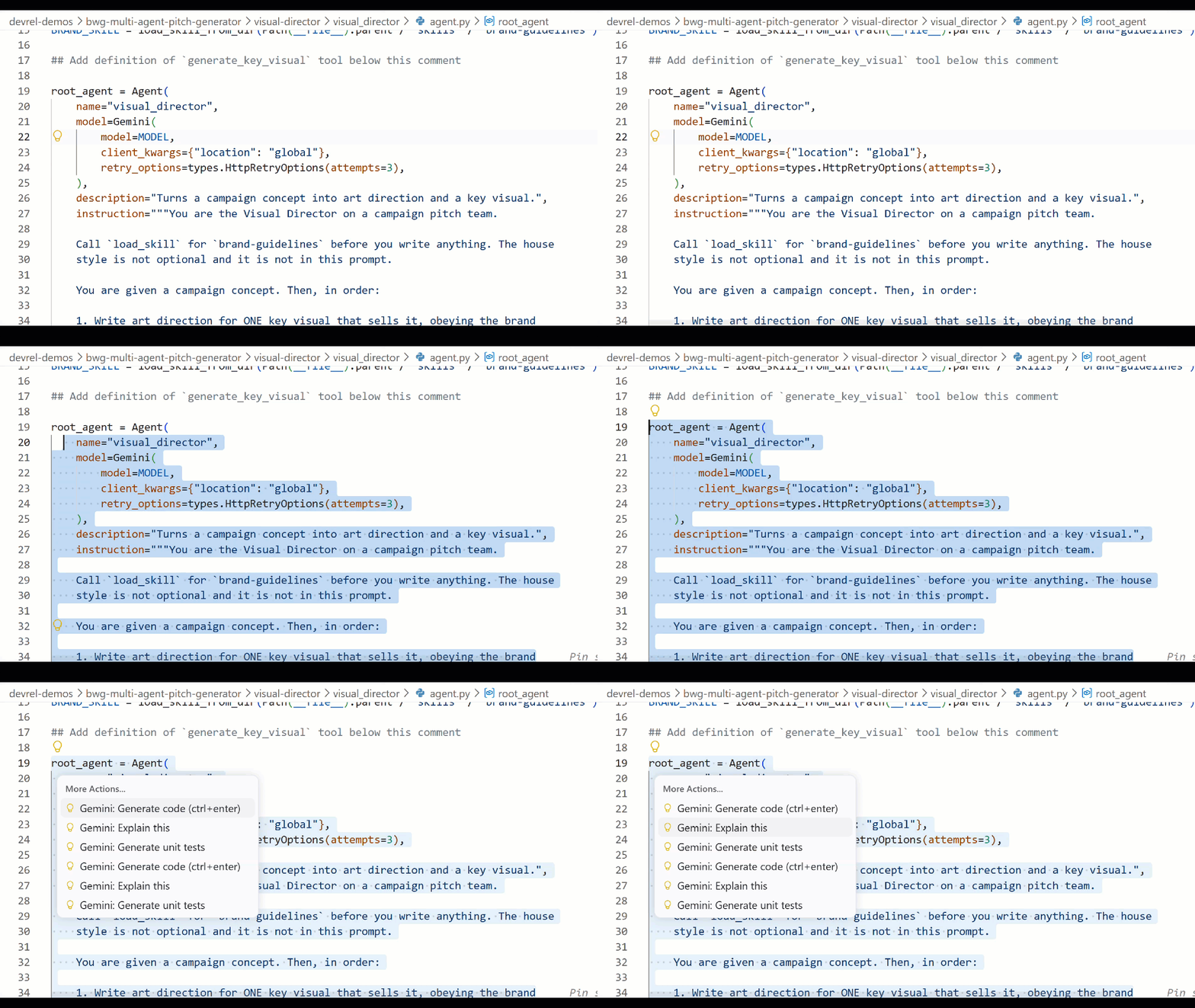
pitch_generator/agent.pyエディタで、ファイル全体を次のコードに置き換えます。import mimetypes import os from dotenv import load_dotenv from google.adk.agents import Agent from google.adk.agents.context import Context from google.adk.agents.remote_a2a_agent import ( AGENT_CARD_WELL_KNOWN_PATH, RemoteA2aAgent, ) from google.adk.apps import App from google.adk.events.event import Event from google.adk.models import Gemini from google.adk.workflow import JoinNode, Workflow from google.genai import types load_dotenv() MODEL = "gemini-3.8-flash" def _model() -> Gemini: return Gemini( model=MODEL, client_kwargs={"location": "global"}, retry_options=types.HttpRetryOptions(attempts=3), ) """ ⬇️ Configure visual-director RemoteA2aAgent agent below this comment """ creative_director = Agent( name="creative_director", model=_model(), description="Turns a raw idea into a campaign concept.", instruction=( "You are the Creative Director. Turn the idea you are given into ONE " "punchy campaign concept line with the rationale explanation behind it." ), output_key="creative_director", ) copywriter = Agent( name="copywriter", model=Gemini(model=MODEL, retry_options=types.HttpRetryOptions(attempts=3)), description="Writes social copy for a campaign concept.", instruction=( "You are the Copywriter. Write ONE short social caption for the " "campaign concept you are given. Under 25 words." ), ) """ Waits for every node wired into it, then hands their outputs on together.""" assemble = JoinNode(name="assemble") def package(node_input: dict): """Render the joined branches as the finished pitch. """ pitch = "\n\n".join( [ f"CONCEPT\n{node_input['creative_director']}", f"COPY\n{node_input['copywriter']}", ] ) """ The first event is what the user sees. The second is the node's output, which any downstream node would receive.""" yield Event(content=types.Content(role="model", parts=[types.Part(text=pitch)])) yield Event(output=pitch) """ we put creative_director before `assemble` so that we can gather the `Concept` output at assemble""" root_agent = Workflow( name="pitch_generator", edges=[ ("START", creative_director), (creative_director, copywriter), ((creative_director, copywriter), assemble), (assemble, package), ], ) app = App( root_agent=root_agent, name="pitch_generator", )agents-cliには、ADK と同様に検査用のplaygroundという組み込みのウェブ開発 UI が含まれています。プレイグラウンドを起動する手順は次のとおりです。agents-cli playground --port 8080n」と入力して Enter キーを押します。- ターミナルの右上にある目のアイコン [ウェブでプレビュー] をクリックし、[ポート 8080 でプレビュー] を選択します。

- エージェントとチャットするための次のインターフェースが表示されます。「猫用の空飛ぶスケートボード」というプロンプトを送信してみてください。次のようなレスポンスが表示されます。ここで、ワークフロー グラフ全体を検査することもできます。
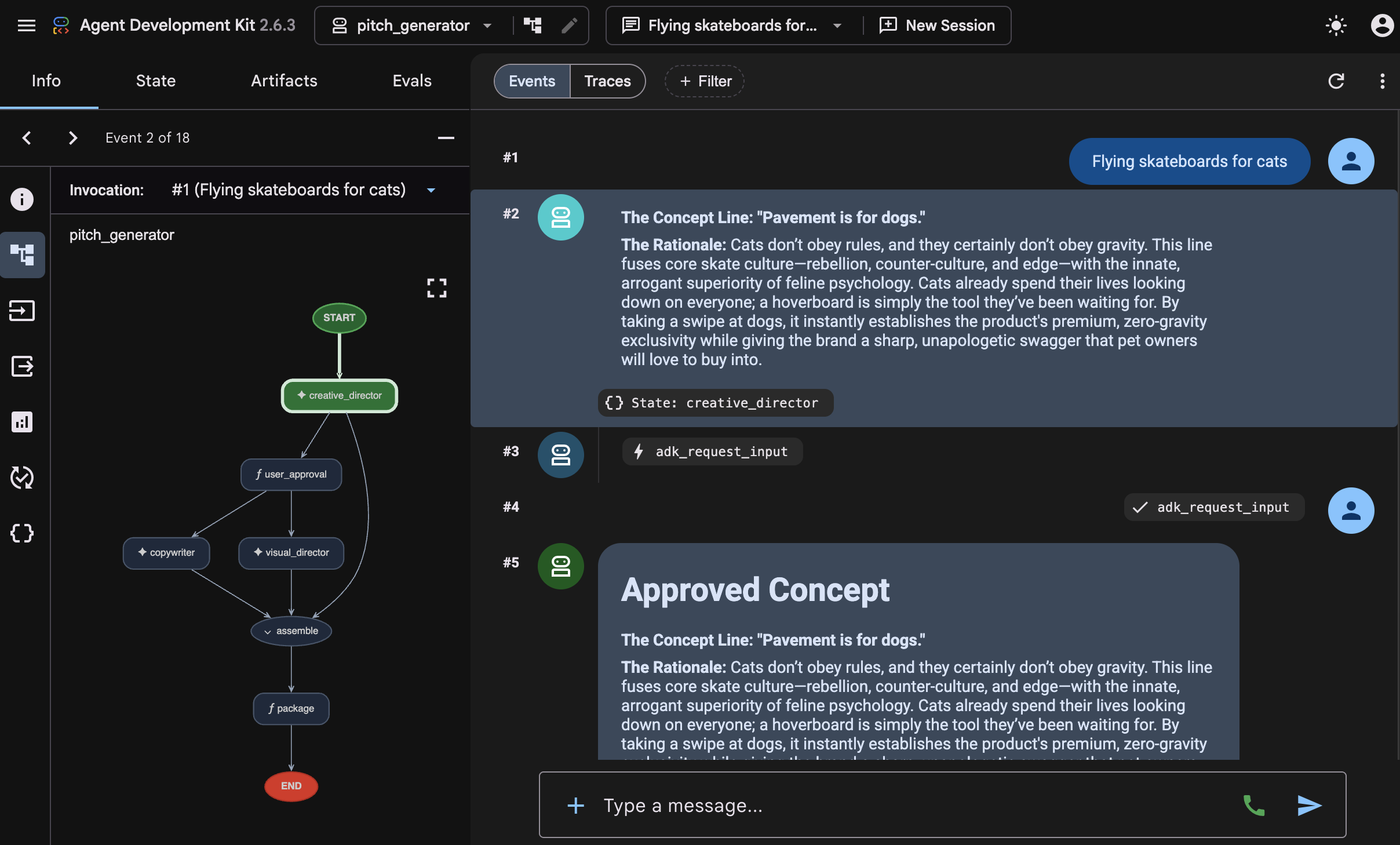 回答がどのように生成されたかを検査します。プレイグラウンドには、グラフが実行した各ステップが順番に表示されます。
creative_director、copywriter、assemble、packageの順です。このシーケンスは、作成したグラフです。この方法で、作成したグラフをすばやく確認できます。 - ターミナルに戻り、Ctrl+C キーを 2 回押して、実行中の
agents-cli playgroundプロセスを停止します。
4. エージェントにスキルを付与する
このタスクでは、2 つ目のエージェントを作成し、スキルとしてパッケージ化された一連のブランド ガイドラインを付与します。
パイプラインは単語を書き込みます。写真には、パレット、照明の当て方、使用する構図と使用しない構図など、ハウス スタイルが必要です。これはルールのページであり、ルールのページを管理するためのより優れたメカニズムが必要です。その方法の 1 つは、「エージェント スキル」としてパッケージ化することです。
スキルは、SKILL.md ファイルを含むフォルダです。スキル ディレクトリの構造は、次の例のようになります(visual_director を使用。これは次に作成するエージェントです)。
visual_director/
   ...
   agent.py
   skills/
      brand-guidelines/
         SKILL.md          ## required: frontmatter + instructions
         references/       ## optional: longer supporting documents
         assets/           ## optional: templates, images, data
         scripts/          ## optional: executable helpers
   ...
エージェント スキルのエントリ ポイントは SKILL.md ファイルです。このファイルには、次のような YAML フロントマター セクションが含まれています。
---
name: brand-guidelines
description: The house brand rules for a key visual. Load this before writing art direction, so the visual looks like it came from this brand.
---

## Brand guidelines

Deep indigo and slate as the ground. One warm accent, amber or terracotta...
フロントマターはラベルです。これがエージェントが最初に確認するすべてであるため、スキルを読み込む価値があるタイミングを説明に記載する必要があります。本文はコンテンツであり、エージェントが load_skill を呼び出すまでコンテキストから外れたままになります。
その分割がポイントです。プロンプトは短く、エージェントは必要なときにのみルールを取得します。スタイルを変更する場合は、指示文字列を検索するのではなく、1 つのファイルを編集します。
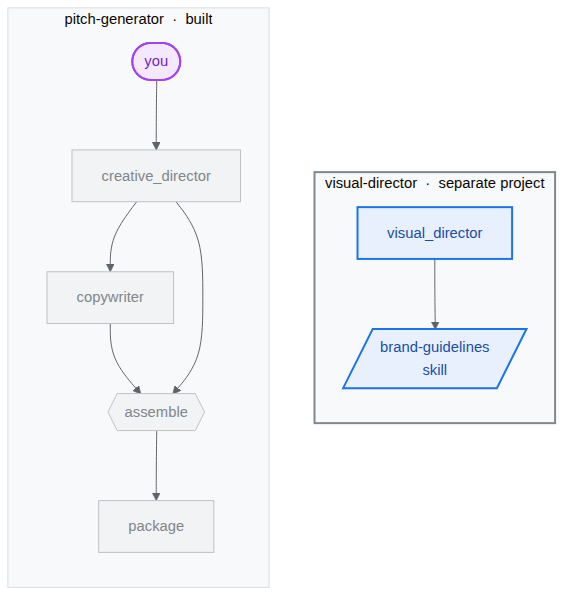
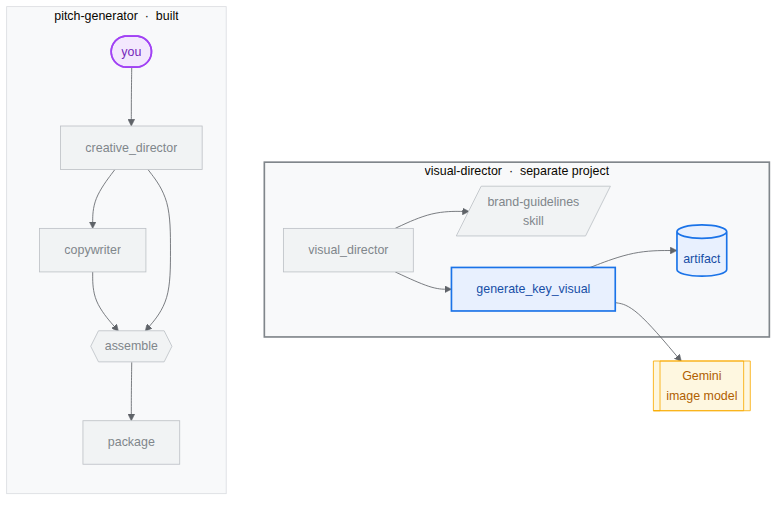
次の図に示すように、エージェント スキルを利用して 2 番目のエージェント visual-director の構築を開始します。
Visual Director をスキャフォールディングする
ビジュアル コンポーネント visual-director を処理する専門エージェントを構築します。これは、複数のエージェントが A2A プロトコルを使用して相互に通信する方法を示す独自のサービスになるため、別のプロジェクトです。最終的に、2 つのプロジェクトが並んで表示されます。
bwg-multi-agent-pitch-generator/
├── pitch-generator/              ## built in the last task
│   ├── pitch_generator/
│   │   ├── agent.py              ## the graph you wrote
│   │   ├── app_utils/            ## generated, A2A wiring
│   │   └── fast_api_app.py       ## generated, serves the agent
│   └── pyproject.toml
└── visual-director/              ## created below
    └── ...                       ## the same shape again
- ターミナルに次のコマンドを貼り付けて、プロジェクトを作成し、依存関係をインストールします。
cd ~/devrel-demos/codelabs/bwg-multi-agent-pitch-generator
agents-cli create visual-director \
  --agent adk \
  --agent-directory visual_director \
  --deployment-target cloud_run \
  --session-type in_memory \
  --cicd-runner skip \
  --region <YOUR_REGION> \
  --auto-approve
cd visual-director
agents-cli update -y && agents-cli install && uv sync --upgrade-package google-adk
ブランド ガイドラインを作成する
- スキルフォルダを作成してファイルを開きます。
mkdir -p visual_director/skills/brand-guidelines cloudshell edit visual_director/skills/brand-guidelines/SKILL.md - 開いている
SKILL.mdファイルのエディタに次の内容を貼り付けて保存します。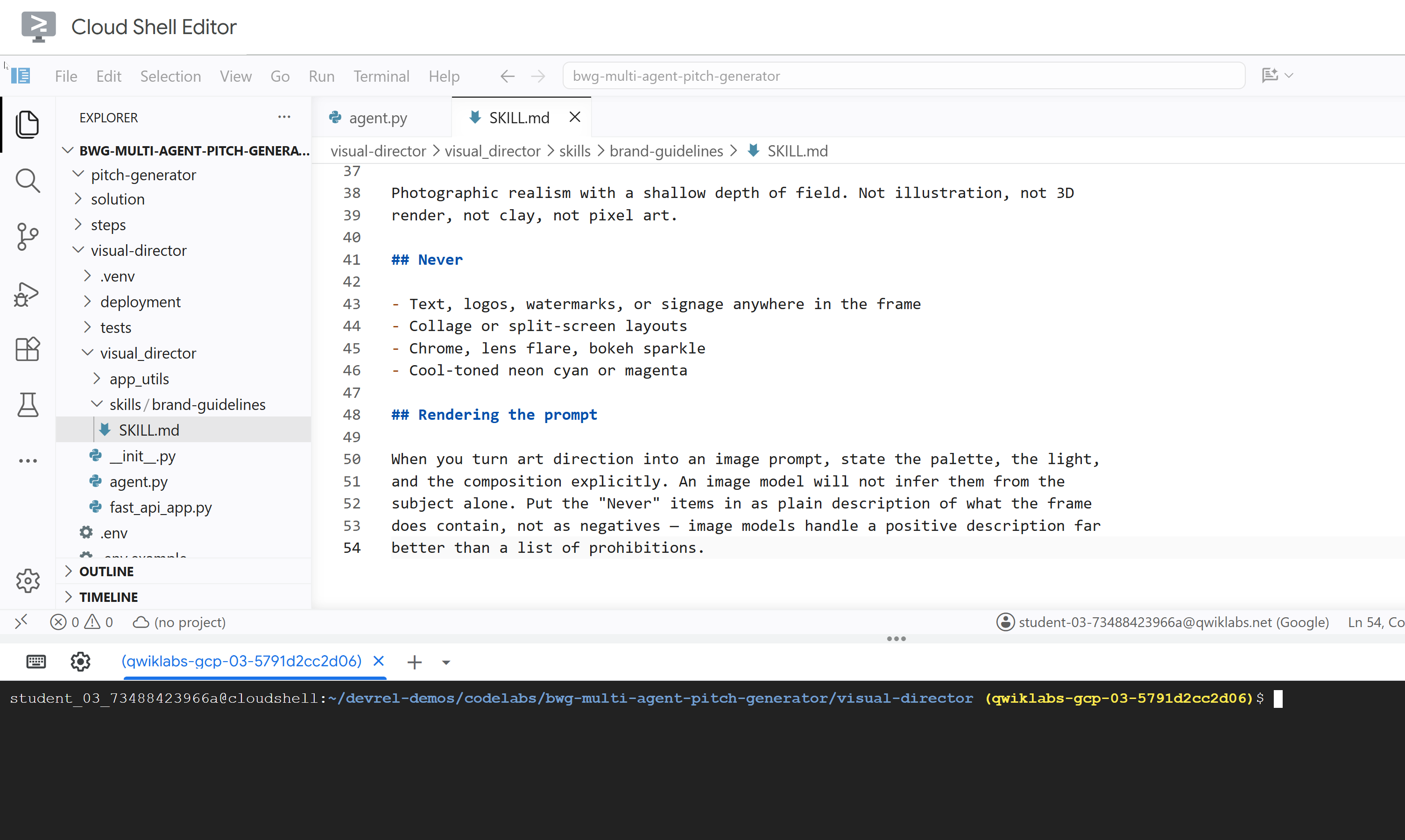
---
name: brand-guidelines
description: The house brand rules for a key visual — palette, light, composition, subject treatment, and what never appears. Load this before writing art direction or rendering an image, so the visual looks like it came from this brand rather than from a generic image model.
---

## Brand guidelines

House style for campaign key visuals. Every rule here beats a preference in the
brief. If the brief asks for something forbidden below, follow the brief for the
subject and the guidelines for the treatment.

## Palette

Deep indigo and slate as the ground. One warm accent — amber or terracotta —
carrying the eye to the subject. Nothing neon, nothing fluorescent.

At most three colors with any weight. A fourth reads as clutter.

## Light

One dominant source, low and raking. Long shadows are wanted. Golden hour or a
single hard studio key, never flat overhead light and never a ring light.

Rim light is allowed on the subject only, and only to separate it from the
ground.

## Composition

Subject off-center, roughly a third in. Generous negative space on the opposite
side — copy lands there later, so leave it genuinely empty.

Eye level or slightly below. No top-down flat lays. No fisheye, no Dutch tilt.

## Subject

One subject. If the idea implies a crowd, pick the one that carries it.

Photographic realism with a shallow depth of field. Not illustration, not 3D
render, not clay, not pixel art.

## Never

- Text, logos, watermarks, or signage anywhere in the frame
- Collage or split-screen layouts
- Chrome, lens flare, bokeh sparkle
- Cool-toned neon cyan or magenta

## Rendering the prompt

When you turn art direction into an image prompt, state the palette, the light,
and the composition explicitly. An image model will not infer them from the
subject alone. Put the "Never" items in as plain description of what the frame
does contain, not as negatives — image models handle a positive description far
better than a list of prohibitions.
visual_director/agent.py を更新する
agent.py ファイルを更新し、以前に定義したスキルを備えるように構成します。
- エージェント ファイルを開きます。
cloudshell edit ~/devrel-demos/codelabs/bwg-multi-agent-pitch-generator/visual-director/visual_director/agent.py - 置き換えます。
visual_director/agent.pyファイルの内容全体を次のコードに置き換えます。import mimetypes from pathlib import Path from google import genai from google.adk.agents import Agent from google.adk.apps import App from google.adk.models import Gemini from google.adk.skills import load_skill_from_dir from google.adk.tools import ToolContext from google.adk.tools.skill_toolset import SkillToolset from google.genai import types MODEL = "gemini-3.8-flash" ## Configure the `brand-guidelines` skill for the agent BRAND_SKILL = load_skill_from_dir(Path(__file__).parent / "skills" / "brand-guidelines") ## Add definition of `generate_key_visual` tool below this comment root_agent = Agent( name="visual_director", model=Gemini( model=MODEL, client_kwargs={"location": "global"}, retry_options=types.HttpRetryOptions(attempts=3), ), description="Turns a campaign concept into art direction and a key visual.", instruction="""You are the Visual Director on a campaign pitch team. Call `load_skill` for `brand-guidelines` before you write anything. The house style is not optional and it is not in this prompt. You are given a campaign concept. Then, in order: 1. Write art direction for ONE key visual that sells it, obeying the brand guidelines: subject, composition, lighting, color, mood. Three or four sentences. 2. Call `generate_key_visual` with exactly that art direction. Your final reply is the art direction itself and nothing else. No preamble, no alternatives, no questions back. Do not mention the skill, the tool, or the image file — the image travels on its own.""", tools=[ SkillToolset(skills=[BRAND_SKILL]), ## Supply the `generate_key_visual` tool below this comment ], ) app = App( root_agent=root_agent, name="visual_director", )visual-directorエージェントがエージェント スキルで正しく構成されました。テストする前に、このエージェントに画像アセットを生成するツールを主要な機能の一つとして装備します。
5. 画像生成ツールをエージェントに装備する
このタスクでは、アート ディレクションを画像としてレンダリングし、アーティファクトとして保存するツールをビジュアル ディレクターに提供します。アーティファクトは、AI エージェントがタスク中に作成、変更、使用する、名前付きのバージョン管理されたバイナリデータまたはファイル コンテンツです。
ツールを実装してエージェントに追加する
- エージェント ファイルを開きます。
cloudshell edit ~/devrel-demos/codelabs/bwg-multi-agent-pitch-generator/visual-director/visual_director/agent.py - 次の
generate_key_visualツールをroot_agent定義の前にコピーします。async def generate_key_visual(art_direction: str, tool_context: ToolContext) -> dict: """Render the art direction as the campaign's key visual. Args: art_direction: The art direction to render, in full. Returns: The saved artifact's filename, version, size and media type. """ IMAGE_MODEL = "gemini-3.1-flash-lite-image" response = await genai.Client(location="global").aio.models.generate_content( model=IMAGE_MODEL, contents=art_direction ) ## The image arrives as inline bytes on one of the response parts. image = next( ( part.inline_data for part in response.candidates[0].content.parts or [] if part.inline_data ), None, ) if image is None: raise ValueError(f"{IMAGE_MODEL} returned no image for: {art_direction[:120]}") filename = "key_visual" + ( mimetypes.guess_extension(image.mime_type or "") or ".bin" ) version = await tool_context.save_artifact(filename, types.Part(inline_data=image)) ## Return the artifact filename and version return { "filename": filename, "version": version, "bytes": len(image.data), "mime_type": image.mime_type, } SkillToolsetの下にgenerate_key_visualを追加して、エージェントにツールを装備します。tools=[ SkillToolset(skills=[BRAND_SKILL]), ## Supply the `generate_key_visual` tool below this comment generate_key_visual, ],agents-cliには、ADK と同様に検査用のplaygroundという組み込みのウェブ開発 UI が含まれています。プレイグラウンドを起動する手順は次のとおりです。agents-cli playground --port 8080- ターミナルの右上にある目のアイコン [ウェブでプレビュー] をクリックし、[ポート 8080 でプレビュー] を選択します。
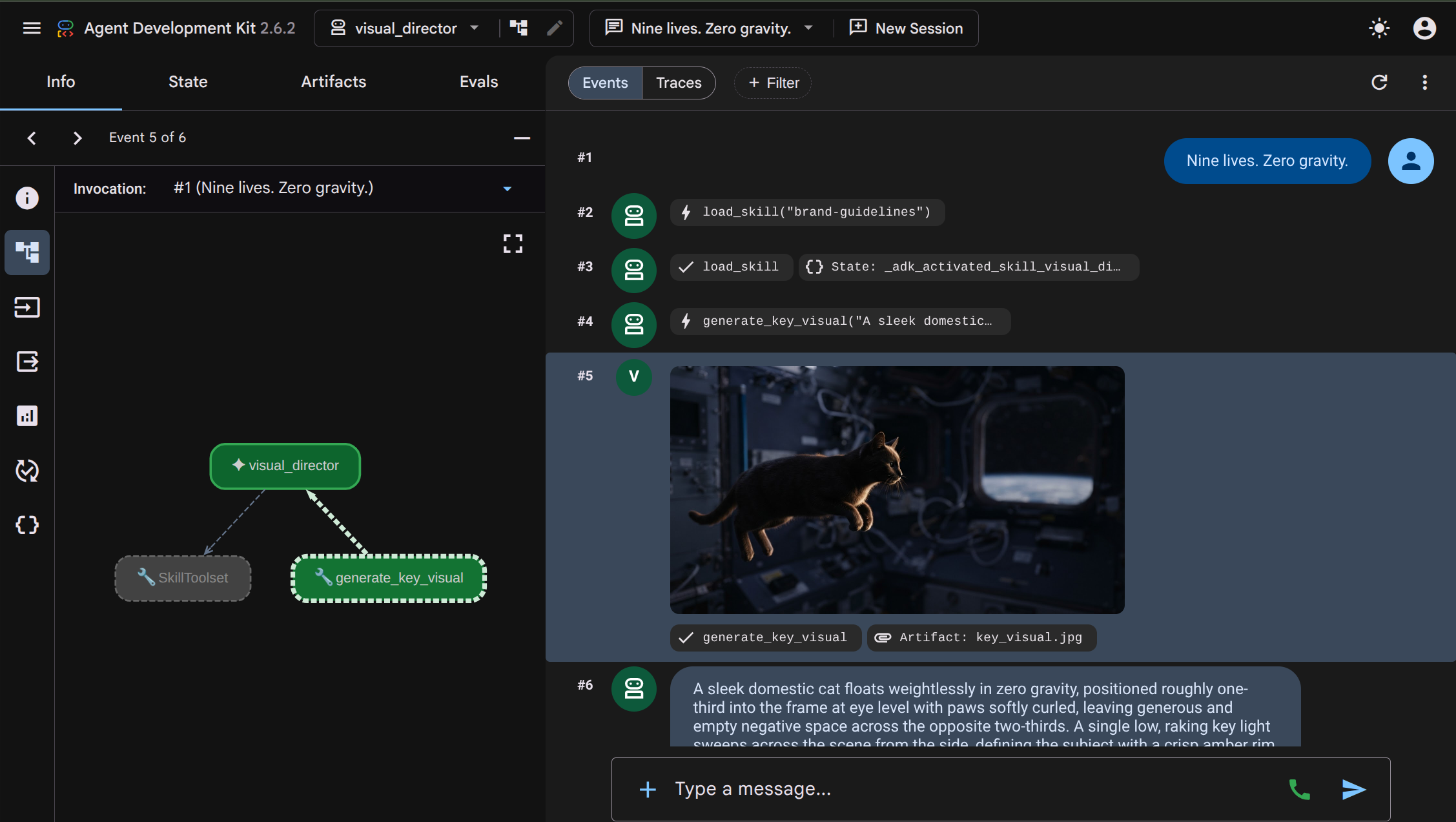
- エージェントとチャットするための次のインターフェースが表示されます。「九生。無重力。」
 インタラクションから、
visual_directorエージェントがload_skill("brand-guidelines")を実行してブランド ガイドライン スキルを読み取り、generate_key_visualを実行して画像の生成を開始する様子を確認できます。生成されたイメージはアーティファクトとして保存され、UI にも表示されるため、簡単に検査できます。 - ターミナルに戻り、Ctrl+C キーを 2 回押して、実行中の
agents-cli playgroundプロセスを停止します。
6. A2A プロトコルを使用したマルチエージェント アーキテクチャ
このタスクでは、他のエージェントが呼び出すことができるサービスとして Visual Director を公開し、生成された画像で応答するように構成します。
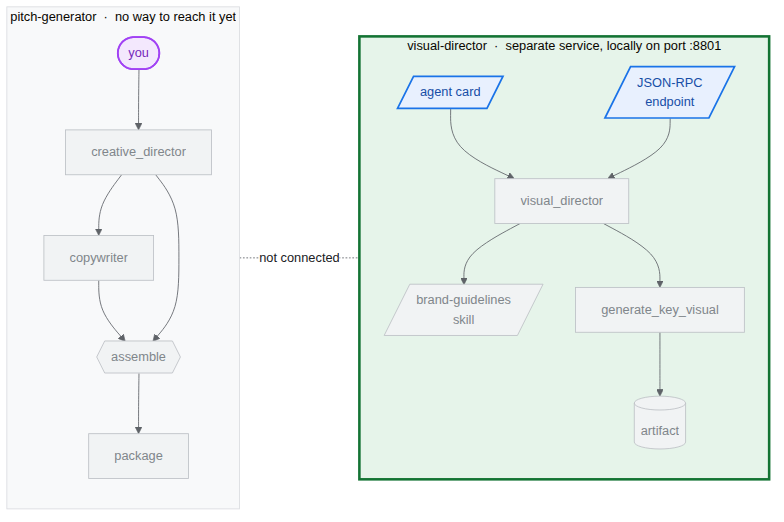
Agent2Agent(A2A)は、ネットワーク経由でエージェントが別のエージェントを呼び出すためのオープン プロトコルです。中心となるのは、エージェントがよく知られた URL を介して自身について公開する JSON ドキュメントであるエージェント カードです。エージェント カードには、エージェントの名前、説明、機能が記載されています。呼び出し元はカードを取得し、共有ソースコード、依存関係、言語なしで、その背後にあるエージェントと通信する方法を認識します。

agents-cli は、デフォルトでこの処理をすでに実装しています。エージェントからカードを構築してルートをマウントする visual_director/app_utils/a2a.py と、それらを提供する visual_director/fast_api_app.py が生成されます。アーティファクトをクライアントに送り返すようにするには、少し変更するだけで済みます。
アーキテクチャは次のようになります。エージェントはまだ初期ワークフローに統合されていません。
agents-cli A2A サーバー スキャフォールド
次のコードとモジュールは、agents-cli を使用して visual-director エージェントを初期化するときにすでに提供されています。ターミナルに次のコマンドを貼り付けて、これらのファイルを開きます。
cloudshell edit visual_director/fast_api_app.py
cloudshell edit visual_director/app_utils/a2a.py
visual_director/fast_api_app.py はエージェントを起動し、アプリ名から作成されたパスの下に A2A ルートをマウントします。
await attach_a2a_routes(
    app,
    agent=root_agent,
    runner=runner,
    rpc_path=f"/a2a/{adk_app.name}",   ## becomes /a2a/visual_director
)
visual_director/app_utils/a2a.py が残りの 3 手で処理します。
まず、エージェント自体からエージェント カードを作成します。名前、説明、すべてのツールが、呼び出し元が読み取ることができるエントリになります。
agent_card = await AgentCardBuilder(
    agent=agent,
    rpc_url=f"{resolved_app_url}{rpc_path}",
).build()
2 つ目は、プロトコルとエージェントの間に実行プログラムを配置することです。受信した A2A リクエストは ADK 実行に変換され、結果は変換されて戻されます。
request_handler = DefaultRequestHandler(
    agent_executor=A2aAgentExecutor(runner=runner, force_new_version=True),
    task_store=task_store,
    agent_card=agent_card,
)
3 つ目は、カードを提供するルートと通話を受け付けるルートの 2 つをマウントします。
ルーティング | 目的 |
| カード。発信者は、エージェントができることを確認するために、まずこのメッセージを読みます |
| JSON-RPC エンドポイント。実際のリクエストの送信先 |
アーティファクトが境界を越えるようにする
デフォルトでは、A2A レスポンスにはテキストが含まれます。イメージはアーティファクトであり、含めるように構成しない限り、アーティファクトはサービング エージェントのストアに残ります。
- 生成された A2A ファイルを開きます。
cd ~/devrel-demos/codelabs/bwg-multi-agent-pitch-generator/visual-director cloudshell edit visual_director/app_utils/a2a.py AgentCardBuilderインポートを見つけ、その下にA2aAgentExecutorConfigとinclude_artifacts_in_a2a_event_interceptorのインポートを追加します。## ... ## from google.adk.a2a.utils.agent_card_builder import AgentCardBuilder ## Add the following two below `AgentCardBuilder` import from google.adk.a2a.executor.config import A2aAgentExecutorConfig from google.adk.a2a.executor.interceptors.include_artifacts_in_a2a_event import ( include_artifacts_in_a2a_event_interceptor, )agent_executor=A2aAgentExecutor(runner=runner),行を見つけて、次の行に置き換えます(A2aAgentExecutorConfigを追加します)。agent_executor=A2aAgentExecutor( runner=runner, force_new_version=True, config=A2aAgentExecutorConfig( execute_interceptors=[include_artifacts_in_a2a_event_interceptor] ), ),
サービスを開始して公開された A2A カードを読み取る
- サーバーをバックグラウンドで起動します。
APP_URLは、カードが自身のアドレスとして宣伝しているアドレスであるため、宣言する必要があります。これをターミナルに貼り付けます。APP_URL=http://localhost:8801 nohup uv run uvicorn visual_director.fast_api_app:app --port 8801 > /tmp/visual-director.log 2>&1 & - 数秒待ってから、サービングしていることを確認します。
sleep 10 tail -2 /tmp/visual-director.logINFO: Application startup complete. INFO: Uvicorn running on http://127.0.0.1:8801 (Press CTRL+C to quit) - エージェントが公開したカードを読み取ります。
curl -s http://localhost:8801/a2a/visual_director/.well-known/agent-card.json | python3 -m json.toolgenerate_key_visualを含む)が表示されます。これは、コード内のエージェント定義から直接生成されます。{ "name": "visual_director", "description": "Turns a campaign concept into art direction and a key visual.", "skills": [ { "id": "visual_director", "name": "model", "tags": [ "llm" ] }, { "id": "visual_director-generate_key_visual", "name": "generate_key_visual", "description": "Render the art direction as the campaign's key visual.\n\nArgs:\n art_direction: The art direction to render, in full.\n\nReturns:\n The saved artifact's filename, version, size and media type.", "tags": [ "llm", "tools" ] } ], "preferredTransport": "JSONRPC", "protocolVersion": "0.3", "url": "http://localhost:8801/a2a/visual_director" }visual-directorエージェントをメインのpitch-generatorワークフローに埋め込む準備が整いました。
7. ワークフローに A2A リモート エージェントを埋め込む
このタスクでは、リモート エージェントを 3 番目のブランチとしてグラフに追加します。
リモート エージェントは RemoteA2aAgent でラップされ、他のノードと同様にグラフに配置されます。エッジの形状は同じままです。コーディネーターは、どのノードがローカルであるかを認識しません。
コーディネーターをサービスにポイントして、グラフ ワークフローを更新する
- エージェント ファイルを開きます。
cd ~/devrel-demos/codelabs/bwg-multi-agent-pitch-generator/pitch-generator cloudshell edit pitch_generator/agent.py - これらのインポートをファイルの先頭に、既存のインポートと並べて追加します。
import asyncio import subprocess import google.auth.transport.requests import google.oauth2.id_token import httpx from google.adk.a2a.converters.part_converter import convert_genai_part_to_a2a_part creative_director宣言の上に次のRemoteA2aAgent定義を追加します。VISUAL_DIRECTOR_URL = os.getenv("VISUAL_DIRECTOR_URL", "http://localhost:8801") ## For deployment on Cloud Run def _cloud_run_client() -> httpx.AsyncClient | None: """An httpx client that signs each request with a Cloud Run ID token. Cloud Run deploys private, so both the agent-card fetch and the A2A calls need one. """ if not VISUAL_DIRECTOR_URL.startswith("https://"): return None async def sign(request: httpx.Request) -> None: token = None try: token = await asyncio.to_thread( google.oauth2.id_token.fetch_id_token, google.auth.transport.requests.Request(), VISUAL_DIRECTOR_URL, ) except Exception: token = subprocess.check_output( ["gcloud", "auth", "print-identity-token", "-q"], stderr=subprocess.PIPE ).decode().strip() if not token: raise Exception("Failed to fetch ID token") request.headers["Authorization"] = f"Bearer {token}" return httpx.AsyncClient(event_hooks={"request": [sign]}, timeout=600) ## Keep the approval's tool traffic out of the A2A request def _pitch_parts_only(part: types.Part): """Sends the Visual Director text and media only. RemoteA2aAgent replays the session on every call, and the Visual Director runs downstream of the human approval, so the approval's function_response would travel alongside the concept text. An ADK server reads a function response as "resume the paused invocation" and rejects a message that also carries text, so drop the tool parts here. """ if part.function_call or part.function_response: return None return convert_genai_part_to_a2a_part(part) visual_director = RemoteA2aAgent( name="visual_director", description="Turns a campaign concept into art direction for one key visual.", agent_card=( f"{VISUAL_DIRECTOR_URL}/a2a/visual_director{AGENT_CARD_WELL_KNOWN_PATH}" ), httpx_client=_cloud_run_client(), genai_part_converter=_pitch_parts_only, )packageノードの Python 関数を次の定義で上書きまたは置き換えます。async def package(ctx: Context, node_input: dict): """Render the joined branches as the finished pitch.""" empty = [name for name, value in node_input.items() if not value] if empty: raise ValueError(f"nothing reached the join from: {', '.join(empty)}") def _key_visual(ctx: Context) -> types.Blob | None: """The image the Visual Director sent back, or None if it sent none.""" for event in reversed(ctx.session.events): if event.author != "visual_director" or not event.content: continue for part in event.content.parts or []: if part.inline_data and part.inline_data.data: return part.inline_data return None image = _key_visual(ctx) if image is None: raise ValueError("the Visual Director returned art direction but no image") suffix = mimetypes.guess_extension(image.mime_type or "") or ".bin" filename = f"key_visual{suffix}" await ctx.save_artifact(filename, types.Part(inline_data=image)) pitch = "\n\n".join( [ f"CONCEPT\n{node_input['creative_director']}", f"COPY\n{node_input['copywriter']}", f"ART DIRECTION\n{node_input['visual_director']}", f"KEY VISUAL\n{filename}, {len(image.data)} bytes, {image.mime_type}", ] ) yield Event( content=types.Content( role="model", parts=[types.Part(text=pitch), types.Part(inline_data=image)], ) ) yield Event(output=pitch)- ダウンストリーム生成に進む前に、人間の承認ゲートを追加します。
pitch_generator/agent.pyで、root_agentの上に承認ノードを定義します。@node(rerun_on_resume=False) async def approve_concept(ctx: Context): yield RequestInput( message="Please approve the campaign concept (yes/no).", response_schema=str ) @node(rerun_on_resume=True) async def user_approval(ctx: Context): user_response = await ctx.run_node(approve_concept) if str(user_response).lower() in ("yes", "y"): approved_concept = f"## Approved Concept\n\n{ctx.session.state['creative_director']}" yield Event( content=types.Content( role="model", parts=[types.Part(text=approved_concept)] ) ) else: raise ValueError("User rejected the concept") - 最後に、上部のインポートを更新して、
google.adk.eventsとgoogle.adk.workflowからRequestInputとnodeを含めます。from google.adk.events import Event, RequestInput from google.adk.workflow import JoinNode, Workflow, noderoot_agentワークフローのedgesを変更してuser_approvalを経由するようにします。edges=[ ("START", creative_director), (creative_director, user_approval, (copywriter, visual_director)), ((creative_director, copywriter, visual_director), assemble), (assemble, package), ],- 人間参加型(HITL)承認:
approve_conceptはRequestInputを生成します。ワークフローがこのノードに到達すると、実行が一時停止し、呼び出し元に割り込みが発行されます。ダウンストリーム ブランチ(copywriterとvisual_director)は、ユーザーの承認が確認されるまで実行されません。 visual_directorはcopywriterとまったく同じようにエッジに表示されますが、一方は関数呼び出しの範囲内であり、もう一方はネットワークを介しています。- 現在、ノードの出力に昇格されるのはテキストのみであるため、返される画像は
node_inputからではなくセッション イベントから読み取られます。画像は A2A インターセプタを介して境界を越えましたが、リモート エージェントのイベントに添付されて到着したため、_key_visualヘルパー関数はそこから取得します。
- 人間参加型(HITL)承認:
統合をテストする
次に、Visual Director(バックグラウンドで実行)と Pitch Generator が A2A プロトコルを介して通信できることをテストします。
- Visual Director がバックグラウンドで実行されていることを確認します。
curl -s -o /dev/null -w "visual director: %{http_code}\n" http://localhost:8801/a2a/visual_director/.well-known/agent-card.jsonvisual director: 200の結果が表示されます。他のステータスが表示された場合は、次のコマンドを実行して再起動します。fuser -k 8801/tcp 2>/dev/null || true cd ~/devrel-demos/codelabs/bwg-multi-agent-pitch-generator/visual-director APP_URL=http://localhost:8801 nohup uv run uvicorn visual_director.fast_api_app:app --port 8801 > /tmp/visual-director.log 2>&1 & cd ~/devrel-demos/codelabs/bwg-multi-agent-pitch-generator/pitch-generator sleep 10 curl -s -o /dev/null -w "visual director: %{http_code}\n" http://localhost:8801/a2a/visual_director/.well-known/agent-card.json - プレビューを開始します。
cd ~/devrel-demos/codelabs/bwg-multi-agent-pitch-generator/pitch-generator/pitch_generator agents-cli playground --port 8080 - ターミナルの右上にある目のアイコン [ウェブでプレビュー] をクリックし、[ポート 8080 でプレビュー] を選択します。
- エージェントとチャットするためのインターフェースが表示されます。「猫用の空飛ぶスケートボード」というプロンプトを送信してみます。
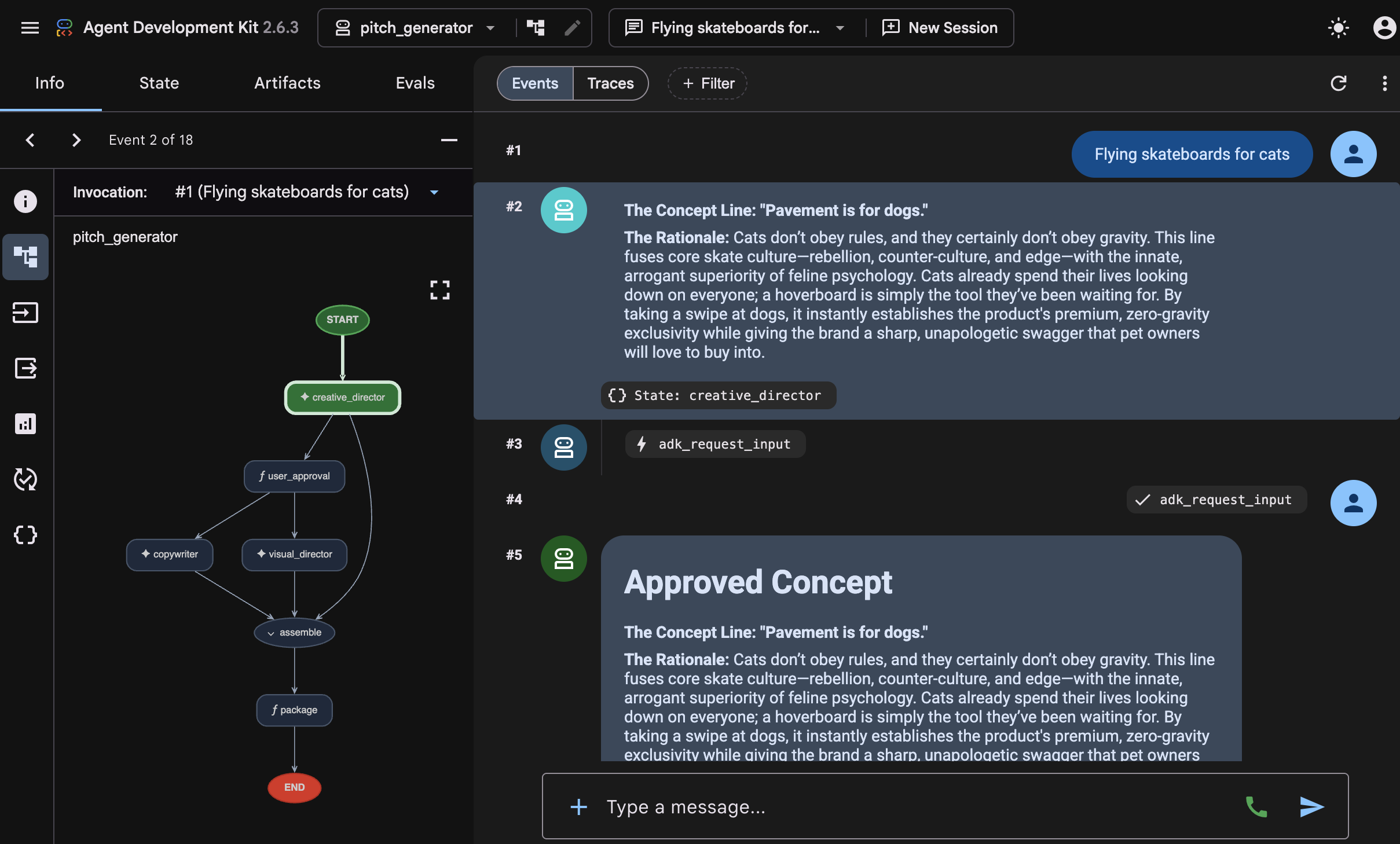
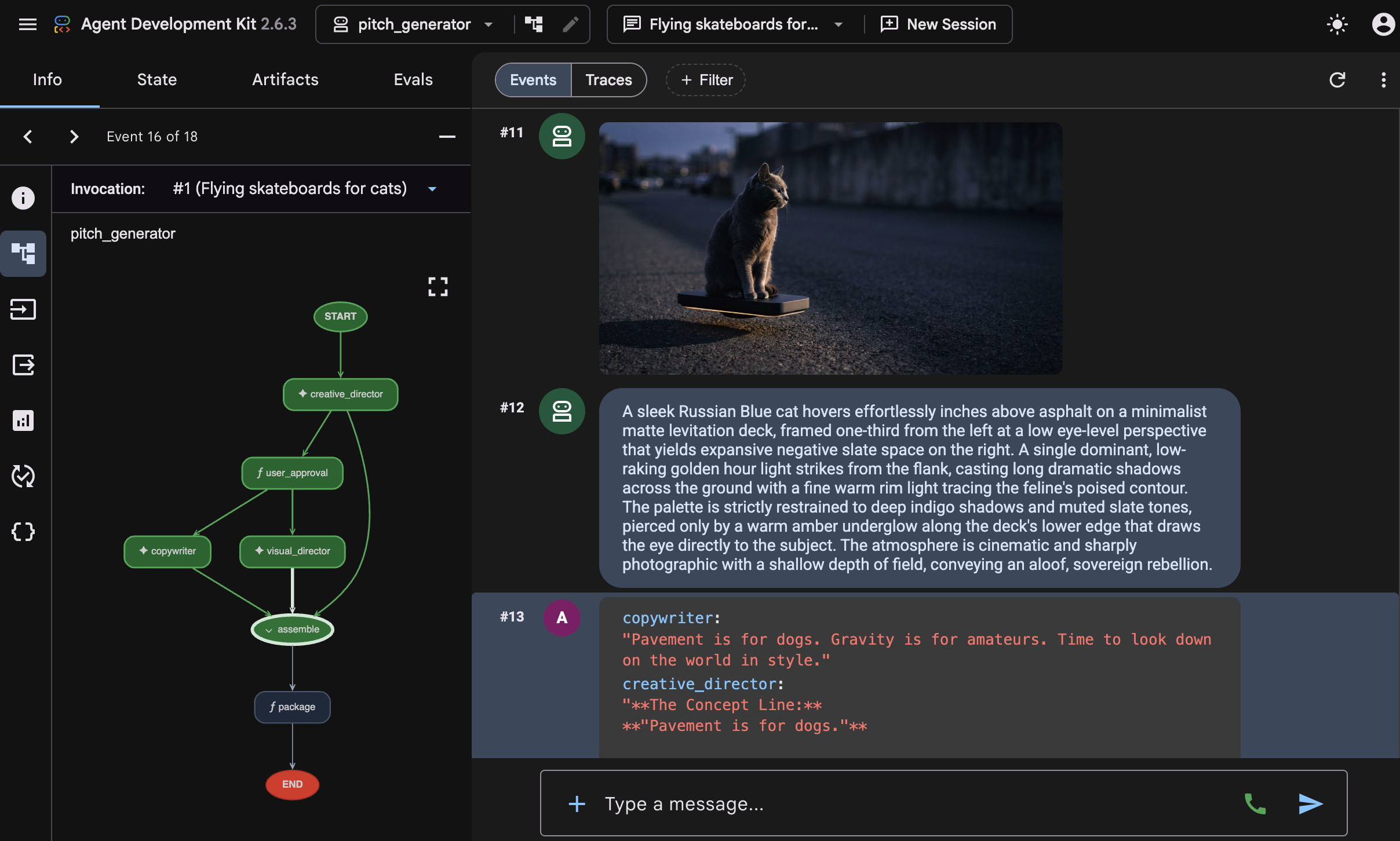 ワークフローが開始され、各エージェントが実行されるインタラクション全体が表示されます。
creative_directorがコンセプトのドラフトを作成すると、ワークフローは承認ゲートで一時停止し、「キャンペーンのコンセプトを承認しますか?(はい/いいえ)」という確認メッセージが表示されます。入力フィールドに「yes」と入力して続行します。承認されると、グラフが広がり、visual-directorエージェントがスキルの読み込みを開始したタイミングと、画像生成の途中でcopywriterエージェントがソーシャル メディアのキャプションの生成を完了したタイミングを確認できます。これは、両方のエージェントが互いを待たずに並行して実行されていることを示しています。両方が完了すると、assembleノードはcreative_directorによって生成された承認済みのコンセプトと結果を結合し、package関数でピッチ コンテンツの配信を完了します。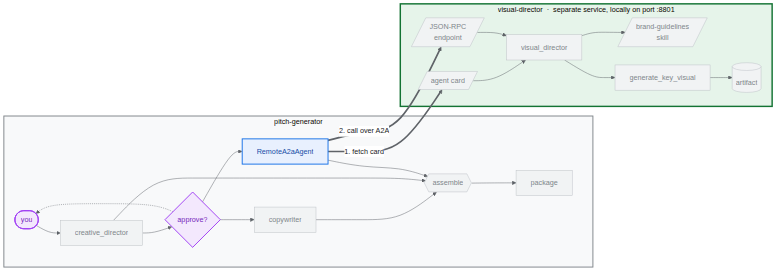
8. キービジュアルを Cloud Storage に保持する
これまでのところ、すべてのキービジュアルはメモリに保存されています。プロセスが停止すると画像は消えます。これはプレイグラウンドでは問題ありませんが、キャンペーンでは役に立ちません。このタスクでは、ワークフローに書き込み先のバケットを指定し、最後のタスクで使用する BigQuery データセットを作成します。
ADK は、起動時にアーティファクトの配置場所を決定します。生成された app_utils/services.py は、単一の環境変数を読み取ります。
def get_artifact_service():
    """Process-wide artifact service: GCS when a bucket is set, else in-memory."""
    if bucket := os.environ.get("LOGS_BUCKET_NAME"):
        return GcsArtifactService(bucket_name=bucket)
    return InMemoryArtifactService()
LOGS_BUCKET_NAME を設定すると、すべての save_artifact 呼び出しが Cloud Storage に転送されます。

BigQuery データセットを作成する
- Cloud Shell で次のコマンドを実行して、BigQuery データセットを作成します。
bq mk --dataset --location=<YOUR_REGION> --project_id=<YOUR_PROJECT_ID> bwg - コーディネーターのアーティファクト ストアをバケットに指定します。
export LOGS_BUCKET_NAME="<YOUR_PROJECT_ID>-bwg"GcsArtifactServiceは、gs://接頭辞のないバケット名を受け取ります。他の変数と同様に、この変数はシェルに存在し、デプロイ タスクによって Cloud Run に渡されます。 - バケットの内容を確認します。新しいブラウザタブで次の URL を開きます。
https://console.cloud.google.com/storage/browser?project=<YOUR_PROJECT_ID>
9. Visual Director エージェントを Cloud Run にデプロイする
これまでのところ、すべてが 1 台のマシンで実行されており、Visual Director には localhost:8801 でアクセスできます。このタスクでは、Visual Director エージェントを独自の Cloud Run サービスとしてデプロイし、Agent2Agent(A2A)プロトコルを使用して、ピッチ ジェネレータがネットワーク経由で Visual Director エージェントと通信できるようにします。
Visual Director は実際の https:// URL を取得するため、先ほど作成した _cloud_run_client は None を返す代わりにリクエストの署名を開始します。また、Cloud Run はデフォルトで非公開でデプロイされます。
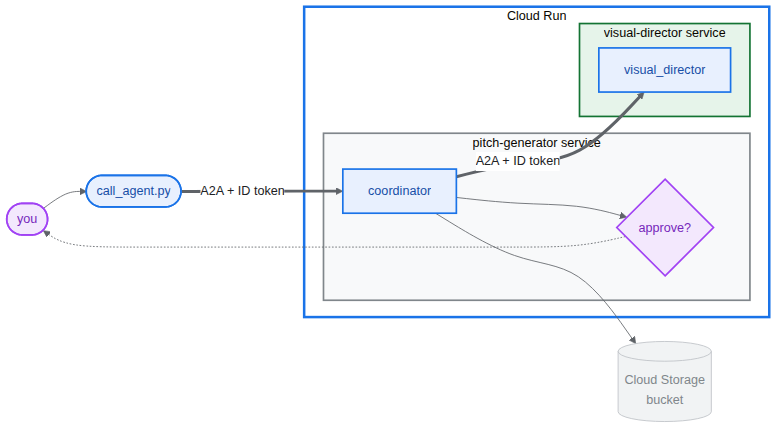
Visual Director をデプロイする
- ローカル バックグラウンド サービスとプレイグラウンドがまだ実行中の場合は、停止します。
fuser -k 8801/tcp 2>/dev/null || true fuser -k 8000/tcp 2>/dev/null || true - エージェントをデプロイします。これにより、コンテナがビルドされて push されます。⏰ これには数分かかります。
cd ~/devrel-demos/codelabs/bwg-multi-agent-pitch-generator/visual-director
source .env
agents-cli deploy \
  --service-name visual-director \
  --project <YOUR_PROJECT_ID> \
  --region <YOUR_REGION> \
  --no-confirm-project \
  --labels dev-tutorial=bwg001-devlab-1 \
  --update-env-vars "LOGS_BUCKET_NAME=$LOGS_BUCKET_NAME,GOOGLE_GENAI_USE_VERTEXAI=true,GOOGLE_CLOUD_PROJECT=$GOOGLE_CLOUD_PROJECT,GOOGLE_CLOUD_LOCATION=$GOOGLE_CLOUD_LOCATION,GOOGLE_CLOUD_REGION=$GOOGLE_CLOUD_REGION"
Cloud Run にデプロイされた Visual Director を使用する Pitch Generator を実行する
- Visual Director の URL を読み取り、それを使用する Pitch Generator を実行します。
cd ~/devrel-demos/codelabs/bwg-multi-agent-pitch-generator/pitch-generator
source .env
export VISUAL_DIRECTOR_URL=$(gcloud run services list \
  --project <YOUR_PROJECT_ID> \
  --region <YOUR_REGION> \
  --flatten='spec.template.spec.containers[0].env' \
  --filter='metadata.name=visual-director AND spec.template.spec.containers[0].env.name=APP_URL' \
  --format='value(spec.template.spec.containers[0].env.value)')
echo "Visual Director is at $VISUAL_DIRECTOR_URL"
APP_URL=http://localhost:8000 nohup uv run uvicorn pitch_generator.fast_api_app:app --port 8000 > /tmp/visual-pitch_generator.log 2>&1 &
デプロイされたワークフローを呼び出す
どちらのエージェントも A2A プロトコルをサポートしています。リポジトリには、A2A 経由で Pitch Generator を呼び出すための小さなクライアントが同梱されています。
PITCH_GENERATOR_URL をローカルで実行されている Pitch Generator の URL に設定する必要があります。一方、ビジュアル ディレクターは Cloud Run で実行され、ピッチ ジェネレータは A2A を介してビジュアル ディレクターと通信します。
- クライアントをプロジェクトにコピーして実行します。
cd ~/devrel-demos/codelabs/bwg-multi-agent-pitch-generator/pitch-generator cp ../solution/pitch-generator/call_agent.py . PITCH_GENERATOR_URL=http://localhost:8000 uv run python call_agent.py "Flying skateboards for cats" --save-image ./key_visual.png=== HUMAN APPROVAL REQUIRED === [DRAFT CONCEPT] Concept Line: "Gravity is a Suggestion." ... Please approve the campaign concept (yes/no):yes」と入力して Enter キーを押し、ワークフローを承認して続行します。(-yまたは--auto-approveを渡して自動的に承認することもできます)。 call_agent.pyを開き、a2a-sdkを使用してエージェントとどのようにやり取りするかを確認します。ClientFactoryは、https://SERVICE_URL/a2a/pitch_generatorをターゲットとする公式の A2AClientをビルドします。generate_pitch_asyncが最初のSendMessageRequestを送信します。レスポンスがTaskState.TASK_STATE_INPUT_REQUIREDで返されると、adk_request_input部分が検出され、下書きのコンセプトが表示され、承認が収集され、レスポンスを含む再開リクエストがタスクに送信されます。- 解析ループは、完了したタスクのアーティファクトから
CONCEPT、COPY、ART DIRECTIONの各セクションを読み取り、バイナリ イメージをkey_visual.pngに保存します。
key_visual.pngに保存されます。- BigQuery が参照できる接頭辞の下のバケットにキービジュアルをアップロードします。
gcloud storage cp ./key_visual.png gs://<YOUR_PROJECT_ID>-bwg/key-visuals/cats.png - 比較対象となる 2 つ目のピッチを生成してアップロードします。
PITCH_GENERATOR_URL=http://localhost:8000 uv run python call_agent.py "A commuter bike built for rainy cities" --save-image ./bike.png
gcloud storage cp ./bike.png gs://<YOUR_PROJECT_ID>-bwg/key-visuals/bike.png
10. BigQuery でブランド適合性のキービジュアルをスコアリングする
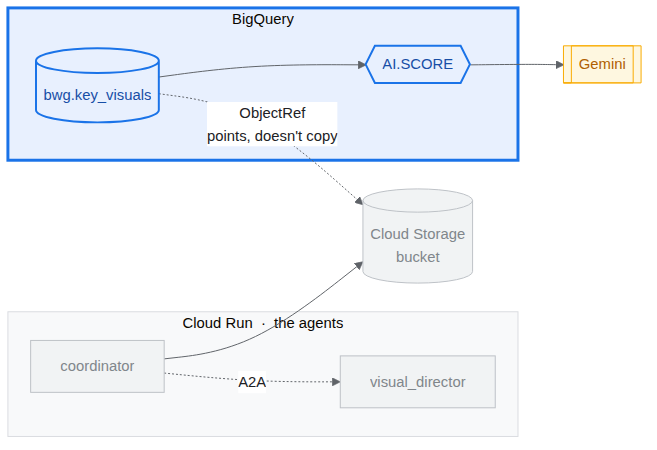
これで、バケットに画像が格納され、それらを形作るはずのブランド ガイドラインが作成されました。このタスクでは、BigQuery から画像を参照し、Gemini モデルにガイドラインに沿って各画像を評価するよう依頼します。Cloud Storage から 1 バイトも移動しません。
この処理は、BigQuery の次の 2 つの機能によって行われます。
ObjectRefは、Cloud Storage オブジェクトを指す値です。OBJ.MAKE_REFは、URI と、バケットへの BigQuery 委任アクセス権を付与する接続から 1 つを構築します。設定スクリプトによって作成されたpitch-connectionはその接続であり、すでに Storage オブジェクト閲覧者と Agent Platform ユーザーを保持しています。AI.SCOREはプロンプトを受け取り、FLOAT64を返します。プロンプトでは文字列とObjectRef値を混在させることができるため、モデルはルーブリックと画像を同時に認識します。
キービジュアルの表を作成する
- 新しいブラウザタブで BigQuery Studio を開きます。
https://console.cloud.google.com/bigquery?project=<YOUR_PROJECT_ID> - [新しいクエリを作成](+ アイコン)をクリックし、次のクエリを貼り付けて [実行] します(
SET @@location = '<YOUR_REGION>';

CREATE OR REPLACE TABLE bwg.key_visuals AS
SELECT
  campaign,
  concept,
  OBJ.FETCH_METADATA(
    OBJ.MAKE_REF(uri, '<YOUR_REGION>.pitch-connection')
  ) AS key_visual
FROM UNNEST([
  STRUCT(
    'cats' AS campaign,
    'Flying skateboards for cats' AS concept,
    'gs://<YOUR_PROJECT_ID>-bwg/key-visuals/cats.png' AS uri
  ),
  STRUCT(
    'bike',
    'A commuter bike built for rainy cities',
    'gs://<YOUR_PROJECT_ID>-bwg/key-visuals/bike.png'
  )
]);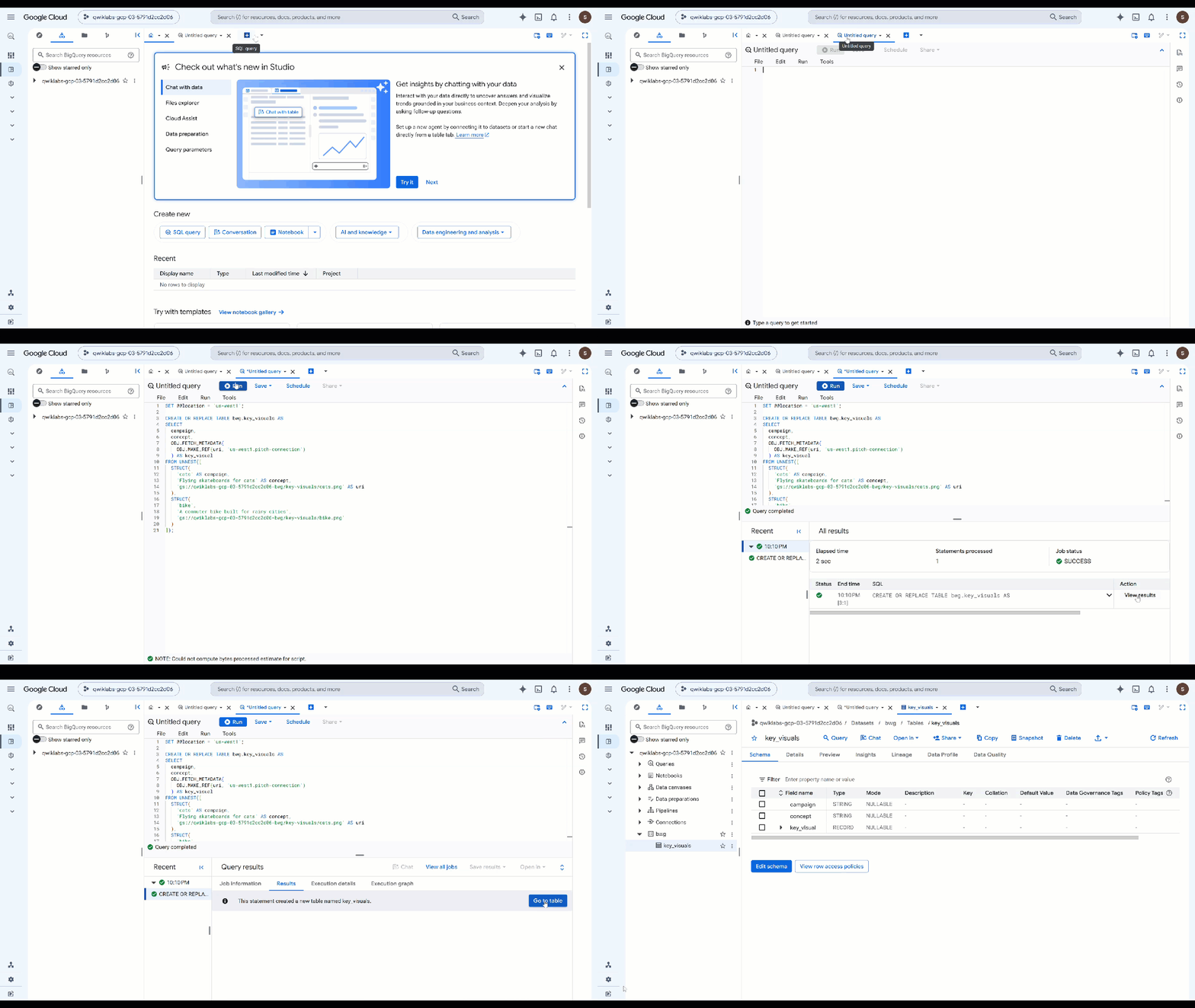
OBJ.MAKE_REFは、URI と接続から参照をビルドします。OBJ.FETCH_METADATAは Cloud Storage に接続し、オブジェクトのサイズ、コンテンツ タイプ、世代を入力します。この 2 回目の呼び出しは、接続が機能していることを確認する最も簡単な方法でもあります。権限が正しくない場合、detailsフィールドにはメタデータではなくエラーが返されます。 - 保存した内容を検査します。前のクエリを次のクエリに置き換えて、実行します。
SELECT campaign, concept, key_visual.uri, key_visual.details
FROM bwg.key_visuals;
ブランド ガイドラインに照らして各画像を評価する
ビジュアル ディレクターは、パレット、照明ルール、構図ルールに従うよう指示されました。実際に実行されたかどうかは判断が必要であり、それが AI.SCORE の目的です。
- 次のクエリを実行します(
ObjectRefのタプルです。SELECT campaign, concept, AI.SCORE( ('''You are the brand guardian reviewing a campaign key visual. Score the attached image from 1 to 10 on how closely it follows these house rules: - Palette: deep indigo and slate, with one warm accent of amber or terracotta. Nothing neon. - Light: one dominant low, raking source with long shadows. No flat overhead light. - Composition: subject off-center with generous empty negative space on the opposite side. - Subject: one subject only, photographic realism, shallow depth of field. - Never: text, logos, or watermarks anywhere in the frame. A 10 obeys every rule. A 1 ignores them. The campaign concept is: ''', concept, key_visual), connection_id => '<YOUR_REGION>.pitch-connection', endpoint => 'gemini-3.5-flash' ) AS brand_fit FROM bwg.key_visuals ORDER BY brand_fit DESC; - スコアをチームが対応できる判定に変換します。
CREATE OR REPLACE TABLE bwg.brand_review AS SELECT campaign, concept, brand_fit, IF(brand_fit >= 7, 'on brand', 'needs another pass') AS verdict FROM ( SELECT campaign, concept, AI.SCORE( ('''Score this campaign key visual from 1 to 10 on how closely it follows the house brand rules: deep indigo and slate palette with a single warm accent and nothing neon; one low raking light source with long shadows; the subject off-center with empty negative space opposite; a single photographic subject; and no text, logos, or watermarks in the frame. The campaign concept is: ''', concept, key_visual), connection_id => '<YOUR_REGION>.pitch-connection', endpoint => 'gemini-3.5-flash' ) AS brand_fit FROM bwg.key_visuals ); SELECT * FROM bwg.brand_review ORDER BY brand_fit DESC;AI.SCOREはFLOAT64のみを返すため、しきい値はプレーン SQL に存在し、プロンプトを変更せずに調整できます。スコアリングは行ごとに行われるため、ここで生成した 2 つのアセットだけでなく、キャンペーンで生成されたすべてのアセットに同じルーブリックが適用されます。
11. 次のステップ
評価を作成する
エージェント型評価(「evals」)は、自律型 AI エージェントが推論、計画、ツール使用、複数ステップのワークフローの完了をどの程度うまく行えるかを測定するために使用される自動テストです。エージェントの単体テストに似ていますが、非決定的な性質を考慮しています。
エージェントの 1 つに Human in the loop が含まれています。これは、入力待ちであることを意味します。この動作が自動評価の妨げにならないように、Antigravity に現在のコードの変更を許可する必要があります。
始めるには、Antigravity CLI に問い合わせるのがおすすめです。
Cloud Shell に次のように入力して、CLI を起動します。
cd ~/devrel-demos/codelabs/bwg-multi-agent-pitch-generator/
agy
まずは、次のプロンプトをお試しください。
Explore this repository (`pitch-generator` and `visual-director`), including their agent instructions, tools, and `SKILL.md` files. Design and implement a creative `agents-cli eval` evaluation suite under `tests/eval/` that stress-tests the agent's behavior.
評価の例と、その実行手順は、クローンを作成したリポジトリにもあります。
12. クリーンアップ
この Codelab で使用したリソースについて、Google Cloud アカウントに課金されないようにするには、プロジェクトを削除するか(推奨)、Codelab で作成した個々のリソースを削除します。
gcloud run services delete visual-director --region=<YOUR_REGION> --project=<YOUR_PROJECT_ID> --quiet
bq rm -r -f -d <YOUR_PROJECT_ID>:bwg
bq rm --connection --location=<YOUR_REGION> --project_id=<YOUR_PROJECT_ID> pitch-connection
gcloud storage rm -r gs://<YOUR_PROJECT_ID>-bwg
13. 完了
この Codelab では、Agent Development Kit を使用してマルチエージェント キャンペーンの提案ジェネレータを構築しました。3 つのエージェントを決定論的グラフ ワークフローに接続し、ブランド ガイドラインをオンデマンドで読み込まれるエージェント スキルとしてパッケージ化し、出力をアーティファクトとして保存する画像生成ツールをエージェントに提供しました。次に、Visual Director を独自の A2A サービスに分割し、リモートノードとしてグラフに埋め込み、Cloud Run にデプロイし、ローカルで実行されているコーディネーターから A2A 経由でワークフロー全体を呼び出しました。最後に、BigQuery から生成されたキービジュアルを ObjectRef で参照し、AI.SCORE を使用して独自のブランド ガイドラインに照らして判断しました。