

1. บทนำ
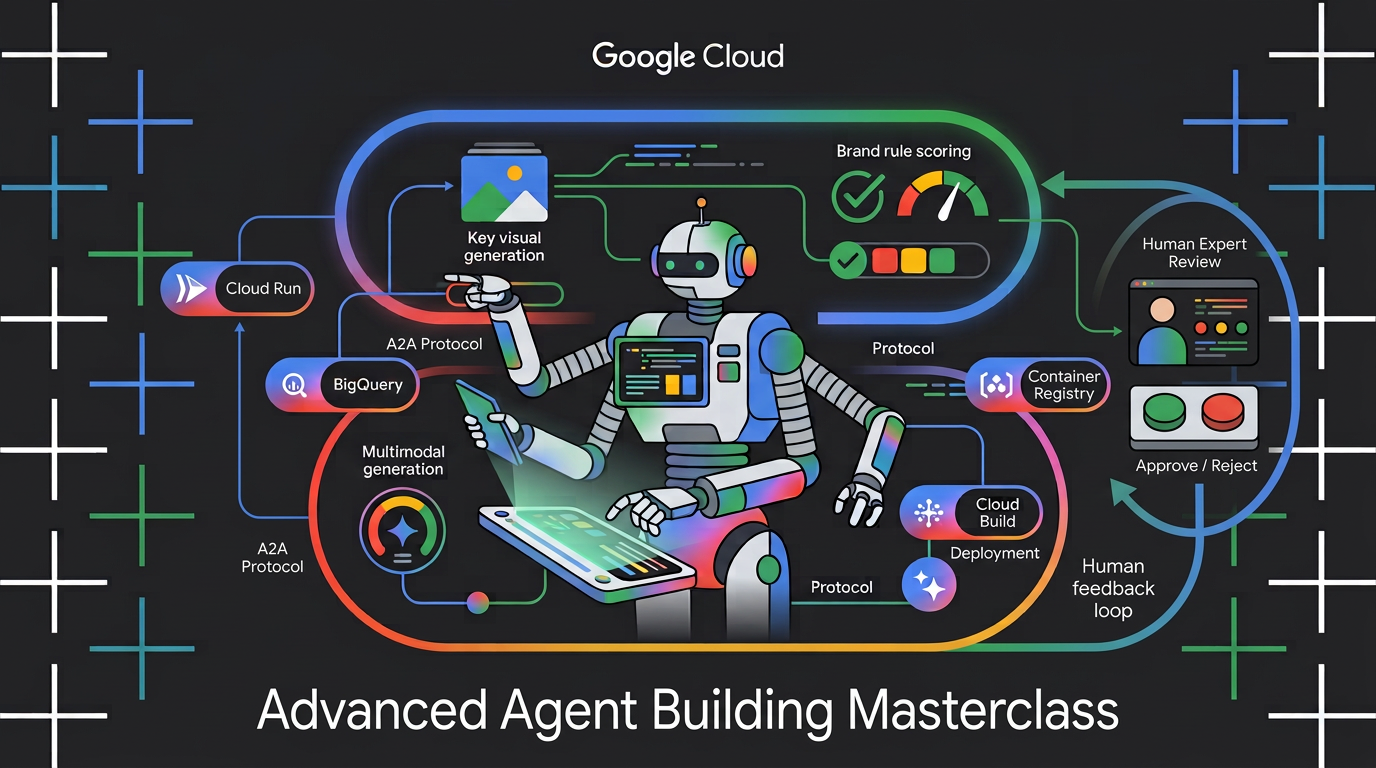
ดูวิธีสร้างเครื่องมือแบบหลายโมดอลและหลายเอเจนต์ที่รับบรีฟหัวข้อดิบและจัดการการสร้างชิ้นงานโซเชียลที่ดึงดูดใจสูง การใช้ Agent Development Kit (ADK) ของ Google และโปรโตคอล Agent2Agent (A2A) คุณจะสร้าง Micro-Agent แบบอัตโนมัติ จัดทำกฎของแบรนด์เป็นทักษะของ Agent ที่นำกลับมาใช้ใหม่ได้ ติดตั้งใช้งานบริการ Agent ใน Cloud Run และให้คะแนนภาพหลักที่สร้างขึ้นเพื่อการปฏิบัติตามข้อกำหนดของแบรนด์ด้วยฟังก์ชัน AI ของ BigQuery
สิ่งที่คุณจะทำ
ใน Codelab นี้ คุณจะได้เรียนรู้วิธีทำงานต่อไปนี้
- จัดระเบียบ Agent ADK หลายตัวด้วยเวิร์กโฟลว์กราฟที่กำหนดได้
- จัดทำหลักเกณฑ์การใช้แบรนด์เป็นทักษะของตัวแทนที่จะโหลดเมื่อจำเป็นเท่านั้น
- จัดเตรียมเครื่องมือสร้างรูปภาพให้กับเอเจนต์ซึ่งจะบันทึกเอาต์พุตเป็นอาร์ติแฟกต์
- เปิดเผย Agent เป็นบริการ A2A และเรียกใช้จาก Agent อื่นเป็นโหนดระยะไกล
- ติดตั้งใช้งาน Visual Director ใน Cloud Run และเรียกเวิร์กโฟลว์ผ่าน A2A
- ให้คะแนนภาพหลักที่สร้างขึ้นเพื่อความเหมาะสมกับแบรนด์ใน BigQuery ด้วยฟังก์ชัน AI
สิ่งที่คุณต้องมี
- เว็บเบราว์เซอร์ (เช่น Chrome)
- บัญชี Google Cloud และโปรเจ็กต์ Google Cloud ที่เปิดใช้การเรียกเก็บเงิน
2. ก่อนเริ่มต้น
สร้างโปรเจ็กต์ Google Cloud
- ในคอนโซล Google Cloud ให้เลือกหรือสร้างโปรเจ็กต์ Google Cloud ในหน้าตัวเลือกโปรเจ็กต์
- ตรวจสอบว่าโปรเจ็กต์ที่อยู่ในระบบคลาวด์เปิดใช้การเรียกเก็บเงินแล้ว ดูวิธีตรวจสอบว่าได้เปิดใช้การเรียกเก็บเงินในโปรเจ็กต์แล้วหรือไม่
เริ่มต้น Cloud Shell
คุณจะใช้ Google Cloud Shell เพื่อดาวน์โหลดโค้ด เรียกใช้สคริปต์การตั้งค่า และติดตั้งใช้งานแอปพลิเคชัน
- เปิด Google Cloud Shell ในเบราว์เซอร์ (หรือคลิกเปิดใช้งาน Cloud Shell ที่ด้านบนของ คอนโซล Google Cloud)
https://shell.cloud.google.com/ - กำหนดค่ารหัสโปรเจ็กต์ Google Cloud และภูมิภาค (เช่น
us-central1) ในสภาพแวดล้อมโดยวางข้อความนี้ในเทอร์มินัล (แทนที่export PROJECT_ID="<YOUR_PROJECT_ID>" export REGION="<YOUR_REGION>" gcloud config set project $PROJECT_ID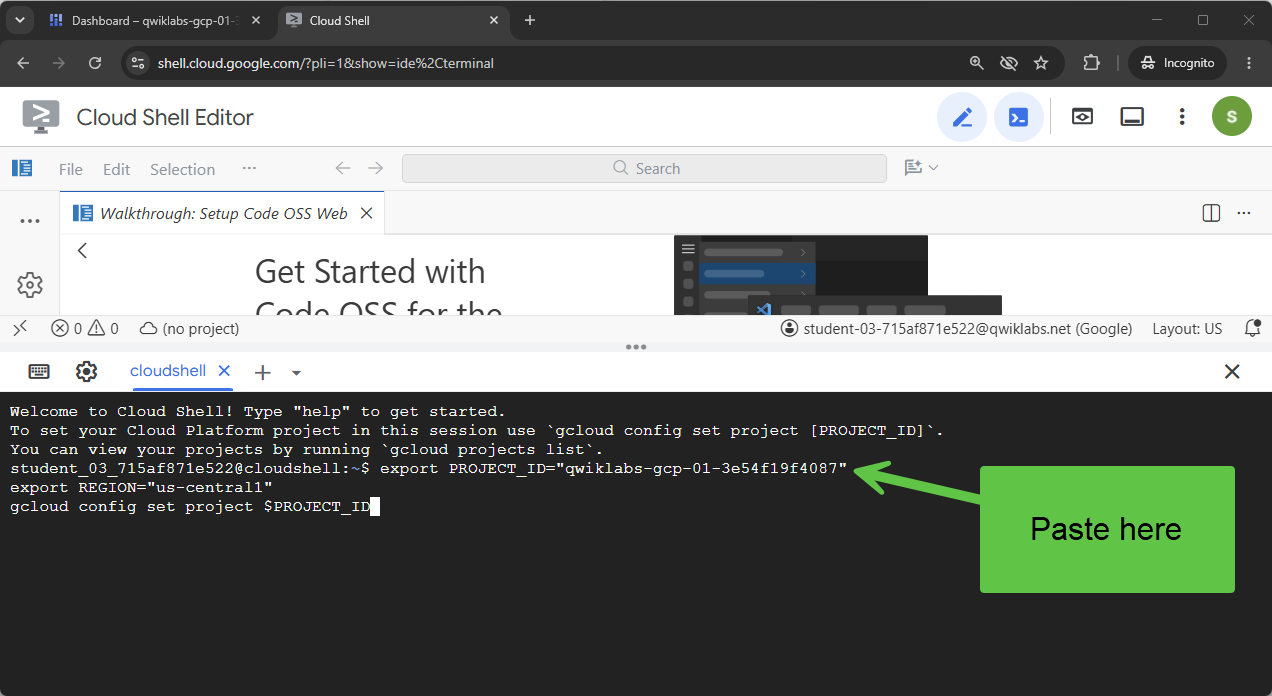 คุณควรเห็นข้อความที่คล้ายกับข้อความต่อไปนี้
Your active configuration is: [cloudshell-####] Updated property [core/project] - เปิดใช้ Google Cloud API ที่จำเป็นสำหรับโปรเจ็กต์ของคุณ
gcloud services enable \
  compute.googleapis.com \
  cloudresourcemanager.googleapis.com \
  aiplatform.googleapis.com \
  storage.googleapis.com \
  storage-component.googleapis.com \
  bigqueryconnection.googleapis.com \
  bigquery.googleapis.com \
  run.googleapis.com \
  secretmanager.googleapis.com \
  cloudbuild.googleapis.com \
  artifactregistry.googleapis.com \
  iap.googleapis.com \
  iam.googleapis.com
โคลนที่เก็บ
เรามีเทมเพลตโค้ดที่จะช่วยให้คุณเริ่มต้นใช้งาน Codelab ได้ แม้จะมีขนาดค่อนข้างเล็ก แต่ที่เก็บ GitHub ที่ไฟล์นี้อยู่มีขนาดค่อนข้างใหญ่ โดยปกติแล้วเราจะใช้ git clone พร้อมตัวเลือก --filter=blob:none และ git sparse-checkout รวมถึงคำสั่งอื่นๆ เพื่อเร่งความเร็วการโคลนและประหยัดพื้นที่ดิสก์
ฟังดูซับซ้อนมาก แต่ Antigravity ทำทุกอย่างให้เราได้
ก่อนอื่น มากำหนดค่า Antigravity CLI เพื่อให้สามารถแก้ปัญหาได้โดยตรง แล้วเปิดใช้
ใน Cloud Shell ให้เรียกใช้คำสั่งนี้
source <(curl -fsSL https://github.com/GoogleCloudPlatform/devrel-demos/raw/refs/heads/vladkol/cloud-shell-configure-agy/codelabs/labs-scripts/bwg-multi-agent-pitch-generator/cloud_shell_configure_agy.sh)
คำสั่งนี้จะกำหนดค่า Antigravity CLI และเปิดใช้ในเทอร์มินัลเดียวกัน เมื่อออกจาก Antigravity CLI คุณจะกลับไปที่พรอมต์ของ Cloud Shell

เราต้องการเพียงโฟลเดอร์ codelabs/bwg-multi-agent-pitch-generator ในที่เก็บ มาขอให้ Antigravity ดาวน์โหลดเฉพาะโฟลเดอร์นั้นและเก็บไว้ในเครื่องใน ~/devrel-demos/codelabs/bwg-multi-agent-pitch-generator/ กัน
มอบหมายงานนี้ให้ Antigravity CLI
Download files from under `https://github.com/GoogleCloudPlatform/devrel-demos/tree/main/codelabs/bwg-multi-agent-pitch-generator`
to folder `~/devrel-demos/codelabs/bwg-multi-agent-pitch-generator/`.
If `devrel-demos` folder already exists, rename it with a `.backup` suffix.

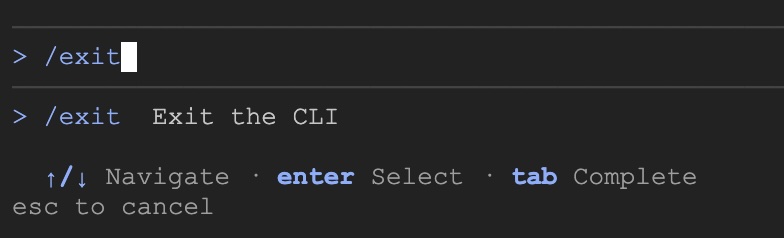
Antigravity จะดำเนินการตามงาน โดยจะขอสิทธิ์จากคุณเพื่อเรียกใช้คำสั่ง 2-3 รายการ เมื่อดาวน์โหลดโค้ดแล้ว ให้ออกจาก Antigravity CLI โดยเรียกใช้คำสั่ง /exit
/exit
เปิดพื้นที่ทำงานของที่เก็บ
ตอนนี้มาเปิดพื้นที่ทำงานของโค้ดใน Cloud Shell กัน เรียกใช้คำสั่งนี้ในเทอร์มินัล Cloud Shell
cd ~/devrel-demos/codelabs/bwg-multi-agent-pitch-generator/
cloudshell workspace .
เรียกใช้สคริปต์การตั้งค่า
หากต้องการให้ประสบการณ์การใช้งานนี้ราบรื่นยิ่งขึ้น ให้เรียกใช้สคริปต์การตั้งค่าจากที่เก็บ โดยจะกำหนดค่าตัวแปรสภาพแวดล้อม ติดตั้ง agents-cli สร้างที่เก็บข้อมูล Cloud Storage สำหรับอาร์ติแฟกต์ สร้างการเชื่อมต่อทรัพยากรระบบคลาวด์ BigQuery และให้สิทธิ์ IAM ที่จำเป็นแก่บัญชีบริการที่มีการลองใหม่โดยอัตโนมัติ
สคริปต์การตั้งค่ายังเรียกใช้ setenv.sh ซึ่งเป็นตัวช่วยขนาดเล็กที่ได้ตัวแปรที่เอเจนต์ทั้ง 2 รายการต้องการ ได้แก่ GOOGLE_CLOUD_PROJECT, GOOGLE_CLOUD_REGION, GOOGLE_CLOUD_LOCATION และ GOOGLE_GENAI_USE_VERTEXAI จาก PROJECT_ID และ REGION ที่คุณส่งออกไว้ข้างต้น นอกจากนี้ ยังบันทึกค่าทั้ง 2 ค่าลงในไฟล์ .env ในไดเรกทอรีหน้าแรกเพื่อให้คุณกู้คืนได้ในภายหลัง
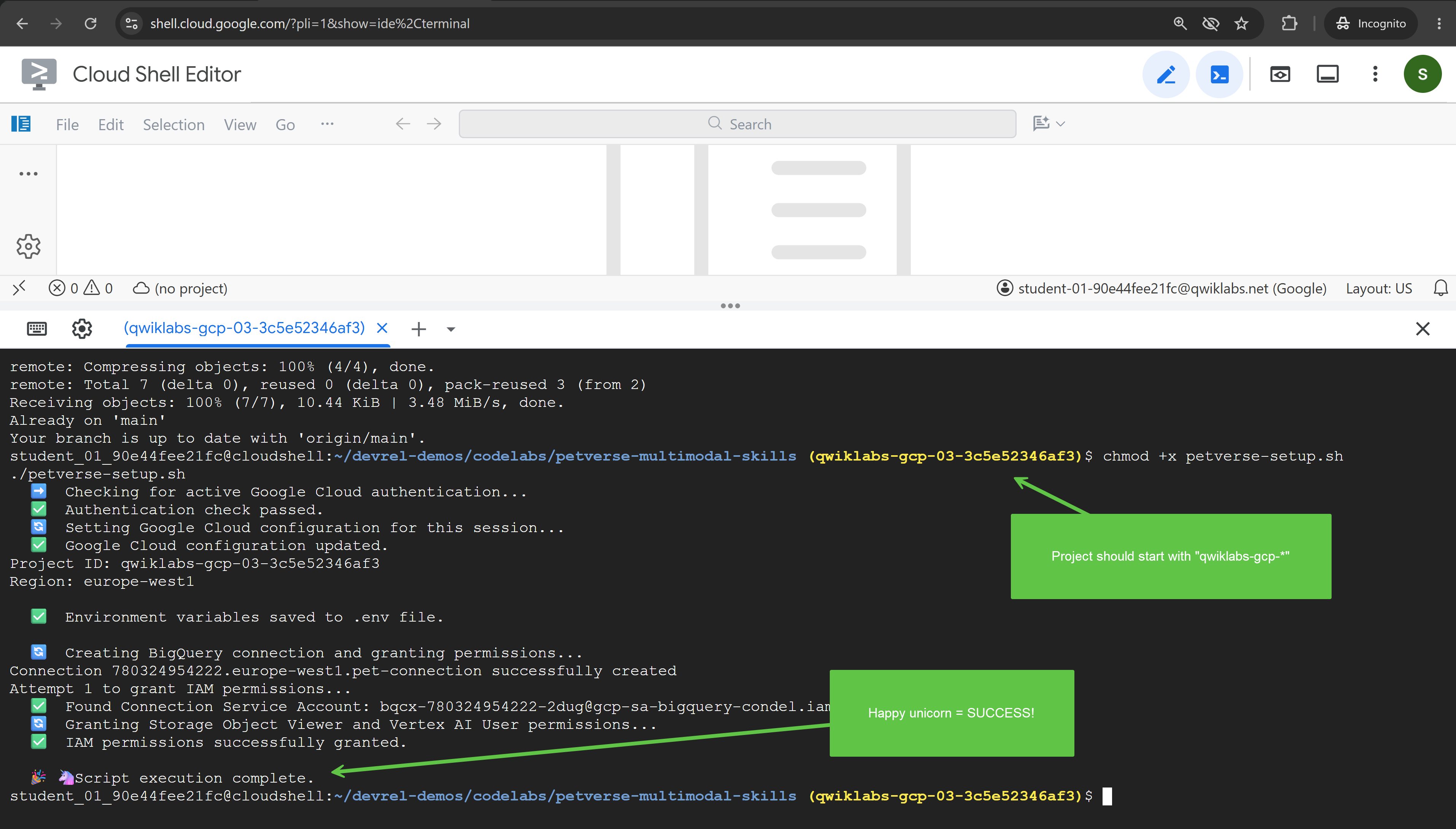
- ใน Cloud Shell ให้ทำให้สคริปต์การตั้งค่าเรียกใช้งานได้ แล้วดำเนินการ
chmod +x codelab-setup.sh setenv.sh ./codelab-setup.sh - การดำเนินการนี้จะใช้เวลาประมาณ 1 นาที คุณควรเห็นข้อความนี้ซึ่งบ่งบอกว่าสำเร็จแล้ว "🎉 🦄 การเรียกใช้สคริปต์เสร็จสมบูรณ์"
- สคริปต์การตั้งค่าทำงานในเชลล์ของตัวเอง ดังนั้นตัวแปรจึงไม่ถึงเทอร์มินัลของคุณ โหลดลงในเซสชันโดยทำดังนี้
source ./setenv.sh
3. จัดการ Agent ด้วยเวิร์กโฟลว์กราฟ
ในงานนี้ คุณจะสร้างโปรเจ็กต์เครื่องมือสร้างการเสนอเพลงและสร้างเวิร์กโฟลว์กราฟที่เรียกใช้เอเจนต์ 2 รายและรวมเอาต์พุตของเอเจนต์ทั้ง 2 ราย
การเสนอเพลงต้องมีแนวคิด ซึ่งหมายถึงไอเดียและชิ้นงานที่ขายแนวคิดนั้น ในกรณีการใช้งานนี้ เราจะออกแบบเอเจนต์ที่มีความรับผิดชอบแตกต่างกันในขอบเขตของงาน เพื่อแสดงให้เห็นว่าคุณจะแยกงานที่ซับซ้อนและมอบหมายงานเหล่านั้นให้กับเอเจนต์ต่างๆ ที่มีความรับผิดชอบที่แตกต่างกันได้อย่างไร ซึ่งจะช่วยให้จัดการได้ง่ายขึ้น
การแบ่งงานประเภทนี้ระหว่างผู้เชี่ยวชาญต้องมีสิ่งที่จะประสานงานเมื่อเจ้าหน้าที่แต่ละคนทำงาน คุณสามารถเลือกให้ Agent ตัดสินใจว่าจะโทรหา Agent ย่อย แต่ละรายเมื่อใด หรือจะใช้วิธีการเชิงกำหนดก็ได้ ใน Codelab นี้ คุณจะใช้วิธีการที่แน่นอนกับเวิร์กโฟลว์กราฟ
วางโครงสร้างโปรเจ็กต์ Agent แรก
- ใน Cloud Shell ให้สร้างโปรเจ็กต์โดยวางคำสั่งนี้ในเทอร์มินัล
cd ~/devrel-demos/codelabs/bwg-multi-agent-pitch-generator agents-cli create pitch-generator \ --agent adk \ --agent-directory pitch_generator \ --deployment-target cloud_run \ --session-type in_memory \ --cicd-runner skip \ --region <YOUR_REGION> \ --auto-approveDockerfileการทดสอบ Terraform สำหรับใช้ในภายหลัง และไฟล์.envพร้อมเทมเพลต.env.exampleCodelab นี้มี 2 ส่วนที่สำคัญ ดังนี้pitch_generator/agent.pyคือเอเจนต์และไฟล์ที่คุณเขียนใหม่pitch_generator/คือชื่อแพ็กเกจที่ตั้งค่าโดย--agent-directory
setenv.shจึงไม่ต้องกำหนดค่าใดๆ ที่นี่ - ติดตั้งทรัพยากร Dependency
cd pitch-generator
agents-cli update -y && agents-cli install && uv sync --upgrade-package google-adk
ทำความเข้าใจกราฟ
ADK v2.x รองรับเวิร์กโฟลว์กราฟ กราฟสร้างขึ้นจากโหนดซึ่งเป็นหน่วยของงาน และขอบซึ่งเชื่อมต่อโหนด โดยปกติแล้ว โหนดจะเป็นเอเจนต์ แต่ฟังก์ชัน Python ธรรมดาก็ใช้ได้เช่นกัน ขอบระบุว่าเมื่อโหนดหนึ่งทำงานเสร็จแล้ว โหนดอื่นจะทำงานต่อ
โดยจะเขียนขอบเป็นรายการ และ ADK จะกำหนดลำดับดังนี้
edges=[
    ("START", creative_director),        ## the graph begins here
    (creative_director, copywriter),     ## then this
]
การซ้อนจะทำให้ขอบมีความหมายดังนี้
Edge | ความหมาย |
| ห่วงโซ่ a แล้ว b แล้ว c ต่อกันไป |
| แฟนเอาต์ (Fan-Out) a แล้ว b และ c พร้อมกัน |
| fan-in. c รอทั้ง a และ b |
สำหรับ Fan-in คุณใช้ JoinNode ซึ่งจะรอทุกงานก่อนหน้าและส่งต่อเอาต์พุตพร้อมกัน
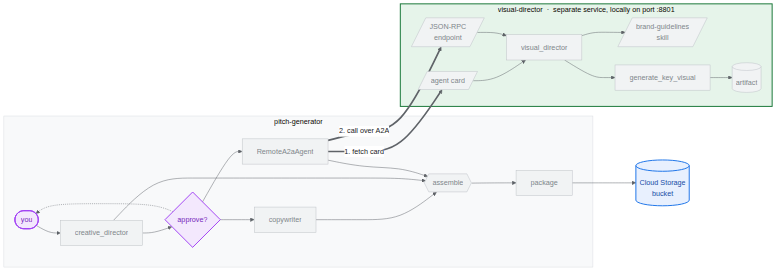
ในงานนี้ เราจะสร้างเวิร์กโฟลว์ต่อไปนี้
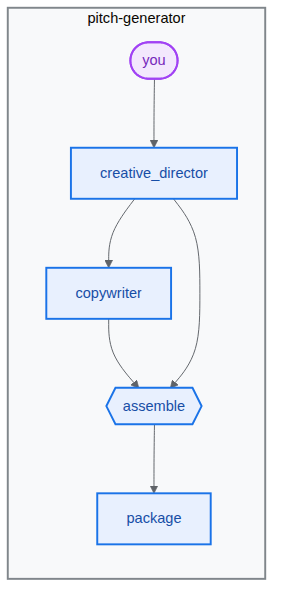
สร้างไปป์ไลน์
- เปิดไฟล์ Agent โดยวางข้อความนี้ในเทอร์มินัล
cd ~/devrel-demos/codelabs/bwg-multi-agent-pitch-generator/pitch-generator cloudshell edit pitch_generator/agent.pyagent.pyที่สร้างขึ้นในโปรแกรมแก้ไข Cloud Shell💡 เคล็ดลับ: คุณเลือกโค้ดและใช้หลอดไฟเพื่อขอให้ Gemini อธิบายได้ทุกเมื่อ หรือจะถาม Antigravity CLI ก็ได้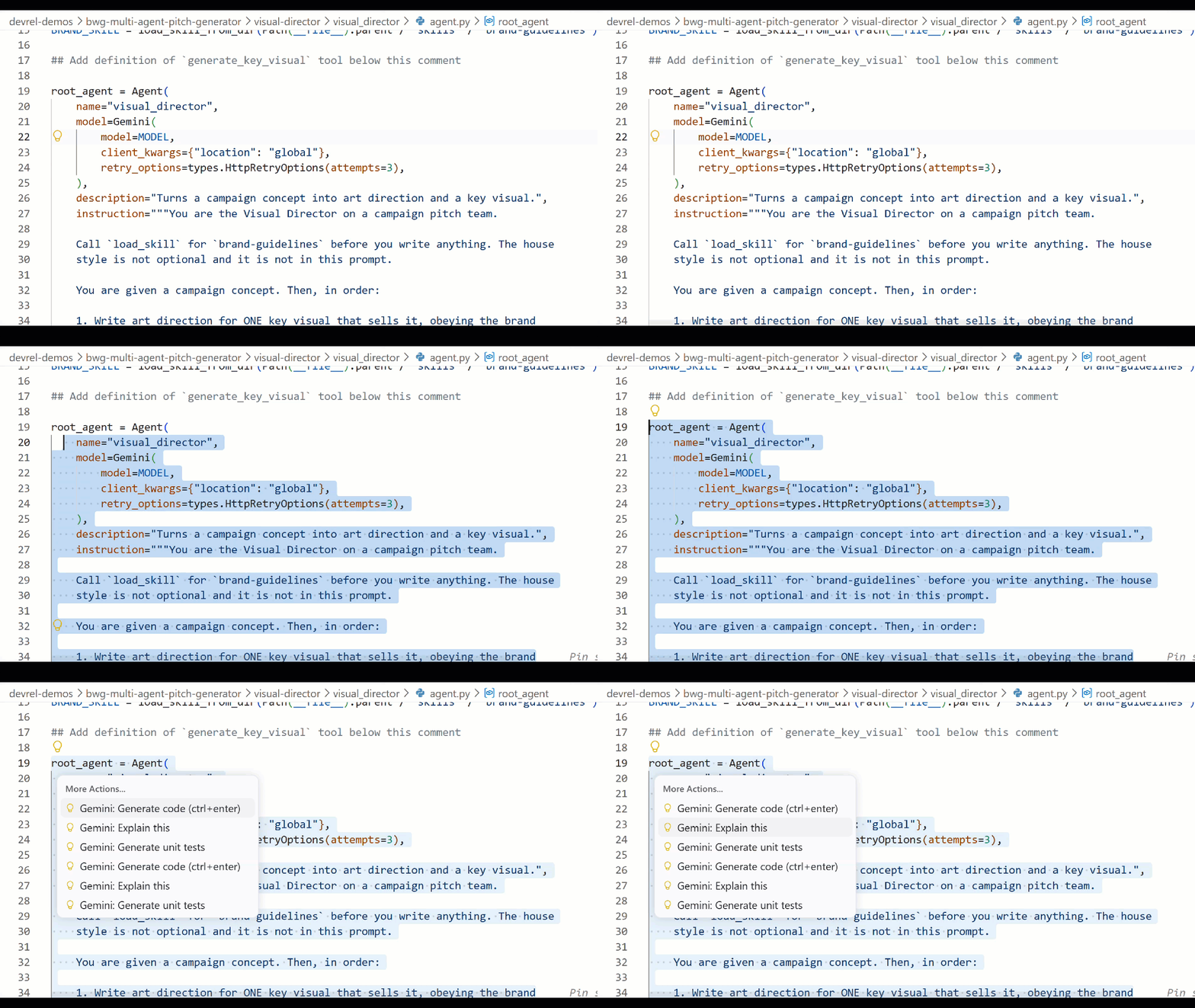
- แทนที่ทั้งไฟล์ใน
pitch_generator/agent.pyในโปรแกรมแก้ไขด้วยข้อมูลต่อไปนี้import mimetypes import os from dotenv import load_dotenv from google.adk.agents import Agent from google.adk.agents.context import Context from google.adk.agents.remote_a2a_agent import ( AGENT_CARD_WELL_KNOWN_PATH, RemoteA2aAgent, ) from google.adk.apps import App from google.adk.events.event import Event from google.adk.models import Gemini from google.adk.workflow import JoinNode, Workflow from google.genai import types load_dotenv() MODEL = "gemini-3.8-flash" def _model() -> Gemini: return Gemini( model=MODEL, client_kwargs={"location": "global"}, retry_options=types.HttpRetryOptions(attempts=3), ) """ ⬇️ Configure visual-director RemoteA2aAgent agent below this comment """ creative_director = Agent( name="creative_director", model=_model(), description="Turns a raw idea into a campaign concept.", instruction=( "You are the Creative Director. Turn the idea you are given into ONE " "punchy campaign concept line with the rationale explanation behind it." ), output_key="creative_director", ) copywriter = Agent( name="copywriter", model=Gemini(model=MODEL, retry_options=types.HttpRetryOptions(attempts=3)), description="Writes social copy for a campaign concept.", instruction=( "You are the Copywriter. Write ONE short social caption for the " "campaign concept you are given. Under 25 words." ), ) """ Waits for every node wired into it, then hands their outputs on together.""" assemble = JoinNode(name="assemble") def package(node_input: dict): """Render the joined branches as the finished pitch. """ pitch = "\n\n".join( [ f"CONCEPT\n{node_input['creative_director']}", f"COPY\n{node_input['copywriter']}", ] ) """ The first event is what the user sees. The second is the node's output, which any downstream node would receive.""" yield Event(content=types.Content(role="model", parts=[types.Part(text=pitch)])) yield Event(output=pitch) """ we put creative_director before `assemble` so that we can gather the `Concept` output at assemble""" root_agent = Workflow( name="pitch_generator", edges=[ ("START", creative_director), (creative_director, copywriter), ((creative_director, copywriter), assemble), (assemble, package), ], ) app = App( root_agent=root_agent, name="pitch_generator", ) agents-cliมี UI การพัฒนาเว็บในตัวที่เรียกว่าplaygroundสำหรับการตรวจสอบ ซึ่งคล้ายกับ ADK วิธีเริ่มใช้ Playgroundagents-cli playground --port 8080nแล้วกด Enter- คลิกตัวอย่างเว็บ ไอคอนรูปดวงตาที่ด้านขวาบนของเทอร์มินัล แล้วเลือกแสดงตัวอย่างในพอร์ต 8080

- คุณจะเห็นอินเทอร์เฟซต่อไปนี้เพื่อแชทกับตัวแทน ลองส่งพรอมต์ "สเกตบอร์ดบินได้สำหรับแมว" คุณจะเห็นคำตอบดังที่แสดงด้านล่าง ซึ่งคุณสามารถตรวจสอบกราฟเวิร์กโฟลว์แบบเต็มได้ด้วย
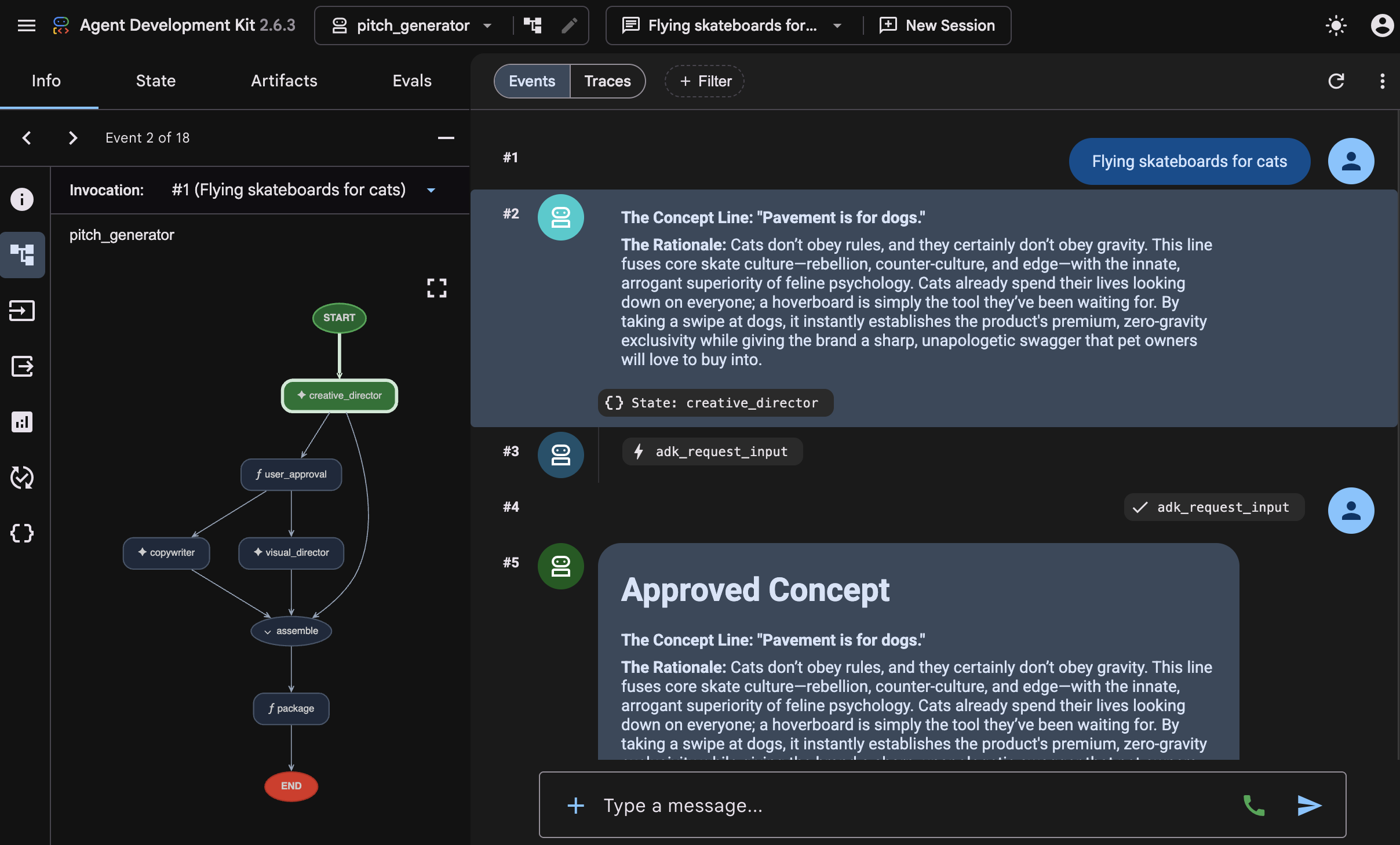 ตรวจสอบวิธีสร้างคำตอบนั้น สนามเด็กเล่นจะแสดงแต่ละขั้นตอนที่กราฟดำเนินการตามลำดับ ได้แก่
 creative_director,copywriter,assembleและpackageลำดับดังกล่าวคือกราฟที่คุณต่อสาย และวิธีนี้จะช่วยให้คุณยืนยันกราฟที่เพิ่งสร้างได้อย่างรวดเร็ว - กลับไปที่เทอร์มินัลและหยุดกระบวนการ
agents-cli playgroundที่กำลังทำงานโดยกด Ctrl+C 2 ครั้ง
4. มอบทักษะให้ Agent
ในงานนี้ คุณจะสร้างเอเจนต์ตัวที่ 2 และกำหนดหลักเกณฑ์การใช้แบรนด์เป็นชุดให้เอเจนต์ในรูปแบบของทักษะ
ไปป์ไลน์จะเขียนคำ ภาพต้องมีสไตล์ของตัวเอง ได้แก่ ชุดสี วิธีการให้แสง องค์ประกอบที่คุณใช้และองค์ประกอบที่คุณไม่เคยใช้ ซึ่งเป็นหน้ากฎ และหน้ากฎต้องมีกลไกที่ดีกว่าในการจัดการ วิธีหนึ่งในการทำเช่นนี้คือการจัดแพ็กเกจเป็น "ทักษะของเอเจนต์"
ทักษะคือโฟลเดอร์ที่มีไฟล์ SKILL.md โครงสร้างของไดเรกทอรีทักษะมีลักษณะดังตัวอย่างต่อไปนี้ (ใช้ visual_director ซึ่งเป็นเอเจนต์ถัดไปที่คุณจะสร้าง)
visual_director/
   ...
   agent.py
   skills/
      brand-guidelines/
         SKILL.md          ## required: frontmatter + instructions
         references/       ## optional: longer supporting documents
         assets/           ## optional: templates, images, data
         scripts/          ## optional: executable helpers
   ...
จุดแรกเข้าของทักษะเอเจนต์คือไฟล์ SKILL.md ซึ่งมีส่วน Frontmatter ของ YAML ดังที่แสดงด้านล่าง
---
name: brand-guidelines
description: The house brand rules for a key visual. Load this before writing art direction, so the visual looks like it came from this brand.
---

## Brand guidelines

Deep indigo and slate as the ground. One warm accent, amber or terracotta...
Frontmatter คือป้ายกำกับ ซึ่งเป็นสิ่งที่เอเจนต์เห็นตั้งแต่แรกเริ่ม จึงเป็นเหตุผลที่คำอธิบายต้องระบุว่าเมื่อใดที่ควรโหลดทักษะ เนื้อหาคือเนื้อหา และจะอยู่นอกบริบทจนกว่าเอเจนต์จะเรียกใช้ load_skill
การแยกนั้นคือจุดประสงค์ พรอมต์จะสั้นลง เอเจนต์จะดึงกฎมาใช้เฉพาะเมื่อจำเป็น และการเปลี่ยนสไตล์หมายถึงการแก้ไขไฟล์เดียวแทนที่จะต้องค้นหาในสตริงคำสั่ง
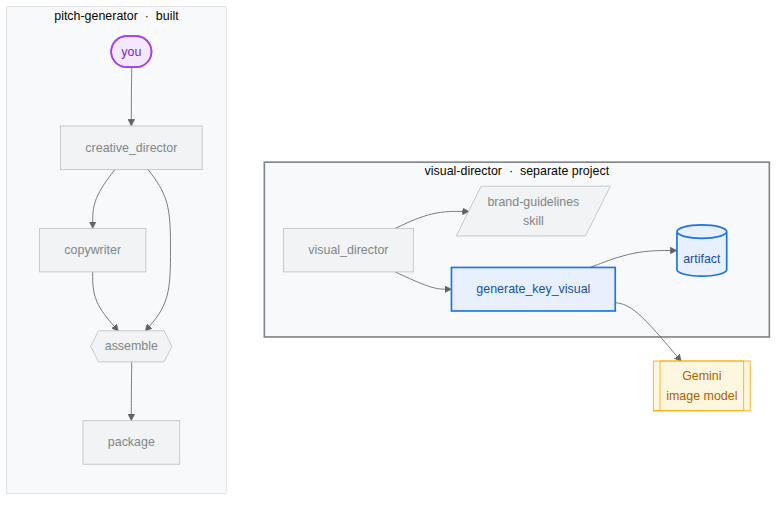
เราจะเริ่มสร้างเอเจนต์ตัวที่ 2 ซึ่งก็คือ visual-director โดยใช้ทักษะของเอเจนต์ตามที่แสดงในแผนภาพด้านล่าง
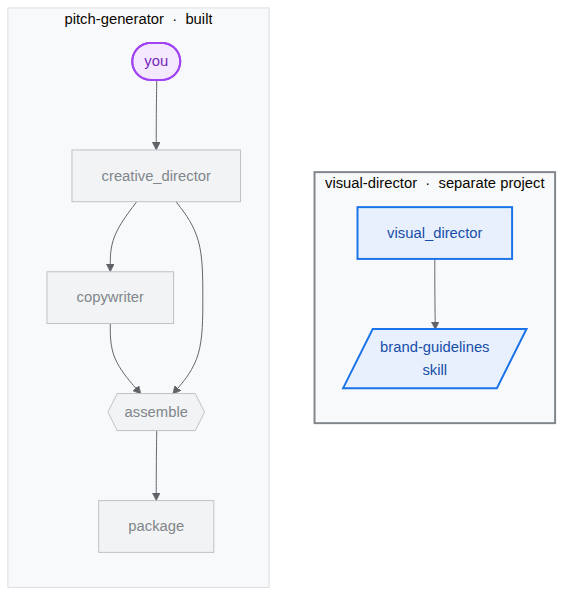
สนับสนุนผู้กำกับภาพ
คุณจะสร้างเอเจนต์เฉพาะทางเพื่อจัดการคอมโพเนนต์ภาพ visual-director ซึ่งเป็นโปรเจ็กต์แยกต่างหากเนื่องจากต่อมาจะกลายเป็นบริการของตัวเองเพื่อแสดงให้เห็นว่า Agent หลายตัวสื่อสารกันอย่างไรโดยใช้โปรโตคอล A2A คุณจะมีโปรเจ็กต์ 2 รายการอยู่ข้างกัน ดังนี้
bwg-multi-agent-pitch-generator/
├── pitch-generator/              ## built in the last task
│   ├── pitch_generator/
│   │   ├── agent.py              ## the graph you wrote
│   │   ├── app_utils/            ## generated, A2A wiring
│   │   └── fast_api_app.py       ## generated, serves the agent
│   └── pyproject.toml
└── visual-director/              ## created below
    └── ...                       ## the same shape again
- สร้างโปรเจ็กต์และติดตั้งการอ้างอิงโดยวางคำสั่งนี้ในเทอร์มินัล
cd ~/devrel-demos/codelabs/bwg-multi-agent-pitch-generator
agents-cli create visual-director \
  --agent adk \
  --agent-directory visual_director \
  --deployment-target cloud_run \
  --session-type in_memory \
  --cicd-runner skip \
  --region <YOUR_REGION> \
  --auto-approve
cd visual-director
agents-cli update -y && agents-cli install && uv sync --upgrade-package google-adk
เขียนหลักเกณฑ์การใช้แบรนด์
- สร้างโฟลเดอร์ทักษะและเปิดไฟล์
mkdir -p visual_director/skills/brand-guidelines cloudshell edit visual_director/skills/brand-guidelines/SKILL.md - วางเนื้อหาต่อไปนี้ลงในไฟล์
SKILL.mdที่เปิดอยู่ในเครื่องมือแก้ไข แล้วบันทึก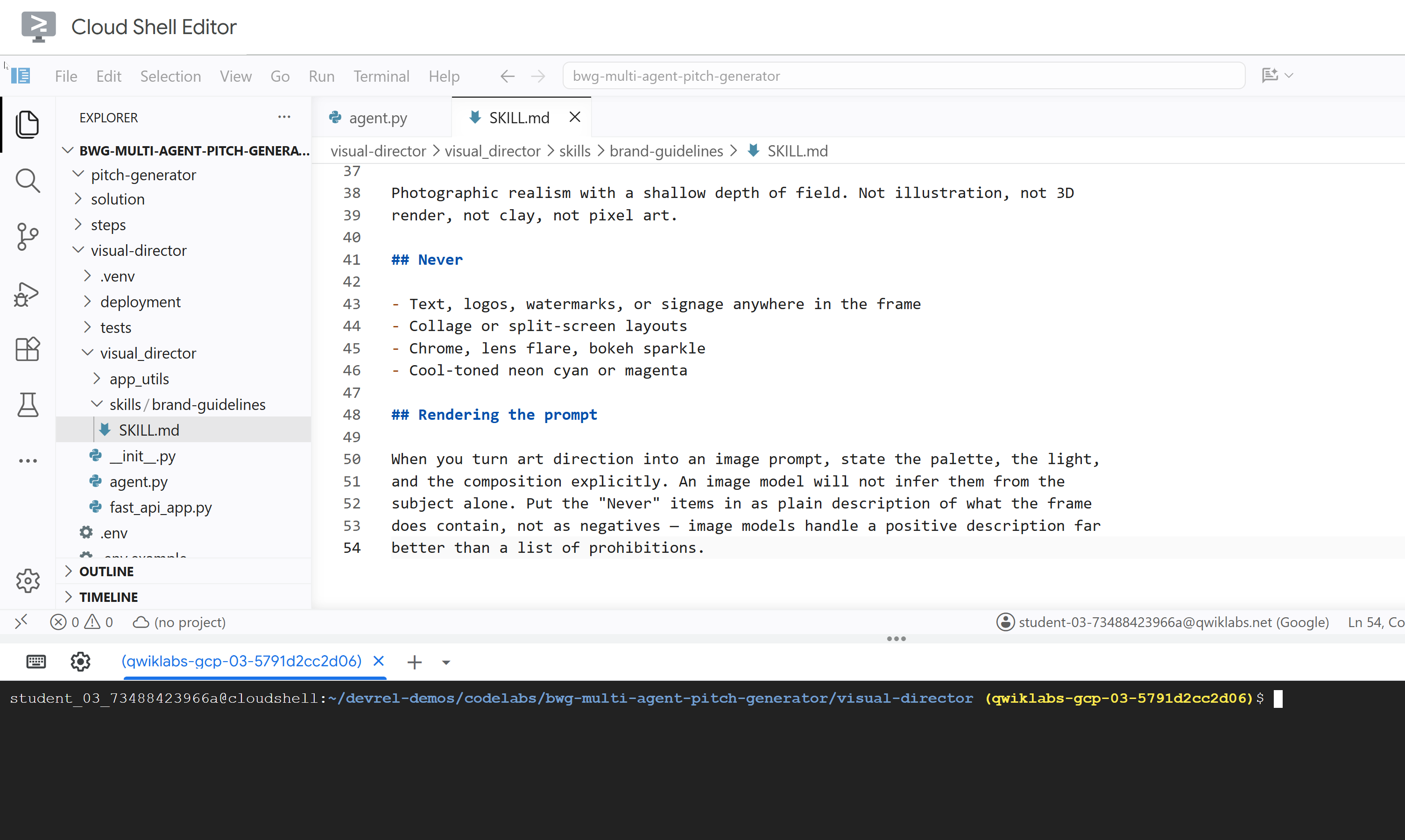
---
name: brand-guidelines
description: The house brand rules for a key visual — palette, light, composition, subject treatment, and what never appears. Load this before writing art direction or rendering an image, so the visual looks like it came from this brand rather than from a generic image model.
---

## Brand guidelines

House style for campaign key visuals. Every rule here beats a preference in the
brief. If the brief asks for something forbidden below, follow the brief for the
subject and the guidelines for the treatment.

## Palette

Deep indigo and slate as the ground. One warm accent — amber or terracotta —
carrying the eye to the subject. Nothing neon, nothing fluorescent.

At most three colors with any weight. A fourth reads as clutter.

## Light

One dominant source, low and raking. Long shadows are wanted. Golden hour or a
single hard studio key, never flat overhead light and never a ring light.

Rim light is allowed on the subject only, and only to separate it from the
ground.

## Composition

Subject off-center, roughly a third in. Generous negative space on the opposite
side — copy lands there later, so leave it genuinely empty.

Eye level or slightly below. No top-down flat lays. No fisheye, no Dutch tilt.

## Subject

One subject. If the idea implies a crowd, pick the one that carries it.

Photographic realism with a shallow depth of field. Not illustration, not 3D
render, not clay, not pixel art.

## Never

- Text, logos, watermarks, or signage anywhere in the frame
- Collage or split-screen layouts
- Chrome, lens flare, bokeh sparkle
- Cool-toned neon cyan or magenta

## Rendering the prompt

When you turn art direction into an image prompt, state the palette, the light,
and the composition explicitly. An image model will not infer them from the
subject alone. Put the "Never" items in as plain description of what the frame
does contain, not as negatives — image models handle a positive description far
better than a list of prohibitions.
อัปเดต visual_director/agent.py
อัปเดตไฟล์ agent.py และกำหนดค่าเพื่อให้มีทักษะที่กำหนดไว้ก่อนหน้านี้
- เปิดไฟล์ Agent โดยทำดังนี้
cloudshell edit ~/devrel-demos/codelabs/bwg-multi-agent-pitch-generator/visual-director/visual_director/agent.py - แทนที่เนื้อหาไฟล์
visual_director/agent.pyทั้งหมดด้วยโค้ดต่อไปนี้import mimetypes from pathlib import Path from google import genai from google.adk.agents import Agent from google.adk.apps import App from google.adk.models import Gemini from google.adk.skills import load_skill_from_dir from google.adk.tools import ToolContext from google.adk.tools.skill_toolset import SkillToolset from google.genai import types MODEL = "gemini-3.8-flash" ## Configure the `brand-guidelines` skill for the agent BRAND_SKILL = load_skill_from_dir(Path(__file__).parent / "skills" / "brand-guidelines") ## Add definition of `generate_key_visual` tool below this comment root_agent = Agent( name="visual_director", model=Gemini( model=MODEL, client_kwargs={"location": "global"}, retry_options=types.HttpRetryOptions(attempts=3), ), description="Turns a campaign concept into art direction and a key visual.", instruction="""You are the Visual Director on a campaign pitch team. Call `load_skill` for `brand-guidelines` before you write anything. The house style is not optional and it is not in this prompt. You are given a campaign concept. Then, in order: 1. Write art direction for ONE key visual that sells it, obeying the brand guidelines: subject, composition, lighting, color, mood. Three or four sentences. 2. Call `generate_key_visual` with exactly that art direction. Your final reply is the art direction itself and nothing else. No preamble, no alternatives, no questions back. Do not mention the skill, the tool, or the image file — the image travels on its own.""", tools=[ SkillToolset(skills=[BRAND_SKILL]), ## Supply the `generate_key_visual` tool below this comment ], ) app = App( root_agent=root_agent, name="visual_director", )visual-directorได้รับการกำหนดค่าอย่างถูกต้องด้วยทักษะของ Agent แล้ว ก่อนทดสอบ คุณจะต้องติดตั้งเครื่องมือให้กับเอเจนต์นี้เพื่อสร้างชิ้นงานรูปภาพให้เป็นหนึ่งในความสามารถหลัก
5. ติดตั้งเครื่องมือสร้างรูปภาพให้กับเอเจนต์
ในงานนี้ คุณจะมอบเครื่องมือให้ Visual Director ซึ่งจะแสดงผลทิศทางงานศิลป์เป็นรูปภาพและบันทึกเป็นอาร์ติแฟกต์ อาร์ติแฟกต์คือข้อมูลไบนารีหรือเนื้อหาไฟล์ที่มีการตั้งชื่อและกำหนดเวอร์ชัน ซึ่ง AI Agent สร้าง แก้ไข หรือใช้ในระหว่างงาน
ติดตั้งใช้งานและเพิ่มเครื่องมือลงใน Agent
- เปิดไฟล์ Agent โดยทำดังนี้
cloudshell edit ~/devrel-demos/codelabs/bwg-multi-agent-pitch-generator/visual-director/visual_director/agent.py - คัดลอก
generate_key_visualเครื่องมือต่อไปนี้ก่อนคำจำกัดความของroot_agentasync def generate_key_visual(art_direction: str, tool_context: ToolContext) -> dict: """Render the art direction as the campaign's key visual. Args: art_direction: The art direction to render, in full. Returns: The saved artifact's filename, version, size and media type. """ IMAGE_MODEL = "gemini-3.1-flash-lite-image" response = await genai.Client(location="global").aio.models.generate_content( model=IMAGE_MODEL, contents=art_direction ) ## The image arrives as inline bytes on one of the response parts. image = next( ( part.inline_data for part in response.candidates[0].content.parts or [] if part.inline_data ), None, ) if image is None: raise ValueError(f"{IMAGE_MODEL} returned no image for: {art_direction[:120]}") filename = "key_visual" + ( mimetypes.guess_extension(image.mime_type or "") or ".bin" ) version = await tool_context.save_artifact(filename, types.Part(inline_data=image)) ## Return the artifact filename and version return { "filename": filename, "version": version, "bytes": len(image.data), "mime_type": image.mime_type, } - เพิ่ม
generate_key_visualด้านล่างSkillToolsetเพื่อติดตั้งเครื่องมือให้ Agenttools=[ SkillToolset(skills=[BRAND_SKILL]), ## Supply the `generate_key_visual` tool below this comment generate_key_visual, ], agents-cliมี UI การพัฒนาเว็บในตัวที่เรียกว่าplaygroundสำหรับการตรวจสอบ ซึ่งคล้ายกับ ADK วิธีเริ่มใช้ Playgroundagents-cli playground --port 8080- คลิกตัวอย่างเว็บ ไอคอนรูปดวงตาที่ด้านขวาบนของเทอร์มินัล แล้วเลือกแสดงตัวอย่างในพอร์ต 8080
- คุณจะเห็นอินเทอร์เฟซต่อไปนี้เพื่อแชทกับตัวแทน ลองส่งพรอมต์ "แมวมี 9 ชีวิต Zero gravity"
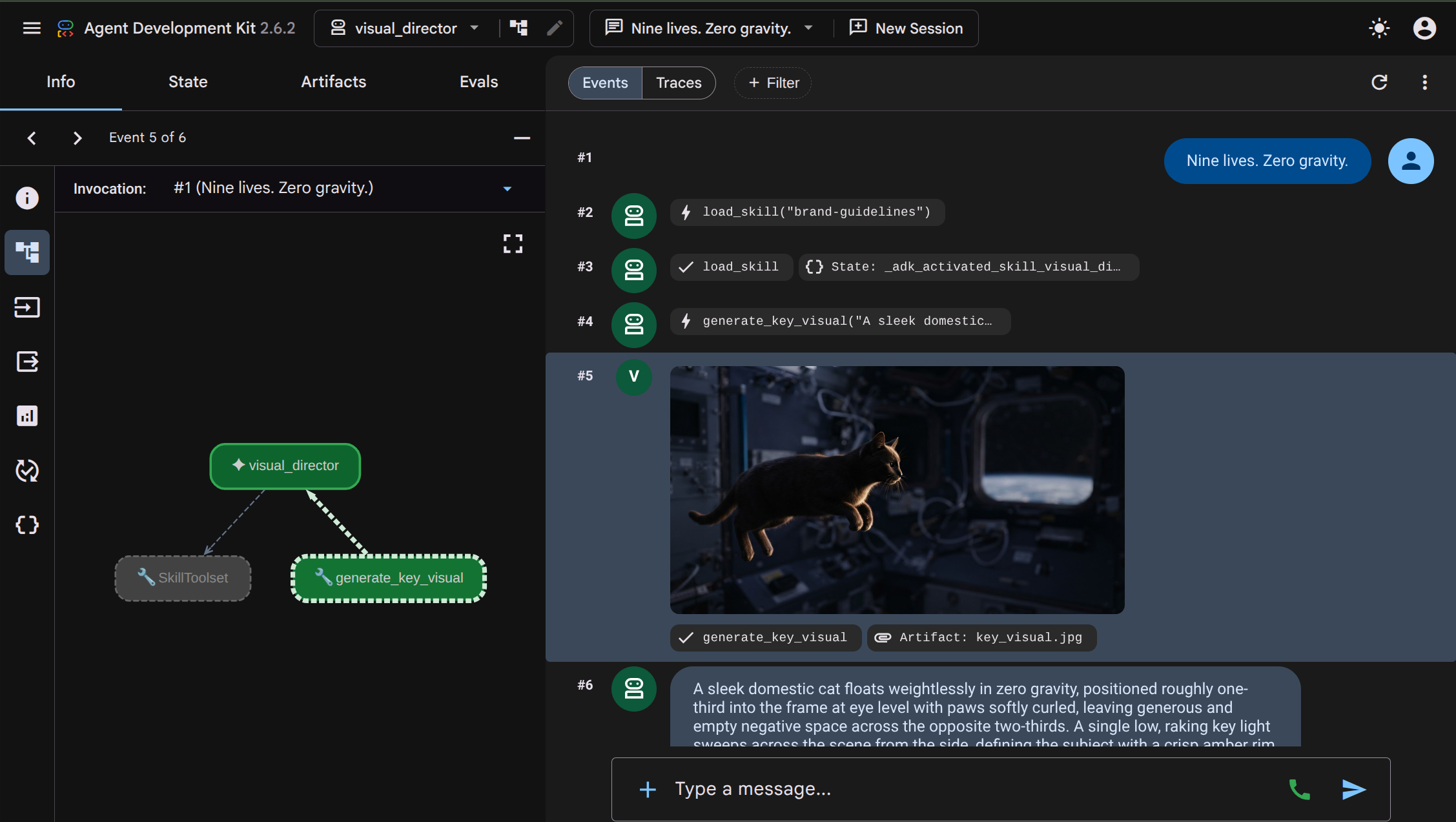 คุณสามารถตรวจสอบจากการโต้ตอบได้ว่า
visual_directorเอเจนต์ดำเนินการload_skill("brand-guidelines")เพื่ออ่านทักษะหลักเกณฑ์การใช้แบรนด์อย่างไร จากนั้นจึงดำเนินการgenerate_key_visualเพื่อเริ่มสร้างรูปภาพ ระบบจะจัดเก็บรูปภาพที่ได้เป็นอาร์ติแฟกต์ ซึ่งจะแสดงใน UI และตรวจสอบได้ง่าย - กลับไปที่เทอร์มินัลและหยุดกระบวนการ
agents-cli playgroundที่กำลังทำงานโดยกด Ctrl+C 2 ครั้ง
6. สถาปัตยกรรมแบบหลาย Agent ที่มีโปรโตคอล A2A
ในงานนี้ คุณจะเปิดเผย Visual Director เป็นบริการที่เอเจนต์อื่นๆ สามารถเรียกใช้ได้ และกำหนดค่าให้ตอบกลับด้วยรูปภาพที่สร้างขึ้น
Agent2Agent (A2A) เป็นโปรโตคอลแบบเปิดสำหรับ Agent หนึ่งในการเรียก Agent อื่นผ่านเครือข่าย ส่วนสำคัญคือการ์ด Agent ซึ่งเป็นเอกสาร JSON ที่ Agent เผยแพร่เกี่ยวกับตัวเองผ่าน URL ที่รู้จักกันดี โดยระบุชื่อ คำอธิบาย และความสามารถ ผู้โทรจะดึงข้อมูลการ์ดและรู้วิธีพูดคุยกับตัวแทนที่อยู่เบื้องหลังการ์ด โดยไม่มีการแชร์ซอร์สโค้ด การอ้างอิง หรือภาษา
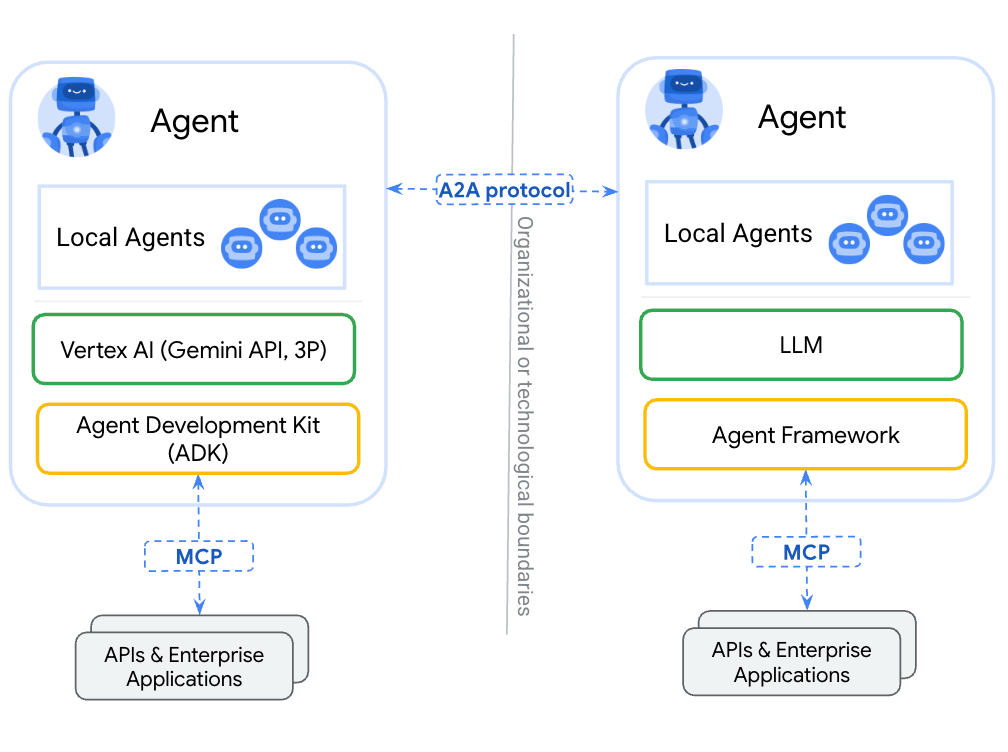
agents-cli ได้เชื่อมต่อไว้ให้แล้วโดยค่าเริ่มต้น โครงสร้างที่สร้างขึ้น visual_director/app_utils/a2a.py ซึ่งสร้างการ์ดจากเอเจนต์และติดตั้งเส้นทาง และ visual_director/fast_api_app.py ซึ่งให้บริการเส้นทางเหล่านั้น คุณเพียงต้องทำการแก้ไขเล็กน้อยเพื่อให้ส่งอาร์ติแฟกต์กลับไปยังไคลเอ็นต์ได้ด้วย
สถาปัตยกรรมจะมีลักษณะดังที่แสดงด้านล่าง โปรดทราบว่าเรายังไม่ได้ผสานรวมเอเจนต์เข้ากับเวิร์กโฟลว์เริ่มต้น
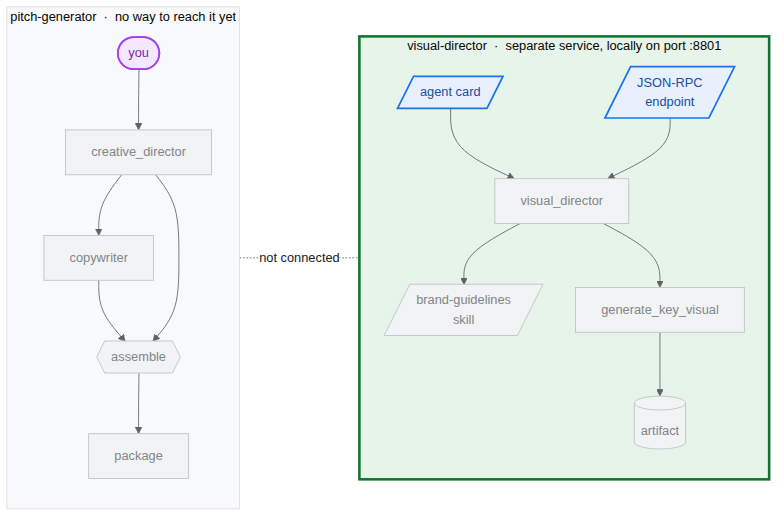
agents-cli โครงสร้างพื้นฐานของเซิร์ฟเวอร์ A2A
เราได้จัดเตรียมโค้ดและโมดูลต่อไปนี้ไว้แล้วเมื่อเริ่มต้นตัวแทน visual-director โดยใช้ agents-cli เปิดไฟล์เหล่านี้โดยวางคำสั่งต่อไปนี้ในเทอร์มินัล
cloudshell edit visual_director/fast_api_app.py
cloudshell edit visual_director/app_utils/a2a.py
visual_director/fast_api_app.py จะเริ่ม Agent และติดตั้งเส้นทาง A2A ภายใต้เส้นทางที่สร้างจากชื่อแอป
await attach_a2a_routes(
    app,
    agent=root_agent,
    runner=runner,
    rpc_path=f"/a2a/{adk_app.name}",   ## becomes /a2a/visual_director
)
visual_director/app_utils/a2a.py จะจัดการส่วนที่เหลือให้เองใน 3 ตา
โดยจะสร้างการ์ด Agent จาก Agent เองก่อน ชื่อ คำอธิบาย และเครื่องมือทุกอย่างจะกลายเป็นรายการที่ผู้โทรสามารถอ่านได้
agent_card = await AgentCardBuilder(
    agent=agent,
    rpc_url=f"{resolved_app_url}{rpc_path}",
).build()
ประการที่สองคือการวางตัวดำเนินการระหว่างโปรโตคอลกับเอเจนต์ ระบบจะแปลคำขอ A2A ขาเข้าไปเป็นการเรียกใช้ ADK และแปลผลลัพธ์กลับ
request_handler = DefaultRequestHandler(
    agent_executor=A2aAgentExecutor(runner=runner, force_new_version=True),
    task_store=task_store,
    agent_card=agent_card,
)
ประการที่สาม จะติดตั้ง 2 เส้นทาง ได้แก่ เส้นทางหนึ่งที่แสดงการ์ด และอีกเส้นทางหนึ่งที่รับสาย
เส้นทาง | วัตถุประสงค์ |
| การ์ด ผู้โทรจะอ่านข้อความนี้เป็นอันดับแรกเพื่อดูว่าตัวแทนทำอะไรได้บ้าง |
| ปลายทาง JSON-RPC ตำแหน่งที่คำขอจริงไป |
อนุญาตให้อาร์ติแฟกต์ข้ามขอบเขต
โดยค่าเริ่มต้น คำตอบ A2A จะมีข้อความ รูปภาพเป็นอาร์ติแฟกต์ และอาร์ติแฟกต์จะอยู่ในที่เก็บของตัวแทนการแสดงโฆษณา เว้นแต่คุณจะกำหนดค่าให้รวมไว้
- เปิดไฟล์ A2A ที่สร้างขึ้น
cd ~/devrel-demos/codelabs/bwg-multi-agent-pitch-generator/visual-director cloudshell edit visual_director/app_utils/a2a.py - ค้นหาการนำเข้า
AgentCardBuilderและเพิ่มการนำเข้าA2aAgentExecutorConfigและinclude_artifacts_in_a2a_event_interceptorด้านล่าง## ... ## from google.adk.a2a.utils.agent_card_builder import AgentCardBuilder ## Add the following two below `AgentCardBuilder` import from google.adk.a2a.executor.config import A2aAgentExecutorConfig from google.adk.a2a.executor.interceptors.include_artifacts_in_a2a_event import ( include_artifacts_in_a2a_event_interceptor, ) - ค้นหาบรรทัด
agent_executor=A2aAgentExecutor(runner=runner),แล้วแทนที่ด้วยบรรทัดต่อไปนี้ (เพิ่มA2aAgentExecutorConfig)agent_executor=A2aAgentExecutor( runner=runner, force_new_version=True, config=A2aAgentExecutorConfig( execute_interceptors=[include_artifacts_in_a2a_event_interceptor] ), ),
เริ่มบริการและอ่านการ์ด A2A ที่เผยแพร่
- เริ่มเซิร์ฟเวอร์ในเบื้องหลัง คุณต้องประกาศ
APP_URLเนื่องจากนี่คือที่อยู่ที่การ์ดโฆษณาว่าเป็นของการ์ดเอง วางข้อความนี้ในเทอร์มินัลAPP_URL=http://localhost:8801 nohup uv run uvicorn visual_director.fast_api_app:app --port 8801 > /tmp/visual-director.log 2>&1 & - รอสักครู่เพื่อให้เริ่มทำงาน แล้วยืนยันว่าโมเดลกำลังให้บริการอยู่โดยทำดังนี้
sleep 10 tail -2 /tmp/visual-director.logINFO: Application startup complete. INFO: Uvicorn running on http://127.0.0.1:8801 (Press CTRL+C to quit) - อ่านการ์ดที่เอเจนต์เผยแพร่ในตอนนี้
curl -s http://localhost:8801/a2a/visual_director/.well-known/agent-card.json | python3 -m json.toolgenerate_key_visualโดยจะสร้างขึ้นจากคำจำกัดความของ Agent ในโค้ดโดยตรง{ "name": "visual_director", "description": "Turns a campaign concept into art direction and a key visual.", "skills": [ { "id": "visual_director", "name": "model", "tags": [ "llm" ] }, { "id": "visual_director-generate_key_visual", "name": "generate_key_visual", "description": "Render the art direction as the campaign's key visual.\n\nArgs:\n art_direction: The art direction to render, in full.\n\nReturns:\n The saved artifact's filename, version, size and media type.", "tags": [ "llm", "tools" ] } ], "preferredTransport": "JSONRPC", "protocolVersion": "0.3", "url": "http://localhost:8801/a2a/visual_director" }visual-directorลงในเวิร์กโฟลว์หลักของpitch-generatorแล้ว
7. ฝัง Agent ระยะไกลของ A2A ในเวิร์กโฟลว์
ในงานนี้ คุณจะเพิ่มตัวแทนระยะไกลลงในกราฟเป็นกิ่งที่ 3
ระบบจะห่อหุ้ม Agent ระยะไกลด้วย RemoteA2aAgent และวางไว้ในกราฟเหมือนกับโหนดอื่นๆ ขอบจะคงรูปร่างเดิม และผู้ประสานงานจะไม่ทราบว่าโหนดใดเป็นโหนดในพื้นที่
ชี้ให้ผู้ประสานงานเห็นบริการและอัปเดตเวิร์กโฟลว์กราฟ
- เปิดไฟล์ Agent โดยทำดังนี้
cd ~/devrel-demos/codelabs/bwg-multi-agent-pitch-generator/pitch-generator cloudshell edit pitch_generator/agent.py - เพิ่มการนำเข้าเหล่านี้ที่ด้านบนของไฟล์ข้างๆ การนำเข้าที่มีอยู่
import asyncio import subprocess import google.auth.transport.requests import google.oauth2.id_token import httpx from google.adk.a2a.converters.part_converter import convert_genai_part_to_a2a_part - เพิ่มคำจำกัดความ
RemoteA2aAgentต่อไปนี้เหนือการประกาศcreative_directorVISUAL_DIRECTOR_URL = os.getenv("VISUAL_DIRECTOR_URL", "http://localhost:8801") ## For deployment on Cloud Run def _cloud_run_client() -> httpx.AsyncClient | None: """An httpx client that signs each request with a Cloud Run ID token. Cloud Run deploys private, so both the agent-card fetch and the A2A calls need one. """ if not VISUAL_DIRECTOR_URL.startswith("https://"): return None async def sign(request: httpx.Request) -> None: token = None try: token = await asyncio.to_thread( google.oauth2.id_token.fetch_id_token, google.auth.transport.requests.Request(), VISUAL_DIRECTOR_URL, ) except Exception: token = subprocess.check_output( ["gcloud", "auth", "print-identity-token", "-q"], stderr=subprocess.PIPE ).decode().strip() if not token: raise Exception("Failed to fetch ID token") request.headers["Authorization"] = f"Bearer {token}" return httpx.AsyncClient(event_hooks={"request": [sign]}, timeout=600) ## Keep the approval's tool traffic out of the A2A request def _pitch_parts_only(part: types.Part): """Sends the Visual Director text and media only. RemoteA2aAgent replays the session on every call, and the Visual Director runs downstream of the human approval, so the approval's function_response would travel alongside the concept text. An ADK server reads a function response as "resume the paused invocation" and rejects a message that also carries text, so drop the tool parts here. """ if part.function_call or part.function_response: return None return convert_genai_part_to_a2a_part(part) visual_director = RemoteA2aAgent( name="visual_director", description="Turns a campaign concept into art direction for one key visual.", agent_card=( f"{VISUAL_DIRECTOR_URL}/a2a/visual_director{AGENT_CARD_WELL_KNOWN_PATH}" ), httpx_client=_cloud_run_client(), genai_part_converter=_pitch_parts_only, ) - เขียนทับหรือแทนที่ฟังก์ชัน Python ของโหนด
packageด้วยคำจำกัดความต่อไปนี้async def package(ctx: Context, node_input: dict): """Render the joined branches as the finished pitch.""" empty = [name for name, value in node_input.items() if not value] if empty: raise ValueError(f"nothing reached the join from: {', '.join(empty)}") def _key_visual(ctx: Context) -> types.Blob | None: """The image the Visual Director sent back, or None if it sent none.""" for event in reversed(ctx.session.events): if event.author != "visual_director" or not event.content: continue for part in event.content.parts or []: if part.inline_data and part.inline_data.data: return part.inline_data return None image = _key_visual(ctx) if image is None: raise ValueError("the Visual Director returned art direction but no image") suffix = mimetypes.guess_extension(image.mime_type or "") or ".bin" filename = f"key_visual{suffix}" await ctx.save_artifact(filename, types.Part(inline_data=image)) pitch = "\n\n".join( [ f"CONCEPT\n{node_input['creative_director']}", f"COPY\n{node_input['copywriter']}", f"ART DIRECTION\n{node_input['visual_director']}", f"KEY VISUAL\n{filename}, {len(image.data)} bytes, {image.mime_type}", ] ) yield Event( content=types.Content( role="model", parts=[types.Part(text=pitch), types.Part(inline_data=image)], ) ) yield Event(output=pitch) - เพิ่มเกตการอนุมัติจากเจ้าหน้าที่ก่อนที่การสร้างดาวน์สตรีมจะดำเนินการต่อ ใน
pitch_generator/agent.pyให้กำหนดโหนดการอนุมัติเหนือroot_agentดังนี้@node(rerun_on_resume=False) async def approve_concept(ctx: Context): yield RequestInput( message="Please approve the campaign concept (yes/no).", response_schema=str ) @node(rerun_on_resume=True) async def user_approval(ctx: Context): user_response = await ctx.run_node(approve_concept) if str(user_response).lower() in ("yes", "y"): approved_concept = f"## Approved Concept\n\n{ctx.session.state['creative_director']}" yield Event( content=types.Content( role="model", parts=[types.Part(text=approved_concept)] ) ) else: raise ValueError("User rejected the concept") - สุดท้าย ให้อัปเดตการนำเข้าที่ด้านบนเพื่อรวม
RequestInputและnodeจากgoogle.adk.eventsและgoogle.adk.workflowดังนี้from google.adk.events import Event, RequestInput from google.adk.workflow import JoinNode, Workflow, noderoot_agentเวิร์กโฟลว์edgesเพื่อกำหนดเส้นทางผ่านuser_approvalดังนี้edges=[ ("START", creative_director), (creative_director, user_approval, (copywriter, visual_director)), ((creative_director, copywriter, visual_director), assemble), (assemble, package), ],- การอนุมัติจากคนคอยตรวจสอบ (HITL):
approve_conceptจะให้ผลเป็นRequestInputเมื่อเวิร์กโฟลว์ไปถึงโหนดนี้ การดำเนินการจะหยุดชั่วคราวและส่งการขัดจังหวะไปยังผู้โทร สาขาปลายทาง (copywriterและvisual_director) จะไม่ทำงานจนกว่าจะได้รับการยืนยันการอนุมัติจากผู้ใช้ visual_directorจะปรากฏที่ขอบเหมือนกับcopywriterทุกประการ แม้ว่าตัวหนึ่งจะอยู่ในการเรียกฟังก์ชันและอีกตัวหนึ่งจะอยู่บนเครือข่าย- ระบบจะอ่านรูปภาพที่แสดงจากเหตุการณ์เซสชันแทนที่จะอ่านจาก
node_inputเนื่องจากปัจจุบันมีเพียงข้อความเท่านั้นที่ได้รับการเลื่อนระดับเป็นเอาต์พุตของโหนด รูปภาพข้ามขอบเขตผ่านตัวสกัดกั้น A2A แต่มาพร้อมกับเหตุการณ์ของเอเจนต์ระยะไกล ดังนั้นฟังก์ชันตัวช่วย_key_visualจะดึงรูปภาพจากที่นั่น
- การอนุมัติจากคนคอยตรวจสอบ (HITL):
ทดสอบการผสานรวม
ตอนนี้คุณจะทดสอบว่า Visual Director (ทำงานในเบื้องหลัง) และ Pitch Generator สามารถสื่อสารผ่านโปรโตคอล A2A ได้
- ตรวจสอบว่า Visual Director ยังทำงานอยู่เบื้องหลัง
curl -s -o /dev/null -w "visual director: %{http_code}\n" http://localhost:8801/a2a/visual_director/.well-known/agent-card.jsonvisual director: 200ที่นี่ในกรณีที่เห็นสถานะอื่น ให้เรียกใช้คำสั่งต่อไปนี้เพื่อรีสตาร์ทfuser -k 8801/tcp 2>/dev/null || true cd ~/devrel-demos/codelabs/bwg-multi-agent-pitch-generator/visual-director APP_URL=http://localhost:8801 nohup uv run uvicorn visual_director.fast_api_app:app --port 8801 > /tmp/visual-director.log 2>&1 & cd ~/devrel-demos/codelabs/bwg-multi-agent-pitch-generator/pitch-generator sleep 10 curl -s -o /dev/null -w "visual director: %{http_code}\n" http://localhost:8801/a2a/visual_director/.well-known/agent-card.json - วิธีเริ่มดูตัวอย่าง
cd ~/devrel-demos/codelabs/bwg-multi-agent-pitch-generator/pitch-generator/pitch_generator agents-cli playground --port 8080 - คลิกตัวอย่างเว็บ ไอคอนรูปดวงตาที่ด้านขวาบนของเทอร์มินัล แล้วเลือกแสดงตัวอย่างในพอร์ต 8080
- คุณจะเห็นอินเทอร์เฟซสำหรับแชทกับตัวแทน ลองส่งพรอมต์ "สเกตบอร์ดบินได้สำหรับแมว"
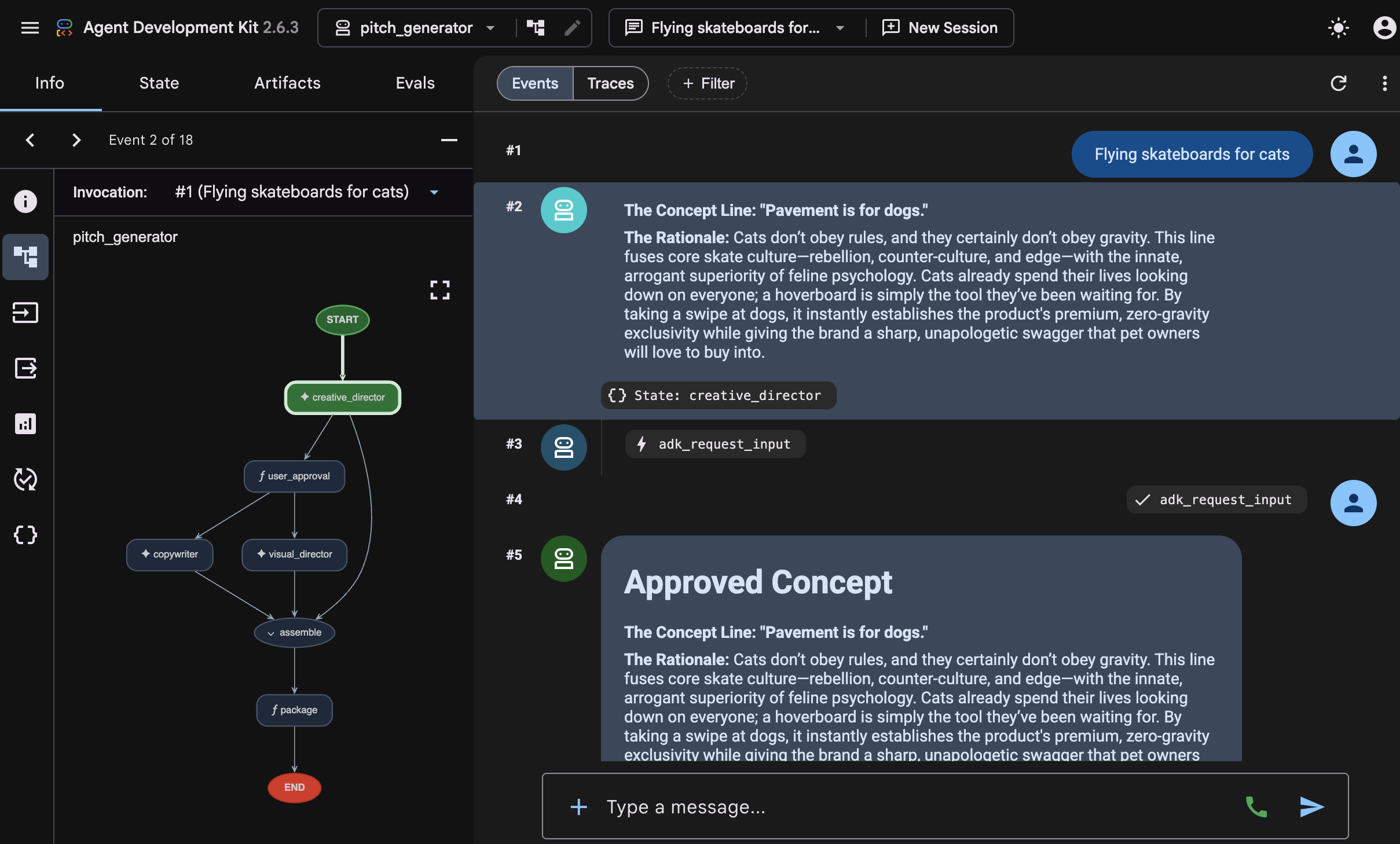
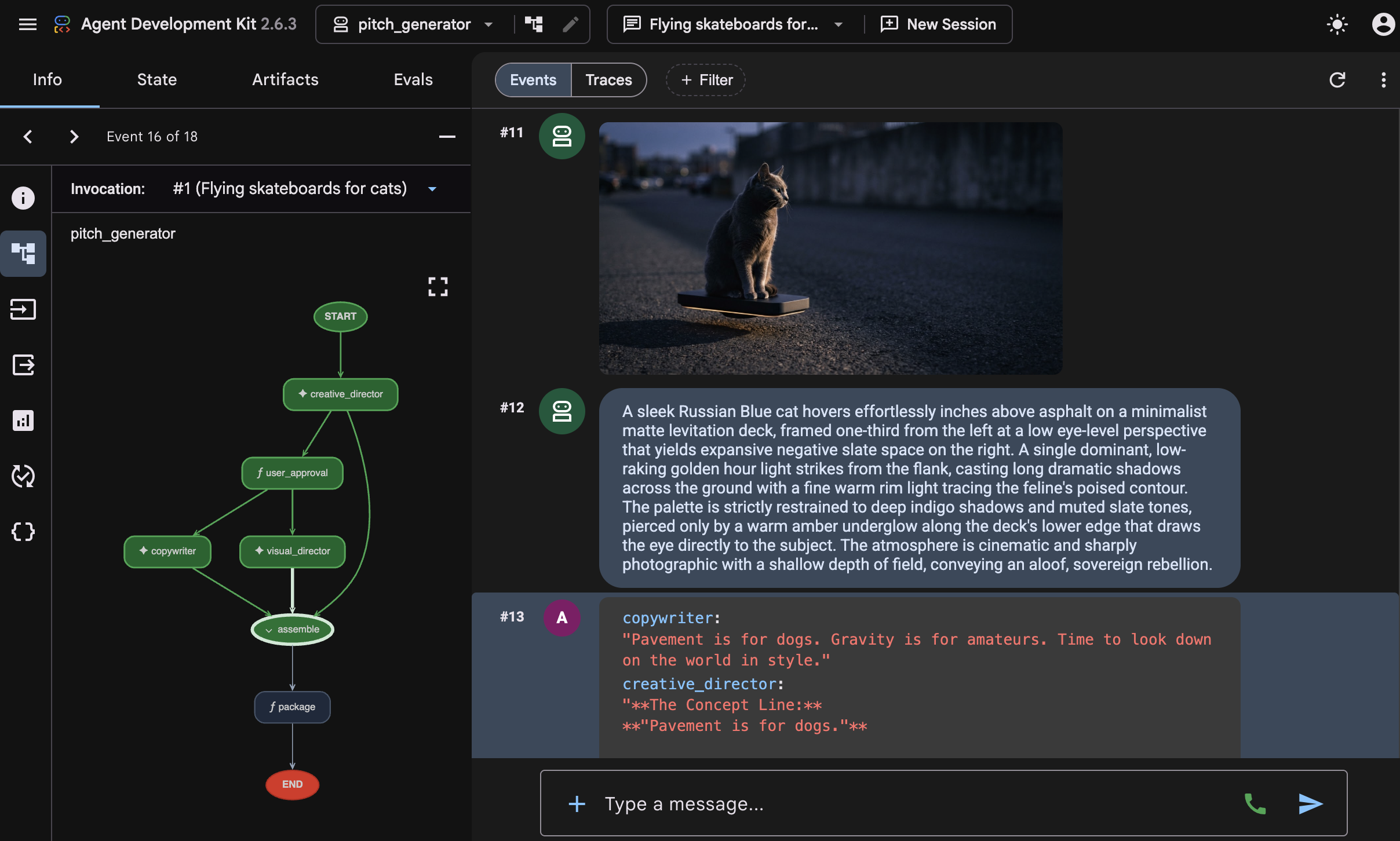 คุณจะเห็นการโต้ตอบทั้งหมดที่เวิร์กโฟลว์เริ่มต้นและตัวแทนแต่ละรายทำงาน หลังจากที่
 creative_directorร่างแนวคิดแล้ว เวิร์กโฟลว์จะหยุดชั่วคราวที่ขั้นตอนการอนุมัติและขอให้คุณยืนยันว่า "โปรดอนุมัติแนวคิดแคมเปญ (ใช่/ไม่ใช่)" ป้อน "yes" ในช่องป้อนข้อมูลเพื่อดำเนินการต่อ เมื่อได้รับอนุมัติแล้ว กราฟจะขยายออก คุณจะเห็นเมื่อเอเจนต์visual-directorเริ่มโหลดทักษะ และในระหว่างการสร้างรูปภาพ เอเจนต์copywriterจะสร้างคำบรรยายบนโซเชียลมีเดียเสร็จ ซึ่งแสดงให้เห็นว่าเอเจนต์ทั้ง 2 ทำงานควบคู่กันไปโดยไม่ต้องรอซึ่งกันและกัน หลังจากทั้ง 2 อย่างเสร็จสิ้น โหนดassembleจะรวมผลลัพธ์เข้ากับแนวคิดที่ได้รับอนุมัติซึ่งสร้างโดยcreative_directorเพื่อสรุปการนำส่งเนื้อหาการเสนอขายในฟังก์ชันpackage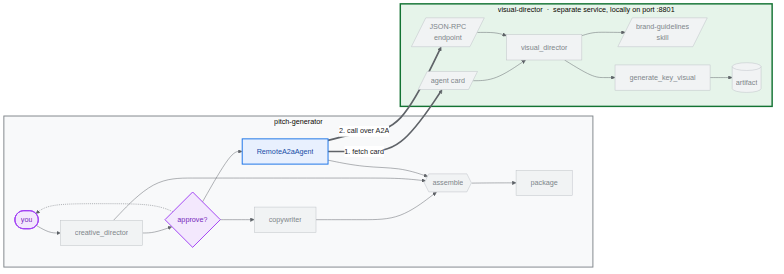
8. จัดเก็บภาพที่สำคัญไว้ใน Cloud Storage
ที่ผ่านมาภาพหลักทุกภาพอยู่ในความทรงจำ เมื่อกระบวนการหยุด รูปภาพก็จะหายไป ซึ่งเหมาะสําหรับการทดลอง แต่ไม่เหมาะสําหรับแคมเปญ ในงานนี้ คุณจะให้เวิร์กโฟลว์มี Bucket ที่จะเขียน และสร้างชุดข้อมูล BigQuery ที่จะใช้ในงานสุดท้าย
ADK จะกำหนดตำแหน่งของอาร์ติแฟกต์เมื่อเริ่มต้น app_utils/services.py ที่สร้างขึ้นจะอ่านตัวแปรสภาพแวดล้อมรายการเดียว
def get_artifact_service():
    """Process-wide artifact service: GCS when a bucket is set, else in-memory."""
    if bucket := os.environ.get("LOGS_BUCKET_NAME"):
        return GcsArtifactService(bucket_name=bucket)
    return InMemoryArtifactService()
หากตั้งค่า LOGS_BUCKET_NAME ระบบจะจัดเก็บการโทร save_artifact ทุกครั้งไว้ใน Cloud Storage แทน
สร้างชุดข้อมูล BigQuery
- ใน Cloud Shell ให้เรียกใช้คำสั่งต่อไปนี้เพื่อสร้างชุดข้อมูล BigQuery
bq mk --dataset --location=<YOUR_REGION> --project_id=<YOUR_PROJECT_ID> bwg - ชี้ที่เก็บอาร์ติแฟกต์ของตัวประสานไปยังที่เก็บข้อมูล
export LOGS_BUCKET_NAME="<YOUR_PROJECT_ID>-bwg"GcsArtifactServiceจะใช้ชื่อที่ไม่มีคำนำหน้าgs://ตัวแปรนี้จะอยู่ใน Shell ของคุณเช่นเดียวกับตัวแปรอื่นๆ และงานการทำให้ใช้งานได้จะส่งตัวแปรนี้ไปยัง Cloud Run - ตรวจสอบเนื้อหาของที่เก็บข้อมูล ในแท็บเบราว์เซอร์ใหม่ ให้เปิด URL ต่อไปนี้
https://console.cloud.google.com/storage/browser?project=<YOUR_PROJECT_ID>
9. ติดตั้งใช้งานตัวแทน Visual Director ใน Cloud Run
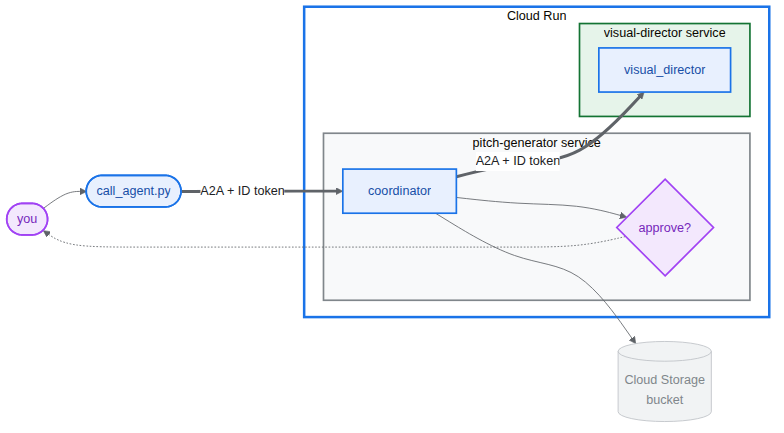
ทุกอย่างที่ผ่านมาทำงานบนเครื่องเดียว โดยติดต่อ Visual Director ได้ที่ localhost:8801 ในงานนี้ คุณจะติดตั้งใช้งาน Agent ผู้กำกับภาพเป็นบริการ Cloud Run ของตัวเอง และอนุญาตให้เครื่องมือสร้างพิตช์พูดคุยกับ Agent ผ่านเครือข่ายโดยใช้โปรโตคอล Agent2Agent (A2A)
Visual Director จะได้รับ https:// URL จริง ดังนั้น _cloud_run_client ที่คุณเขียนไว้ก่อนหน้านี้จะเริ่มลงนามในคำขอแทนที่จะส่งคืน None นอกจากนี้ Cloud Run ยังติดตั้งใช้งานแบบส่วนตัวโดยค่าเริ่มต้นด้วย
ติดตั้งใช้งาน Visual Director
- หยุดบริการที่ทำงานอยู่เบื้องหลังในเครื่องและ Playground หากยังทำงานอยู่ โดยทำดังนี้
fuser -k 8801/tcp 2>/dev/null || true fuser -k 8000/tcp 2>/dev/null || true - ติดตั้งใช้งาน Agent ซึ่งจะสร้างและพุชคอนเทนเนอร์ ⏰ การดำเนินการนี้จะใช้เวลาสักครู่
cd ~/devrel-demos/codelabs/bwg-multi-agent-pitch-generator/visual-director
source .env
agents-cli deploy \
  --service-name visual-director \
  --project <YOUR_PROJECT_ID> \
  --region <YOUR_REGION> \
  --no-confirm-project \
  --labels dev-tutorial=bwg001-devlab-1 \
  --update-env-vars "LOGS_BUCKET_NAME=$LOGS_BUCKET_NAME,GOOGLE_GENAI_USE_VERTEXAI=true,GOOGLE_CLOUD_PROJECT=$GOOGLE_CLOUD_PROJECT,GOOGLE_CLOUD_LOCATION=$GOOGLE_CLOUD_LOCATION,GOOGLE_CLOUD_REGION=$GOOGLE_CLOUD_REGION"
เรียกใช้เครื่องมือสร้างการเสนอเพลงที่ใช้ Visual Director ซึ่งติดตั้งใช้งานใน Cloud Run
- อ่าน URL ของ Visual Director แล้วเรียกใช้ Pitch Generator ที่ใช้ URL ดังกล่าว
cd ~/devrel-demos/codelabs/bwg-multi-agent-pitch-generator/pitch-generator
source .env
export VISUAL_DIRECTOR_URL=$(gcloud run services list \
  --project <YOUR_PROJECT_ID> \
  --region <YOUR_REGION> \
  --flatten='spec.template.spec.containers[0].env' \
  --filter='metadata.name=visual-director AND spec.template.spec.containers[0].env.name=APP_URL' \
  --format='value(spec.template.spec.containers[0].env.value)')
echo "Visual Director is at $VISUAL_DIRECTOR_URL"
APP_URL=http://localhost:8000 nohup uv run uvicorn pitch_generator.fast_api_app:app --port 8000 > /tmp/visual-pitch_generator.log 2>&1 &
เรียกใช้เวิร์กโฟลว์ที่ติดตั้งใช้งาน
โดยเอเจนต์ทั้ง 2 รายรองรับโปรโตคอล A2A ที่เก็บมีไคลเอ็นต์ขนาดเล็กสำหรับการเรียกใช้เครื่องมือสร้างการเสนอเพลงผ่าน A2A
โดยต้องตั้งค่า PITCH_GENERATOR_URL เป็น URL ของเครื่องมือสร้างการเสนอเพลงที่ทำงานในเครื่อง ในขณะเดียวกัน Visual Director จะทำงานใน Cloud Run และ Pitch Generator จะสื่อสารกับ Visual Director ผ่าน A2A
- คัดลอกไคลเอ็นต์ลงในโปรเจ็กต์แล้วดำเนินการ
cd ~/devrel-demos/codelabs/bwg-multi-agent-pitch-generator/pitch-generator cp ../solution/pitch-generator/call_agent.py . PITCH_GENERATOR_URL=http://localhost:8000 uv run python call_agent.py "Flying skateboards for cats" --save-image ./key_visual.png=== HUMAN APPROVAL REQUIRED === [DRAFT CONCEPT] Concept Line: "Gravity is a Suggestion." ... Please approve the campaign concept (yes/no):yesแล้วกดEnter เพื่ออนุมัติและดำเนินการเวิร์กโฟลว์ต่อ (คุณยังส่ง-yหรือ--auto-approveเพื่ออนุมัติโดยอัตโนมัติได้ด้วย) - เปิด
call_agent.pyแล้วดูว่าแอปโต้ตอบกับเอเจนต์อย่างไรโดยใช้a2a-sdk:ClientFactoryสร้างClientการกำหนดเป้าหมายhttps://SERVICE_URL/a2a/pitch_generatorA2A อย่างเป็นทางการgenerate_pitch_asyncจะส่งSendMessageRequestเริ่มต้น เมื่อการตอบกลับมีTaskState.TASK_STATE_INPUT_REQUIREDระบบจะตรวจหาส่วนadk_request_inputแสดงแนวคิดฉบับร่าง รวบรวมการอนุมัติของคุณ และส่งคำขอประวัติพร้อมการตอบกลับของคุณกลับไปยังงาน- ลูปการแยกวิเคราะห์จะอ่านส่วน
CONCEPT,COPYและART DIRECTIONจากอาร์ติแฟกต์ของงานที่เสร็จสมบูรณ์แล้ว และบันทึกรูปภาพไบนารีไปยังkey_visual.png
key_visual.png - อัปโหลดภาพหลักไปยัง Bucket ภายใต้คำนำหน้าที่คุณชี้ BigQuery ไปได้
gcloud storage cp ./key_visual.png gs://<YOUR_PROJECT_ID>-bwg/key-visuals/cats.png - สร้างการเสนอเพลงที่ 2 เพื่อให้มีเพลงเปรียบเทียบ แล้วอัปโหลดด้วย
PITCH_GENERATOR_URL=http://localhost:8000 uv run python call_agent.py "A commuter bike built for rainy cities" --save-image ./bike.png
gcloud storage cp ./bike.png gs://<YOUR_PROJECT_ID>-bwg/key-visuals/bike.png
10. ให้คะแนนภาพที่สำคัญเพื่อความเหมาะสมกับแบรนด์ใน BigQuery
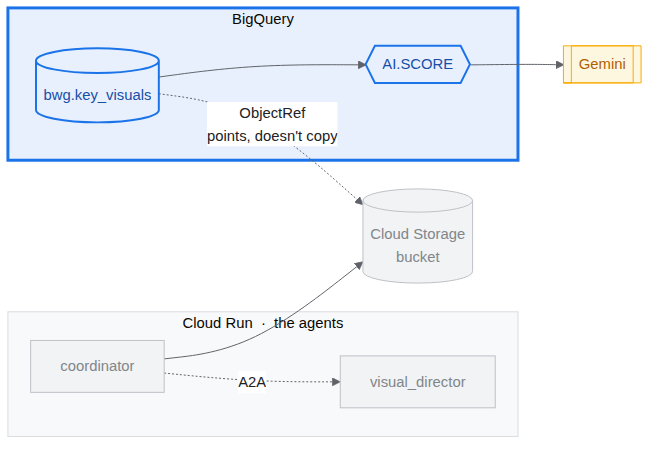
ตอนนี้คุณมีรูปภาพในที่เก็บข้อมูลและหลักเกณฑ์การใช้แบรนด์ที่ควรจะกำหนดรูปแบบของรูปภาพ ในงานนี้ คุณจะรวมทั้ง 2 อย่างเข้าด้วยกัน นั่นคืออ้างอิงรูปภาพจาก BigQuery แล้วขอให้โมเดล Gemini ให้คะแนนแต่ละรูปภาพตามหลักเกณฑ์ โดยไม่ต้องย้ายไบต์เดียวออกจาก Cloud Storage
ฟีเจอร์ 2 อย่างของ BigQuery จะทำงานร่วมกัน ดังนี้
ObjectRefคือค่าที่ชี้ไปยังออบเจ็กต์ Cloud StorageOBJ.MAKE_REFสร้างขึ้นจาก URI พร้อมการเชื่อมต่อที่ให้สิทธิ์เข้าถึงที่ได้รับมอบหมายแก่ BigQuery ในที่เก็บข้อมูลpitch-connectionที่สร้างขึ้นโดยสคริปต์การตั้งค่าคือการเชื่อมต่อดังกล่าว และมีบทบาท Storage Object Viewer และ Agent Platform User อยู่แล้วAI.SCOREรับพรอมต์และแสดงผลFLOAT64พรอมต์สามารถผสมสตริงกับObjectRefค่าต่างๆ เพื่อให้โมเดลเห็นรูบริกและรูปภาพพร้อมกัน
สร้างตารางภาพหลัก
- เปิด BigQuery Studio ในแท็บเบราว์เซอร์ใหม่โดยทำดังนี้
https://console.cloud.google.com/bigquery?project=<YOUR_PROJECT_ID> - คลิกสร้างคําค้นหาใหม่ (ไอคอน +) จากนั้นวางและเรียกใช้คําค้นหาต่อไปนี้ (แทนที่
SET @@location = '<YOUR_REGION>';

CREATE OR REPLACE TABLE bwg.key_visuals AS
SELECT
  campaign,
  concept,
  OBJ.FETCH_METADATA(
    OBJ.MAKE_REF(uri, '<YOUR_REGION>.pitch-connection')
  ) AS key_visual
FROM UNNEST([
  STRUCT(
    'cats' AS campaign,
    'Flying skateboards for cats' AS concept,
    'gs://<YOUR_PROJECT_ID>-bwg/key-visuals/cats.png' AS uri
  ),
  STRUCT(
    'bike',
    'A commuter bike built for rainy cities',
    'gs://<YOUR_PROJECT_ID>-bwg/key-visuals/bike.png'
  )
]);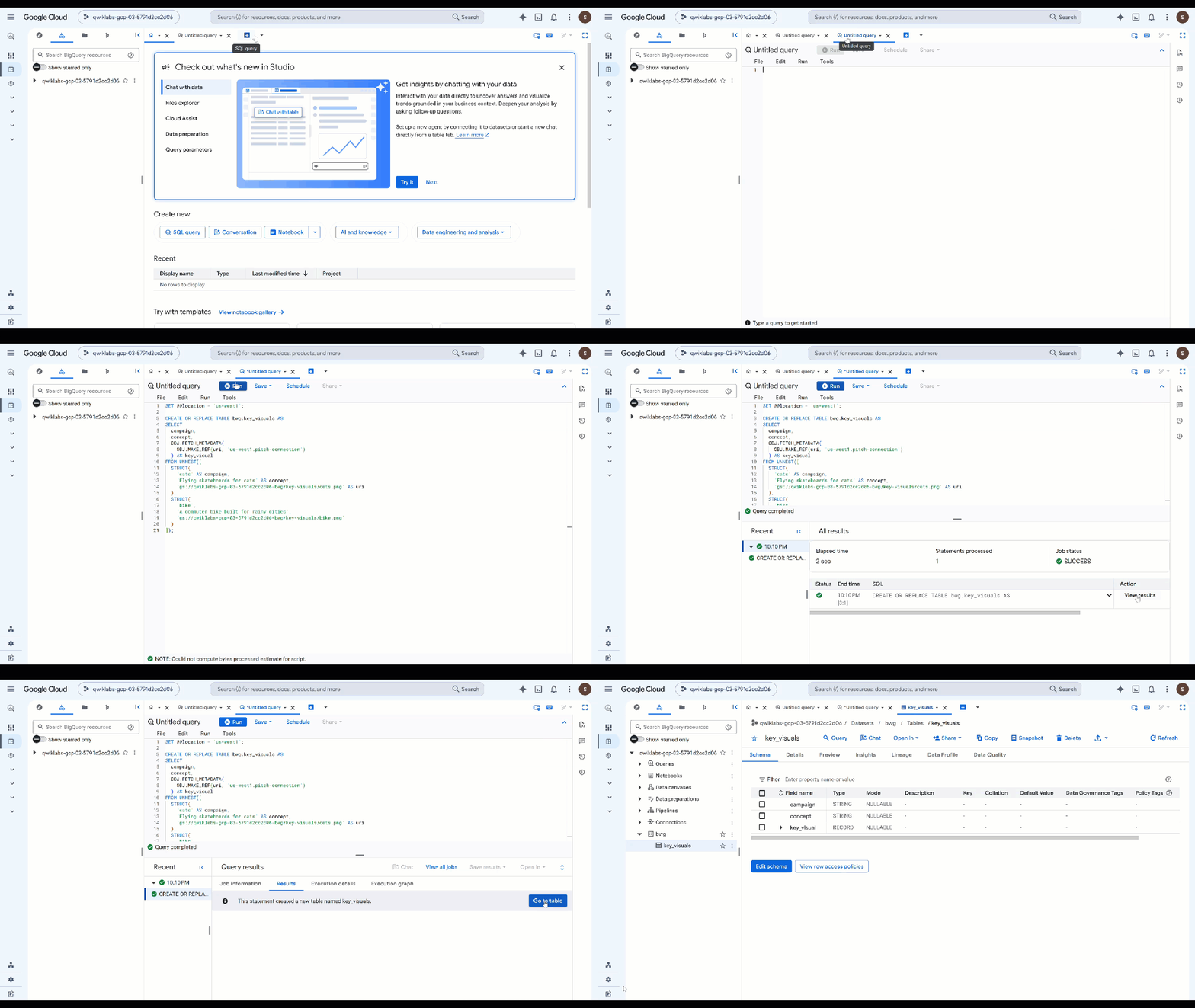
OBJ.MAKE_REFสร้างข้อมูลอ้างอิงจาก URI และการเชื่อมต่อOBJ.FETCH_METADATAจากนั้นจะติดต่อ Cloud Storage และกรอกข้อมูลขนาด ประเภทเนื้อหา และรุ่นของออบเจ็กต์ การเรียกครั้งที่ 2 ยังเป็นวิธีที่เร็วที่สุดในการพิสูจน์ว่าการเชื่อมต่อใช้งานได้ด้วย หากสิทธิ์ไม่ถูกต้อง ฟิลด์detailsจะแสดงข้อผิดพลาดแทนข้อมูลเมตา - ตรวจสอบสิ่งที่คุณจัดเก็บไว้ แทนที่คำค้นหาก่อนหน้าด้วยคำค้นหานี้ แล้วเรียกใช้
SELECT campaign, concept, key_visual.uri, key_visual.details
FROM bwg.key_visuals;
ให้คะแนนรูปภาพแต่ละรูปตามหลักเกณฑ์การใช้แบรนด์
ผู้กำกับภาพได้รับคำสั่งให้ปฏิบัติตามจานสี กฎการจัดแสง และกฎการจัดองค์ประกอบ การตัดสินว่ามีการละเมิดจริงหรือไม่นั้นเป็นเรื่องที่ต้องใช้วิจารณญาณ และนั่นคือสิ่งที่ AI.SCORE มีไว้
- เรียกใช้การค้นหาต่อไปนี้ (แทนที่
ObjectRefสำหรับรูปภาพSELECT campaign, concept, AI.SCORE( ('''You are the brand guardian reviewing a campaign key visual. Score the attached image from 1 to 10 on how closely it follows these house rules: - Palette: deep indigo and slate, with one warm accent of amber or terracotta. Nothing neon. - Light: one dominant low, raking source with long shadows. No flat overhead light. - Composition: subject off-center with generous empty negative space on the opposite side. - Subject: one subject only, photographic realism, shallow depth of field. - Never: text, logos, or watermarks anywhere in the frame. A 10 obeys every rule. A 1 ignores them. The campaign concept is: ''', concept, key_visual), connection_id => '<YOUR_REGION>.pitch-connection', endpoint => 'gemini-3.5-flash' ) AS brand_fit FROM bwg.key_visuals ORDER BY brand_fit DESC; - เปลี่ยนคะแนนให้เป็นคำตัดสินที่ทีมของคุณนำไปดำเนินการได้
CREATE OR REPLACE TABLE bwg.brand_review AS SELECT campaign, concept, brand_fit, IF(brand_fit >= 7, 'on brand', 'needs another pass') AS verdict FROM ( SELECT campaign, concept, AI.SCORE( ('''Score this campaign key visual from 1 to 10 on how closely it follows the house brand rules: deep indigo and slate palette with a single warm accent and nothing neon; one low raking light source with long shadows; the subject off-center with empty negative space opposite; a single photographic subject; and no text, logos, or watermarks in the frame. The campaign concept is: ''', concept, key_visual), connection_id => '<YOUR_REGION>.pitch-connection', endpoint => 'gemini-3.5-flash' ) AS brand_fit FROM bwg.key_visuals ); SELECT * FROM bwg.brand_review ORDER BY brand_fit DESC;AI.SCOREจะแสดงผลFLOAT64และไม่มีอย่างอื่น ดังนั้นเกณฑ์จึงอยู่ใน SQL ธรรมดาที่คุณปรับได้โดยไม่ต้องแตะต้องพรอมต์ การให้คะแนนจะดำเนินการต่อแถว ซึ่งหมายความว่าระบบจะใช้เกณฑ์การให้คะแนนเดียวกันกับชิ้นงานทุกชิ้นที่แคมเปญสร้างขึ้น ไม่ใช่แค่ 2 ชิ้นงานที่คุณสร้างที่นี่
11. ขั้นตอนถัดไป
สร้างการประเมิน
การประเมินแบบ Agent หรือ "Evals" คือการทดสอบอัตโนมัติที่ใช้เพื่อวัดความสามารถของเอเจนต์ AI แบบอัตโนมัติในการให้เหตุผล วางแผน ใช้เครื่องมือ และทําเวิร์กโฟลว์แบบหลายขั้นตอนให้เสร็จสมบูรณ์ ซึ่งคล้ายกับการทดสอบหน่วยสำหรับเอเจนต์ แต่จะพิจารณาถึงลักษณะที่ไม่แน่นอนของเอเจนต์
เอเจนต์ตัวหนึ่งของเรามี Human in the loop ซึ่งหมายความว่าเอเจนต์จะรอรับอินพุต คุณจะต้องอนุญาตให้ Antigravity ทำการแก้ไขโค้ดปัจจุบันเพื่อไม่ให้ลักษณะการทำงานนี้ขัดขวางการประเมินอัตโนมัติ
วิธีที่ดีที่สุดวิธีหนึ่งในการเริ่มต้นใช้งานคือการถาม Antigravity CLI
พิมพ์คำสั่งต่อไปนี้ใน Cloud Shell เพื่อเริ่ม CLI
cd ~/devrel-demos/codelabs/bwg-multi-agent-pitch-generator/
agy
พรอมต์เริ่มต้นมีดังนี้
Explore this repository (`pitch-generator` and `visual-director`), including their agent instructions, tools, and `SKILL.md` files. Design and implement a creative `agents-cli eval` evaluation suite under `tests/eval/` that stress-tests the agent's behavior.
นอกจากนี้ คุณยังดูตัวอย่างการประเมินและวิธีการเรียกใช้ได้ในที่เก็บที่โคลน
12. ล้างข้อมูล
หากไม่ต้องการให้ระบบเรียกเก็บเงินจากบัญชี Google Cloud สำหรับทรัพยากรที่ใช้ในโค้ดแล็บนี้ ให้ลบโปรเจ็กต์ (แนะนำ) หรือลบทรัพยากรแต่ละรายการที่สร้างขึ้นระหว่างโค้ดแล็บ
gcloud run services delete visual-director --region=<YOUR_REGION> --project=<YOUR_PROJECT_ID> --quiet
bq rm -r -f -d <YOUR_PROJECT_ID>:bwg
bq rm --connection --location=<YOUR_REGION> --project_id=<YOUR_PROJECT_ID> pitch-connection
gcloud storage rm -r gs://<YOUR_PROJECT_ID>-bwg
13. ยินดีด้วย
ใน Codelab นี้ คุณได้สร้างเครื่องมือสร้างการเสนอแคมเปญแบบหลาย Agent ด้วย Agent Development Kit คุณเชื่อมต่อเอเจนต์ 3 ตัวเข้ากับเวิร์กโฟลว์กราฟแบบดีเทอร์มินิสติก จัดทำหลักเกณฑ์การใช้แบรนด์เป็นทักษะของเอเจนต์ที่โหลดตามต้องการ และมอบเครื่องมือสร้างรูปภาพให้กับเอเจนต์ซึ่งจะบันทึกเอาต์พุตเป็นอาร์ติแฟกต์ จากนั้นคุณจะแยก Visual Director ออกเป็นบริการ A2A ของตัวเอง ฝังกลับเข้าไปในกราฟเป็นโหนดระยะไกล แล้วติดตั้งใช้งานใน Cloud Run และเรียกเวิร์กโฟลว์ทั้งหมดผ่าน A2A จากตัวประสานที่ทำงานในเครื่อง สุดท้าย คุณอ้างอิงภาพที่สำคัญที่สร้างขึ้นจาก BigQuery ด้วย ObjectRef และใช้ AI.SCORE เพื่อเปรียบเทียบกับหลักเกณฑ์การใช้แบรนด์ของคุณเอง