
1. Introduction
The Cloud DNS service offers a high-performance, resilient, and global Domain Name System (DNS) solution, empowering you to publish zones and records without the need for self-managed DNS infrastructure.
Of primary importance, Cloud DNS incorporates support for health checking and automated failover capabilities within its routing policies for external endpoints. However, please note that health checks for these external endpoints are exclusively available within public zones, and the endpoints themselves must be publicly accessible via the internet.
What you'll learn
- How to create a Regional External Application load balancer with an unmanaged instance group.
- How to configure Cloud DNS health checks for external DNS routing.
- How to create a failover routing policy.
What you'll need
- Basic knowledge of DNS.
- Basic knowledge of Google Compute Engine.
- Basic knowledge of Application Load Balancer.
- A Google Cloud Project with Owner Permissions
- A public domain that you own, for which you can create a Cloud DNS public zone.
- The following organizational policies are currently not enforced within the Google Cloud Project: Shielded VMs and Internet Network Endpoint Groups.
2. Codelab topology
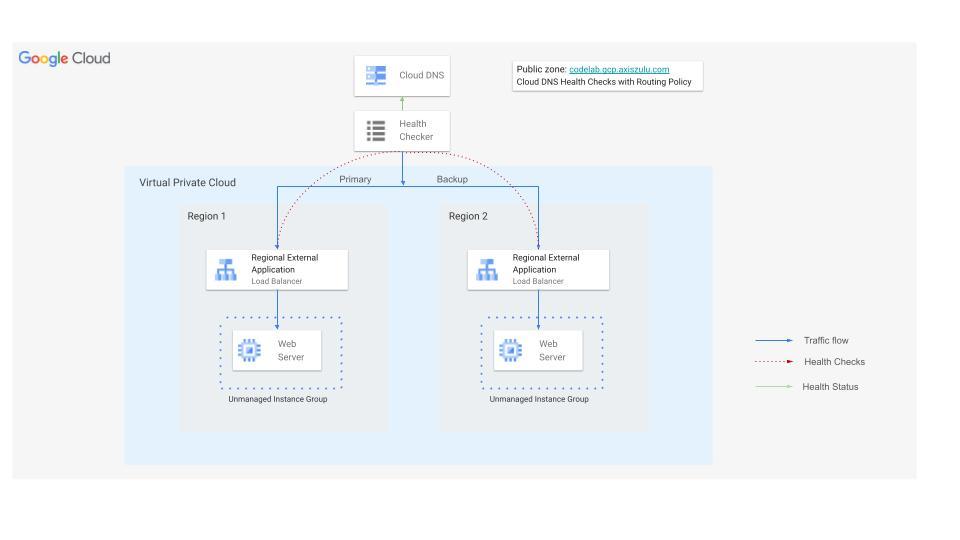
In this codelab, you will use Cloud DNS health checks for external endpoints to reroute traffic to a backup Regional External Application Load Balancer if the primary load balancer's backend becomes unhealthy.
You will build a website in two regions, each fronted by an External Application Load Balancer. Then, you will configure Cloud DNS health checks with a failover routing policy.
3. Setup and Requirements
Self-paced environment setup
- Sign-in to the Google Cloud Console and create a new project or reuse an existing one. If you don't already have a Gmail or Google Workspace account, you must create one.

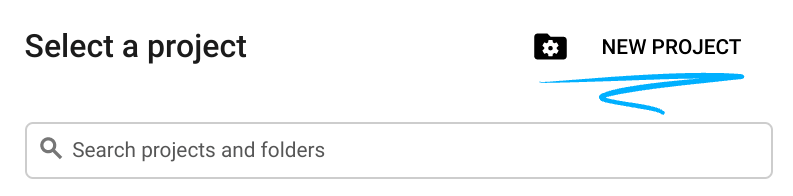
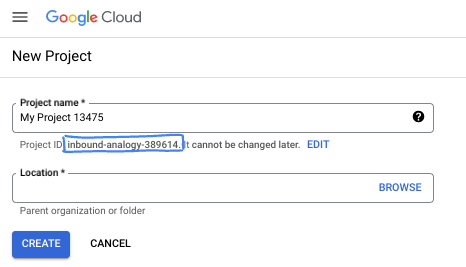
- The Project name is the display name for this project's participants. It is a character string not used by Google APIs. You can always update it.
- The Project ID is unique across all Google Cloud projects and is immutable (cannot be changed after it has been set). The Cloud Console auto-generates a unique string; usually you don't care what it is. In most codelabs, you'll need to reference your Project ID (typically identified as
PROJECT_ID). If you don't like the generated ID, you might generate another random one. Alternatively, you can try your own, and see if it's available. It can't be changed after this step and remains for the duration of the project. - For your information, there is a third value, a Project Number, which some APIs use. Learn more about all three of these values in the documentation.
- Next, you'll need to enable billing in the Cloud Console to use Cloud resources/APIs. Running through this codelab won't cost much, if anything at all. To shut down resources to avoid incurring billing beyond this tutorial, you can delete the resources you created or delete the project. New Google Cloud users are eligible for the $300 USD Free Trial program.
Start Cloud Shell
While Google Cloud can be operated remotely from your laptop, in this codelab you will be using Google Cloud Shell, a command line environment running in the Cloud.
From the Google Cloud Console, click the Cloud Shell icon on the top right toolbar:

It should only take a few moments to provision and connect to the environment. When it is finished, you should see something like this:

This virtual machine is loaded with all the development tools you'll need. It offers a persistent 5GB home directory, and runs on Google Cloud, greatly enhancing network performance and authentication. All of your work in this codelab can be done within a browser. You do not need to install anything.
4. Before you begin
Enable APIs
Inside Cloud Shell, make sure that your project is set up and configure variables.
gcloud auth login
gcloud config list project
gcloud config set project [YOUR-PROJECT-ID]
export projectid=[YOUR-PROJECT-ID]

# Define variables for regions and the domain
export REGION_A=us-central1
export REGION_B=us-west1
export DNS_ZONE=dnscodelab-zone
Export DNS_DOMAIN=gcp.<yourpublicdomain>.com
echo $projectid
echo $REGION_A
echo $REGION_B
echo $DNS_ZONE
echo $DNS_DOMAIN
Enable all necessary services
gcloud services enable compute.googleapis.com
gcloud services enable dns.googleapis.com
5. Create Cloud Load Balancing Infrastructure
In this section, you will create the necessary VPC, subnets, firewall rules, VMs, and Unmanaged Instance Groups in two different regions to support the primary and backup load balancers.
VPC Network
From Cloud Shell
gcloud compute networks create external-lb-vpc --subnet-mode=custom
Create two subnets in REGION_A (Primary) and REGION_B (Backup) to host the backend web servers
Create Subnets
From Cloud Shell
gcloud compute networks subnets create subnet-a --network=external-lb-vpc --region=$REGION_A --range=10.10.1.0/24

gcloud compute networks subnets create subnet-b --network=external-lb-vpc --region=$REGION_B --range=10.20.1.0/24
Create proxy-only subnets in each region for the respective regional external Application load balancer that will be created later.
This dedicated proxy-only subnet is a mandatory requirement for all Envoy-based regional load balancers deployed within the same region of the external-lb-vpc network. These proxies effectively terminate the client's connection and subsequently establish new connections to the backend services.
From Cloud Shell
gcloud compute networks subnets create proxy-only-subnet-a \
--purpose=REGIONAL_MANAGED_PROXY \
--role=ACTIVE \
--region=$REGION_A \
--network=external-lb-vpc \
--range=10.129.0.0/23

gcloud compute networks subnets create proxy-only-subnet-b \
--purpose=REGIONAL_MANAGED_PROXY \
--role=ACTIVE \
--region=$REGION_B \
--network=external-lb-vpc \
--range=10.130.0.0/23
Create Network Firewall Rules
fw-allow-health-check. An ingress rule, applicable to the instances being load balanced, that allows all TCP traffic from the Google Cloud health checking systems (in 130.211.0.0/22 and 35.191.0.0/16). This example uses the target tag load-balanced-backend to identify the VMs that the firewall rule applies to.
fw-allow-proxies. An ingress rule, applicable to the instances being load balanced, that allows TCP traffic on ports 80 from the regional external Application Load Balancer's managed proxies. This example uses the target tag load-balanced-backend to identify the VMs that the firewall rule applies to.
From Cloud Shell
gcloud compute firewall-rules create fw-allow-health-check \
    --network=external-lb-vpc \
    --action=allow \
    --direction=ingress \
    --source-ranges=130.211.0.0/22,35.191.0.0/16 \
    --target-tags=load-balanced-backend \
    --rules=tcp
gcloud compute firewall-rules create fw-allow-proxies \
  --network=external-lb-vpc \
  --action=allow \
  --direction=ingress \
  --source-ranges=10.129.0.0/23,10.130.0.0/23 \
  --target-tags=load-balanced-backend \
  --rules=tcp:80
To allow IAP to connect to your VM instances, create a firewall rule that:
- Applies to all VM instances that you want to be accessible by using IAP.
- Allows ingress traffic from the IP range 35.235.240.0/20. This range contains all IP addresses that IAP uses for TCP forwarding.
From Cloud Shell
gcloud compute firewall-rules create allow-ssh \
    --allow tcp:22 --network external-lb-vpc \
    --source-ranges 35.235.240.0/20  \
    --description "SSH with IAP" \
    --target-tags=allow-ssh
6. Create Cloud NAT and Cloud Routers
You need Cloud NAT gateways in both regions for the private VMs to be able to download and install packages from the internet.
- Our web server VMs will need to download and install Apache web server.
- The client VM will need to download and install the dnsutils package which we will use for our testing.
Each Cloud NAT gateway is associated with a single VPC network, region, and Cloud Router. So before we create the NAT gateways, we need to create Cloud Routers in each region.
Create Cloud Routers
From Cloud Shell
gcloud compute routers create "$REGION_A-cloudrouter" \
--region $REGION_A --network=external-lb-vpc --asn=65501

gcloud compute routers create "$REGION_B-cloudrouter" \
--region $REGION_B --network=external-lb-vpc --asn=65501
Create NAT Gateways
From Cloud Shell
gcloud compute routers nats create "$REGION_A-nat-gw" \
--router="$REGION_A-cloudrouter" \
--router-region=$REGION_A \
--nat-all-subnet-ip-ranges --auto-allocate-nat-external-ips

gcloud compute routers nats create "$REGION_B-nat-gw" \
--router="$REGION_B-cloudrouter" \
--router-region=$REGION_B \
--nat-all-subnet-ip-ranges --auto-allocate-nat-external-ips
Create Backend VMs and Unmanaged Instance Groups
Create VM in each region and install web server (e.g Apache):
From Cloud Shell
# Primary (Region A)
gcloud compute instances create vm-a \
--zone=$REGION_A-a \
--image-family=debian-12 --image-project=debian-cloud \
--subnet=subnet-a \
--no-address \
--tags=load-balanced-backend,allow-ssh \
--metadata=startup-script='#! /bin/bash
apt-get update
apt-get install apache2 -y
a2ensite default-ssl
a2enmod ssl
vm_hostname="$(curl -H "Metadata-Flavor:Google" \
http://metadata.google.internal/computeMetadata/v1/instance/name)"
echo "Page served from: $vm_hostname" - $REGION_A Primary Backend |\
tee /var/www/html/index.html
systemctl restart apache2'


# Backup (Region B)
gcloud compute instances create vm-b \
--zone=$REGION_B-a \
--image-family=debian-12 --image-project=debian-cloud \
--subnet=subnet-b \
--no-address \
--tags=load-balanced-backend,allow-ssh \
--metadata=startup-script='#! /bin/bash
apt-get update
apt-get install apache2 -y
a2ensite default-ssl
a2enmod ssl
vm_hostname="$(curl -H "Metadata-Flavor:Google" \
http://metadata.google.internal/computeMetadata/v1/instance/name)"
echo "Page served from: $vm_hostname" - $REGION_B Backup Backend |\
tee /var/www/html/index.html
systemctl restart apache2'
Create an Unmanaged Instance Group and add the VM instance to it for each region:
From Cloud Shell
# Primary (Region A)
gcloud compute instance-groups unmanaged create ig-a --zone=$REGION_A-a

gcloud compute instance-groups unmanaged add-instances ig-a --zone=$REGION_A-a --instances=vm-a

# Backup (Region B)
gcloud compute instance-groups unmanaged create ig-b --zone=$REGION_B-a

gcloud compute instance-groups unmanaged add-instances ig-b --zone=$REGION_B-a --instances=vm-b
7. Configure Regional External Application Load Balancers
You will configure a complete Regional External Application Load Balancer in both REGION_A (Primary) and REGION_B (Backup).
Create Health Checks and Backend Services
Regional External Application Load Balancers are envoy based and need a regional Health Checks to be configured.
Create an HTTP Health Check (used by the Load Balancers to check instance health):
In Cloud Shell
gcloud compute health-checks create http http-lb-hc-primary-region \
--port 80 \
--region=$REGION_A
gcloud compute health-checks create http http-lb-hc-backup-region \
--port 80 \
--region=$REGION_B
Create a regional Backend Service and attach the Instance Group in each region**.**
In Cloud Shell
# Primary (Region A)
gcloud compute backend-services create be-svc-a \
--load-balancing-scheme=EXTERNAL_MANAGED \
--protocol=HTTP \
--port-name=http \
--health-checks=http-lb-hc-primary-region \
--health-checks-region=$REGION_A \
--region=$REGION_A

gcloud compute backend-services add-backend be-svc-a \
--instance-group=ig-a \
--instance-group-zone=$REGION_A-a \
--region=$REGION_A

# Backup (Region B)
gcloud compute backend-services create be-svc-b \
--load-balancing-scheme=EXTERNAL_MANAGED \
--protocol=HTTP \
--port-name=http \
--health-checks=http-lb-hc-backup-region \
--health-checks-region=$REGION_B \
--region=$REGION_B

gcloud compute backend-services add-backend be-svc-b --instance-group=ig-b --instance-group-zone=$REGION_B-a --region=$REGION_B
Create Frontend Components
Create URL Maps and Target HTTP Proxies in both regions:
In Cloud Shell
#Primary (Region A)
gcloud compute url-maps create url-map-a \
--default-service=be-svc-a \
--region=$REGION_A
gcloud compute target-http-proxies create http-proxy-a \
--url-map=url-map-a \
--url-map-region=$REGION_A \
--region=$REGION_A
#Backup (Region B)
gcloud compute url-maps create url-map-b \
--default-service=be-svc-b \
--region=$REGION_B

gcloud compute target-http-proxies create http-proxy-b \
--url-map=url-map-b \
--url-map-region=$REGION_B \
--region=$REGION_B
Reserve static IP addresses (External) for the forwarding rules:
In Cloud Shell
# Primary IP (Region A)
gcloud compute addresses create rxlb-ip-a --region=$REGION_A

# Backup IP (Region B)
gcloud compute addresses create rxlb-ip-b --region=$REGION_B
Create the Forwarding Rules for the two load balancers:
In Cloud Shell
# Primary (Region A)
gcloud compute forwarding-rules create http-fwd-rule-a \
--load-balancing-scheme=EXTERNAL_MANAGED \
--network=external-lb-vpc \
--region=$REGION_A \
--target-http-proxy-region=$REGION_A \
--address=rxlb-ip-a \
--target-http-proxy=http-proxy-a \
--ports=80

# Backup (Region B)
gcloud compute forwarding-rules create http-fwd-rule-b \
--load-balancing-scheme=EXTERNAL_MANAGED \
--network=external-lb-vpc \
--region=$REGION_B \
--target-http-proxy-region=$REGION_B \
--address=rxlb-ip-b \
--target-http-proxy=http-proxy-b \
--ports=80
Configure Cloud DNS for Failover
Create Cloud DNS Health Check for external endpoints
You must create a dedicated global health check for the load balancer's public IP addresses. This is distinct from the load balancer's internal health check.
First let's determine the external IP addresses of the Load balancers for configuring the failover policy and export it as a variable
In Cloud Shell
PRIMARY_IP=$(gcloud compute addresses describe rxlb-ip-a --region=$REGION_A --format='get(address)')

BACKUP_IP=$(gcloud compute addresses describe rxlb-ip-b --region=$REGION_B --format='get(address)')
Create the global DNS health check (requires three source regions):
In Cloud Shell
gcloud beta compute health-checks create http dns-failover-health-check \
    --global \
    --source-regions=$REGION_A,$REGION_B,europe-west1 \
    --request-path=/ \
    --check-interval=30s \
    --port=80 \
    --enable-logging
Create Public Managed Zone and Failover Routing Policy.
Create a Public Managed Zone (use the DNS domain you own):
In Cloud Shell
gcloud dns managed-zones create codelab-publiczone --dns-name=$DNS_DOMAIN --description="Codelab DNS Failover Zone"
Create the A record with a Failover Routing Policy. This policy points to the Primary IP and uses the health check to determine when to fail over to the Backup IP.
The command below uses the load balancer forwarding rule names to reference the IP addresses for the routing policy.
gcloud beta dns record-sets create codelab.gcp.axiszulu.com. \
--type=A \
--ttl=5 \
--zone=codelab-publiczone \
--routing_policy_type=FAILOVER \
--routing-policy-primary-data=$PRIMARY_IP \
--routing-policy-backup-data-type=GEO \
--routing-policy-backup-item=location=$REGION_B,external_endpoints=$BACKUP_IP \
--health-check=dns-failover-health-check
8. Testing regional failover
- Initial Validation: Use a tool (like
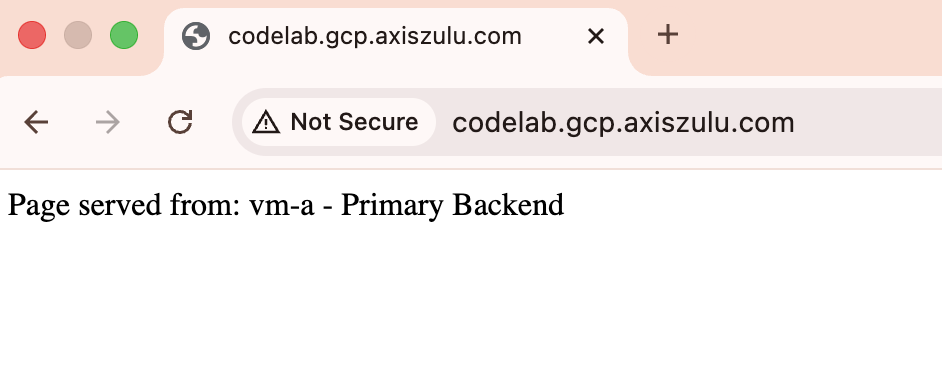
digor a web browser) to query your domain. It should resolve to the Primary IP ($PRIMARY_IP) and return the "Region A - Primary Backend" page.
dig codelab.gcp.axiszulu.com

OUTPUT
; <<>> DiG 9.18.39-0ubuntu0.24.04.2-Ubuntu <<>> codelab.gcp.axiszulu.com
;; global options: +cmd
;; Got answer:
;; ->>HEADER<<- opcode: QUERY, status: NOERROR, id: 16096
;; flags: qr rd ra; QUERY: 1, ANSWER: 1, AUTHORITY: 0, ADDITIONAL: 1

;; OPT PSEUDOSECTION:
; EDNS: version: 0, flags:; udp: 512
;; QUESTION SECTION:
;codelab.gcp.axiszulu.com.      IN      A

;; ANSWER SECTION:
codelab.gcp.axiszulu.com. 5     IN      A   <PRIMARY_IP>
Output from the browser
- Simulate Failover: Log into the primary VM (
vm-a) and shut down Apache to simulate an outage:
In Cloud Shell
gcloud compute ssh vm-a --zone=$REGION_A-a --command="sudo systemctl stop apache2"
- Verify Unhealthy Status: Wait for 2-3 minutes for the DNS health check to mark the primary endpoint as unhealthy.
# check health status
gcloud compute backend-services get-health be-svc-a --region=${REGION_A}

Output:
backend: https://www.googleapis.com/compute/v1/projects/precise-airship-466617-c3/zones/us-central1-a/instanceGroups/ig-a
status:
  healthStatus:
  - healthState: UNHEALTHY
    instance: https://www.googleapis.com/compute/v1/projects/precise-airship-466617-c3/zones/us-central1-a/instances/vm-a
    ipAddress: 10.10.1.2
    port: 80
  kind: compute#backendServiceGroupHealth
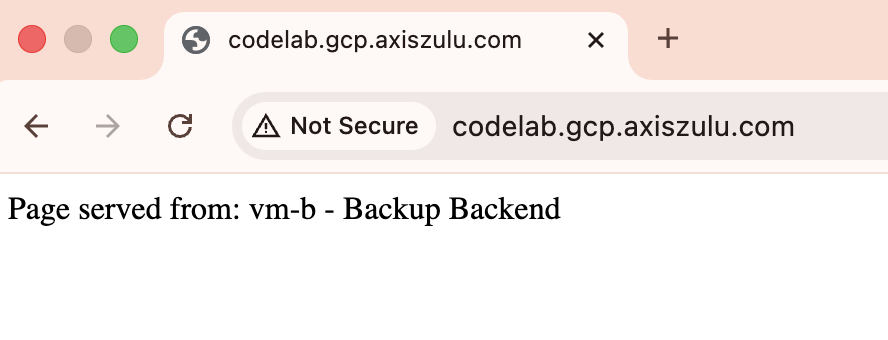
- Validate Failover: Re-query your domain. It should now resolve to the Backup IP (
$BACKUP_IP) and return the "Region B - Backup Backend" page.
dig codelab.gcp.axiszulu.com

OUTPUT
; <<>> DiG 9.18.39-0ubuntu0.24.04.2-Ubuntu <<>> codelab.gcp.axiszulu.com
;; global options: +cmd
;; Got answer:
;; ->>HEADER<<- opcode: QUERY, status: NOERROR, id: 16096
;; flags: qr rd ra; QUERY: 1, ANSWER: 1, AUTHORITY: 0, ADDITIONAL: 1

;; OPT PSEUDOSECTION:
; EDNS: version: 0, flags:; udp: 512
;; QUESTION SECTION:
;codelab.gcp.axiszulu.com.      IN      A

;; ANSWER SECTION:
codelab.gcp.axiszulu.com. 5     IN      A   <BACKUP_IP>
Output from the browser
- Simulate Failback (Optional): SSH and start apache on the primary VM and wait for the DNS health check to mark the primary endpoint as healthy. Traffic should automatically route back to the primary IP.
- Optional: You can analyze the Cloud DNS Health Check Logging by running to below command in the cloud shell
gcloud logging read "logName=projects/${projectid}/logs/compute.googleapis.com%2Fhealthchecks" \
--limit=10 \
--project=${projectid} \
--freshness=1d \
--format="table(timestamp:label=TIME, \
jsonPayload.healthCheckProbeResult.ipAddress:label=BACKEND_IP, \
jsonPayload.healthCheckProbeResult.previousDetailedHealthState:label=PREVIOUS_STATE, \
jsonPayload.healthCheckProbeResult.detailedHealthState:label=CURRENT_STATE, \
jsonPayload.healthCheckProbeResult.probeResultText:label=RESULT_TEXT)"
9. Cleanup steps
Delete all components to avoid incurring further charges.
From Cloud Shell
# Delete VMs
gcloud compute instances delete vm-a --zone=$REGION_A-a --quiet
gcloud compute instances delete vm-b --zone=$REGION_B-a --quiet
# Delete Load Balancer Components (Primary)
gcloud compute forwarding-rules delete http-fwd-rule-a --region=$REGION_A --quiet
gcloud compute target-http-proxies delete http-proxy-a --region=$REGION_A --quiet
gcloud compute url-maps delete url-map-a --region=$REGION_A --quiet
gcloud compute backend-services delete be-svc-a --region=$REGION_A --quiet
gcloud compute addresses delete rxlb-ip-a --region=$REGION_A --quiet
# Delete Load Balancer Components (Backup)
gcloud compute forwarding-rules delete http-fwd-rule-b --region=$REGION_B --quiet
gcloud compute target-http-proxies delete http-proxy-b --region=$REGION_B --quiet
gcloud compute url-maps delete url-map-b --region=$REGION_B --quiet
gcloud compute backend-services delete be-svc-b --region=$REGION_B --quiet
gcloud compute addresses delete rxlb-ip-b --region=$REGION_B --quiet
# Delete Instance Groups and LB Health Checks
gcloud compute instance-groups unmanaged delete ig-a --zone=$REGION_A-a --quiet
gcloud compute instance-groups unmanaged delete ig-b --zone=$REGION_B-a --quiet
gcloud compute health-checks delete http-lb-hc-primary-region --region=$REGION_A --quiet
gcloud compute health-checks delete http-lb-hc-backup-region --region=$REGION_B --quiet

# Delete Cloud DNS Records Zone and DNS Heath Checks
gcloud dns record-sets delete $DNS_DOMAIN --type=A --zone=codelab-publiczone --quiet
gcloud dns managed-zones delete codelab-publiczone --quiet

gcloud compute health-checks delete dns-failover-health-check --global --quiet

# Delete Cloud NAT and Cloud Routers
gcloud compute routers nats delete $REGION_A-nat-gw \
--router=$REGION_A-cloudrouter --region=$REGION_A --quiet

gcloud compute routers nats delete $REGION_B-nat-gw \
--router=$REGION_B-cloudrouter --region=$REGION_B --quiet

gcloud compute routers delete $REGION_A-cloudrouter \
--region=$REGION_A --quiet

gcloud compute routers delete $REGION_B-cloudrouter \
--region=$REGION_B --quiet


# Delete Subnets and Firewall Rules
gcloud compute firewall-rules delete fw-allow-health-check --quiet
gcloud compute firewall-rules delete fw-allow-proxies --quiet
gcloud compute firewall-rules delete allow-ssh --quiet
gcloud compute networks subnets delete subnet-a \
--region=$REGION_A --quiet

gcloud compute networks subnets delete subnet-b \
--region=$REGION_B --quiet
gcloud compute networks subnets delete proxy-only-subnet-a \
--region=$REGION_A --quiet

gcloud compute networks subnets delete proxy-only-subnet-b \
--region=$REGION_B --quiet

gcloud compute networks delete external-lb-vpc --quiet
10. Congratulations!
Congratulations for completing the Codelab.
- You've successfully configured and validated a multi-region active-passive failover using Cloud DNS Health Checks and Regional External Application Load Balancer