
1. Introduction
Cloud Next Generation Firewall (NGFW)
Cloud Next Generation Firewall is a fully distributed firewall service with advanced protection capabilities, micro-segmentation, and pervasive coverage to protect your Google Cloud workloads from internal and external attacks.
Cloud NGFW has the following benefits:
- Distributed firewall service: Cloud NGFW provides a stateful, fully distributed host-based enforcement on each workload to enable zero-trust security architecture.
- Simplified configuration and deployment: Cloud NGFW implements network and hierarchical firewall policies that can be attached to a resource hierarchy node. These policies provide a consistent firewall experience across the Google Cloud resource hierarchy.
- Granular control and micro-segmentation: The combination of firewall policies and Identity and Access Management (IAM)-governed Tags provides fine control for both north-south and east-west traffic, down to a single VM, across Virtual Private Cloud (VPC) networks.
Network firewall policies
Network firewall policy acts as a container for firewall rules. Rules defined in a network firewall policy are not enforced anywhere until the policy is associated with a VPC network. Each VPC network can have one network firewall policy associated with it. Network firewall policies support IAM-governed Tags (or just Tags) in firewall rules and can be used to provide identity to workload.
Sharing a network firewall policy across networks and the integration with IAM-governed Tags greatly simplifies the configuration and management of firewalls.
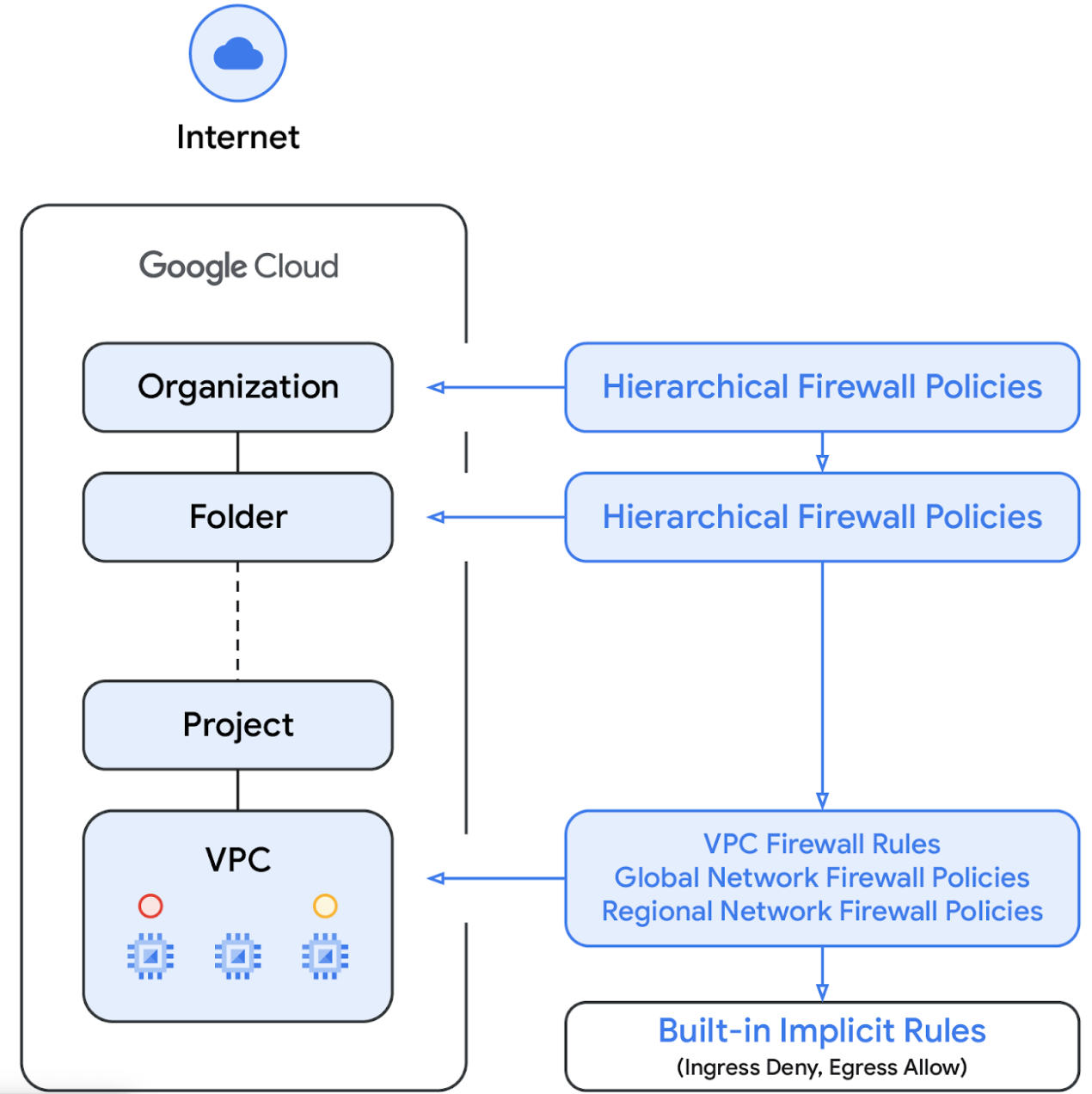
With the introduction of network firewall policy, Google Cloud's firewall policies now consists of the following components:
- Hierarchical Firewall Policy
- VPC Firewall Rules
- Global Network Firewall Policy and Regional Network Firewall Policy
Hierarchical firewall policies are supported at the organization and folder nodes within the resource hierarchy, whereas VPC firewall rules and network firewall policies get applied at the VPC level. A big difference between VPC firewall rules and network firewall policies is that VPC firewall rules can be applied only to a single VPC network, whereas network firewall policies can get attached to a single VPC or group of VPCs, amongst other benefits like batch updates.
In this lab, we will test Hierarchical Firewall Policy and Global Network Firewall Policy.
Finally, we also have the implied firewall rules that come with every VPC network:
- An egress rule whose action is allow, destination is 0.0.0.0/0
- An ingress rule whose action is deny, source is 0.0.0.0/0
By default, the enforcement sequence is shown in the following diagram:
IAM-governed Tags
The new Tags integrated in firewall policy rules are key-value pair resources defined at the Organization or Project level of the Google Cloud resource hierarchy. Such a Tag contains an IAM access control, as the name implies, that specifies who can do what on the tag. IAM permissions, for instance, allow one to specify which principals can assign values to tags and which principals can attach tags to resources. Once a Tag has been applied to a resource, firewall policy rules can use it to allow and deny traffic.
Tags adhere to Google Cloud's inheritance resource model, meaning tags and their values are passed down across the hierarchy from their parents. As a result, tags may be created in one place and then used by other folders and projects throughout the resource hierarchy. Visit this page for further details on tags and access restriction.
Tags should not be confused with network tags, the latter are strings that can be added to Compute Engine instances; they are associated with the instance and vanish when the instance is decommissioned. VPC firewall rules may include network tags, but since they are not regarded as cloud resources, they are not subject to IAM access control. Visit this page for details of the difference.
2. What you'll learn
- How to create IAM-governed tags for use with Cloud NGFW and with global scope.
- How to attach tags to VMs.
- How to create a Hierarchical Firewall Policy and associate it with a folder.
- How to create a firewall rule in the Hierarchical Firewall Policy and specify source and target using IAM-governed tags.
3. Overall Lab Architecture
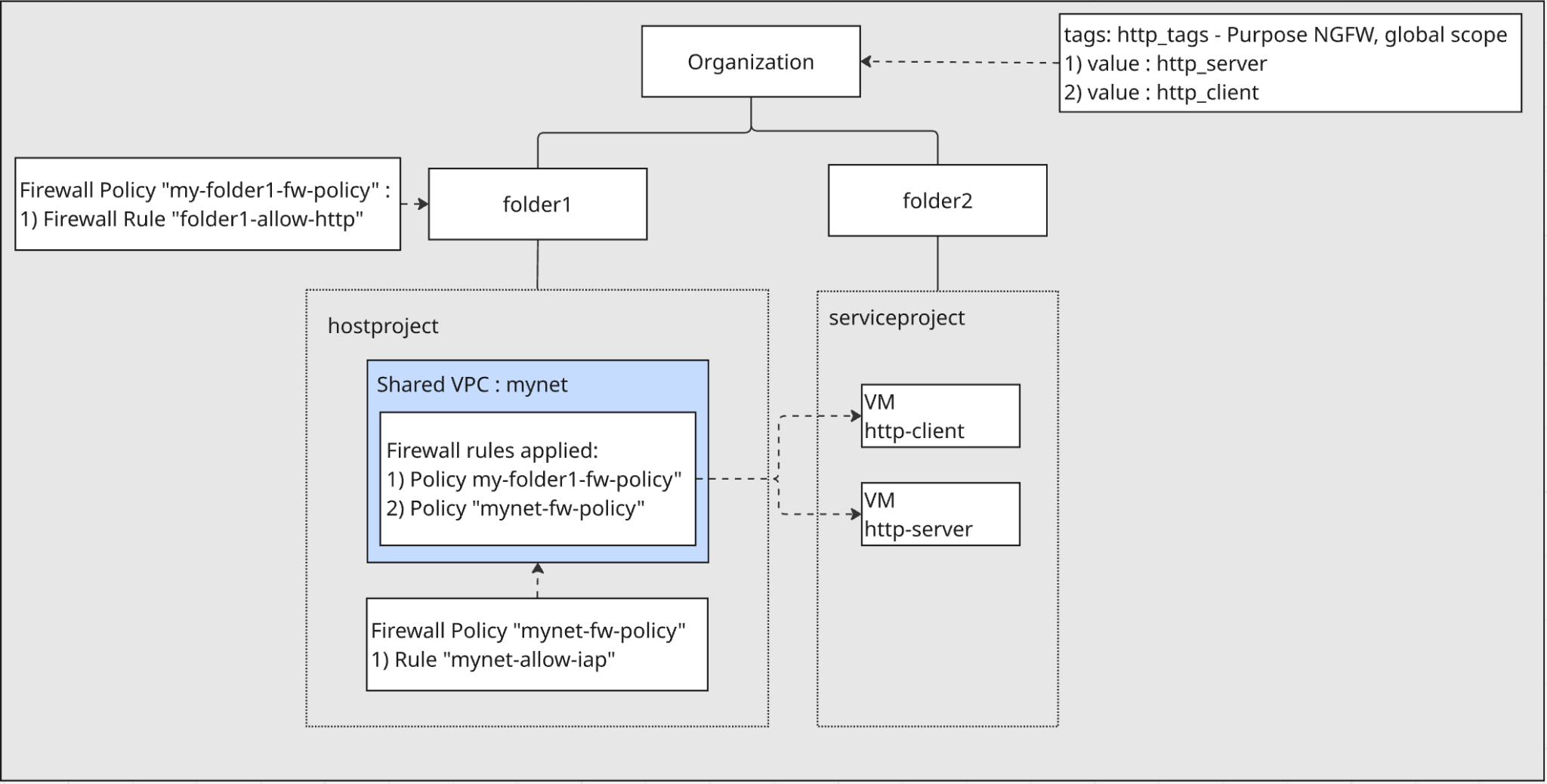
Organization and Folders:
- You will create two folders,
folder1andfolder2, directly under your organization.
Projects:
- Inside
folder1, you will create a host project. This project will contain the Shared VPC network. - Inside
folder2, you will create a service project. This project will contain the VMs that use the Shared VPC.
Networking:
- A VPC network named
mynetwill be created in the host project and configured as a Shared VPC. This allows resources in the service project to use the network. - Two VMs will be created in the service project and connected to the
mynetShared VPC.
IAM-governed Tags:
- You will create an IAM-governed tag named
http_tagswith two values, nameshttp_serverandhttp_clientat the organization level. These tag/values will be used to identify and apply firewall rules to the VMs.
Firewall Policies:
- A Hierarchical Firewall Policy will be created and associated with
folder1. A rule within this policy will use the IAM-governed tags to allow traffic fromhttp-clienttohttp-serveron port 80. - A Network Firewall Policy will be created in the host project and associated with the
mynetVPC. This policy will include a rule to allow IAP SSH access to the VMs for testing purposes.
4. Preparation steps
First, set up the necessary IAM roles, network infrastructure and instances in your Google Cloud organization.
IAM roles required to work on the lab
We start with assigning required IAM roles to the GCP account at Organization level.
- Organization Administrator (
roles/resourcemanager.organizationAdmin) This role lets you manage IAM policies and view organization policies for organizations, folders, and projects. - Tag Administrator(
roles/resourcemanager.tagAdmin) This role lets you create, update, and delete secure tags. - Tag User role (
roles/resourcemanager.tagUser) This role lets you access the list of secure tags and manage their associations with the resources. - Compute Organization Firewall Policy Admin role (
roles/compute.orgFirewallPolicyAdmin) This role gives you full control of Compute Engine Organization Firewall Policies. - Compute Organization Resource Admin role (
roles/compute.orgSecurityResourceAdmin) This role gives you full control of Compute Engine Firewall Policy associations to the organization or folder. - Compute Network Admin (
roles/compute.networkAdmin) This role gives you full control of Compute Engine networking resources. - Compute Instance Admin( beta ) (
roles/compute.instanceAdmin) This role gives you full control of Compute Engine instance resources. - Logging Admin (
roles/logging.admin) This role gives you access to all logging permissions, and dependent permissions. - Service Account Admin (
roles/iam.serviceAccountAdmin) This role lets you create and manage service accounts. - Service Usage Admin (
roles/serviceusage.serviceUsageAdmin) This role gives you the ability to enable, disable, and inspect service states, inspect operations, and consume quota and billing for a consumer project. - Compute Shared VPC Admin (
roles/compute.xpnAdmin) This role lets you administer a shared VPC network (XPN).
Create folders and projects
Inside Cloud Shell, perform the following to create folder1 and folder2:
gcloud auth login

export org_id=$(gcloud organizations list --format='value(ID)')
export BILLING_ACCOUNT_ID=$(gcloud billing accounts list --format='value(ACCOUNT_ID)')
export folder1=[FOLDER1 NAME]
export folder2=[FOLDER2 NAME]
export hostproject=[HOST PROJECT NAME]
export serviceproject=[SERVICE PROJECT NAME]
export regionname=[REGION NAME]
export zonename=[COMPUTE ZONE NAME]

gcloud resource-manager folders create --display-name=$folder1 --organization=$org_id
export folder1_id=$(gcloud resource-manager folders list --organization=$org_id --filter="displayName=$folder1" --format="value(ID)")
gcloud resource-manager folders create --display-name=$folder2 --organization=$org_id
export folder2_id=$(gcloud resource-manager folders list --organization=$org_id --filter="displayName=$folder2" --format="value(ID)")
Inside Cloud Shell, perform the following to create the host project under folder1:
gcloud projects create --name=$hostproject --folder=$folder1_id
You will see the following. Press Y to create the project with the new project ID.
No project ID provided.

Use [NEW-PROJECT-ID] as project ID (Y/n)?
Take notes of the project ID. Inside Cloud Shell, perform the following to export it to hostproject_id:
export hostproject_id=[HOSTPROJECT ID]
Inside Cloud Shell, perform the following to link the host project to billing account:
gcloud billing projects link $hostproject_id \
--billing-account=$BILLING_ACCOUNT_ID
Inside Cloud Shell, perform the following to create the service project under folder2:
gcloud projects create --name=$serviceproject --folder=$folder2_id
You will see the following. Press Y to create the project with the new project ID.
No project ID provided.

Use [NEW-PROJECT-ID] as project ID (Y/n)?
Take notes of the project ID. Inside Cloud Shell, perform the following to export it to serviceproject_id:
export serviceproject_id=[SERVICEPROJECT ID]
Inside Cloud Shell, perform the following to link the service project to billing account:
gcloud billing projects link $serviceproject_id \
--billing-account=$BILLING_ACCOUNT_ID
Create IAM-governed tags
A tag is a key-value pair that can be attached to an organization, folder, or project. See Creating and managing tags and the required permissions for more details.
We create one tag at the organization level, http-tags. The purpose of the tag is for use of Cloud NGFW. We don't restrict scope to a single network – the tag is globally scoped. And later we will apply the tag to VMs created in the service project under folder2.
Inside Cloud Shell, perform the following:
gcloud resource-manager tags keys create http_tags \
    --parent=organizations/$org_id \
    --purpose GCE_FIREWALL \
    --purpose-data organization=auto
We will use the tag key id to annotate VM during creation. Inside Cloud Shell, perform the following to get tag key id:
export http_tags_id=$(gcloud resource-manager tags keys describe $org_id/http_tags --format="value(name)")
echo $http_tags_id
Inside Cloud Shell, perform the following to create two new tag values, http_server & http_client:
 gcloud resource-manager tags values create http_server \
      --parent $org_id/http_tags
 gcloud resource-manager tags values create http_client \
      --parent $org_id/http_tags
We will use the tag id and tag value id to annotate VM during creation. Inside Cloud Shell, perform the following to get tag value id of http_server & http_client:
export http_tags_http_server_id=$(gcloud resource-manager tags values describe $org_id/http_tags/http_server --format="value(name)")
echo $http_tags_http_server_id

export http_tags_http_client_id=$(gcloud resource-manager tags values describe $org_id/http_tags/http_client --format="value(name)")
echo $http_tags_http_client_id
Enable APIs in the host project and the service project
Inside Cloud Shell, perform the following:
gcloud services enable compute.googleapis.com --project=$serviceproject_id
gcloud services enable compute.googleapis.com --project=$hostproject_id
Create a VPC in the host project
In the host project, create a VPC network with custom subnet mode, perform the following inside Cloud Shell:
gcloud compute networks create mynet \
    --subnet-mode=custom \
    --project=$hostproject_id
Create subnets in the host project
Inside Cloud Shell, perform the following to create an IPV4 subnet:
gcloud compute networks subnets create mysubnet \
    --network=mynet \
    --range=10.0.0.0/28 \
    --region=$regionname \
    --project=$hostproject_id
Enable Shared VPC in the host project
Inside Cloud Shell, perform the following to enable Shared VPC in the host project:
gcloud compute shared-vpc enable $hostproject_id
Attach service project for Shared VPC in the host project
Inside Cloud Shell, perform the following to attach service project for Shared VPC in the host project:
gcloud compute shared-vpc associated-projects add $serviceproject_id --host-project=$hostproject_id
Create Cloud Router and Cloud NAT in the host project
Cloud NAT is used to allow internet egress for the VMs to download and install applications.
gcloud compute routers create $regionname-cr \
   --network=mynet \
   --region=$regionname \
   --project=$hostproject_id
gcloud compute routers nats create $regionname-nat \
    --router=$regionname-cr \
    --region=$regionname \
    --nat-all-subnet-ip-ranges \
    --auto-allocate-nat-external-ips \
    --project=$hostproject_id
Create instances in the service project
In the service project, create two instances in the subnets you just created in the shared VPC in the hostproject. One instance is named http-server and we annotate the tag of http_tags with the value of http_server. The other instance is named http-client and we annotate the tag of http_tags with the value of http_client. Run the following command(s) in Cloud Shell:
gcloud compute instances create http-client \
    --project=$serviceproject_id \
   --subnet=projects/$hostproject_id/regions/$regionname/subnetworks/mysubnet \
    --zone=$zonename \
    --no-address \
    --resource-manager-tags=$http_tags_id=$http_tags_http_client_id

gcloud compute instances create http-server \
    --project=$serviceproject_id \
    --subnet=projects/$hostproject_id/regions/$regionname/subnetworks/mysubnet \
    --zone=$zonename \
    --no-address \
    --resource-manager-tags=$http_tags_id=$http_tags_http_server_id \
    --metadata startup-script='#! /bin/bash
    sudo apt-get update
    sudo apt-get install apache2 -y
    a2enmod ssl
    sudo a2ensite default-ssl
    echo "I am a Http Server." | \
    tee /var/www/html/index.html
    systemctl restart apache2'
Take a note of the internal IP of http-server. We will use it in the later firewall rule test step.
export http_server_ip=$(gcloud compute instances describe http-server --zone $zonename --format='value(networkInterfaces[0].networkIP)' --project $serviceproject_id)
echo $http_server_ip
5. Create a global network firewall policy in the host project
We will create a global network firewall policy in the host project and associate it to the shared VPC in the host project.
gcloud config set project $hostproject_id
gcloud compute network-firewall-policies create  mynet-fw-policy \
--global \
--project=$hostproject_id
gcloud compute network-firewall-policies associations create \
    --firewall-policy=mynet-fw-policy \
    --network=mynet \
    --name=mynet-fw-policy \
    --global-firewall-policy \
    --project=$hostproject_id
To allow IAP to connect to your VM instances, create a firewall rule in the network firewall policy:
- Applies to all VM instances that you want to be accessible by using IAP.
- Allows ingress traffic from the IP range 35.235.240.0/20. This range contains all IP addresses that IAP uses for TCP forwarding.
gcloud compute network-firewall-policies rules create 1000 \
    --action=ALLOW \
    --firewall-policy=mynet-fw-policy \
    --description="mynet-allow-iap" \
    --direction=INGRESS \
    --src-ip-ranges=35.235.240.0/20 \
    --layer4-configs=tcp:22  \
    --global-firewall-policy \
    --project=$hostproject_id
In the console, you can go to the host project and find the newly created global network firewall policy under Firewall Policy. You can check the newly created firewall rule in the network firewall policy. This is the console link to get you there. Please make sure you change the project picker to the host project in the console.
6. Test access from http-client VM to http-server VM
SSH to the VM named http-client and test if it can access http-server at http 80 port.
Inside Cloud Shell, perform the following:
gcloud compute ssh \
    --zone=$zonename "http-client" \
    --tunnel-through-iap \
    --project=$serviceproject_id
Use curl to access the web server.
curl -m 10 [http_server_ip]
You will see the curl command result. There is no ingress firewall rule to allow port 80 for http-server.
Connection timed out after 10000 milliseconds.
Return to Cloud Shell by exiting the SSH session.
exit
7. Create Hierarchical Firewall Policy and Firewall Rules
We will create a Hierarchical Firewall Policy at folder1 and associate the policy to folder1. The firewall rules in the policy will apply to the host project under folder1.
Create Hierarchical Firewall Policy
gcloud compute firewall-policies create \
  --folder=$folder1_id \
  --short-name=my-folder1-fw-policy
Create firewall rule in the Hierarchical Firewall Policy
The rule allows VMs with a tag value of http_tags/http_client to access VMs with a tag value of http_tags/http_server at tcp port 80.
gcloud compute firewall-policies rules create 100 \
  --organization=$org_id \
  --firewall-policy my-folder1-fw-policy \
  --direction=INGRESS \
  --layer4-configs=tcp:80 \
  --action=allow \
  --src-secure-tags=$org_id/http_tags/http_client \
  --target-secure-tags=$org_id/http_tags/http_server \
  --description=folder1-allow-http
Associate Hierarchical Firewall Policy with folder1
gcloud compute firewall-policies associations create \
   --firewall-policy=my-folder1-fw-policy \
   --folder=$folder1_id \
   --name=my-folder1-fw-policy\
   --organization=$org_id
At the console, you can go to the folder1 and find the newly created hierarchical firewall policy under Firewall Policy. The firewall policy is shown at "Firewall policies located in this folder". You can check the newly created firewall rule in the hierarchical firewall policy. This is the console link to get you there. Please make sure you change the project picker to the folder1 in the console.
8. Test access from http-client VM to http-server VM
Check effective firewall policies applied to the shared VPC in the host project.
Inside Cloud Shell, perform the following:
gcloud compute networks get-effective-firewalls mynet --project=$hostproject_id
You will see the inherited hierarchical firewall policy like this:
TYPE: org-firewall
FIREWALL_POLICY_NAME: <NUMBER_FOR_YOUR_FW_POLICY>
FIREWALL_POLICY_PRIORITY:
PRIORITY: 100
ACTION: ALLOW
DIRECTION: INGRESS
DISABLED: False
IP_RANGES:

You will see the network firewall policy to the VPC like this:
TYPE: network-firewall-policy
FIREWALL_POLICY_NAME: mynet-fw-policy
FIREWALL_POLICY_PRIORITY: 1000
PRIORITY: 1000
ACTION: ALLOW
DIRECTION: INGRESS
DISABLED: False
IP_RANGES: 35.235.240.0/20
SSH to the VM named http-client and test if it can access http-server at http 80 port.
Inside Cloud Shell, perform the following:
gcloud compute ssh \
    --zone=$zonename "http-client" \
    --tunnel-through-iap \
    --project=$serviceproject_id
Use curl to access the web server.
curl [http_server_ip]
You will see curl command successfully return response from http-server.
I am a Http Server.
Ingress firewall rule from Hierarchical Firewall Policy allows access from http-client to http-server at port 80.
Return to Cloud Shell by exiting the SSH session.
exit
9. Clean up
Clean up the VMs in service project
Inside Cloud Shell, perform the following:
gcloud compute instances delete http-server --zone $zonename --project=$serviceproject_id
gcloud compute instances delete http-client --zone $zonename --project=$serviceproject_id
Clean up Hierarchical Firewall Policy
Inside Cloud Shell, perform the following:
gcloud compute firewall-policies associations delete my-folder1-fw-policy \
   --firewall-policy=my-folder1-fw-policy \
   --organization=$org_id
gcloud compute firewall-policies rules delete 100 \
  --organization=$org_id \
  --firewall-policy=my-folder1-fw-policy
gcloud compute firewall-policies delete my-folder1-fw-policy \
  --organization=$org_id
Clean up tags at organization level
Inside Cloud Shell, perform the following:
gcloud resource-manager tags values delete $http_tags_http_server_id
gcloud resource-manager tags values delete $http_tags_http_client_id
gcloud resource-manager tags keys delete $http_tags_id
Clean up the host project
Inside Cloud Shell, perform the following:
gcloud compute shared-vpc associated-projects remove $serviceproject_id --host-project=$hostproject_id
gcloud compute shared-vpc disable $hostproject_id
gcloud projects delete $hostproject_id
Clean up the service project
Inside Cloud Shell, perform the following:
gcloud projects delete $serviceproject_id
Clean up folders
Inside Cloud Shell, perform the following:
gcloud resource-manager folders delete $folder1_id
gcloud resource-manager folders delete $folder2_id
10. Congratulations
You have successfully tested Hierarchical Firewall Policy with IAM-governed tags.