
1. Introduction
Private Service Connect
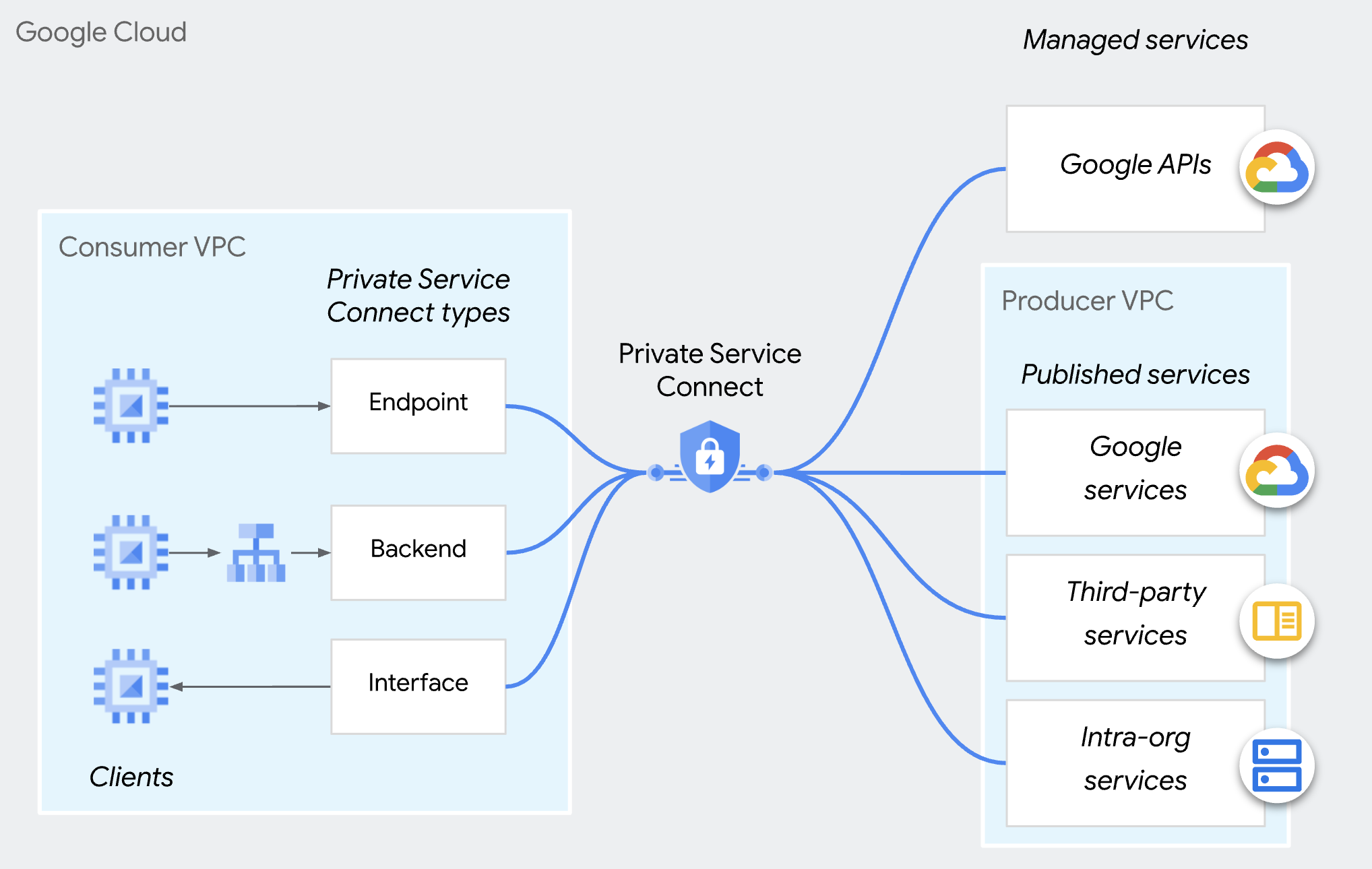
Private Service Connect is a capability of Google Cloud networking that allows consumers to access managed services privately from inside their VPC network. Similarly, it allows managed service producers to host these services in their own separate VPC networks and offer a private connection to their consumers.
Private Service Connect Producer Access Control
Instead of automatically accepting all connections from any consumer, producers can only accept inbound connection requests if the consumer is on the consumer accept list. You can specify consumers by project, VPC network, or individual PSC endpoint. You can't include different types of consumers in the same consumer accept or reject list.
For either connection preference, connections that are accepted can be overridden and rejected by an organization policy (compute.restrictPrivateServiceConnectConsumer) that blocks incoming connections.
Please note the organization policy (compute.restrictPrivateServiceConnectConsumer) applies to organization,folder or project. If you want fine-grained access control to the PSC endpoint, you can use the consumer accept list of individual PSC endpoints.
Endpoint-based access control
PSC endpoint-based access control is the ability for a producer to authorize consumers via individual PSC endpoints in the service attachment policies.
This approach, which is recommended for multi-tenant services, provides the most granular control for managing connections.
This codelab is focused on learning how to configure this feature.
Please note this method does not apply to Private Service Connect backends.
2. What you'll learn
- As a producer, how to publish a service using PSC.
- As a producer, how to create a PSC endpoint-based access control.
- As a consumer, how to access the PSC service.
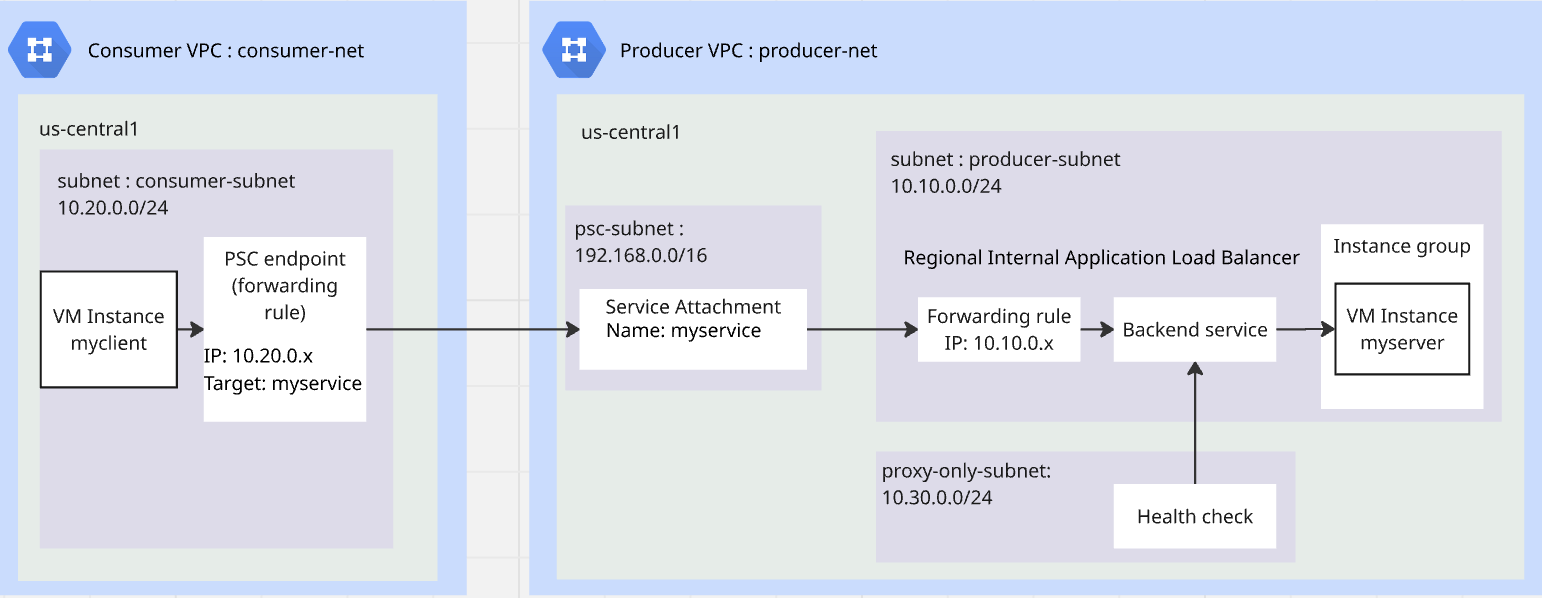
3. Overall Lab Architecture
4. Preparation steps
IAM roles required to work on the lab
You start with assigning required IAM roles to the GCP account at project level.
- Compute Network Admin (
roles/compute.networkAdmin) This role gives you full control of Compute Engine networking resources. - Logging Admin (
roles/logging.admin) This role gives you access to all logging permissions, and dependent permissions. - Service Usage Admin (
roles/serviceusage.serviceUsageAdmin) This role gives you the ability to enable, disable, and inspect service states, inspect operations, and consume quota and billing for a consumer project. - Compute Instance Admin (
roles/compute.instanceAdmin.v1) This role gives you full control of Compute Engine instances, instance groups, disks, snapshots, and images. Read access to all Compute Engine networking resources. - Compute Security Admin (
roles/compute.securityAdmin) This role gives you permissions to create, modify, and delete firewall rules and SSL certificates, and also to configure Shielded VM settings.
Enable APIs
Inside Cloud Shell, make sure your project is configured correctly and set your environment variables.
Inside Cloud Shell, perform the following:
gcloud auth login
gcloud config set project <your project id>
export project_id=$(gcloud config get-value project)
export region=us-central1
export zone=$region-a
echo $project_id
echo $region
echo $zone
Enable all necessary Google APIs in the project. Inside Cloud Shell, perform the following:
gcloud services enable \
  compute.googleapis.com
Create producer VPC
In the project, create a VPC network with custom subnet mode. Perform the following inside Cloud Shell:
gcloud compute networks create producer-net \
    --subnet-mode=custom
Create subnets in producer VPC
You will need three subnets: producer-subnet for your service; proxy-only-subnet for the load balancer to publish your service; psc-subnet for PSC to publish service.
Inside Cloud Shell, perform the following to create IPV4 subnets:
gcloud compute networks subnets create producer-subnet \
    --network=producer-net \
    --range=10.10.0.0/24 \
    --region=$region
gcloud compute networks subnets create proxy-only-subnet \
    --purpose=REGIONAL_MANAGED_PROXY \
    --role=ACTIVE \
    --region=$region \
    --network=producer-net \
    --range=10.30.0.0/24
gcloud compute networks subnets create psc-subnet \
    --network=producer-net \
    --region=$region \
    --range=192.168.0.0/16 \
    --purpose=PRIVATE_SERVICE_CONNECT
Create Cloud NAT and Cloud Router for producer VPC
Cloud NAT is used to allow VM to download and install applications.
gcloud compute routers create $region-cr \
   --network=producer-net \
   --region=$region
gcloud compute routers nats create $region-nat \
    --router=$region-cr \
    --region=$region \
    --nat-all-subnet-ip-ranges \
    --auto-allocate-nat-external-ips
Create consumer VPC
In the project, create a VPC network with custom subnet mode. Perform the following inside Cloud Shell:
gcloud compute networks create consumer-net \
    --subnet-mode=custom
Create subnet in consumer VPC
Inside Cloud Shell, perform the following to create an IPV4 subnet:
gcloud compute networks subnets create consumer-subnet \
    --network=consumer-net \
    --range=10.20.0.0/24 \
    --region=$region
Create a global firewall policy for producer VPC and consumer VPC
You will create a global network firewall policy and associate it to the producer VPC and consumer VPC.
gcloud compute network-firewall-policies create global-fw-policy \
--global
gcloud compute network-firewall-policies associations create \
    --firewall-policy=global-fw-policy \
    --name=producer-fw-policy \
    --network=producer-net \
    --global-firewall-policy
gcloud compute network-firewall-policies associations create \
    --firewall-policy=global-fw-policy \
    --name=consumer-fw-policy \
    --network=consumer-net \
    --global-firewall-policy
Allow SSH
To allow Identity-Aware Proxy (IAP) to connect to your VM instances, create a firewall rule that:
- Applies to all VM instances that you want to be accessible by using IAP.
- Allows ingress traffic from the IP range 35.235.240.0/20. This range contains all IP addresses that IAP uses for TCP forwarding.
gcloud compute network-firewall-policies rules create 100 \
    --action=ALLOW \
    --firewall-policy=global-fw-policy \
    --description="producer-allow-iap" \
    --direction=INGRESS \
    --src-ip-ranges=35.235.240.0/20 \
    --layer4-configs=tcp:22  \
    --global-firewall-policy
Add Ingress firewall rules to your service
You will use the Regional Internal Application Load Balancer to publish the service.The ingress firewall rule y must allow the proxy-only-subnet to access the service. For detailed information, review this document.
gcloud compute network-firewall-policies rules create 200 \
    --action=ALLOW \
    --firewall-policy=global-fw-policy \
    --description="producer-allow-access-service" \
    --direction=INGRESS \
    --src-ip-ranges=10.30.0.0/24 \
    --layer4-configs=tcp:80  \
    --global-firewall-policy
Allow load balancer health check to your service
Regional Internal Application Load Balancer healthcheck probes use the ranges of 35.191.0.0/16 and 130.211.0.0/22. You will create an ingress firewall rule to allow health checks from the probes. For more details, review this document.
gcloud compute network-firewall-policies rules create 300 \
    --action=ALLOW \
    --firewall-policy=global-fw-policy \
    --description="producer-allow-health-check" \
    --direction=INGRESS \
    --src-ip-ranges=35.191.0.0/16,130.211.0.0/22\
    --layer4-configs=tcp:80  \
    --global-firewall-policy
Create a VM as a http client in consumer VPC
Inside Cloud Shell, perform the following to create an VM instance as test client:
gcloud compute instances create myclient \
    --zone=$zone \
    --subnet=consumer-subnet \
    --shielded-secure-boot \
    --no-address
Create a VM as a http server in producer VPC
Inside Cloud Shell, perform the following to create a VM instance as http server:
gcloud compute instances create myserver \
    --subnet=producer-subnet \
    --zone=$zone \
    --no-address \
    --shielded-secure-boot \
    --metadata startup-script='#! /bin/bash
    sudo apt-get update
    sudo apt-get install apache2 -y
    a2enmod ssl
    sudo a2ensite default-ssl
    echo "I am a Http Server." | \
    tee /var/www/html/index.html
    systemctl restart apache2'
5. Producer publish PSC service
Create Regional Internal Application Load Balancer
You will create a regional Internal Application Load Balancer as the front end of the service and the backend is the unmanaged instance group whose endpoint is the http server we created previously.
Reserve the load balancer's IP address
gcloud compute addresses create l7-ilb-ip-address \
    --region=$region \
    --subnet=producer-subnet
Create an instance group
You will create an unmanaged instance group and add the VM instance, myserver in the instance group.
gcloud compute instance-groups unmanaged create my-service-ig \
    --zone=$zone
gcloud compute instance-groups unmanaged add-instances my-service-ig \
    --zone=$zone \
    --instances=myserver
Create a HTTP health check
gcloud compute health-checks create http l7-ilb-basic-check \
     --region=$region \
     --use-serving-port
Create the backend service
gcloud compute backend-services create l7-ilb-backend-service \
    --load-balancing-scheme=INTERNAL_MANAGED \
    --protocol=HTTP \
    --health-checks=l7-ilb-basic-check \
    --health-checks-region=$region \
    --region=$region
Add backend to the backend service
gcloud compute backend-services add-backend l7-ilb-backend-service \
    --balancing-mode=UTILIZATION \
    --instance-group=my-service-ig \
    --instance-group-zone=$zone \
    --region=$region
Create the URL map
gcloud compute url-maps create l7-ilb-map \
    --default-service=l7-ilb-backend-service \
    --region=$region
Create the target proxy
gcloud compute target-http-proxies create l7-ilb-proxy \
    --url-map=l7-ilb-map \
    --url-map-region=$region \
    --region=$region
Create the forwarding rule
gcloud compute forwarding-rules create l7-ilb-forwarding-rule \
    --load-balancing-scheme=INTERNAL_MANAGED \
    --network=producer-net \
    --subnet=producer-subnet \
    --address=l7-ilb-ip-address \
    --ports=80 \
    --region=$region \
    --target-http-proxy=l7-ilb-proxy \
    --target-http-proxy-region=$region
PSC producer publish the service
You will use PSC to publish the service with connection-preference=ACCEPT_MANUAL and empty consumer lists.
gcloud compute service-attachments create my-psc-service \
    --region=$region \
 --target-service=projects/$project_id/regions/$region/forwardingRules/l7-ilb-forwarding-rule \
    --connection-preference=ACCEPT_MANUAL \
    --nat-subnets=psc-subnet
export myserver_service_attachment=$(gcloud compute service-attachments describe my-psc-service --region=$region --format="value(selfLink.scope(v1))")

echo $myserver_service_attachment
6. Consumer create the PSC endpoint
Reserve an IP for PSC endpoint
gcloud compute addresses create myserver-psc-endpoint-ip \
    --region=$region \
    --subnet=consumer-subnet \
    --ip-version=IPV4
Create PSC endpoint
Create PSC endpoint and get the IP of the PSC endpoint for testing in the following step.
gcloud compute forwarding-rules create myserver-psc-endpoint \
    --region=$region \
    --network=consumer-net \
    --address=myserver-psc-endpoint-ip \
    --target-service-attachment=$myserver_service_attachment
psc_endpoint_ip=$(gcloud compute forwarding-rules describe myserver-psc-endpoint \
    --region=$region --format="value(IPAddress)")

echo $psc_endpoint_ip
Consumer checks PSC endpoint status
Before the producer adds the PSC endpoint in the consumer list, the connection is visible in the Connected endpoint at the consumer side with a status of Pending.
gcloud compute forwarding-rules describe myserver-psc-endpoint \
    --region=$region
You will see a similar result as below.
IPAddress: 10.20.0.3
allowPscGlobalAccess: false
creationTimestamp: '2026-02-23T16:27:27.920-08:00'
fingerprint: yh_UiYqjHCc=
id: '934193159895862912'
kind: compute#forwardingRule
labelFingerprint: 42WmSpB8rSM=
name: myserver-psc-endpoint
network: https://www.googleapis.com/compute/v1/projects/<project_id>/global/networks/consumer-net
networkTier: PREMIUM
pscConnectionId: '160443618817212419'
pscConnectionStatus: PENDING
region: https://www.googleapis.com/compute/v1/projects/<project_id>/regions/us-central1
selfLink: https://www.googleapis.com/compute/v1/projects/<project_id>/regions/us-central1/forwardingRules/myserver-psc-endpoint
selfLinkWithId: https://www.googleapis.com/compute/v1/projects/<project_id>/regions/us-central1/forwardingRules/934193159895862912
serviceDirectoryRegistrations:
- namespace: goog-psc-default
target: https://www.googleapis.com/compute/v1/projects/<project_id>/regions/us-central1/serviceAttachments/my-psc-service
7. Test access from consumer VM to producer VM
Check the PSC endpoint IP.
echo $psc_endpoint_ip
SSH to the VM named myclient and test if it can access myserver at http 80 port.
Inside Cloud Shell, perform the following:
gcloud compute ssh \
    --zone=$zone "myclient" \
    --tunnel-through-iap
Use curl to access the PSC endpoint you created.
curl -m 10 <psc_endpoint_ip>
You will see the curl command timed out. The test client from consumer VPC can not access the http server in producer VPC.
curl: (28) Connection timed out after 10001 milliseconds
Return to Cloud Shell by exiting the SSH session.
exit
8. Producer approve the PSC endpoint
Producer checks PSC endpoint status
Before the producer adds the PSC endpoint in the consumer list, the connection is visible in the service attachment with a status of Pending.
gcloud compute service-attachments describe my-psc-service --region=$region
You will see a similar result as below.
connectedEndpoints:
- consumerNetwork: https://www.googleapis.com/compute/projects/<project_id>/global/networks/consumer-net
  endpoint: https://www.googleapis.com/compute/projects/<project_id>/regions/us-central1/forwardingRules/myserver-psc-endpoint
  endpointWithId: https://www.googleapis.com/compute/projects/<project_id>/regions/us-central1/forwardingRules/934193159895862912
  pscConnectionId: '160443618817212419'
  status: PENDING
connectionPreference: ACCEPT_MANUAL
creationTimestamp: '2026-02-23T13:27:33.886-08:00'
description: ''
enableProxyProtocol: false
fingerprint: -9EI8FCALrA=
id: '2578692595155826858'
kind: compute#serviceAttachment
name: my-psc-service
natSubnets:
- https://www.googleapis.com/compute/projects/<project_id>/regions/us-central1/subnetworks/psc-subnet
pscServiceAttachmentId:
  high: '149466704441770984'
  low: '2578692595155826858'
reconcileConnections: false
region: https://www.googleapis.com/compute/projects/<project_id>/regions/us-central1
selfLink: https://www.googleapis.com/compute/projects/<project_id>/regions/us-central1/serviceAttachments/my-psc-service
targetService: https://www.googleapis.com/compute/projects/<project_id>/regions/us-central1/forwardingRules/l7-ilb-forwarding-rule
Get the PSC endpoint's ID-based URI
PSC endpoint's ID-based URI is the Id of the forwarding rule the consumer just created. In the above example, ‘endpointWithId' is the URI of the PSC endpoint created by the consumer. You will need this URI for the producer to create endpoint-based access control.
( Please note, PSC connection id is not the id we are looking for. )
export psc_endpoint_uri=$(gcloud compute service-attachments describe my-psc-service --region=$region --format="value(connectedEndpoints.endpointWithId)")

echo $psc_endpoint_uri
Add PSC endpoint ID-based URI in the consumer accept list
gcloud compute service-attachments update my-psc-service \
    --region=$region \
    --consumer-accept-list=$psc_endpoint_uri
Producer checks PSC endpoint status
gcloud compute service-attachments describe my-psc-service --region=$region --format="value(connectedEndpoints)"
You will see a similar result as below. The status has changed to ‘ACCEPTED'.
{'consumerNetwork': 'https://www.googleapis.com/compute/projects/<project_id>/global/networks/consumer-net', 'endpoint': 'https://www.googleapis.com/compute/projects/<project_id>/regions/us-central1/forwardingRules/myserver-psc-endpoint', 'endpointWithId': 'https://www.googleapis.com/compute/projects/<project_id>/regions/us-central1/forwardingRules/47564871796017232', 'pscConnectionId': '54547416268144643', 'status': 'ACCEPTED'}
9. Test access from consumer VM to producer VM
Check the PSC endpoint IP.
echo $psc_endpoint_ip
SSH to the VM named myclient and test if it can access myserver at http 80 port.
Inside Cloud Shell, perform the following:
gcloud compute ssh \
    --zone=$zone "myclient" \
    --tunnel-through-iap
Use curl to access the PSC endpoint you created.
curl <psc_endpoint_ip>
You will see curl command successfully return response from myserver. The test client from consumer VPC has accessed the http server in producer VPC.
I am a Http Server.
Return to Cloud Shell by exiting the SSH session.
exit
10. Clean up
Clean up the VMs
Inside Cloud Shell, perform the following:
gcloud compute instances delete myserver --zone $zone --quiet
gcloud compute instances delete myclient --zone $zone --quiet
Clean up PSC consumer components
gcloud compute forwarding-rules delete myserver-psc-endpoint \
    --region=$region --quiet
gcloud compute addresses delete myserver-psc-endpoint-ip \
    --region=$region --quiet
Clean up PSC producer components
gcloud compute service-attachments delete my-psc-service \
    --region=$region --quiet
gcloud compute forwarding-rules delete l7-ilb-forwarding-rule \
    --region=$region --quiet
gcloud compute target-http-proxies delete l7-ilb-proxy \
    --region=$region --quiet
gcloud compute url-maps delete l7-ilb-map \
    --region=$region --quiet
gcloud compute backend-services remove-backend l7-ilb-backend-service \
    --instance-group=my-service-ig \
    --instance-group-zone=$zone \
    --region=$region --quiet
gcloud compute backend-services delete l7-ilb-backend-service \
    --region=$region --quiet
gcloud compute health-checks delete l7-ilb-basic-check \
     --region=$region --quiet
gcloud compute instance-groups unmanaged delete my-service-ig \
    --zone=$zone --quiet
gcloud compute addresses delete l7-ilb-ip-address \
    --region=$region --quiet
Clean up Firewall, Cloud NAT, Cloud Router and VPCs
gcloud compute network-firewall-policies rules delete 100 \
    --firewall-policy=global-fw-policy \
    --global-firewall-policy --quiet
gcloud compute network-firewall-policies rules delete 200 \
    --firewall-policy=global-fw-policy \
    --global-firewall-policy --quiet
gcloud compute network-firewall-policies rules delete 300 \
    --firewall-policy=global-fw-policy \
    --global-firewall-policy --quiet
gcloud compute network-firewall-policies associations delete \
    --firewall-policy=global-fw-policy \
    --name=producer-fw-policy \
    --global-firewall-policy --quiet
gcloud compute network-firewall-policies associations delete \
    --firewall-policy=global-fw-policy \
    --name=consumer-fw-policy \
    --global-firewall-policy --quiet
gcloud compute network-firewall-policies delete global-fw-policy \
    --global --quiet
gcloud compute routers nats delete $region-nat \
    --router=$region-cr \
    --region=$region --quiet
gcloud compute routers delete $region-cr \
    --region=$region --quiet
gcloud compute networks subnets delete producer-subnet \
    --region=$region --quiet
gcloud compute networks subnets delete proxy-only-subnet \
    --region=$region --quiet
gcloud compute networks subnets delete psc-subnet \
    --region=$region --quiet
gcloud compute networks delete producer-net --quiet
gcloud compute networks subnets delete consumer-subnet \
    --region=$region --quiet
gcloud compute networks delete consumer-net --quiet
11. Congratulations
You have successfully tested Private Service Connect producer endpoint-based access control.