

1. はじめに
Private Service Connect
Private Service Connect は Google Cloud ネットワーキング機能の一つで、コンシューマーが マネージド サービスに VPC ネットワーク内からプライベート接続でアクセスできるようにします。同様に、マネージド サービス プロデューサーがこれらのサービスを個別の VPC ネットワークにホストし、コンシューマーとのプライベート接続を提供できるようにします。
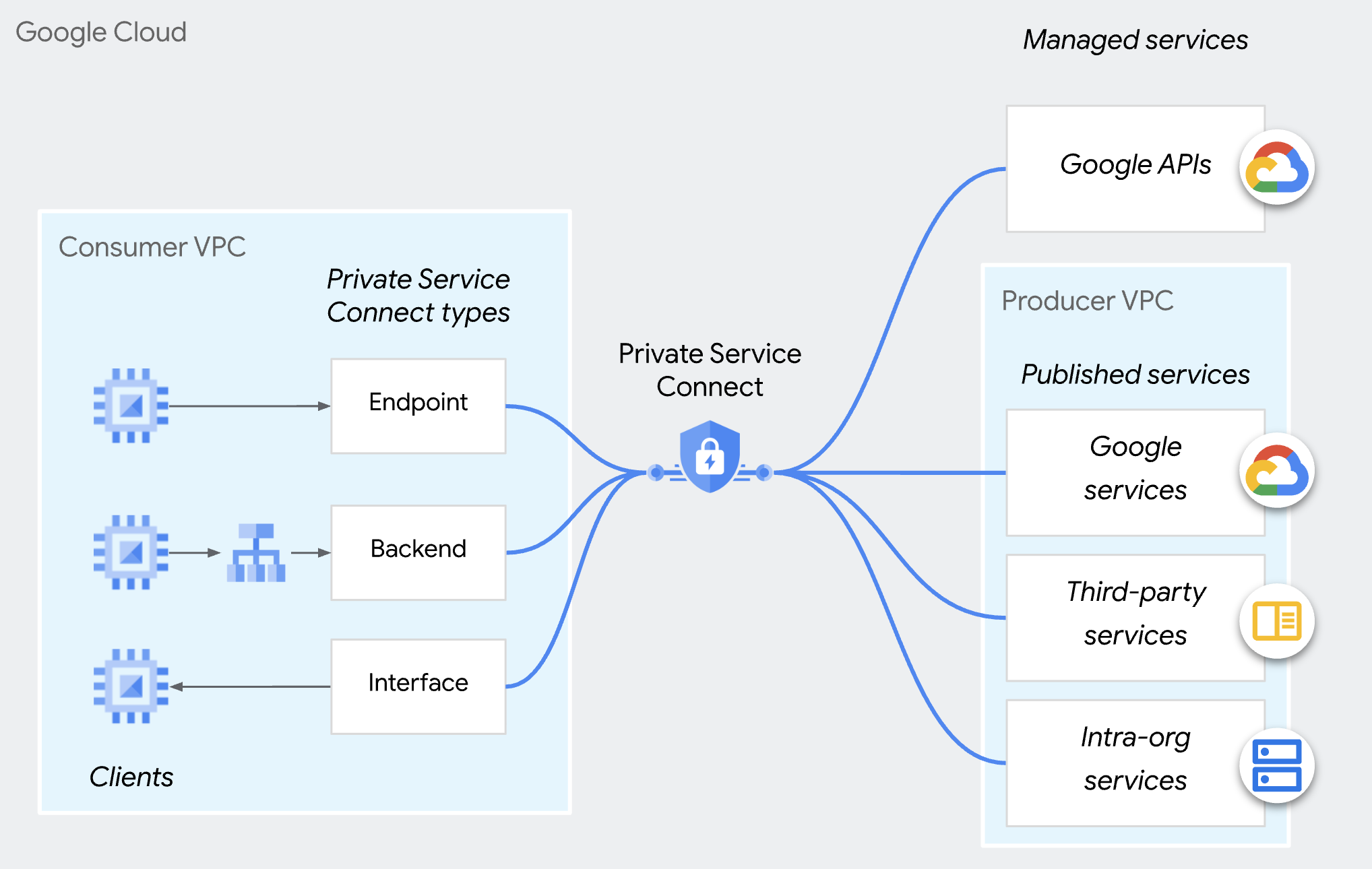
Private Service Connect プロデューサー アクセス制御
プロデューサーは、任意のコンシューマーからのすべての接続を自動的に受け入れるのではなく、コンシューマーがコンシューマー承認リストに含まれている場合にのみ、インバウンド接続リクエストを受け入れることができます。コンシューマーは、プロジェクト、VPC ネットワーク、個々の PSC エンドポイントで指定できます。同じコンシューマーの承認リストまたは拒否リストに、異なるタイプのコンシューマーを含めることはできません。
どちらの接続設定でも、承認された接続は、受信接続をブロックする 組織のポリシー(compute.restrictPrivateServiceConnectConsumer)によってオーバーライドされ、拒否される可能性があります。
組織のポリシー(compute.restrictPrivateServiceConnectConsumer)は、組織、フォルダ、プロジェクトに適用されます。PSC エンドポイントへのきめ細かいアクセス制御が必要な場合は、個々の PSC エンドポイントのコンシューマー承認リストを使用できます。
エンドポイント ベースのアクセス制御
PSC エンドポイント ベースのアクセス制御とは、プロデューサーがサービス アタッチメント ポリシーの個々の PSC エンドポイントを介してコンシューマーを承認する機能です。
このアプローチは、 マルチテナント サービスにおすすめの方法で、接続を管理するための最もきめ細かい制御が可能です。
この Codelab では、この機能を構成する方法について説明します。
なお、この方法は Private Service Connect バックエンドには適用されません。
2. 学習内容
- プロデューサーとして、PSC を使用してサービスを公開する方法。
- プロデューサーとして、PSC エンドポイント ベースのアクセス制御を作成する方法。
- コンシューマーとして、PSC サービスにアクセスする方法。
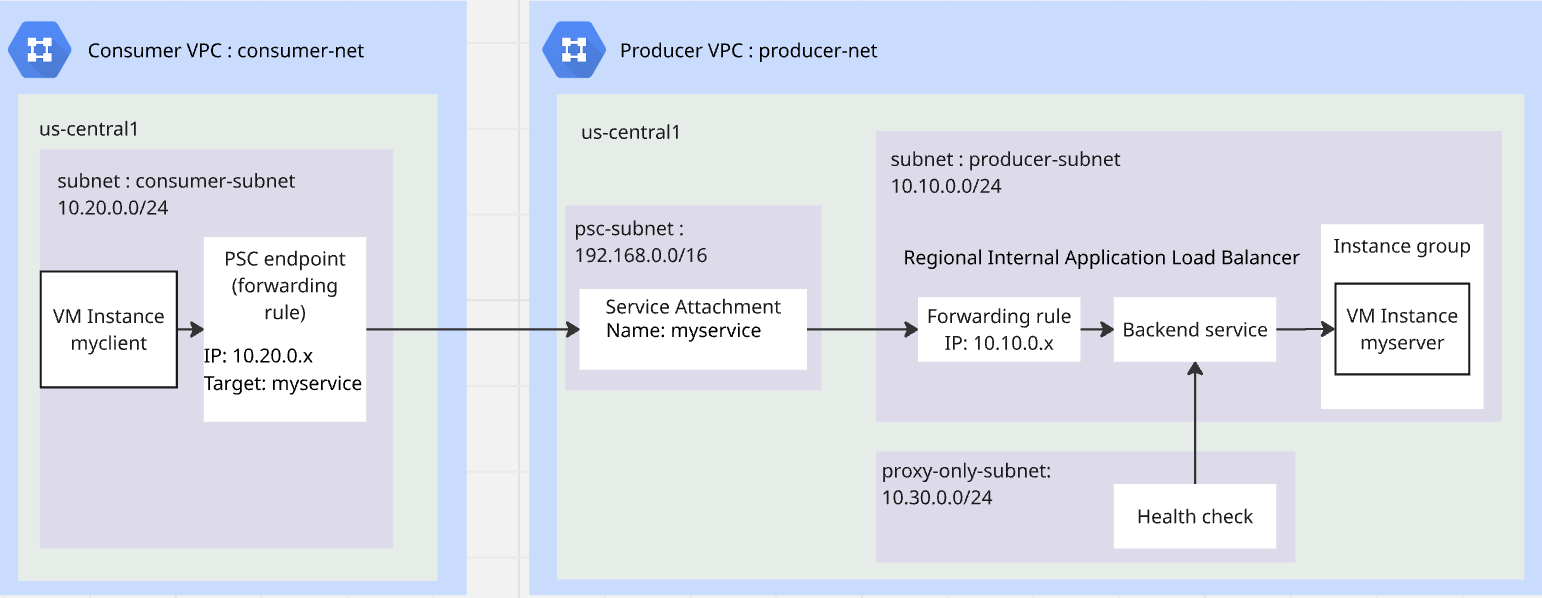
3. ラボの全体的なアーキテクチャ
4. 準備手順
ラボで作業するために必要な IAM ロール
まず、プロジェクト レベルで必要な IAM ロールを GCP アカウントに割り当てます。
- Compute ネットワーク管理者(
roles/compute.networkAdmin)このロールでは、Compute Engine ネットワーキング リソースを完全に制御できます。 - Logging 管理者(
roles/logging.admin)このロールでは、すべてのロギング権限と依存権限にアクセスできます。 - Service Usage 管理者(
roles/serviceusage.serviceUsageAdmin)このロールでは、サービス状態の有効化、無効化、検査、オペレーションの検査、ユーザー プロジェクトの割り当てと請求の利用が可能です。 - Compute インスタンス管理者(
roles/compute.instanceAdmin.v1)このロールでは、Compute Engine インスタンス、インスタンス グループ、ディスク、スナップショット、イメージのすべてを管理できます。すべての Compute Engine ネットワーキング リソースへの読み取りアクセス権。 - Compute セキュリティ管理者(
roles/compute.securityAdmin)このロールでは、ファイアウォール ルールと SSL 証明書を作成、変更、削除するための権限。Shielded VM の設定を構成する権限も含まれます。
API を有効にする
Cloud Shell で、プロジェクトが正しく構成されていることを確認し、環境変数を設定します。
Cloud Shell で、次の操作を行います。
gcloud auth login
gcloud config set project <your project id>
export project_id=$(gcloud config get-value project)
export region=us-central1
export zone=$region-a
echo $project_id
echo $region
echo $zone
プロジェクトで必要な Google API をすべて有効にします。Cloud Shell で、次の操作を行います。
gcloud services enable \
  compute.googleapis.com
プロデューサー VPC を作成する
プロジェクトで、カスタム サブネット モードの VPC ネットワークを作成します。Cloud Shell で次の操作を行います。
gcloud compute networks create producer-net \
    --subnet-mode=custom
プロデューサー VPC にサブネットを作成する
3 つのサブネットが必要です。サービス用の producer-subnet、ロードバランサがサービスを公開するための proxy-only-subnet、PSC がサービスを公開するための psc-subnet です。
Cloud Shell で次の操作を行って、IPV4 サブネットを作成します。
gcloud compute networks subnets create producer-subnet \
    --network=producer-net \
    --range=10.10.0.0/24 \
    --region=$region
gcloud compute networks subnets create proxy-only-subnet \
    --purpose=REGIONAL_MANAGED_PROXY \
    --role=ACTIVE \
    --region=$region \
    --network=producer-net \
    --range=10.30.0.0/24
gcloud compute networks subnets create psc-subnet \
    --network=producer-net \
    --region=$region \
    --range=192.168.0.0/16 \
    --purpose=PRIVATE_SERVICE_CONNECT
プロデューサー VPC の Cloud NAT と Cloud Router を作成する
Cloud NAT は、VM がアプリケーションをダウンロードしてインストールできるようにするために使用されます。
gcloud compute routers create $region-cr \
   --network=producer-net \
   --region=$region
gcloud compute routers nats create $region-nat \
    --router=$region-cr \
    --region=$region \
    --nat-all-subnet-ip-ranges \
    --auto-allocate-nat-external-ips
コンシューマー VPC を作成する
プロジェクトで、カスタム サブネット モードの VPC ネットワークを作成します。Cloud Shell で次の操作を行います。
gcloud compute networks create consumer-net \
    --subnet-mode=custom
コンシューマー VPC にサブネットを作成する
Cloud Shell で次の操作を行って、IPV4 サブネットを作成します。
gcloud compute networks subnets create consumer-subnet \
    --network=consumer-net \
    --range=10.20.0.0/24 \
    --region=$region
プロデューサー VPC とコンシューマー VPC のグローバル ファイアウォール ポリシーを作成する
グローバル ネットワーク ファイアウォール ポリシーを作成し、プロデューサー VPC とコンシューマー VPC に関連付けます。
gcloud compute network-firewall-policies create global-fw-policy \
--global
gcloud compute network-firewall-policies associations create \
    --firewall-policy=global-fw-policy \
    --name=producer-fw-policy \
    --network=producer-net \
    --global-firewall-policy
gcloud compute network-firewall-policies associations create \
    --firewall-policy=global-fw-policy \
    --name=consumer-fw-policy \
    --network=consumer-net \
    --global-firewall-policy
SSH を許可する
Identity-Aware Proxy(IAP)に VM インスタンスへの接続を許可するには、次のファイアウォール ルールを作成します。
- IAP を使用してアクセス可能にするすべての VM インスタンスに対して適用します。
- IP 範囲 35.235.240.0/20 からの上り(内向き)トラフィックを許可します。この範囲には、IAP が TCP 転送に使用するすべての IP アドレスが含まれています。
gcloud compute network-firewall-policies rules create 100 \
    --action=ALLOW \
    --firewall-policy=global-fw-policy \
    --description="producer-allow-iap" \
    --direction=INGRESS \
    --src-ip-ranges=35.235.240.0/20 \
    --layer4-configs=tcp:22  \
    --global-firewall-policy
上り(内向き)ファイアウォール ルールをサービスに追加する
リージョン内部アプリケーション ロードバランサを使用してサービスを公開します。上り(内向き)ファイアウォール ルール y では、proxy-only-subnet がサービスにアクセスできるようにする必要があります。詳細については、こちらの ドキュメントをご覧ください。
gcloud compute network-firewall-policies rules create 200 \
    --action=ALLOW \
    --firewall-policy=global-fw-policy \
    --description="producer-allow-access-service" \
    --direction=INGRESS \
    --src-ip-ranges=10.30.0.0/24 \
    --layer4-configs=tcp:80  \
    --global-firewall-policy
ロードバランサのヘルスチェックをサービスに許可する
リージョン内部アプリケーション ロードバランサのヘルスチェック プローブは、35.191.0.0/16 と 130.211.0.0/22 の範囲を使用します。プローブからのヘルスチェックを許可する上り(内向き)ファイアウォール ルールを作成します。詳細については、こちらの ドキュメントをご覧ください。
gcloud compute network-firewall-policies rules create 300 \
    --action=ALLOW \
    --firewall-policy=global-fw-policy \
    --description="producer-allow-health-check" \
    --direction=INGRESS \
    --src-ip-ranges=35.191.0.0/16,130.211.0.0/22\
    --layer4-configs=tcp:80  \
    --global-firewall-policy
コンシューマー VPC に HTTP クライアントとして VM を作成する
Cloud Shell で次の操作を行って、テスト クライアントとして VM インスタンスを作成します。
gcloud compute instances create myclient \
    --zone=$zone \
    --subnet=consumer-subnet \
    --shielded-secure-boot \
    --no-address
プロデューサー VPC に HTTP サーバーとして VM を作成する
Cloud Shell で次の操作を行って、HTTP サーバーとして VM インスタンスを作成します。
gcloud compute instances create myserver \
    --subnet=producer-subnet \
    --zone=$zone \
    --no-address \
    --shielded-secure-boot \
    --metadata startup-script='#! /bin/bash
    sudo apt-get update
    sudo apt-get install apache2 -y
    a2enmod ssl
    sudo a2ensite default-ssl
    echo "I am a Http Server." | \
    tee /var/www/html/index.html
    systemctl restart apache2'
5. プロデューサーが PSC サービスを公開する
リージョン内部アプリケーション ロードバランサを作成する
サービスのフロントエンドとしてリージョン内部アプリケーション ロードバランサを作成します。バックエンドは、エンドポイントが以前に作成した HTTP サーバーである非マネージド インスタンス グループです。
ロードバランサの IP アドレスを予約する
gcloud compute addresses create l7-ilb-ip-address \
    --region=$region \
    --subnet=producer-subnet
インスタンス グループの作成
非マネージド インスタンス グループを作成し、インスタンス グループに VM インスタンス myserver を追加します。
gcloud compute instance-groups unmanaged create my-service-ig \
    --zone=$zone
gcloud compute instance-groups unmanaged add-instances my-service-ig \
    --zone=$zone \
    --instances=myserver
HTTP ヘルスチェックを作成する
gcloud compute health-checks create http l7-ilb-basic-check \
     --region=$region \
     --use-serving-port
バックエンド サービスを作成する
gcloud compute backend-services create l7-ilb-backend-service \
    --load-balancing-scheme=INTERNAL_MANAGED \
    --protocol=HTTP \
    --health-checks=l7-ilb-basic-check \
    --health-checks-region=$region \
    --region=$region
バックエンド サービスにバックエンドを追加する
gcloud compute backend-services add-backend l7-ilb-backend-service \
    --balancing-mode=UTILIZATION \
    --instance-group=my-service-ig \
    --instance-group-zone=$zone \
    --region=$region
URL マップの作成
gcloud compute url-maps create l7-ilb-map \
    --default-service=l7-ilb-backend-service \
    --region=$region
ターゲット プロキシを作成
gcloud compute target-http-proxies create l7-ilb-proxy \
    --url-map=l7-ilb-map \
    --url-map-region=$region \
    --region=$region
転送ルールを作成する
gcloud compute forwarding-rules create l7-ilb-forwarding-rule \
    --load-balancing-scheme=INTERNAL_MANAGED \
    --network=producer-net \
    --subnet=producer-subnet \
    --address=l7-ilb-ip-address \
    --ports=80 \
    --region=$region \
    --target-http-proxy=l7-ilb-proxy \
    --target-http-proxy-region=$region
PSC プロデューサーがサービスを公開する
PSC を使用して、connection-preference=ACCEPT_MANUAL と空のコンシューマー リストでサービスを公開します。
gcloud compute service-attachments create my-psc-service \
    --region=$region \
 --target-service=projects/$project_id/regions/$region/forwardingRules/l7-ilb-forwarding-rule \
    --connection-preference=ACCEPT_MANUAL \
    --nat-subnets=psc-subnet
export myserver_service_attachment=$(gcloud compute service-attachments describe my-psc-service --region=$region --format="value(selfLink.scope(v1))")

echo $myserver_service_attachment
6. コンシューマーが PSC エンドポイントを作成する
PSC エンドポイントの IP を予約する
gcloud compute addresses create myserver-psc-endpoint-ip \
    --region=$region \
    --subnet=consumer-subnet \
    --ip-version=IPV4
PSC エンドポイントを作成する
PSC エンドポイントを作成し、次のステップでテストする PSC エンドポイントの IP を取得します。
gcloud compute forwarding-rules create myserver-psc-endpoint \
    --region=$region \
    --network=consumer-net \
    --address=myserver-psc-endpoint-ip \
    --target-service-attachment=$myserver_service_attachment
psc_endpoint_ip=$(gcloud compute forwarding-rules describe myserver-psc-endpoint \
    --region=$region --format="value(IPAddress)")

echo $psc_endpoint_ip
コンシューマーが PSC エンドポイントのステータスを確認する
プロデューサーがコンシューマー リストに PSC エンドポイントを追加する前は、コンシューマー側の [接続済みエンドポイント] に接続が表示され、ステータスは [保留] になります。
gcloud compute forwarding-rules describe myserver-psc-endpoint \
    --region=$region
次のような結果が表示されます。
IPAddress: 10.20.0.3
allowPscGlobalAccess: false
creationTimestamp: '2026-02-23T16:27:27.920-08:00'
fingerprint: yh_UiYqjHCc=
id: '934193159895862912'
kind: compute#forwardingRule
labelFingerprint: 42WmSpB8rSM=
name: myserver-psc-endpoint
network: https://www.googleapis.com/compute/v1/projects/<project_id>/global/networks/consumer-net
networkTier: PREMIUM
pscConnectionId: '160443618817212419'
pscConnectionStatus: PENDING
region: https://www.googleapis.com/compute/v1/projects/<project_id>/regions/us-central1
selfLink: https://www.googleapis.com/compute/v1/projects/<project_id>/regions/us-central1/forwardingRules/myserver-psc-endpoint
selfLinkWithId: https://www.googleapis.com/compute/v1/projects/<project_id>/regions/us-central1/forwardingRules/934193159895862912
serviceDirectoryRegistrations:
- namespace: goog-psc-default
target: https://www.googleapis.com/compute/v1/projects/<project_id>/regions/us-central1/serviceAttachments/my-psc-service
7. コンシューマー VM からプロデューサー VM へのアクセスをテストする
PSC エンドポイントの IP を確認します。
echo $psc_endpoint_ip
myclient という名前の VM に SSH で接続し、http 80 ポートで myserver にアクセスできるかどうかをテストします。
Cloud Shell で次の操作を行います。
gcloud compute ssh \
    --zone=$zone "myclient" \
    --tunnel-through-iap
curl を使用して、作成した PSC エンドポイントにアクセスします。
curl -m 10 <psc_endpoint_ip>
curl コマンドがタイムアウトします。コンシューマー VPC のテスト クライアントは、プロデューサー VPC の HTTP サーバーにアクセスできません。
curl: (28) Connection timed out after 10001 milliseconds
SSH セッションを終了して、Cloud Shell に戻ります。
exit
8. プロデューサーが PSC エンドポイントを承認する
プロデューサーが PSC エンドポイントのステータスを確認する
プロデューサーがコンシューマー リストに PSC エンドポイントを追加する前は、サービス アタッチメントに接続が表示され、ステータスは [保留] になります。
gcloud compute service-attachments describe my-psc-service --region=$region
次のような結果が表示されます。
connectedEndpoints:
- consumerNetwork: https://www.googleapis.com/compute/projects/<project_id>/global/networks/consumer-net
  endpoint: https://www.googleapis.com/compute/projects/<project_id>/regions/us-central1/forwardingRules/myserver-psc-endpoint
  endpointWithId: https://www.googleapis.com/compute/projects/<project_id>/regions/us-central1/forwardingRules/934193159895862912
  pscConnectionId: '160443618817212419'
  status: PENDING
connectionPreference: ACCEPT_MANUAL
creationTimestamp: '2026-02-23T13:27:33.886-08:00'
description: ''
enableProxyProtocol: false
fingerprint: -9EI8FCALrA=
id: '2578692595155826858'
kind: compute#serviceAttachment
name: my-psc-service
natSubnets:
- https://www.googleapis.com/compute/projects/<project_id>/regions/us-central1/subnetworks/psc-subnet
pscServiceAttachmentId:
  high: '149466704441770984'
  low: '2578692595155826858'
reconcileConnections: false
region: https://www.googleapis.com/compute/projects/<project_id>/regions/us-central1
selfLink: https://www.googleapis.com/compute/projects/<project_id>/regions/us-central1/serviceAttachments/my-psc-service
targetService: https://www.googleapis.com/compute/projects/<project_id>/regions/us-central1/forwardingRules/l7-ilb-forwarding-rule
PSC エンドポイントの ID ベースの URI を取得する
PSC エンドポイントの ID ベースの URI は、コンシューマーが作成した転送ルールの ID です。上記の例では、「endpointWithId」はコンシューマーが作成した PSC エンドポイントの URI です。プロデューサーがエンドポイント ベースのアクセス制御を作成するには、この URI が必要です。
(PSC 接続 ID は、探している ID ではありません。)
export psc_endpoint_uri=$(gcloud compute service-attachments describe my-psc-service --region=$region --format="value(connectedEndpoints.endpointWithId)")

echo $psc_endpoint_uri
コンシューマー承認リストに PSC エンドポイントの ID ベースの URI を追加する
gcloud compute service-attachments update my-psc-service \
    --region=$region \
    --consumer-accept-list=$psc_endpoint_uri
プロデューサーが PSC エンドポイントのステータスを確認する
gcloud compute service-attachments describe my-psc-service --region=$region --format="value(connectedEndpoints)"
次のような結果が表示されます。ステータスが [ACCEPTED] に変わりました。
{'consumerNetwork': 'https://www.googleapis.com/compute/projects/<project_id>/global/networks/consumer-net', 'endpoint': 'https://www.googleapis.com/compute/projects/<project_id>/regions/us-central1/forwardingRules/myserver-psc-endpoint', 'endpointWithId': 'https://www.googleapis.com/compute/projects/<project_id>/regions/us-central1/forwardingRules/47564871796017232', 'pscConnectionId': '54547416268144643', 'status': 'ACCEPTED'}
9. コンシューマー VM からプロデューサー VM へのアクセスをテストする
PSC エンドポイントの IP を確認します。
echo $psc_endpoint_ip
myclient という名前の VM に SSH で接続し、http 80 ポートで myserver にアクセスできるかどうかをテストします。
Cloud Shell で次の操作を行います。
gcloud compute ssh \
    --zone=$zone "myclient" \
    --tunnel-through-iap
curl を使用して、作成した PSC エンドポイントにアクセスします。
curl <psc_endpoint_ip>
curl コマンドが myserver からレスポンスを正常に返します。コンシューマー VPC のテスト クライアントが、プロデューサー VPC の HTTP サーバーにアクセスしました。
I am a Http Server.
SSH セッションを終了して、Cloud Shell に戻ります。
exit
10. クリーンアップ
VM をクリーンアップする
Cloud Shell で次の操作を行います。
gcloud compute instances delete myserver --zone $zone --quiet
gcloud compute instances delete myclient --zone $zone --quiet
PSC コンシューマー コンポーネントをクリーンアップする
gcloud compute forwarding-rules delete myserver-psc-endpoint \
    --region=$region --quiet
gcloud compute addresses delete myserver-psc-endpoint-ip \
    --region=$region --quiet
PSC プロデューサー コンポーネントをクリーンアップする
gcloud compute service-attachments delete my-psc-service \
    --region=$region --quiet
gcloud compute forwarding-rules delete l7-ilb-forwarding-rule \
    --region=$region --quiet
gcloud compute target-http-proxies delete l7-ilb-proxy \
    --region=$region --quiet
gcloud compute url-maps delete l7-ilb-map \
    --region=$region --quiet
gcloud compute backend-services remove-backend l7-ilb-backend-service \
    --instance-group=my-service-ig \
    --instance-group-zone=$zone \
    --region=$region --quiet
gcloud compute backend-services delete l7-ilb-backend-service \
    --region=$region --quiet
gcloud compute health-checks delete l7-ilb-basic-check \
     --region=$region --quiet
gcloud compute instance-groups unmanaged delete my-service-ig \
    --zone=$zone --quiet
gcloud compute addresses delete l7-ilb-ip-address \
    --region=$region --quiet
ファイアウォール、Cloud NAT、Cloud Router、VPC をクリーンアップする
gcloud compute network-firewall-policies rules delete 100 \
    --firewall-policy=global-fw-policy \
    --global-firewall-policy --quiet
gcloud compute network-firewall-policies rules delete 200 \
    --firewall-policy=global-fw-policy \
    --global-firewall-policy --quiet
gcloud compute network-firewall-policies rules delete 300 \
    --firewall-policy=global-fw-policy \
    --global-firewall-policy --quiet
gcloud compute network-firewall-policies associations delete \
    --firewall-policy=global-fw-policy \
    --name=producer-fw-policy \
    --global-firewall-policy --quiet
gcloud compute network-firewall-policies associations delete \
    --firewall-policy=global-fw-policy \
    --name=consumer-fw-policy \
    --global-firewall-policy --quiet
gcloud compute network-firewall-policies delete global-fw-policy \
    --global --quiet
gcloud compute routers nats delete $region-nat \
    --router=$region-cr \
    --region=$region --quiet
gcloud compute routers delete $region-cr \
    --region=$region --quiet
gcloud compute networks subnets delete producer-subnet \
    --region=$region --quiet
gcloud compute networks subnets delete proxy-only-subnet \
    --region=$region --quiet
gcloud compute networks subnets delete psc-subnet \
    --region=$region --quiet
gcloud compute networks delete producer-net --quiet
gcloud compute networks subnets delete consumer-subnet \
    --region=$region --quiet
gcloud compute networks delete consumer-net --quiet
11. 完了
Private Service Connect プロデューサー エンドポイント ベースのアクセス制御を正常にテストできました。