

1. מבוא
Private Service Connect for Google APIs (PSC) הוא יכולת של רשת Google Cloud שמאפשרת למשתמשים להגדיר גישה פרטית דרך נקודת קצה גלובלית של כתובת IP פרטית בתוך VPC. משתמשים שמריצים קוד או אפליקציות בצד הלקוח בסביבה היברידית שמחוברת ל-Google Cloud באמצעות VPN או Interconnect, משתמשים ב-PSC כדי לפתור Google APIs דרך החיבור ההיברידי הפרטי הזה.
PSC ל-Google APIs יכול לזהות דומיינים רבים ושונים. הרשימה המלאה מופיעה כאן. הדומיין שרוב ממשקי Google APIs משתמשים בו הוא <API>.googleapis.com. בנוסף לדומיין הזה, PSC מספק למשתמשים גם גרסה של googleapis.com שהיא <API>-<PSC-ENDPOINT-NAME>.**p.**googleapis.com. באמצעות הדומיין הזה, המשתמשים יכולים להגדיר אפליקציות לשימוש בנקודות קצה ספציפיות של PSC. תרחיש השימוש הנפוץ ביותר מאפשר למשתמשים לבחור באילו אפליקציות להשתמש בנקודת הקצה של PSC כדי לנתב תעבורת נתונים של Google API דרך החיבור ההיברידי, ובמקביל לאפשר לאפליקציות אחרות להמשיך לנתב תעבורת נתונים לנקודת הקצה הציבורית של ה-API.
Gemini נכלל בחבילת המוצרים Vertex AI של Google Cloud, ומופיע ברשימת ממשקי ה-API של Google שאפשר לפתור בעיות בהם באמצעות PSC ל-Google APIs.
בשיעור Codelab הזה תבנו סביבה היברידית מדומה, תארחו מופע של Workbench בסביבה מקומית ותריצו קוד Python של Gemini שיוצר גישה פרטית ל-Gemini API דרך HA VPN, ומתחבר לנקודת קצה של PSC ל-Google APIs.
מה תלמדו
- יוצרים מרכז NCC.
- הגדרת רשתות VPC מסוג Spoke ב-NCC Hub.
- יוצרים HA VPN ב-Cloud.
- הגדרת רכיבי Hybrid Spokes ב-NCC Hub.
- יוצרים PSC לנקודת קצה של Google APIs.
- הגדרת נתיב בהתאמה אישית דרך HA VPN.
- מגדירים אזור DNS של שותפות.
- הגדרת מכונה ב-Vertex Workbench
- מגדירים את קוד Python של Gemini לשימוש ב-PSC עבור נקודת קצה של Google APIs.
מה תצטרכו
- פרויקט ב-Google Cloud עם הרשאת 'בעלים' או הרשאת 'עריכה' מלאה.
2. טופולוגיית Codelab
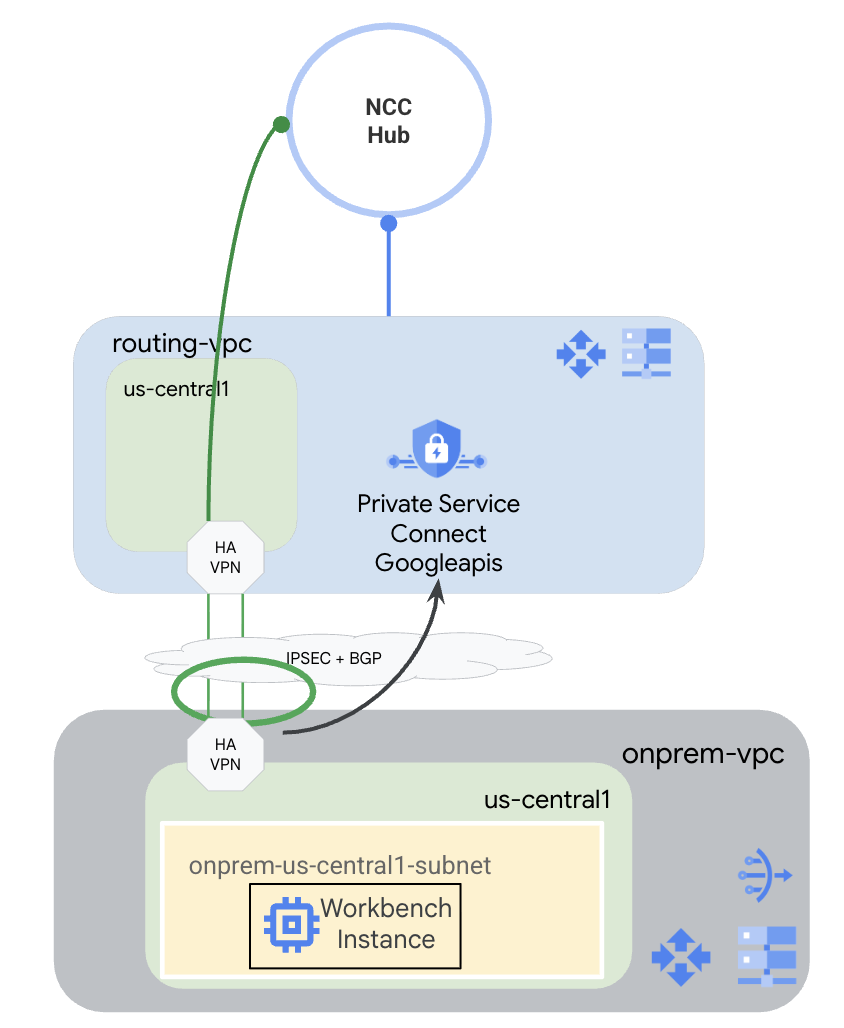
בשיעור הזה תשתמשו ב-Google Cloud כדי לדמות סביבה היברידית. בשיעור Codelab הזה יש שלבים שספציפיים ל-Google Cloud, והם יהיו שונים אם תגדירו את המערכת מסביבה מקומית אמיתית. השלבים האלה יצוינו.
תצרו רכזת NCC עם רשת VPC לניתוב בתור רשת VPC מסוג Spoke. ב-VPC הזה, יוגדר HA VPN ל-VPC המקומי, שמדמה סביבה מקומית. שער HA-VPN יוגדר כ-Hybrid Spoke ברכזת NCC. ברשת ה-VPC המקומית, תיצרו תת-רשת שבה תארחו מכונת Workbench. תצטרכו גם ליצור Cloud NAT כדי להשתמש בו להורדת חבילות במופע של Workbench.
לבסוף, תיצרו אזור DNS שכנות עבור ה-VPC המקומי כדי שתוכלו להשתמש באזור הפרטי של Service Directory עבור p.googleapis.com שנוצר באופן אוטומטי על ידי PSC for Google APIs.
3. הגדרה ודרישות
הגדרת סביבה בקצב אישי
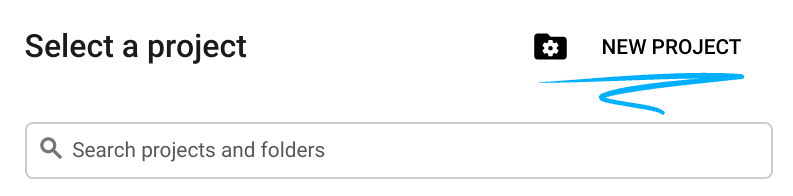
- נכנסים ל-מסוף Google Cloud ויוצרים פרויקט חדש או משתמשים בפרויקט קיים. אם עדיין אין לכם חשבון Gmail או Google Workspace, אתם צריכים ליצור חשבון.

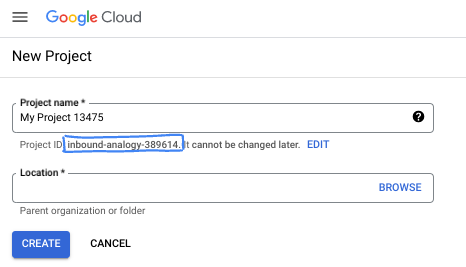
- שם הפרויקט הוא השם המוצג למשתתפים בפרויקט. זו מחרוזת תווים שלא נמצאת בשימוש ב-Google APIs. תמיד אפשר לעדכן את המיקום.
- מזהה הפרויקט הוא ייחודי לכל הפרויקטים ב-Google Cloud ואי אפשר לשנות אותו אחרי שהוא מוגדר. מסוף Cloud יוצר באופן אוטומטי מחרוזת ייחודית, ובדרך כלל לא צריך לדעת מה היא. ברוב ה-Codelabs, תצטרכו להפנות למזהה הפרויקט (בדרך כלל מסומן כ-
PROJECT_ID). אם אתם לא אוהבים את המזהה שנוצר, אתם יכולים ליצור מזהה אקראי אחר. אפשר גם לנסות שם משתמש משלכם ולבדוק אם הוא זמין. אי אפשר לשנות את ההגדרה הזו אחרי השלב הזה, והיא נשארת לאורך הפרויקט. - לידיעתכם, יש ערך שלישי, מספר פרויקט, שחלק מממשקי ה-API משתמשים בו. מידע נוסף על שלושת הערכים האלה מופיע במאמרי העזרה.
- בשלב הבא, תצטרכו להפעיל את החיוב במסוף Cloud כדי להשתמש במשאבי Cloud או בממשקי API של Cloud. השלמת ה-codelab הזה לא תעלה לכם הרבה, אם בכלל. כדי להשבית את המשאבים ולמנוע חיובים נוספים אחרי שתסיימו את המדריך הזה, תוכלו למחוק את המשאבים שיצרתם או למחוק את הפרויקט. משתמשים חדשים ב-Google Cloud זכאים לתוכנית תקופת ניסיון בחינם בשווי 300$.
מפעילים את Cloud Shell
אפשר להפעיל את Google Cloud מרחוק מהמחשב הנייד, אבל ב-Codelab הזה נשתמש ב-Google Cloud Shell, סביבת שורת פקודה שפועלת בענן.
ב-מסוף Google Cloud, לוחצים על סמל Cloud Shell בסרגל הכלים שבפינה הימנית העליונה:

הקצאת המשאבים והחיבור לסביבה יימשכו רק כמה רגעים. בסיום התהליך, אמור להופיע משהו כזה:

המכונה הווירטואלית הזו כוללת את כל הכלים שדרושים למפתחים. יש בה ספריית בית בנפח מתמיד של 5GB והיא פועלת ב-Google Cloud, מה שמשפר מאוד את הביצועים והאימות ברשת. אפשר לבצע את כל העבודה ב-codelab הזה בדפדפן. לא צריך להתקין שום דבר.
4. לפני שמתחילים
הפעלת ממשקי ה-API
ב-Cloud Shell, מוודאים שהפרויקט מוגדר בצורה נכונה ומגדירים את משתני הסביבה.
מ-Cloud Shell
gcloud config list project
gcloud config set project <project-id>
export project=$(gcloud config get-value project)
export region=us-central1
export zone=$region-a
echo $project
echo $region
echo $zone
מפעילים את כל ממשקי ה-API הנדרשים של Google בפרויקט.
מ-Cloud Shell
gcloud services enable compute.googleapis.com
gcloud services enable networkconnectivity.googleapis.com
gcloud services enable dns.googleapis.com
gcloud services enable notebooks.googleapis.com
gcloud services enable servicedirectory.googleapis.com
gcloud services enable aiplatform.googleapis.com
5. יצירת רשתות VPC ורשתות משנה
יצירת רשתות
מ-Cloud Shell
gcloud compute networks create routing-vpc \
    --subnet-mode=custom
מ-Cloud Shell
gcloud compute networks create onprem-vpc \
    --subnet-mode=custom

gcloud compute networks subnets create onprem-$region-subnet \
    --network=onprem-vpc \
    --range=10.0.0.0/24 \
    --region=$region
    --enable-private-ip-google-access
יצירת Cloud Routers ו-Cloud NAT
יוצרים Cloud Router שישמש בשילוב עם HA VPN ב-routing-vpc.
מ-Cloud Shell
gcloud compute routers create routing-$region-cr \
    --network=routing-vpc \
    --region=$region \
    --asn=64512
יוצרים Cloud Router שישמש בשילוב עם HA VPN ב-onprem-vpc.
מ-Cloud Shell
gcloud compute routers create onprem-$region-cr \
    --network=onprem-vpc \
    --region=$region \
    --asn=64513
יוצרים Cloud Router שישמש בשילוב עם Cloud NAT ב-onprem-vpc.
מ-Cloud Shell
gcloud compute routers create onprem-$region-cr-4nat \
    --network=onprem-vpc \
    --region=$region
ה-Cloud NAT ב-onprem-vpc ישמש להורדת חבילות למופע Vertex AI Workbench שיוגדר בשלב מאוחר יותר.
מ-Cloud Shell
gcloud compute routers nats create onprem-$region-nat \
    --router=onprem-$region-cr-4nat \
    --region=$region \
    --nat-all-subnet-ip-ranges \
    --auto-allocate-nat-external-ips
6. יצירת Cloud HA-VPN
יוצרים את שערי ה-VPN.
מ-Cloud Shell
gcloud compute vpn-gateways create routing-gateway \
   --network=routing-vpc \
   --region=$region \
   --stack-type=IPV4_ONLY
מ-Cloud Shell
gcloud compute vpn-gateways create onprem-gateway \
   --network=onprem-vpc \
   --region=$region \
   --stack-type=IPV4_ONLY
יוצרים את מנהרות ה-VPN שמקורן ב-routing-vpc.
מ-Cloud Shell
gcloud compute vpn-tunnels create routing-to-onprem-tunnel0 \
    --peer-gcp-gateway=onprem-gateway \
    --region=$region \
    --ike-version=2 \
    --shared-secret=mysecret \
    --router=routing-$region-cr \
    --vpn-gateway=routing-gateway \
    --interface=0

gcloud compute vpn-tunnels create routing-to-onprem-tunnel1 \
    --peer-gcp-gateway=onprem-gateway \
    --region=$region \
    --ike-version=2 \
    --shared-secret=mysecret \
    --router=routing-$region-cr \
    --vpn-gateway=routing-gateway \
    --interface=1
יוצרים את מנהרות ה-VPN שמקורן ב-onprem-vpc.
מ-Cloud Shell
gcloud compute vpn-tunnels create onprem-to-routing-tunnel0 \
    --peer-gcp-gateway=routing-gateway \
    --region=$region \
    --ike-version=2 \
    --shared-secret=mysecret \
    --router=onprem-$region-cr \
    --vpn-gateway=onprem-gateway \
    --interface=0

    gcloud compute vpn-tunnels create onprem-to-routing-tunnel1 \
    --peer-gcp-gateway=routing-gateway \
    --region=$region \
    --ike-version=2 \
    --shared-secret=mysecret \
    --router=onprem-$region-cr \
    --vpn-gateway=onprem-gateway \
    --interface=1
מגדירים סשנים של BGP לשתי המנהרות שמקורן ב-routing-vpc.
מ-Cloud Shell
gcloud compute routers add-interface routing-$region-cr \
    --interface-name=routing-interface0 \
    --ip-address=169.254.0.1 \
    --mask-length=30 \
    --vpn-tunnel=routing-to-onprem-tunnel0 \
    --region=$region

gcloud compute routers add-bgp-peer routing-$region-cr \
    --peer-name=routingtoonprem-bgp0 \
    --interface=routing-interface0 \
    --peer-ip-address=169.254.0.2 \
    --peer-asn=64513 \
    --region=$region

gcloud compute routers add-interface routing-$region-cr \
  --interface-name=routing-interface1 \
  --ip-address=169.254.1.1 \
  --mask-length=30 \
  --vpn-tunnel=routing-to-onprem-tunnel1 \
  --region=$region

gcloud compute routers add-bgp-peer routing-$region-cr \
    --peer-name=routingtoonprem-bgp1 \
    --interface=routing-interface1 \
    --peer-ip-address=169.254.1.2 \
    --peer-asn=64513 \
    --region=$region
מגדירים סשנים של BGP לשתי המנהרות שיוצאות מ-onprem-vpc.
מ-Cloud Shell
gcloud compute routers add-interface onprem-$region-cr \
    --interface-name=onprem-interface0 \
    --ip-address=169.254.0.2 \
    --mask-length=30 \
    --vpn-tunnel=onprem-to-routing-tunnel0 \
    --region=$region

gcloud compute routers add-bgp-peer onprem-$region-cr \
    --peer-name=onpremtorouting-bgp0 \
    --interface=onprem-interface0 \
    --peer-ip-address=169.254.0.1 \
    --peer-asn=64512 \
    --region=$region

gcloud compute routers add-interface onprem-$region-cr \
  --interface-name=onprem-interface1 \
  --ip-address=169.254.1.2 \
  --mask-length=30 \
  --vpn-tunnel=onprem-to-routing-tunnel1 \
  --region=$region

gcloud compute routers add-bgp-peer onprem-$region-cr \
    --peer-name=onpremtorouting-bgp1 \
    --interface=onprem-interface1 \
    --peer-ip-address=169.254.1.1 \
    --peer-asn=64512 \
    --region=$region
עוברים לדף Network Connectivity > VPN במסוף ומוודאים שמנהרות ה-HA VPN וסשני ה-BGP מוגדרים בצורה תקינה.
7. הגדרת NCC Hub ו-Spokes
יצירת מרכז NCC
מ-Cloud Shell
gcloud network-connectivity hubs create ncc-hub \
    --project="$project" \
    --preset-topology="mesh"
יצירת רכזות NCC
ב-NCC gcloud, כל הרכזות צריכות להיות מוגדרות עם שמות נתיבים מלאים או עם כתובות URI.
מ-Cloud Shell
gcloud compute networks describe routing-vpc
שימו לב לנתיב המלא (URI) של routing-vpc עבור הפקודה הבאה.
פלט לדוגמה
autoCreateSubnetworks: false
creationTimestamp: '2025-08-20T11:13:42.233-07:00'
id: 'xxx'
kind: compute#network
name: routing-vpc
networkFirewallPolicyEnforcementOrder: AFTER_CLASSIC_FIREWALL
routingConfig:
  bgpBestPathSelectionMode: LEGACY
  routingMode: REGIONAL
selfLink: https://www.googleapis.com/compute/v1/projects/$project/global/networks/routing-vpc
selfLinkWithId: https://www.googleapis.com/compute/v1/projects/$project/global/networks/355666541188722361
x_gcloud_bgp_routing_mode: REGIONAL
x_gcloud_subnet_mode: CUSTOM
הגדרת רשת Spoke לניתוב
מ-Cloud Shell
gcloud network-connectivity spokes linked-vpc-network create routing-vpc \
    --hub=ncc-hub \
    --vpc-network=projects/$project/global/networks/routing-vpc \
    --global
מ-Cloud Shell
gcloud compute vpn-tunnels describe routing-to-onprem-tunnel0 --region=$region
gcloud compute vpn-tunnels describe routing-to-onprem-tunnel1 --region=$region
שימו לב לנתיבים המלאים (URI) של מנהרות ה-VPN שמקורן ב-routing-vpc.
פלט לדוגמה
creationTimestamp: '2025-08-20T11:33:37.494-07:00'
description: ''
detailedStatus: Tunnel is up and running.
id: 'xxx'
ikeVersion: 2
kind: compute#vpnTunnel
labelFingerprint: xxx
localTrafficSelector:
- 0.0.0.0/0
name: routing-to-onprem-tunnel0
peerGcpGateway: https://www.googleapis.com/compute/v1/projects/$project/regions/us-central1/vpnGateways/onprem-gateway
peerIp: 34.153.54.166
region: https://www.googleapis.com/compute/v1/projects/$project/regions/us-central1
remoteTrafficSelector:
- 0.0.0.0/0
router: https://www.googleapis.com/compute/v1/projects/$project/regions/us-central1/routers/routing-us-central1-cr
selfLink: https://www.googleapis.com/compute/v1/projects/$project/regions/us-central1/vpnTunnels/routing-to-onprem-tunnel0
sharedSecret: '*************'
sharedSecretHash: xxx
status: ESTABLISHED
vpnGateway: https://www.googleapis.com/compute/v1/projects/$project/regions/us-central1/vpnGateways/routing-gateway

vpnGatewayInterface: 0
creationTimestamp: '2025-08-20T11:33:41.829-07:00'
description: ''
detailedStatus: Tunnel is up and running.
id: 'xxx'
ikeVersion: 2
kind: compute#vpnTunnel
labelFingerprint: xxx
localTrafficSelector:
- 0.0.0.0/0
name: routing-to-onprem-tunnel1
peerGcpGateway: https://www.googleapis.com/compute/v1/projects/$project/regions/us-central1/vpnGateways/onprem-gateway
peerIp: 34.153.246.117
region: https://www.googleapis.com/compute/v1/projects/$project/regions/us-central1
remoteTrafficSelector:
- 0.0.0.0/0
router: https://www.googleapis.com/compute/v1/projects/$project/regions/us-central1/routers/routing-us-central1-cr
selfLink: https://www.googleapis.com/compute/v1/projects/$project/regions/us-central1/vpnTunnels/routing-to-onprem-tunnel1
sharedSecret: '*************'
sharedSecretHash: xxx
status: ESTABLISHED
vpnGateway: https://www.googleapis.com/compute/v1/projects/$project/regions/us-central1/vpnGateways/routing-gateway
vpnGatewayInterface: 1
מ-Cloud Shell
gcloud network-connectivity spokes linked-vpn-tunnels create $region-vpn-spoke \
    --hub=ncc-hub \
  --vpn-tunnels=projects/$project/regions/$region/vpnTunnels/routing-to-onprem-tunnel0,projects/$project/regions/$region/vpnTunnels/routing-to-onprem-tunnel1 \
    --region=$region
לפני שממשיכים, חשוב לוודא שכל המרכזים מוגדרים בצורה נכונה.
מ-Cloud Shell
gcloud network-connectivity hubs list-spokes ncc-hub
פלט לדוגמה
NAME: routing-vpc
GROUP: default
PROJECT: $project
LOCATION: global
TYPE: VPC_NETWORK
STATE: ACTIVE
STATE REASON:
ETAG: 2

NAME: us-central1-vpn-spoke
GROUP: default
PROJECT: $project
LOCATION: us-central1
TYPE: VPN_TUNNEL
STATE: ACTIVE
STATE REASON:
ETAG:
8. הגדרת Private Service Connect ל-Google APIs
נקודות קצה (endpoints) של PSC עבור Google APIs נוצרות מכתובות IP גלובליות שלא נמצאות בתת-רשת אזורית של VPC. כתובת ה-IP הגלובלית צריכה להיות שמורה במיוחד למטרה של PRIVATE_SERVICE_CONNECT.
מ-Cloud Shell
gcloud compute addresses create psc-ip \
  --global \
  --purpose=PRIVATE_SERVICE_CONNECT \
  --addresses=10.100.100.0 \
  --network=routing-vpc
מ-Cloud Shell
gcloud compute forwarding-rules create psc4googep \
  --global \
  --network=routing-vpc \
  --address=psc-ip \
  --target-google-apis-bundle=all-apis \
  --service-directory-registration=projects/$project/locations/$region
מ-Cloud Shell
gcloud compute routers update routing-$region-cr \
   --project=$project \
   --region=$region \
   --advertisement-mode custom \
   --set-advertisement-groups=ALL_SUBNETS \
   --set-advertisement-ranges=10.100.100.0/32
מ-Cloud Shell
gcloud dns managed-zones create peeringzone \
    --description="dns peer onprem to routing" \
    --dns-name=p.googleapis.com \
    --networks=onprem-vpc \
    --target-network=routing-vpc \
    --target-project=$project \
    --visibility=private
9. הגדרת מכונה ב-Vertex Workbench
יוצרים חשבון שירות שישמש כזהות של מופע Workbench.
מ-Cloud Shell
gcloud iam service-accounts create workbench-sa \
    --display-name="workbench-sa"
שימו לב לשם המלא של חשבון השירות והקצו לו את ההרשאה aiplatform.admin כדי להפעיל קריאות ל-Vertex AI/Gemini.
מ-Cloud Shell
gcloud iam service-accounts list
פלט לדוגמה
DISPLAY NAME: Compute Engine default service account
EMAIL: xxx-compute@developer.gserviceaccount.com
DISABLED: False

DISPLAY NAME: workbench-sa
EMAIL: workbench-sa@$project.iam.gserviceaccount.com
DISABLED: False
חשוב להקפיד להחליף את <your-project-id> במזהה הפרויקט בפועל. אי אפשר להשתמש במשתנה $project כאן בגלל המירכאות הנדרשות.
מ-Cloud Shell
gcloud projects add-iam-policy-binding $project --member='serviceAccount:workbench-sa@<your-project-id>.iam.gserviceaccount.com' --role='roles/aiplatform.admin' --condition=None
מ-Cloud Shell
gcloud workbench instances create workbench-$region --vm-image-project=cloud-notebooks-managed --vm-image-family=workbench-instances --location=$region-a --network=projects/$project/global/networks/onprem-vpc --subnet=projects/$project/regions/$region/subnetworks/onprem-$region-subnet --subnet-region=$region --disable-public-ip --service-account-email=workbench-sa@$project.iam.gserviceaccount.com
יכול להיות שהקצאת המשאבים של מופע Workbench תימשך יותר זמן מהזמן שבו פועלת פקודת gcloud.
10. בדיקת Gemini Code
בממשק המשתמש, לוחצים על Open JupyterLab.
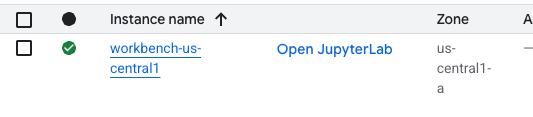
אחרי שנכנסים ל-JupyterLab, פותחים מחברת חדשה של Python 3.
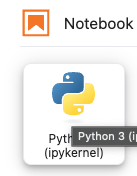
מריצים את הקוד הבא ב-notebook. חשוב לעדכן את הקוד כך שיכלול את הפרויקט הספציפי שלכם ואת פרטי האזור.
מ-JupyterLab Notebook
pip install --upgrade google-genai
מפעילים מחדש את ליבת ה-notebook.
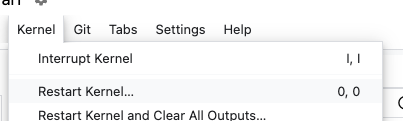
שימו לב לנקודת הקצה של ה-API. בדוגמה הזו אנחנו משתמשים בנקודת קצה ל-API <YOUR_REGION>-aiplatform.googleapis.com. זו נקודת הקצה של ה-API הסטנדרטי ל-Vertex AI.
מ-JupyterLab Notebook
PROJECT_ID="YOUR_PROJECT_ID" # Google Cloud Project ID
LOCATION_ID="YOUR_REGION" # Enter Vertex AI Gemini region such a s us-central1
API_ENDPOINT="https://<YOUR_REGION>-aiplatform.googleapis.com" # API Endpoint
MODEL_ID="gemini-2.0-flash" # Gemini Model ID

from google import genai
from google.genai.types import (
    GenerateContentConfig,
    HarmBlockThreshold,
    HarmCategory,
    Part,
    SafetySetting,
)
מ-JupyterLab Notebook
from google import genai

client= genai.Client(vertexai=True, project=PROJECT_ID, location=LOCATION_ID, http_options={'base_url': API_ENDPOINT})

prompt = "what weighs more, 1kg of feathers or 1kg of stones"

safety_settings = [
    SafetySetting(
        category=HarmCategory.HARM_CATEGORY_DANGEROUS_CONTENT,
        threshold=HarmBlockThreshold.BLOCK_LOW_AND_ABOVE,
    ),
    SafetySetting(
        category=HarmCategory.HARM_CATEGORY_HARASSMENT,
        threshold=HarmBlockThreshold.BLOCK_LOW_AND_ABOVE,
    ),
    SafetySetting(
        category=HarmCategory.HARM_CATEGORY_HATE_SPEECH,
        threshold=HarmBlockThreshold.BLOCK_LOW_AND_ABOVE,
    ),
    SafetySetting(
        category=HarmCategory.HARM_CATEGORY_SEXUALLY_EXPLICIT,
        threshold=HarmBlockThreshold.BLOCK_LOW_AND_ABOVE,
    ),
]

response = client.models.generate_content(
    model=MODEL_ID,
    contents=prompt,
    config=GenerateContentConfig(
        safety_settings=safety_settings,
    ),
)

# Response will be `None` if it is blocked.
print(response.text)
דוגמה לתשובה
This is a classic trick question! They both weigh the same: 1 kilogram. The difference is in the volume they occupy and the density of the materials.
שימו לב לשם ה-API שבו השתמשתם כשביצעתם את הקוד. YOUR_REGION-aiplatform.googleapis.com הוא שם ה-API שמוגדר כברירת מחדל ל-Vertex AI. צריך לשנות את שם ה-API ולהריץ את הקוד שוב. כדי לוודא שהקוד משתמש בנקודת הקצה של PSC, אפשר להריץ TCPdump במסוף במופע של Workbench.
הרצת TCPdump ב-Terminal
פותחים חלון של Terminal ב-Workbench על ידי לחיצה על File (קובץ) > New (חדש) > Terminal (טרמינל).
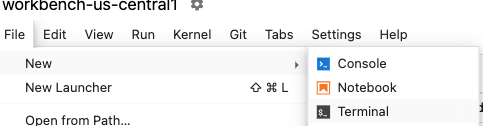
אם אתם נתקלים בבעיות בתצוגת פלט טקסט במסוף, אתם צריכים לעדכן את ערכת הנושא של המסוף. כדי לעשות את זה, עוברים אל 'הגדרות' > 'עיצוב הטרמינל' > 'בהיר' או 'כהה'.
מהטרמינל
sudo tcpdump host 10.100.100.0
עדכון של Gemini Code
חוזרים למחברת, מעדכנים את נקודת הקצה של ה-API ומריצים שוב את הקוד. שימו לב ששינינו את נקודת הקצה של ה-API לכתובת <YOUR_REGION>-aiplatform**-psc4googep.p**.googleapis.com. הפורמט הזה תואם לפורמט ה-API הספציפי ל-PSC <service>-<endpointname>.p.googleapis.com.
מ-JupyterLab Notebook
API_ENDPOINT="https://<YOUR_REGION>-aiplatform-psc4googep.p.googleapis.com" # API Endpoint
מ-JupyterLab Notebook
from google import genai
from google.genai.types import (
    GenerateContentConfig,
    HarmBlockThreshold,
    HarmCategory,
    Part,
    SafetySetting,
)
מ-JupyterLab Notebook
from google import genai

client= genai.Client(vertexai=True, project=PROJECT_ID, location=LOCATION_ID, http_options={'base_url': API_ENDPOINT})

prompt = "what weighs more, 1kg of feathers or 1kg of stones"

safety_settings = [
    SafetySetting(
        category=HarmCategory.HARM_CATEGORY_DANGEROUS_CONTENT,
        threshold=HarmBlockThreshold.BLOCK_LOW_AND_ABOVE,
    ),
    SafetySetting(
        category=HarmCategory.HARM_CATEGORY_HARASSMENT,
        threshold=HarmBlockThreshold.BLOCK_LOW_AND_ABOVE,
    ),
    SafetySetting(
        category=HarmCategory.HARM_CATEGORY_HATE_SPEECH,
        threshold=HarmBlockThreshold.BLOCK_LOW_AND_ABOVE,
    ),
    SafetySetting(
        category=HarmCategory.HARM_CATEGORY_SEXUALLY_EXPLICIT,
        threshold=HarmBlockThreshold.BLOCK_LOW_AND_ABOVE,
    ),
]

response = client.models.generate_content(
    model=MODEL_ID,
    contents=prompt,
    config=GenerateContentConfig(
        safety_settings=safety_settings,
    ),
)

# Response will be `None` if it is blocked.
print(response.text)
דוגמה לתשובה
They weigh the same. 1 kg is 1 kg, regardless of what it's made of.
בדיקת TCPdump
חוזרים לטרמינל ומחפשים קריאות לנקודת הקצה של PSC (10.100.100.0). מפסיקים את הפקודה TCPdump (Control+c)
פלט לדוגמה
listening on ens4, link-type EN10MB (Ethernet), snapshot length 262144 bytes
19:12:01.473886 IP workbench-us-central1.us-central1-a.c.xxx.internal.41886 > 10.100.100.0.https: Flags [S], seq 3367930834, win 65320, options [mss 1420,sackOK,TS val 2933602967 ecr 0,nop,wscale 7], length 0
19:12:01.476561 IP 10.100.100.0.https > workbench-us-central1.us-central1-a.c.xxx.internal.41886: Flags [S.], seq 1863301110, ack 3367930835, win 65535, options [mss 1366,sackOK,TS val 3004118895 ecr 2933602967,nop,wscale 8], length 0
19:12:01.476602 IP workbench-us-central1.us-central1-a.c.xxx.internal.41886 > 10.100.100.0.https: Flags [.], ack 1, win 511, options [nop,nop,TS val 2933602969 ecr 3004118895], length 0
19:12:01.477283 IP workbench-us-central1.us-central1-a.c.xxx.internal.41886 > 10.100.100.0.https: Flags [P.], seq 1:1573, ack 1, win 511, options [nop,nop,TS val 2933602970 ecr 3004118895], length 1572
19:12:01.478836 IP 10.100.100.0.https > workbench-us-central1.us-central1-a.c.xxx.internal.41886: Flags [.], ack 1573, win 1045, options [nop,nop,TS val 3004118898 ecr 2933602970], length 0
19:12:01.480181 IP 10.100.100.0.https > workbench-us-central1.us-central1-a.c.xxx.internal.41886: Flags [P.], seq 1:6041, ack 1573, win 1045, options [nop,nop,TS val 3004118899 ecr 2933602970], length 6040
19:12:01.480183 IP 10.100.100.0.https > workbench-us-central1.us-central1-a.c.xxx.internal.41886: Flags [P.], seq 6041:8378, ack 1573, win 1045, options [nop,nop,TS val 3004118899 ecr 2933602970], length 2337
19:12:01.480215 IP workbench-us-central1.us-central1-a.c.xxx.internal.41886 > 10.100.100.0.https: Flags [.], ack 6041, win 485, options [nop,nop,TS val 2933602973 ecr 3004118899], length 0
19:12:01.480225 IP workbench-us-central1.us-central1-a.c.xxx.internal.41886 > 10.100.100.0.https: Flags [.], ack 8378, win 473, options [nop,nop,TS val 2933602973 ecr 3004118899], length 0
19:12:01.482580 IP workbench-us-central1.us-central1-a.c.xxx.internal.41886 > 10.100.100.0.https: Flags [P.], seq 1573:1653, ack 8378, win 501, options [nop,nop,TS val 2933602975 ecr 3004118899], length 80
בוצע בהצלחה!
11. שלבי הניקוי
סוגרים את מחברת JupyterLab וחוזרים אל Cloud Shell. מוודאים שלא חל טיימאאוט ב-Cloud Shell. אם כן, מאפסים את המשתנים.
מ-Cloud Shell
gcloud config list project
gcloud config set project <project-id>
export project=$(gcloud config get-value project)
export region=us-central1
export zone=$region-a
echo $project
echo $region
echo $zone
מחיקת כל המשאבים.
מ-Cloud Shell
gcloud workbench instances delete workbench-$region --location=$zone -q

gcloud iam service-accounts delete workbench-sa@$project.iam.gserviceaccount.com -q

gcloud dns managed-zones delete peeringzone -q

gcloud compute forwarding-rules delete psc4googep --global -q

gcloud compute addresses delete psc-ip --global -q

gcloud network-connectivity spokes delete $region-vpn-spoke --region=$region -q

gcloud network-connectivity spokes delete routing-vpc --global -q

gcloud network-connectivity hubs delete ncc-hub -q

gcloud compute vpn-tunnels delete onprem-to-routing-tunnel1 --region=$region --project=$project -q

gcloud compute vpn-tunnels delete onprem-to-routing-tunnel0 --region=$region --project=$project -q

gcloud compute vpn-tunnels delete routing-to-onprem-tunnel1 --region=$region --project=$project -q

gcloud compute vpn-tunnels delete routing-to-onprem-tunnel0 --region=$region --project=$project -q

gcloud compute vpn-gateways delete onprem-gateway --region=$region --project=$project -q

gcloud compute vpn-gateways delete routing-gateway --region=$region --project=$project -q

gcloud compute routers nats delete onprem-$region-nat --router=onprem-$region-cr-4nat --region=$region -q

gcloud compute routers delete onprem-$region-cr-4nat --region=$region -q

gcloud compute routers delete onprem-$region-cr --region=$region -q

gcloud compute routers delete routing-$region-cr --region=$region -q

gcloud compute networks subnets delete onprem-$region-subnet --region=$region -q

gcloud compute networks delete onprem-vpc -q

gcloud compute networks delete routing-vpc -q
12. מעולה!
כל הכבוד, סיימתם את ה-Codelab.
מה נכלל
- יוצרים מרכז NCC.
- הגדרת רשתות VPC מסוג Spoke ב-NCC Hub.
- יוצרים HA VPN ב-Cloud.
- הגדרת רכיבי Hybrid Spokes ב-NCC Hub.
- יוצרים PSC לנקודת קצה של Google APIs.
- הגדרת נתיב בהתאמה אישית דרך HA VPN.
- מגדירים אזור DNS של שותפות.
- הגדרת מכונה ב-Vertex Workbench
- מגדירים את קוד Python של Gemini לשימוש ב-PSC עבור נקודת קצה של Google APIs.