
1. Before you begin
This codelab guides you through migrating a single MySQL database on Cloud SQL to a Cloud Spanner database with the GoogleSQL dialect. The focus is on the fundamental end-to-end migration flow, demonstrating the core steps. You will use Google Cloud services including the Spanner Migration Tool (SMT), Dataflow, Datastream, PubSub and Google Cloud Storage.
What you'll learn:
- How to set up sample Cloud SQL and Cloud Spanner instances.
- How to convert a Cloud SQL MySQL schema to a Spanner-compatible schema using Spanner Migration Tool (SMT).
- How to perform bulk data migration from Cloud SQL to Cloud Spanner using Dataflow.
- How to set up continuous replication (CDC) from Cloud SQL to Cloud Spanner using Datastream and Dataflow.
- How to set up reverse replication from Cloud Spanner to Cloud SQL.
What this codelab does NOT cover:
- Migrations from sharded instances.
- Complex data transformations during migration.
- Advanced error handling or Dead Letter Queues (DLQ).
- Migration performance tuning.
- Application Migration: This codelab focuses on the database layer (schema and data). It does not cover the operational process of redeploying or migrating your application services.
What you'll need
- A Google Cloud project with billing enabled.
- Sufficient IAM permissions to enable APIs and create/manage Cloud SQL, Spanner, Dataflow, Datastream, and GCS resources. While the Project
Ownerrole is simplest for a codelab, more specific roles will be covered in the "Environment Setup". - A web browser, such as Google Chrome.
- Basic familiarity with the Google Cloud Console and command-line tools like
gcloud. - Access to a shell environment. Cloud Shell is recommended as it includes
gcloud.
More details on the above setup is covered in the Environment Setup section.
2. Understanding the Migration Process
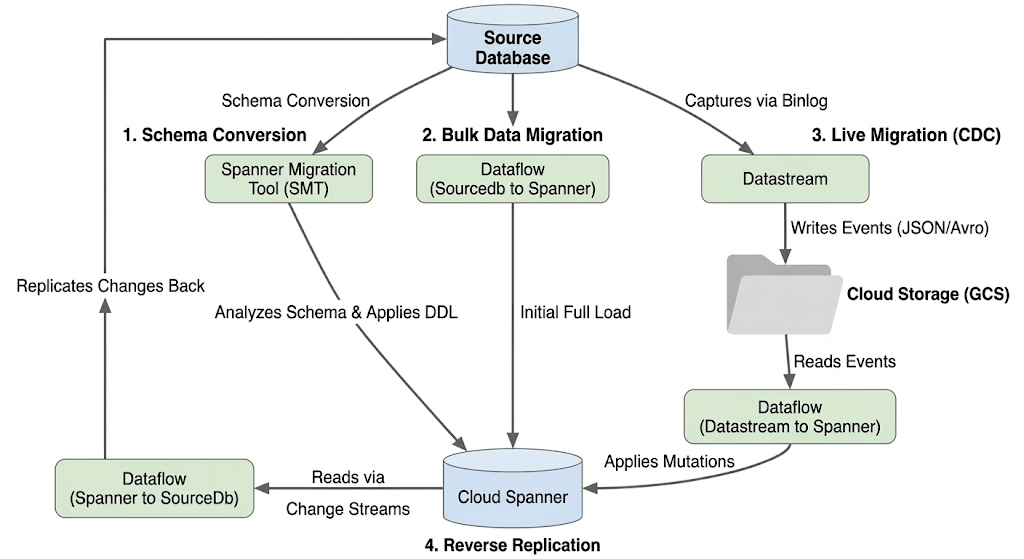
Migrating a database involves migrating data from your source CloudSQL database instance into a Spanner instance. This section outlines the architecture and key tools used in the migration.
Migration Flow Architecture
The migration process involves these stages:
1. Schema Conversion:
- Purpose: To convert the source database schema to a compatible Cloud Spanner schema.
- Tool: Spanner Migration Tool (SMT)
- Process: SMT analyzes the source database schema and generates the equivalent Spanner Data Definition Language (DDL). In the target Spanner instance, a database is created and the DDL is then automatically applied.
2. Bulk Data Migration:
- Purpose: To perform an initial, full load of existing data from the source database to the provisioned Spanner tables.
- Tool: Dataflow, using the Google-provided
Sourcedb to Spannertemplate. - Process: This Dataflow job reads all data from the specified source tables and writes it into the corresponding Spanner tables. This is done after the Spanner schema is created.
3. Live Migration (CDC):
- Purpose: To capture and apply ongoing changes from the source database to Cloud Spanner in near real-time, minimizing downtime during the migration.
- Tools:
- Datastream: Captures changes (Inserts, Updates, Deletes) from the source database and writes them to Cloud Storage (GCS).
- Dataflow: Uses the
Datastream to Spannertemplate to read the change events from GCS and apply them to Cloud Spanner.
4. Reverse Replication:
- Purpose: To replicate data changes from Cloud Spanner back to the source database. This can be useful for fallback strategies, phased migrations, or maintaining a replica in the source for specific use cases.
- Tool: Dataflow, using the
Spanner to SourceDbtemplate. - Process: This job utilizes Spanner change streams to capture modifications in Spanner and write them back to the source database instance.
The following diagram illustrates the components and data flow:
Key Terminology:
- Spanner Migration Tool (SMT): A tool used to assess MySQL schemas, suggest Spanner schema equivalents, and generate the Spanner Data Definition Language (DDL).
- Data Definition Language (DDL): Statements used to define and modify database structure, such as
CREATE TABLEstatements. SMT generates Spanner DDL based on the Cloud SQL schema. - Dataflow: A fully managed, serverless data processing service. In this codelab, it's used to run Google-provided templates for bulk data transfer, applying Datastream changes, and reverse replication.
- Datastream: A serverless Change Data Capture (CDC) and replication service. It's used to stream changes from Cloud SQL into Cloud Storage in this codelab.
- Spanner Change Streams: A Spanner feature that allows streaming out changes to data (inserts, updates, deletes) in real-time, used as the source for reverse replication.
- Pub/Sub: A messaging service used to decouple services that produce events from services that process them. In this codelab, it triggers Dataflow to process updates whenever Datastream uploads new change files to Cloud Storage.
3. Environment Setup
Before you can start the migration, you need to set up your Google Cloud project and enable the necessary services.
1. Select or Create a Google Cloud Project
You need a Google Cloud project with billing enabled to use the services in this codelab.
- In the Google Cloud Console, go to the project selector page: Go to Project Selector
- Select or create a Google Cloud project.
- Make sure that billing is enabled for your project. Learn how to confirm that billing is enabled for your project.
2. Open Cloud Shell
Cloud Shell is a command-line environment running in Google Cloud that comes preloaded with the gcloud CLI and other tools you need.
- Click the Activate Cloud Shell button at the top right of the Google Cloud Console.
- A Cloud Shell session opens inside a new frame at the bottom of the console and displays a command-line prompt.

3. Set Project and Environment Variables
In Cloud Shell, set up some environment variables for your project ID and the region you will use.
export PROJECT_ID=$(gcloud config get-value project)
export REGION="us-central1" # Or your preferred region
export ZONE="us-central1-a" # Or a zone within your selected region

gcloud config set project $PROJECT_ID
gcloud config set compute/region $REGION
gcloud config set compute/zone $ZONE

echo "Project ID: $PROJECT_ID"
echo "Region: $REGION"
echo "Zone: $ZONE"
4. Enable Required Google Cloud APIs
Enable the APIs necessary for Cloud Spanner, Dataflow, Datastream, and other related services.
gcloud services enable \
  spanner.googleapis.com \
  dataflow.googleapis.com \
  datastream.googleapis.com \
  pubsub.googleapis.com \
  storage.googleapis.com \
  compute.googleapis.com \
  sqladmin.googleapis.com \
  servicenetworking.googleapis.com \
  cloudresourcemanager.googleapis.com
This command might take a few minutes to complete.
5. Configure Service Account Permissions
Dataflow jobs and Datastream require specific permissions to interact with other Google Cloud services. The Dataflow jobs in this codelab will use the default Compute Engine service account.
First, get your Project Number:
export PROJECT_NUMBER=$(gcloud projects describe $PROJECT_ID --format="value(projectNumber)")
export SA_EMAIL="${PROJECT_NUMBER}-compute@developer.gserviceaccount.com"
Now, grant the required IAM roles to the Compute Engine default service account:
# Role for Dataflow to run jobs
gcloud projects add-iam-policy-binding $PROJECT_ID \
    --member="serviceAccount:${SA_EMAIL}" \
    --role="roles/dataflow.admin" \
    --condition=None

# Roles for Dataflow workers
gcloud projects add-iam-policy-binding $PROJECT_ID \
    --member="serviceAccount:${SA_EMAIL}" \
    --role="roles/dataflow.worker" \
    --condition=None

# Role to connect to Cloud SQL instance
gcloud projects add-iam-policy-binding $PROJECT_ID \
    --member="serviceAccount:${SA_EMAIL}" \
    --role="roles/cloudsql.client" \
    --condition=None

# Role to read/write from Cloud Spanner
gcloud projects add-iam-policy-binding $PROJECT_ID \
    --member="serviceAccount:${SA_EMAIL}" \
    --role="roles/spanner.databaseUser" \
    --condition=None

# Role to access GCS buckets (Datastream output, Dataflow temp, JDBC driver)
gcloud projects add-iam-policy-binding $PROJECT_ID \
    --member="serviceAccount:${SA_EMAIL}" \
    --role="roles/storage.objectAdmin" \
    --condition=None

# Roles for Datastream and Pub/Sub (for CDC)
gcloud projects add-iam-policy-binding $PROJECT_ID \
    --member="serviceAccount:${SA_EMAIL}" \
    --role="roles/datastream.viewer"

gcloud projects add-iam-policy-binding $PROJECT_ID \
    --member="serviceAccount:${SA_EMAIL}" \
    --role="roles/pubsub.subscriber"
6. Create a Cloud Storage Bucket
Create a GCS bucket in the same region as your other resources. This bucket will store the JDBC driver, Datastream output, and be used by Dataflow for temporary files.
export BUCKET_NAME="migration-${PROJECT_ID}-bucket"
gcloud storage buckets create gs://$BUCKET_NAME --location=$REGION
echo "Created bucket: gs://$BUCKET_NAME"
7. Install Spanner Migration Tool (SMT)
Ensure the Spanner Migration Tool (SMT) is installed in your Cloud Shell environment.
sudo apt-get update && sudo apt-get install google-cloud-cli-spanner-migration-tool

# Verify installation
gcloud alpha spanner migrate web --help
This command should display help information for the SMT web interface, confirming the gcloud component is installed. This codelab will use the CLI features of SMT, which are part of the same component.
4. Set Up the Source Cloud SQL Database
In this section, you will create and configure a Cloud SQL for MySQL instance with Public IP to serve as the source database.
1. Create a Cloud SQL for MySQL Instance
Run the following gcloud command in Cloud Shell to create a MySQL 8.0 instance. Binary logging is enabled (required for Datastream), and the instance is configured with a Public IP.
export SQL_INSTANCE_NAME="source-mysql-instance"
export DB_ROOT_PASSWORD="Welcome@1" # Replace with a strong password if you prefer

gcloud sql instances create $SQL_INSTANCE_NAME \
  --database-version=MYSQL_8_0 \
  --tier=db-n1-standard-2 \
  --region=$REGION \
  --root-password=$DB_ROOT_PASSWORD \
  --enable-bin-log \
  --assign-ip
--enable-bin-log: Required for Datastream to capture changes.--assign-ip: Ensures the instance gets a Public IP address.
Instance creation will take a few minutes. You can check if your instance was created on the CloudSQL Instances Page.
2. Configure Authorized Networks
To connect to the instance over Public IP, you need to add IP addresses to the "Authorized Networks" list.
Get your Cloud Shell IP:
export CLOUD_SHELL_IP=$(curl -s ipinfo.io/ip)
echo "Your Cloud Shell IP: $CLOUD_SHELL_IP"
Authorize Cloud Shell IP and Open Access
The following command adds your Cloud Shell IP. It also adds 0.0.0.0/0, which allows access from any IP address. This is necessary to simplify connections from Dataflow workers without complex network setups.
gcloud sql instances patch $SQL_INSTANCE_NAME \
  --authorized-networks="${CLOUD_SHELL_IP}/32,0.0.0.0/0"
3. Connect to the Cloud SQL Instance from Cloud Shell
Fetch the assigned Public IP address
export SQL_INSTANCE_IP=$(gcloud sql instances list --filter="name=$SQL_INSTANCE_NAME" --format="value(PRIMARY_ADDRESS)")
echo "Cloud SQL Public IP: $SQL_INSTANCE_IP"
This IP address will be used to connect.
Connect to the Cloud SQL Instance from CloudShell
Use the standard mysql client to connect, using the Public IP address obtained:
mysql -h $SQL_INSTANCE_IP -u root -p
When prompted, enter the root password you set (Welcome@1). You will now be at a mysql> prompt.
4. Create Database and Sample Data
Execute the following SQL commands within the mysql> prompt:
CREATE DATABASE music_db;
USE music_db;

CREATE TABLE Singers (
    SingerId   BIGINT NOT NULL,
    FirstName  VARCHAR(1024),
    LastName   VARCHAR(1024),
    BirthDate  DATE,
    AlbumCount BIGINT,
    PRIMARY KEY (SingerId)
);

CREATE TABLE Albums (
    SingerId     BIGINT NOT NULL,
    AlbumId      BIGINT NOT NULL,
    AlbumTitle   VARCHAR(1024),
    ReleaseDate  DATE,
    PRIMARY KEY (SingerId, AlbumId),
    CONSTRAINT FK_Albums_Singers FOREIGN KEY (SingerId) REFERENCES Singers (SingerId)
);

INSERT INTO Singers (SingerId, FirstName, LastName, BirthDate, AlbumCount) VALUES
(1, 'Marc', 'Richards', '1970-09-03', 2),
(2, 'Catalina', 'Smith', '1990-08-17', 1),
(3, 'Alice', 'Trentor', '1991-10-02', 3);

INSERT INTO Albums (SingerId, AlbumId, AlbumTitle, ReleaseDate) VALUES
(1, 1, 'Total Junk', '2014-03-15'),
(1, 2, 'Go Go Go', '2016-11-01'),
(2, 1, 'Green', '2018-02-28'),
(3, 1, 'Blue', '2019-01-10'),
(3, 2, 'Red', '2020-05-22'),
(3, 3, 'Purple', '2022-11-11');
The dump file for the above schema can be found here.
5. Verify Data
Quickly check that the data is present:
SELECT 'Singers music_db' as tbl, COUNT(*) FROM music_db.Singers
UNION ALL
SELECT 'Albums music_db', COUNT(*) FROM music_db.Albums;

EXIT;
You should see counts for each table.
+------------------+----------+
| tbl              | COUNT(*) |
+------------------+----------+
| Singers music_db |        3 |
| Albums music_db  |        6 |
+------------------+----------+
5. Set Up Cloud Spanner
Now, you'll set up the target Cloud Spanner instance where the data will be migrated.
1. Create a Cloud Spanner Instance
Create a Cloud Spanner instance in the same region as your Cloud SQL instance. This command creates a small instance suitable for this codelab, using 100 processing units.
export SPANNER_INSTANCE_NAME="target-spanner-instance"
export SPANNER_DATABASE_NAME="music-db-migrated"
export SPANNER_CONFIG="regional-${REGION}"

gcloud spanner instances create $SPANNER_INSTANCE_NAME \
  --config=$SPANNER_CONFIG \
  --description="Target Spanner Instance" \
  --processing-units=100
Instance creation might take a minute or two.
6. Convert the Schema using Spanner Migration Tool (SMT)
Use the SMT CLI to analyze the MySQL database (music_db) and generate the Spanner Schema Definition Language (DDL). Since the Cloud SQL instance is configured with Public IP and appropriate authorized networks, SMT can connect directly.
1. Prepare Environment for SMT
Verify the necessary environment variables are set from previous steps:
echo "Cloud SQL Instance Public IP: $SQL_INSTANCE_IP"
echo "Cloud SQL Root Password: $DB_ROOT_PASSWORD"
echo "Spanner Instance: $SPANNER_INSTANCE_NAME"
echo "Spanner Database: $SPANNER_DATABASE_NAME"
echo "Project ID: $PROJECT_ID"
2. Run Schema Conversion for music_db
Execute the SMT schema command, connecting directly to the Cloud SQL Public IP address:
gcloud alpha spanner migrate schema \
--source=mysql \
--source-profile="host=${SQL_INSTANCE_IP},port=3306,user=root,password=${DB_ROOT_PASSWORD},dbName=music_db" \
--target-profile="project=${PROJECT_ID},instance=${SPANNER_INSTANCE_NAME},dbName=${SPANNER_DATABASE_NAME}" \
--prefix="music-db"
This command connects to the Cloud SQL instance via the proxy and generates schema files prefixed with music-db.
3. Review Generated Files
SMT creates a few files in your current directory. The key ones are:
music-db.schema.ddl.txt: The generated Spanner DDL statements.music-db-.overrides.json: The schema overrides file containing manual mapping changes.music-db.session.json: Session File of the schema migration.music-db.report.txt: An assessment report of the schema conversion.
You can list them using ls music-db-*
4. Verify Schema in Cloud Spanner
Check that the tables have been created in the Spanner database.
gcloud spanner databases execute-sql $SPANNER_DATABASE_NAME \
  --instance=$SPANNER_INSTANCE_NAME \
  --sql="SELECT table_name FROM information_schema.tables WHERE table_schema = '' ORDER BY table_name"
You should see the following output:
table_name: Albums
table_name: Singers
Optional: If you want to check the Spanner DDL, run the following command:
gcloud spanner databases ddl describe $SPANNER_DATABASE_NAME \
  --instance=$SPANNER_INSTANCE_NAME
7. Initialize Change Data Capture (CDC)
In this section, you will set up the "recorder" for your migration. By configuring Datastream and Pub/Sub before the bulk data load starts, you ensure that every change made to the source database is captured and queued, preventing any data loss during the transition. This setup is required for the Live Migration.
1. Create Datastream Connection Profiles
Source Profile (Cloud SQL)
This profile connects to the Cloud SQL instance's Public IP. Datastream will use IP Allowlisting for connectivity.
export SQL_CP_NAME="mysql-src-cp"
gcloud datastream connection-profiles create $SQL_CP_NAME \
  --location=$REGION \
  --type=mysql \
  --mysql-hostname=$SQL_INSTANCE_IP \
  --mysql-port=3306 \
  --mysql-username=root \
  --mysql-password=$DB_ROOT_PASSWORD \
  --display-name="Cloud SQL Source - Public IP"
Note: This connection relies on the Cloud SQL instance's Authorized Networks allowing access. As configured earlier with 0.0.0.0/0, Datastream's public IPs can connect. In a production environment, you would replace 0.0.0.0/0 with the specific IP ranges for your region listed in Datastream IP allowlists and regions.
Destination Profile (Cloud Storage)
Points to the root of your bucket.
export GCS_CP_NAME="gcs-dest-cp"
gcloud datastream connection-profiles create $GCS_CP_NAME \
  --location=$REGION \
  --type=google-cloud-storage \
  --bucket=$BUCKET_NAME \
  --root-path=/ \
  --display-name="GCS Destination" --force
2. Create a Datastream Stream
Create the stream to replicate from music_db.
export STREAM_NAME="mysql-to-spanner-stream"
export GCS_STREAM_PATH="data/${STREAM_NAME}"

gcloud datastream streams create $STREAM_NAME \
  --location=$REGION \
  --display-name="MySQL to Spanner CDC Stream" \
  --source=$SQL_CP_NAME \
  --destination=$GCS_CP_NAME \
  --mysql-source-config=<(echo "
includeObjects:
  mysqlDatabases:
  - database: 'music_db'
") \
  --gcs-destination-config=<(echo "
path: ${GCS_STREAM_PATH}
fileRotationMb: 5
fileRotationInterval: 15s
avroFileFormat: {}
") \
  --backfill-none
- Datastream will write files under
gs://${BUCKET_NAME}/${GCS_STREAM_PREFIX}/ - Datastream will write the files in Avro format. While running the live migration command we will specify the inputFileFormat to be avro so the pipeline can correctly process the file.
- Using smaller file rotation settings helps see changes faster in the codelab.
This command might take some time to complete. Check status: gcloud datastream streams describe $STREAM_NAME --location=$REGION.
3. Start the Datastream Stream
gcloud datastream streams update $STREAM_NAME \
  --location=$REGION \
  --state=RUNNING
Check status: gcloud datastream streams describe $STREAM_NAME --location=$REGION. The state will be STARTING initially, and will become RUNNING after some time. Proceed to the next step only after you have confirmed it is in RUNNING state.
4. Set Up Pub/Sub for GCS Notifications
Create a Pub/Sub Topic:
export PUBSUB_TOPIC="datastream-gcs-updates"
gcloud pubsub topics create $PUBSUB_TOPIC
Create GCS Notification
Notify on object creation under the data/ prefix.
gcloud storage buckets notifications create gs://${BUCKET_NAME} --topic=projects/$PROJECT_ID/topics/$PUBSUB_TOPIC --payload-format=json --object-prefix=data/
Create a Pub/Sub Subscription
Include the recommended acknowledgement deadline.
export PUBSUB_SUBSCRIPTION="datastream-gcs-sub"
gcloud pubsub subscriptions create $PUBSUB_SUBSCRIPTION \
  --topic=$PUBSUB_TOPIC \
  --ack-deadline=600
8. Bulk Migrate Data from Cloud SQL to Spanner
With the Spanner schema in place, you will now copy the existing data from your Cloud SQL music_db database to Cloud Spanner. You'll use the Sourcedb to Spanner Dataflow Flex Template, which is designed for bulk copying data from JDBC-accessible databases to Spanner.
1. Run Bulk Migration Dataflow Job for music_db
Execute the following command in Cloud Shell to start the Dataflow job. This command utilizes the gcloud dataflow flex-template run command, referencing the Google-provided template for bulk JDBC to Spanner migrations.
export JOB_NAME_MUSIC="mysql-music-db-to-spanner-bulk-$(date +%Y%m%d-%H%M%S)"
export MUSIC_DB_JDBC_URL="jdbc:mysql://${SQL_INSTANCE_IP}:3306/music_db"
export OUTPUT_DIR="gs://${BUCKET_NAME}/bulk-migration-output"

gcloud dataflow flex-template run $JOB_NAME_MUSIC \
  --project=$PROJECT_ID \
  --region=$REGION \
--template-file-gcs-location="gs://dataflow-templates-${REGION}/latest/flex/Sourcedb_to_Spanner_Flex" \
--max-workers=2 \
--num-workers=1 \
--worker-machine-type=n2-highmem-8 \
  --parameters \
sourceConfigURL="$MUSIC_DB_JDBC_URL",\
instanceId="$SPANNER_INSTANCE_NAME",\
databaseId="$SPANNER_DATABASE_NAME",\
projectId="$PROJECT_ID",\
outputDirectory="$OUTPUT_DIR/music_db",\
username="root",\
password="$DB_ROOT_PASSWORD",\
jdbcDriverClassName="com.mysql.cj.jdbc.Driver",\
jdbcDriverJars="gs://${BUCKET_NAME}/lib/mysql-connector-j-8.0.33.jar",\
spannerHost="https://batch-spanner.googleapis.com"
Key Parameters Explained:
sourceConfigURL: The JDBC connection string for the sourcemusic_db.instanceId,databaseId,projectId: Specifies the target Cloud Spanner instance and database.outputDirectory: A Cloud Storage path where Dataflow will write information about any records that failed to migrate.jdbcDriverClassName: Specifies the MySQL JDBC driver.jdbcDriverJars: GCS path to the staged JDBC driver JAR.spannerHost: Uses the batch-optimized endpoint for Spanner writes.maxWorkers,numWorkers: Controls the scaling of the Dataflow job. Kept low for this small dataset.
Network Note: This job connects to the Cloud SQL instance over its Public IP. This is possible because you previously added 0.0.0.0/0 to the instance's Authorized Networks. This allows the Dataflow worker VMs, which have external IPs, to reach the database.
2. Monitor the Dataflow Job
You can track the job's progress in the Google Cloud Console:
- Navigate to the Dataflow Jobs page: Go to Dataflow Jobs
- Locate the job named
mysql-music-db-to-spanner-bulk-...and click on it. - Observe the job graph and metrics. Wait for the job status to change to Succeeded. This should take approximately 5-15 minutes.
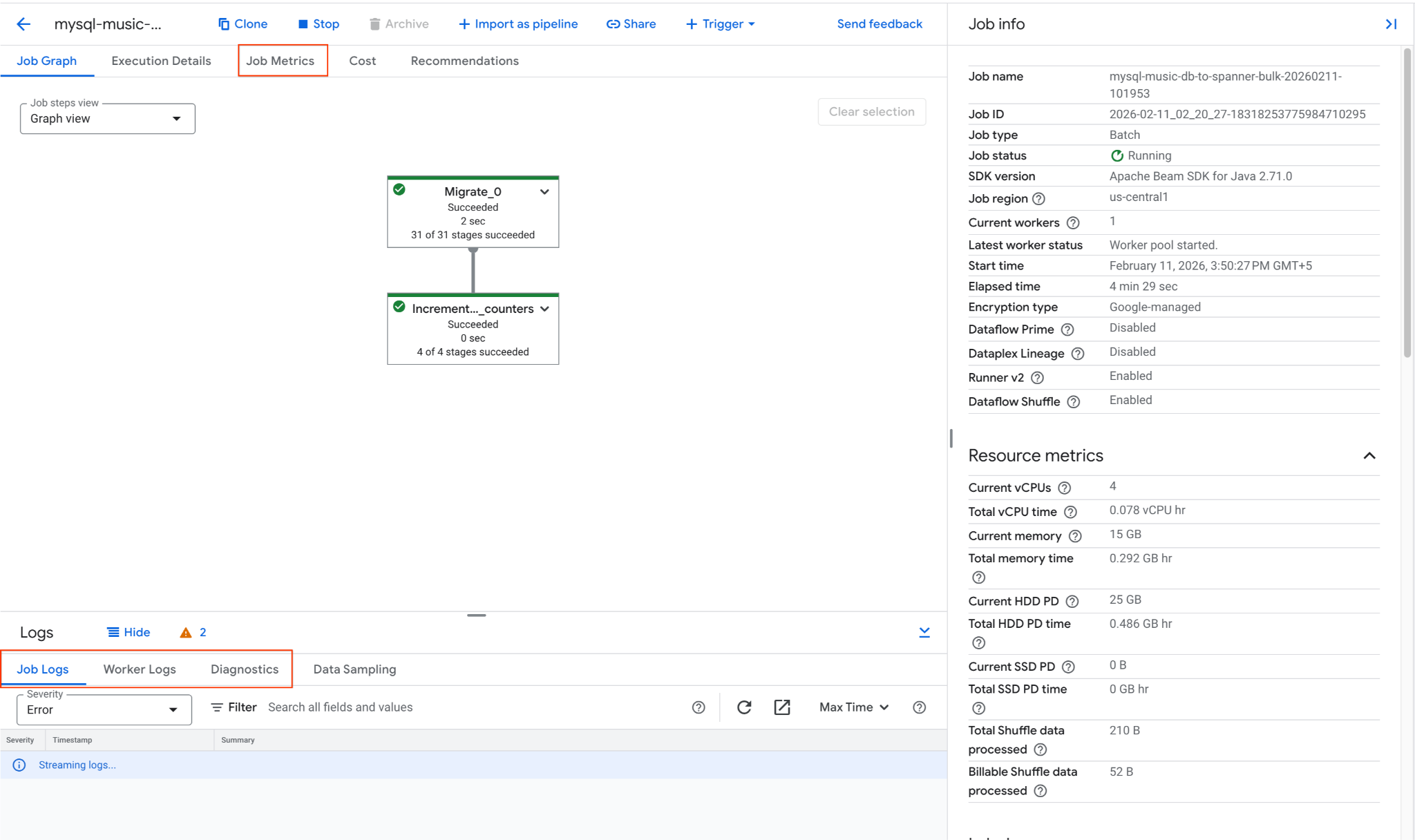
- If the job encounters issues, review the Logs tab within the Dataflow job details page for error messages.
- Job Metrics gives more information regarding the progress of the job and resource consumption like throughput and CPU utilization.
3. Verify Data in Cloud Spanner
Once the Dataflow job completes successfully, confirm that the data has been copied to the Spanner tables. Use gcloud to query the Spanner database:
# Verify row counts
gcloud spanner databases execute-sql $SPANNER_DATABASE_NAME --instance=$SPANNER_INSTANCE_NAME --sql="SELECT COUNT(*) as row_count FROM Singers"
# Expected output: 3

gcloud spanner databases execute-sql $SPANNER_DATABASE_NAME --instance=$SPANNER_INSTANCE_NAME --sql="SELECT COUNT(*) as row_count FROM Albums"
# Expected output: 6

# Inspect some data
gcloud spanner databases execute-sql $SPANNER_DATABASE_NAME --instance=$SPANNER_INSTANCE_NAME --sql="SELECT SingerId, FirstName, LastName FROM Singers ORDER BY SingerId"
Expected Output:
row_count: 3
row_count: 6
SingerId: 1
FirstName: Marc
LastName: Richards

SingerId: 2
FirstName: Catalina
LastName: Smith

SingerId: 3
FirstName: Alice
LastName: Trentor
The initial bulk load of data from Cloud SQL to Cloud Spanner is now complete. The next step is to set up live replication to capture ongoing changes.
9. Start Live Migration (CDC)
Now that the bulk data load is complete, you will set up a continuous replication stream using Datastream to capture Change Data Capture (CDC) events from Cloud SQL and a Dataflow streaming job to apply those changes to Cloud Spanner in near real-time.
1. Run the Live Migration Dataflow Job
Launch the streaming Dataflow job to read from GCS and write to Spanner. This template will use GCS Pub/Sub notifications to instantly process new files.
export JOB_NAME_CDC="datastream-to-spanner-cdc-$(date +%Y%m%d-%H%M%S)"
export DLQ_DIR="gs://${BUCKET_NAME}/dlq"

gcloud dataflow flex-template run $JOB_NAME_CDC \
  --project=$PROJECT_ID \
  --region=$REGION \
--worker-machine-type=n2-highmem-8 \
--template-file-gcs-location="gs://dataflow-templates-${REGION}/latest/flex/Cloud_Datastream_to_Spanner" \
  --parameters \
gcsPubSubSubscription="projects/${PROJECT_ID}/subscriptions/${PUBSUB_SUBSCRIPTION}",\
instanceId="$SPANNER_INSTANCE_NAME",\
databaseId="$SPANNER_DATABASE_NAME",\
projectId="$PROJECT_ID",\
inputFileFormat="avro",\
deadLetterQueueDirectory="$DLQ_DIR",\
streamName="projects/${PROJECT_ID}/locations/${REGION}/streams/${STREAM_NAME}"
Key Parameters
gcsPubSubSubscription: The Pub/Sub subscription that listens for new file notifications from GCS. This allows the job to process changes instantly as Datastream writes them.inputFileFormat="avro": Tells Dataflow to expect Avro files from Datastream. This must match your Datastream "Destination" configuration (e.g.,avroFileFormatvs.jsonFileFormat).deadLetterQueueDirectory: A GCS path where the job stores records that failed to process (e.g., due to schema mismatches) for later manual review.streamName: The full resource path of the Datastream stream, which allows the Dataflow job to track the replication state and metadata.
Monitor the job startup in the Dataflow Jobs Console.
2. Test Live Migration
Apply changes to the source Cloud SQL music_db to test the CDC pipeline.
Connect to Cloud SQL:
mysql -h $SQL_INSTANCE_IP -u root -p
Enter the password (Welcome@1) and select the database:
USE music_db;

-- INSERT
INSERT INTO Singers (SingerId, FirstName, LastName, BirthDate, AlbumCount) VALUES (4, 'Elena', 'Nadal', '1985-05-30', 0);
SELECT * FROM Singers WHERE SingerId = 4;

-- UPDATE
UPDATE Singers SET LastName = 'Richards-Smith' WHERE SingerId = 1;
SELECT * FROM Singers WHERE SingerId = 1;

-- DELETE
DELETE FROM Albums WHERE SingerId = 2;
DELETE FROM Singers WHERE SingerId = 2;
SELECT * FROM Singers WHERE SingerId = 2;

EXIT;
Verification in Spanner (after a few moments):
# Verify INSERT: This should return the new row for Elena Nadal.
gcloud spanner databases execute-sql $SPANNER_DATABASE_NAME \
  --instance=$SPANNER_INSTANCE_NAME \
  --sql="SELECT * FROM Singers WHERE SingerId = 4"

# Verify UPDATE: This should show LastName as Richards-Smith.
gcloud spanner databases execute-sql $SPANNER_DATABASE_NAME \
  --instance=$SPANNER_INSTANCE_NAME \
  --sql="SELECT SingerId, FirstName, LastName FROM Singers WHERE SingerId = 1"

# Verify DELETE: This should now return 0 rows.
gcloud spanner databases execute-sql $SPANNER_DATABASE_NAME \
  --instance=$SPANNER_INSTANCE_NAME \
  --sql="SELECT * FROM Albums WHERE SingerId = 2"

gcloud spanner databases execute-sql $SPANNER_DATABASE_NAME \
  --instance=$SPANNER_INSTANCE_NAME \
  --sql="SELECT * FROM Singers WHERE SingerId = 2"
Expected Output:
SingerId: 4
FirstName: Elena
LastName: Nadal
BirthDate: 1985-05-30
AlbumCount: 0

SingerId: 1
FirstName: Marc
LastName: Richards-Smith
3. Final Verification in Spanner
Check the overall state of the Singers table in Spanner:
gcloud spanner databases execute-sql $SPANNER_DATABASE_NAME \
  --instance=$SPANNER_INSTANCE_NAME \
  --sql="SELECT SingerId, FirstName, LastName, AlbumCount FROM Singers ORDER BY SingerId"
Expected output:
SingerId: 1
FirstName: Marc
LastName: Richards-Smith
AlbumCount: 2

SingerId: 3
FirstName: Alice
LastName: Trentor
AlbumCount: 3

SingerId: 4
FirstName: Elena
LastName: Nadal
AlbumCount: 0
10. Set Up Reverse Replication (Spanner to Cloud SQL)
To handle scenarios where you might need to rollback or keep the Cloud SQL database in sync with Spanner for a period, you can set up reverse replication. This pipeline uses Spanner Change Streams to capture changes in Spanner and writes them back to the Cloud SQL music_db.
1. Create a Spanner Change Stream
First, you need to create a change stream in your Spanner database to track changes on the Singers and Albums tables.
export CHANGE_STREAM_NAME="MusicDBChangeStream"

gcloud spanner databases ddl update $SPANNER_DATABASE_NAME \
  --instance=$SPANNER_INSTANCE_NAME \
  --ddl="CREATE CHANGE STREAM $CHANGE_STREAM_NAME FOR Singers, Albums"
This change stream will now record all data modifications to the specified tables.
2. Create a Spanner Database for Dataflow Metadata
The Spanner to SourceDB Dataflow template requires a separate Spanner database to store metadata for managing the change stream consumption.
export SPANNER_METADATA_DB_NAME="reverse-replication-metadata"

gcloud spanner databases create $SPANNER_METADATA_DB_NAME \
  --instance=$SPANNER_INSTANCE_NAME
3. Prepare Cloud SQL Connection Configuration for Dataflow
The Dataflow template needs a JSON file in Cloud Storage containing the connection details for the target Cloud SQL database.
Create a local file named shard_config.json:
cat << EOF > shard_config.json
[
  {
    "logicalShardId": "mysql_shard",
    "host": "${SQL_INSTANCE_IP}",
    "port": "3306",
    "user": "root",
    "password": "${DB_ROOT_PASSWORD}",
    "dbName": "music_db"
  }
]
EOF
Upload this file to your GCS bucket:
export SHARD_CONFIG_FILE="gs://${BUCKET_NAME}/shard_config.json"
gcloud storage cp shard_config.json $SHARD_CONFIG_FILE
4. Run the Reverse Replication Dataflow Job
Launch the Dataflow job using the Spanner_to_SourceDb Flex Template.
export JOB_NAME_REVERSE="spanner-to-mysql-reverse-$(date +%Y%m%d-%H%M%S)"
export REVERSE_DLQ_DIR="gs://${BUCKET_NAME}/reverse-dlq"

gcloud dataflow flex-template run $JOB_NAME_REVERSE \
  --project=$PROJECT_ID \
  --region=$REGION \
--worker-machine-type=n2-highmem-8 \
--max-workers=2 \
--num-workers=1 \
--additional-experiments=use_runner_v2 \
--template-file-gcs-location="gs://dataflow-templates-${REGION}/latest/flex/Spanner_to_SourceDb" \
  --parameters \
changeStreamName="$CHANGE_STREAM_NAME",\
instanceId="$SPANNER_INSTANCE_NAME",\
databaseId="$SPANNER_DATABASE_NAME",\
spannerProjectId="$PROJECT_ID",\
metadataInstance="$SPANNER_INSTANCE_NAME",\
metadataDatabase="$SPANNER_METADATA_DB_NAME",\
sourceShardsFilePath="$SHARD_CONFIG_FILE",\
deadLetterQueueDirectory="$REVERSE_DLQ_DIR"
Key Parameters
changeStreamName: The name of the Spanner change stream to read from.metadataInstance, metadataDatabase: The Spanner instance/database to store the metadata used by the connector to control the consumption of the change stream API data.sourceShardsFilePath: The GCS path to yourshard_config.json.filtrationMode: Specifies how to drop certain records based on a criteria. Defaults toforward_migration(filter records written using the forward migration pipeline)
Network Note: The Dataflow workers will connect to the Cloud SQL instance using the Public IP specified in shard_config.json. This connection is permitted due to the 0.0.0.0/0 entry in the Cloud SQL instance's Authorized Networks.
Monitor the job startup in the Dataflow Jobs Console.
5. Test Reverse Replication
Now, make changes directly in Cloud Spanner and verify they are reflected in Cloud SQL. Do this only once the dataflow job has started and is in processing state.
Test INSERT, UPDATE and DELETE
# INSERT: Insert a new singer (SingerId 5) into Spanner
gcloud spanner databases execute-sql $SPANNER_DATABASE_NAME \
  --instance=$SPANNER_INSTANCE_NAME \
  --sql="INSERT INTO Singers (SingerId, FirstName, LastName, BirthDate, AlbumCount) VALUES (5, 'David', 'Chen', '1995-02-18', 0)"

# UPDATE: Update SingerId 3's AlbumCount in Spanner
gcloud spanner databases execute-sql $SPANNER_DATABASE_NAME \
  --instance=$SPANNER_INSTANCE_NAME \
  --sql="UPDATE Singers SET AlbumCount = 5 WHERE SingerId = 3"

# DELETE: Delete SingerId 1 from Spanner
gcloud spanner databases execute-sql $SPANNER_DATABASE_NAME \
--instance=$SPANNER_INSTANCE_NAME \
--sql="DELETE FROM Albums WHERE SingerId = 1"

gcloud spanner databases execute-sql $SPANNER_DATABASE_NAME \
  --instance=$SPANNER_INSTANCE_NAME \
  --sql="DELETE FROM Singers WHERE SingerId = 1"
Verification in Cloud SQL (after a few moments):
Connect to Cloud SQL:
mysql -h $SQL_INSTANCE_IP -u root -p
Enter the password (Welcome@1) when prompted, then run the following SQL commands at the mysql> prompt.
USE music_db;
-- Verify INSERT: This should show the new row for David Chen
SELECT * FROM Singers WHERE SingerId = 5;

-- Verify UPDATE: This should show AlbumCount as 5.
SELECT SingerId, FirstName, AlbumCount FROM Singers WHERE SingerId = 3;

-- Verify DELETE: This should return an empty set.
SELECT * FROM Albums WHERE SingerId = 1;
SELECT * FROM Singers WHERE SingerId = 1;

-- Final Verification
SELECT SingerId, FirstName, LastName, AlbumCount FROM Singers ORDER BY SingerId;
EXIT;
Expected output in Cloud SQL should reflect the changes made in Spanner.
+----------+-----------+----------------+------------+
| SingerId | FirstName | LastName       | AlbumCount |
+----------+-----------+----------------+------------+
|        3 | Alice     | Trentor        |          5 |
|        4 | Elena     | Nadal          |          0 |
|        5 | David     | Chen           |          0 |
+----------+-----------+----------------+------------+
This confirms that the reverse replication pipeline is functioning, synchronizing changes from Spanner back to Cloud SQL.
11. Clean Up Resources
To avoid incurring further charges to your Google Cloud account, delete the resources created during this codelab.
Set Environment Variables (if needed)
Check if environment variables are correctly set:
echo "PROJECT_ID: $PROJECT_ID"
echo "REGION: $REGION"
echo "SQL_INSTANCE_NAME: $SQL_INSTANCE_NAME"
echo "SPANNER_INSTANCE_NAME: $SPANNER_INSTANCE_NAME"
echo "BUCKET_NAME: $BUCKET_NAME"
echo "STREAM_NAME: $STREAM_NAME"
echo "SQL_CP_NAME: $SQL_CP_NAME"
echo "GCS_CP_NAME: $GCS_CP_NAME"
echo "PUBSUB_SUBSCRIPTION: $PUBSUB_SUBSCRIPTION"
echo "PUBSUB_TOPIC: $PUBSUB_TOPIC"
echo "CHANGE_STREAM_NAME: $CHANGE_STREAM_NAME"
List your jobs to find the Job IDs of the running dataflow jobs. Export JOB_ID_CDC and JOB_ID_REVERSE accordingly.
gcloud dataflow jobs list --region=$REGION --filter="state=Running"
export JOB_ID_CDC=<PASTE_JOB_ID_HERE>
export JOB_ID_REVERSE=<PASTE_JOB_ID_HERE>
If you are in a new Cloud Shell session, re-export the key environment variables:
export PROJECT_ID=$(gcloud config get-value project)
export REGION="us-central1" # Or the region you used
export SQL_INSTANCE_NAME="source-mysql-instance"
export SPANNER_INSTANCE_NAME="target-spanner-instance"
export BUCKET_NAME="migration-${PROJECT_ID}-bucket"
export STREAM_NAME="mysql-to-spanner-stream"
export SQL_CP_NAME="mysql-src-cp"
export GCS_CP_NAME="gcs-dest-cp"
export PUBSUB_TOPIC="datastream-gcs-updates"
export PUBSUB_SUBSCRIPTION="datastream-gcs-sub"
export CHANGE_STREAM_NAME="MusicDBChangeStream"
Stop Dataflow Streaming Jobs
Cancel the Datastream to Spanner (Live Migration) job:
gcloud dataflow jobs cancel $JOB_ID_CDC --region=$REGION --project=$PROJECT_ID
Cancel the Spanner to Cloud SQL (Reverse Replication) job:
gcloud dataflow jobs cancel $JOB_ID_REVERSE --region=$REGION --project=$PROJECT_ID
Delete Datastream Resources
Stop and Delete the Stream:
gcloud datastream streams update $STREAM_NAME \
  --location=$REGION --state=PAUSED --project=$PROJECT_ID
# Wait a moment for the stream to pause
gcloud datastream streams delete $STREAM_NAME \
  --location=$REGION --project=$PROJECT_ID --quiet
Delete Connection Profiles
gcloud datastream connection-profiles delete $SQL_CP_NAME \
  --location=$REGION --project=$PROJECT_ID --quiet
gcloud datastream connection-profiles delete $GCS_CP_NAME \
  --location=$REGION --project=$PROJECT_ID --quiet
Delete Pub/Sub Resources
Delete Subscription:
gcloud pubsub subscriptions delete $PUBSUB_SUBSCRIPTION \
  --project=$PROJECT_ID --quiet
Delete Topic:
gcloud pubsub topics delete $PUBSUB_TOPIC \
  --project=$PROJECT_ID --quiet
Delete Cloud SQL Instance
This will automatically delete the databases (music_db) within it.
gcloud sql instances delete $SQL_INSTANCE_NAME \
  --project=$PROJECT_ID --quiet
Delete Cloud Spanner Instance
This will also delete the databases (music-db-migrated and reverse-replication-metadata) within it.
gcloud spanner instances delete $SPANNER_INSTANCE_NAME \
  --project=$PROJECT_ID --quiet
Delete GCS Bucket and Contents
gcloud storage rm --recursive gs://${BUCKET_NAME}
Delete Local Files
Remove any files generated in your Cloud Shell home directory:
rm -f music-db* shard_config.json
You have now cleaned up the resources created for this codelab.