
1. Introduction
Google API endpoint
Google Cloud APIs offer different types of endpoints to access services, primarily differing in how they handle request routing, data residency, and regional isolation.
Please check product documentation about the API endpoint types.
Here's a breakdown of Global, Regional, and Locational endpoints:
- Global Endpoints
- Format: {service}.googleapis.com (e.g., storage.googleapis.com)
- Description: These endpoints provide a single, global access point to a service. They do not specify a region in the URL.
- Routing: Requests are routed by Global Google Front Ends (GFE) and Global Service Load Balancing, typically directing traffic to the nearest healthy region to minimize latency.
- TLS Termination: Occurs at the GFE closest to the client, which might be outside the Google Cloud region where the data or resources reside.
- Data Residency: No guarantees are provided for data in transit. Data may cross regional boundaries after decryption at the GFE.
- Regional Isolation: Limited. While backends are often regional, the entry point and load balancing are global, meaning issues in one part of the global infrastructure could potentially impact services in other regions.
- Use Case: General-purpose access where low latency for geographically dispersed users is key, and strict data residency in transit is not a primary concern.
- Regional Endpoints (REP)
- Format: {service}.{location}.rep.googleapis.com (e.g., storage.us-east1.rep.googleapis.com)
- Description: These are designed to provide strong regional isolation and data residency guarantees. The location (a specific Google Cloud region) is specified as a subdomain. This is the modern standard and is replacing Locational Endpoints.
- Routing: Uses a completely regionalized frontend stack, including Regional External Load Balancers and Regional Service Load Balancing . The entire request path, from DNS to the service backend, stays within the specified region.
- TLS Termination: Occurs within the specified region on the Regional External Load Balancers.
- Data Residency: Guarantees data remains within the designated region both in transit and in use, meeting strict compliance and sovereignty requirements.
- Regional Isolation: Strong. Failures in one region's frontend infrastructure do not impact other regions.
- Use Case: Applications requiring strict data residency, high regional isolation, and compliance.
Please note not every Google API has a regional endpoint and check here for all the regional endpoints supported.
Multi-region regional endpoints (mREP) are also regional endpoints, like us (United States), eu (European Union) and etc. (e.g., storage.us.rep.googleapis.com)
- Locational Endpoints (LEP)
- Format: {location}-{service}.googleapis.com (e.g., us-east1-storage.googleapis.com)
- Description: These endpoints were an earlier approach to providing location-specific access. The location is part of the main hostname. Note: Locational Endpoints are being superseded by Regional Endpoints.
- Routing: Still relies on the Global Google Front Ends.
- TLS Termination: Typically occurs at the GFE, which may not be in the region specified in the hostname.
- Data Residency: Cannot guarantee that data remains within the specified region during transit for traffic from the public internet.
- Regional Isolation: Weaker than Regional Endpoints because they use global frontend infrastructure.
- Use Case: Historically used for some regional access scenarios, but now generally discouraged in favor of Regional Endpoints for stronger guarantees.
Private Service Connect for Google API
Private Service Connect is a capability of Google Cloud networking that allows consumers to access producer services. This includes the ability to connect to Google APIs via a private endpoint that is hosted within the user's VPC.
How to use PSC endpoint to access Google API:
- PSC endpoint for Global Google API
- PSC endpoint for Regional Google API
- You use PSC endpoint for Global Google API to privately access Locational Google API.
How to use PSC backend to access Google API:
- PSC backend for Global Google API
- PSC backend for Regional Google API
- You use PSC backend for Global Google API to privately access Locational Google API.
Cloud Run sends traffic to VPC network
Direct VPC egress brings enhanced infrastructure and simpler VPC egress configuration to Cloud Run, including the following advantages:
- Setup: Cloud Run services and jobs can send traffic to a VPC network without the overhead of managing a Serverless VPC Access connector.
- Cost: You only pay for network traffic charges, which scale to zero just like the service itself.
- Security: You can use network tags directly on service revisions for more granular network security.
- Performance: Lower latency, higher throughput.
You can enable your Cloud Run service, function, job, or worker pool to send all traffic to a VPC network by using Direct VPC egress.
2. What you'll learn
- How to create a PSC endpoint for Global Google API.
- How to create a PSC endpoint for Regional Google API.
- How to change API endpoint in Cloud Run code and configure networking for egress.
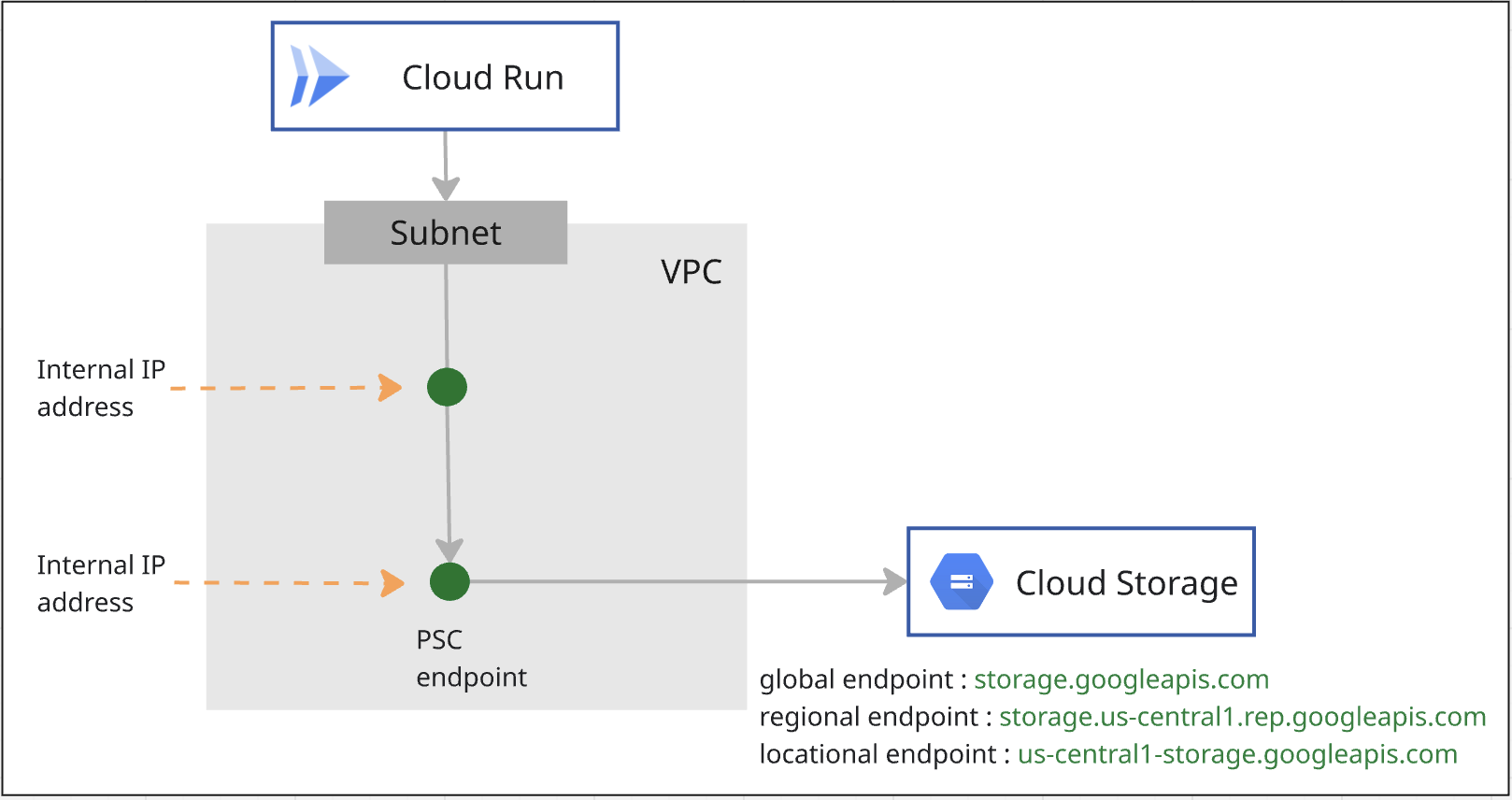
3. Overall Lab Architecture
4. Preparation steps
IAM roles required to work on the lab
You start with assigning required IAM roles to the GCP account at project level.
- Compute Network Admin (
roles/compute.networkAdmin) This role gives you full control of Compute Engine networking resources. - Logging Admin (
roles/logging.admin) This role gives you access to all logging permissions, and dependent permissions. - Service Usage Admin (
roles/serviceusage.serviceUsageAdmin) This role gives you the ability to enable, disable, and inspect service states, inspect operations, and consume quota and billing for a consumer project. - DNS administrator (
roles/dns.admin) This role provides you read-write access to all Cloud DNS resources - Cloud Run Admin (
roles/run.admin) This role gives you full control over all Cloud Run resources. - Storage Admin (
roles/storage.admin) This role gives you full control of objects and buckets.
Enable APIs
Inside Cloud Shell, make sure your project is configured correctly and set your environment variables.
Inside Cloud Shell, perform the following:
gcloud auth login
gcloud config set project <your project id>
export project_id=<your project id>
export region=<your region>
export zone=$region-a
echo $project_id
echo $region
Enable all necessary Google APIs in the project. Inside Cloud Shell, perform the following:
gcloud services enable \
  artifactregistry.googleapis.com \
  cloudbuild.googleapis.com \
  run.googleapis.com \
  compute.googleapis.com \
  dns.googleapis.com \
  servicedirectory.googleapis.com \
  networkconnectivity.googleapis.com
Create VPC
In the project, create a VPC network with custom subnet mode. Perform the following inside Cloud Shell:
gcloud compute networks create mynet \
    --subnet-mode=custom
Create subnets
Inside Cloud Shell, perform the following to create an IPV4 subnet:
gcloud compute networks subnets create mysubnet \
    --network=mynet \
    --range=10.0.0.0/24 \
    --region=$region
Create Cloud NAT and Cloud Router
Cloud NAT is used to allow Cloud Run jobs to connect to external websites.
gcloud compute routers create $region-cr \
   --network=mynet \
   --region=$region
gcloud compute routers nats create $region-nat \
    --router=$region-cr \
    --region=$region \
    --nat-all-subnet-ip-ranges \
    --auto-allocate-nat-external-ips
5. Create PSC endpoint for Cloud Storage
You will create two PSC endpoints for Cloud Storage, one is for Global scope and the other is for Regional scope.
Create PSC endpoint of Global Scope
With Private Service Connect, you can create Global Scoped private endpoints using global internal IP addresses within your VPC network.
You will need to allocate an unique IP address not defined in your VPC. Please refer to the document on this IP address requirement.
Inside Cloud Shell, perform the following to create an IP address. Please change the –addresses=<pscendpointip> to use the IP address you have allocated.
gcloud compute addresses create pscglobalip \
    --global \
    --purpose=PRIVATE_SERVICE_CONNECT \
    --addresses=<pscendpointip> \
    --network=mynet
pscendpointip=$(gcloud compute addresses list --filter=name:pscglobalip --format="value(address)")
echo $pscendpointip
Create a forwarding rule to connect the endpoint to Google APIs and services.
gcloud compute forwarding-rules create pscendpoint \
    --global \
    --network=mynet \
    --address=pscglobalip \
    --target-google-apis-bundle=all-apis
Check p.googleapis.com in Cloud DNS
When you create an endpoint, the following DNS configurations are automatically created:
- A Service Directory private DNS zone is created for p.googleapis.com.
- DNS records are created in p.googleapis.com for some commonly used Google APIs and services that are available using Private Service Connect and have default DNS names that end in googleapis.com.
Global Endpoints are registered with the Service Directory. You will use storage-[psc endpoint name].p.googleapis.com to access Cloud Storage. Here is the product documentation for details.
Check if the p.googleaps.com zone is already created by running the command.
gcloud dns managed-zones list
If you want to use the default DNS name, storage.googleapis.com, you will create a private zone storage.googleapis.com in Cloud DNS and add apex record which points to the PSC endpoint of global scope IP address.
Create PSC endpoint of Regional Scope for Cloud Storage
You will need one IP from the VPC subnet. Run the command below, an IP from the subnetwork will be allocated for the PSC endpoint.
gcloud network-connectivity regional-endpoints create psc-regional-endpoint \
    --region=$region \
    --network=projects/$project_id/global/networks/mynet \
    --subnetwork=projects/$project_id/regions/$region/subnetworks/mysubnet \
    --target-google-api=storage.us-central1.rep.googleapis.com
Get the endpoint ip address created from the above step.
regionalip=$(gcloud network-connectivity regional-endpoints describe psc-regional-endpoint --region=$region --format="value(address)")
echo $regionalip
You will use storage.us-central1.rep.googleapis.com to access Cloud Storage. You need to create a private zone for storage.us-central1.rep.googleapis.com and the apex record of the IP address you just created for the regional endpoint in Cloud DNS.
Create private zone for Cloud Storage Regional Endpoint
You will use storage.[region name].rep.googleapis.com to access Cloud Storage regional endpoint.
You will need to create a private zone in Cloud DNS and add an apex record which points to the IP address of the Cloud Storage regional endpoint.
In the command below, us-central1 is the example region. You should create the zone with the name of your region.
gcloud dns managed-zones create psc-regional-endpoint-zone \
  --description="" \
  --dns-name="storage.us-central1.rep.googleapis.com" \
  --visibility="private" \
  --networks="mynet"

gcloud dns record-sets create storage.us-central1.rep.googleapis.com. \
  --rrdatas=$regionalip \
  --ttl=300 \
  --type=A \
  --zone=psc-regional-endpoint-zone
6. Configure Cloud Run job with PSC endpoint of Global Scope
Get the code
You first explore a Node.js application to take screenshots of web pages and store them to Cloud Storage. Later, you build a container image for the application and run it as a job on Cloud Run.
From the Cloud Shell, run the following command to clone the application code from this repo:
git clone https://github.com/GoogleCloudPlatform/jobs-demos.git
Go to the directory containing the application:
cd jobs-demos/screenshot
You should see this file layout:
|
├── Dockerfile
├── README.md
├── screenshot.js
├── package.json
Here's a brief description of each file:
- screenshot.js contains the Node.js code for the application. The application takes screenshots of web pages and stores them in Cloud Storage.
- package.json defines the library dependencies.
- Dockerfile defines the container image.
Open the screenshot.js code, you will change the apiEndpoint to PSC global endpoint. Search the code and replace const storage = new Storage(); with the following:
const storage = new Storage(
    {
      apiEndpoint:'https://storage-pscendpoint.p.googleapis.com.',
      useAuthWithCustomEndpoint: true
    }
  );
Deploy a job
Before creating a job, you need to create a service account that you will use to run the job.
gcloud iam service-accounts create screenshot-sa --display-name="Screenshot app service account"
Grant storage.admin role to the service account, so it can be used to create buckets and objects.
gcloud projects add-iam-policy-binding $project_id \
  --role roles/storage.admin \
  --member serviceAccount:screenshot-sa@$project_id.iam.gserviceaccount.com
Grant Storage Object User role , Logs Writer role and Artifact Registry Repository Administrator to Default compute service account.
project_number=$(gcloud projects describe $project_id --format="value(projectNumber)")

gcloud projects add-iam-policy-binding $project_id \
  --role roles/storage.objectUser \
  --member serviceAccount:$project_number-compute@developer.gserviceaccount.com

gcloud projects add-iam-policy-binding $project_id \
  --role roles/logging.logWriter \
  --member serviceAccount:$project_number-compute@developer.gserviceaccount.com

gcloud projects add-iam-policy-binding $project_id \
  --role roles/artifactregistry.repoAdmin \
  --member serviceAccount:$project_number-compute@developer.gserviceaccount.com
You will enable Direct VPC egress for Cloud Run jobs to send all traffic to a VPC network.
Inside Cloud Shell, perform the following:
gcloud run jobs deploy screenshot-1 \
  --source=. \
  --args="https://example.com" \
  --args="https://cloud.google.com" \
  --tasks=2 \
  --task-timeout=5m \
  --region=$region \
  --set-env-vars=BUCKET_NAME=screenshot-$project_id-$RANDOM \
  --service-account=screenshot-sa@$project_id.iam.gserviceaccount.com \
  --vpc-egress=all-traffic \
  --network=mynet \
  --subnet=mysubnet
Run the job
Inside Cloud Shell, perform the following:
gcloud run jobs execute screenshot-1 --region=$region
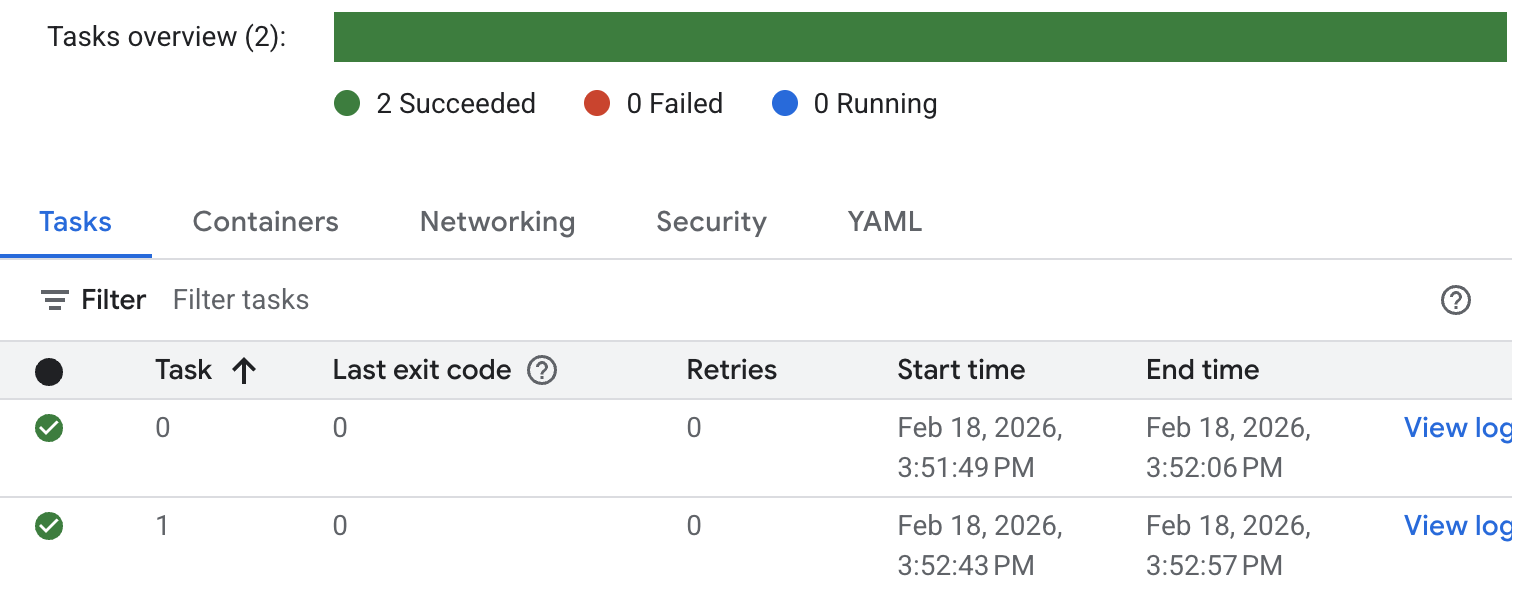
Check the status of the job and logs. Go to the Cloud Run console and look for the job. You click into the job and check the History of the log. You will see the similar job execution result as below.
For detailed job execution logs, click View log at the task. You will see similar job logs as below.
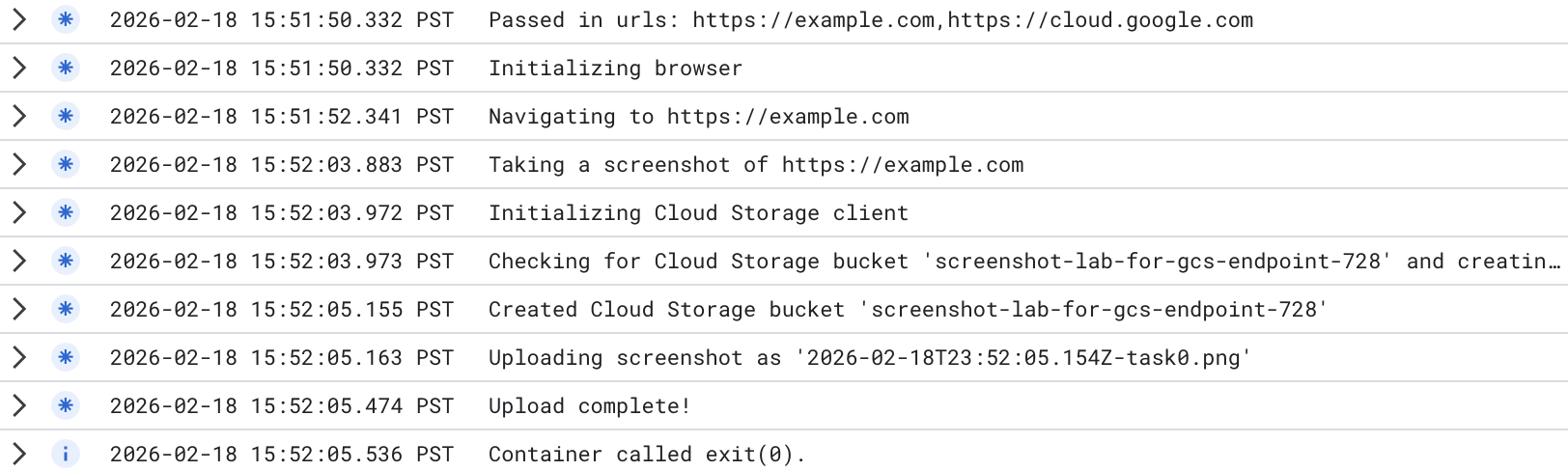
A new bucket has been created. You can go to the Cloud Storage console, and check the new bucket created. Please note as you use Cloud Storage Global Endpoint, the bucket is a multi-region bucket. You can check the images uploaded to the bucket.
The test result shows Cloud Run privately accessed Cloud Storage Global Endpoint which you changed in the Cloud Run job:
apiEndpoint:‘https://storage-pscendpoint.p.googleapis.com.'
7. Configure Cloud Run job with PSC endpoint of Regional Scope
In the code, you will change the apiEndpoint to PSC endpoint with regional scope.
Search the code and replace const storage = new Storage(); with the following ( we use us-central1 as an example. Please change to the your region ) :
const storage = new Storage(
    {
      apiEndpoint:'https://storage.us-central1.rep.googleapis.com.',
      useAuthWithCustomEndpoint: true
    }
  );
Deploy a job
Make sure you are in the directory containing the application (jobs-demos/screenshot).
pwd
You enable Direct VPC egress for jobs to send all traffic to a VPC network.
Inside Cloud Shell, perform the following:
gcloud run jobs deploy screenshot-2 \
  --source=. \
  --args="https://example.com" \
  --args="https://cloud.google.com" \
  --tasks=2 \
  --task-timeout=5m \
  --region=$region \
  --set-env-vars=BUCKET_NAME=screenshot-$PROJECT_ID-$RANDOM \
  --service-account=screenshot-sa@$project_id.iam.gserviceaccount.com \
  --vpc-egress=all-traffic \
  --network=mynet \
  --subnet=mysubnet
Run the job
Inside Cloud Shell, perform the following:
gcloud run jobs execute screenshot-2 --region=$region
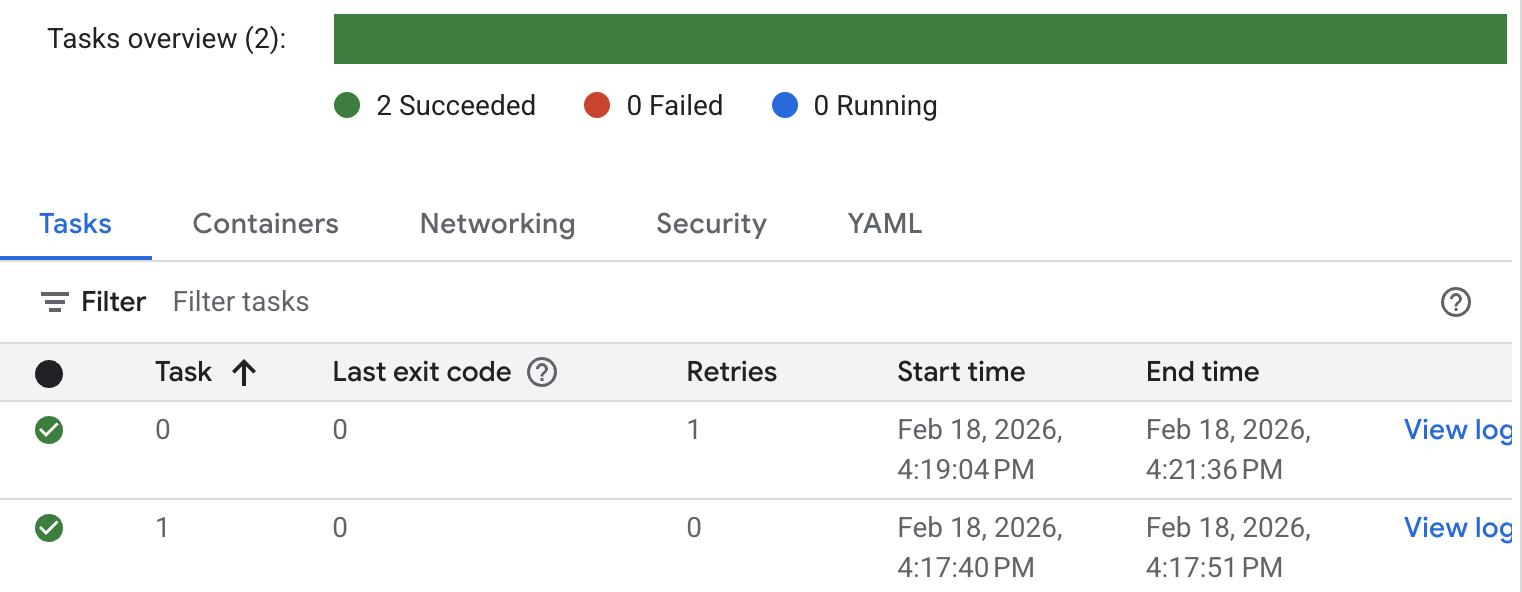
Check the status of the job and logs. Go to the Cloud Run console and look for the job. You click into the job and check the History of the job. You will see the similar job execution result as below.
For detailed job execution logs, click View log. You will see similar job logs as below.
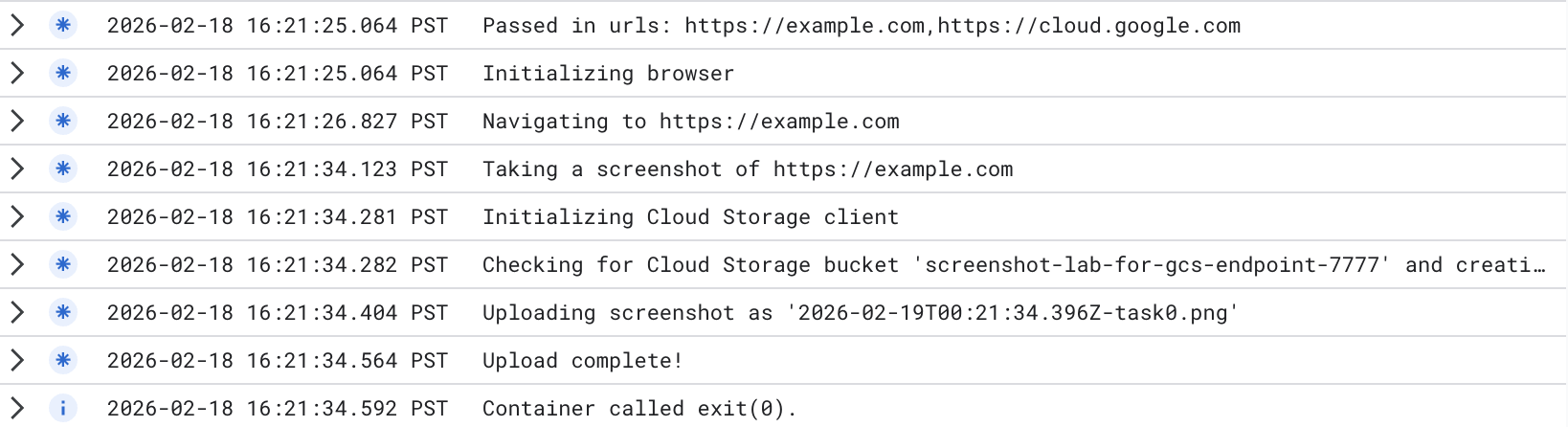
A new bucket has been created. You can go to the Cloud Storage console, and check the new bucket created. Please note as you use Cloud Storage Regional Endpoint, the bucket is a single region bucket. You can check the images uploaded to the bucket.
The test result shows Cloud Run privately accessed Cloud Storage Regional Endpoint which you changed in the Cloud Run job:
apiEndpoint:‘https://storage.us-central1.rep.googleapis.com.'
8. Clean up
Cleanup Cloud Run job
gcloud run jobs delete screenshot-1 \
  --region=$region --quiet
gcloud run jobs delete screenshot-2 \
  --region=$region --quiet

gcloud iam service-accounts delete screenshot-sa@$project_id.iam.gserviceaccount.com --quiet
Cleanup PSC endpoint
gcloud compute forwarding-rules delete pscendpoint \
    --global --quiet
gcloud network-connectivity regional-endpoints delete psc-regional-endpoint \
    --region=$region --quiet
gcloud compute addresses delete pscglobalip \
    --global --quiet
Clean up Cloud NAT, Cloud Router and VPCs
gcloud compute routers nats delete $region-nat \
    --router=$region-cr \
    --region=$region --quiet
gcloud compute routers delete $region-cr \
    --region=$region --quiet
gcloud compute networks subnets delete mysubnet \
    --region=$region --quiet
gcloud compute networks delete mynet --quiet
9. Congratulations
You have successfully tested Cloud Run private access to Cloud Storage through Global Endpoint and Regional Endpoint.