
1. Introduction
The "Goldfish" Problem
Imagine you hire a travel agent to plan your dream vacation to Tokyo. Use the Session Agent to see "The Goldfish Problem" in action.
You walk into their office and say:
"Hi! I want to plan a 2-day trip to Tokyo. I'm interested in historic sites and sushi."
The agent enthusiastically replies:
"Great! I've planned a visit to the Imperial Palace and a sushi dinner at Sukiyabashi Jiro."
You smile and say:
"That sounds perfect! Can you send me the itinerary?"
The agent looks at you blankly and asks:
"Hi! How can I help you plain a trip today?"
This is the "Goldfish Problem." Without memory, every interaction is a blank slate. The intelligence is there—the agent knows how to plan trips—but the continuity is missing. For an AI agent to be truly useful, it needs to remember.
Your Mission Today
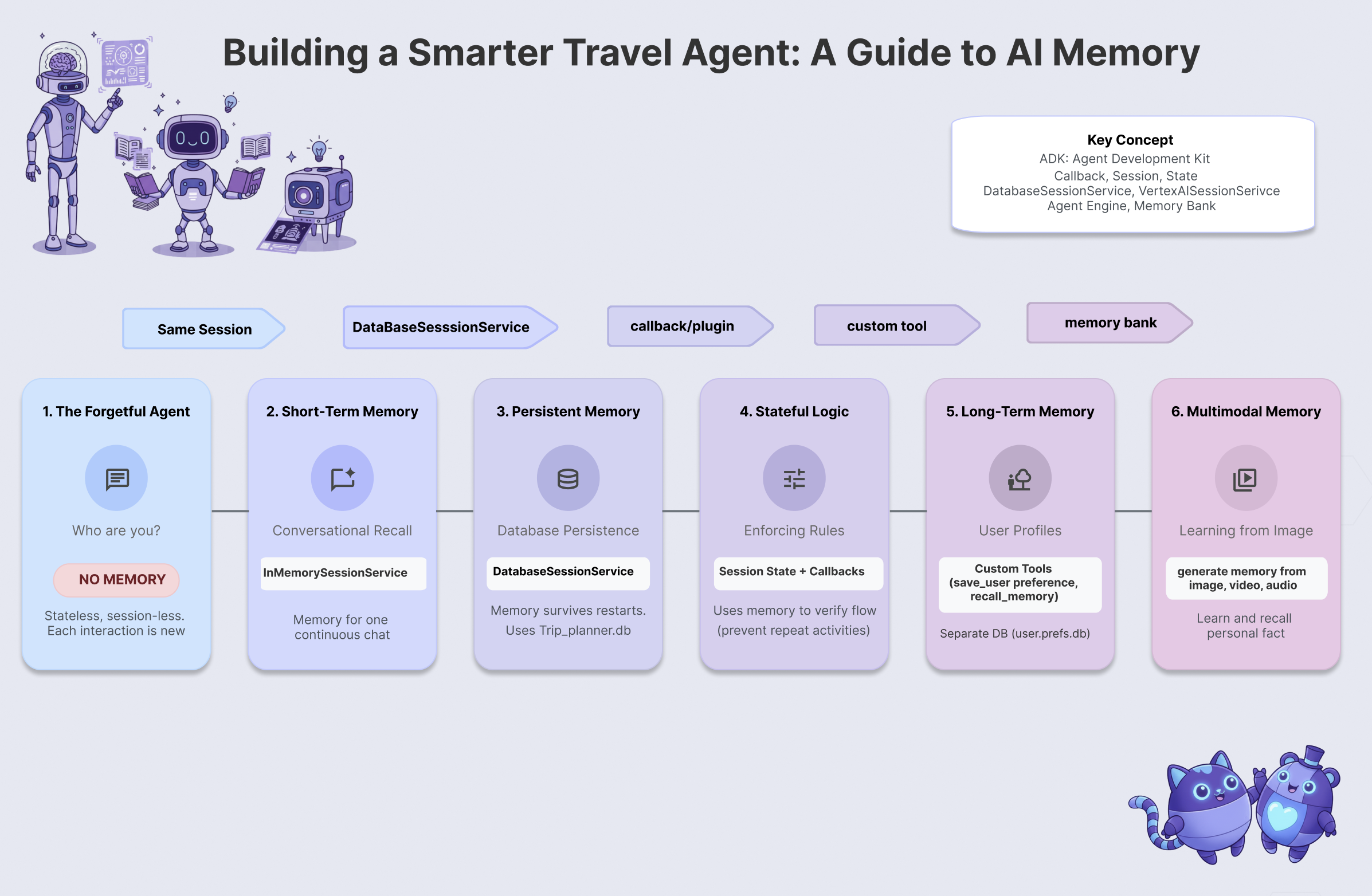
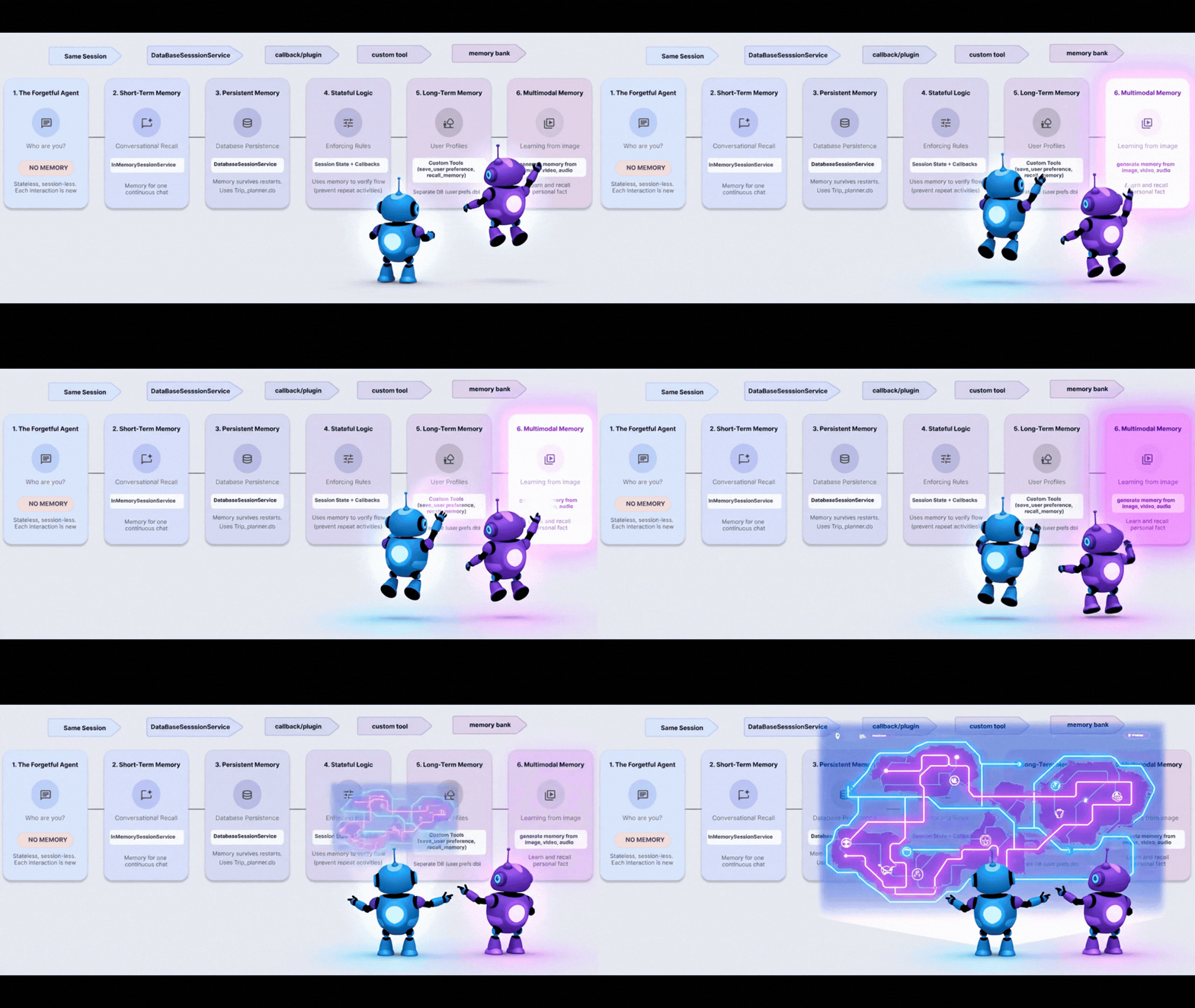
In this workshop, you will solve the Goldfish Problem by building a Travel Agent that remembers, learns, and adapts. You will progress through 6 Levels of Agent Memory, creating a system that behaves less like a chatbot and more like a dedicated personal assistant.
Level | Concept | The "Superpower" |
Level 1 | Session & State | Holding a conversation without forgetting |
Level 2 | Multi-Agent State | Sharing notes between team members |
Level 3 | Persistence | Remembering you even after a system reboot |
Level 4 | Callbacks | Updating memory completely autonomously |
Level 5 | Custom Tools | Reading & writing structured user profiles |
Level 6 | Multimodal Memory | "Seeing" and remembering photos & videos |
The ADK Memory Stack
Before we write code, let's understand the tools we're using. The Google Agent Development Kit (ADK) provides a structured way to handle memory:
- Session: The container for a conversation. It holds the history of what was said.
- State: A key-value "scratchpad" attached to the session. Agents use this to store specific facts (e.g.,
destination="Tokyo"). - MemoryService: Long-term storage. This is where we keep things forever, like user preferences or analyzed documents.
2. Set Up
To power our AI agents, we need two things: a Google Cloud Project to provide the foundation.
Part One: Enable Billing Account
To run this codelab, you need a billing account with some credit. Use the credits from the banner at the top of this codelab to get started. If you are already connected to a billing account, you can skip this step.
Part Two: Open Environment
- 👉 Click this link to navigate directly to Cloud Shell Editor
- 👉 If prompted to authorize at any point today, click Authorize to continue.
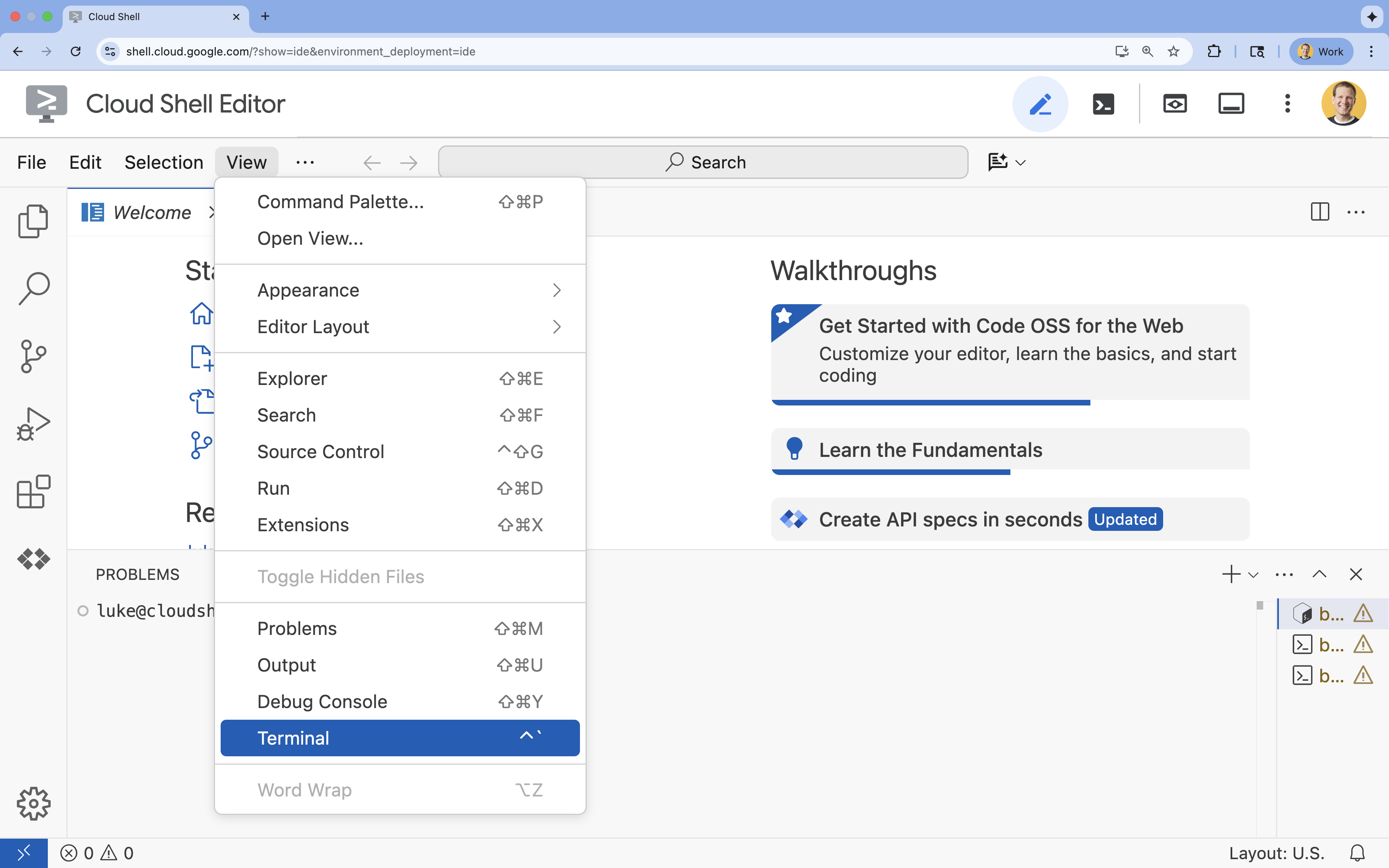
- 👉 If the terminal doesn't appear at the bottom of the screen, open it:
- Click View
- Click Terminal
- 👉💻 In the terminal, verify that you're already authenticated and that the project is set to your project ID using the following command:
gcloud auth list - 👉💻 Clone the bootstrap project from GitHub:
git clone https://github.com/cuppibla/memory_agent_starter - 👉💻 Run the setup script from the project directory.
cd ~/memory_agent_starter ./init.sh - 👉💻 Set the Project ID needed:
gcloud config set project $(cat ~/project_id.txt) --quiet
Part Three: Setting up permission
- 👉💻 Enable the required APIs using the following command. This could take a few minutes.
gcloud services enable \ cloudresourcemanager.googleapis.com \ servicenetworking.googleapis.com \ run.googleapis.com \ aiplatform.googleapis.com \ compute.googleapis.com - 👉💻 Grant the necessary permissions by running the following commands in the terminal:
. ~/memory_agent_starter/set_env.sh
Notice that a .env file is created for you. That shows your project information.
3. The Foundation - Session & State
The Concept: Context is King
The most basic form of memory is Session Memory. This is what allows an agent to know that "it" in the sentence "I want to buy it" refers to the shoe you were talking about 10 seconds ago.
In ADK, we manage this with the Session object.
- Stateless Approach: Creating a new session for every message.
- Stateful Approach: Creating one session and reusing it for the entire conversation.
Step 1: Examine the Agent
👉💻 In your Cloud Shell terminal, open the file in the Cloud Shell Editor by running:
cloudshell edit ~/memory_agent_starter/01_session_agent/agent.py
Open ~/memory_agent_starter/01_session_agent/agent.py.
👉 Locate the comment # TODO: Create a root agent inside the agent.py function.
Replace this whole line with the following code:
root_agent = LlmAgent(
    name="multi_day_trip_agent",
    model="gemini-2.5-flash",
    description="Agent that progressively plans a multi-day trip, remembering previous days and adapting to user feedback.",
    instruction="""
    You are the "Adaptive Trip Planner" 🗺️ - an AI assistant that builds multi-day travel itineraries step-by-step.

    Your Defining Feature:
    You have short-term memory. You MUST refer back to our conversation to understand the trip's context, what has already been planned, and the user's preferences. If the user asks for a change, you must adapt the plan while keeping the unchanged parts consistent.

    Your Mission:
    1.  **Initiate**: Start by asking for the destination, trip duration, and interests.
    2.  **Plan Progressively**: Plan ONLY ONE DAY at a time. After presenting a plan, ask for confirmation.
    3.  **Handle Feedback**: If a user dislikes a suggestion (e.g., "I don't like museums"), acknowledge their feedback, and provide a *new, alternative* suggestion for that time slot that still fits the overall theme.
    4.  **Maintain Context**: For each new day, ensure the activities are unique and build logically on the previous days. Do not suggest the same things repeatedly.
    5.  **Final Output**: Return each day's itinerary in MARKDOWN format.
    """,
    tools=[google_search]
)
The instruction tells the LLM to remember, but the code must provide the capability to remember.
Step 2: The Two Scenarios
Open ~/memory_agent_starter/01_session_agent/main.py.
👉 In your Cloud Shell terminal, open the file in the Cloud Shell Editor by running:
cloudshell edit ~/memory_agent_starter/01_session_agent/main.py
Open ~/memory_agent_starter/01_session_agent/main.py, locate the comment # TODO: Create a runner with in memorysession service inside the main.py function.
Replace this whole line with the following code:
    runner = Runner(
        agent=agent,
        session_service=session_service,
        app_name=agent.name
    )
👉 Locate the comment # TODO: create a different session to test inside the main.py function.
Replace this whole line with the following code:
    tokyo_session_2 = await session_service.create_session(
        app_name=multi_day_agent.name,
        user_id=user_id
    )
Test it
We have two functions that demonstrate the difference between "Goldfish" and "Elephant" memory.
Scenario 1: Stateful (Shared Session)
async def run_trip_same_session_scenario(session_service, user_id):
    # 1. Create ONE session
    trip_session = await session_service.create_session(...)

    # 2. Turn 1
    await run_agent_query(..., trip_session, ...)

    # 3. Turn 2 - REUSING the same session!
    # The agent can "see" Turn 1 because it's in the session history.
    await run_agent_query(..., trip_session, ...)
Scenario 2: Stateless (New Session Every Time)
async def run_trip_different_session_scenario(session_service, user_id):
    # Turn 1
    tokyo_session = await session_service.create_session(...)
    await run_agent_query(..., tokyo_session, ...)

    # Turn 2 - Creating a FREASH session
    # The agent has NO IDEA what happened in Turn 1.
    tokyo_session_2 = await session_service.create_session(...)
    await run_agent_query(..., tokyo_session_2, ...)
Step 3: Run the Agent
Let's see the difference in action. Run the script:
👉💻 In the command line, run the command line below:
cd ~/memory_agent_starter
uv run python ~/memory_agent_starter/01_session_agent/main.py
Observe Scenario 1: The agent remembers your preferences from the first message and adapts the plan in the second message.
Observe Scenario 2: In the second turn ("do you remember what I liked about the food?"), the agent completely fails because it's a new session. It effectively says, "I don't know what you're talking about."
Key Takeaway
Rule #1 of Memory: Always reuse the session.id to maintain conversation context. The Session object is your agent's short-term memory buffer.
4. The Team - Multi-Agent State

The Concept: "The Telephone Game"
When multiple agents work together, they are like colleagues passing a file folder back and forth. If one agent writes a note in the folder, the next agent should be able to read it.
In ADK, this "folder" is the State.
- State is a dictionary (
{"key": "value"}) that lives inside the Session. - Any agent in the session can read from or write to it.
Step 1: Examine the Workflow
👉💻 In your Cloud Shell terminal, open the file in the Cloud Shell Editor by running:
cloudshell edit ~/memory_agent_starter/02_multi_agent/agent.py
👉In the file ~/memory_agent_starter/02_multi_agent/agent.py, locate the comment # TODO: foodie agent.
Replace this whole line with the following code:
foodie_agent = LlmAgent(
    name="foodie_agent",
    model="gemini-2.5-flash",
    tools=[google_search],
    instruction="""You are an expert food critic. Your goal is to find the best restaurant based on a user's request.

    When you recommend a place, you must output *only* the name of the establishment and nothing else.
    For example, if the best sushi is at 'Jin Sho', you should output only: Jin Sho
    """,
    output_key="destination"  # ADK will save the agent's final response to state['destination']
)
👉 Locate the comment # TODO: transportation agent inside the agent.py function.
Replace this whole line with the following code:
transportation_agent = LlmAgent(
    name="transportation_agent",
    model="gemini-2.5-flash",
    tools=[google_search],
    instruction="""You are a navigation assistant. Given a destination, provide clear directions.
    The user wants to go to: {destination}.

    Analyze the user's full original query to find their starting point.
    Then, provide clear directions from that starting point to {destination}.
    """,
)
👉 Locate the comment # TODO: root_agent inside the agent.py function.
Replace this whole line with the following code:
root_agent = SequentialAgent(
    name="find_and_navigate_agent",
    sub_agents=[foodie_agent, transportation_agent],
    description="A workflow that first finds a location and then provides directions to it."
)
Now We have two agents working in a sequence:
- Foodie Agent: Finds a restaurant.
- Transportation Agent: Gives directions to that restaurant.
The Magic Hand-off: Notice how foodie_agent passes the baton to transportation_agent.
foodie_agent = LlmAgent(
    # ...
    # CRITICAL: This tells ADK to save the agent's output to state['destination']
    output_key="destination"
)

transportation_agent = LlmAgent(
    # ...
    # CRITICAL: This injects state['destination'] into the prompt
    instruction="""
    The user wants to go to: {destination}.
    Provide clear directions...
    """,
)
output_key="destination": The Foodie Agent's answer is saved efficiently.{destination}: The Transportation Agent reads that answer automatically.
(No Action Needed) Step 2: The Orchestrator
Open 02_multi_agent/main.py.
We use a SequentialAgent to run them in order.
# 1. Create a single session for the sequential agent
session = await session_service.create_session(...)

# 2. Run the query
# The SequentialAgent manages the state flow:
# Query -> Foodie -> state['destination'] -> Transportation -> Final Answer
await run_agent_query(root_agent, query, ...)
The user sends one prompt:
"Find best sushi in Palo Alto and then tell me how to get there."
The agents work together to answer it.
Step 3: Run the Team
👉💻 In the Cloud Shell Terminal, execute the multi-agent workflow:
cd ~/memory_agent_starter
uv run python ~/memory_agent_starter/02_multi_agent/main.py
What happens?
- Foodie Agent: Finds "Jin Sho" (or similar).
- ADK: Saves "Jin Sho" to
state['destination']. - Transportation Agent: Receives "Jin Sho" in its instruction.
- Result: "To get to Jin Sho from the Caltrain station, walk down University Ave..."
Key Takeaway
Rule #2 of Memory: Use State to pass structured information between agents. Use output_key to write and {placeholders} to read.
5. The Reboot - Persistence
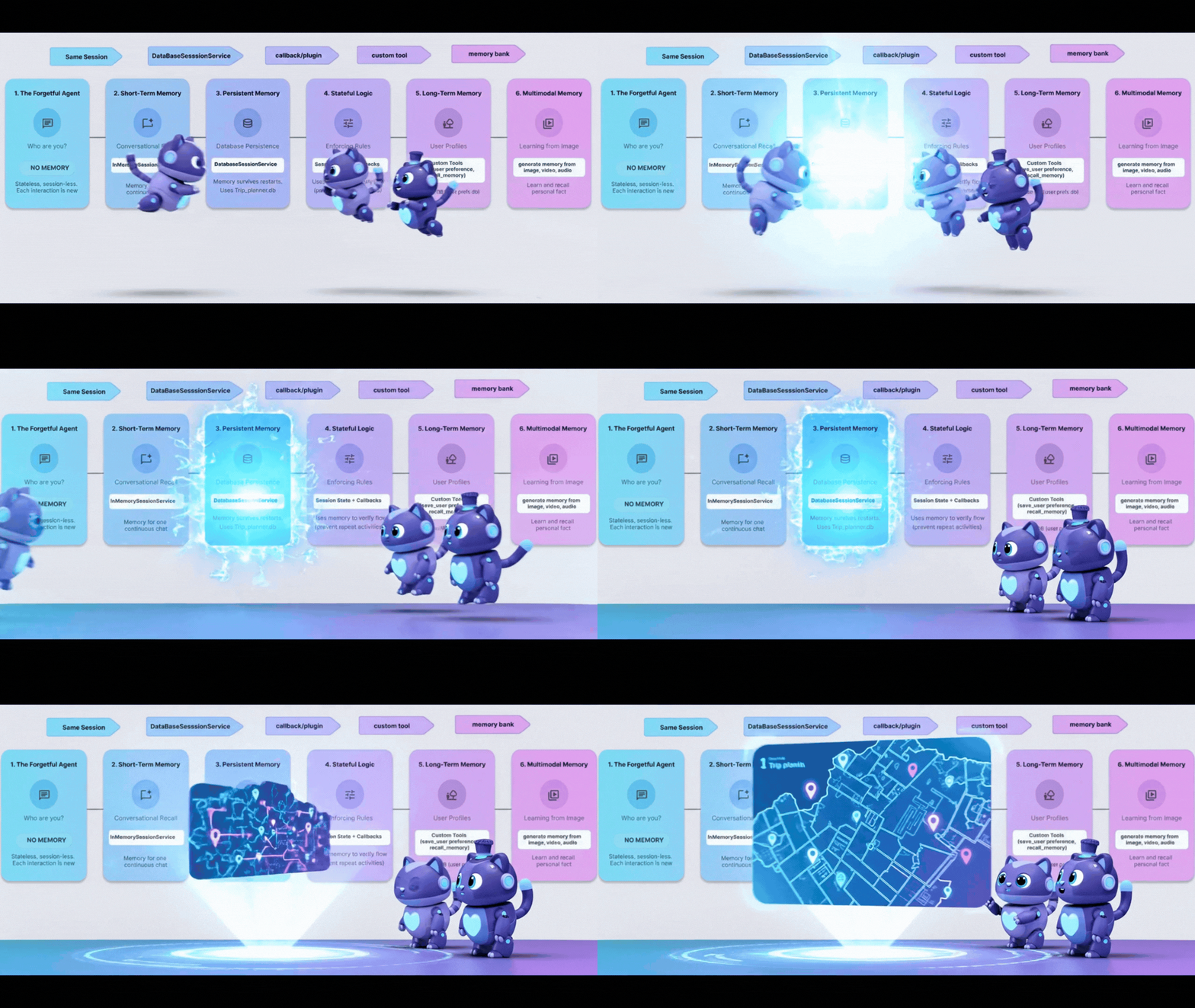
The Concept: "The Reboot Problem"
So far, our memory has been InMemory. If you stop the script and start it again, the agent forgets everything. It's like a computer that wipes its hard drive every time you turn it off.
To fix this, we need Persistence. We swap InMemorySessionService for DatabaseSessionService.
Step 1: The Database Switch
👉💻 In your Cloud Shell terminal, open the file in the Cloud Shell Editor by running:
cloudshell edit ~/memory_agent_starter/03_persistent_agent/main.py
👉 In the file ~/memory_agent_starter/03_persistent_agent/main.py, locate the comment # TODO: Configuration for Persistent Sessions.
Replace this whole line with the following code:
SESSIONS_DIR = Path(os.path.expanduser("~")) / ".adk_codelab" / "sessions"
os.makedirs(SESSIONS_DIR, exist_ok=True)
SESSION_DB_FILE = SESSIONS_DIR / "trip_planner.db"
SESSION_URL = f"sqlite:///{SESSION_DB_FILE}"
Now, every session and event is saved to a SQLite file.
Step 2: Cross-Session Retrieval
Persistence allows not just resuming a conversation, but learning from past ones.
In the same file ~/memory_agent_starter/03_persistent_agent/main.py, look at Test Case 3: Cross-Session Retrieval.
👉 Locate the comment # TODO: retrieve the previous session manually
Replace this whole line with the following code:
    old_session = await session_service.get_session(
        app_name=root_agent.name, user_id="user_01", session_id=session_id
    )
👉 Locate the comment # TODO: Extract content from the OLD session inside the main.py function.
Replace this whole line with the following code:
previous_context += f"- {role}: {text}\n"
👉 Locate the comment # TODO: Manually inject the context to the query inside the main.py function.
Replace this whole line with the following code:
    query_3 = f"""
    {previous_context}

    I'm planning a new trip to Osaka this time.
    Based on my previous preferences (above), what should I eat?
    """
This simulates a user coming back months later. Only with a database can you retrieve that old history.
Step 3: Survivng the Reboot
👉💻 In the terminal, run the script:
cd ~/memory_agent_starter
uv run python ~/memory_agent_starter/03_persistent_agent/main.py
It creates a file ~/memory_agent_starter/trip_planner.db. Try this: Run the script twice.
- On the second run, look for "Resumed existing session".
- The agent will remember the context from the first run because it loads from the database file!
Key Takeaway
Rule #3 of Memory: Use DatabaseSessionService for production. It ensures user conversations survive server restarts and enables long-term history analysis.
6. The Spy - Callbacks
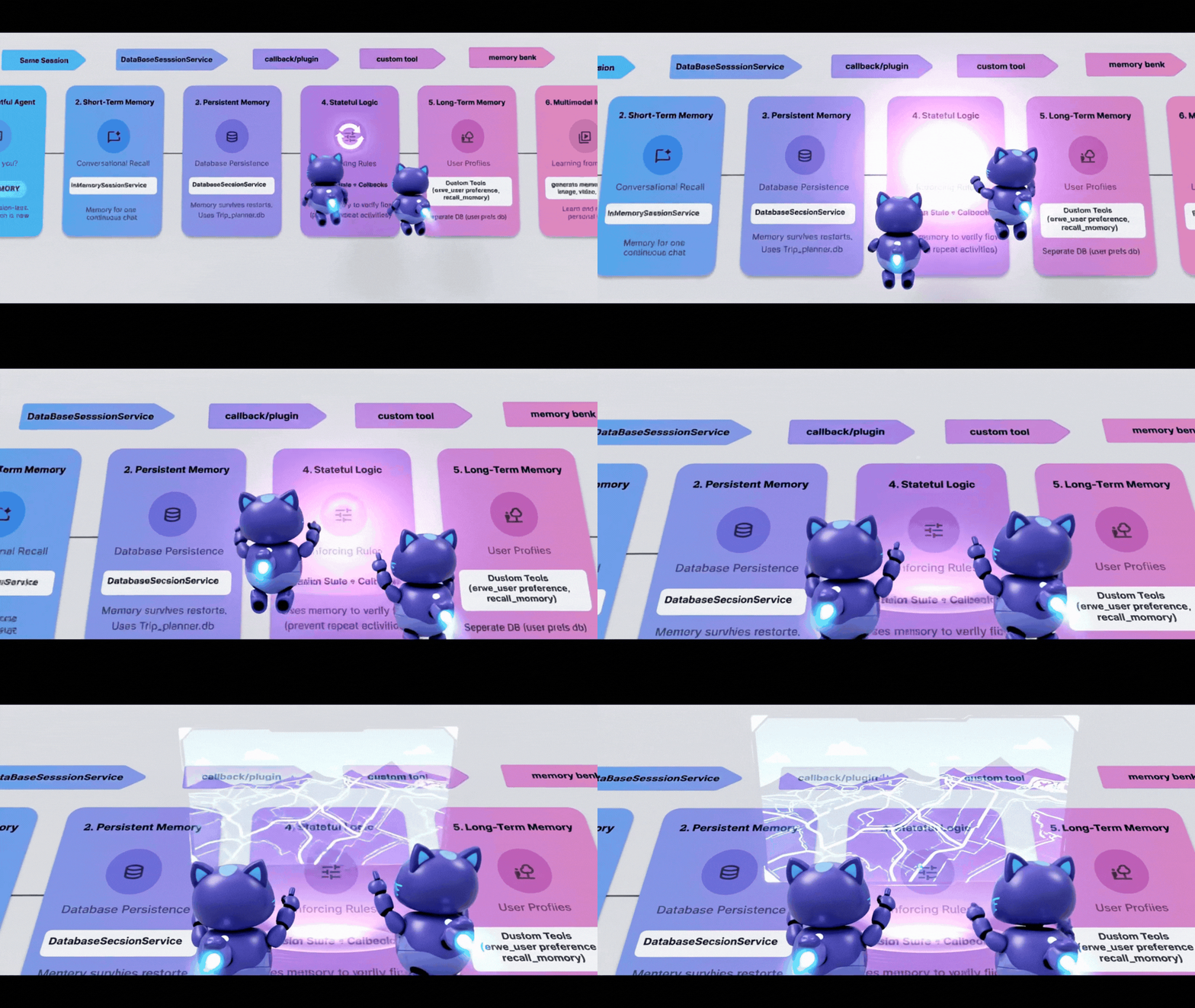
Sometimes, you need to update memory automatically based on what the agent does, not just what it says. You want a "spy" that watches the agent and takes notes.
In ADK, this spy is the Callback. 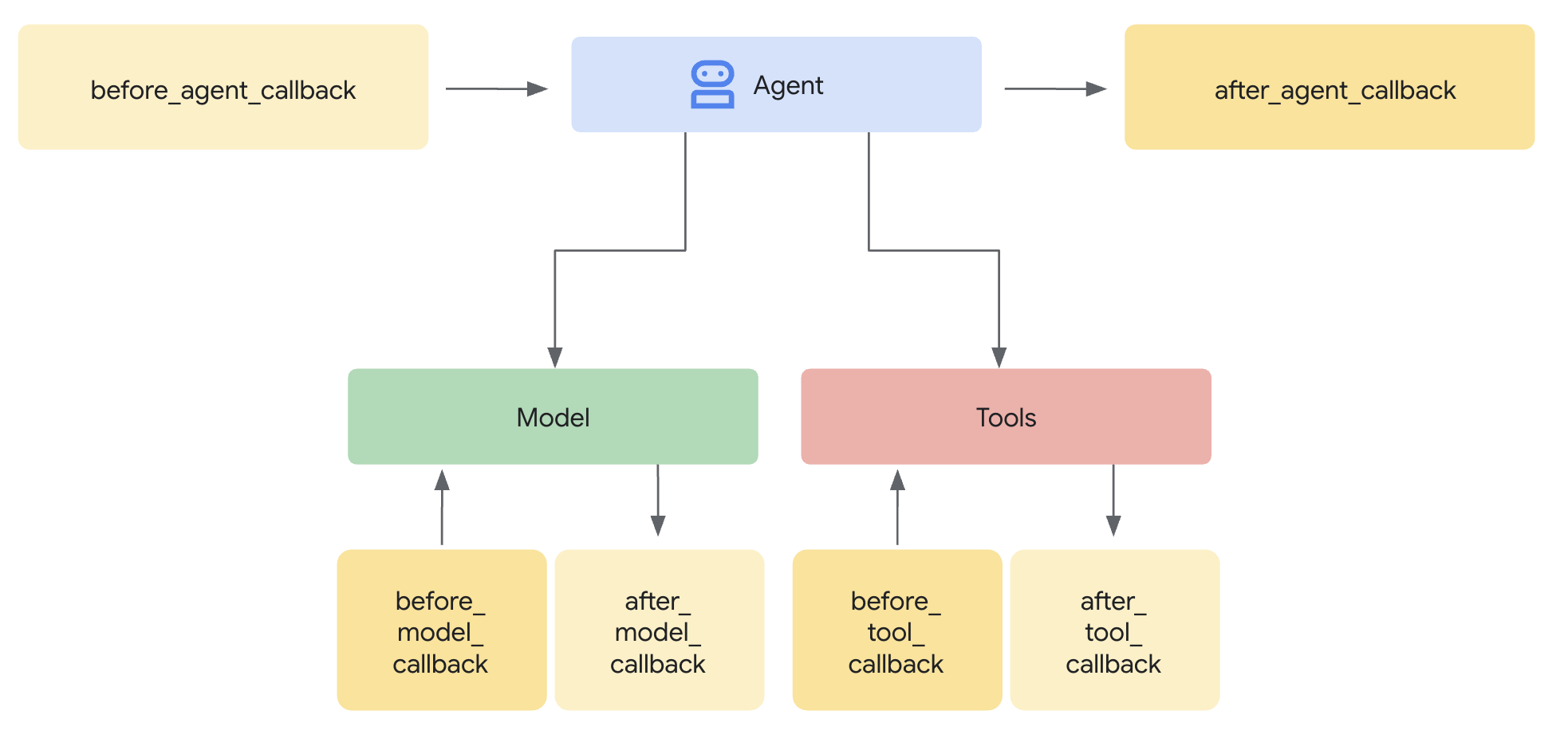
after_tool_callback: A function that runs every time the agent works.ToolContext: A way to write to State from inside that function.
Step 1: The Logic
👉💻 In your Cloud Shell terminal, open the file in the Cloud Shell Editor by running:
cloudshell edit ~/memory_agent_starter/04_stateful_agent/agent.py
👉 In the file ~/memory_agent_starter/04_stateful_agent/agent.py, locate the comment # TODO: Implement call back logic
Replace this whole line with the following code:
def save_activity_type_callback(
    tool,
    args: Dict[str, Any],
    tool_context: ToolContext,
    tool_response: Dict[str, Any],
) -> Optional[Dict[str, Any]]:
    """
    Callback to save the TYPE of activity just planned into the session state.
    """
    # 1. Get the actual agent name.
    if tool.name == "transfer_to_agent":
         agent_name = args.get("agent_name")
    else:
         agent_name = tool.name

    activity_type = "unknown"

    # 2. Determine the type based on which agent was actually used
    if agent_name == "museum_expert":
        activity_type = "CULTURAL"
    elif agent_name == "restaurant_expert":
        activity_type = "FOOD"
    elif agent_name == "outdoor_expert":
        activity_type = "OUTDOOR"

    print(f"\n🔔 [CALLBACK] The planner transferred to '{agent_name}'.")

    # 3. Update the state directly
    tool_context.state["last_activity_type"] = activity_type
    print(f"💾 [STATE UPDATE] 'last_activity_type' is now set to: {activity_type}\n")

    return tool_response
👉 In the same file, Locate the comment # TODO: add callback to root agent inside the 04_stateful_agent/agent.py function.
Replace this whole line with the following code:
after_tool_callback=save_activity_type_callback,
The Dynamic Instruction: The agent's instruction is now a function, not a string. It changes based on the state!
def get_planner_instruction(context):
    last_activity = context.state.get("last_activity_type", "None")

    return f"""
    The last activity was: {last_activity}

    If last_activity is 'CULTURAL' -> `museum_expert` is BANNED.
    """
Step 3: Test the Spy
👉💻 In the terminal, run the script by copying and pasting the command below:
cd ~/memory_agent_starter
uv run python ~/memory_agent_starter/04_stateful_agent/main.py
When you run this agent, you'll see a loop.
- Turn 1: You ask for a museum. Spy sets
last_activity="CULTURAL". - Turn 2: You ask for another museum.
- Agent Instruction updates: "CULTURAL is BANNED".
- Agent says: "I can't do another museum. How about a park?"
Watch the console logs for [CALLBACK] and [STATE UPDATE]. You can see the memory changing in real-time as the agent works.
Key Takeaway
Rule #4 of Memory: Use Callbacks to automate state management. Your agent builds its own context simply by doing its job.
7. The File Cabinet - Custom Tools
The Concept: "Structured Memory"
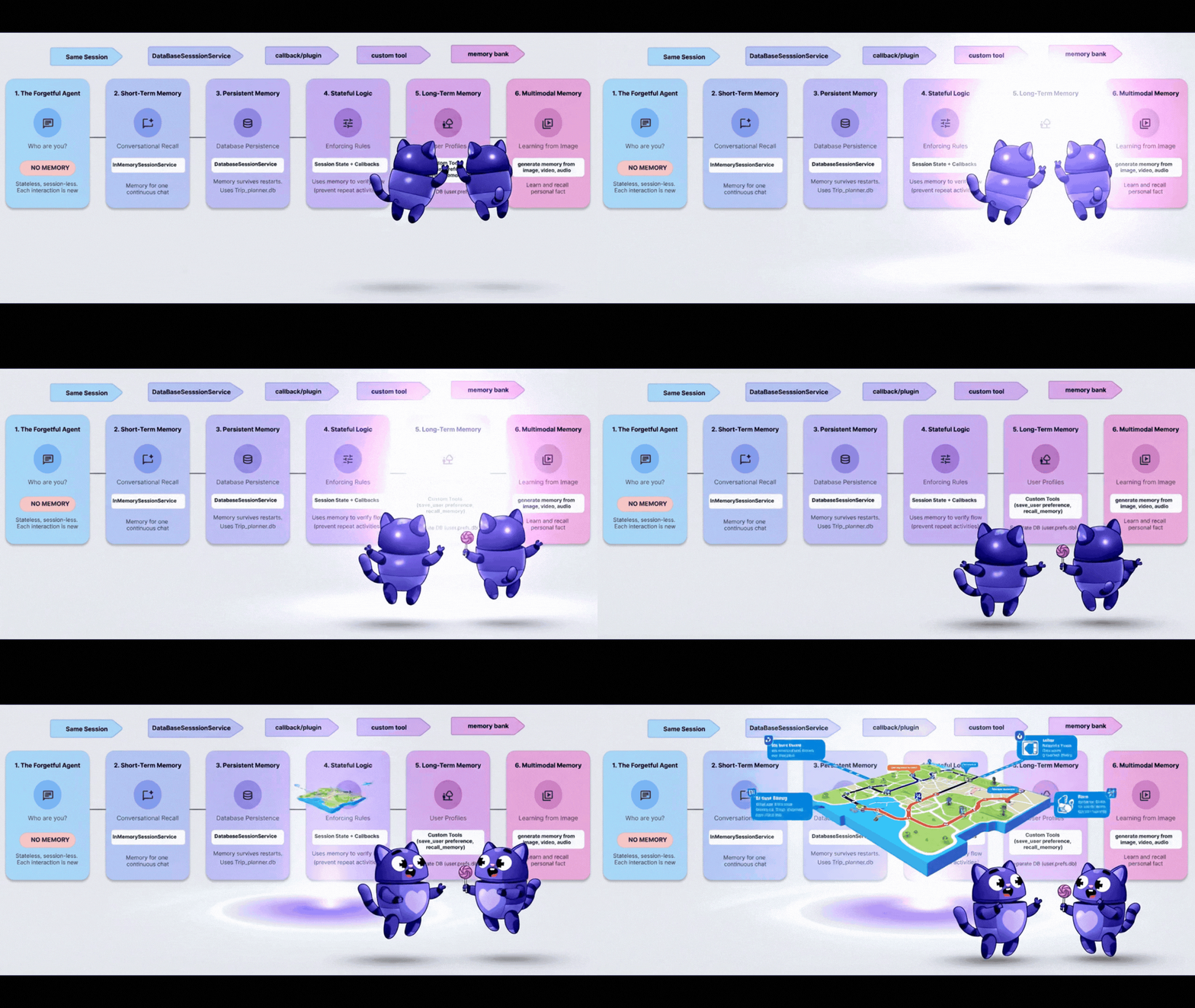
So far, "Memory" has been a chat log or a simple key-value pair. But what if you need to remember a complex user profile? e.g., diet: vegan, budget: high, pets: [cat, dog].
For this, we treat memory as a Tool. The agent explicitly decides when to open the file cabinet (read) and when to file a report (write). 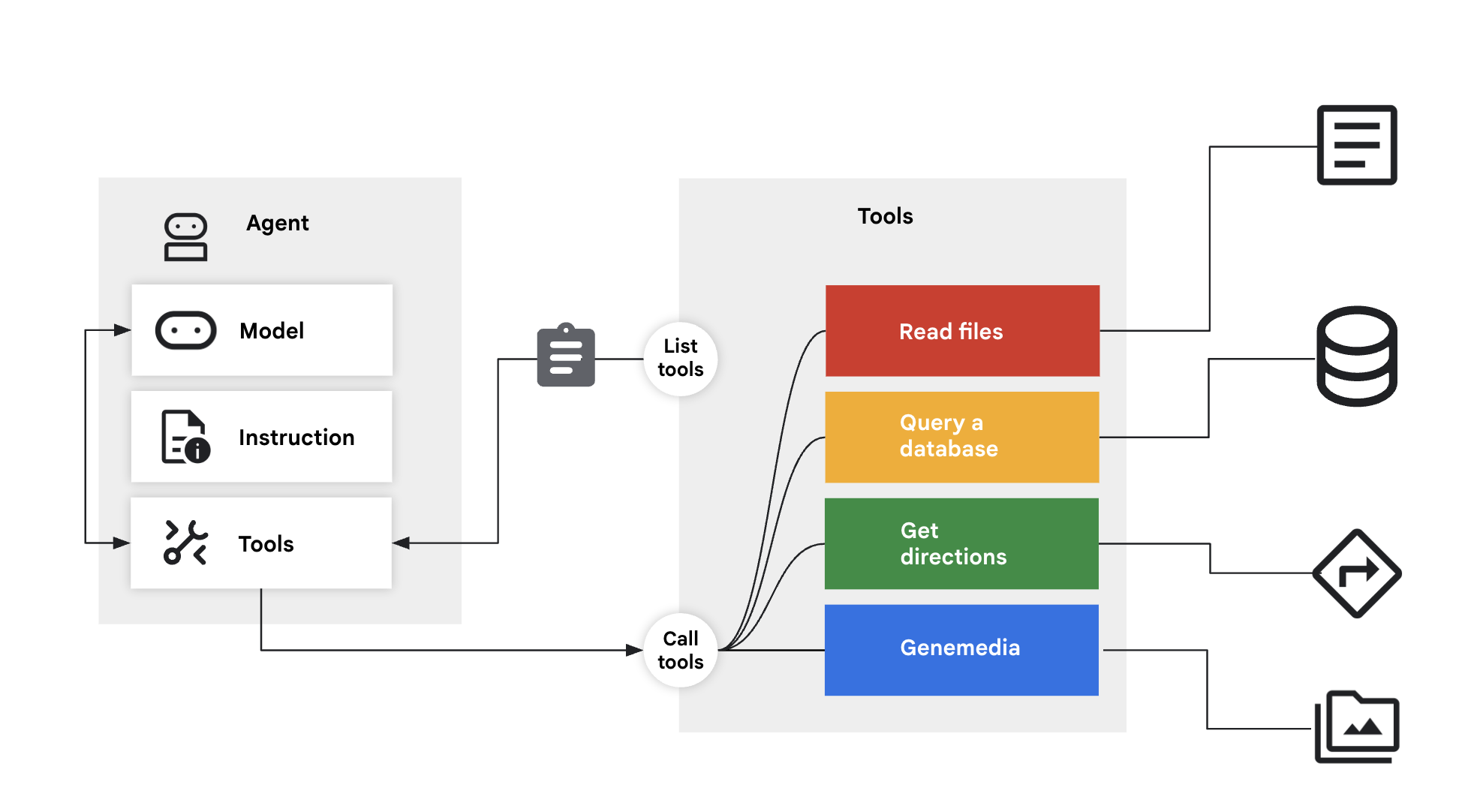
Step 1: The Tools
👉💻 In your Cloud Shell terminal, open the file in the Cloud Shell Editor by running:
cloudshell edit ~/memory_agent_starter/05_profile_agent/tools.py
👉 In this file: ~/memory_agent_starter/05_profile_agent/tools.py.
We need to implement these two specific tools:
save_user_preferences: Writes to a database.recall_user_preferences: Reads from a database.
Locate the comment # TODO: implement save_user_preferences tools inside the ~/memory_agent_starter/05_profile_agent/tools.py function.
Replace this whole line with the following code:
def save_user_preferences(tool_context: ToolContext, new_preferences: Dict[str, Any]) -> str:
    user_id = tool_context.session.user_id
    with sqlite3.connect(USER_DB_FILE) as conn:
        for key, value in new_preferences.items():
            conn.execute("INSERT INTO user_preferences (user_id, pref_key, pref_value) VALUES (?, ?, ?) ON CONFLICT(user_id, pref_key) DO UPDATE SET pref_value = excluded.pref_value;",
                         (user_id, key, json.dumps(value)))
    return f"Preferences updated: {list(new_preferences.keys())}"
👉 Locate the comment # TODO: implement recall_user_preferences tools inside the 05/tools.py function.
Replace this whole line with the following code:
def recall_user_preferences(tool_context: ToolContext) -> Dict[str, Any]:
    user_id = tool_context.session.user_id
    preferences = {}
    with sqlite3.connect(USER_DB_FILE) as conn:
        rows = conn.execute("SELECT pref_key, pref_value FROM user_preferences WHERE user_id = ?", (user_id,)).fetchall()
        if not rows: return {"message": "No preferences found."}
        for key, value_str in rows: preferences[key] = json.loads(value_str)
    return preferences
The instruction forces a workflow:
instruction="""
1. RECALL FIRST: First action MUST be `recall_user_preferences`.
3. LEARN: If a user states a new preference, use `save_user_preferences`.
"""
Step 2: The Execution
👉💻 In your Cloud Shell terminal, open the file in the Cloud Shell Editor by running:
cloudshell edit ~/memory_agent_starter/05_profile_agent/main.py
Open ~/memory_agent_starter/05_profile_agent/main.py.
Unlike previous modules where ADK handled state automatically, here the Agent is in control.
- It chooses to call
recall_user_preferencesat the start. - It chooses to call
save_user_preferenceswhen you say "I'm vegan".
Step 3: Build the Profile
👉💻 Run the script:
cd ~/memory_agent_starter
uv run python ~/memory_agent_starter/05_profile_agent/main.py
Try this conversation flow:
- "Hi, plan a dinner." -> Agent checks DB, finds nothing. Asks for preferences.
- "I'm vegan." -> Agent saves "vegan" to DB.
- Restart the script.
- "Hi, plan a dinner." -> Agent checks DB, sees "vegan", and suggests a vegan restaurant immediately.
Key Takeaway
Rule #5 of Memory: For complex, structured data, give your agent Read/Write Tools. Let the LLM manage its own long-term storage.
8. The Brain - Multimodal Memory
The Concept: "The Human Experience"
Humans remember more than text. We remember the vibe of a photo, the sound of a voice, the feeling of a video.
Vertex AI Memory Bank allows your agent to handle Multimodal Memory. It can ingest images, videos, and audio, "understand" them, and retrieve them later.
Step 1: The Configuration
👉💻 In your Cloud Shell terminal, open the file in the Cloud Shell Editor by running:
cloudshell edit ~/memory_agent_starter/06_multimodal_agent/main.py
👉 Open 06_multimodal_agent/main.py. Locate the comment # TODO: Configure Memory Bank Topic.
Replace this whole line with the following code:
travel_topics = [
    MemoryTopic(
        managed_memory_topic=ManagedMemoryTopic(
            managed_topic_enum=ManagedTopicEnum.USER_PREFERENCES
        )
    ),
    MemoryTopic(
        managed_memory_topic=ManagedMemoryTopic(
            managed_topic_enum=ManagedTopicEnum.USER_PERSONAL_INFO
        )
    ),
    MemoryTopic(
        custom_memory_topic=CustomMemoryTopic(
            label="travel_experiences",
            description="""Memorable travel experiences including:
                - Places visited and impressions
                - Favorite restaurants, cafes, and food experiences
                - Preferred accommodation types and locations
                - Activities enjoyed (museums, hiking, beaches, etc.)
                - Travel companions and social preferences
                - Photos and videos from trips with location context""",
        )
    ),
    MemoryTopic(
        custom_memory_topic=CustomMemoryTopic(
            label="travel_preferences",
            description="""Travel style and preferences:
                - Budget preferences (luxury, mid-range, budget)
                - Transportation preferences (flying, trains, driving)
                - Trip duration preferences
                - Season and weather preferences
                - Cultural interests and language abilities
                - Dietary restrictions and food preferences""",
        )
    ),
    MemoryTopic(
        custom_memory_topic=CustomMemoryTopic(
            label="travel_logistics",
            description="""Practical travel information:
                - Passport and visa information
                - Frequent flyer numbers and hotel loyalty programs
                - Emergency contacts
                - Medical considerations and insurance
                - Packing preferences and essentials
                - Time zone preferences and jet lag strategies""",
        )
    ),
]
Locate the comment # TODO: Configure Memory Bank Customization
Replace this whole line with the following code:
memory_bank_config = {
    "customization_configs": [
        {
            "memory_topics": travel_topics,
        }
    ],
    "similarity_search_config": {
        "embedding_model": f"projects/{PROJECT_ID}/locations/{LOCATION}/publishers/google/models/gemini-embedding-001"
    },
    "generation_config": {
        "model": f"projects/{PROJECT_ID}/locations/{LOCATION}/publishers/google/models/gemini-2.5-flash"
    },
}
Step 2: Ingesting the World
In test_trip_planner, we send:
- A text message ("Hello")
- An Image (Landmark)
- A Video (Mediterranean Sea)
- An Audio clip (Voice note about Gaeta)
Locate the comment # TODO create session service and memory service inside the 6_multimodal_agent/main.py function.
Replace this whole line with the following code:
session_service = VertexAiSessionService(
    project=PROJECT_ID, location=LOCATION, agent_engine_id=agent_engine_id
)
memory_service = VertexAiMemoryBankService(
    project=PROJECT_ID, location=LOCATION, agent_engine_id=agent_engine_id
)
👉 In the same file 06_multimodal_agent/main.py, locate the comment # TODO: create memory from session
Replace this whole line with the following code:
await memory_service.add_session_to_memory(final_session_state)
This is the magic line. It sends all that rich media to Vertex AI, which processes and indexes it.
Step 3: The Retrieval
👉💻 In your Cloud Shell terminal, open the file in the Cloud Shell Editor by running:
cloudshell edit ~/memory_agent_starter/06_multimodal_agent/agent.py
The agent has a PreloadMemoryTool.
tools=[PreloadMemoryTool(), budget_tool]
When a new session starts, this tool automatically searches the Memory Bank for relevant past experiences and injects them into the context.
Step 4: Run the Brain
👉💻 In your Cloud Shell terminal, run the script (Note: This requires a Google Cloud Project with Vertex AI enabled):
cd ~/memory_agent_starter
uv run python ~/memory_agent_starter/06_multimodal_agent/main.py
Watch the final verification step:
"Based on the picture, video, AND audio I shared with you before..."
The agent will reply:
"You should visit Gaeta! You showed me a video of the Mediterranean sea, and an audio clip where you said you loved Gaeta."
It connected the dots across different media types from the past.
Key Takeaway
Rule #6 of Memory: Use Vertex AI Memory Bank for the ultimate memory experience. It unifies text, images, and video into a single, searchable brain.
9. Conclusion
You have journeyed from a forgetful Goldfish to a Multimodal Elephant.
You Built | The Capability |
Session Agent | Short-term conversation memory |
Multi-Agent | Shared team memory |
Persistent Agent | Long-term history |
Stateful Agent | Dynamic, self-updating memory |
Profile Agent | Structured data memory |
Multimodal Agent | Human-like sensory memory |
Trust is built on memory. By implementing these patterns, you create agents that respect the user's time and history, leading to deeper, more effective interactions.
Start building your personalized agents today!