

1. Tổng quan
Agent Runtime (trước đây là Agent Engine) cung cấp một môi trường thời gian chạy được quản lý, được thiết kế để triển khai, chạy và mở rộng quy mô các tác nhân AI một cách hiệu quả. Theo mặc định, nền tảng này sẽ tự động kết hợp mã nguồn và các phần phụ thuộc trong quá trình triển khai.
Tuy nhiên, các khối lượng công việc của doanh nghiệp thường yêu cầu quyền sở hữu hoàn toàn đối với môi trường thời gian chạy. Để hỗ trợ điều này, Agent Runtime cung cấp khả năng Bring Your Own Container(BYOC) (Tự mang vùng chứa của bạn), cho phép bạn triển khai các hình ảnh vùng chứa tuỳ chỉnh được tạo sẵn.
Lớp học lập trình này trình bày quy trình từ đầu đến cuối để đóng gói một tác nhân được xây dựng bằng Bộ công cụ phát triển tác nhân (ADK) của Google, định cấu hình các quyền cần thiết của Google Cloud và triển khai tác nhân đó vào Thời gian chạy tác nhân bằng Python SDK hoặc Terraform.
Lớp học lập trình này hướng dẫn bạn:
- Xây dựng một tác nhân Python bằng Bộ công cụ phát triển tác nhân (ADK) của Google.
- Bao bọc tác nhân trong một ứng dụng FastAPI.
- Đóng gói ứng dụng bằng Docker.
- Định cấu hình quyền đối với Google Cloud.
- Triển khai và kiểm thử tác nhân trong vùng chứa trên Thời gian chạy tác nhân.
Quy trình xây dựng và triển khai
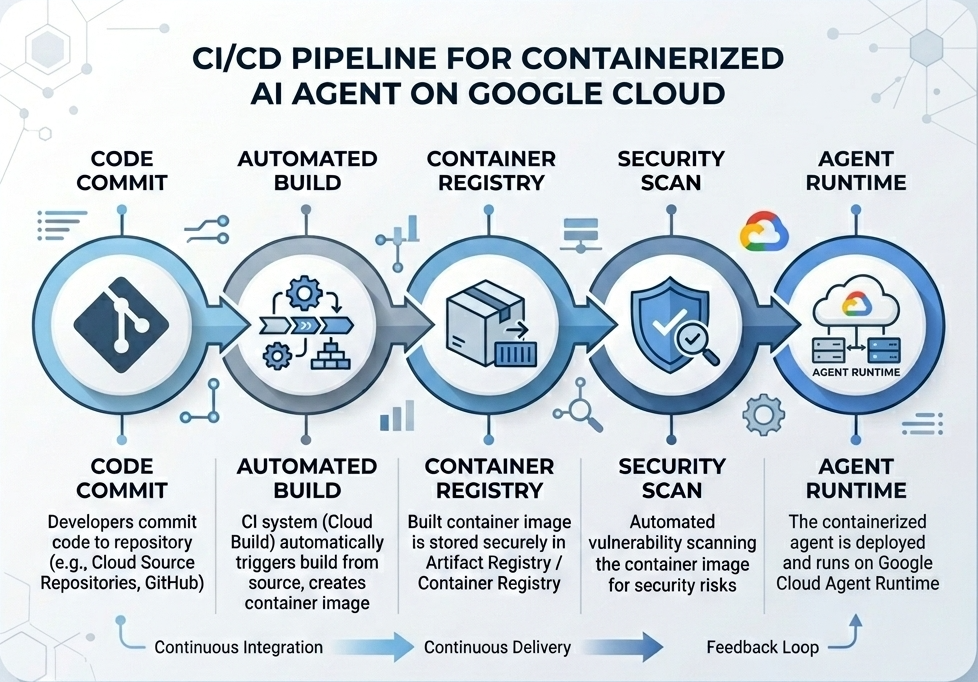
Sơ đồ sau đây minh hoạ quy trình của các bước tạo và triển khai mà bạn sẽ thực hiện theo cách thủ công trong lớp học lập trình này:
Những gì bạn cần
- Một Dự án trên Google Cloud đã bật tính năng thanh toán.
- Quyền truy cập vào Cloud Shell (nên dùng) hoặc một môi trường phát triển cục bộ đã cài đặt
gcloudvàdocker. - Kiến thức cơ bản về Python và Docker.
2. Thiết lập môi trường
Trước khi bắt đầu, bạn phải bật các API cần thiết và định cấu hình môi trường của mình.
Bước 1: Mở Cloud Shell
Nhấp vào nút Kích hoạt Cloud Shell ở trên cùng bên phải của Bảng điều khiển Google Cloud.
Bước 2: Định cấu hình biến môi trường
Trong Cloud Shell, hãy đặt mã dự án và xác định các biến môi trường chính được dùng trong suốt lớp học lập trình này. Thay thế "YOUR_PROJECT_ID" bằng mã dự án thực tế của bạn trên Google Cloud:
gcloud config set project "YOUR_PROJECT_ID"
export PROJECT_ID=$(gcloud config get-value project)
export LOCATION="us-central1"
export MODEL="gemini-3.1-flash-lite"
export MODEL_REGION="global"
Các biến này định cấu hình chế độ cài đặt triển khai mục tiêu:
PROJECT_ID: Giá trị nhận dạng duy nhất của Dự án Google Cloud nơi tất cả các tài nguyên Nền tảng tác nhân Gemini Enterprise và Artifact Registry sẽ lưu trú.LOCATION: Khu vực địa lý (ví dụ:us-central1) lưu trữ các kho lưu trữ và khối lượng công việc trong thời gian chạy.MODEL: Phiên bản mô hình Gemini (ví dụ:gemini-3.1-flash-lite) do ngữ cảnh tác nhân tải.MODEL_REGION: Khu vực điểm cuối của mô hình. Đặt ở đây là"global"để gọi mô hình Gemini từ các điểm cuối toàn cầu.
Bước 3: Bật API
Bật các Google Cloud API bắt buộc:
gcloud services enable \
    aiplatform.googleapis.com \
    cloudbuild.googleapis.com \
    compute.googleapis.com \
    artifactregistry.googleapis.com \
    storage.googleapis.com
Bước 4: Cài đặt SDK
Cài đặt Vertex AI SDK có hỗ trợ Agent Engine và ADK:
pip install --upgrade "google-cloud-aiplatform[agent_engines,adk]>=1.144"
3. Thiết lập tệp nguồn
Ở bước này, bạn sẽ tạo cấu trúc và mã cho tác nhân của mình.
Tổng quan về cấu trúc thư mục
Khi kết thúc lớp học lập trình này, các tệp của bạn sẽ được sắp xếp theo hệ thống phân cấp không gian làm việc sau đây:
weather-agent-byoc/
├── Dockerfile                  # Container definition
├── deploy_byoc.py              # Python SDK deployment script
├── main.py                     # FastAPI server wrapper
├── query_agent.py              # Verify / query script
├── requirements.txt            # Python dependencies
│
├── weather_agent/              # Agent source module
│   ├── __init__.py             # Package declaration
│   ├── agent.py                # Agent & mock tools logic
│   └── config.json             # Environment config variables
│
└── terraform/                  # Terraform configuration files
    ├── main.tf
    ├── outputs.tf
    ├── providers.tf
    ├── terraform.tfvars
    └── variables.tf
Bước 1: Tạo thư mục
Bắt đầu trong thư mục chính và tạo cấu trúc không gian làm việc:
cd ~
mkdir -p weather-agent-byoc/weather_agent
cd weather-agent-byoc
Bước 2: Tạo tệp cấu hình
Chạy lệnh sau trong Cloud Shell để ghi trực tiếp các thông số cấu hình vào weather_agent/config.json. Lệnh này sẽ tự động thay thế các biến bằng giá trị môi trường của bạn:
cat <<EOF > weather_agent/config.json
{
    "PROJECT_ID": "${PROJECT_ID}",
    "LOCATION": "${LOCATION}",
    "MODEL": "${MODEL}",
    "MODEL_REGION": "${MODEL_REGION}"
}
EOF
Bước 3: Xác định Agent
Chạy tập lệnh sau để ghi cấu hình tác nhân và logic công cụ mô phỏng vào weather_agent/agent.py:
cat << 'EOF' > weather_agent/agent.py
import json
import random
from google.adk.agents import Agent
from google.adk.models.google_llm import Gemini
from functools import cached_property
from google.genai import Client

# Load config
llm_config = json.load(open("weather_agent/config.json"))
PROJECT_ID = llm_config["PROJECT_ID"]
MODEL = llm_config["MODEL"]
MODEL_REGION = llm_config["MODEL_REGION"]

# Override Gemini class for global endpoint compatibility
class GlobalGemini(Gemini):
  @cached_property
  def api_client(self) -> Client:
    return Client(vertexai=True, location="global")

# Define Tool
def get_temperature(place: str) -> str:
    '''Returns the current temperature of a given place.

    Args:
        place: The name of the city or location.

    Returns:
        str: A string describing the temperature.
    '''
    temp = random.randint(-10, 40)
    return f"The current temperature in {place} is {temp}°C."

# Initialize LLM
llm_model = GlobalGemini(model=MODEL) if MODEL_REGION == "global" else Gemini(model=MODEL)

# Initialize Agent
root_agent = Agent(
    model=llm_model,
    name='weather_agent',
    description='An agent that provides temperature information for locations.',
    instruction='You are a helpful assistant that can provide the current temperature for any given place using the get_temperature tool.',
    tools=[get_temperature],
)
EOF
Tạo một __init__.py trống để tạo weather_agent thành một gói Python:
touch weather_agent/__init__.py
Bước 4: Tạo trình bao bọc FastAPI
Chạy tập lệnh sau để ghi cấu hình điểm truy cập máy chủ FastAPI vào main.py:
cat << 'EOF' > main.py
import inspect
import json
import logging
import os
from typing import Any, Dict, Optional
import uvicorn
import vertexai
from weather_agent.agent import root_agent
from fastapi import FastAPI, encoders, responses, Request
from vertexai import agent_engines

app = FastAPI()

config_json = json.load(open("weather_agent/config.json"))
PROJECT_ID = config_json["PROJECT_ID"]
LOCATION = config_json["LOCATION"]
MODEL_REGION = config_json["MODEL_REGION"]

vertexai.init(project=PROJECT_ID, location=MODEL_REGION)
adk_app = agent_engines.AdkApp(agent=root_agent)

def _encode_chunk_to_json(chunk):
  try:
    json_chunk = encoders.jsonable_encoder(chunk)
    return json.dumps(json_chunk) + "\n"
  except Exception:
    logging.exception("Failed to encode chunk")
    return None

async def json_generator(output):
  async for chunk in output:
    encoded_chunk = _encode_chunk_to_json(chunk)
    if encoded_chunk is None:
      break
    yield encoded_chunk

async def _invoke_callable_or_raise(invocation_callable, invocation_payload):
  if inspect.iscoroutinefunction(invocation_callable):
    return await invocation_callable(**invocation_payload)
  else:
    return invocation_callable(**invocation_payload)

@app.post("/api/reasoning_engine")
async def query(request: Request) -> responses.JSONResponse:
    request_json = await request.json()
    class_method = request_json.get("class_method")
    input_val = request_json.get("input")
    method = getattr(adk_app, class_method)
    output = await _invoke_callable_or_raise(method, input_val or {})
    try:
      json_serialized_content = encoders.jsonable_encoder({"output": output})
    except ValueError as encoding_error:
      logging.exception("Failed to encode response")
      raise encoding_error
    return responses.JSONResponse(content=json_serialized_content)

@app.post("/api/stream_reasoning_engine")
async def stream_query(request: Request) -> responses.StreamingResponse:
    request_json = await request.json()
    class_method = request_json.get("class_method")
    input_val = request_json.get("input")
    method = getattr(adk_app, class_method)
    output = await _invoke_callable_or_raise(method, input_val or {})
    return responses.StreamingResponse(
        content=json_generator(output),
        media_type="application/json",
    )

if __name__ == "__main__":
    uvicorn.run(app, host="0.0.0.0", port=int(os.environ.get("PORT", 8080)))
EOF
Bước 5: Xác định các phần phụ thuộc
Ghi các phần phụ thuộc bắt buộc của Python vào requirements.txt:
cat << 'EOF' > requirements.txt
fastapi
uvicorn
vertexai
google-cloud-aiplatform[agent_engines,adk]>=1.144
pydantic
EOF
4. Chuyên chở bằng công ten nơ
Bây giờ, hãy xác định cách đóng gói tác nhân của bạn vào một vùng chứa.
Bước 1: Tạo Dockerfile
Tạo Dockerfile trong thư mục gốc của dự án để chỉ định cách tạo ứng dụng FastAPI:
cat << 'EOF' > Dockerfile
FROM python:3.11-slim

WORKDIR /app

COPY weather_agent/ /app/weather_agent/
COPY main.py .
COPY requirements.txt .
RUN pip install -r requirements.txt

CMD ["sh", "-c", "uvicorn main:app --host 0.0.0.0 --port $PORT"]
EOF
5. Thiết lập Artifact Registry và Cloud Build
Bạn cần một kho lưu trữ để lưu trữ hình ảnh vùng chứa và các quyền để đẩy hình ảnh đó.
Bước 1: Tạo kho lưu trữ
Xác định tên kho lưu trữ và tạo một kho lưu trữ Docker trong Artifact Registry bằng các biến môi trường được xác định trong quá trình định cấu hình:
export REPOSITORY_NAME="agents-repo"

gcloud artifacts repositories create $REPOSITORY_NAME \
    --project=$PROJECT_ID \
    --repository-format=docker \
    --location=$LOCATION \
    --description="Docker repository for Agents"
Bước 2: Định cấu hình quyền của tài khoản dịch vụ
Cấp quyền cho Tài khoản dịch vụ mặc định của Compute Engine để đẩy hình ảnh lên Artifact Registry.
Trước tiên, hãy lấy số dự án:
export PROJECT_NUMBER=$(gcloud projects describe $PROJECT_ID --format="value(projectNumber)")
Cấp các vai trò:
# Allow pushing to Artifact Registry
gcloud projects add-iam-policy-binding $PROJECT_ID \
    --member="serviceAccount:$PROJECT_NUMBER-compute@developer.gserviceaccount.com" \
    --role="roles/artifactregistry.writer" \
    --condition=None

# Allow Cloud Build to read storage objects
gcloud projects add-iam-policy-binding $PROJECT_NUMBER \
    --member="serviceAccount:$PROJECT_NUMBER-compute@developer.gserviceaccount.com" \
    --role="roles/storage.objectViewer" \
    --condition=None
Bước 3: Cấp quyền cho các đặc vụ dịch vụ
Cấp quyền truy cập đọc Artifact Registry cho các tác nhân dịch vụ AI Platform và Reasoning Engine:
gcloud projects add-iam-policy-binding $PROJECT_NUMBER \
    --member="serviceAccount:service-$PROJECT_NUMBER@gcp-sa-aiplatform-re.iam.gserviceaccount.com" \
    --role="roles/artifactregistry.reader"  --condition=None

gcloud projects add-iam-policy-binding $PROJECT_NUMBER \
    --member="serviceAccount:service-$PROJECT_NUMBER@gcp-sa-aiplatform.iam.gserviceaccount.com" \
    --role="roles/artifactregistry.reader"  --condition=None
Bước 4: Tạo và đẩy hình ảnh
Sử dụng Cloud Build để tạo và đẩy hình ảnh vùng chứa:
gcloud builds submit \
    --project=$PROJECT_ID \
    --region=$LOCATION \
    --tag $LOCATION-docker.pkg.dev/$PROJECT_ID/$REPOSITORY_NAME/weather-agent-image:latest \
    .
6. Triển khai Agent bằng SDK
Sau khi định cấu hình quyền, bạn có thể triển khai vùng chứa tuỳ chỉnh.
Bước 1: Triển khai BYOC Agent
Tạo tệp python deploy_byoc.py bên trong thư mục gốc của dự án để triển khai vùng chứa do sổ đăng ký lưu trữ vào Thời gian chạy của tác nhân:
cat << 'EOF' > deploy_byoc.py
import json
import os
import vertexai
from google.cloud import aiplatform

config = json.load(open("weather_agent/config.json"))
PROJECT_ID = config["PROJECT_ID"]
LOCATION = config["LOCATION"]
REPOSITORY_NAME = "agents-repo"

vertexai.init(project=PROJECT_ID, location=LOCATION)
client = vertexai.Client(project=PROJECT_ID, location=LOCATION)

image_uri = f"{LOCATION}-docker.pkg.dev/{PROJECT_ID}/{REPOSITORY_NAME}/weather-agent-image:latest"

print(f"Deploying custom container agent from {image_uri}...")
remote_agent = client.agent_engines.create(
    config={
        "display_name": "byoc_weather_agent",
        "description": "BYOC weather agent from custom container",
        "container_spec": {
            "image_uri": image_uri
        },
        "class_methods": [
            # For convenience to interact with the agent through the Python SDK
            # https://docs.cloud.google.com/gemini-enterprise-agent-platform/scale/runtime/use-an-adk-agent#supported-operations
            {"api_mode": "", "name": "get_session"},
            {"api_mode": "", "name": "list_sessions"},
            {"api_mode": "", "name": "create_session"},
            {"api_mode": "", "name": "delete_session"},
            {"api_mode": "async", "name": "async_get_session"},
            {"api_mode": "async", "name": "async_list_sessions"},
            {"api_mode": "async", "name": "async_create_session"},
            {"api_mode": "async", "name": "async_delete_session"},
            {"api_mode": "async", "name": "async_add_session_to_memory"},
            {"api_mode": "async", "name": "async_search_memory"},
            {"api_mode": "stream", "name": "stream_query"},
            {"api_mode": "async_stream", "name": "async_stream_query"},
            {"api_mode": "async_stream", "name": "streaming_agent_run_with_events"},
        ],
        "agent_framework": "google-adk",
    },
)

print(f"Agent successfully deployed!")
print(f"Resource Name: {remote_agent.api_resource.name}")

# Save resource name for testing
with open("agent_resource_name.txt", "w") as f:
    f.write(remote_agent.api_resource.name)
EOF
Chạy tập lệnh triển khai để triển khai tác nhân trên Thời gian chạy tác nhân:
python3 deploy_byoc.py
7. Triển khai Tác nhân bằng Terraform
Ngoài ra, bạn có thể triển khai cùng một tác nhân được chứa trong vùng chứa bằng Terraform. Bạn nên sử dụng phương pháp này cho môi trường sản xuất để quản lý cơ sở hạ tầng dưới dạng mã.
Bước 1: Chuyển đến thư mục Terraform
Tạo một thư mục terraform trong thư mục gốc của dự án rồi chuyển đến thư mục đó:
mkdir -p terraform
cd terraform
Bước 2: Tạo cấu hình nhà cung cấp
Chạy tập lệnh sau để ghi ánh xạ nhà cung cấp vào providers.tf:
cat << 'EOF' > providers.tf
terraform {
  required_providers {
    google = {
      source  = "hashicorp/google"
      version = ">= 5.28.0"
    }
  }
}

provider "google" {
  project = var.project_id
  region  = var.location
}
EOF
Bước 3: Tạo định nghĩa biến
Viết khối nội dung mô tả đầu vào thành variables.tf:
cat << 'EOF' > variables.tf
variable "project_id" {
  type        = string
  description = "The Google Cloud Project ID"
}

variable "location" {
  type        = string
  description = "The region to deploy the reasoning engine"
  default     = "us-central1"
}

variable "repository_name" {
  type        = string
  description = "The Artifact Registry repository name"
  default     = "agents-repo"
}

variable "image_tag" {
  type        = string
  description = "The tag of the container image to deploy"
  default     = "latest"
}
EOF
Bước 4: Tạo cấu hình chính
Viết các thông số định nghĩa tài nguyên chính vào main.tf:
cat << 'EOF' > main.tf
locals {
  class_methods = [
    {"api_mode" = "", "name" = "get_session"},
    {"api_mode" = "", "name" = "list_sessions"},
    {"api_mode" = "", "name" = "create_session"},
    {"api_mode" = "", "name" = "delete_session"},
    {"api_mode" = "async", "name" = "async_get_session"},
    {"api_mode" = "async", "name" = "async_list_sessions"},
    {"api_mode" = "async", "name" = "async_create_session"},
    {"api_mode" = "async", "name" = "async_delete_session"},
    {"api_mode" = "async", "name" = "async_add_session_to_memory"},
    {"api_mode" = "async", "name" = "async_search_memory"},
    {"api_mode" = "stream", "name" = "stream_query"},
    {"api_mode" = "async_stream", "name" = "async_stream_query"},
    {"api_mode" = "async_stream", "name" = "streaming_agent_run_with_events"}
  ]
}

# define the resource with the BYOC configuration, set agent_framework to "google-adk" to enable interactive features on the console.
resource "google_vertex_ai_reasoning_engine" "byoc_weather_agent" {
  display_name = "byoc_weather_agent_tf"
  description  = "BYOC weather agent deployed via Terraform"
  project      = var.project_id
  region       = var.location

  spec {
    class_methods = jsonencode(local.class_methods)
    agent_framework = "google-adk"
    container_spec {
      image_uri = "${var.location}-docker.pkg.dev/${var.project_id}/${var.repository_name}/weather-agent-image:${var.image_tag}"
    }
  }
}
EOF
Bước 5: Tạo định nghĩa đầu ra
Ghi khối đầu ra vào outputs.tf:
cat << 'EOF' > outputs.tf
output "reasoning_engine_id" {
  value       = google_vertex_ai_reasoning_engine.byoc_weather_agent.id
  description = "The ID of the deployed reasoning engine"
}

output "reasoning_engine_resource_name" {
  value       = google_vertex_ai_reasoning_engine.byoc_weather_agent.id
  description = "The resource name of the deployed reasoning engine"
}
EOF
Bước 6: Tạo tệp giá trị biến (tfvars)
Triển khai linh hoạt mà không cần chỉnh sửa phần giữ chỗ bằng cách truyền trực tiếp các biến môi trường đến terraform.tfvars:
cat <<EOF > terraform.tfvars
project_id      = "${PROJECT_ID}"
location        = "${LOCATION}"
repository_name = "agents-repo"
image_tag       = "latest"
EOF
Bước 7: Khởi tạo và áp dụng
Khởi chạy Terraform và áp dụng cấu hình:
terraform init
terraform apply
Xác nhận áp dụng bằng cách nhập yes khi được nhắc.
Sau khi hoàn tất, Terraform sẽ xuất tên tài nguyên. Ghi lại theo phương thức lập trình vào agent_resource_name.txt và quay lại thư mục gốc:
terraform output -raw reasoning_engine_resource_name > ../agent_resource_name.txt
cd ..
8. Hỏi tác nhân
Xác minh rằng nhân viên hỗ trợ của bạn đang chạy và phản hồi.
Bước 1: Tạo tập lệnh truy vấn
Viết tập lệnh xác minh cho query_agent.py bằng cách sử dụng chế độ kiểm tra cấu hình thiết lập linh động để tìm nạp toạ độ vị trí:
cat << 'EOF' > query_agent.py
import json
import os
import requests
from google import auth as google_auth
from google.auth.transport import requests as google_requests

# Load config coordinates directly
config_json = json.load(open("weather_agent/config.json"))
LOCATION = config_json["LOCATION"]
PROJECT_ID = config_json["PROJECT_ID"]

# Load agent resource name
with open("agent_resource_name.txt", "r") as f:
    agent_resource_name = f.read().strip()

def get_identity_token():
    credentials, _ = google_auth.default()
    auth_request = google_requests.Request()
    credentials.refresh(auth_request)
    return credentials.token

# Access the agent at the fastapi endpoint that was specified in main.py
url = f"https://{LOCATION}-aiplatform.googleapis.com/reasoningEngines/v1/{agent_resource_name}/api/api/stream_reasoning_engine"

payload = {
    "class_method": "async_stream_query",
    "input": {
        "user_id": "codelab_test_user",
        "message": "What is the temperature in Tokyo?",
    },
}

print(f"Sending query to {url}...")
response = requests.post(
    url,
    headers={
        "Content-Type": "application/json",
        "Authorization": f"Bearer {get_identity_token()}",
    },
    data=json.dumps(payload),
    stream=True,
)

for chunk in response.iter_content(chunk_size=8192):
    if chunk:
        print(chunk.decode('utf-8'))
EOF
Chạy tập lệnh truy vấn:
python3 query_agent.py
Bạn sẽ thấy dữ liệu đầu ra được truyền trực tuyến từ tác nhân, bao gồm cả nhiệt độ mô phỏng cho Tokyo.
Bước 2: Sử dụng bảng điều khiển
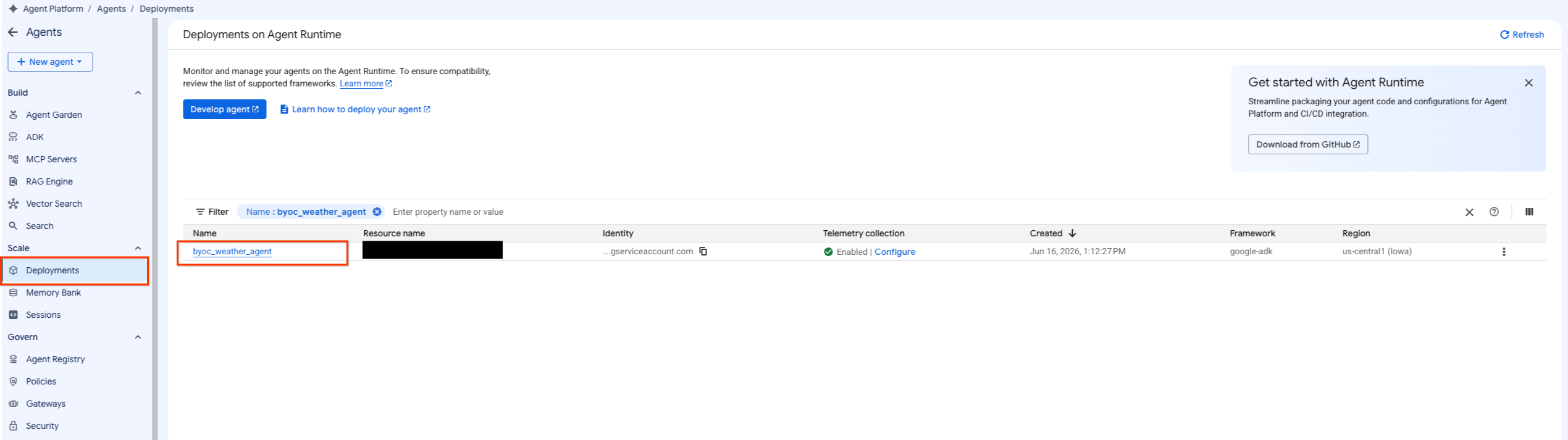
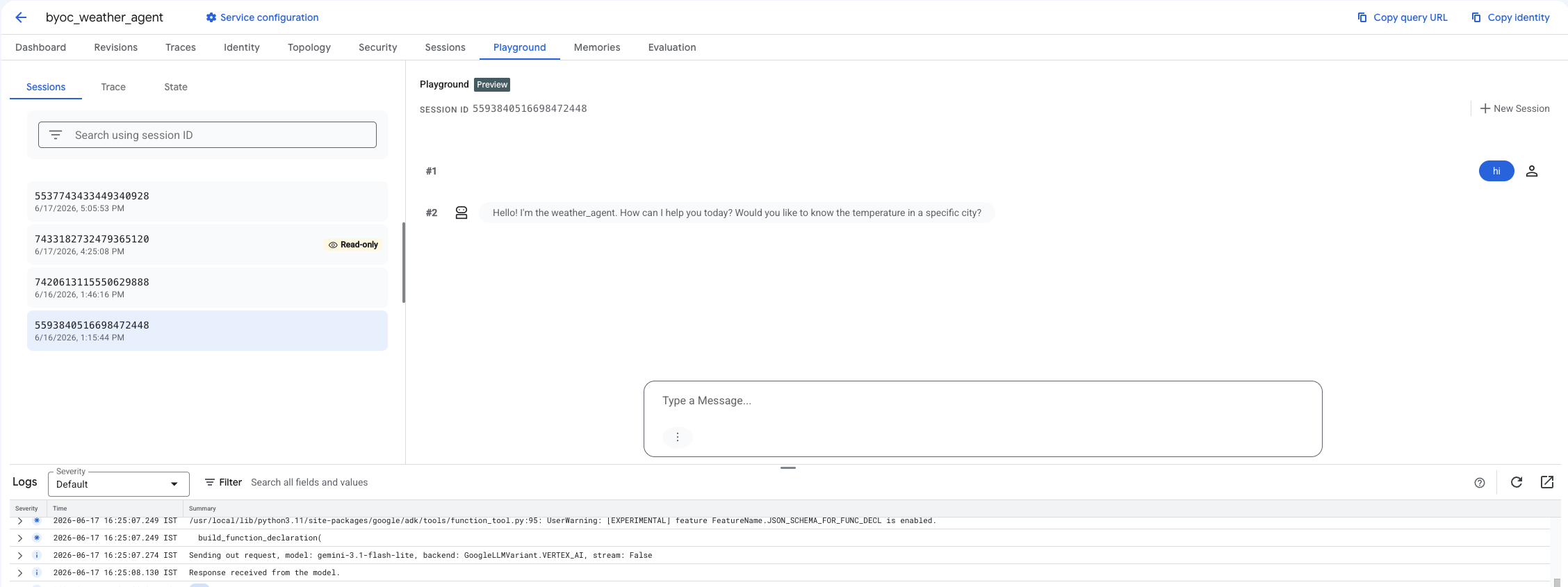
- Chuyển đến tác nhân đã triển khai bằng cách chọn Agent Platform (Nền tảng tác nhân) > Agents (Tác nhân) > Deployments (Triển khai) để lọc danh sách tác nhân.
- Chọn Playground (Sân chơi) trên trang tổng quan của Agent.
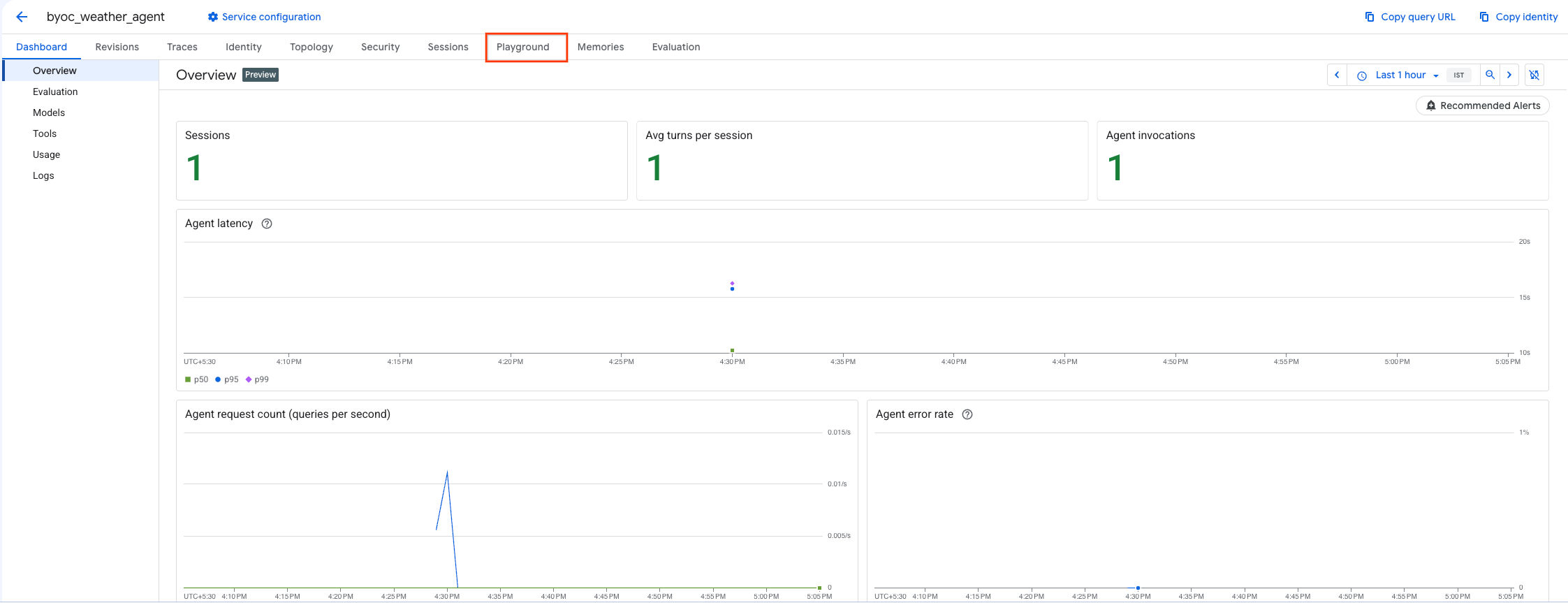
- Tạo một phiên mới và nhập câu hỏi của bạn để kiểm tra xem tác nhân có phản hồi các yêu cầu như đã hiển thị hay không.
9. Dọn dẹp
Để tránh bị tính phí, hãy dọn dẹp các tài nguyên mà bạn đã tạo.
Nếu bạn triển khai bằng Terraform, hãy chuyển sang thư mục terraform và thực thi thao tác hủy bỏ:
cd ~/weather-agent-byoc/terraform
terraform destroy
cd ..
Nếu bạn triển khai bằng SDK, hãy tạo tập lệnh để xoá tác nhân đã triển khai:
cat << 'EOF' > delete_agent.py
import json
import os
import vertexai
from google.cloud import aiplatform

config = json.load(open("weather_agent/config.json"))
PROJECT_ID = config["PROJECT_ID"]
LOCATION = config["LOCATION"]

vertexai.init(project=PROJECT_ID, location=LOCATION)
client = vertexai.Client(project=PROJECT_ID, location=LOCATION)

with open("agent_resource_name.txt", "r") as f:
    agent_resource_name = f.read().strip()

# 1. Delete the Agent
# Note: We retrieve the list first to ensure we delete the ones created in this session
try:
    page_size = 100
    reasoning_engines = client.agent_engines.list()
    for engine in reasoning_engines:
        if agent_resource_name in engine.api_resource.name:
            print(f"Deleting Reasoning Engine: {engine.api_resource.name}")
            engine.delete(force=True)
except Exception as e:
    print(f"Error deleting reasoning engines: {e}")
EOF
Chạy tập lệnh để xoá tác nhân:
python3 delete_agent.py
Để dọn dẹp các tài nguyên còn lại, hãy chuyển về thư mục chính rồi chạy các lệnh sau trong Cloud Shell:
cd ~

# 1. Delete the Artifact Registry Repository
gcloud artifacts repositories delete $REPOSITORY_NAME --location=$LOCATION --quiet

# 2. Clean up files (Optional)
rm -rf ~/weather-agent-byoc
10. Kết luận
Xin chúc mừng! Bạn đã tạo vùng chứa và triển khai thành công một tác nhân AI trên Agent Runtime bằng BYOC.
Bạn đã tìm hiểu cách:
- Sử dụng ADK để xác định một Agent và bao bọc Agent đó bằng FastAPI.
- Tạo tệp Dockerfile và tạo hình ảnh bằng Cloud Build.
- Quản lý quyền IAM cho Agent Runtime.
- Triển khai vùng chứa tuỳ chỉnh bằng cả Python SDK và Terraform.
- Kiểm thử và truy vấn tác nhân đã triển khai.