

1. 簡介
在本程式碼研究室中,您將瞭解如何使用 BigQuery Graph,為虛構的零售公司 Cymbal Pets 建構 360 度全方位客戶視圖和推薦引擎。您將運用 SQL 的強大功能,直接在 BigQuery 中建立、查詢及分析圖形資料,並結合向量搜尋功能,提供進階產品推薦。
BigQuery Graph 可讓您將資料實體 (例如顧客、產品和訂單) 間的關係建立為圖表,輕鬆解答有關顧客行為和產品偏好的複雜問題。

學習內容
- 為 Cymbal Pets 圖表建立 BigQuery 資料集和結構定義
- 從 Cloud Storage 載入範例資料 (Customers、Products、Orders、Stores)
- 在 BigQuery 中建立連結這些實體的屬性圖
- 使用圖形查詢,以視覺化方式呈現顧客的購買記錄
- 使用向量搜尋建構產品推薦系統
- 使用「一起購買」圖表關係和 Jaccard 相似度,強化推薦內容
軟硬體需求
- 網路瀏覽器,例如 Chrome
- 已啟用計費功能的 Google Cloud 雲端專案
本程式碼研究室適合各種程度的開發人員,包括初學者。
2. 事前準備
建立 Google Cloud 專案
- 在 Google Cloud 控制台中,選取或建立 Google Cloud 專案。
- 確認 Cloud 專案已啟用計費功能。
啟動 Cloud Shell
- 點選 Google Cloud 控制台頂端的「啟用 Cloud Shell」。
- 驗證:
gcloud auth list
- 確認專案:
gcloud config get project
- 視需要設定:
export PROJECT_ID=<YOUR_PROJECT_ID>
gcloud config set project $PROJECT_ID
啟用 API
執行下列指令,啟用必要的 BigQuery API:
gcloud services enable bigquery.googleapis.com
3. 定義結構定義
首先,您需要建立資料集來儲存圖表相關資料表,並定義節點和邊緣的結構定義。
- 在本程式碼研究室中,我們將執行 SQL 指令。您可以在 BigQuery Studio > SQL 編輯器中執行這些指令,也可以在 Cloud Shell 中使用
bq query指令。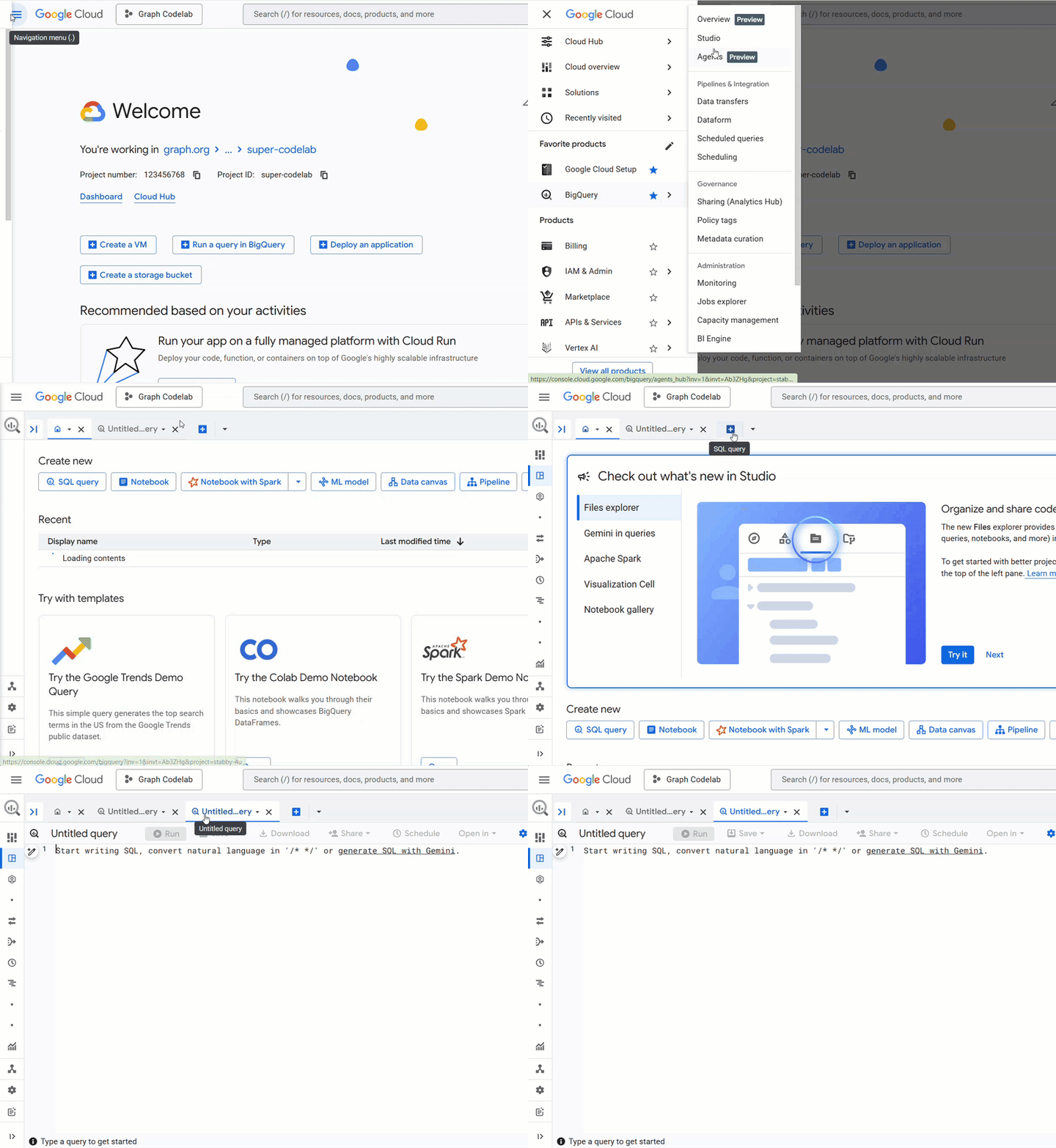 我們假設您使用 BigQuery SQL 編輯器,以便更輕鬆地處理多行建立陳述式。
 - 建立
cymbal_pets_demo資料集:
CREATE SCHEMA IF NOT EXISTS cymbal_pets_demo;
- 為
order_items、products、orders、stores、customers和co_related_products_for_angelica建立資料表。這些資料表將做為圖表的來源資料。
CREATE TABLE IF NOT EXISTS cymbal_pets_demo.order_items
(
  order_id INT64,
  product_id INT64,
  order_item_id INT64,
  quantity INT64,
  price FLOAT64,
  PRIMARY KEY (order_id, product_id, order_item_id) NOT ENFORCED
)
CLUSTER BY order_item_id;

CREATE TABLE IF NOT EXISTS cymbal_pets_demo.products
(
  product_id INT64,
  product_name STRING,
  brand STRING,
  category STRING,
  subcategory INT64,
  animal_type INT64,
  search_keywords INT64,
  price FLOAT64,
  description STRING,
  inventory_level INT64,
  supplier_id INT64,
  average_rating FLOAT64,
  uri STRING,
  embedding ARRAY<FLOAT64>,
  PRIMARY KEY (product_id) NOT ENFORCED
)
CLUSTER BY product_id;

CREATE TABLE IF NOT EXISTS cymbal_pets_demo.orders
(
  customer_id INT64,
  order_id INT64,
  shipping_address_city STRING,
  store_id INT64,
  order_date STRING,
  order_type STRING,
  payment_method STRING,
  PRIMARY KEY (order_id) NOT ENFORCED
);

CREATE TABLE IF NOT EXISTS cymbal_pets_demo.stores
(
  store_id INT64,
  store_name STRING,
  address_state STRING,
  address_city STRING,
  latitude FLOAT64,
  longitude FLOAT64,
  opening_hours STRUCT<Monday STRING, Tuesday STRING, Wednesday STRING, Thursday STRING, Friday STRING, Saturday STRING, Sunday STRING>,
  manager_id INT64,
  PRIMARY KEY (store_id) NOT ENFORCED
)
CLUSTER BY store_id;

CREATE TABLE IF NOT EXISTS cymbal_pets_demo.customers
(
  customer_id INT64,
  first_name STRING,
  last_name STRING,
  email STRING,
  gender STRING,
  address_city STRING,
  address_state STRING,
  loyalty_member BOOL,
  PRIMARY KEY (customer_id) NOT ENFORCED
)
CLUSTER BY customer_id;

CREATE TABLE IF NOT EXISTS cymbal_pets_demo.co_related_products_for_angelica
(
  angelica_product_id INT64,
  other_product_id INT64,
  co_purchase_count INT64,
  jaccard_similarity FLOAT64
);
您現在已定義圖表資料的結構。
4. 載入資料
現在,請從 Cloud Storage 在資料表中填入範例資料。
在 BigQuery SQL 編輯器中執行下列 LOAD DATA 陳述式:
LOAD DATA INTO `cymbal_pets_demo.customers`
FROM FILES (
    format = 'AVRO',
    uris = ['gs://sample-data-and-media/cymbal-pets/tables/customers/*.avro'],
    enable_logical_types = true
);

LOAD DATA INTO `cymbal_pets_demo.order_items`
FROM FILES (
    format = 'AVRO',
    uris = ['gs://sample-data-and-media/cymbal-pets/tables/order_items/*.avro'],
    enable_logical_types = true
);

LOAD DATA INTO `cymbal_pets_demo.orders`
FROM FILES (
    format = 'AVRO',
    uris = ['gs://sample-data-and-media/cymbal-pets/tables/orders/*.avro'],
    enable_logical_types = true
);

-- 1. Create a new partitioned and clustered table from your current data
CREATE TABLE cymbal_pets_demo.orders_temp
PARTITION BY order_date
CLUSTER BY order_id
AS
SELECT
  customer_id,
  order_id,
  shipping_address_city,
  store_id,
  -- Parse the string to a DATE type. Adjust format string ('%Y-%m-%d') if necessary.
  PARSE_DATE('%Y-%m-%d', order_date) AS order_date,
  order_type,
  payment_method
FROM
  cymbal_pets_demo.orders;

-- 2. Drop the original, non-partitioned table
DROP TABLE cymbal_pets_demo.orders;

-- 3. Rename the temporary table to the original table name
ALTER TABLE cymbal_pets_demo.orders_temp RENAME TO orders;

LOAD DATA INTO `cymbal_pets_demo.products`
FROM FILES (
    format = 'AVRO',
    uris = ['gs://sample-data-and-media/cymbal-pets/tables/products/*.avro'],
    enable_logical_types = true
);

LOAD DATA INTO `cymbal_pets_demo.stores`
FROM FILES (
    format = 'AVRO',
    uris = ['gs://sample-data-and-media/cymbal-pets/tables/stores/*.avro'],
    enable_logical_types = true
);
系統應會顯示確認訊息,指出資料列已載入各個資料表。
5. 建立屬性圖表
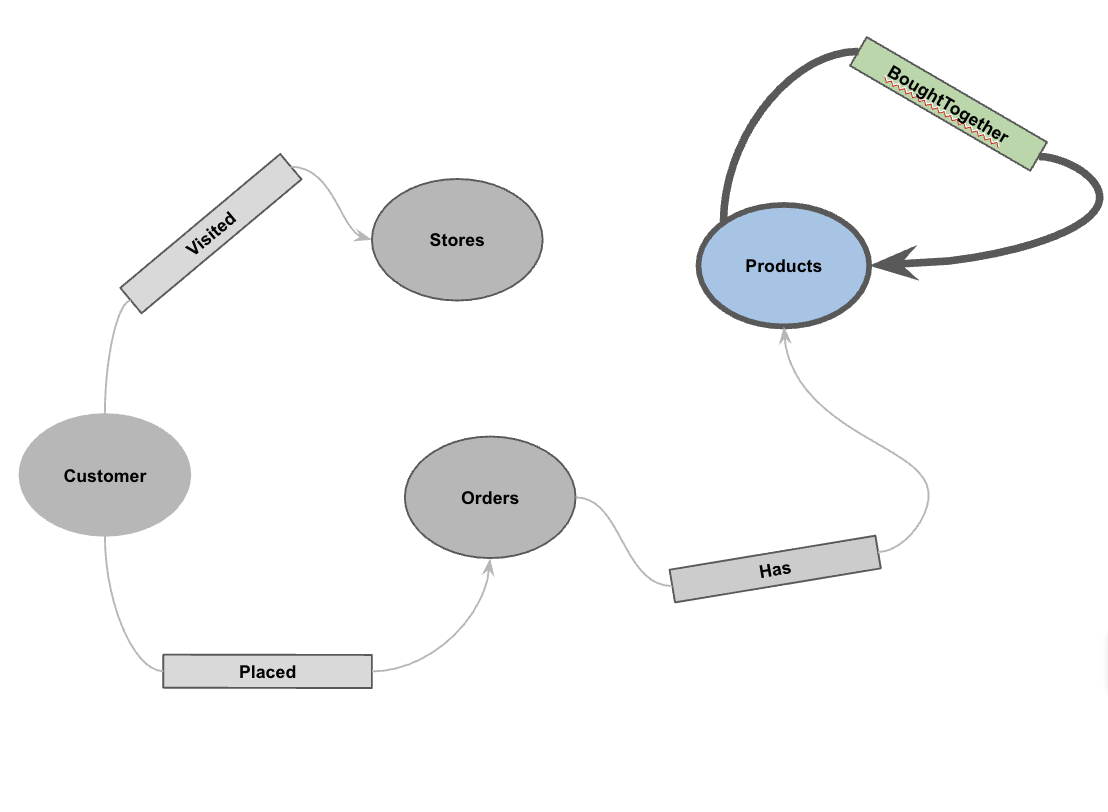
載入資料後,您現在可以定義屬性圖。這會告知 BigQuery 哪些資料表代表節點 (例如客戶、產品等實體),哪些資料表代表邊緣 (例如「造訪」、「下單」、「擁有」等關係)。
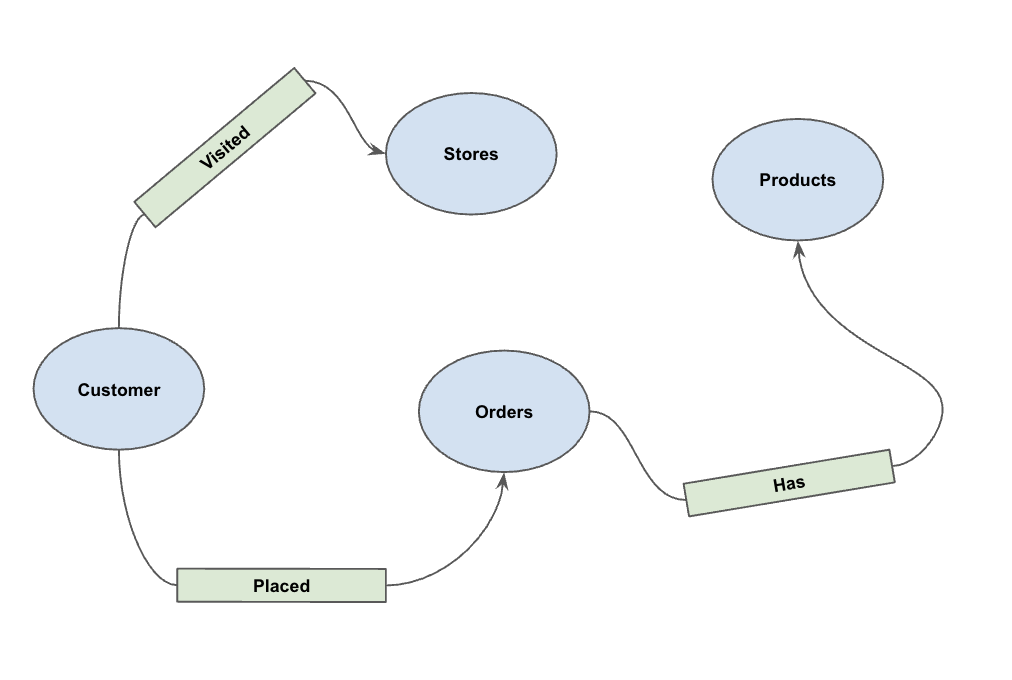
執行下列 DDL 陳述式:
CREATE OR REPLACE PROPERTY GRAPH cymbal_pets_demo.PetsOrderGraph
NODE TABLES (
  cymbal_pets_demo.customers KEY(customer_id) LABEL Customer,
  cymbal_pets_demo.products KEY(product_id) LABEL Products,
  cymbal_pets_demo.stores KEY(store_id) LABEL Stores,
  cymbal_pets_demo.orders KEY(order_id) LABEL Orders
)
EDGE TABLES (
  cymbal_pets_demo.orders as customer_to_store_edge
    KEY (order_id)
    SOURCE KEY (customer_id) references customers(customer_id)
    DESTINATION KEY (store_id) references stores(store_id)
    LABEL Visited
    PROPERTIES ALL COLUMNS,

  cymbal_pets_demo.order_items
    KEY (order_item_id)
    SOURCE KEY (order_id) references orders(order_id)
    DESTINATION KEY (product_id) references products(product_id)
    LABEL Has
    PROPERTIES ALL COLUMNS,

  cymbal_pets_demo.orders as customer_to_orders_edge
    KEY (order_id)
    SOURCE KEY (customer_id) references customers(customer_id)
    DESTINATION KEY (order_id) references orders(order_id)
    LABEL Placed
    PROPERTIES ALL COLUMNS,

  cymbal_pets_demo.co_related_products_for_angelica
    KEY (angelica_product_id)
    SOURCE KEY (angelica_product_id) references products(product_id)
    DESTINATION KEY (other_product_id) references products(product_id)
    LABEL BoughtTogether
    PROPERTIES ALL COLUMNS
);
這會建立圖表 PetsOrderGraph,讓我們可以使用 GRAPH_TABLE 運算子執行圖表遍歷。
6. 以視覺化方式呈現所有顧客的購買記錄
在本程式碼研究室的視覺化和建議部分,我們將使用 BigQuery Studio 中的原生圖表視覺化功能。這樣我們就能輕鬆查看圖表結果。
或者,您也可以使用 IPython Magics 在 BigQuery Graph Notebook 中以視覺化方式呈現資料。新增 %%bigquery 魔法指令和 TO_JSON 函式後,即可如後續章節所示,將結果視覺化。
假設 Cymbal Pets 想要取得所有顧客的 360 度視覺化資料,以及他們在特定時間範圍內進行的購買交易。
在新的 BigQuery Studio 分頁中執行下列指令:
GRAPH cymbal_pets_demo.PetsOrderGraph
  # finds the customer node and then finds all
  # the Orders nodes that are connected to that customer through the
  # Placed relationship
  MATCH (customer:Customer)-[placed:Placed]->(ordr:Orders)-[has:Has]->(product:Products)
  # filters the Orders nodes to only include those where the
  # order_date is within the last 3 months.
  WHERE ordr.order_date >= date('2024-11-27')
  # # This line finds all the Products nodes that are connected to the
  # # filtered Orders nodes through the Has relationship.
  MATCH p=(customer:Customer)-[placed:Placed]->(ordr:Orders)-[has:Has]->(product:Products)
  LIMIT 40
  RETURN
    TO_JSON(p) as paths
如要以圖表呈現結果,請在「查詢結果」窗格中按一下「圖表」。

7. 以視覺化方式呈現 Angelica 的購買記錄
假設 Cymbal Pets 想要深入瞭解名為 Angelica Russell 的顧客。他們想分析 Angelica 在過去 3 個月內購買的產品,以及顧客造訪的商店。
GRAPH cymbal_pets_demo.PetsOrderGraph
  # finds the customer node with the name "Angelica Russell" and then finds all
  # the Orders nodes that are connected to that customer through the
  # Placed relationship and all the Products nodes that are connected to the
  # filtered Orders nodes through the Has relationship.
   MATCH p=(customer:Customer {first_name: 'Angelica', last_name: 'Russell'})-[placed:Placed]->(ordr:Orders)-[has:Has]->(product:Products)
  # filters the Orders nodes to only include those where the
  # order_date is within the last 3 months.
  WHERE ordr.order_date >= date('2024-11-27')
  # finds the Stores nodes where Angelica placed order from
  MATCH p2=(customer)-[visited:Visited]->(store:Stores)
  RETURN
    TO_JSON(p) as path, TO_JSON(p2) as path2
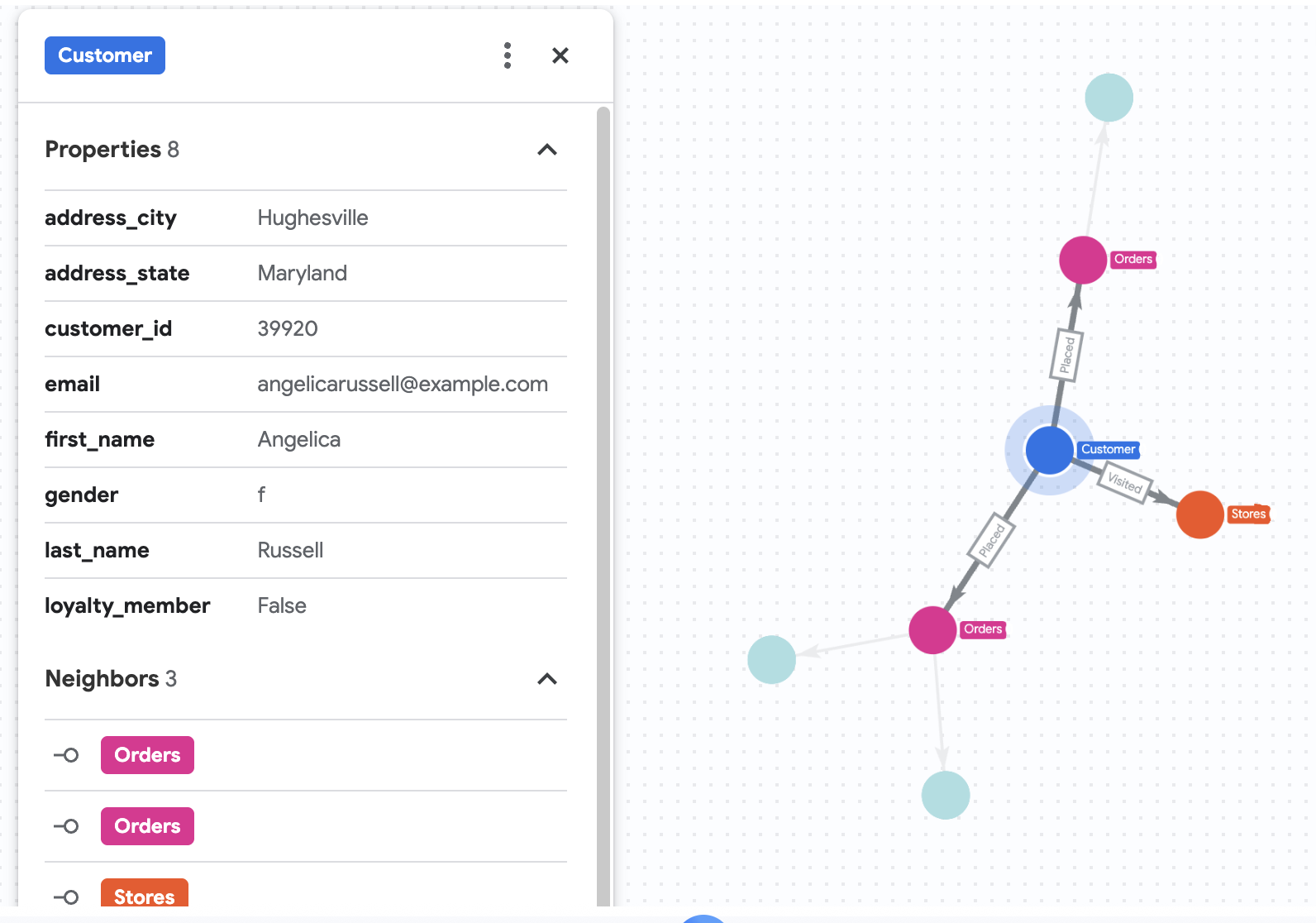
8. 使用向量搜尋功能推薦產品
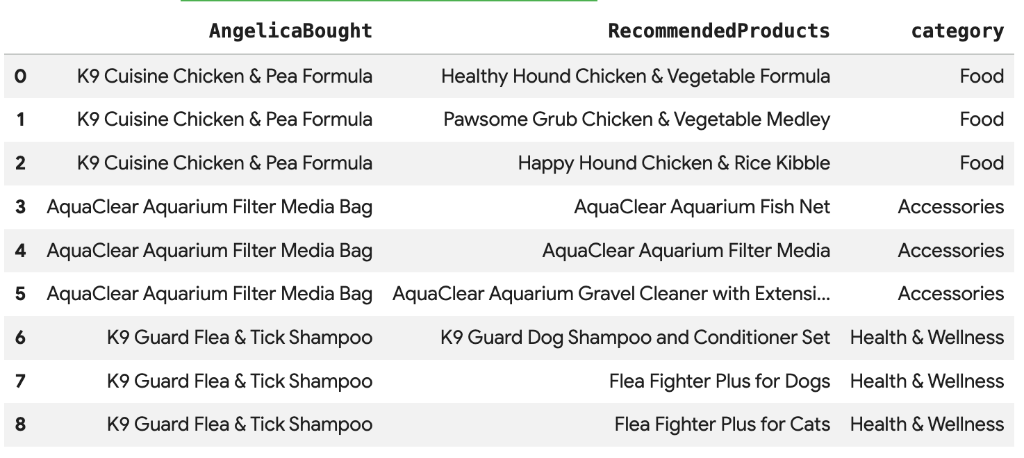
Cymbal Pets 想根據 Angelica 最近購買的產品,向她推薦其他產品。我們可以運用向量搜尋,找出與她過往購買產品的嵌入項目相似的產品。
在新的 Colab 儲存格中執行下列 SQL 指令碼。這個指令碼:
- 識別 Angelica 最近購買的產品。
- 使用
VECTOR_SEARCH從products表格中找出前 4 項類似產品。
注意:這個步驟假設您已執行 AI.GENERATE_EMBEDDINGS,在產品資料表中建立嵌入項目資料欄。
DECLARE products_bought_by_angelica ARRAY<INT64>;

-- 1. Get IDs of products bought by Angelica
SET products_bought_by_angelica = (
  SELECT ARRAY_AGG(product_id) FROM
   GRAPH_TABLE(
    cymbal_pets_demo.PetsOrderGraph
      MATCH (c:Customer {first_name: 'Angelica', last_name: 'Russell'})-[placed:Placed]->(o:Orders)
      WHERE o.order_date >= date('2024-11-27')
      MATCH (o)-[has_edge:Has]->(p:Products)
      RETURN DISTINCT p.product_id as product_id
  ));

-- 2. Find similar products using vector search
SELECT
  query.product_name as AngelicaBought,
  base.product_name as RecommendedProducts,
  base.category
FROM
  VECTOR_SEARCH(
    TABLE cymbal_pets_demo.products,
    'embedding',
    (SELECT * FROM cymbal_pets_demo.products
     WHERE product_id IN UNNEST(products_bought_by_angelica)),
    'embedding',
    top_k => 4)
WHERE query.product_name <> base.product_name;
畫面上應會顯示與 Angelica 購買商品語意相似的建議產品清單。
9. 使用「一起購買」和 Jaccard 相似度進行推薦
另一項強大的推薦技術是「協同過濾」,也就是推薦其他使用者經常一起購買的產品。
我們可以從顧客到他們購買的產品,再到購買這些產品的其他顧客,最後到這些顧客購買的其他產品,遍歷整個圖表來找出這些產品。
運用 Jaccard 相似度克服熱門度偏誤
雖然共同購買次數原始資料很有用,但可能會偏向熱門產品。熱門產品可能只是偶然與許多項目一起購買。
Jaccard 相似度會將共同購買次數正規化,讓推薦內容更進一步。這項指標會測量兩組之間的相似度 (在本例中,是包含各項產品的訂單組)。
Jaccard 相似度公式如下:

地點:
- A 交集 B 是指同時包含產品 A 和產品 B 的訂單數量 (共同購買次數)。
- A 是指包含產品 A 的訂單總數。
- B 是包含產品 B 的訂單總數。
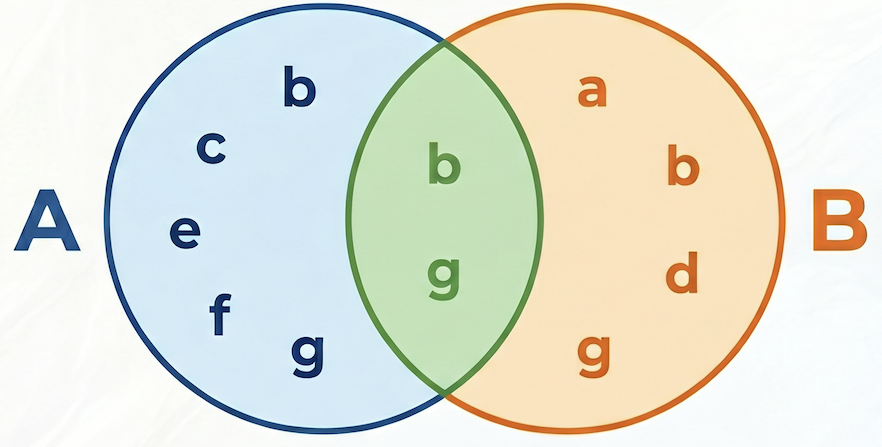
在以下範例中,集合 A = {b,c,e,f,g},集合 B = {a,d,b,g},兩者的交集 A⋂B = {b,g},聯集 A⋃B = {a,b,c,d,e,f,g},因此 A 和 B 之間的 Jaccard 相似度為 2 / 7 = 0.285714
候選人生成和重新排序
在處理大量資料集的實際推薦系統中,計算所有可能產品配對的複雜相似度分數 (例如 Jaccard) 通常不切實際。常見的做法是採用兩階段式方法:
- 候選項目生成:使用簡單快速的指標 (例如原始共同購買次數),篩選搜尋空間並找出可管理數量的候選項目 (例如前 10 名)。
- 重新排序:套用更精確但運算量較大的指標 (例如 Jaccard 相似度),為一小組候選項目排序,並選取最終的熱門推薦項目。
在本程式碼研究室中,我們將遵循下列模式:
- 第 1 階段:根據原始共同購買次數,執行查詢找出每項產品共同購買次數前 10 名的產品,並將這些產品儲存在表格中。
- 第 2 階段:使用圖形查詢擷取這些候選項目,依據 Jaccard 相似度排序,並傳回前 3 個項目。
[!WARNING] 缺點:在第 1 階段依原始計數篩選時,我們可能會失去高特定性但低頻率的共同購買「喚回」。如果某產品與其他產品極為相似,但兩者都很少被購買,該產品可能不會進入前 10 名候選名單,因此錯失良機。
執行下列查詢,計算原始共同購買次數和 Jaccard 相似度,並依原始次數儲存前 10 名候選項目:
CREATE OR REPLACE TABLE cymbal_pets_demo.co_related_products_for_angelica AS
-- Calculate the total number of orders for each product
WITH ProductOrderCounts AS (
    SELECT product_id, COUNT(DISTINCT order_id) as total_count
    FROM cymbal_pets_demo.order_items
    GROUP BY product_id
),
-- Calculate the intersection of each product pairs
CoPurchases AS (
    SELECT
        angelicaProduct.product_id AS angelica_product_id,
        otherProduct.product_id AS other_product_id,
        count(DISTINCT otherOrder.order_id) AS co_purchase_count
    FROM
        GRAPH_TABLE (cymbal_pets_demo.PetsOrderGraph
          MATCH (angelica:Customer {first_name: 'Angelica', last_name: 'Russell'})-[:Placed]->(o:Orders)-[:Has]->(angelicaProduct:Products)
          WHERE o.order_date >= date('2024-11-27')
          WITH angelica, angelicaProduct
          MATCH (otherCustomer:Customer)-[:Placed]->(otherOrder:Orders)-[:Has]->(angelicaProduct)
          WHERE otherCustomer <> angelica
          WITH angelicaProduct, otherOrder
          MATCH (otherOrder)-[:HAS]->(otherProduct:Products)
          WHERE angelicaProduct <> otherProduct
          RETURN angelicaProduct, otherProduct, otherOrder
        )
    GROUP BY
        angelicaProduct.product_id, otherProduct.product_id
)
SELECT * FROM (
    SELECT
        cp.angelica_product_id,
        cp.other_product_id,
        cp.co_purchase_count,
        -- The Jaccard calculation, which is the intersection of A and B divided by (A + B - intersection)
        SAFE_DIVIDE(cp.co_purchase_count, (poc1.total_count + poc2.total_count - cp.co_purchase_count)) AS jaccard_similarity,
        ROW_NUMBER() OVER (PARTITION BY cp.angelica_product_id ORDER BY cp.co_purchase_count DESC) AS rn
    FROM CoPurchases cp
    JOIN ProductOrderCounts poc1 ON cp.angelica_product_id = poc1.product_id
    JOIN ProductOrderCounts poc2 ON cp.other_product_id = poc2.product_id
)
WHERE rn <= 10;
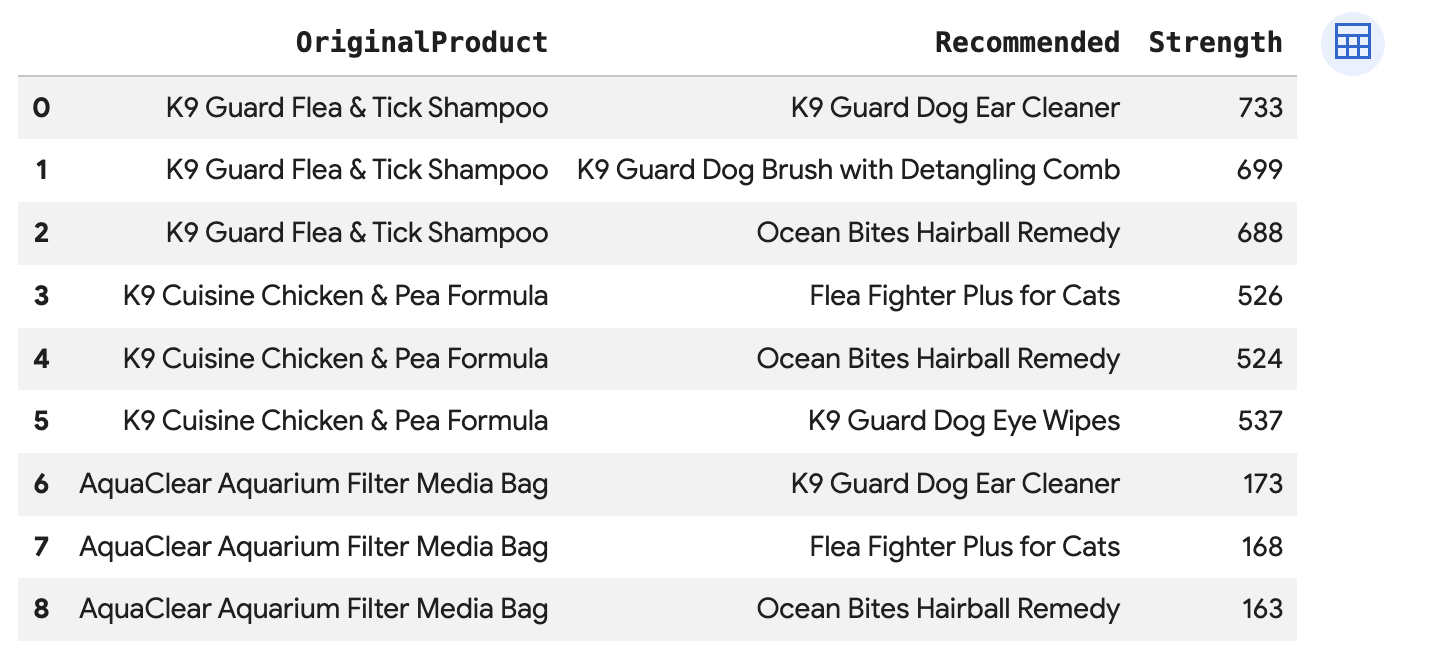
執行這項查詢,直接透過 BoughtTogether 邊緣連結,針對 Angelica 的每筆購買交易推薦前 3 大產品,並顯示共同購買次數和 Jaccard 相似度:
SELECT * FROM GRAPH_TABLE(
  cymbal_pets_demo.PetsOrderGraph
  MATCH (customer:Customer {first_name: 'Angelica', last_name: 'Russell'})-[placed:Placed]->(ordr:Orders)
  WHERE ordr.order_date >= date('2024-11-27')
  MATCH (ordr)-[has:Has]->(product:Products)
  MATCH (product)-[bought_together:BoughtTogether]->(recommended_product:Products)
  RETURN
    product.product_name AS OriginalProduct,
    recommended_product.product_name AS Recommended,
    bought_together.co_purchase_count AS Strength,
    bought_together.jaccard_similarity AS JaccardSimilarity
)
-- Rank product recommendations by Jaccard Similarity
QUALIFY ROW_NUMBER() OVER (PARTITION BY OriginalProduct ORDER BY JaccardSimilarity DESC) <= 3
ORDER BY OriginalProduct;
這項查詢會從「Customer」>「Order」>「Product」>「(BoughtTogether)」>「Recommended Product」進行遍歷,根據集體購買行為顯示建議,並擷取相似度分數。
10. 清理
如要避免系統持續向您的 Google Cloud 帳戶收取費用,請刪除本程式碼研究室建立的資源。
刪除資料集和所有資料表:
DROP SCHEMA IF EXISTS cymbal_pets_demo CASCADE;
如果您是為這個程式碼研究室建立新專案,也可以刪除該專案:
gcloud projects delete $PROJECT_ID
11. 恭喜
恭喜!您已使用 BigQuery Graph 成功建構 360 度全方位客戶視圖和推薦引擎。
目前所學內容
- 如何在 BigQuery 中建立屬性圖。
- 如何將資料載入圖形節點和邊。
- 如何使用
GRAPH_TABLE和MATCH查詢圖形模式。 - 如何結合圖表查詢與向量搜尋,取得混合建議。
後續步驟
- 請參閱 BigQuery 圖表說明文件。
- 進一步瞭解 BigQuery 的向量搜尋功能。