1. 소개
이 도움말에서는 Dialogflow가 BigQuery와 연결되고 대화형 환경 중에 수집된 정보를 저장하는 방법을 알아봅니다. 이전 실습 '예약 일정 도구'에서 만든 동일한 에이전트를 사용합니다. 에이전트의 GCP 프로젝트에서 BigQuery에 데이터 세트와 테이블을 만듭니다. 그런 다음 BigQuery 데이터 세트 및 테이블 ID를 사용하여 원래 주문 처리 정보를 수정합니다. 마지막으로 상호작용이 BigQuery에 기록되는지 테스트합니다.
다음은 사용자부터 주문 처리 및 BigQuery까지의 이벤트 시퀀스 다이어그램입니다.

학습할 내용
- BigQuery에서 데이터 세트 및 테이블을 만드는 방법
- Dialogflow 이행에서 BigQuery 연결 세부정보를 설정하는 방법
- fulfillment 테스트 방법
기본 요건
- Dialogflow의 기본 개념 및 구성 기본 대화형 디자인을 다루는 Dialogflow 소개 튜토리얼 동영상은 다음 동영상을 참고하세요.
- Dialogflow를 사용하여 약속 스케줄러 챗봇을 빌드합니다.
- Dialogflow의 항목 이해
- Fulfillment: Dialogflow를 Google Calendar와 통합합니다.
2. BigQuery에서 데이터 세트 및 테이블 만들기
- Google Cloud 콘솔로 이동합니다.
- Cloud 콘솔에서 메뉴 아이콘 ☰ > 빅데이터 > BigQuery로 이동합니다.
- 왼쪽 창의 리소스에서 프로젝트 ID를 클릭합니다. 선택하면 오른쪽에 데이터 세트 만들기가 표시됩니다.
- 데이터 세트 만들기를 클릭하고 이름을 지정합니다.

- 데이터 세트가 생성되면 왼쪽 패널에서 데이터 세트를 클릭합니다. 오른쪽에 CREATE TABLE이 표시됩니다.
- 테이블 만들기를 클릭하고 테이블 이름을 입력한 다음 화면 하단의 테이블 만들기를 클릭합니다.
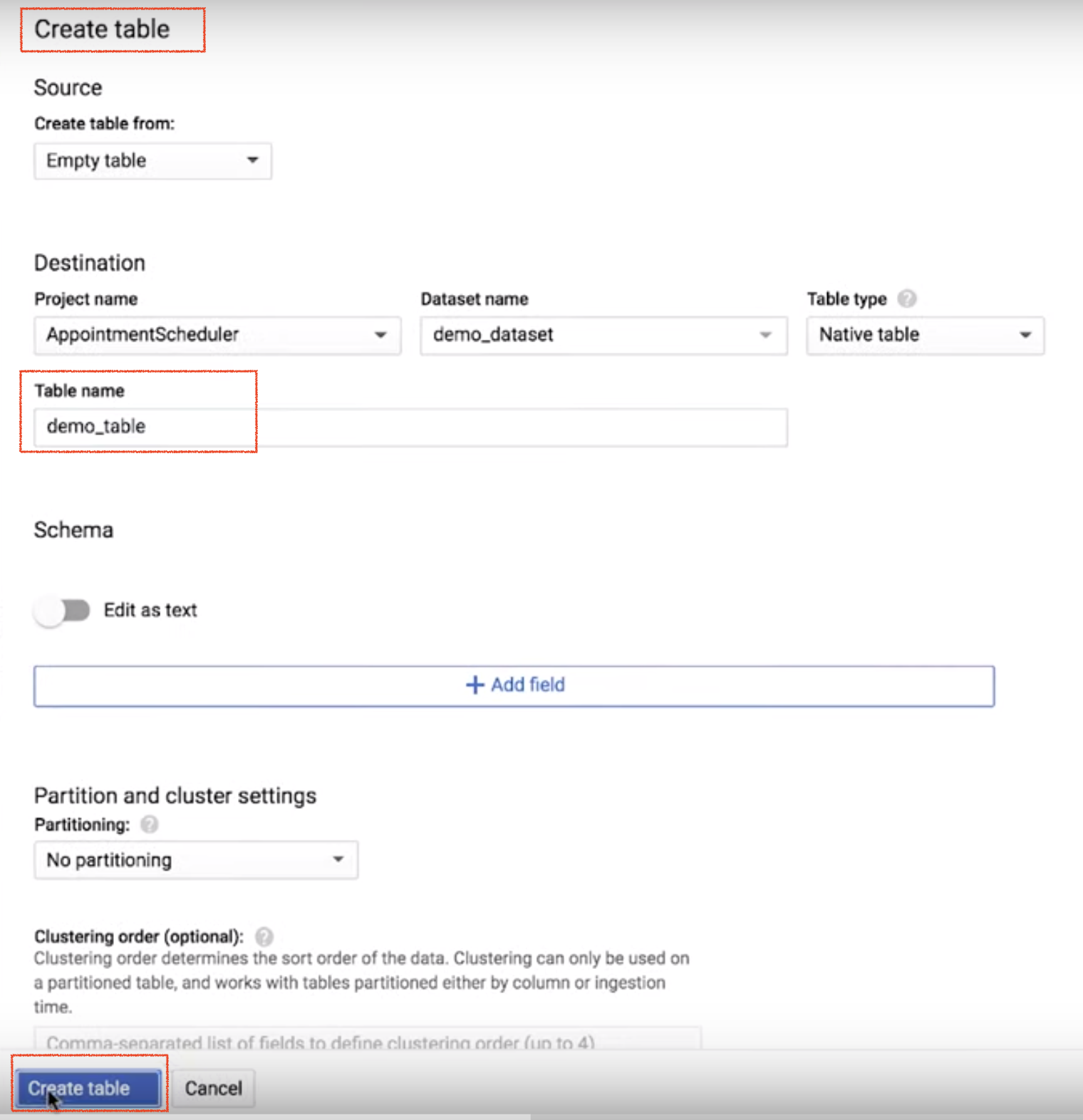
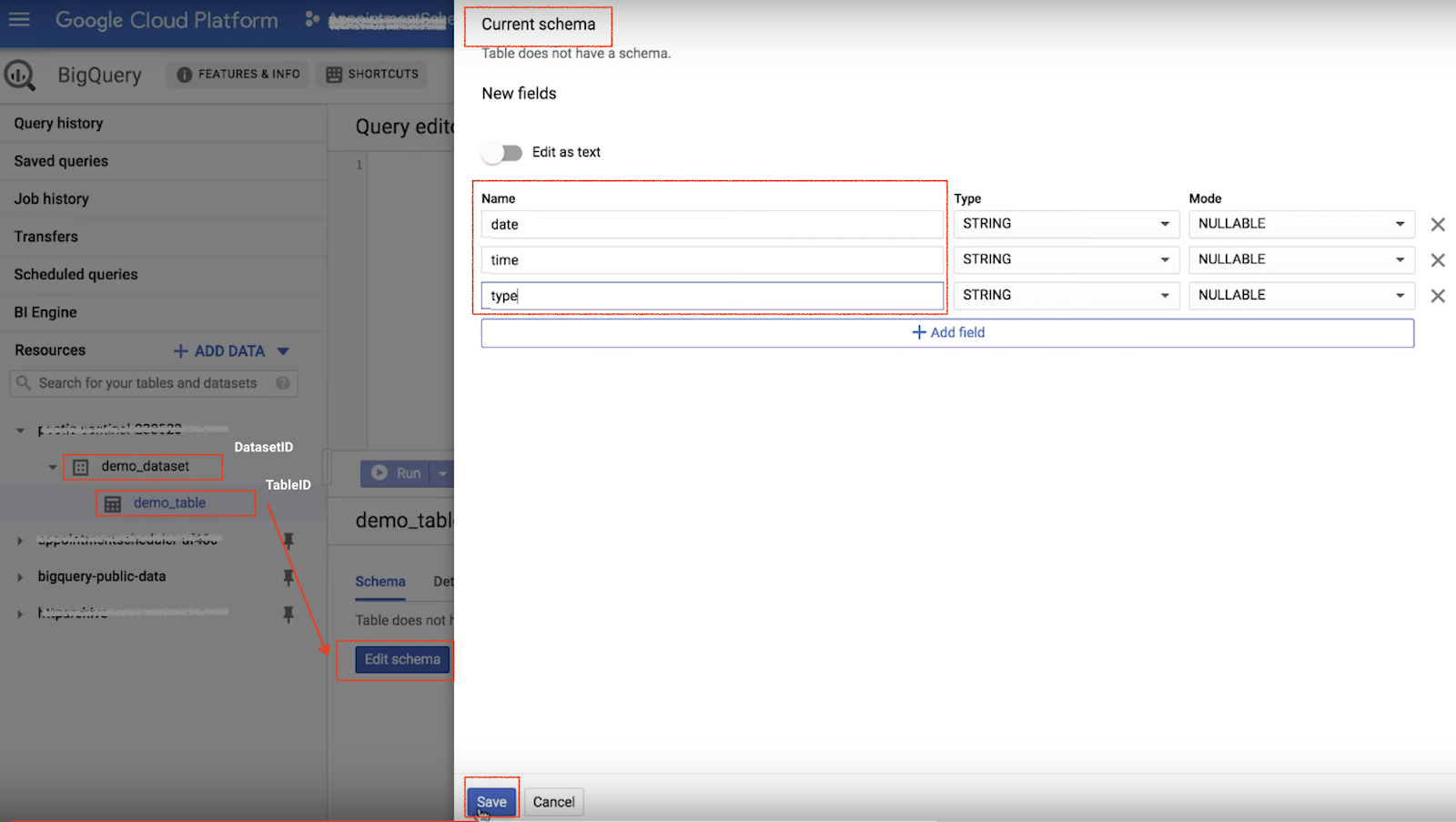
- 테이블이 생성되면 왼쪽 패널에서 테이블을 클릭합니다. 오른쪽에 '스키마 수정' 버튼이 표시됩니다.
- 스키마 편집 버튼을 클릭하고 필드 추가 버튼을 클릭합니다. 'date' 필드를 추가하고 'time' 및 'type'에 대해서도 동일한 작업을 반복합니다.
- 'DatasetID' 및 'tableID'를 기록해 둡니다.
3. Dialogflow Fulfillment에 BigQuery 연결 세부정보 추가
- Dialogflow 에이전트를 열고 Fulfillment 인라인 편집기를 사용 설정합니다. 이와 관련해 도움이 필요한 경우 이전 실습을 참고하세요 .
- Dialogflow 처리 인라인 편집기의 package.json에 BigQuery 종속 항목이 포함되어 있는지 확인합니다. '@google-cloud/bigquery': '0.12.0' 이 도움말을 따를 때는 최신 버전의 BigQuery를 사용해야 합니다.
- index.js에서 BigQuery 테이블에 날짜, 시간, 예약 유형을 추가하는 'addToBigQuery' 함수를 만듭니다.
- index.js 파일의 TODO 섹션에 projectID, datasetID, tableID를 추가하여 BigQuery 테이블과 데이터 세트를 풀필먼트에 올바르게 연결합니다.
{
  "name": "dialogflowFirebaseFulfillment",
  "description": "Dialogflow fulfillment for the bike shop sample",
  "version": "0.0.1",
  "private": true,
  "license": "Apache Version 2.0",
  "author": "Google Inc.",
  "engines": {
    "node": "6"
  },
  "scripts": {
    "lint": "semistandard --fix \"**/*.js\"",
    "start": "firebase deploy --only functions",
    "deploy": "firebase deploy --only functions"
  },
  "dependencies": {
    "firebase-functions": "2.0.2",
    "firebase-admin": "^5.13.1",
    "actions-on-google": "2.2.0",
    "googleapis": "^27.0.0",
    "dialogflow-fulfillment": "0.5.0",
    "@google-cloud/bigquery": "^0.12.0"
  }
}
'use strict';

const functions = require('firebase-functions');
const {google} = require('googleapis');
const {WebhookClient} = require('dialogflow-fulfillment');
const BIGQUERY = require('@google-cloud/bigquery');


// Enter your calendar ID below and service account JSON below
const calendarId = "XXXXXXXXXXXXXXXXXX@group.calendar.google.com";
const serviceAccount = {}; // Starts with {"type": "service_account",...

// Set up Google Calendar Service account credentials
const serviceAccountAuth = new google.auth.JWT({
  email: serviceAccount.client_email,
  key: serviceAccount.private_key,
  scopes: 'https://www.googleapis.com/auth/calendar'
});

const calendar = google.calendar('v3');
process.env.DEBUG = 'dialogflow:*'; // enables lib debugging statements

const timeZone = 'America/Los_Angeles';
const timeZoneOffset = '-07:00';

exports.dialogflowFirebaseFulfillment = functions.https.onRequest((request, response) => {
  const agent = new WebhookClient({ request, response });
  console.log("Parameters", agent.parameters);
  const appointment_type = agent.parameters.AppointmentType;

// Function to create appointment in calendar
function makeAppointment (agent) {
    // Calculate appointment start and end datetimes (end = +1hr from start)
    const dateTimeStart = new Date(Date.parse(agent.parameters.date.split('T')[0] + 'T' + agent.parameters.time.split('T')[1].split('-')[0] + timeZoneOffset));
    const dateTimeEnd = new Date(new Date(dateTimeStart).setHours(dateTimeStart.getHours() + 1));
    const appointmentTimeString = dateTimeStart.toLocaleString(
      'en-US',
      { month: 'long', day: 'numeric', hour: 'numeric', timeZone: timeZone }
    );

// Check the availability of the time, and make an appointment if there is time on the calendar
    return createCalendarEvent(dateTimeStart, dateTimeEnd, appointment_type).then(() => {
      agent.add(`Ok, let me see if we can fit you in. ${appointmentTimeString} is fine!.`);

// Insert data into a table
      addToBigQuery(agent, appointment_type);
    }).catch(() => {
      agent.add(`I'm sorry, there are no slots available for ${appointmentTimeString}.`);
    });
  }

  let intentMap = new Map();
  intentMap.set('Schedule Appointment', makeAppointment);
  agent.handleRequest(intentMap);
});

//Add data to BigQuery
function addToBigQuery(agent, appointment_type) {
    const date_bq = agent.parameters.date.split('T')[0];
    const time_bq = agent.parameters.time.split('T')[1].split('-')[0];
    /**
    * TODO(developer): Uncomment the following lines before running the sample.
    */
    //const projectId = '<INSERT your own project ID here>';
    //const datasetId = "<INSERT your own dataset name here>";
    //const tableId = "<INSERT your own table name here>";
    const bigquery = new BIGQUERY({
      projectId: projectId
    });
   const rows = [{date: date_bq, time: time_bq, type: appointment_type}];

   bigquery
  .dataset(datasetId)
  .table(tableId)
  .insert(rows)
  .then(() => {
    console.log(`Inserted ${rows.length} rows`);
  })
  .catch(err => {
    if (err && err.name === 'PartialFailureError') {
      if (err.errors && err.errors.length > 0) {
        console.log('Insert errors:');
        err.errors.forEach(err => console.error(err));
      }
    } else {
      console.error('ERROR:', err);
    }
  });
  agent.add(`Added ${date_bq} and ${time_bq} into the table`);
}

// Function to create appointment in google calendar
function createCalendarEvent (dateTimeStart, dateTimeEnd, appointment_type) {
  return new Promise((resolve, reject) => {
    calendar.events.list({
      auth: serviceAccountAuth, // List events for time period
      calendarId: calendarId,
      timeMin: dateTimeStart.toISOString(),
      timeMax: dateTimeEnd.toISOString()
    }, (err, calendarResponse) => {
      // Check if there is a event already on the Calendar
      if (err || calendarResponse.data.items.length > 0) {
        reject(err || new Error('Requested time conflicts with another appointment'));
      } else {
        // Create event for the requested time period
        calendar.events.insert({ auth: serviceAccountAuth,
          calendarId: calendarId,
          resource: {summary: appointment_type +' Appointment', description: appointment_type,
            start: {dateTime: dateTimeStart},
            end: {dateTime: dateTimeEnd}}
        }, (err, event) => {
          err ? reject(err) : resolve(event);
        }
        );
      }
    });
  });
}
코드에서 이벤트 시퀀스 이해하기
- 인텐트 맵은 Google Calendar에서 약속을 예약하기 위해 'makeAppointment' 함수를 호출합니다.
- 동일한 함수 내에서 BigQuery에 로깅할 데이터를 전송하기 위해 'addToBigQuery' 함수가 호출됩니다.
4. 챗봇과 BigQuery 테이블 테스트하기
챗봇을 테스트해 보겠습니다. 시뮬레이터에서 테스트하거나 이전 도움말에서 배운 웹 또는 Google Home 통합을 사용할 수 있습니다.
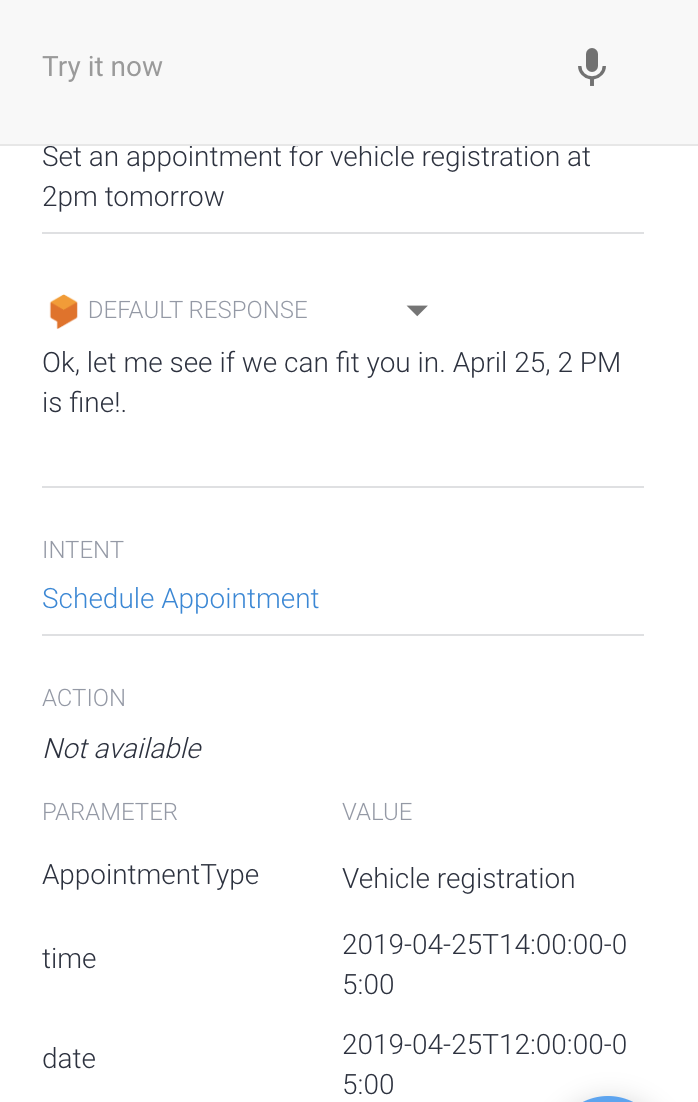
- 사용자: '내일 오후 2시에 차량 등록 약속 잡아 줘'
- 챗봇 응답: '알겠습니다. 예약이 가능한지 확인해 보겠습니다. 8월 6일 오후 2시가 좋습니다.'
- 응답 후 BigQuery 테이블을 확인합니다. 'SELECT * FROM
projectID.datasetID.tableID' 쿼리 사용

5. 삭제
이 시리즈의 다른 실습을 진행할 계획이라면 지금 정리하지 말고 시리즈의 모든 실습을 완료한 후에 정리하세요.
Dialogflow 에이전트 삭제하기
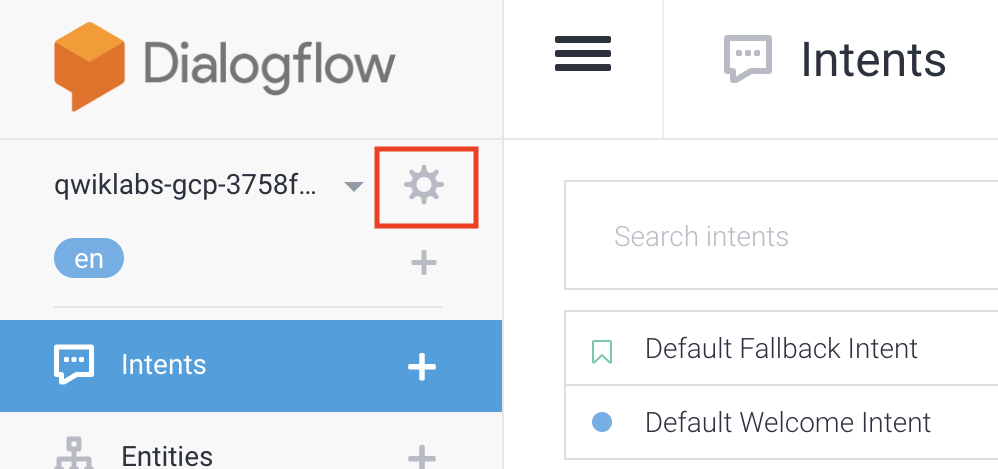
- 기존 에이전트 옆에 있는 톱니바퀴 아이콘
 을 클릭합니다.
- 일반 탭에서 하단으로 스크롤하여 이 상담사 삭제를 클릭합니다.
- 표시되는 창에 DELETE를 입력하고 삭제를 클릭합니다.
6. 축하합니다.
챗봇을 만들고 BigQuery와 통합하여 유용한 정보를 얻었습니다. 이제 챗봇 개발자가 되었습니다.
다음 리소스를 확인해 보세요.
- Dialogflow GitHub 페이지에서 코드 샘플을 확인하세요.