
1. Introduction
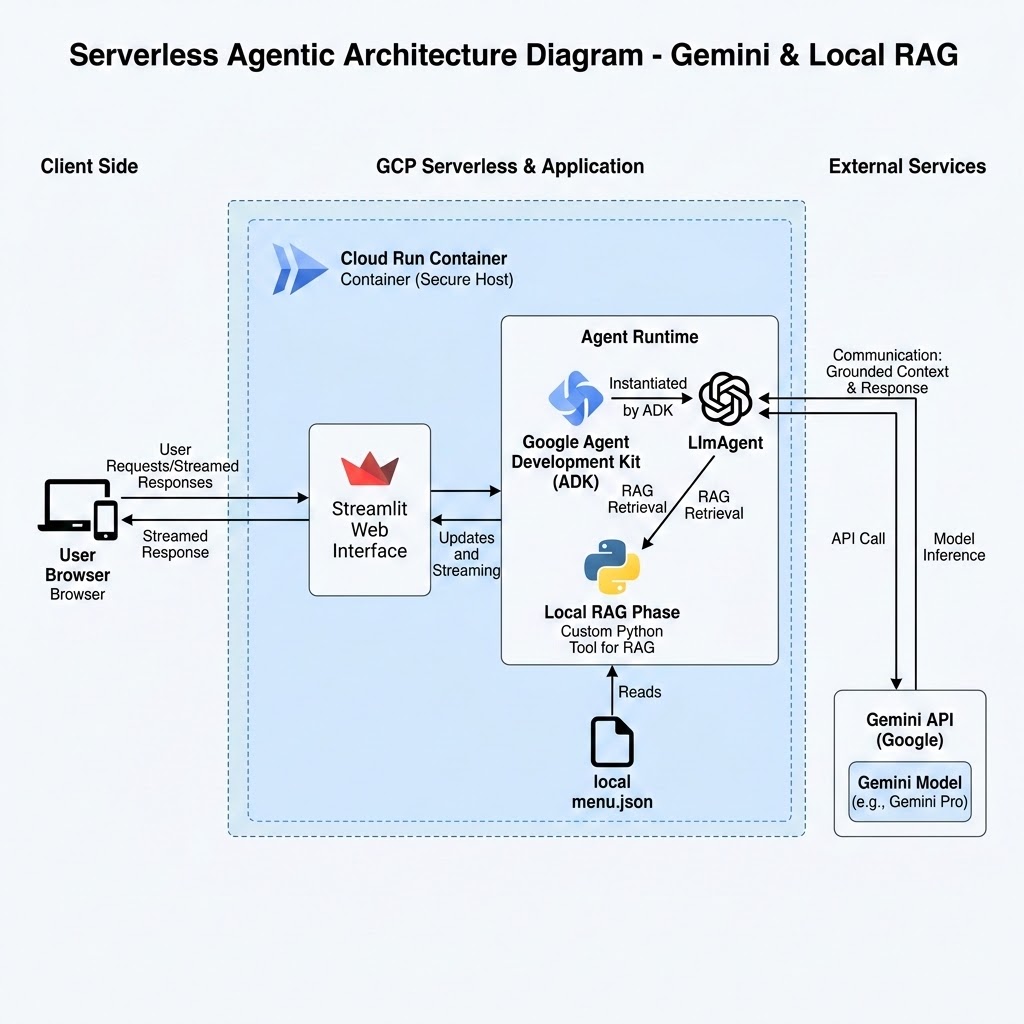
In this codelab, you will build an interactive AI Barista agent for a coffee shop. Using Google's open-source Agent Development Kit (ADK) and the Gemini 3.5 Flash model, you'll implement Retrieval-Augmented Generation (RAG) to ground the agent's recommendations in a mock menu dataset. Finally, you'll wrap the agent in a Streamlit user interface and deploy it to Cloud Run.
What you'll do
- Create a RAG data source (
menu.json) containing coffee items, tags, and allergens. - Build an AI agent using the ADK
LlmAgentand connect a Python tool to load the menu data. - Wrap the agent in a Streamlit chat application that manages conversation history.
- Deploy the Streamlit app to Cloud Run using source-based deployment.
- Test RAG grounding and allergen awareness.
What you'll need
- A web browser such as Chrome.
- A Google Cloud project with billing enabled.
- Basic familiarity with Python.
This codelab is for developers of all levels, including beginners.
Estimated Cost: Less than $1.00 USD.
2. Before you begin
Create a Google Cloud Project
- In the Google Cloud Console, select or create a Google Cloud project.
- Make sure that billing is enabled for your Cloud project. Learn how to confirm billing is enabled on a project.
Start Cloud Shell
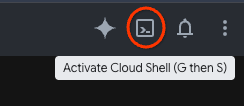
- Click Activate Cloud Shell at the top of the Google Cloud console.
- Verify authentication:
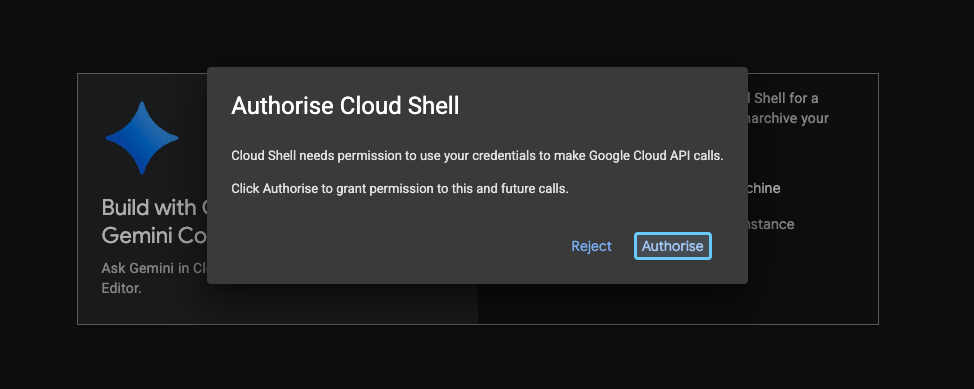
gcloud auth list
- Confirm your active project is set:
gcloud config get project
If the project ID shown is not correct or none is set, run:
gcloud config set project <YOUR_PROJECT_ID>
Enable APIs
Run this command to enable all the required APIs:
gcloud services enable \
 run.googleapis.com \
 aiplatform.googleapis.com \
 cloudbuild.googleapis.com
3. Set up your project
In this step, you will initialize your project environment variables and create a working directory for your project.
- In your active Cloud Shell session, initialize the following project environment variables:
export PROJECT_ID=$(gcloud config get-value project)
Note: Use closest region
Find your closest region and replace insert-region-here with it in the following command:
export REGION=[insert-region-here]
- Create and change into a new project directory named
coffee-barista-agent:
mkdir coffee-barista-agent && cd coffee-barista-agent
4. Create the mock menu data source
To ground the AI Barista and prevent it from hallucinating non-existent items, you'll create a local menu dataset. The agent will read this file at runtime via a custom tool.
- Create and open
menu.jsonin the Cloud Shell Editor:
cloudshell edit menu.json
- Paste the following JSON content into the editor and save the file:
[
  {
    "name": "Espresso Solo",
    "description": "A single shot of rich, bold espresso.",
    "price": 2.50,
    "tags": ["strong", "hot", "dairy-free", "sugar-free"],
    "allergens": []
  },
  {
    "name": "Oat Milk Honey Latte",
    "description": "Creamy steamed oat milk with espresso and a touch of honey.",
    "price": 5.00,
    "tags": ["sweet", "hot", "dairy-free"],
    "allergens": []
  },
  {
    "name": "Cold Brew Coffee",
    "description": "Smooth, slow-steeped cold brew served over ice.",
    "price": 4.00,
    "tags": ["strong", "cold", "dairy-free", "sugar-free"],
    "allergens": []
  },
  {
    "name": "Seasonal Pumpkin Latte",
    "description": "Spiced pumpkin sauce, espresso, and steamed milk, topped with whipped cream.",
    "price": 5.50,
    "tags": ["sweet", "hot", "seasonal"],
    "allergens": ["dairy"]
  },
  {
    "name": "Classic Croissant",
    "description": "Flaky, buttery traditional French pastry.",
    "price": 3.50,
    "tags": ["bakery", "savory"],
    "allergens": ["wheat", "dairy"]
  },
  {
    "name": "Vegan Blueberry Muffin",
    "description": "Soft, sweet muffin packed with real blueberries, entirely plant-based.",
    "price": 3.75,
    "tags": ["bakery", "sweet", "dairy-free", "vegan"],
    "allergens": ["wheat"]
  },
  {
    "name": "Nitro Cold Brew",
    "description": "Cold brew infused with nitrogen for a super smooth, creamy head.",
    "price": 4.50,
    "tags": ["strong", "cold", "dairy-free", "sugar-free"],
    "allergens": []
  },
  {
    "name": "Iced Caramel Macchiato",
    "description": "Chilled milk and vanilla syrup marked with espresso and caramel drizzle.",
    "price": 5.25,
    "tags": ["sweet", "cold"],
    "allergens": ["dairy"]
  }
]
- Verify that the JSON file is correctly formatted:
cat menu.json | python3 -m json.tool > /dev/null && echo "Valid JSON!"
💬 Discussion: Local JSON vs. Live Databases
Why are we using a simple local menu.json file instead of a live database?
For a quick tutorial or prototype, a local JSON file eliminates initial database setup time and complexity. However, in a real-world enterprise production application, you would connect the agent to a managed database like Cloud Firestore, AlloyDB, or Cloud SQL.
Using a live database allows coffee shop managers to add seasonal items, update prices, or adjust allergen tags dynamically without rebuilding the container image or redeploying the application code. We will be using a live database as an optional step later in the codelab.
5. Build the ADK agent
Now you'll install the required packages and build the core ADK agent logic. You will define a get_menu() tool and pass it to an LlmAgent.
- Create and open
requirements.txtin the Cloud Shell Editor:
cloudshell edit requirements.txt
- Paste the following dependencies into the editor and save the file:
google-adk==2.2.0
streamlit==1.56.0
- Create and open
agent.pyin the Cloud Shell Editor:
cloudshell edit agent.py
- Paste the following code to
agent.py:
# agent.py
import json

from google.adk.agents import LlmAgent

# [START get_menu]
def get_menu() -> str:
    """Retrieves the coffee shop menu from menu.json.

    Returns:
        str: A JSON string representing the list of menu items.
    """
    try:
        with open("menu.json", "r") as f:
            menu_data = json.load(f)
            return json.dumps(menu_data)
    except Exception as e:
        return json.dumps({"error": f"Could not retrieve menu: {str(e)}"})
# [END get_menu]

# Create the barista agent
barista_agent = LlmAgent(
    name="barista_agent",
    model="gemini-3.5-flash",
    instruction="""You are a friendly barista at ☕ Coffee Shop.
Your job is to recommend drinks and pastries to customers based on their preferences.

Rules you MUST follow:
1.  You must recommend items ONLY from the menu returned by get_menu().
2.  Do NOT recommend or suggest any item that is not present in the menu.
3.  If a user's preference is vague or unclear, ask exactly ONE friendly clarifying question to narrow down what they want (e.g., cold or hot, sweet or strong, coffee or pastry).
4.  Be warm and welcoming, but remain professional.
5.  Ground your recommendations in the actual tags, descriptions, and allergens listed in the menu (e.g., if a user is dairy-free, recommend ONLY items tagged 'dairy-free' or with no dairy allergens).
""",
    tools=[get_menu]
)

from google.adk.apps import App

# Define the App object
app = App(
    name="coffee_barista_app",
    root_agent=barista_agent
)
- Create and open
app.pyin the Cloud Shell Editor:
cloudshell edit app.py
- Paste the following code to
app.py:
# app.py
import streamlit as st
import json

# Set page config for a premium look
st.set_page_config(
    page_title="☕ Coffee Shop - Barista Bot",
    page_icon="☕",
    layout="wide",
    initial_sidebar_state="expanded"
)

# Custom CSS to make the header sticky (adapts to light/dark themes)
st.markdown("""
<style>
    div[data-testid="element-container"]:has(.header-container),
    div.element-container:has(.header-container) {
        position: sticky;
        top: 2.875rem;
        z-index: 999;
        background-color: transparent;
        padding-bottom: 10px;
    }
</style>
""", unsafe_allow_html=True)

# App Header (using inline styles for the permanent coffee theme look)
st.markdown("""
<div class="header-container" style="text-align: center; padding: 20px; background: linear-gradient(135deg, #8B5E3C, #6F4E37); color: white; border-radius: 12px; box-shadow: 0 4px 15px rgba(0,0,0,0.1);">
    <h1 style="margin: 0; font-size: 2.5rem; font-weight: 700; color: white;">☕ ☕ Coffee Shop</h1>
    <p style="margin: 5px 0 0 0; font-size: 1.1rem; opacity: 0.9; color: white;">Your friendly AI Barista is ready to help you find the perfect drink or pastry!</p>
</div>
""", unsafe_allow_html=True)

# Load Menu for the sidebar
# [START load_menu]
try:
    with open("menu.json", "r") as f:
        menu_items = json.load(f)
except Exception as e:
    st.error(f"Error loading menu: {e}")
    menu_items = []
# [END load_menu]

# Sidebar Menu & Configuration
with st.sidebar:
    st.markdown("## ☕ Coffee Shop Menu")
    st.markdown("Explore our offerings and ask the barista for recommendations.")
    st.markdown("---")

    for item in menu_items:
        with st.container(border=True):
            st.markdown(f"**{item['name']}**  •  **${item['price']:.2f}**")
            st.caption(item['description'])

            # Tags & Allergens as native badges
            tags = " ".join([f"`{t}`" for t in item.get("tags", [])])
            if tags:
                st.markdown(tags)

            allergens = ", ".join(item.get("allergens", []))
            if allergens:
                st.markdown(f"⚠️ *Allergens: {allergens}*")

# Chat Interface
if "session_id" not in st.session_state:
    import uuid
    st.session_state.session_id = str(uuid.uuid4())

if "runner" not in st.session_state:
    from google.adk.runners import InMemoryRunner
    from agent import app
    st.session_state.runner = InMemoryRunner(app=app)

if "messages" not in st.session_state:
    st.session_state.messages = [
        {"role": "assistant", "content": "Welcome to ☕ Coffee Shop! What can I get started for you today?"}
    ]

# Display existing messages
for msg in st.session_state.messages:
    with st.chat_message(msg["role"]):
        st.markdown(msg["content"])

# User Input
if prompt := st.chat_input("Ask for recommendations (e.g., 'What dairy-free pastries do you have?')"):
    # Display user message
    with st.chat_message("user"):
        st.markdown(prompt)
    st.session_state.messages.append({"role": "user", "content": prompt})

    # Generate response
    with st.chat_message("assistant"):
        try:
            import asyncio

            # Run the ADK runner asynchronously using asyncio.run
            async def fetch_response():
                return await st.session_state.runner.run_debug(
                    prompt,
                    session_id=st.session_state.session_id
                )

            res_events = asyncio.run(fetch_response())

            response_text = "".join([
                part.text
                for event in res_events
                if event.content and event.content.parts
                for part in event.content.parts
                if part.text
            ])

            st.markdown(response_text)
            st.session_state.messages.append({"role": "assistant", "content": response_text})
        except Exception as e:
            st.error(f"Apologies, I ran into an error: {e}")
💬 Discussion: Model Tradeoffs & Retrieval Token Efficiency
Why call a function tool to retrieve the menu instead of just pasting the entire menu text into the agent's system instructions?
Token economy! Putting 8 items in the prompt is cheap, but what if the coffee shop expands to 500 items, including custom ingredients? Pasting large datasets directly into the system prompt inflates your prompt token count, increasing transaction costs and API response latency on every single query.
By using an ADK tool, the agent dynamically asks to read the menu ONLY when needed. The LLM only receives the relevant menu data as context, minimizing the prompt token size.
💬 Discussion: Memory State & Production Stores
Does the chat history stored inside Streamlit's st.session_state persist when a user closes their browser tab?
No, it doesn't. st.session_state is completely in-memory and unique to the active browser connection. If a user refreshes the page or closes the tab, their conversation history with the barista is lost.
For a production application, you would connect the ADK runner to a persistent storage backend like Cloud Firestore or Redis. ADK provides built-in service abstractions (like SessionService) that make it simple to save and resume chat history across page reloads and devices.
6. Deploy the agent to Cloud Run
You will deploy the Streamlit application directly from source using Cloud Run's built-in buildpacks. To follow the principle of least privilege, you will create and deploy using a dedicated custom service account rather than using the default Compute Engine service account.
- Create a dedicated service account:
  gcloud iam service-accounts create barista-agent-sa \
    --description="Service account for Coffee Barista ADK agent on Cloud Run" \
    --display-name="Barista Agent Service Account"
- Grant the Gemini Enterprise Agent Platform user role (
roles/aiplatform.user) to the new service account:
  gcloud projects add-iam-policy-binding $PROJECT_ID \
    --member="serviceAccount:barista-agent-sa@$PROJECT_ID.iam.gserviceaccount.com" \
    --role="roles/aiplatform.user"
- Deploy the service using
gcloud run deploy, passing the new service account email via the--service-accountflag:
gcloud run deploy coffee-barista \
  --source . \
  --region $REGION \
  --allow-unauthenticated \
  --labels dev-tutorial=codelab-streamlit-rag-adk \
  --command "/cnb/lifecycle/launcher" \
  --args "sh,-c,python3 -m streamlit run app.py --server.port=\$PORT --server.address=0.0.0.0 --server.enableCORS=false --server.enableXsrfProtection=false" \
  --service-account "barista-agent-sa@$PROJECT_ID.iam.gserviceaccount.com" \
  --set-env-vars GOOGLE_GENAI_USE_ENTERPRISE=TRUE,GOOGLE_CLOUD_PROJECT=$PROJECT_ID,GOOGLE_CLOUD_LOCATION=global
- Once deployed, locate the service URL in the command output.
💬 Discussion: Deploying Containers vs. Source, and IAM Security
We deployed to Cloud Run using gcloud run deploy –source without creating a Dockerfile or a Procfile. How did Cloud Run figure out how to compile and execute our Python app?
Cloud Run uses Buildpacks under the hood to analyze your repository. Upon detecting the presence ofrequirements.txt and Python source files, the engine automatically compiles and packages a Python runtime container.
Writing a custom Dockerfile gives you complete control over your container's system packages and base layers. A Procfile is a simpler way to declare the startup command without fully configuring a container. But for quick deployments, deploying from source (--source) is highly efficient.
Why did we go through the extra step of creating a custom service account barista-agent-sa instead of just using the default Compute Engine service account?
Safety first! The default Compute Engine service account has extremely broad Editor permissions by default. Running our Cloud Run container under the default service account means if our app has a security bug, an attacker could potentially read, write, or delete other resources in our Google Cloud project.
By creating a dedicated service account and only assigning it the roles/aiplatform.user role, we follow the Principle of Least Privilege: the app has exactly the access it needs to call Gemini, and nothing more.
7. Test the RAG behavior
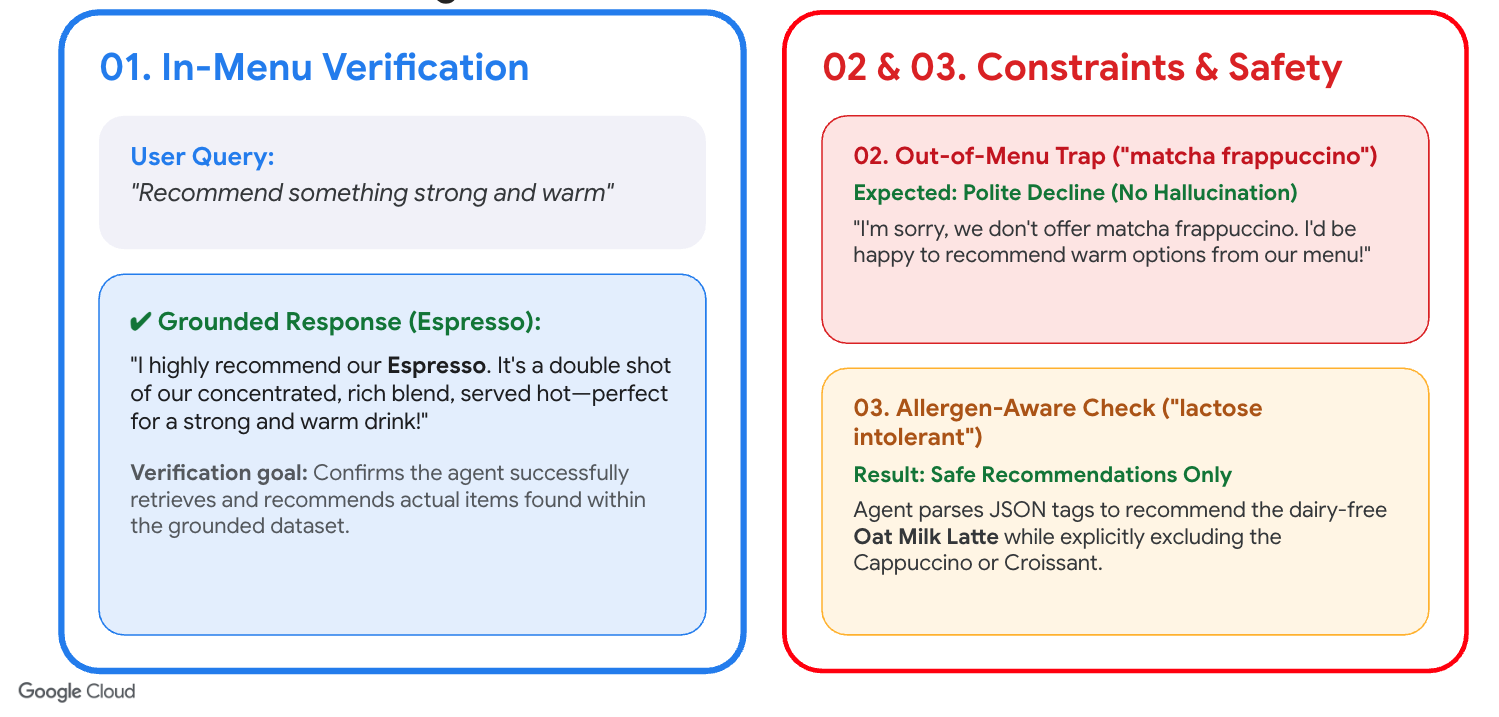
Open the Cloud Run service URL in a web browser and ask the AI Barista questions to test its grounding and safety constraints.
- In-menu request: Ask: "Recommend something strong and warm."Expected: The agent recommends Espresso.
- Out-of-menu trap: Ask: "Do you have a matcha frappuccino?"Expected: The agent politely declines and explains it is not on the menu.
- Allergen-aware request: Ask: "I'm lactose intolerant, what can I get?"Expected: The agent only recommends dairy-free menu items (like Oat Milk Latte, Espresso, Cold Brew). It does NOT recommend Cappuccino or Croissant.
8. Optional: Ground your agent in Firestore using Vector Search
In a production scenario, storing your menu items in a local menu.json file is not ideal because any change to the menu requires rebuilding the container image and redeploying the Cloud Run service.
To make the application dynamic and scalable, you can migrate your menu data to Cloud Firestore and use Vector Search to retrieve only the most relevant menu items based on semantic similarity.
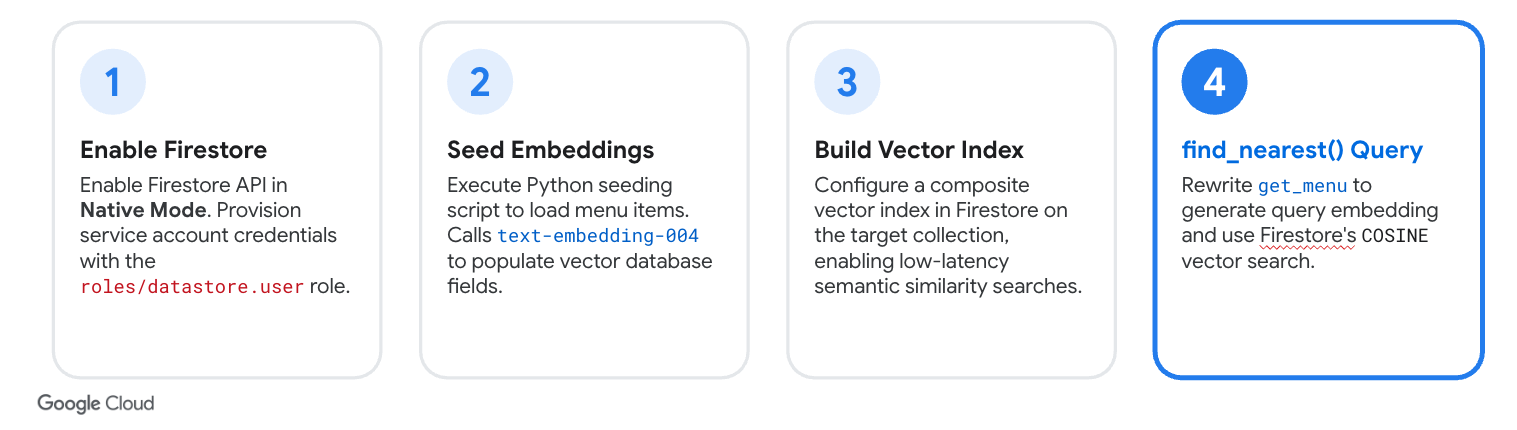
1. Enable the Firestore API and Initialize Database
Run the following commands to enable the Firestore API and create a Firestore database named coffee-menu in Native mode:
gcloud services enable firestore.googleapis.com

gcloud firestore databases create --database="coffee-menu" --location=$REGION
Note: API enablement can take 1–2 minutes to propagate. If the database creation command prompts you with API [firestore.googleapis.com] not enabled on project... Would you like to enable and retry?, type Y to proceed, or wait a minute and rerun the command.
2. Seed Firestore with the Menu Data
To quickly seed your Firestore database with the menu items from your menu.json file, you can run a Python script locally in Cloud Shell.
- Install the Firestore and GenAI client libraries locally in Cloud Shell to run the seeding script:
pip3 install google-cloud-firestore==2.27.0 google-genai==2.11.0
- Create a seeding script
seed.py:
cloudshell edit seed.py
- Paste the following code to
seed.py:
# seed.py
import json
import os
from google import genai
from google.cloud import firestore
from google.cloud.firestore_v1.vector import Vector

db = firestore.Client(database="coffee-menu")
client = genai.Client(
   vertexai=True,
   project=os.environ.get("PROJECT_ID"),
   location=os.environ.get("REGION", "us-central1")
)

with open("menu.json", "r") as f:
   menu_items = json.load(f)

for item in menu_items:
   # Use the name as the document ID
   doc_id = item["name"].lower().replace(" ", "-")

   # Generate text embedding using Gemini Enterprise Agent Platform text-embedding-005 model
   text_to_embed = f"{item['name']}: {item['description']}"
   response = client.models.embed_content(
       model="text-embedding-005",
       contents=text_to_embed,
   )
   embedding = response.embeddings[0].values

   # Add embedding vector to the menu item data
   item["embedding"] = Vector(embedding)

   db.collection("menu").document(doc_id).set(item)

print("Firestore menu collection seeded with vector embeddings successfully!")
- Run the script:
python3 seed.py
3. Create Firestore Vector Index
To perform vector searches on your menu items, you must create a composite vector index on the embedding field in your Firestore database.
Run the following command in the Cloud Shell terminal:
gcloud firestore indexes composite create \
 --collection-group=menu \
 --query-scope=COLLECTION \
 --database="coffee-menu" \
 --field-config=field-path=embedding,vector-config='{"dimension":"768", "flat": "{}"}'
Note: Firestore index creation runs in the background and can take a few minutes to complete. You can proceed with the next steps of the codelab while the index is building.
4. Grant Firestore Access to the Service Account
For your Cloud Run service to query Firestore, you must grant its service account the Cloud Datastore User (roles/datastore.user) role:
gcloud projects add-iam-policy-binding $PROJECT_ID \
 --member="serviceAccount:barista-agent-sa@$PROJECT_ID.iam.gserviceaccount.com" \
 --role="roles/datastore.user"
Note: Although we are using Cloud Firestore in Native mode, Google Cloud utilizes the unified Cloud Datastore IAM roles (roles/datastore.viewer or roles/datastore.user) to manage access control.
5. Update the Code
Now, update your code to retrieve the menu from Firestore instead of reading from menu.json.
- Open
requirements.txtin the Cloud Shell Editor:
cloudshell edit requirements.txt
- Append the Firestore and GenAI client libraries to the end of the file and save it:
google-cloud-firestore==2.27.0
google-genai==2.11.0
- Open
agent.pyin the Cloud Shell Editor:
cloudshell edit agent.py
- Locate the
# [START get_menu]block inagent.pyand replace it entirely (from# [START get_menu]to# [END get_menu]) with the following Firestore implementation:
# [START get_menu]
from google import genai
from google.cloud import firestore
from google.cloud.firestore_v1.base_vector_query import DistanceMeasure
from google.cloud.firestore_v1.vector import Vector

def get_menu(query: str) -> str:
   """Retrieves coffee shop menu items matching the user's query.

   Args:
       query: The search query or preference to find matching menu items.

   Returns:
       str: A JSON string representing the list of top matching menu items.
   """
   try:
       # Initialize clients
       db = firestore.Client(database="coffee-menu")
       client = genai.Client()

       # Generate embedding for the search query
       response = client.models.embed_content(
           model="text-embedding-005",
           contents=query,
       )
       query_vector = response.embeddings[0].values

       # Search the Firestore database using Vector Search
       results = db.collection("menu").find_nearest(
           vector_field="embedding",
           query_vector=Vector(query_vector),
           distance_measure=DistanceMeasure.COSINE,
           limit=3,
       ).stream()

       menu_data = []
       for doc in results:
           item = doc.to_dict()
           # Remove embedding field to save tokens
           item.pop("embedding", None)
           menu_data.append(item)

       return json.dumps(menu_data)
   except Exception as e:
       return json.dumps({"error": f"Could not retrieve menu: {str(e)}"})
# [END get_menu]
- Open
app.pyin the Cloud Shell Editor:
cloudshell edit app.py
- Locate the
# [START load_menu]block inapp.pyand replace it entirely (from# [START load_menu]to# [END load_menu]) with the following Firestore loading logic:
# [START load_menu]
from google.cloud import firestore

try:
   db = firestore.Client(database="coffee-menu")
   docs = db.collection("menu").stream()
   menu_items = []
   for doc in docs:
       item = doc.to_dict()
       item.pop("embedding", None)
       menu_items.append(item)
except Exception as e:
   st.error(f"Error loading menu from Firestore: {e}")
   menu_items = []
# [END load_menu]
6. Redeploy to Cloud Run
Deploy the updated application:
gcloud run deploy coffee-barista \
  --source . \
  --region $REGION \
  --allow-unauthenticated \
  --labels dev-tutorial=codelab-streamlit-rag-adk \
  --command "/cnb/lifecycle/launcher" \
  --args "sh,-c,python3 -m streamlit run app.py --server.port=\$PORT --server.address=0.0.0.0 --server.enableCORS=false --server.enableXsrfProtection=false" \
  --service-account "barista-agent-sa@$PROJECT_ID.iam.gserviceaccount.com" \
  --set-env-vars GOOGLE_GENAI_USE_ENTERPRISE=TRUE,GOOGLE_CLOUD_PROJECT=$PROJECT_ID,GOOGLE_CLOUD_LOCATION=global
7. Verify the Firestore Integration
To test the agent's connection to Firestore, add a brand-new menu item directly in Firestore and verify that the agent recommends it.
- Run the following command in Cloud Shell to write a new document to the
menucollection in Firestore using Python:
python3 -c "
import os
from google import genai
from google.cloud import firestore
from google.cloud.firestore_v1.vector import Vector

db = firestore.Client(database='coffee-menu')
client = genai.Client(
   vertexai=True,
   project=os.environ.get('PROJECT_ID'),
   location=os.environ.get('REGION', 'us-central1')
)

name = 'Matcha Green Tea Latte'
desc = 'Creamy steamed oat milk infused with premium Japanese matcha powder.'
res = client.models.embed_content(
   model='text-embedding-005',
   contents=f'{name}: {desc}'
)
embedding = res.embeddings[0].values

db.collection('menu').document('matcha-latte').set({
   'name': name,
   'description': desc,
   'price': 5.50,
   'tags': ['sweet', 'hot', 'dairy-free'],
   'allergens': [],
   'embedding': Vector(embedding)
})
print('Successfully added Matcha Latte with vector embeddings!')
"
- Refresh your Streamlit app in the browser to clear the chat session and load the new database state.
- Notice that:
- Matcha Green Tea Latte automatically appears in the sidebar menu.
- Ask the chatbot: "Do you have any matcha drinks?"
- The agent should successfully recommend the new Matcha Green Tea Latte with the description and price you just added. This confirms the agent is query-grounded directly in your live Firestore database!
9. Clean up
To avoid ongoing charges to your Google Cloud billing account, delete the deployed Cloud Run service and the custom service account.
Delete the Cloud Run service:
gcloud run services delete coffee-barista --region $REGION --quiet
Delete the custom service account:
gcloud iam service-accounts delete barista-agent-sa@$PROJECT_ID.iam.gserviceaccount.com --quiet
(Optional) Delete the Firestore database (if created):
gcloud firestore databases delete --database="coffee-menu" --quiet
Optional step: Delete the entire project. ⚠️ONLY do this if you created a dedicated project for this lab
gcloud projects delete $PROJECT_ID
10. Congratulations
Congratulations! You have built and deployed a Retrieval-Augmented Generation (RAG) AI Barista agent using Google's ADK and Cloud Run.
What you've learned
- Constructing simple RAG tools in Python.
- Utilizing the ADK
LlmAgentandInMemoryRunner. - Creating stateful chat experiences in Streamlit.
- Deploying Streamlit to Cloud Run using source-based builds.