
1. Introduction
Overview
Where does building with AI start today? It starts with a spark: an idea worth prototyping. Google AI Studio's Build Mode turns that spark into reality through "vibe coding." By leveraging Gemini models, you can design, test, and deploy full-stack web applications entirely through conversational code generation.
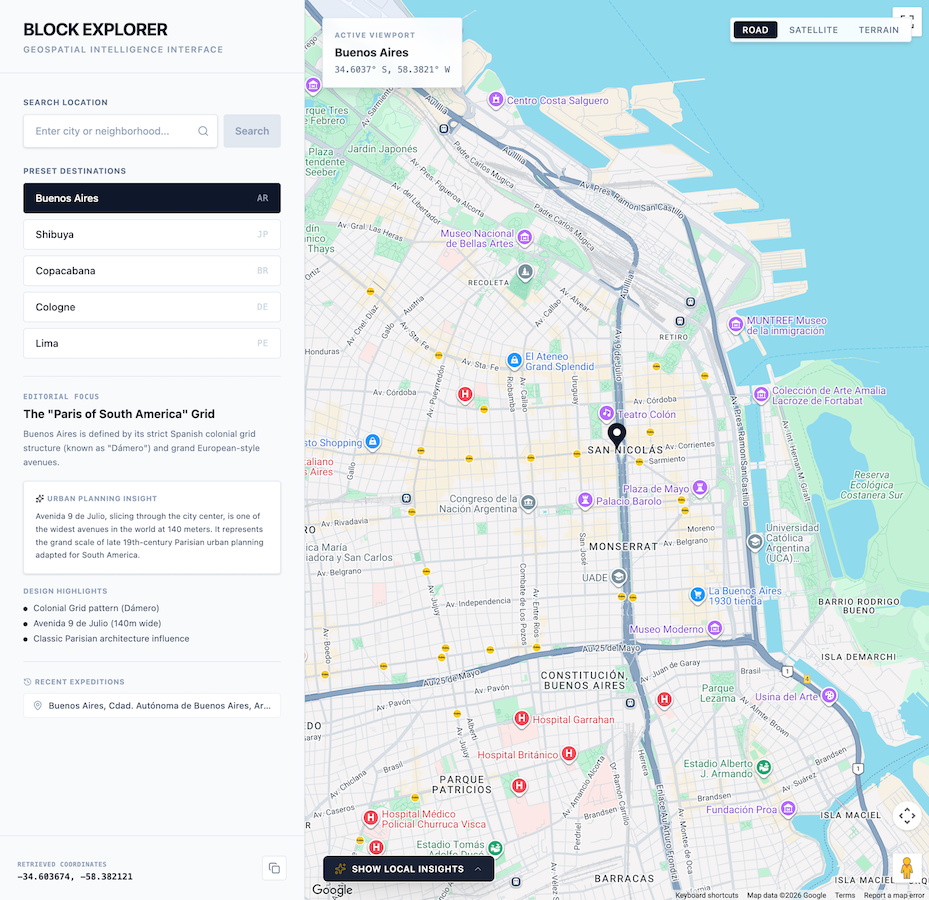
In this codelab, you will build Block Explorer, an interactive geospatial game that combines real-world mapping data with generative AI. You will use AI Studio to generate the application and integrate it with Google Maps Platform and the Gemini API. You'll then learn how to deploy the finished application straight to Cloud Run, making it available for others to try.
What you'll do
- Use Google AI Studio to prototype an interactive geospatial mapping and trivia web application.
- Enable and automatically provision a Google Maps Platform Demo Key directly within the AI Studio workspace.
- Implement dynamic address geocoding, places discovery, and AI-generated trivia quizzes using natural language prompts.
- Enhance trivia quiz accuracy by integrating Maps Grounding Lite.
- Test and iterate on the application in the interactive preview sandbox.
- Deploy the application to Cloud Run directly from the Google AI Studio UI.
What you'll learn
- How to use Google AI Studio's Build mode to rapidly prototype a full-stack service using natural language.
- How to use Google Maps Platform APIs to build applications with geospatial data.
- How to ground LLM prompts with real-world geospatial context to generate dynamic quizzes and local insights.
- How to deploy your AI Studio application as a serverless container on Cloud Run.
Here's a preview of the pp:
2. Set up your project
Before launching AI Studio, verify your account status, prerequisites, and API access.
Google Account & Tier Information
- If you don't already have a Google Account, create a Google Account.
- Tip: Use a personal Google Account for this lab if possible. Group, corporate, or school accounts may enforce policies that disable experimental features or cloud integrations.
- Review the billing details for deployments:
- Google Cloud Starter Tier: Allows publishing up to two full-stack applications in a select region at no cost, without establishing a full Google Cloud billing account.
- Standard Deployment: Connects to an existing paid Google Cloud project and expands storage limits, CPU resources, and APIs.
Google Maps Platform Demo Key
To streamline prototyping, Google AI Studio natively integrates with Google Maps Platform. This provides a zero-friction way to test and build with core Google Maps Platform APIs (such as the Maps JavaScript API, Geocoding API, Places API, and Routes API) directly in your project. AI Studio will automatically generate a Google Maps Platform Demo Key for you.
Key benefits of the Demo Key:
- No Credit Card or Billing Setup Required: You can immediately prototype and evaluate without configuring a Google Cloud billing account.
- Generous Prototyping Quota: Includes up to 100 free requests per day per API for testing and iteration.
- Seamless Built-in Integration: You do not need to navigate to external portals or copy-paste credentials. Google AI Studio automatically detects when your application needs to integrate with Google Maps Platform and configures things for you.
3. Create the Application Shell in AI Studio Build Mode
You'll start by creating the application shell using Google AI Studio.
- Navigate to the Google AI Studio Apps panel and click New App (or select the Build tab).
- In the prompt input box, enter the initial description for your geospatial application. You can also click the Google Maps Platform discovery chip under prompt suggestions:
Build a highly polished, responsive, split-screen application. This application should be called "Block Explorer". It is meant to be a geospatial exploration app. It will use Google Maps Platform.

Key Features & Functionality:

-   Split-Screen Layout: On desktop, a 1/3-width left-side editorial control panel and a 2/3-width right-side full-height map.
-   Include a search bar where users can type a location such as a city or neighborhood. Submitting should issue a Geocoding request to the Google Geocoding V4 API REST endpoint (https://geocode.googleapis.com/v4/geocode/address/). Then pan the map to the geocoded location.
-   Interactive Google Map: Render the Map inside an interactive container allowing users to pan, drag, and zoom freely. Place customized markers representing the currently selected/geocoded location.
-   Also include five buttons for presets the users can click on: Buenos Aires, Shibuya, Copacabana, Cologne, and Lima. Clicking on this should geocode the location and pan the map there.
-   Make sure to also include a mechanism to clearly show error messages when they occur so users can easily troubleshoot.
- Click Build to start the application generation process.
AI Studio will begin generating the application code. If prompted to choose a design theme, select any style you prefer.
Enable Google Maps Platform & Provision Demo Key
Google Maps Platform provides the Geocoding API, which converts human-readable address queries (such as "Shibuya" or "Buenos Aires") into geographic coordinates (latitude and longitude) to center maps and display markers.
When you send a prompt with geospatial intent (such as requesting Google Maps, a store locator, or local exploration), AI Studio automatically detects the geospatial requirement and assists with key provisioning:
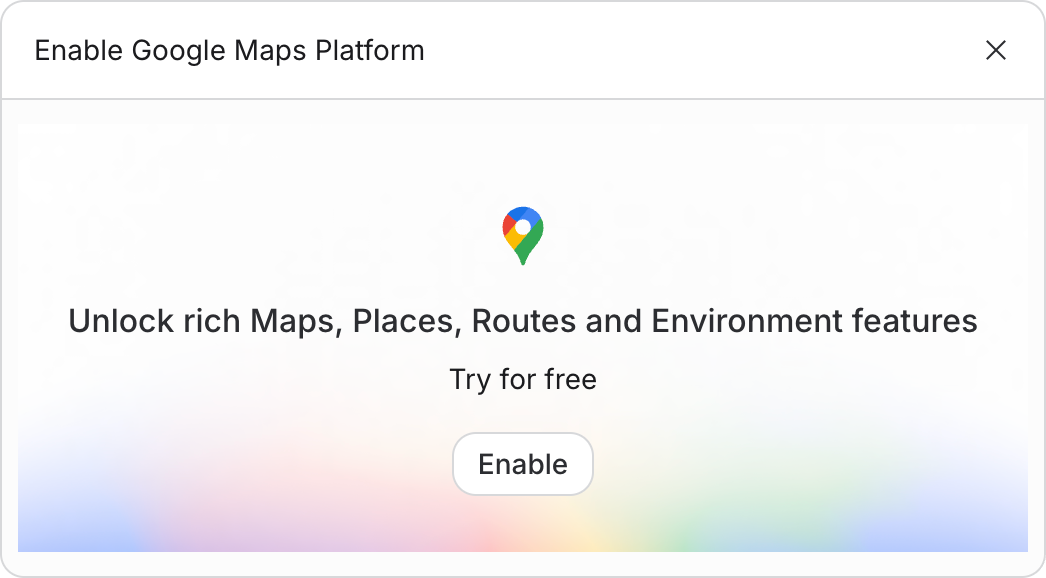
- In-Context Activation Curtain: An inline card titled "Set up Google Maps Platform" appears in the conversation turn.
- Accept Terms & Enable:
- Review and accept the Maps Demo Project Terms of Service (and Starter Tier Additional Terms of Service if prompted).
- Click Enable Google Maps.
- Automated Key Provisioning & Secret Injection: AI Studio automatically provisions a Google Maps Platform Demo Key on Google Hosted Project (GHP) infrastructure and injects it directly into your project's secrets under the name
GOOGLE_MAPS_PLATFORM_KEY. - Instant Live Preview: The application preview sandbox immediately refreshes with a live, fully functional interactive Google Map.
Test the application in the preview sandbox by entering a new location or selecting one of the preset location buttons!
4. Add Local Insights with the Gemini API
Next, you will integrate the Gemini API to generate rich, localized insights about places as users explore the map.
- Send the following prompt to the AI assistant in the chat window:
Now, let's bring in the AI using the Gemini API.
1.  Once geocoding successfully identifies the City and State (e.g., "Miami, Florida"), trigger a call to the Gemini API (using the gemini-3.8-flash model).
2.  Use the following prompt template for the AI:
   "You are a local tour guide for [City, State]. Give me exactly 3 short, highly engaging, and unusual or surprising fun facts about this place. Keep each fact under 2 sentences. Format the response as a clean HTML unordered list (<ul>) so I can inject it directly."
3.  Display these fun facts in a beautiful "Local Insights" banner on the bottom portion of the map screen. Add a subtle loading spinner while the AI is thinking.
4.  Make sure to make this handling robust. If an API request fails, display a user-friendly error notification in the UI.
- Verify in the preview pane that selecting or searching for a location displays dynamic fun facts generated by Gemini.
You should see AI Studio update the application, resulting in the "Local Insights" section added to the bottom of the screen.

5. Build the AI-Generated Trivia Quiz
Now that your application retrieves location coordinates and localized insights, combine these capabilities to generate interactive trivia quizzes based on the selected destination.
- Send the quiz generation prompt to the agent:
Now let's build the actual game! We will have Gemini generate a 3-question quiz based on the real places we just got information about.

After the local insights are generated, show the user a button to "Test their local knowledge". Once clicked, offer them 3 options to choose from:
-   Local cuisine
-   Art and culture
-   Local history

Once selected, generate a 3-question quiz based on the category and the place. The quiz should be multiple choice. Once the user submits the quiz show them their score and the correct answer.
- Play through the generated quiz in the preview window to test state management, answer selection, and score rendering.
6. Integrate Maps Grounding Lite
By default, Gemini generates facts and quizzes using knowledge from its training data. To improve accuracy and leverage real-time spatial data, integrate Maps Grounding Lite. This service connects Gemini with live data directly from Google Maps Platform.
- Send the following prompt in AI Studio:
Add a toggle to make the quiz more difficult. Call this "Hyperlocal mode". When enabled, use the Google Maps Grounding Lite service with the Gemini API to fetch more local data, making the quiz more difficult.

Add information for the user so they know that Hyperlocal Mode is more difficult and how it works.
- Test the Hyperlocal mode toggle in the preview window to verify grounded quiz generation.
LLMs can hallucinate specific business hours, recent openings, or exact place IDs. Maps Grounding Lite grounds responses with real Google Maps Places entities and attributions, significantly improving factual accuracy for the trivia questions.
7. Deploy to Cloud Run
Once your prototype is fully functional, deploy it as a public serverless container on Cloud Run directly from AI Studio.
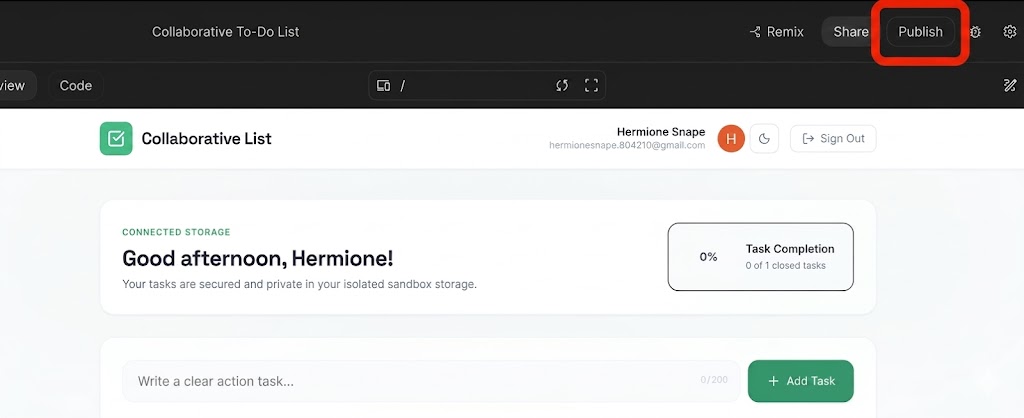
- In the top-right corner of Google AI Studio, click the Publish button to initiate the deployment wizard.
- Click Get Started to configure your Google Cloud project.
- Verify the target Google Cloud Project drop-down matches your intended deployment project.
- AI Studio will automatically generate a unique service identifier for the Cloud Run instance.
- Click Publish App.
- The container build, registration, and service deployment will execute in the background. This process normally completes in 2–4 minutes.
- When deployment finishes, copy the generated App URL and visit the live application link in a browser tab!
8. Review security and production best practices
When transitioning this app from a prototype to a production environment, keep these security pillars in mind:
1. Google Maps API Key Restrictions
Never leave production Google Maps API keys unrestricted. In the Google Cloud Console:
- API Restrictions: Restrict the key so it can only call specific APIs (Maps JavaScript API, Geocoding API, Places API).
- Application Restrictions: Restrict the key using HTTP Referrers (e.g.,
https://yourgame.com/*) to prevent unauthorized usage on third-party sites.
2. Securing the Gemini API Key
The Gemini API key should never be exposed in client-side JavaScript.
- Production Architecture: Build a lightweight backend service (e.g., Cloud Run or Cloud Functions) to act as a proxy. Your frontend calls your backend (
/api/get-fun-facts), and the backend safely communicates with Google AI Studio using an environment variable (GEMINI_API_KEY).
9. Clean up resources
To avoid any unforeseen billing charges or clean up your workspace resources:
- In Google AI Studio, go to the Apps page.
- Find your application in the grid or list.
- Click the trash icon to delete the app state and unpublish the service from Cloud Run.
- If you deployed using a standard project and want to shut down all resources entirely, go to the Google Cloud Console Project Settings and delete the underlying project.
10. Conclusion
Congratulations! You have designed, developed, and deployed an AI-powered geospatial web application from Google AI Studio. You have successfully used Google Maps Platform APIs to build an interactive game, powered by real world data.
Visit this link to claim the Completed Builder Journey badge!
To continue your journey, head to goo.gle/builders for your next lab.