

1. 简介
概览
如今,使用 AI 构建应用从何处着手?首先要有一个值得制作原型的灵感。Google AI Studio 的构建模式可通过“氛围编程 (vibe coding)”将灵感火花变为现实。借助 Gemini 模型,您可以通过对话式代码生成来设计、测试和部署全栈 Web 应用。
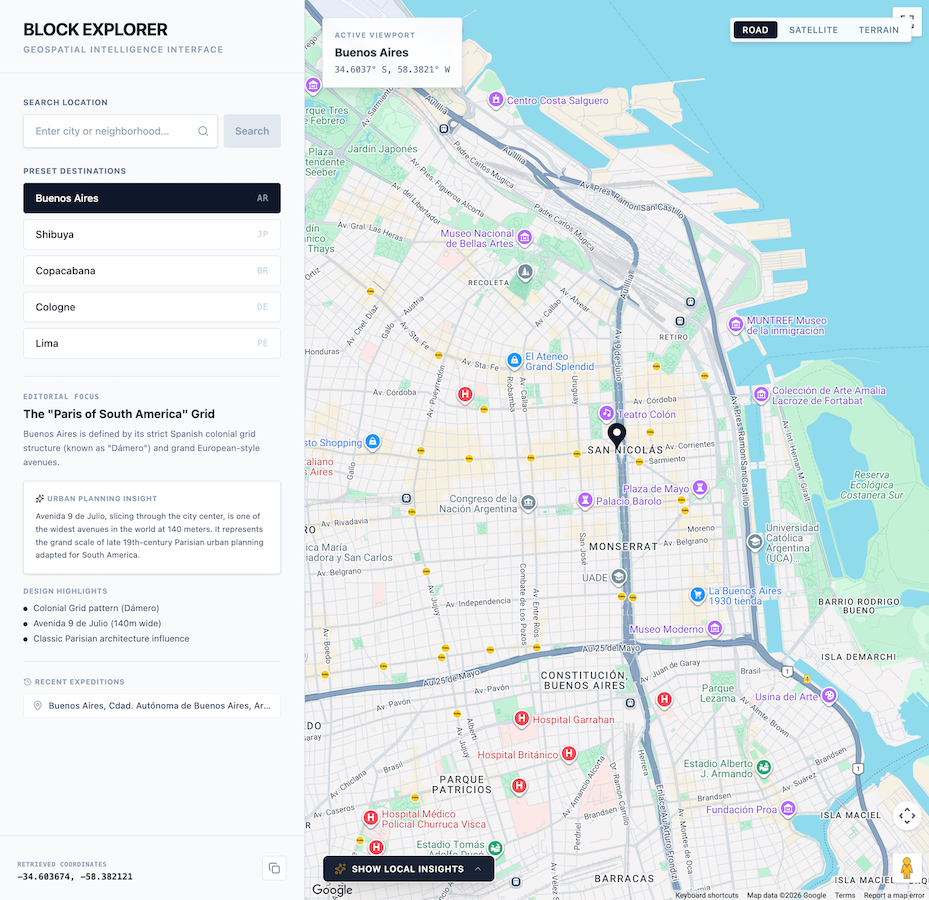
在此 Codelab 中,您将构建 Block Explorer,这是一款将真实世界地图数据与生成式 AI 相结合的交互式地理空间游戏。您将使用 AI Studio 生成应用,并将其与 Google Maps Platform 和 Gemini API 集成。然后,您将学习如何将完成的应用直接部署到 Cloud Run,以便其他人试用。
您将执行的操作
- 使用 Google AI Studio 开发一个交互式地理空间地图和知识问答 Web 应用原型。
- 直接在 AI Studio 工作区中启用并自动预配 Google Maps Platform Demo Key。
- 使用自然语言提示实现动态地址地理编码、地点发现和 AI 生成的冷知识问答。
- 通过集成 Maps Grounding Lite 来提高知识问答的准确性。
- 在互动式预览沙盒中测试和迭代应用。
- 直接从 Google AI Studio 界面将应用部署到 Cloud Run。
学习内容
- 如何使用 Google AI Studio 的构建模式,通过自然语言快速设计全栈服务原型。
- 如何使用 Google Maps Platform API 构建包含地理空间数据的应用。
- 如何利用真实世界的地理空间背景信息来接地 LLM 提示,以生成动态测验和本地数据洞见。
- 如何将 AI Studio 应用作为无服务器容器部署到 Cloud Run。
以下是 pp 的预览:
2. 设置项目
在启动 AI Studio 之前,请验证您的账号状态、前提条件和 API 访问权限。
Google 账号和级别信息
- 如果您还没有 Google 账号,请创建一个 Google 账号。
- 提示:如果可以,请在此实验中使用个人 Google 账号。群组账号、公司账号或学校账号可能会强制执行停用实验性功能或云集成功能的政策。
- 查看部署的结算明细:
- Google Cloud 新手体验层级:允许在所选区域中免费发布最多两个全栈应用,无需建立完整的 Google Cloud 结算账号。
- 标准部署:连接到现有的付费 Google Cloud 项目,并扩大存储空间限制、CPU 资源和 API。
Google Maps Platform 演示密钥
为了简化原型设计,Google AI Studio 原生集成了 Google Maps Platform。这样一来,您就可以直接在项目中轻松测试和构建核心 Google Maps Platform API(例如 Maps JavaScript API、Geocoding API、Places API 和 Routes API)。AI Studio 会自动为您生成 Google Maps Platform Demo Key。
演示版密钥的主要优势:
- 无需信用卡或设置结算信息:您可以立即开始原型设计和评估,无需配置 Google Cloud 结算账号。
- 充足的原型设计配额:每个 API 每天最多可免费请求 100 次,用于测试和迭代。
- 无缝内置集成:您无需前往外部门户网站或复制粘贴凭据。Google AI Studio 会自动检测您的应用何时需要与 Google Maps Platform 集成,并为您配置相关内容。
3. 在 AI Studio 构建模式下创建应用 shell
您将首先使用 Google AI Studio 创建应用 shell。
- 前往 Google AI Studio 应用面板,然后点击新建应用(或选择构建标签页)。
- 在提示输入框中,输入地理空间应用的初始说明。您还可以点击提示建议下方的 Google Maps Platform 探索芯片:
Build a highly polished, responsive, split-screen application. This application should be called "Block Explorer". It is meant to be a geospatial exploration app. It will use Google Maps Platform.

Key Features & Functionality:

-   Split-Screen Layout: On desktop, a 1/3-width left-side editorial control panel and a 2/3-width right-side full-height map.
-   Include a search bar where users can type a location such as a city or neighborhood. Submitting should issue a Geocoding request to the Google Geocoding V4 API REST endpoint (https://geocode.googleapis.com/v4/geocode/address/). Then pan the map to the geocoded location.
-   Interactive Google Map: Render the Map inside an interactive container allowing users to pan, drag, and zoom freely. Place customized markers representing the currently selected/geocoded location.
-   Also include five buttons for presets the users can click on: Buenos Aires, Shibuya, Copacabana, Cologne, and Lima. Clicking on this should geocode the location and pan the map there.
-   Make sure to also include a mechanism to clearly show error messages when they occur so users can easily troubleshoot.
- 点击构建以开始生成应用。
AI Studio 将开始生成应用代码。如果系统提示您选择设计主题,请选择您喜欢的任何样式。
启用 Google Maps Platform 并预配演示密钥
Google Maps Platform 提供 Geocoding API,该 API 可将直观易懂的地址查询(例如“涩谷”或“布宜诺斯艾利斯”)转换为地理坐标(纬度和经度),以便将地图居中和显示标记。
当您发送包含地理空间意图的提示(例如请求 Google 地图、商店定位器或本地探索)时,AI Studio 会自动检测地理空间要求并协助进行密钥配置:
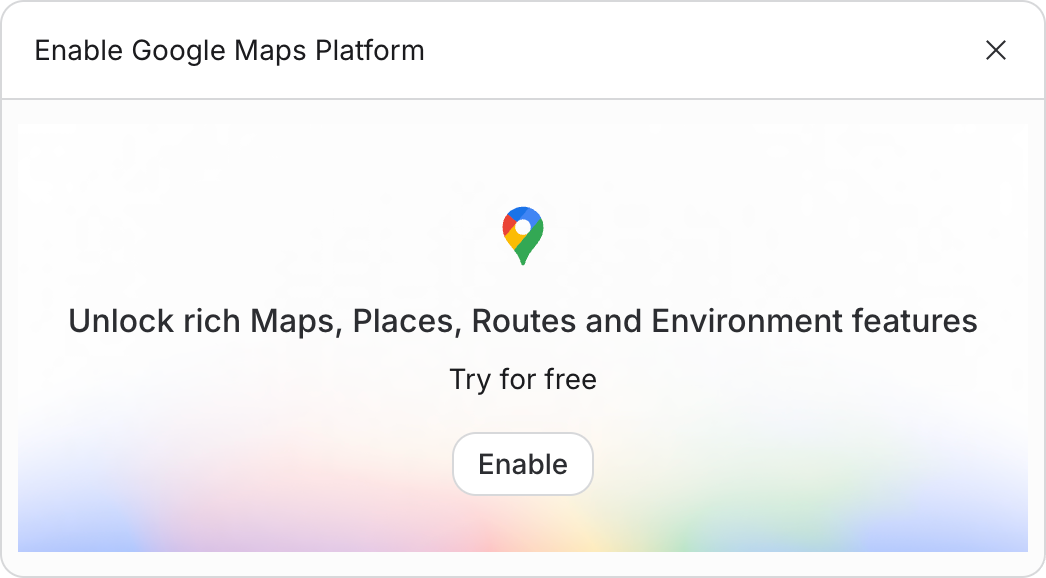
- 上下文相关激活幕帘:对话轮次中会显示一个内嵌卡片,标题为“设置 Google Maps Platform”。
- 接受条款并启用:
- 查看并接受 Maps 演示项目服务条款(如果系统提示,请同时查看并接受新手体验层级附加服务条款)。
- 点击启用 Google 地图。
- 自动密钥配置和 Secret 注入:AI Studio 会在 Google 托管项目 (GHP) 基础架构上自动配置 Google Maps Platform 演示密钥,并以
GOOGLE_MAPS_PLATFORM_KEY的名称将其直接注入到项目的 Secret 中。 - 即时实时预览:应用预览沙盒会立即刷新,显示实时、功能齐全的互动式 Google 地图。
在预览沙盒中测试应用,方法是输入新位置或选择预设位置按钮之一!
4. 使用 Gemini API 添加本地洞见
接下来,您将集成 Gemini API,以便在用户探索地图时生成有关地点的丰富本地化数据洞见。
- 在对话窗口中向 AI 助理发送以下提示:
Now, let's bring in the AI using the Gemini API.
1.  Once geocoding successfully identifies the City and State (e.g., "Miami, Florida"), trigger a call to the Gemini API (using the gemini-3.8-flash model).
2.  Use the following prompt template for the AI:
   "You are a local tour guide for [City, State]. Give me exactly 3 short, highly engaging, and unusual or surprising fun facts about this place. Keep each fact under 2 sentences. Format the response as a clean HTML unordered list (<ul>) so I can inject it directly."
3.  Display these fun facts in a beautiful "Local Insights" banner on the bottom portion of the map screen. Add a subtle loading spinner while the AI is thinking.
4.  Make sure to make this handling robust. If an API request fails, display a user-friendly error notification in the UI.
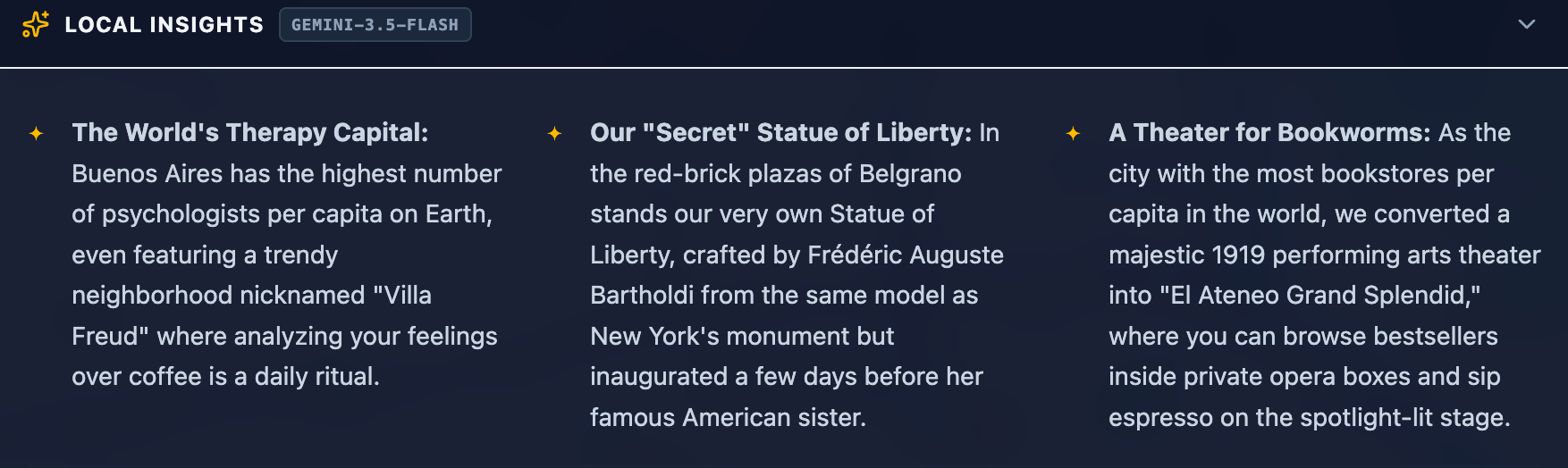
- 在预览窗格中验证,选择或搜索某个位置时是否会显示 Gemini 生成的动态趣闻。
您应该会看到 AI Studio 更新应用,从而在屏幕底部添加“本地资讯”部分。
5. 构建 AI 生成的知识问答测验
现在,您的应用可以检索位置坐标和本地化信息,接下来,您可以将这些功能结合起来,根据所选目的地生成互动式地理知识问答测验。
- 向智能体发送测验生成提示:
Now let's build the actual game! We will have Gemini generate a 3-question quiz based on the real places we just got information about.

After the local insights are generated, show the user a button to "Test their local knowledge". Once clicked, offer them 3 options to choose from:
-   Local cuisine
-   Art and culture
-   Local history

Once selected, generate a 3-question quiz based on the category and the place. The quiz should be multiple choice. Once the user submits the quiz show them their score and the correct answer.
- 在预览窗口中播放生成的测验,以测试状态管理、答案选择和得分呈现。
6. 集成 Maps Grounding Lite
默认情况下,Gemini 会使用训练数据中的知识生成事实和测验。如需提高准确率并利用实时空间数据,请集成 Maps Grounding Lite。此服务可将 Gemini 与 Google Maps Platform 中的实时数据直接关联。
- 在 AI Studio 中发送以下提示:
Add a toggle to make the quiz more difficult. Call this "Hyperlocal mode". When enabled, use the Google Maps Grounding Lite service with the Gemini API to fetch more local data, making the quiz more difficult.

Add information for the user so they know that Hyperlocal Mode is more difficult and how it works.
- 在预览窗口中测试超本地模式切换开关,以验证有根据的测验生成功能。
LLM 可能会产生有关特定营业时间、近期开业或确切地点 ID 的幻觉。Maps Grounding Lite 会将回答与真实的 Google 地图地点实体和提供方信息相关联,从而显著提高知识问答题的事实准确性。
7. 部署到 Cloud Run
当原型完全正常运行后,直接从 AI Studio 将其部署为 Cloud Run 上的公共无服务器容器。
- 在 Google AI Studio 的右上角,点击发布按钮以启动部署向导。
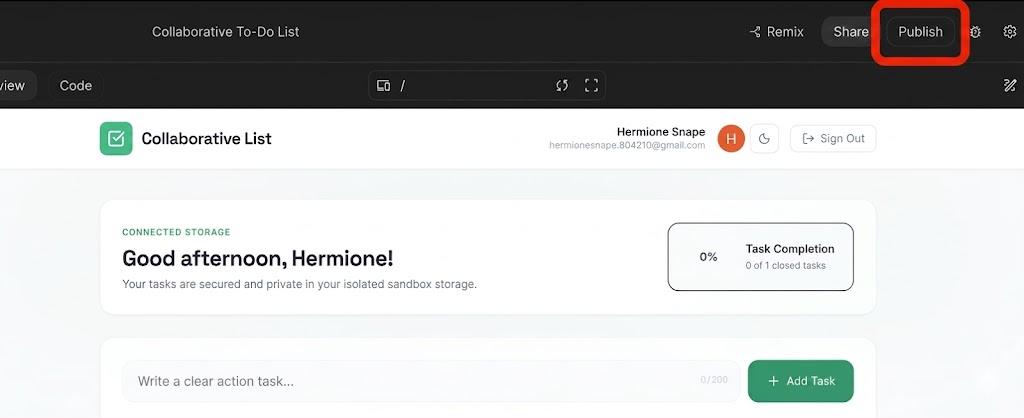
- 点击开始以配置您的 Google Cloud 项目。
- 验证目标 Google Cloud 项目下拉菜单是否与您预期的部署项目一致。
- AI Studio 会自动为 Cloud Run 实例生成唯一的服务标识符。
- 点击发布应用。
- 容器构建、注册和服务部署将在后台执行。此过程通常会在 2-4 分钟内完成。
- 部署完成后,复制生成的应用网址,然后在浏览器标签页中访问实时应用链接!
8. 查看安全性和生产方面的最佳实践
在将此应用从原型环境过渡到生产环境时,请牢记以下安全支柱:
1. Google 地图 API 密钥限制
切勿让生产环境 Google 地图 API 密钥处于不受限状态。在 Google Cloud 控制台中:
- API 限制:限制密钥,使其只能调用特定 API(Maps JavaScript API、Geocoding API、Places API)。
- 应用限制:使用 HTTP 引荐来源网址(例如
https://yourgame.com/*)限制密钥,以防止在第三方网站上未经授权使用。
2. 保护 Gemini API 密钥
Gemini API 密钥绝不应在客户端 JavaScript 中公开。
- 生产环境架构:构建一个轻量级后端服务(例如 Cloud Run 或 Cloud Functions)作为代理。前端调用后端 (
/api/get-fun-facts),后端使用环境变量 (GEMINI_API_KEY) 与 Google AI Studio 安全地通信。
9. 清理资源
为避免产生任何意外的结算费用或清理工作区资源,请执行以下操作:
- 在 Google AI Studio 中,前往应用页面。
- 在网格或列表中找到您的应用。
- 点击回收站图标可删除应用状态并从 Cloud Run 中取消发布服务。
- 如果您是使用标准项目进行部署的,并且想要完全关闭所有资源,请前往 Google Cloud 控制台项目设置,然后删除底层项目。
10. 总结
恭喜!您已使用 Google AI Studio 设计、开发和部署了 AI 赋能的地理空间 Web 应用。您已成功使用 Google Maps Platform API 构建了一款由真实世界数据提供支持的互动式游戏。
访问此链接即可申领完成 Builder 学习之旅徽章!
如需继续学习,请前往 goo.gle/builders 参加下一个实验。