
1. Introduction
Overview
Where does building with AI start today? For most of us, it starts with a simple query or prototype. Google AI Studio offers a powerful Build Mode (often referred to as "vibe coding") that allows you to design, test, and build full-stack web applications using code generation driven by Gemini models.
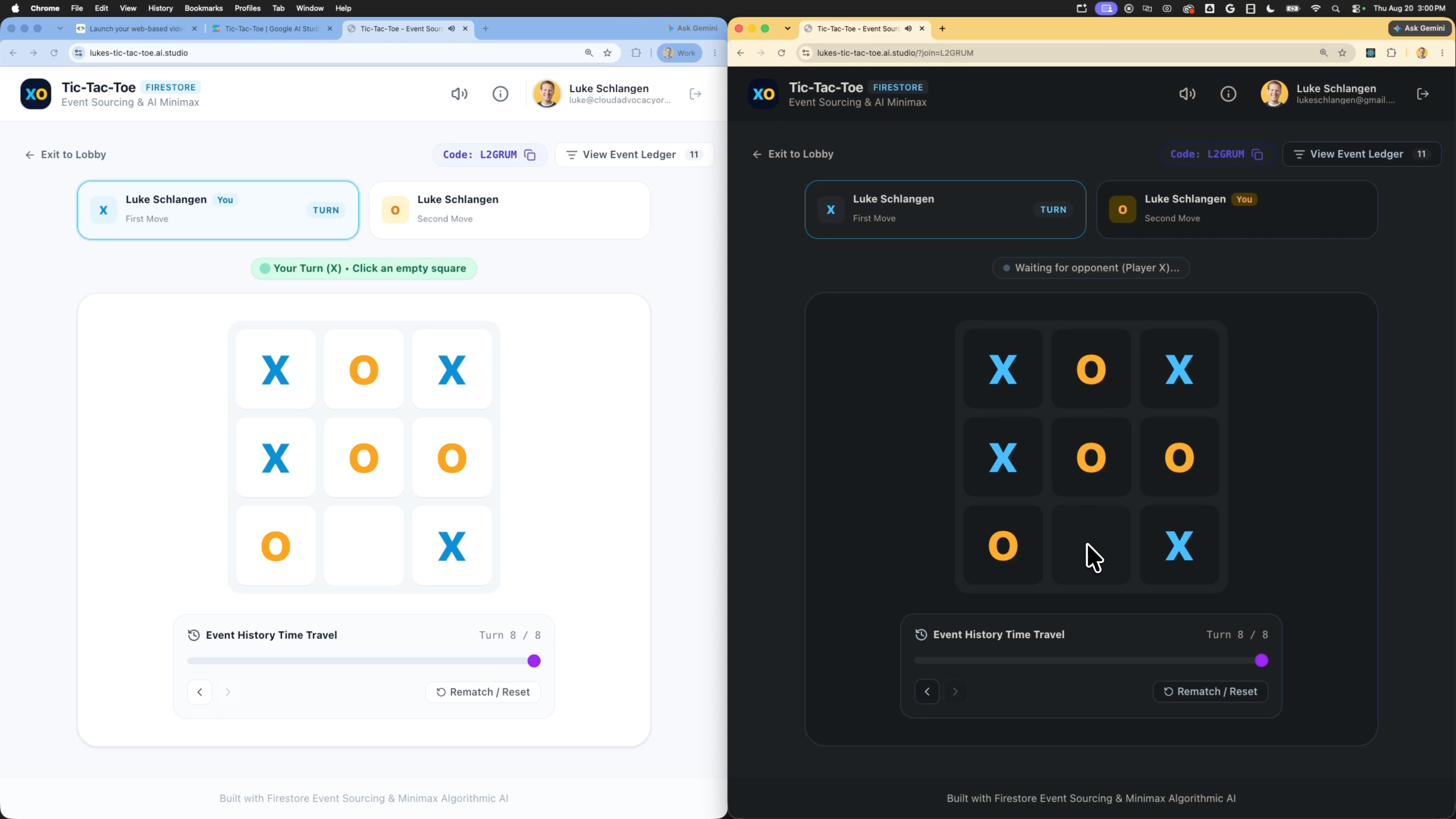
In this codelab, you will build a web-based, turn-based video game using a Firestore database with Event Sourcing (to persist game actions as a sequence of events so players can view match history and go back to previous turns) and Firebase Authentication for user logins. The AI Studio agent will configure all backend services and write the frontend, event sourcing logic, and database interaction code. Once the app is polished, you will deploy it straight to Cloud Run with a single click.
What you'll do
- Prompt Google AI Studio to prototype a turn-based multiplayer video game web application.
- Implement support for a shareable, short game code or join link to allow friends to connect to the same match.
- Implement Firestore database storage with an event sourcing pattern to track match histories and permit gameplay time-travel (undoing or replaying turns).
- Configure and enable the Firebase integration to provision a Firestore database and setup Google Sign-In authentication.
- Test the application in the interactive preview sandbox.
- Deploy the application to Cloud Run directly from the Google AI Studio UI.
What you'll learn
- How to use Google AI Studio's Build mode to rapidly prototype a full-stack game service using natural language.
- How to implement an event sourcing architectural pattern using Cloud Firestore to store game history.
- How Google AI Studio automatically configures Firebase Firestore and Authentication integrations.
- How to deploy your AI Studio application as a serverless container on Cloud Run.
- How to inspect database records and security status inside the Firebase Console.
2. Project Setup
Before launching AI Studio, verify your account status and prerequisites.
Google Account & Tier Information
- If you don't already have a Google Account, create a Google Account.
- Tip: Use a personal Google account for this lab if possible. Group, corporate, or school accounts may enforce Workspace policies that disable experimental features or cloud integrations.
- Review the billing details for deployments:
- Google Cloud Starter Tier: Allows publishing up to two full-stack applications in a select region at no cost, without establishing a full Google Cloud billing account.
- Standard Deployment: Connects to an existing paid Google Cloud project and expands storage limits, CPU resources, and APIs.
3. Create a Turn-Based Video Game in AI Studio Build Mode
Let's create the application shell and prompt the AI code assistant to build security, gameplay logic, and event-sourced persistence layers.
- Navigate to Google AI Studio Apps panel and click New App.
- In the chat prompt box, enter the description for your turn-based video game application:
Build a web-based, turn-based Tic-Tac-Toe game using Firebase as a backend. Users must be able to securely sign in using Google Sign-In, start a new game match, make moves, and play against an AI player or another user. Any algorithm used for the game opponent AI should use simple algorithms like min/max and the app should not make any calls to an LLM like the Gemini API. To support multiplayer matches, the application must generate a short game code or share link that players can easily copy and send to a friend to join the match. Use Firestore and an event sourcing pattern to save a history of every move (turn) as a separate event document in a subcollection under the game document. The application must reconstruct the current game state by replaying these events, and must allow users to view previous turns and opt to restore/roll back the game to a prior turn's state. - Click Build to start the application generation process.
When the AI Studio agent recognizes the need for database storage and secure user login, it triggers the automated Firebase configuration flow.
- After about a minute, an integration card to Enable Firebase pops up in the workspace.
- Click the Enable Firebase button to confirm and accept the terms of service.
- The agent will execute the background setup. Under the hood:
- A Firestore Database instance is provisioned.
- Firebase Authentication is enabled with Google Sign-in enabled.
- A service account configuration is established (e.g., creating
src/lib/firebase.tscontaining API credentials). - A
firestore.rulescontaining default security boundaries (user isolation rules) is added.
4. Test and Iterate
Before launching the service live, run validation checks in the interactive preview.
- Open the preview pane inside Google AI Studio.
- Click the Login button to trigger the sandbox Google Sign-In authentication.
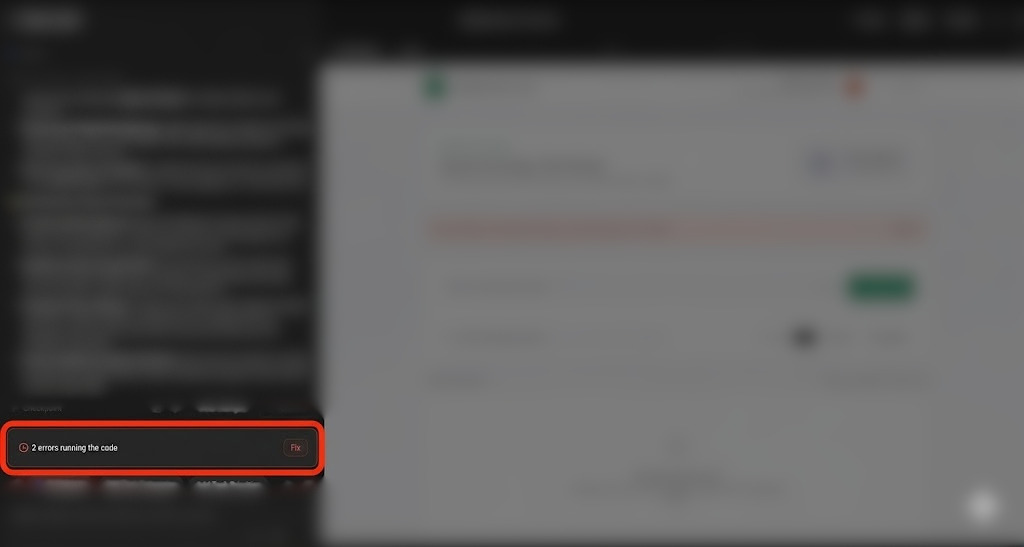
- Note on fixing errors: During generation or testing, you might occasionally face runtime issues, compilation errors, or Firestore permission failures due to security rules misalignment. If this happens, AI Studio displays a Fix button in the chat, allowing you to ask the agent to automatically diagnose and repair the issue.
- Once logged in, start a new game match, copy the generated short game code or share link, and verify that it can be used to join the match.
- Make several moves, and verify that the match history renders correctly.
- Try to navigate back to previous turns of the match. Ensure the board or state updates to reflect that past point in the gameplay history, and verify you can restore or roll back to that state.
- If you want to change styling or behavior, instruct the agent through the chat window. For example:
"Could you style the game board interface using Tailwind CSS and add a retro pixel-art theme?""Add a 'Turn History' sidebar matching the current state replay that shows when each move was made and by whom."
- Wait for the agent to update the codebase and check the preview browser to see the updates.
5. Deploy to Cloud Run
Once your prototype is fully functional, deploy it as a public service on Cloud Run.
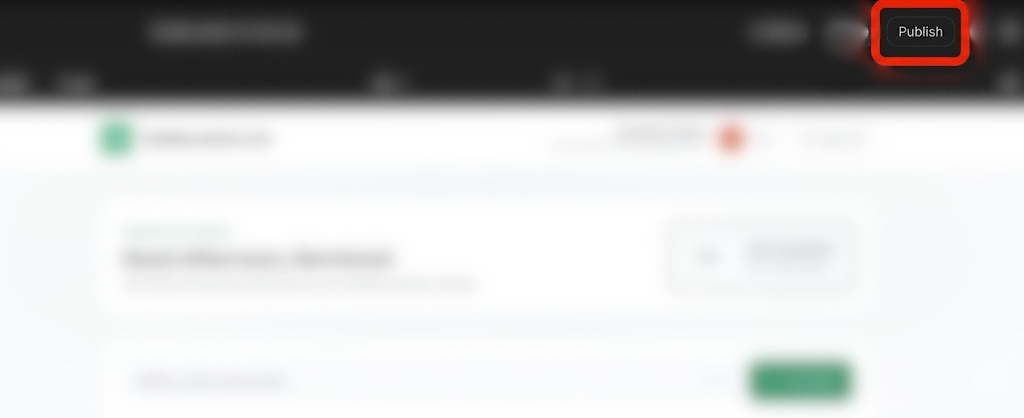
- In the top-right corner of Google AI Studio, click the Publish button to initiate the deployment wizard.
- Click Get Started to configure your Google Cloud project.
- Verify the target Google Cloud Project drop-down matches the project you associated with your workspace.
- AI Studio will automatically generate a unique service identifier for the Cloud Run instance.
- Optionally, you can specify a custom
.ai.studioURL prefix (e.g.,your-portfolio-name.ai.studio) as part of your deployment configuration.
- If this is your first time deploying and you are using standard Google Cloud parameters, you may be prompted to specify an organization type and supply billing details.
- Click Publish App.
- The container build, container registration, and service deployment steps happen in the background. This process normally completes in 2–4 minutes.
- When deployment finishes, copy the generated App URL and visit the live application link in a browser tab.
- Test the live web application in your browser!
6. Inspect in the Firebase Console
Take a look under the hood to see how the data schemas and users are tracked.
- Navigate to the Firebase Console.
- Select your project (which has the
AI Studiolabel or your manually bound project ID). - In the left-hand navigation pane, select Build > Firestore Database:
- View the database collections and documents created by your application.
- Verify that each document has an owner ID matching the active user authentication credentials.
- Select the Security tab in the Firestore panel to review the auto-generated security directives limiting read and write permissions to verified document owners.
- Navigate to Security > Authentication to see the list of active user credentials populated during your login tests.
7. Clean Up
To avoid any unforeseen billing charges or clean up your workspace resources:
- In Google AI Studio, go to the Apps page.
- Find your application in the grid or list.
- Click the trash icon to delete the app state and unpublish the service from Cloud Run.
- If you deployed using a standard project and want to shut down all resources entirely, go to the Google Cloud Console Project Settings and delete the underlying project.
8. Conclusion
Congratulations! You have designed, developed, and deployed a turn-based video game directly from Google AI Studio.
Visit this link to claim the Completed Builder Journey badge!
To continue your journey, head to goo.gle/builders for your next lab.