

1. 개요
Google Cloud Video Intelligence API를 사용하면 개발자가 Google 동영상 분석 기술을 애플리케이션의 일부로 사용할 수 있습니다.
다음 작업을 수행하는 데 사용할 수 있습니다.
- 라벨 인식: 동영상에서 개, 꽃, 사람과 같은 대상을 감지합니다.
- 성인 등급 콘텐츠 감지: 동영상 내의 성인용 콘텐츠를 감지합니다.
- 장면 변화 감지: 동영상 내의 장면 변화를 감지합니다.
사용자는 REST API를 이용하여 로컬에 또는 Google Cloud Storage에 저장된 동영상에 전체 동영상 수준으로, 세그먼트별로, 장면별로, 프레임별로 상황 정보를 포함한 주석을 추가할 수 있습니다.
이 Codelab에서는 C#으로 Video Intelligence API를 사용하는 데 중점을 둡니다. 동영상의 라벨, 장면 변화, 유해성 콘텐츠 감지를 분석하는 방법을 알아봅니다.
학습할 내용
- Cloud Shell 사용 방법
- Video Intelligence API를 사용 설정하는 방법
- API 요청 인증 방법
- C#용 Google Cloud 클라이언트 라이브러리를 설치하는 방법
- 동영상 라벨 분석 방법
- 동영상의 장면 변화를 분석하는 방법
- 동영상의 유해성 콘텐츠 감지를 분석하는 방법
필요한 항목
설문조사
이 튜토리얼을 어떻게 사용하실 계획인가요?
C# 사용 경험을 어떻게 평가하시겠어요?
귀하의 Google Cloud Platform 서비스 사용 경험을 평가해 주세요.
2. 설정 및 요구사항
자습형 환경 설정
- Google Cloud Console에 로그인하여 새 프로젝트를 만들거나 기존 프로젝트를 재사용합니다. 아직 Gmail이나 Google Workspace 계정이 없는 경우 계정을 만들어야 합니다.


- 프로젝트 이름은 이 프로젝트 참가자의 표시 이름입니다. 이는 Google API에서 사용하지 않는 문자열이며 언제든지 업데이트할 수 있습니다.
- 프로젝트 ID는 모든 Google Cloud 프로젝트에서 고유하며, 변경할 수 없습니다(설정된 후에는 변경할 수 없음). Cloud 콘솔은 고유한 문자열을 자동으로 생성합니다. 일반적으로는 신경 쓰지 않아도 됩니다. 대부분의 Codelab에서는 프로젝트 ID (일반적으로
PROJECT_ID로 식별됨)를 참조해야 합니다. 생성된 ID가 마음에 들지 않으면 다른 임의 ID를 생성할 수 있습니다. 또는 직접 시도해 보고 사용 가능한지 확인할 수도 있습니다. 이 단계 이후에는 변경할 수 없으며 프로젝트 기간 동안 유지됩니다. - 참고로 세 번째 값은 일부 API에서 사용하는 프로젝트 번호입니다. 이 세 가지 값에 대한 자세한 내용은 문서를 참고하세요.
- 다음으로 Cloud 리소스/API를 사용하려면 Cloud 콘솔에서 결제를 사용 설정해야 합니다. 이 Codelab 실행에는 많은 비용이 들지 않습니다. 이 튜토리얼이 끝난 후에 요금이 청구되지 않도록 리소스를 종료하려면 만든 리소스 또는 프로젝트를 삭제하면 됩니다. Google Cloud 신규 사용자는 300달러(USD) 상당의 무료 체험판 프로그램에 참여할 수 있습니다.
Cloud Shell 시작
Google Cloud를 노트북에서 원격으로 실행할 수 있지만, 이 Codelab에서는 Cloud에서 실행되는 명령줄 환경인 Google Cloud Shell을 사용합니다.
Cloud Shell 활성화
- Cloud Console에서 Cloud Shell 활성화
 를 클릭합니다.

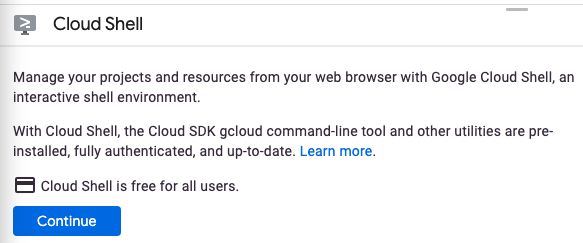
Cloud Shell을 처음 시작하는 경우 설명이 포함된 중간 화면이 제공됩니다. 중간 화면이 표시되면 계속을 클릭합니다.
Cloud Shell을 프로비저닝하고 연결하는 작업은 몇 분이면 끝납니다.

이 가상 머신에는 필요한 모든 개발 도구가 로드되어 있습니다. 영구적인 5GB 홈 디렉터리를 제공하고 Google Cloud에서 실행되므로 네트워크 성능과 인증이 크게 개선됩니다. 이 Codelab에서 대부분의 작업은 브라우저로 수행할 수 있습니다.
Cloud Shell에 연결되면 인증이 완료되었고 프로젝트가 해당 프로젝트 ID로 설정된 것을 확인할 수 있습니다.
- Cloud Shell에서 다음 명령어를 실행하여 인증되었는지 확인합니다.
gcloud auth list
명령어 출력
 Credentialed Accounts
ACTIVE  ACCOUNT
*       <my_account>@<my_domain.com>

To set the active account, run:
    $ gcloud config set account `ACCOUNT`
- Cloud Shell에서 다음 명령어를 실행하여 gcloud 명령어가 프로젝트를 알고 있는지 확인합니다.
gcloud config list project
명령어 출력
[core]
project = <PROJECT_ID>
또는 다음 명령어로 설정할 수 있습니다.
gcloud config set project <PROJECT_ID>
명령어 출력
Updated property [core/project].
3. Video Intelligence API 사용 설정
Video Intelligence API를 사용하려면 먼저 API를 사용 설정해야 합니다. Cloud Shell에서 다음 명령어를 사용하여 API를 사용 설정할 수 있습니다.
gcloud services enable videointelligence.googleapis.com
4. C#용 Google Cloud Video Intelligence API 클라이언트 라이브러리 설치
먼저 Video Intelligence API 샘플을 실행하는 데 사용할 간단한 C# 콘솔 애플리케이션을 만듭니다.
dotnet new console -n VideoIntApiDemo
애플리케이션이 생성되고 종속 항목이 해결된 것을 확인할 수 있습니다.
The template "Console Application" was created successfully.
Processing post-creation actions...
...
Restore succeeded.
그런 다음 VideoIntApiDemo 폴더로 이동합니다.
cd VideoIntApiDemo/
프로젝트에 Google.Cloud.VideoIntelligence.V1 NuGet 패키지를 추가합니다.
dotnet add package Google.Cloud.VideoIntelligence.V1
info : Adding PackageReference for package 'Google.Cloud.VideoIntelligence.V1' into project '/home/atameldev/VideoIntApiDemo/VideoIntApiDemo.csproj'.
log  : Restoring packages for /home/atameldev/VideoIntApiDemo/VideoIntApiDemo.csproj...
...
info : PackageReference for package 'Google.Cloud.VideoIntelligence.V1' version '1.0.0' added to file '/home/atameldev/VideoIntApiDemo/VideoIntApiDemo.csproj'.
이제 Video Intelligence API를 사용할 준비가 되었습니다.
5. 라벨 인식
라벨 분석은 로컬 또는 Google Cloud Storage에 저장된 동영상의 라벨을 감지합니다. 이 섹션에서는 Google Cloud Storage에 저장된 동영상의 라벨을 분석합니다.
먼저 Cloud Shell의 오른쪽 상단에서 코드 편집기를 엽니다.

VideoIntApiDemo 폴더 내의 Program.cs 파일로 이동하여 코드를 다음으로 바꿉니다.
using System;
using System.Collections.Generic;
using Google.Cloud.VideoIntelligence.V1;

namespace VideoIntApiDemo
{
    class Program
    {
        static void Main(string[] args)
        {
            var client = VideoIntelligenceServiceClient.Create();
            var request = new AnnotateVideoRequest
            {
                InputUri = "gs://cloud-samples-data/video/gbikes_dinosaur.mp4",
                Features = { Feature.LabelDetection }
            };
            var op = client.AnnotateVideo(request).PollUntilCompleted();
            foreach (var result in op.Result.AnnotationResults)
            {
                PrintLabels("Video", result.SegmentLabelAnnotations);
                PrintLabels("Shot", result.ShotLabelAnnotations);
                PrintLabels("Frame", result.FrameLabelAnnotations);
            }
        }

        static void PrintLabels(string labelName,
            IEnumerable<LabelAnnotation> labelAnnotations)
        {
            foreach (var annotation in labelAnnotations)
            {
                Console.WriteLine($"{labelName} label: {annotation.Entity.Description}");
                foreach (var entity in annotation.CategoryEntities)
                {
                    Console.WriteLine($"{labelName} label category: {entity.Description}");
                }
                foreach (var segment in annotation.Segments)
                {
                    Console.Write("Segment location: ");
                    Console.Write(segment.Segment.StartTimeOffset);
                    Console.Write(":");
                    Console.WriteLine(segment.Segment.EndTimeOffset);
                    Console.WriteLine($"Confidence: {segment.Confidence}");
                }
            }
        }
    }
}
잠시 시간을 내어 코드를 살펴보고 동영상에 라벨이 지정되는 방식을 확인하세요.
Cloud Shell로 돌아가 앱을 실행합니다.
dotnet run
Video Intelligence API가 라벨을 추출하는 데 몇 초가 걸리지만 결국 다음과 같은 출력이 표시됩니다.
Video label: bicycle
Video label category: vehicle
Segment location: "0s":"42.766666s"
Confidence: 0.475821
Video label: tyrannosaurus
Video label category: dinosaur
Segment location: "0s":"42.766666s"
Confidence: 0.4222222
Video label: tree
Video label category: plant
Segment location: "0s":"42.766666s"
Confidence: 0.4231415
...
요약
이 단계에서는 Video Intelligence API를 사용하여 동영상의 모든 라벨을 나열할 수 있었습니다. 자세한 내용은 라벨 감지 페이지를 참고하세요.
6. 장면 변화 감지
Video Intelligence API를 사용하여 로컬 또는 Google Cloud Storage에 저장된 동영상에서 장면 변화를 감지할 수 있습니다. 이 섹션에서는 Google Cloud Storage에 있는 파일에서 동영상 장면 변화 분석을 수행합니다.
장면 변화를 감지하려면 VideoIntApiDemo 폴더 내의 Program.cs 파일로 이동하여 코드를 다음으로 바꿉니다.
using System;
using Google.Cloud.VideoIntelligence.V1;

namespace VideoIntApiDemo
{
    class Program
    {
        static void Main(string[] args)
        {
            var client = VideoIntelligenceServiceClient.Create();
            var request = new AnnotateVideoRequest
            {
                InputUri = "gs://cloud-samples-data/video/gbikes_dinosaur.mp4",
                Features = { Feature.ShotChangeDetection }
            };
            var op = client.AnnotateVideo(request).PollUntilCompleted();
            foreach (var result in op.Result.AnnotationResults)
            {
                foreach (var annotation in result.ShotAnnotations)
                {
                    Console.Out.WriteLine("Start Time Offset: {0}\tEnd Time Offset: {1}",
                        annotation.StartTimeOffset, annotation.EndTimeOffset);
                }
            }
        }
    }
}
잠시 시간을 내어 코드를 살펴보고 샷 감지가 어떻게 수행되는지 확인하세요.
Cloud Shell로 돌아가서 앱을 실행합니다. 다음과 같은 출력이 표시됩니다.
dotnet run
다음과 같은 출력이 표시됩니다.
Start Time Offset: "0s" End Time Offset: "5.166666s"
Start Time Offset: "5.233333s"  End Time Offset: "10.066666s"
Start Time Offset: "10.100s"    End Time Offset: "28.133333s"
Start Time Offset: "28.166666s" End Time Offset: "42.766666s"
요약
이 단계에서는 Video Intelligence API를 사용하여 Google Cloud Storage에 저장된 파일에서 장면 변화를 감지했습니다. 샷 변경사항에 대해 자세히 알아보세요.
7. 유해성 콘텐츠 감지
유해성 콘텐츠 감지는 동영상 내 성인용 콘텐츠를 감지합니다. 성인용 콘텐츠는 일반적으로 만 18세 이상에게 적합한 콘텐츠로, 과도한 노출, 성행위, 음란물 (만화 또는 애니메이션 포함) 등이 이에 해당합니다. 응답에는 VERY_UNLIKELY부터 VERY_LIKELY까지 버킷화된 가능성 값이 포함됩니다.
유해성 콘텐츠 감지는 동영상을 평가할 때 프레임 단위로 평가하며, 시각적 콘텐츠만 고려합니다. 동영상의 오디오 구성요소는 유해성 콘텐츠 수준을 평가하는 데 사용되지 않습니다.
과도한 콘텐츠를 감지하려면 VideoIntApiDemo 폴더 내의 Program.cs 파일로 이동하여 코드를 다음으로 바꿉니다.
using System;
using Google.Cloud.VideoIntelligence.V1;

namespace VideoIntApiDemo
{
    class Program
    {
        static void Main(string[] args)
        {
            var client = VideoIntelligenceServiceClient.Create();
            var request = new AnnotateVideoRequest
            {
                InputUri = "gs://cloud-samples-data/video/gbikes_dinosaur.mp4",
                Features = { Feature.ExplicitContentDetection }
            };
            var op = client.AnnotateVideo(request).PollUntilCompleted();
            foreach (var result in op.Result.AnnotationResults)
            {
                foreach (var frame in result.ExplicitAnnotation.Frames)
                {
                    Console.WriteLine("Time Offset: {0}", frame.TimeOffset);
                    Console.WriteLine("Pornography Likelihood: {0}", frame.PornographyLikelihood);
                    Console.WriteLine();
                }
            }
        }
    }
}
잠시 시간을 내어 코드를 살펴보고 선정적인 콘텐츠 감지가 어떻게 수행되었는지 확인하세요*.*
Cloud Shell로 돌아가 앱을 실행합니다.
dotnet run
몇 초 정도 걸릴 수 있지만 결국 다음과 같은 출력이 표시됩니다.
dotnet run

Time Offset: "0.056149s"
Pornography Likelihood: VeryUnlikely

Time Offset: "1.166841s"
Pornography Likelihood: VeryUnlikely
...
Time Offset: "41.678209s"
Pornography Likelihood: VeryUnlikely

Time Offset: "42.596413s"
Pornography Likelihood: VeryUnlikely
요약
이 단계에서는 Video Intelligence API를 사용하여 동영상에서 음란물을 감지할 수 있었습니다. 과도한 콘텐츠 감지에 대해 자세히 알아보세요.
8. 수고하셨습니다
C#을 사용하여 Video Intelligence API를 사용하는 방법을 알아봤습니다.
삭제
이 빠른 시작에서 사용한 리소스 비용이 Google Cloud Platform 계정에 청구되지 않도록 하는 방법은 다음과 같습니다.
- Cloud Platform 콘솔로 이동합니다.
- 종료하려는 프로젝트를 선택한 다음 상단의 '삭제'를 클릭합니다. 그러면 프로젝트가 삭제 예약됩니다.
자세히 알아보기
- Google Cloud Video Intelligence API: https://cloud.google.com/video-intelligence/docs/
- Google Cloud Platform의 C#/.NET: https://cloud.google.com/dotnet/
- Google Cloud .NET 클라이언트: https://googlecloudplatform.github.io/google-cloud-dotnet/
라이선스
이 작업물은 크리에이티브 커먼즈 저작자표시 2.0 일반 라이선스에 따라 사용이 허가되었습니다.