
1. Objective of this lab
In this hands-on lab you will learn how to create agents using ADK (Agent Development Kit) Visual Builder. ADK (Agent Development Kit) Visual Builder provides a low code way to create ADK (Agent Development Kit) agents. You will learn how to test the application locally and deploy in Cloud Run.
What you'll learn
- Understand the basics of ADK (Agent Development Kit) .
- Understand the basics of ADK (Agent Development Kit) Visual Builder
- Learn how to create Agents using GUI tools.
- Learn how to easily deploy and use the agents in Cloud Run.
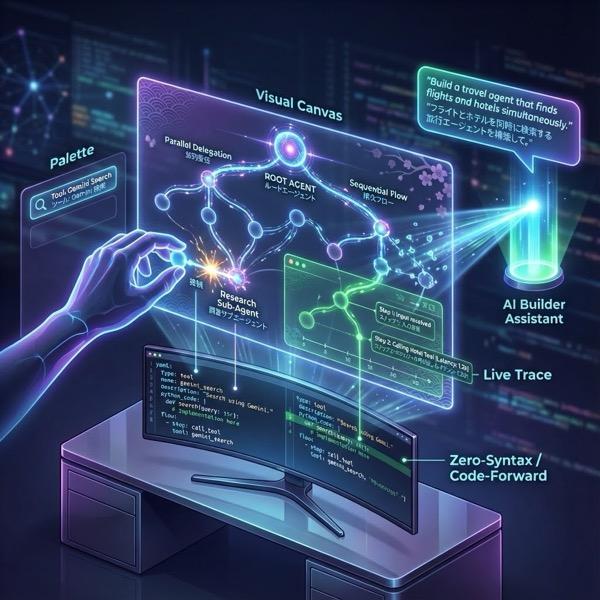
Figure 1: With ADK Visual Builder you can create agents using GUI with low code
2. Project Setup
- Go to the GCP console by clicking the following link GCP console.
- If you already do not have a project that you can use, you will need to create a new project in the GCP console. Select the project that at the project selector (Top Left of the Google Cloud Console) If you do not already have a project please follow these steps to create a new project. Once you create a new project please select your project.
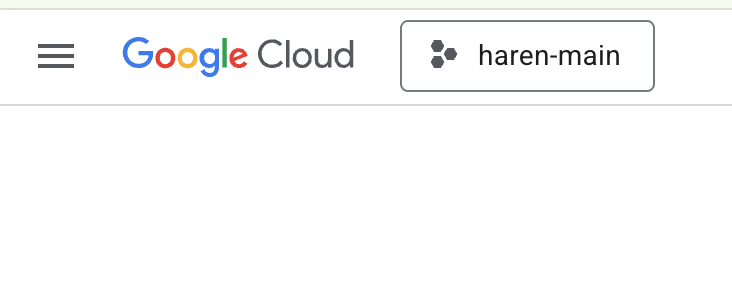
Figure 2: Clicking on the box right next to the Google Cloud logo allows you to select your project. Make sure your project is selected.
- In this lab, we will use Cloud Shell Editor to perform our tasks. Open the Cloud Shell and set the project using Cloud Shell.
- Click this link to navigate directly to Cloud Shell Editor
- On the side bar of the Cloud Shell Editor, click on the Open Folder button.
- Your home folder should already be selected, just press OK and your home folder will be your root folder for this task.

- Open the Terminal if it's not already open by Clicking Terminal>New Terminal from the menu. You can run all the commands in this tutorial in this terminal.
- You can check if the project is already authenticated using the following command in the Cloud Shell terminal.
gcloud auth list
- If you can't remember your project ID, you can list all your project IDs with
gcloud projects list
- Copy the project ID and use the following command to set it
gcloud config set project <YOUR_PROJECT_ID>
- Run the following command in Cloud Shell to confirm your project
gcloud config list project
3. Enable APIs
We need to enable some API services to run this lab. Run the following command in Cloud Shell.
gcloud services enable aiplatform.googleapis.com
gcloud services enable cloudresourcemanager.googleapis.com
Introducing the APIs
- Vertex AI API (
aiplatform.googleapis.com) enables access to the Vertex AI platform, allowing your application to interact with Gemini models for text generation, chat sessions, and function calling. - Cloud Resource Manager API (
cloudresourcemanager.googleapis.com) allows you to programmatically manage metadata for your Google Cloud projects, such as project ID and name, which is often required by other tools and SDKs to verify project identity and permissions.
4. Introduction to Agent Development Kit
Agent Development Kit offers several key advantages for developers building agentic applications:
- Multi-Agent Systems: Build modular and scalable applications by composing multiple specialized agents in a hierarchy. Enable complex coordination and delegation.
- Rich Tool Ecosystem: Equip agents with diverse capabilities: use pre-built tools (Search, Code Execution, etc.), create custom functions, integrate tools from third-party agent frameworks (LangChain, CrewAI), or even use other agents as tools.
- Flexible Orchestration: Define workflows using workflow agents (
SequentialAgent,ParallelAgent, andLoopAgent) for predictable pipelines, or leverage LLM-driven dynamic routing (LlmAgenttransfer) for adaptive behavior. - Integrated Developer Experience: Develop, test, and debug locally with a powerful CLI and an interactive dev UI. Inspect events, state, and agent execution step-by-step.
- Built-in Evaluation: Systematically assess agent performance by evaluating both the final response quality and the step-by-step execution trajectory against predefined test cases.
- Deployment Ready: Containerize and deploy your agents anywhere – run locally, scale with Vertex AI Agent Engine, or integrate into custom infrastructure using Cloud Run or Docker.
While other Gen AI SDKs or agent frameworks also allow you to query models and even empower them with tools, dynamic coordination between multiple models requires a significant amount of work on your end.
Agent Development Kit offers a higher-level framework than these tools, allowing you to easily connect multiple agents to one another for complex but easy-to-maintain workflows.
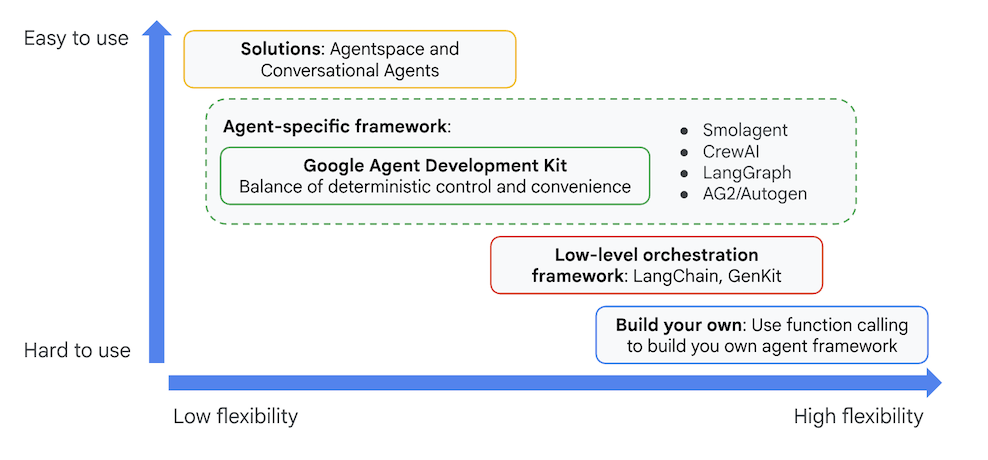
Figure 3: Positioning of ADK (Agent Development Kit)
In the recent versions a ADK Visual Builder tool has been added to the ADK (Agent Development Kit) that allows you to build ADK (Agent Development Kit) agents with low code. In this lab we will explore ADK Visual Builder Tool in detail.
5. Install ADK and setup your environment
First of all we need to set the environment so that we can run ADK (Agent Development Kit). In this lab we will run ADK (Agent Development Kit) and perform all the tasks in Google Cloud In Cloud Shell Editor .
Prepare a Cloud Shell Editor
- If your Cloud Shell Editor is already open you can skip these steps and proceed to the next section "Start the ADK Visual Editor".
- If you are not already on Cloud Shell Editor we follow the Project Setup Steps.
- In this lab, we will use Cloud Shell Editor to perform our tasks. Open the Cloud Shell and set the project using Cloud Shell.
- Click this link to navigate directly to Cloud Shell Editor
- On the side bar of the Cloud Shell Editor, click on the Open Folder button.
- Your home folder should already be selected, just press OK and your home folder will be your root folder for this task.
- Open the Terminal if it's not already open by Clicking Terminal>New Terminal from the menu. You can run all the commands in this tutorial in this terminal.
- You can check if the project is already authenticated using the following command in the Cloud Shell terminal.
gcloud auth list
- If you can't remember your project ID, you can list all your project IDs with
gcloud projects list
- Copy the project ID and use the following command to set it
gcloud config set project <YOUR_PROJECT_ID>
- Run the following command in Cloud Shell to confirm your project
gcloud config list project
Start the ADK Visual Editor
- Execute the following commands to clone the needed source from github and install necessary libraries. Run the commands in the Terminal opened in Cloud Shell Editor.
#create the project directory
mkdir ~/adkui
cd ~/adkui
- We will use uv to create python environment (Run in Cloud Shell Editor Terminal):
#Install uv if you do not have installed yet
pip install uv

#go to the project directory
cd ~/adkui

#Create the virtual environment
uv venv


#use the newly created environment
source .venv/bin/activate

#install libraries
uv pip install google-adk==2.3.0
uv pip install python-dotenv
Note: If you ever need to restart the terminal, make sure you set your python environment by executing "source .venv/bin/activate"
- In the editor go to View->Toggle hidden files. And in the adkui folder create a .env file with the following content.
#go to adkui folder
cd ~/adkui
cat <<EOF>> .env
GOOGLE_GENAI_USE_VERTEXAI=1
GOOGLE_CLOUD_PROJECT=$(gcloud config get-value project)
GOOGLE_CLOUD_LOCATION=us-central1
IMAGEN_MODEL="imagen-3.0-generate-002"
GENAI_MODEL="gemini-3.5-flash"
EOF
6. Create a simple Agent with ADK Visual Builder
In this section we will create a simple agent using ADK Visual Builder.The ADK Visual Builder is a web-based tool that provides a visual workflow design environment for creating and managing ADK (Agent Development Kit) agents. It allows you to design, build, and test your agents in a beginner-friendly graphical interface, and includes an AI-powered assistant to help you build agents.
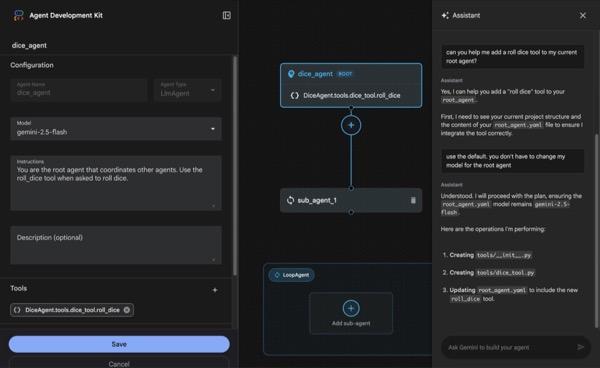
Figure 4: ADK Visual Builder
- Go back to the top directory adkui in the terminal and execute the following command to run the agent locally (Run in Cloud Shell Editor Terminal). You should be able to start the ADK server and see results resembling Figure 5 in the terminal.
#go to the directory adkui
cd ~/adkui
# Run the following command to run ADK locally
adk web --host 0.0.0.0 --port 8080 --allow_origins "regex:https://.*8080-.*\.cloudshell\.dev"
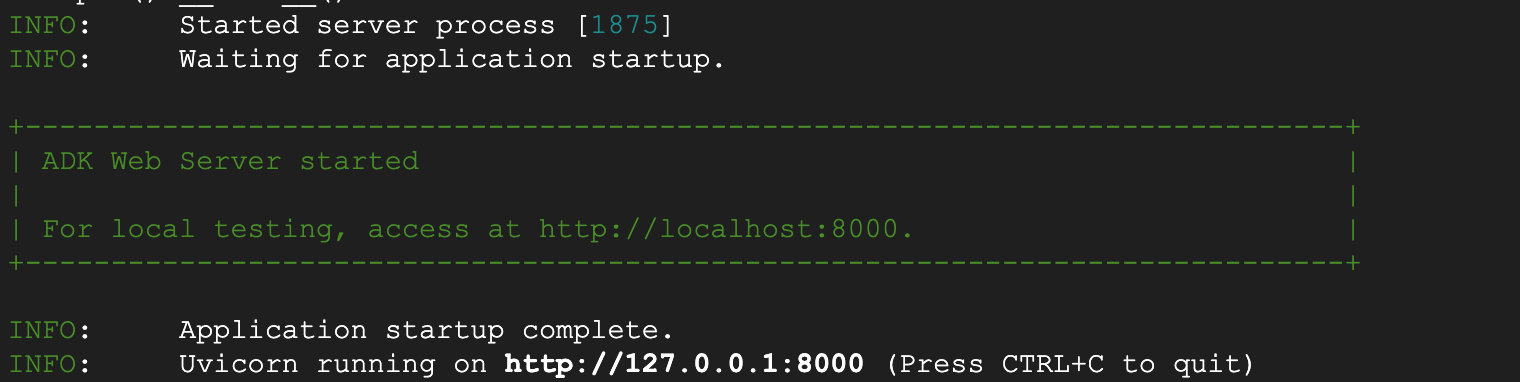
- Figure 5: ADK application startup
- Ctrl+Click (CMD+Click for MacOS) on the http:// url displayed on the terminal to open the ADK (Agent Development Kit) browser based GUI tool.

Figure 6: ADK web UI, ADK has following components
- Click on Select an app dropdown and press "+" button to create a new Agent.
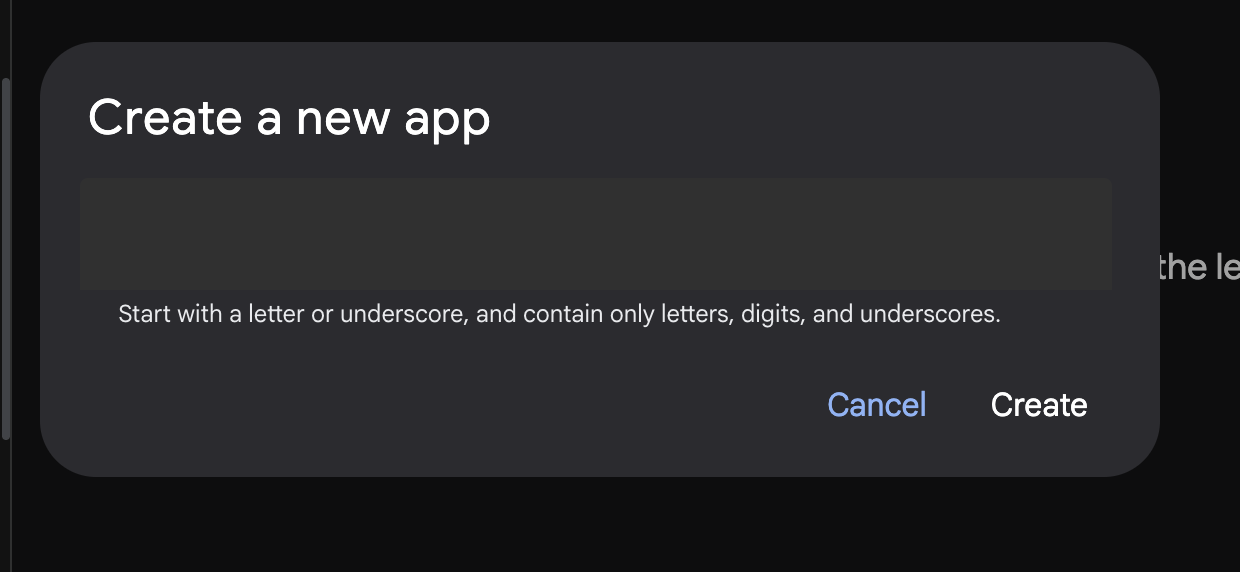
Figure 7: Dialog to create a new app
- Give the name "Agent1" and Create.
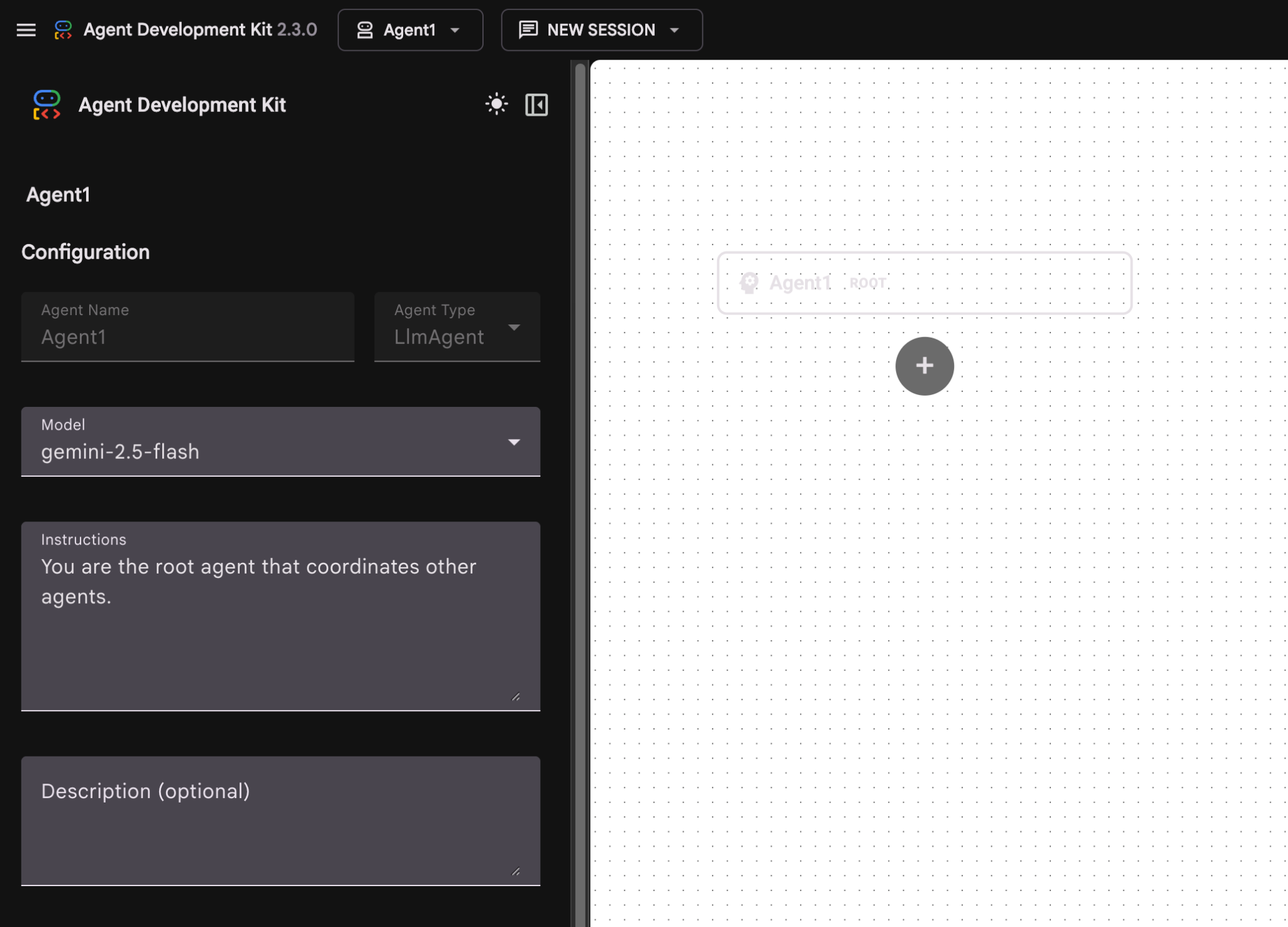
Figure 8: UI for agent builder
- The panel is organized into three main sections: the left side houses the Controls for GUI-based agent creation, the center provides a visualization of your progress, and the right side contains the Assistant for building agents using natural language.
- Your Agent has been successfully created. Click the Save button to proceed. (Note: To avoid losing your changes, it is essential that you press Save.)
- The agent should now be ready for testing. To begin, enter a prompt in the Chat box, such as:
Hi, what can you do?
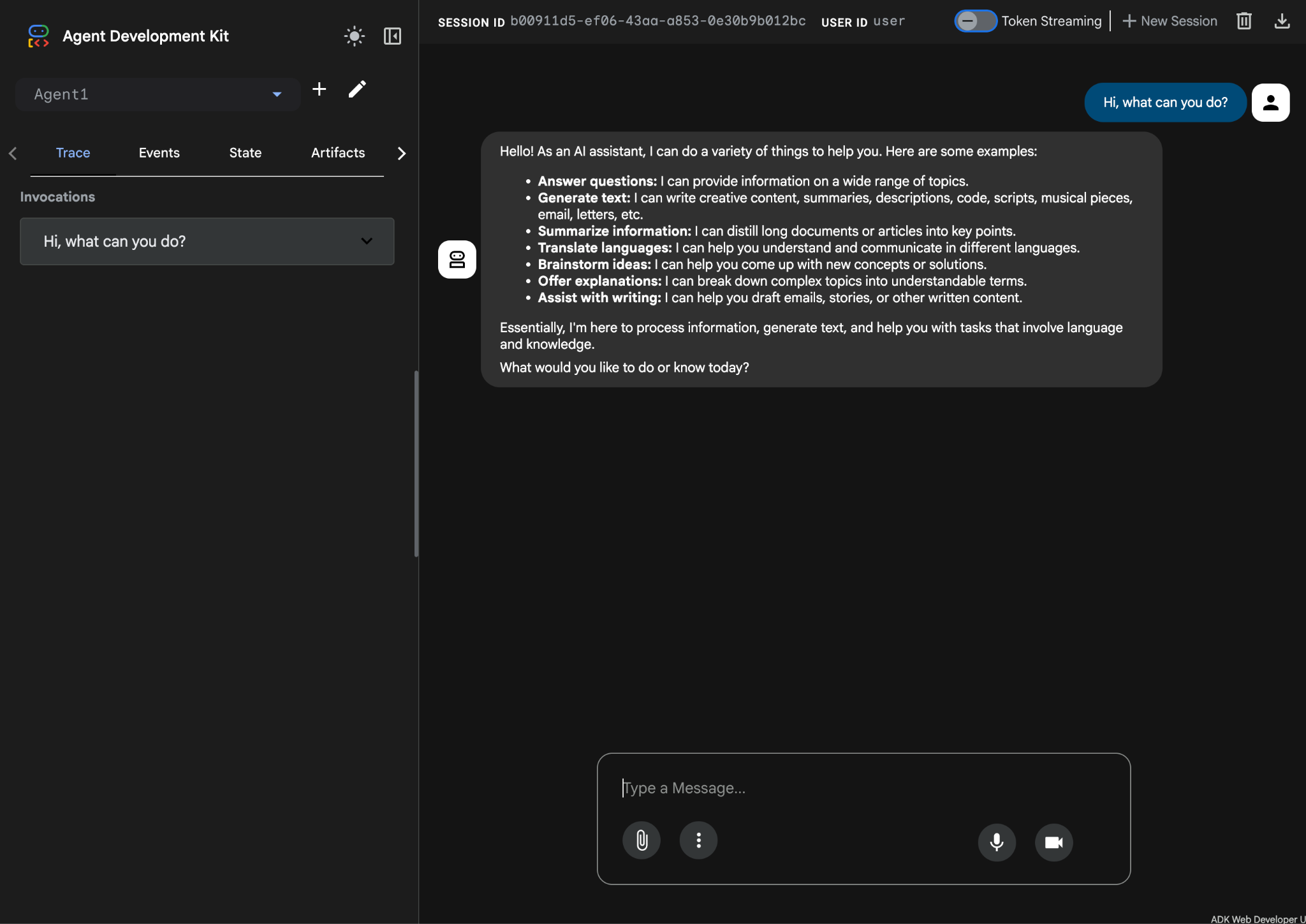
Figure 9: Testing the agent.
7.Returning to the editor, let's examine the newly generated files. You will find the explorer on the left-hand side. Navigate to the adkgui folder and expand it to reveal the Agent 1 directory. In the folder, you can check the YAML file that defines the agent, as illustrated in the figure below.
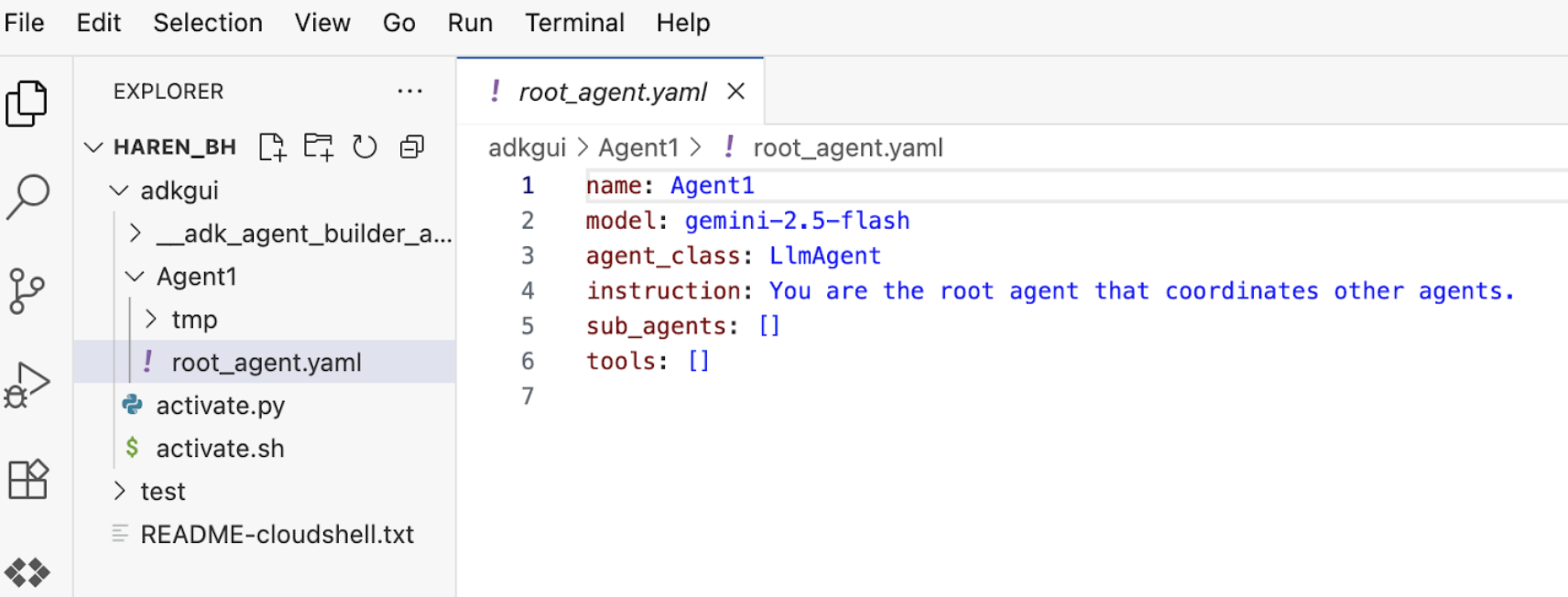
Figure 10: Agent definition using YAML file
- Now lets go back to the GUI editor and add a few features to the agent. To do so press the edit button (pen icon).
- We are going to add a Google search feature to the agent, in order to do so we need to add Google search as a tool that is available to the agent and the one agent can use. To do so click on the "+" sign next to the Tools section on the bottom left of the screen, and click Built-in tool from the menu (See Figure 11).
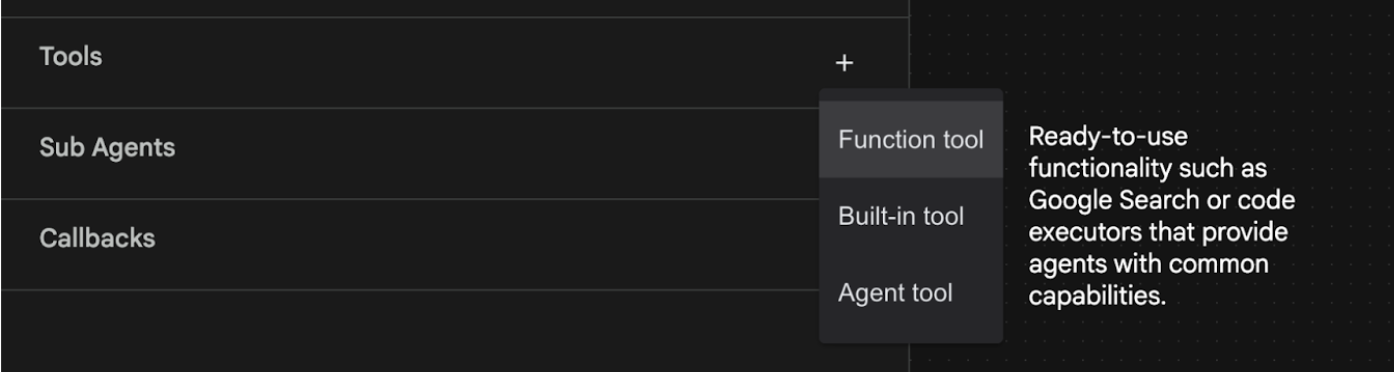
Figure 11: Adding a new tool to an agent
- From the list of Built-in Tool select google_search and click Create (See Figure 11). This will add Google Search as a tool in your agent.
- Press the Save button so that the changes are saved.
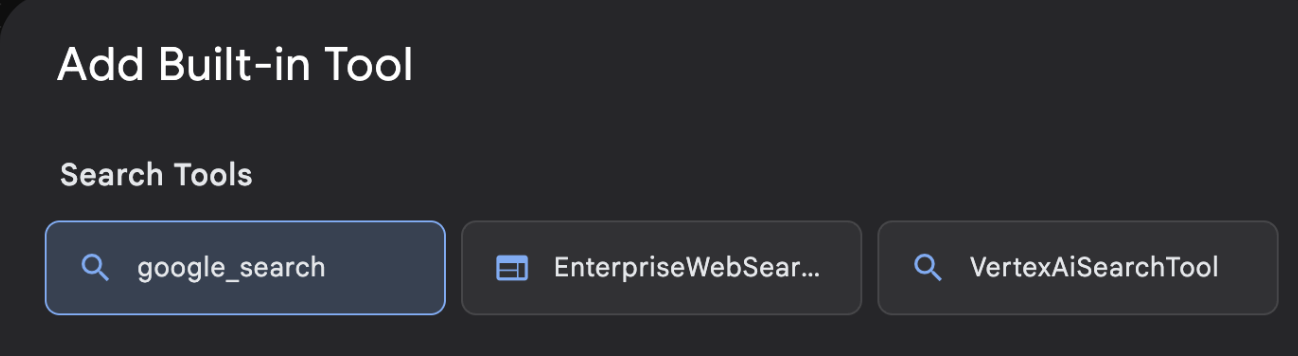
Figure 12: List of the tools available in the ADK Visual Builder UI
- Now you are ready to test the Agent. First restart the ADK Server. Go to the terminal where you started the ADK (Agent Development Kit) server and press CTRL+C to shutdown the server
CTRL+C (Windows), CMD+C (MAC)
- Execute the following to start the server again.
#make sure you are in the right folder.
cd ~/adkui

#start the server
adk web --host 0.0.0.0 --port 8080 --allow_origins "regex:https://.*8080-.*\.cloudshell\.dev"
- Ctrl+Click on the url (eg. http://localhost:8000) displayed on the screen. The ADK (Agent Development Kit) GUI should display on the browser tab.
- Select Agent1 from the list of the agents. Your agent can now do Google search. In the chat box test with the following prompt.
What is the weather today in Yokohama?
You should see the answer from Google Search like below. 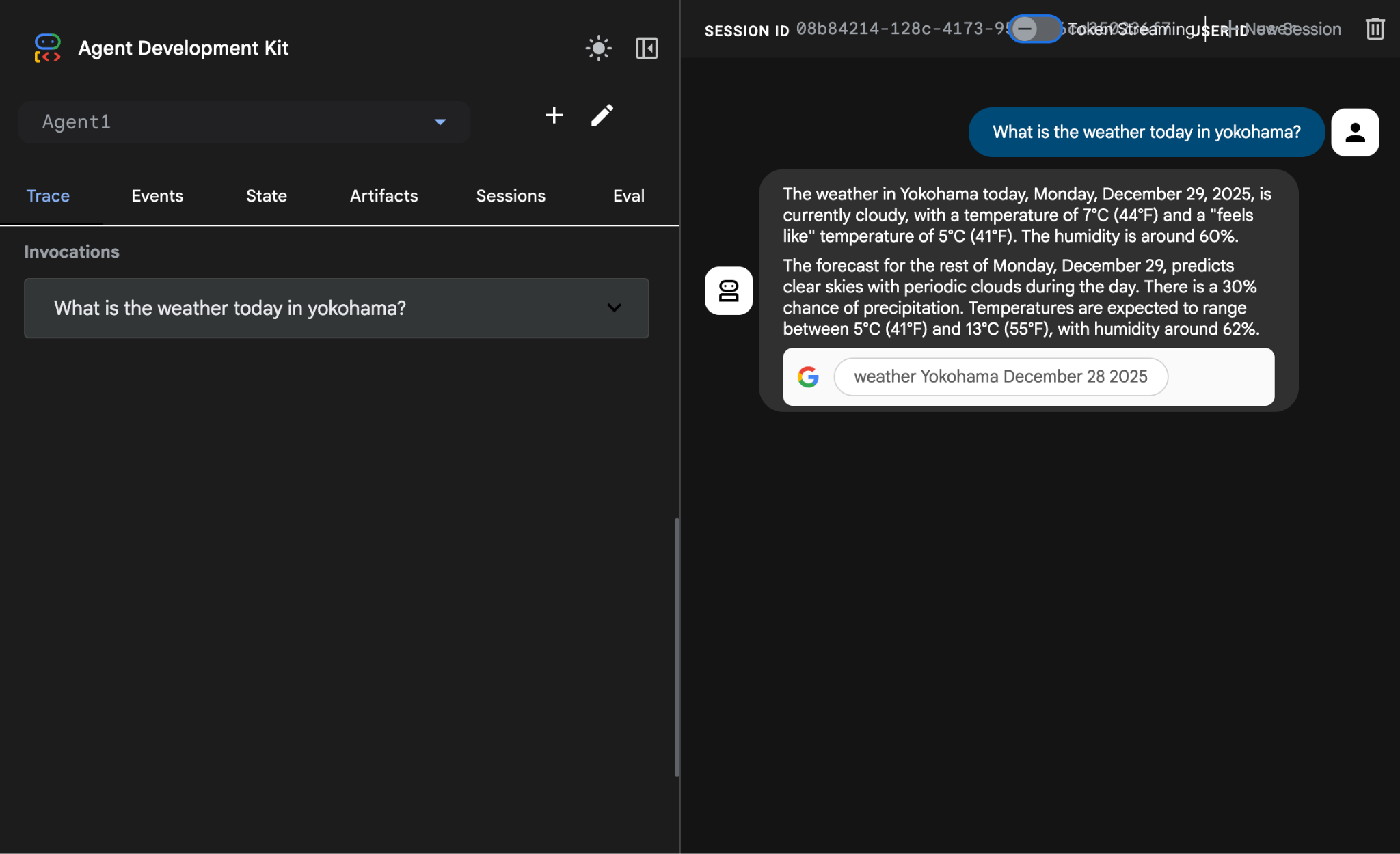
Figure 13: Google Search with the agent
- Now let's go back to the editor and check the code that has been created in this step. From the Editor Explorer side panel click on root_agent.yaml to open. Confirm that google_search has been added as the tool (Figure 15).
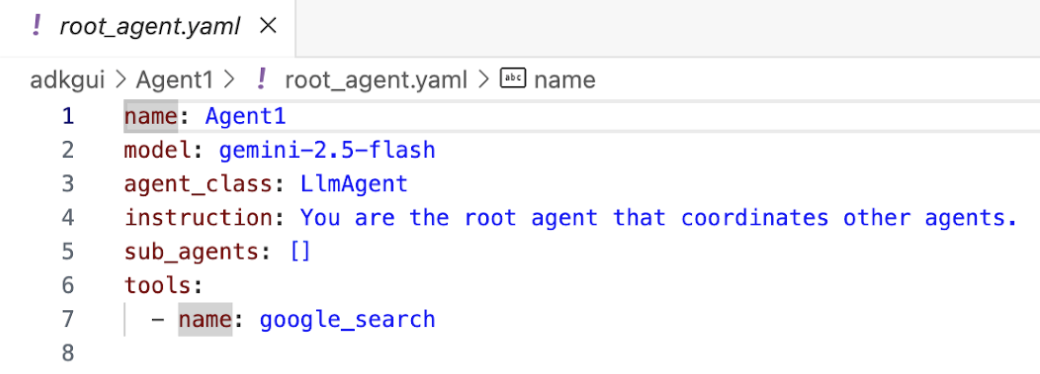
Figure 14: Confirmation that google_search has been added as a tool in Agent1
7. Deploy the Agent to Cloud Run
Now lets deploy the created agent to Cloud Run! With Cloud Run you can build apps or websites quickly on a fully managed platform.
You can run frontend and backend services, batch jobs, host LLMs, and queue processing workloads without the need to manage infrastructure.
- In the Cloud Shell Editor Terminal, if you are still running the ADK (Agent Development Kit) server, press Ctrl+C to stop it.
CTRL+C (Windows), CMD+C (MAC)
- Go to the project root directory.
cd ~/adkui
- Get the deploy code. After you run the command you should see the file deploycloudrun.py in the Cloud Shell Editor Explorer pane
curl -LO https://raw.githubusercontent.com/haren-bh/codelabs/main/adk_visual_builder/deploycloudrun.py
- Check the deploy options in deploycloudrun.py. We will use the adk deploy command to deploy our agent to Cloud Run. ADK (Agent Development Kit) has the built in option to deploy the agent to Cloud Run. We need to specify the parameters such as Google Cloud Project ID, Region, etc. For the app path this script assumes that agent_path=./Agent1. We will also create a new service account with the necessary permissions and attach it to Cloud Run. Cloud Run needs access to services like Vertex AI, Cloud Storage to run the Agent.
- Run the deploycloudrun.py script**. Deployment should start as shown in the figure below.**
python3 deploycloudrun.py
If you get the confirmation message like below, Press Y and Enter for all the messages. The depoycloudrun.py assumes that your agent is in the Agent1 folder like created above.
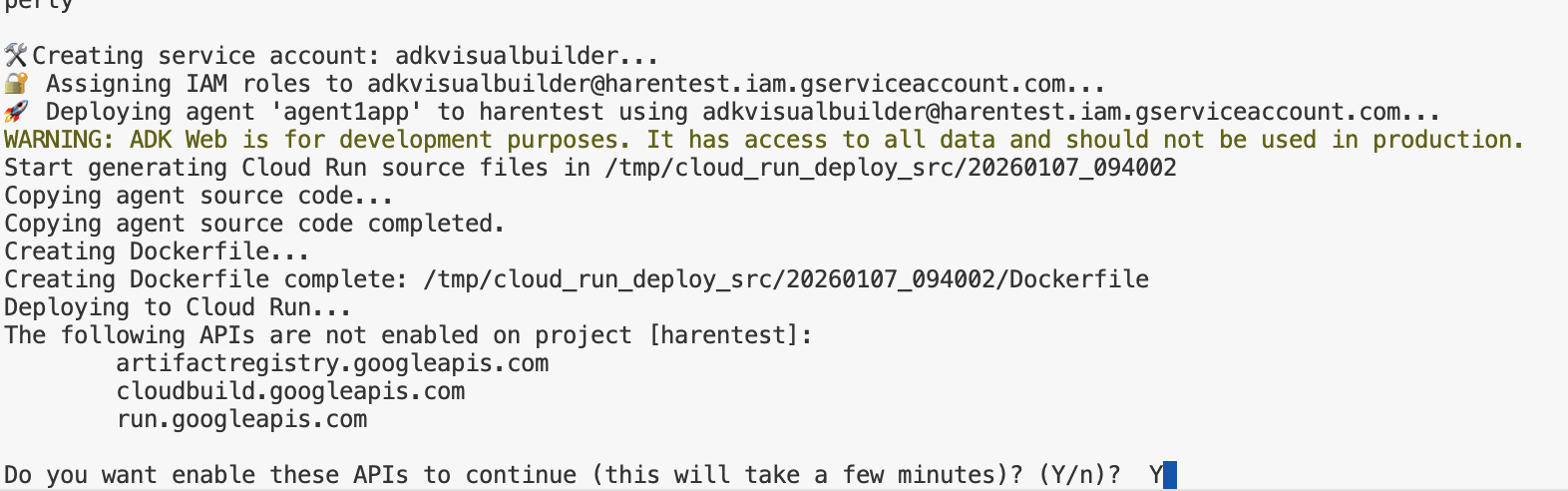
Figure 15: Deploying agent to Cloud Run, press Y to any confirmation messages.
- Once the deployment is complete you should see Service URL like, https://agent1service-78833623456.us-central1.run.app
- Access the URL in your web browser to launch the app.
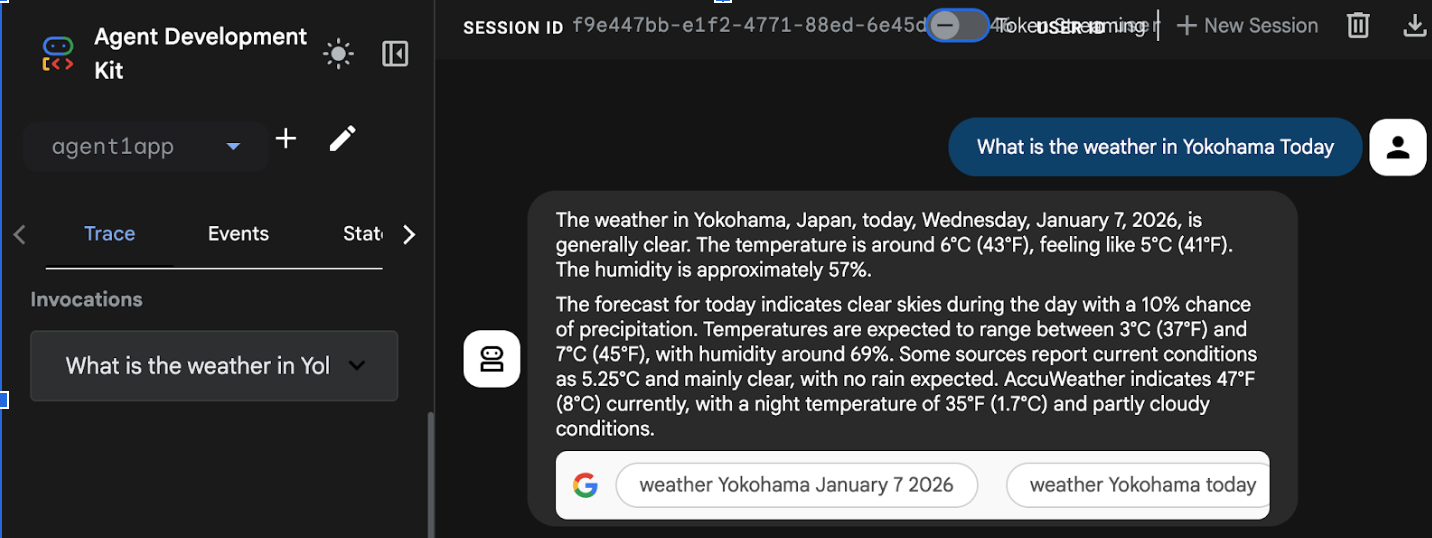
Figure 16: Agent running in Cloud Run
8. Create an agent with sub-agent and custom tool
In the previous section you created a single agent with a built in Google Search Tool. In this section you will create a multi agent system where we allow the agents to use the custom tools.
- First restart the ADK (Agent Development Kit) Server. Go to the terminal where you started the ADK (Agent Development Kit) server and press CTRL+C to shutdown the server if it's still running. Execute the following to start the server again.
#make sure you are in the right folder.
cd ~/adkui

#start the server
adk web --host 0.0.0.0 --port 8080 --allow_origins "regex:https://.*8080-.*\.cloudshell\.dev"
- Ctrl+Click on the url (eg. http://localhost:8000) displayed on the screen. The ADK (Agent Development Kit) GUI should display on the browser tab.
- Click on the "+" button to create a new Agent. On the agent dialog enter "Agent2" (Figure 18) and click "Create".
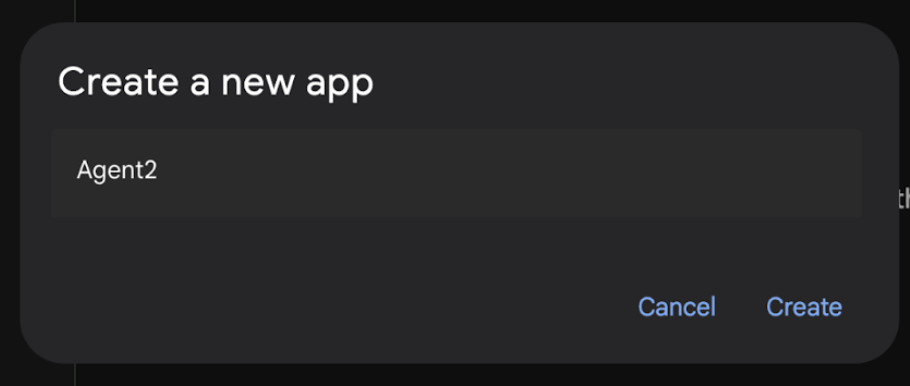
Figure 17: Creating a new Agent app.
- In the instructions section of the Agent2 enter the following.
You are an agent that takes image creation instruction from the user and passes it to your sub agent
- Now we will add a sub agent to the root agent. To do so click on the "+" button on the left hand side of the Sub Agent menu at the bottom of the left pane (Figure 19) and click on "LLM Agent". This will create a new Agent as a new sub agent of the root agent.
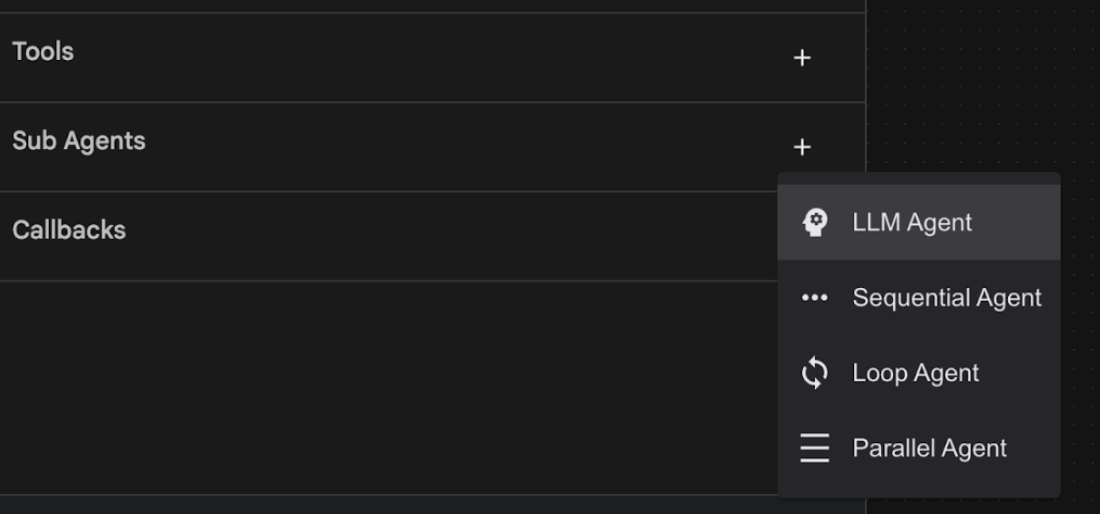
Figure 18: Add a new Sub Agent.
- In the Instructions for the sub_agent_1 enter the following text.
You are an Agent that can take instructions about an image and create an image using the create_image tool.
- Now lets add a custom tool on this sub agent. This tool will call the Imagen model to generate an image using the user's instructions. To do so, first click on the Sub Agent created in the previous step and click "+" button next to the Tools menu. From the list of the tool options click on "Function tool". This tool will allow us to add our own custom code to the tool.
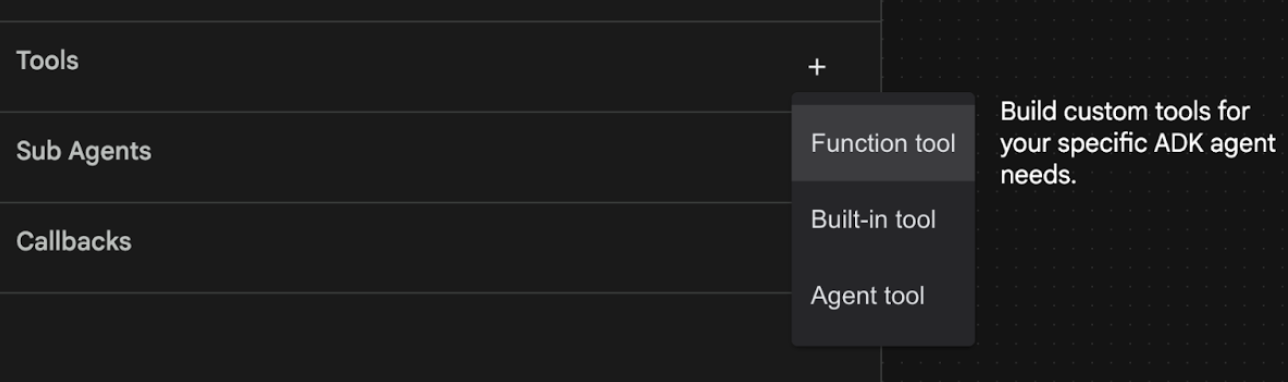
Figure 19: Click on Function tool to create a new tool. 8. Name the tool Agent2.image_creation_tool.create_image in the dialog box. 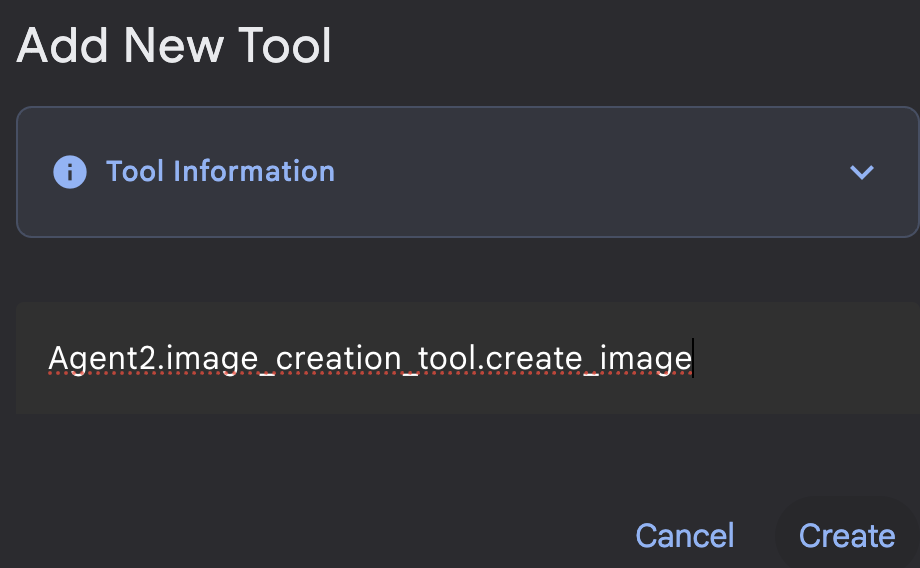
Figure 20: Add tool name
- Click on the Save button to save the changes.
- In the Cloud Shell Editor Terminal press Ctrl+C to shutdown the adk server.
- In the Terminal enter the following command to create image_creation_tool.py file.
touch ~/adkui/Agent2/image_creation_tool.py
- Open the newly created image_creation_tool.py by clicking it in the Explorer pane of Cloud Shell Editor. And replace the content of the image_creation_tool.py by the following and Save it (Ctrl+S).
import os
import io
import vertexai
from vertexai.preview.vision_models import ImageGenerationModel
from dotenv import load_dotenv
import uuid
from typing import Union
from datetime import datetime
from google import genai
from google.genai import types
from google.adk.tools import ToolContext
import logging

# Configure logging
logging.basicConfig(level=logging.INFO)
logger = logging.getLogger(__name__)

async def create_image(prompt: str,tool_context: ToolContext) -> Union[bytes, str]:
  """
  Generates an image based on a text prompt using a Vertex AI Imagen model.
  Args:
      prompt: The text prompt to generate the image from.

  Returns:
      The binary image data (PNG format) on success, or an error message string on failure.
  """
  print(f"Attempting to generate image for prompt: '{prompt}'")

  try:
      # Load environment variables from .env file two levels up
      dotenv_path = os.path.join(os.path.dirname(__file__), '..', '..', '.env')
      load_dotenv(dotenv_path=dotenv_path)
      project_id = os.getenv("GOOGLE_CLOUD_PROJECT")
      location = os.getenv("GOOGLE_CLOUD_LOCATION")
      model_name = os.getenv("IMAGEN_MODEL")
      client = genai.Client(
          vertexai=True,
          project=project_id,
          location=location,
      )
      response = client.models.generate_images(
          model="imagen-3.0-generate-002",
          prompt=prompt,
          config=types.GenerateImagesConfig(
              number_of_images=1,
              aspect_ratio="9:16",
              safety_filter_level="block_low_and_above",
              person_generation="allow_adult",
          ),
      )
      if not all([project_id, location, model_name]):
          return "Error: Missing GOOGLE_CLOUD_PROJECT, GOOGLE_CLOUD_LOCATION, or IMAGEN_MODEL in .env file."
      vertexai.init(project=project_id, location=location)
      model = ImageGenerationModel.from_pretrained(model_name)
      images = model.generate_images(
          prompt=prompt,
          number_of_images=1
      )
      if response.generated_images is  None:
          return "Error: No image was generated."
      for generated_image in response.generated_images:
          # Get the image bytes
          image_bytes = generated_image.image.image_bytes
          counter = str(tool_context.state.get("loop_iteration", 0))
          artifact_name = f"generated_image_" + counter + ".png"
          # Save as ADK artifact (optional, if still needed by other ADK components)
          report_artifact = types.Part.from_bytes(
              data=image_bytes, mime_type="image/png"
          )
          await tool_context.save_artifact(artifact_name, report_artifact)
          logger.info(f"Image also saved as ADK artifact: {artifact_name}")
          return {
              "status": "success",
              "message": f"Image generated .  ADK artifact: {artifact_name}.",
              "artifact_name": artifact_name,
          }
  except Exception as e:
      error_message = f"An error occurred during image generation: {e}"
      print(error_message)
      return error_message
- First restart the ADK (Agent Development Kit) Server. Go to the terminal where you started the ADK (Agent Development Kit) server and press CTRL+C to shutdown the server if it's still running. Execute the following to start the server again.
#make sure you are in the right folder.
cd ~/adkui

#start the server
adk web --host 0.0.0.0 --port 8080 --allow_origins "regex:https://.*8080-.*\.cloudshell\.dev"
- Ctrl+Click on the url (eg. http://localhost:8000) displayed on the screen. The ADK (Agent Development Kit) GUI should display on the browser tab.
- In the ADK (Agent Development Kit) UI tab, select Agent2 in the Agent list and press the edit button (Pen icon). In the ADK (Agent Development Kit) Visual Editor click Save button to persist the changes.
- Now we can test the new Agent.
- In the ADK (Agent Development Kit) UI chat interface enter the following prompt. You can also try other prompts. You should see the results shown in Figure 21)
Create an image of a cat
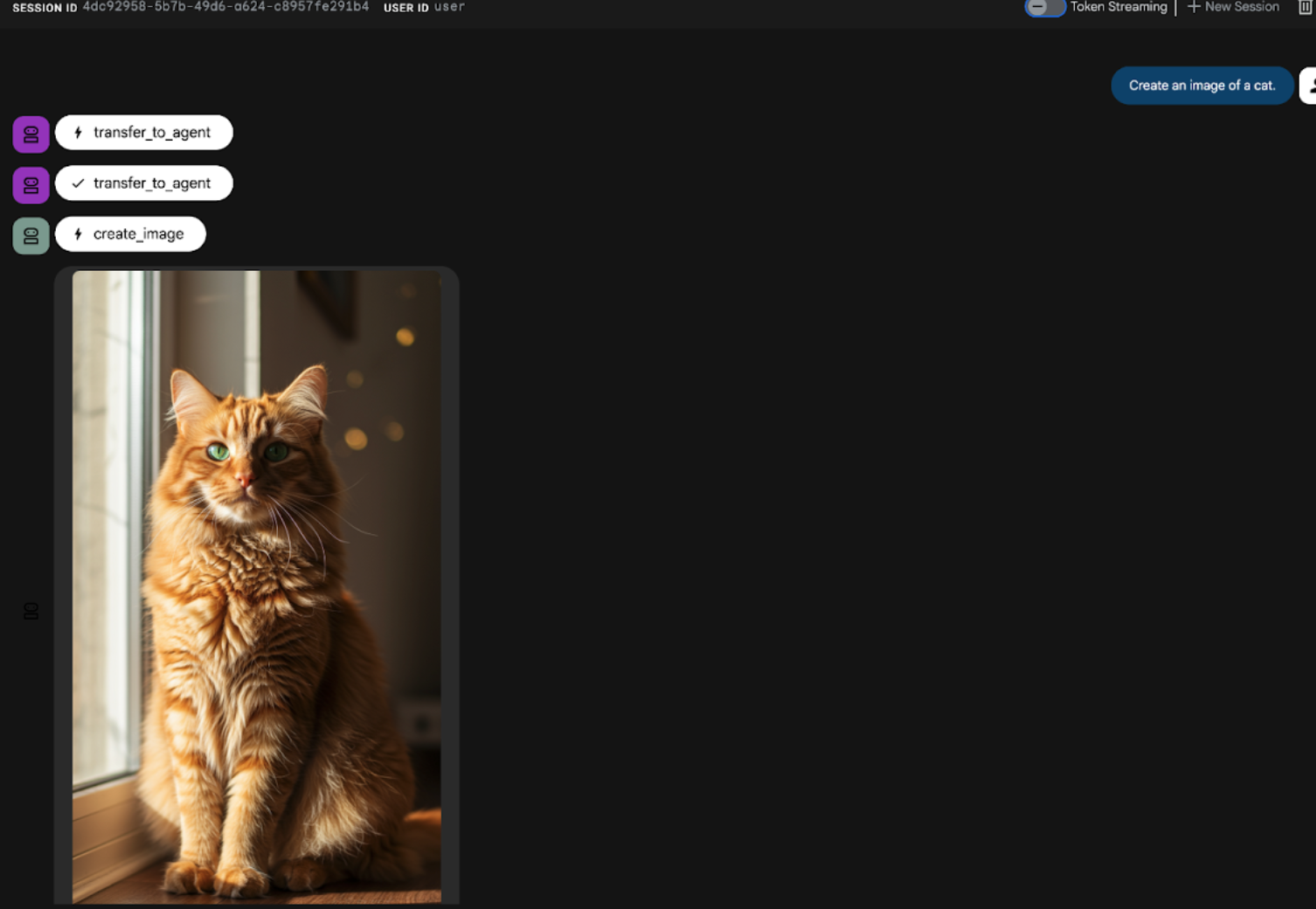
Figure 21: ADK UI chat interface
9. Create a workflow agent
While the previous step involved building an agent with a Sub Agent and specialized image creation tools, this phase focuses on refining the agent's capabilities. We will enhance the process by ensuring the user's initial prompt is optimized before image generation occurs. To achieve this, a Sequential agent will be integrated into the Root Agent to handle the following two-step workflow:
- Receive the prompt from the Root Agent and perform prompt enhancement.
- Forward the refined prompt to the image creator Agent to produce the final image using IMAGEN.
- First restart the ADK (Agent Development Kit) Server. Go to the terminal where you started the ADK (Agent Development Kit) server and press CTRL+C to shutdown the server if it's still running. Execute the following to start the server again.
#make sure you are in the right folder.
cd ~/adkui

#start the server
adk web --host 0.0.0.0 --port 8080 --allow_origins "regex:https://.*8080-.*\.cloudshell\.dev"
- Ctrl+Click on the url (eg. http://localhost:8000) displayed on the screen. The ADK (Agent Development Kit) GUI should display on the browser tab.
- Select Agent2 from the agent selector and click on the Edit button (Pen icon).
- Click on the Agent2 (Root Agent) and Click on the "+" button next to the Sub Agents menu. And from the List of options Click on Sequential Agent
- You should see the Agent Structure like the one shown in Figure 22
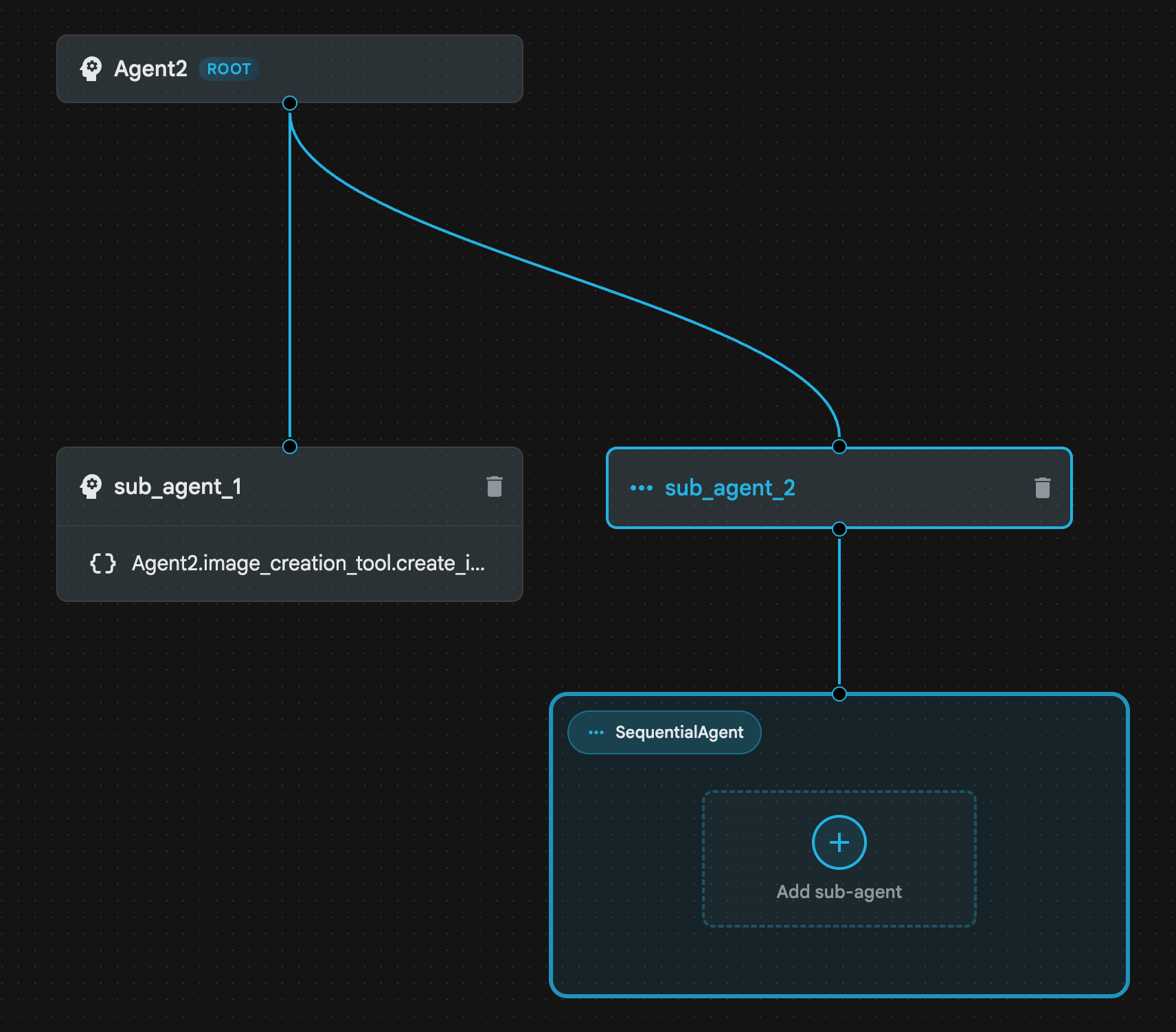
Figure 22: Sequential Agent Agent Structure
- Now we will add the first agent to the Sequential Agent which will act as a prompt enhancer. To do So Click on the Add sub-agent Button inside the SequentialAgent box and Click LLM Agent
- We need to add another Agent to the sequence so repeat Step 6 to add another LLM Agent (Press the + button and select LLMAgent).
- Click on sub_agent_4 and add a new Tool by clicking on the "+" icon next to the Tools on the Left Pane. Click "Function tool" from the options. On the DialogBox name the tool, Agent2.image_creation_tool.create_image and press "Create".
- Now we can delete sub_agent_1 as it has been replaced by more advanced sub_agent_2. To do so click on the Delete button on the right side of sub_agent_1 in the diagram.
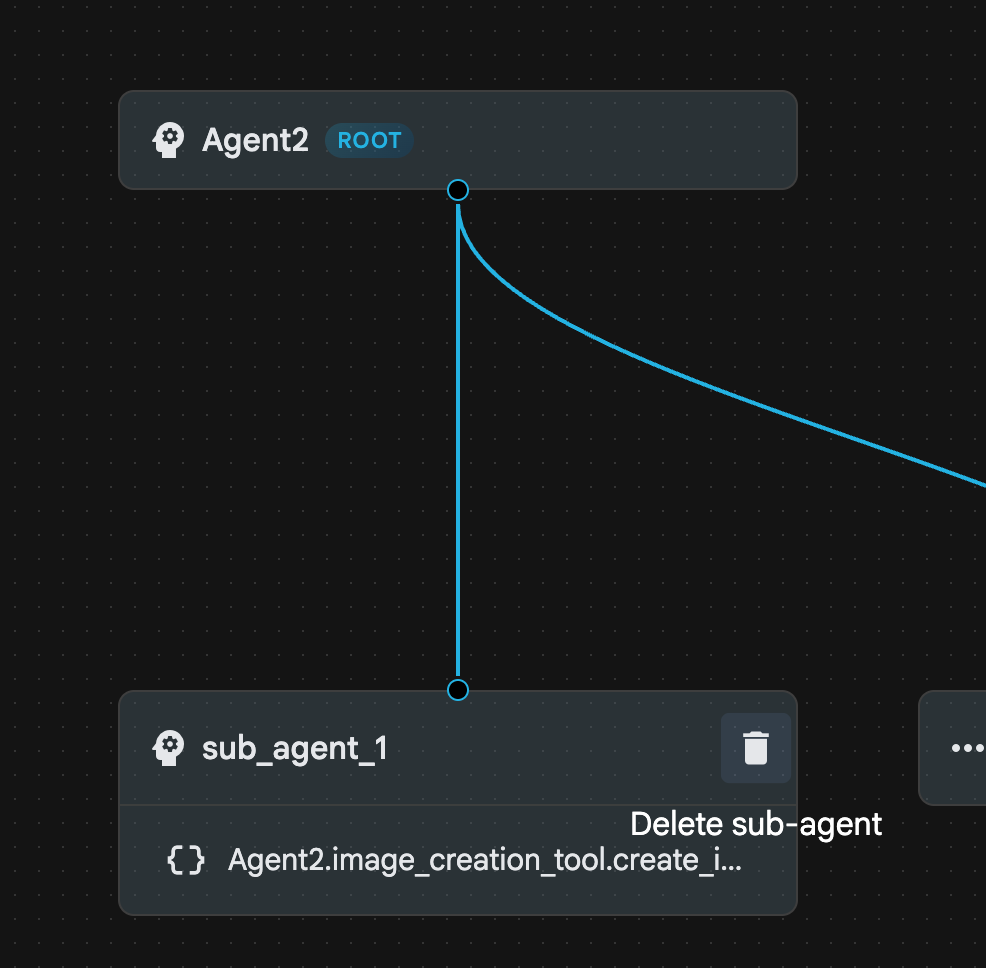
Figure 23: Delete sub_agent_1 10. Our agent structure looks like the one in Figure 24.
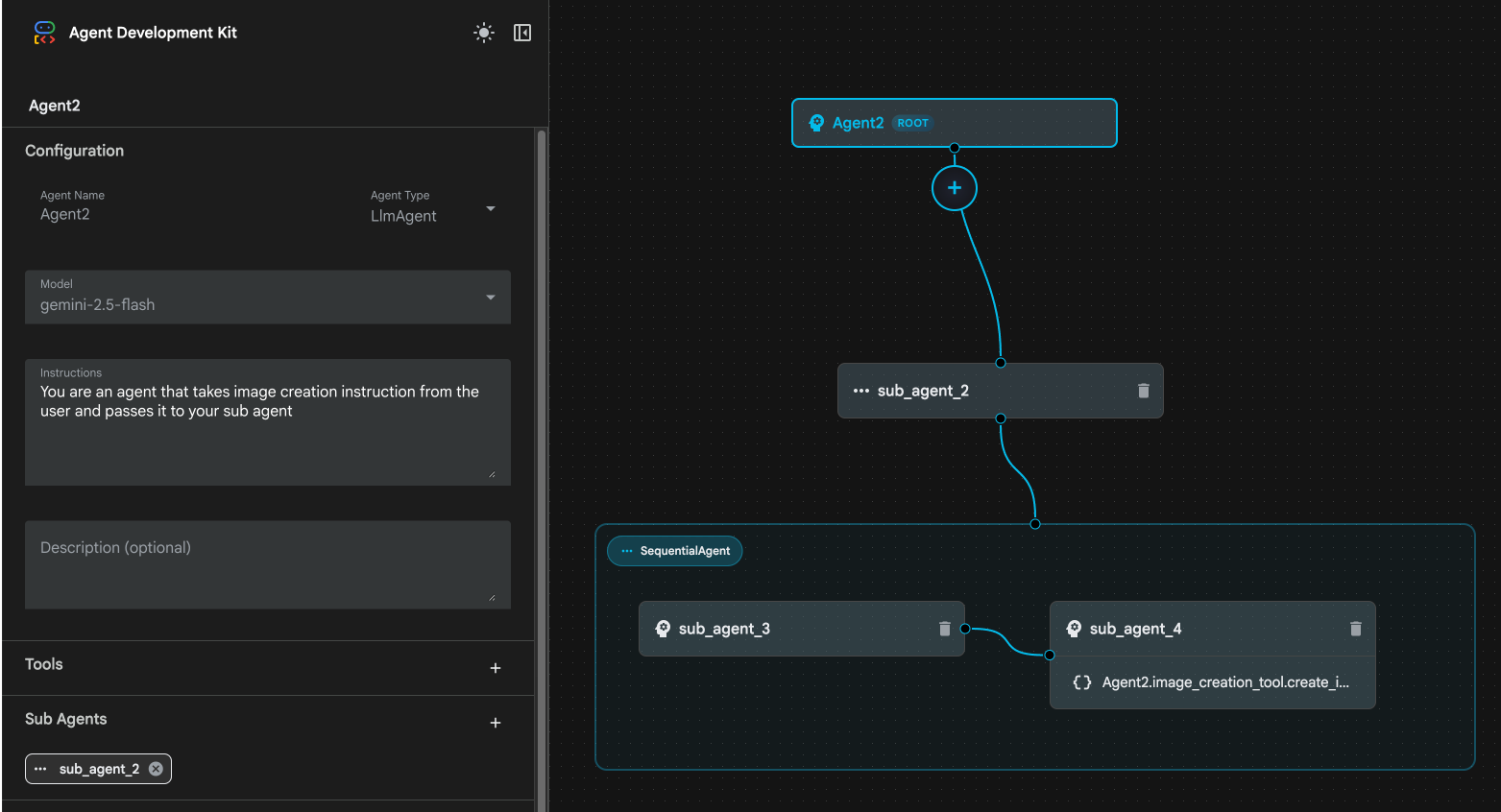
Figure 24: Enhanced Agent final structure
- Click on sub_agent_3 and in the instructions enter the following.
     Act as a professional AI Image Prompt Engineer. I will provide you
    with a basic idea for an image. Your job is to expand my idea into
    a detailed, high-quality prompt for models like Imagen.

    For every input, output the following structure:
    1. **Optimized Prompt**: A vivid, descriptive paragraph including
    subject, background, lighting, and textures.
    2. **Style & Medium**: Specify if it is photorealistic, digital art,
    oil painting, etc.
    3. **Camera & Lighting**: Define the lens (e.g., 85mm), angle,
    and light quality (e.g., volumetric, golden hour).

    Guidelines: Use sensory language, avoid buzzwords like 'photorealistic'
    unless necessary, and focus on specific artistic descriptors.
    Once the prompt is created send the prompt to the
- Click on the sub_agent_4. Change the instruction to the following.
You are an agent that takes instructions about an image and can generate the image using the create_image tool.
- Click the Save button
- Go to the Cloud Shell Editor Explorer Pane and open the agent yaml files. The Agent Files should look like below
root_agent.yaml

name: Agent2
model: gemini-2.5-flash
agent_class: LlmAgent
instruction: You are an agent that takes image creation instruction from the
  user and passes it to your sub agent
sub_agents:
  - config_path: ./sub_agent_2.yaml
tools: []
sub_agent_2.yaml

name: sub_agent_2
agent_class: SequentialAgent
sub_agents:
  - config_path: ./sub_agent_3.yaml
  - config_path: ./sub_agent_4.yaml
sub_agent_3.yaml

name: sub_agent_3
model: gemini-2.5-flash
agent_class: LlmAgent
instruction: |
  Act as a professional AI Image Prompt Engineer. I will provide you  with a
  basic idea for an image. Your job is to expand my idea into  a detailed,
  high-quality prompt for models like Imagen.

  For every input, output the following structure: 1. **Optimized Prompt**: A
  vivid, descriptive paragraph including  subject, background, lighting, and
  textures. 2. **Style & Medium**: Specify if it is photorealistic, digital
  art,  oil painting, etc. 3. **Camera & Lighting**: Define the lens (e.g.,
  85mm), angle,  and light quality (e.g., volumetric, golden hour).

  Guidelines: Use sensory language, avoid buzzwords like
  'photorealistic'  unless necessary, and focus on specific artistic
  descriptors. Once the prompt is created send the prompt to the
sub_agents: []
tools: []
sub_agent_4.yaml

name: sub_agent_4
model: gemini-2.5-flash
agent_class: LlmAgent
instruction: You are an agent that takes instructions about an image and
  generate the image using the create_image tool.
sub_agents: []
tools:
  - name: Agent2.image_creation_tool.create_image
- Now let's test it.
- First restart the ADK (Agent Development Kit) Server. Go to the terminal where you started the ADK (Agent Development Kit) server and press CTRL+C to shutdown the server if it's still running. Execute the following to start the server again.
#make sure you are in the right folder.
cd ~/adkui

#start the server
adk web --host 0.0.0.0 --port 8080 --allow_origins "regex:https://.*8080-.*\.cloudshell\.dev"
- Ctrl+Click on the url (eg. http://localhost:8000) displayed on the screen. The ADK (Agent Development Kit) GUI should display on the browser tab.
- Select Agent2 from the agent list. And enter the following prompt.
Create an image of a Cat
- While the Agent is working you can look at the Terminal in the Cloud Shell Editor to see what is going on in the background. The final result should look like Figure 25.
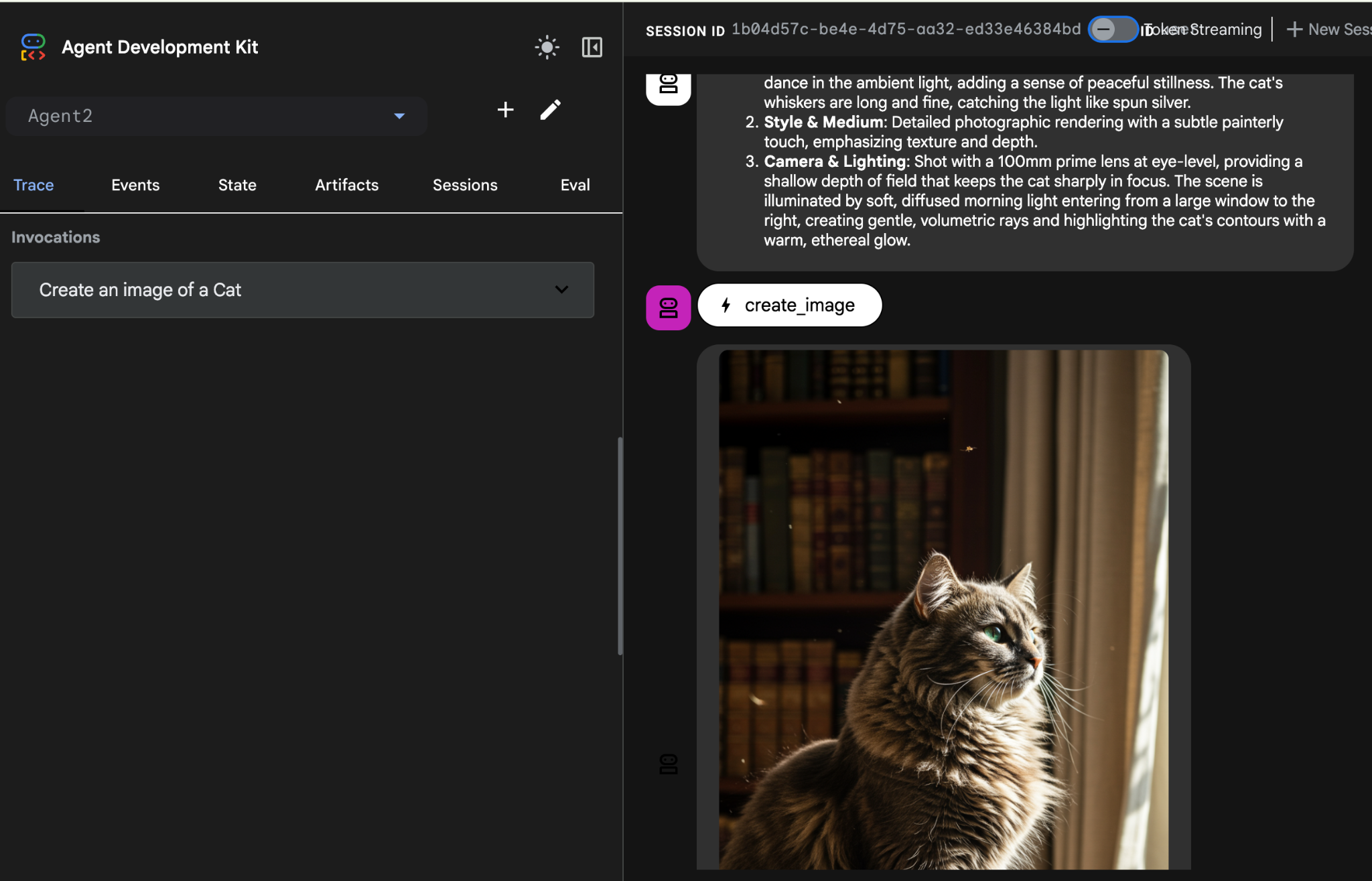
Figure 25: Testing the Agent
10. Create an agent with Agent Builder Assistant
Agent Builder Assistant is a part of ADK Visual Builder that enables the interactive creation of agents through prompts in a simple chat interface, allowing for varying levels of complexity. By utilizing the ADK Visual Builder, you can receive immediate visual feedback on the agents you develop. In this lab, we will build an agent capable of generating an HTML comic book from a user's request. Users might provide a simple prompt like "Create a comic book about Hansel and Gretel," or they could input an entire story. The agent will then analyze the narrative, segment it into multiple panels, and employ Nanobanana to produce the comic visuals, ultimately packaging the result into an HTML format.
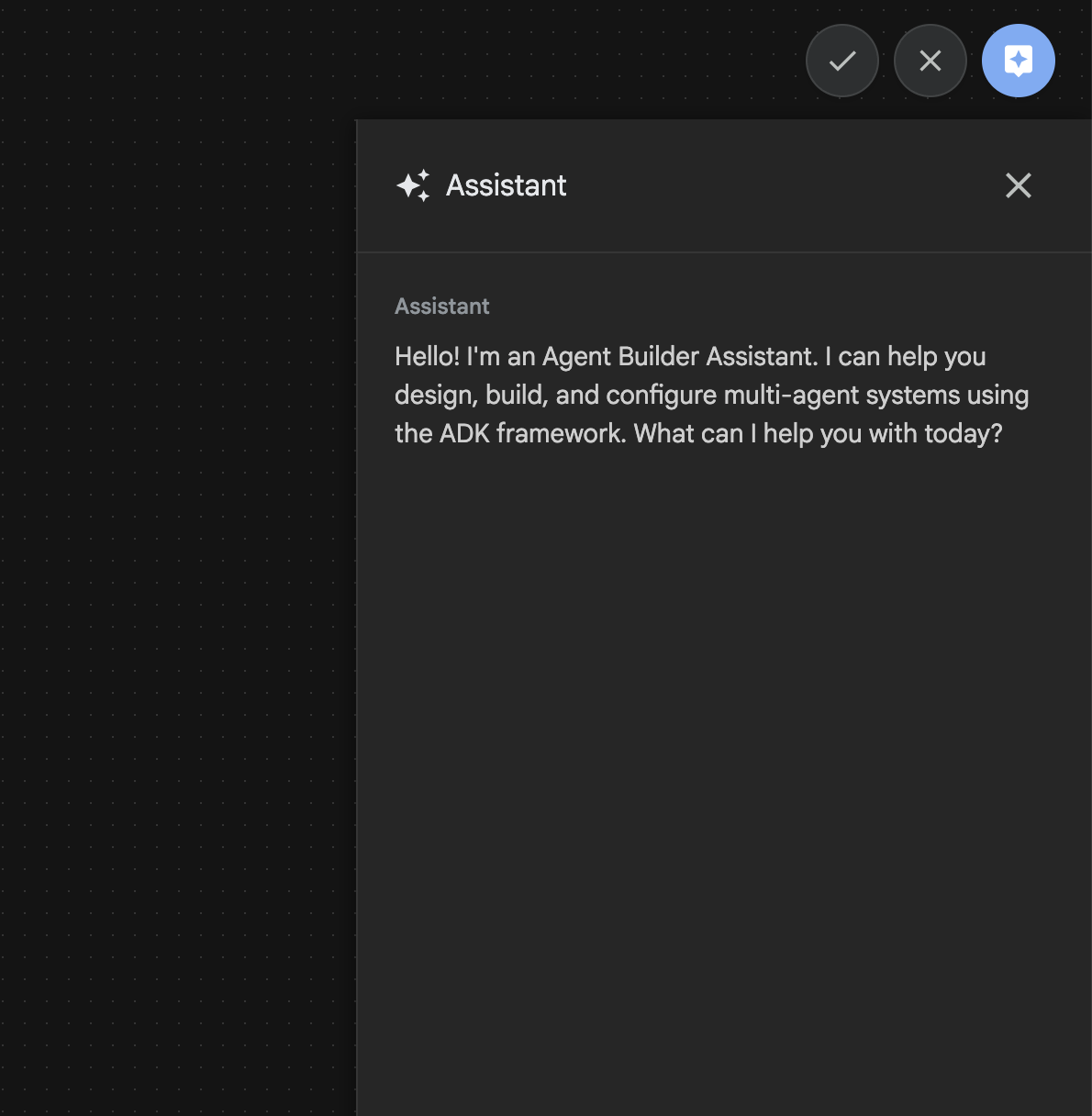
Figure 26: Agent Builder Assistant UI
Let's get started!
- First restart the ADK (Agent Development Kit) Server. Go to the terminal where you started the ADK (Agent Development Kit) server and press CTRL+C to shutdown the server if it's still running. Execute the following to start the server again.
#make sure you are in the right folder.
cd ~/adkui

#start the server
adk web --host 0.0.0.0 --port 8080 --allow_origins "regex:https://.*8080-.*\.cloudshell\.dev"
- Ctrl+Click on the url (eg. http://localhost:8000) displayed on the screen. The ADK (Agent Development Kit) GUI should display on the browser tab.
- In the ADK (Agent Development Kit) GUI click on the "+" button to create a new Agent.
- In the dialog box enter "Agent3" and click the "Create" button.
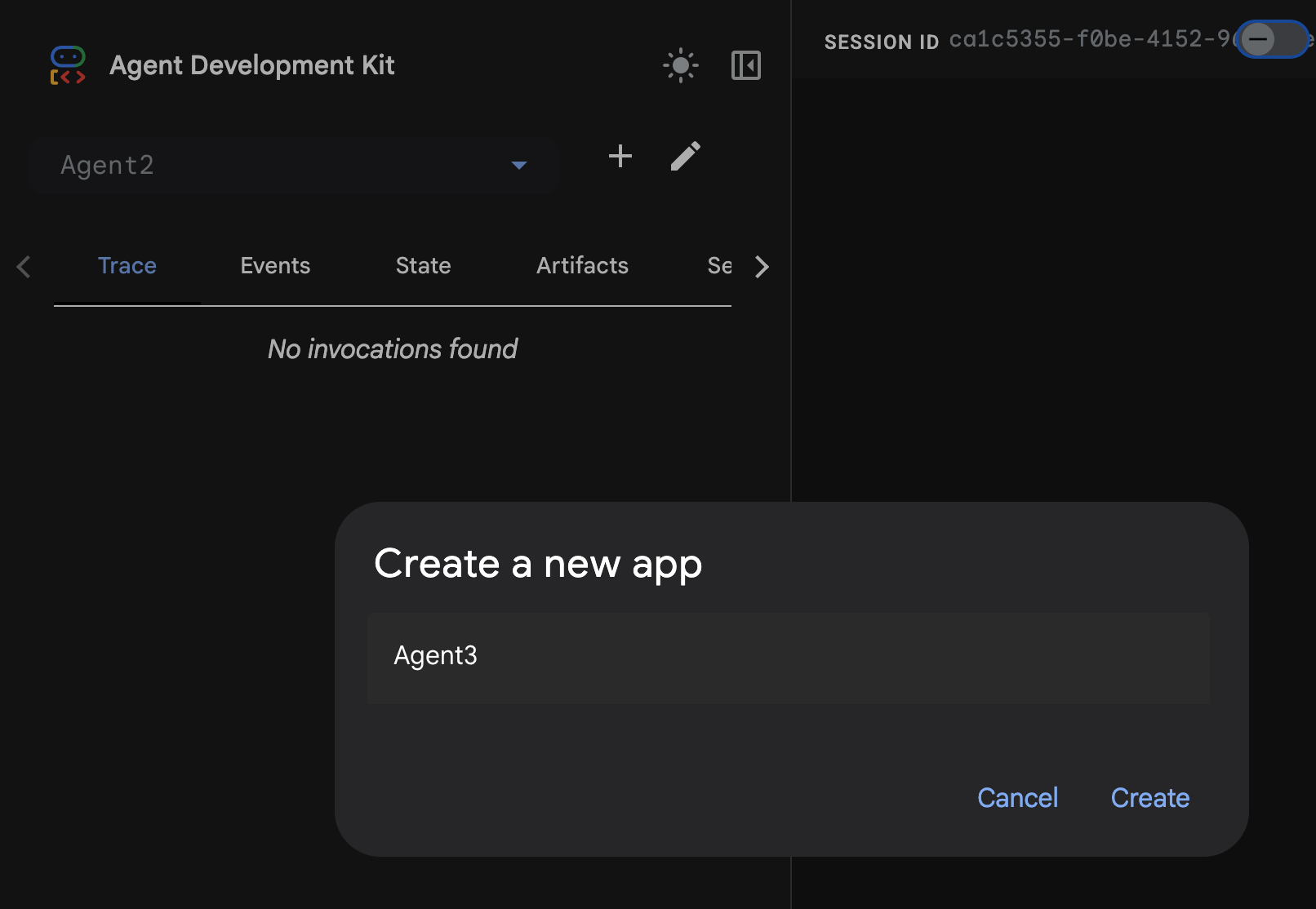
Figure 27: Create new Agent Agent3
- On the Assistant Pane on the right hand side Enter the following Prompt. The prompt below has all the instructions needed to create a system of agents to create an HTML based agent.
System Goal: You are the Studio Director (Root Agent). Your objective is to manage a linear pipeline of four ADK Sequential Agents to transform a user's seed idea into a fully rendered, responsive HTML5 comic book.

0. Root Agent: The Studio Director
Role: Orchestrator and State Manager.

Logic: Receives the user's initial request. It initializes the workflow and ensures the output of each Sub-Agent is passed as the context for the next. It monitors the sequence to ensure no steps are skipped. Make sure the query explicitly mentions "Create me a comic of ..." if it's just a general question or prompt just answer the question.

1. Sub-Agent: The Scripting Agent (Sequential Step 1)
Role: Narrative & Character Architect.

Input: Seed idea from Root Agent.

Logic: 1. Create a Character Manifest: Define 3 specific, unchangeable visual identifiers
          for every character (e.g., "Gretel: Blue neon hair ribbons, silver apron,
          glowing boots").
       2. Expand the seed idea into a coherent narrative arc.

Output: A narrative script and a mandatory character visual guide.

2. Sub-Agent: The Panelization Agent (Sequential Step 2)
Role: Cinematographer & Storyboarder.

Input: Script and Character Manifest from Step 1.

Logic:
     1. Divide the script into exactly X panels (User-defined or default to 8).
     2. For each panel, define a specific composition (e.g., "Panel 1:
        Wide shot of the gingerbread house").


Output: A structured list of exactly X panel descriptions.

3. Sub-Agent: The Image Synthesis Agent (Sequential Step 3)
Role: Technical Artist & Asset Generator.

Input: The structured list of panel descriptions from Step 2.

Logic:
     1. Iterative Generation: You must execute the "generate_image" tool in
     "image_generation.py" file
     (Nano Banana) individually for each panel defined in Step 2.
     2. Prompt Engineering: For every panel, translate the description into a
     Nano Banana prompt, strictly enforcing the character identifiers
     (e.g., the "blue neon ribbons") and the global style: "vibrant comic book style,
     heavy ink lines, cel-shaded, 4k." . Make sure that the necessary speech bubbles
     are present in the image representing the dialogue.
     3. Mapping: Associate each generated image URL with its corresponding panel
     number and dialogue.

Output: A complete gallery of X images mapped to their respective panel data.

4. Sub-Agent: The Assembly Agent (Sequential Step 4)
Role: Frontend Developer.

Input: The mapped images and panel text from Step 3.

Logic:
     1. Write a clean, responsive HTML5/CSS3 file that shows the comic. The comic should be
        Scrollable with image on the top and the description below the image.
     2. Use "write_comic_html" tool in file_writer.py to write the created html file in
        the "output" folder.
     4. In the "write_comic_html" tool add logic to copy the images folder to the
        output folder so that the images in the html file are actually visible when
        the user opens the html file.

Output: A final, production-ready HTML code block.
- The agent may ask you to input the model to use in which case enter gemini-2.5-pro from the option provided.
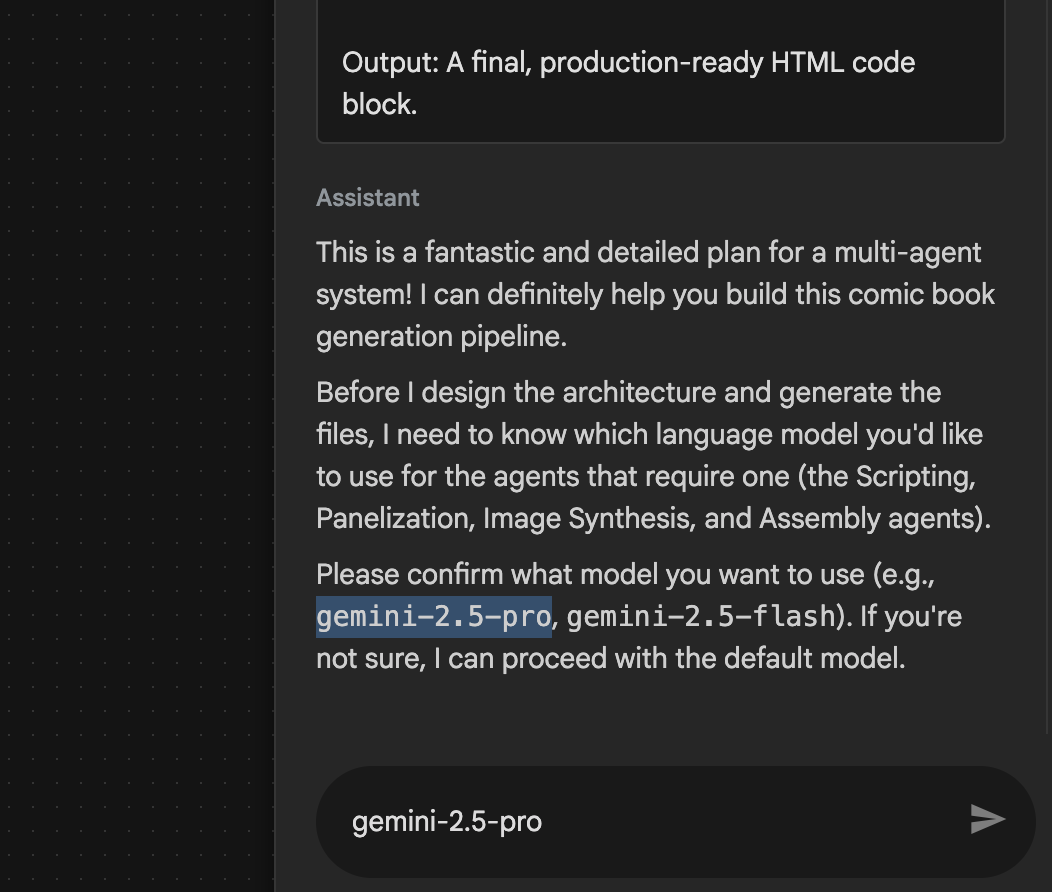 Figure 28: Enter gemini-2.5-pro if you get prompted to enter the model to be used
- The Assistant may come with the plan and ask you to confirm if it's okay to proceed. Check the plan and type "OK" and press "Enter".
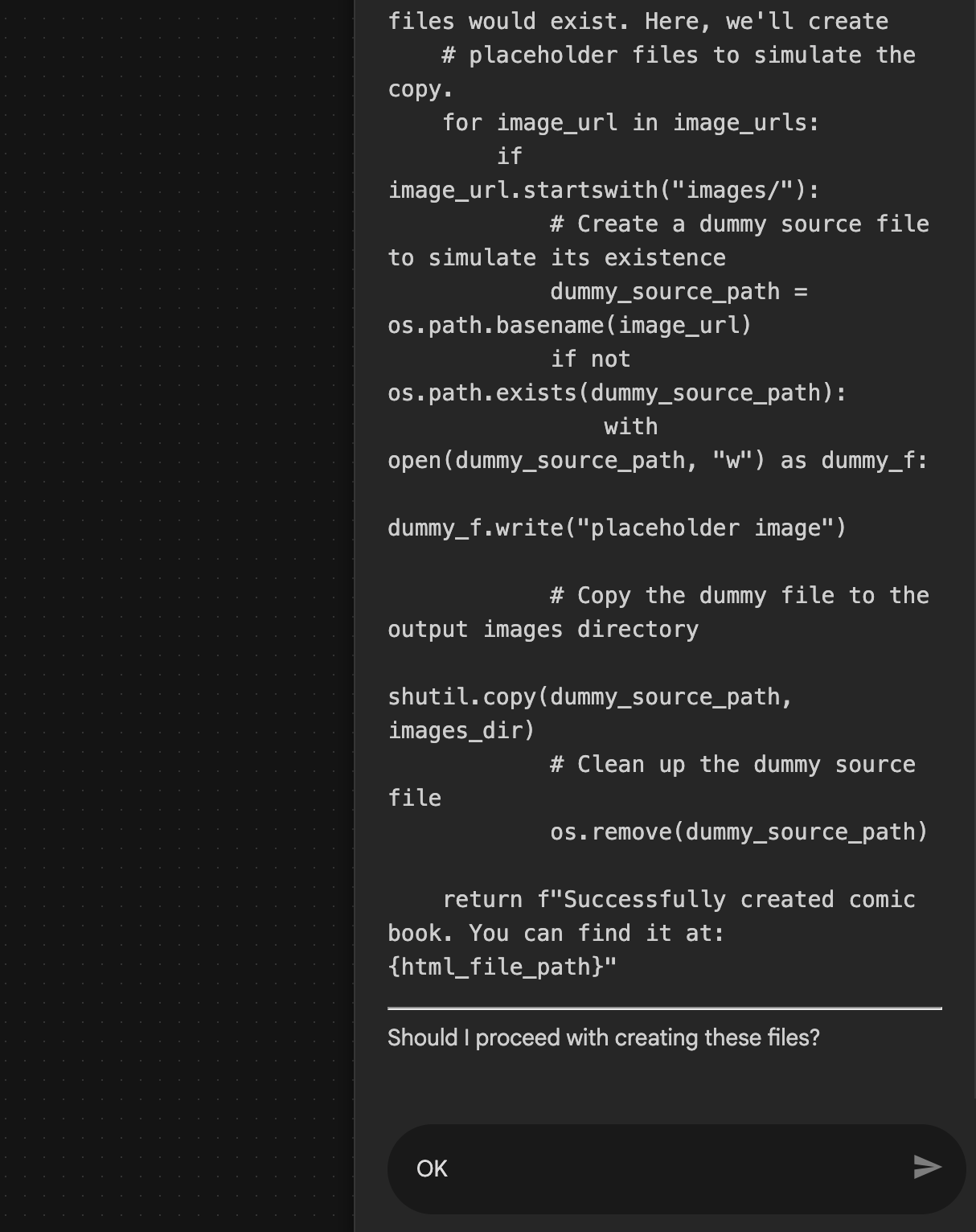 Figure 29: Enter OK if the plan looks okay 8. After the Assistant finishes working you should be able to see the Agent Structure as shown in Figure 30.
 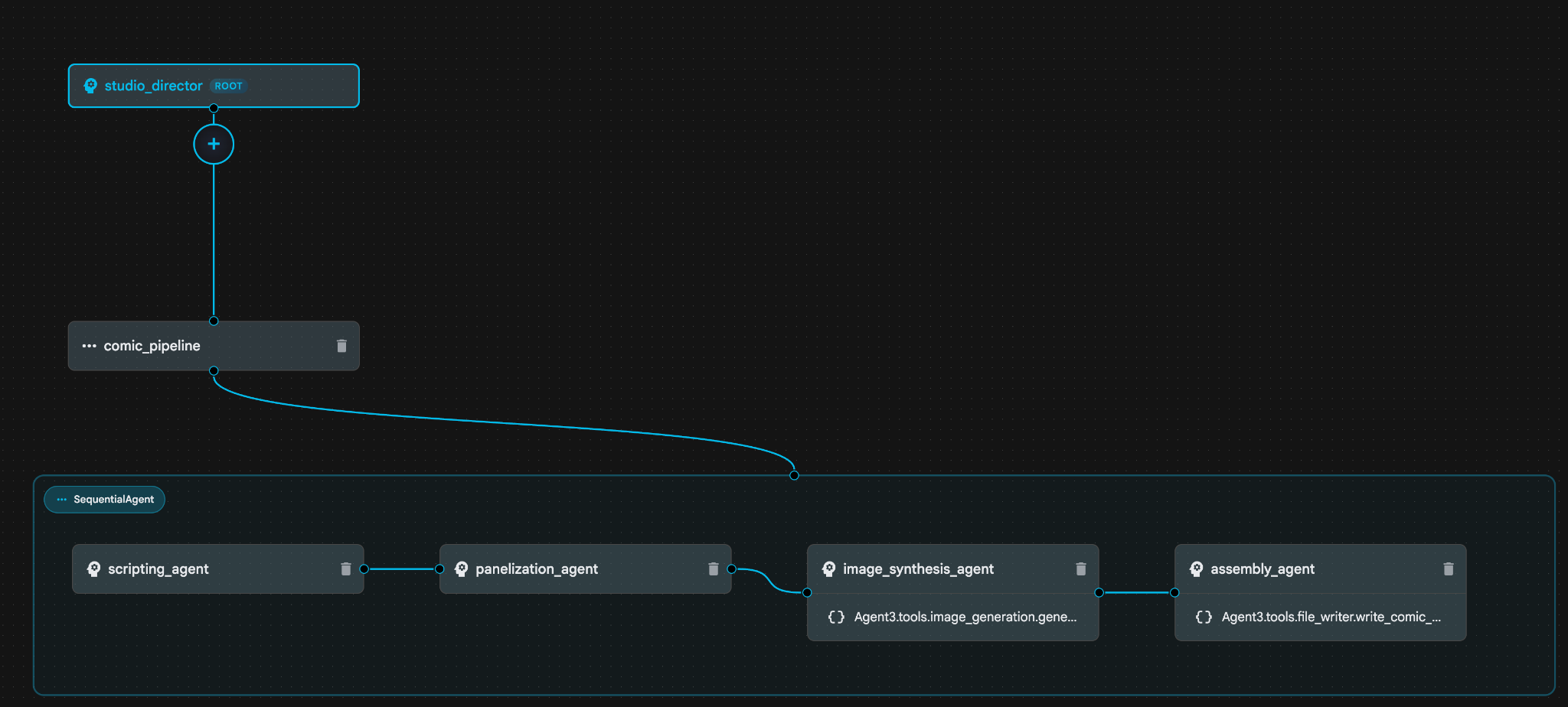 Figure 30: Agent created by the Agent Builder Assistant 9. Inside the image_synthesis_agent (your name could be different) click on the tool "Agent3.tools.image_generation.gene...". If the last section of the tool name is not **image_generation.generate_image change** it to **image_generation.generate_image**. If the name is already set to that there is no need to change the name. Press the **"Save"** button to save it.
 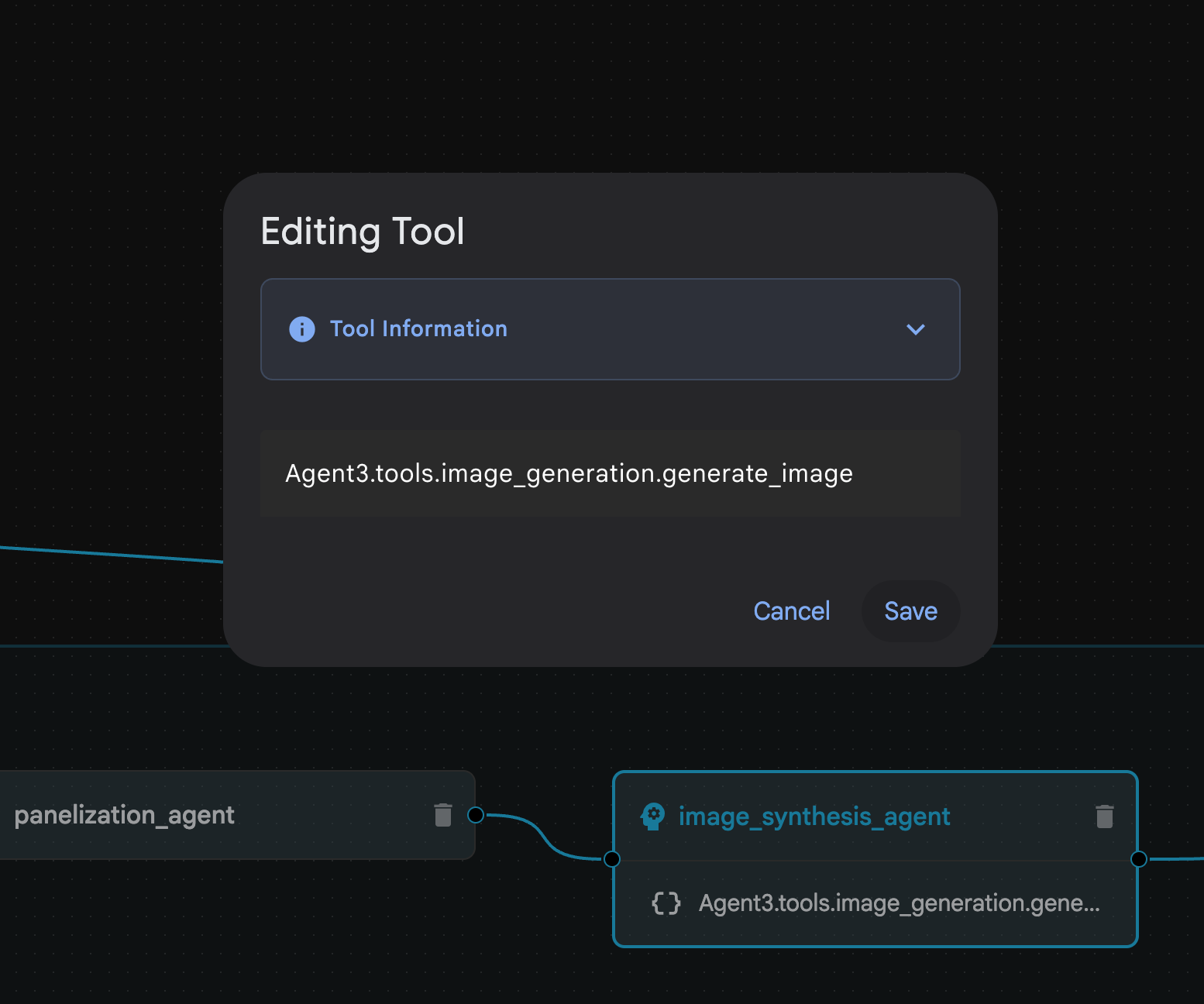 Figure 31: Change the tool name to image_generation.generate_image and press Save.
- Inside the assembly_agent (Your agent name could be different), click on the Agent3.tools.file_writer.write_comic_... tool. If the last section of the tool name is not file_writer.write_comic_html change it to file_writer.write_comic_html.
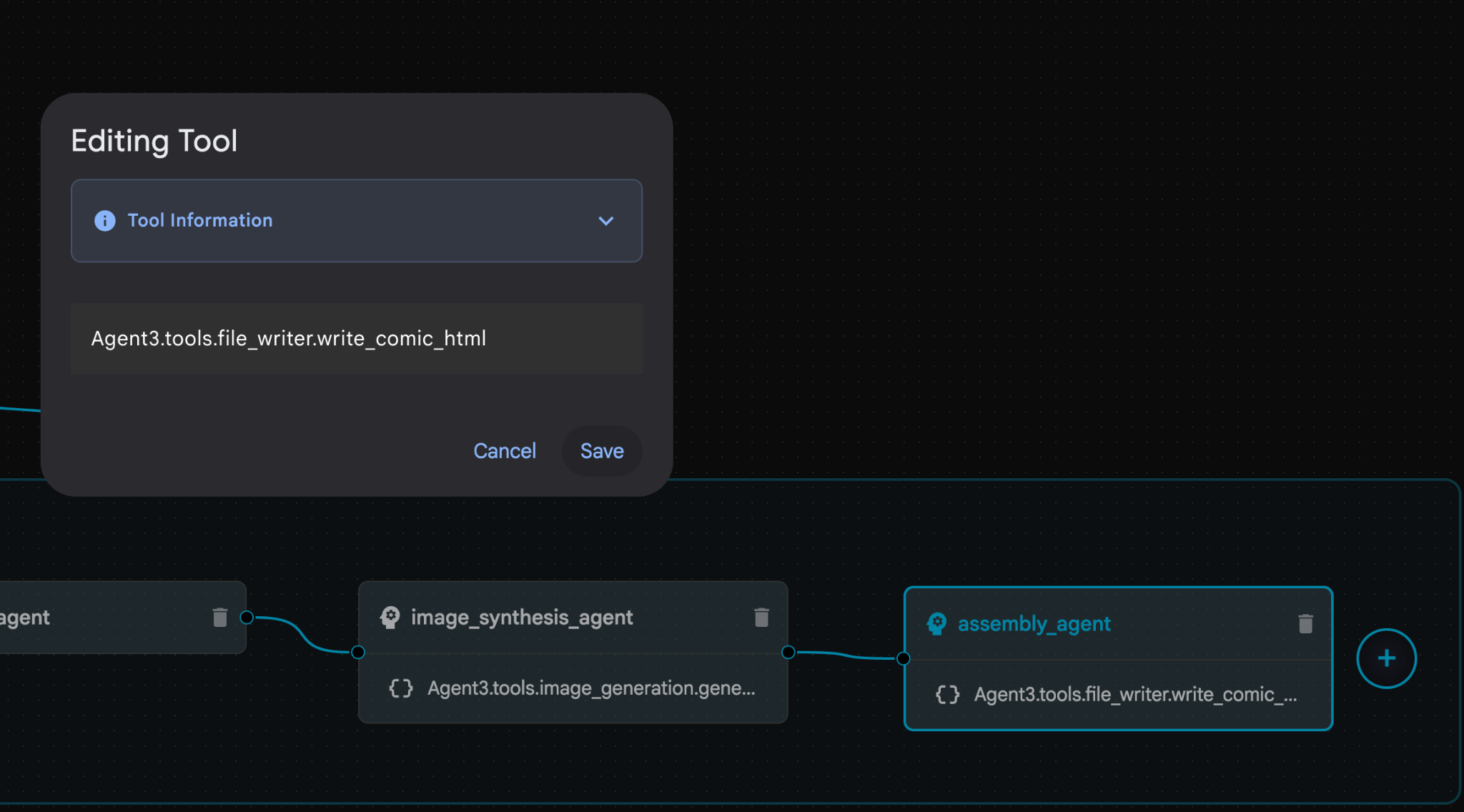 Figure 32: Change the tool name to **file_writer.write_comic_html** 11. Press the **Save** button on the bottom left of the Left panel to save the newly created Agent. 12. In the [Cloud Shell Editor](https://docs.cloud.google.com/shell/docs/launching-cloud-shell-editor) Explorer pane, expand the **Agent3** folder and inside **Agent3/** folder there should be **tools** folder. Click **Agent3/tools/file_writer.py** to open it and replace the content of **Agent3/tools/file_writer.py** with the following code. Press **Ctrl+S** to save. **Note: While the Agent assistant may have already created the correct code, for this lab we will use the tested code.**
import os
import shutil

def write_comic_html(html_content: str, image_directory: str = "images") -> str:
   """
   Writes the final HTML content to a file and copies the image assets.

   Args:
       html_content: A string containing the full HTML of the comic.
       image_directory: The source directory where generated images are stored.

   Returns:
       A confirmation message indicating success or failure.
   """
   output_dir = "output"
   images_output_dir = os.path.join(output_dir, image_directory)

   try:
       # Create the main output directory
       if not os.path.exists(output_dir):
           os.makedirs(output_dir)

       # Copy the entire image directory to the output folder
       if os.path.exists(image_directory):
           if os.path.exists(images_output_dir):
               shutil.rmtree(images_output_dir)  # Remove old images
           shutil.copytree(image_directory, images_output_dir)
       else:
           return f"Error: Image directory '{image_directory}' not found."

       # Write the HTML file
       html_file_path = os.path.join(output_dir, "comic.html")
       with open(html_file_path, "w") as f:
           f.write(html_content)

       return f"Successfully created comic at '{html_file_path}'"

   except Exception as e:
       return f"An error occurred: {e}"
- In the Cloud Shell Editor Explorer pane, Expand Agent3 folder and inside **Agent3/**folder there should be tools folder. Click Agent3/tools/image_generation.py to open it and replace the content of Agent3/tools/image_generation.py with the following code. Press Ctrl+S to save. Note: While the Agent assistant may have already created the correct code, for this lab we will use the tested code.
import time
import os
import io
import vertexai
from vertexai.preview.vision_models import ImageGenerationModel
from dotenv import load_dotenv
import uuid
from typing import Union
from datetime import datetime
from google import genai
from google.genai import types
from google.adk.tools import ToolContext

import logging
import asyncio

# Configure logging
logging.basicConfig(level=logging.INFO)
logger = logging.getLogger(__name__)

# It's better to initialize the client once and reuse it.
# IMPORTANT: Your Google Cloud Project ID must be set as an environment variable
# for the client to authenticate correctly.


def edit_image(client, prompt: str, previous_image: str, model_id: str) -> Union[bytes, None]:
   """
   Calls the model to edit an image based on a prompt.

   Args:
       prompt: The text prompt for image editing.
       previous_image: The path to the image to be edited.
       model_id: The model to use for the edit.

   Returns:
       The raw image data as bytes, or None if an error occurred.
   """

   try:
       with open(previous_image, "rb") as f:
           image_bytes = f.read()

       response = client.models.generate_content(
           model=model_id,
           contents=[
               types.Part.from_bytes(
                   data=image_bytes,
                   mime_type="image/png",  # Assuming PNG, adjust if necessary
               ),
               prompt,
           ],
           config=types.GenerateContentConfig(
               response_modalities=['IMAGE'],
           )
       )

       # Extract image data
       for part in response.candidates[0].content.parts:
           if part.inline_data:
               return part.inline_data.data

       logger.warning("Warning: No image data was generated for the edit.")
       return None

   except FileNotFoundError:
       logger.error(f"Error: The file {previous_image} was not found.")
       return None
   except Exception as e:
       logger.error(f"An error occurred during image editing: {e}")
       return None

async def generate_image(tool_context: ToolContext, prompt: str, image_name: str, previous_image: str = None) -> dict:
   """
   Generates or edits an image and saves it to the 'images/' directory.

   If 'previous_image' is provided, it edits that image. Otherwise, it generates a new one.

   Args:
       prompt: The text prompt for the operation.
       image_name: The desired name for the output image file (without extension).
       previous_image: Optional path to an image to be edited.

   Returns:
       A confirmation message with the path to the saved image or an error message.
   """
   load_dotenv()
   project_id = os.environ.get("GOOGLE_CLOUD_PROJECT")
   if not project_id:
       return "Error: GOOGLE_CLOUD_PROJECT environment variable is not set."

   try:
       client = genai.Client(vertexai=True, project=project_id, location="global")
   except Exception as e:
       return f"Error: Failed to initialize genai.Client: {e}"

   image_data = None
   model_id = "gemini-3-pro-image-preview"

   try:
       if previous_image:
           logger.info(f"Editing image: {previous_image}")
           image_data = edit_image(
               client=client,
               prompt=prompt,
               previous_image=previous_image,
               model_id=model_id
           )
       else:
           logger.info("Generating new image")
           # Generate the image
           response = client.models.generate_content(
               model=model_id,
               contents=prompt,
               config=types.GenerateContentConfig(
                   response_modalities=['IMAGE'],
                   image_config=types.ImageConfig(aspect_ratio="16:9"),
               ),
           )

           # Check for errors
           if response.candidates[0].finish_reason != types.FinishReason.STOP:
               return f"Error: Image generation failed. Reason: {response.candidates[0].finish_reason}"

           # Extract image data
           for part in response.candidates[0].content.parts:
               if part.inline_data:
                   image_data = part.inline_data.data
                   break

       if not image_data:
           return {"status": "error", "message": "No image data was generated.", "artifact_name": None}

       # Create the images directory if it doesn't exist
       output_dir = "images"
       os.makedirs(output_dir, exist_ok=True)

       # Save the image to file system
       file_path = os.path.join(output_dir, f"{image_name}.png")
       with open(file_path, "wb") as f:
           f.write(image_data)

       # Save as ADK artifact
       counter = str(tool_context.state.get("loop_iteration", 0))
       artifact_name = f"{image_name}_" + counter + ".png"
       report_artifact = types.Part.from_bytes(data=image_data, mime_type="image/png")
       await tool_context.save_artifact(artifact_name, report_artifact)
       logger.info(f"Image also saved as ADK artifact: {artifact_name}")

       return {
           "status": "success",
           "message": f"Image generated and saved to {file_path}. ADK artifact: {artifact_name}.",
           "artifact_name": artifact_name,
       }

   except Exception as e:
       return f"An error occurred: {e}"
- The final YAML files produced in the author's environment are provided below for your reference (Please note that the files in your environment may be a bit different). Please ensure that your agent YAML structure corresponds with the layout displayed in the ADK Visual Builder.
root_agent.yamlname: studio_director
model: gemini-2.5-pro
agent_class: LlmAgent
description: The Studio Director who manages the comic creation pipeline.
instruction: >
 You are the Studio Director. Your objective is to manage a linear pipeline of
 four sequential agents to transform a user's seed idea into a fully rendered,
 responsive HTML5 comic book.


 Your role is to be the primary orchestrator and state manager. You will
 receive the user's initial request.


 **Workflow:**

 1.  If the user's prompt starts with "Create me a comic of ...", you must
 delegate the task to your sub-agent to begin the comic creation pipeline.

 2.  If the user asks a general question or provides a prompt that does not
 explicitly ask to create a comic, you must answer the question directly
 without triggering the comic creation pipeline.

 3.  Monitor the sequence to ensure no steps are skipped. Ensure the output of
 each Sub-Agent is passed as the context for the next.
sub_agents:
 - config_path: ./comic_pipeline.yaml
tools: []
comic_pipline.yaml
name: comic_pipeline
agent_class: SequentialAgent
description: A sequential pipeline of agents to create a comic book.
sub_agents:
 - config_path: ./scripting_agent.yaml
 - config_path: ./panelization_agent.yaml
 - config_path: ./image_synthesis_agent.yaml
 - config_path: ./assembly_agent.yaml
scripting_agent.yamlname: scripting_agent
model: gemini-2.5-pro
agent_class: LlmAgent
description: Narrative & Character Architect.
instruction: >
 You are the Scripting Agent, a Narrative & Character Architect.

 Your input is a seed idea for a comic.


 **Your Logic:**

 1.  **Create a Character Manifest:** You must define exactly 3 specific,
 unchangeable visual identifiers for every character. For example: "Gretel:
 Blue neon hair ribbons, silver apron, glowing boots". This is mandatory.

 2.  **Expand the Narrative:** Expand the seed idea into a coherent narrative
 arc with dialogue.


 **Output:**

 You must output a JSON object containing:

 - "narrative_script": A detailed script with scenes and dialogue.

 - "character_manifest": The mandatory character visual guide.
sub_agents: []
tools: []
panelization_agent.yamlname: panelization_agent
model: gemini-2.5-pro
agent_class: LlmAgent
description: Cinematographer & Storyboarder.
instruction: >
 You are the Panelization Agent, a Cinematographer & Storyboarder.

 Your input is a narrative script and a character manifest.


 **Your Logic:**

 1.  **Divide the Script:** Divide the script into a specific number of panels.
 The user may define this number, or you should default to 8 panels.

 2.  **Define Composition:** For each panel, you must define a specific
 composition, camera shot (e.g., "Wide shot", "Close-up"), and the dialogue for
 that panel.


 **Output:**

 You must output a JSON object containing a structured list of exactly X panel
 descriptions, where X is the number of panels. Each item in the list should
 have "panel_number", "composition_description", and "dialogue".
sub_agents: []
tools: []
image_synthesis_agent.yaml
name: image_synthesis_agent
model: gemini-2.5-pro
agent_class: LlmAgent
description: Technical Artist & Asset Generator.
instruction: >
 You are the Image Synthesis Agent, a Technical Artist & Asset Generator.

 Your input is a structured list of panel descriptions.


 **Your Logic:**

 1.  **Iterate and Generate:** You must iterate through each panel description
 provided in the input. For each panel, you will execute the `generate_image`
 tool.

 2.  **Construct Prompts:** For each panel, you will construct a detailed
 prompt for the image generation tool. This prompt must strictly enforce the
 character visual identifiers from the manifest and include the global style:
 "vibrant comic book style, heavy ink lines, cel-shaded, 4k". The prompt must
 also describe the composition and include a request for speech bubbles to
 contain the dialogue.

 3.  **Map Output:** You must associate each generated image URL with its
 corresponding panel number and dialogue.


 **Output:**

 You must output a JSON object containing a complete gallery of all generated
 images, mapped to their respective panel data (panel_number, dialogue,
 image_url).
sub_agents: []
tools:
 - name: Agent3.tools.image_generation.generate_image
assembly_agent.yamlname: assembly_agent
model: gemini-2.5-pro
agent_class: LlmAgent
description: Frontend Developer for comic book assembly.
instruction: >
 You are the Assembly Agent, a Frontend Developer.

 Your input is the mapped gallery of images and panel data.


 **Your Logic:**

 1.  **Generate HTML:** You will write a clean, responsive HTML5/CSS3 file to
 display the comic. The comic must be vertically scrollable, with each panel
 displaying its image on top and the corresponding dialogue or description
 below it.

 2.  **Write File:** You must use the `write_comic_html` tool to save the
 generated HTML to a file named `comic.html` in the `output/` folder.

 3.  Pass the list of image URLs to the tool so it can handle the image assets
 correctly.


 **Output:**

 You will output a confirmation message indicating the path to the final HTML
 file.
sub_agents: []
tools:
 - name: Agent3.tools.file_writer.write_comic_html
- Go to the ADK (Agent Development Kit) UI Tab , select "Agent3" and click the edit button ("Pen icon").
- Click on Save button on the bottom left of the screen. This will persist all the code changes you made to the main agent.
- Now we can begin testing our agent!
- Close the current ADK (Agent Development Kit) UI tab and go back to the Cloud Shell Editor tab.
- In the terminal inside the Cloud Shell Editor tab, first restart the ADK (Agent Development Kit) Server. Go to the terminal where you started the ADK (Agent Development Kit) server and press CTRL+C to shutdown the server if it's still running. Execute the following to start the server again.
#make sure you are in the right folder.
cd ~/adkui

#start the server
adk web --host 0.0.0.0 --port 8080 --allow_origins "regex:https://.*8080-.*\.cloudshell\.dev"
- Ctrl+Click on the url (eg. http://localhost:8000) displayed on the screen. The ADK (Agent Development Kit) GUI should display on the browser tab.
- Select Agent3 from the list of Agents.
- Enter the following prompt
Create a Comic Book based on the following story,

Title: The Story of Momotaro

The story of Momotaro (Peach Boy) is one of Japan's most famous and beloved folktales. It is a classic "hero's journey" that emphasizes the virtues of courage, filial piety, and teamwork.

The Miraculous Birth
Long, long ago, in a small village in rural Japan, lived an elderly couple. They were hardworking and kind, but they were sad because they had never been blessed with children.

One morning, while the old woman was washing clothes by the river, she saw a magnificent, giant peach floating downstream. It was larger than any peach she had ever seen. With great effort, she pulled it from the water and brought it home to her husband for their dinner.

As they prepared to cut the fruit open, the peach suddenly split in half on its own. To their astonishment, a healthy, beautiful baby boy stepped out from the pit.

"Don't be afraid," the child said. "The Heavens have sent me to be your son."

Overjoyed, the couple named him Momotaro (Momo meaning peach, and Taro being a common name for an eldest son).

The Call to Adventure
Momotaro grew up to be stronger and kinder than any other boy in the village. During this time, the village lived in fear of the Oni—ogres and demons who lived on a distant island called Onigashima. These Oni would often raid the mainland, stealing treasures and kidnapping villagers.

When Momotaro reached young adulthood, he approached his parents with a request. "I must go to Onigashima," he declared. "I will defeat the Oni and bring back the stolen treasures to help our people."

Though they were worried, his parents were proud. As a parting gift, the old woman prepared Kibi-dango (special millet dumplings), which were said to provide the strength of a hundred men.

Gathering Allies
Momotaro set off on his journey toward the sea. Along the way, he met three distinct animals:

The Spotted Dog: The dog growled at first, but Momotaro offered him one of his Kibi-dango. The dog, tasting the magical dumpling, immediately swore his loyalty.

The Monkey: Further down the road, a monkey joined the group in exchange for a dumpling, though he and the dog bickered constantly.

The Pheasant: Finally, a pheasant flew down from the sky. After receiving a piece of the Kibi-dango, the bird joined the team as their aerial scout.

Momotaro used his leadership to ensure the three animals worked together despite their differences, teaching them that unity was their greatest strength.

The Battle of Onigashima
The group reached the coast, built a boat, and sailed to the dark, craggy shores of Onigashima. The island was guarded by a massive iron gate.

The Pheasant flew over the walls to distract the Oni and peck at their eyes.

The Monkey climbed the walls and unbolted the Great Gate from the inside.

The Dog and Momotaro charged in, using their immense strength to overpower the demons.

The Oni were caught off guard by the coordinated attack. After a fierce battle, the King of the Oni fell to his knees before Momotaro, begging for mercy. He promised to never trouble the villagers again and surrendered all the stolen gold, jewels, and precious silks.

The Triumphant Return
Momotaro and his three companions loaded the treasure onto their boat and returned to the village. The entire town celebrated their homecoming.

Momotaro used the wealth to ensure his elderly parents lived the rest of their lives in comfort and peace. He remained in the village as a legendary protector, and his story was passed down for generations as a reminder that bravery and cooperation can overcome even the greatest evils.
- While the Agent is working you can see the events in the Cloud Shell Editor Terminal.
- It might take some time to generate all the images so please be patient or get a quick coffee! When the image generation starts you should be able to the images related to the story like below.
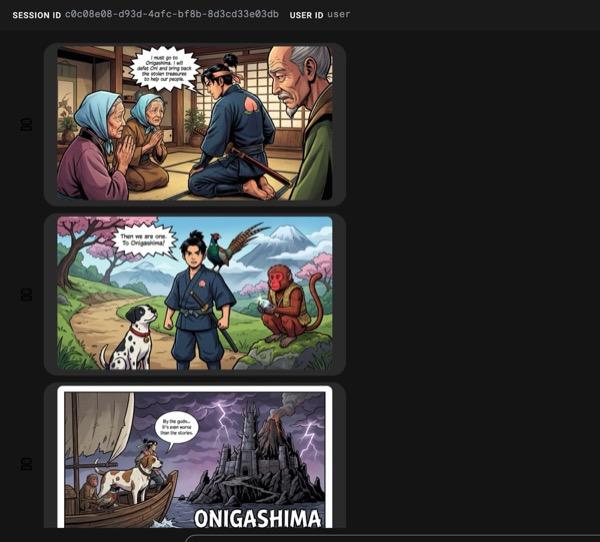
Figure 33: The story of Momotaro as comic strip 25. If everything runs smoothly the generated html file should be saved in the html folder. If you want to make improvements on the Agent you can go back to the Agent assistant and ask it to make more changes!
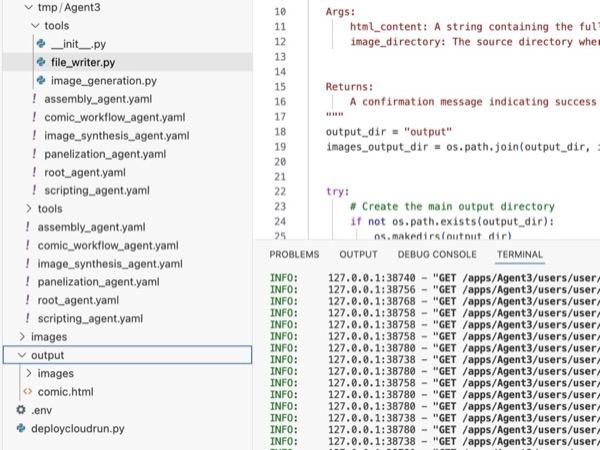
Figure 34: Content of output folder
- If the step 25 runs correctly and you get comic.html in the output folder. You can run the following steps to test it. First of all open a new terminal by clicking Terminal>New Terminal from the Main menu of Cloud Shell Editor. This should open a new Terminal.
#go to the project folder
cd ~/adkui

#activate python virtual environment
source .venv/bin/activate

#Go to the output folder
cd ~/adkui/output

#start local web server
python -m http.server 8080
- Ctrl+Click on http://0.0.0.0:8080

Figure 35: Running local web server
- The content of the folder should be displayed in the browser tab. Click on the html file (et. comic.html). The comic should be displayed like below (Your output might be a bit different).
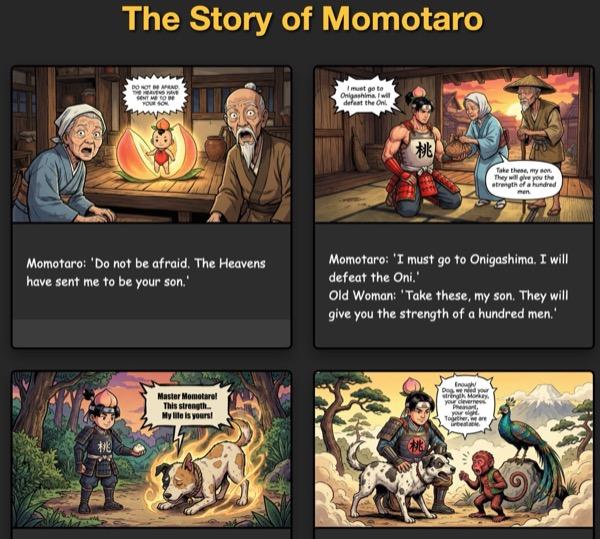
Figure 36: Running on localhost
11. Clean up
Now let's clean up what we just created.
- Delete the Cloud Run app we just created. Go to the Cloud Run by accessing Cloud Run . You should be able to see the app you created in the previous step. Check on the box beside the app and click the Delete button.
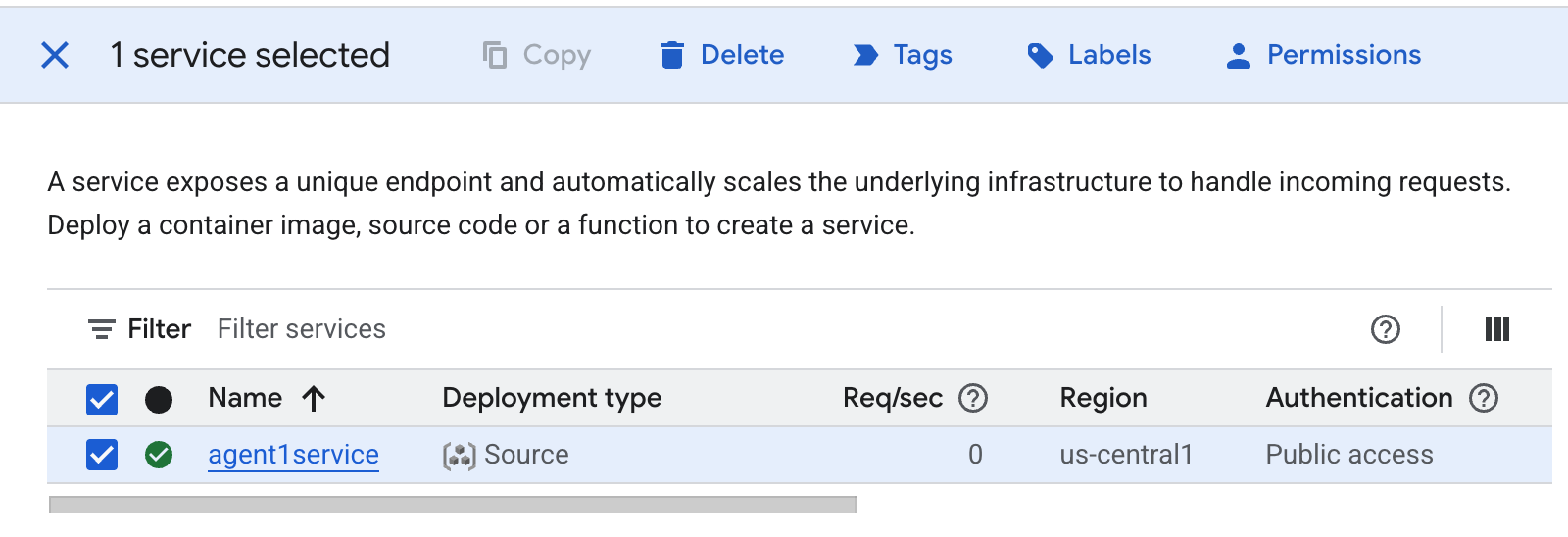 Figure 37: Deleting the Cloud Run app 2. Delete the files in Cloud Shell
#Execute the following to delete the files
cd ~
rm -R ~/adkui
12. Conclusion
Congratulations! You have successfully created ADK (Agent Development Kit) agents using built in ADK Visual Builder. You also learned how to deploy the application to Cloud Run. This is a significant achievement that covers the core lifecycle of a modern cloud-native application, providing you with a solid foundation for deploying your own complex agentic systems.
Recap
In this lab you learned to:
- Create multi agent application using ADK Visual Builder
- Deploy the application to Cloud Run
Useful resources