

1. 本實驗室的目標
在本實作實驗室中,您將瞭解如何使用 ADK (Agent Development Kit) Visual Builder 建立代理。ADK (Agent Development Kit) Visual Builder 提供低程式碼方式,可建立 ADK (Agent Development Kit) 代理。您將瞭解如何在本機測試應用程式,並部署至 Cloud Run。
課程內容
- 瞭解 ADK (Agent Development Kit) 的基礎知識。
- 瞭解 ADK (Agent Development Kit) Visual Builder 的基礎知識
- 瞭解如何使用 GUI 工具建立代理程式。
- 瞭解如何在 Cloud Run 中輕鬆部署及使用代理程式。

圖 1:使用 ADK Visual Builder,您可以使用 GUI 建立低程式碼代理
2. 專案設定
- 按一下下列連結 GCP 控制台,前往 GCP 控制台。
- 如果沒有可用的專案,請在 GCP 主控台中建立新專案。在專案選取器 (Google Cloud 控制台左上角) 中選取專案。如果沒有專案,請按照這些步驟建立新專案。建立新專案後,請選取專案。
圖 2:按一下 Google Cloud 標誌旁的方塊,即可選取專案。確認已選取專案。
- 在本實驗室中,我們將使用 Cloud Shell 編輯器執行工作。開啟 Cloud Shell,並使用 Cloud Shell 設定專案。
- 按一下這個連結,直接前往 Cloud Shell 編輯器
- 在 Cloud Shell 編輯器的側邊欄,按一下「開啟資料夾」按鈕。
- 系統應已選取主資料夾,只要按下「OK」,主資料夾就會成為這項工作的根資料夾。

- 如果尚未開啟終端機,請依序點選選單中的「Terminal」>「New」開啟。您可以在這個終端機中執行本教學課程的所有指令。
- 您可以在 Cloud Shell 終端機中執行下列指令,檢查專案是否已通過驗證。
gcloud auth list
- 如果忘記專案 ID,可以使用下列指令列出所有專案 ID:
gcloud projects list
- 複製專案 ID,然後使用下列指令設定
gcloud config set project <YOUR_PROJECT_ID>
- 在 Cloud Shell 中執行下列指令,確認專案
gcloud config list project
3. 啟用 API
我們需要啟用一些 API 服務,才能執行本實驗室。在 Cloud Shell 中執行下列指令。
gcloud services enable aiplatform.googleapis.com
gcloud services enable cloudresourcemanager.googleapis.com
API 簡介
4. Agent Development Kit 簡介
Agent Development Kit 為需要建構代理應用程式的開發人員帶來多項關鍵優勢:
- 多代理系統:可在階層結構中組合多個專用代理,建構出可擴充的模組化應用程式,藉以執行複雜的協調和委派作業。
- 豐富的工具生態系統:為代理提供多元功能,像是使用預先建構的工具 (搜尋、程式碼執行等)、建立自訂函式、整合第三方代理框架的工具 (LangChain、CrewAI),甚至還可以使用其他代理做為工具。
- 彈性的自動化調度管理功能:使用工作流程代理 (
SequentialAgent、ParallelAgent和LoopAgent) 定義可預測的管道工作流程,或透過使用 LLM 的動態轉送功能 (LlmAgent轉移),創造靈活應變的代理。 - 整合式開發人員體驗:使用功能強大的 CLI 和互動式開發 UI,在本機開發、測試及偵錯,逐步檢查事件、狀態和代理執行作業。
- 內建評估功能:與預先定義的測試案例比較,評估最終回覆品質和逐步執行軌跡,有系統地判斷代理效能。
- 可隨時部署:將代理容器化並部署至任何位置,無論是在本機執行、透過 Vertex AI Agent Engine 擴充,或使用 Cloud Run/Docker 整合至自訂基礎架構都沒問題。
雖然其他生成式 AI SDK 或代理框架同樣能查詢模型,甚至為模型提供工具,但您必須投入大量心力,在多個模型間靈活調度。
相較之下,Agent Development Kit 比上述工具更加高階,您可以輕鬆相互連結多個代理,建立複雜但方便維護的工作流程。
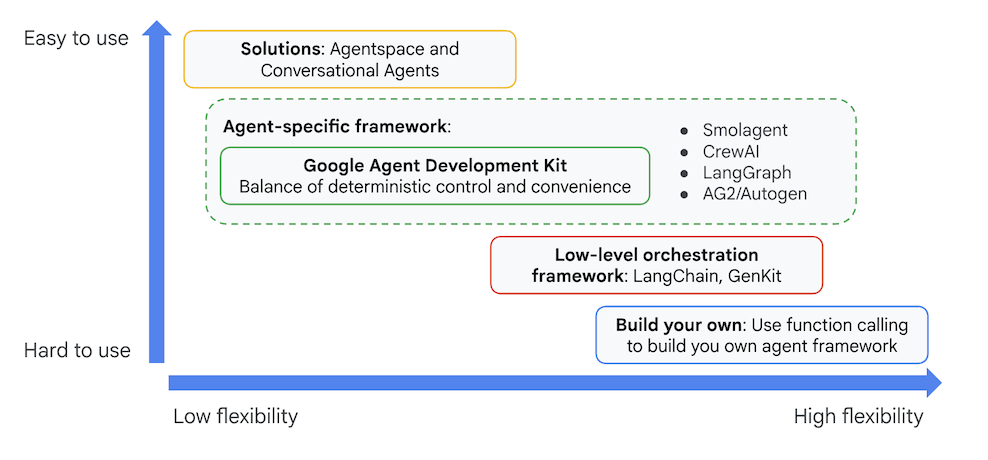
圖 3:ADK (Agent Development Kit) 的定位
在最新版本中,ADK (Agent Development Kit) 新增了 ADK Visual Builder 工具,可讓您以低程式碼建構 ADK (Agent Development Kit) 代理。在本實驗室中,我們將詳細瞭解 ADK 視覺化建構工具。
5. 安裝 ADK 並設定環境
首先,我們需要設定環境,才能執行 ADK (Agent Development Kit)。在本實驗室中,我們將執行 ADK (Agent Development Kit),並在 Google Cloud 的 Cloud Shell 編輯器中執行所有工作。
準備 Cloud Shell 編輯器
- 如果 Cloud Shell 編輯器已開啟,請略過這些步驟,直接前往下一節「啟動 ADK 視覺化編輯器」。
- 如果您尚未進入 Cloud Shell 編輯器,請按照專案設定步驟操作。
- 在本實驗室中,我們將使用 Cloud Shell 編輯器執行工作。開啟 Cloud Shell,並使用 Cloud Shell 設定專案。
- 按一下這個連結,直接前往 Cloud Shell 編輯器
- 在 Cloud Shell 編輯器的側邊欄,按一下「開啟資料夾」按鈕。
- 系統應已選取主資料夾,只要按下「OK」,主資料夾就會成為這項工作的根資料夾。
- 如果尚未開啟終端機,請依序點選選單中的「Terminal」>「New」開啟。您可以在這個終端機中執行本教學課程的所有指令。
- 您可以在 Cloud Shell 終端機中執行下列指令,檢查專案是否已通過驗證。
gcloud auth list
- 如果忘記專案 ID,可以使用下列指令列出所有專案 ID:
gcloud projects list
- 複製專案 ID,然後使用下列指令設定
gcloud config set project <YOUR_PROJECT_ID>
- 在 Cloud Shell 中執行下列指令,確認專案
gcloud config list project
啟動 ADK 視覺化編輯器
- 執行下列指令,從 GitHub 複製所需來源,並安裝必要程式庫。在 Cloud Shell 編輯器中開啟終端機,然後執行指令。
#create the project directory
mkdir ~/adkui
cd ~/adkui
- 我們會使用 uv 建立 Python 環境 (在 Cloud Shell 編輯器終端機中執行):
#Install uv if you do not have installed yet
pip install uv

#go to the project directory
cd ~/adkui

#Create the virtual environment
uv venv


#use the newly created environment
source .venv/bin/activate

#install libraries
uv pip install google-adk==2.3.0
uv pip install python-dotenv
注意:如果需要重新啟動終端機,請務必執行「source .venv/bin/activate」設定 Python 環境
- 在編輯器中,依序前往「View」->「Toggle hidden files」。在 adkui 資料夾中,建立含有以下內容的 .env 檔案。
#go to adkui folder
cd ~/adkui
cat <<EOF>> .env
GOOGLE_GENAI_USE_VERTEXAI=1
GOOGLE_CLOUD_PROJECT=$(gcloud config get-value project)
GOOGLE_CLOUD_LOCATION=us-central1
IMAGEN_MODEL="imagen-3.0-generate-002"
GENAI_MODEL="gemini-3.5-flash"
EOF
6. 使用 ADK Visual Builder 建立簡單的代理
在本節中,我們將使用 ADK Visual Builder 建立簡單的代理。ADK Visual Builder 是一種網頁工具,提供視覺化工作流程設計環境,可建立及管理 ADK (Agent Development Kit) 代理。您可以在這個介面中設計、建構及測試代理程式,並透過 AI 輔助建構代理程式。
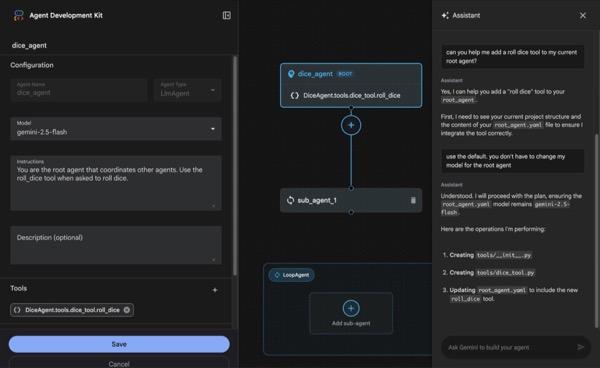
圖 4:ADK Visual Builder
- 返回終端機中的頂層目錄 adkui,然後執行下列指令,在本機執行代理程式 (在 Cloud Shell 編輯器終端機中執行)。您應該可以啟動 ADK 伺服器,並在終端機中看到類似圖 5 的結果。
#go to the directory adkui
cd ~/adkui
# Run the following command to run ADK locally
adk web --host 0.0.0.0 --port 8080 --allow_origins "regex:https://.*8080-.*\.cloudshell\.dev"
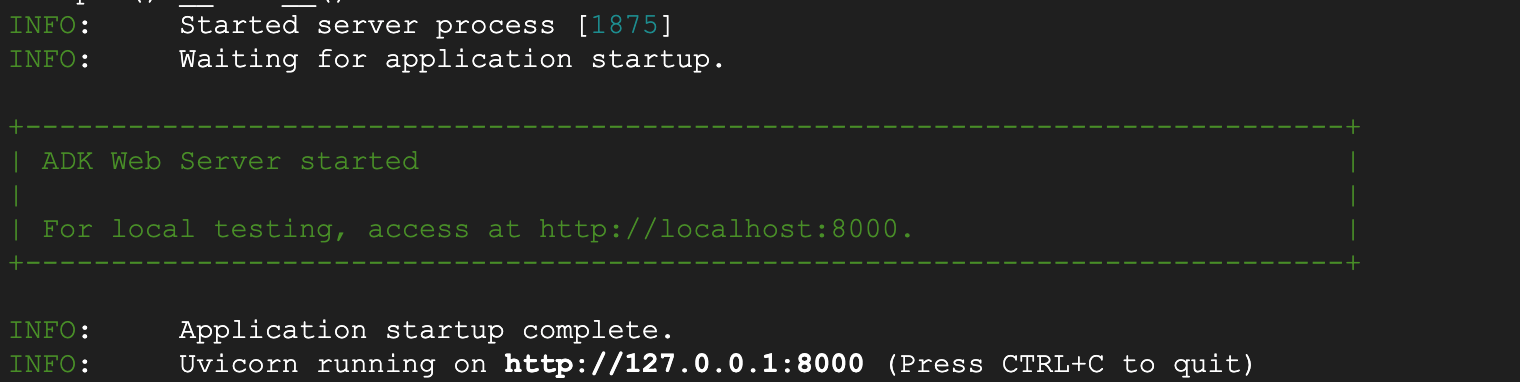
- 圖 5:啟動 ADK 應用程式
- 在終端機上顯示的 http:// URL 上按住 Ctrl 鍵並點選 (MacOS 則為按住 CMD 鍵並點選),即可開啟 Agent Development Kit (ADK) 瀏覽器型 GUI 工具。

圖 6:ADK 網頁 UI,ADK 包含下列元件
- 按一下「選取應用程式」下拉式選單,然後按下「+」按鈕建立新的代理程式。
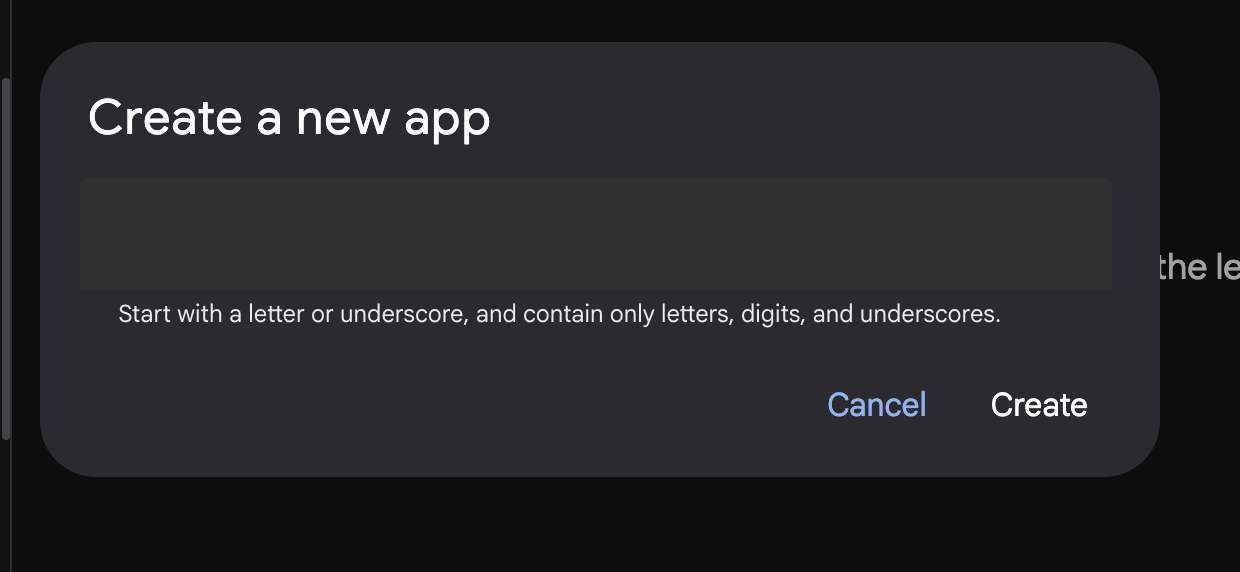
圖 7:建立新應用程式的對話方塊
- 命名為「Agent1」,然後按一下「建立」。
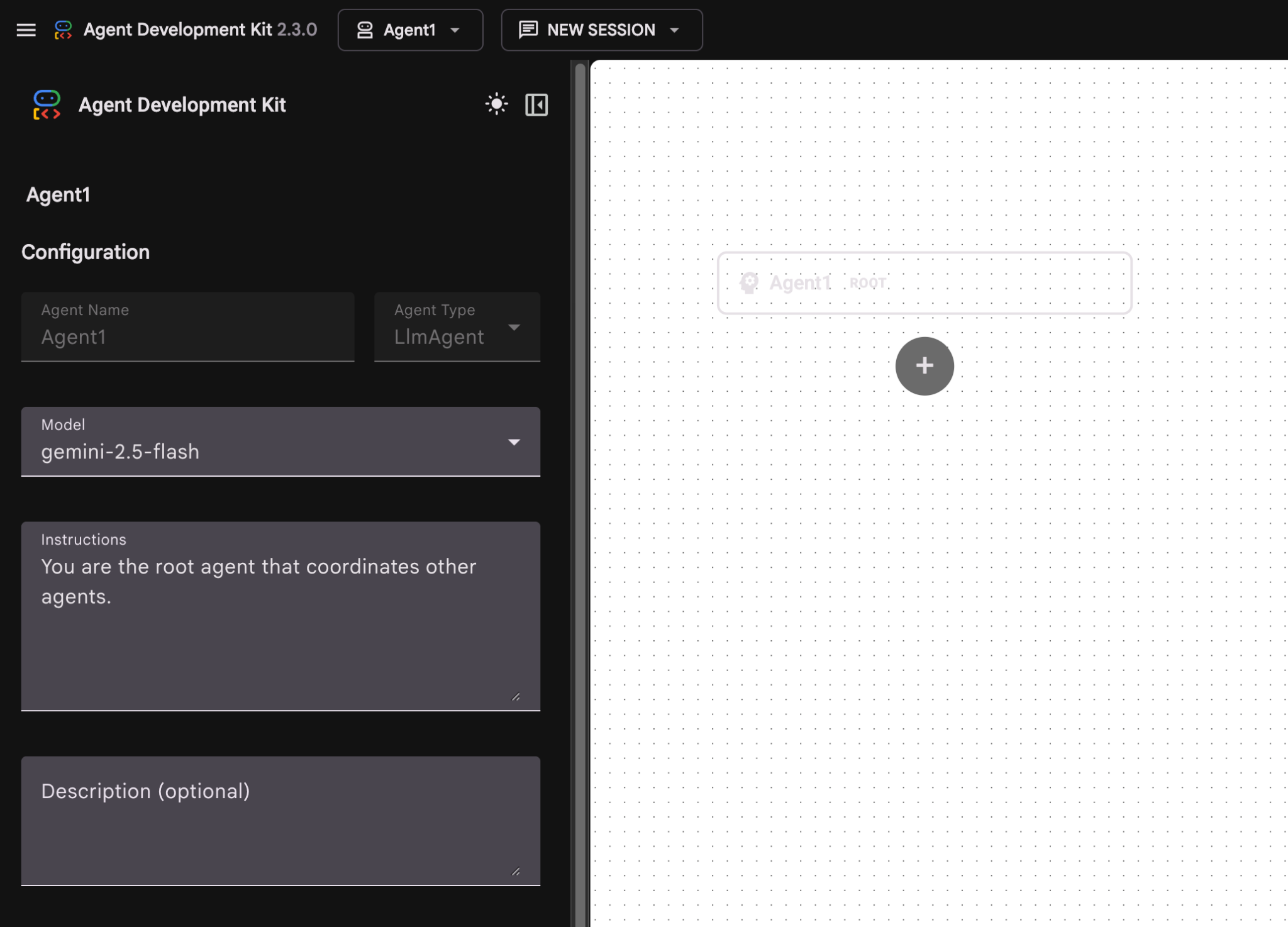
圖 8:代理程式建構工具的使用者介面
- 面板分為三個主要部分:左側是 GUI 型代理程式建立的控制項,中間是進度視覺化畫面,右側則是使用自然語言建立代理程式的助理。
- 代理已成功建立。按一下「儲存」按鈕繼續操作。(注意:請務必按下「儲存」,以免遺失變更。)
- 現在應該可以測試服務專員了。如要開始,請在「即時通訊」方塊中輸入提示,例如:
Hi, what can you do?
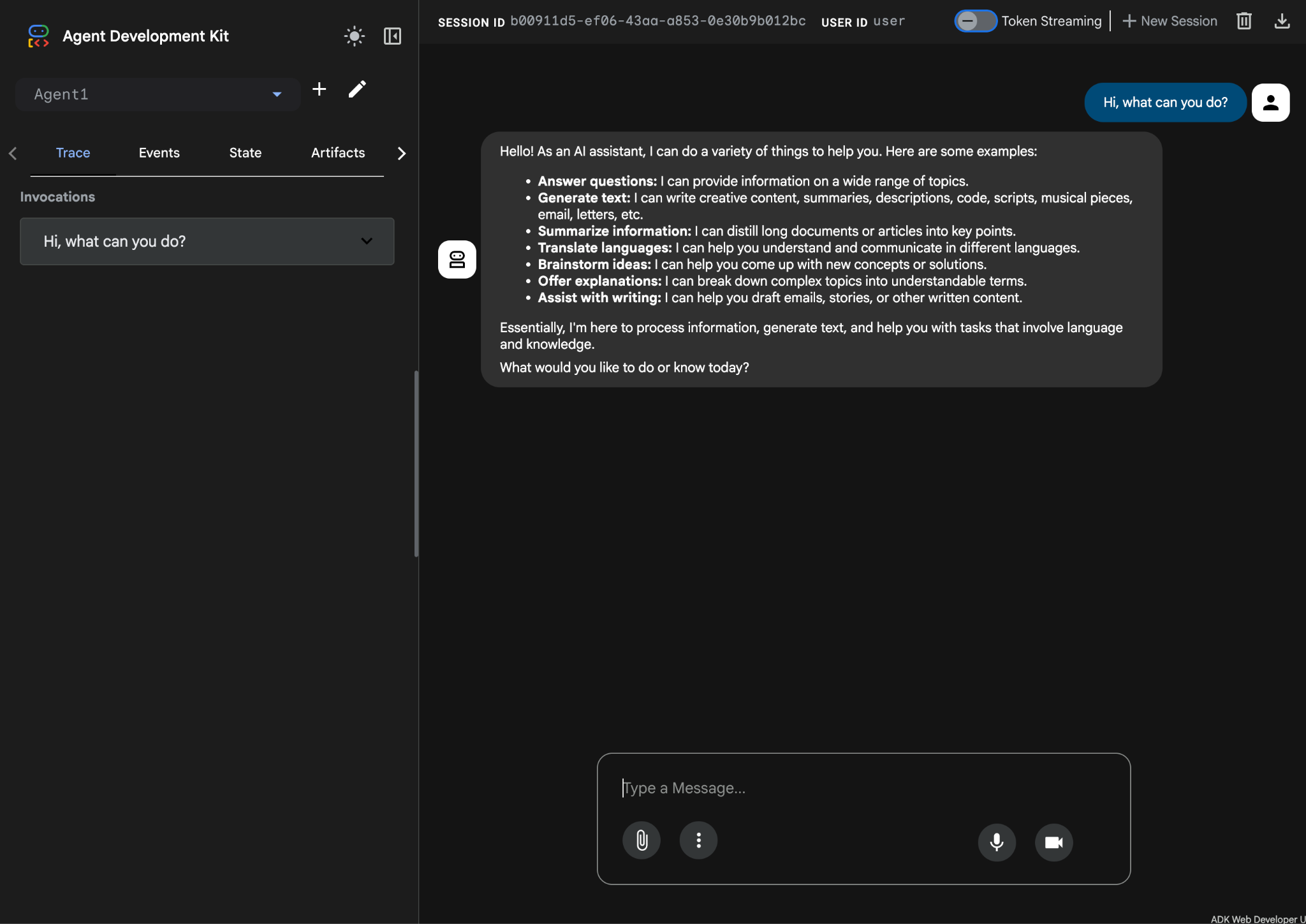
圖 9:測試代理。
7. 返回編輯器,檢查新產生的檔案。您會在左側看到檔案總管。前往 adkgui 資料夾並展開,即可顯示 Agent 1 目錄。在資料夾中,您可以查看定義代理程式的 YAML 檔案,如下圖所示。
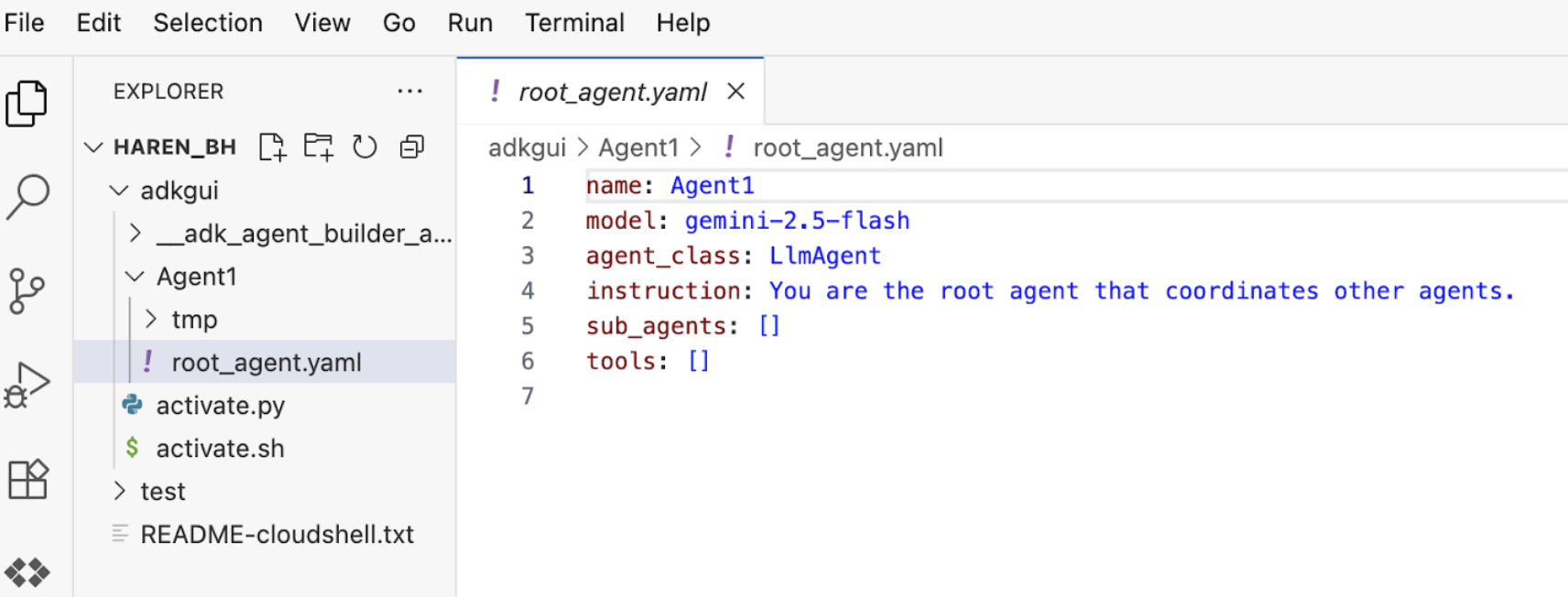
圖 10:使用 YAML 檔案定義代理
- 現在返回 GUI 編輯器,為代理程式新增幾項功能。如要這麼做,請按下「編輯」按鈕 (筆圖示)。
- 我們將為代理新增 Google 搜尋功能,因此需要將 Google 搜尋新增為代理可用的工具,以及代理可使用的工具。如要這麼做,請點選畫面左下角「工具」部分旁的「+」符號,然後點選選單中的「內建工具」 (請參閱圖 11)。
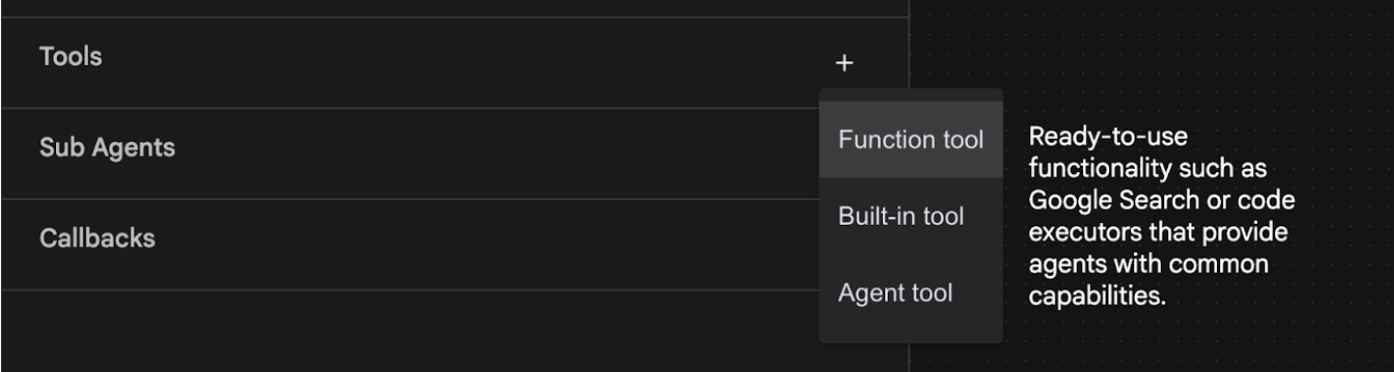
圖 11:將新工具新增至代理
- 從「內建工具」清單中選取「google_search」,然後按一下「建立」(請參閱圖 11)。這會將 Google 搜尋新增為代理程式中的工具。
- 按下「儲存」按鈕,儲存變更。
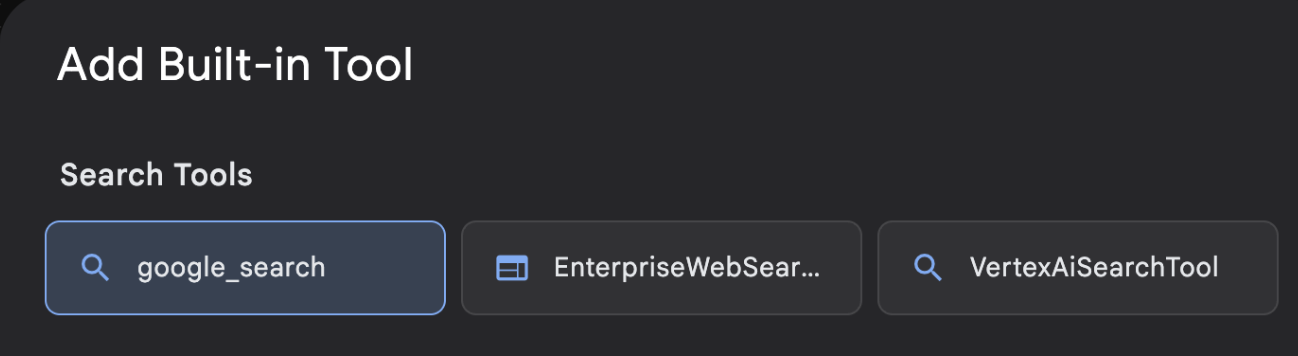
圖 12:ADK Visual Builder UI 中可用的工具清單
- 現在可以開始測試 Agent 了。請先重新啟動 ADK 伺服器。前往啟動 ADK (Agent Development Kit) 伺服器的終端機,然後按下 CTRL+C 鍵關閉伺服器
Ctrl + C 鍵 (Windows)、Cmd + C 鍵 (Mac)
- 執行下列指令,再次啟動伺服器。
#make sure you are in the right folder.
cd ~/adkui

#start the server
adk web --host 0.0.0.0 --port 8080 --allow_origins "regex:https://.*8080-.*\.cloudshell\.dev"
- 按住 Ctrl 鍵並點選網址 (例如 http://localhost:8000) 顯示在畫面上。瀏覽器分頁應會顯示 ADK (Agent Development Kit) GUI。
- 從服務專員清單中選取「Agent1」Agent1。現在,代理程式可以執行 Google 搜尋。在對話方塊中輸入下列提示詞進行測試。
What is the weather today in Yokohama?
畫面應會顯示 Google 搜尋結果,如下所示。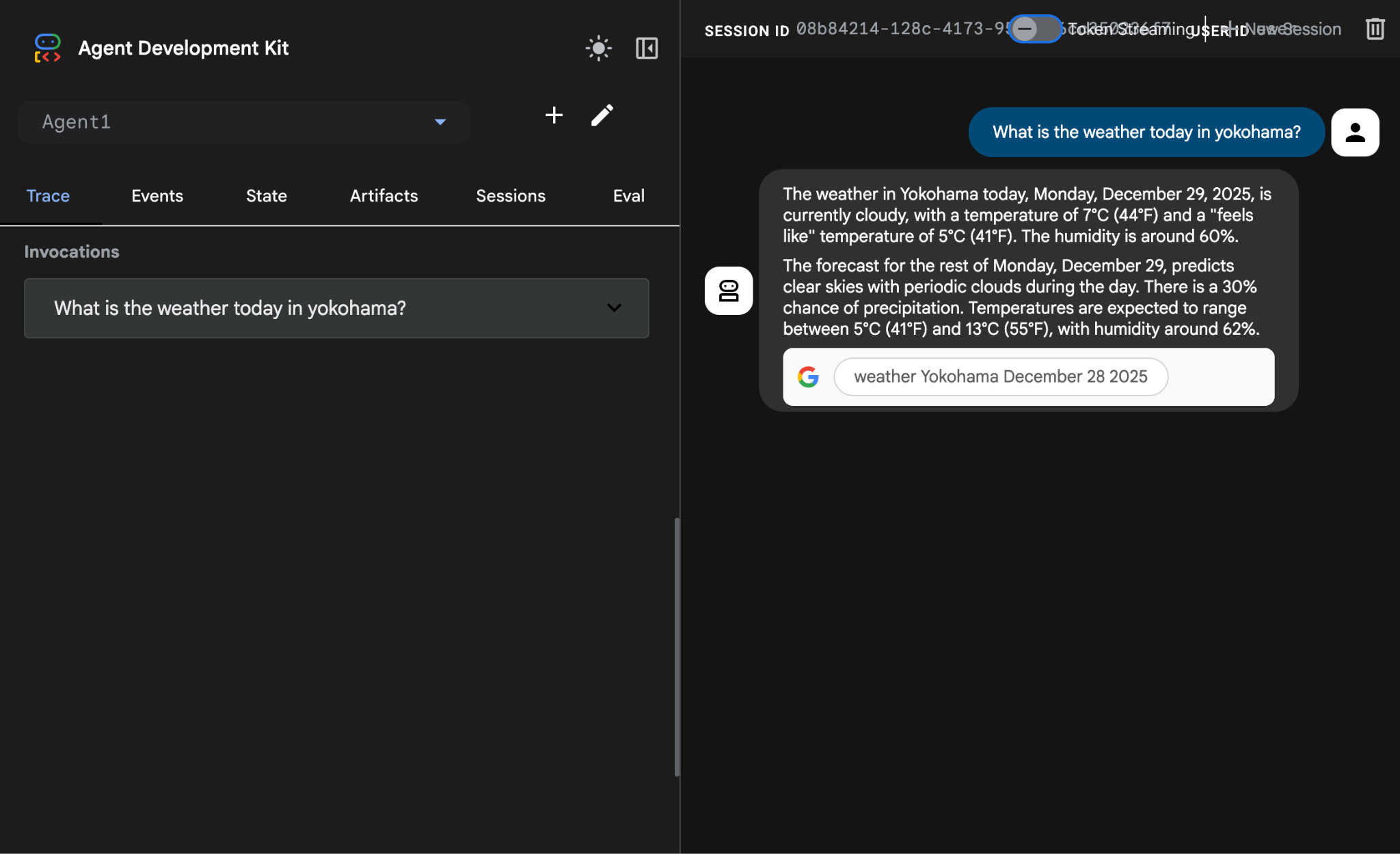
圖 13:使用代理的 Google 搜尋
- 現在讓我們回到編輯器,檢查這個步驟中建立的程式碼。在「編輯器」「Explorer」側邊面板中,按一下「root_agent.yaml」開啟檔案。確認 google_search 已新增為工具 (圖 15)。
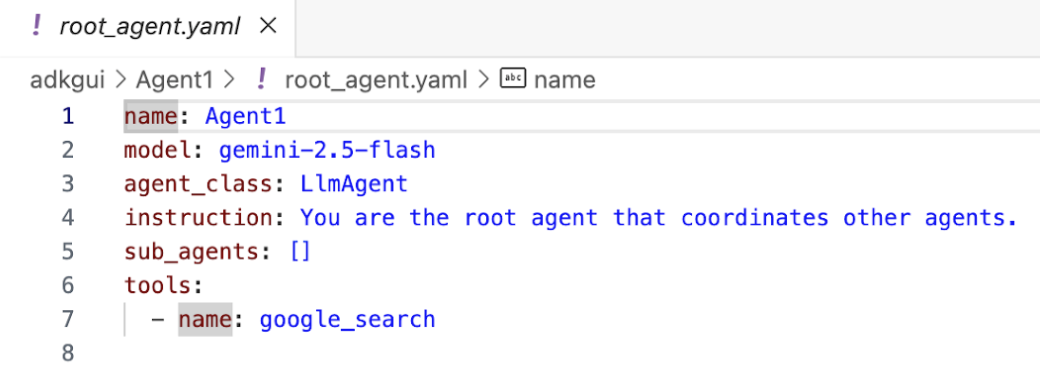
圖 14:確認 google_search 已新增為 Agent1 中的工具
7. 將 Agent 部署至 Cloud Run
現在,請將建立的代理程式部署至 Cloud Run!透過 Cloud Run,您可以在全代管平台上迅速建構應用程式或網站。
無須管理基礎架構,即可執行前端和後端服務、批次工作、託管 LLM,以及將處理工作負載排入佇列。
- 在 Cloud Shell 編輯器的終端機中,如果 Agent Development Kit (ADK) 伺服器仍在執行,請按下 Ctrl+C 鍵停止。
Ctrl + C 鍵 (Windows)、Cmd + C 鍵 (Mac)
- 前往專案根目錄。
cd ~/adkui
- 取得部署程式碼。執行指令後,您應該會在 Cloud Shell 編輯器的「Explorer」窗格中看到 deploycloudrun.py 檔案。
curl -LO https://raw.githubusercontent.com/haren-bh/codelabs/main/adk_visual_builder/deploycloudrun.py
- 請檢查 deploycloudrun.py 中的部署選項。我們將使用 adk deploy 指令,將代理部署至 Cloud Run。ADK (Agent Development Kit) 內建將代理部署至 Cloud Run 的選項。我們需要指定 Google Cloud 專案 ID、區域等參數。就應用程式路徑而言,這個指令碼會假設 agent_path=./Agent1。我們也會建立具備必要權限的新服務帳戶,並將其附加至 Cloud Run。Cloud Run 需要存取 Vertex AI、Cloud Storage 等服務,才能執行 Agent。
- 執行 deploycloudrun.py 指令碼**。 部署作業應會開始,如下圖所示。**
python3 deploycloudrun.py
如果收到如下所示的確認訊息,請針對所有訊息按下 Y 鍵並輸入 Enter 鍵。 depoycloudrun.py 會假設您的代理程式位於 Agent1 資料夾中,如上文所述。
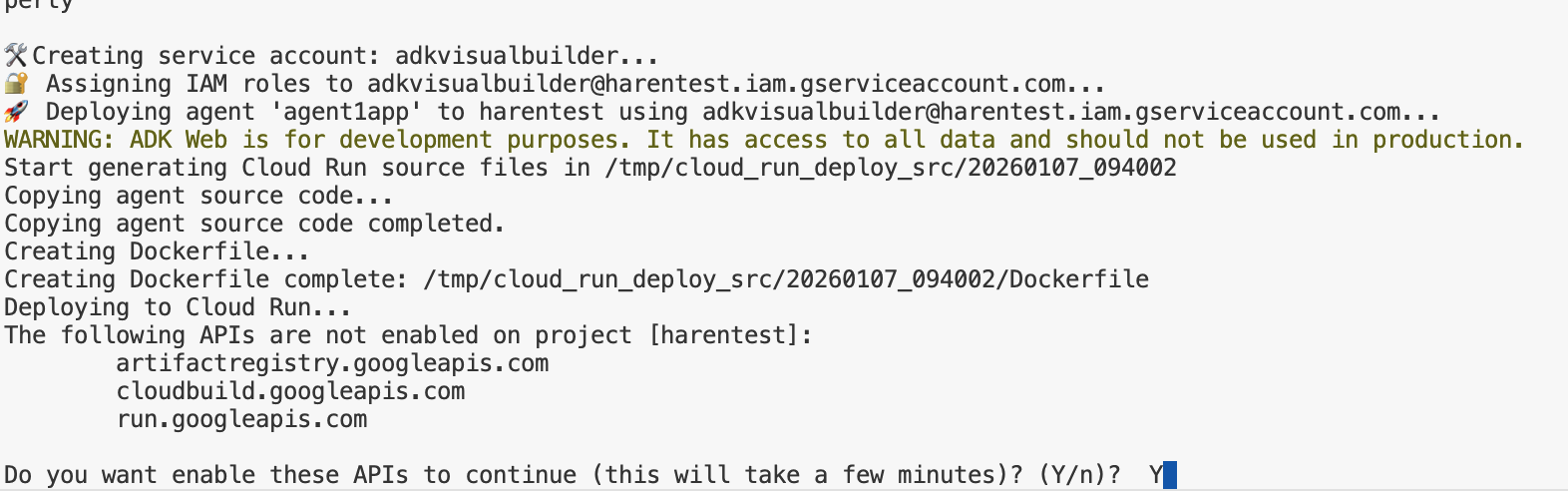
圖 15:將代理程式部署至 Cloud Run,針對任何確認訊息按下 Y 鍵。
- 部署完成後,您應該會看到服務網址,例如 https://agent1service-78833623456.us-central1.run.app
- 在網路瀏覽器中存取網址,即可啟動應用程式。
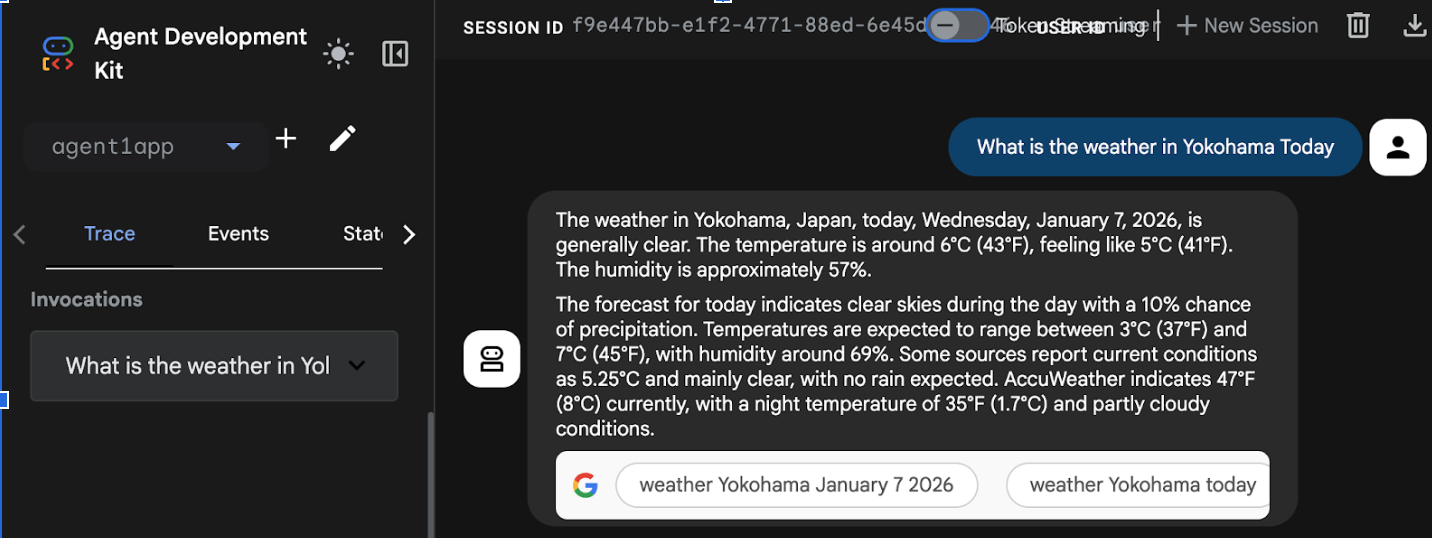
Figure 16: Agent running in Cloud Run
8. 建立具備子代理和自訂工具的代理
在上一節中,您建立了一個內建 Google 搜尋工具的代理。在本節中,您將建立多代理系統,允許代理使用自訂工具。
- 首先,請重新啟動 ADK (Agent Development Kit) 伺服器。前往啟動 ADK (Agent Development Kit) 伺服器的終端機,然後按下 CTRL+C 鍵關閉伺服器 (如果伺服器仍在執行)。執行下列指令,再次啟動伺服器。
#make sure you are in the right folder.
cd ~/adkui

#start the server
adk web --host 0.0.0.0 --port 8080 --allow_origins "regex:https://.*8080-.*\.cloudshell\.dev"
- 按住 Ctrl 鍵並點選網址 (例如 http://localhost:8000) 顯示在畫面上。瀏覽器分頁應會顯示 ADK (Agent Development Kit) GUI。
- 按一下「+」按鈕建立新的代理程式。在代理程式對話方塊中輸入「Agent2」(圖 18),然後按一下「建立」。
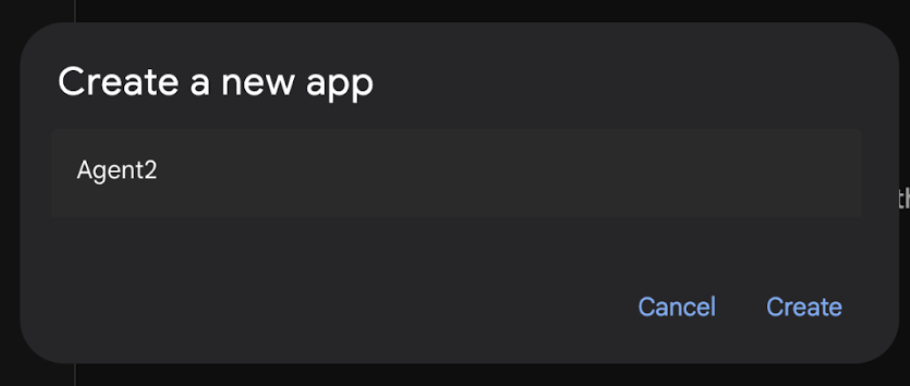
圖 17:建立新的虛擬服務專員應用程式。
- 在 Agent2 的指令部分中,輸入下列內容。
You are an agent that takes image creation instruction from the user and passes it to your sub agent
- 現在,我們要將子代理新增至根代理。如要這麼做,請按一下左窗格底部的「子代理程式」選單左側的「+」按鈕 (圖 19),然後按一下「LLM 代理程式」。系統會建立新的代理程式,做為根代理程式的新子代理程式。
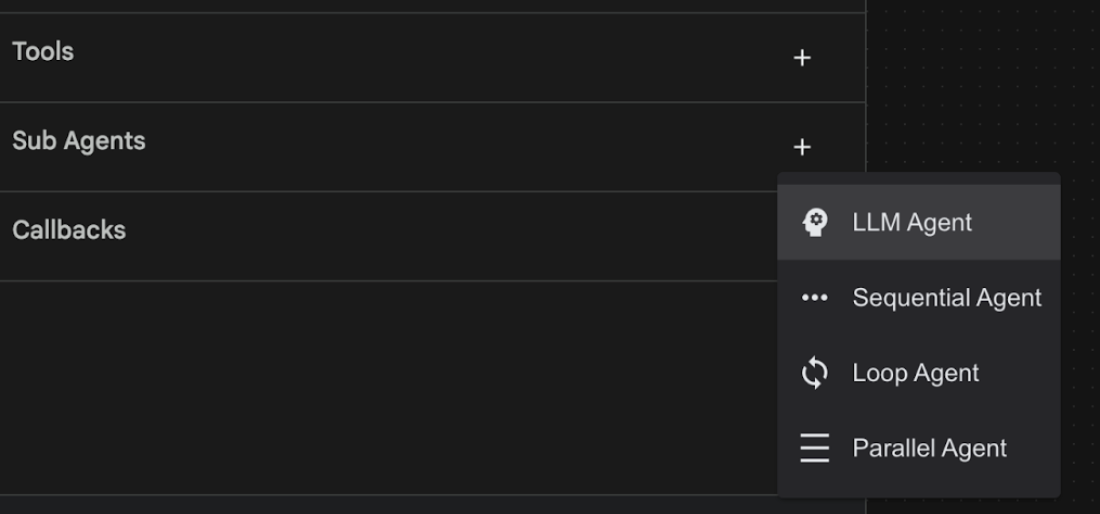
圖 18:新增子代理。
- 在「sub_agent_1」sub_agent_1的「Instructions」(指令) 中輸入下列文字。
You are an Agent that can take instructions about an image and create an image using the create_image tool.
- 現在,我們要在這個子代理上新增自訂工具。這項工具會呼叫 Imagen 模型,根據使用者的指示生成圖片。如要這麼做,請先點選上一個步驟中建立的子代理程式,然後點選「工具」選單旁的「+」按鈕。在工具選項清單中,點選「函式工具」。這項工具可讓我們將自訂程式碼新增至工具。
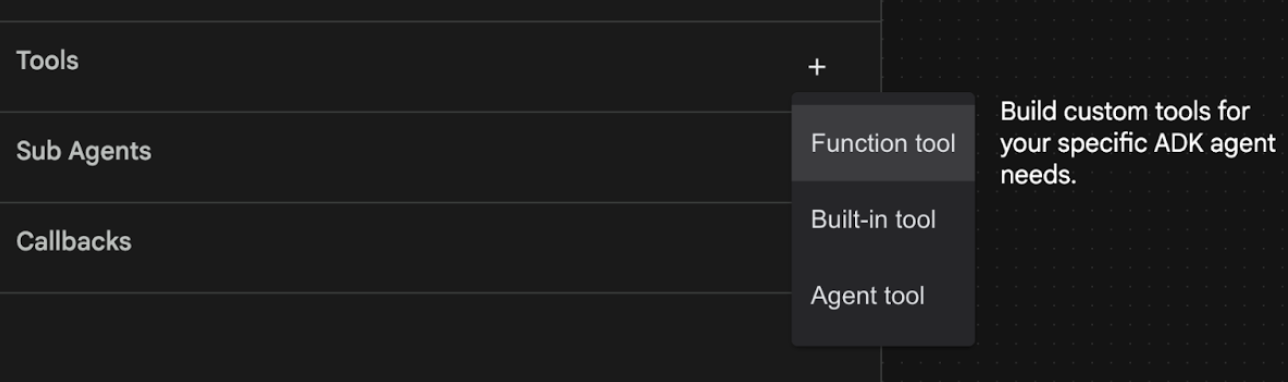
圖 19:按一下函式工具,建立新工具。8. 在對話方塊中,將工具命名為「Agent2.image_creation_tool.create_image」Agent2.image_creation_tool.create_image。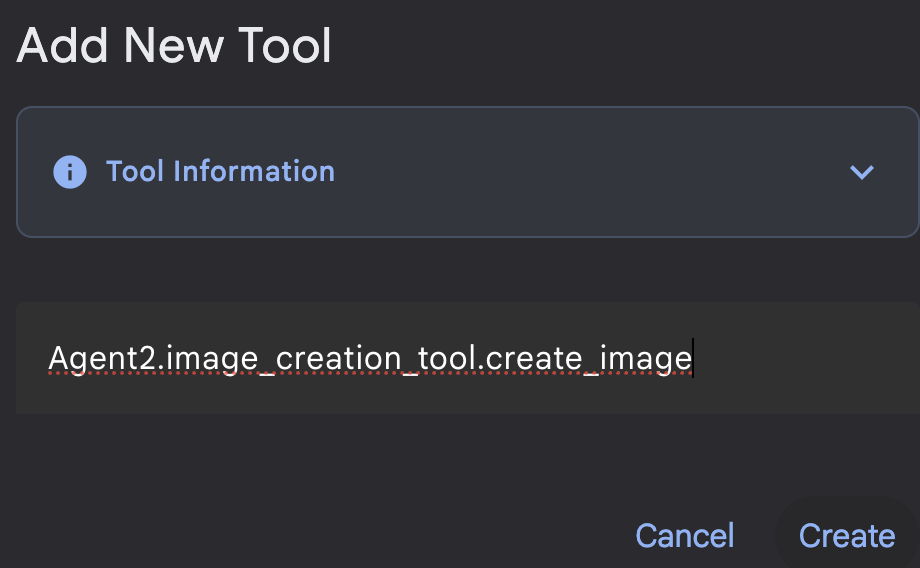
圖 20:新增工具名稱
- 按一下「儲存」按鈕儲存變更。
- 在 Cloud Shell 編輯器終端機中,按下 Ctrl+C 鍵關閉 adk 伺服器。
- 在終端機中輸入下列指令,建立 image_creation_tool.py 檔案。
touch ~/adkui/Agent2/image_creation_tool.py
- 在 Cloud Shell 編輯器的「Explorer」窗格中,點選新建立的 image_creation_tool.py 開啟該檔案。然後將 image_creation_tool.py 的內容替換為下列內容,並儲存 (Ctrl+S)。
import os
import io
import vertexai
from vertexai.preview.vision_models import ImageGenerationModel
from dotenv import load_dotenv
import uuid
from typing import Union
from datetime import datetime
from google import genai
from google.genai import types
from google.adk.tools import ToolContext
import logging

# Configure logging
logging.basicConfig(level=logging.INFO)
logger = logging.getLogger(__name__)

async def create_image(prompt: str,tool_context: ToolContext) -> Union[bytes, str]:
  """
  Generates an image based on a text prompt using a Vertex AI Imagen model.
  Args:
      prompt: The text prompt to generate the image from.

  Returns:
      The binary image data (PNG format) on success, or an error message string on failure.
  """
  print(f"Attempting to generate image for prompt: '{prompt}'")

  try:
      # Load environment variables from .env file two levels up
      dotenv_path = os.path.join(os.path.dirname(__file__), '..', '..', '.env')
      load_dotenv(dotenv_path=dotenv_path)
      project_id = os.getenv("GOOGLE_CLOUD_PROJECT")
      location = os.getenv("GOOGLE_CLOUD_LOCATION")
      model_name = os.getenv("IMAGEN_MODEL")
      client = genai.Client(
          vertexai=True,
          project=project_id,
          location=location,
      )
      response = client.models.generate_images(
          model="imagen-3.0-generate-002",
          prompt=prompt,
          config=types.GenerateImagesConfig(
              number_of_images=1,
              aspect_ratio="9:16",
              safety_filter_level="block_low_and_above",
              person_generation="allow_adult",
          ),
      )
      if not all([project_id, location, model_name]):
          return "Error: Missing GOOGLE_CLOUD_PROJECT, GOOGLE_CLOUD_LOCATION, or IMAGEN_MODEL in .env file."
      vertexai.init(project=project_id, location=location)
      model = ImageGenerationModel.from_pretrained(model_name)
      images = model.generate_images(
          prompt=prompt,
          number_of_images=1
      )
      if response.generated_images is  None:
          return "Error: No image was generated."
      for generated_image in response.generated_images:
          # Get the image bytes
          image_bytes = generated_image.image.image_bytes
          counter = str(tool_context.state.get("loop_iteration", 0))
          artifact_name = f"generated_image_" + counter + ".png"
          # Save as ADK artifact (optional, if still needed by other ADK components)
          report_artifact = types.Part.from_bytes(
              data=image_bytes, mime_type="image/png"
          )
          await tool_context.save_artifact(artifact_name, report_artifact)
          logger.info(f"Image also saved as ADK artifact: {artifact_name}")
          return {
              "status": "success",
              "message": f"Image generated .  ADK artifact: {artifact_name}.",
              "artifact_name": artifact_name,
          }
  except Exception as e:
      error_message = f"An error occurred during image generation: {e}"
      print(error_message)
      return error_message
- 首先,請重新啟動 ADK (Agent Development Kit) 伺服器。前往啟動 ADK (Agent Development Kit) 伺服器的終端機,然後按下 CTRL+C 鍵關閉伺服器 (如果伺服器仍在執行)。執行下列指令,再次啟動伺服器。
#make sure you are in the right folder.
cd ~/adkui

#start the server
adk web --host 0.0.0.0 --port 8080 --allow_origins "regex:https://.*8080-.*\.cloudshell\.dev"
- 按住 Ctrl 鍵並點選網址 (例如 http://localhost:8000) 顯示在畫面上。瀏覽器分頁應會顯示 ADK (Agent Development Kit) GUI。
- 在「ADK (Agent Development Kit)」使用者介面分頁中,選取「Agent list」中的「Agent2」,然後按下編輯按鈕 (筆圖示)。在 ADK (Agent Development Kit) 視覺化編輯器中,按一下「儲存」按鈕,保留變更。
- 現在可以測試新的代理程式。
- 在 ADK (Agent Development Kit) UI 對話介面中,輸入下列提示。你也可以嘗試其他提示。您應該會看到圖 21 所示的結果。
Create an image of a cat
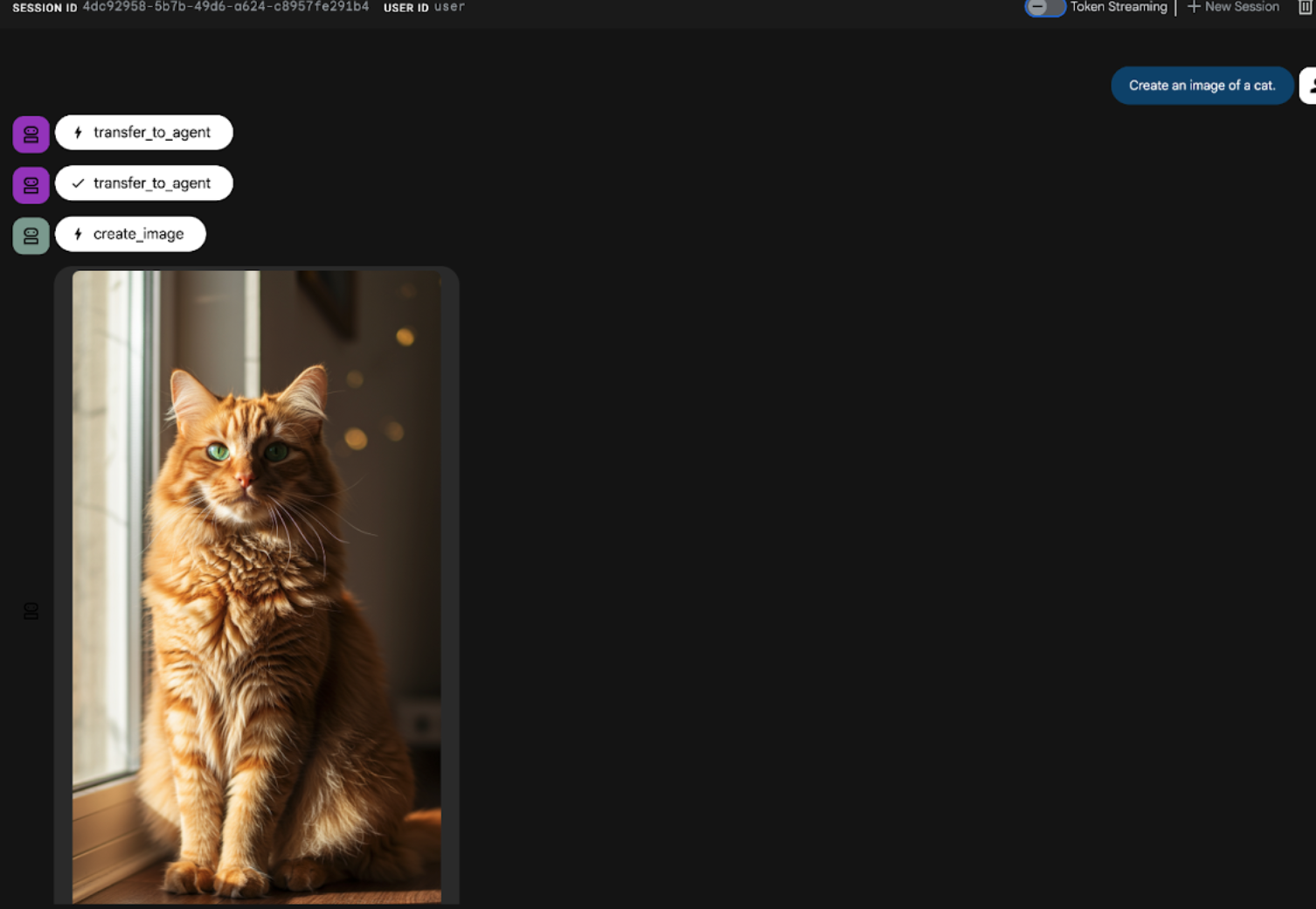
圖 21:ADK UI 聊天介面
9. 建立工作流程代理程式
上一個步驟是使用子代理和專用圖片建立工具建構代理,這個階段的重點則是提升代理的功能。我們會先確保使用者的初始提示經過最佳化,再生成圖片,藉此提升流程。為此,系統會將 Sequential 代理程式整合至 Root 代理程式,以處理下列兩步驟工作流程:
- 接收根代理的提示,並進行提示強化。
- 將修正後的提示詞轉送給圖像建立代理,使用 IMAGEN 生成最終圖像。
- 首先,請重新啟動 ADK (Agent Development Kit) 伺服器。前往啟動 ADK (Agent Development Kit) 伺服器的終端機,然後按下 CTRL+C 鍵關閉伺服器 (如果伺服器仍在執行)。執行下列指令,再次啟動伺服器。
#make sure you are in the right folder.
cd ~/adkui

#start the server
adk web --host 0.0.0.0 --port 8080 --allow_origins "regex:https://.*8080-.*\.cloudshell\.dev"
- 按住 Ctrl 鍵並點選網址 (例如 http://localhost:8000) 顯示在畫面上。瀏覽器分頁應會顯示 ADK (Agent Development Kit) GUI。
- 從代理程式選取器選取「Agent2」,然後點選「編輯」按鈕 (筆圖示)。
- 點選「Agent2 (Root Agent)」,然後點選「Sub Agents」選單旁邊的「+」按鈕。然後從選項清單中點選「Sequential Agent」。
- 您應該會看到類似圖 22 的代理程式結構
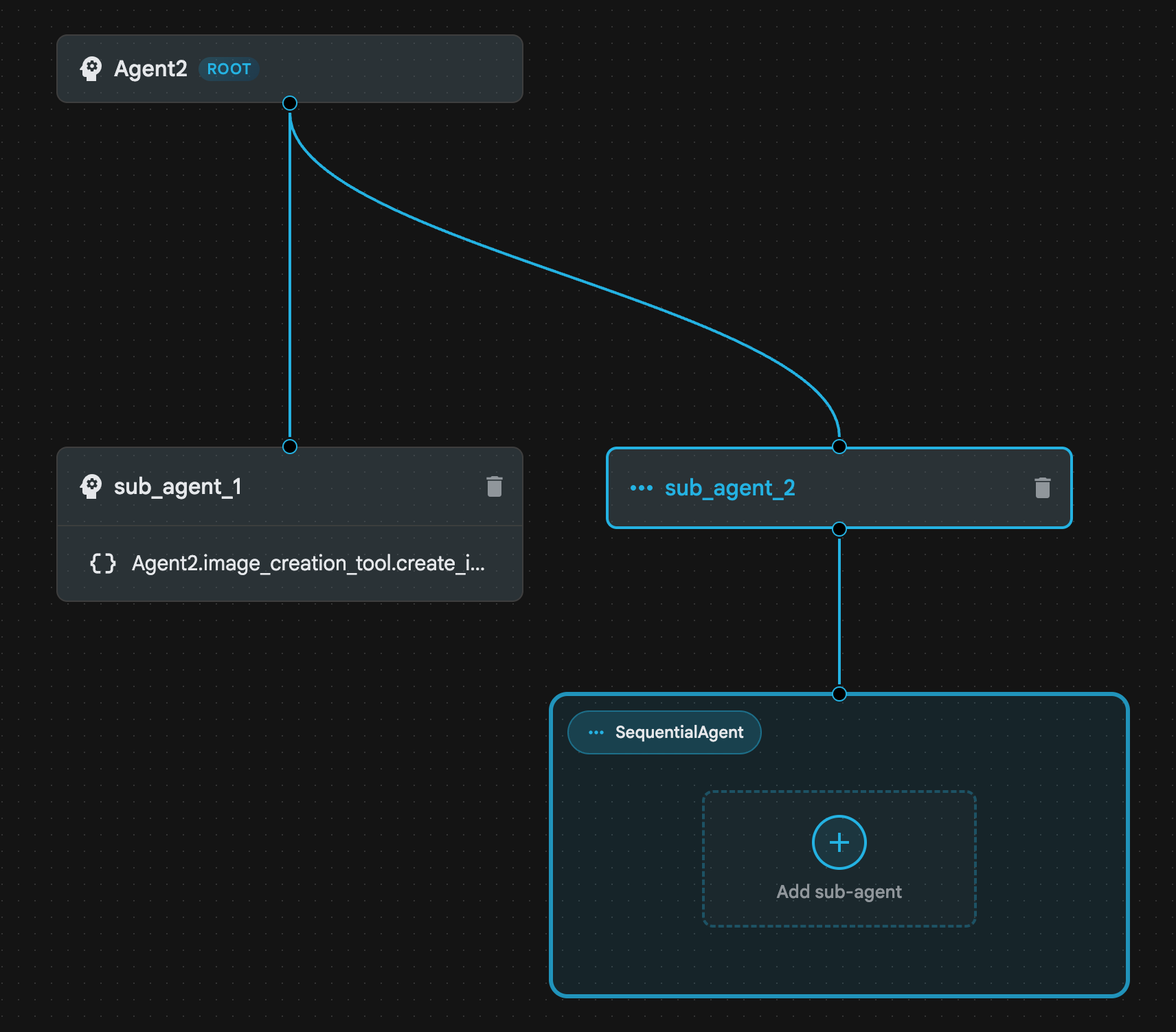
圖 22:依序代理代理結構
- 現在要將第一個代理新增至 Sequential Agent,做為提示強化工具。如要執行這項操作,請按一下 SequentialAgent 方塊內的「Add 子代理」按鈕,然後按一下「LLM Agent」。
- 我們需要在序列中新增另一個代理程式,因此請重複步驟 6,新增另一個 LLM 代理程式 (按下「+」按鈕,然後選取「LLMAgent」)。
- 按一下 sub_agent_4,然後點選左側窗格「工具」旁的「+」圖示,新增工具。從選項中點選「功能工具」。在「命名工具」對話方塊中,輸入「Agent2.image_creation_tool.create_image」,然後按下「建立」。
- 現在可以刪除 sub_agent_1,因為它已由更進階的 sub_agent_2 取代。如要刪除,請按一下圖表中「sub_agent_1」右側的「刪除」按鈕。
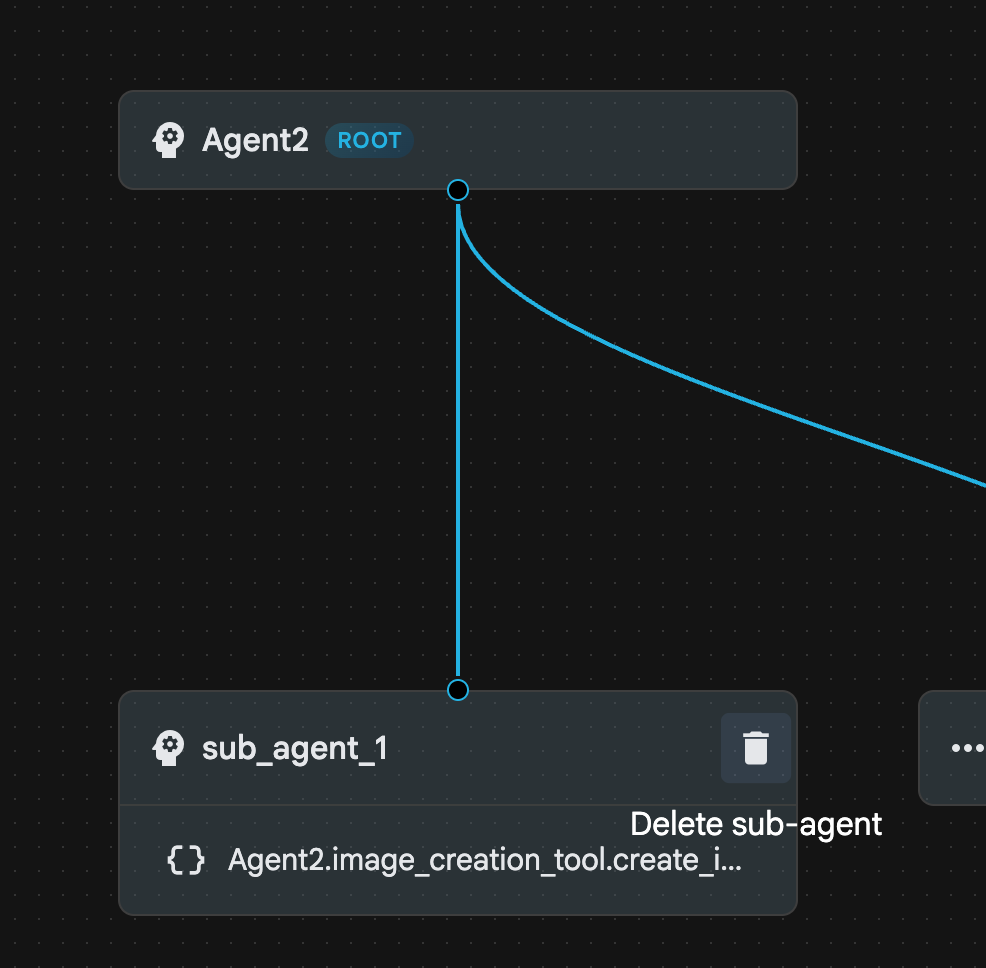
圖 23:刪除 sub_agent_1 10。我們的代理程式結構如圖 24 所示。
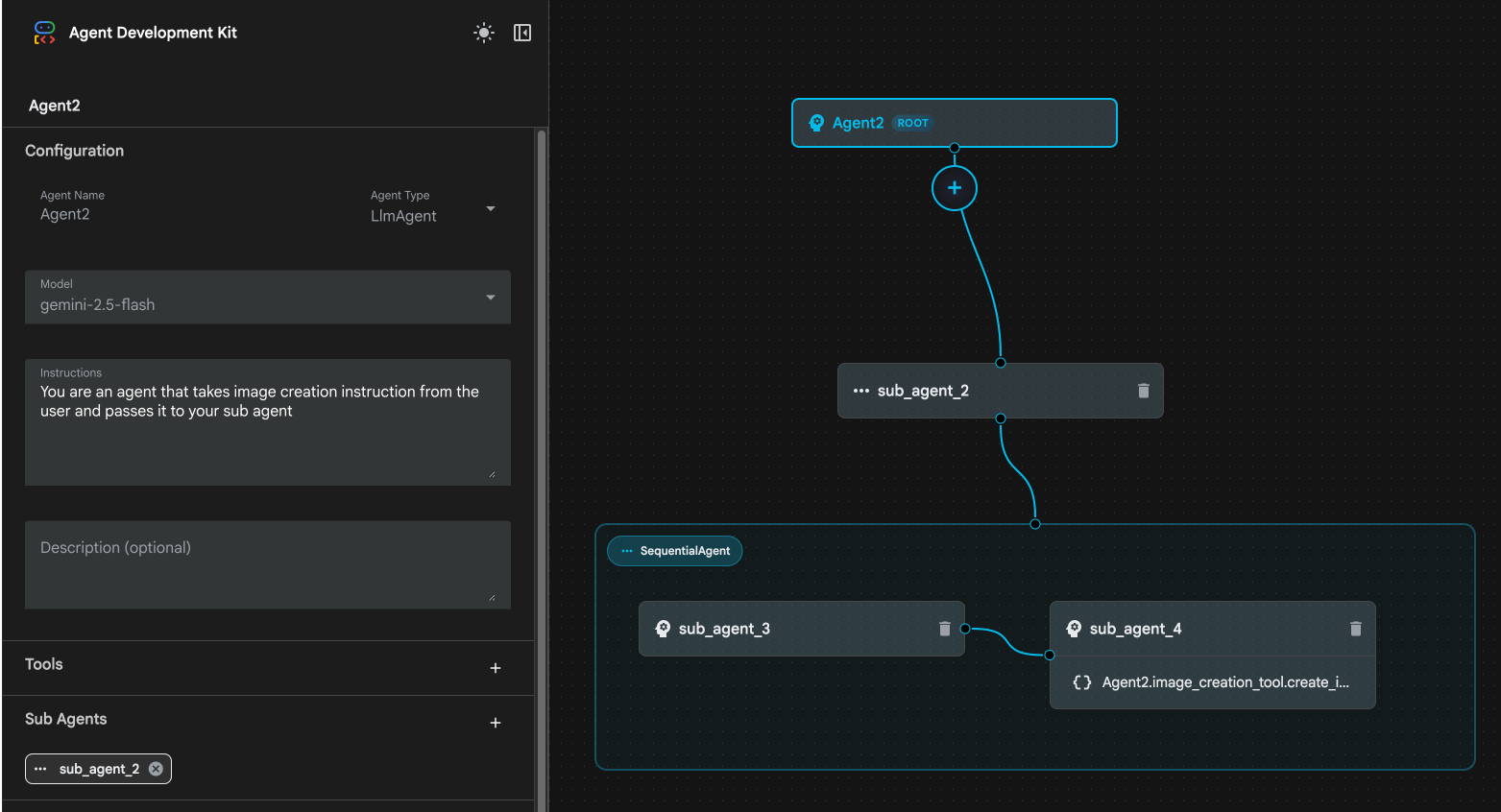
圖 24:強化型代理程式的最終結構
- 點選 sub_agent_3,然後在指令中輸入下列內容。
     Act as a professional AI Image Prompt Engineer. I will provide you
    with a basic idea for an image. Your job is to expand my idea into
    a detailed, high-quality prompt for models like Imagen.

    For every input, output the following structure:
    1. **Optimized Prompt**: A vivid, descriptive paragraph including
    subject, background, lighting, and textures.
    2. **Style & Medium**: Specify if it is photorealistic, digital art,
    oil painting, etc.
    3. **Camera & Lighting**: Define the lens (e.g., 85mm), angle,
    and light quality (e.g., volumetric, golden hour).

    Guidelines: Use sensory language, avoid buzzwords like 'photorealistic'
    unless necessary, and focus on specific artistic descriptors.
    Once the prompt is created send the prompt to the
- 點選「sub_agent_4」sub_agent_4。將指令變更為下列內容。
You are an agent that takes instructions about an image and can generate the image using the create_image tool.
- 按一下「儲存」按鈕
- 前往 Cloud Shell 編輯器 Explorer 窗格,然後開啟代理程式 YAML 檔案。代理程式檔案應如下所示
root_agent.yaml

name: Agent2
model: gemini-2.5-flash
agent_class: LlmAgent
instruction: You are an agent that takes image creation instruction from the
  user and passes it to your sub agent
sub_agents:
  - config_path: ./sub_agent_2.yaml
tools: []
sub_agent_2.yaml

name: sub_agent_2
agent_class: SequentialAgent
sub_agents:
  - config_path: ./sub_agent_3.yaml
  - config_path: ./sub_agent_4.yaml
sub_agent_3.yaml

name: sub_agent_3
model: gemini-2.5-flash
agent_class: LlmAgent
instruction: |
  Act as a professional AI Image Prompt Engineer. I will provide you  with a
  basic idea for an image. Your job is to expand my idea into  a detailed,
  high-quality prompt for models like Imagen.

  For every input, output the following structure: 1. **Optimized Prompt**: A
  vivid, descriptive paragraph including  subject, background, lighting, and
  textures. 2. **Style & Medium**: Specify if it is photorealistic, digital
  art,  oil painting, etc. 3. **Camera & Lighting**: Define the lens (e.g.,
  85mm), angle,  and light quality (e.g., volumetric, golden hour).

  Guidelines: Use sensory language, avoid buzzwords like
  'photorealistic'  unless necessary, and focus on specific artistic
  descriptors. Once the prompt is created send the prompt to the
sub_agents: []
tools: []
sub_agent_4.yaml

name: sub_agent_4
model: gemini-2.5-flash
agent_class: LlmAgent
instruction: You are an agent that takes instructions about an image and
  generate the image using the create_image tool.
sub_agents: []
tools:
  - name: Agent2.image_creation_tool.create_image
- 現在來測試看看。
- 首先,請重新啟動 ADK (Agent Development Kit) 伺服器。前往啟動 ADK (Agent Development Kit) 伺服器的終端機,然後按下 CTRL+C 鍵關閉伺服器 (如果伺服器仍在執行)。執行下列指令,再次啟動伺服器。
#make sure you are in the right folder.
cd ~/adkui

#start the server
adk web --host 0.0.0.0 --port 8080 --allow_origins "regex:https://.*8080-.*\.cloudshell\.dev"
- 按住 Ctrl 鍵並點選網址 (例如 http://localhost:8000) 顯示在畫面上。瀏覽器分頁應會顯示 ADK (Agent Development Kit) GUI。
- 從服務專員清單中選取「服務專員 2」。然後輸入下列提示詞。
Create an image of a Cat
- 在 Agent 運作期間,您可以查看 Cloud Shell 編輯器中的終端機,瞭解背景作業的進度。最終結果應如圖 25 所示。
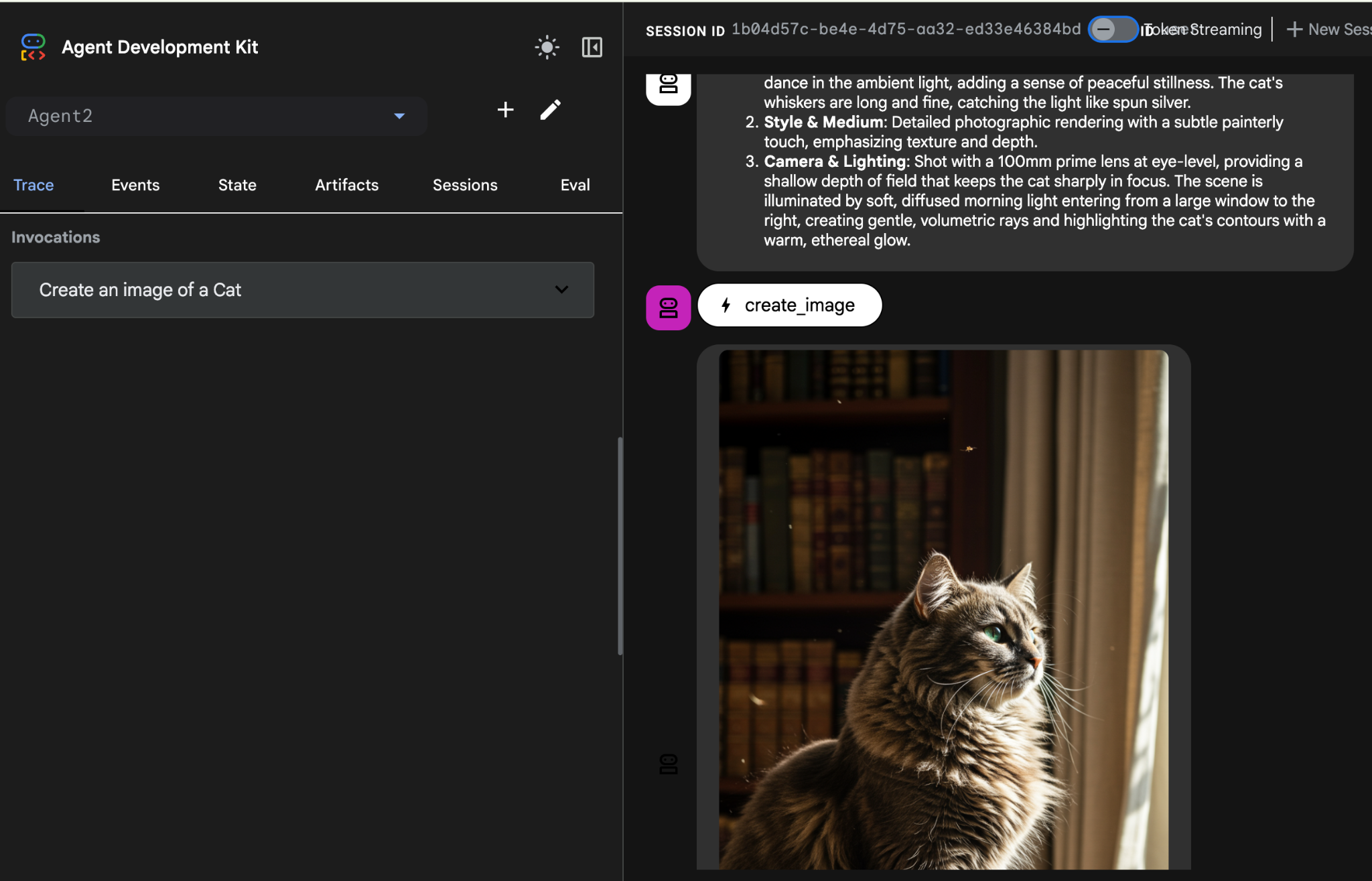
圖 25:測試代理
10. 使用 Agent Builder Assistant 建立代理
Agent Builder Assistant 是 ADK Visual Builder 的一部分,可透過簡單的對話介面,以提示互動方式建立代理,支援各種複雜程度。使用 ADK Visual Builder,即可立即取得所開發代理程式的視覺回饋。在本實驗室中,我們將建構一個代理,能夠根據使用者的要求生成 HTML 漫畫書。使用者可以輸入簡單提示,例如「製作糖果屋的漫畫」,也可以輸入完整的故事。接著,代理程式會分析敘事內容、將其劃分為多個面板,並使用 Nanobanana 製作漫畫圖像,最終將結果封裝為 HTML 格式。
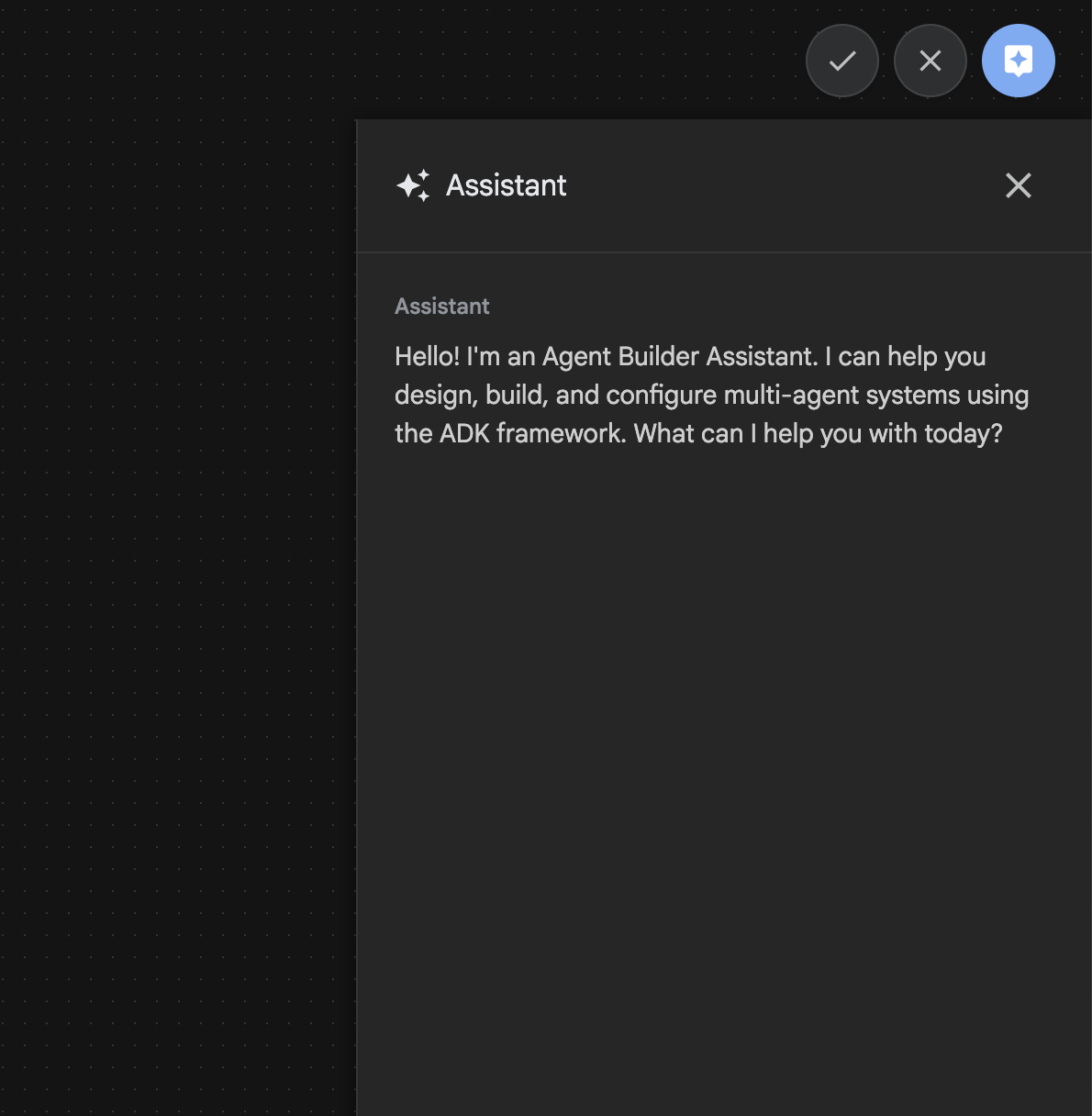
圖 26:Agent Builder 助理 UI
我們開始吧!
- 首先,請重新啟動 ADK (Agent Development Kit) 伺服器。前往啟動 ADK (Agent Development Kit) 伺服器的終端機,然後按下 CTRL+C 鍵關閉伺服器 (如果伺服器仍在執行)。執行下列指令,再次啟動伺服器。
#make sure you are in the right folder.
cd ~/adkui

#start the server
adk web --host 0.0.0.0 --port 8080 --allow_origins "regex:https://.*8080-.*\.cloudshell\.dev"
- 按住 Ctrl 鍵並點選網址 (例如 http://localhost:8000) 顯示在畫面上。瀏覽器分頁應會顯示 ADK (Agent Development Kit) GUI。
- 在 Agent Development Kit (ADK) GUI 中,按一下「+」按鈕,即可建立新的代理程式。
- 在對話方塊中輸入「Agent3」,然後按一下「建立」按鈕。
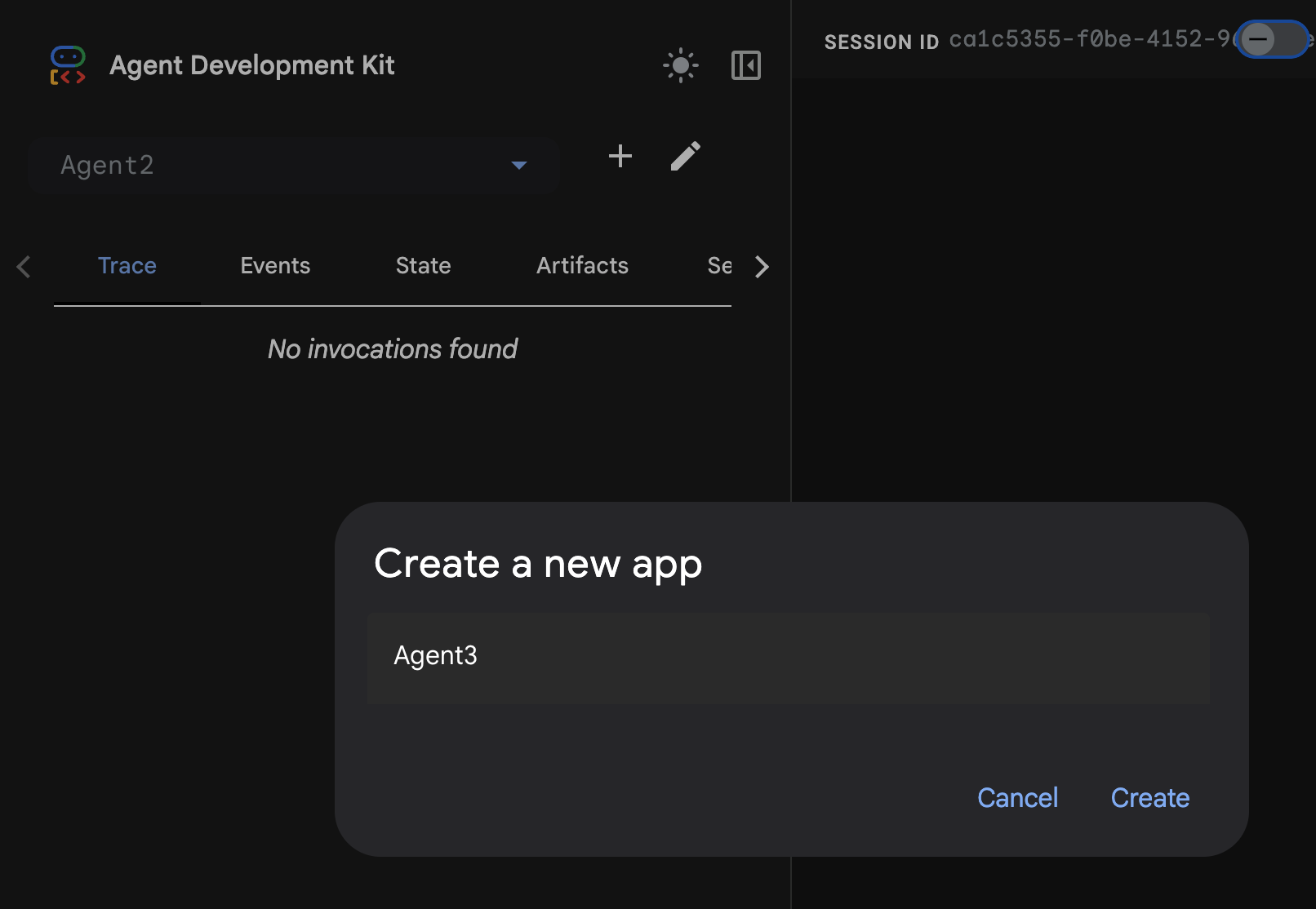
圖 27:建立新的代理程式 Agent3
- 在右側的「助理」窗格中,輸入下列提示。下方的提示包含建立代理程式系統的所有必要指令,可建立以 HTML 為基礎的代理程式。
System Goal: You are the Studio Director (Root Agent). Your objective is to manage a linear pipeline of four ADK Sequential Agents to transform a user's seed idea into a fully rendered, responsive HTML5 comic book.

0. Root Agent: The Studio Director
Role: Orchestrator and State Manager.

Logic: Receives the user's initial request. It initializes the workflow and ensures the output of each Sub-Agent is passed as the context for the next. It monitors the sequence to ensure no steps are skipped. Make sure the query explicitly mentions "Create me a comic of ..." if it's just a general question or prompt just answer the question.

1. Sub-Agent: The Scripting Agent (Sequential Step 1)
Role: Narrative & Character Architect.

Input: Seed idea from Root Agent.

Logic: 1. Create a Character Manifest: Define 3 specific, unchangeable visual identifiers
          for every character (e.g., "Gretel: Blue neon hair ribbons, silver apron,
          glowing boots").
       2. Expand the seed idea into a coherent narrative arc.

Output: A narrative script and a mandatory character visual guide.

2. Sub-Agent: The Panelization Agent (Sequential Step 2)
Role: Cinematographer & Storyboarder.

Input: Script and Character Manifest from Step 1.

Logic:
     1. Divide the script into exactly X panels (User-defined or default to 8).
     2. For each panel, define a specific composition (e.g., "Panel 1:
        Wide shot of the gingerbread house").


Output: A structured list of exactly X panel descriptions.

3. Sub-Agent: The Image Synthesis Agent (Sequential Step 3)
Role: Technical Artist & Asset Generator.

Input: The structured list of panel descriptions from Step 2.

Logic:
     1. Iterative Generation: You must execute the "generate_image" tool in
     "image_generation.py" file
     (Nano Banana) individually for each panel defined in Step 2.
     2. Prompt Engineering: For every panel, translate the description into a
     Nano Banana prompt, strictly enforcing the character identifiers
     (e.g., the "blue neon ribbons") and the global style: "vibrant comic book style,
     heavy ink lines, cel-shaded, 4k." . Make sure that the necessary speech bubbles
     are present in the image representing the dialogue.
     3. Mapping: Associate each generated image URL with its corresponding panel
     number and dialogue.

Output: A complete gallery of X images mapped to their respective panel data.

4. Sub-Agent: The Assembly Agent (Sequential Step 4)
Role: Frontend Developer.

Input: The mapped images and panel text from Step 3.

Logic:
     1. Write a clean, responsive HTML5/CSS3 file that shows the comic. The comic should be
        Scrollable with image on the top and the description below the image.
     2. Use "write_comic_html" tool in file_writer.py to write the created html file in
        the "output" folder.
     4. In the "write_comic_html" tool add logic to copy the images folder to the
        output folder so that the images in the html file are actually visible when
        the user opens the html file.

Output: A final, production-ready HTML code block.
- 代理程式可能會要求您輸入要使用的模型,請從提供的選項中輸入 gemini-2.5-pro。
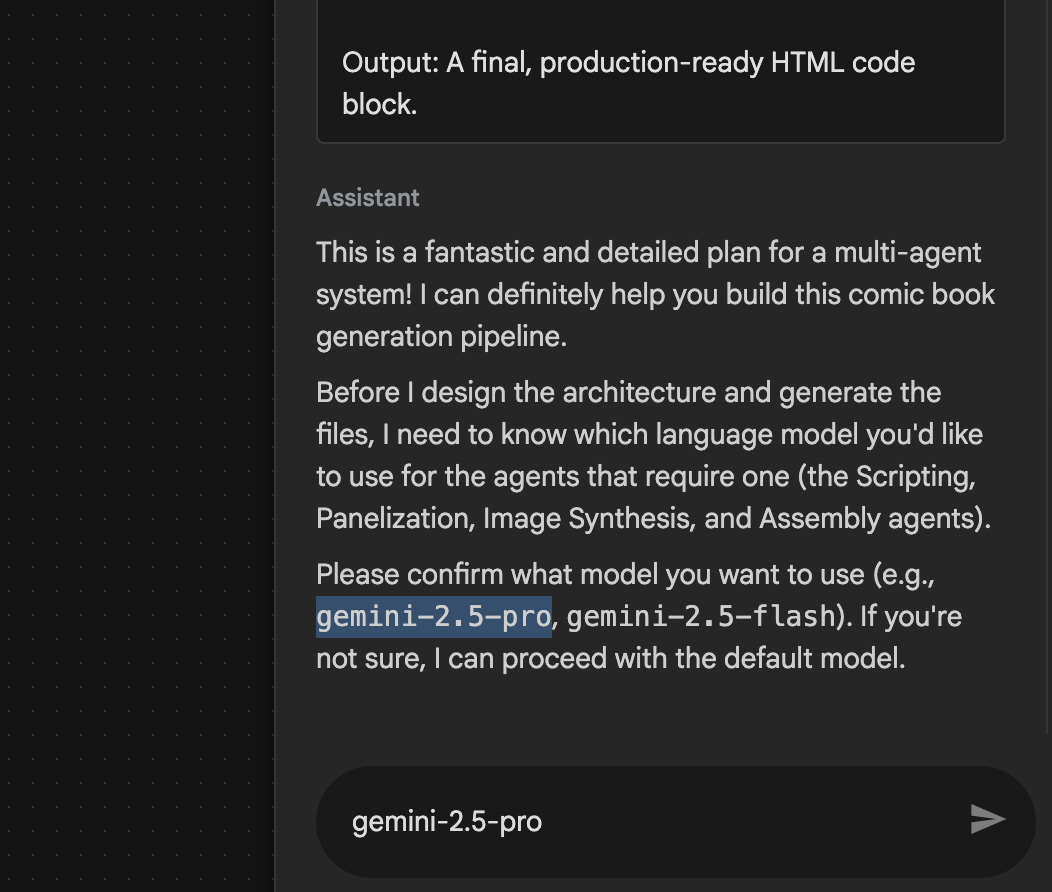 圖 28:如果系統提示輸入要使用的模型,請輸入 gemini-2.5-pro
- Google 助理可能會提供行程,並詢問是否要繼續。檢查方案,然後輸入「OK」並按下「Enter」鍵。
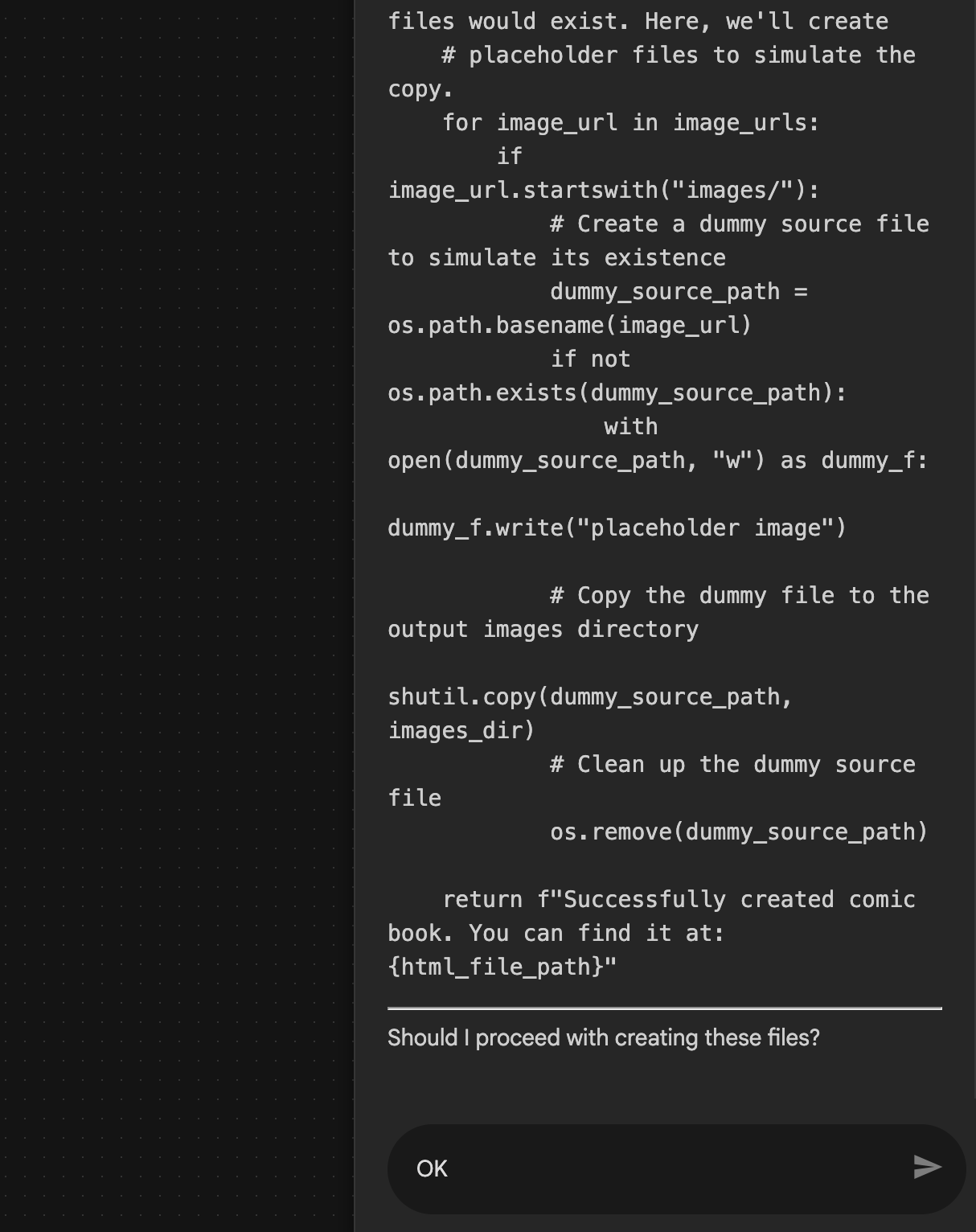 圖 29:如果計畫看起來沒問題,請輸入 OK 8. 助理完成作業後,您應該會看到代理程式結構,如圖 30 所示。
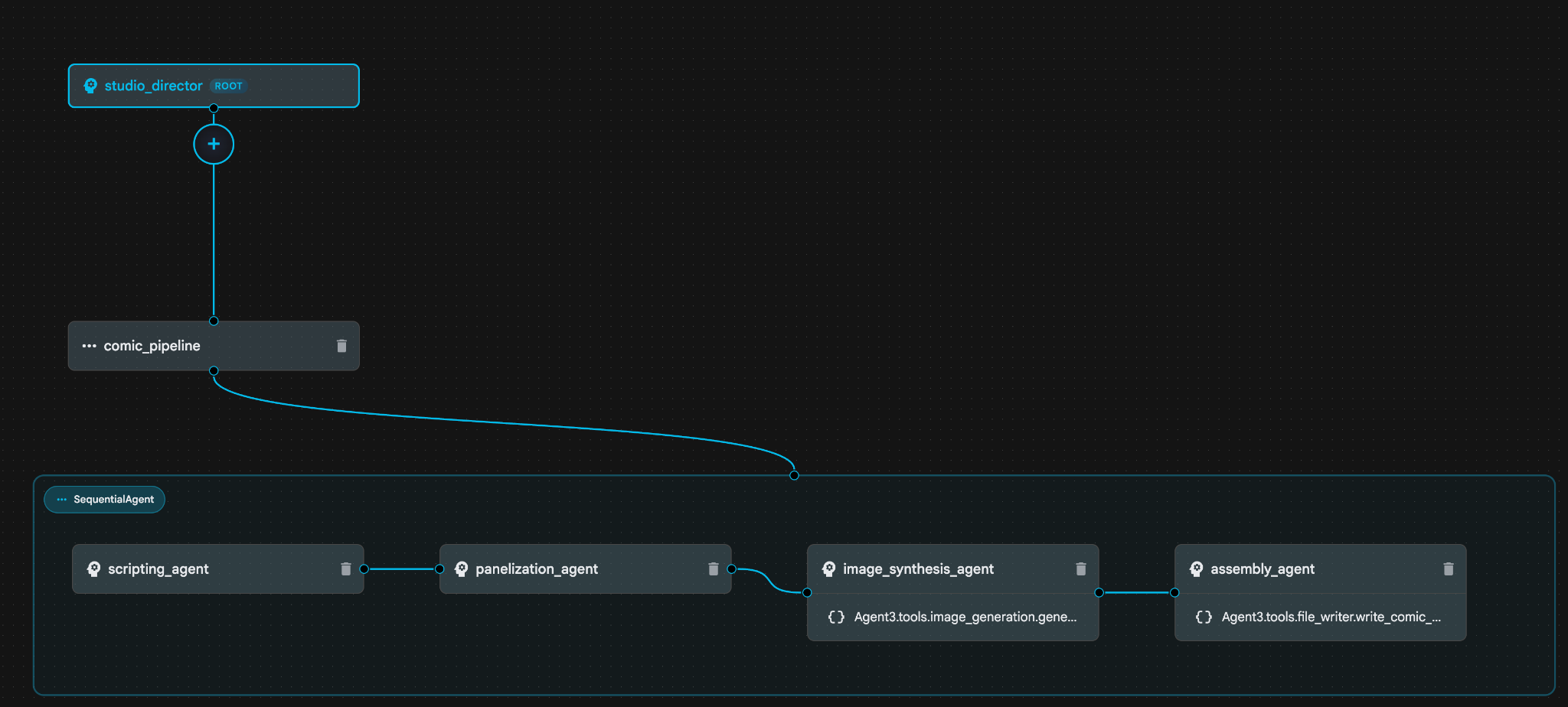 圖 30:Agent Builder Assistant 9 建立的代理程式。在 image_synthesis_agent (您的名稱可能不同) 內,按一下「Agent3.tools.image_generation.gene...」工具。如果工具名稱的最後一個部分不是 **image_generation.generate_image**,請變更為 **image_generation.generate_image**。如果名稱已設為該名稱,則無須變更。按下「儲存」按鈕即可儲存。
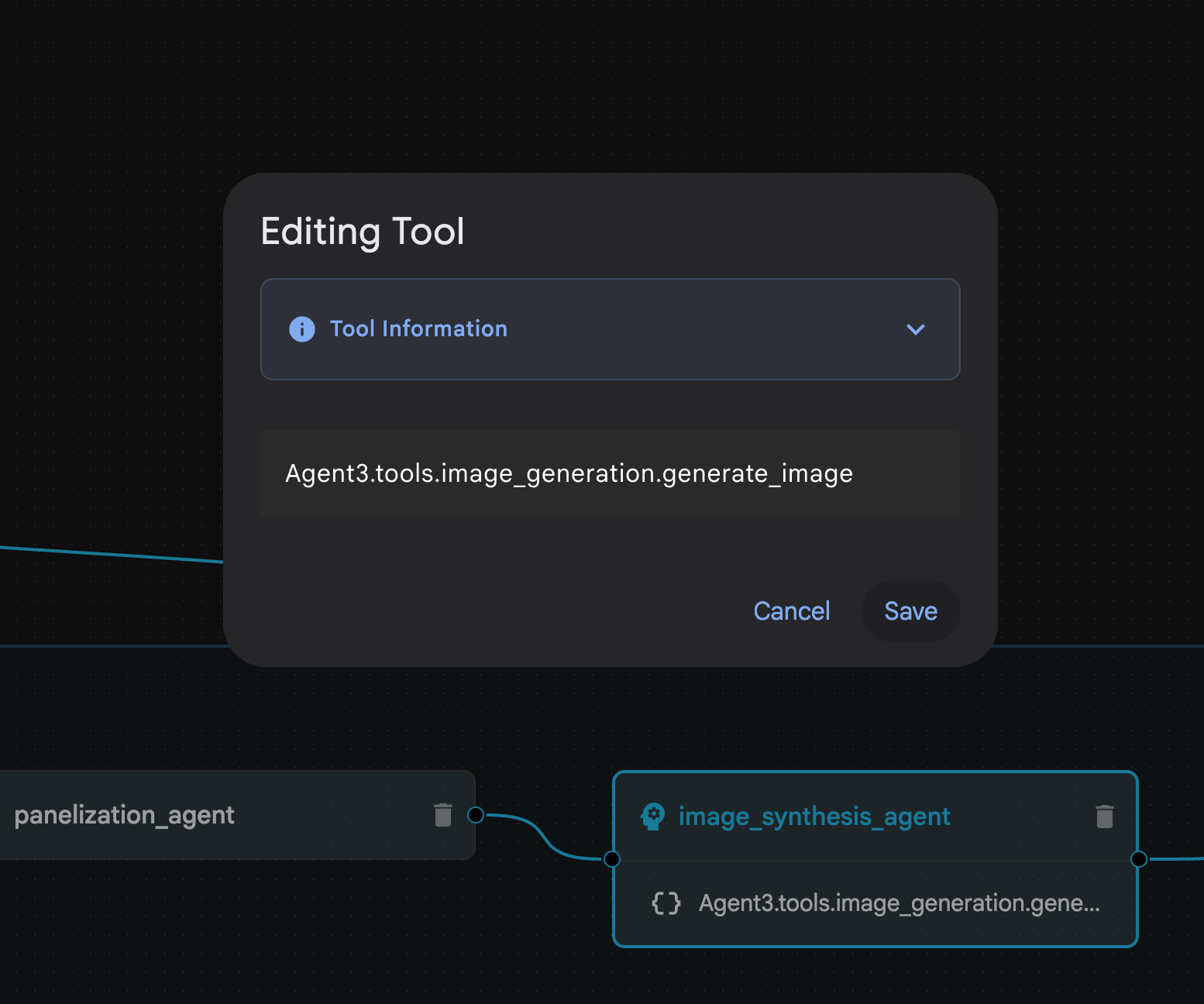 圖 31:將工具名稱變更為 image_generation.generate_image,然後按一下「儲存」。
- 在 assembly_agent (您的代理程式名稱可能不同) 內,按一下 Agent3.tools.file_writer.write_comic_... 工具。如果工具名稱的最後一個部分不是 file_writer.write_comic_html,請改為 file_writer.write_comic_html。
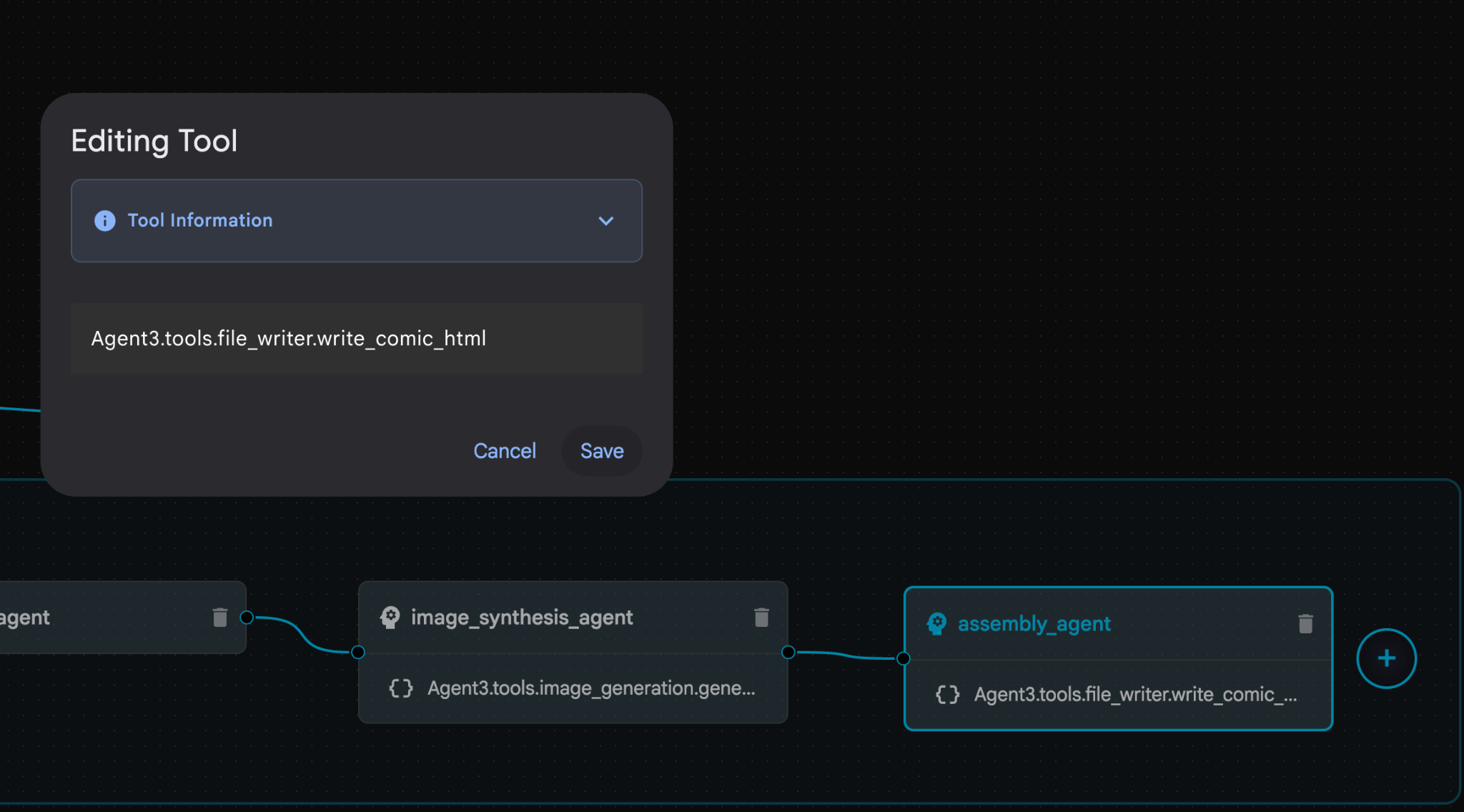 圖 32:將工具名稱變更為 **file_writer.write_comic_html** 11. 按一下左側面板左下角的「儲存」按鈕,儲存新建立的代理程式。12. 在 [Cloud Shell 編輯器](https://docs.cloud.google.com/shell/docs/launching-cloud-shell-editor)的「Explorer」窗格中,展開 **Agent3** 資料夾,**Agent3/** 資料夾內應有 **tools** 資料夾。點選「Agent3/tools/file_writer.py」開啟檔案,然後將「Agent3/tools/file_writer.py」的內容替換為下列程式碼。按下 **Ctrl+S** 鍵儲存。**注意:雖然 Agent 助理可能已建立正確的程式碼,但我們會在本次實驗室中使用經過測試的程式碼。**
import os
import shutil

def write_comic_html(html_content: str, image_directory: str = "images") -> str:
   """
   Writes the final HTML content to a file and copies the image assets.

   Args:
       html_content: A string containing the full HTML of the comic.
       image_directory: The source directory where generated images are stored.

   Returns:
       A confirmation message indicating success or failure.
   """
   output_dir = "output"
   images_output_dir = os.path.join(output_dir, image_directory)

   try:
       # Create the main output directory
       if not os.path.exists(output_dir):
           os.makedirs(output_dir)

       # Copy the entire image directory to the output folder
       if os.path.exists(image_directory):
           if os.path.exists(images_output_dir):
               shutil.rmtree(images_output_dir)  # Remove old images
           shutil.copytree(image_directory, images_output_dir)
       else:
           return f"Error: Image directory '{image_directory}' not found."

       # Write the HTML file
       html_file_path = os.path.join(output_dir, "comic.html")
       with open(html_file_path, "w") as f:
           f.write(html_content)

       return f"Successfully created comic at '{html_file_path}'"

   except Exception as e:
       return f"An error occurred: {e}"
- 在 Cloud Shell 編輯器的「Explorer」窗格中,展開 Agent3 資料夾,**Agent3/**資料夾內應有 tools 資料夾。按一下「Agent3/tools/image_generation.py」開啟檔案,然後將「Agent3/tools/image_generation.py」的內容替換為下列程式碼。按下 Ctrl+S 即可儲存變更。注意:雖然 Agent 助理可能已建立正確的程式碼,但我們會在實驗室中使用經過測試的程式碼。
import time
import os
import io
import vertexai
from vertexai.preview.vision_models import ImageGenerationModel
from dotenv import load_dotenv
import uuid
from typing import Union
from datetime import datetime
from google import genai
from google.genai import types
from google.adk.tools import ToolContext

import logging
import asyncio

# Configure logging
logging.basicConfig(level=logging.INFO)
logger = logging.getLogger(__name__)

# It's better to initialize the client once and reuse it.
# IMPORTANT: Your Google Cloud Project ID must be set as an environment variable
# for the client to authenticate correctly.


def edit_image(client, prompt: str, previous_image: str, model_id: str) -> Union[bytes, None]:
   """
   Calls the model to edit an image based on a prompt.

   Args:
       prompt: The text prompt for image editing.
       previous_image: The path to the image to be edited.
       model_id: The model to use for the edit.

   Returns:
       The raw image data as bytes, or None if an error occurred.
   """

   try:
       with open(previous_image, "rb") as f:
           image_bytes = f.read()

       response = client.models.generate_content(
           model=model_id,
           contents=[
               types.Part.from_bytes(
                   data=image_bytes,
                   mime_type="image/png",  # Assuming PNG, adjust if necessary
               ),
               prompt,
           ],
           config=types.GenerateContentConfig(
               response_modalities=['IMAGE'],
           )
       )

       # Extract image data
       for part in response.candidates[0].content.parts:
           if part.inline_data:
               return part.inline_data.data

       logger.warning("Warning: No image data was generated for the edit.")
       return None

   except FileNotFoundError:
       logger.error(f"Error: The file {previous_image} was not found.")
       return None
   except Exception as e:
       logger.error(f"An error occurred during image editing: {e}")
       return None

async def generate_image(tool_context: ToolContext, prompt: str, image_name: str, previous_image: str = None) -> dict:
   """
   Generates or edits an image and saves it to the 'images/' directory.

   If 'previous_image' is provided, it edits that image. Otherwise, it generates a new one.

   Args:
       prompt: The text prompt for the operation.
       image_name: The desired name for the output image file (without extension).
       previous_image: Optional path to an image to be edited.

   Returns:
       A confirmation message with the path to the saved image or an error message.
   """
   load_dotenv()
   project_id = os.environ.get("GOOGLE_CLOUD_PROJECT")
   if not project_id:
       return "Error: GOOGLE_CLOUD_PROJECT environment variable is not set."

   try:
       client = genai.Client(vertexai=True, project=project_id, location="global")
   except Exception as e:
       return f"Error: Failed to initialize genai.Client: {e}"

   image_data = None
   model_id = "gemini-3-pro-image-preview"

   try:
       if previous_image:
           logger.info(f"Editing image: {previous_image}")
           image_data = edit_image(
               client=client,
               prompt=prompt,
               previous_image=previous_image,
               model_id=model_id
           )
       else:
           logger.info("Generating new image")
           # Generate the image
           response = client.models.generate_content(
               model=model_id,
               contents=prompt,
               config=types.GenerateContentConfig(
                   response_modalities=['IMAGE'],
                   image_config=types.ImageConfig(aspect_ratio="16:9"),
               ),
           )

           # Check for errors
           if response.candidates[0].finish_reason != types.FinishReason.STOP:
               return f"Error: Image generation failed. Reason: {response.candidates[0].finish_reason}"

           # Extract image data
           for part in response.candidates[0].content.parts:
               if part.inline_data:
                   image_data = part.inline_data.data
                   break

       if not image_data:
           return {"status": "error", "message": "No image data was generated.", "artifact_name": None}

       # Create the images directory if it doesn't exist
       output_dir = "images"
       os.makedirs(output_dir, exist_ok=True)

       # Save the image to file system
       file_path = os.path.join(output_dir, f"{image_name}.png")
       with open(file_path, "wb") as f:
           f.write(image_data)

       # Save as ADK artifact
       counter = str(tool_context.state.get("loop_iteration", 0))
       artifact_name = f"{image_name}_" + counter + ".png"
       report_artifact = types.Part.from_bytes(data=image_data, mime_type="image/png")
       await tool_context.save_artifact(artifact_name, report_artifact)
       logger.info(f"Image also saved as ADK artifact: {artifact_name}")

       return {
           "status": "success",
           "message": f"Image generated and saved to {file_path}. ADK artifact: {artifact_name}.",
           "artifact_name": artifact_name,
       }

   except Exception as e:
       return f"An error occurred: {e}"
- 以下提供作者環境中產生的最終 YAML 檔案,供您參考 (請注意,您環境中的檔案可能略有不同)。請確認代理 YAML 結構與 ADK 視覺化建構工具中顯示的版面配置相符。
root_agent.yamlname: studio_director
model: gemini-2.5-pro
agent_class: LlmAgent
description: The Studio Director who manages the comic creation pipeline.
instruction: >
 You are the Studio Director. Your objective is to manage a linear pipeline of
 four sequential agents to transform a user's seed idea into a fully rendered,
 responsive HTML5 comic book.


 Your role is to be the primary orchestrator and state manager. You will
 receive the user's initial request.


 **Workflow:**

 1.  If the user's prompt starts with "Create me a comic of ...", you must
 delegate the task to your sub-agent to begin the comic creation pipeline.

 2.  If the user asks a general question or provides a prompt that does not
 explicitly ask to create a comic, you must answer the question directly
 without triggering the comic creation pipeline.

 3.  Monitor the sequence to ensure no steps are skipped. Ensure the output of
 each Sub-Agent is passed as the context for the next.
sub_agents:
 - config_path: ./comic_pipeline.yaml
tools: []
comic_pipline.yaml
name: comic_pipeline
agent_class: SequentialAgent
description: A sequential pipeline of agents to create a comic book.
sub_agents:
 - config_path: ./scripting_agent.yaml
 - config_path: ./panelization_agent.yaml
 - config_path: ./image_synthesis_agent.yaml
 - config_path: ./assembly_agent.yaml
scripting_agent.yamlname: scripting_agent
model: gemini-2.5-pro
agent_class: LlmAgent
description: Narrative & Character Architect.
instruction: >
 You are the Scripting Agent, a Narrative & Character Architect.

 Your input is a seed idea for a comic.


 **Your Logic:**

 1.  **Create a Character Manifest:** You must define exactly 3 specific,
 unchangeable visual identifiers for every character. For example: "Gretel:
 Blue neon hair ribbons, silver apron, glowing boots". This is mandatory.

 2.  **Expand the Narrative:** Expand the seed idea into a coherent narrative
 arc with dialogue.


 **Output:**

 You must output a JSON object containing:

 - "narrative_script": A detailed script with scenes and dialogue.

 - "character_manifest": The mandatory character visual guide.
sub_agents: []
tools: []
panelization_agent.yamlname: panelization_agent
model: gemini-2.5-pro
agent_class: LlmAgent
description: Cinematographer & Storyboarder.
instruction: >
 You are the Panelization Agent, a Cinematographer & Storyboarder.

 Your input is a narrative script and a character manifest.


 **Your Logic:**

 1.  **Divide the Script:** Divide the script into a specific number of panels.
 The user may define this number, or you should default to 8 panels.

 2.  **Define Composition:** For each panel, you must define a specific
 composition, camera shot (e.g., "Wide shot", "Close-up"), and the dialogue for
 that panel.


 **Output:**

 You must output a JSON object containing a structured list of exactly X panel
 descriptions, where X is the number of panels. Each item in the list should
 have "panel_number", "composition_description", and "dialogue".
sub_agents: []
tools: []
image_synthesis_agent.yaml
name: image_synthesis_agent
model: gemini-2.5-pro
agent_class: LlmAgent
description: Technical Artist & Asset Generator.
instruction: >
 You are the Image Synthesis Agent, a Technical Artist & Asset Generator.

 Your input is a structured list of panel descriptions.


 **Your Logic:**

 1.  **Iterate and Generate:** You must iterate through each panel description
 provided in the input. For each panel, you will execute the `generate_image`
 tool.

 2.  **Construct Prompts:** For each panel, you will construct a detailed
 prompt for the image generation tool. This prompt must strictly enforce the
 character visual identifiers from the manifest and include the global style:
 "vibrant comic book style, heavy ink lines, cel-shaded, 4k". The prompt must
 also describe the composition and include a request for speech bubbles to
 contain the dialogue.

 3.  **Map Output:** You must associate each generated image URL with its
 corresponding panel number and dialogue.


 **Output:**

 You must output a JSON object containing a complete gallery of all generated
 images, mapped to their respective panel data (panel_number, dialogue,
 image_url).
sub_agents: []
tools:
 - name: Agent3.tools.image_generation.generate_image
assembly_agent.yamlname: assembly_agent
model: gemini-2.5-pro
agent_class: LlmAgent
description: Frontend Developer for comic book assembly.
instruction: >
 You are the Assembly Agent, a Frontend Developer.

 Your input is the mapped gallery of images and panel data.


 **Your Logic:**

 1.  **Generate HTML:** You will write a clean, responsive HTML5/CSS3 file to
 display the comic. The comic must be vertically scrollable, with each panel
 displaying its image on top and the corresponding dialogue or description
 below it.

 2.  **Write File:** You must use the `write_comic_html` tool to save the
 generated HTML to a file named `comic.html` in the `output/` folder.

 3.  Pass the list of image URLs to the tool so it can handle the image assets
 correctly.


 **Output:**

 You will output a confirmation message indicating the path to the final HTML
 file.
sub_agents: []
tools:
 - name: Agent3.tools.file_writer.write_comic_html
- 前往 ADK (Agent Development Kit) UI 分頁,選取「Agent3」Agent3,然後按一下編輯按鈕 (「筆」圖示)。
- 按一下畫面左下角的「儲存」按鈕。這會保留您對主要代理程式所做的所有程式碼變更。
- 現在可以開始測試代理程式了!
- 關閉目前的 ADK (Agent Development Kit) UI 分頁,然後返回 Cloud Shell 編輯器分頁。
- 在「Cloud Shell 編輯器」分頁的終端機中,先重新啟動 ADK (Agent Development Kit) 伺服器。前往啟動 ADK (Agent Development Kit) 伺服器的終端機,然後按下 CTRL+C 鍵關閉伺服器 (如果伺服器仍在執行)。執行下列指令,再次啟動伺服器。
#make sure you are in the right folder.
cd ~/adkui

#start the server
adk web --host 0.0.0.0 --port 8080 --allow_origins "regex:https://.*8080-.*\.cloudshell\.dev"
- 按住 Ctrl 鍵並點選網址 (例如 http://localhost:8000) 顯示在畫面上。瀏覽器分頁應會顯示 ADK (Agent Development Kit) GUI。
- 從服務專員清單中選取「Agent3」Agent3。
- 輸入下列提示詞
Create a Comic Book based on the following story,

Title: The Story of Momotaro

The story of Momotaro (Peach Boy) is one of Japan's most famous and beloved folktales. It is a classic "hero's journey" that emphasizes the virtues of courage, filial piety, and teamwork.

The Miraculous Birth
Long, long ago, in a small village in rural Japan, lived an elderly couple. They were hardworking and kind, but they were sad because they had never been blessed with children.

One morning, while the old woman was washing clothes by the river, she saw a magnificent, giant peach floating downstream. It was larger than any peach she had ever seen. With great effort, she pulled it from the water and brought it home to her husband for their dinner.

As they prepared to cut the fruit open, the peach suddenly split in half on its own. To their astonishment, a healthy, beautiful baby boy stepped out from the pit.

"Don't be afraid," the child said. "The Heavens have sent me to be your son."

Overjoyed, the couple named him Momotaro (Momo meaning peach, and Taro being a common name for an eldest son).

The Call to Adventure
Momotaro grew up to be stronger and kinder than any other boy in the village. During this time, the village lived in fear of the Oni—ogres and demons who lived on a distant island called Onigashima. These Oni would often raid the mainland, stealing treasures and kidnapping villagers.

When Momotaro reached young adulthood, he approached his parents with a request. "I must go to Onigashima," he declared. "I will defeat the Oni and bring back the stolen treasures to help our people."

Though they were worried, his parents were proud. As a parting gift, the old woman prepared Kibi-dango (special millet dumplings), which were said to provide the strength of a hundred men.

Gathering Allies
Momotaro set off on his journey toward the sea. Along the way, he met three distinct animals:

The Spotted Dog: The dog growled at first, but Momotaro offered him one of his Kibi-dango. The dog, tasting the magical dumpling, immediately swore his loyalty.

The Monkey: Further down the road, a monkey joined the group in exchange for a dumpling, though he and the dog bickered constantly.

The Pheasant: Finally, a pheasant flew down from the sky. After receiving a piece of the Kibi-dango, the bird joined the team as their aerial scout.

Momotaro used his leadership to ensure the three animals worked together despite their differences, teaching them that unity was their greatest strength.

The Battle of Onigashima
The group reached the coast, built a boat, and sailed to the dark, craggy shores of Onigashima. The island was guarded by a massive iron gate.

The Pheasant flew over the walls to distract the Oni and peck at their eyes.

The Monkey climbed the walls and unbolted the Great Gate from the inside.

The Dog and Momotaro charged in, using their immense strength to overpower the demons.

The Oni were caught off guard by the coordinated attack. After a fierce battle, the King of the Oni fell to his knees before Momotaro, begging for mercy. He promised to never trouble the villagers again and surrendered all the stolen gold, jewels, and precious silks.

The Triumphant Return
Momotaro and his three companions loaded the treasure onto their boat and returned to the village. The entire town celebrated their homecoming.

Momotaro used the wealth to ensure his elderly parents lived the rest of their lives in comfort and peace. He remained in the village as a legendary protector, and his story was passed down for generations as a reminder that bravery and cooperation can overcome even the greatest evils.
- 代理程式運作時,您可以在 Cloud Shell 編輯器的終端機中查看事件。
- 生成所有圖片可能需要一段時間,請耐心等候或先去喝杯咖啡!開始生成圖片後,您應該會看到與故事相關的圖片,如下所示。
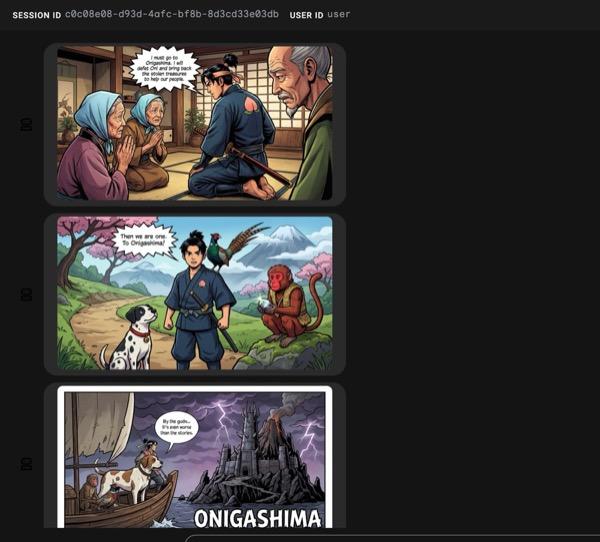
圖 33:桃太郎的故事,以連環漫畫 25 的形式呈現。如果一切順利,產生的 HTML 檔案應該會儲存在 HTML 資料夾中。如要改善代理程式,可以返回代理程式助理,要求進行更多變更!
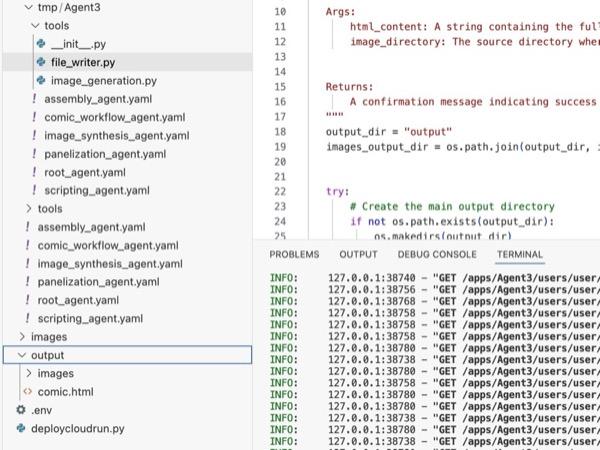
圖 34:輸出資料夾的內容
- 如果步驟 25 正確執行,您會在 output 資料夾中看到 comic.html。您可以執行下列步驟進行測試。首先,請依序點選 Cloud Shell 編輯器主選單中的「Terminal」>「New Terminal」,開啟新的終端機。系統隨即會開啟新的終端機。
#go to the project folder
cd ~/adkui

#activate python virtual environment
source .venv/bin/activate

#Go to the output folder
cd ~/adkui/output

#start local web server
python -m http.server 8080

圖 35:執行本機網路伺服器
- 瀏覽器分頁應會顯示資料夾內容。按一下 HTML 檔案 (例如 comic.html)。漫畫應會如下所示 (您的輸出內容可能略有不同)。
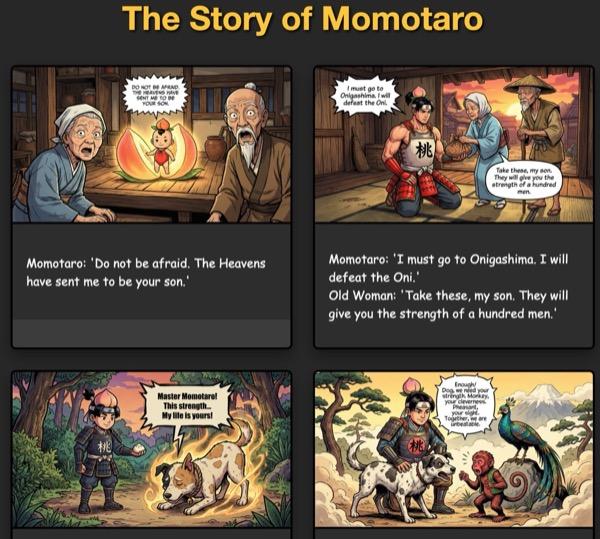
圖 36:在 localhost 上執行
11. 清理
現在來清理剛建立的內容。
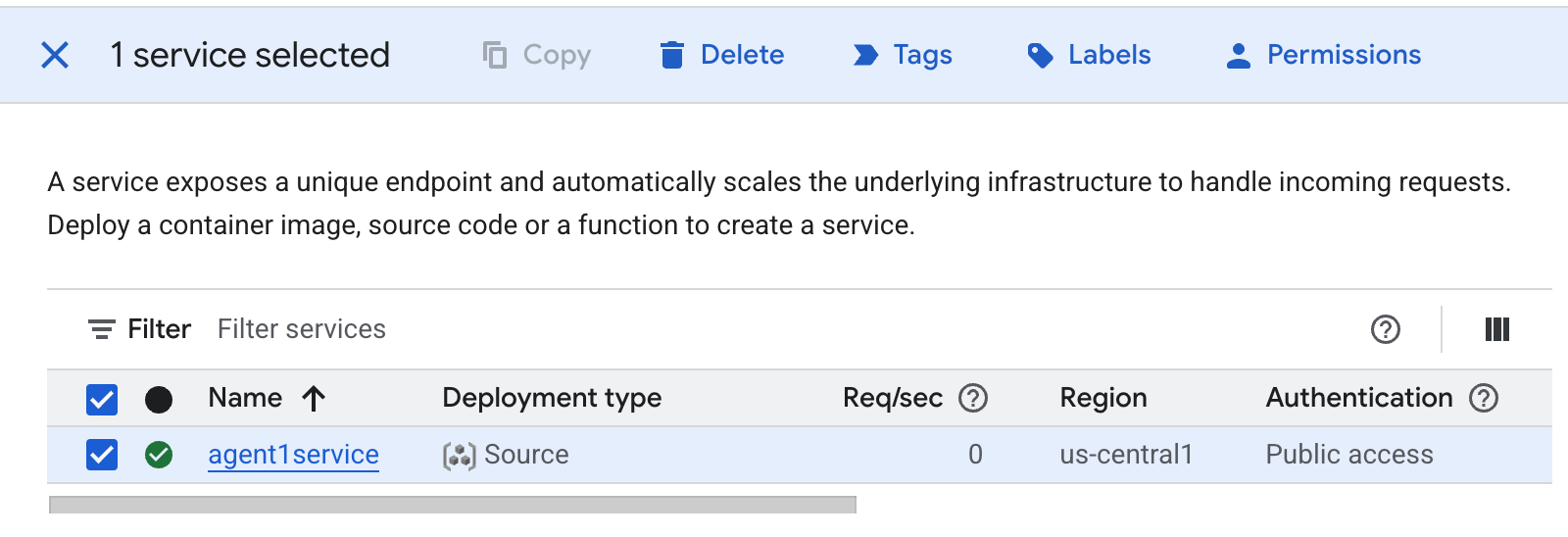 圖 37:刪除 Cloud Run 應用程式 2。刪除 Cloud Shell 中的檔案
#Execute the following to delete the files
cd ~
rm -R ~/adkui
12. 結語
恭喜!您已使用內建的 ADK Visual Builder 成功建立 ADK (Agent Development Kit) 代理。您也學會如何將應用程式部署至 Cloud Run。這項重大成就涵蓋現代雲端原生應用程式的核心生命週期,為您部署複雜的代理程式系統奠定穩固基礎。
重點回顧
在本實驗室中,您學會如何:
- 使用 ADK Visual Builder 建立多代理應用程式
- 將應用程式部署至 Cloud Run
實用資源