

1. 简介
在此 Codelab 中,您将学习如何使用 Document AI 专用处理器,通过 Python 对专用文档进行分类和解析。对于分类和拆分,我们将使用一个包含账单、收据和水电费账单的示例 PDF 文件。然后,对于解析和实体提取,我们将以账单为例进行说明。
此过程和示例代码适用于 Document AI 支持的任何专用文档。
前提条件
此 Codelab 基于其他 Document AI Codelab 中介绍的内容。
建议您先完成以下 Codelab,然后再继续:
学习内容
- 如何对专业文档进行分类并确定拆分点。
- 如何使用专用处理器提取架构化实体。
所需条件
2. 准备工作
本 Codelab 假定您已完成入门 Codelab 中列出的 Document AI 设置步骤。
请先完成以下步骤,然后再继续操作:
您还需要安装 Pandas,这是一个适用于 Python 的热门数据分析库。
pip3 install --upgrade pandas
3. 创建专用处理器
您必须先创建本教程中将要使用的处理器的实例。
- 在控制台中,前往 Document AI Platform 概览
- 点击创建处理器,向下滚动到专用,然后选择采购文档拆分器。
- 将其命名为“codelab-procurement-splitter”(或您能记住的其他名称),并从列表中选择距离最近的区域。
- 点击创建以创建处理器。
- 复制处理器 ID。您稍后在代码中会用到该 ID。
- 使用账单解析器(您可以将其命名为“codelab-invoice-parser”)重复执行第 2 步到第 6 步
在控制台中测试处理器
您可以在控制台中上传文档来测试账单解析器。
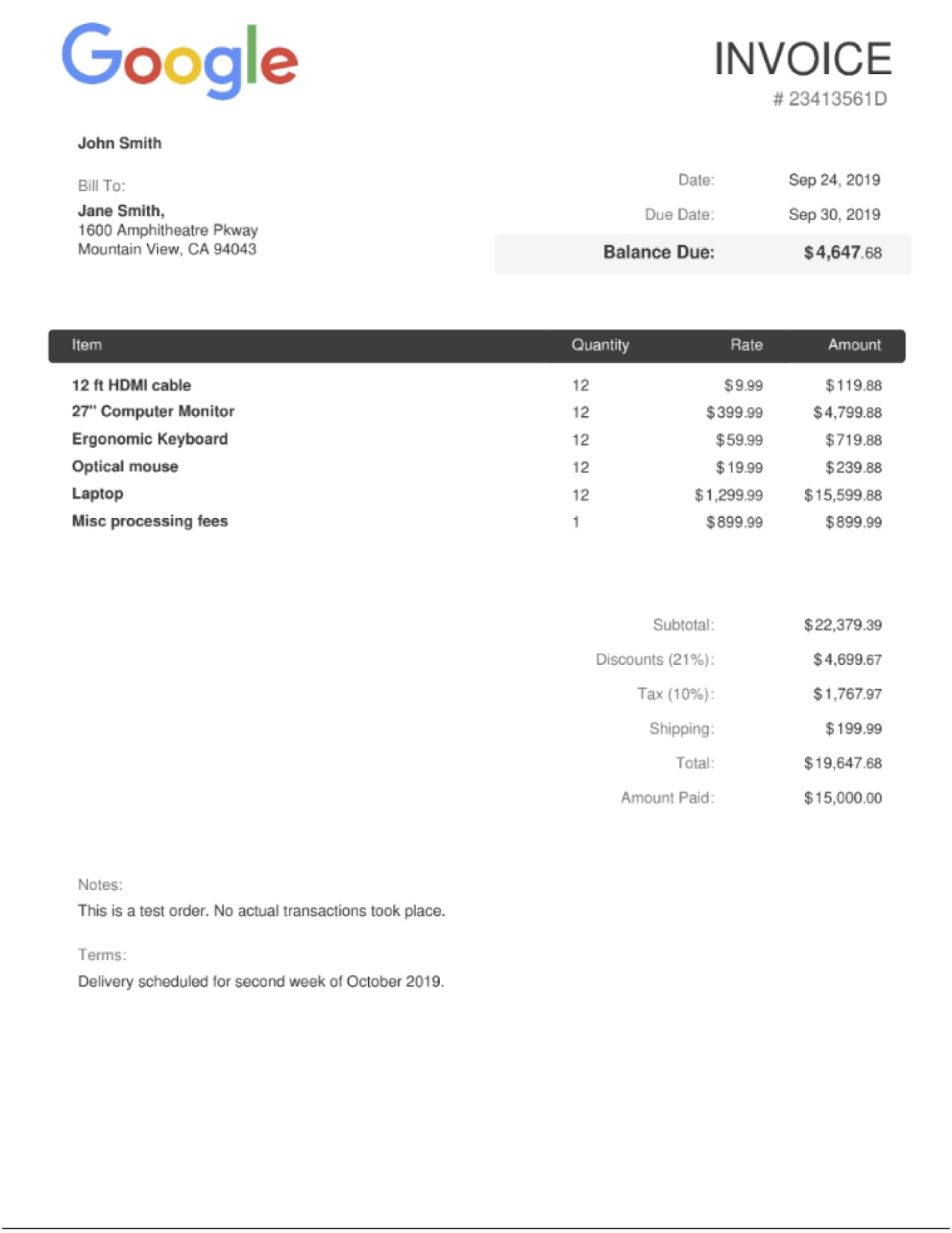
点击“上传文档”,然后选择要解析的发票。如果您没有可用的账单,可以下载并使用此账单示例。
输出的内容应如下所示:

4. 下载示例文档
我们提供了一些示例文档,供您在此实验中使用。
您可以使用以下链接下载 PDF。然后,将其上传到 Cloud Shell 实例。
或者,您还可以使用 gsutil 从我们的公开 Cloud Storage 存储分区下载这些文件。
gsutil cp gs://cloud-samples-data/documentai/codelabs/specialized-processors/procurement_multi_document.pdf .

gsutil cp gs://cloud-samples-data/documentai/codelabs/specialized-processors/google_invoice.pdf .
5. 对文档进行分类和拆分
在此步骤中,您将使用在线处理 API 对多页文档进行分类并检测逻辑拆分点。
如果需要发送多个文件,或者文件大小超过在线处理功能支持的最大页数,您还可以使用批处理 API。您可以参阅 Document AI OCR Codelab,了解如何执行此操作。
除了处理器 ID 之外,通用处理器用于发出 API 请求的代码都是相同的。
采购拆分器/分类器
创建一个名为 classification.py 的文件,并使用以下代码。
将 PROCUREMENT_SPLITTER_ID 替换为您之前创建的采购拆分器处理器的 ID。将 YOUR_PROJECT_ID 和 YOUR_PROJECT_LOCATION 分别替换为您的 Cloud 项目 ID 和处理器位置。
classification.py
import pandas as pd
from google.cloud import documentai_v1 as documentai


def online_process(
    project_id: str,
    location: str,
    processor_id: str,
    file_path: str,
    mime_type: str,
) -> documentai.Document:
    """
    Processes a document using the Document AI Online Processing API.
    """

    opts = {"api_endpoint": f"{location}-documentai.googleapis.com"}

    # Instantiates a client
    documentai_client = documentai.DocumentProcessorServiceClient(client_options=opts)

    # The full resource name of the processor, e.g.:
    # projects/project-id/locations/location/processor/processor-id
    # You must create new processors in the Cloud Console first
    resource_name = documentai_client.processor_path(project_id, location, processor_id)

    # Read the file into memory
    with open(file_path, "rb") as file:
        file_content = file.read()

    # Load Binary Data into Document AI RawDocument Object
    raw_document = documentai.RawDocument(content=file_content, mime_type=mime_type)

    # Configure the process request
    request = documentai.ProcessRequest(name=resource_name, raw_document=raw_document)

    # Use the Document AI client to process the sample form
    result = documentai_client.process_document(request=request)

    return result.document


PROJECT_ID = "YOUR_PROJECT_ID"
LOCATION = "YOUR_PROJECT_LOCATION"  # Format is 'us' or 'eu'
PROCESSOR_ID = "PROCUREMENT_SPLITTER_ID"  # Create processor in Cloud Console

# The local file in your current working directory
FILE_PATH = "procurement_multi_document.pdf"
# Refer to https://cloud.google.com/document-ai/docs/processors-list
# for supported file types
MIME_TYPE = "application/pdf"

document = online_process(
    project_id=PROJECT_ID,
    location=LOCATION,
    processor_id=PROCESSOR_ID,
    file_path=FILE_PATH,
    mime_type=MIME_TYPE,
)

print("Document processing complete.")

types = []
confidence = []
pages = []

# Each Document.entity is a classification
for entity in document.entities:
    classification = entity.type_
    types.append(classification)
    confidence.append(f"{entity.confidence:.0%}")

    # entity.page_ref contains the pages that match the classification
    pages_list = []
    for page_ref in entity.page_anchor.page_refs:
        pages_list.append(page_ref.page)
    pages.append(pages_list)

# Create a Pandas Dataframe to print the values in tabular format.
df = pd.DataFrame({"Classification": types, "Confidence": confidence, "Pages": pages})

print(df)
输出应如下所示:
$ python3 classification.py
Document processing complete.
         Classification Confidence Pages
0     invoice_statement       100%   [0]
1     receipt_statement        98%   [1]
2                 other        81%   [2]
3     utility_statement       100%   [3]
4  restaurant_statement       100%   [4]
请注意,采购单据分割器/分类器正确识别了第 0-1 页和第 3-4 页上的单据类型。
第 2 页包含一份通用医疗登记表,因此分类器正确地将其识别为 other。
6. 提取实体
现在,您可以从文件中提取架构化实体,包括置信度得分、属性和标准化值。
发出 API 请求的代码与上一步相同,可以通过在线请求或批量请求完成。
我们将从实体中获取以下信息:
- 实体类型
- (例如:
invoice_date、receiver_name、total_amount)
- (例如:
- 原始值
- 原始文档文件中的数据值。
- 标准化值
- 采用标准化规范格式的数据值(如果适用)。
- 也可以包含 Enterprise Knowledge Graph 的扩充项
- 置信度值
- 模型对值准确性的“确信”程度。
某些实体类型(例如 line_item)也可能包含属性,属性属于嵌套实体,例如 line_item/unit_price 和 line_item/description。
此示例对嵌套结构进行扁平化处理,以便于查看。
账单解析器
创建一个名为 extraction.py 的文件,并使用以下代码。
将 INVOICE_PARSER_ID 替换为您之前创建的账单解析器处理器的 ID,并使用文件 google_invoice.pdf
extraction.py
import pandas as pd
from google.cloud import documentai_v1 as documentai


def online_process(
    project_id: str,
    location: str,
    processor_id: str,
    file_path: str,
    mime_type: str,
) -> documentai.Document:
    """
    Processes a document using the Document AI Online Processing API.
    """

    opts = {"api_endpoint": f"{location}-documentai.googleapis.com"}

    # Instantiates a client
    documentai_client = documentai.DocumentProcessorServiceClient(client_options=opts)

    # The full resource name of the processor, e.g.:
    # projects/project-id/locations/location/processor/processor-id
    # You must create new processors in the Cloud Console first
    resource_name = documentai_client.processor_path(project_id, location, processor_id)

    # Read the file into memory
    with open(file_path, "rb") as file:
        file_content = file.read()

    # Load Binary Data into Document AI RawDocument Object
    raw_document = documentai.RawDocument(content=file_content, mime_type=mime_type)

    # Configure the process request
    request = documentai.ProcessRequest(name=resource_name, raw_document=raw_document)

    # Use the Document AI client to process the sample form
    result = documentai_client.process_document(request=request)

    return result.document


PROJECT_ID = "YOUR_PROJECT_ID"
LOCATION = "YOUR_PROJECT_LOCATION"  # Format is 'us' or 'eu'
PROCESSOR_ID = "INVOICE_PARSER_ID"  # Create processor in Cloud Console

# The local file in your current working directory
FILE_PATH = "google_invoice.pdf"
# Refer to https://cloud.google.com/document-ai/docs/processors-list
# for supported file types
MIME_TYPE = "application/pdf"

document = online_process(
    project_id=PROJECT_ID,
    location=LOCATION,
    processor_id=PROCESSOR_ID,
    file_path=FILE_PATH,
    mime_type=MIME_TYPE,
)

types = []
raw_values = []
normalized_values = []
confidence = []

# Grab each key/value pair and their corresponding confidence scores.
for entity in document.entities:
    types.append(entity.type_)
    raw_values.append(entity.mention_text)
    normalized_values.append(entity.normalized_value.text)
    confidence.append(f"{entity.confidence:.0%}")

    # Get Properties (Sub-Entities) with confidence scores
    for prop in entity.properties:
        types.append(prop.type_)
        raw_values.append(prop.mention_text)
        normalized_values.append(prop.normalized_value.text)
        confidence.append(f"{prop.confidence:.0%}")

# Create a Pandas Dataframe to print the values in tabular format.
df = pd.DataFrame(
    {
        "Type": types,
        "Raw Value": raw_values,
        "Normalized Value": normalized_values,
        "Confidence": confidence,
    }
)

print(df)
输出应如下所示:
$ python3 extraction.py
                     Type                                         Raw Value Normalized Value Confidence
0                     vat                                         $1,767.97                        100%
1          vat/tax_amount                                         $1,767.97      1767.97 USD         0%
2            invoice_date                                      Sep 24, 2019       2019-09-24        99%
3                due_date                                      Sep 30, 2019       2019-09-30        99%
4            total_amount                                         19,647.68         19647.68        97%
5        total_tax_amount                                         $1,767.97      1767.97 USD        92%
6              net_amount                                         22,379.39         22379.39        91%
7           receiver_name                                       Jane Smith,                         83%
8              invoice_id                                         23413561D                         67%
9        receiver_address  1600 Amphitheatre Pkway\nMountain View, CA 94043                         66%
10         freight_amount                                           $199.99       199.99 USD        56%
11               currency                                                 $              USD        53%
12          supplier_name                                        John Smith                         19%
13         purchase_order                                         23413561D                          1%
14        receiver_tax_id                                         23413561D                          0%
15          supplier_iban                                         23413561D                          0%
16              line_item                   9.99 12 12 ft HDMI cable 119.88                        100%
17   line_item/unit_price                                              9.99             9.99        90%
18     line_item/quantity                                                12               12        77%
19  line_item/description                                  12 ft HDMI cable                         39%
20       line_item/amount                                            119.88           119.88        92%
21              line_item           12 399.99 27" Computer Monitor 4,799.88                        100%
22     line_item/quantity                                                12               12        80%
23   line_item/unit_price                                            399.99           399.99        91%
24  line_item/description                              27" Computer Monitor                         15%
25       line_item/amount                                          4,799.88          4799.88        94%
26              line_item                Ergonomic Keyboard 12 59.99 719.88                        100%
27  line_item/description                                Ergonomic Keyboard                         32%
28     line_item/quantity                                                12               12        76%
29   line_item/unit_price                                             59.99            59.99        92%
30       line_item/amount                                            719.88           719.88        94%
31              line_item                     Optical mouse 12 19.99 239.88                        100%
32  line_item/description                                     Optical mouse                         26%
33     line_item/quantity                                                12               12        78%
34   line_item/unit_price                                             19.99            19.99        91%
35       line_item/amount                                            239.88           239.88        94%
36              line_item                      Laptop 12 1,299.99 15,599.88                        100%
37  line_item/description                                            Laptop                         83%
38     line_item/quantity                                                12               12        76%
39   line_item/unit_price                                          1,299.99          1299.99        90%
40       line_item/amount                                         15,599.88         15599.88        94%
41              line_item              Misc processing fees 899.99 899.99 1                        100%
42  line_item/description                              Misc processing fees                         22%
43   line_item/unit_price                                            899.99           899.99        91%
44       line_item/amount                                            899.99           899.99        94%
45     line_item/quantity                                                 1                1        63%
7. 可选:试用其他专用处理器
您已成功使用用于处理采购单据的 Document AI 对文档进行分类,并解析账单。Document AI 还支持下面列出的其他专用解决方案:
您可以按照相同的步骤,使用相同的代码来处理任何专用处理器。
如果您想试用其他专用解决方案,可以重新执行实验,使用其他处理器类型和专用示例文档。
示例文档
以下是一些示例文档,您可以使用它们试用其他专用处理器。
解决方案 | 处理器类型 | 文档 |
身份 | ||
借贷单据 | ||
借贷单据 | ||
合同 |
您可以在文档中找到其他示例文档和处理器输出。
8. 恭喜
恭喜!您已成功使用 Document AI 对专用文档进行分类并从中提取数据。我们建议您尝试使用其他专用文档类型。
清理
为避免因本教程中使用的资源导致您的 Google Cloud 账号产生费用,请执行以下操作:
- 在 Cloud Console 中,转到管理资源页面。
- 在项目列表中,选择您的项目,然后点击“删除”。
- 在对话框中输入项目 ID,然后点击“关停”以删除项目。
了解详情
通过以下后续 Codelab 继续了解 Document AI。
- 使用 Python 管理 Document AI 处理器
- Document AI:人机协同
- Document AI Workbench:追加训练
- Document AI Workbench:自定义处理器
资源
许可
此作品已获得 Creative Commons Attribution 2.0 通用许可授权。