
1. Introduction
In this codelab, you will learn how to deploy EmbeddingGemma, a powerful multilingual text embedding model, on Cloud Run using GPUs. You will then use this deployed service to generate embeddings for a semantic search application.
Unlike traditional Large Language Models (LLMs) that generate text, embedding models convert text into numerical vectors. These vectors are crucial for building Retrieval-Augmented Generation (RAG) systems, which allow you to find the most relevant documents for a user's query.
What you'll do
- Containerize the EmbeddingGemma model using Ollama.
- Deploy the container to Cloud Run with GPU acceleration.
- Test the deployed model by generating embeddings for sample text.
- Build a lightweight semantic search system using your deployed service.
What you'll need
- A Google Cloud project with billing enabled.
- Basic familiarity with Docker and the command line.
2. Before you begin
Project Setup
- If you don't already have a Google Account, you must create a Google Account.
- Use a personal account instead of a work or school account. Work and school accounts may have restrictions that prevent you from enabling the APIs needed for this lab.
- Sign-in to the Google Cloud Console.
- Enable billing in the Cloud Console.
- Completing this lab should cost less than $1 USD in Cloud resources.
- You can follow the steps at the end of this lab to delete resources to avoid further charges.
- New users are eligible for the $300 USD Free Trial.
- Create a new project or choose to reuse an existing project.
- If you see an error about project quota, reuse an existing project or delete an existing project to create a new project.
Start Cloud Shell
Cloud Shell is a command-line environment running in Google Cloud that comes preloaded with necessary tools.
- Click Activate Cloud Shell at the top of the Google Cloud console.
- Once connected to Cloud Shell, verify your authentication:
gcloud auth list - Confirm your project is selected:
gcloud config get project - Set it if needed:
gcloud config set project <YOUR_PROJECT_ID>
Enable APIs
Run this command to enable all the required APIs:
gcloud services enable \
  run.googleapis.com \
  artifactregistry.googleapis.com \
  cloudbuild.googleapis.com
3. Containerize the Model
To run EmbeddingGemma serverlessly, we need to package it into a container. We will use Ollama, a lightweight framework for running LLMs, and Docker.
Create the Dockerfile
In Cloud Shell, create a new directory for your project and navigate into it:
mkdir embedding-gemma-codelab
cd embedding-gemma-codelab
Create a file named Dockerfile with the following content:
FROM ollama/ollama:latest

# Listen on all interfaces, port 8080
ENV OLLAMA_HOST=0.0.0.0:8080

# Store model weight files in /models
ENV OLLAMA_MODELS=/models

# Reduce logging verbosity
ENV OLLAMA_DEBUG=false

# Never unload model weights from the GPU
ENV OLLAMA_KEEP_ALIVE=-1

# Store the model weights in the container image
ENV MODEL=embeddinggemma:latest
RUN ollama serve & sleep 5 && ollama pull $MODEL

# Start Ollama
ENTRYPOINT ["ollama", "serve"]
This Dockerfile does the following:
- Starts from the official Ollama base image.
- Configures Ollama to listen on port 8080 (Cloud Run's default).
- The
RUNcommand startsollamaserver and downloads theembeddinggemmamodel during the build process so it's baked into the image. - Sets
OLLAMA_KEEP_ALIVE=-1to ensure the model stays loaded in GPU memory for faster subsequent requests.
4. Build and Deploy
We will use Cloud Run source deployment to build and deploy our container in a single step. This command builds the image using Cloud Build, stores it in Artifact Registry, and deploys it to Cloud Run.
Run the following command to deploy:
gcloud run deploy embedding-gemma \
  --source . \
  --region europe-west1 \
  --concurrency 4 \
  --cpu 8 \
  --set-env-vars OLLAMA_NUM_PARALLEL=4 \
  --gpu 1 \
  --gpu-type nvidia-l4 \
  --max-instances 1 \
  --memory 32Gi \
  --no-allow-unauthenticated \
  --no-cpu-throttling \
  --no-gpu-zonal-redundancy \
  --timeout=600 \
  --labels dev-tutorial=codelab-embedding-gemma
Understanding the Configuration
--source .specifies the current directory as the source for the build.--region europe-west1we use a region that supports GPUs on Cloud Run.--concurrency 4is set to match the value of the environment variable OLLAMA_NUM_PARALLEL.--gpu 1with--gpu-type nvidia-l4assigns 1 NVIDIA L4 GPU to every Cloud Run instance in the service.--max-instances 1specifies the maximum number of instances to scale to. It has to be equal to or lower than your project's NVIDIA L4 GPU quota.--no-allow-unauthenticatedrestricts unauthenticated access to the service. By keeping the service private, you can rely on Cloud Run's built-in Identity and Access Management (IAM) authentication for service-to-service communication.--no-cpu-throttlingis required for enabling GPU.--no-gpu-zonal-redundancyset zonal redundancy options depending on your zonal failover requirements and available quota.
Region Considerations
GPUs on Cloud Run are available in specific regions. You can check the supported regions in the documentation.
Deployment Output
After a few minutes, the deployment will complete and you will see a message like:
Service [embedding-gemma] revision [embedding-gemma-12345-abc] has been deployed and is serving 100 percent of traffic.
Service URL: https://embedding-gemma-123456789012.europe-west1.run.app
5. Test the Deployment
Since we deployed the service with --no-allow-unauthenticated, we cannot simply curl the public URL. We first need to grant ourselves permission to access the service and use the auth token in the request.
- Give your user account permission to call the service:
gcloud projects add-iam-policy-binding $GOOGLE_CLOUD_PROJECT \ --member=user:$(gcloud config get-value account) \ --role='roles/run.invoker' - Save your Google Cloud credentials and project number in environment variables for use in the request:
export PROJECT_NUMBER=$(gcloud projects describe $GOOGLE_CLOUD_PROJECT --format="value(projectNumber)") export ID_TOKEN=$(gcloud auth print-identity-token) - Run the following command to generate an embedding for "Sample text":
curl -X POST "https://embedding-gemma-$PROJECT_NUMBER.europe-west1.run.app/api/embed" \
    -H "Authorization: Bearer $ID_TOKEN" \
    -H "Content-Type: application/json" \
    -d '{
        "model": "embeddinggemma",
        "input": "Sample text"
    }'
You should see a JSON response containing a vector (a long list of numbers) under the embedding field. This confirms your serverless GPU-backed embedding model is working!
The response will look similar to this: 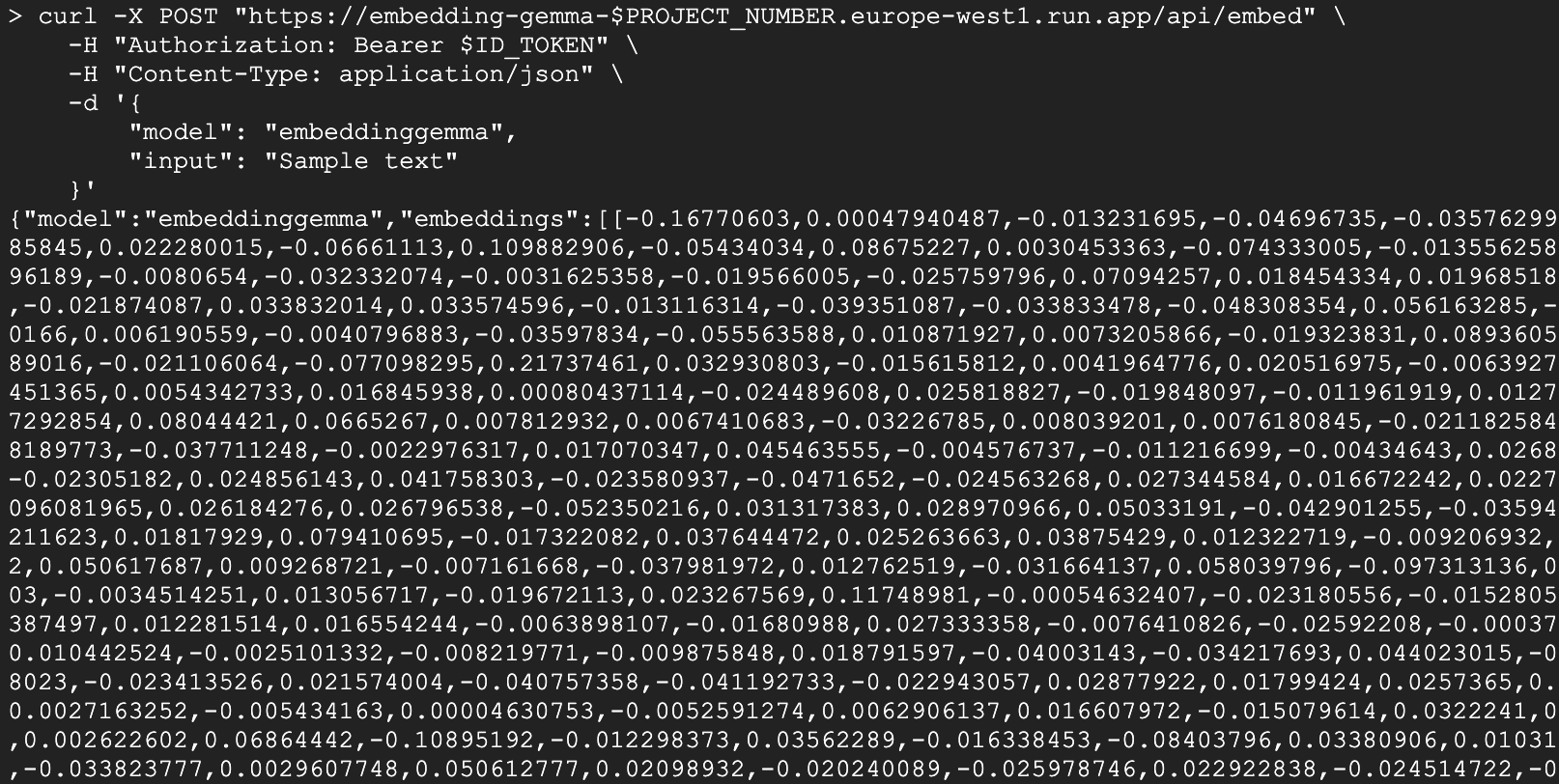
Python Client
You can also use Python to interact with the service. Create a file named test_client.py:
import urllib.request
import urllib.parse
import json
import os

# 1. Setup the URL and Payload
url = f"https://embedding-gemma-{os.environ['PROJECT_NUMBER']}.europe-west1.run.app/api/embed"
payload = {
    "model": "embeddinggemma",
    "input": "Sample text"
}

# 2. Create the Request object
# Note: Providing 'data' automatically makes this a POST request
req = urllib.request.Request(
    url,
    data=json.dumps(payload).encode("utf-8"),
    headers={
        "Authorization": f"Bearer {os.environ['ID_TOKEN']}",
        "Content-Type": "application/json"
    }
)

# 3. Execute and print the response
response = urllib.request.urlopen(req)
result = json.loads(response.read().decode("utf-8"))
print(result)
Run it:
python test_client.py
6. Build a Semantic Search Application
Now that we have a working embedding service, let's build a simple Semantic Search application. We will use the generated embeddings to find the most relevant document for a given query.
Dependencies
We will use chromadb as our vector database and the ollama client library.
uv init semantic-search --description "Semantic Search Application"
cd semantic-search
uv add chromadb ollama
Create the Search Application
Create a file named semantic_search.py with the following code:
import ollama
import chromadb
import os

# 1. Define our knowledge base
documents = [
    "Poland is a country located in Central Europe.",
    "The capital and largest city of Poland is Warsaw.",
    "Poland's official language is Polish, which is a West Slavic language.",
    "Marie Curie, the pioneering scientist who conducted groundbreaking research on radioactivity, was born in Warsaw, Poland.",
    "Poland is famous for its traditional dish called pierogi, which are filled dumplings.",
    "The Białowieża Forest in Poland is one of the last and largest remaining parts of the immense primeval forest that once stretched across the European Plain.",
]

print("Initializing Vector Database...")
client = chromadb.Client()
collection = client.create_collection(name="docs")

# Configure the client to point to our Cloud Run proxy
ollama_client = ollama.Client(
    host=f"https://embedding-gemma-{os.environ['PROJECT_NUMBER']}.europe-west1.run.app",
    headers={'Authorization': 'Bearer ' + os.environ['ID_TOKEN']}
)

print("Generating embeddings and indexing documents...")
# 2. Store each document in the vector database
for i, d in enumerate(documents):
    # This calls our Cloud Run service to get the embedding
    response = ollama_client.embed(model="embeddinggemma", input=d)
    embeddings = response["embeddings"]
    collection.add(ids=[str(i)], embeddings=embeddings, documents=[d])

print("Indexing complete.\n")

# 3. Perform a Semantic Search
question = "What is Poland's official language?"
print(f"Query: {question}")

# Generate an embedding for the question
response = ollama_client.embed(model="embeddinggemma", input=question)

# Query the database for the most similar document
results = collection.query(
    query_embeddings=[response["embeddings"][0]],
    n_results=1
)

best_match = results["documents"][0][0]
print(f"Best Match Document: {best_match}")
Run the Application
Execute the script:
uv run semantic_search.py
You should see output similar to this:
Initializing Vector Database...
Generating embeddings and indexing documents...
Indexing complete.

Query: What is Poland's official language?
Best Match Document: Poland's official language is Polish, which is a West Slavic language.
This script demonstrates the core of a RAG system: using your serverless EmbeddingGemma service to convert both documents and queries into vectors, enabling you to find the exact information needed to answer a user's question.
7. Clean up
To avoid ongoing charges to your Google Cloud account, delete the resources created during this codelab.
Delete the Cloud Run Service
gcloud run services delete embedding-gemma --region europe-west1 --quiet
Delete the Container Image
gcloud artifacts docker images delete \
    europe-west1-docker.pkg.dev/${GOOGLE_CLOUD_PROJECT}/cloud-run-source-deploy/embedding-gemma \
    --quiet
8. Congratulations
Congratulations! You have successfully deployed EmbeddingGemma on Cloud Run with GPUs and used it to power a semantic search application.
You now have a scalable, serverless foundation for building AI applications that require understanding text meaning.
What you've learned
- How to containerize an Ollama model with Docker.
- How to deploy a GPU-enabled service to Cloud Run.
- How to use the deployed model for semantic search (RAG).
Next steps
- Explore other models in the Gemma family.
- Learn more about Cloud Run GPUs.
- Explore other Cloud Run Codelabs.
- Build a full RAG pipeline by connecting this retrieval step to a generative model.