
1. Introduction
What you'll build
In this codelab, you'll collaborate with Google Antigravity to build Colorist—an interactive Flutter application that brings the power of the Gemini API directly into your Flutter app. Ever wanted to let users control your app through natural language but didn't know where to start? This codelab shows you how.
Colorist lets users describe colors in natural language (such as "the orange of a sunset" or "deep ocean blue"), and the app:
- Processes these descriptions using Google's Gemini API with Firebase AI Logic
- Interprets the descriptions into precise RGB color values
- Displays the color on screen in real time
- Provides technical color details and interesting context about the color
- Maintains a history of recently generated colors
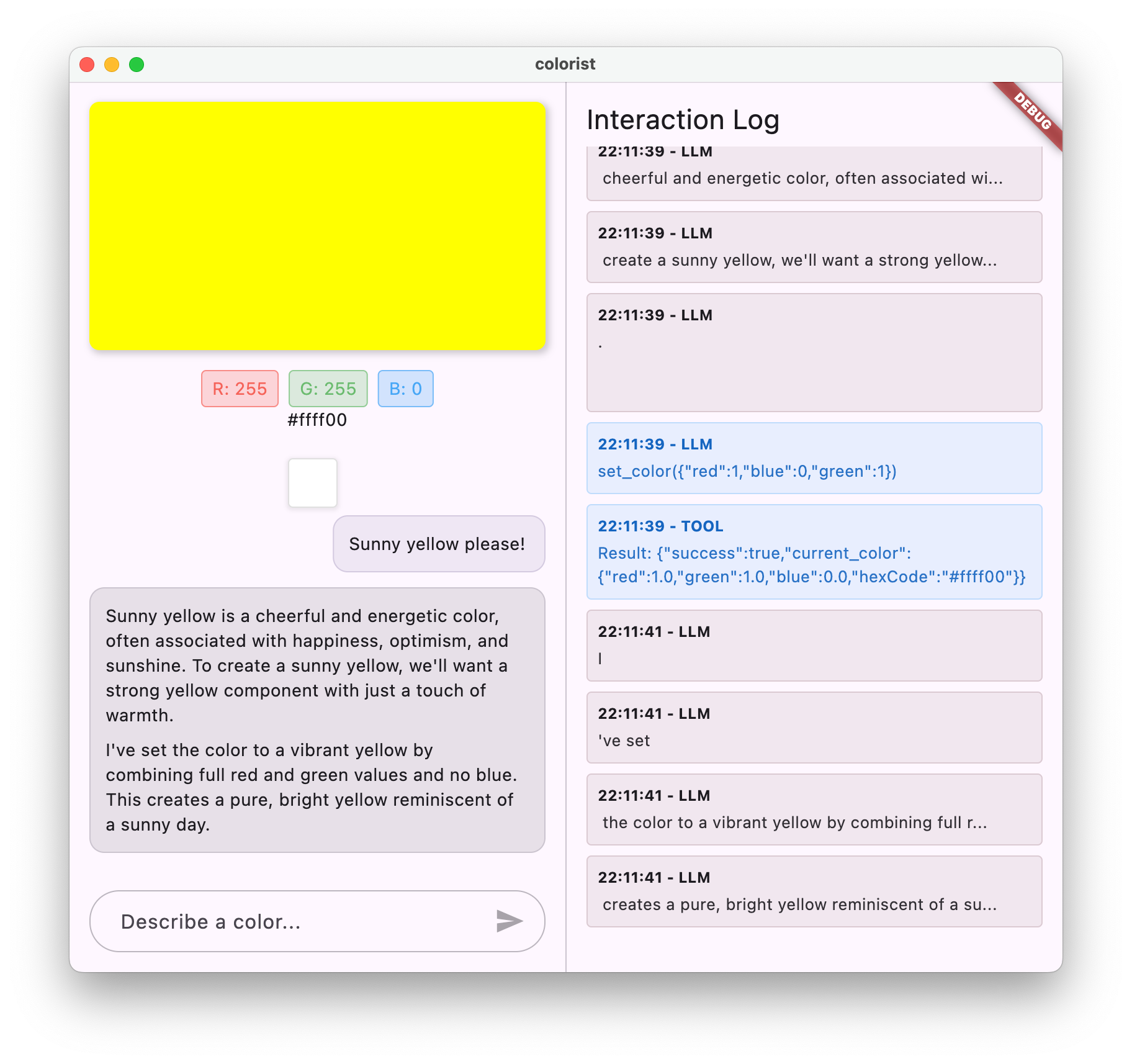
The app features a split-screen interface with a color display area and an interactive chat system on one side, and a detailed log panel showing the raw LLM interactions on the other side. This log lets you inspect how an LLM integration works under the hood.
Why this matters for Flutter developers
LLMs are transforming how users interact with applications, but integrating them effectively into mobile, desktop, and web apps presents unique challenges. This codelab teaches you practical patterns that go beyond raw API calls.
Your learning journey
This codelab takes you through building Colorist step by step:
- Set up your Flutter environment - Configure the Flutter SDK and Google Antigravity for your target platform.
- Create the project and echo service - Prompt Antigravity to scaffold the Flutter app with
colorist_uiand Riverpod, wired to a local echo service. - Add Gemini chat integration - Configure Firebase AI Logic and prompt Antigravity to connect your app to the Gemini API.
- Guide Gemini with a system prompt - Create a Markdown system prompt asset that guides the LLM to interpret color descriptions.
- Add tool calling to update colors - Declare the
set_colorfunction tool and handle LLM tool calls to update your app's color state directly. - Stream responses for better UX - Upgrade the chat service to stream real-time text chunks and tool calls while managing conversation state.
- Synchronize UI context with the LLM - Notify the LLM when the user selects historical colors in the UI to maintain a cohesive conversation.
What you'll learn
- How to collaborate with Google Antigravity to iteratively build and customize a Gemini-powered Flutter application
- How to configure Firebase AI Logic for Flutter applications
- How to craft effective system prompts to guide LLM behavior
- How to declare function tools and handle tool calls that bridge natural language and app state
- How to process streaming responses for a responsive user experience
- How to synchronize state between UI events and the LLM
- How to manage LLM conversation state and handle errors gracefully using Riverpod
Code preview: A taste of what you'll implement
Here's a glimpse of the function declaration you'll generate to let the LLM set colors in your app:
FunctionDeclaration get setColorFuncDecl => FunctionDeclaration(
  'set_color',
  'Set the color of the display square based on red, green, and blue values.',
  parameters: {
    'red': Schema.number(description: 'Red component value (0.0 - 1.0)'),
    'green': Schema.number(description: 'Green component value (0.0 - 1.0)'),
    'blue': Schema.number(description: 'Blue component value (0.0 - 1.0)'),
  },
);
A video overview of this codelab
Watch Craig Labenz and Andrew Brogdon discuss this codelab in Observable Flutter episode #59:
Prerequisites
To get the most out of this codelab, you should have:
- Flutter development experience - Familiarity with Flutter basics and Dart syntax
- Asynchronous programming knowledge - Understanding of
Futures,asyncandawait, andStreams - Firebase account - A Google Account to set up a Firebase project
2. Set up your Flutter environment
Editor
This codelab uses Google Antigravity as your AI-first development environment. In each step, you prompt Antigravity to generate or evolve your app's components, review the key Flutter and Firebase AI Logic concepts in the generated code, and optionally explore creative variations.
Choose a development target
Colorist is designed to run across desktop, mobile, and the web:
- macOS or Windows desktop (recommended for viewing the split-screen chat and raw LLM log panel side by side)
- Web (Chrome)
- Android or iOS
Install Flutter
The most up-to-date instructions on installing the Flutter SDK are always on docs.flutter.dev.
For this codelab, install the following software:
- Flutter SDK
- Google Antigravity with the official Dart and Flutter plugin enabled (available in the Plugin Marketplace under the Build with Google section).
- Compiler software for your chosen development target (for example, Visual Studio to target Windows or Xcode to target macOS or iOS).
3. Create the project and echo service
In this first build step, you set up the project structure and implement a local echo service that you'll later replace with the Gemini API integration. Starting with an echo service establishes the application architecture and verifies that your UI and state management work before adding network calls to an LLM.
What you'll learn in this step
- Scaffolding a Flutter project with Antigravity and adding the required dependencies
- Working with the
colorist_uipackage for prebuilt UI components and state notifiers - Wiring a placeholder message handler into
MainScreenwith Riverpod
Prompt Antigravity to create the project
- Launch Google Antigravity and open an empty directory where you'd like to build your project (choose a path that doesn't require elevated privileges or contain spaces, such as a folder in your home directory or
C:\src\). - In the Antigravity agent chat panel, send the following prompt to create the Flutter project, add the dependencies, and wire up the initial echo app:
Create a new empty Flutter project named `colorist` supporting `android,ios,macos,web,windows`. Add the `colorist_ui`, `flutter_riverpod`, `riverpod_annotation`, and `material_ui` packages, along with the `build_runner`, `riverpod_generator`, and `json_serializable` dev dependencies. Update `lib/main.dart` (importing `package:material_ui/material_ui.dart`) to run `MainApp` inside a `ProviderScope`, configure a `MaterialApp` with a `Colors.deepPurple` seed color scheme, and display `MainScreen` from `colorist_ui` wired to a placeholder `sendMessage` method that logs and echoes user messages back as completed LLM messages using `chatStateProvider` and `logStateProvider`.
Understanding the generated code
Project dependencies in pubspec.yaml
Antigravity scaffolds the project with flutter create --empty and adds the core packages to pubspec.yaml:
colorist_ui: Provides the split-paneMainScreen, color display, chat view, log panel, and state notifiers so you can focus on the LLM integration.material_ui: Provides Material 3 widgets and theming (package:material_ui/material_ui.dart).flutter_riverpodandriverpod_annotation: Manage reactive application and asynchronous service state.build_runner,riverpod_generator, andjson_serializable: Development dependencies used in the upcoming steps to generate Riverpod providers.
The ProviderScope and MainScreen entry point
In lib/main.dart, Antigravity wraps MainApp in a ProviderScope so all widgets can read and watch Riverpod providers, and passes a sendMessage callback to MainScreen:
void main() async {
  runApp(const ProviderScope(child: MainApp()));
}

class MainApp extends ConsumerWidget {
  const MainApp({super.key});

  @override
  Widget build(BuildContext context, WidgetRef ref) {
    return MaterialApp(
      theme: ThemeData(
        colorScheme: ColorScheme.fromSeed(seedColor: Colors.deepPurple),
      ),
      home: MainScreen(
        sendMessage: (message) {
          sendMessage(message, ref);
        },
      ),
    );
  }
The placeholder echo service
Still in lib/main.dart, the sendMessage helper reads chatStateProvider and logStateProvider (both exported by colorist_ui) to record the user's input and immediately echo it back as a completed LLM response:
  void sendMessage(String message, WidgetRef ref) {
    final chatStateNotifier = ref.read(chatStateProvider.notifier);
    final logStateNotifier = ref.read(logStateProvider.notifier);

    chatStateNotifier.addUserMessage(message);
    logStateNotifier.logUserText(message);
    chatStateNotifier.addLlmMessage(message, MessageState.complete);
    logStateNotifier.logLlmText(message);
  }
Understanding the colorist_ui architecture
The colorist_ui package provides three primary state notifiers that your Gemini service will interact with throughout this codelab:
ChatStateNotifier(chatStateProvider): Manages the list of user and LLM chat messages, including whether an LLM message is still streaming orMessageState.complete.ColorStateNotifier(colorStateProvider): Manages the currently displayed RGB color and the strip of up to 10 historical color thumbnails.LogStateNotifier(logStateProvider): Records raw user text, LLM text, function calls, function results, and errors for inspection in the right-hand log panel.
Run and test the app
Run the app on your target device (such as macos, windows, or chrome):
flutter run -d DEVICE
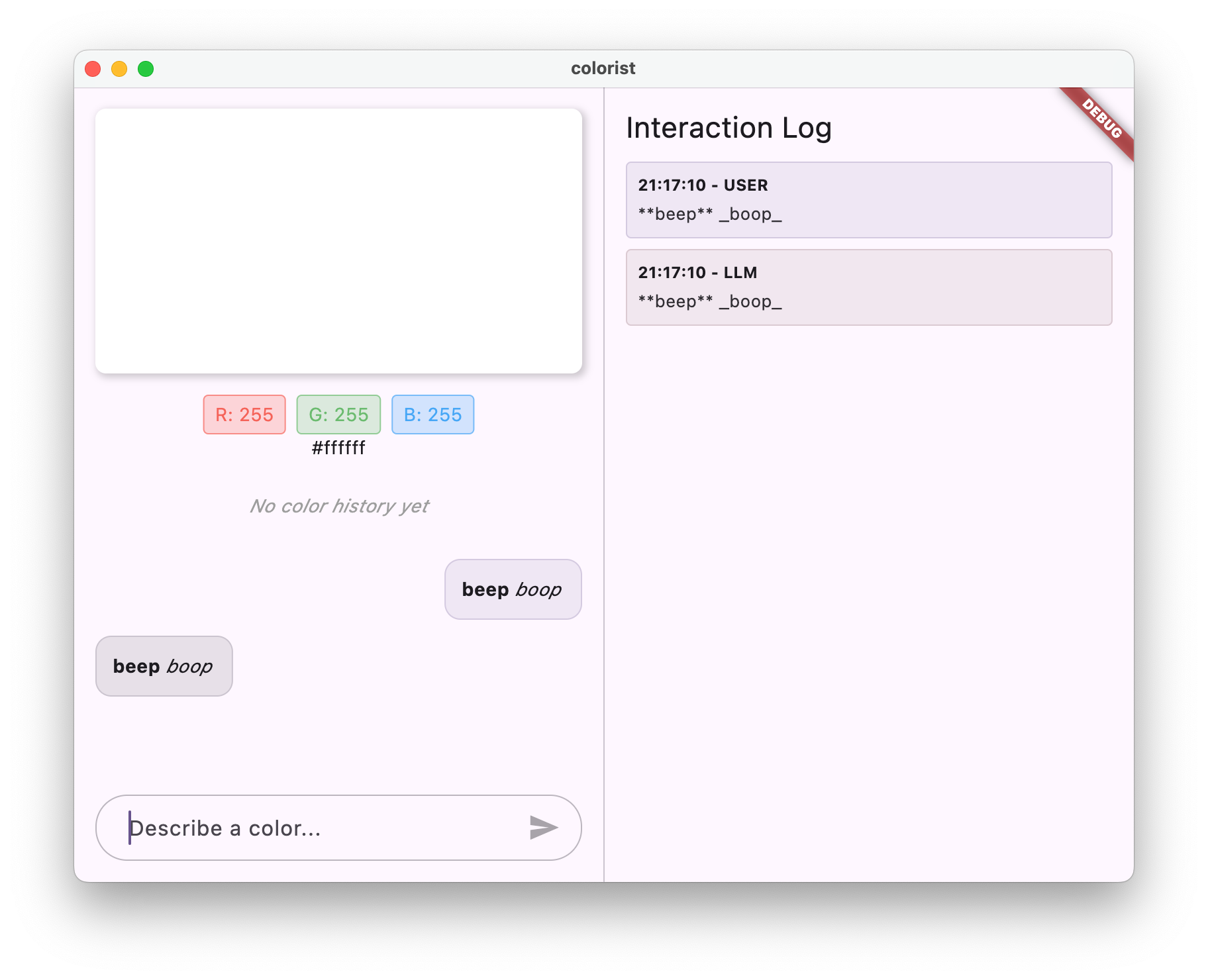
Verify that you see:
- A color display area showing the default starter color
- A chat interface where you can type and send messages
- A log panel recording the chat interactions
Type a message such as "I'd like a deep blue color" and press Send. The echo service repeats your message in both the chat pane and the log pane.
Troubleshooting
UI package or build issues
- Make sure you have the latest stable channel Flutter SDK installed.
- If dependencies fail to resolve, ask Antigravity to run
flutter cleanfollowed byflutter pub get.
Key concepts learned
- Scaffolding a multi-platform Flutter project with Google Antigravity
- Understanding the
colorist_uistate notifiers (chatStateProvider,colorStateProvider, andlogStateProvider) - Implementing a mock echo service to validate UI and state wiring before introducing external API calls
What's next?
In the next step, you'll configure Firebase AI Logic and prompt Antigravity to replace the echo method with a live Gemini chat service.
4. Add Gemini chat integration
In this step, you configure a Firebase project with Firebase AI Logic, generate your platform configuration with flutterfire configure, and prompt Antigravity to build the Riverpod providers and GeminiChatService that communicate with the Gemini API.
What you'll learn in this step
- Enabling Firebase AI Logic in the Firebase Console and configuring your Flutter app with
flutterfire_cli - Creating
@Riverpod(keepAlive: true)providers forFirebaseApp,GenerativeModel, andChatSession - Implementing
GeminiChatServiceto send messages and handle asynchronous loading and error states
Set up Firebase AI Logic
Before prompting Antigravity to write the Dart service code, connect your project to Firebase:
1. Create a Firebase project and enable Firebase AI Logic
- Go to the Firebase Console and sign in with your Google Account.
- Click Create a Firebase project (or select an existing project) and complete the setup wizard.
- In the left sidebar of your project, expand AI and select AI Logic.
- On the Firebase AI Logic card, click Get Started and follow the prompts to enable the Gemini Developer API for your project.
2. Configure your Flutter project with FlutterFire
Install the FlutterFire CLI and run flutterfire configure from your colorist project directory (you can run these commands in Antigravity's terminal):
dart pub global activate flutterfire_cli
flutterfire configure
Select the Firebase project you created and confirm the platforms to register. This generates lib/firebase_options.dart containing DefaultFirebaseOptions.currentPlatform.
Prompt Antigravity to integrate Gemini chat
Now send the following prompt in the Antigravity agent chat panel to add the Firebase packages, configure platform entitlements, create the Gemini providers and chat service, and wire them into lib/main.dart:
Add the `firebase_core` and `firebase_ai` packages to the project, enable outgoing network connections (`com.apple.security.network.client`) in `macos/Runner/DebugProfile.entitlements` and `macos/Runner/Release.entitlements`, and set the minimum iOS platform version in `ios/Podfile` to `15.0`. Create `lib/providers/gemini.dart` with `@Riverpod(keepAlive: true)` providers for `firebaseApp` (initializing Firebase with `DefaultFirebaseOptions.currentPlatform`), `geminiModel` (creating a `gemini-2.0-flash` model using `FirebaseAI.googleAI().generativeModel`), and `chatSession` (starting a chat on the model). Then create `lib/services/gemini_chat_service.dart` with a `GeminiChatService` class and `@Riverpod(keepAlive: true)` `geminiChatService` provider whose `sendMessage` method sends the user's text to `chatSession`, appends and logs the response in `chatStateProvider` and `logStateProvider`, logs and reports any errors, and finalizes the LLM message. Run `build_runner` to generate the Riverpod code, and update `lib/main.dart` to watch `geminiModelProvider` and show `MainScreen`, `LoadingScreen`, or `ErrorScreen`.
Understanding the generated code
Platform network and SDK configuration
To reach the Firebase AI Logic backend on Apple platforms, Antigravity adds the outgoing network client entitlement to both macos/Runner/DebugProfile.entitlements and macos/Runner/Release.entitlements:
<key>com.apple.security.network.client</key>
<true/>
If an ios/Podfile is present, setting platform :ios, '15.0' satisfies the minimum iOS deployment target required by the Firebase SDKs.
Riverpod providers for Firebase and Gemini (lib/providers/gemini.dart)
Antigravity creates three @Riverpod(keepAlive: true) providers in lib/providers/gemini.dart and runs build_runner to generate gemini.g.dart:
@Riverpod(keepAlive: true)
Future<FirebaseApp> firebaseApp(Ref ref) =>
    Firebase.initializeApp(options: DefaultFirebaseOptions.currentPlatform);

@Riverpod(keepAlive: true)
Future<GenerativeModel> geminiModel(Ref ref) async {
  await ref.watch(firebaseAppProvider.future);

  final model = FirebaseAI.googleAI().generativeModel(
    model: 'gemini-2.0-flash',
  );
  return model;
}

@Riverpod(keepAlive: true)
Future<ChatSession> chatSession(Ref ref) async {
  final model = await ref.watch(geminiModelProvider.future);
  return model.startChat();
}
firebaseAppProvider: Initializes Firebase using the generatedDefaultFirebaseOptions.currentPlatform.geminiModelProvider: Waits for Firebase initialization and creates aGenerativeModelbacked bygemini-2.0-flash.chatSessionProvider: Starts a multi-turnChatSessionthat remembers prior messages in the conversation. SettingkeepAlive: trueensures the session isn't disposed between UI rebuilds.
Sending messages in GeminiChatService (lib/services/gemini_chat_service.dart)
In lib/services/gemini_chat_service.dart, GeminiChatService.sendMessage creates a pending LLM message bubble, sends the user's prompt to chatSession, and finalizes the bubble in a finally block:
    chatStateNotifier.addUserMessage(message);
    logStateNotifier.logUserText(message);
    final llmMessage = chatStateNotifier.createLlmMessage();
    try {
      final response = await chatSession.sendMessage(Content.text(message));

      final responseText = response.text;
      if (responseText != null) {
        logStateNotifier.logLlmText(responseText);
        chatStateNotifier.appendToMessage(llmMessage.id, responseText);
      }
    } catch (e, st) {
      logStateNotifier.logError(e, st: st);
      chatStateNotifier.appendToMessage(
        llmMessage.id,
        "\nI'm sorry, I encountered an error processing your request. "
        'Please try again.',
      );
    } finally {
      chatStateNotifier.finalizeMessage(llmMessage.id);
    }
Handling async model initialization in lib/main.dart
In lib/main.dart, MainApp watches geminiModelProvider and uses Riverpod's AsyncValue.when pattern to render LoadingScreen while Firebase and Gemini initialize, ErrorScreen if initialization fails, or MainScreen once ready:
    final model = ref.watch(geminiModelProvider);

    return MaterialApp(
      theme: ThemeData(
        colorScheme: ColorScheme.fromSeed(seedColor: Colors.deepPurple),
      ),
      home: model.when(
        data: (data) => MainScreen(
          sendMessage: (text) {
            ref.read(geminiChatServiceProvider).sendMessage(text);
          },
        ),
        loading: () => const LoadingScreen(message: 'Initializing Gemini Model'),
        error: (err, st) => ErrorScreen(error: err),
      ),
    );
Run and test the app
Because this step added native plugins (firebase_core and firebase_ai) and macOS entitlements, stop any running instance and perform a full re-run:
flutter run -d DEVICE
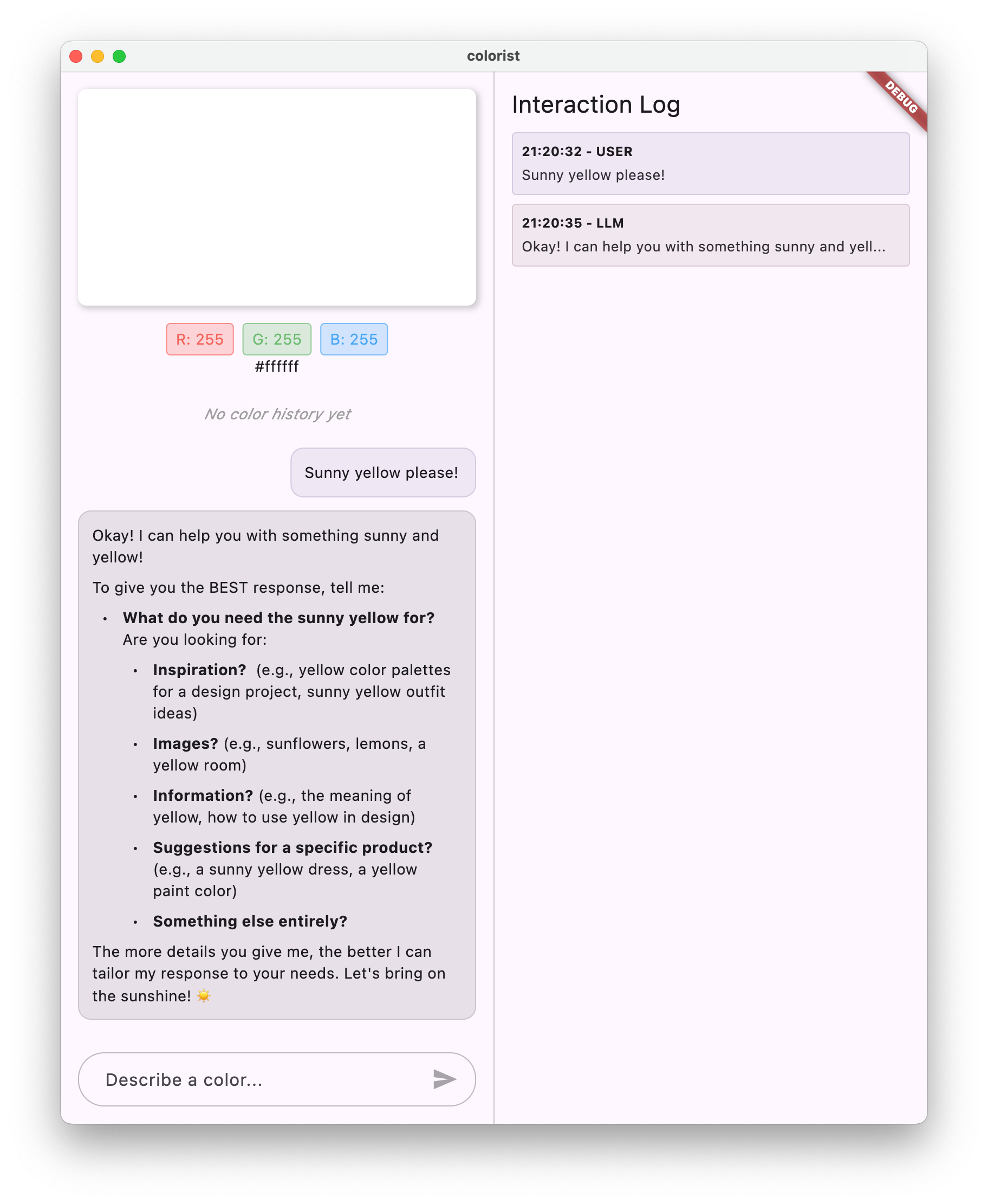
Send a message in the chat interface. Instead of echoing your input, Gemini replies with a conversational response, and the log panel records the request and response payloads.
Troubleshooting
Firebase initialization or API access errors
- Confirm that
lib/firebase_options.dartwas generated byflutterfire configure. - Verify in the Firebase Console that Firebase AI Logic and the Gemini Developer API are enabled for your project.
- On macOS, ensure
com.apple.security.network.clientis set tomacos/Runner/DebugProfile.entitlementsand perform a full rebuild.
Key concepts learned
- Configuring Firebase AI Logic in a Flutter project
- Exposing asynchronous SDK resources (
FirebaseApp,GenerativeModel, andChatSession) with@Riverpod(keepAlive: true) - Using
AsyncValue.whento handle loading, error, and data states cleanly in the UI
What's next?
Right now you can ask Gemini about anything—even topics completely unrelated to colors, like the Wars of the Roses. In the next step, you'll craft a system prompt asset to focus Gemini on interpreting color descriptions into RGB values.
5. Guide Gemini with a system prompt
In this step, you create a Markdown system prompt asset and pass it to the GenerativeModel using systemInstruction. System prompts let you define the LLM's persona, domain boundaries, and output format without changing your application logic.
What you'll learn in this step
- How system prompts shape LLM persona, boundaries, and output formatting
- Loading a Markdown system prompt from Flutter's asset bundle with Riverpod
- Passing
Content.system(systemPrompt)togenerativeModel()
Understanding system prompts
Think of a system prompt as giving the LLM its "job description" before the user's conversation begins. Unlike individual user messages, a system prompt:
- Establishes role and persona: Defines the assistant as a color expert integrated into the Colorist app.
- Focuses relevance: Keeps responses centered on colors, color theory, and RGB interpretations.
- Standardizes formatting: Instructs the model to output RGB components between
0.0and1.0in a predictable format (RGB: (red=X.X, green=X.X, blue=X.X)). - Handles ambiguity: Instructs the model to ask clarifying questions, one at a time, when a user's description is vague.
Storing the system prompt in assets/system_prompt.md rather than hardcoding a multi-line Dart string makes the prompt convenient to read, edit, and iterate on.
Prompt Antigravity to add the system prompt
Send the following prompt in Antigravity to create assets/system_prompt.md, register the asset directory, load it with a Riverpod provider, and attach it to geminiModel:
Create `assets/system_prompt.md` with system instructions defining a Colorist assistant persona that interprets natural language color descriptions into RGB values between `0.0` and `1.0` formatted as `RGB: (red=X.X, green=X.X, blue=X.X)` and asks clarifying questions one at a time when descriptions are unclear. Register `assets/` in `pubspec.yaml`, create a `@Riverpod(keepAlive: true)` `systemPrompt` provider in `lib/providers/system_prompt.dart` that loads `assets/system_prompt.md` using `rootBundle.loadString`, update `geminiModel` in `lib/providers/gemini.dart` to pass `systemInstruction: Content.system(systemPrompt)`, and regenerate the Riverpod code with `build_runner`.
Understanding the generated code
Structure of assets/system_prompt.md
Antigravity creates assets/system_prompt.md with role definitions, step-by-step response rules, a concrete few-shot example, and formatting constraints:
## How to Respond to User Inputs

When users describe a color:

1. First, acknowledge their color description with a brief, friendly response
2. Interpret what RGB values would best represent that color description
3. Always include the RGB values clearly in your response, formatted as: `RGB: (red=X.X, green=X.X, blue=X.X)`
4. Provide a brief explanation of your interpretation

Example:
User: "I want a sunset orange"
You: "Sunset orange is a warm, vibrant color that captures the golden-red hues of the setting sun. It combines a strong red component with moderate orange tones.

RGB: (red=1.0, green=0.5, blue=0.25)

I've selected values with high red, moderate green, and low blue to capture that beautiful sunset glow."
Loading the asset in lib/providers/system_prompt.dart
After registering assets/ under the flutter: section of pubspec.yaml, Antigravity defines systemPromptProvider using Flutter's rootBundle:
@Riverpod(keepAlive: true)
Future<String> systemPrompt(Ref ref) =>
    rootBundle.loadString('assets/system_prompt.md');
Attaching systemInstruction in lib/providers/gemini.dart
In lib/providers/gemini.dart, geminiModel awaits systemPromptProvider.future and passes Content.system(systemPrompt) to generativeModel:
@Riverpod(keepAlive: true)
Future<GenerativeModel> geminiModel(Ref ref) async {
  await ref.watch(firebaseAppProvider.future);
  final systemPrompt = await ref.watch(systemPromptProvider.future);

  final model = FirebaseAI.googleAI().generativeModel(
    model: 'gemini-2.0-flash',
    systemInstruction: Content.system(systemPrompt),
  );
  return model;
}
Run and test the app
Perform a hot restart (or re-run the app) so the new asset bundle and geminiModelProvider initialization take effect.
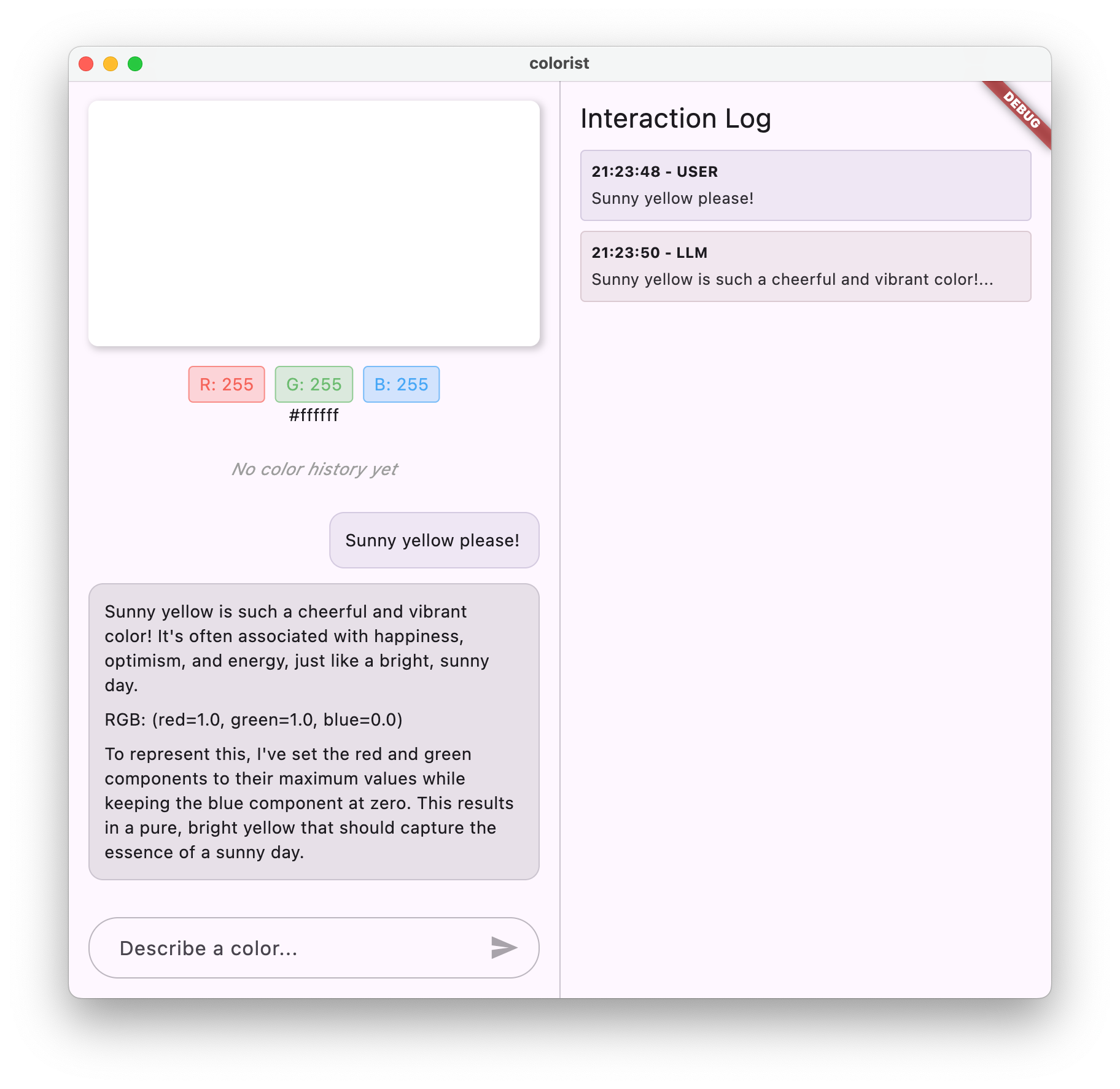
Test the app with several natural language color descriptions:
"I'd like a sky blue""Give me a forest green""Make a vibrant sunset orange""I want the color of fresh lavender"
Notice that Gemini now responds in character with color commentary and consistently formatted RGB: (red=..., green=..., blue=...) values. Also try asking an off-topic question (such as the causes of the Wars of the Roses) to observe how the system prompt keeps the assistant focused on colors.
Troubleshooting
Asset loading errors
- Verify that
assets/is indented properly under theflutter:block inpubspec.yaml. - Perform a full stop and
flutter runif the asset bundle wasn't refreshed by a hot reload.
Key concepts learned
- Structuring a domain-specific system prompt with role instructions, examples, and edge-case guidelines
- Loading runtime prompt assets using
rootBundle.loadStringand Riverpod - Configuring
GenerativeModelwithsystemInstruction: Content.system(...)
What's next?
Gemini is now calculating RGB values in its text responses, but the color square in the UI still hasn't changed! In the next step, you'll declare a set_color function tool and handle Gemini's tool calls so the LLM can update your app's color state directly.
6. Add tool calling to update colors
In this step, you empower Gemini to take action in your app using function calling (also known as tool use). Instead of parsing RGB numbers out of a chat message with regular expressions, you'll declare a structured set_color tool, register it with the Gemini model, execute incoming function calls to update colorStateProvider, and return the tool's result back to Gemini.
What you'll learn in this step
- Defining schema-typed
FunctionDeclarations andTools withfirebase_ai - Handling incoming
response.functionCallsand updating app state usingcolorStateProvider - Completing the function-calling round trip by sending
Content.functionResponsesback to theChatSession
Understanding the function calling pipeline
When you equip Gemini with tools, a color request flows through a complete round-trip pipeline:
- User input: The user describes a color (for example,
"forest green"). - Tool selection & parameter generation: Gemini recognizes that
set_colormatches the user's intent and generates a structured function call withred,green, andbluearguments between0.0and1.0. - App execution & state update: Your app intercepts
response.functionCalls, updatescolorStateProviderwith the new RGB values, and logs the call. - Function response: Your app sends a
FunctionResponsecontaining the updated color context back to Gemini. - Final LLM explanation: Gemini incorporates the tool result and replies to the user confirming the new color.
Prompt Antigravity to add and handle the set_color tool
Send the following prompt in Antigravity to define GeminiTools in lib/services/gemini_tools.dart, wire the tools into geminiModel, process function calls in GeminiChatService, and update assets/system_prompt.md:
Create `lib/services/gemini_tools.dart` with a `GeminiTools` class and a `@Riverpod(keepAlive: true)` `geminiTools` provider that defines a `set_color` `FunctionDeclaration` taking `red`, `green`, and `blue` `Schema.number` parameters (from `0.0` to `1.0`), exposes a `tools` list, and implements `handleFunctionCall` to log calls to `logStateProvider`, update `colorStateProvider` using `updateColor` (returning `{'success': true, 'current_color': ...toLLMContextMap()}`), and log a warning for unknown functions. Pass `tools: geminiTools.tools` to `geminiModel` in `lib/providers/gemini.dart`, update `GeminiChatService.sendMessage` in `lib/services/gemini_chat_service.dart` to check `response.functionCalls`, invoke `geminiTools.handleFunctionCall`, and send `Content.functionResponses` back to `chatSession`, update `assets/system_prompt.md` to instruct the model to call the `set_color` tool instead of outputting raw RGB text, and run `build_runner`.
Understanding the generated code
Declaring the set_color schema (lib/services/gemini_tools.dart)
In lib/services/gemini_tools.dart, GeminiTools defines setColorFuncDecl using FunctionDeclaration and Schema.number parameter descriptions so the model knows what arguments to supply and their valid 0.0 - 1.0 range:
  FunctionDeclaration get setColorFuncDecl => FunctionDeclaration(
    'set_color',
    'Set the color of the display square based on red, green, and blue values.',
    parameters: {
      'red': Schema.number(description: 'Red component value (0.0 - 1.0)'),
      'green': Schema.number(description: 'Green component value (0.0 - 1.0)'),
      'blue': Schema.number(description: 'Blue component value (0.0 - 1.0)'),
    },
  );

  List<Tool> get tools => [
    Tool.functionDeclarations([setColorFuncDecl]),
  ];
Dispatching and executing tool calls (lib/services/gemini_tools.dart)
When Gemini invokes a tool, handleFunctionCall logs the call to the log panel and dispatches 'set_color' to handleSetColor, which updates colorStateProvider and returns a result map for the LLM:
  Map<String, Object?> handleFunctionCall(
    String functionName,
    Map<String, Object?> arguments,
  ) {
    final logStateNotifier = ref.read(logStateProvider.notifier);
    logStateNotifier.logFunctionCall(functionName, arguments);
    return switch (functionName) {
      'set_color' => handleSetColor(arguments),
      _ => handleUnknownFunction(functionName),
    };
  }

  Map<String, Object?> handleSetColor(Map<String, Object?> arguments) {
    final colorStateNotifier = ref.read(colorStateProvider.notifier);
    final red = (arguments['red'] as num).toDouble();
    final green = (arguments['green'] as num).toDouble();
    final blue = (arguments['blue'] as num).toDouble();
    final functionResults = {
      'success': true,
      'current_color': colorStateNotifier
          .updateColor(red: red, green: green, blue: blue)
          .toLLMContextMap(),
    };

    final logStateNotifier = ref.read(logStateProvider.notifier);
    logStateNotifier.logFunctionResults(functionResults);
    return functionResults;
  }
Completing the tool round trip (lib/services/gemini_chat_service.dart)
In GeminiChatService.sendMessage, after checking response.text, the service checks whether response.functionCalls is non-empty, executes each tool call, and sends Content.functionResponses back to chatSession:
      if (response.functionCalls.isNotEmpty) {
        final geminiTools = ref.read(geminiToolsProvider);
        final functionResultResponse = await chatSession.sendMessage(
          Content.functionResponses([
            for (final functionCall in response.functionCalls)
              FunctionResponse(
                functionCall.name,
                geminiTools.handleFunctionCall(
                  functionCall.name,
                  functionCall.args,
                ),
              ),
          ]),
        );
        final responseText = functionResultResponse.text;
        if (responseText != null) {
          logStateNotifier.logLlmText(responseText);
          chatStateNotifier.appendToMessage(llmMessage.id, responseText);
        }
      }
Run and test the app
Perform a hot restart so the updated geminiModelProvider (now configured with tools: geminiTools.tools and the updated system prompt) re-initializes.
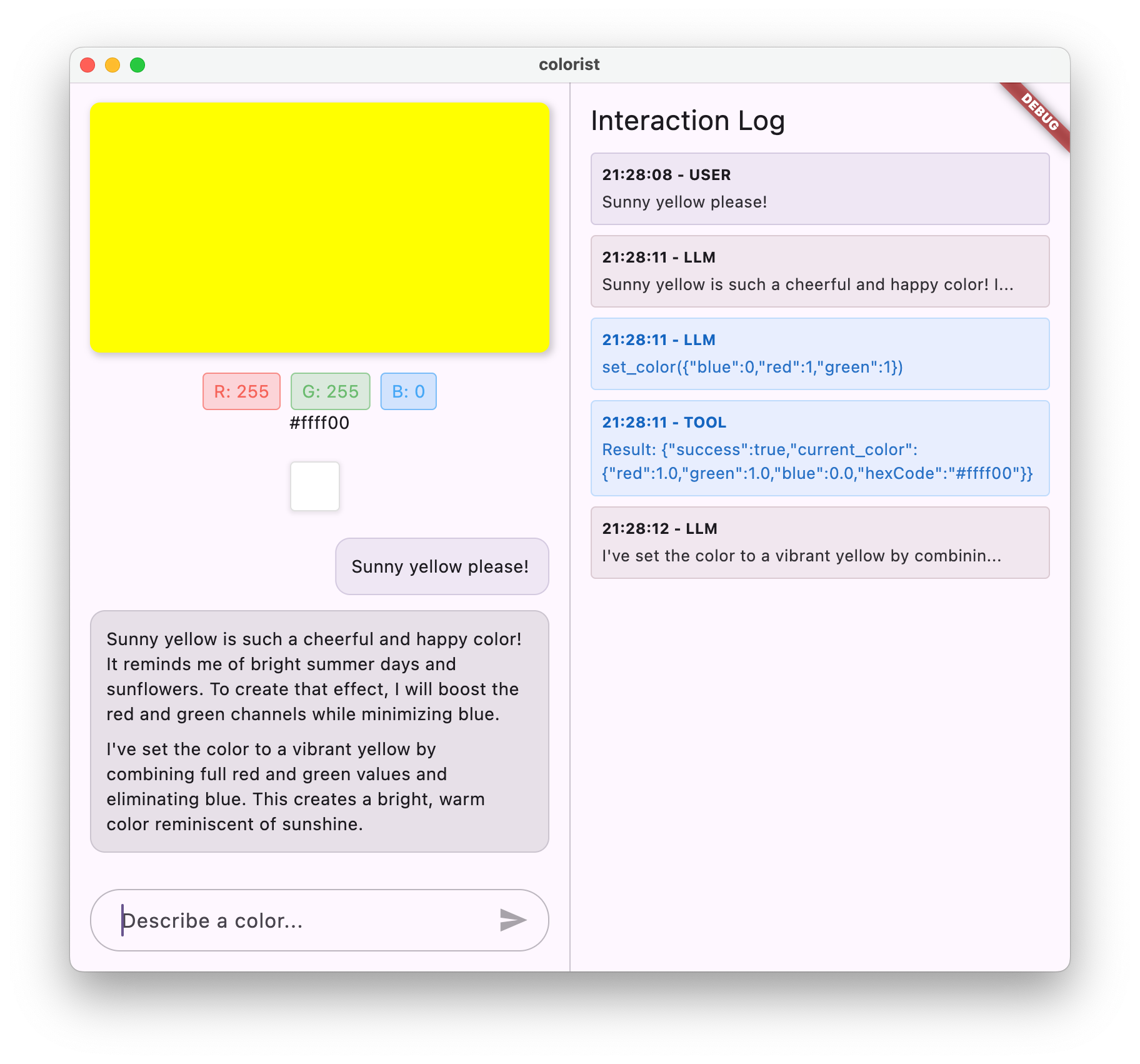
Try entering color descriptions in the chat:
"I'd like a deep crimson red""Show me a calming sky blue""Give me the color of fresh mint leaves""Make it a rich royal purple"
Observe the complete flow across the UI and log panel:
- Your message appears in the chat.
- The log panel records the
set_colorfunction call with thered,green, andblueparameters chosen by Gemini. - The color display square and RGB readouts update immediately, and a thumbnail is added to the history strip.
- The log panel records the
functionResultsmap returned to Gemini, followed by Gemini's closing commentary in the chat.
Troubleshooting
Colors aren't updating when describing a color
- Check the log panel to see whether Gemini emitted a
set_colorfunction call. - If Gemini still outputs plain-text RGB values without calling the tool, verify that
tools: geminiTools.toolsis passed togenerativeModel()inlib/providers/gemini.dartand perform a hot restart.
Key concepts learned
- Declaring structured LLM tools with
FunctionDeclarationandSchema.number - Routing function calls in Dart with pattern matching (
switch (functionName)) - Mutating Riverpod UI state from an LLM tool handler and returning
Content.functionResponsesto complete the conversation turn
What's next?
Right now, the app waits for the entire LLM response to finish before showing any text. In the next step, you'll upgrade GeminiChatService to stream responses and function calls in real time.
7. Stream responses for better UX
In this step, you enhance the user experience by replacing one-shot responses with real-time streaming using chatSession.sendMessageStream(). You'll also add a ConversationStateNotifier so the UI disables the text input while a stream is in progress, preventing overlapping requests.
What you'll learn in this step
- Why streaming reduces perceived latency in LLM-powered apps
- Tracking
ConversationState(idleversusbusy) with a RiverpodNotifier - Processing streamed
GenerateContentResponsechunks and mid-stream function calls withawait for
Why streaming matters for LLM applications
Aspect | Non-Streaming ( | Streaming ( |
Perceived latency | User waits until the entire response finishes | First words appear within milliseconds |
User experience | Pause followed by a sudden block of text | Natural, progressive text appearance |
Function execution | Runs only after complete generation | Executes as soon as the tool call chunk arrives |
State management | Simpler (request is pending or done) | Tracks |
Prompt Antigravity to add streaming and conversation state
Send the following prompt in Antigravity to add ConversationStateNotifier and upgrade GeminiChatService to stream responses:
In `lib/services/gemini_chat_service.dart`, add a `ConversationStateNotifier` (`Notifier<ConversationState>`) and `conversationStateProvider` initialized to `ConversationState.idle`. Update `GeminiChatService.sendMessage` to guard against sending when `ConversationState.busy`, mark the conversation busy while streaming, replace `chatSession.sendMessage` with `chatSession.sendMessageStream` processed using an async `_processBlock` helper (which appends incoming text chunks and streams `Content.functionResponses` when `block.functionCalls` is non-empty), and reset the state to `idle` in `finally`. Finally, watch `conversationStateProvider` in `lib/main.dart` and pass `conversationState` to `MainScreen`.
Understanding the generated code
Tracking ConversationState with a Riverpod Notifier
In lib/services/gemini_chat_service.dart, Antigravity defines ConversationStateNotifier extending Riverpod's Notifier:
class ConversationStateNotifier extends Notifier<ConversationState> {
  @override
  ConversationState build() => ConversationState.idle;

  void busy() {
    state = ConversationState.busy;
  }

  void idle() {
    state = ConversationState.idle;
  }
}

final conversationStateProvider =
    NotifierProvider<ConversationStateNotifier, ConversationState>(
      ConversationStateNotifier.new,
    );
In lib/main.dart, watching conversationStateProvider and passing conversationState: conversationState to MainScreen automatically disables the chat input field while a response stream is active.
Streaming chunks and tool responses in GeminiChatService
Instead of awaiting a single response, sendMessage marks the conversation busy(), opens chatSession.sendMessageStream(Content.text(message)), and processes each GenerateContentResponse block as it arrives before resetting the state to idle() in finally:
    try {
      final responseStream = chatSession.sendMessageStream(
        Content.text(message),
      );
      await for (final block in responseStream) {
        await _processBlock(block, llmMessage.id);
      }
    } catch (e, st) {
      logStateNotifier.logError(e, st: st);
      chatStateNotifier.appendToMessage(
        llmMessage.id,
        "\nI'm sorry, I encountered an error processing your request. "
        'Please try again.',
      );
    } finally {
      chatStateNotifier.finalizeMessage(llmMessage.id);
      conversationStateNotifier.idle();
    }
The _processBlock helper appends each text chunk immediately and, when block.functionCalls is non-empty, executes the tool and streams the follow-up Content.functionResponses call as well:
  Future<void> _processBlock(
    GenerateContentResponse block,
    String llmMessageId,
  ) async {
    final chatSession = await ref.read(chatSessionProvider.future);
    final chatStateNotifier = ref.read(chatStateProvider.notifier);
    final logStateNotifier = ref.read(logStateProvider.notifier);
    final blockText = block.text;
    if (blockText != null) {
      logStateNotifier.logLlmText(blockText);
      chatStateNotifier.appendToMessage(llmMessageId, blockText);
    }

    if (block.functionCalls.isNotEmpty) {
      final geminiTools = ref.read(geminiToolsProvider);
      final responseStream = chatSession.sendMessageStream(
        Content.functionResponses([
          for (final functionCall in block.functionCalls)
            FunctionResponse(
              functionCall.name,
              geminiTools.handleFunctionCall(
                functionCall.name,
                functionCall.args,
              ),
            ),
        ]),
      );
      await for (final response in responseStream) {
        final responseText = response.text;
        if (responseText != null) {
          logStateNotifier.logLlmText(responseText);
          chatStateNotifier.appendToMessage(llmMessageId, responseText);
        }
      }
    }
  }
Run and test the app
Hot reload or hot restart the app and test streaming with descriptive prompts:
"Show me the deep teal color of the ocean at twilight""I'd like to see a vibrant coral that reminds me of tropical flowers""Create a muted olive green like old army fatigues"
Watch how words stream progressively into the chat bubble, the send button is disabled while Gemini is responding, and the log panel shows individual streaming chunks arriving in real time.
Troubleshooting
Chat input remains disabled after an error
- Verify that
conversationStateNotifier.idle()is called inside thefinallyblock ofsendMessageso the state always resets even if an exception is thrown.
Key concepts learned
- Using
chatSession.sendMessageStreamandawait forto process LLM responses incrementally - Streaming follow-up
Content.functionResponsesafter executing a tool call - Synchronizing UI input availability with
ConversationState
What's next?
In the final build step, you'll synchronize user actions in the UI back to the LLM so Gemini knows when the user clicks a color thumbnail in the history strip.
8. Synchronize UI context with the LLM
Text-only chatbots only know about messages typed into the box, creating a disconnect when users interact with other controls in your UI. In this step, you implement LLM context synchronization: when a user clicks a color thumbnail in the history strip, your app serializes that color's context and notifies Gemini so the assistant can acknowledge the selection and stay in sync.
What you'll learn in this step
- Serializing UI state (
ColorData.toLLMContextMap()) into structured context for the LLM - Wiring
MainScreen'snotifyColorSelectioncallback toGeminiChatService - Updating the system prompt so the LLM responds naturally to UI event notifications
Prompt Antigravity to synchronize color history selections
Send the following prompt in Antigravity to add notifyColorSelection to GeminiChatService, connect it in lib/main.dart, and update assets/system_prompt.md:
Add a `notifyColorSelection(ColorData color)` method to `GeminiChatService` in `lib/services/gemini_chat_service.dart` that calls `sendMessage` with `'User selected color from history: ${json.encode(color.toLLMContextMap())}'`. Wire `notifyColorSelection` into `MainScreen` in `lib/main.dart`, and update `assets/system_prompt.md` with a section instructing the assistant to briefly acknowledge and comment on colors the user selects from the history panel.
Understanding the generated code
Serializing the UI event (lib/services/gemini_chat_service.dart)
notifyColorSelection converts the selected ColorData into a JSON-encoded map using toLLMContextMap() (which includes the RGB values and hex code) and reuses sendMessage to stream Gemini's reaction:
  Future<void> notifyColorSelection(ColorData color) => sendMessage(
    'User selected color from history: ${json.encode(color.toLLMContextMap())}',
  );
Connecting the UI callback (lib/main.dart)
In lib/main.dart, MainScreen receives the notifyColorSelection callback:
      home: model.when(
        data: (data) => MainScreen(
          conversationState: conversationState,
          notifyColorSelection: (color) {
            ref.read(geminiChatServiceProvider).notifyColorSelection(color);
          },
          sendMessage: (text) {
            ref.read(geminiChatServiceProvider).sendMessage(text);
          },
        ),
        loading: () => const LoadingScreen(message: 'Initializing Gemini Model'),
        error: (err, st) => ErrorScreen(error: err),
      ),
Guiding the LLM's response (assets/system_prompt.md)
Antigravity adds a section to assets/system_prompt.md showing Gemini how to interpret and respond to "User selected color from history: ..." messages:
## When Users Select Historical Colors

Sometimes, the user will manually select a color from the history panel. When this happens, you'll receive a notification about this selection that includes details about the color. Acknowledge this selection with a brief response that recognizes what they've done and comments on the selected color.

Example notification:
User: "User selected color from history: {red: 0.2, green: 0.5, blue: 0.8, hexCode: #3380CC}"
You: "I see you've selected an ocean blue from your history. This tranquil blue with a moderate intensity has a calming, professional quality to it. Would you like to explore similar shades or create a contrasting color?"
Run and test the app
Perform a hot restart so the updated assets/system_prompt.md is reloaded, then test the synchronization:
- Generate two or three colors in the chat (such as
"vibrant purple","forest green", and"bright sunset orange"). - Click one of the earlier color thumbnails in the history strip.
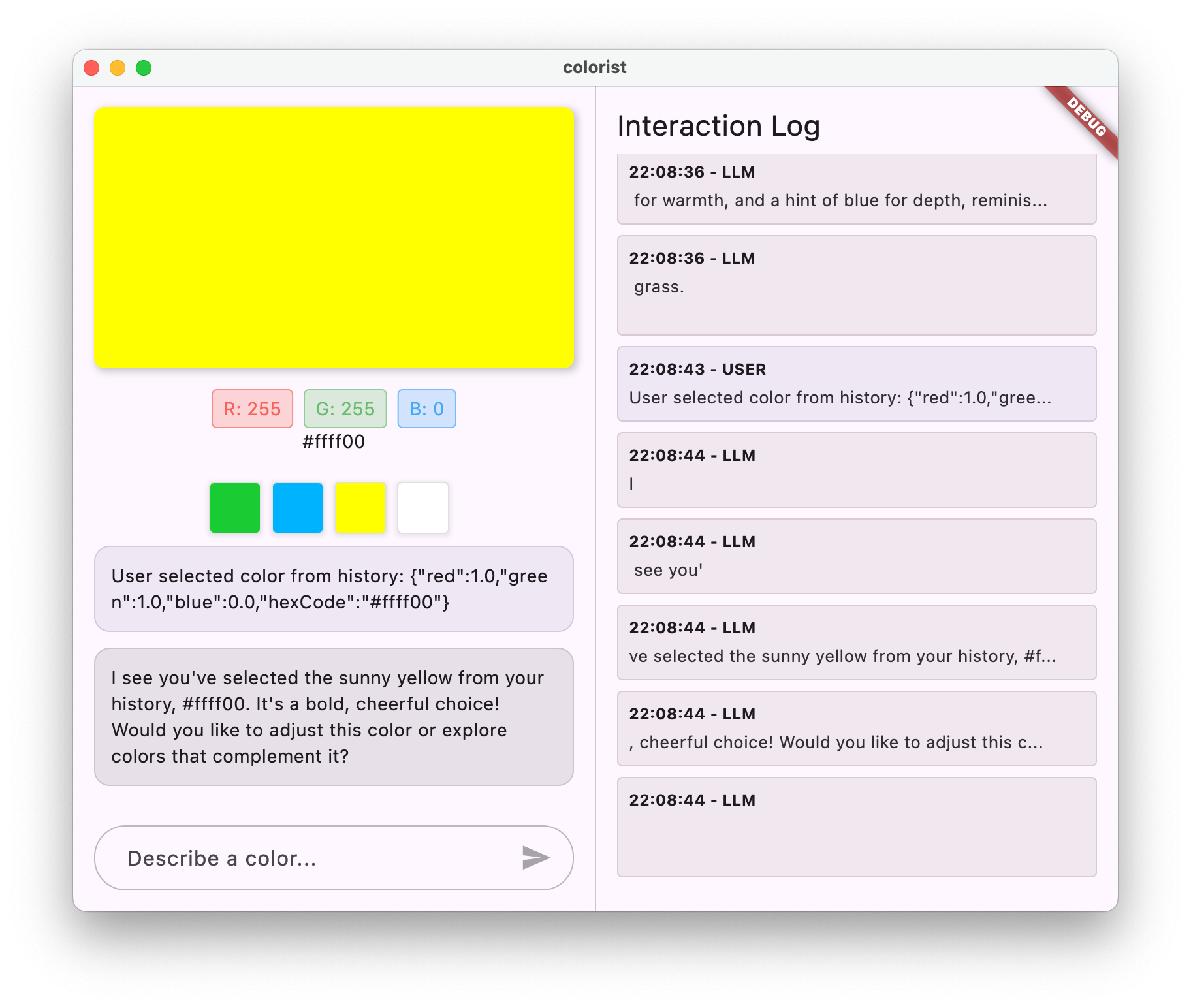
Verify that:
- The main color square updates to the historical color you clicked.
- A notification message (
User selected color from history: ...) appears in the chat. - Gemini acknowledges your selection and comments on the chosen color, keeping the conversation context aligned with the UI.
Key concepts learned
- Keeping an LLM synchronized with non-chat UI interactions
- Serializing domain objects into compact JSON context strings
- Reusing the streaming chat pipeline and system prompt instructions to handle UI event notifications
9. Congratulations!
You've completed the Colorist codelab! 🎉
What you've built
Collaborating with Google Antigravity, you built a multi-platform Flutter application powered by the Gemini API and Firebase AI Logic that:
- Interprets natural language color descriptions like
"sunset orange"or"deep ocean blue" - Guides LLM behavior using a runtime Markdown system prompt asset
- Uses structured Gemini function calling (
set_color) to update application state directly - Streams text chunks and tool calls in real time while managing conversation state with Riverpod
- Synchronizes UI history selections back into the LLM's conversation context
Where to go from here
Ask Google Antigravity to help you extend Colorist with new features:
- Color palettes: Add a tool that generates a 5-color harmonious palette (monochromatic, analogous, or complementary) instead of a single swatch.
- Multimodal image input: Let users pick or drop a photo and ask Gemini to extract its dominant mood colors.
- Export theme code: Add a tool or button that exports the current color history as a Flutter
ColorScheme.fromSeedsnippet.
Resources
- Firebase AI Logic documentation
- Flutter documentation
- Riverpod documentation
- Google Prompting Essentials course
- Prompt engineering: overview and guide
Observable Flutter Agentic series
In episode #59, Craig Labenz and Andrew Brogdon explore this codelab, highlighting interesting parts of the app build:
In episode #60, join Craig and Andrew again as they extend the codelab app with new capabilities:
In episode #61, Craig is joined by Chris Sells to analyze news headlines and generate corresponding images:
Feedback
We'd love to hear about your experience with this codelab! Consider providing feedback through: