

1. Tổng quan
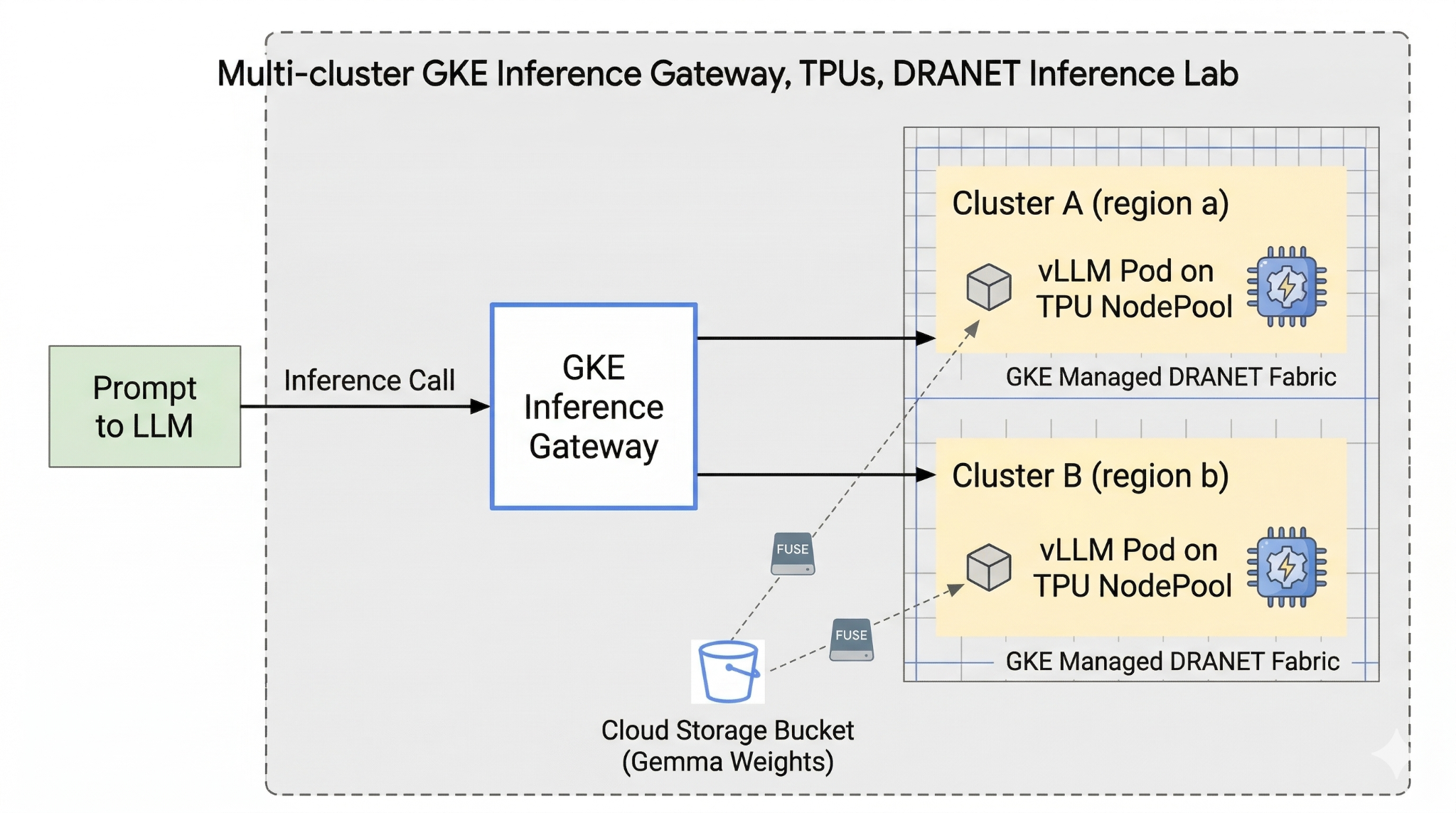
Phòng thí nghiệm này giới thiệu cho bạn Cơ sở hạ tầng AI có thể dùng để chạy các khối lượng công việc AI. Bạn sẽ làm việc với những nội dung sau:
Google Kubernetes Engine (GKE) – Nền tảng điều phối vùng chứa cơ bản.
DRANET do GKE quản lý – Mạng phân bổ tài nguyên linh hoạt, trực tiếp chỉ định các cấu trúc liên kết tốc độ cao cho các nhóm TPU của bạn.
GKE Inference Gateway – Đây là một đối tượng Gateway được quản lý của Google Cloud, được điều chỉnh cho Suy luận. Trong trường hợp này, chúng ta sẽ sử dụng các chức năng đa cụm.
Tensor Processing Unit (TPU) – Các vi mạch tăng tốc do Google thiết kế riêng.
Cloud Storage FUSE – Một giao diện lưu trữ cho phép các nhóm gắn kết bộ chứa Cloud Storage trực tiếp, giúp tải ngay các trọng số mô hình lớn.
Để định cấu hình, bạn sẽ triển khai một VPC tuỳ chỉnh, một bộ chứa Cloud Storage và 2 cụm ở các khu vực khác nhau. Mỗi cụm sẽ có một nhóm nút TPU sử dụng DRANET được quản lý cho hoạt động kết nối mạng. Sau khi thêm các cụm vào một Fleet (Nhóm), bạn sẽ lưu trữ các trọng số mô hình Gemma vào bộ nhớ đệm trong bộ chứa của mình và triển khai một khối lượng công việc vLLM gắn các trọng số đó ngay lập tức thông qua Cloud Storage FUSE. Cuối cùng, Cổng suy luận GKE sẽ được định cấu hình để định tuyến lưu lượng truy cập, cho phép bạn thực hiện kiểm thử chuyển đổi dự phòng trực tiếp trên nhiều khu vực.
Các cấu hình sẽ sử dụng tổ hợp Terraform, gcloud và kubectl.
Trong bài thực hành này, bạn sẽ tìm hiểu cách thực hiện nhiệm vụ sau:
- Thiết lập VPC, mạng, bộ nhớ
- Thiết lập cụm GKE ở chế độ chuẩn
- Tạo nhóm nút TPU và sử dụng DRANET được quản lý
- Thêm cụm vào nhóm
- Lưu trọng số mô hình vào bộ nhớ đệm
- Thiết lập cổng suy luận GKE nhiều cụm và kiểm tra khả năng chuyển đổi dự phòng
Trong lớp học lập trình này, bạn sẽ tạo mẫu sau.
Hình 1.
2. Thiết lập các dịch vụ của Google Cloud
Thiết lập môi trường theo tốc độ của riêng bạn
- Đăng nhập vào Google Cloud Console rồi tạo một dự án mới hoặc sử dụng lại một dự án hiện có. Nếu chưa có tài khoản Gmail hoặc Google Workspace, bạn phải tạo một tài khoản.

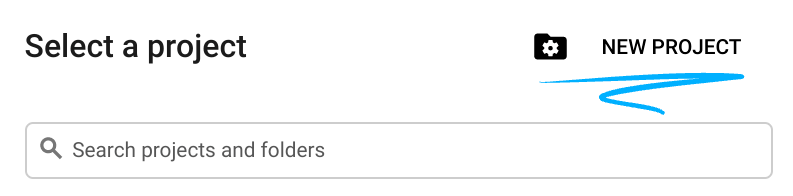
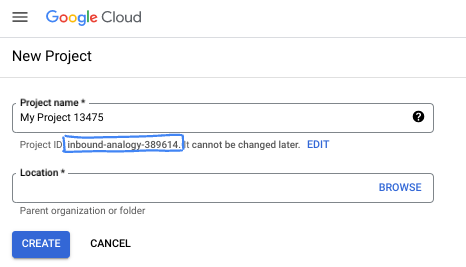
- Tên dự án là tên hiển thị của những người tham gia dự án này. Đây là một chuỗi ký tự mà các API của Google không sử dụng. Bạn luôn có thể cập nhật thông tin này.
- Mã dự án là mã duy nhất trên tất cả các dự án trên Google Cloud và không thể thay đổi (bạn không thể thay đổi mã này sau khi đã đặt). Cloud Console sẽ tự động tạo một chuỗi duy nhất; thường thì bạn không cần quan tâm đến chuỗi này. Trong hầu hết các lớp học lập trình, bạn sẽ cần tham chiếu đến Mã dự án (thường được xác định là
PROJECT_ID). Nếu không thích mã nhận dạng được tạo, bạn có thể tạo một mã nhận dạng ngẫu nhiên khác. Hoặc bạn có thể thử tên người dùng của riêng mình để xem tên đó có được chấp nhận hay không. Bạn không thể thay đổi tên này sau bước này và tên này sẽ tồn tại trong suốt thời gian của dự án. - Để bạn nắm được thông tin, có một giá trị thứ ba là Số dự án mà một số API sử dụng. Tìm hiểu thêm về cả 3 giá trị này trong tài liệu.
- Tiếp theo, bạn cần bật tính năng thanh toán trong Cloud Console để sử dụng các tài nguyên/API trên Cloud. Việc thực hiện lớp học lập trình này sẽ không tốn nhiều chi phí, nếu có. Để tắt các tài nguyên nhằm tránh bị tính phí ngoài phạm vi hướng dẫn này, bạn có thể xoá các tài nguyên đã tạo hoặc xoá dự án. Người dùng mới của Google Cloud đủ điều kiện tham gia chương trình Dùng thử miễn phí trị giá 300 USD.
Khởi động Cloud Shell
Mặc dù có thể vận hành Google Cloud từ xa trên máy tính xách tay, nhưng trong lớp học lập trình này, bạn sẽ sử dụng Google Cloud Shell, một môi trường dòng lệnh chạy trên Cloud.
Trên Bảng điều khiển Google Cloud, hãy nhấp vào biểu tượng Cloud Shell trên thanh công cụ ở trên cùng bên phải:
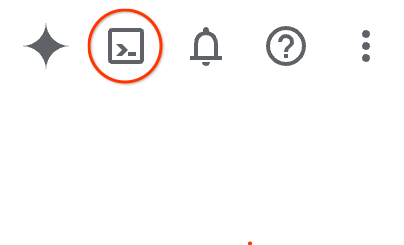
Quá trình này chỉ mất vài phút để cung cấp và kết nối với môi trường. Khi quá trình này kết thúc, bạn sẽ thấy như sau:

Máy ảo này được trang bị tất cả các công cụ phát triển mà bạn cần. Nó cung cấp một thư mục chính có dung lượng 5 GB và chạy trên Google Cloud, giúp tăng cường đáng kể hiệu suất mạng và hoạt động xác thực. Bạn có thể thực hiện mọi thao tác trong lớp học lập trình này trong trình duyệt. Bạn không cần cài đặt bất cứ thứ gì.
3. Thiết lập môi trường bằng Terraform
Để thực hiện bài thực hành này, bạn cần có quyền truy cập vào các TPU. Phiên bản chính xác được dùng là TPU v6e.
- Bạn nên làm theo tài liệu về kế hoạch sử dụng TPU và bật hạn mức TPU để có quyền truy cập.
- Chúng tôi đang sử dụng một cụm triển khai nhỏ cần 4 chip TPU phiên bản 6e (
ct6e-standard-4t)sẽ là một lát 2x2 ở 2 khu vực khác nhau. - Mã thông báo Hugging Face: Bạn cần có Mã thông báo truy cập để tải các trọng số mô hình Gemma xuống
Chúng ta sẽ tạo một VPC tuỳ chỉnh có các quy tắc về tường lửa, bộ nhớ và mạng con. Mở Cloud Console rồi chọn dự án mà bạn sẽ sử dụng.
- Mở Cloud Shell ở trên cùng bên phải của bảng điều khiển, đảm bảo bạn thấy mã dự án chính xác trong Cloud Shell, xác nhận mọi lời nhắc để cho phép truy cập.

- Tạo một thư mục có tên là
gke-tfrồi chuyển đến thư mục đó
mkdir -p gke-tf && cd gke-tf
PROJECT_ID=$(gcloud config get-value project)
- Bây giờ, hãy thêm một số tệp cấu hình. Các lệnh này sẽ tạo tệp network.tf , variable.tf, providers.tf, fuse.tf sau đây.
cat <<EOF > terraform.tfvars
project_id = "${PROJECT_ID}"
EOF

cat <<EOF > variables.tf
variable "project_id" { type = string }
variable "network_prefix" { default = "tpu-gke-dranet" }
variable "regions" { default = ["europe-west4", "us-east5"] }
variable "region_to_tpu_zone" {
  default = {
    "europe-west4" = "europe-west4-a"
    "us-east5"     = "us-east5-b"
  }
}
EOF

cat <<EOF > providers.tf
terraform {
  required_version = ">= 1.5.7"
  required_providers {
    google-beta = { source = "hashicorp/google-beta", version = "~> 7.0" }
    time = { source = "hashicorp/time", version = "~> 0.11.0" }
  }
}
provider "google-beta" { project = var.project_id }

resource "google_project_service" "base_apis" {
  for_each = toset([
    "compute.googleapis.com",
    "container.googleapis.com",
    "cloudresourcemanager.googleapis.com",
    "storage.googleapis.com"
  ])
  project            = var.project_id
  service            = each.value
  disable_on_destroy = false
}
EOF

cat <<EOF > network.tf
resource "google_compute_network" "vpc" {
  name                    = "\${var.network_prefix}-vpc"
  auto_create_subnetworks = false
  mtu                     = 8896
  depends_on              = [google_project_service.base_apis]
}
resource "google_compute_subnetwork" "subnets" {
  for_each      = toset(var.regions)
  name          = "\${var.network_prefix}-node-subnet"
  region        = each.value
  network       = google_compute_network.vpc.id
  ip_cidr_range = each.value == "europe-west4" ? "10.0.1.0/24" : "10.0.2.0/24"
}
resource "google_compute_subnetwork" "proxy_subnets" {
  for_each      = toset(var.regions)
  name          = "\${var.network_prefix}-proxy-subnet-\${each.value}"
  region        = each.value
  network       = google_compute_network.vpc.id
  ip_cidr_range = each.value == "europe-west4" ? "10.1.1.0/24" : "10.1.2.0/24"
  purpose       = "GLOBAL_MANAGED_PROXY"
  role          = "ACTIVE"
}
resource "google_compute_address" "gateway_ips" {
  for_each     = toset(var.regions)
  name         = "gemma-gateway-ip-\${each.value}"
  region       = each.value
  subnetwork   = google_compute_subnetwork.subnets[each.value].id
  address_type = "INTERNAL"
}
resource "google_compute_firewall" "allow_internal" {
  name    = "\${var.network_prefix}-allow-internal"
  network = google_compute_network.vpc.name
  allow { protocol = "all" }
  source_ranges = ["10.0.0.0/8", "10.1.0.0/16"]
}
resource "google_compute_firewall" "allow_health_checks" {
  name    = "\${var.network_prefix}-allow-hc"
  network = google_compute_network.vpc.name
  allow {
    protocol = "tcp"
    ports    = ["8000"]
  }
  source_ranges = ["130.211.0.0/22", "35.191.0.0/16"]
}
EOF

cat <<EOF > fuse.tf
resource "google_storage_bucket" "model_bucket" {
  name          = "\${var.project_id}-gemma-weights"
  location      = "US"
  force_destroy = true
  uniform_bucket_level_access = true
  depends_on    = [google_project_service.base_apis]
}

resource "google_service_account" "gcs_fuse_sa" {
  account_id   = "gcs-fuse-sa"
  display_name = "Service Account for GCS FUSE"
}

resource "google_storage_bucket_iam_member" "gcs_fuse_sa_admin" {
  bucket = google_storage_bucket.model_bucket.name
  role   = "roles/storage.objectAdmin"
  member = "serviceAccount:\${google_service_account.gcs_fuse_sa.email}"
}

resource "google_project_iam_binding" "workload_identity_binding" {
  project = var.project_id
  role    = "roles/iam.workloadIdentityUser"
  members = ["serviceAccount:\${var.project_id}.svc.id.goog[default/gemma-ksa]"]
}
EOF
Tệp variable.tf sẽ thêm tên dự án, khu vực và thông tin về vùng. p.s. Cập nhật biến "regions", default = ["europe-west4", "us-east5"] bằng các khu vực mà bạn có hạn mức TPU. Để biết thêm thông tin, hãy xem tài liệu "Xác thực trạng thái sẵn có của TPU trong GKE".
network.tf sẽ thêm một VPC mới vào dự án của bạn với các mạng con trên 2 khu vực khác nhau, chỉ các mạng con proxy, quy tắc tường lửa.
provider.tf sẽ thêm nhà cung cấp có liên quan để hỗ trợ Terraform
fuse.tf sẽ thêm bộ chứa Cloud Storage để lưu vào bộ nhớ đệm trọng số mô hình của bạn và cung cấp Tài khoản dịch vụ IAM có quyền objectAdmin. Thao tác này sẽ liên kết tài khoản này với Workload Identity của GKE
- Đảm bảo bạn đang ở trong thư mục gke-tf và chạy các lệnh sau
terraform init -Khởi tạo thư mục làm việc. Bước này sẽ tải các nhà cung cấp cần thiết cho cấu hình đã cho xuống.terraform plan -Tạo một kế hoạch thực thi, cho biết những hành động mà Terraform sẽ thực hiện để triển khai cơ sở hạ tầng của bạn.terraform apply –auto-approvechạy các bản cập nhật và tự động phê duyệt.
terraform init
terraform plan
- Bây giờ, hãy chạy quy trình triển khai (Quá trình này có thể mất từ 3 đến 5 phút)
terraform apply -auto-approve
- Trong cùng thư mục
gke-tf, hãy tạo tệp gke.tf sau đây.
cat <<EOF > gke.tf
resource "google_container_cluster" "clusters" {
  provider = google-beta
  for_each = toset(var.regions)
  name     = "gke-\${each.value}"
  location = var.region_to_tpu_zone[each.value]
  deletion_protection = false
  network             = google_compute_network.vpc.id
  subnetwork          = google_compute_subnetwork.subnets[each.value].id
  release_channel { channel = "RAPID" }
  datapath_provider = "ADVANCED_DATAPATH"
  networking_mode   = "VPC_NATIVE"

  gateway_api_config { channel = "CHANNEL_STANDARD" }

  ip_allocation_policy {
    cluster_ipv4_cidr_block  = ""
    services_ipv4_cidr_block = ""
  }

  workload_identity_config { workload_pool = "\${var.project_id}.svc.id.goog" }

  addons_config {
    gcs_fuse_csi_driver_config { enabled = true }
  }

  initial_node_count = 1
  node_config {
    machine_type = "e2-standard-16"
    oauth_scopes = ["https://www.googleapis.com/auth/cloud-platform"]
    workload_metadata_config { mode = "GKE_METADATA" }
  }
}

resource "google_container_node_pool" "tpu_pools" {
  provider = google-beta
  for_each = toset(var.regions)
  name     = "tpu-v6e-pool"
  location = var.region_to_tpu_zone[each.value]
  cluster  = google_container_cluster.clusters[each.value].name
  node_count = 1

  network_config { accelerator_network_profile = "auto" }

  node_config {
    machine_type = "ct6e-standard-4t"
    oauth_scopes = ["https://www.googleapis.com/auth/cloud-platform"]
    labels = { "cloud.google.com/gke-networking-dra-driver" = "true" }
    workload_metadata_config { mode = "GKE_METADATA" }
  }

  lifecycle { ignore_changes = [node_config[0].labels] }
}
EOF
gke.tf sẽ thêm 2 cụm ở các khu vực khác nhau, đồng thời tạo 2 nhóm nút TPU chạy TPU phiên bản 6e với 4 chip và chỉ định DRANET được quản lý cho các nhóm nút.
- Bây giờ, hãy chạy quy trình triển khai (Quá trình này có thể mất từ 10 đến 15 phút)
terraform apply -auto-approve
- Xác minh
echo -e "\n=== Verifying GKE Clusters ==="
gcloud container clusters list --filter="name:gke-europe-west4 OR name:gke-us-east5" --project=$PROJECT_ID

echo -e "\n=== Verifying VPC Network ==="
gcloud compute networks list --filter="name:tpu-gke-dranet-vpc" --project=$PROJECT_ID

echo -e "\n=== Verifying Reserved Static IPs for Gateway ==="
gcloud compute addresses list --filter="name~gemma-gateway-ip" --project=$PROJECT_ID

echo -e "\n=== Verifying GCS Bucket ==="
gcloud storage ls | grep "${PROJECT_ID}-gemma-weights"

echo -e "\n=== Verifying GCS FUSE Service Account ==="
gcloud iam service-accounts list --filter="email:gcs-fuse-sa@${PROJECT_ID}.iam.gserviceaccount.com" --project=$PROJECT_ID
4. Đăng ký đội xe
Chúng ta cần đăng ký cụm vào một Nhóm.
- Đảm bảo bạn đang ở trong thư mục
gke-tfvà chạy các lệnh sau.
cat <<EOF > fleet.tf
data "google_project" "project" {
  project_id = var.project_id
}

resource "google_project_service" "fleet_apis" {
  for_each = toset([
    "gkehub.googleapis.com",
    "multiclusterservicediscovery.googleapis.com",
    "multiclusteringress.googleapis.com",
    "trafficdirector.googleapis.com"
  ])
  project            = var.project_id
  service            = each.value
  disable_on_destroy = false
}

resource "google_project_service_identity" "mci_sa" {
  provider = google-beta
  project  = var.project_id
  service  = "multiclusteringress.googleapis.com"
  depends_on = [google_project_service.fleet_apis]
}

resource "time_sleep" "wait_for_apis" {
  create_duration = "60s"
  depends_on      = [google_project_service.fleet_apis]
}

resource "google_project_iam_member" "mci_sa_admin" {
  project    = var.project_id
  role       = "roles/container.admin"
  member     = "serviceAccount:\${google_project_service_identity.mci_sa.email}"
  depends_on = [google_project_service_identity.mci_sa, time_sleep.wait_for_apis]
}

resource "google_gke_hub_membership" "memberships" {
  provider      = google-beta
  for_each      = toset(var.regions)
  project       = var.project_id
  membership_id = "gke-\${each.value}"
  endpoint {
    gke_cluster { resource_link = "//container.googleapis.com/\${google_container_cluster.clusters[each.value].id}" }
  }
  depends_on = [time_sleep.wait_for_apis, google_container_cluster.clusters]
}

resource "google_gke_hub_feature" "mcs" {
  provider   = google-beta
  name       = "multiclusterservicediscovery"
  location   = "global"
  project    = var.project_id
  depends_on = [time_sleep.wait_for_apis]
}

resource "google_gke_hub_feature" "ingress" {
  provider   = google-beta
  name       = "multiclusteringress"
  location   = "global"
  project    = var.project_id
  depends_on = [google_gke_hub_membership.memberships, google_project_iam_member.mci_sa_admin]
  spec {
    multiclusteringress { config_membership = "projects/\${var.project_id}/locations/global/memberships/gke-us-east5" }
  }
}
EOF
Tệp fleet.tf đăng ký cả hai cụm vào một Nhóm GKE toàn cầu và cho phép Khám phá dịch vụ và Ingress nhiều cụm. Thao tác này chỉ định cụm ở Hoa Kỳ làm cụm cấu hình trung tâm, cho phép Gateway API theo dõi và định tuyến lưu lượng truy cập.
- Trong thư mục
gke-tf, hãy chạy (quá trình này sẽ mất từ 3 đến 5 phút)
terraform plan
terraform apply -auto-approve
- Xác thực thông tin đăng ký đội xe
gcloud container fleet memberships list --project=$PROJECT_ID
5. Lưu trọng số mô hình vào FUSE
Chúng tôi sẽ chạy một Kubernetes Job tạm thời trong cụm ở Hoa Kỳ để tải mô hình Gemma xuống một cách an toàn thông qua một tập lệnh Python trực tiếp vào bộ chứa Cloud Storage được gắn FUSE.
- Tạo các biến sau
export CTX_EU="gke_${PROJECT_ID}_europe-west4-a_gke-europe-west4"
export CTX_US="gke_${PROJECT_ID}_us-east5-b_gke-us-east5"
- Thao tác này sử dụng mô hình google/gemma-3-27b-it nên bạn cần tạo mã thông báo HF. Thay thế
YOUR_ACTUAL_HUGGING_FACE_TOKENbên dưới bằng mã thông báo thực tế của bạn.
export HF_TOKEN="YOUR_ACTUAL_HUGGING_FACE_TOKEN"
- Đảm bảo bạn đang ở trong thư mục
gke-tfvà chạy các lệnh sau.
gcloud container clusters get-credentials gke-us-east5 --zone us-east5-b --project=$PROJECT_ID

cat <<EOF > ksa.yaml
apiVersion: v1
kind: ServiceAccount
metadata:
  name: gemma-ksa
  namespace: default
  annotations:
    iam.gke.io/gcp-service-account: "gcs-fuse-sa@${PROJECT_ID}.iam.gserviceaccount.com"
EOF

kubectl apply -f ksa.yaml --context=$CTX_US
kubectl delete secret hf-secret --context=$CTX_US --ignore-not-found
kubectl create secret generic hf-secret --from-literal=hf_token=${HF_TOKEN} --context=$CTX_US

cat <<EOF > download-job.yaml
apiVersion: batch/v1
kind: Job
metadata:
  name: model-downloader
  namespace: default
spec:
  backoffLimit: 1
  template:
    metadata:
      annotations:
        gke-gcsfuse/volumes: "true"
    spec:
      serviceAccountName: gemma-ksa
      restartPolicy: Never
      containers:
      - name: downloader
        image: python:3.11-slim
        env:
        - name: HF_TOKEN
          valueFrom:
            secretKeyRef:
              name: hf-secret
              key: hf_token
        command:
        - bash
        - -c
        - |
          pip install -U huggingface_hub
          echo "Downloading Gemma 3 directly to GCS bucket..."
          python3 -c "from huggingface_hub import snapshot_download; import os; snapshot_download(repo_id='google/gemma-3-27b-it', local_dir='/data/gemma-weights', token=os.environ['HF_TOKEN'])"
          echo "Download complete! Safe to proceed."
        volumeMounts:
        - name: gcs-fuse-volume
          mountPath: /data/gemma-weights
      volumes:
      - name: gcs-fuse-volume
        csi:
          driver: gcsfuse.csi.storage.gke.io
          volumeAttributes:
            bucketName: "${PROJECT_ID}-gemma-weights"
EOF

kubectl apply -f download-job.yaml --context=$CTX_US
- Đợi quá trình tải xuống hoàn tất trước khi tiếp tục (quá trình này sẽ mất từ 5 đến 10 phút, tuỳ thuộc vào kích thước mô hình)
kubectl logs -f job/model-downloader --context=$CTX_US
(Nhấn Ctrl+C để thoát khỏi nhật ký sau khi thấy thông báo "Đã tải xuống xong!")
6. Triển khai vLLM và Gemma cho khối lượng công việc
- Đảm bảo bạn đang ở trong thư mục
gke-tfvà chạy các lệnh sau.
cat <<EOF > workload.yaml
apiVersion: v1
kind: ServiceAccount
metadata:
  name: gemma-ksa
  namespace: default
  annotations:
    iam.gke.io/gcp-service-account: "gcs-fuse-sa@${PROJECT_ID}.iam.gserviceaccount.com"
---
apiVersion: resource.k8s.io/v1
kind: ResourceClaimTemplate
metadata:
  name: all-netdev
  namespace: default
spec:
  spec:
    devices:
      requests:
      - name: req-netdev
        exactly:
          deviceClassName: netdev.google.com
          allocationMode: All
---
apiVersion: apps/v1
kind: Deployment
metadata:
  name: vllm-gemma
  namespace: default
  labels:
    app: gemma-server
spec:
  replicas: 1
  selector:
    matchLabels:
      app: gemma-server
  template:
    metadata:
      labels:
        app: gemma-server
      annotations:
        gke-gcsfuse/volumes: "true"
    spec:
      serviceAccountName: gemma-ksa
      nodeSelector:
        cloud.google.com/gke-tpu-accelerator: tpu-v6e-slice
        cloud.google.com/gke-tpu-topology: 2x2
      resourceClaims:
      - name: netdev
        resourceClaimTemplateName: all-netdev
      containers:
      - name: vllm-tpu
        image: vllm/vllm-tpu:latest
        command:
        - bash
        - -c
        - |
          export PYTHONUNBUFFERED=1
          echo "Booting vLLM instantly from local GCS FUSE mount..."

          python3 -m vllm.entrypoints.openai.api_server \
            --model /data/gemma-weights \
            --tensor-parallel-size 4 \
            --port 8000
        ports:
        - containerPort: 8000
        resources:
          requests:
            google.com/tpu: 4
          limits:
            google.com/tpu: 4
          claims:
          - name: netdev
        volumeMounts:
        - name: dshm
          mountPath: /dev/shm
        - name: gcs-fuse-volume
          mountPath: /data/gemma-weights
          readOnly: true
      volumes:
      - name: dshm
        emptyDir:
          medium: Memory
      - name: gcs-fuse-volume
        csi:
          driver: gcsfuse.csi.storage.gke.io
          readOnly: true
          volumeAttributes:
            bucketName: "${PROJECT_ID}-gemma-weights"
            mountOptions: "implicit-dirs"
            fileCacheCapacity: "100Gi"
            fileCacheForRangeRead: "true"
---
apiVersion: v1
kind: Service
metadata:
  name: vllm-gemma-service
  namespace: default
spec:
  selector:
    app: gemma-server
  ports:
  - protocol: TCP
    port: 8000
    targetPort: 8000
  type: ClusterIP
---
apiVersion: monitoring.googleapis.com/v1
kind: PodMonitoring
metadata:
  name: vllm-gemma-monitoring
  namespace: default
spec:
  selector:
    matchLabels:
      app: gemma-server
  endpoints:
  - port: 8000
    interval: 15s
    path: /metrics
EOF
- Bây giờ, hãy thực thi tập lệnh sau (Quá trình này sẽ mất từ 5 đến 10 phút để hoàn tất vì tập lệnh triển khai ở 2 khu vực)
for CTX in $CTX_EU $CTX_US; do
  ZONE=$(echo $CTX | cut -d_ -f3)
  CLUSTER=$(echo $CTX | cut -d_ -f4)
  gcloud container clusters get-credentials $CLUSTER --zone $ZONE --project=$PROJECT_ID

  kubectl delete secret hf-secret --ignore-not-found --context=$CTX
  kubectl create secret generic hf-secret --from-literal=hf_token=${HF_TOKEN} --context=$CTX
  kubectl apply -f workload.yaml --context=$CTX
done
- Xác nhận triển khai
for CTX in $CTX_EU $CTX_US; do kubectl rollout status deployment/vllm-gemma --timeout=15m --context=$CTX; done
- Sau khi hoàn tất, bạn có thể xác thực rằng mạng DRANET được quản lý đã được chỉ định cho các nhóm bằng cách chạy.
for CTX in $CTX_EU $CTX_US; do
  echo "Checking DRA network interfaces on $CTX..."
  kubectl --context=$CTX exec deployment/vllm-gemma -c vllm-tpu -- ls /sys/class/net
  echo "----------------------------------------"
done
Bạn sẽ thấy các giao diện mạng bổ sung eth0 cho hoạt động kết nối mạng của nhóm tiêu chuẩn, cùng với các giao diện phụ đại diện cho cấu trúc TPU chuyên dụng của bạn eth1, eth2,v.v.
7. API suy luận và cấu hình cổng
Bây giờ, bạn sẽ tạo InferenceObjective (gemma-objective), AutoscalingMetric (tpu-cache) và Inference Pool(gemma-pool). Nhóm Suy luận được tạo bằng biểu đồ Helm. Thao tác này sẽ cài đặt và xác thực quá trình tạo.
- Đảm bảo bạn đang ở trong thư mục
gke-tfvà chạy các lệnh sau. Thao tác này sẽ triển khai đối tượng và chạy quy trình xác thực.
cat <<EOF > inference-objective.yaml
apiVersion: inference.networking.x-k8s.io/v1alpha2
kind: InferenceObjective
metadata:
  name: gemma-objective
  namespace: default
spec:
  priority: 10
  poolRef:
    name: gemma-pool
    group: "inference.networking.k8s.io"
EOF

cat <<EOF > metrics.yaml
apiVersion: autoscaling.gke.io/v1beta1
kind: AutoscalingMetric
metadata:
  name: tpu-cache
  namespace: default
spec:
  selector:
    matchLabels:
      app: gemma-server
  endpoints:
  - port: 8000
    path: /metrics
    metrics:
    - name: vllm:kv_cache_usage_perc
      exportName: tpu-cache
EOF

for CTX in $CTX_EU $CTX_US; do
  kubectl apply -f https://raw.githubusercontent.com/kubernetes-sigs/gateway-api-inference-extension/v1.1.0/config/crd/bases/inference.networking.x-k8s.io_inferenceobjectives.yaml --context=$CTX
  kubectl apply -f inference-objective.yaml --context=$CTX
  kubectl apply -f metrics.yaml --context=$CTX
done

helm install gemma-pool --kube-context $CTX_EU \
  --set inferencePool.modelServers.matchLabels.app=gemma-server \
  --set provider.name=gke \
  --version v1.1.0 \
  oci://registry.k8s.io/gateway-api-inference-extension/charts/inferencepool

helm install gemma-pool --kube-context $CTX_US \
  --set inferencePool.modelServers.matchLabels.app=gemma-server \
  --set provider.name=gke \
  --set inferenceExtension.monitoring.gke.enabled=true \
  --version v1.1.0 \
  oci://registry.k8s.io/gateway-api-inference-extension/charts/inferencepool

for CTX in $CTX_EU $CTX_US; do
  kubectl annotate inferencepool gemma-pool networking.gke.io/export="True" --context=$CTX
done

for CTX in $CTX_EU $CTX_US; do
  echo "Verifying Inference API resources on $CTX..."
  kubectl get inferencepools --context=$CTX
  kubectl get autoscalingmetrics tpu-cache --context=$CTX
done
8. Cấu hình cổng
Bây giờ, bạn sẽ tạo cấu hình Cổng liên khu vực. Gateway(cross-region-gateway), HTTPRoute (gemma-route), HealthCheckPolicy(gemma-health-check)and GCPBackendPolicy(gemma-backend-policy. Nhóm Suy luận được tạo bằng biểu đồ Helm. Thao tác này sẽ cài đặt và xác thực quá trình tạo. (Cổng này sẽ mất từ 8 đến 10 phút để hoạt động)
cat <<EOF > config-cluster.yaml
apiVersion: gateway.networking.k8s.io/v1
kind: Gateway
metadata:
  name: cross-region-gateway
  namespace: default
spec:
  gatewayClassName: gke-l7-cross-regional-internal-managed-mc
  addresses:
  - type: networking.gke.io/named-address-with-region
    value: "regions/europe-west4/addresses/gemma-gateway-ip-europe-west4"
  - type: networking.gke.io/named-address-with-region
    value: "regions/us-east5/addresses/gemma-gateway-ip-us-east5"
  listeners:
  - name: http
    protocol: HTTP
    port: 80
---
apiVersion: gateway.networking.k8s.io/v1
kind: HTTPRoute
metadata:
  name: gemma-route
  namespace: default
spec:
  parentRefs:
  - name: cross-region-gateway
    kind: Gateway
  rules:
  - backendRefs:
    - group: networking.gke.io
      kind: GCPInferencePoolImport
      name: gemma-pool
      port: 8000
---
apiVersion: networking.gke.io/v1
kind: HealthCheckPolicy
metadata:
  name: gemma-health-check
  namespace: default
spec:
  targetRef:
    group: networking.gke.io
    kind: GCPInferencePoolImport
    name: gemma-pool
  default:
    config:
      type: HTTP
      httpHealthCheck:
        requestPath: /health
        port: 8000
---
apiVersion: networking.gke.io/v1
kind: GCPBackendPolicy
metadata:
  name: gemma-backend-policy
  namespace: default
spec:
  targetRef:
    group: networking.gke.io
    kind: GCPInferencePoolImport
    name: gemma-pool
  default:
    timeoutSec: 100
    balancingMode: CUSTOM_METRICS
    trafficDuration: LONG
    customMetrics:
      - name: gke.named_metrics.tpu-cache
        dryRun: false
        maxUtilizationPercent: 60
EOF

echo -e "\n=== Creating Cross-Regional Gateway Resources ==="
kubectl apply -f config-cluster.yaml --context=$CTX_US

echo -e "\n=== Provisioning Global Load Balancer (This takes 5-10 minutes) ==="
echo "Working on the Gateway... waiting for Google Cloud to assign IPs and program routes..."

# The script will hold here until the gateway is officially ready
kubectl wait --for=condition=programmed gateway/cross-region-gateway --timeout=10m --context=$CTX_US

echo -e "\n=== SUCCESS: Gateway is fully provisioned and ready! ==="
Nhóm suy luận (Helm): Nhóm các máy chủ mô hình của bạn từ cả hai khu vực thành một phần phụ trợ logic duy nhất.
Gateway và HTTPRoute: Tạo Trình cân bằng tải nội bộ thực tế trên toàn cầu và xác định các quy tắc để định tuyến các câu lệnh AI đến mô hình của bạn.
Chính sách về HealthCheck và phụ trợ: Đảm bảo rằng các yêu cầu chỉ được gửi đến các nhóm có trạng thái tốt và cho phép phân bổ lưu lượng truy cập thông minh dựa trên chỉ số (ngăn chặn tình trạng quá tải TPU).
Xác thực: Tập lệnh tạm dừng để đảm bảo Google Cloud đã cung cấp đầy đủ địa chỉ IP nội bộ trước khi bạn chuyển sang bước tiếp theo.
9. Kiểm thử chuyển đổi dự phòng
Giờ là phần hay nhất của phòng thí nghiệm: kiểm thử khả năng có tính sẵn sàng cao của cấu trúc.
Sau đây là những việc mà kiểm thử tự động này sẽ thực hiện:
- Bài kiểm thử đường cơ sở: Người dùng mô phỏng của chúng tôi gửi một câu lệnh suy luận ("Thủ đô của Pháp là gì?"). Vì người dùng ở khu vực chính, nên Cổng sẽ định tuyến yêu cầu đến các TPU cục bộ đó để có độ trễ thấp nhất có thể.
- Thảm hoạ: Chúng tôi mô phỏng sự cố ngừng hoạt động nghiêm trọng của trung tâm dữ liệu bằng cách tắt tất cả các nhóm TPU ở khu vực chính (
replicas=0). - Phát hiện: Chúng tôi chờ 45 giây. Trong khoảng thời gian này, các quy trình kiểm tra trạng thái của Cổng sẽ không thành công, Cổng nhận ra rằng phần phụ trợ chính hoàn toàn không hoạt động và Cổng sẽ cập nhật động các bảng định tuyến toàn cầu của mình.
- Chế độ dự phòng: Người dùng gửi câu lệnh thứ hai ("Thủ đô của Đức là gì?"). Người dùng không biết có sự cố ngừng hoạt động. Cổng sẽ chặn yêu cầu và chuyển hướng ngay lập tức trên toàn cầu đến các TPU thứ cấp hoạt động bình thường.
- Giai đoạn khôi phục: Chúng tôi khôi phục các TPU chính, đưa cấu trúc toàn cầu của bạn trở lại trạng thái hoạt động bình thường.
- Mở Cloud Shell và chạy lệnh sau:
cat << 'EOF' > failover-test.sh
#!/bin/bash
# Multi-Cluster Inference Failover Test

export PROJECT_ID=$(gcloud config get-value project)
export CTX_EU="gke_${PROJECT_ID}_europe-west4-a_gke-europe-west4"
export CTX_US="gke_${PROJECT_ID}_us-east5-b_gke-us-east5"

echo -e "\n=== PHASE 1: VERIFYING CURRENT STATE (BOTH CLUSTERS UP) ==="
echo "Checking US Cluster (Primary):"
kubectl get pods -l app=gemma-server --context=$CTX_US
echo "Checking EU Cluster (Secondary):"
kubectl get pods -l app=gemma-server --context=$CTX_EU

echo -e "\nDeploying Test Client in US..."
export GATEWAY_IP_US=$(gcloud compute addresses describe gemma-gateway-ip-us-east5 --region=us-east5 --project=$PROJECT_ID --format="value(address)")

kubectl run curl-test --image=curlimages/curl --restart=Never --context=$CTX_US -- sleep 3600
kubectl wait --for=condition=ready pod/curl-test --context=$CTX_US --timeout=60s

echo -e "\n=== PHASE 2: BASELINE TEST (US Client -> US TPUs) ==="
echo "Prompting the AI: 'What is the capital of France?'"
echo "Expect to see the full JSON response including token usage..."
kubectl exec curl-test --context=$CTX_US -- curl -s -X POST http://$GATEWAY_IP_US/v1/chat/completions \
  -H "Content-Type: application/json" \
  -d '{
    "model": "/data/gemma-weights",
    "messages": [{"role": "user", "content": "What is the capital of France?"}],
    "max_tokens": 100
  }' | jq .

echo -e "\n=== PHASE 3: SIMULATING REGIONAL OUTAGE (Scaling US to 0) ==="
kubectl scale deployment vllm-gemma --replicas=0 --context=$CTX_US
echo "Waiting 20 seconds for pods to begin terminating..."
sleep 20

echo -e "\n=== PHASE 4: CONFIRMING STATE (PODS TERMINATING) ==="
echo "Checking US Cluster (Should be terminating):"
kubectl get pods -l app=gemma-server --context=$CTX_US
echo "Checking EU Cluster (Should still be running):"
kubectl get pods -l app=gemma-server --context=$CTX_EU

echo -e "\nWaiting 45 seconds for Gateway health checks to update global routing tables..."
sleep 45

echo -e "\n=== PHASE 5: CONFIRMING COMPLETE DOWN AND EURO UP ==="
echo "Checking US Cluster (Should be completely empty now):"
kubectl get pods -l app=gemma-server --context=$CTX_US
echo "Checking EU Cluster (Should still be running):"
kubectl get pods -l app=gemma-server --context=$CTX_EU

echo -e "\n=== PHASE 6: FAILOVER TEST (US Client -> EU TPUs) ==="
echo "Prompting the AI: 'What is the capital of Germany?'"
echo "Request is actively being rerouted to Europe. Expecting full JSON response..."
kubectl exec curl-test --context=$CTX_US -- curl -s -X POST http://$GATEWAY_IP_US/v1/chat/completions \
  -H "Content-Type: application/json" \
  -d '{
    "model": "/data/gemma-weights",
    "messages": [{"role": "user", "content": "What is the capital of Germany?"}],
    "max_tokens": 100
  }' | jq .

echo -e "\n=== PHASE 7: RESTORING INFRASTRUCTURE (Scaling US to 1) ==="
kubectl scale deployment vllm-gemma --replicas=1 --context=$CTX_US
echo "Waiting for US pods to boot and mount FUSE..."
kubectl rollout status deployment/vllm-gemma --timeout=15m --context=$CTX_US

echo -e "\n=== PHASE 8: CONFIRMING BOTH SYSTEMS ARE BACK UP ==="
echo "Checking US Cluster (Restored):"
kubectl get pods -l app=gemma-server --context=$CTX_US
echo "Checking EU Cluster (Still Healthy):"
kubectl get pods -l app=gemma-server --context=$CTX_EU

echo -e "\n=== PHASE 9: CLEANUP ==="
kubectl delete pod curl-test --context=$CTX_US
echo "Failover lab complete."
EOF

chmod +x failover-test.sh
./failover-test.sh
- Sau khi kiểm thử xong, bạn có thể dọn dẹp.
10. Dọn dẹp
- Dọn dẹp khối lượng công việc
#!/bin/bash
echo "=== PART 1: Kubernetes & Workload Cleanup ==="
export PROJECT_ID=$(gcloud config get-value project)
export CTX_EU="gke_${PROJECT_ID}_europe-west4-a_gke-europe-west4"
export CTX_US="gke_${PROJECT_ID}_us-east5-b_gke-us-east5"

echo "Deleting Gateway resources..."
for CTX in $CTX_EU $CTX_US; do
  kubectl delete gateways,httproutes,healthcheckpolicies,gcpbackendpolicies --all --context=$CTX --ignore-not-found
done

echo "Waiting 60 seconds for the external Load Balancer to detach..."
sleep 60

echo "Cleaning up workloads and custom resources..."
for CTX in $CTX_EU $CTX_US; do
  helm uninstall gemma-pool --kube-context=$CTX || true
  kubectl delete job model-downloader --context=$CTX --ignore-not-found
  kubectl delete all -l app=gemma-server --context=$CTX --ignore-not-found
  kubectl delete inferenceobjectives,autoscalingmetrics --all --context=$CTX --ignore-not-found
  kubectl delete serviceaccount gemma-ksa --context=$CTX --ignore-not-found
  kubectl delete -f https://raw.githubusercontent.com/kubernetes-sigs/gateway-api-inference-extension/v1.1.0/config/crd/bases/inference.networking.x-k8s.io_inferenceobjectives.yaml --context=$CTX --ignore-not-found
done

echo -e "\n=== Part 1 Complete! Safe to proceed to Terraform Teardown. ==="
- Dọn dẹp cơ sở hạ tầng. Đảm bảo rằng bạn đang ở trong thư mục
gke-tf.
cat << 'EOF' > cleanup-tf.sh
#!/bin/bash
echo "=== PART 2: Infrastructure & Terraform Teardown ==="
export PROJECT_ID=$(gcloud config get-value project)
export LAB_NETWORK="tpu-gke-dranet-vpc"

echo "Destroying GKE Fleet Features to prevent firewall resurrection..."
terraform destroy -target=google_gke_hub_feature.mcs -target=google_gke_hub_feature.ingress -auto-approve

echo "Waiting 30 seconds for the self-healing controllers to spin down..."
sleep 30

echo "Hunting down orphaned auto-generated firewall rules strictly on the lab network..."
GHOST_RULES=$(gcloud compute firewall-rules list --filter="network~${LAB_NETWORK} AND (name~mcsd OR name~k8s-fw-l7)" --format="value(name)" --project=$PROJECT_ID)

if [ ! -z "$GHOST_RULES" ]; then
  for rule in $GHOST_RULES; do
    echo "Deleting ghost rule: $rule"
    gcloud compute firewall-rules delete $rule --project=$PROJECT_ID --quiet
  done
else
  echo "No ghost rules found on ${LAB_NETWORK}."
fi

echo "=== Controllers and Firewalls dead. Destroying remaining Base Infrastructure. ==="

MAX_RETRIES=3
RETRY_COUNT=0
SUCCESS=false

while [ $RETRY_COUNT -lt $MAX_RETRIES ]; do
  # Run the destroy command. If it succeeds (exit code 0), break the loop.
  if terraform destroy -auto-approve; then
    SUCCESS=true
    break
  else
    RETRY_COUNT=$((RETRY_COUNT+1))
    echo -e "\n[WARNING] Terraform destroy encountered an error (likely a GCP resource lock)."

    if [ $RETRY_COUNT -lt $MAX_RETRIES ]; then
      echo "Waiting 30 seconds before retry $RETRY_COUNT of $MAX_RETRIES..."
      sleep 30
    fi
  fi
done

if [ "$SUCCESS" = true ]; then
  echo -e "\n=== Lab Cleanup Successfully Completed! ==="
else
  echo -e "\n[ERROR] Lab Cleanup failed after $MAX_RETRIES attempts."
  echo "Some resources may still be locked. Run 'terraform destroy -auto-approve' manually later to finish."
  exit 1
fi
EOF

chmod +x cleanup-tf.sh
./cleanup-tf.sh
Nếu gặp bất kỳ vấn đề nào khi xoá các tài nguyên cụ thể, bạn nên chạy lại tập lệnh lệnh terraform destroy ./cleanup-tf.sh
11. Xin chúc mừng
Xin chúc mừng! Bạn đã triển khai thành công một Cổng suy luận GKE có tính sẵn sàng cao, nhiều cụm, kiến trúc suy luận AI trên nhiều khu vực bằng cách sử dụng GKE, các trình tăng tốc DRANET và TPU v6e được quản lý.
Bằng cách kết hợp Cloud Storage FUSE để tải mô hình tức thì và Inference Gateway API để định tuyến nhiều cụm có tính đến độ trễ, bạn đã tạo ra một phần phụ trợ có khả năng phục hồi, có thể hoạt động ngay cả khi trung tâm dữ liệu theo khu vực ngừng hoạt động hoàn toàn mà không làm giảm lưu lượng truy cập của người dùng nội bộ.
Các bước tiếp theo / Tìm hiểu thêm
Bạn có thể đọc thêm về mạng GKE
Tham gia phòng thí nghiệm tiếp theo
Tiếp tục hành trình khám phá của bạn với Google Cloud và xem các phòng thí nghiệm khác của Google Cloud: