
1. Introduction
Troubleshooting broken Kubernetes deployments is a common, often frustrating part of a platform engineer's daily life. It usually involves a lot of manual investigation: digging through logs, running kubectl describe commands, and cross-referencing YAML files to find a single mismatch or misconfiguration.
While general-purpose AI chatbots can help explain concepts or write basic code, they operate in a vacuum. They don't know anything about your specific codebase or the live state of your cluster, leading to a lot of manual copy-pasting and context switching.
In this lab, you will experience how to bridge this gap by using AI tools with increasing levels of context. You will use Gemini CLI and the Model Context Protocol (MCP) to troubleshoot a broken application on GKE. By the end of this lab, you'll understand how to use AI that is aware of your files and infrastructure to solve complex issues faster, and how to codify these workflows into reusable ‘Skills' for your team.
Core concepts
- Platform engineering: Platform engineering is the practice of building and maintaining internal tooling and workflows that enable software developers to manage their own infrastructure without needing to be experts in every underlying cloud service. The goal is to reduce technical friction while maintaining consistency and security. By creating a standardized golden path, platform teams ensure that application developers can deploy safely and quickly while the platform team maintains control over governance and cost.
- Gemini CLI: Gemini CLI is a command-line interface that lets you interact with Gemini models directly from your terminal. Unlike a standard web-based chatbot, the CLI is designed to exist within your development environment, making it easier to integrate AI into existing shell-based workflows. It lets you pipe output from other commands directly into the model and execute instructions without leaving your terminal.
- Model Context Protocol (MCP): MCP is an open standard that enables an AI model to connect with specific tools or data sources. Without MCP, an AI model only knows what it was trained on and cannot see your specific resources. With the GKE MCP server, Gemini CLI can actively query your Google Cloud project's API, inspect the state of your clusters, and execute commands on your behalf. It acts as a bridge between the reasoning engine of the model and the actual GKE API.
- Agent Skills: Skills are packages of instructions, scripts, and resources that extend the capabilities of an AI agent for specialized tasks. They let you codify organizational standards and automate complex workflows.
Lab objectives
In this lab, you:
- Experience context progression: See how increasing context improves AI problem-solving.
- Manual vs. AI troubleshooting: Compare the difficulty of manual debugging with AI-assisted workflows.
- Full context debugging: Use Gemini CLI with the GKE MCP server to debug applications with full infrastructure awareness.
- Extend capabilities: Learn to write custom Skills to automate workflows.
Note on LLM outputs
Due to the nature of this lab and how LLMs work, the outputs you get will likely be different than the example outputs shown. This is expected behavior for generative AI. Focus on understanding the steps and the reasoning provided by the model, rather than trying to replicate the exact text or formatting in the examples.
2. Project set-up
Before you start the lab, prepare your environment. Open Cloud Shell, select your project, and run the setup scripts. Let's get started!
Open Cloud Shell
For this lab, use Cloud Shell, a browser-based terminal environment provided by Google Cloud. It comes pre-configured with all the tools you need—including the Google Cloud CLI (gcloud), kubectl, and Gemini CLI—saving you the time of installing these on your local machine.
- Go to the Google Cloud Console.
- Look at the top right header of the console and click the Activate Cloud Shell button (it looks like a terminal prompt
>_). - A terminal session opens at the bottom of your browser window. If prompted, click Continue.
Select a project
In the Cloud Shell terminal, ensure you are working within the correct project.
- Select an existing project or create a new one specifically for this lab in the Console.
- Note your Project ID. Set the project in your current shell by running:
gcloud config set project [YOUR_PROJECT_ID]
Lab setup
Now, run the setup scripts to prepare the environment and introduce the bugs for the lab.
- Clone the repository:
👉💻 Run the following commands to clone only the lab directory:git clone --depth 1 --filter=blob:none --sparse https://github.com/GoogleCloudPlatform/devrel-demos ~/devrel-demos cd ~/devrel-demos git sparse-checkout set codelabs/ai-toolkit-lab-1 - Navigate to the lab directory:
👉💻 Run:cd ~/devrel-demos/codelabs/ai-toolkit-lab-1/ - Set environment variables:
👉💻 Run the following commands to set your project and region:export PROJECT_ID=$(gcloud config get-value project) export REGION=us-central1 - Run the setup script:
This script enables the APIs listed below, creates a GKE Autopilot cluster, and ensures the required tools are installed.
👉💻 Run the script from the root directory:./setup.sh - Initialize the broken state:
To simulate the scenario where your coworkers left you with a broken environment, run thebreak.shscript. It copies the broken manifests into the active codebase directory.
👉💻 Run the script:./break.sh - Prepare for the lab exercises:
To keep the AI from cheating (seeing the solutions), change to thecymbal-bankdirectory for the rest of the lab.
👉💻 Run:cd ~/devrel-demos/codelabs/ai-toolkit-lab-1/cymbal-bank
Enabled APIs
The setup script enables several Google Cloud APIs. Here is what they do:
- container.googleapis.com: The Google Kubernetes Engine API. It is required for any cluster-level operations.
- generativelanguage.googleapis.com: The API that allows Gemini CLI to communicate with Gemini models.
- cloudresourcemanager.googleapis.com: Required for inspecting project-level metadata and managing permissions.
- logging.googleapis.com: Essential for troubleshooting, as it allows fetching and analyzing logs from your containers.
3. Phase 0: Manual troubleshooting (no AI)
Now that you are in the cymbal-bank directory, let's try to find the errors manually. This is the "hard way." Experience the baseline before letting AI do the heavy lifting. Manual troubleshooting means using standard tools like kubectl to inspect cluster state, fetch logs, and read through YAML files to spot inconsistencies. It's often slow, tedious, and requires expertise to connect the dots. This serves as a perfect reference point for the AI tools you use later.
- Try to deploy: Let's see what Kubernetes thinks of these manifests.
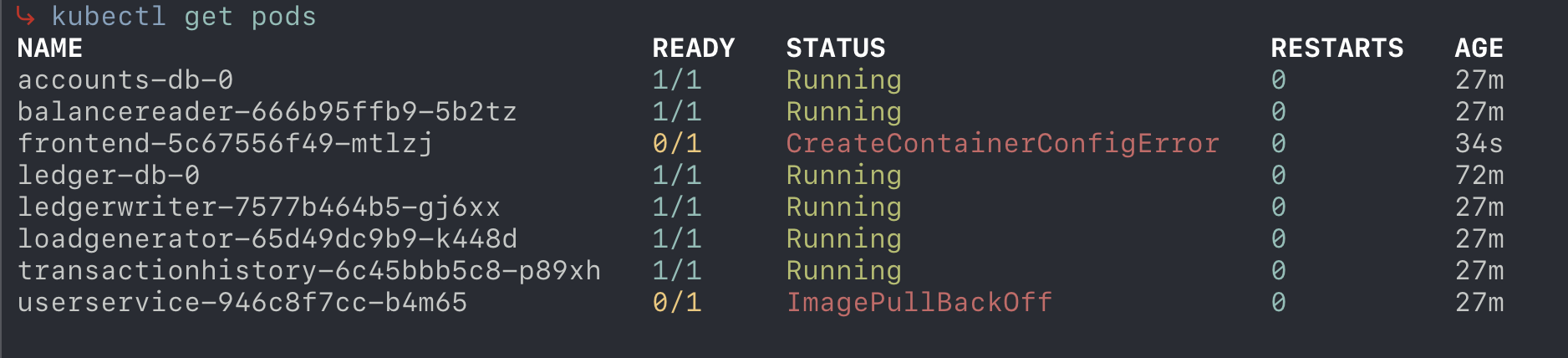
👉💻 Run the following command to apply the manifests:kubectl apply -f kubernetes-manifests/- The frontend pod shows a "CreateContainerConfigError". This type of error generally suggests that the container is having trouble loading its required configuration. Think about what external resources a container might need to start up—are there environment variables, secrets, or ConfigMaps that might be misconfigured or missing? You'll want to investigate the pod's configuration to find the specific culprit.
- The userservice pod is in an "ImagePullBackOff" state. When you see this, it typically means the cluster is unable to retrieve the container image it was told to use. Consider the details of the image request: is the image name and tag exactly correct? Are there potential permission issues with the registry? Take a look at where the image is being pulled from to see if you can spot why the request is failing.
- Inspect the damage: Use standard Kubernetes commands to see what is failing.
- 👉💻 Check the status of the pods as well as their names:
kubectl get pods- Observation: You see pods in
ImagePullBackOff,CrashLoopBackOff,Pending, orCreateContainerConfigError. - Note: A pod in the
Runningstate does not necessarily mean it is functioning correctly. For example, it might be missing sufficient health probes (liveness/readiness), causing it to be marked as running even if the application inside is failing. Logs can show us errors, despite a seemingly running pod. There are 11 different errors to fix in total.
- Observation: You see pods in
- 👉💻 Describe a failing pod to see events (replace
[POD_NAME]with an actual pod name):kubectl describe pod [POD_NAME] - 👉💻 Check the logs of a failing pod to see application errors:
kubectl logs [POD_NAME]
- 👉💻 Check the status of the pods as well as their names:
- The detective work: Open the manifests in
kubernetes-manifests/using Cloud Shell Editor orcatin the terminal. Try to correlate the errors you see in the logs and events with the configuration in the YAML files.Challenge: Try to fix just ONE error manually. Notice how you have to jump between files to figure out the rest of the chain of failures.
4. Phase 1: Asking the web (Gemini web UI)
Since manual troubleshooting is slow, let's try using an AI assistant. The Gemini web application is a powerful general-purpose chat interface. It excels at explaining concepts and generating code snippets. However, it operates with zero context of your specific environment. It cannot see your files, inspect your cluster, or run commands. You must manually copy and paste error messages and file contents.
- Go to Gemini: Open gemini.google.com in a new tab. You will need to sign in with your own Google account.
- Ask for help with a specific error: Say you see the
ImagePullBackOfferror on theuserservicepod.
👉💬 Enter this prompt into the Gemini web UI:My Kubernetes deployment for 'userservice' is failing with ImagePullBackOff. Here is the image name: us-central1-docker.pkg.dev/bank-of-anthos-ci/bank-of-anthos/user-service:v0.6.9. What is wrong? - The AI's response: Gemini gives you a list of common causes:
- The image doesn't exist.
- You don't have permissions to pull it.
- There is a typo.
userservice(without the hyphen) unless it sees your project.
The main point of friction here is that Gemini has no visibility into your local environment. To get the context it needs, you would need to manually provide it (by prompting and copy-pasting text around), which is time consuming and error prone.
5. Phase 2: Terminal power (Gemini CLI)
Now move to the terminal using Gemini CLI. Gemini CLI brings the power of Gemini models directly to your terminal. The CLI lives where you work. It reads local files, accepts piped input, and even executes shell commands on your behalf (with your approval). This makes it incredibly useful for integrating AI into your workflows without context switching. For more detailed information and advanced usage, refer to the official Gemini CLI documentation.
Note: As of now, Antigravity CLI is officially released and is the successor to Gemini CLI. This lab continues to use Gemini CLI. For more details on Antigravity CLI, check out the official Antigravity CLI documentation.
Context and visibility
Before going into instructions, note that Gemini CLI's visibility into your project depends on where you launch it. The model can see files and folders relative to your current working directory. If you run it from the root of your project, it has access to all files in that project. If you run it from a subdirectory, its view is restricted to that subdirectory and its children. Always ensure you are in the correct directory before asking the model to analyze or modify files!
Starting Gemini CLI
Cloud Shell includes Gemini CLI by default. Simply start it to begin using it with your local files.
- Navigate to the Cymbal Bank directory:
👉💻 Run the following command to ensure you are in the correct directory:cd ~/devrel-demos/codelabs/ai-toolkit-lab-1/cymbal-bank - Start Gemini CLI:
👉💻 Run the following command to start Gemini CLI:gemini
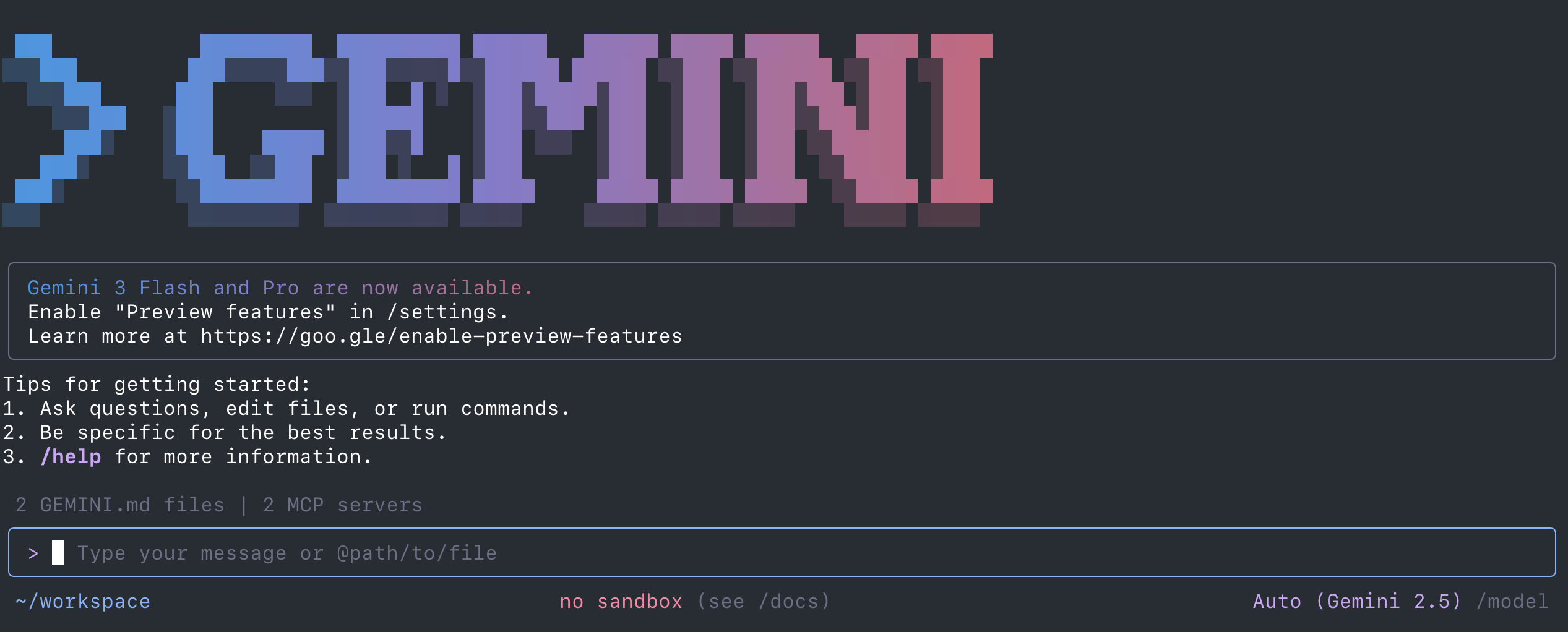
Using Gemini CLI
All you really know about this application is where to find the code, and that it's failing. Let's learn more and see how Gemini can help you fix the application. First, try testing its ability to explore context by asking a question about the application files it should be able to see.
- Explore the codebase: Ask Gemini to explain what this application is and what it does.
👉💬 Enter this prompt into Gemini CLI:What is this application and what does it do?
Gemini CLI reads the files in the current directory and provides a high-level overview of the project. - Try to find an issue in the codebase: Since Gemini CLI sees your files, ask it to find a mismatch.
👉💬 Enter this prompt into Gemini CLI:The contacts service pod is running, but I can't reach the service. Review kubernetes-manifests/contacts.yaml and check for common issues
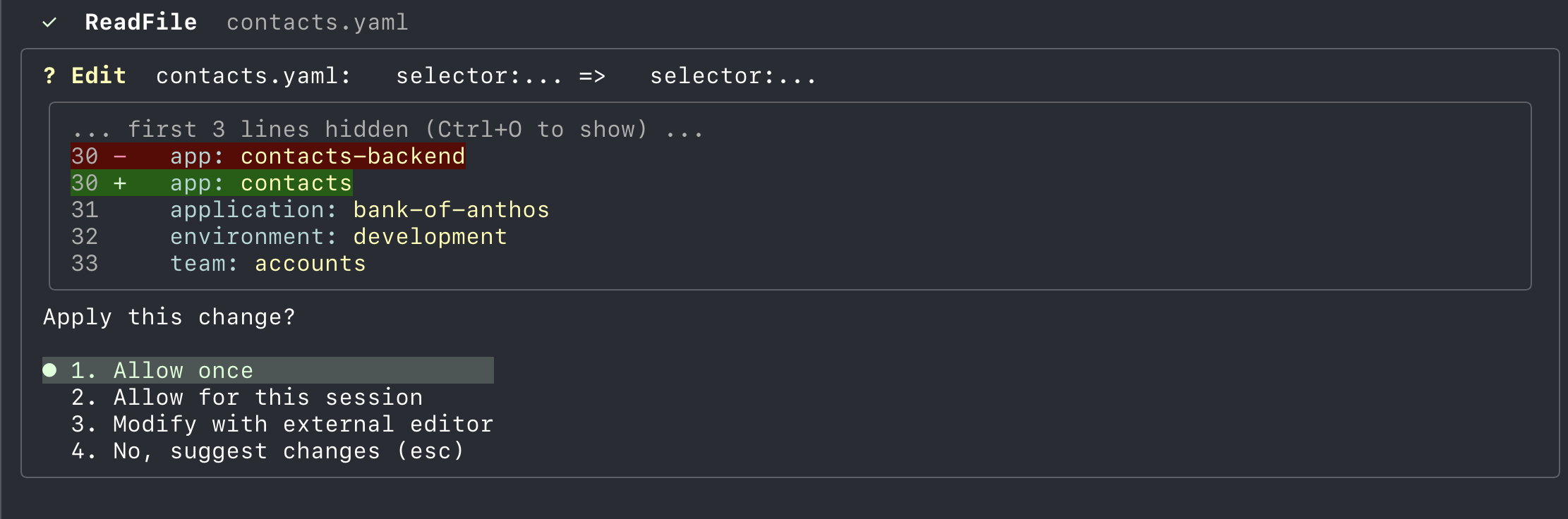
Gemini CLI reads the files and spots the mismatch betweenapp: contacts-backendandapp: contacts. This is a huge win over the previous phases. - Ask it to fix it:
👉💬 Enter this prompt into Gemini CLI:Fix the label mismatch in contacts.yaml so the service matches the deployment.
Gemini CLI shows you the corrected YAML or even applies the change if you approve the command. - The limitation: While it sees the files, it still doesn't know what is actually running in your cluster. If a pod fails due to a runtime error not obvious in the static YAML, it can't help without logs or cluster state.
Note: Gemini CLI will ask you for consent when running commands or making modifications to files. This ensures you maintain control over your environment. When you see a prompt like the one below, you can hit "enter" to respond "1. Allow once" for each action request. You can also tap the down arrow key and hit enter to select "2. Allow for this session", which will cause Gemini CLI to always take that action independently, without asking for your permission, for the duration of this conversation. However, if you close Gemini CLI and reopen it, it will no longer have that permission and will once again ask you for permission before taking any action.
Note: If you get stuck, or want to try again from scratch, reset the Kubernetes manifests back to their initial broken state at any time by running ../break.sh from the cymbal-bank directory.
Note: If you hit a usage limit, select "Stop" and then run /model to see which models have hit their limits and to switch to a different model, like gemini-2.5-flash-lite. Then prompt the model with "continue" to continue on with the lab using the new model.
6. Phase 3: Full context debugging (Gemini CLI + GKE MCP)
While Phase 2 showed how powerful AI can be when it can see your files, it was also noisy. You had to manually approve every single file read and tool action, which creates significant friction during a complex debug session. Phase 3 introduces the GKE MCP server to help fix this, providing the AI with direct "infrastructure awareness." This allows Gemini to troubleshoot logs, events, and metadata with fewer manual interruptions, creating a more automated and cohesive troubleshooting flow.
What is MCP?
To understand MCP, it helps to first understand the concept of tools in the world of AI. A tool is essentially an external function or application that an LLM can use to perform actions or fetch data that it wouldn't be able to access otherwise—like checking the weather, running a specific script, or querying a database. While individual tools are powerful, sharing them securely and consistently between different AI agents and environments has always been a challenge. MCP solves this by acting as a standardized platform that can host these tools and expose them to any compatible AI client.
The Model Context Protocol (MCP) is an open-source protocol that enables AI models to securely access external data sources and tools. Instead of hardcoding integrations for every specific tool or database, MCP provides a standardized way for models to interact with their environment.
You can view available tools in Gemini CLI by running /mcp inside Gemini CLI.
In this lab, the GKE MCP server allows Gemini CLI to interact directly with your GKE cluster, enabling it to inspect resources, read logs, and help you debug issues with full awareness of the cluster's live state. This transforms the AI from a static code analyzer into an active troubleshooting assistant that understands the live state of your infrastructure.
Configure GKE MCP extension
By default, Gemini CLI is a general-purpose tool. Configure the GKE MCP server by creating a configuration file.
- 👉💻 First, quit from the Gemini CLI if you are still in it by typing
/quit. - 👉💻 Run the following command to create the extension directory:
mkdir -p ~/.gemini/extensions/gke - 👉💻 Run the following command to create the configuration file. This command automatically injects your
PROJECT_IDinto the file:cat << EOF > ~/.gemini/extensions/gke/gemini-extension.json { "name": "gke", "version": "1.0.0", "mcpServers": { "container": { "httpUrl": "https://container.googleapis.com/mcp", "authProviderType": "google_credentials", "oauth": { "scopes": ["https://www.googleapis.com/auth/container"] }, "timeout": 30000, "headers": { "x-goog-user-project": "$PROJECT_ID" } } } } EOF - 👉💻 Start Gemini CLI:
gemini - Verify that the MCP server is enabled by typing
/mcpinside Gemini CLI.
Ask Gemini to debug using cluster state
- Debug failing deployment: Now, ask Gemini to inspect the cluster and fix the manifests based on what it finds.
👉💬 Enter this prompt into Gemini CLI:The frontend deployment is failing. Can you use your tools to check the logs and events of the pods, and then fix it?
Gemini uses MCP tools to callkubectlcommands behind the scenes. It sees theImagePullBackOfferror, explains the cause, and suggests the correct fix. - Fix complex issues: Ask it to look at logs for application-level errors.
👉💬 Enter this prompt into Gemini CLI:Check the logs for the 'contacts' pod. Why is it failing to connect to the database?
It sees the connection refused error and traces it back to the port mismatch or service name mismatch inconfig.yaml! - Iterate: Continue asking Gemini to fix the other issues you found in Phase 0.
👉💬 Enter this prompt into Gemini CLI:Check if the service 'contacts' is correctly routing traffic to its pods
👉💬 Enter this prompt into Gemini CLI:Are there any pods failing due to resource limits?
Note: If you get stuck, or want to try again from scratch, reset the Kubernetes manifests back to their initial broken state at any time by running ../break.sh from the cymbal-bank directory.
7. Phase 4: Empowering the team (Agent Skills)
Finally, extend the AI's capabilities for your specific needs by creating custom Agent Skills.
What are Agent Skills?
Agent Skills are packages of instructions, scripts, and resources that extend an AI agent for specialized tasks. They let you codify organizational standards and automate complex workflows. A skill lives in a specific directory and contains a SKILL.md file that defines its behavior. By creating skills, you ensure the AI follows a consistent, repeatable process rather than improvising.
A typical Skill directory looks like this:
my-skill/
├── SKILL.md          # Main instruction file (Required)
├── scripts/           # Helper scripts (Optional)
└── resources/         # Templates or data files (Optional)
Building a Kubernetes troubleshooting Skill
Instead of creating these files manually, Gemini CLI provides a powerful way to scaffold skills using natural language.
Imagine you want to create a Skill called k8s-troubleshooter to automate the steps you just performed.
- Create the skill via prompting: You can ask Gemini CLI to create the skill for you, based on what you've learned today.
👉💬 Enter this prompt into Gemini CLI:Create a new skill called 'k8s-troubleshooter' that helps diagnose issues with Kubernetes manifests and cluster state. It should be able to analyze pod logs, events, and resource descriptions to identify common deployment problems and configuration errors.
Similar to when it calls a tool or performs an action, Gemini CLI should tell you that your prompt has activated its "skill-creator" skill. This is a pre-configured skill in Gemini CLI that enables Gemini to create Agent Skills.
Gemini should ask you for your permission to create the skills directory. Approve by selecting "1. Allow once".
Gemini automatically:- Creates a directory at
~/.gemini/skills/k8s-troubleshooter/. - Generates a
SKILL.mdfile with instructions based on your prompt. - Creates standard resource directories.
- Creates a directory at
- Restart Gemini CLI:
👉💻 Close Gemini CLI (/quit), then restart it:gemini - Verify the skill is loaded:
👉💻 Verify that the skill is active by typing/skillsinside Gemini CLI. You should seek8s-troubleshooterin the list. - How it works in practice: Now, invoke the skill:
👉💬 Enter this prompt into Gemini CLI:Use the k8s-troubleshooter skill to find out why the contacts service is failing.
The AI follows the structured plan inSKILL.mdinstead of improvising, leading to more consistent results.
Exercise: Conceptualize your own Skills
Think about your daily workflow. What repetitive task could you automate with a Skill?
- Idea: A skill to audit manifests for security best practices before deployment.
- Idea: A skill to generate complex GKE cluster configurations based on workload type.
8. Conclusion
This lab demonstrates a new way of interacting with cloud infrastructure by progressing through different levels of AI context. By moving from zero context to full infrastructure context (Gemini CLI + GKE MCP), you see how much more effective an AI assistant becomes when it sees your files and cluster state.
Lab summary
- Context matters: You see how AI tools with zero context cannot help with specific codebase issues.
- Terminal context: You use Gemini CLI to analyze local files and identify configuration errors directly from your workspace.
- Full context debugging: You use Gemini CLI with MCP to let the AI diagnose and fix complex issues by correlating codebase files with live cluster state.
- Extensibility: You learn about Skills and how to use them to codify organizational knowledge.
Cleanup
To prevent ongoing charges, run the teardown script. Note that this step is not necessary if you're running the lab on Qwiklabs.
👉💻 Run the following command from the workshop's directory:
cd ~/devrel-demos/codelabs/ai-toolkit-lab-1/
./teardown.sh
Next steps
Here are some recommendations for further reading:
- Gemini CLI documentation: The official documentation for Gemini CLI.
- GKE documentation: The landing page for all GKE documentation.
- Platform engineering on Google Cloud: Guidance on how to approach Platform Engineering on Google Cloud.
- AI and machine learning on GKE: Documentation about running AI/ML workloads on GKE.
- Google Cloud Architecture Center: Guidance and best practices for building workloads on Google Cloud.
9. Appendix: Solution to manifest breakages
If you get stuck or want to verify the errors, here is the list of breakages introduced in the manifests-broken/ directory and how to fix them:
- Malformed URLs in
config.yaml:- Error:
TRANSACTIONS_API_ADDR: "ledgerwriter::8080"(double colon). - Why: The application fails to parse the address, leading to connection errors.
- Fix: Change it back to
"ledgerwriter:8080".
- Error:
- Mismatched labels in
contacts.yaml:- Error: Service selector set to
app: contacts-backendinstead ofcontacts. - Why: The Service cannot find the Pods (which still have
app: contacts), so traffic won't be routed. - Fix: Change the selector to
app: contacts.
- Error: Service selector set to
- Port mismatches in
userservice.yaml:- Error: Service
targetPortset to8081instead of8080. - Why: Traffic sent to the service will be forwarded to the wrong container port, causing connection refused.
- Fix: Change
targetPortback to8080.
- Error: Service
- Mismatched service names in
config.yaml:- Error:
BALANCES_API_ADDR: "balance-reader:8080"(instead ofbalancereader). - Why: The hostname won't resolve in DNS because the service is named
balancereader. - Fix: Change it back to
"balancereader:8080".
- Error:
- Image pull policies in
contacts.yaml:- Error:
imagePullPolicy: Never. - Why: K8s won't pull the image from the registry, assuming it's local. It will fail with
ErrImagePull. - Fix: Remove the line or set it to
IfNotPresent.
- Error:
- Readiness probe failures in
userservice.yaml:- Error: Path changed to
/healthzinstead of/ready. - Why: The container doesn't serve
/healthz, so the probe fails and the pod is never marked ready. - Fix: Change path back to
/ready.
- Error: Path changed to
- Resource limits in
contacts.yaml:- Error: Memory limit set to
10Miinstead of128Mi. - Why: The app needs more memory to start, causing it to be OOMKilled.
- Fix: Restore the memory limit.
- Error: Memory limit set to
- Missing environment variables in
frontend.yaml:- Error: Removed
REGISTERED_OAUTH_CLIENT_IDenv var. - Why: The app might fail or disable features if expected environment variables are missing.
- Fix: Restore the environment variable definition.
- Error: Removed
- ConfigMap key mismatch in
frontend.yaml:- Error:
key: DEMO_USERinstead ofDEMO_LOGIN_USERNAME. - Why: K8s cannot find the key in the ConfigMap, causing the container to fail to start.
- Fix: Change the key back to
DEMO_LOGIN_USERNAME.
- Error:
- Typo in image name in
userservice.yaml:- Error:
user-serviceinstead ofuserservice. - Why: The image doesn't exist in the registry, causing
ImagePullBackOff. - Fix: Correct the image name.
- Error:
- Service account issues in
contacts.yaml:- Error:
bank-of-anthos-sainstead ofbank-of-anthos. - Why: The ServiceAccount doesn't exist or lacks permissions.
- Fix: Use the correct ServiceAccount name.
- Error: