
1. Introduction
This lab provides a technical introduction to using Gemini CLI and the GKE Model Context Protocol (MCP) server for infrastructure management. In traditional GKE management, operators manually translate infrastructure requirements into gcloud commands and application definitions into written YAML manifests. This lab demonstrates a different approach: using an interactive interface that bridges natural language intent with technical execution on Google Kubernetes Engine (GKE). This shift is part of a broader trend in platform engineering where the focus moves from building rigid automation scripts to managing intelligent agents that can handle the nuanced details of infrastructure operations.
Core Concepts
- Platform Engineering: This is the practice of building and maintaining internal tooling and workflows that enable software developers to manage their own infrastructure without needing to be experts in every underlying cloud service. The goal is to reduce technical friction while maintaining consistency and security. By creating a standardized golden path, platform teams ensure that application developers can deploy safely and quickly while the platform team maintains control over governance and cost.
- Gemini CLI: This is a command-line interface that allows you to interact with Gemini models directly from your terminal. Unlike a standard web-based chatbot, the CLI is designed to exist within your development environment, making it easier to integrate AI into existing shell-based workflows. It allows you to pipe output from other commands directly into the model and execute instructions without leaving your terminal environment.
- Model Context Protocol (MCP): MCP is an open standard that enables an AI model to connect with specific tools or data sources. Without MCP, an AI model only knows what it was trained on and cannot see your specific resources. With the GKE MCP server, Gemini CLI can actively query your Google Cloud project's API, inspect the state of your clusters, and execute commands on your behalf. It acts as a bridge between the reasoning engine of the model and the actual GKE API.
Lab Objectives
By the end of this session, you will be able to:
- Configure the Environment: Access Cloud Shell and authenticate the GKE MCP extension to allow Gemini CLI to interact with your Google Cloud resources.
- Infrastructure Design: Use interactive prompts to determine optimal cluster configurations based on cost, management overhead, and workload requirements.
- Resource Management: Generate, audit, and deploy Kubernetes manifests (Deployments, Services, etc.) using natural language.
- Operational Analysis: Use the AI's ability to aggregate logs and events to identify the root cause of deployment failures and suggest specific technical fixes.
2. Project Set-up
A properly configured Google Cloud environment is required before the Gemini CLI can interact with your resources. This setup ensures that your project has the correct permissions and that all necessary backend services are ready to receive requests from your AI agent.
Open Cloud Shell
For this lab, we will use Cloud Shell, a browser-based terminal environment provided by Google Cloud. We use Cloud Shell because it comes pre-configured with all the tools we need—including the Google Cloud CLI (gcloud), kubectl, and Gemini CLI—saving you the time of installing these on your local machine.
- Go to the Google Cloud Console.
- Look at the top right header of the console and click the Activate Cloud Shell button (it looks like a terminal prompt
>_). - A terminal session will open at the bottom of your browser window. If prompted, click Continue.
Select a Project
In the Cloud Shell terminal, ensure you are working within the correct project.
- Select an existing project or create a new one specifically for this lab in the Console.
- Note your Project ID. You can set the project in your current shell by running:
gcloud config set project [YOUR_PROJECT_ID]
Enable APIs
Kubernetes and AI features are not enabled by default for new projects. Enabling these APIs initializes the underlying Google Cloud services that handle container management, generative models, and centralized logging.
👉💻 Run the following command in Cloud Shell to enable them. This process may take a minute.
gcloud services enable \
    container.googleapis.com \
    generativelanguage.googleapis.com \
    cloudresourcemanager.googleapis.com \
    logging.googleapis.com
- container.googleapis.com: The Google Kubernetes Engine API. It is required for any cluster-level operations, including creating, updating, and deleting clusters.
- generativelanguage.googleapis.com: The API that allows Gemini CLI to communicate with the Gemini large language models for text generation and reasoning.
- cloudresourcemanager.googleapis.com: Required for the agent to inspect project-level metadata, verify project IDs, and manage IAM permissions.
- logging.googleapis.com: Essential for troubleshooting, as it allows the MCP server to fetch and analyze logs from your containers when things go wrong.
3. Configuring Gemini CLI
Cloud Shell includes Gemini CLI by default, making it the ideal environment for this workflow. Your first step is to configure it to act as an "agent" that has both the authority and the specific tools required to manage your GKE environment. This configuration step is critical because it establishes the secure connection between the AI's logic and your actual cloud infrastructure.
Start Gemini CLI
In your Cloud Shell terminal, create a new working directory and run Gemini CLI. This starts a session where you can have a continuous conversation with the model. Unlike one-off commands, the interactive mode maintains a context window that remembers your previous instructions and the state of your project.
👉💻 Run the following commands:
mkdir -p ~/gke-lab
cd ~/gke-lab
gemini
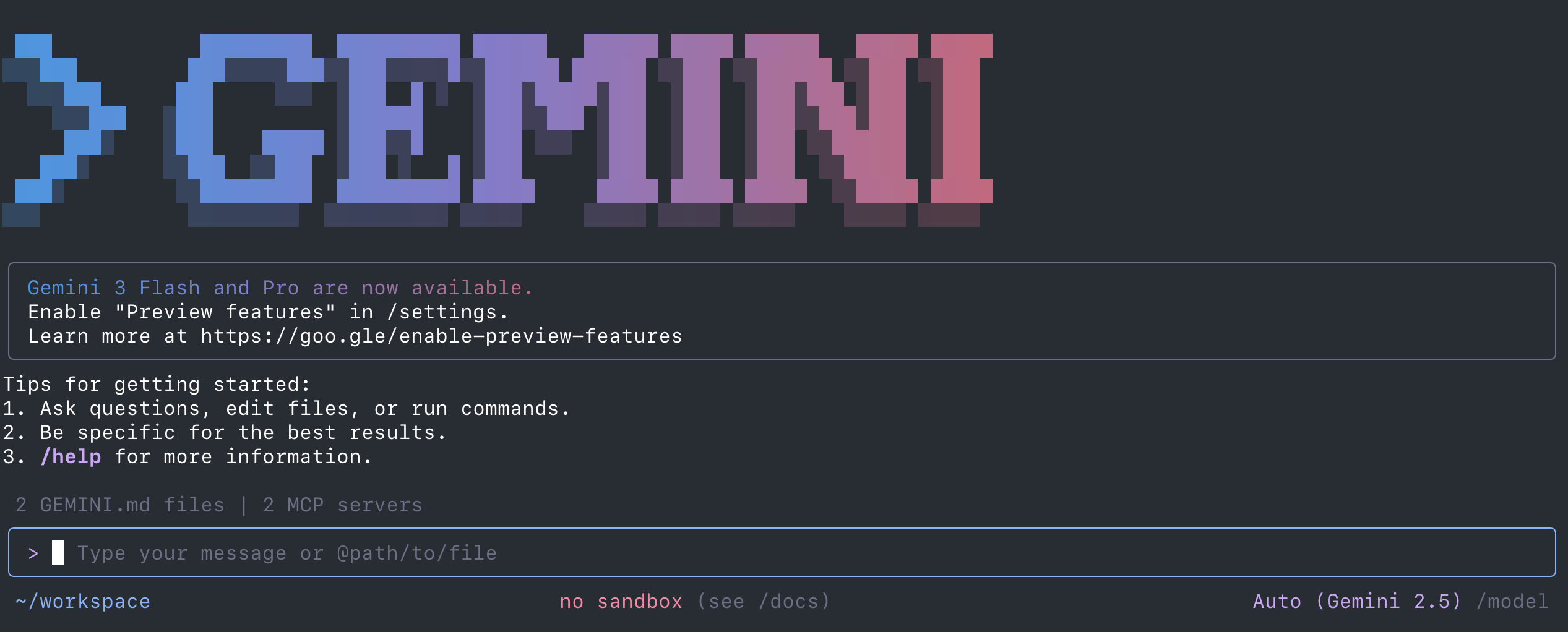
Once inside, test the basic awareness of the tool to ensure it can see your environment:
- 👉💬 Prompt:
Which Google Cloud project is currently active in this shell?
It may ask you to confirm execution of the gcloud command for you, which you can then accept.
You can leave the interface at any time by typing /quit.
Note: If you run into capacity issues with Gemini 2.5 Pro, you can switch to Gemini 2.5 Flash by opening Gemini with
gemini -m gemini-2.5-flash
or using the
/model
command within the interface.
Connect the GKE MCP Extension
By default, Gemini CLI is a general-purpose tool and does not have specific knowledge of how to interact with your clusters. You must install the GKE MCP extension. This extension acts as a plugin that defines a specific set of tools and functions—such as "list clusters" or "get pod logs"—that the model can call when it needs to perform a task.
👉💻 Run the following commands to install the GKE extension and re-open Gemini CLI:
gemini extensions install https://github.com/GoogleCloudPlatform/gke-mcp.git
gemini
You can verify that it's been enabled correctly by re-entering Gemini CLI and typing:
/extensions
4. Provisioning Infrastructure
Traditional infrastructure provisioning often involves navigating complex documentation or writing hundreds of lines of configuration code. By using an agent, you can focus on describing your requirements and let the AI handle the technical translation into the correct API calls. This section demonstrates how to use the agent for both the planning phase and the actual creation of your GKE environment.
Technical Planning and Comparison
Before creating a cluster, you need to choose an architecture that fits your needs. GKE offers two main modes: Standard, where you have full control over the underlying nodes, and Autopilot, where Google manages the nodes and you pay based on the resources requested by your pods. Let's try a simple query to understand the differences between the two and brainstorm which one to use for a specific use-case.
- 👉💬 Prompt:
I need to run a standard 3-tier web application. Compare GKE Standard and GKE Autopilot. Focus on the operational effort for a small team and the cost structure for small workloads.
Try asking about other infrastructure ideas. What if you're deploying AI inference workloads, need something at very high scale, or have complex networking constraints? Experiment with other prompts.
Execute Cluster Creation
Once you have reviewed the comparison and made a choice, you can instruct the agent to build the cluster. The agent will analyze your request and call on the create_cluster tool from the GKE MCP server to deploy a production-ready environment based on those requirements.
- 👉💬 Prompt:
Create a GKE Standard zonal cluster named 'gke-lab' in us-central1-a with 1 node with 4 CPUs. The cluster should have Workload Identity enabled.
Note: GKE cluster provisioning involves setting up the control plane, virtual private networks, and initial node configurations, which typically takes 8–10 minutes. Do not close your Gemini CLI session.
You can ask about the cluster status, which will again leverage the GKE MCP server to return up-to-date information.
- 👉💬 Prompt:
Is the new GKE cluster created and ready to use, yet?
5. Deployment & Validation
A major benefit of using an AI agent for platform engineering is its ability to perform "pre-flight" checks and audits on your configurations. Instead of deploying a manifest and waiting for it to fail, you can use the agent to verify that your YAML is technically sound and adheres to your organization's security policies before it ever reaches the cluster.
Generate Manifests
Ask the agent to create a deployment manifest. Because the agent understands the Kubernetes API versioning and schema, it will generate YAML that is formatted correctly and includes all necessary fields for a successful deployment.
- 👉💬 Prompt:
Generate a Kubernetes YAML manifest for an Nginx web server. I need 3 replicas. Set a memory limit of 256Mi and a CPU limit of 500m. Also, include a Service of type LoadBalancer to make it accessible via the internet. Save the manifest as web-server.yaml
Technical Validation and Security Audit
Manual YAML creation often results in configurations that run with more privileges than necessary or lack basic reliability features. You can use the agent to audit the manifest it just created to ensure it meets modern standards for security and resilience.
- 👉💬 Prompt:
Review the Nginx manifest you just created. Does it include resource requests (not just limits)? Does it specify a non-root user for the container? Add a Pod Disruption Budget to ensure high availability during cluster maintenance. Make any necessary modifications to the file, and tell me what changes were made.
Deployment Execution
Once the cluster provisioning from the previous section is complete, tell Gemini CLI to apply the configuration to your new cluster. The agent will use its tools to communicate with the Kubernetes API server and create the requested resources.
- 👉💬 Prompt:
Deploy the audited Nginx manifest to the 'gke-lab' cluster. Use the kubectl command to do this.
Real-time Status Check
Instead of running multiple kubectl get pods or kubectl describe commands, you can ask the agent for a natural language summary of the deployment's progress.
- 👉💬 Prompt:
Are the Nginx pods running? Provide the external IP address assigned to the LoadBalancer once it is available.
Stuck?
If the Nginx services don't seem to be deploying successfully, try troubleshooting the issue with Gemini CLI. It's there to help you!
- 👉💬 Prompt:
The Nginx deployment doesn't start up as expected. Can you help troubleshoot?
6. Maintenance & Troubleshooting
One of the most valuable aspects of an AI-driven platform is its capability for "Day 2" operations. When a system fails, the challenge is often searching through thousands of log lines to find the one error that matters. By using Gemini CLI with MCP, you can allow the agent to aggregate logs, events, and status messages to provide you with a high-level diagnosis and a specific path to resolution.
Manual Failure Injection
To test the agent's diagnostic capability, we will intentionally create a failure state. In a separate terminal tab, run this command to update your deployment with a container image that does not exist. This simulates a common human error: a typo in a container tag.
👉💻 Run the following command outside of Gemini CLI:
kubectl set image deployment/nginx nginx=nginx:invalid-version-xyz123
Note: Your deployment may not be called exactly "nginx". You can verify this by running
kubectl get deployments
Kubernetes will attempt to pull this image, fail because it cannot find the tag, and the pods will enter an ImagePullBackOff state.
Analysis with Gemini CLI
Return to your Gemini CLI session. Instead of searching through the Cloud Logging console manually, ask the agent to find and explain the error.
- 👉💬 Prompt:
The Nginx deployment on my 'gke-lab' cluster has stopped working. Use your tools to inspect the cluster state, check the recent events, and explain exactly why the pods are failing to start.
What happens here: Gemini CLI will observe that the deployment is unhealthy. It will then use tools available to inspect the failing pods. The agent will identify the pull error, explain that the tag is invalid, and suggest that you revert to a known good image.
Maintenance and Risk Assessment
Platform maintenance involves staying ahead of upgrades and deprecations. You can ask the agent to act as an SRE and assess the health and longevity of your cluster.
- 👉💬 Prompt:
Is my cluster 'gke-lab' running the latest version of GKE? Check for available upgrades and let me know if any of my current resources use deprecated APIs that would break during an upgrade.
This may result in Gemini calling upon GKE MCP server tools such as the cluster status and recommendation tools.
7. Conclusion
This lab has demonstrated a new way of interacting with cloud infrastructure. By integrating an AI agent directly into your terminal workflow via Gemini CLI and MCP, you have moved from being a manual writer of commands to a director of intent. This approach allows platform teams to scale their expertise by providing an intelligent interface that handles the repetitive and error-prone details of Kubernetes management while the human engineer focuses on high-level architecture and problem-solving.
Lab Summary
- Connectivity: You successfully connected Gemini CLI to the GKE API using the Model Context Protocol, giving the AI model direct visibility into your project state.
- Infrastructure: You used natural language to architect and provision a GKE cluster, avoiding the need to memorize complex CLI flags.
- Development: You generated, audited for security, and deployed Kubernetes resources without manual YAML editing, ensuring that best practices were followed from the start.
- Operations: You used AI to perform root-cause analysis on a broken deployment, significantly reducing mean time to recovery by allowing the AI to summarize logs and events.
Cleanup
To prevent ongoing Google Cloud charges for the resources created in this lab, you can instruct the agent to delete the cluster.
Note: Skip this step if you're planning to reutilize the GKE cluster for another lab.
- 👉💬 Prompt:
Delete the 'gke-lab' cluster and any associated resources.
Next Steps
Recommendations for further reading:
- Gemini CLI documentation: The official documentation for Gemini CLI.
- GKE Documentation: The landing page for all GKE documentation.
- Platform Engineering on Google Cloud: Guidance on how to approach Platform Engineering on Google Cloud.
- AI and machine learning on GKE: Documentation about running AI/ML workloads on GKE.
- Google Cloud Architecture Center: Guidance and best practices for building workloads on Google Cloud.