

1. บทนำ
Flutter คือ SDK ของแอปบนอุปกรณ์เคลื่อนที่ของ Google สำหรับการสร้างประสบการณ์การใช้งานเนทีฟคุณภาพสูงใน iOS และ Android ได้อย่างรวดเร็ว
ปลั๊กอิน Google Maps Flutter ช่วยให้คุณเพิ่มแผนที่ตามข้อมูล Google Maps ลงในแอปพลิเคชันได้ ปลั๊กอินจะจัดการการเข้าถึงเซิร์ฟเวอร์ Google Maps, การแสดงแผนที่ และการตอบสนองต่อท่าทางของผู้ใช้ เช่น การคลิกและการลาก โดยอัตโนมัติ นอกจากนี้ คุณยังเพิ่มเครื่องหมายลงในแผนที่ได้ด้วย ออบเจ็กต์เหล่านี้ให้ข้อมูลเพิ่มเติมสำหรับสถานที่ตั้งบนแผนที่ และช่วยให้ผู้ใช้โต้ตอบกับแผนที่ได้
สิ่งที่คุณจะสร้าง
ใน Codelab นี้ คุณจะได้สร้างแอปบนอุปกรณ์เคลื่อนที่ที่มี Google Maps โดยใช้ Flutter SDK แอปของคุณจะทำสิ่งต่อไปนี้
|
|
Flutter คืออะไร
Flutter มีความสามารถหลัก 3 อย่าง
- พัฒนาได้อย่างรวดเร็ว: สร้างแอปพลิเคชัน Android และ iOS ในเวลาไม่กี่มิลลิวินาทีด้วยการโหลดซ้ำแบบด่วนที่มีสถานะ
- ยืดหยุ่นและสื่อสารได้ดี: เปิดตัวฟีเจอร์อย่างรวดเร็วโดยมุ่งเน้นที่ประสบการณ์ของผู้ใช้ปลายทาง
- ประสิทธิภาพแบบเนทีฟทั้งใน iOS และ Android: วิดเจ็ตของ Flutter จะรวมความแตกต่างที่สำคัญทั้งหมดของแพลตฟอร์ม เช่น การเลื่อน การนำทาง ไอคอน และแบบอักษร เพื่อให้ประสิทธิภาพแบบเนทีฟอย่างเต็มที่
Google Maps มีข้อมูลต่อไปนี้
- ครอบคลุม 99% ของโลก: สร้างด้วยข้อมูลที่ครอบคลุมและเชื่อถือได้สำหรับกว่า 200 ประเทศและเขตแดน
- อัปเดต 25 ล้านครั้งต่อวัน: มั่นใจได้ว่าข้อมูลตำแหน่งแบบเรียลไทม์จะถูกต้อง
- ผู้ใช้งานที่ใช้งานอยู่รายเดือน 1 พันล้านคน: ขยายขนาดได้อย่างมั่นใจด้วยโครงสร้างพื้นฐานของ Google Maps
Codelab นี้จะแนะนำขั้นตอนการสร้างประสบการณ์การใช้งาน Google Maps ในแอป Flutter สำหรับทั้ง iOS และ Android
สิ่งที่คุณจะได้เรียนรู้
- วิธีสร้างแอปพลิเคชัน Flutter ใหม่
- วิธีกำหนดค่าปลั๊กอิน Google Maps Flutter
- วิธีเพิ่มเครื่องหมายลงในแผนที่โดยใช้ข้อมูลตำแหน่งจากเว็บเซอร์วิส
Codelab นี้มุ่งเน้นที่การเพิ่ม Google Maps ลงในแอป Flutter เราจะข้ามแนวคิดและบล็อกโค้ดที่ไม่เกี่ยวข้องไป และจะให้คุณคัดลอกและวางได้เลย
คุณต้องการเรียนรู้อะไรจากโค้ดแล็บนี้
2. ตั้งค่าสภาพแวดล้อม Flutter
คุณต้องมีซอฟต์แวร์ 2 อย่างเพื่อทำแล็บนี้ให้เสร็จสมบูรณ์ ได้แก่ Flutter SDK และโปรแกรมแก้ไข Codelab นี้ใช้ Android Studio แต่คุณสามารถใช้โปรแกรมแก้ไขที่ต้องการได้
คุณเรียกใช้ Codelab นี้ได้โดยใช้อุปกรณ์ต่อไปนี้
- อุปกรณ์จริง (Android หรือ iOS) ที่เชื่อมต่อกับคอมพิวเตอร์และตั้งค่าเป็นโหมดนักพัฒนาแอป
- โปรแกรมจำลอง iOS (ต้องติดตั้งเครื่องมือ Xcode)
- โปรแกรมจำลอง Android (ต้องตั้งค่าใน Android Studio)
3. เริ่มต้นใช้งาน
เริ่มต้นใช้งาน Flutter
วิธีที่ง่ายที่สุดในการเริ่มต้นใช้งาน Flutter คือการใช้เครื่องมือบรรทัดคำสั่ง Flutter เพื่อสร้างโค้ดที่จำเป็นทั้งหมดสำหรับประสบการณ์การเริ่มต้นใช้งานที่เรียบง่าย
$ flutter create google_maps_in_flutter --platforms android,ios,web
Creating project google_maps_in_flutter...
Resolving dependencies in `google_maps_in_flutter`...
Downloading packages...
Got dependencies in `google_maps_in_flutter`.
Wrote 81 files.

All done!
You can find general documentation for Flutter at: https://docs.flutter.dev/
Detailed API documentation is available at: https://api.flutter.dev/
If you prefer video documentation, consider: https://www.youtube.com/c/flutterdev

In order to run your application, type:

  $ cd google_maps_in_flutter
  $ flutter run

Your application code is in google_maps_in_flutter/lib/main.dart.
การเพิ่มปลั๊กอิน Google Maps Flutter เป็นการขึ้นต่อกัน
การเพิ่มความสามารถอื่นๆ ให้กับแอป Flutter เป็นเรื่องง่ายด้วยแพ็กเกจ Pub ในโค้ดแล็บนี้ คุณจะได้รู้จัก ปลั๊กอิน Google Maps Flutter โดยการเรียกใช้คำสั่งต่อไปนี้จากไดเรกทอรีโปรเจ็กต์
$ cd google_maps_in_flutter
$ flutter pub add google_maps_flutter
Resolving dependencies...
Downloading packages...
+ csslib 1.0.0
+ flutter_plugin_android_lifecycle 2.0.19
+ flutter_web_plugins 0.0.0 from sdk flutter
+ google_maps 7.1.0
+ google_maps_flutter 2.6.1
+ google_maps_flutter_android 2.8.0
+ google_maps_flutter_ios 2.6.0
+ google_maps_flutter_platform_interface 2.6.0
+ google_maps_flutter_web 0.5.7
+ html 0.15.4
+ js 0.6.7 (0.7.1 available)
+ js_wrapping 0.7.4
  leak_tracker 10.0.4 (10.0.5 available)
  leak_tracker_flutter_testing 3.0.3 (3.0.5 available)
  material_color_utilities 0.8.0 (0.11.1 available)
  meta 1.12.0 (1.14.0 available)
+ plugin_platform_interface 2.1.8
+ sanitize_html 2.1.0
+ stream_transform 2.1.0
  test_api 0.7.0 (0.7.1 available)
+ web 0.5.1
Changed 16 dependencies!
6 packages have newer versions incompatible with dependency constraints.
Try `flutter pub outdated` for more information.
การกำหนดค่า iOS platform
หากต้องการใช้ Google Maps SDK เวอร์ชันล่าสุดใน iOS ต้องใช้แพลตฟอร์ม iOS เวอร์ชัน 14 ขึ้นไป แก้ไขส่วนบนของไฟล์การกำหนดค่า ios/Podfile ดังนี้
ios/Podfile
# Google Maps SDK requires platform version 14
# https://developers.google.com/maps/flutter-package/config#ios
platform :ios, '14.0'


# CocoaPods analytics sends network stats synchronously affecting flutter build latency.
ENV['COCOAPODS_DISABLE_STATS'] = 'true'
การกำหนดค่า Android minSDK
หากต้องการใช้ Google Maps SDK ใน Android ต้องตั้งค่า minSdk เป็น 21 แก้ไขไฟล์การกำหนดค่า android/app/build.gradle ดังนี้
android/app/build.gradle
android {
    defaultConfig {
        // TODO: Specify your own unique Application ID (https://developer.android.com/studio/build/application-id.html).
        applicationId = "com.example.google_maps_in_flutter"
        // Minimum Android version for Google Maps SDK
        // https://developers.google.com/maps/flutter-package/config#android
        minSdk = 21
        targetSdk = flutter.targetSdkVersion
        versionCode = flutterVersionCode.toInteger()
        versionName = flutterVersionName
    }

}
4. การเพิ่ม Google Maps ลงในแอป
ทุกอย่างขึ้นอยู่กับคีย์ API
หากต้องการใช้ Google Maps ในแอป Flutter คุณต้องกำหนดค่าโปรเจ็กต์ API ด้วย Google Maps Platform โดยทำตามการใช้คีย์ API ของ Maps SDK สำหรับ Android, การใช้คีย์ API ของ Maps SDK สำหรับ iOS และการใช้คีย์ API ของ Maps JavaScript API เมื่อมีคีย์ API แล้ว ให้ทำตามขั้นตอนต่อไปนี้เพื่อกำหนดค่าทั้งแอปพลิเคชัน Android และ iOS
การเพิ่มคีย์ API สำหรับแอป Android
หากต้องการเพิ่มคีย์ API ลงในแอป Android ให้แก้ไขไฟล์ AndroidManifest.xml ใน android/app/src/main เพิ่มรายการ meta-data รายการเดียวที่มีคีย์ API ที่สร้างขึ้นในขั้นตอนก่อนหน้าภายในโหนด application
android/app/src/main/AndroidManifest.xml
<manifest xmlns:android="http://schemas.android.com/apk/res/android">
    <application
        android:label="google_maps_in_flutter"
        android:name="${applicationName}"
        android:icon="@mipmap/ic_launcher">

        <!-- TODO: Add your Google Maps API key here -->
        <meta-data android:name="com.google.android.geo.API_KEY"
               android:value="YOUR-KEY-HERE"/>

        <activity
            android:name=".MainActivity"
            android:exported="true"
            android:launchMode="singleTop"
            android:taskAffinity=""
            android:theme="@style/LaunchTheme"
            android:configChanges="orientation|keyboardHidden|keyboard|screenSize|smallestScreenSize|locale|layoutDirection|fontScale|screenLayout|density|uiMode"
            android:hardwareAccelerated="true"
            android:windowSoftInputMode="adjustResize">
            <!-- Specifies an Android theme to apply to this Activity as soon as
                 the Android process has started. This theme is visible to the user
                 while the Flutter UI initializes. After that, this theme continues
                 to determine the Window background behind the Flutter UI. -->
            <meta-data
              android:name="io.flutter.embedding.android.NormalTheme"
              android:resource="@style/NormalTheme"
              />
            <intent-filter>
                <action android:name="android.intent.action.MAIN"/>
                <category android:name="android.intent.category.LAUNCHER"/>
            </intent-filter>
        </activity>
        <!-- Don't delete the meta-data below.
             This is used by the Flutter tool to generate GeneratedPluginRegistrant.java -->
        <meta-data
            android:name="flutterEmbedding"
            android:value="2" />
    </application>
    <!-- Required to query activities that can process text, see:
         https://developer.android.com/training/package-visibility and
         https://developer.android.com/reference/android/content/Intent#ACTION_PROCESS_TEXT.

         In particular, this is used by the Flutter engine in io.flutter.plugin.text.ProcessTextPlugin. -->
    <queries>
        <intent>
            <action android:name="android.intent.action.PROCESS_TEXT"/>
            <data android:mimeType="text/plain"/>
        </intent>
    </queries>
</manifest>
การเพิ่มคีย์ API สำหรับแอป iOS
หากต้องการเพิ่มคีย์ API ลงในแอป iOS ให้แก้ไขไฟล์ AppDelegate.swift ใน ios/Runner การเพิ่มคีย์ API ใน iOS จะต้องมีการเปลี่ยนแปลงซอร์สโค้ดของแอป Runner ซึ่งแตกต่างจาก Android โดย AppDelegate เป็น Singleton หลักที่เป็นส่วนหนึ่งของกระบวนการเริ่มต้นแอป
ทำการเปลี่ยนแปลง 2 อย่างในไฟล์นี้ ก่อนอื่นให้เพิ่ม#importคำสั่งเพื่อดึงส่วนหัวของ Google Maps แล้วเรียกใช้provideAPIKey()เมธอดของออบเจ็กต์GMSServicesแบบ Singleton คีย์ API นี้ช่วยให้ Google Maps แสดงภาพแผนที่ได้อย่างถูกต้อง
ios/Runner/AppDelegate.swift
import Flutter
import UIKit
import GoogleMaps                                          // Add this import

@UIApplicationMain
@objc class AppDelegate: FlutterAppDelegate {
  override func application(
    _ application: UIApplication,
    didFinishLaunchingWithOptions launchOptions: [UIApplication.LaunchOptionsKey: Any]?
  ) -> Bool {
    GeneratedPluginRegistrant.register(with: self)

    // TODO: Add your Google Maps API key
    GMSServices.provideAPIKey("YOUR-API-KEY")               // Add this line

    return super.application(application, didFinishLaunchingWithOptions: launchOptions)
  }
}
การเพิ่มคีย์ API สำหรับเว็บแอป
หากต้องการเพิ่มคีย์ API ลงในเว็บแอป ให้แก้ไขไฟล์ index.html ใน web เพิ่มการอ้างอิงไปยังสคริปต์ JavaScript ของ Maps ในส่วนหัวด้วยคีย์ API
web/index.html
<!DOCTYPE html>
<html>
<head>
  <!--
    If you are serving your web app in a path other than the root, change the
    href value below to reflect the base path you are serving from.

    The path provided below has to start and end with a slash "/" in order for
    it to work correctly.

    For more details:
    * https://developer.mozilla.org/en-US/docs/Web/HTML/Element/base

    This is a placeholder for base href that will be replaced by the value of
    the `--base-href` argument provided to `flutter build`.
  -->
  <base href="$FLUTTER_BASE_HREF">

  <meta charset="UTF-8">
  <meta content="IE=Edge" http-equiv="X-UA-Compatible">
  <meta name="description" content="A new Flutter project.">

  <!-- iOS meta tags & icons -->
  <meta name="apple-mobile-web-app-capable" content="yes">
  <meta name="apple-mobile-web-app-status-bar-style" content="black">
  <meta name="apple-mobile-web-app-title" content="google_maps_in_flutter">
  <link rel="apple-touch-icon" href="icons/Icon-192.png">

  <!-- Favicon -->
  <link rel="icon" type="image/png" href="favicon.png"/>

  <!-- Add your Google Maps API key here -->
  <script src="https://maps.googleapis.com/maps/api/js?key=YOUR-KEY-HERE"></script>

  <title>google_maps_in_flutter</title>
  <link rel="manifest" href="manifest.json">
</head>
<body>
  <script src="flutter_bootstrap.js" async></script>
</body>
</html>
การแสดงแผนที่บนหน้าจอ
ตอนนี้ถึงเวลาแสดงแผนที่บนหน้าจอแล้ว แทนที่เนื้อหาของ lib/main.dart ด้วยเนื้อหาต่อไปนี้
lib/main.dart
import 'package:flutter/material.dart';
import 'package:google_maps_flutter/google_maps_flutter.dart';

void main() {
  runApp(const MyApp());
}

class MyApp extends StatefulWidget {
  const MyApp({super.key});

  @override
  State<MyApp> createState() => _MyAppState();
}

class _MyAppState extends State<MyApp> {
  late GoogleMapController mapController;

  final LatLng _center = const LatLng(45.521563, -122.677433);

  void _onMapCreated(GoogleMapController controller) {
    mapController = controller;
  }

  @override
  Widget build(BuildContext context) {
    return MaterialApp(
      theme: ThemeData(
        useMaterial3: true,
        colorSchemeSeed: Colors.green[700],
      ),
      home: Scaffold(
        appBar: AppBar(
          title: const Text('Maps Sample App'),
          elevation: 2,
        ),
        body: GoogleMap(
          onMapCreated: _onMapCreated,
          initialCameraPosition: CameraPosition(
            target: _center,
            zoom: 11.0,
          ),
        ),
      ),
    );
  }
}
การเรียกใช้แอป
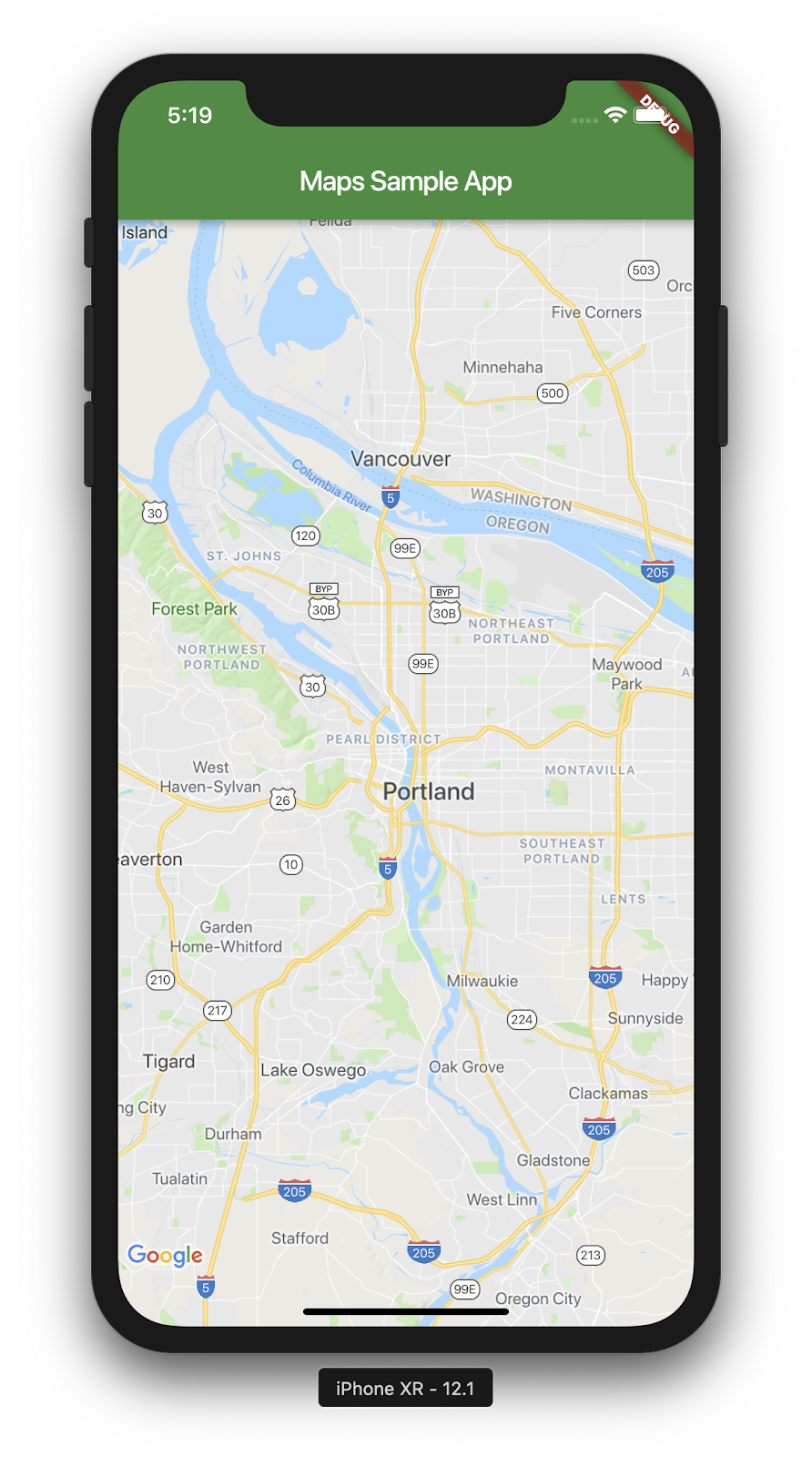
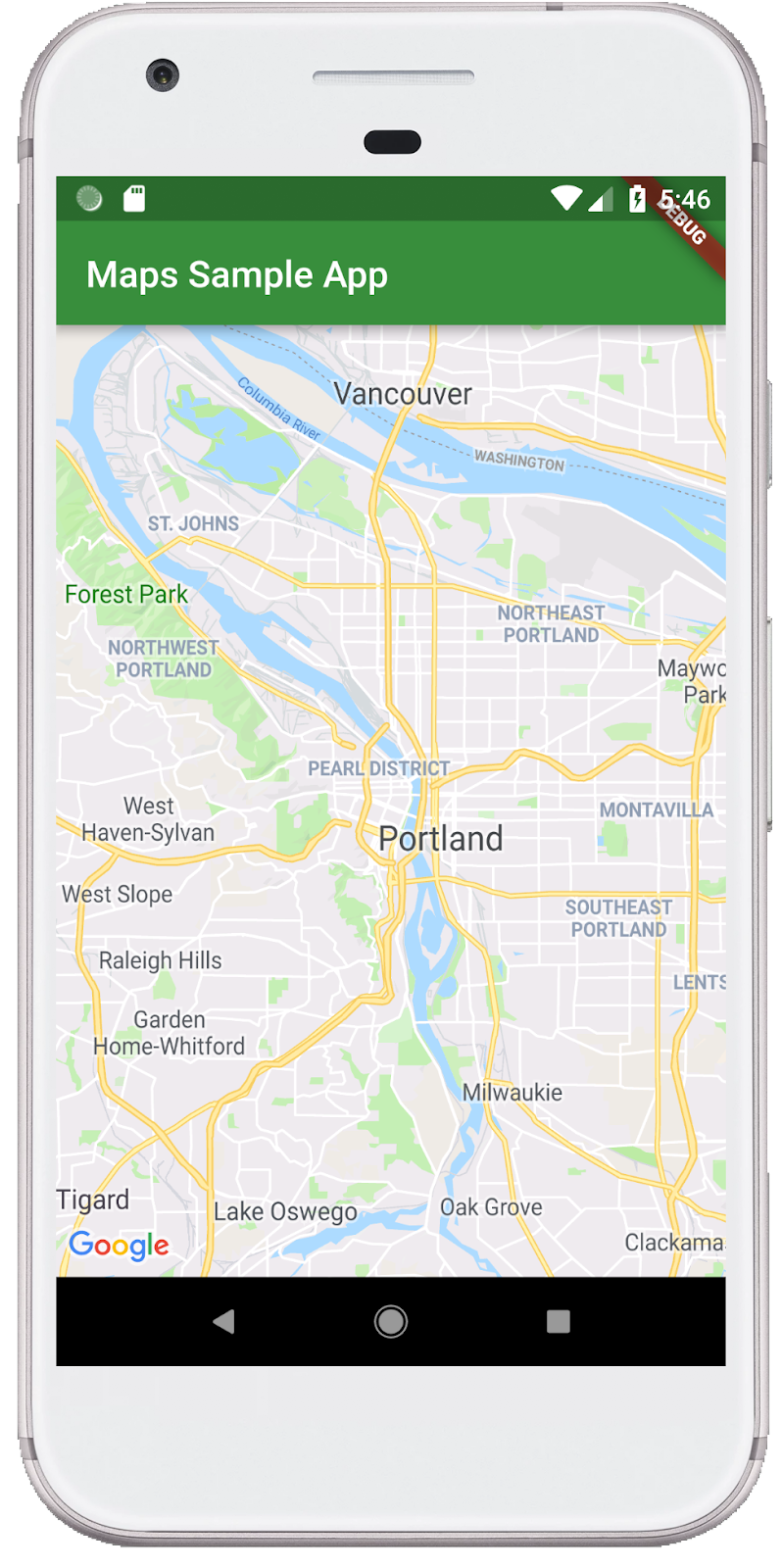
เรียกใช้แอป Flutter ใน iOS หรือ Android เพื่อดูมุมมองแผนที่เดียวที่อยู่ตรงกลางเมืองพอร์ตแลนด์ หรือจะเรียกใช้โปรแกรมจำลอง Android หรือโปรแกรมจำลอง iOS ก็ได้ คุณสามารถแก้ไขศูนย์กลางแผนที่เพื่อแสดงบ้านเกิดหรือสถานที่ที่สำคัญสำหรับคุณได้
$ flutter run
|
|
5. ใส่ Google ลงในแผนที่
Google มีสำนักงานหลายแห่งทั่วโลก ตั้งแต่อเมริกาเหนือ ลาตินอเมริกา ยุโรป เอเชียแปซิฟิก ไปจนถึงแอฟริกาและตะวันออกกลาง ข้อดีของแผนที่เหล่านี้คือหากคุณตรวจสอบแล้วจะพบว่ามีปลายทาง API ที่ใช้งานง่ายสำหรับการระบุข้อมูลตำแหน่งสำนักงานในรูปแบบ JSON ในขั้นตอนนี้ คุณจะวางตำแหน่งสำนักงานเหล่านี้บนแผนที่ ในขั้นตอนนี้ คุณจะใช้การสร้างโค้ดเพื่อแยกวิเคราะห์ JSON
เพิ่มทรัพยากร Dependency ของ Flutter ใหม่ 3 รายการลงในโปรเจ็กต์ดังนี้ เพิ่มแพ็กเกจ http เพื่อให้ส่งคำขอ HTTP ได้อย่างง่ายดาย, json_serializable และ json_annotation เพื่อประกาศโครงสร้างออบเจ็กต์สำหรับการแสดงเอกสาร JSON และเพิ่ม build_runner เพื่อรองรับการสร้างโค้ด
$ flutter pub add http json_annotation json_serializable dev:build_runner
Resolving dependencies...
Downloading packages...
+ _fe_analyzer_shared 67.0.0 (68.0.0 available)
+ analyzer 6.4.1 (6.5.0 available)
+ args 2.5.0
+ build 2.4.1
+ build_config 1.1.1
+ build_daemon 4.0.1
+ build_resolvers 2.4.2
+ build_runner 2.4.9
+ build_runner_core 7.3.0
+ built_collection 5.1.1
+ built_value 8.9.2
+ checked_yaml 2.0.3
+ code_builder 4.10.0
+ convert 3.1.1
+ crypto 3.0.3
+ dart_style 2.3.6
+ file 7.0.0
+ fixnum 1.1.0
+ frontend_server_client 4.0.0
+ glob 2.1.2
+ graphs 2.3.1
+ http 1.2.1
+ http_multi_server 3.2.1
+ http_parser 4.0.2
+ io 1.0.4
  js 0.6.7 (0.7.1 available)
+ json_annotation 4.9.0
+ json_serializable 6.8.0
  leak_tracker 10.0.4 (10.0.5 available)
  leak_tracker_flutter_testing 3.0.3 (3.0.5 available)
+ logging 1.2.0
  material_color_utilities 0.8.0 (0.11.1 available)
  meta 1.12.0 (1.14.0 available)
+ mime 1.0.5
+ package_config 2.1.0
+ pool 1.5.1
+ pub_semver 2.1.4
+ pubspec_parse 1.2.3
+ shelf 1.4.1
+ shelf_web_socket 1.0.4
+ source_gen 1.5.0
+ source_helper 1.3.4
  test_api 0.7.0 (0.7.1 available)
+ timing 1.0.1
+ typed_data 1.3.2
+ watcher 1.1.0
+ web_socket_channel 2.4.5
+ yaml 3.1.2
Changed 42 dependencies!
8 packages have newer versions incompatible with dependency constraints.
Try `flutter pub outdated` for more information.
การแยกวิเคราะห์ JSON ด้วยการสร้างโค้ด
คุณอาจสังเกตเห็นว่าข้อมูล JSON ที่ส่งคืนจากปลายทาง API มีโครงสร้างปกติ การสร้างโค้ดเพื่อจัดรูปแบบข้อมูลดังกล่าวเป็นออบเจ็กต์ที่คุณใช้ในโค้ดได้จะเป็นประโยชน์อย่างยิ่ง
ในไดเรกทอรี lib/src ให้สร้างไฟล์ locations.dart และอธิบายโครงสร้างของข้อมูล JSON ที่ส่งคืนดังนี้
lib/src/locations.dart
import 'dart:convert';

import 'package:flutter/foundation.dart';
import 'package:flutter/services.dart' show rootBundle;
import 'package:http/http.dart' as http;
import 'package:json_annotation/json_annotation.dart';

part 'locations.g.dart';

@JsonSerializable()
class LatLng {
  LatLng({
    required this.lat,
    required this.lng,
  });

  factory LatLng.fromJson(Map<String, dynamic> json) => _$LatLngFromJson(json);
  Map<String, dynamic> toJson() => _$LatLngToJson(this);

  final double lat;
  final double lng;
}

@JsonSerializable()
class Region {
  Region({
    required this.coords,
    required this.id,
    required this.name,
    required this.zoom,
  });

  factory Region.fromJson(Map<String, dynamic> json) => _$RegionFromJson(json);
  Map<String, dynamic> toJson() => _$RegionToJson(this);

  final LatLng coords;
  final String id;
  final String name;
  final double zoom;
}

@JsonSerializable()
class Office {
  Office({
    required this.address,
    required this.id,
    required this.image,
    required this.lat,
    required this.lng,
    required this.name,
    required this.phone,
    required this.region,
  });

  factory Office.fromJson(Map<String, dynamic> json) => _$OfficeFromJson(json);
  Map<String, dynamic> toJson() => _$OfficeToJson(this);

  final String address;
  final String id;
  final String image;
  final double lat;
  final double lng;
  final String name;
  final String phone;
  final String region;
}

@JsonSerializable()
class Locations {
  Locations({
    required this.offices,
    required this.regions,
  });

  factory Locations.fromJson(Map<String, dynamic> json) =>
      _$LocationsFromJson(json);
  Map<String, dynamic> toJson() => _$LocationsToJson(this);

  final List<Office> offices;
  final List<Region> regions;
}

Future<Locations> getGoogleOffices() async {
  const googleLocationsURL = 'https://about.google/static/data/locations.json';

  // Retrieve the locations of Google offices
  try {
    final response = await http.get(Uri.parse(googleLocationsURL));
    if (response.statusCode == 200) {
      return Locations.fromJson(
          json.decode(response.body) as Map<String, dynamic>);
    }
  } catch (e) {
    if (kDebugMode) {
      print(e);
    }
  }

  // Fallback for when the above HTTP request fails.
  return Locations.fromJson(
    json.decode(
      await rootBundle.loadString('assets/locations.json'),
    ) as Map<String, dynamic>,
  );
}
เมื่อเพิ่มโค้ดนี้แล้ว IDE (หากคุณใช้) ควรแสดงเส้นหยักสีแดง เนื่องจากอ้างอิงไฟล์ร่วมที่ไม่มีอยู่ locations.g.dart. ไฟล์ที่สร้างขึ้นนี้จะแปลงระหว่างโครงสร้าง JSON ที่ไม่มีการพิมพ์และออบเจ็กต์ที่มีชื่อ สร้างโดยเรียกใช้ build_runner ดังนี้
$ dart run build_runner build --delete-conflicting-outputs
[INFO] Generating build script...
[INFO] Generating build script completed, took 357ms

[INFO] Creating build script snapshot......
[INFO] Creating build script snapshot... completed, took 10.5s

[INFO] There was output on stdout while compiling the build script snapshot, run with `--verbose` to see it (you will need to run a `clean` first to re-snapshot).

[INFO] Initializing inputs
[INFO] Building new asset graph...
[INFO] Building new asset graph completed, took 646ms

[INFO] Checking for unexpected pre-existing outputs....
[INFO] Deleting 1 declared outputs which already existed on disk.
[INFO] Checking for unexpected pre-existing outputs. completed, took 3ms

[INFO] Running build...
[INFO] Generating SDK summary...
[INFO] 3.4s elapsed, 0/3 actions completed.
[INFO] Generating SDK summary completed, took 3.4s

[INFO] 4.7s elapsed, 2/3 actions completed.
[INFO] Running build completed, took 4.7s

[INFO] Caching finalized dependency graph...
[INFO] Caching finalized dependency graph completed, took 36ms

[INFO] Succeeded after 4.8s with 2 outputs (7 actions)
ตอนนี้โค้ดของคุณควรวิเคราะห์ได้อย่างราบรื่นอีกครั้ง จากนั้นเราควรเพิ่มไฟล์ locations.json ที่ใช้ในฟังก์ชัน getGoogleOffices เหตุผลหนึ่งที่ต้องรวมฟอลแบ็กนี้ไว้ก็คือข้อมูลแบบคงที่ที่โหลดในฟังก์ชันนี้จะแสดงโดยไม่มีส่วนหัว CORS จึงโหลดในเว็บเบราว์เซอร์ไม่ได้ แอป Flutter ใน Android และ iOS ไม่จำเป็นต้องมีส่วนหัว CORS แต่การเข้าถึงอินเทอร์เน็ตมือถืออาจไม่เสถียรในบางครั้ง
ไปที่ https://about.google/static/data/locations.json ในเบราว์เซอร์ แล้วบันทึกเนื้อหาลงในไดเรกทอรีชิ้นงาน หรือจะใช้บรรทัดคำสั่งก็ได้ ดังนี้
$ mkdir assets
$ cd assets
$ curl -o locations.json https://about.google/static/data/locations.json
  % Total    % Received % Xferd  Average Speed   Time    Time     Time  Current
                                 Dload  Upload   Total   Spent    Left  Speed
100 30348  100 30348    0     0  75492      0 --:--:-- --:--:-- --:--:-- 75492
เมื่อดาวน์โหลดไฟล์ชิ้นงานแล้ว ให้เพิ่มไฟล์ลงในส่วน Flutter ของไฟล์ pubspec.yaml
pubspec.yaml
flutter:
  uses-material-design: true

  assets:
    - assets/locations.json
แก้ไขไฟล์ main.dart เพื่อขอข้อมูลแผนที่ แล้วใช้ข้อมูลที่ได้รับเพื่อเพิ่มสำนักงานลงในแผนที่
lib/main.dart
import 'package:flutter/material.dart';
import 'package:google_maps_flutter/google_maps_flutter.dart';
import 'src/locations.dart' as locations;

void main() {
  runApp(const MyApp());
}

class MyApp extends StatefulWidget {
  const MyApp({super.key});

  @override
  State<MyApp> createState() => _MyAppState();
}

class _MyAppState extends State<MyApp> {
  final Map<String, Marker> _markers = {};
  Future<void> _onMapCreated(GoogleMapController controller) async {
    final googleOffices = await locations.getGoogleOffices();
    setState(() {
      _markers.clear();
      for (final office in googleOffices.offices) {
        final marker = Marker(
          markerId: MarkerId(office.name),
          position: LatLng(office.lat, office.lng),
          infoWindow: InfoWindow(
            title: office.name,
            snippet: office.address,
          ),
        );
        _markers[office.name] = marker;
      }
    });
  }

  @override
  Widget build(BuildContext context) {
    return MaterialApp(
      theme: ThemeData(
        useMaterial3: true,
        colorSchemeSeed: Colors.green[700],
      ),
      home: Scaffold(
        appBar: AppBar(
          title: const Text('Google Office Locations'),
          elevation: 2,
        ),
        body: GoogleMap(
          onMapCreated: _onMapCreated,
          initialCameraPosition: const CameraPosition(
            target: LatLng(0, 0),
            zoom: 2,
          ),
          markers: _markers.values.toSet(),
        ),
      ),
    );
  }
}
โค้ดนี้จะดำเนินการหลายอย่าง ดังนี้
- ใน
_onMapCreatedจะใช้โค้ดการแยกวิเคราะห์ JSON จากขั้นตอนก่อนหน้าawaitจนกว่าจะโหลดเสร็จ จากนั้นจะใช้ข้อมูลที่ส่งคืนเพื่อสร้างMarkerภายในsetState()การเรียกกลับ เมื่อแอปได้รับเครื่องหมายใหม่แล้ว แฟล็ก setState จะแจ้งให้ Flutter ทาสีหน้าจอใหม่ ทำให้ตำแหน่งสำนักงานแสดงขึ้น - โดยระบบจะจัดเก็บเครื่องหมายไว้ใน
Mapที่เชื่อมโยงกับวิดเจ็ตGoogleMapซึ่งจะลิงก์เครื่องหมายไปยังแผนที่ที่ถูกต้อง แน่นอนว่าคุณมีแผนที่หลายรายการและแสดงเครื่องหมายที่แตกต่างกันในแต่ละแผนที่ได้
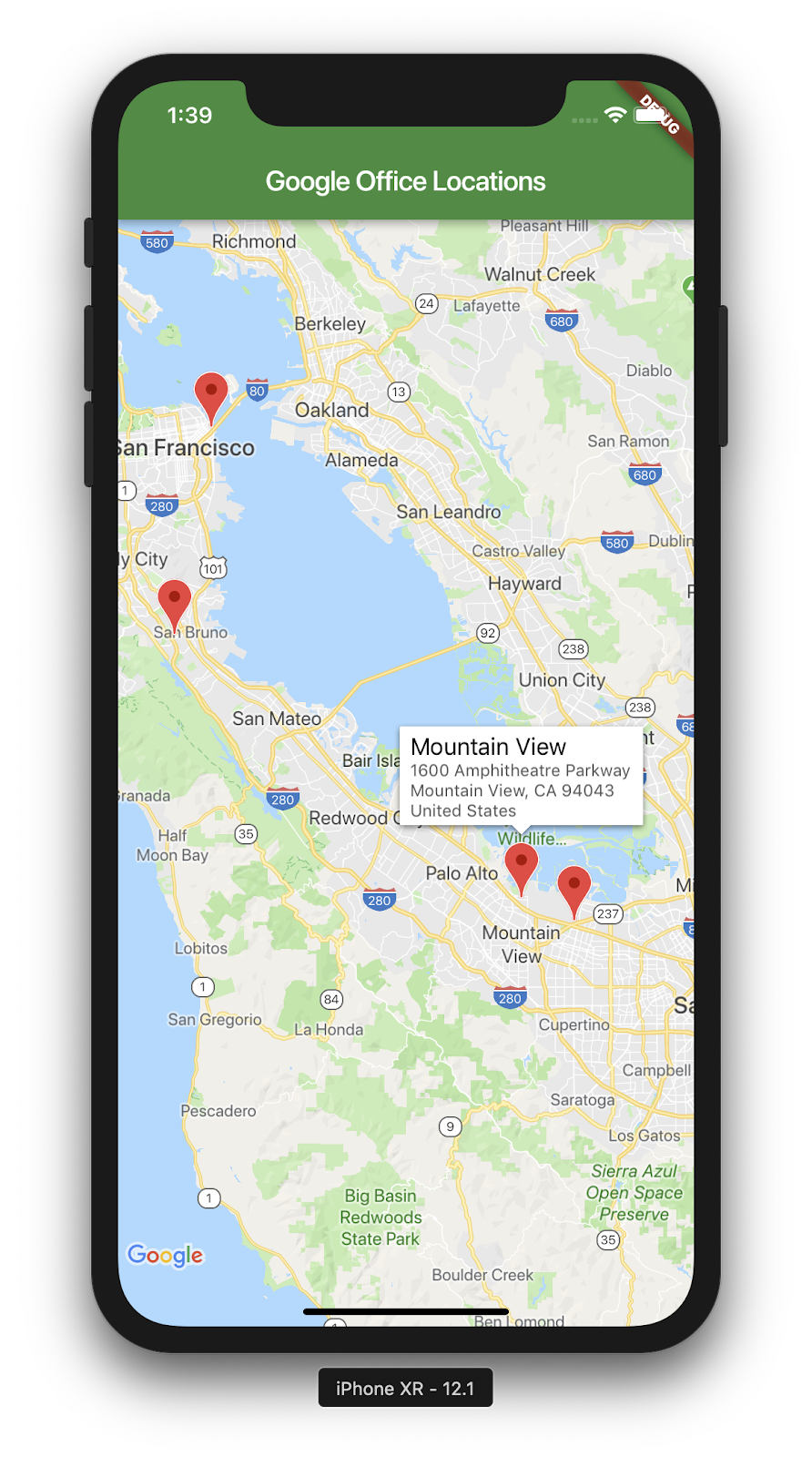
นี่คือภาพหน้าจอของสิ่งที่คุณทำสำเร็จ คุณสามารถเพิ่มองค์ประกอบที่น่าสนใจได้มากมายในขั้นตอนนี้ ตัวอย่างเช่น คุณอาจเพิ่มมุมมองรายการของสำนักงานที่ย้ายและซูมแผนที่เมื่อผู้ใช้คลิกสำนักงาน แต่เราจะปล่อยให้คุณผู้อ่านเป็นผู้ลองทำเอง
6. ขั้นตอนถัดไป
ยินดีด้วย
คุณทำ Codelab เสร็จแล้วและได้สร้างแอป Flutter ที่มี Google Maps นอกจากนี้ คุณยังโต้ตอบกับบริการเว็บ JSON ด้วย
ขั้นตอนถัดไปอื่นๆ
Codelab นี้ได้สร้างประสบการณ์การใช้งานเพื่อแสดงภาพจุดจำนวนหนึ่งบนแผนที่ มีแอปบนอุปกรณ์เคลื่อนที่จำนวนมากที่สร้างขึ้นจากความสามารถนี้เพื่อตอบสนองความต้องการของผู้ใช้ที่หลากหลาย แหล่งข้อมูลอื่นๆ ที่จะช่วยให้คุณดำเนินการต่อได้มีดังนี้
- สร้างแอปบนอุปกรณ์เคลื่อนที่ด้วย Flutter และ Google Maps (การบรรยายในงาน Cloud Next ปี 2019)
- แพ็กเกจ
google_maps_webserviceของ Hadrien Lejard ซึ่งทำให้บริการเว็บของ Google Maps เช่น Directions API, Distance Matrix API และ Places API ใช้งานได้ง่ายมาก - หากต้องการดูตัวเลือกอื่นๆ สำหรับการใช้ API ผ่าน JSON REST โปรดดูโพสต์ใน Medium ของ Andrew Brogdon เพื่อดูตัวเลือกต่างๆ สำหรับการทำงานกับ JSON REST API