

1. 簡介
Flutter 是 Google 的行動應用程式 SDK,可讓您在 iOS 和 Android 裝置上,以極短時間打造出優質原生體驗。
有了 Google Maps Flutter 外掛程式,您就能在應用程式中加入以 Google 地圖資料為依據的地圖。這個外掛程式會自動處理對 Google 地圖伺服器的存取、地圖顯示作業,以及對點擊和拖曳等使用者手勢的回應。您也可以在地圖上新增標記。這些物件提供有關地圖位置的額外資訊,並讓使用者能與地圖互動。
建構項目
在本程式碼研究室中,您將使用 Flutter SDK 建立搭載 Google 地圖的行動應用程式。您的應用程式將會:
|
|
什麼是 Flutter?
Flutter 有三項核心功能。
- 開發速度快:使用具狀態的熱重載功能,在幾毫秒內建構 Android 和 iOS 應用程式。
- 彈性豐富:快速發布功能,著重原生使用者體驗。
- iOS 和 Android 上的原生效能:Flutter 的小工具整合了所有重要的平台差異,例如捲動、導覽、圖示和字型,可提供完整的原生效能。
Google 地圖提供:
- 涵蓋全球 99% 的地區:運用可靠且詳盡的資料來建構您的服務,超過 200 個國家/地區的資料任您使用。
- 每天更新 2, 500 萬次:準確即時的定位資訊,值得您的信賴。
- 每月活躍使用者人數達 10 億人:Google 地圖基礎架構提供支援,讓您放心擴展規模。
本程式碼研究室會逐步引導您在適用於 iOS 和 Android 的 Flutter 應用程式中,建立 Google 地圖體驗。
課程內容
- 如何建立新的 Flutter 應用程式。
- 如何設定 Google 地圖 Flutter 外掛程式。
- 如何使用網路服務的位置資料,在地圖上新增標記。
本程式碼研究室的重點是在 Flutter 應用程式中加入 Google 地圖。我們不會對與主題無關的概念和程式碼多做介紹,但會事先準備好這些程式碼區塊,屆時您只要複製及貼上即可。
您想從這個程式碼研究室學到什麼?
2. 設定 Flutter 環境
如要完成本實驗室,您需要兩項軟體:Flutter SDK 和編輯器。本程式碼研究室以 Android Studio 為例,但您可以使用偏好的編輯器。
您可以使用下列任一裝置執行本程式碼研究室:
- 已連線至電腦並設為開發人員模式的實體裝置 (Android 或 iOS)。
- iOS 模擬器。(需要安裝 Xcode 工具)。
- Android 模擬器。(必須在 Android Studio 中設定)。
3. 開始使用
開始使用 Flutter
如要輕鬆開始使用 Flutter,最簡單的方法就是使用 flutter 指令列工具,建立簡單入門體驗所需的所有程式碼。
$ flutter create google_maps_in_flutter --platforms android,ios,web
Creating project google_maps_in_flutter...
Resolving dependencies in `google_maps_in_flutter`...
Downloading packages...
Got dependencies in `google_maps_in_flutter`.
Wrote 81 files.

All done!
You can find general documentation for Flutter at: https://docs.flutter.dev/
Detailed API documentation is available at: https://api.flutter.dev/
If you prefer video documentation, consider: https://www.youtube.com/c/flutterdev

In order to run your application, type:

  $ cd google_maps_in_flutter
  $ flutter run

Your application code is in google_maps_in_flutter/lib/main.dart.
將 Google Maps Flutter 外掛程式新增為依附元件
使用 Pub 套件,即可輕鬆為 Flutter 應用程式新增其他功能。在本程式碼研究室中,您將從專案目錄執行下列指令,導入 Google Maps Flutter 外掛程式。
$ cd google_maps_in_flutter
$ flutter pub add google_maps_flutter
Resolving dependencies...
Downloading packages...
+ csslib 1.0.0
+ flutter_plugin_android_lifecycle 2.0.19
+ flutter_web_plugins 0.0.0 from sdk flutter
+ google_maps 7.1.0
+ google_maps_flutter 2.6.1
+ google_maps_flutter_android 2.8.0
+ google_maps_flutter_ios 2.6.0
+ google_maps_flutter_platform_interface 2.6.0
+ google_maps_flutter_web 0.5.7
+ html 0.15.4
+ js 0.6.7 (0.7.1 available)
+ js_wrapping 0.7.4
  leak_tracker 10.0.4 (10.0.5 available)
  leak_tracker_flutter_testing 3.0.3 (3.0.5 available)
  material_color_utilities 0.8.0 (0.11.1 available)
  meta 1.12.0 (1.14.0 available)
+ plugin_platform_interface 2.1.8
+ sanitize_html 2.1.0
+ stream_transform 2.1.0
  test_api 0.7.0 (0.7.1 available)
+ web 0.5.1
Changed 16 dependencies!
6 packages have newer versions incompatible with dependency constraints.
Try `flutter pub outdated` for more information.
設定 iOS platform
如要取得最新版 iOS 版 Google 地圖 SDK,平台最低版本須為 iOS 14。按照下列方式修改 ios/Podfile 設定檔頂端。
ios/Podfile
# Google Maps SDK requires platform version 14
# https://developers.google.com/maps/flutter-package/config#ios
platform :ios, '14.0'


# CocoaPods analytics sends network stats synchronously affecting flutter build latency.
ENV['COCOAPODS_DISABLE_STATS'] = 'true'
設定 Android minSDK
如要在 Android 上使用 Google Maps SDK,請將 minSdk 設為 21。按照下列方式修改 android/app/build.gradle 設定檔。
android/app/build.gradle
android {
    defaultConfig {
        // TODO: Specify your own unique Application ID (https://developer.android.com/studio/build/application-id.html).
        applicationId = "com.example.google_maps_in_flutter"
        // Minimum Android version for Google Maps SDK
        // https://developers.google.com/maps/flutter-package/config#android
        minSdk = 21
        targetSdk = flutter.targetSdkVersion
        versionCode = flutterVersionCode.toInteger()
        versionName = flutterVersionName
    }

}
4. 在應用程式中加入 Google 地圖
一切都與 API 金鑰有關
如要在 Flutter 應用程式中使用 Google 地圖,您必須按照 Maps SDK for Android 的「使用 API 金鑰」、Maps SDK for iOS 的「使用 API 金鑰」和 Maps JavaScript API 的「使用 API 金鑰」,設定 Google 地圖平台的 API 專案。取得 API 金鑰後,請按照下列步驟設定 Android 和 iOS 應用程式。
為 Android 應用程式新增 API 金鑰
如要在 Android 應用程式中加入 API 金鑰,請在 android/app/src/main 中編輯 AndroidManifest.xml 檔案。在 application 節點內新增單一 meta-data 項目,其中包含上一個步驟建立的 API 金鑰。
android/app/src/main/AndroidManifest.xml
<manifest xmlns:android="http://schemas.android.com/apk/res/android">
    <application
        android:label="google_maps_in_flutter"
        android:name="${applicationName}"
        android:icon="@mipmap/ic_launcher">

        <!-- TODO: Add your Google Maps API key here -->
        <meta-data android:name="com.google.android.geo.API_KEY"
               android:value="YOUR-KEY-HERE"/>

        <activity
            android:name=".MainActivity"
            android:exported="true"
            android:launchMode="singleTop"
            android:taskAffinity=""
            android:theme="@style/LaunchTheme"
            android:configChanges="orientation|keyboardHidden|keyboard|screenSize|smallestScreenSize|locale|layoutDirection|fontScale|screenLayout|density|uiMode"
            android:hardwareAccelerated="true"
            android:windowSoftInputMode="adjustResize">
            <!-- Specifies an Android theme to apply to this Activity as soon as
                 the Android process has started. This theme is visible to the user
                 while the Flutter UI initializes. After that, this theme continues
                 to determine the Window background behind the Flutter UI. -->
            <meta-data
              android:name="io.flutter.embedding.android.NormalTheme"
              android:resource="@style/NormalTheme"
              />
            <intent-filter>
                <action android:name="android.intent.action.MAIN"/>
                <category android:name="android.intent.category.LAUNCHER"/>
            </intent-filter>
        </activity>
        <!-- Don't delete the meta-data below.
             This is used by the Flutter tool to generate GeneratedPluginRegistrant.java -->
        <meta-data
            android:name="flutterEmbedding"
            android:value="2" />
    </application>
    <!-- Required to query activities that can process text, see:
         https://developer.android.com/training/package-visibility and
         https://developer.android.com/reference/android/content/Intent#ACTION_PROCESS_TEXT.

         In particular, this is used by the Flutter engine in io.flutter.plugin.text.ProcessTextPlugin. -->
    <queries>
        <intent>
            <action android:name="android.intent.action.PROCESS_TEXT"/>
            <data android:mimeType="text/plain"/>
        </intent>
    </queries>
</manifest>
為 iOS 應用程式新增 API 金鑰
如要在 iOS 應用程式中加入 API 金鑰,請在 ios/Runner 中編輯 AppDelegate.swift 檔案。與 Android 不同,在 iOS 上新增 API 金鑰時,需要變更 Runner 應用程式的原始碼。AppDelegate 是核心單例項,屬於應用程式初始化程序的一部分。
對這個檔案進行兩項變更。首先,新增 #import 陳述式來提取 Google 地圖標頭,然後呼叫 GMSServices 單例項的 provideAPIKey() 方法。Google 地圖會使用這組 API 金鑰,正確提供地圖圖塊。
ios/Runner/AppDelegate.swift
import Flutter
import UIKit
import GoogleMaps                                          // Add this import

@UIApplicationMain
@objc class AppDelegate: FlutterAppDelegate {
  override func application(
    _ application: UIApplication,
    didFinishLaunchingWithOptions launchOptions: [UIApplication.LaunchOptionsKey: Any]?
  ) -> Bool {
    GeneratedPluginRegistrant.register(with: self)

    // TODO: Add your Google Maps API key
    GMSServices.provideAPIKey("YOUR-API-KEY")               // Add this line

    return super.application(application, didFinishLaunchingWithOptions: launchOptions)
  }
}
為網頁應用程式新增 API 金鑰
如要在 Web 應用程式中新增 API 金鑰,請在 web 中編輯 index.html 檔案。在 head 區段中加入 Maps JavaScript 指令碼的參照,並提供 API 金鑰。
web/index.html
<!DOCTYPE html>
<html>
<head>
  <!--
    If you are serving your web app in a path other than the root, change the
    href value below to reflect the base path you are serving from.

    The path provided below has to start and end with a slash "/" in order for
    it to work correctly.

    For more details:
    * https://developer.mozilla.org/en-US/docs/Web/HTML/Element/base

    This is a placeholder for base href that will be replaced by the value of
    the `--base-href` argument provided to `flutter build`.
  -->
  <base href="$FLUTTER_BASE_HREF">

  <meta charset="UTF-8">
  <meta content="IE=Edge" http-equiv="X-UA-Compatible">
  <meta name="description" content="A new Flutter project.">

  <!-- iOS meta tags & icons -->
  <meta name="apple-mobile-web-app-capable" content="yes">
  <meta name="apple-mobile-web-app-status-bar-style" content="black">
  <meta name="apple-mobile-web-app-title" content="google_maps_in_flutter">
  <link rel="apple-touch-icon" href="icons/Icon-192.png">

  <!-- Favicon -->
  <link rel="icon" type="image/png" href="favicon.png"/>

  <!-- Add your Google Maps API key here -->
  <script src="https://maps.googleapis.com/maps/api/js?key=YOUR-KEY-HERE"></script>

  <title>google_maps_in_flutter</title>
  <link rel="manifest" href="manifest.json">
</head>
<body>
  <script src="flutter_bootstrap.js" async></script>
</body>
</html>
在畫面上顯示地圖
現在,我們要在畫面上顯示地圖。將 lib/main.dart 改成以下內容。
lib/main.dart
import 'package:flutter/material.dart';
import 'package:google_maps_flutter/google_maps_flutter.dart';

void main() {
  runApp(const MyApp());
}

class MyApp extends StatefulWidget {
  const MyApp({super.key});

  @override
  State<MyApp> createState() => _MyAppState();
}

class _MyAppState extends State<MyApp> {
  late GoogleMapController mapController;

  final LatLng _center = const LatLng(45.521563, -122.677433);

  void _onMapCreated(GoogleMapController controller) {
    mapController = controller;
  }

  @override
  Widget build(BuildContext context) {
    return MaterialApp(
      theme: ThemeData(
        useMaterial3: true,
        colorSchemeSeed: Colors.green[700],
      ),
      home: Scaffold(
        appBar: AppBar(
          title: const Text('Maps Sample App'),
          elevation: 2,
        ),
        body: GoogleMap(
          onMapCreated: _onMapCreated,
          initialCameraPosition: CameraPosition(
            target: _center,
            zoom: 11.0,
          ),
        ),
      ),
    );
  }
}
執行應用程式
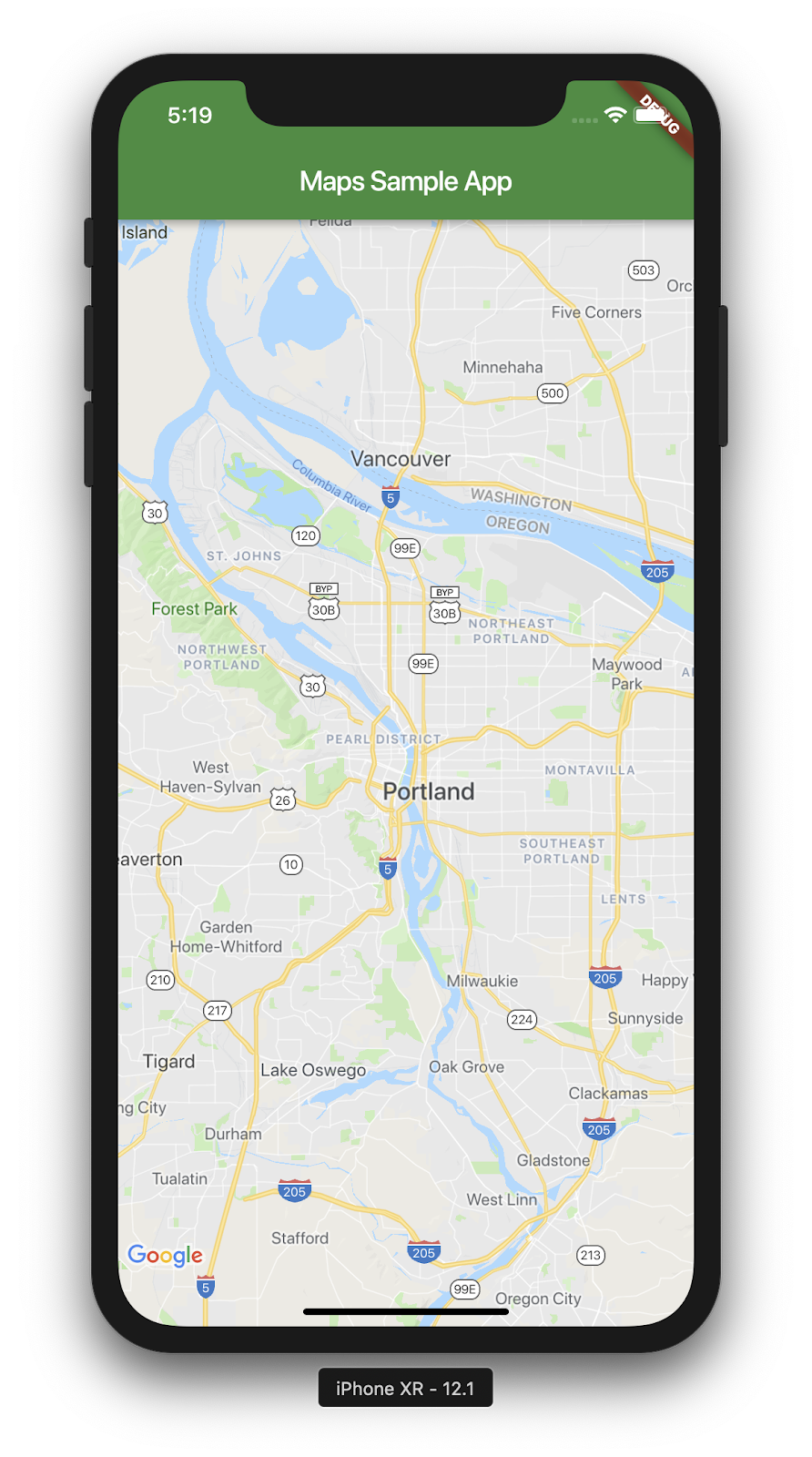
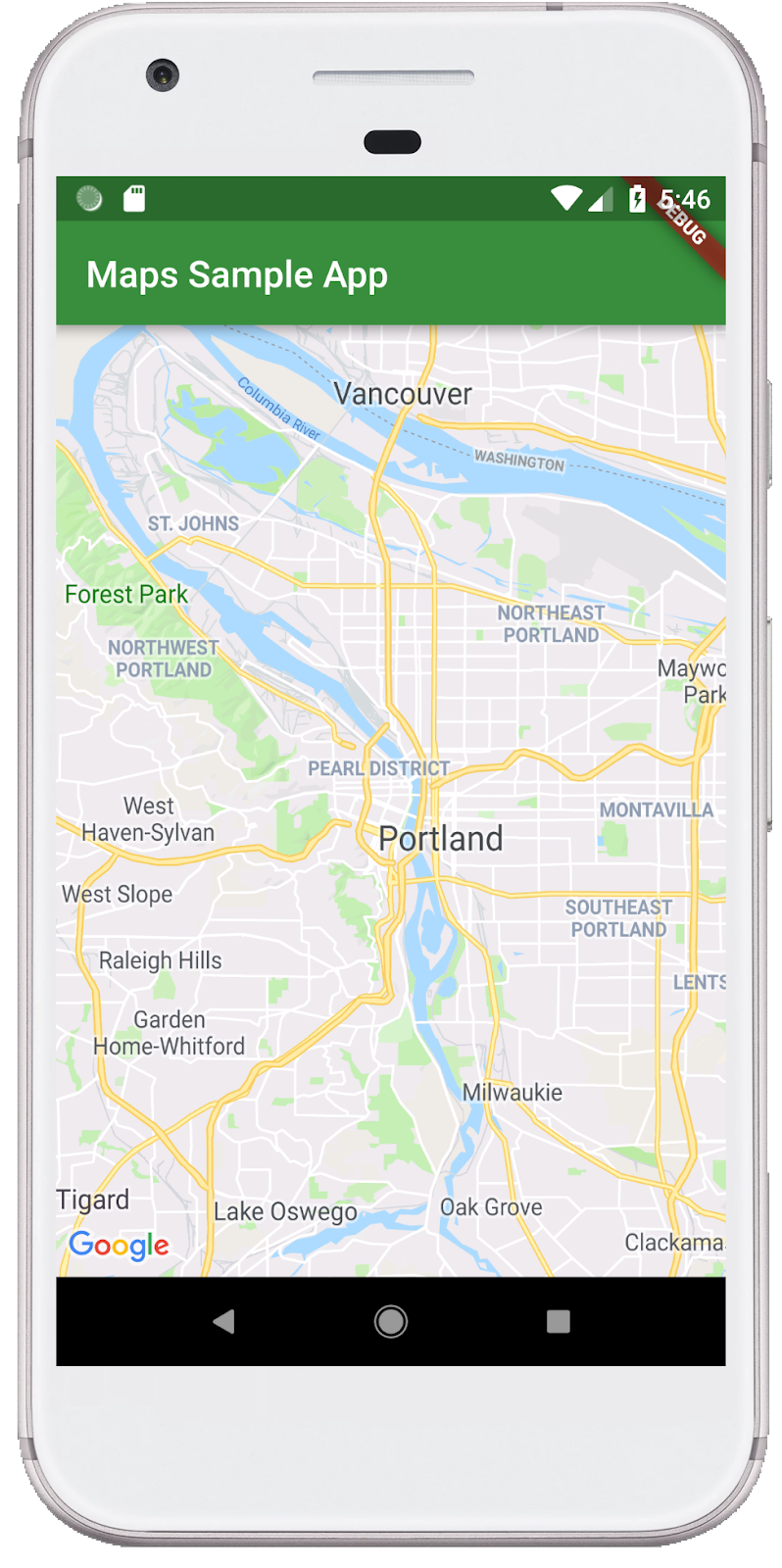
在 iOS 或 Android 中執行 Flutter 應用程式,即可看到以波特蘭為中心的地圖檢視畫面。或者,也可以執行 Android 模擬器或 iOS 模擬器。你可以隨意修改地圖中心,代表你的家鄉或對你來說重要的地方。
$ flutter run
|
|
5. 在 Google 地圖上加入商家資訊
Google 在全球各地設有許多辦公室,包括北美、拉丁美洲、歐洲、亞太地區,以及非洲和中東。如果您研究這些地圖,會發現它們提供易於使用的 API 端點,可採用 JSON 格式提供辦公室位置資訊。在這個步驟中,您會在 Google 地圖上標示這些辦公室地點。在這個步驟中,您會使用程式碼生成功能剖析 JSON。
在專案中新增三個 Flutter 依附元件,如下所示。新增 http 套件,輕鬆發出 HTTP 要求;新增 json_serializable 和 json_annotation,宣告用於表示 JSON 文件的物件結構;新增 build_runner,支援程式碼產生作業。
$ flutter pub add http json_annotation json_serializable dev:build_runner
Resolving dependencies...
Downloading packages...
+ _fe_analyzer_shared 67.0.0 (68.0.0 available)
+ analyzer 6.4.1 (6.5.0 available)
+ args 2.5.0
+ build 2.4.1
+ build_config 1.1.1
+ build_daemon 4.0.1
+ build_resolvers 2.4.2
+ build_runner 2.4.9
+ build_runner_core 7.3.0
+ built_collection 5.1.1
+ built_value 8.9.2
+ checked_yaml 2.0.3
+ code_builder 4.10.0
+ convert 3.1.1
+ crypto 3.0.3
+ dart_style 2.3.6
+ file 7.0.0
+ fixnum 1.1.0
+ frontend_server_client 4.0.0
+ glob 2.1.2
+ graphs 2.3.1
+ http 1.2.1
+ http_multi_server 3.2.1
+ http_parser 4.0.2
+ io 1.0.4
  js 0.6.7 (0.7.1 available)
+ json_annotation 4.9.0
+ json_serializable 6.8.0
  leak_tracker 10.0.4 (10.0.5 available)
  leak_tracker_flutter_testing 3.0.3 (3.0.5 available)
+ logging 1.2.0
  material_color_utilities 0.8.0 (0.11.1 available)
  meta 1.12.0 (1.14.0 available)
+ mime 1.0.5
+ package_config 2.1.0
+ pool 1.5.1
+ pub_semver 2.1.4
+ pubspec_parse 1.2.3
+ shelf 1.4.1
+ shelf_web_socket 1.0.4
+ source_gen 1.5.0
+ source_helper 1.3.4
  test_api 0.7.0 (0.7.1 available)
+ timing 1.0.1
+ typed_data 1.3.2
+ watcher 1.1.0
+ web_socket_channel 2.4.5
+ yaml 3.1.2
Changed 42 dependencies!
8 packages have newer versions incompatible with dependency constraints.
Try `flutter pub outdated` for more information.
透過程式碼生成剖析 JSON
您可能已注意到,API 端點傳回的 JSON 資料具有一般結構。如果能產生程式碼,將該資料封送至可在程式碼中使用的物件,會很方便。
在 lib/src 目錄中建立 locations.dart 檔案,並描述傳回的 JSON 資料結構,如下所示:
lib/src/locations.dart
import 'dart:convert';

import 'package:flutter/foundation.dart';
import 'package:flutter/services.dart' show rootBundle;
import 'package:http/http.dart' as http;
import 'package:json_annotation/json_annotation.dart';

part 'locations.g.dart';

@JsonSerializable()
class LatLng {
  LatLng({
    required this.lat,
    required this.lng,
  });

  factory LatLng.fromJson(Map<String, dynamic> json) => _$LatLngFromJson(json);
  Map<String, dynamic> toJson() => _$LatLngToJson(this);

  final double lat;
  final double lng;
}

@JsonSerializable()
class Region {
  Region({
    required this.coords,
    required this.id,
    required this.name,
    required this.zoom,
  });

  factory Region.fromJson(Map<String, dynamic> json) => _$RegionFromJson(json);
  Map<String, dynamic> toJson() => _$RegionToJson(this);

  final LatLng coords;
  final String id;
  final String name;
  final double zoom;
}

@JsonSerializable()
class Office {
  Office({
    required this.address,
    required this.id,
    required this.image,
    required this.lat,
    required this.lng,
    required this.name,
    required this.phone,
    required this.region,
  });

  factory Office.fromJson(Map<String, dynamic> json) => _$OfficeFromJson(json);
  Map<String, dynamic> toJson() => _$OfficeToJson(this);

  final String address;
  final String id;
  final String image;
  final double lat;
  final double lng;
  final String name;
  final String phone;
  final String region;
}

@JsonSerializable()
class Locations {
  Locations({
    required this.offices,
    required this.regions,
  });

  factory Locations.fromJson(Map<String, dynamic> json) =>
      _$LocationsFromJson(json);
  Map<String, dynamic> toJson() => _$LocationsToJson(this);

  final List<Office> offices;
  final List<Region> regions;
}

Future<Locations> getGoogleOffices() async {
  const googleLocationsURL = 'https://about.google/static/data/locations.json';

  // Retrieve the locations of Google offices
  try {
    final response = await http.get(Uri.parse(googleLocationsURL));
    if (response.statusCode == 200) {
      return Locations.fromJson(
          json.decode(response.body) as Map<String, dynamic>);
    }
  } catch (e) {
    if (kDebugMode) {
      print(e);
    }
  }

  // Fallback for when the above HTTP request fails.
  return Locations.fromJson(
    json.decode(
      await rootBundle.loadString('assets/locations.json'),
    ) as Map<String, dynamic>,
  );
}
加入這段程式碼後,IDE (如果您有使用) 應該會顯示一些紅色波浪線,因為這段程式碼會參照不存在的同層級檔案 locations.g.dart.。這個產生的檔案會在未輸入型別的 JSON 結構和具名物件之間轉換。請執行下列 build_runner 建立該檔案:
$ dart run build_runner build --delete-conflicting-outputs
[INFO] Generating build script...
[INFO] Generating build script completed, took 357ms

[INFO] Creating build script snapshot......
[INFO] Creating build script snapshot... completed, took 10.5s

[INFO] There was output on stdout while compiling the build script snapshot, run with `--verbose` to see it (you will need to run a `clean` first to re-snapshot).

[INFO] Initializing inputs
[INFO] Building new asset graph...
[INFO] Building new asset graph completed, took 646ms

[INFO] Checking for unexpected pre-existing outputs....
[INFO] Deleting 1 declared outputs which already existed on disk.
[INFO] Checking for unexpected pre-existing outputs. completed, took 3ms

[INFO] Running build...
[INFO] Generating SDK summary...
[INFO] 3.4s elapsed, 0/3 actions completed.
[INFO] Generating SDK summary completed, took 3.4s

[INFO] 4.7s elapsed, 2/3 actions completed.
[INFO] Running build completed, took 4.7s

[INFO] Caching finalized dependency graph...
[INFO] Caching finalized dependency graph completed, took 36ms

[INFO] Succeeded after 4.8s with 2 outputs (7 actions)
您的程式碼現在應該可以再次順利分析。接著,我們應加入 getGoogleOffices 函式中使用的備用 locations.json 檔案。納入這個備援的原因之一,是這個函式載入的靜態資料不含 CORS 標頭,因此無法在網頁瀏覽器中載入。Android 和 iOS Flutter 應用程式不需要 CORS 標頭,但行動數據存取權在最佳情況下也可能不穩定。
在瀏覽器中前往 https://about.google/static/data/locations.json,然後將內容儲存到資產目錄。或者,您也可以使用下列指令列。
$ mkdir assets
$ cd assets
$ curl -o locations.json https://about.google/static/data/locations.json
  % Total    % Received % Xferd  Average Speed   Time    Time     Time  Current
                                 Dload  Upload   Total   Spent    Left  Speed
100 30348  100 30348    0     0  75492      0 --:--:-- --:--:-- --:--:-- 75492
下載資產檔案後,請將其新增至 pubspec.yaml 檔案的 Flutter 部分。
pubspec.yaml
flutter:
  uses-material-design: true

  assets:
    - assets/locations.json
修改 main.dart 檔案以要求地圖資料,然後使用傳回的資訊將辦公室新增至地圖:
lib/main.dart
import 'package:flutter/material.dart';
import 'package:google_maps_flutter/google_maps_flutter.dart';
import 'src/locations.dart' as locations;

void main() {
  runApp(const MyApp());
}

class MyApp extends StatefulWidget {
  const MyApp({super.key});

  @override
  State<MyApp> createState() => _MyAppState();
}

class _MyAppState extends State<MyApp> {
  final Map<String, Marker> _markers = {};
  Future<void> _onMapCreated(GoogleMapController controller) async {
    final googleOffices = await locations.getGoogleOffices();
    setState(() {
      _markers.clear();
      for (final office in googleOffices.offices) {
        final marker = Marker(
          markerId: MarkerId(office.name),
          position: LatLng(office.lat, office.lng),
          infoWindow: InfoWindow(
            title: office.name,
            snippet: office.address,
          ),
        );
        _markers[office.name] = marker;
      }
    });
  }

  @override
  Widget build(BuildContext context) {
    return MaterialApp(
      theme: ThemeData(
        useMaterial3: true,
        colorSchemeSeed: Colors.green[700],
      ),
      home: Scaffold(
        appBar: AppBar(
          title: const Text('Google Office Locations'),
          elevation: 2,
        ),
        body: GoogleMap(
          onMapCreated: _onMapCreated,
          initialCameraPosition: const CameraPosition(
            target: LatLng(0, 0),
            zoom: 2,
          ),
          markers: _markers.values.toSet(),
        ),
      ),
    );
  }
}
這段程式碼會執行多項作業:
- 在
_onMapCreated中,它會使用上一步的 JSON 剖析程式碼,await直到載入為止。然後使用傳回的資料,在setState()回呼中建立Marker。應用程式收到新標記後,setState 會標記 Flutter 重新繪製畫面,顯示辦公室位置。 - 標記會儲存在與
GoogleMap小工具相關聯的Map中。這樣標記就會連結至正確的地圖。當然,您也可以有多張地圖,並在每張地圖中顯示不同的標記。
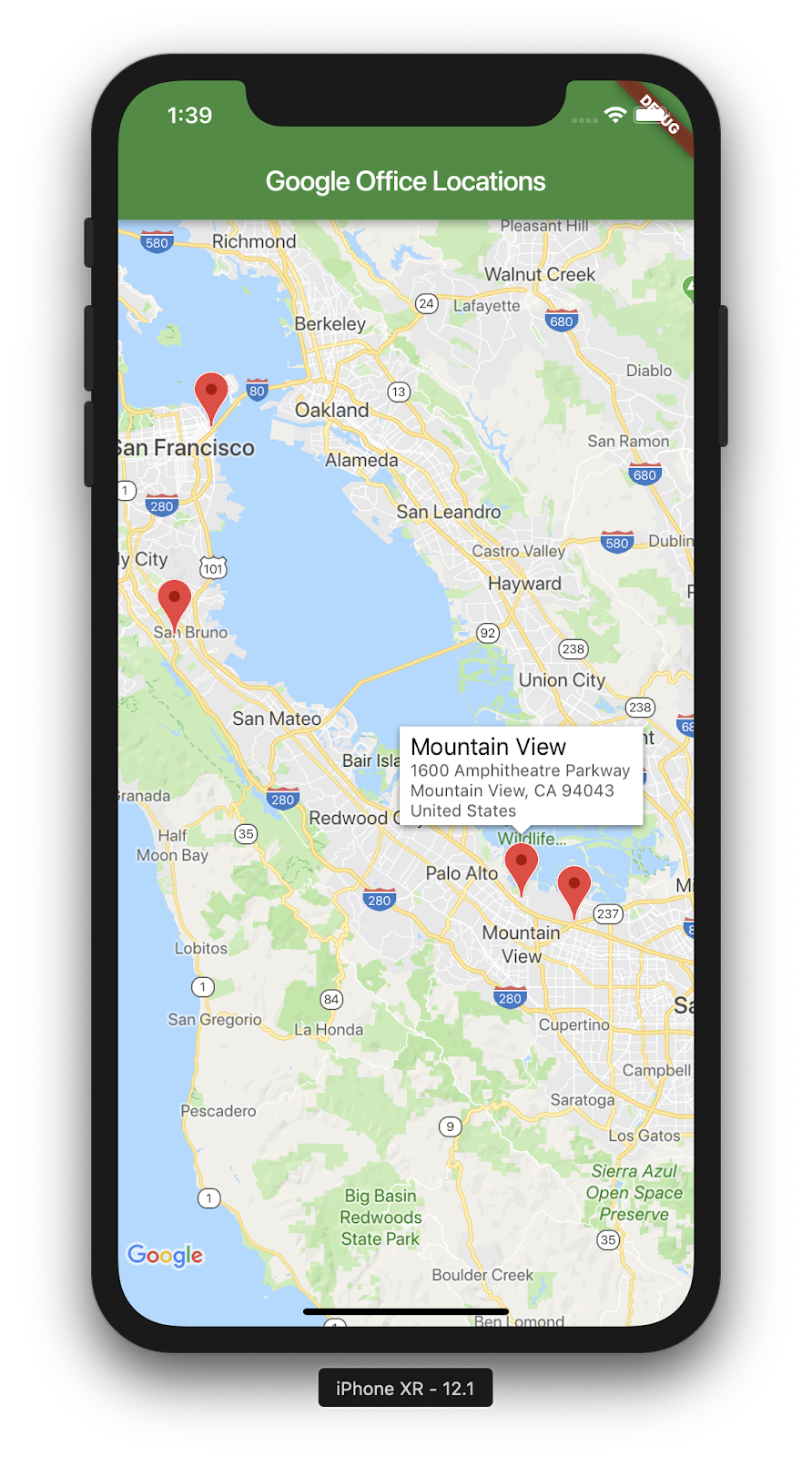
以下是您完成的畫面截圖。此時可以新增許多有趣的內容,舉例來說,您可以新增辦公室的清單檢視畫面,讓地圖在使用者點選辦公室時移動並縮放,但如您所知,這項練習留給讀者!
6. 後續步驟
恭喜!
您已完成程式碼研究室,並建構了含有 Google 地圖的 Flutter 應用程式!您也曾與 JSON Web 服務互動。
其他後續步驟
本程式碼研究室已建構相關體驗,可在地圖上顯示多個點。許多行動應用程式都運用這項功能,滿足各種不同的使用者需求。如要進一步瞭解這項功能,請參閱下列資源:
- 使用 Flutter 和 Google 地圖建構行動應用程式 (在 Cloud Next 2019 大會上發表的演講)
- Hadrien Lejard 的
google_maps_webservice套件可輕鬆使用 Google 地圖網路服務,例如 Directions API、Distance Matrix API 和 Places API。 - 如要查看透過 JSON REST 使用 API 的不同選項,請參閱 Andrew Brogdon 的 Medium 貼文,瞭解使用 JSON REST API 的各種選項。