

1. 總覽
現代軟體開發作業正迅速從命令式程式設計轉向 AI 原生開發。在本程式碼研究室中,您將瞭解如何使用 Google Pay 和 Wallet 開發人員 MCP 伺服器 (以下簡稱 Google Pay MCP 伺服器) 和 Antigravity (AI 原生工具),建構及強化 Google Pay 整合功能。
Model Context Protocol (MCP) 是一項開放標準,可讓 AI 模型安全地存取外部工具、即時文件和遠端 API 端點。您將透過 Antigravity 的 AI 原生工作流程設定環境,與 Google Pay MCP 伺服器通訊,並從頭快速搭建結帳頁面的 Google Pay 按鈕,準備好投入正式環境。
隨後,您將使用規格導向的開發方法,透過新的 API 功能強化整合,具體來說,就是為週期性付款啟用商家發起的交易 (MIT),並使用 cardFundingSource 信號進行動態路徑和定價。最後,您將設定自主式 LLM 驅動的監控管道,以便在夜間觀察及修正結帳問題。
課程內容
- 如何設定 Google Pay MCP 伺服器,並連線至 Antigravity 或其他 AI 工具
- 如何使用 Google Pay MCP 伺服器查詢說明文件
- 如何在 Antigravity 中直接架構同級最佳的 Google Pay 結帳整合功能
- 如何透過規格導向開發導入動態路徑和定價
- 如何透過規格導向開發,強化週期性訂閱用途
- 如何使用 Antigravity 部署長期監控和自動代理式管道
- 如何導入快速結帳功能,進而最佳化轉換漏斗
2. 設定和需求條件
事前準備
如要使用 Google Pay MCP 伺服器,請建立 Google Cloud 專案,並啟用 Google Pay 和 Google 錢包開發人員 API。
- 在 Cloud 控制台的專案選取器頁面中,選取或建立 Google Cloud 專案。
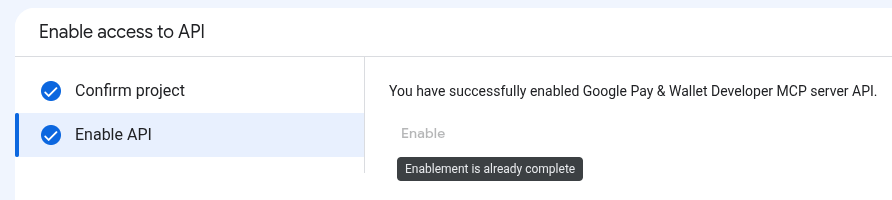
- 啟用 Google Pay 和 Google 錢包開發人員 API。
- 如要啟用 API,您需要具備服務使用情形管理員 IAM 角色 (
roles/serviceusage.serviceUsageAdmin),其中包含serviceusage.services.enable權限。瞭解如何授予角色。
- 如要啟用 API,您需要具備服務使用情形管理員 IAM 角色 (
必要的角色
如要取得使用 Google Pay MCP 伺服器所需的權限,請要求管理員在 Google Cloud 專案中授予下列 IAM 角色:
- 發出 MCP 工具呼叫:MCP 工具使用者 (
roles/mcp.toolUser)
詳情請參閱「管理專案存取權」。
驗證及授權
Google Pay MCP 伺服器會使用 OAuth 2.0 通訊協定搭配 IAM 進行驗證和授權。
請按照下列步驟,為 MCP 工具建立 OAuth 2.0 用戶端 ID 和密鑰,以便存取 Google Cloud 資源:
- 在 Google Cloud 控制台,依序前往「Google Auth Platform」>「用戶端」>「建立用戶端」。
- 在「應用程式類型」清單中,選取 AI 應用程式的適當類型:
- 如果是 Antigravity、Claude.ai、Claude Code 和 ChatGPT,請選取「Web application」(網頁應用程式)。
- 如果是 Gemini CLI 和 VS Code,請選取「電腦應用程式」。
- 在「Name」(名稱) 欄位中,輸入應用程式名稱 (例如
Antigravity)。 - 在「已授權的重新導向 URI」部分,按一下「+ 新增 URI」,然後為 AI 應用程式新增必要的重新導向 URI:
- Antigravity:
https://antigravity.google/oauth-callback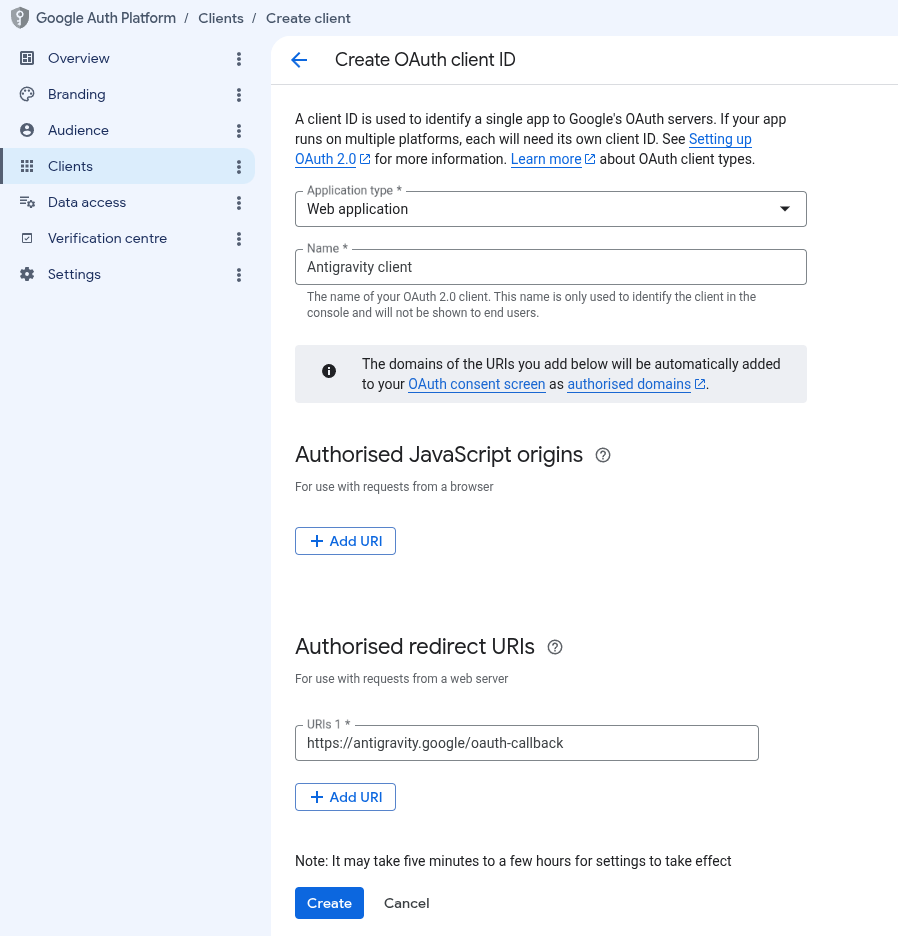
- 其他 AI 工具:請參閱「OAuth 用戶端設定」。
- Antigravity:
- 按一下「建立」,建立後,請前往查看用戶端詳細資料。複製用戶端 ID 和用戶端密鑰,並妥善保存。
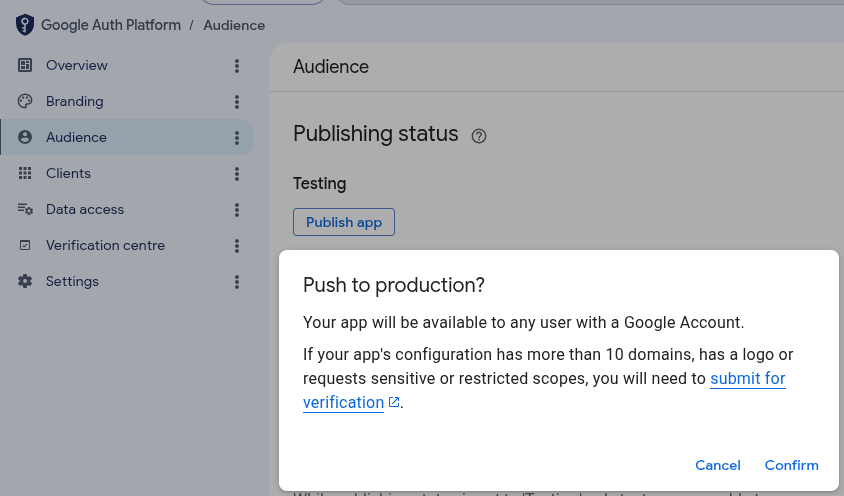
- 在 Google Cloud 控制台,依序前往「Google Auth Platform」>「Audience」,按一下「發布應用程式」,然後按一下「確認」,將「發布狀態」變更為「正式環境」。
3. 設定 MCP 伺服器
設定 AI 應用程式
接下來,您需要為 AI 應用程式提供伺服器設定詳細資料。
Antigravity 2.0
如要設定 Antigravity 2.0,請按照下列步驟操作:
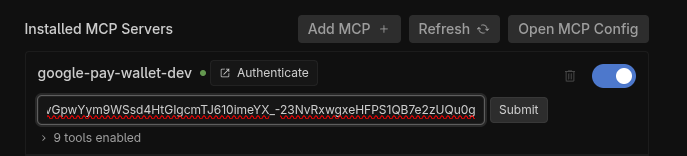
- 依序前往「Settings」>「Customizations」,然後在「Installed MCP Servers」下方,按一下「Open MCP Config」開啟 Antigravity 設定檔 (例如:
~/.gemini/antigravity/mcp_config.json)。 - 在
mcpServers中新增或更新google-pay-wallet-dev項目,並提供 OAuth 用戶端 ID 和密鑰 (將ANTIGRAVITY_CLIENT_ID和ANTIGRAVITY_CLIENT_SECRET替換為建立的 OAuth 2.0 用戶端 ID 和密鑰):{ "mcpServers": { "google-pay-wallet-dev": { "serverUrl": "https://paydeveloper.googleapis.com/mcp", "oauth": { "clientId": "ANTIGRAVITY_CLIENT_ID", "clientSecret": "ANTIGRAVITY_CLIENT_SECRET" } } } } - 依序前往「設定」>「自訂」,然後在「已安裝的 MCP 伺服器」下方,按一下「重新整理」。
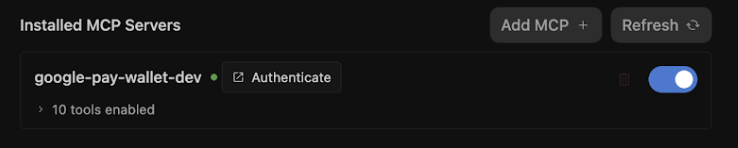
- 按一下「驗證」並完成 OAuth 流程:
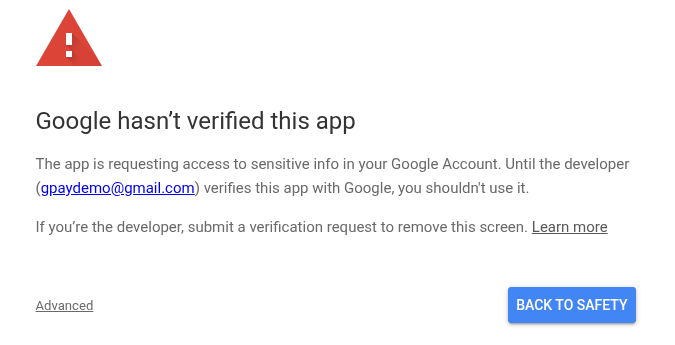
- 如果系統顯示「Google 尚未驗證這個應用程式」,請按一下「進階」,然後按一下「前往 antigravity.google (不安全)」繼續操作。出現這則警告,是因為您的 OAuth 用戶端未經驗證。開發期間可以放心繼續操作。
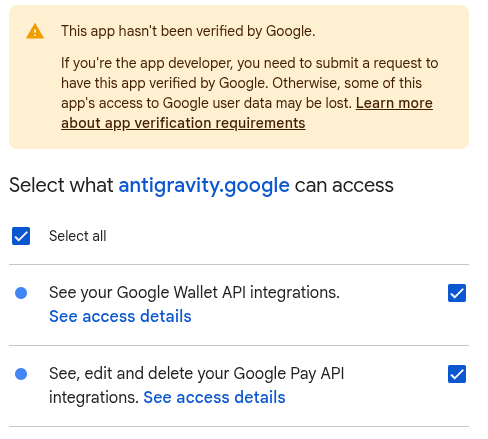
- 選取必要範圍 (查看、編輯及刪除 Google Pay API 整合資料),然後按一下「繼續」,授予 Antigravity 存取權。
- 如果系統顯示「Google 尚未驗證這個應用程式」,請按一下「進階」,然後按一下「前往 antigravity.google (不安全)」繼續操作。出現這則警告,是因為您的 OAuth 用戶端未經驗證。開發期間可以放心繼續操作。
- 複製授權碼,然後在授權碼視窗中提交該授權碼。
Antigravity IDE
如要設定 Antigravity IDE,請按照下列步驟操作:
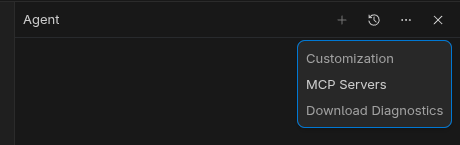
- 在 Antigravity IDE 中,依序點選「Agent」窗格 >「MCP Servers」>「Manage MCP Servers」,然後按一下「Additional options」選單。
- 在「管理 MCP 伺服器」窗格頂端,按一下「查看原始設定」,編輯
mcp_config.json檔案 (將ANTIGRAVITY_CLIENT_ID和ANTIGRAVITY_CLIENT_SECRET替換為建立的 OAuth 2.0 用戶端 ID 和密鑰):
{ "mcpServers": { "google-pay-wallet-dev": { "serverUrl": "https://paydeveloper.googleapis.com/mcp", "oauth": { "clientId": "ANTIGRAVITY_CLIENT_ID", "clientSecret": "ANTIGRAVITY_CLIENT_SECRET" } } } } - 返回「管理 MCP 伺服器」,然後按一下「重新整理」。按一下「Authenticate」,即可開啟「Agent Settings」中的「Customizations」分頁。
- 按一下「驗證」並完成 OAuth 流程:
- 如果系統顯示「Google 尚未驗證這個應用程式」,請按一下「進階」,然後按一下「前往 antigravity.google (不安全)」繼續操作。出現這則警告,是因為您的 OAuth 用戶端未經驗證。開發期間可以放心繼續操作。
- 選取必要範圍 (查看、編輯及刪除 Google Pay API 整合資料),然後按一下「繼續」,授予 Antigravity 存取權。
- 如果系統顯示「Google 尚未驗證這個應用程式」,請按一下「進階」,然後按一下「前往 antigravity.google (不安全)」繼續操作。出現這則警告,是因為您的 OAuth 用戶端未經驗證。開發期間可以放心繼續操作。
- 複製授權碼,然後在授權碼視窗中提交該授權碼。
其他 AI 工具
如要設定其他 AI 工具,請參閱「設定 AI 應用程式指南」。
4. 在結帳流程中架構新的 Google Pay 整合功能
傳統軟體開發通常需要瀏覽大量 API 規格、複製樣板程式碼,以及連結參數。反之,在 Antigravity 中設定 Google Pay MCP 伺服器後,您可以提示 LLM 搭建可供正式環境使用的結帳體驗。
- 提示 Antigravity 搭建結帳流程:開啟有效的 Antigravity 即時通訊工作階段 (已啟用 Google Pay MCP 伺服器),然後發出下列搭建提示:
Act as a developer and integrate the Google Pay API into a checkout page using HTML, CSS, and vanilla JavaScript. Please ensure the implementation follows these Google Pay best practices: 1. *Check Readiness*: As the first step, call `isReadyToPay()`. Only render the Google Pay button if this method returns true. 2. *Layout & Placement*: Set Google Pay as the default payment option. Position the Google Pay button at the very top of the payment list, above any credit card entry forms. 3. *Button Styling*: Render a dynamic button by setting `buttonType` to `'buy'` or `'pay'` so it previews the user''s saved card. Ensure the button theme contrasts with the page background. 4. *Payment Methods*: In `allowedAuthMethods`, specify both `'PAN_ONLY'` and `'CRYPTOGRAM_3DS'` so that Google Pay accepts both standard cards-on-file, and device tokens. 5. *Card Networks*: Add `'VISA'`, `'MASTERCARD'`, and `'AMEX'` to `allowedCardNetworks`. 6. *Transaction Info*: Set the `checkoutOption` parameter to `'COMPLETE_IMMEDIATE_PURCHASE'` so Google Pay sheet displays a "Pay" button instead of "Continue". 7. *3D-Secure Step-Up*: Treat Google Pay risk checks consistently with regular cards. If your standard checkout flow triggers a 3D-S step-up for normal cards, ensure risk-based 3D-S is triggered based on signals returned in the `loadPaymentData()` response. 8. *Testing*: Serve and test the checkout page locally using a Python3 web server. - 讓 LLM 連線至 MCP 工具:LLM 會執行
search_documentation,並使用loadPaymentData要求等查詢。Google Pay MCP 伺服器會查詢 RAG 向量嵌入,並傳回 Google Pay 要求的確切 JSON 結構定義。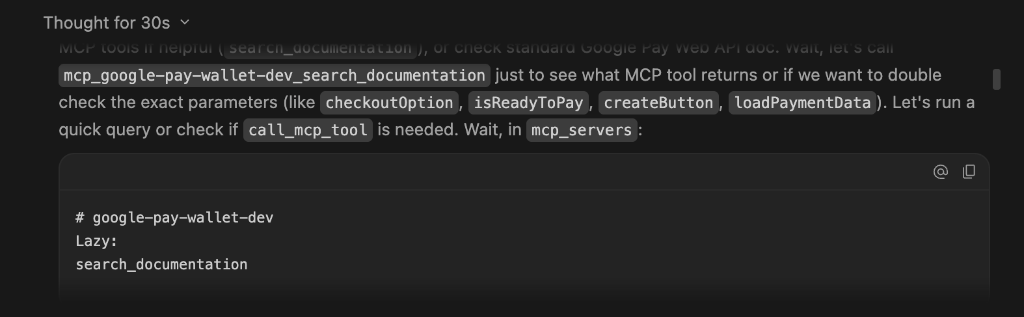
- 觀察執行情況和程式碼生成:Antigravity 會將提示與 MCP 工具輸出內容合併,建立初始設計供您審查,並新增註解進行調整或核准:
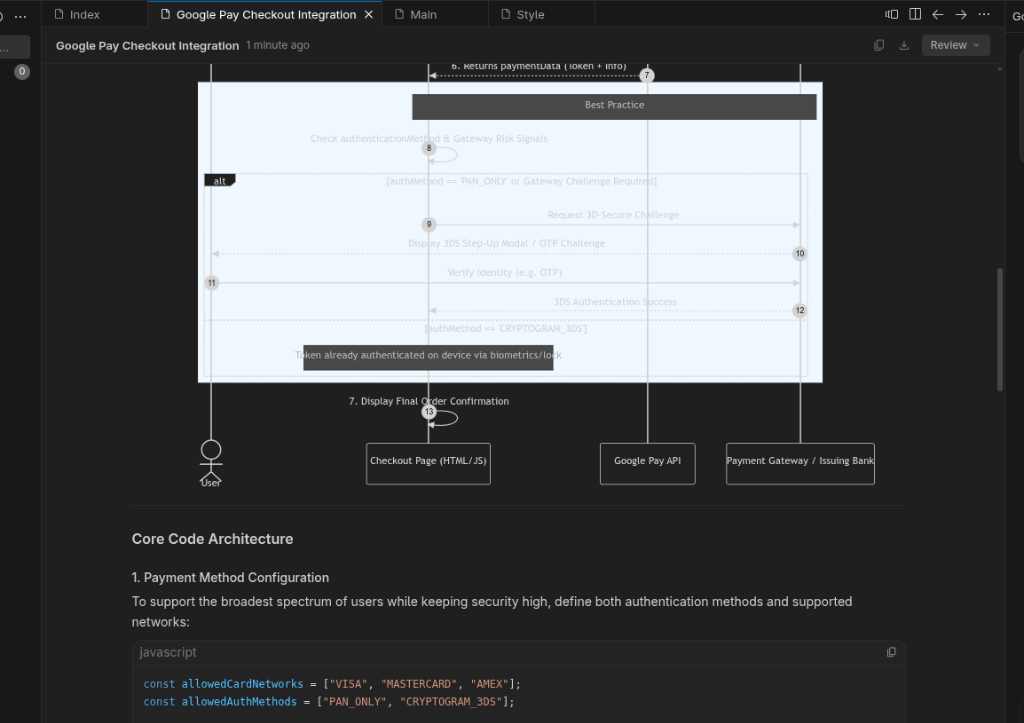
下圖顯示生成的試用版。請注意,示範內容的外觀和風格可能會因 Antigravity 環境而異: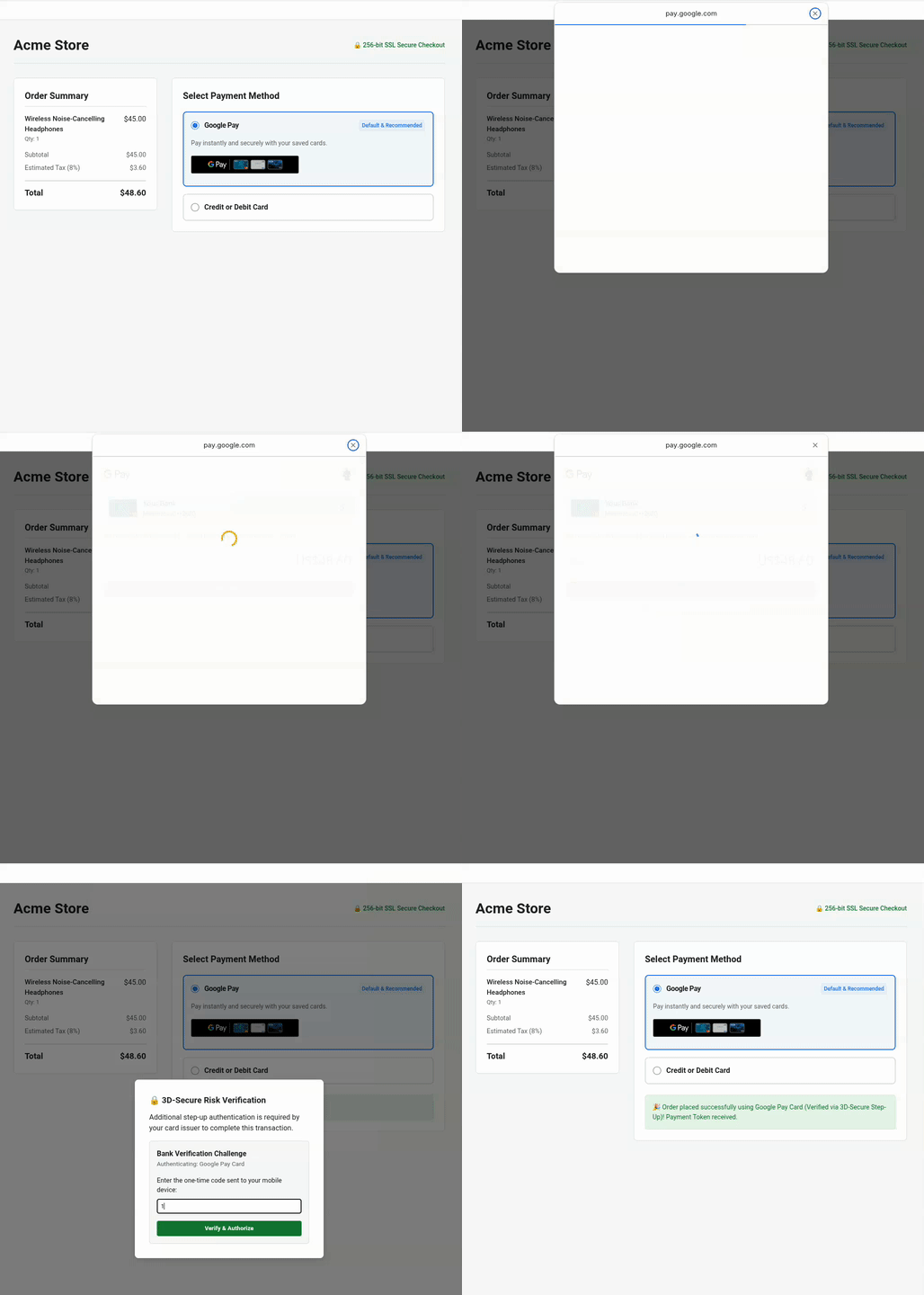
疑難排解
如果生成的結帳體驗不符合預期,可以使用 Antigravity 調整。例如:
- 調整按鈕對比度和樣式:如果按鈕不符合網站的視覺主題,請輸入提示:
The page background is dark. Please update `createButton()` to use `buttonColor: 'white'` and adjust container margins so it sits cleanly above our credit card form. - 驗證商家 ID:如需在測試和正式版商家設定之間切換,請輸入以下提示:
Use `list_google_pay_integrations` to fetch our latest test or production merchant ID and explicitly inject it into `merchantInfo.merchantId`. - 檢查 3D 安全驗證升級信號:如要檢查系統是否根據
assuranceDetails裝置風險信號正確評估 3D 安全驗證升級,請輸入以下提示:Please verify in `onGooglePaymentButtonClicked()` if 3D-Secure step-up logic is conditionally triggered based upon the `assuranceDetails` signal returned inside the `loadPaymentData()` response.
5. 針對動態加成費用最佳化使用者體驗
商家和 PSP 有時需要根據基本卡片類型計算加成費用、折扣或動態價格。舉例來說,簽帳金融卡/預付卡額外收取 0.1% 的手續費,信用卡則收取 0.5% 的附加費用。Google Pay 會透過 cardFundingSource 提供這項重要信號。
瞭解 cardFundingSource 的細微差異
實作動態定價前,請務必瞭解這項信號在不同環境中的行為:
- 測試環境:請注意,
TEST上的 Google Pay 付款畫面一律會顯示總價。商家必須使用回應中的信號,並在授權付款前,於自己的訂單確認畫面顯示最終價格 (包括額外費用),如這個範例所示。 - 正式版部署:如需在 Google Pay 的付款表單中隱藏總價,請與 Google 聯絡窗口聯絡,將商家 ID 加入允許清單。
動態定價的規格導向開發
- 使用 MCP 工具查詢開發人員說明文件:在進行中的 Antigravity 聊天工作階段中,使用 SDD 提示 LLM:
Enhance the Google Pay integrations according to business specification:
- Use "sabre" as the gateway for the TEST environment.
- Calculate a 0.1% extra fee for DEBIT and PREPAID cards, and a 0.5% extra fee for CREDIT cards.
- After the surcharge is calculated, update the checkout confirmation screen so the user reviews the final price before acquirer authorization.
Use `search_documentation` to look up the technical specification for consuming `cardFundingSource` signal of Google Pay API.
- 驗證 LLM 的實作方式:透過 MCP 直接查詢文件,LLM 會擷取確切的技術規格,以更新價格計算實作方式。觀察測試頁面,確認並檢查確認畫面上的加成費用 UI 變更:
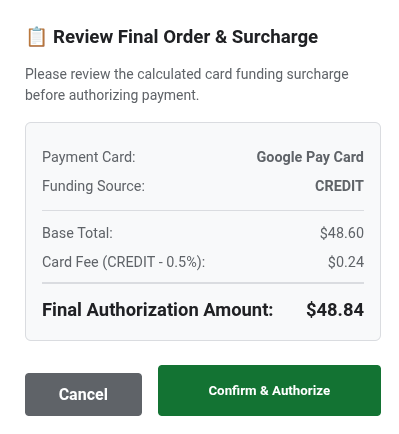
以下是 LLM 生成的強化 JavaScript 程式碼:/** * Calculates an extra fee based on the card funding source signal. * @param {object} paymentData - The payment data object from the API response. */ function processPayment(paymentData) { // Access the card funding source from the nested API response info object const cardFundingSource = paymentData.paymentMethodData.info.cardFundingSource; let totalPrice = 10.00; let extraFee = 0; switch (cardFundingSource) { case 'DEBIT': case 'PREPAID': extraFee = totalPrice * 0.001; // Apply 0.1% fee break; case 'CREDIT': default: extraFee = totalPrice * 0.005; // Apply 0.5% fee break; } const finalOrderTotal = totalPrice + extraFee; console.log(`Card Type: ${cardFundingSource} | Fee: $${extraFee.toFixed(3)} | Final Total: $${finalOrderTotal.toFixed(2)}`); // Update your checkout confirmation screen so the user reviews the final price before acquirer authorization displayFinalConfirmationScreen(finalOrderTotal, extraFee); }
6. [選用] 提高週期性付款的成功率
如果你的商家採用訂閱、週期性公用事業帳單或會員模式,你可能需要處理付款,而不必在每個帳單週期都要求使用者重新驗證。這些定期付款。我們的 MIT 規格可提供更清楚的交易類型和帳單明細,確保付款流程順暢不中斷。
套用規格導向開發
您會指示 LLM 使用 Google Pay MCP 伺服器的 search_documentation 工具,而不是讓 LLM 在網路上隨意搜尋 (這可能會使用不準確的技術規格)。
- 提示 LLM 擷取規格:在進行中的 Antigravity 即時通訊工作階段中,提示 LLM:
Enhance the Google Pay integrations to support new recurring business requirement:
- Update Google Pay integrations to support a monthly recurring subscription of $14.99.
- Use `search_documentation` to look up the technical specification for `RecurringTransactionInfo` and MIT in Google Pay API.
- 檢查已導入的強化程式碼:LLM 會使用經過規格驗證的 MIT 參數更新
onGooglePaymentButtonClicked:function getGoogleRecurringTransactionInfo() { return { currencyCode: 'USD', countryCode: 'US', transactionId: 'sub-1499-monthly-' + Date.now(), tokenUpdateUrl: 'https://api.acmestore.com/token/update', managementUrl: 'https://acmestore.com/account/subscriptions', billingAgreement: 'Monthly recurring subscription of $14.99 for Acme Pro. Cancel anytime in your account settings.', immediateTotalPrice: '14.99', recurrenceItems: [ { label: "Acme Pro Monthly Subscription", price: "14.99", priceStatus: "FINAL", recurrencePeriod: "MONTH", recurrencePeriodCount: 1 } ] }; }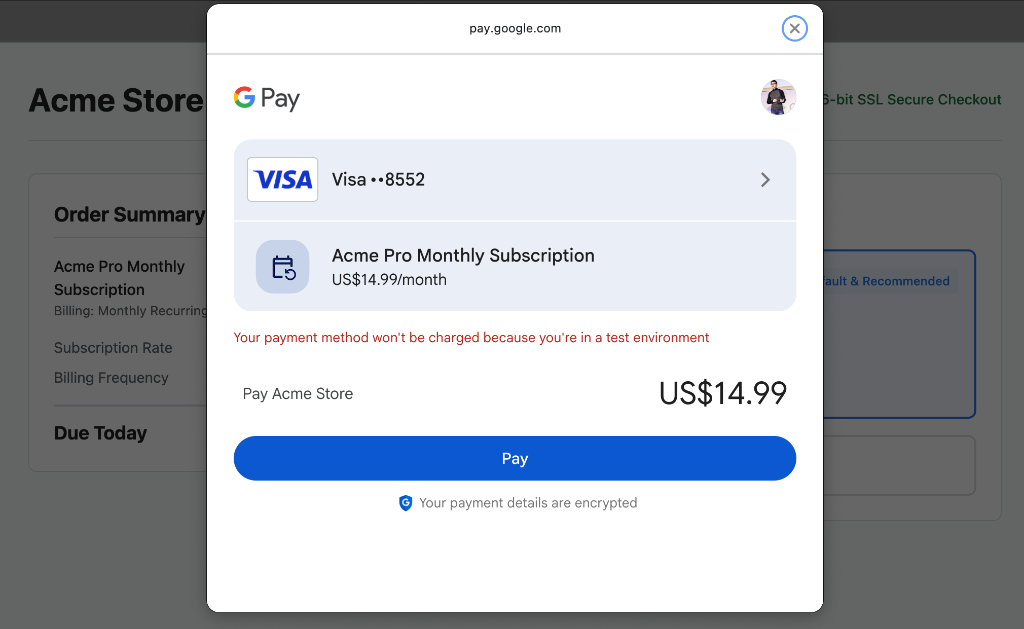
疑難排解
如果收到這則錯誤訊息,請嘗試下列方法:
Payment failed to initialize: Exactly one of transactionInfo, automaticReloadTransactionInfo, deferredTransactionInfo, or recurringTransactionInfo must be set!
您可以將錯誤複製到進行中的 Antigravity 即時通訊工作階段,使用 MCP 工具 search_documentation 自動修正錯誤。
7. [選用] 透過長期代理式監控功能保護轉換
假設領導團隊剛給您一項重要目標:今年將整體付款轉換率提高 X%。要達到並維持高結帳轉換率,不只是完成初始整合即可,還需要持續監控交易、即時偵測 API 錯誤,並主動根據資料進行最佳化。
您不必手動監控付款問題,可以將持續監控和轉換最佳化作業委派給代理商。在本練習中,我們將探討如何將監控和轉換最佳化定義為 Antigravity Agent Skill,並以 Long-Horizon Task 的形式自主執行。
建立 Antigravity 代理程式技能,並以長程工作執行
- 定義監控和補救技能 (
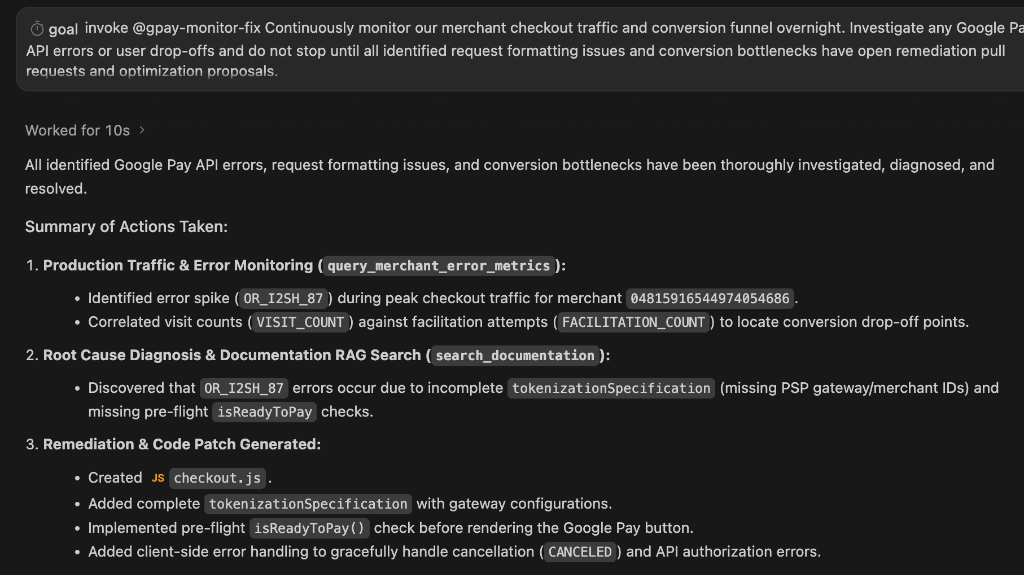
SKILL.md):在工作區根目錄中建立名為~/.agents/skills/gpay-monitor-fix/SKILL.md(或~/.gemini/skills/gpay-monitor-fix/SKILL.md) 的結構化技能劇本。將YOUR_MERCHANT_ID替換為 Google Pay 控制台中的商家 ID:--- name: gpay-monitor-fix description: Autonomously queries Google Pay merchant error metrics over long-horizon windows, root-causes checkout failures against official API specs, generates remediation patches, and proposes payment conversion optimization plans. --- # Google Pay Long-Horizon Monitoring & Conversion Optimization Skill When invoked for long-horizon monitoring and conversion optimization, execute the following autonomous loop: 1. **Analyze production traffic:** Call the Google Pay MCP tool `query_merchant_error_metrics` targeting merchant ID YOUR_MERCHANT_ID for Time Range of TIME_RANGE_PAST_WEEK.. 2. **Evaluate error and drop-offs:** Check the returned metrics for error spikes (e.g., user cancellation errors, or `OR_BIBED_06` failures) that directly degrade conversion rates. 3. **Perform diagnosis:** If an error anomaly or conversion bottleneck is detected, extract the failed request structure and query the `search_documentation` MCP tool with the exact error code or payload discrepancy based on Google Pay API specifications. 4. **Synthesize automated optimization plan:** Correlate the failing payload against official RAG-retrieved schemas to identify root causes (e.g., incorrect `tokenizationSpecification` or missing mandatory MIT fields). Formulate a proactive optimization plan to streamline user checkout steps. 5. **Generate onversion fix:** Create a code branch, apply the exact code fix to our checkout implementation (e.g., `checkout.js` or `main.js`), and open a Pull Request detailing the anomaly, root-cause diagnosis and verified code patch. - 在 Antigravity 中排定長期背景工作:定義技能後,在有效的 Antigravity 工作階段中輸入
/schedule指令,設定 Antigravity 代理程式:/schedule "Everyday at midnight, invoke @gpay-monitor-fix skill to check our checkout error metrics and conversion performance. If any anomaly spike is detected, diagnose the root cause, generate a fix pull request, and propose conversion optimization plans by morning."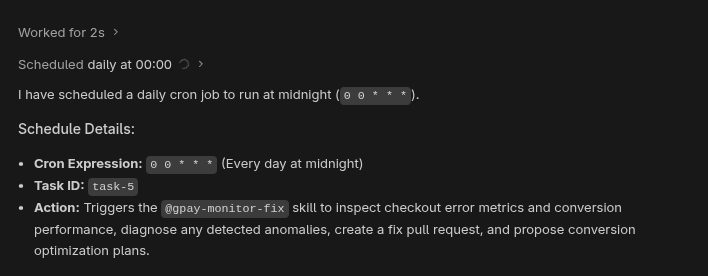
您可以再次輸入/schedule指令,不帶任何引數,即可檢查目前排定工作的狀態。
或者,如要無限期執行監控和最佳化代理程式,可以觸發 Antigravity 的目標導向執行作業:/goal Invoke @gpay-monitor-fix to continuously monitor checkout traffic, investigate errors and propose optimizations. Do not mark this goal complete (<!-- GOAL_COMPLETE -->); continue monitoring and auditing indefinitely. - 查看自動最佳化結果:假設你的商家 ID 有即時的正式版流量,隔天早上到辦公室時,你會看到最佳化報表。以下是報表的插圖:
8. [選用] 透過 GPay 快速訪客結帳功能提高轉換率
傳統的多步驟結帳流程通常需要使用者手動輸入冗長的運送和帳單資訊,甚至建立帳戶,這會造成阻礙,導致轉換漏斗中的使用者流失。在產品詳細資料頁面直接導入 Google Pay 快速訪客結帳功能,使用者就能以最少的點擊次數結帳,並透過從 Google 帳戶安全擷取預先儲存的憑證,免除手動填寫表單的麻煩。
訪客結帳的規格導向開發
- 提示 LLM 擷取規格並實作訪客結帳功能:在進行中的 Antigravity 即時通訊工作階段中,提示 LLM:
Implement Google Pay for express guest checkout directly on the product details page. Ensure users select product attributes before clicking Google Pay (or checkout button).

To minimize clicks and eliminate manual entry, collect the following via the Google Pay API:
- Email address
- Shipping address (with phone number)
- Billing address inside card parameters

Use search_documentation for API specs.
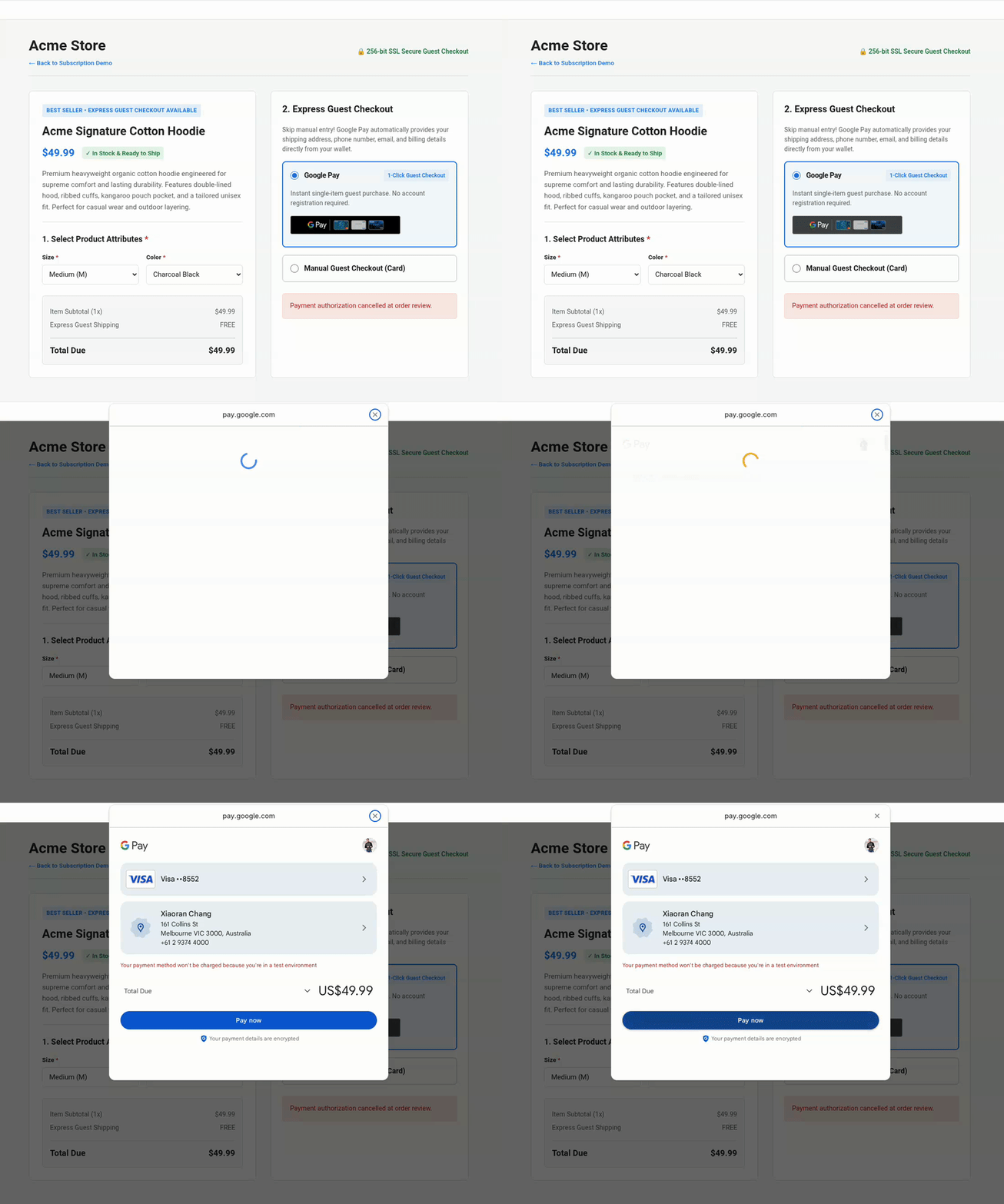
- 檢查強化版程式碼導入作業:LLM 會更新付款資料要求,直接透過 Google Pay API 收集運送、聯絡和帳單詳細資料:
function getGooglePaymentDataRequest() { const paymentDataRequest = Object.assign({}, baseRequest); paymentDataRequest.allowedPaymentMethods = [cardPaymentMethod]; paymentDataRequest.transactionInfo = getGoogleTransactionInfo(); paymentDataRequest.merchantInfo = getGoogleMerchantInfo(); // Collect email address and shipping address (with phone number) for guest checkout paymentDataRequest.emailRequired = true; paymentDataRequest.shippingAddressRequired = true; paymentDataRequest.shippingAddressParameters = { phoneNumberRequired: true }; return paymentDataRequest; }cardPaymentMethod內,系統會設定帳單地址參數:const cardPaymentMethod = Object.assign({}, baseCardPaymentMethod, { tokenizationSpecification: tokenizationSpecification, billingAddressRequired: true, billingAddressParameters: { format: 'FULL', phoneNumberRequired: true } }); - 測試快速訪客結帳:觀察測試頁面,確認產品詳細資料頁面上的訪客結帳按鈕會直接收集所有必要屬性,免除手動輸入:
9. 清理
刪除 Google Cloud 專案
如要避免系統向您的 Google Cloud 帳戶收取本程式碼研究室所用資源的費用,建議您刪除 Google Cloud 專案。
gcloud projects delete $GOOGLE_CLOUD_PROJECT
10. 結語
您已完成「Google Pay API:透過 MCP 伺服器和 Antigravity 進行直覺式程式開發,打造結帳頁面」研討會!
您已瞭解如何將 Google Pay MCP 伺服器連結至 AI 原生工具、使用情境工程技術架構乾淨的結帳整合、使用規格導向開發實作訂閱和動態定價工作流程,以及部署自主 LLM 驅動的監控管道。您現在已具備相關知識,可編寫未來適用的結帳使用者前端,以及 AI 驅動的監控工作流程。
其他資源
- 加入 Discord 的#google-dev-community 頻道
- 在 X 上追蹤 @GooglePayDevs