
1. Introduction
In this lab, you learn to perform the complete workflow of supervised fine-tuning on a Google Gemini model to adapt it for a specific task: article summarization. While large language models are powerful, their general-purpose nature means they can be made even more effective for specific use cases through fine-tuning. By training the model on a high-quality dataset of examples, you can improve its consistency, quality, and efficiency for your target task.
You'll use Gemini 3.5 Flash, a lightweight and cost-efficient model, and perform the fine-tuning using Gemini Enterprise Agent Platform.
Architecture Overview
Here's what we'll build:
- Cloud Shell: Your development environment.
- Cloud Storage: Stores training/validation data in JSONL format.
- Gemini Enterprise Agent Platform Training: Manages the fine-tuning job.
- Gemini Enterprise Agent Platform Endpoint: Hosts your fine-tuned model.
What you'll learn
- Prepare high-quality datasets for supervised fine-tuning.
- Configure and launch fine-tuning jobs using the Gemini Enterprise Agent Platform SDK for Python.
- Evaluate models using automated metrics (ROUGE scores).
- Compare base and fine-tuned models to quantify improvements.
2. Project setup
Google Account
If you don't already have a personal Google Account, you must create a Google Account.
Use a personal account instead of a work or school account.
Sign-in to the Google Cloud Console
Sign-in to the Google Cloud Console using a personal Google account.
Enable Billing
Redeem Google Cloud credits (optional)
To run this workshop, you need a billing account with some credit. Use the credits from the banner at the top of this codelab to get started. If you are already connected to a billing account, you can skip this step.
Create a project (optional)
If you do not have a current project you'd like to use for this lab, create a new project here.
3. Open Cloud Shell Editor
- Click this link to navigate directly to Cloud Shell Editor
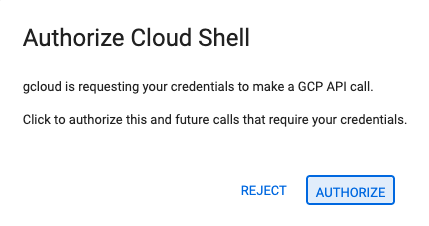
- If prompted to authorize at any point today, click Authorize to continue.
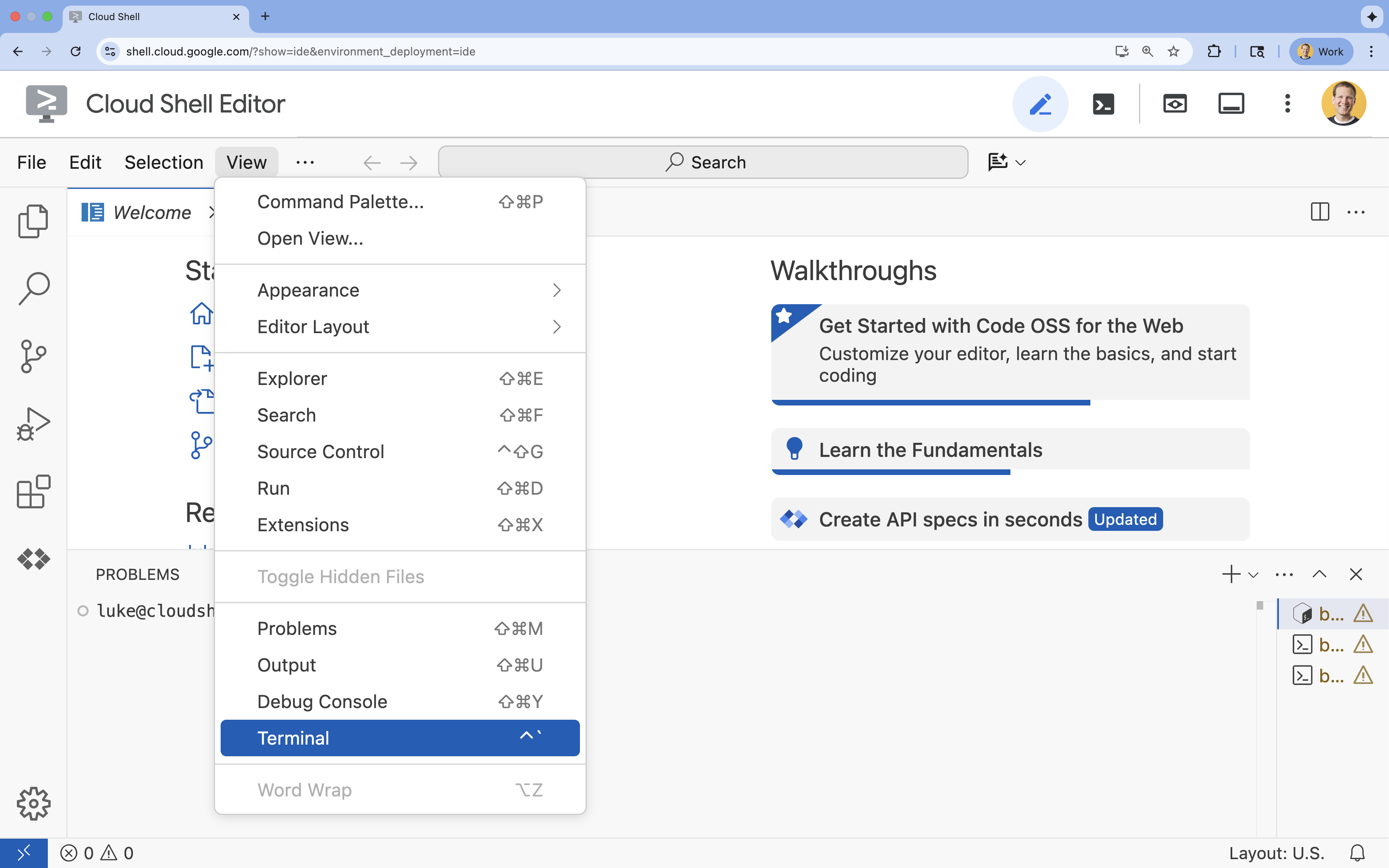
- If the terminal doesn't appear at the bottom of the screen, open it:
- Click View
- Click Terminal
- In the terminal, set your project with this command:
gcloud config set project [PROJECT_ID]- Example:
gcloud config set project lab-project-id-example - If you can't remember your project ID, you can list all your project IDs with:
gcloud projects list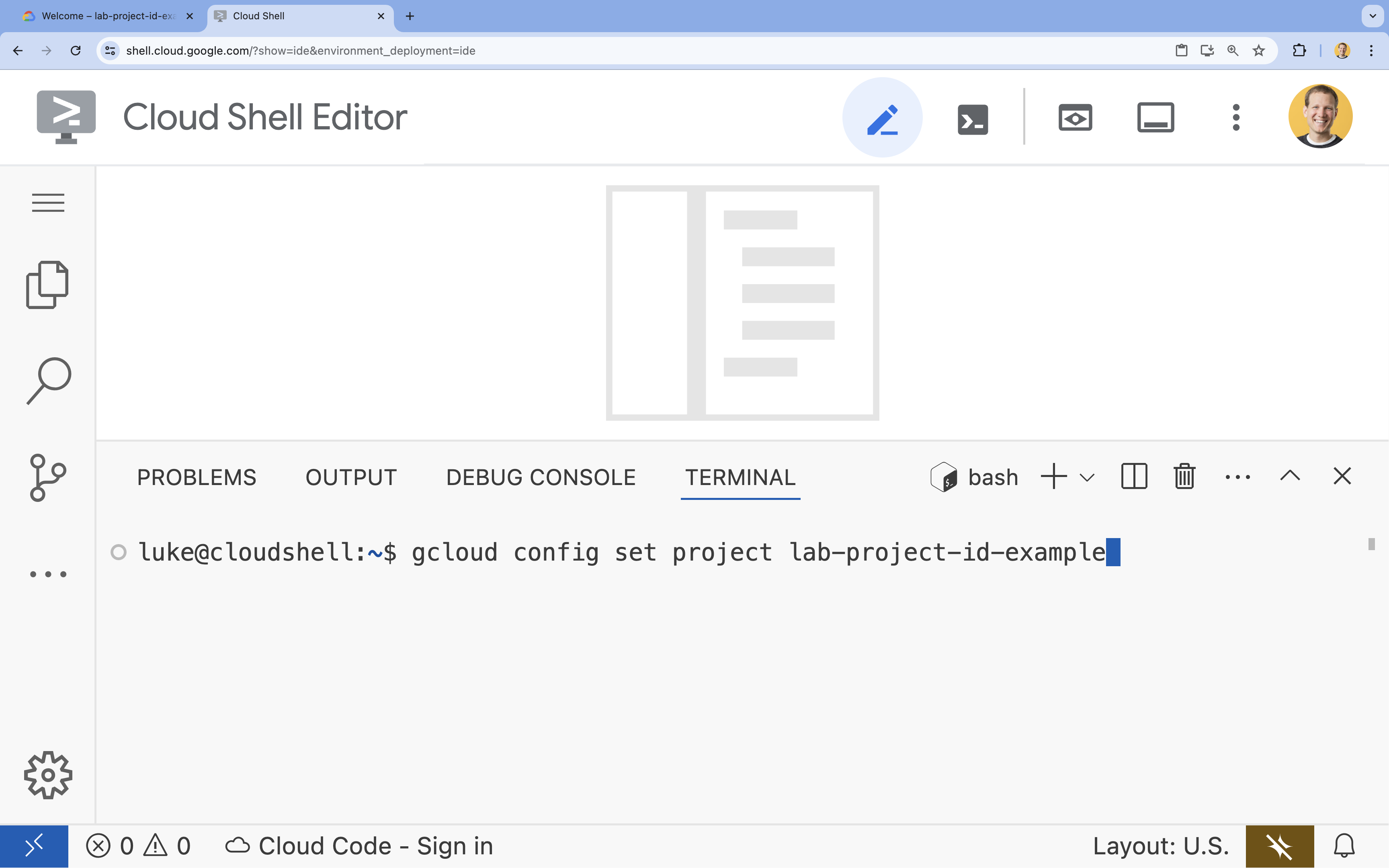
- Example:
- You should see this message:
Updated property [core/project].
4. Enable APIs
To use Gemini Enterprise Agent Platform and other services, you need to enable the necessary APIs in your Google Cloud project.
- In the terminal, enable the APIs:
- Vertex AI API (
aiplatform.googleapis.com): Enables the use of Vertex AI for fine-tuning and serving models. - Cloud Storage API (
storage.googleapis.com): Enables the storage of datasets and model artifacts.
gcloud services enable aiplatform.googleapis.com \ storage.googleapis.com - Vertex AI API (
5. Set up the project environment
Create a working directory
- In the terminal, create a directory for your project and navigate into it.
mkdir gemini-finetuning
cd gemini-finetuning
Set up environment variables
- In the terminal, define the environment variables for your project. We will create an
env.shfile to store these variables so they can be easily reloaded if your session disconnects.cat <<EOF > env.sh export PROJECT_ID=\$(gcloud config get-value project) export REGION="us-central1" export LOCATION="global" export BUCKET_NAME="\${PROJECT_ID}-gemini-tuning" EOF source env.sh
Create a Cloud Storage Bucket
- In the terminal, create a bucket to store your dataset and model artifacts.
gcloud storage buckets create gs://$BUCKET_NAME --project=$PROJECT_ID --location=$REGION
Set up Virtual Environment
- We will use
uvto manage our Python environment. In the terminal, run:uv venv .venv source .venv/bin/activate - In the terminal, install the required Python packages.
uv pip install google-cloud-aiplatform rouge-score matplotlib pandas tqdm
6. Prepare the training data
Quality data is the foundation of successful fine-tuning. You will use the WikiLingua dataset, transform it into the specific JSONL format that Gemini requires, and upload it to your storage bucket.
- In the terminal, create a file named
prepare_data.py.cloudshell edit prepare_data.py - Paste the following code into
prepare_data.py.import json import os import pandas as pd from google.cloud import storage import subprocess # Configuration BUCKET_NAME = os.environ["BUCKET_NAME"] PROJECT_ID = os.environ["PROJECT_ID"] def download_data(): print("Downloading WikiLingua dataset...") # Using gsutil to copy from public bucket subprocess.run(["gsutil", "cp", "gs://github-repo/generative-ai/gemini/tuning/summarization/wikilingua/*", "."], check=True) def convert_to_gemini_format(input_file, output_file, max_samples=1000): print(f"Converting {input_file} to Gemini format (first {max_samples} samples)...") converted_data = [] with open(input_file, 'r') as f: for i, line in enumerate(f): if i >= max_samples: break obj = json.loads(line) messages = obj.get("messages", []) # Convert messages to Gemini format # Input: {"messages": [{"role": "user", "content": "..."}, {"role": "model", "content": "..."}]} # Output: {"contents": [{"role": "user", "parts": [{"text": "..."}]}, {"role": "model", "parts": [{"text": "..."}]}]} contents = [] for msg in messages: role = msg["role"] content = msg["content"] contents.append({ "role": role, "parts": [{"text": content}] }) converted_data.append({"contents": contents}) with open(output_file, 'w') as f: for item in converted_data: f.write(json.dumps(item) + "\n") print(f"Saved {len(converted_data)} examples to {output_file}") def upload_to_gcs(local_file, destination_blob_name): print(f"Uploading {local_file} to gs://{BUCKET_NAME}/{destination_blob_name}...") storage_client = storage.Client(project=PROJECT_ID) bucket = storage_client.bucket(BUCKET_NAME) blob = bucket.blob(destination_blob_name) blob.upload_from_filename(local_file) print("Upload complete.") def main(): download_data() # Process Training Data convert_to_gemini_format("sft_train_samples.jsonl", "train_gemini.jsonl") upload_to_gcs("train_gemini.jsonl", "datasets/train/train_gemini.jsonl") # Process Validation Data convert_to_gemini_format("sft_val_samples.jsonl", "val_gemini.jsonl") upload_to_gcs("val_gemini.jsonl", "datasets/val/val_gemini.jsonl") print("Data preparation complete!") if __name__ == "__main__": main() - In the terminal, run the data preparation script.
python prepare_data.py
7. Establish baseline performance
Before fine-tuning, you need a benchmark. You will measure how well the base gemini-3.5-flash model performs on the summarization task using ROUGE scores.
- In the terminal, create a file named
evaluate.py.cloudshell edit evaluate.py - Paste the following code into
evaluate.py.import argparse import json import os import pandas as pd from google import genai from google.genai import types from rouge_score import rouge_scorer from tqdm import tqdm import matplotlib.pyplot as plt import time # Configuration for Google Gen AI SDK PROJECT_ID = os.environ.get("PROJECT_ID", "") def get_client(model_name): os.environ["GOOGLE_GENAI_USE_ENTERPRISE"] = "true" os.environ["GOOGLE_CLOUD_PROJECT"] = PROJECT_ID if "locations/" in model_name: parts = model_name.split("/") loc = parts[parts.index("locations") + 1] if loc == "us": loc = "us-central1" else: loc = os.environ.get("LOCATION", "global") os.environ["GOOGLE_CLOUD_LOCATION"] = loc return genai.Client() def evaluate(model_name, test_file, max_samples=50, output_json="results.json"): print(f"Evaluating model: {model_name}") client = get_client(model_name) # Load Test Data test_df = pd.read_csv(test_file) test_df = test_df.head(max_samples) config = types.GenerateContentConfig( temperature=0.1, max_output_tokens=1024, ) scorer = rouge_scorer.RougeScorer(['rouge1', 'rouge2', 'rougeL'], use_stemmer=True) results = [] for index, row in tqdm(test_df.iterrows(), total=len(test_df)): input_text = row['input_text'] reference_summary = row['output_text'] try: response = client.models.generate_content( model=model_name, contents=input_text, config=config, ) generated_summary = response.text scores = scorer.score(reference_summary, generated_summary) results.append({ "generated": generated_summary, "reference": reference_summary, "rouge1": scores['rouge1'].fmeasure, "rouge2": scores['rouge2'].fmeasure, "rougeL": scores['rougeL'].fmeasure }) except Exception as e: print(f"Error processing example {index}: {e}") # Sleep briefly to avoid quota issues if hitting limits time.sleep(1) # Save results with open(output_json, 'w') as f: json.dump(results, f, indent=2) return pd.DataFrame(results) def plot_results(df, title, filename): os.makedirs("plots", exist_ok=True) metrics = ['rouge1', 'rouge2', 'rougeL'] fig, axes = plt.subplots(1, 3, figsize=(15, 5)) for i, metric in enumerate(metrics): axes[i].hist(df[metric], bins=10, alpha=0.7, color='skyblue', edgecolor='black') axes[i].set_title(f'{metric} Distribution') axes[i].set_xlabel('Score') axes[i].set_ylabel('Count') plt.suptitle(title) plt.tight_layout() plt.savefig(f"plots/{filename}") print(f"Plot saved to plots/{filename}") def compare_results(baseline_file, tuned_file): with open(baseline_file, 'r') as f: baseline_data = pd.DataFrame(json.load(f)) with open(tuned_file, 'r') as f: tuned_data = pd.DataFrame(json.load(f)) print("\n--- Comparison ---") metrics = ['rouge1', 'rouge2', 'rougeL'] for metric in metrics: base_mean = baseline_data[metric].mean() tuned_mean = tuned_data[metric].mean() diff = tuned_mean - base_mean print(f"{metric}: Base={base_mean:.4f}, Tuned={tuned_mean:.4f}, Diff={diff:+.4f}") # Comparative Plot os.makedirs("plots", exist_ok=True) comparison_df = pd.DataFrame({ 'Metric': metrics, 'Baseline': [baseline_data[m].mean() for m in metrics], 'Tuned': [tuned_data[m].mean() for m in metrics] }) comparison_df.plot(x='Metric', y=['Baseline', 'Tuned'], kind='bar', figsize=(10, 6)) plt.title('Baseline vs Tuned Model Performance') plt.ylabel('Average Score') plt.xticks(rotation=0) plt.tight_layout() plt.savefig("plots/comparison.png") print("Comparison plot saved to plots/comparison.png") def main(): parser = argparse.ArgumentParser() parser.add_argument("--model", type=str, default="gemini-3.5-flash", help="Model resource name") parser.add_argument("--baseline", type=str, help="Path to baseline results json for comparison") parser.add_argument("--output", type=str, default="results.json", help="Output file for results") args = parser.parse_args() # Ensure test data exists (it was downloaded in prepare_data step) if not os.path.exists("sft_test_samples.csv"): # Fallback download if needed subprocess.run(["gsutil", "cp", "gs://github-repo/generative-ai/gemini/tuning/summarization/wikilingua/sft_test_samples.csv", "."], check=True) df = evaluate(args.model, "sft_test_samples.csv", output_json=args.output) print("\n--- Results Summary ---") print(df.describe()) plot_filename = "baseline_dist.png" if not args.baseline else "tuned_dist.png" plot_results(df, f"ROUGE Scores - {args.model}", plot_filename) if args.baseline: compare_results(args.baseline, args.output) if __name__ == "__main__": main() - In the terminal, run the baseline evaluation.
python evaluate.py --model "gemini-3.5-flash" --output "baseline.json"baseline.jsonfile and a plot inplots/baseline_dist.png.
8. Configure and launch fine-tuning
Now you will launch a managed fine-tuning job on Gemini Enterprise Agent Platform.
- In the terminal, create a file named
tune.py.cloudshell edit tune.py - Paste the following code into
tune.py.import os import time from google import genai from google.genai import types # Configuration for Google Gen AI SDK os.environ["GOOGLE_GENAI_USE_ENTERPRISE"] = "true" os.environ["GOOGLE_CLOUD_PROJECT"] = os.environ.get("PROJECT_ID", "") os.environ["GOOGLE_CLOUD_LOCATION"] = os.environ.get("REGION", "us-central1") BUCKET_NAME = os.environ["BUCKET_NAME"] client = genai.Client() def train(): print("Launching fine-tuning job...") training_dataset = types.TuningDataset( gcs_uri=f"gs://{BUCKET_NAME}/datasets/train/train_gemini.jsonl" ) validation_dataset = types.TuningValidationDataset( gcs_uri=f"gs://{BUCKET_NAME}/datasets/val/val_gemini.jsonl" ) tuning_job = client.tunings.tune( base_model="gemini-3.5-flash", training_dataset=training_dataset, config=types.CreateTuningJobConfig( tuned_model_display_name="gemini-3.5-flash-wikilingua", validation_dataset=validation_dataset, adapter_size=types.AdapterSize.ADAPTER_SIZE_FOUR, epoch_count=1, ), ) print(f"Job started: {tuning_job.name}") print("Waiting for job to complete... (this may take ~45 minutes)") running_states = {"JOB_STATE_PENDING", "JOB_STATE_RUNNING"} while tuning_job.state in running_states: time.sleep(60) tuning_job = client.tunings.get(name=tuning_job.name) print(f"Status: {tuning_job.state}") print("Job completed!") print(f"Tuned Model Endpoint: {tuning_job.tuned_model.endpoint}") return tuning_job.tuned_model.endpoint if __name__ == "__main__": train() - In the terminal, run the fine-tuning script.
python tune.py
9. Understand the training code
While your job is running, let's take a closer look at the tune.py script to understand how the fine-tuning works.
Managed Supervised Fine-Tuning
The script uses the vertexai.tuning.sft.train method to submit a managed tuning job. This abstracts away the complexity of provisioning infrastructure, distributing the training, and managing checkpoints.
sft_tuning_job = sft.train(
    source_model="gemini-3.5-flash",
    train_dataset=f"gs://{BUCKET_NAME}/datasets/train/train_gemini.jsonl",
    # ...
)
LoRA Configuration
Instead of manually defining a LoraConfig like you might in open-source frameworks, Gemini Enterprise Agent Platform simplifies this into a few key parameters:
adapter_size: This parameter (set to4in our script) controls the rank of the LoRA adapters. A larger size allows the model to learn more complex adaptations but increases the number of trainable parameters.epochs: We set this to1for this lab to keep the training time short (~20 minutes). In a production scenario, you might increase this to allow the model to learn more deeply from your data, though you should watch out for overfitting.
Model Selection
We explicitly specify source_model="gemini-3.5-flash". Gemini Enterprise Agent Platform supports various versions of Gemini, and pinning a specific version ensures your pipeline remains stable and reproducible.
10. Compare models
Once the fine-tuning job is complete, you can compare the performance of your new model against the baseline.
- Get your tuned model endpoint. It was printed at the end of the
tune.pyscript. It will look something likeprojects/.../locations/.../endpoints/.... - Run the evaluation script again, this time passing your tuned model and the baseline results for comparison.
# Replace [YOUR_TUNED_MODEL_ENDPOINT] with the actual endpoint name export TUNED_MODEL="projects/[YOUR_PROJECT_ID]/locations/[YOUR_REGION]/endpoints/[YOUR_ENDPOINT_ID]" python evaluate.py --model "$TUNED_MODEL" --baseline "baseline.json" --output "tuned.json" - View the results. The script will output a comparison of ROUGE scores and generate a
plots/comparison.pngchart showing the improvement.You can view the plots by opening theplotsfolder in the Cloud Shell Editor.
11. Clean up
To avoid incurring charges, delete the resources you created.
- In the terminal, delete the Cloud Storage bucket and the tuned model.
gcloud storage rm -r gs://$BUCKET_NAME
# Note: You can delete the model endpoint from the Gemini Enterprise Agent Platform Console
12. Congratulations!
You have successfully fine-tuned Gemini 3.5 Flash on Gemini Enterprise Agent Platform!
Recap
In this lab, you:
- Prepared a dataset in JSONL format for Gemini fine-tuning.
- Established a baseline using the base Gemini 3.5 Flash model.
- Launched a supervised fine-tuning job on Gemini Enterprise Agent Platform.
- Evaluated and compared the fine-tuned model against the baseline.
What's next
This lab is part of the Production-Ready AI with Google Cloud Learning Path.
Explore the full curriculum to bridge the gap from prototype to production.
Share your progress with the hashtag #ProductionReadyAI.