
1. Introduction
In this lab, you learn to build a complete, production-grade fine-tuning pipeline for Llama 2, a popular open-source language model, using Google Kubernetes Engine (GKE). You'll learn about architectural decisions, common trade-offs, and components that mirror real-world Machine Learning Operations (MLOps) workflows.
You'll provision a GKE cluster, build a containerized training pipeline using LoRA (Low-Rank Adaptation), and run your training job on GKE.
Architecture Overview
Here's what we'll build today:
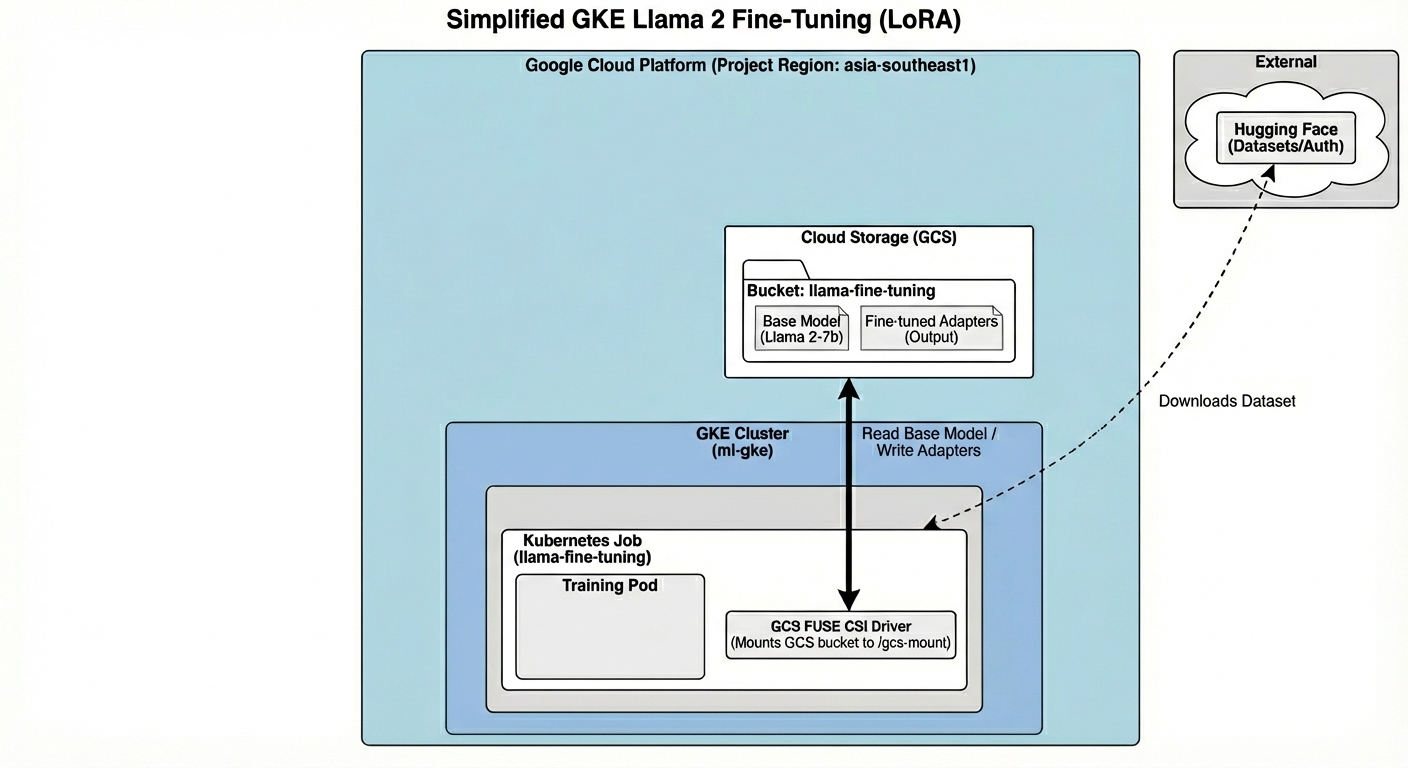
The architecture includes:
- GKE Cluster: Manages our compute resources
- GPU Node Pool: 1x L4 GPU (Spot) for training
- GCS Bucket: Stores models and datasets
- Workload Identity: Secure access between K8s and GCS
What you'll learn
- Provision and configure a GKE cluster with features optimized for ML workloads.
- Implement secure, keyless access from GKE to other Google Cloud services using Workload Identity.
- Build a containerized training pipeline using Docker.
- Fine-tune an open-source model efficiently using Parameter-Efficient Fine-Tuning (PEFT) with LoRA.
2. Project setup
Google Account
If you don't already have a personal Google Account, you must create a Google Account.
Use a personal account instead of a work or school account.
Sign-in to the Google Cloud Console
Sign-in to the Google Cloud Console using a personal Google account.
Create a project (optional)
If you do not have a current project you'd like to use for this lab, create a new project here.
3. Open Cloud Shell Editor
- Click this link to navigate directly to Cloud Shell Editor
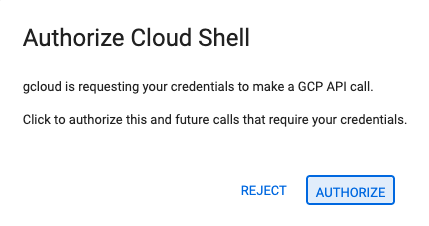
- If prompted to authorize at any point today, click Authorize to continue.
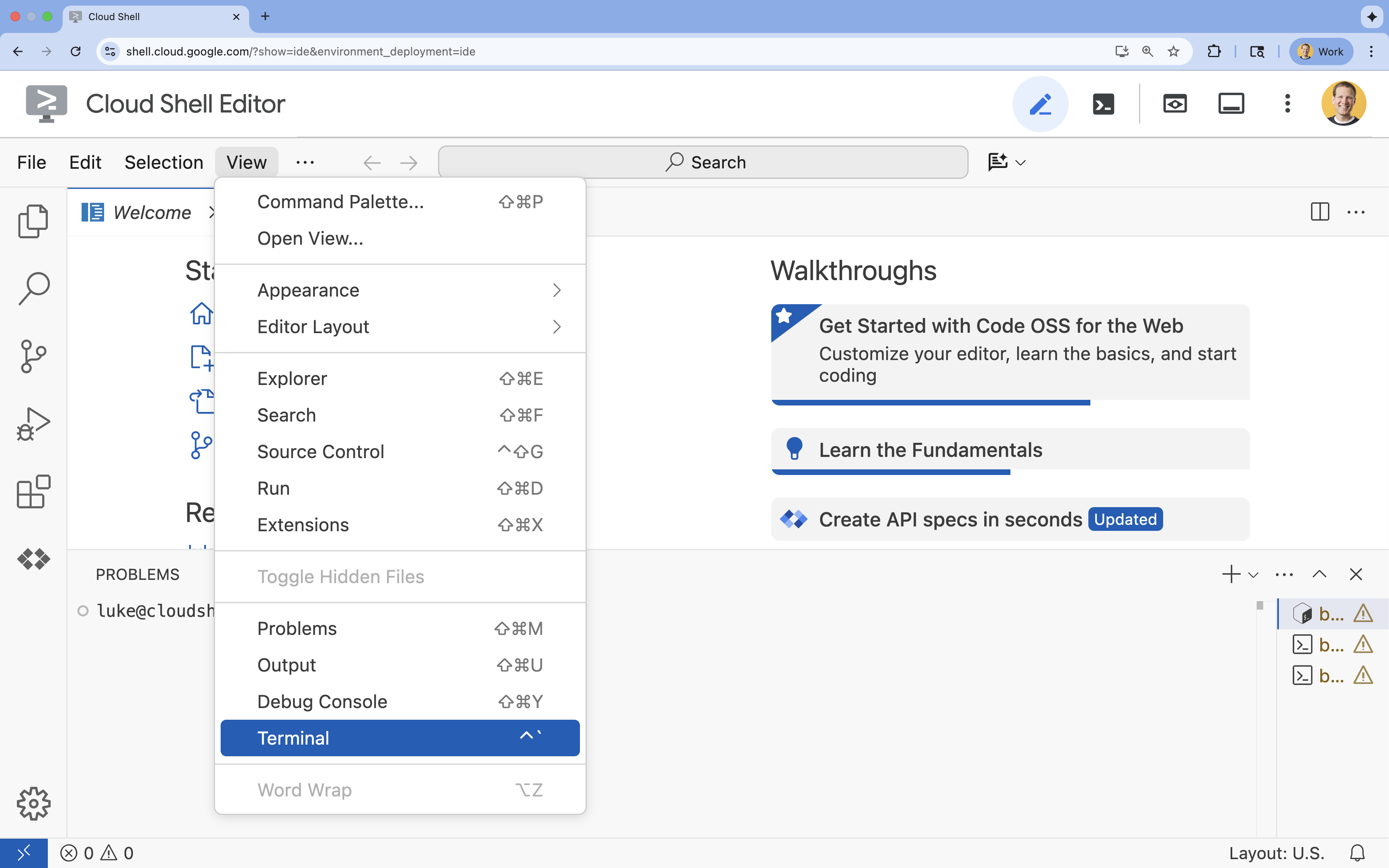
- If the terminal doesn't appear at the bottom of the screen, open it:
- Click View
- Click Terminal
- In the terminal, set your project with this command:
gcloud config set project [PROJECT_ID]- Example:
gcloud config set project lab-project-id-example - If you can't remember your project ID, you can list all your project IDs with:
gcloud projects list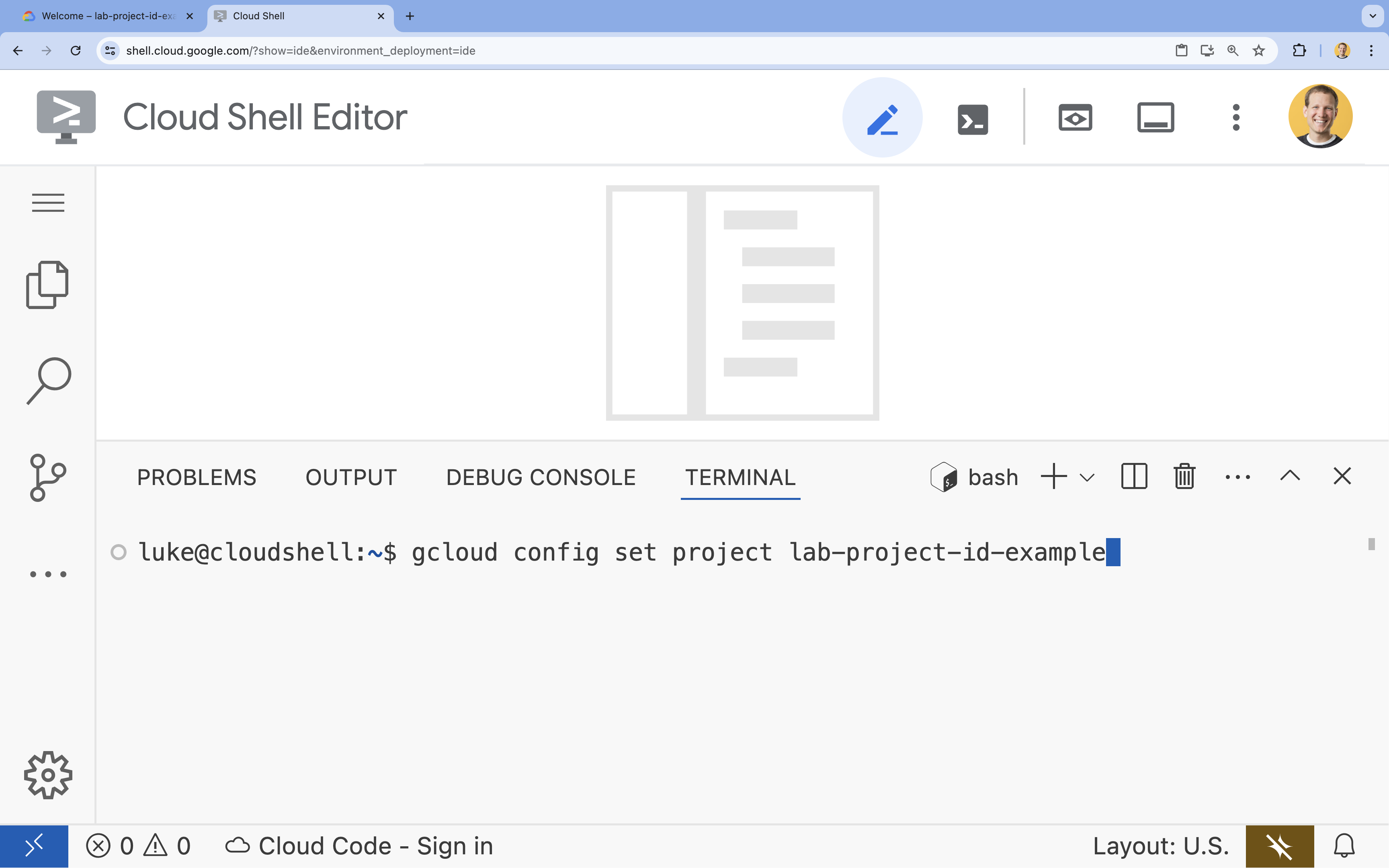
- Example:
- You should see this message:
Updated property [core/project].
4. Enable APIs
To use GKE and other services, you need to enable the necessary APIs in your Google Cloud project.
- In the terminal, enable the APIs:
gcloud services enable container.googleapis.com \
    artifactregistry.googleapis.com \
    cloudbuild.googleapis.com \
    iam.googleapis.com \
    compute.googleapis.com \
    iamcredentials.googleapis.com \
    storage.googleapis.com
Introducing the APIs
- Google Kubernetes Engine API (
container.googleapis.com) allows you to create and manage the GKE cluster that runs your application. - Artifact Registry API (
artifactregistry.googleapis.com) provides a secure, private repository to store your container images. - Cloud Build API (
cloudbuild.googleapis.com) is used by thegcloud builds submitcommand to build your container image in the cloud. - IAM API (
iam.googleapis.com) allows you to manage access control and identity for your Google Cloud resources. - Compute Engine API (
compute.googleapis.com) provides secure and customizable virtual machines that run on Google's infrastructure. - IAM Service Account Credentials API (
iamcredentials.googleapis.com) allows creating short-lived credentials for service accounts. - Cloud Storage API (
storage.googleapis.com) allows you to store and retrieve data in the cloud, used here for model and dataset storage.
5. Set up the project environment
Create a working directory
- In the terminal, create a directory for your project and navigate into it.
mkdir llama-finetuning
cd llama-finetuning
Set up environment variables
- In the terminal, create a file named
env.shto store your environment variables. This ensures you can easily reload them if your session disconnects.cat <<EOF > env.sh export PROJECT_ID=$(gcloud config get-value project) export CLUSTER_NAME="ml-gke" export GPU_NODE_POOL_NAME="gpu-pool" export MACHINE_TYPE="e2-standard-4" export GPU_MACHINE_TYPE="g2-standard-16" export GPU_TYPE="nvidia-l4" export GPU_COUNT=1 export REGION="asia-southeast1" export NODE_LOCATIONS="asia-southeast1-a,asia-southeast1-b" EOF - Source the file to load the variables into your current session:
source env.sh
6. Provision the GKE Cluster
- In the terminal, create the GKE cluster with a default node pool. This will take about 5 minutes.
gcloud container clusters create $CLUSTER_NAME \ --project=$PROJECT_ID \ --region=$REGION \ --release-channel=rapid \ --machine-type=$MACHINE_TYPE \ --workload-pool=${PROJECT_ID}.svc.id.goog \ --addons=GcsFuseCsiDriver,HttpLoadBalancing \ --enable-image-streaming \ --enable-ip-alias \ --num-nodes=1 \ --enable-autoscaling \ --min-nodes=1 \ --max-nodes=3 - Next, add a GPU node pool to the cluster. This node pool will be used for training the model.
gcloud container node-pools create $GPU_NODE_POOL_NAME \ --project=$PROJECT_ID \ --cluster=$CLUSTER_NAME \ --region=$REGION \ --machine-type=$GPU_MACHINE_TYPE \ --accelerator type=$GPU_TYPE,count=$GPU_COUNT,gpu-driver-version=latest \ --ephemeral-storage-local-ssd=count=1 \ --enable-autoscaling \ --enable-image-streaming \ --num-nodes=0 \ --min-nodes=0 \ --max-nodes=1 \ --location-policy=ANY \ --node-taints=nvidia.com/gpu=present:NoSchedule \ --node-locations=$NODE_LOCATIONS \ --spot - Finally, get the credentials for your new cluster and verify that you can connect to it.
gcloud container clusters get-credentials $CLUSTER_NAME --region=$REGION

kubectl get nodes
7. Configure Hugging Face access
With your infrastructure ready, you now need to provide your project with the necessary credentials to access your model and data. In this task, you will first get a Hugging Face token.
Get a Hugging Face Token
- If you don't have a Hugging Face account, navigate to huggingface.co/join in a new browser tab and complete the registration process.
- Once registered and logged-in, navigate to huggingface.co/meta-llama/Llama-2-7b-hf.
- Read the license terms and click the button to accept them.
- Navigate to your Hugging Face access tokens page at huggingface.co/settings/tokens.
- Click New token.
- For Role, select Read.
- For Name, enter a descriptive name (e.g., finetuning-lab).
- Click Create a token.
- Copy the generated token to your clipboard. You will need it in the next step.
Update Environment Variables
Now, let's add your Hugging Face token and a name for your GCS bucket to your env.sh file. Replace [your-hf-token] with the token you just copied.
- In the terminal, append the new variables to
env.shand reload them:cat <<EOF >> env.sh export HF_TOKEN="[your-hf-token]" export BUCKET_NAME="\${PROJECT_ID}-llama-fine-tuning" EOF source env.sh
8. Configure Workload Identity
Next, you will set up Workload Identity, which is the recommended way to allow applications running on GKE to access Google Cloud services without needing to manage static service account keys. You can learn more in the Workload Identity documentation.
- First, create a Google Service Account (GSA). In the terminal, run:
cat <<EOF >> env.sh export GSA_NAME="llama-fine-tuning" EOF source env.sh gcloud iam service-accounts create $GSA_NAME \ --display-name="Llama Fine-tuning Service Account" - Next, create the GCS bucket and grant the GSA permissions to access it:
gcloud storage buckets create gs://$BUCKET_NAME --project=$PROJECT_ID --location=$REGION gcloud storage buckets add-iam-policy-binding gs://$BUCKET_NAME \ --member=serviceAccount:${GSA_NAME}@${PROJECT_ID}.iam.gserviceaccount.com \ --role=roles/storage.admin - Now, create a Kubernetes Service Account (KSA):
cat <<EOF >> env.sh export KSA_NAME="llama-workload-sa" export NAMESPACE="ml-workloads" EOF source env.sh kubectl create namespace $NAMESPACE kubectl create serviceaccount $KSA_NAME --namespace $NAMESPACE - Finally, create the IAM policy binding between the GSA and KSA:
gcloud iam service-accounts add-iam-policy-binding ${GSA_NAME}@${PROJECT_ID}.iam.gserviceaccount.com \
    --role roles/iam.workloadIdentityUser \
    --member "serviceAccount:${PROJECT_ID}.svc.id.goog[${NAMESPACE}/${KSA_NAME}]"

kubectl annotate serviceaccount $KSA_NAME --namespace $NAMESPACE \
    iam.gke.io/gcp-service-account=${GSA_NAME}@${PROJECT_ID}.iam.gserviceaccount.com
9. Stage the base model
In production ML pipelines, large models like Llama 2 (~13 GB) are typically pre-staged in Cloud Storage rather than downloaded during training. This approach provides better reliability, faster access, and avoids network issues. Google Cloud provides pre-downloaded versions of popular models in public GCS buckets, which you will use for this lab.
- First, let's verify you can access the Google-provided Llama 2 model:
gcloud storage ls gs://vertex-model-garden-public-us-central1/llama2/llama2-7b-hf/ - Copy the Llama 2 model from this public bucket to your own project's bucket using the
gcloud storagecommand. This transfer uses Google's high-speed internal network and should only take a minute or two.gcloud storage cp -r gs://vertex-model-garden-public-us-central1/llama2/llama2-7b-hf \ gs://${BUCKET_NAME}/llama2-7b/ - Verify the model files were copied correctly by listing the contents of your bucket.
gcloud storage ls --recursive --long gs://${BUCKET_NAME}/llama2-7b/llama2-7b-hf/
10. Prepare the training code
Now you will build the containerized application that fine-tunes the model. This task uses LoRA (Low-Rank Adaptation), a parameter-efficient fine-tuning (PEFT) technique that dramatically reduces memory requirements by only training small "adapter" layers instead of the entire model.
Now, create the Python scripts for the training pipeline.
- In the terminal, run the following command to open the
train.pyfile:cloudshell edit train.py - Paste the following code into the
train.pyfile:
#!/usr/bin/env python3
"""Fine-tune Llama 2 with LoRA on American Stories dataset """

import os
import torch
import logging

from pathlib import Path
from datasets import load_dataset, concatenate_datasets
from transformers import (
    AutoTokenizer,
    AutoModelForCausalLM,
    Trainer,
    TrainingArguments,
    DataCollatorForLanguageModeling
)
from peft import get_peft_model, LoraConfig

os.environ["TOKENIZERS_PARALLELISM"] = "false"
os.environ["NCCL_DEBUG"] = "INFO"

logging.basicConfig(level=logging.INFO, format='%(asctime)s - %(levelname)s - %(message)s')
logger = logging.getLogger(__name__)

class SimpleTextDataset(torch.utils.data.Dataset):
    def __init__(self, input_ids, attention_mask):
        self.input_ids = input_ids
        self.attention_mask = attention_mask

    def __len__(self):
        return len(self.input_ids)

    def __getitem__(self, idx):
        return {
            'input_ids': self.input_ids[idx],
            'attention_mask': self.attention_mask[idx],
            'labels': self.input_ids[idx].clone()
        }

def get_lora_config():
    config = {
       "r": 16,
       "lora_alpha": 32,
       "target_modules": [
          "q_proj", "k_proj", "v_proj", "o_proj",
          "gate_proj", "up_proj", "down_proj"
       ],
       "lora_dropout": 0.05,
       "task_type": "CAUSAL_LM",
    }
    return LoraConfig(**config)

def load_model_and_tokenizer(model_path):
    logger.info("Loading tokenizer...")
    tokenizer = AutoTokenizer.from_pretrained(model_path)

    if tokenizer.pad_token is None:
        tokenizer.pad_token = tokenizer.eos_token
    tokenizer.padding_side = "left"

    logger.info("Loading model...")

    model = AutoModelForCausalLM.from_pretrained(
        model_path,
        torch_dtype=torch.float16,
        device_map="auto",
        trust_remote_code=True,
        use_cache=False
    )

    return model, tokenizer

def prepare_dataset(tokenizer, max_length=512):
    logger.info("Loading American Stories dataset...")
     We recommend using o
    dataset = load_dataset(
        "dell-research-harvard/AmericanStories",
        "subset_years",
        year_list=["1809", "1810", "1811", "1812", "1813", "1814", "1815"],
        trust_remote_code=True
    )

    all_articles = []
    for year_data in dataset.values():
        all_articles.extend(year_data["article"])

    logger.info(f"Total articles collected: {len(all_articles)}")

    batch_size = 1000
    all_input_ids = []
    all_attention_masks = []

    for i in range(0, len(all_articles), batch_size):
        batch_articles = all_articles[i:i+batch_size]
        logger.info(f"Processing batch {i//batch_size + 1}/{(len(all_articles) + batch_size - 1)//batch_size}")

        encodings = tokenizer(
            batch_articles,
            padding="max_length",
            truncation=True,
            max_length=max_length,
            return_tensors="pt"
        )

        all_input_ids.append(encodings['input_ids'])
        all_attention_masks.append(encodings['attention_mask'])

    # Concatenate all batches
    input_ids = torch.cat(all_input_ids, dim=0)
    attention_mask = torch.cat(all_attention_masks, dim=0)

    logger.info(f"Total tokenized examples: {len(input_ids)}")

    # Create simple dataset
    dataset = SimpleTextDataset(input_ids, attention_mask)

    return dataset

def train_model(model, tokenizer, train_dataset, output_dir):
    logger.info(f"Train dataset size: {len(train_dataset)}")

    n_gpus = torch.cuda.device_count()
    logger.info(f"Available GPUs: {n_gpus}")

    # For multi-GPU, we can increase batch size
    per_device_batch_size = 2 if n_gpus > 1 else 1
    gradient_accumulation_steps = 2 if n_gpus > 1 else 4

    # Training for 250 steps
    max_steps = 250

    training_args = TrainingArguments(
        output_dir=output_dir,
        max_steps=max_steps,
        per_device_train_batch_size=per_device_batch_size,
        gradient_accumulation_steps=gradient_accumulation_steps,
        learning_rate=2e-4,
        warmup_steps=20,
        fp16=True,
        gradient_checkpointing=True,
        logging_steps=10,
        evaluation_strategy="no",
        save_strategy="no",
        optim="adamw_torch",
        ddp_find_unused_parameters=False,
        dataloader_num_workers=0,
        remove_unused_columns=False,
        report_to=[],
        disable_tqdm=False,
        logging_first_step=True,
    )

    # Create trainer
    trainer = Trainer(
        model=model,
        args=training_args,
        train_dataset=train_dataset,
        tokenizer=tokenizer,
        data_collator=DataCollatorForLanguageModeling(
            tokenizer=tokenizer,
            mlm=False,
            pad_to_multiple_of=8
        )
    )

    # Train
    logger.info(f"Starting training on {n_gpus} GPU(s)...")
    logger.info(f"Training for {max_steps} steps - approximately {(max_steps * 2.5 / 60):.1f} minutes")

    try:
        trainer.train()
        logger.info("Training completed successfully!")
    except Exception as e:
        logger.error(f"Training error: {e}")
        logger.info("Attempting to save model despite error...")

    logger.info("Saving model...")
    try:
        trainer.save_model(output_dir)
        tokenizer.save_pretrained(output_dir)
        logger.info(f"Model saved successfully to {output_dir}!")

        if not output_dir.startswith("/gcs-mount"):
            logger.info("Copying artifacts to GCS bucket...")
            gcs_target = "/gcs-mount/llama2-7b-american-stories"
            os.makedirs(gcs_target, exist_ok=True)
            return_code = os.system(f"cp -r {output_dir}/* {gcs_target}/")
            if return_code != 0:
                raise RuntimeError(f"Failed to copy model to GCS: cp command returned {return_code}")
            logger.info(f"Copied to {gcs_target}")

    except Exception as e:
        logger.error(f"Error saving model or copying to GCS: {e}")
        raise

def run_inference(model, tokenizer):
    logger.info("Running inference test...")

    prompt = "The year was 1812, and the"

    inputs = tokenizer(prompt, return_tensors="pt").to(model.device)

    model.eval()

    with torch.no_grad():
        outputs = model.generate(
            **inputs,
            max_new_tokens=50,
            do_sample=True,
            temperature=0.7,
            pad_token_id=tokenizer.pad_token_id
        )

    generated_text = tokenizer.decode(outputs[0], skip_special_tokens=True)
    logger.info("-" * 50)
    logger.info(f"Input Prompt: {prompt}")
    logger.info(f"Generated Text: {generated_text}")
    logger.info("-" * 50)

def main():
    if torch.cuda.is_available():
        for i in range(torch.cuda.device_count()):
            logger.info(f"GPU {i}: {torch.cuda.get_device_name(i)}")

    model_path = os.getenv('MODEL_PATH', '/gcs-mount/llama2-7b/llama2-7b-hf')
    output_path = os.getenv('OUTPUT_PATH', '/gcs-mount/llama2-7b-american-stories')

    # Load model and tokenizer
    model, tokenizer = load_model_and_tokenizer(model_path)
    model.enable_input_require_grads()

    # Apply LoRA
    logger.info("Applying LoRA configuration...")
    lora_config = get_lora_config()
    model = get_peft_model(model, lora_config)
    model.train()

    # Prepare dataset
    train_dataset = prepare_dataset(tokenizer)

    # Train
    train_model(model, tokenizer, train_dataset, output_path)

    # Run Inference
    run_inference(model, tokenizer)

    logger.info("Training and inference complete!")

if __name__ == "__main__":
    main()
11. Understand the training code
The train.py script orchestrates the fine-tuning process. Let's break down its key components.
Configuration
The script uses LoraConfig to define the Low-Rank Adaptation settings. LoRA significantly reduces the number of trainable parameters, allowing you to fine-tune large models on smaller GPUs.
def get_lora_config():
    config = {
       "r": 16,
       "lora_alpha": 32,
       "target_modules": ["q_proj", "k_proj", "v_proj", "o_proj", ...],
       "lora_dropout": 0.05,
       "task_type": "CAUSAL_LM",
    }
    return LoraConfig(**config)
Prepare Dataset
The prepare_dataset function loads the "American Stories" dataset and processes it into tokenized chunks. It uses a custom SimpleTextDataset to handle the input tensors efficiently.
def prepare_dataset(tokenizer, max_length=512):
    dataset = load_dataset("dell-research-harvard/AmericanStories", ...)
    # ... tokenization logic ...
    return SimpleTextDataset(input_ids, attention_mask)
Train
The train_model function sets up the Trainer with specific arguments optimized for this workload. Key parameters include:
gradient_accumulation_steps: Helps simulate a larger batch size without increasing memory usage.fp16=True: Uses mixed precision training to reduce memory and increase speed.gradient_checkpointing=True: Saves memory by recomputing activations during the backward pass instead of storing them.optim="adamw_torch": Uses the standard AdamW optimizer implementation from PyTorch.
training_args = TrainingArguments(
    per_device_train_batch_size=per_device_batch_size,
    gradient_accumulation_steps=gradient_accumulation_steps,
    fp16=True,
    gradient_checkpointing=True,
    optim="adamw_torch",
)
Inference
The run_inference function performs a quick test of the fine-tuned model using a sample prompt. It ensures the model is in evaluation mode and generates text to verify that the adapters are working correctly.
def run_inference(model, tokenizer):
    prompt = "The year was 1812, and the"
    # ... generation logic ...
    logger.info(f"Generated Text: {generated_text}")
12. Containerize the application
Now, build the training container image using Docker and push it to Google Artifact Registry.
- In the terminal, run the following command to open the
Dockerfilefile:cloudshell edit Dockerfile - Paste the following code into the
Dockerfilefile:
FROM pytorch/pytorch:2.5.1-cuda12.4-cudnn9-runtime

WORKDIR /app

# Install required packages
RUN pip install --no-cache-dir \
    transformers==4.46.0 \
    datasets==3.1.0 \
    pyarrow==15.0.0 \
    peft==0.13.2 \
    accelerate==1.1.0 \
    tensorboard==2.18.0 \
    nvidia-ml-py==12.535.161 \
    scipy==1.13.1

# Copy training scripts
COPY train.py /app/

# Run training
CMD ["python", "train.py"]
Build and push the container
- Create the Artifact Registry repository:
gcloud artifacts repositories create gke-finetune \ --repository-format=docker \ --location=$REGION \ --description="Docker repository for Llama fine-tuning" - Build and push the image using Cloud Build:
gcloud builds submit --tag ${REGION}-docker.pkg.dev/${PROJECT_ID}/gke-finetune/llama-trainer:latest .
13. Deploy the fine-tuning job
- Create the Kubernetes job manifest to start the fine-tuning job. In the terminal, run:
cloudshell edit training_job.yaml - Paste the following code into the
training_job.yamlfile:
apiVersion: batch/v1
kind: Job
metadata:
  name: llama-fine-tuning
  namespace: ml-workloads
spec:
  template:
    metadata:
      annotations:
        gke-gcsfuse/volumes: "true"
        gke-gcsfuse/memory-limit: "4Gi"
    spec:
      serviceAccountName: llama-workload-sa
      restartPolicy: OnFailure
      tolerations:
        - key: nvidia.com/gpu
          operator: Exists
          effect: NoSchedule
        - key: cloud.google.com/gke-spot
          operator: Exists
          effect: NoSchedule
      nodeSelector:
        cloud.google.com/gke-accelerator: nvidia-l4

      containers:
        - name: training
          image: ${REGION}-docker.pkg.dev/${PROJECT_ID}/gke-finetune/llama-trainer:latest
          env:
            - name: MODEL_PATH
              value: "/gcs-mount/llama2-7b/llama2-7b-hf"
            - name: OUTPUT_PATH
              value: "/tmp/llama2-7b-american-stories"
            - name: NCCL_DEBUG
              value: "INFO"
          resources:
            requests:
              nvidia.com/gpu: 1
              cpu: "8"
              memory: "32Gi"
            limits:
              nvidia.com/gpu: 1

          volumeMounts:
            - name: gcs-fuse
              mountPath: /gcs-mount
            - name: shm
              mountPath: /dev/shm
      volumes:
        - name: gcs-fuse
          csi:
            driver: gcsfuse.csi.storage.gke.io
            volumeAttributes:
              bucketName: ${BUCKET_NAME}
              mountOptions: "implicit-dirs"
        - name: shm
          emptyDir:
            medium: Memory
            sizeLimit: 32Gi
- Finally, apply the Kubernetes job manifest to start the fine-tuning job on your GKE cluster.
envsubst < training_job.yaml | kubectl apply -f -
14. Monitor the training job
You can monitor the progress of your training job in the Google Cloud Console.
- Go to the Kubernetes Engine > Workloads page.
View GKE Workloads - Click on the
llama-fine-tuningjob to view its details. - The Details tab is displayed by default. You can see the GPU utilization metrics in the Resources section.
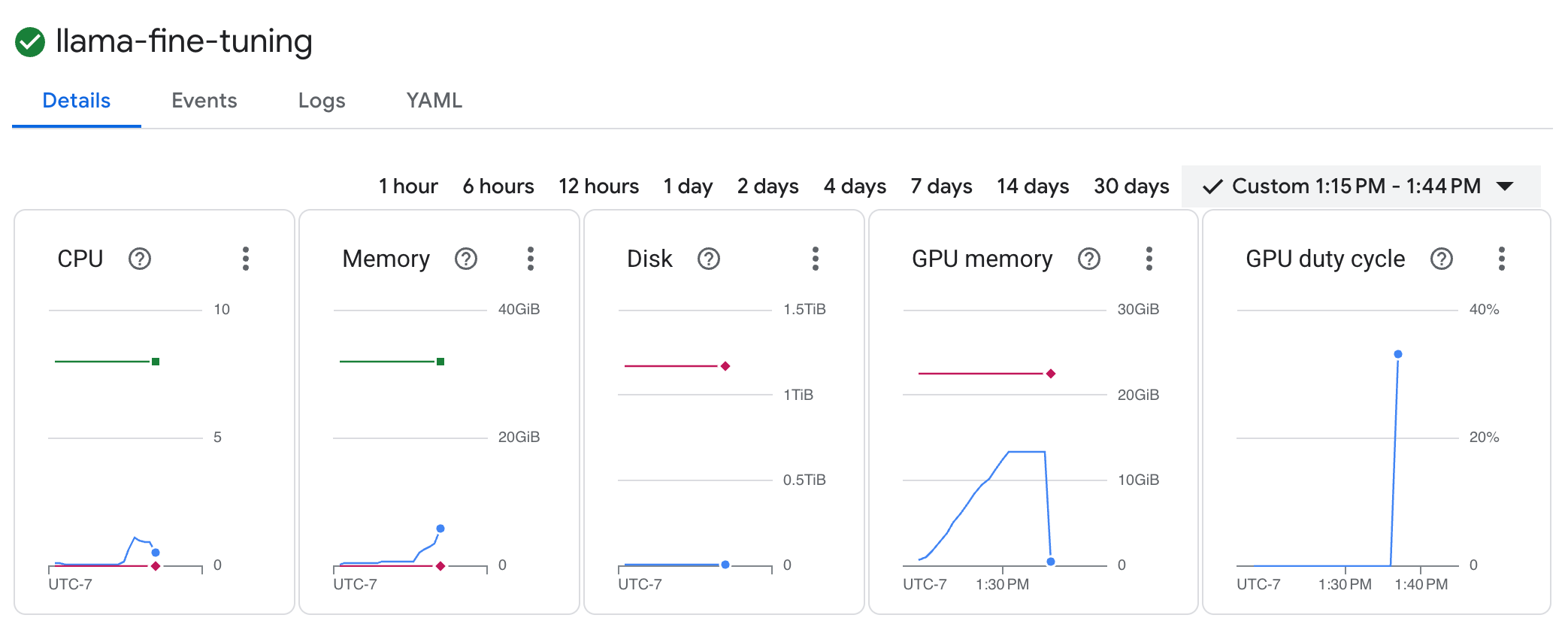
- Click on the Logs tab to view the training logs. You should see the training progress, including the loss and learning rate.
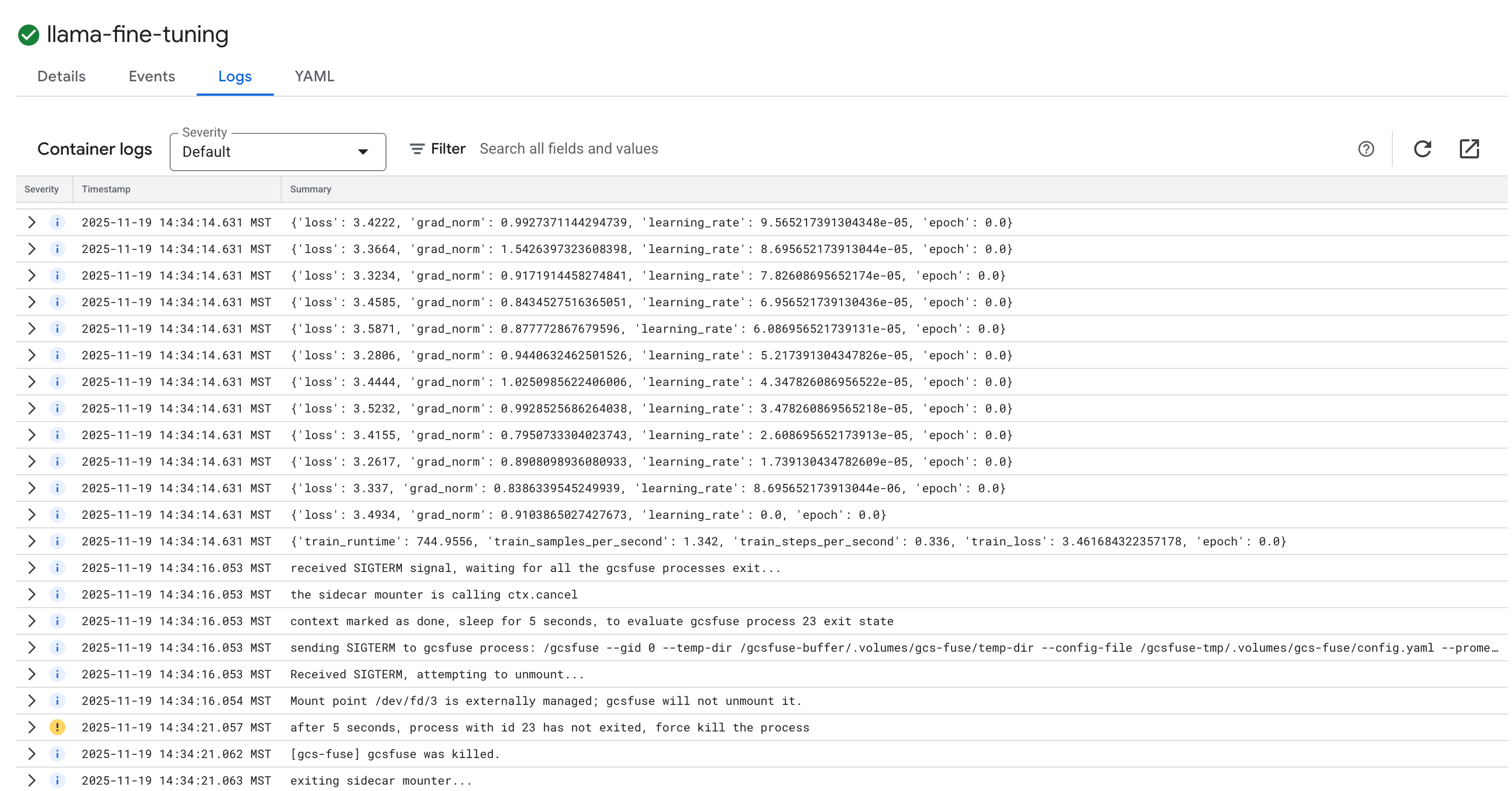
15. Clean up
To avoid incurring charges to your Google Cloud account for the resources used in this tutorial, either delete the project that contains the resources, or keep the project and delete the individual resources.
Delete the GKE cluster
gcloud container clusters delete $CLUSTER_NAME --region $REGION --quiet
Delete the Artifact Registry repository
gcloud artifacts repositories delete gke-finetune --location $REGION --quiet
Delete the GCS bucket
gcloud storage rm -r gs://${BUCKET_NAME}
16. Congratulations!
You have successfully fine-tuned an open-source LLM on GKE!
Recap
In this lab, you:
- Provisioned a GKE cluster with GPU acceleration.
- Configured Workload Identity for secure access to Google Cloud services.
- Containerized a PyTorch training job using Docker and Artifact Registry.
- Deployed a fine-tuning job using LoRA to adapt Llama 2 to a new dataset.
What's next
- Learn more about AI on GKE.
- Explore Gemini Enterprise Agent Platform Model Garden.
- Join the Google Cloud Community to connect with other developers.
Google Cloud Learning Path
This lab is part of the Production-Ready AI with Google Cloud Learning Path. Explore the full curriculum to bridge the gap from prototype to production.
Share your progress with the hashtag #ProductionReadyAI.